


















































Save up to 73% on plans

AI Landscape Design From Your Yard Photo
Sign In

AI Landscape Design From Your Yard Photo

Upload a real outdoor photo, choose a landscape direction, and edit the prompt before creating a concept that keeps the site and camera as visual anchors.

Start with a visual direction, then edit the brief for your real outdoor space.

Upload an Authorized Yard or Garden Photo*
Try a Fictional Backyard Sample

0 / 800

Public VisibilityAllow this result to appear in public inspiration surfaces.

Your Landscape Concept

Image

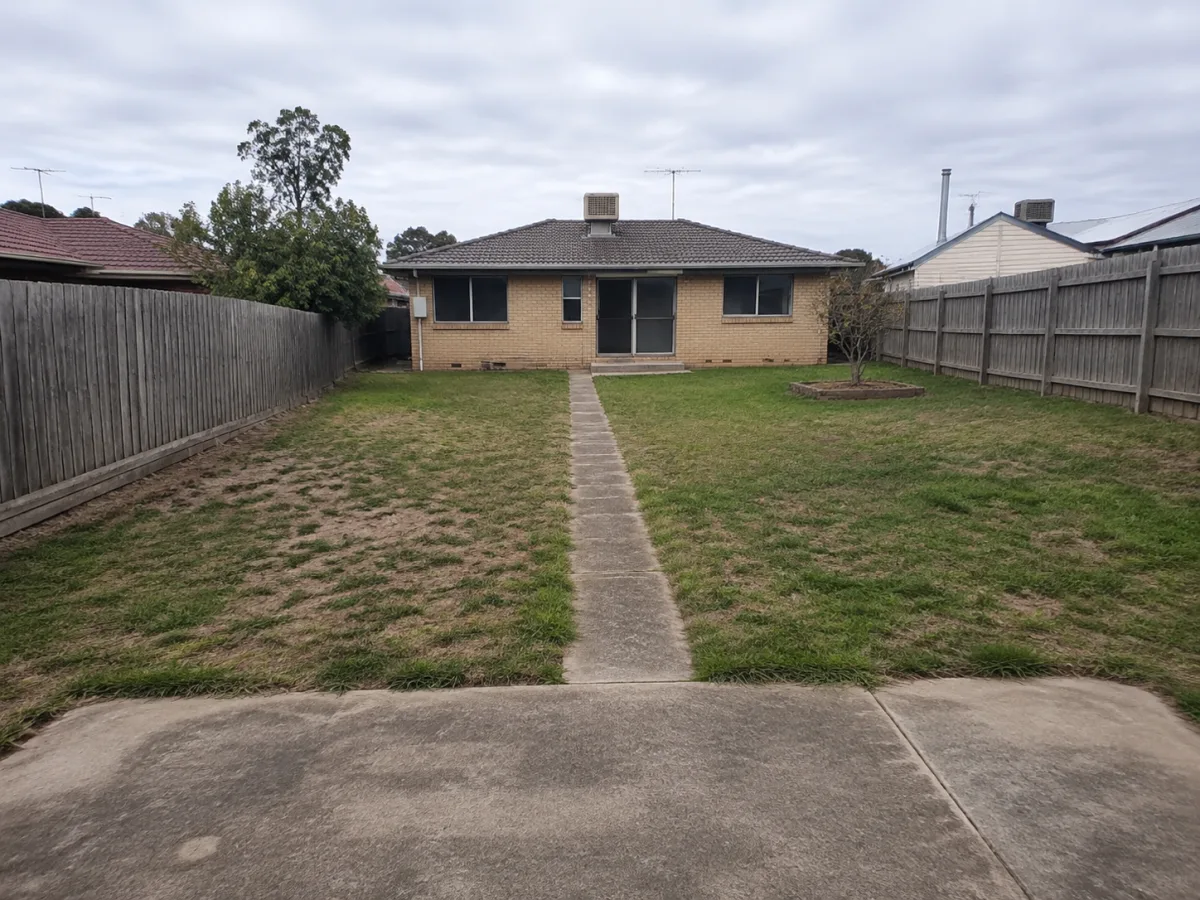
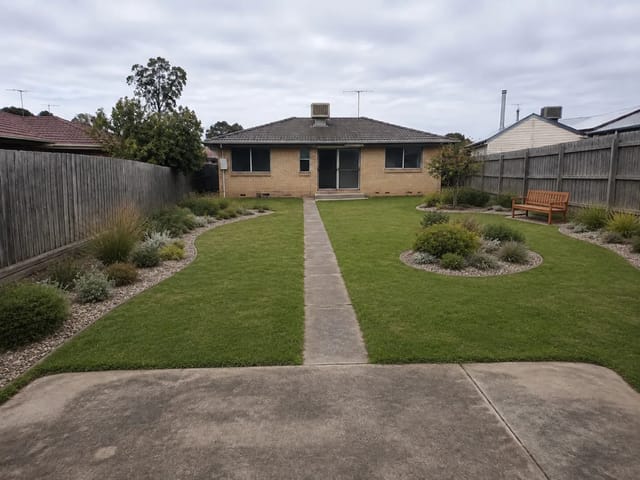
Unlandscaped fictional suburban backyard before AI landscape design
Original Yard
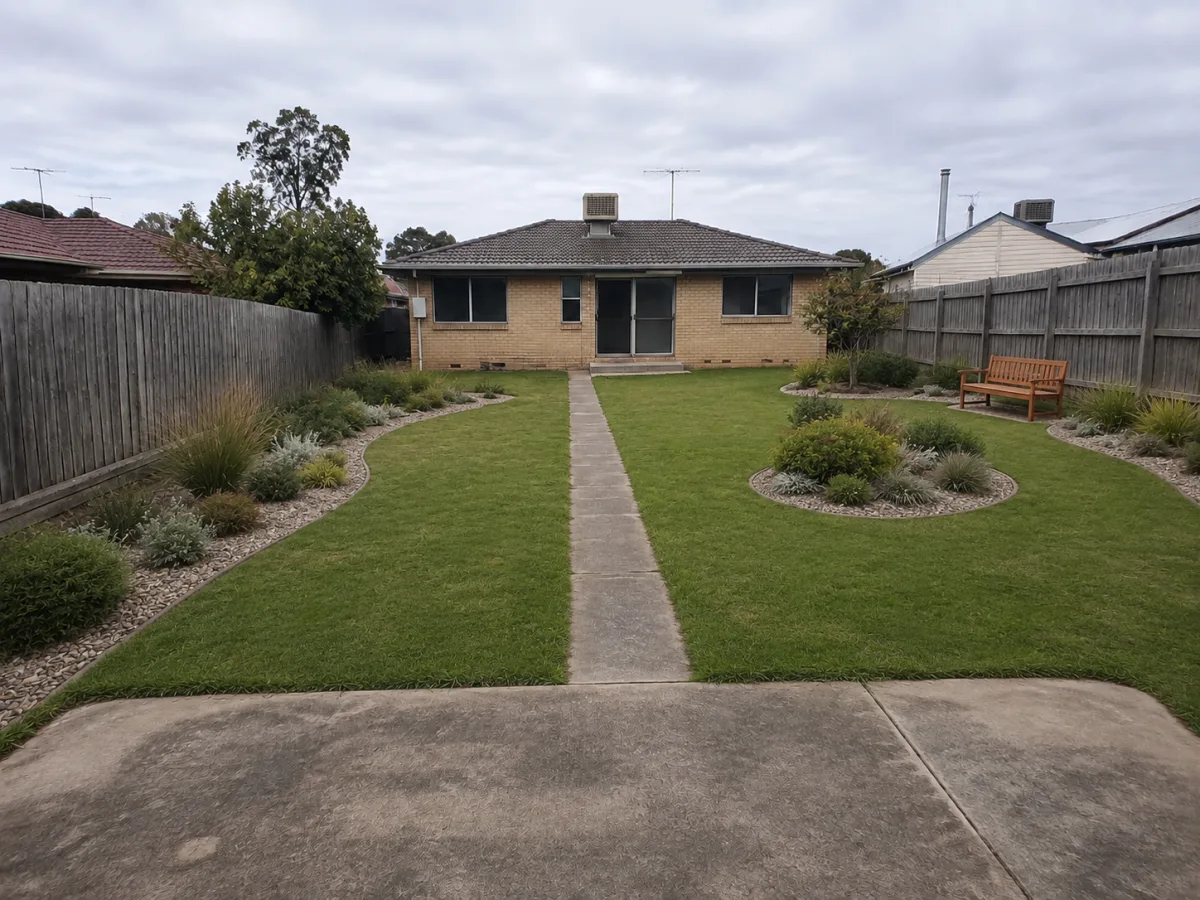
Modern low-maintenance landscape concept preserving the original house, fences, path, and camera
Modern Concept

More AI Image Models & Effects

Visualize a Garden Direction on the Outdoor Space You Already Have

A useful AI landscape design starts with the real yard rather than an imaginary plan. NanoPic uses your uploaded photo as the visual reference and asks the model to hold the visible house, boundary fences, gates, existing paths, grade, mature trees, neighboring context, camera position, and lens perspective steady. The selected style and your editable notes then guide changes to lawn, planting beds, groundcover, edging, gravel, movable seating, and other concept-level landscape elements. This creates an image for comparing atmosphere, composition, and priorities before anyone measures the site. It is not a survey, planting specification, drainage analysis, cost estimate, construction drawing, or contractor-ready plan. Generative models can still shift geometry, misread scale, or invent details, so every output should be checked against the original photo and verified by qualified local professionals before a real project begins.

Three Landscape Directions, One Unchanged Yard View

Each example begins with the same fictional backyard. The house, fence lines, straight central path, terrain, trees, and eye-level camera remain the comparison anchors, while the planting language changes. These are original NanoPic demonstration assets, not copied competitor images and not evidence of a completed installation.

AI Landscape Design From Your Yard Photo

Modern Low-Maintenance Yard

Layered grasses, restrained shrubs, repaired lawn, gravel mulch, and a modest seating area create a calmer contemporary direction. The concept intentionally avoids moving the path, changing the house, or adding a large permanent amenity. Use this kind of preview to decide whether you prefer stronger bed structure, more open lawn, or a quieter material palette—not to infer exact bed depths, quantities, drainage, or installation cost.

Use This Look
AI Landscape Design From Your Yard Photo

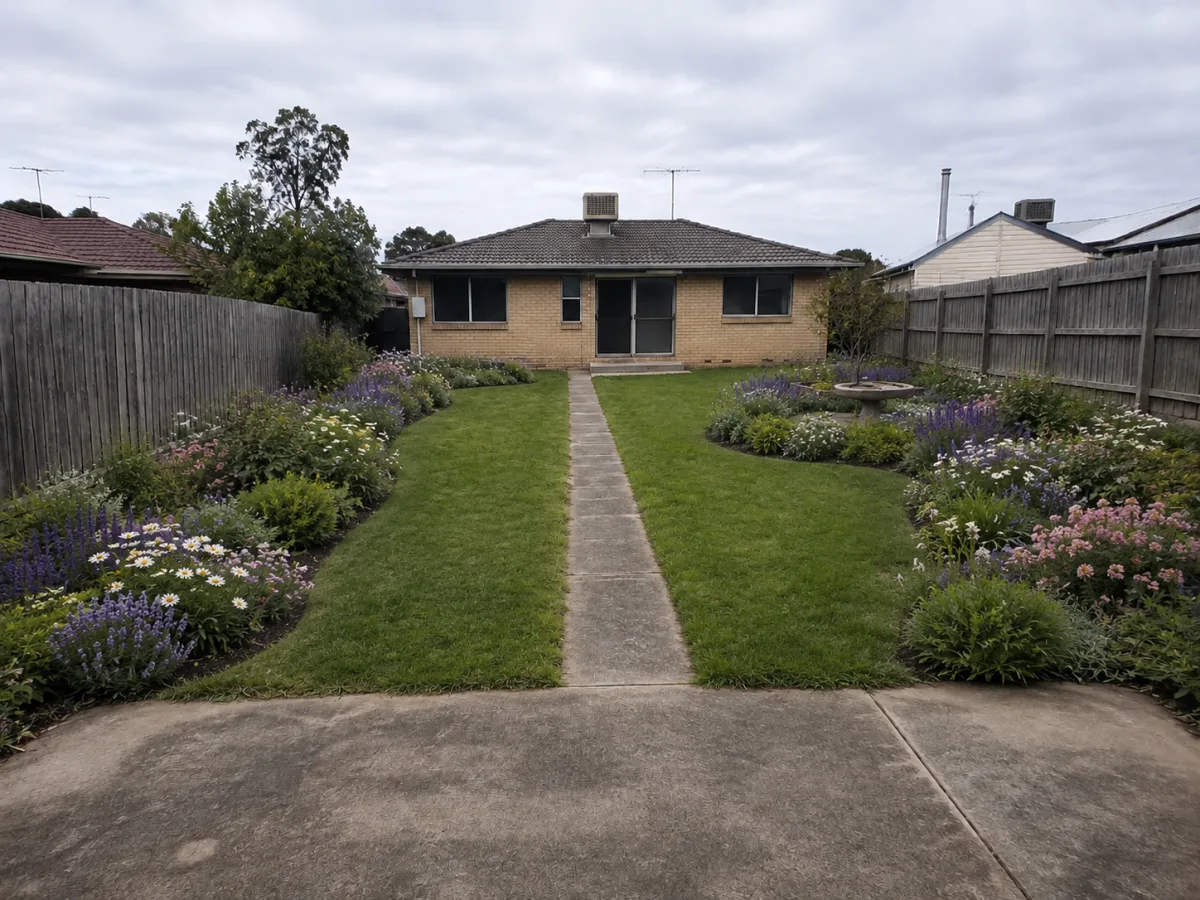
Cottage Pollinator Garden

Soft perennial borders and seasonal color make the same space feel more informal and planted. The visual keeps flower height below the house windows and leaves the central path open, but it does not know which species suit a particular climate, soil, sun exposure, pet, allergy concern, or maintenance routine. Treat the image as a conversation starter, then replace generic visual planting with locally appropriate choices.

Use This Look
AI Landscape Design From Your Yard Photo

Japanese-Inspired Restraint

Simple groundcover, clipped shrubs, narrow gravel areas, and a few natural stones demonstrate a quieter composition without themed architecture or oversized ornaments. The output protects the existing route through the yard and reads the current trees as focal points. It is a visual direction only: stone sizes, foundations, accessibility, drainage, and plant selection still require measured site information and professional judgment.

Use This Look

How to Use AI Landscape Design Without Losing the Real Site

The quality of the reference photo and the restraint of the brief matter more than decorative adjectives. Work in three reviewable steps and keep the source visible beside every result.

1. Photograph the Whole Decision Area

Use a clear, level photo taken from the viewpoint you expect to discuss later. Include the house edge or another fixed reference, complete fence or wall lines, gates, existing paths, changes in grade, important trees, and enough foreground to understand access. Avoid extreme wide-angle lenses, screenshots, heavy filters, night images, and photos where vehicles or foliage hide most boundaries. Upload only an image you own or are authorized to edit. The source photo is not a measured base plan, but visible anchors make structural drift easier to spot.

Clear fictional backyard source photo with visible house, fences, path, terrain, and camera perspective

2. Choose a Direction, Then Edit the Notes

Select Modern Low-Maintenance, Cottage Pollinator, or Japanese-Inspired as a starting vocabulary. The prompt remains editable so you can name the zone, the feeling, and a few priorities: keep open lawn, soften one fence, add a compact seating area, preserve a tree, or reduce visual clutter. State what must remain unchanged before listing additions. A focused brief gives the model fewer reasons to invent architecture, move boundaries, or fill every empty area with oversized planting.

Landscape style direction applied to the same fictional backyard while preserving fixed site features

3. Compare the Output With the Original

Check the house footprint, openings, fence posts, gate locations, path width and alignment, visible slope, tree positions, camera horizon, and neighboring context before judging the style. Then examine plant scale, sight lines, walking clearance, door access, and whether new features appear to float or block drainage routes. Save promising concepts as visual references, not specifications. A landscaper, landscape architect, horticulturist, engineer, utility locator, or local authority may need to confirm conditions the photo cannot reveal.

Cottage garden result ready for visual comparison against the unchanged original yard photo

What This Landscape Visualizer Is Designed to Preserve and Change

The generator separates fixed visual anchors from editable concept layers. That distinction helps keep the result relevant to the photographed property while remaining honest about image-generation limits.

House and Boundary Anchors

The prompt protects the visible house, roofline, windows, doors, decks, fixed walls, fences, gates, and property boundaries. This makes the output easier to compare with the source. It does not prove legal boundaries, setbacks, easements, ownership, structural condition, or permit compliance, and the model may still introduce drift that you must reject.

Path, Grade, and Camera Continuity

Existing path alignment, terrain, grading cues, camera position, lens perspective, framing, and daylight direction are written into every request. Keeping these visual constants supports before-and-after review. A single photo cannot reveal level measurements, subsurface conditions, drainage performance, accessibility slopes, or utilities, so never treat apparent geometry as measured fact.

Editable Planting Character

Change bed rhythm, perceived density, color balance, groundcover, lawn condition, shrub massing, and broad planting character. The model creates plausible-looking vegetation, but it does not reliably identify exact species or confirm hardiness, invasiveness, mature size, toxicity, water demand, shade tolerance, allergy risk, wildlife value, or local availability.

Concept-Level Outdoor Elements

Prompts may explore small seating zones, movable furniture, restrained gravel, edging, mulch, stepping accents, or other light landscape elements. Any real patio, retaining structure, pool, fire feature, electrical work, irrigation, lighting, or excavation requires measurements, engineering where applicable, product specifications, code review, and safe utility checks.

Multiple Visual Directions

Run separate styles on the same source so the decision remains about design direction rather than a different property. Comparing three restrained concepts often reveals whether you value openness, seasonal color, visual order, privacy, or lower perceived maintenance. Model variation means results will not be deterministic, even when you reuse the same photo and notes.

Original-and-Concept Comparison

The preview keeps the uploaded photo beside the generated concept so you can compare boundaries, access, terrain, building geometry, camera position, and landscape scale. Use the pair to reject drift before discussing the visual direction with anyone else; a polished result should never replace the untouched source image.

Review the AI Landscape Concept Before You Share It

A photorealistic result can feel authoritative even when it is wrong. Use a disciplined visual check and keep the limitations attached to the image.

Perspective and Building Check

Place source and output side by side. Compare roof edges, doors, windows, wall lengths, fence convergence, horizon, and camera height. Reject results that enlarge the yard, move the house, invent openings, straighten a real slope, or subtly shift the viewpoint. A more attractive composition is not useful if it represents a different property.

Boundary and Route Check

Trace every fence line, gate, path, step, driveway edge, and visible grade break. Confirm that walking routes and access points remain open. The model does not know the legal boundary, easement, emergency route, utility corridor, or maintenance access, so even a visually preserved line needs real-world verification.

Plant Scale Check

Compare proposed planting with windows, fence panels, doors, and people-free architectural references in the scene. Look for shrubs that would outgrow openings, implausible bloom density, repeated plant textures, floating trunks, or vegetation that hides hazards. Do not infer exact mature size or suitability from a generated appearance.

Materials and Drainage Check

Inspect gravel, edging, paving, soil, steps, and seating contact shadows. Watch for surfaces that appear to cover drains, air vents, thresholds, roots, or grade transitions. The generator cannot see underground utilities, foundation drainage, runoff patterns, soil structure, or waterproofing, so material placement remains illustrative.

Label and Source Check

Keep the original photo with the generated concept and label the output clearly as AI-generated visualization. Do not present it as completed work, an approved design, a landscape architect's drawing, a nursery recommendation, or a contractor commitment. If the property is not yours, confirm authorization before uploading or sharing a modified view.

Professional Handoff Check

When a direction survives visual review, document what you actually like: open lawn, layered edge planting, a quiet gravel palette, more seasonal color, or a compact social zone. Give that preference—not invented measurements—to the professional who will assess dimensions, climate, soil, sun, water, drainage, safety, codes, budget, and construction.

AI Landscape Design FAQ

Answers about real-yard photos, preservation, styles, plants, dimensions, cost, professional use, and the difference from exterior design.

What kind of photo works best for AI landscape design?

Use a clear, level image with the whole decision area visible. Include fixed references such as the house edge, fences, gates, paths, steps, mature trees, and visible changes in grade. Soft daylight and a normal phone lens are easier to interpret than night scenes, panoramas, extreme wide-angle views, screenshots, or heavily filtered photos. Upload only a photo you own or are authorized to edit.

Will NanoPic keep my house, fence, path, and camera exactly the same?

The template strongly instructs the model to preserve those visible anchors, and the example review is built around them. Generative AI can still move an opening, bend a fence, widen a path, flatten terrain, or shift perspective. Always compare the output with the original and reject drift. “Preserve” is a prompt constraint, not a survey-grade guarantee.

Can this AI garden design choose plants that will thrive where I live?

No reliable suitability claim is made. The output can communicate visual roles such as low flowering edge, medium evergreen mass, airy ornamental texture, or seasonal color. It does not assess hardiness zone, local climate, soil, drainage, sun hours, water restrictions, invasiveness, toxicity, allergies, mature size, wildlife value, or nursery supply. Ask a qualified local plant professional to translate the visual direction into species.

Does the result include accurate measurements or a scaled landscape plan?

No. A single perspective photo is not a measured survey, and this generator does not return dimensions, scale bars, CAD, planting plans, grading plans, irrigation drawings, lighting plans, details, or quantities. Apparent spacing can be visually persuasive while physically wrong. Measure the site separately and use appropriate design documentation before purchasing or construction.

Can AI Landscape Design estimate the cost of the yard shown?

No. The page does not calculate labor, demolition, access, excavation, drainage, soil preparation, irrigation, plants, materials, equipment, waste, permits, taxes, regional pricing, maintenance, or contingency. Use the concept to describe a preferred direction, then request site-specific scope and pricing from qualified providers. Do not treat visible materials or plant counts as a bill of quantities.

Is this a contractor-ready landscape design?

No. It is concept visualization only. It cannot verify boundaries, utilities, structure, drainage, accessibility, fire safety, local codes, permits, product installation, plant suitability, or construction feasibility. A professional may use a labeled AI image to understand your taste, but the image must not be presented as a construction plan, approved drawing, specification, or commitment from a contractor.

Which landscape styles can I try?

The page starts with Modern Low-Maintenance, Cottage Pollinator, and Japanese-Inspired directions. Each is a broad visual vocabulary rather than a fixed catalog design. You can edit the notes to keep lawn, protect a tree, soften one boundary, reduce planting density, change color emphasis, or define a small seating zone while retaining the source photo's fixed anchors.

How is AI Landscape Design different from AI Exterior Design?

AI Landscape Design is site-facing: planting, lawn, groundcover, bed rhythm, restrained hardscape, and removable outdoor elements around an existing property. AI Exterior Design is building-facing: facade colors, cladding, trim, entry accents, and exterior lighting. Both protect geometry and camera, but separating the tasks prevents a landscape prompt from accidentally repainting or rebuilding the house.

Should I upload a neighbor's yard or a property I do not own?

Upload only a photo you own or are authorized to edit. A yard image can reveal a home, neighboring property, access routes, or other private context, so crop unrelated areas when practical and avoid sharing a generated concept as if the owner approved it. Keep the untouched source and label the result as an AI-generated visualization.

Can I explore the page without starting a generation?

Yes. You can open the page, load the fictional sample, compare the three directions, and edit the landscape notes without submitting a task. Starting a generation requires sign-in. This makes it possible to prepare and review the brief first, while keeping the original photo visible for later comparison.

Create a Landscape Concept From Your Real Outdoor Photo

Keep the property anchors visible, choose one design direction, edit the notes, and review the result beside the source before taking the idea to a qualified local professional.

Related tools

80s Photo Filter

80s Photo Filter

80s Photo Filter adds warm, faded film color to your photo in the browser. Adjust strength, preserve clothing and framing, and download a PNG.

Open tool
AI Age Filter

AI Age Filter

AI Age Filter creates a natural older-look concept from an authorized adult portrait. Review identity, complete-head framing, light and scene after editing.

Open tool
AI Age Progression

AI Age Progression

AI Age Progression creates a target-age concept from an authorized adult portrait. Set an age interval and review identity, framing and scene after editing.

Open tool
AI Labubu Generator

AI Labubu Generator

AI Labubu Generator helps explore your own monster doll concept from an authorized reference. Create original shapes and outfits, with no official affiliation.

Open tool
Camera Roll AI

Camera Roll AI

Camera Roll AI turns an authorized reference photo into one lifestyle collage. Plan varied scenes and a phone-gallery-inspired layout, then save one image.

Open tool
Face in Hole Generator

Face in Hole Generator

Face in Hole Generator places an authorized face into your chosen photo or template. Upload two references, refine the blend, and save a creative portrait.

Open tool
Hotpot AI Image Generator

Hotpot AI Image Generator Online | NanoPic

Create still images with the Hotpot AI Image Generator on NanoPic. Write a clear scene, generate with Nano Banana 2, refine the look, and download the picture you like.

Open tool
Make Image Higher Resolution

Make Image Higher Resolution

Make Image Higher Resolution with real 2× or 4× browser resizing. Compare pixel dimensions and download PNG without claiming recovered detail.

Open tool
Remove Glare from Glasses in Photos

Remove Glare from Glasses in Photos

Remove Glare from Glasses in photos with an editable AI image prompt. Upload your portrait, reduce lens reflections, and review the result before using it.

Open tool
Wooden porch at dusk with a glowing carved jack-o'-lantern and autumn leaves

Add Pumpkin to Photo: Place Pumpkins in Your Picture | NanoPic

Add pumpkin to photo: upload one picture, say how many and where, keep faces and pets, then download a still with realistic or glowing pumpkins.

Open tool
Small mushroom-cap vinyl figure in a yellow raincoat beside a leaf-pattern box

AI Blind Box Generator: Turn a Photo into a Chibi Figure | NanoPic

AI blind box generator: upload one photo of you or your pet and get a cute chibi, plush or boxed collectible figure image to download and share.

Open tool
Young man in a red scarf smiling beside a glowing Christmas tree

AI Christmas Photo Generator: Festive Portraits & Cards | NanoPic

AI Christmas photo generator: upload one photo and get a cozy holiday portrait or a Christmas card picture that still looks like you, ready to download.

Open tool
Black Friday sale scene with sneakers, knitwear and gift bags on dark stone

Black Friday Poster Maker: Product Photo to Sale Poster | NanoPic

Black Friday poster maker for sellers: upload one product photo, pick a sale style, and add an optional headline or offer text to your downloadable poster.

Open tool

Flashlight AI Photo: Tiny Character Scene | NanoPic

Turn one authorized adult portrait into a realistic flashlight scene with a miniature stylized double. Generate, then inspect identity, hands, light, scale, and crop.

Open tool

Funny AI Prompts — 12 Photo and Pet Editing Ideas | NanoPic

Try 12 original funny AI prompts on one authorized person or pet photo. Load, edit, generate, and review identity, anatomy, props, text, and visual coherence.

Open tool
Demo cover showing clearer detail after enhancement workflow

Magnific AI Image Generator Workflow on NanoPic | Clarity from One Photo

Run a magnific ai image generator style enhance on NanoPic: upload one photo, rebuild edges and textures toward 4K, then download after a full-size check.

Open tool

Mera Prompt AI Photo Prompts: Copy Viral Edits | NanoPic

Copy free mera prompt AI photo prompts for boys, girls, couples, festivals and cricket, then turn your own selfie into a viral edit on NanoPic.

Open tool

Minecraft Pixel Art — Turn a Photo Into Block Art | NanoPic

Turn one authorized photo into original blocky pixel art with six editable prompts. Generate, then review subject detail, geometry, text, rights, and composition.

Open tool
Bobblehead figurine of a woman in a cream sweater standing on a round base

Photo to Bobblehead: Turn a Portrait into a Bobblehead | NanoPic

Photo to bobblehead in a few steps: upload one clear portrait and get a big-head collectible figure image that still looks like the person, ready to save.

Open tool
Young man redrawn as a decorated sugar cookie with a blue icing shirt

Photo to Sugar Cookie: Turn Any Photo into Iced Cookie Art | NanoPic

Photo to sugar cookie: upload a portrait, pet or object photo and get cute royal-icing cookie art that keeps its colors and shape, ready to download.

Open tool

Prompt Seen Girl AI Photo Prompts & Generator | NanoPic

Prompt seen girl portraits from your own selfie: upload one photo, describe the outfit, setting and light, and keep your face looking like you.

Open tool
Row of glowing carved jack-o'-lanterns on a leaf-covered wooden porch at dusk

Pumpkin Head Photoshoot - Turn Your Photo into a Jack-o'-Lantern Portrait | NanoPic

Pumpkin head photoshoot from one photo: swap heads for carved jack-o'-lanterns while keeping your outfit and pose, with an optional autumn or spooky mood.

Open tool