


















































Save up to 73% on plans

Pika H3 Flex Video Generator
Sign In

Pika H3 Flex Video Generator

Describe one shot in plain words, or start from a photo as the opening frame, and turn it into a short clip. Keep the first prompt simple, then refine one detail per run.

Public VisibilityAllow this result to appear in public inspiration surfaces.
Credits required:—

MiniMax H3 Max

Text to video from one clear idea

A teenage skateboarder in a red jacket rolls toward the camera across an empty concrete plaza, pops over a low bench, lands cleanly and glides to a stop. Low tracking shot, warm late-afternoon light, long shadows, realistic motion, no text, no watermark.

More AI Video Models & Effects

What Is Pika H3 Flex?

Pika H3 Flex is a video model from Pika, released on October 29, 2026. Pika post-trained it on MiniMax H3 and tuned it to sample each clip in six steps instead of roughly fifty, so drafts come back quickly and you can try many versions of the same idea. As a model, it is designed to work from a text prompt alone, from a photo used as the first frame, from a last frame, or from both ends of a shot. Pika also published open weights and inference code, so developers can run Pika H3 Flex on their own hardware. If you would rather skip the GPU, downloads and setup, you can write a prompt or upload a single opening-frame photo in your browser and generate a clip without installing anything. First-and-last frame controls are part of the model design, but this page's generator does not offer them yet—today it covers text to video and single-image image to video; see the FAQ for which model runs each render. Pika aims the model at people who iterate a lot: multi-shot stories, product films and motion graphics, where you test ideas fast and keep the take you like.

How to Make a Video with Pika H3 Flex

Write the shot or add a photo

Describe who is in the frame, what they do in order, where it happens and how the camera moves. For image to video, upload a clear JPG, PNG or WebP as the opening frame; a sharp, well-lit photo with one main subject works best.
Pick the format

Choose the aspect ratio that fits where the clip will live: 16:9 for a website or YouTube, 9:16 for Reels and Shorts, or 1:1 for a feed post. Use 480p while you are still exploring and switch to 768p for the take you plan to keep.

Generate, review and refine

Generate in the generator above, watch the result and change one thing at a time in the prompt, such as the camera move, the light or the order of the action. When a take looks right, download the MP4.

What You Can Create with Pika H3 Flex

Five ways people usually start a shot, from a blank prompt to a finished product clip.

Text to video from one clear idea

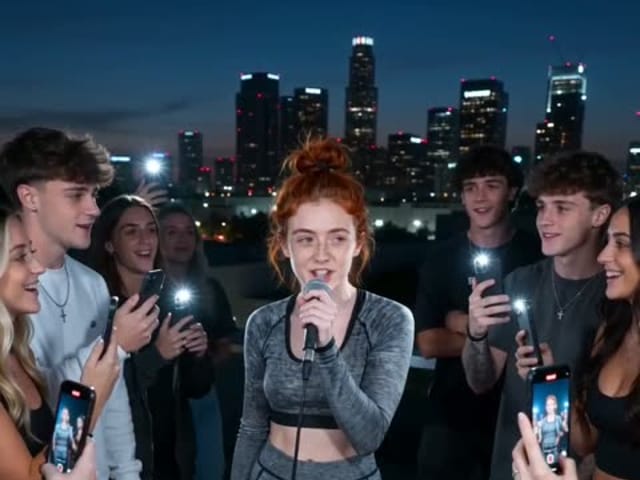
Text to video is the fastest way to test an idea in this page's generator. Write the subject, the action and the setting in the order they happen, then add one camera direction such as a low tracking shot or a slow push-in. Pika H3 Flex as a model follows sequence well, so a sentence like a dancer spins twice, lands and leaps toward the camera reads as a small story instead of a still pose. Keep each prompt to one shot, and save multi-scene ideas for separate runs that you cut together later.

Try this shot
Skateboarder gliding across a sunny concrete plaza

Bring a photo to life

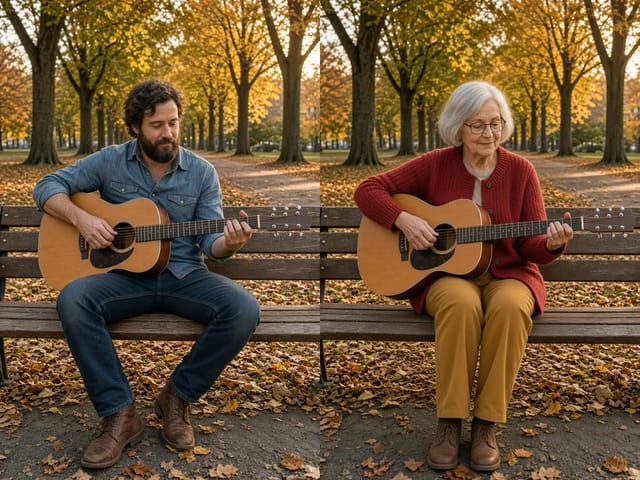
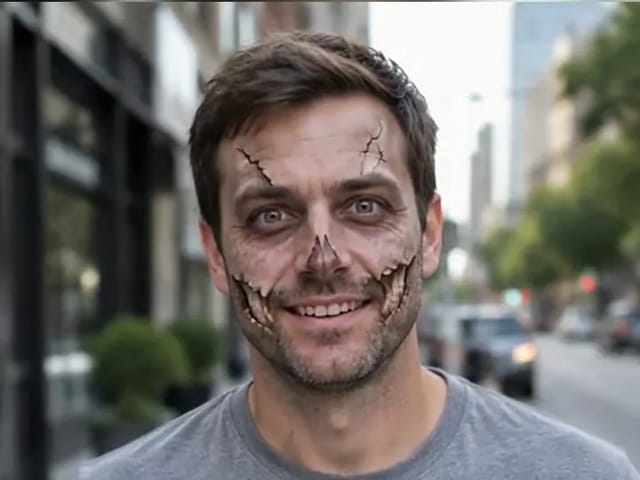
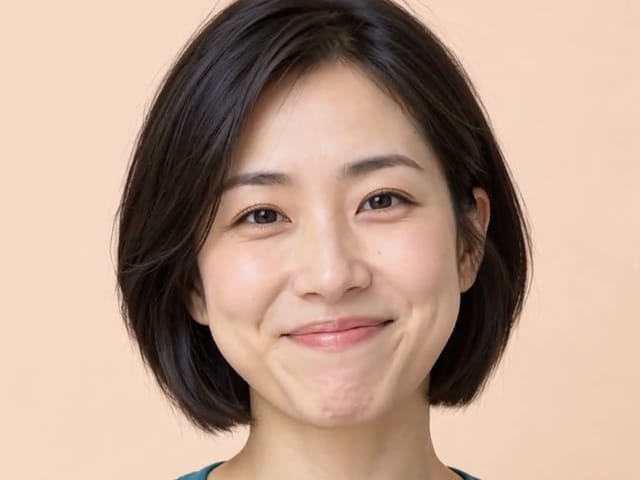
Upload a photo as the opening frame and the generator keeps its look, framing and subject while adding motion. A product shot can start rotating on its stand, a landscape can gain moving clouds and swaying grass, and a portrait can turn toward the camera with a natural smile. Describe only what should change, because the picture already sets the style. Clean, sharp photos without heavy filters give the most stable faces and edges.

Try this shot
Portrait photo turning into a moving scene with drifting light

First and last frames in the model plan

Pika H3 Flex as a model is designed to plan motion between a first frame and a last frame, which helps transitions such as a product box that opens into the finished item, or a street that moves from dawn light to evening glow. That first-and-last control is part of the model design, not something this page's generator exposes today. On this page you generate from text or from a single opening photo; ending-frame uploads are not available here yet. When two-frame controls ship on this generator, pick frames with the same subject and similar framing so the path between them stays believable.

Try this shot
Two keyframes of a city street at dawn and at dusk

Draft fast, then polish the keeper

Six-step sampling makes Pika H3 Flex well suited to rapid drafting. Run a few variations of the same idea in the generator above, keep the strongest motion and refine that version with small prompt edits instead of rewriting everything. Product teams use this loop for ad concepts, storytellers use it to block out scenes before polishing, and motion designers use it to test logo moves. For a different look on the same idea, the MiniMax H3 video generator is a close relative worth opening.

Open the MiniMax H3 video generator
Grid of short draft clips with one highlighted

Vertical clips for phone screens

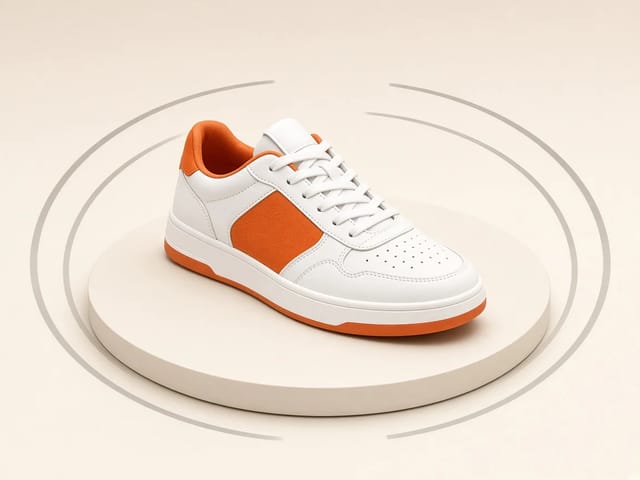
Many people start with a vertical short. Pick 9:16 before you write, keep the subject near the center, and the generator will fill the tall frame without cutting off the action. A coffee pour in morning light or sneakers turning on a stand stays clear on a phone. When you need a landscape cut, switch to 16:9 and generate that version separately.

Try this shot
Warm coffee pour framed for a tall phone screen

Prompt Tips for Pika H3 Flex

Describe action in order

Write events the way they happen: the cat crouches, wiggles, leaps onto the shelf and turns to look at the camera. Pika H3 Flex follows sequence better than a list of adjectives.

Give the camera one job

Name a single move such as a slow push-in, a handheld follow or a low tracking shot. Several camera instructions in one prompt often fight each other.

Set light and place

Late-afternoon sun, soft window light or neon reflections on wet pavement help the model choose color and mood quickly.

Keep faces and hands readable

Medium shots with one or two people hold up better than crowded wide scenes. Ask for simple, natural gestures and the figures stay cleaner from start to finish.

Change one thing per run

When a take is close, edit only the part that is off. Small edits keep the good parts of the shot stable between versions.

Pika H3 Flex FAQ

What is Pika H3 Flex?

It is a video model from Pika, post-trained on MiniMax H3 and released in late October 2026. As a model it can turn text, a first frame, a last frame or both into short video clips, using six sampling steps for fast drafts. On this page the browser generator currently offers text to video and single-image image to video; see which model creates the clip right now.

How do I use Pika H3 Flex online?

Write your shot in the prompt box, optionally upload a photo as the opening frame, choose an aspect ratio and press generate. When the clip is ready, review it, adjust the prompt if needed and download the MP4. Nothing needs to be installed; it all runs in your browser.

Which model creates the clip right now?

This page is named for Pika H3 Flex. Until that model is connected here, each render runs on an available on-site video model with a similar text-to-video and image-to-video workflow. After Pika H3 Flex is wired in, the same generator switches over automatically.

Can Pika H3 Flex do image to video?

Yes. On this page the same generator handles both text to video and image to video. Upload a JPG, PNG or WebP and it becomes the first frame of the clip. Ending-frame uploads are not available in this generator yet.

How should I write prompts for Pika H3 Flex?

Name the subject, the action in order, the setting, the light and one camera move. Short, concrete sentences work better than long lists of style words.

Is Pika H3 Flex open source?

Pika released open weights on Hugging Face and inference code on GitHub under the MiniMax H3 Community License. Running it locally needs a powerful NVIDIA GPU and a large download, so generating in the browser on this page is easier if you only want results.

Is Pika H3 Flex fast?

Pika reduced sampling to six steps, so drafts finish noticeably quicker than models that use around fifty steps. Real waiting time also depends on queue and settings.

Does it offer 4K or stem export?

Some finishing features of Pika's own hosted service, such as 4K upscaling and stem export, are not part of this generator. Here you can pick 480p for quick drafts or 768p for a sharper take.

Which aspect ratios can I choose?

Common choices are 16:9 for landscape video, 9:16 for vertical stories and 1:1 for square posts. The exact list of ratios appears in the generator, so pick the shape before you write the prompt and describe framing to match it.

What kind of photo works best as a first frame?

Use a sharp, well-lit image with one clear subject and little clutter. Avoid heavy filters, tiny faces and busy text, because the model carries those details into every frame and small flaws become more visible once things start moving.

Why does my clip drift away from my photo?

Large changes in the prompt can pull the scene away from the opening image. Describe only the motion you want, keep the lighting words close to the photo and try again; a closer, simpler source picture also helps the subject stay consistent.

Can I build a longer story from several clips?

Yes. Treat each run as one shot, reuse the same character description and setting words in every prompt, and use the last frame of one clip as the first frame of the next so the pieces join smoothly in your editor.

How many credits does a video need?

Credits for each render show in the generator before you start. If a generation fails, the credits are returned automatically.

Can I use the videos commercially?

You can use your downloads in your own projects, as long as you have the rights to any photos you upload and follow the site terms. Downloads come without a watermark.

Is this the official Pika app?

No. NanoPic is an independent site that offers access through third-party integrations and is not affiliated with Pika.

Start Creating with Pika H3 Flex

Write one shot or upload a photo, and turn it into a video in your browser.

Related tools

Flux Video Edit

Flux Video Edit: Prompt-Based Video Editing | NanoPic AI

Flux Video Edit revises existing footage with a text prompt. Upload a short MP4, describe a visible change, and review an edited clip at up to 720p.

Open tool
HeyGen Video 1 creative concept illustration, not a model output example

HeyGen Video 1

HeyGen Video 1 turns text or a first-frame image into 5–15 second videos with audio. Create product demos and image animations at 480p or 768p on NanoPic.

Open tool
H3 Max Lip Sync

H3 Max Lip Sync

H3 Max Lip Sync animates an authorized portrait with your uploaded voice audio. Create a talking photo, choose resolution, and review the video with sound.

Open tool
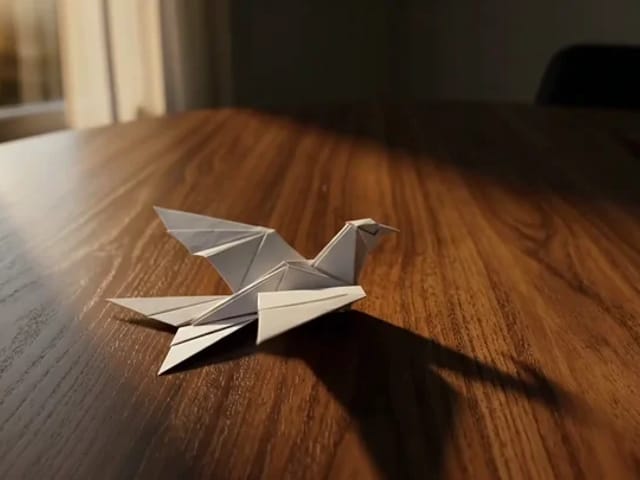
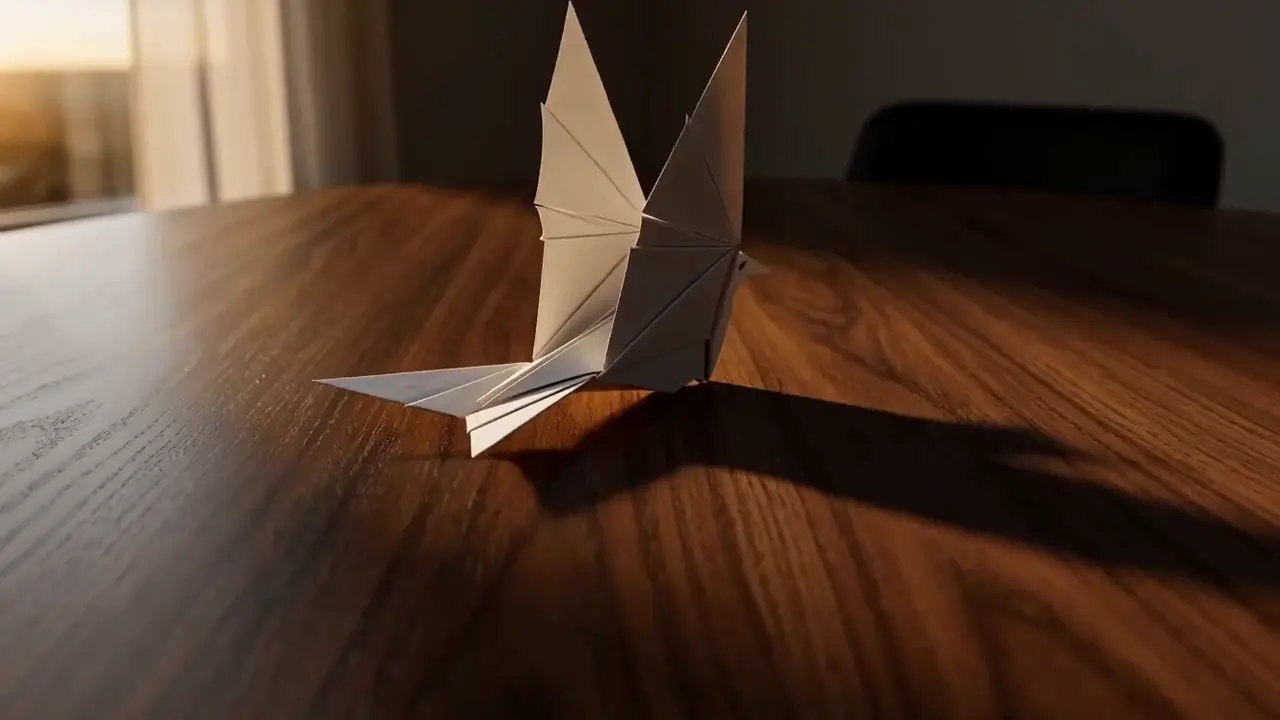
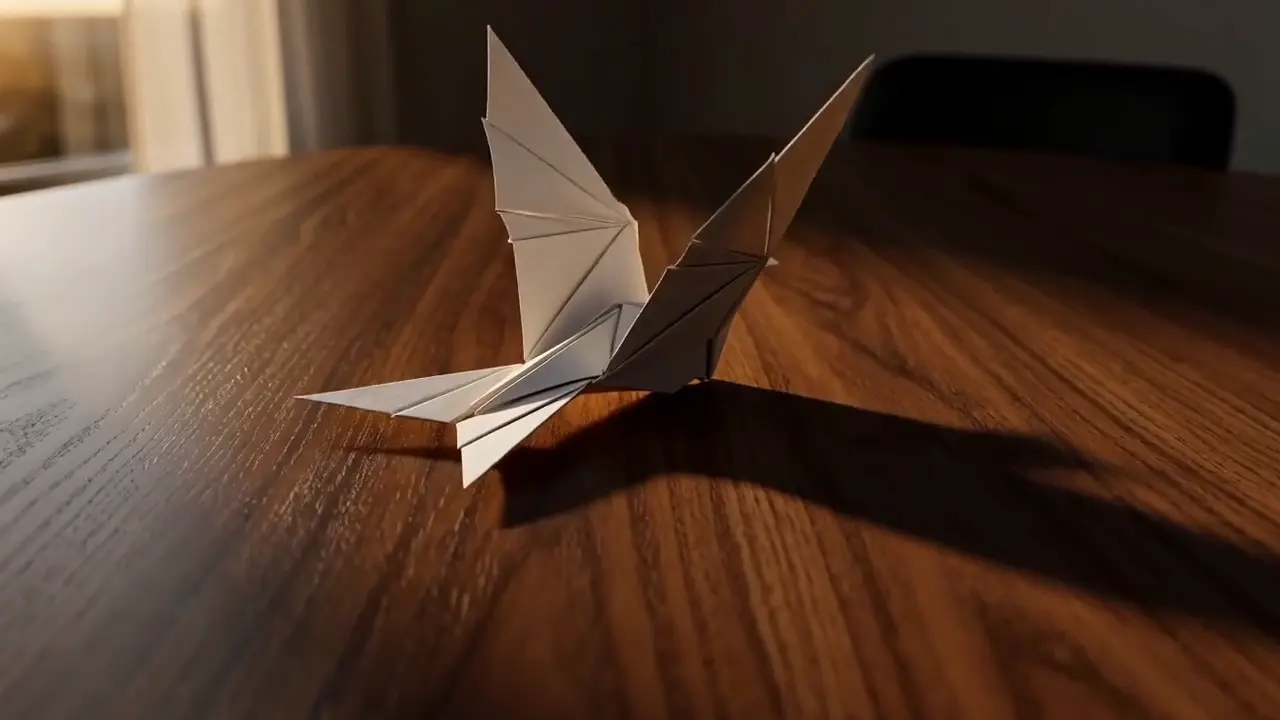
Folded paper bird on a sunlit wooden table

FastH3 Omni Video Generator: Fast Video with Audio | NanoPic

Learn what FastH3 Omni is and create short videos with synced sound online. Write a prompt, add a reference image and get a clip with no GPU or setup.

Open tool
Portrait ready to animate into a short video

OmniHuman 2.0 Talking Avatar Generator: Photo to Video | NanoPic

Use OmniHuman 2.0 on NanoPic to turn a clear portrait into video: upload a photo, add a short motion direction, and generate an image-to-video clip.

Open tool
Blue teapot and cup in a Vidu Q4 video example

Vidu Q4 AI Video Generator: Photo to Video | NanoPic

Vidu Q4 AI Video Generator: upload one image, describe the motion, camera and sound, and turn your still into a 3–15 second clip with audio.

Open tool