








Save up to 73% on plans

AI Christmas Photo Generator
Sign In

AI Christmas Photo Generator

Upload one clear photo of yourself or someone who agreed to it, pick a fireside, snowy street, Santa or card look, and add a short note about outfits, colors or decorations. The AI Christmas photo generator keeps faces, hair and the number of people while it rebuilds the light, clothes and setting for the holidays.

Pick a look; its direction fills the notes box, where you can edit outfits, colors and decorations.

Upload One Photo*
Try Upload One Photo sample

Please add the required Upload One Photo before generating.

311 / 900

Public VisibilityAllow this result to appear in public inspiration surfaces.
Woman with long dark hair in a light blue shirt standing in a bright room
Before
Same woman in front of a decorated Christmas tree with red ornaments
After

More AI Image Models & Effects

What Is an AI Christmas Photo Generator?

An AI Christmas photo generator takes a picture you already have and redraws it as a holiday scene. You keep the people, their faces and their pose, and the generator swaps in what makes a December photo feel festive: a lit tree, garlands, falling snow, warm knitwear and the soft glow of string lights. There is no studio booking, no matching outfits to buy and no waiting for everyone to be in one place. One clear photo from your phone is enough to start, and you can steer the result with a short line about colors, clothing or the setting you want. Because the same image-to-image step can leave clean space for a greeting, the tool also works as an AI Christmas card maker: create the picture here, then add your own message in any card or design app before you print or send it. People use the AI Christmas photo generator for profile pictures, couple posts, holiday greetings for friends abroad and small framed gifts.

How to Use the AI Christmas Photo Generator

Three steps from an everyday photo to a festive picture you can share.

Upload One Clear Photo

Choose a JPG, PNG or WebP under 10 MB that you took yourself or have permission to use, and only upload adults who agreed to be in the picture. Group shots work when every face is visible, well lit and not cut off at the edge of the frame. A photo where people stand fairly close together gives the AI Christmas photo generator an easier job than one where someone is tiny in the background. Avoid heavy filters, sunglasses and hands covering faces, since those details are hard to rebuild. If you have several options, pick the one with the most natural expressions.

Create My Christmas Photo
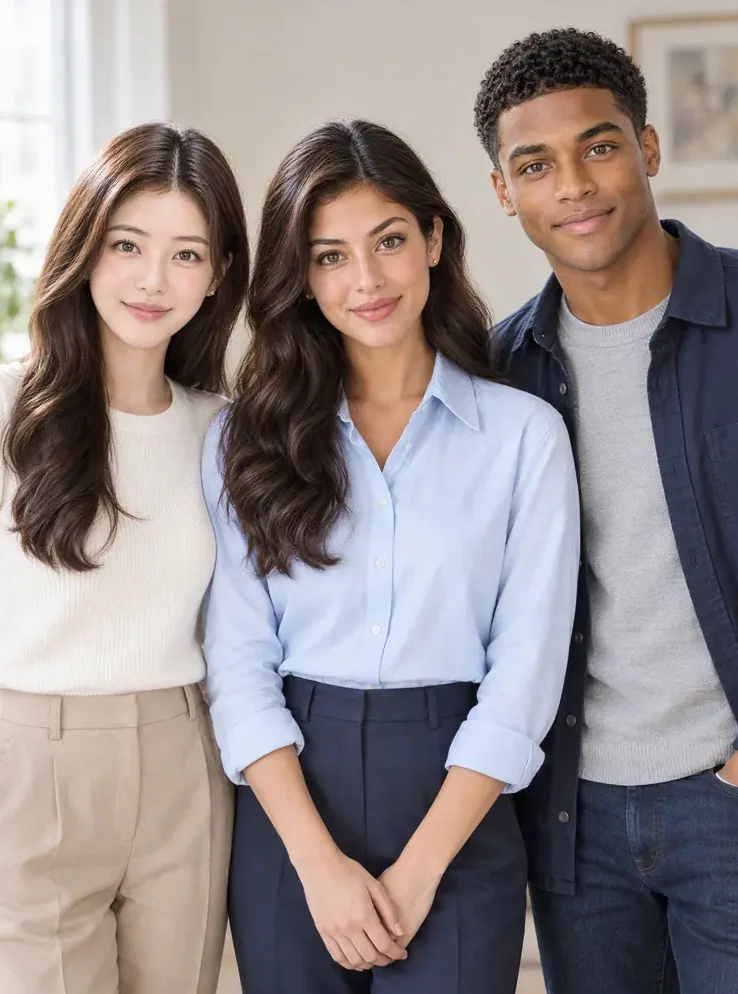
Three friends standing together in a bright room, used as the upload

Pick a Look and Describe the Details

Select Cozy Fireside, Snowy Street, Visit with Santa or Christmas Card, and its direction appears in the notes box. Edit that text to name sweater colors, a plaid scarf, a particular ornament palette or a snowy cabin instead of a living room. Short, concrete words such as cream knit, gold lights or red velvet guide the AI Christmas photo generator better than long abstract wishes. Choose an image shape that suits where the picture will go, for example square for a profile photo or tall for a phone wallpaper. Change one idea at a time so you can tell which edit improved the scene.

Create My Christmas Photo
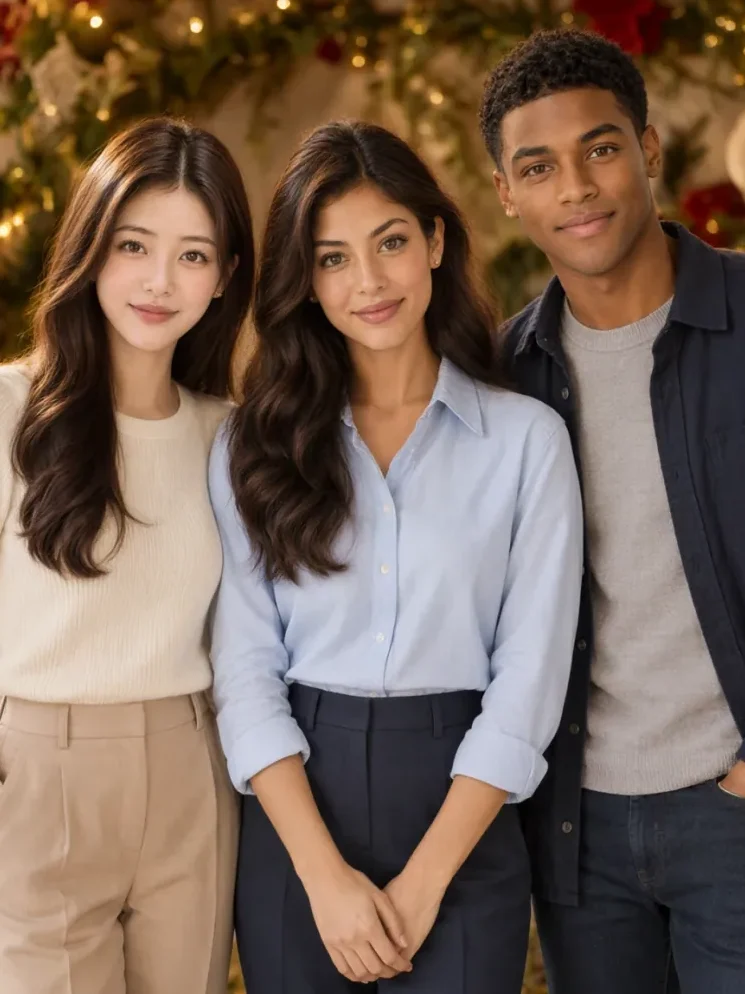
The same three friends in festive outfits in front of a Christmas tree

Create, Compare and Download

Press the button and look at the result at full size before saving it. Compare faces one by one with the original, count the people, and check hands, glasses and small repeated details like ornament strings and gift ribbons. If something drifts, run the AI Christmas photo generator again with a tighter note, such as keep her glasses or keep his jacket navy. When you are happy, download the image and use it as a post, a phone background or the base for a printed card. Add names and greetings in a separate design step so the lettering stays sharp.

Create My Christmas Photo
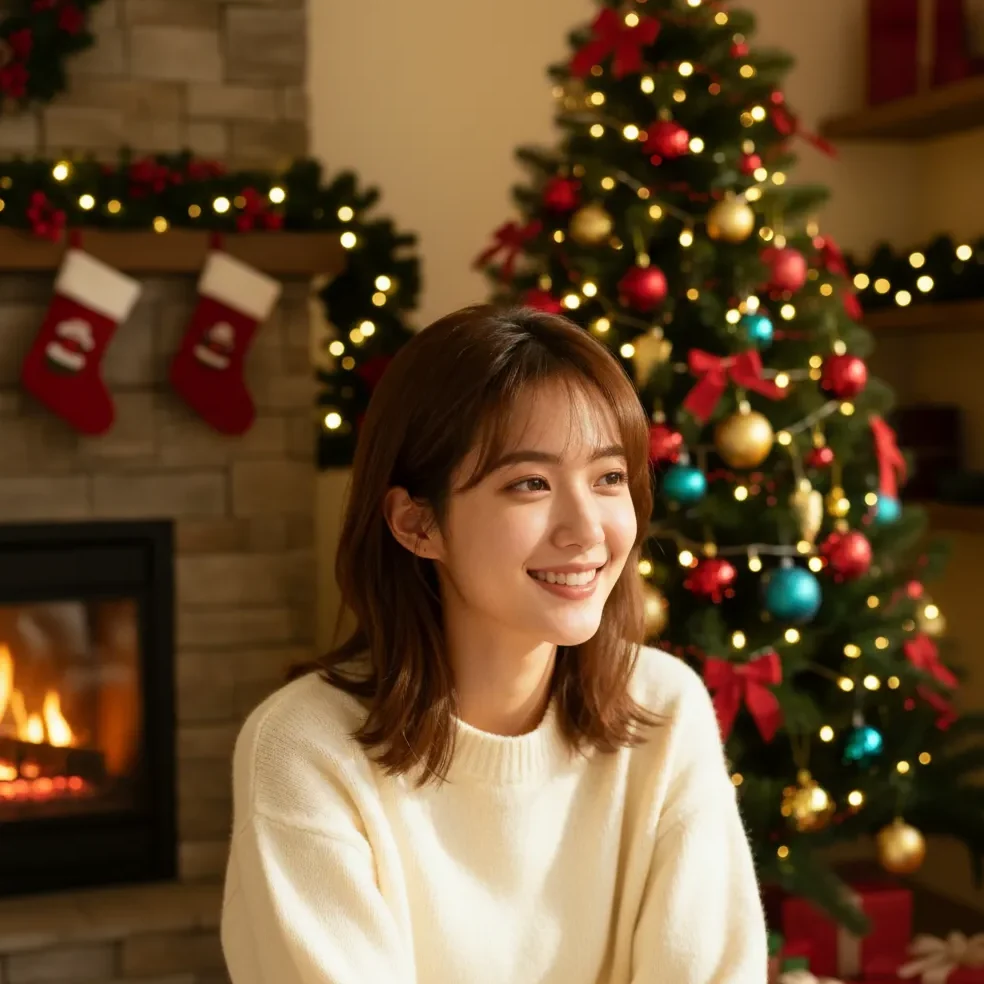
Woman in a cream sweater by a fireplace with stockings and a lit tree

Christmas Scenes You Can Create

Each look keeps the people recognizable and changes the season around them.

Cozy Fireside Portraits

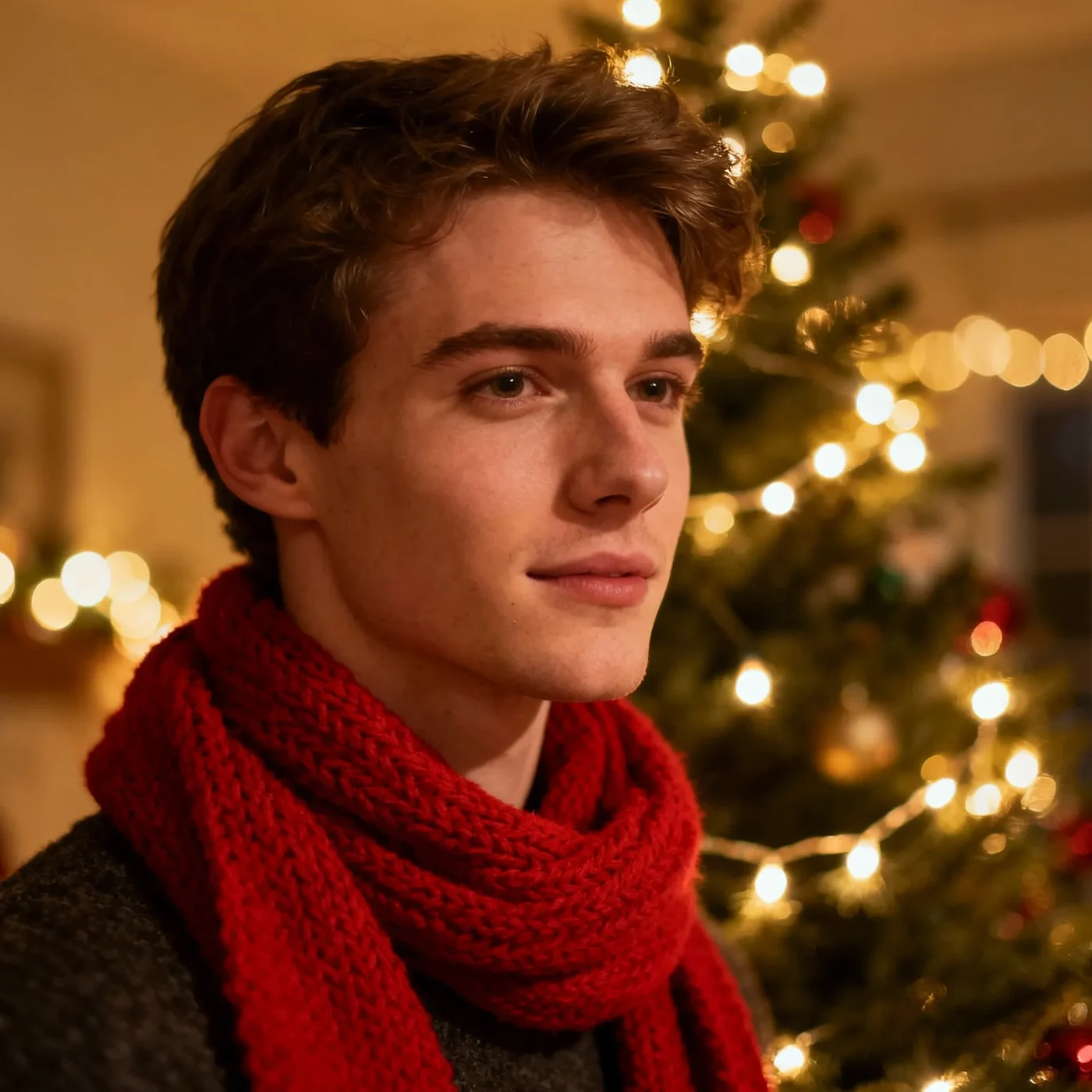
A young man in a red scarf smiles beside a tree full of warm lights, and the whole frame glows like a quiet evening at home. This is the classic look most people want from an AI Christmas photo generator, because it suits family chats, office greetings and profile pictures alike. Ask for knit sweaters in one or two colors so the outfits feel coordinated rather than random. A soft fireplace or a row of stockings in the background adds depth without stealing attention from the faces. Front-facing photos with even light give the cleanest match.

Try Fireside
Young man in a red scarf beside a glowing Christmas tree

Couples and Friends Together

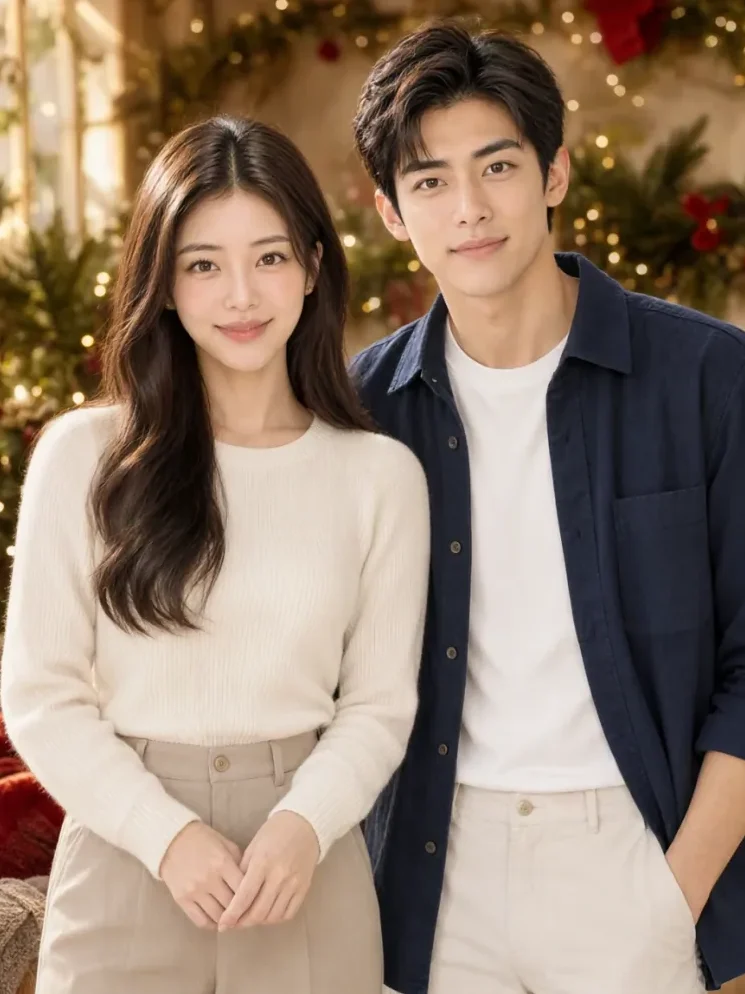
A couple who stood in a plain living room now poses side by side under evergreen garlands, red ornaments and soft string lights, still in their own cream knit and navy jacket. Upload one photo where you stand or sit together, and the generator keeps both faces while it changes the room around you. Describe the mood you want, such as playful, romantic or calm, and the lighting follows it. Ask for matching sweaters or plaid pajamas if you want coordinated outfits for a story post. Keep both people fully in frame in the upload so nobody gets cropped.

Try Couple Look
Couple standing side by side under Christmas garlands and string lights

A Visit with Santa

A classic Santa in red velvet stands by a tall tree with colored lights, and the room fills with wrapped gifts and window frost. Choose this look when you want the playful, old-fashioned feeling of a holiday photo booth without the queue. The AI Christmas photo generator adds one Santa and keeps your own outfits recognizable unless you ask for something festive. Ask for a warm workshop glow or a snowy window to change the atmosphere. Simple poses, standing side by side or sitting close, work best for a natural group feel.

Try Santa Look
Santa Claus in red velvet beside a decorated tree with colored lights

Christmas Card Pictures

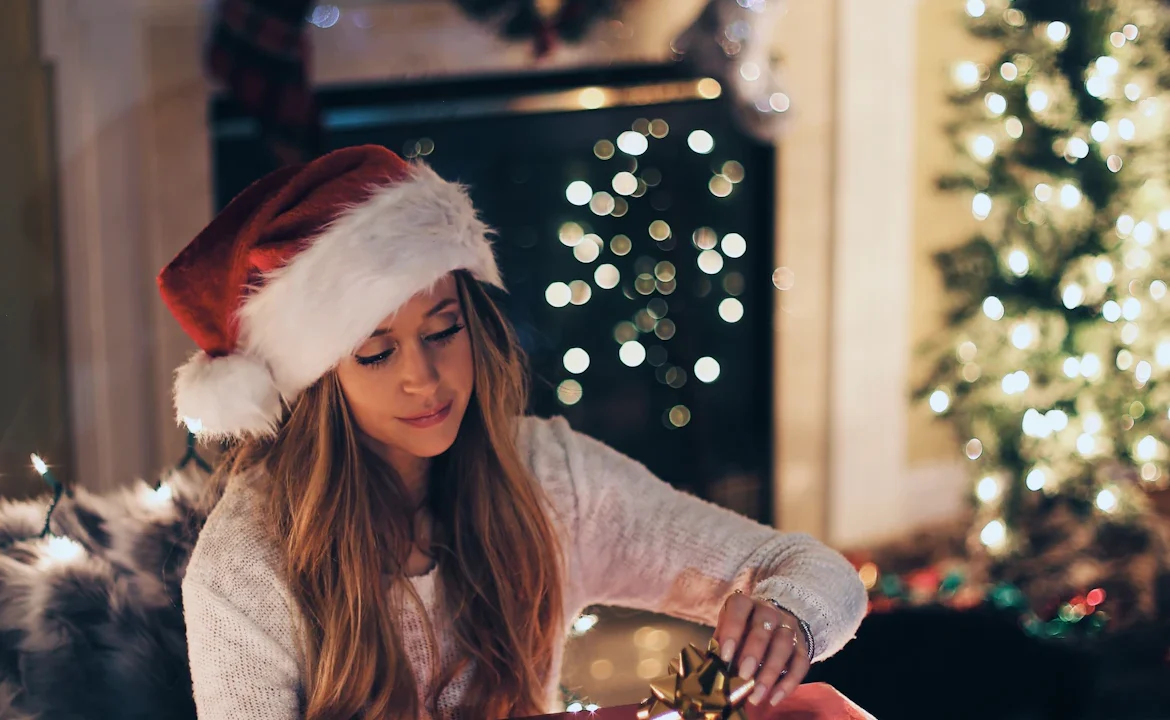
A woman in a Santa hat smiles in front of a lit tree, and the warm glow already sets the mood for a greeting card. Choose the Christmas Card look and the tool works as an AI Christmas card maker: it leaves clean space in the frame, and you add names and wishes afterward in a card editor. Leave words out of the generated image itself, because small lettering inside a scene rarely comes out clean. Pick the shape your printer or card app expects before you create, so nothing important gets trimmed. Try two or three runs and choose the one with the clearest faces for printing.

Try Card Look
Woman in a Santa hat smiling in front of a lit Christmas tree with space for a greeting

Snowy Evenings and Elegant Nights

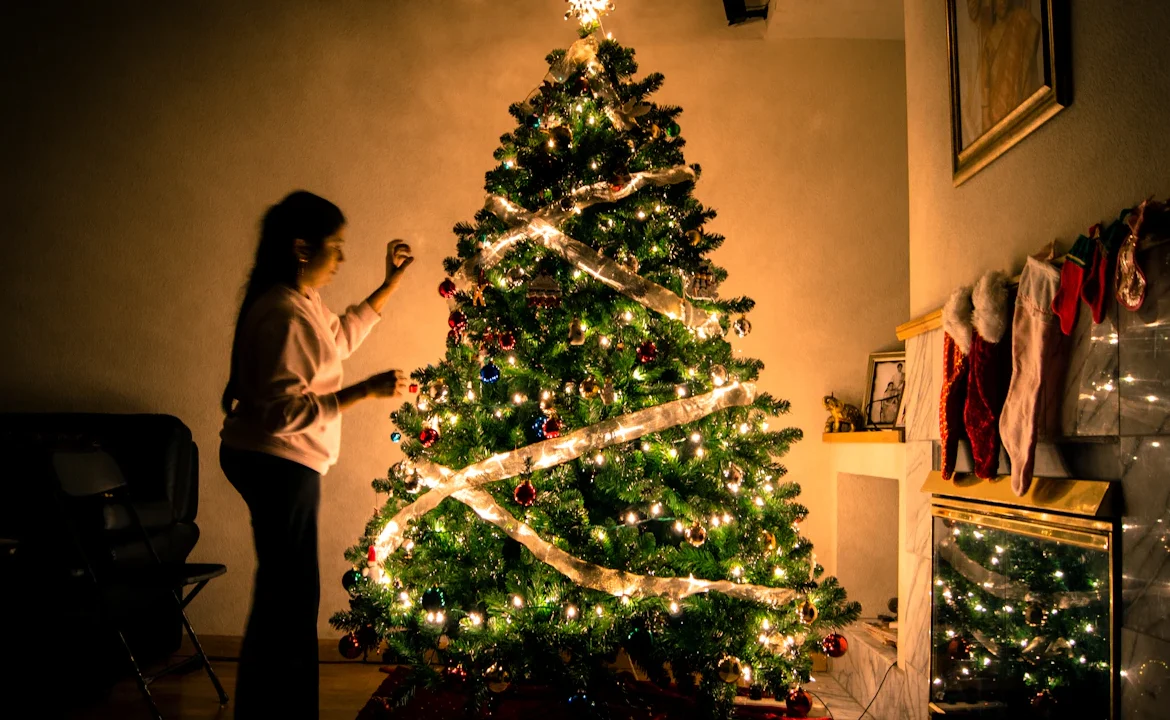
A woman wraps a lit garland around a tall tree in a dim room, and the warm bulbs become the only light in the scene. These quieter looks suit people who want a festive picture that still feels refined, for a winter profile photo or a gift print. Tell the AI Christmas photo generator whether you prefer snowy blue dusk, deep evergreen or gold and cream, and keep the rest of the note short. Darker scenes look best when the face receives one gentle highlight. Save the versions you like and build a small set across the season.

Try Winter Look
Woman decorating a tall Christmas tree with a lit garland in a dim room

Photo Tips for Better Christmas Pictures

Start with a sharp photo taken in daylight or under even indoor light, with faces large enough to see eyes and smiles clearly. Leave a little space around heads and shoulders so garlands and lights can fit into the frame naturally. For groups, make sure nobody is half hidden behind someone else, and ask everyone in the picture before you upload it. Plain clothes are easier to restyle than busy patterns, and a tidy background gives the generator room to build the scene. Write the outfits, colors and setting you want in plain words, then adjust one detail per run until the picture feels right.

AI Christmas Photo Generator FAQ

Quick answers about photos, looks, cards and downloads.

What does the AI Christmas photo generator do?

It turns one uploaded photo into a festive picture with Christmas lighting, outfits and decorations, while keeping the people recognizable.

How do I make a Christmas photo from my own picture?

Upload one clear photo, choose a Christmas look, edit the direction if you want, and press create. Review the result at full size, then download it.

Do I need an account?

You can open the generator in your browser without installing anything. Sign in to create and download pictures.

Can I use a couple or group photo?

Yes. Use one photo where every face is visible and well lit. The generator is asked to keep the same number of people, but always count heads and compare faces before you share.

Can it work as an AI Christmas card maker?

Yes. Pick the Christmas Card look to get a portrait with clean space for a greeting, then add your names and message in a card or design app. Words are kept out of the generated picture so they stay sharp.

Can I include my pet in the photo?

Yes. Dogs and cats can join a solo or group photo. Keep the pet's face and markings visible, and add a note such as a red bandana by the tree.

Can I describe my own outfits and setting?

Yes. The direction box accepts your own words, such as red plaid pajamas, a snowy cabin or gold ornaments. Short, specific notes give the most predictable results.

What if a face does not look like me?

Try a sharper, front-facing photo with even light, change fewer things at once, and add a note such as keep my glasses and hairstyle. Results are generated images, so compare them with the original and run again if needed.

Can I upload photos of other people?

Only upload photos you took or have permission to use, and only of adults who agreed to it. Please do not upload photos of children.

Is it safe to upload my photo?

Upload only photos you are comfortable sharing, and avoid ones that show your address, documents or location details. Read the NanoPic privacy policy to see how uploaded files are handled.

How do credits and failed runs work?

Credits for each render show in the generator before you create. If a run fails, the credits are returned automatically.

Can I download and print the result?

Yes. Download the image after it finishes and use it for posts, wallpapers or printed cards. Check faces and hands at full size before printing.

Is this tool affiliated with any card or photo brand?

No. It is an independent NanoPic photo effect and is not affiliated with any other brand.

Ready to Make Your Christmas Photo?

Upload a clear photo, choose a fireside, snowy street, Santa or card look, and download a festive picture that still looks like you.

Related tools

80s Photo Filter

80s Photo Filter

80s Photo Filter adds warm, faded film color to your photo in the browser. Adjust strength, preserve clothing and framing, and download a PNG.

Open tool
AI Age Filter

AI Age Filter

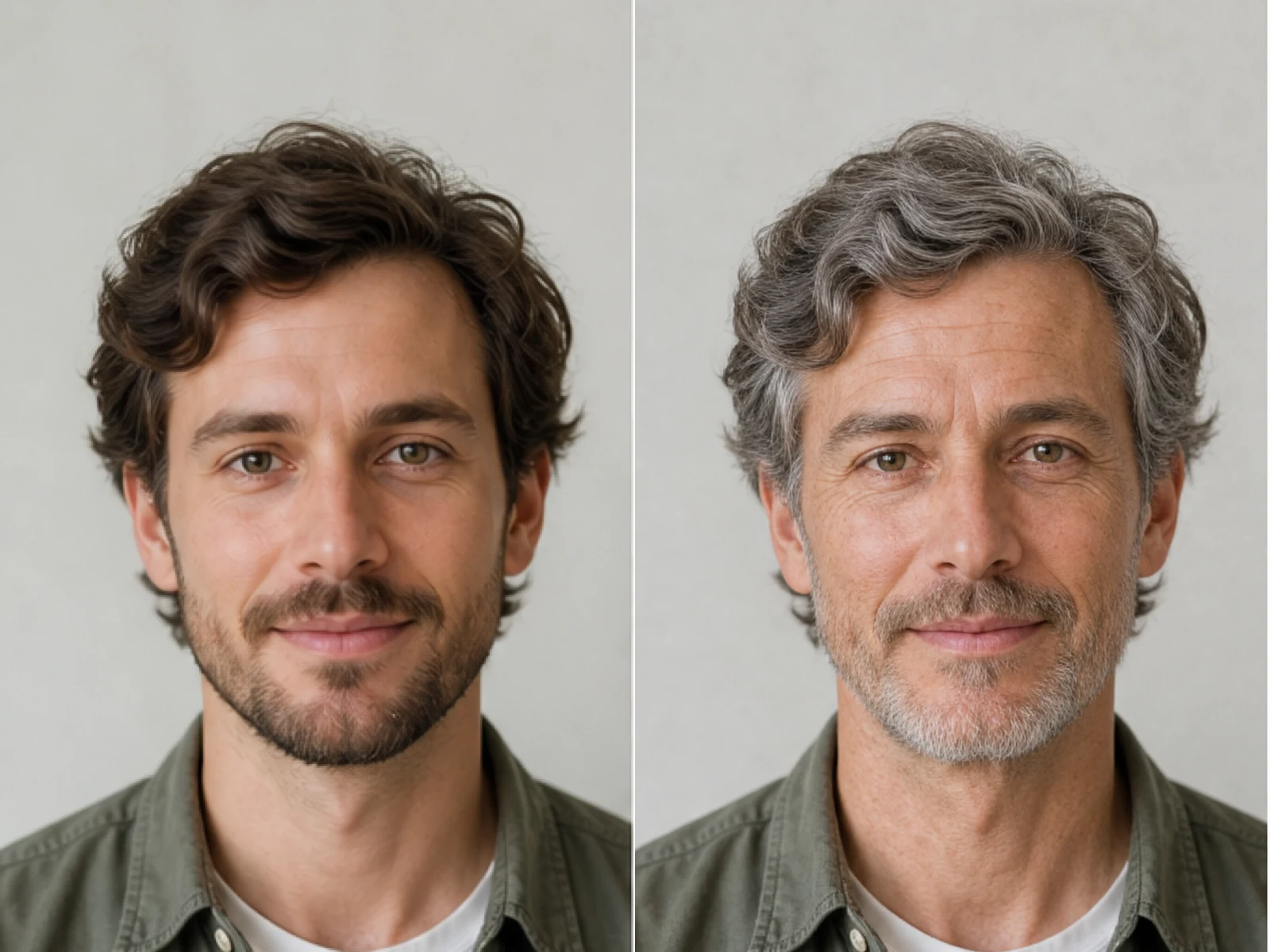
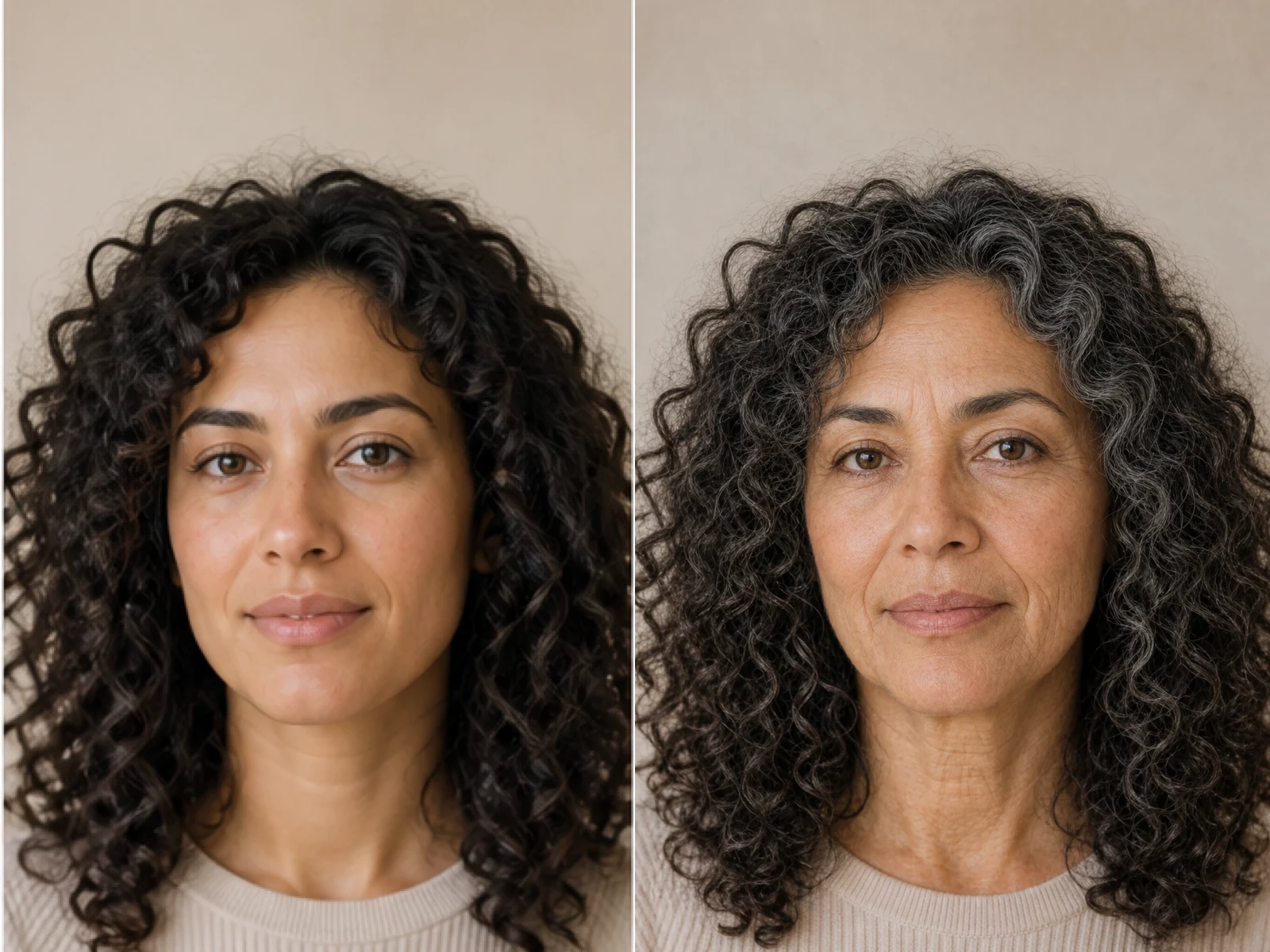
AI Age Filter creates a natural older-look concept from an authorized adult portrait. Review identity, complete-head framing, light and scene after editing.

Open tool
AI Age Progression

AI Age Progression

AI Age Progression creates a target-age concept from an authorized adult portrait. Set an age interval and review identity, framing and scene after editing.

Open tool
AI Labubu Generator

AI Labubu Generator

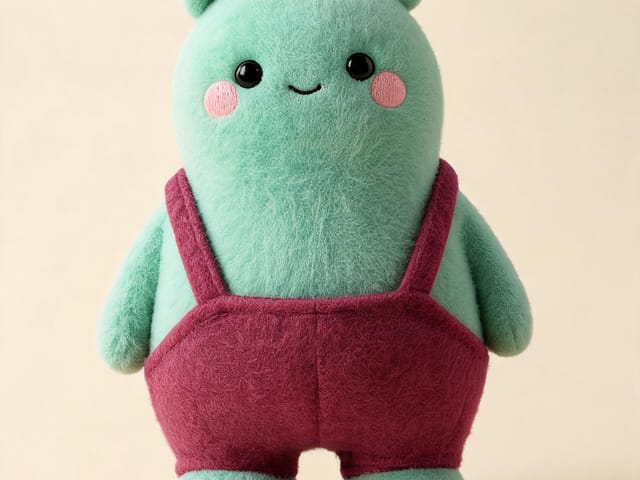
AI Labubu Generator helps explore your own monster doll concept from an authorized reference. Create original shapes and outfits, with no official affiliation.

Open tool
Camera Roll AI

Camera Roll AI

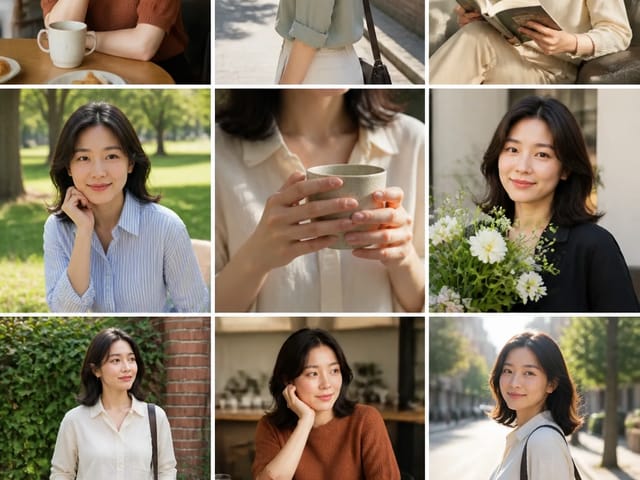
Camera Roll AI turns an authorized reference photo into one lifestyle collage. Plan varied scenes and a phone-gallery-inspired layout, then save one image.

Open tool
Face in Hole Generator

Face in Hole Generator

Face in Hole Generator places an authorized face into your chosen photo or template. Upload two references, refine the blend, and save a creative portrait.

Open tool
Hotpot AI Image Generator

Hotpot AI Image Generator Online | NanoPic

Create still images with the Hotpot AI Image Generator on NanoPic. Write a clear scene, generate with Nano Banana 2, refine the look, and download the picture you like.

Open tool
Make Image Higher Resolution

Make Image Higher Resolution

Make Image Higher Resolution with real 2× or 4× browser resizing. Compare pixel dimensions and download PNG without claiming recovered detail.

Open tool
Remove Glare from Glasses in Photos

Remove Glare from Glasses in Photos

Remove Glare from Glasses in photos with an editable AI image prompt. Upload your portrait, reduce lens reflections, and review the result before using it.

Open tool
Wooden porch at dusk with a glowing carved jack-o'-lantern and autumn leaves

Add Pumpkin to Photo: Place Pumpkins in Your Picture | NanoPic

Add pumpkin to photo: upload one picture, say how many and where, keep faces and pets, then download a still with realistic or glowing pumpkins.

Open tool
Small mushroom-cap vinyl figure in a yellow raincoat beside a leaf-pattern box

AI Blind Box Generator: Turn a Photo into a Chibi Figure | NanoPic

AI blind box generator: upload one photo of you or your pet and get a cute chibi, plush or boxed collectible figure image to download and share.

Open tool
Black Friday sale scene with sneakers, knitwear and gift bags on dark stone

Black Friday Poster Maker: Product Photo to Sale Poster | NanoPic

Black Friday poster maker for sellers: upload one product photo, pick a sale style, and add an optional headline or offer text to your downloadable poster.

Open tool

Flashlight AI Photo: Tiny Character Scene | NanoPic

Turn one authorized adult portrait into a realistic flashlight scene with a miniature stylized double. Generate, then inspect identity, hands, light, scale, and crop.

Open tool

Funny AI Prompts — 12 Photo and Pet Editing Ideas | NanoPic

Try 12 original funny AI prompts on one authorized person or pet photo. Load, edit, generate, and review identity, anatomy, props, text, and visual coherence.

Open tool
Demo cover showing clearer detail after enhancement workflow

Magnific AI Image Generator Workflow on NanoPic | Clarity from One Photo

Run a magnific ai image generator style enhance on NanoPic: upload one photo, rebuild edges and textures toward 4K, then download after a full-size check.

Open tool

Mera Prompt AI Photo Prompts: Copy Viral Edits | NanoPic

Copy free mera prompt AI photo prompts for boys, girls, couples, festivals and cricket, then turn your own selfie into a viral edit on NanoPic.

Open tool

Minecraft Pixel Art — Turn a Photo Into Block Art | NanoPic

Turn one authorized photo into original blocky pixel art with six editable prompts. Generate, then review subject detail, geometry, text, rights, and composition.

Open tool
Bobblehead figurine of a woman in a cream sweater standing on a round base

Photo to Bobblehead: Turn a Portrait into a Bobblehead | NanoPic

Photo to bobblehead in a few steps: upload one clear portrait and get a big-head collectible figure image that still looks like the person, ready to save.

Open tool
Young man redrawn as a decorated sugar cookie with a blue icing shirt

Photo to Sugar Cookie: Turn Any Photo into Iced Cookie Art | NanoPic

Photo to sugar cookie: upload a portrait, pet or object photo and get cute royal-icing cookie art that keeps its colors and shape, ready to download.

Open tool

Prompt Seen Girl AI Photo Prompts & Generator | NanoPic

Prompt seen girl portraits from your own selfie: upload one photo, describe the outfit, setting and light, and keep your face looking like you.

Open tool
Row of glowing carved jack-o'-lanterns on a leaf-covered wooden porch at dusk

Pumpkin Head Photoshoot - Turn Your Photo into a Jack-o'-Lantern Portrait | NanoPic

Pumpkin head photoshoot from one photo: swap heads for carved jack-o'-lanterns while keeping your outfit and pose, with an optional autumn or spooky mood.

Open tool
Synthetic demo cover for sorry i lied ai Halloween costume reveal carousel

Sorry I Lied AI: Childhood Costume Reveal Photos | NanoPic

Make sorry i lied ai costume reveal photos from one authorized childhood costume shot: Perfect, First Apology, Almost Honest, then your real original last.

Open tool