



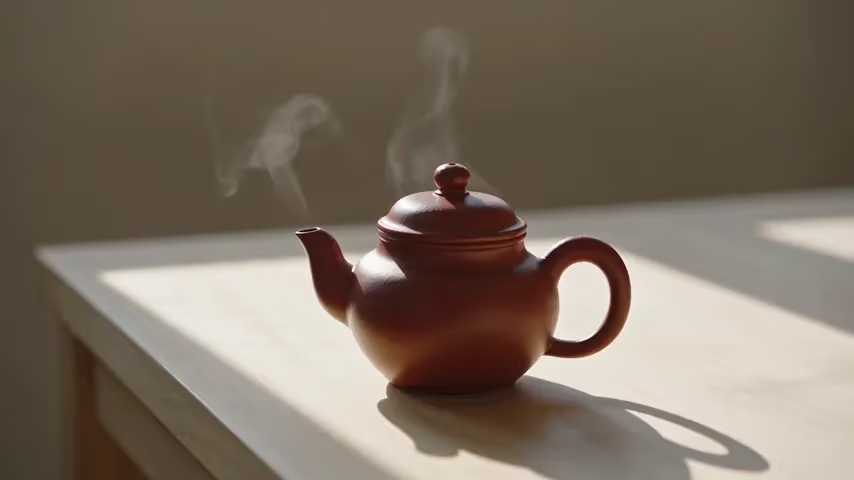

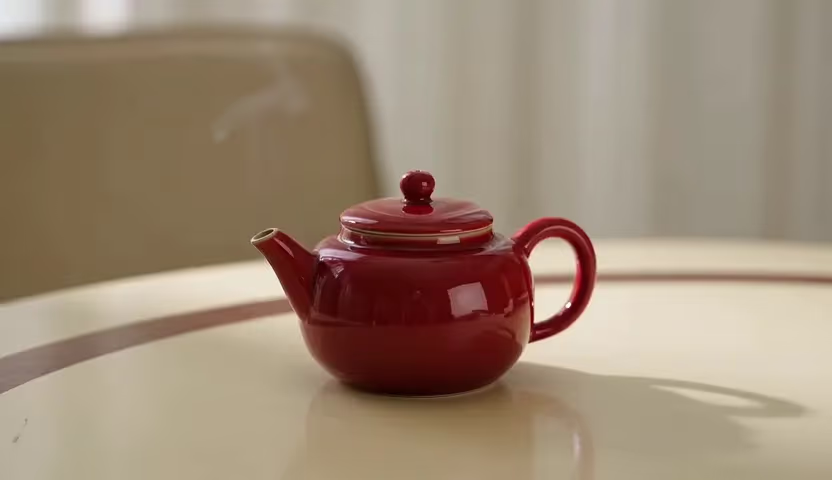
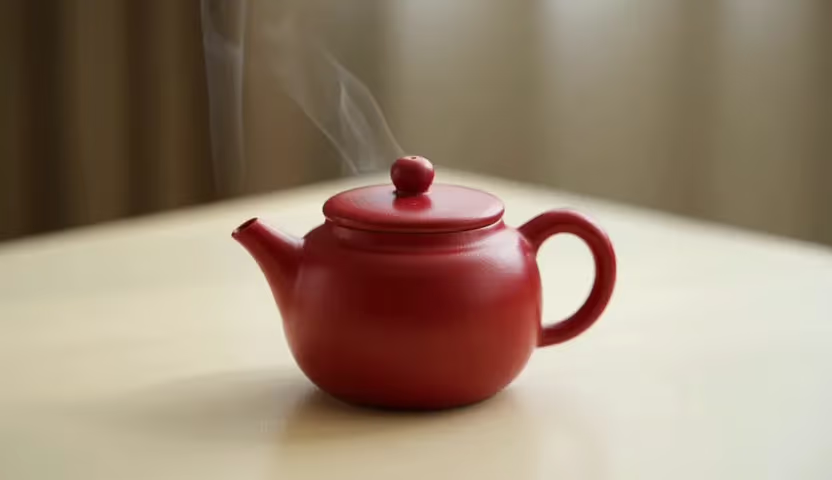

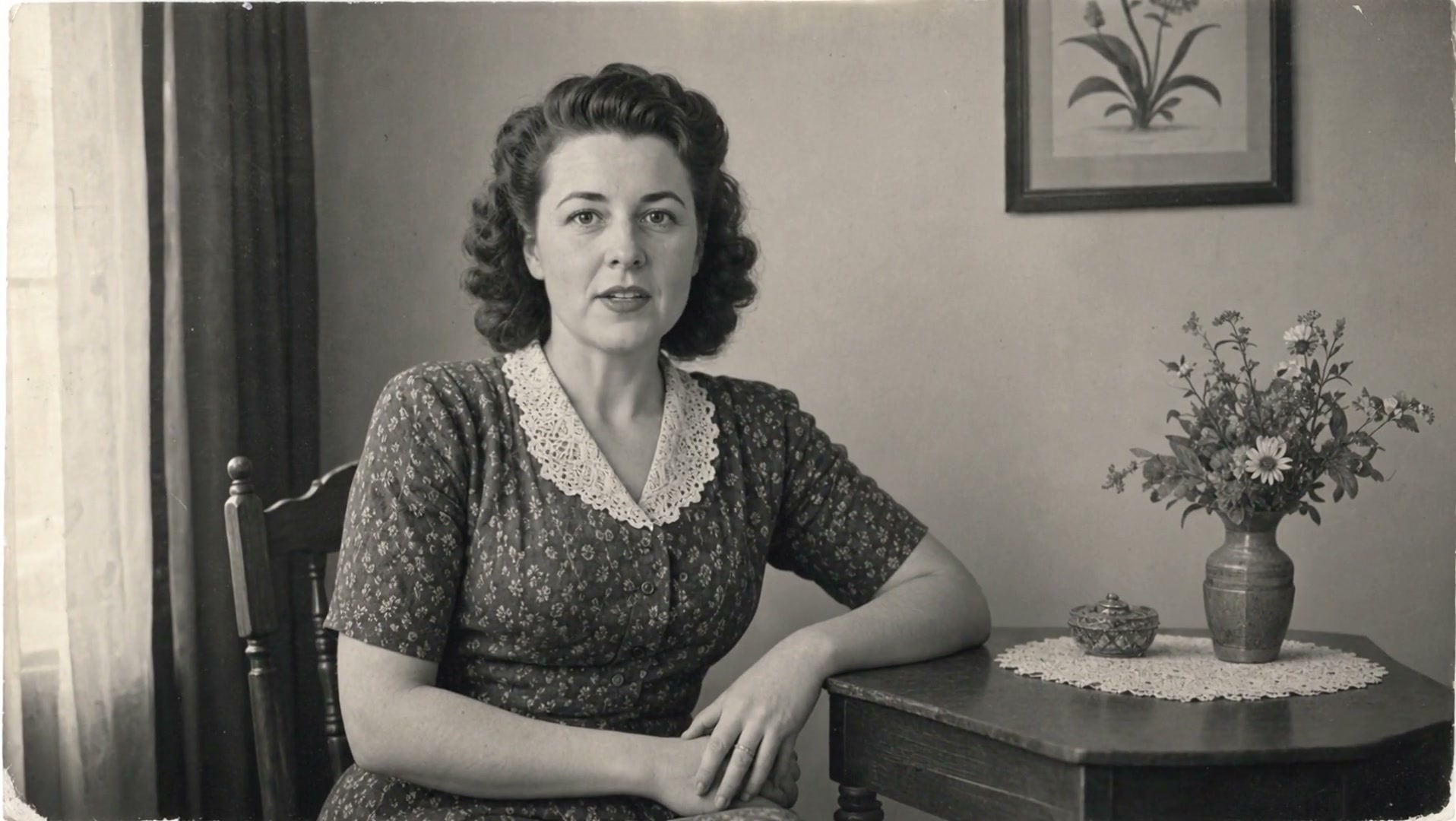
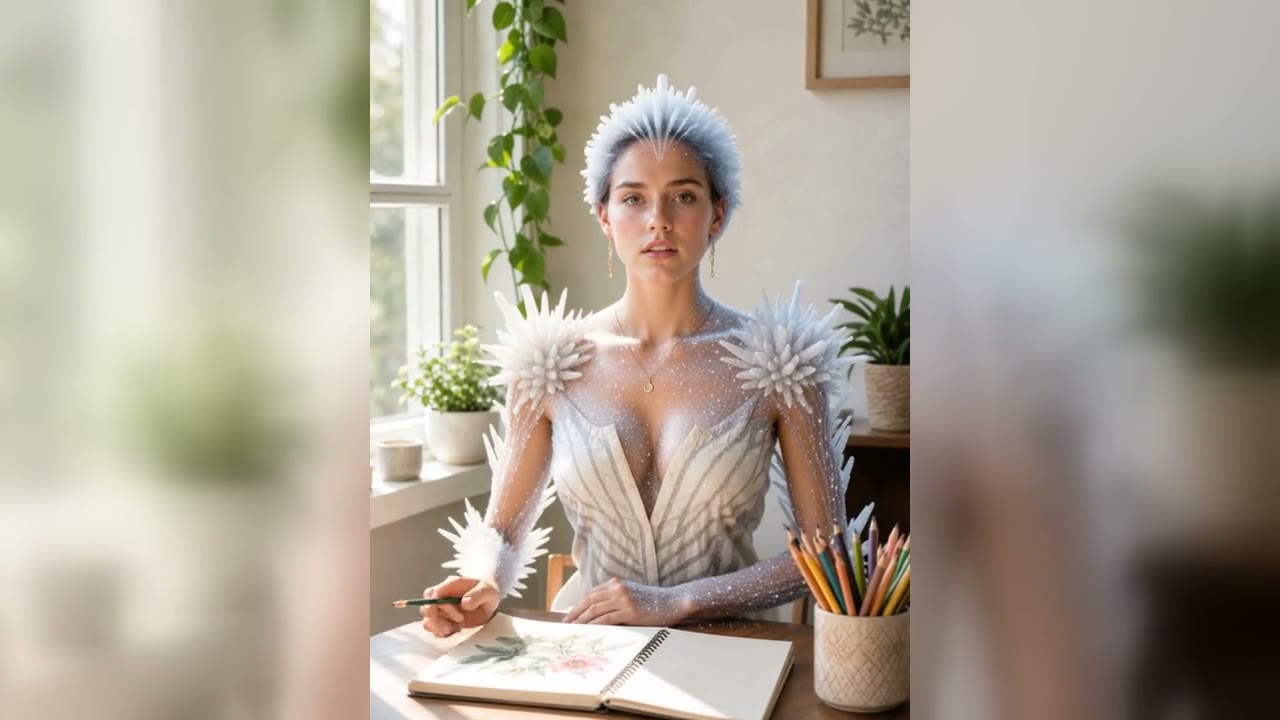
Text-to-video
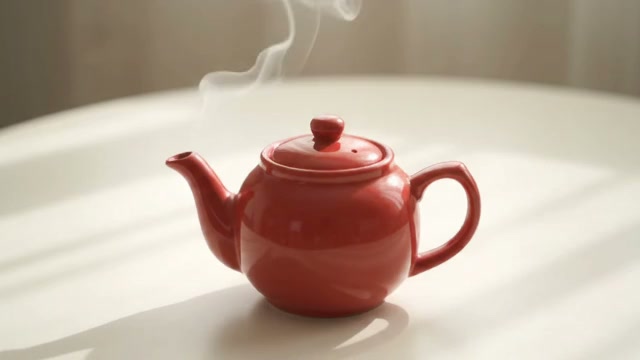
Build a new scene from a written motion brief. Describe who or what moves, how the camera responds, what changes over time, and the visual state at the end of the clip.
Save up to 73% on plans
Grok Imagine 1080P
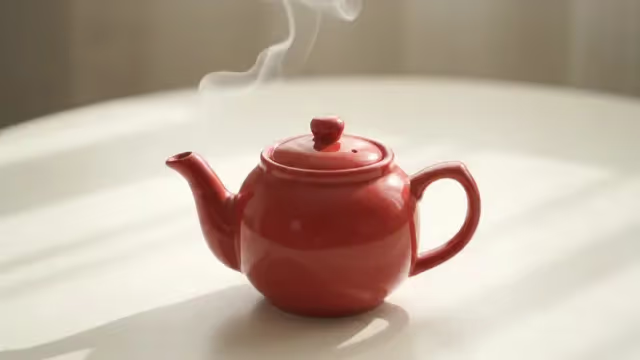
AI output preview
Browse every other AI video model and effect published on this site in a continuous carousel.
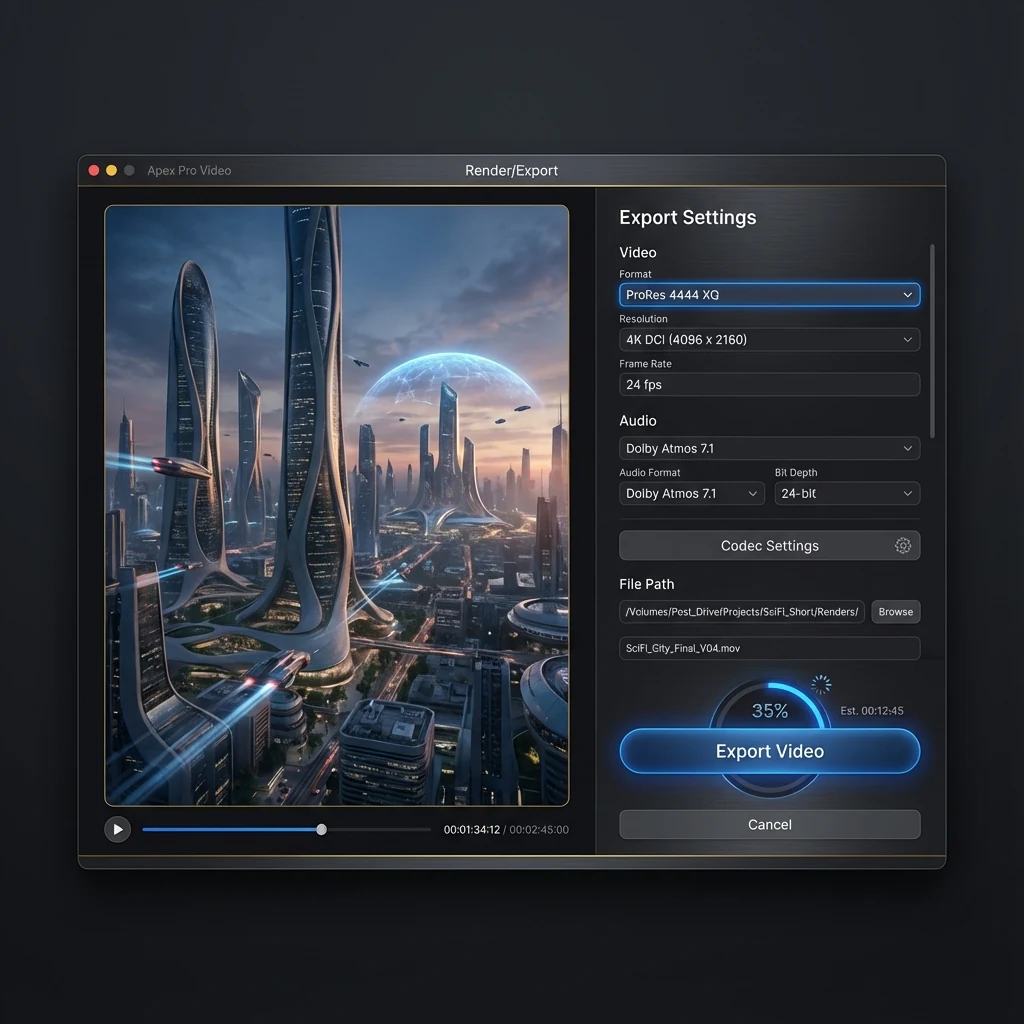
NanoPic connects the video generator to KIE's Grok Imagine text-to-video and image-to-video routes. The workflow exposes the controls that materially affect a short clip—aspect ratio, duration, and speed or quality mode—while keeping the separate Grok Imagine still-image workflow one click away.
Use the native KIE route with a small set of decisions that are easy to compare.
Build a new scene from a written motion brief. Describe who or what moves, how the camera responds, what changes over time, and the visual state at the end of the clip.
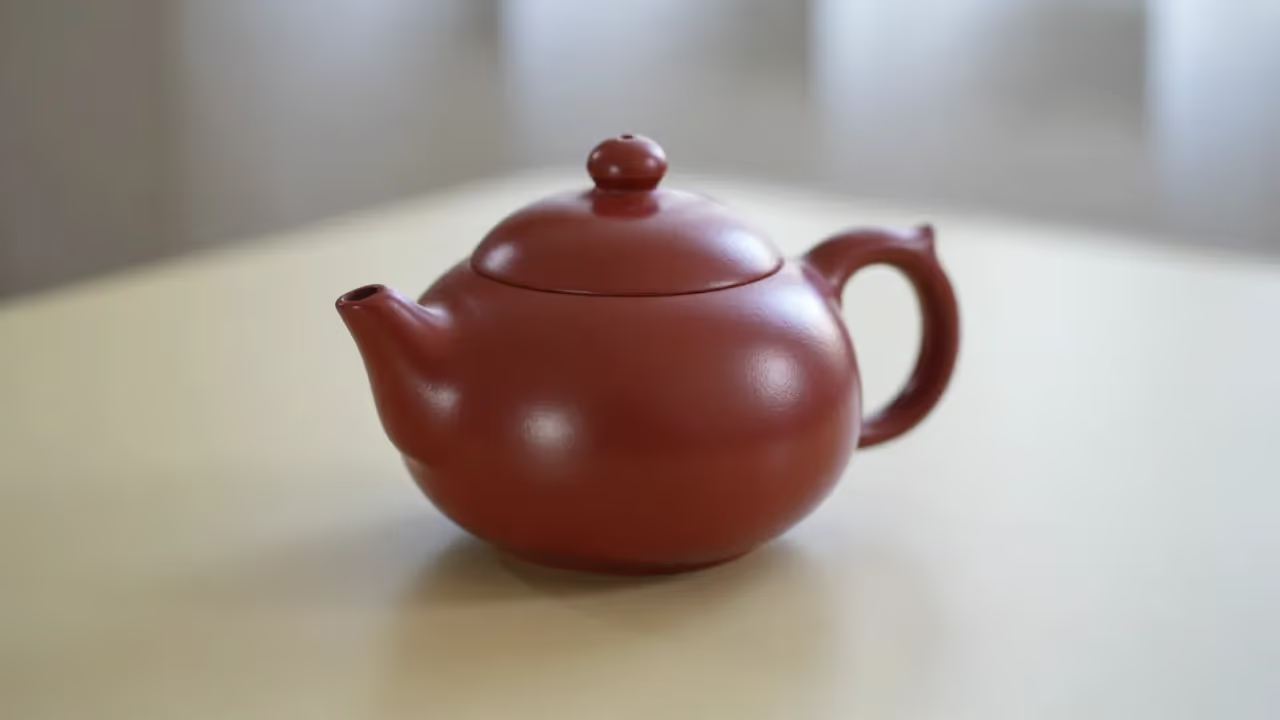
Upload a clean starting image when subject appearance, product shape, or composition needs an anchor. Ask for motion that the source frame can plausibly support.
Use Normal for the lower-cost first pass and Quality when a promising direction warrants a more deliberate generation. The credit estimate updates before submission.
Validate motion at the lowest useful settings before commissioning additional variants.
Write a six-second visual beat with one subject, one movement, one camera instruction, and one ending state. This keeps the first result diagnostic.
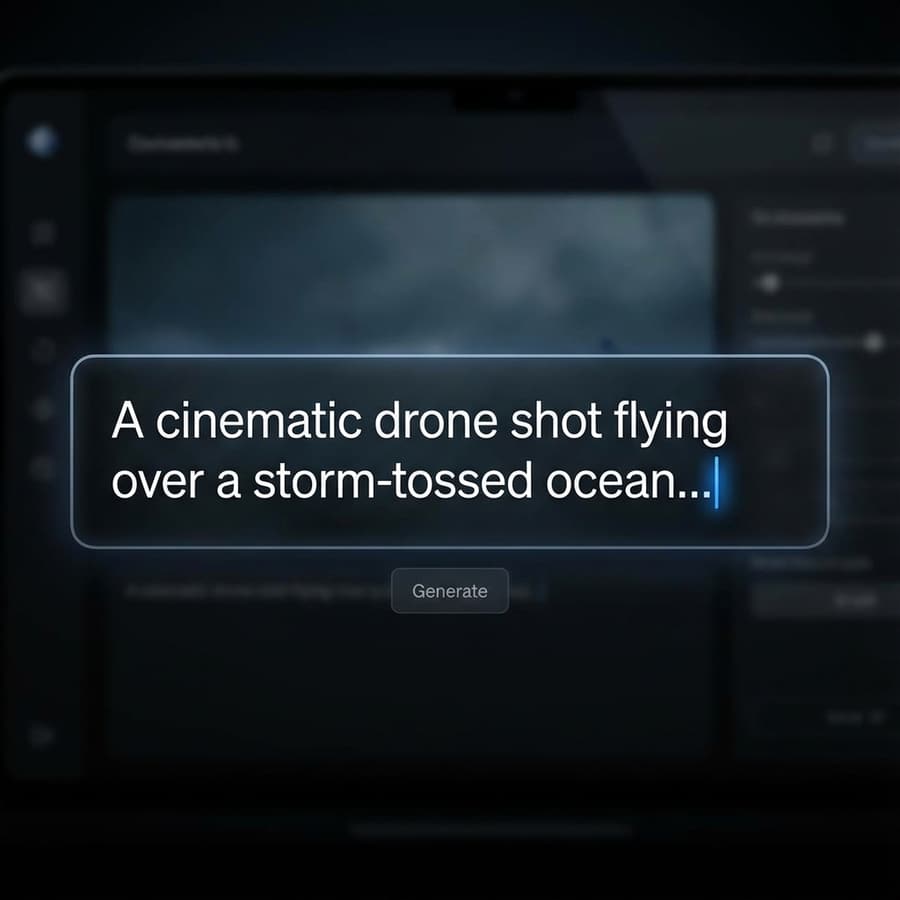
Choose the target aspect ratio and the shortest supported duration, then use Normal mode to evaluate composition, identity, and motion before spending more on a quality pass.
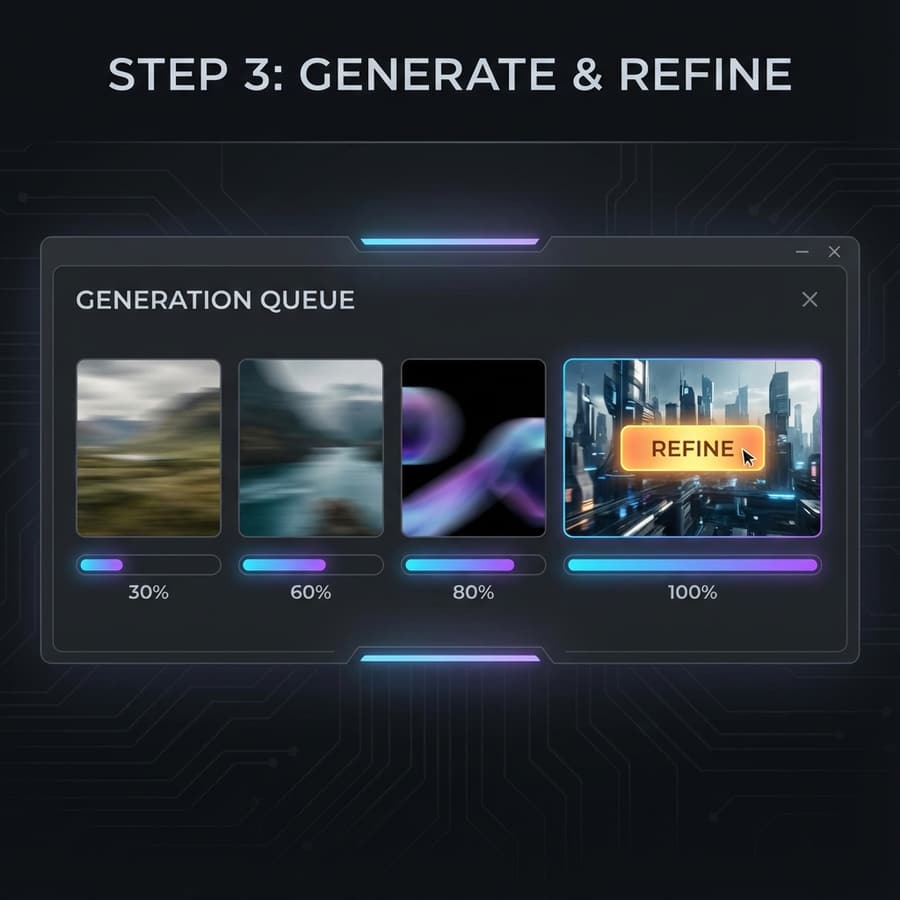
Inspect the opening, middle, and final frames for drift, abrupt camera changes, object deformation, unwanted words, and unsafe or unusable details.
Use a compact six-second brief to validate one motion idea before creating variants.
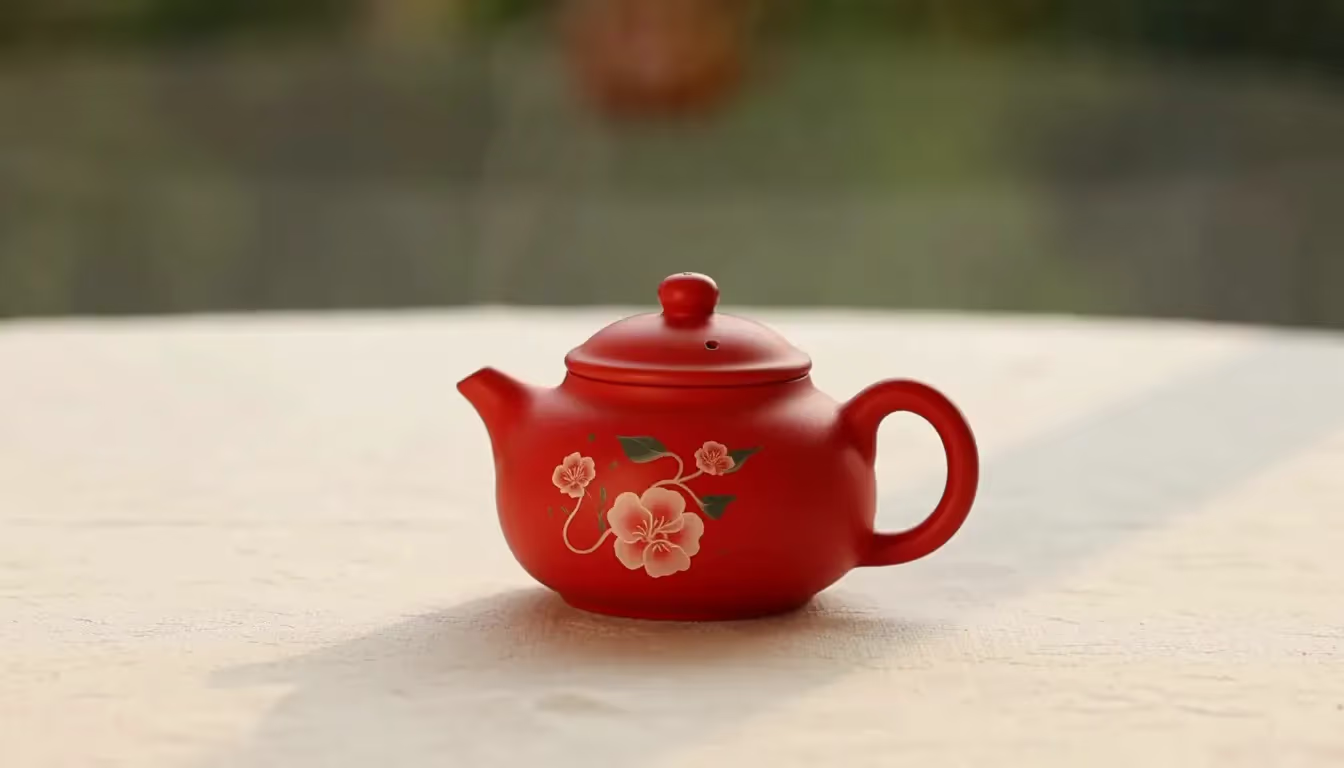
Place one product in a clean environment and request one visible action with a fixed or simple camera. Define how the clip should end and use Normal mode for the first pass. Review silhouette, surface, labels, contact, shadow behavior, scale, and background stability across all six seconds before investing in a quality pass or additional framing.
Describe one repeated action with a clear direction, cadence, and camera response. Keep the setting uncluttered so changes in identity, limbs, geometry, or timing are easy to catch. A short loop candidate should maintain its subject from first frame to last and avoid frozen intervals, sudden speed changes, or a final pose unrelated to the requested movement.
Use image-to-video when the opening composition matters. Upload a licensed frame with enough room for movement and avoid asking the subject to perform an action that contradicts its pose or perspective. Compare early generated frames with the source, then track how quickly identity, layout, lighting, and small features begin to drift as motion develops.
Run Quality only after a Normal result proves the direction and the desired improvement can be named. Keep prompt, source, ratio, and duration matched so the comparison is meaningful. Watch both clips at full speed and frame by frame, then decide whether cleaner geometry, motion, or detail justifies the extra credits for the intended destination.
Answers about NanoPic's KIE-powered video route.
Yes. NanoPic provides separate image and video pages so each media type has the correct provider routes and controls.
The KIE integration supports Grok Imagine text-to-video and image-to-video at the settings shown in the generator.
Normal prioritizes a lower-cost speed workflow, while Quality requests the provider's higher-quality mode and consumes more credits.
Yes. NanoPic completed a paid UI generation at the lowest supported specification, received a successful KIE task, and verified the returned video was playable.
Begin with the shortest useful motion brief, review the output, then spend on refinements that have a clear purpose.