











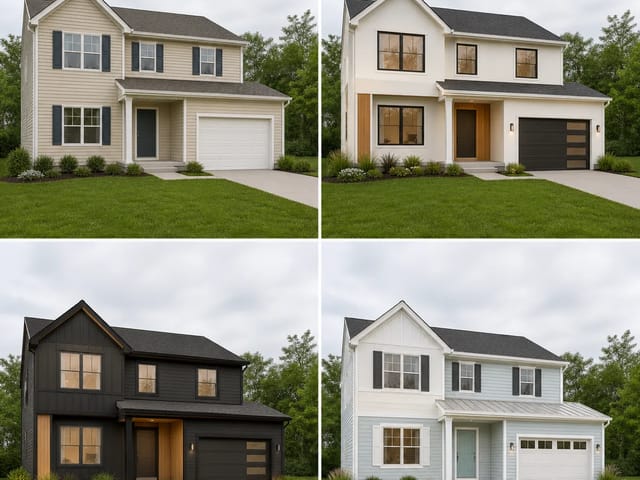
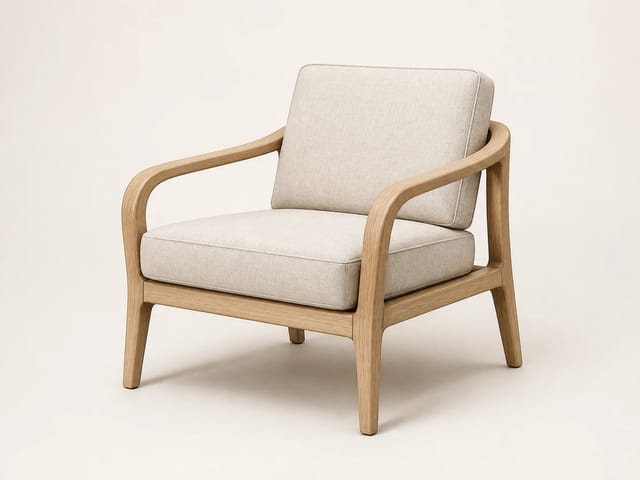


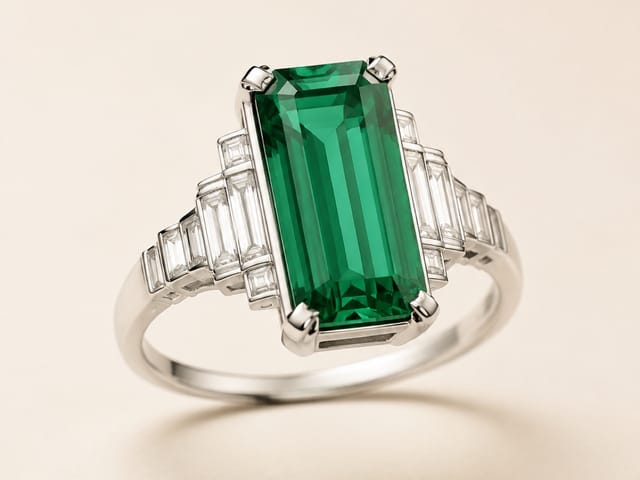

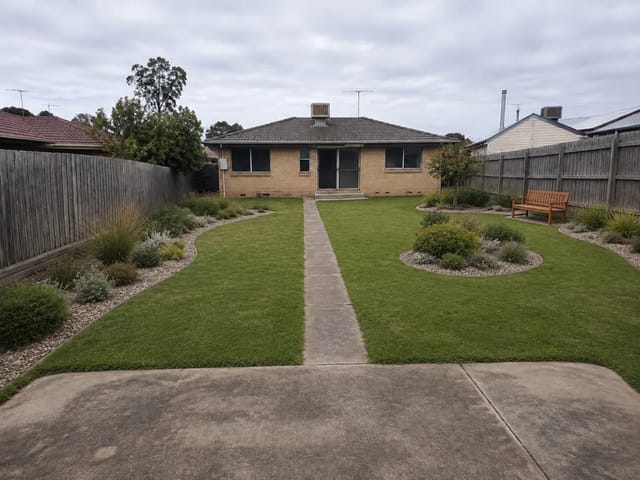







Visualize One Chair in One Room
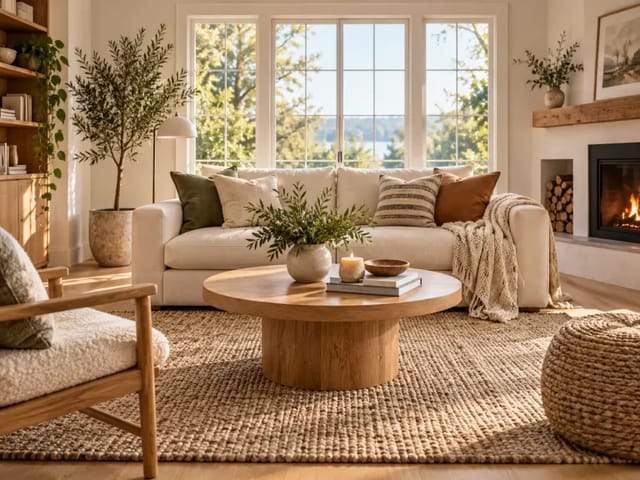
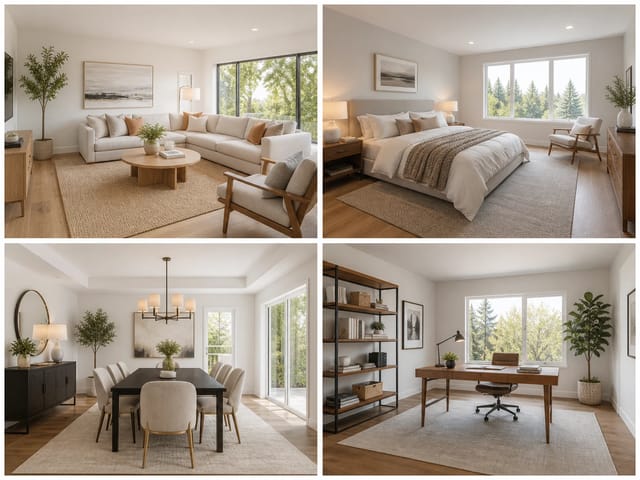
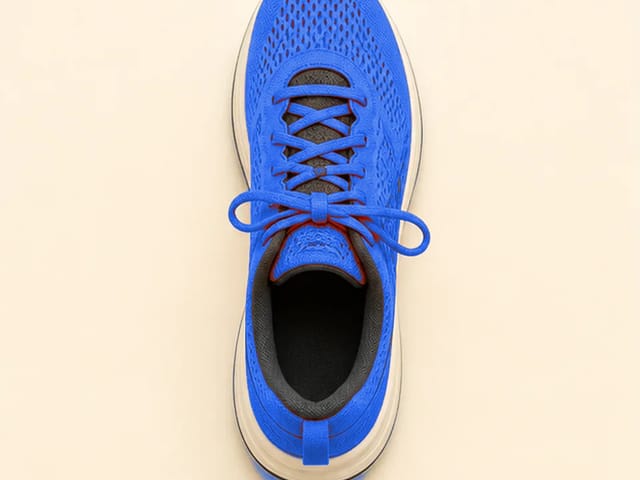
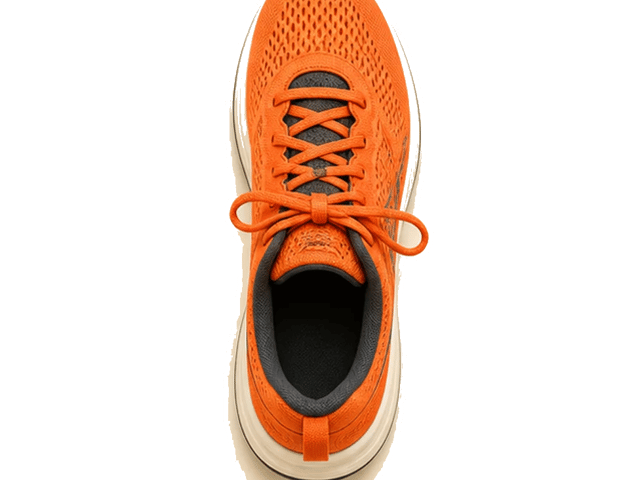
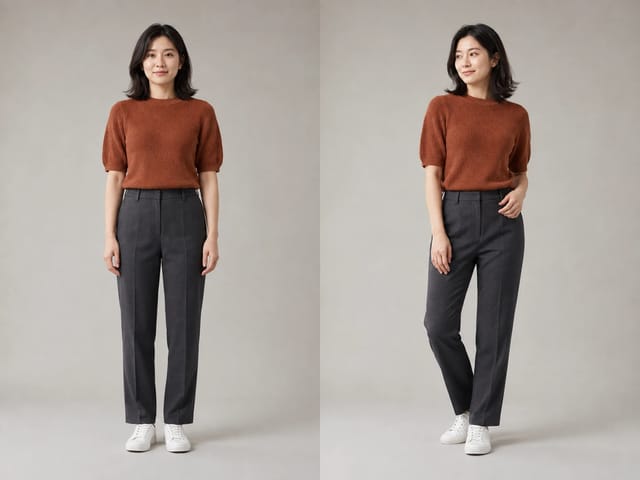
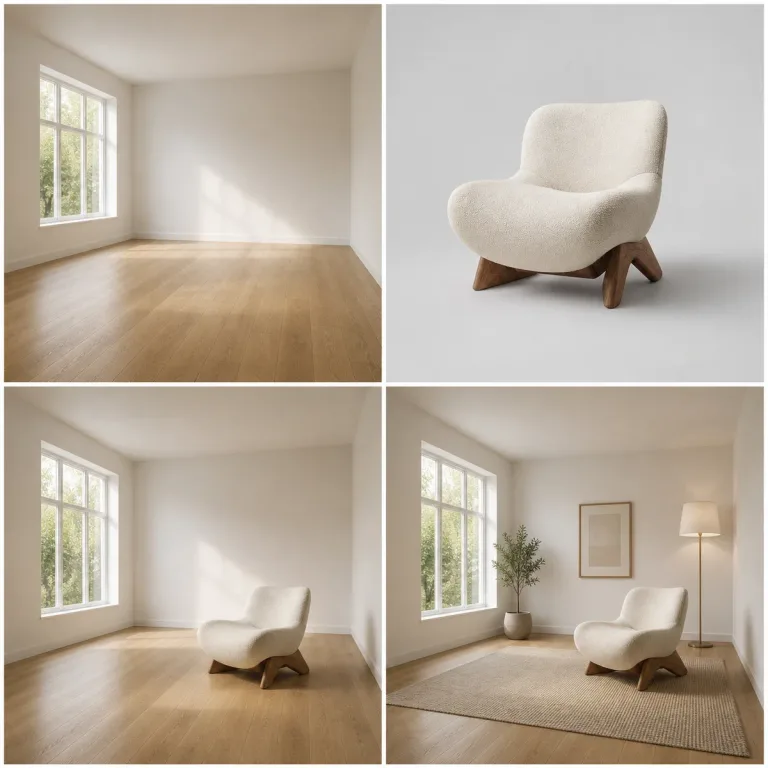
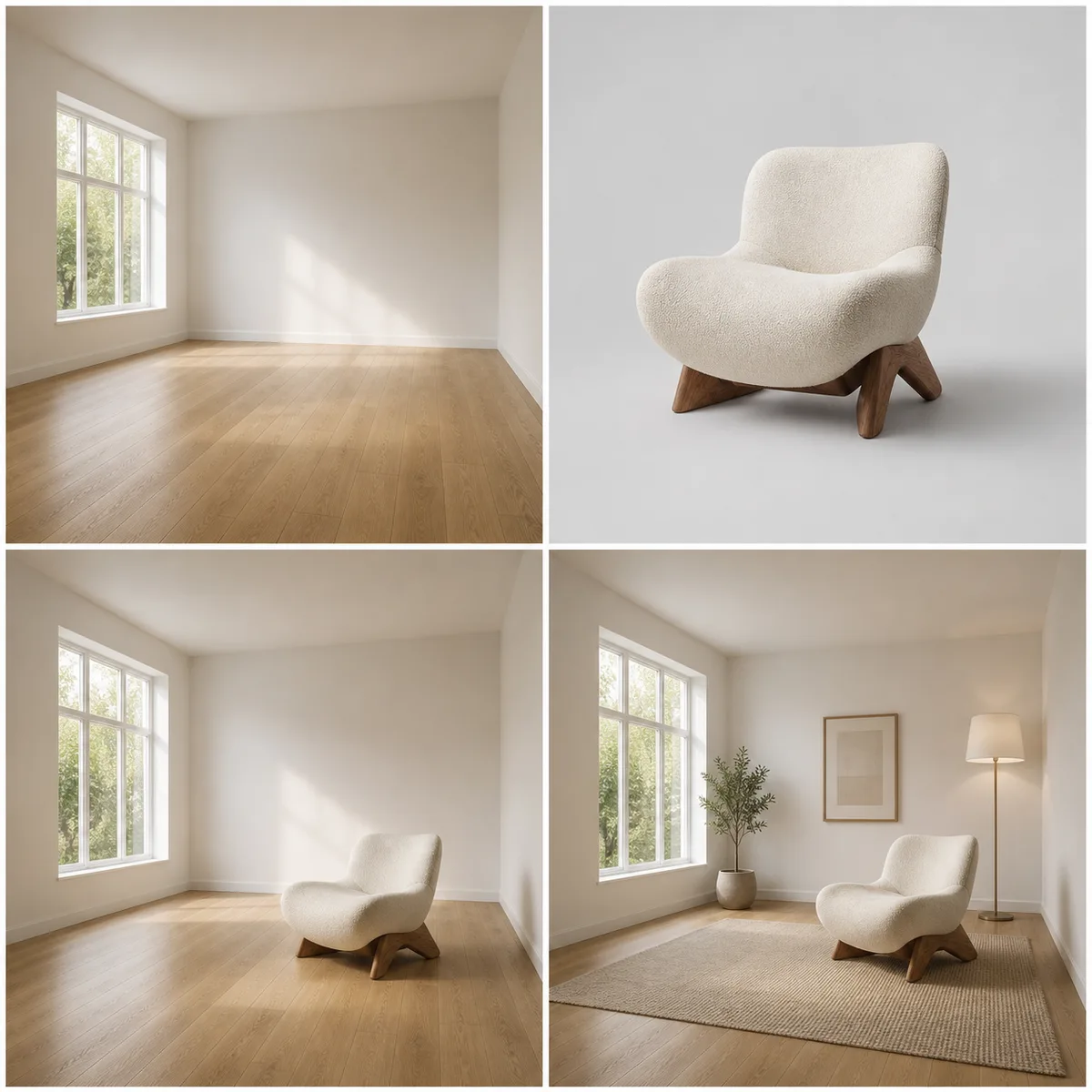
The sample separates the empty-room input, product input, and two placement drafts so the expected reference order is clear.
Visualize FurnitureSave up to 73% on plans
Image
Browse every other AI image model and effect published on this site in a continuous carousel.
The two-reference workflow treats the room and product as separate sources. It asks the model to preserve walls, windows, doors, floors, fixtures, camera perspective, and light direction while keeping the furniture silhouette, material, color, legs, seams, and distinctive details. The result is a visual approximation, not a measurement tool: confirm dimensions, clearance, delivery access, color samples, and the actual product listing before buying or presenting the concept.
A clear room view and complete product photo reduce ambiguity.
The sample separates the empty-room input, product input, and two placement drafts so the expected reference order is clear.
Visualize FurnitureUse two sharp references and one practical placement note.
Choose a straight, well-lit room photo with the floor, walls, fixed features, and intended placement area visible.
Use a complete furniture photo with an unobstructed silhouette. Include dimensions in your own notes, but remember the model cannot verify physical fit.
Inspect product design, perspective, contact shadows, floor contact, clearance, doors, windows, and walking paths. Reject any draft that changes the product or room.
The prompt protects both source images and calls out common compositing errors.
The interface keeps room and product images in the correct order.
Permanent architecture, camera, lighting, and structural condition should remain unchanged.
Silhouette, color, materials, legs, seams, and distinctive details stay anchored to the product reference.
Scale, perspective, floor contact, occlusion, shadows, and reflections are requested explicitly.
Answers about reference images, dimensions, rooms, products, credits, and commercial use.
One image defines the room and the other defines the exact furniture product. Keeping them separate gives the model clearer geometry and material references.
No. AI placement is approximate. Verify product and room dimensions, doorways, circulation, installation, and manufacturer specifications independently.
Use complete, sharp product photos of chairs, sofas, tables, lamps, or décor with limited occlusion and an easy-to-read silhouette.
Only use product imagery you own or have permission to process. Follow the retailer, manufacturer, photographer, and platform terms.
New users receive the welcome credits shown in the generator. Generation uses NanoPic credits, and free-credit output includes a watermark.
Upload clear references, make a placement draft, and verify real-world fit before deciding.

80s Photo Filter adds warm, faded film color to your photo in the browser. Adjust strength, preserve clothing and framing, and download a PNG.
Open tool
AI Age Filter creates a natural older-look concept from an authorized adult portrait. Review identity, complete-head framing, light and scene after editing.
Open tool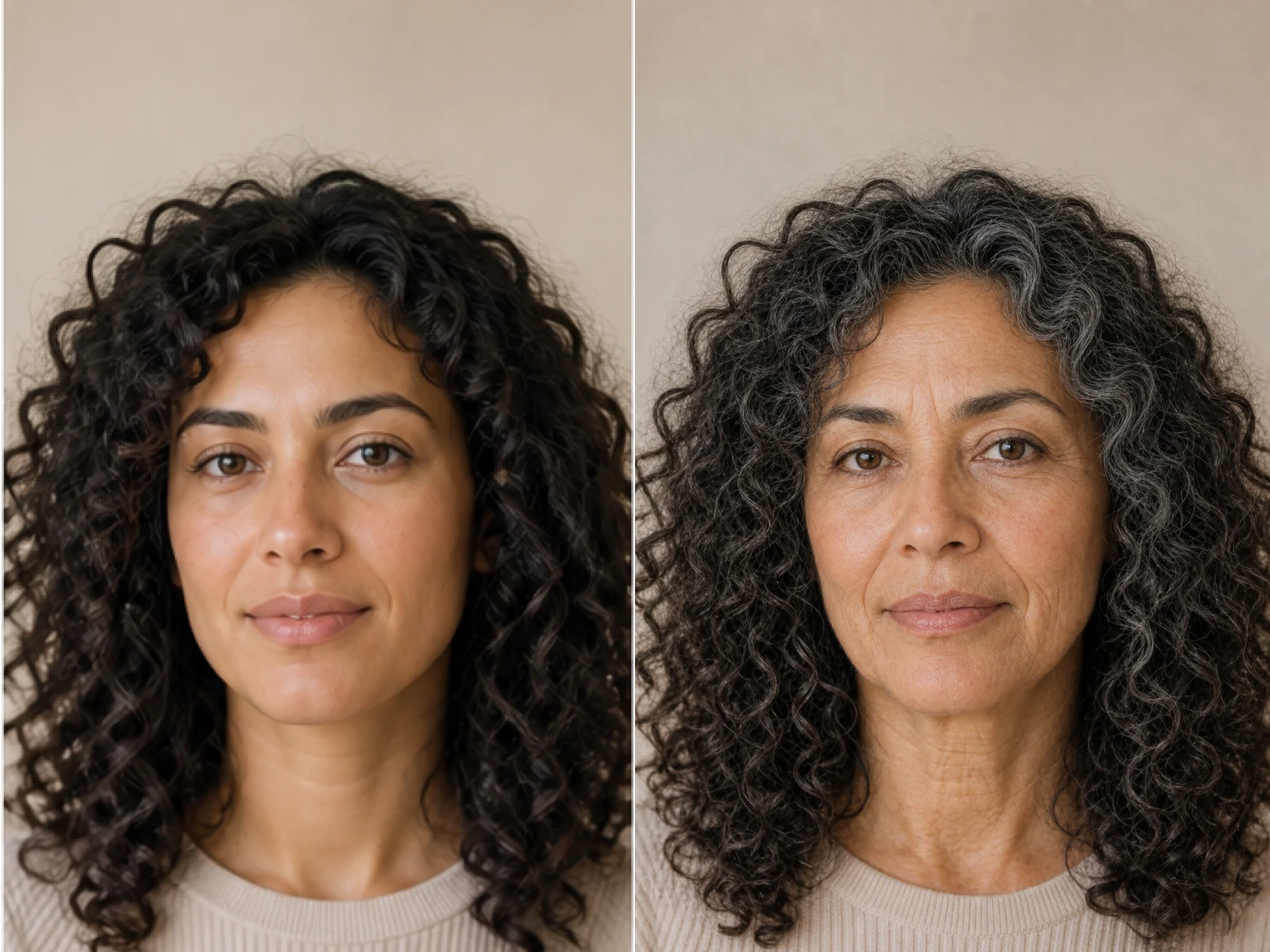
AI Age Progression creates a target-age concept from an authorized adult portrait. Set an age interval and review identity, framing and scene after editing.
Open tool
AI Labubu Generator helps explore your own monster doll concept from an authorized reference. Create original shapes and outfits, with no official affiliation.
Open tool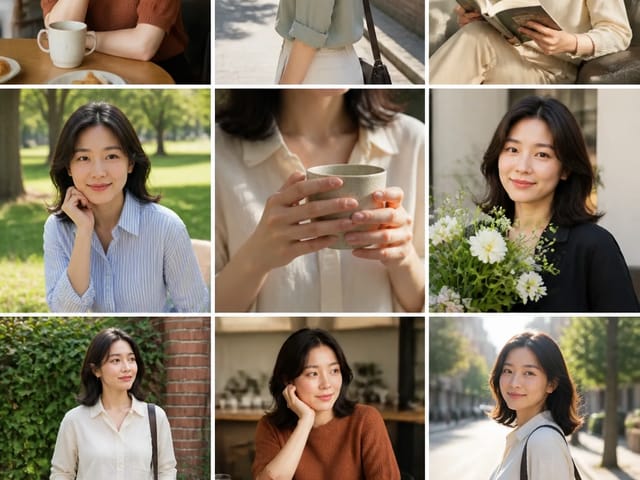
Camera Roll AI turns an authorized reference photo into one lifestyle collage. Plan varied scenes and a phone-gallery-inspired layout, then save one image.
Open tool
Face in Hole Generator places an authorized face into your chosen photo or template. Upload two references, refine the blend, and save a creative portrait.
Open tool
Explore a Hotpot AI alternative with NanoPic’s independent Seedream 5.0 editor. Upload a reference, direct a visual concept, and review your image.
Open tool
Make Image Higher Resolution with real 2× or 4× browser resizing. Compare pixel dimensions and download PNG without claiming recovered detail.
Open tool
Remove Glare from Glasses in photos with an editable AI image prompt. Upload your portrait, reduce lens reflections, and review the result before using it.
Open toolTurn one authorized adult portrait into a realistic flashlight scene with a miniature stylized double. Generate, then inspect identity, hands, light, scale, and crop.
Open toolTry 12 original funny AI prompts on one authorized person or pet photo. Load, edit, generate, and review identity, anatomy, props, text, and visual coherence.
Open toolTurn one authorized photo into original blocky pixel art with six editable prompts. Generate, then review subject detail, geometry, text, rights, and composition.
Open tool