
















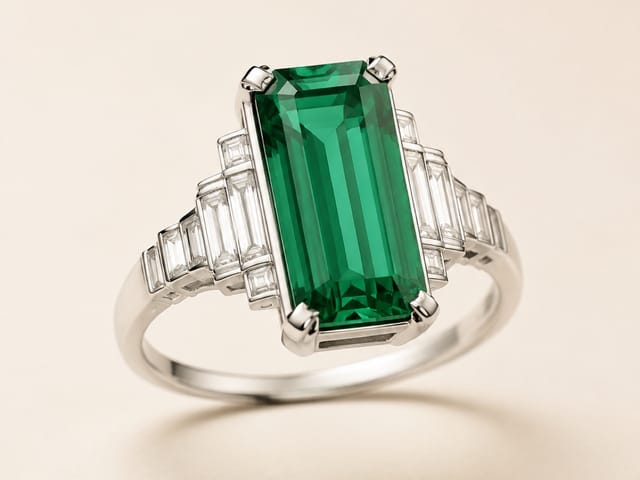

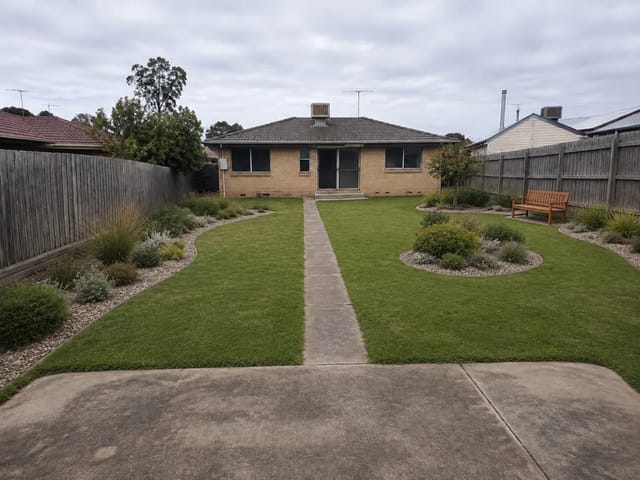
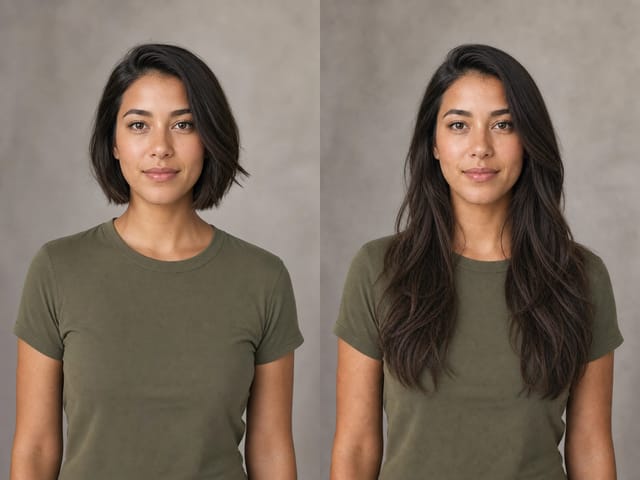
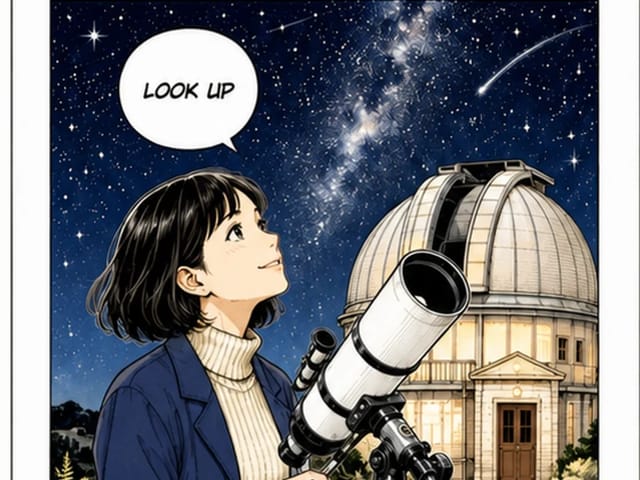







Save up to 73% on plans

FLUX Kontext Multi Image Generator
Sign In
Reference images(0/4)
Public VisibilityAllow this result to appear in public inspiration surfaces.
Credits required:—

FLUX Kontext Multi Image Generator

FLUX Kontext Multi Image

AI output preview

AI output preview

More AI Image Models & Effects

Browse every other AI image model and effect published on this site in a continuous carousel.

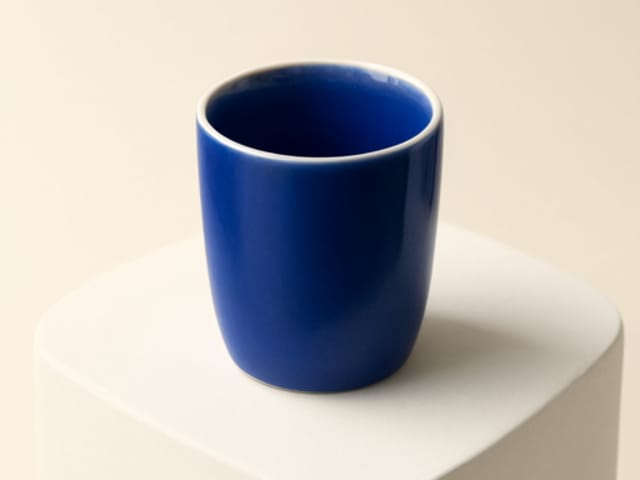
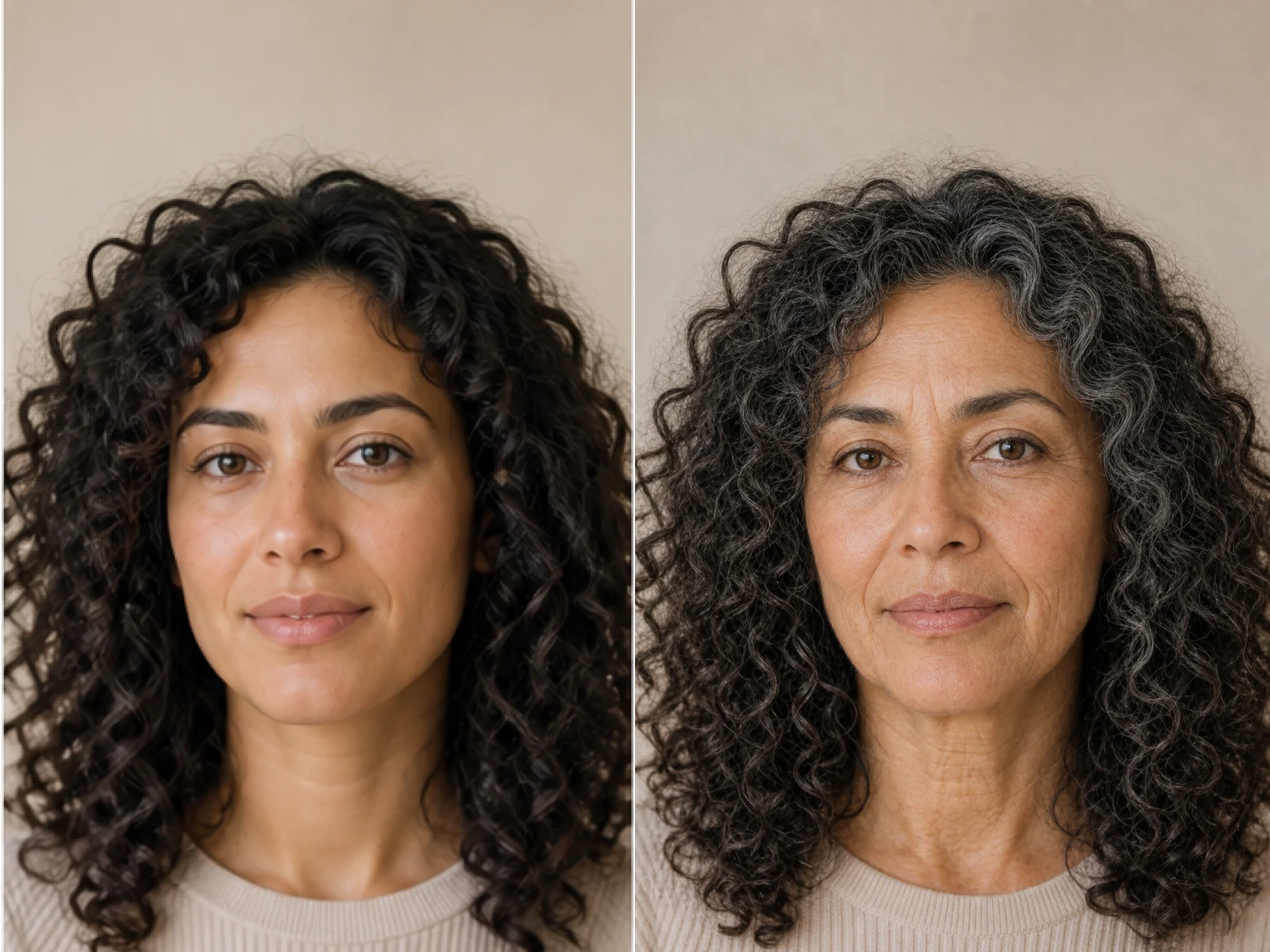
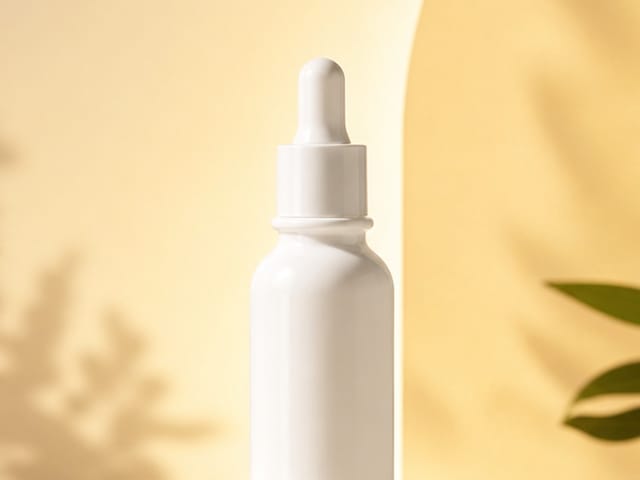
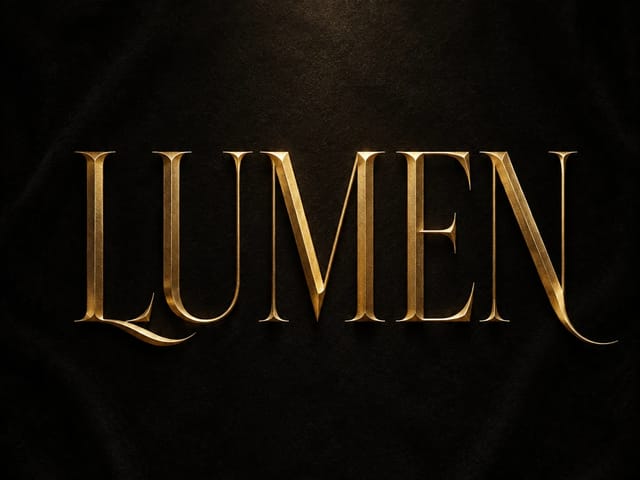
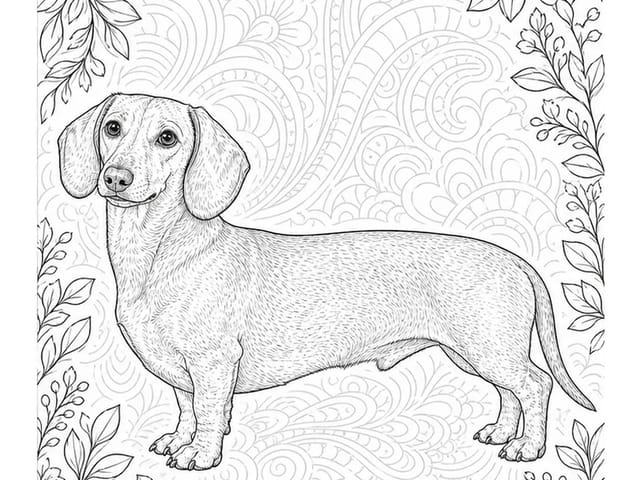
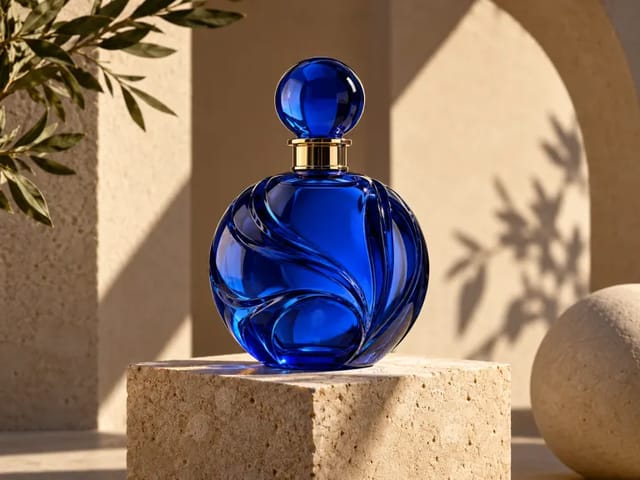
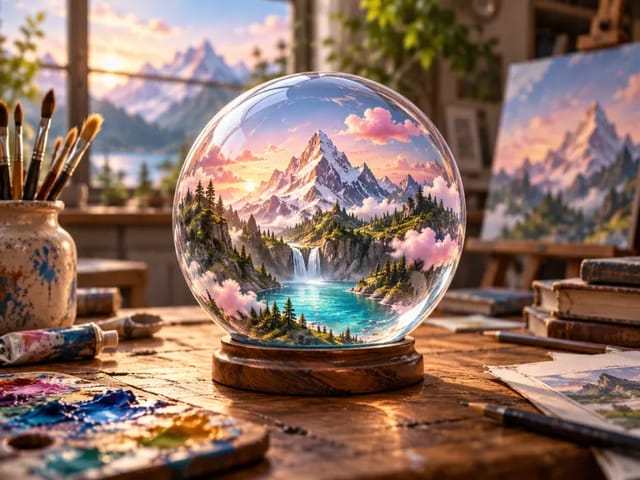
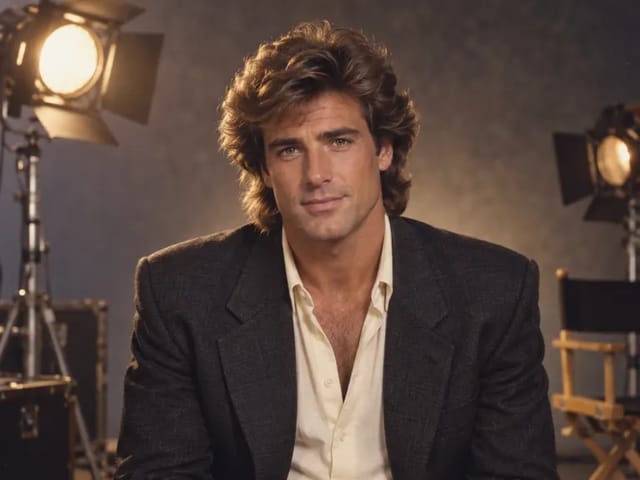
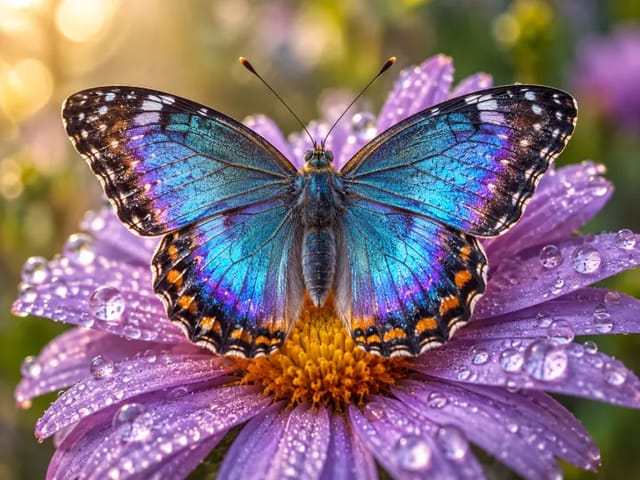
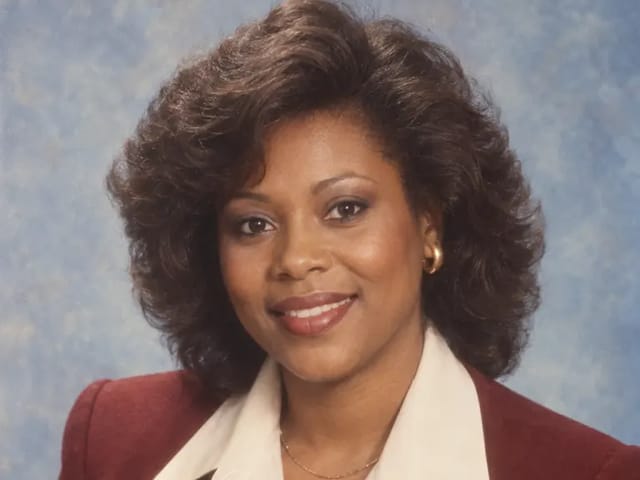
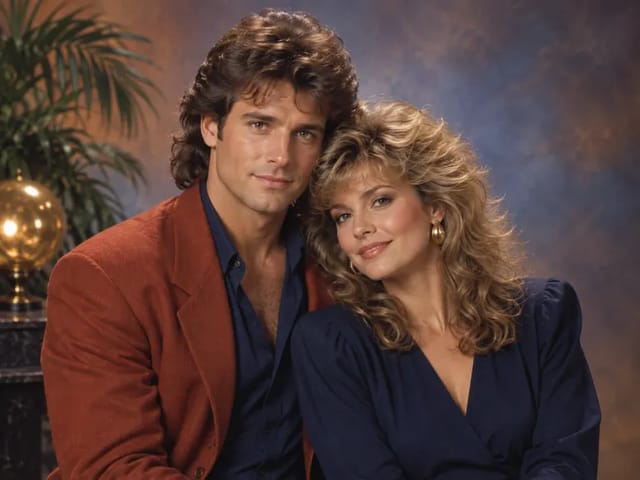
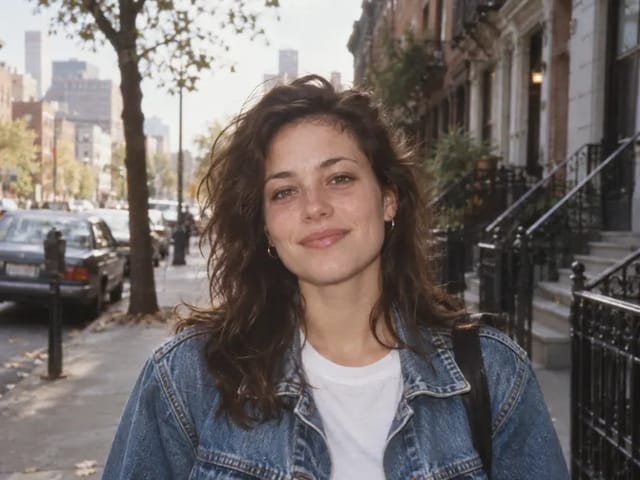
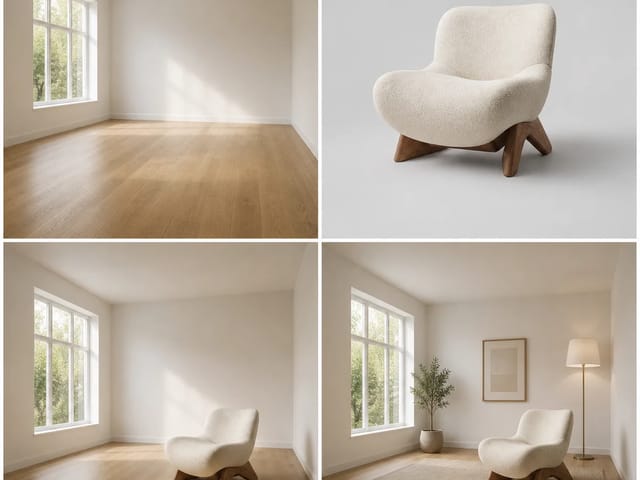
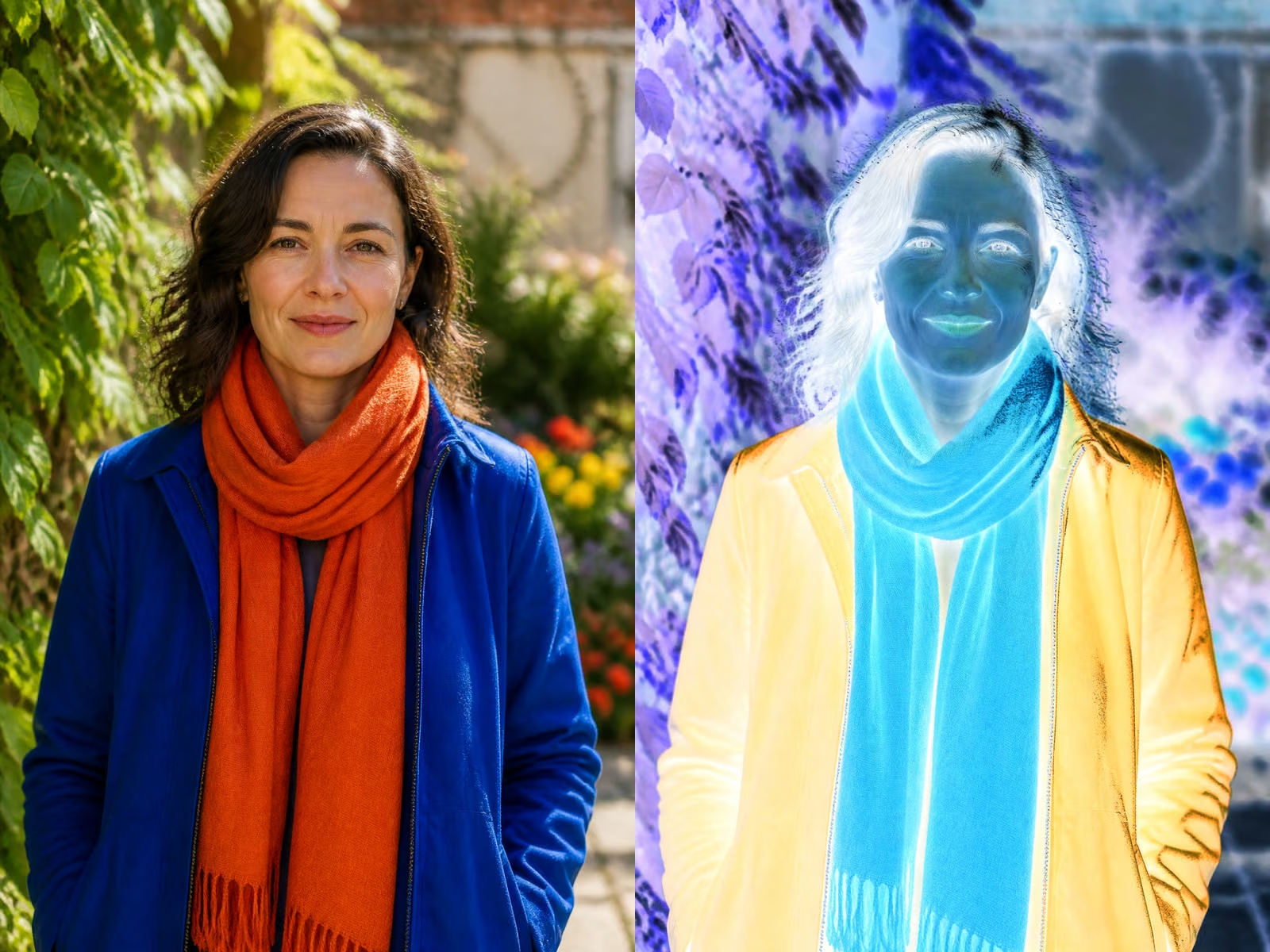
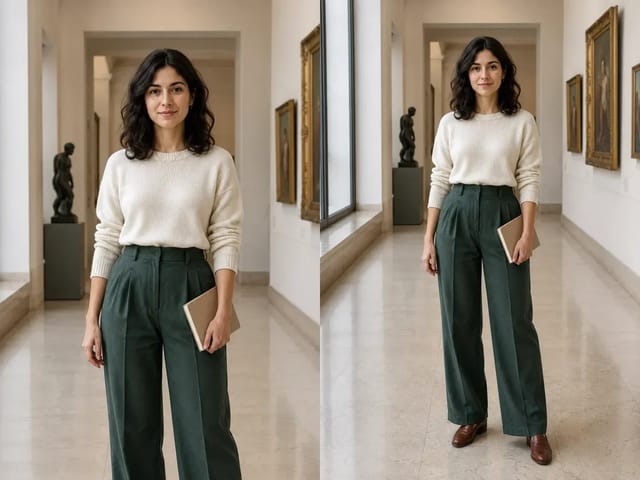
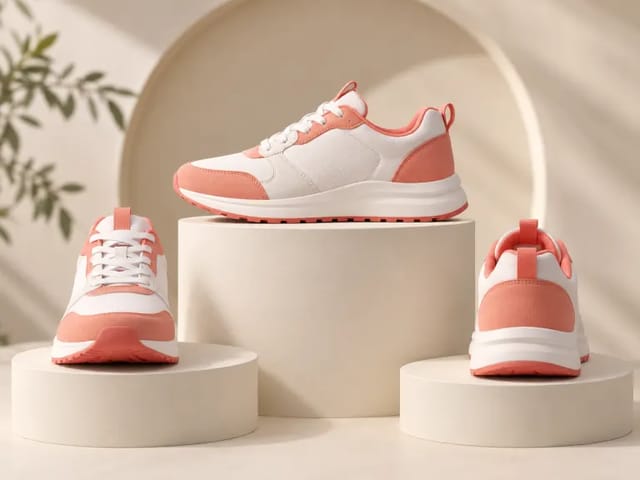
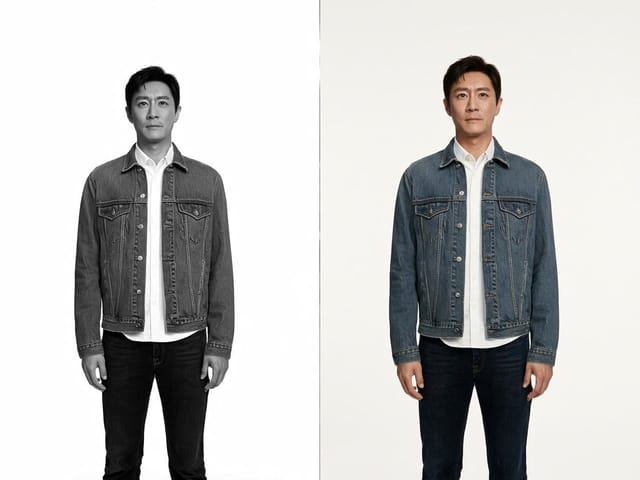
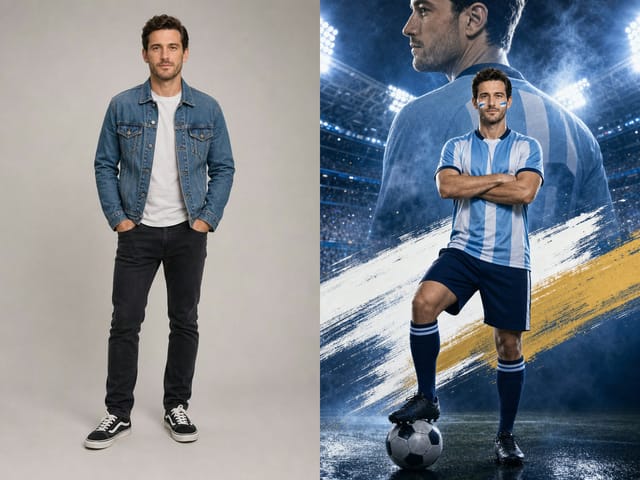
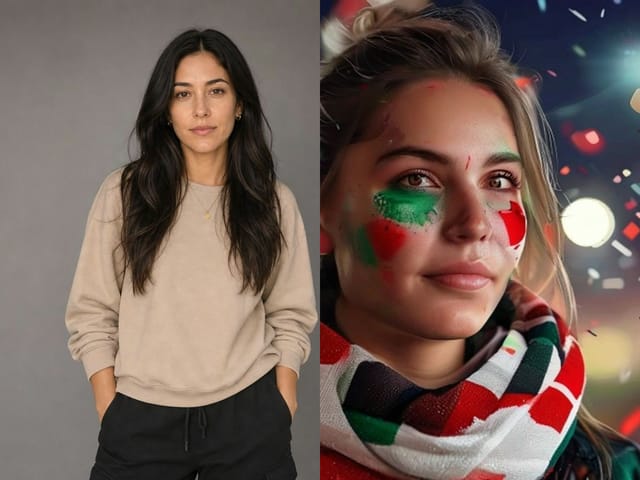
Actual Inputs and Result

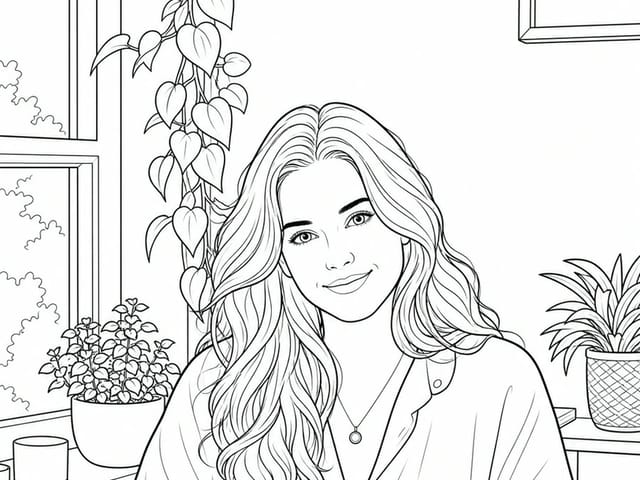
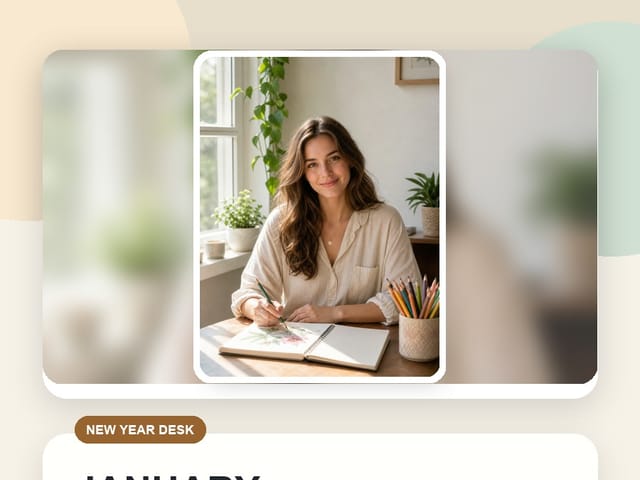
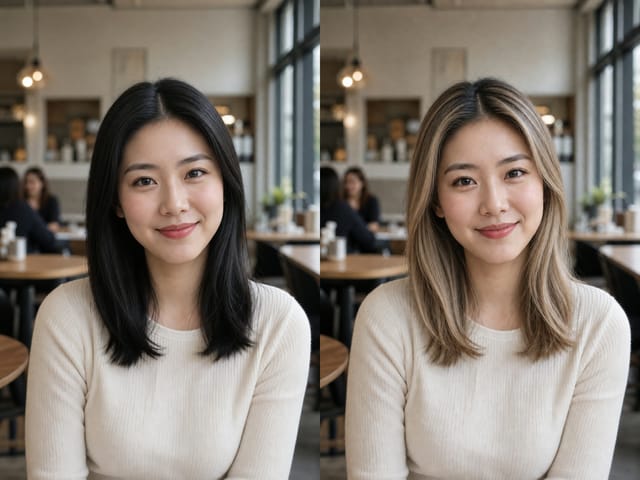
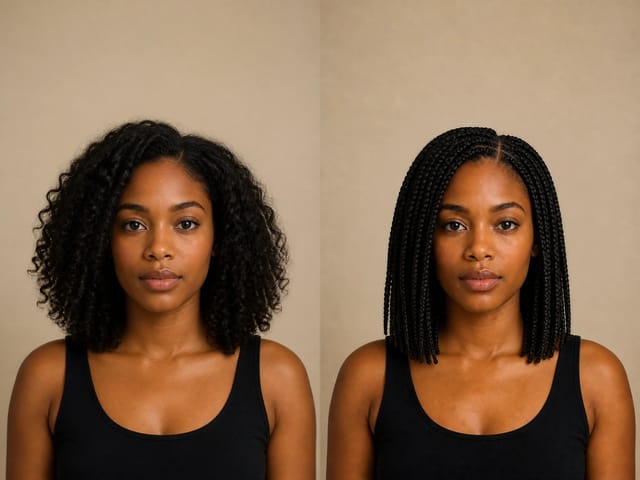
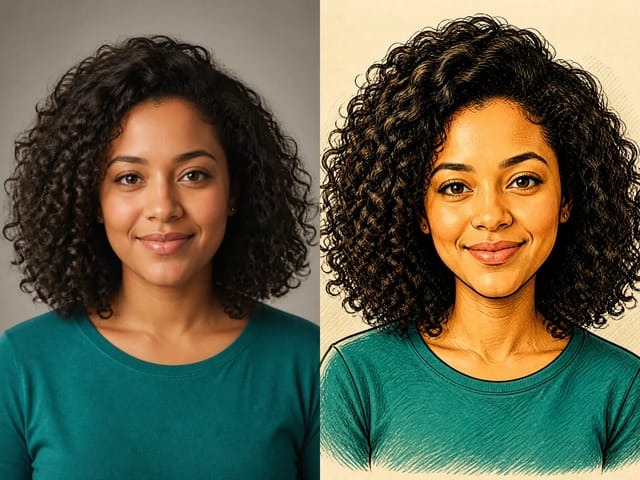
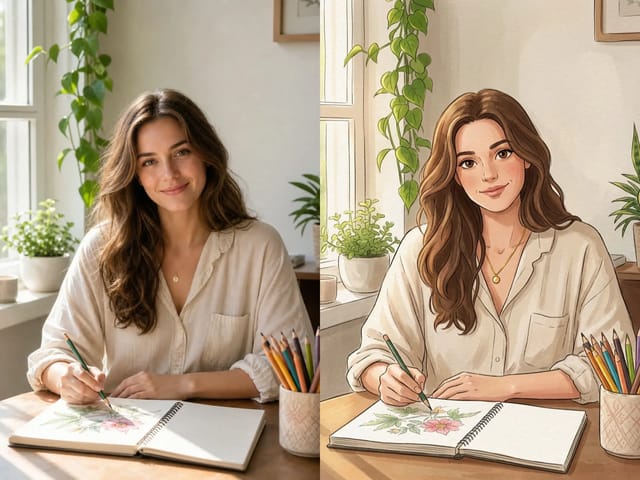
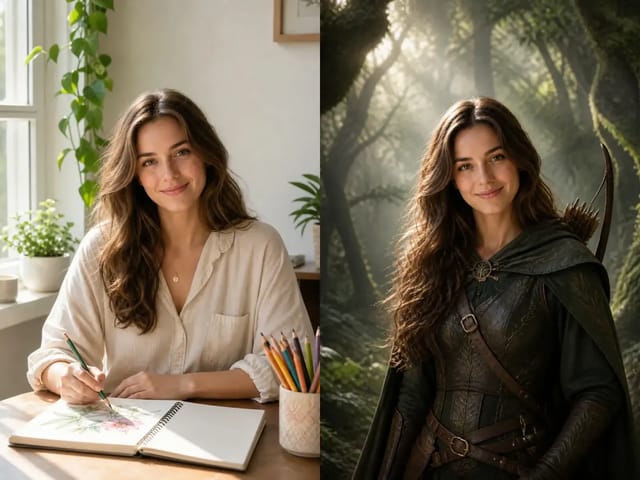
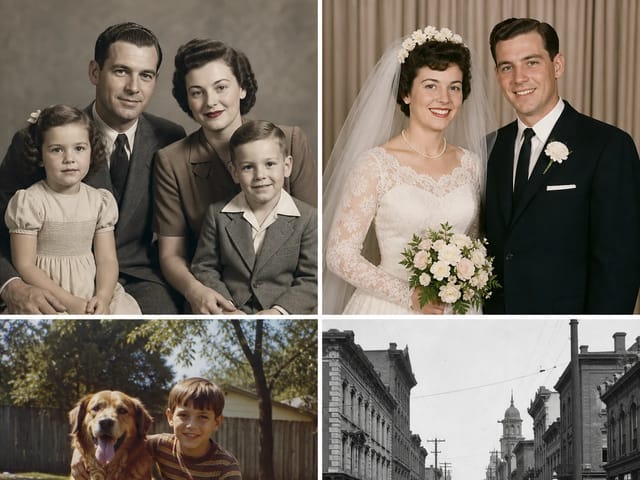
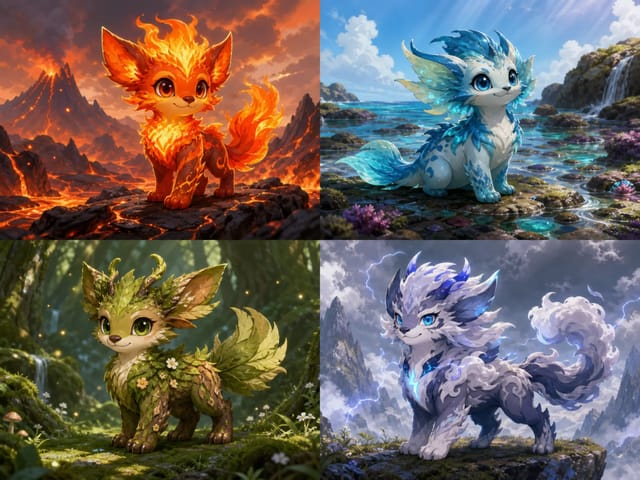
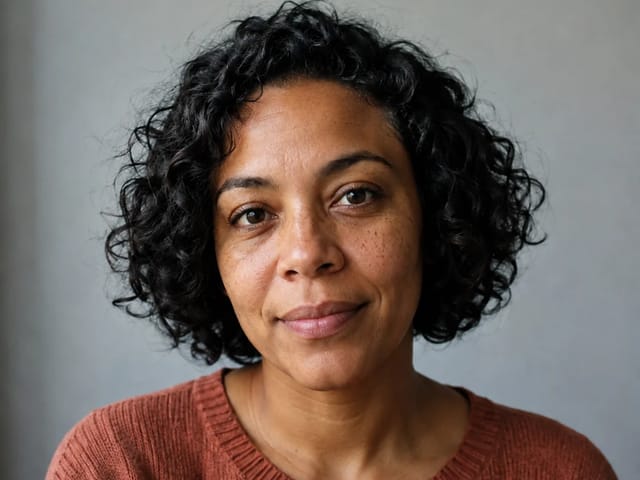
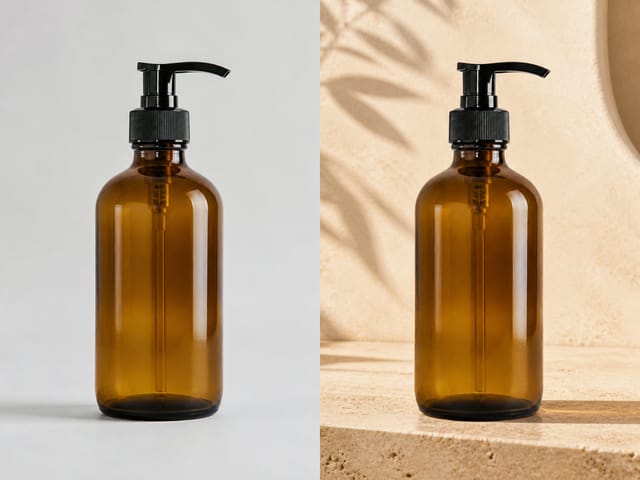
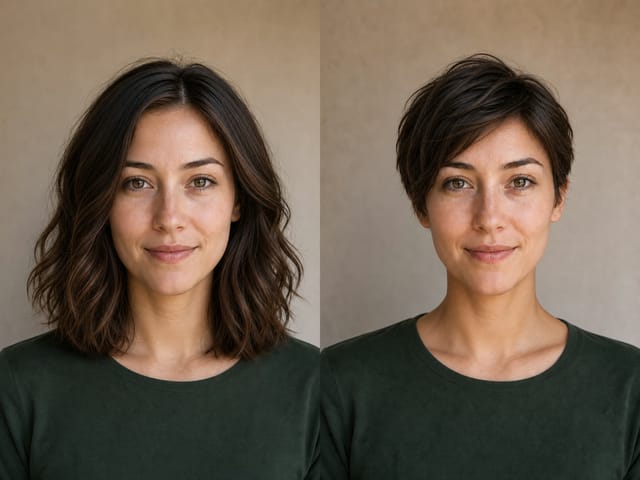
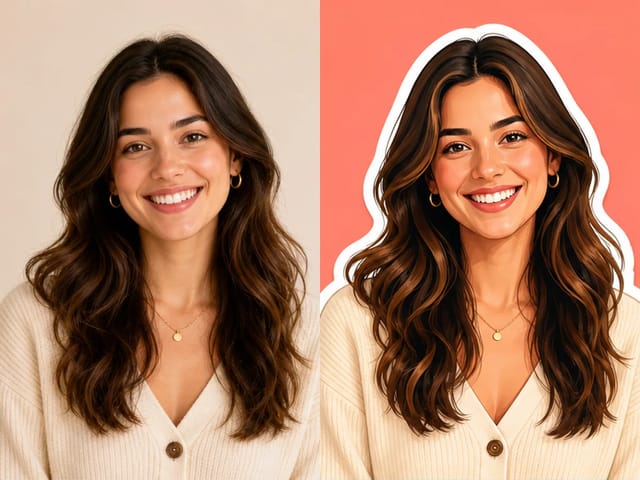
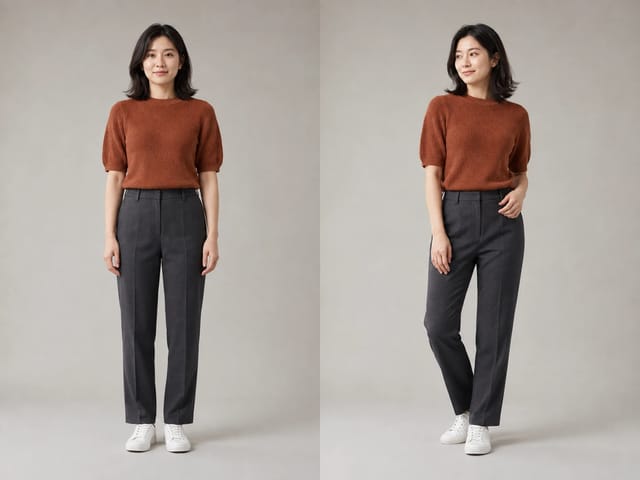
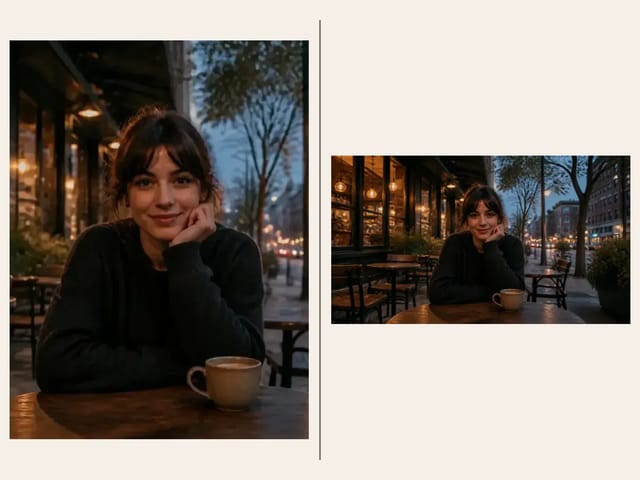
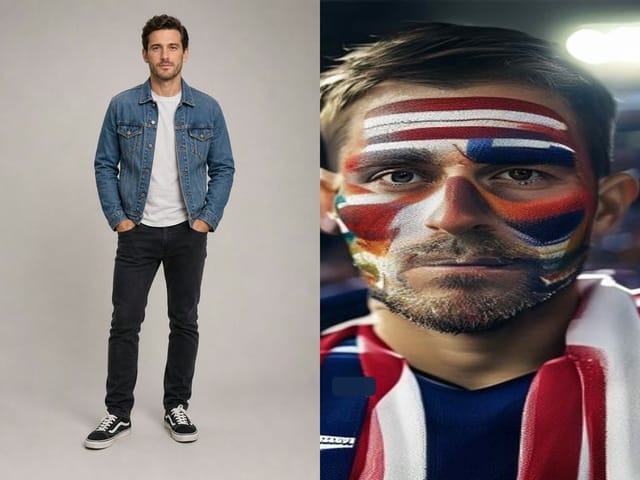
Two inputs, one generated result

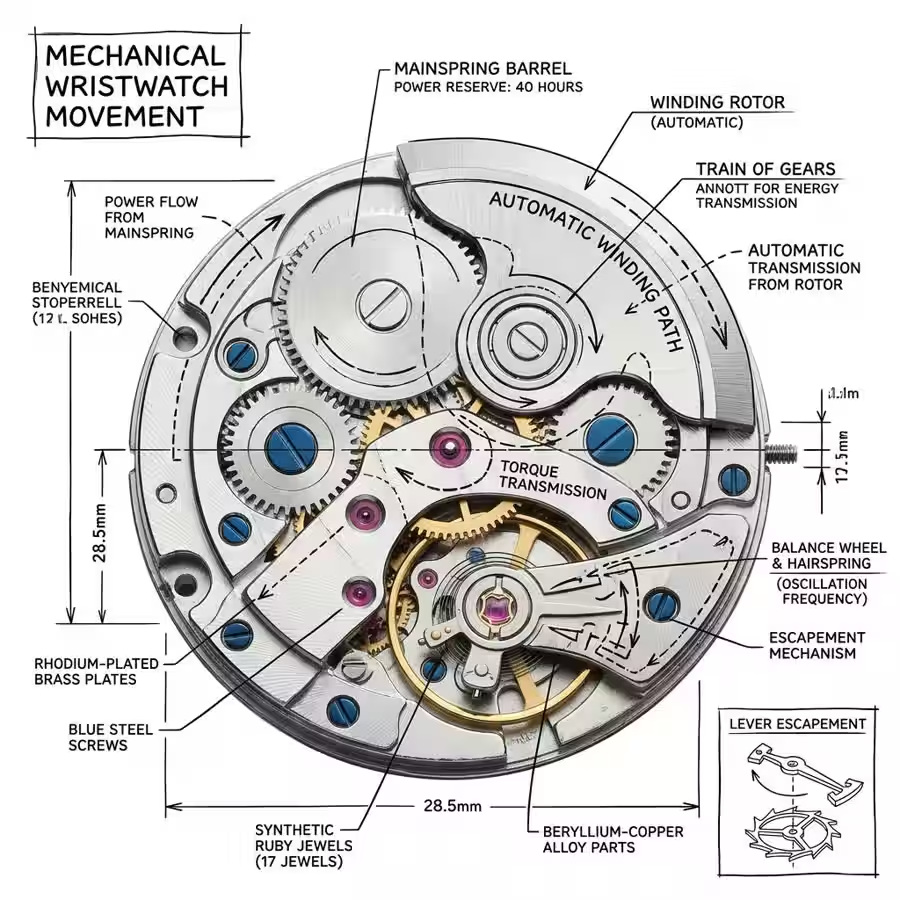
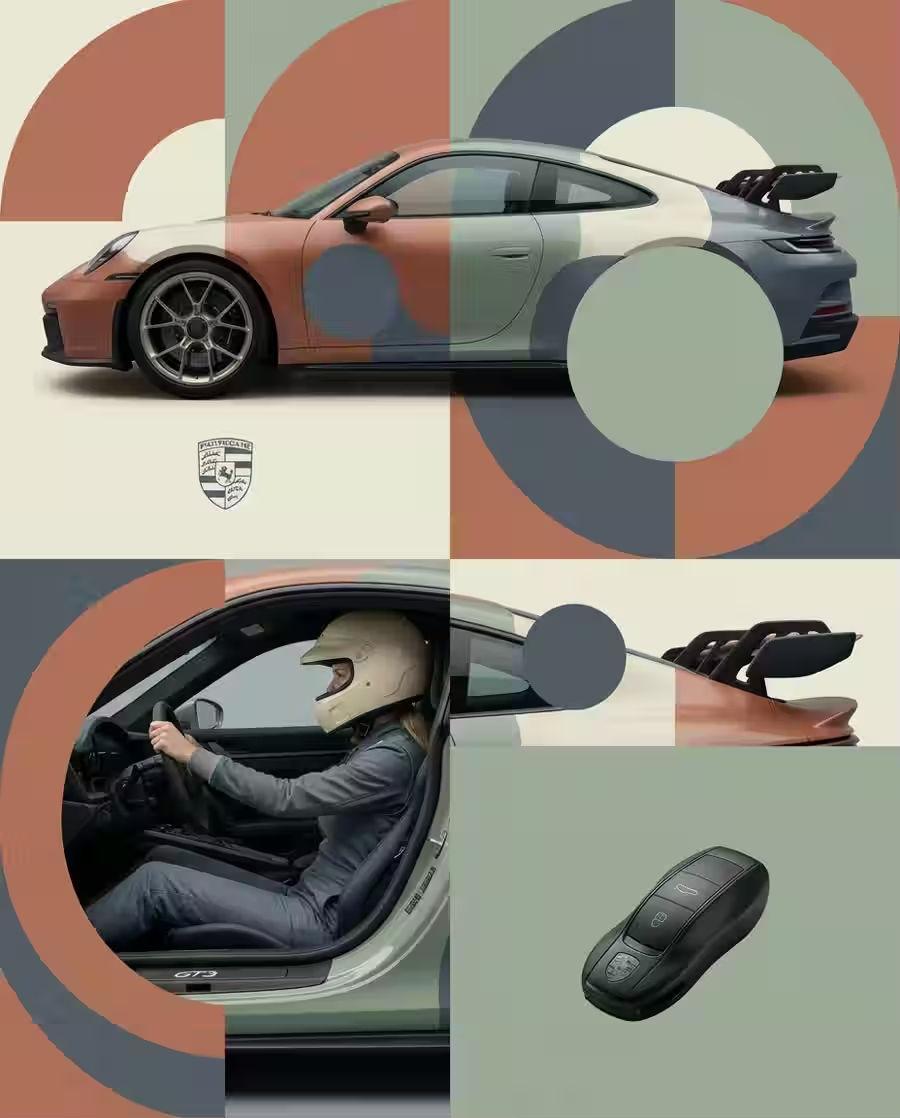
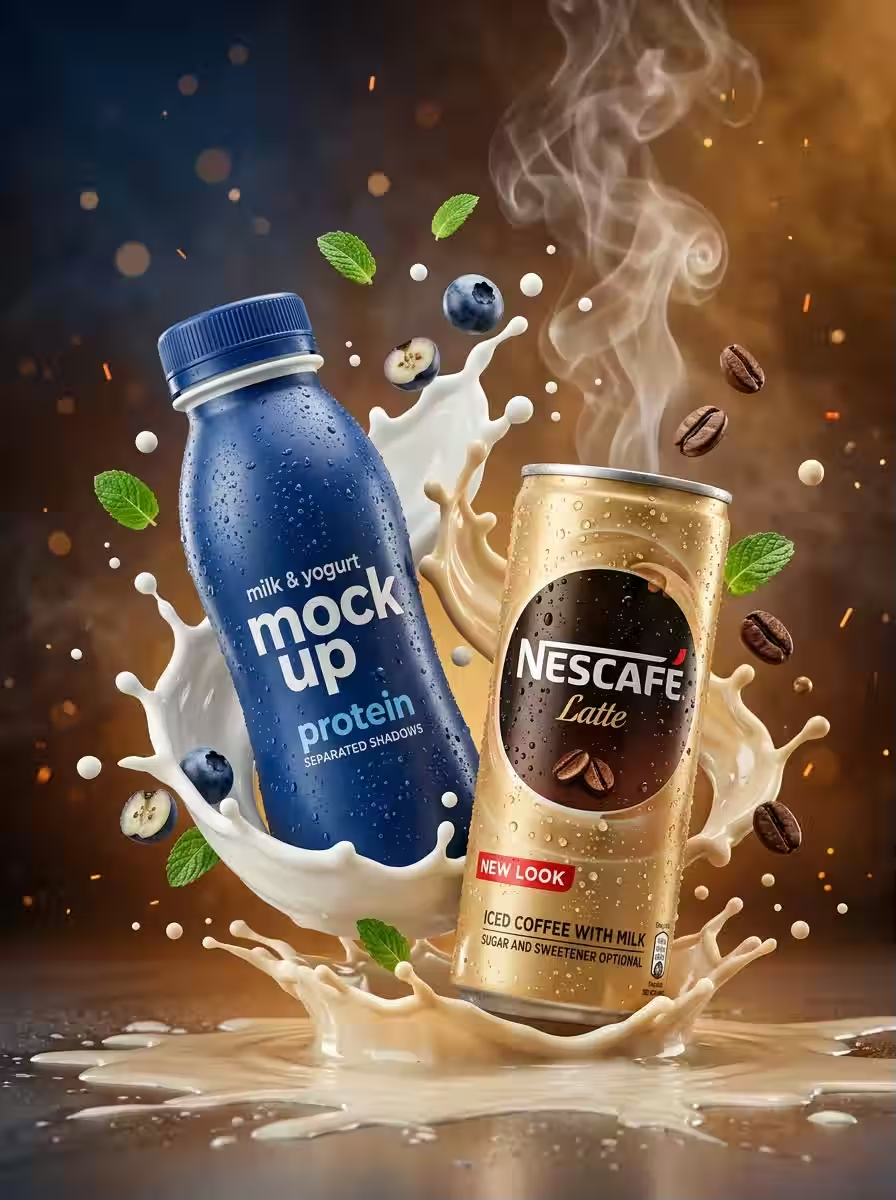
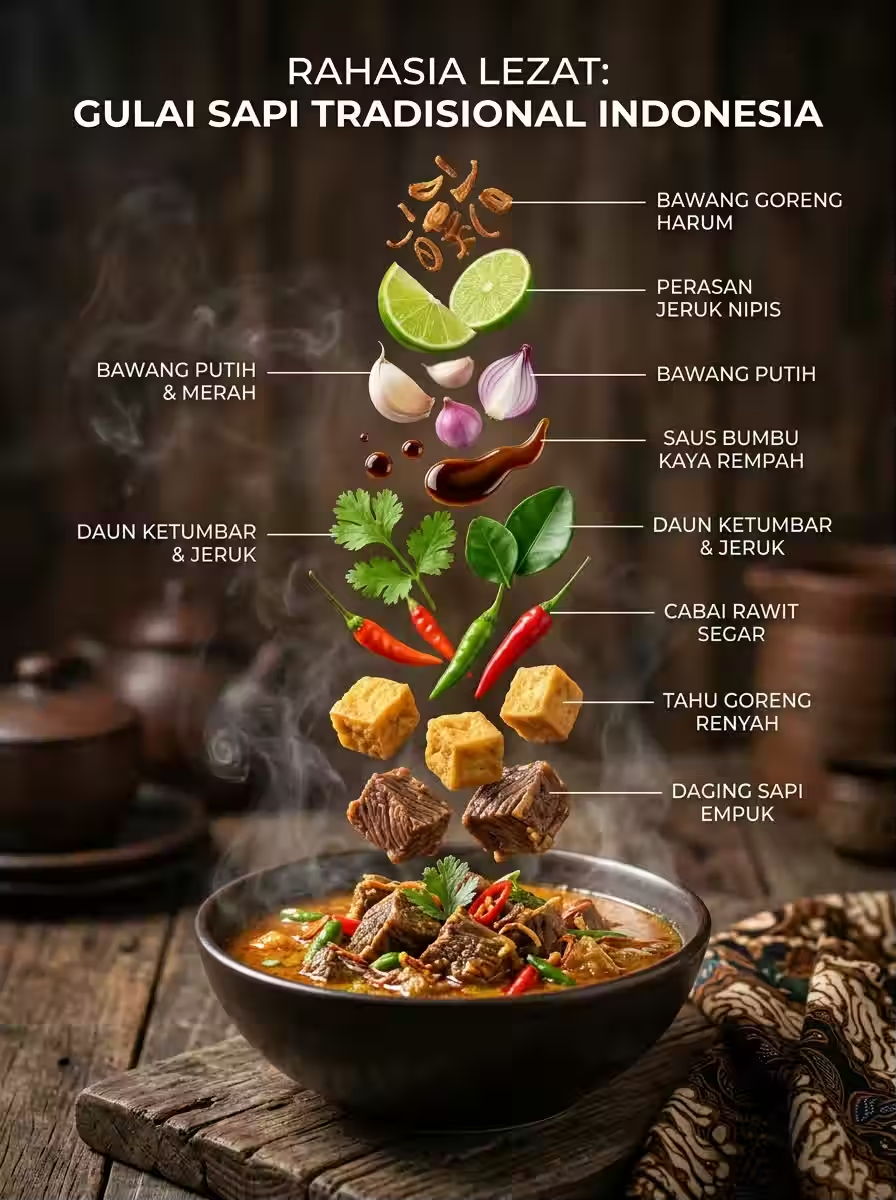
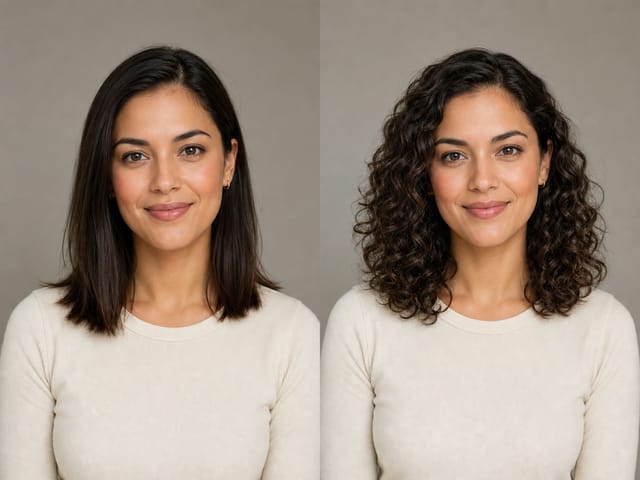
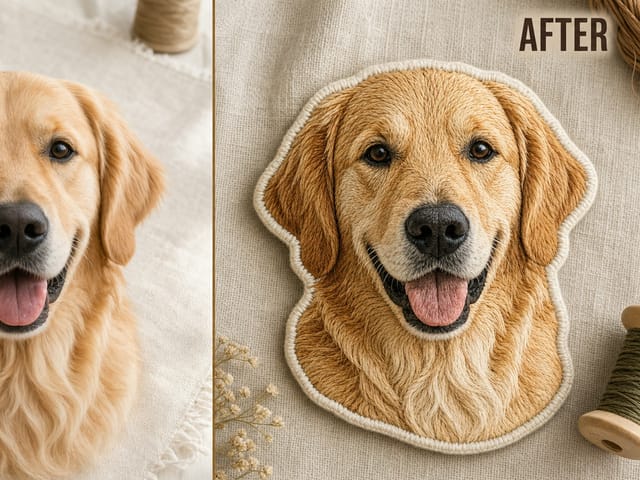
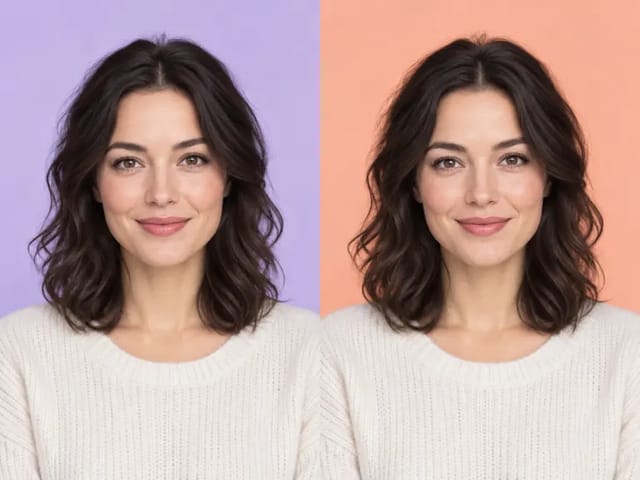
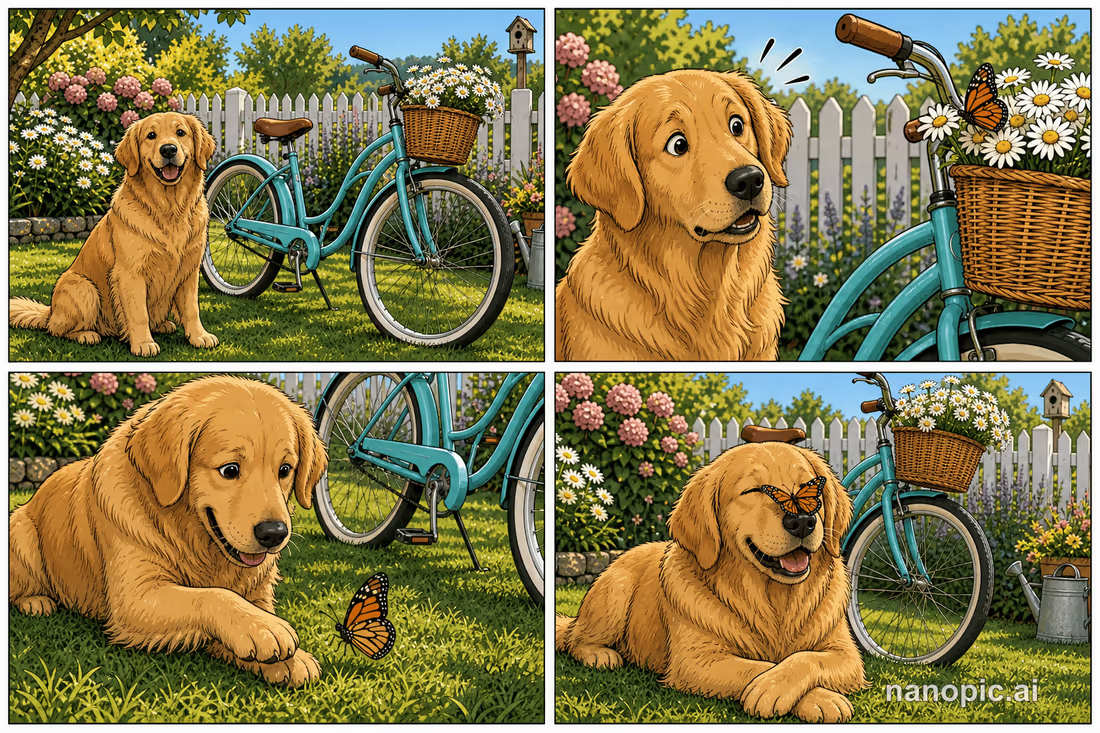
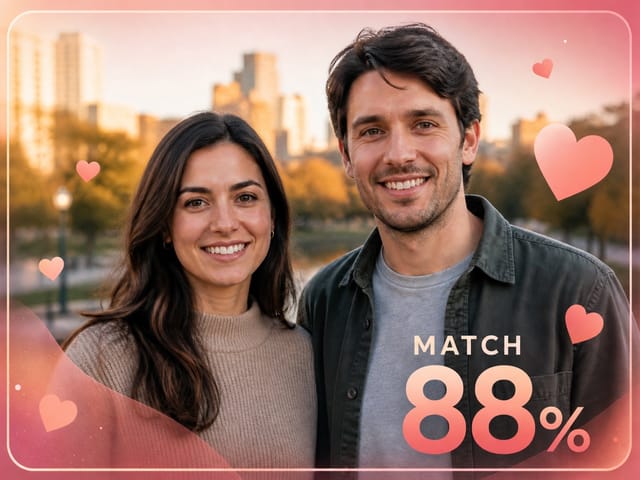
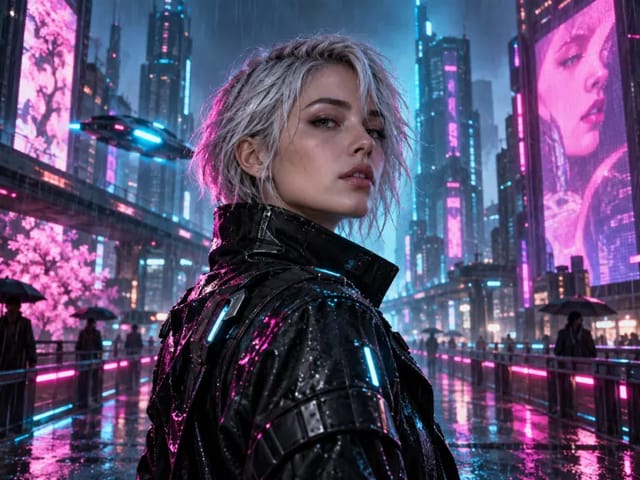
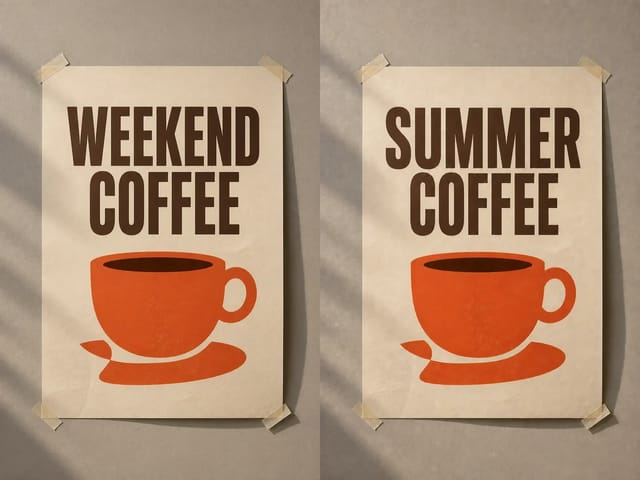
This result was created with FLUX Kontext multi-image editing. Open the details to inspect both source images and the output, checking which visual details carried over and which changed. Multiple references provide additional context without guaranteeing that every detail is merged exactly.

Two inputs, one generated result
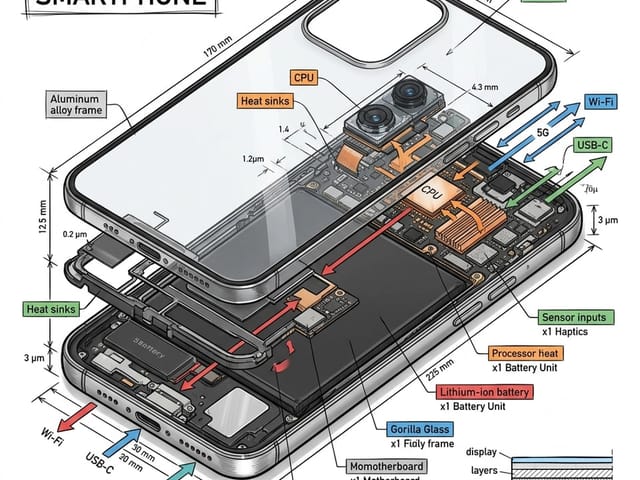
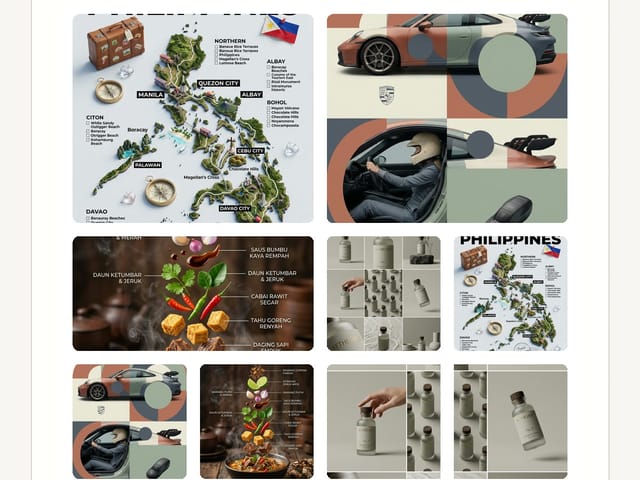
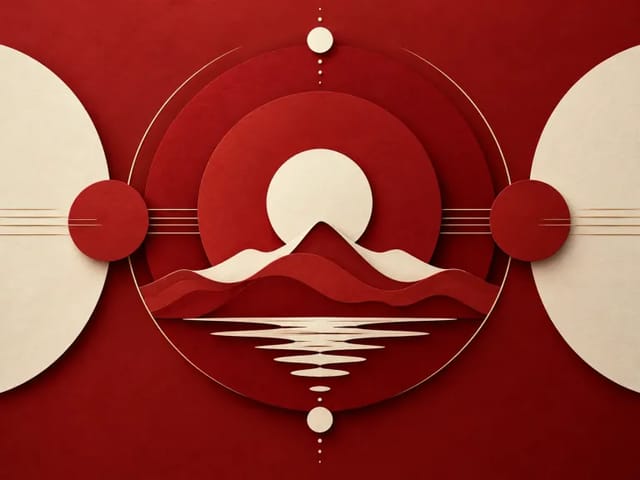
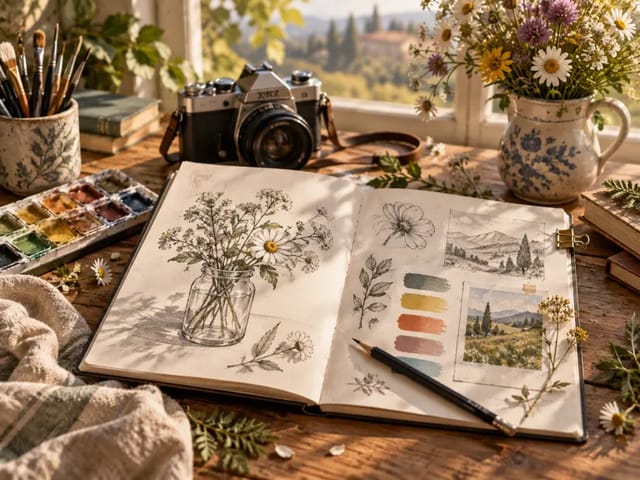
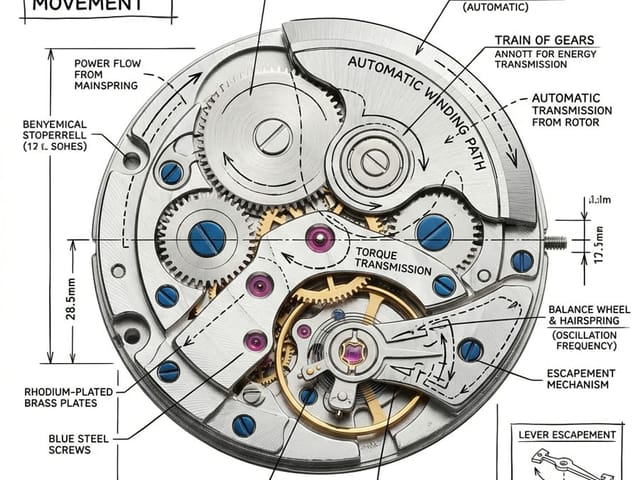
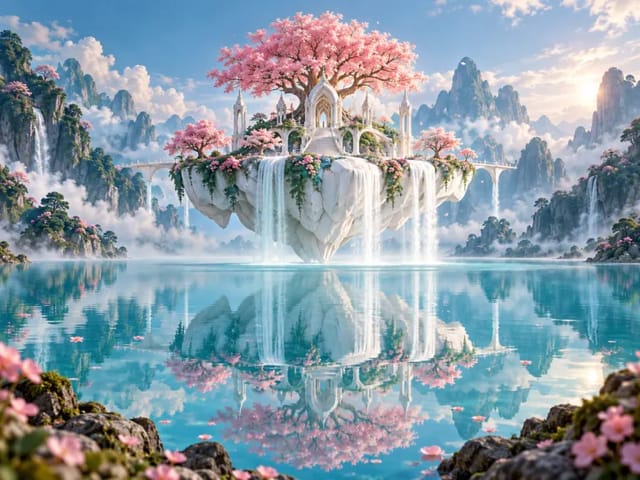
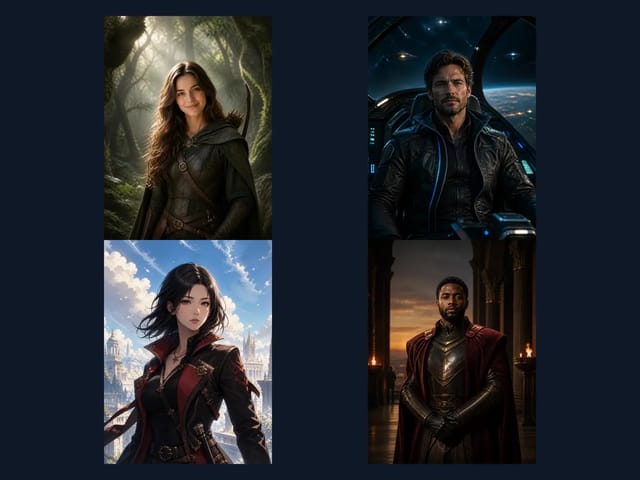
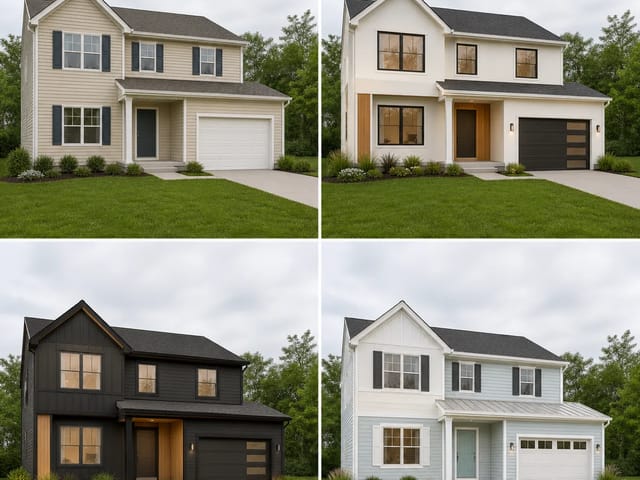
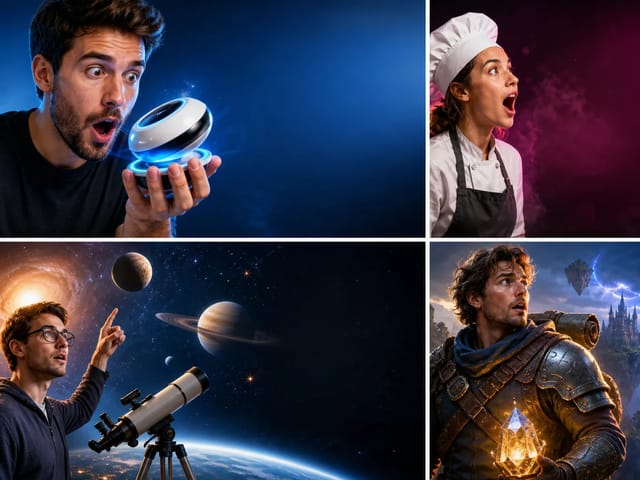
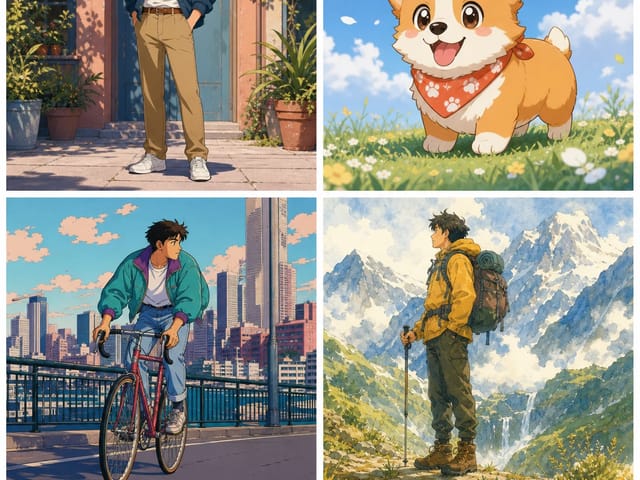
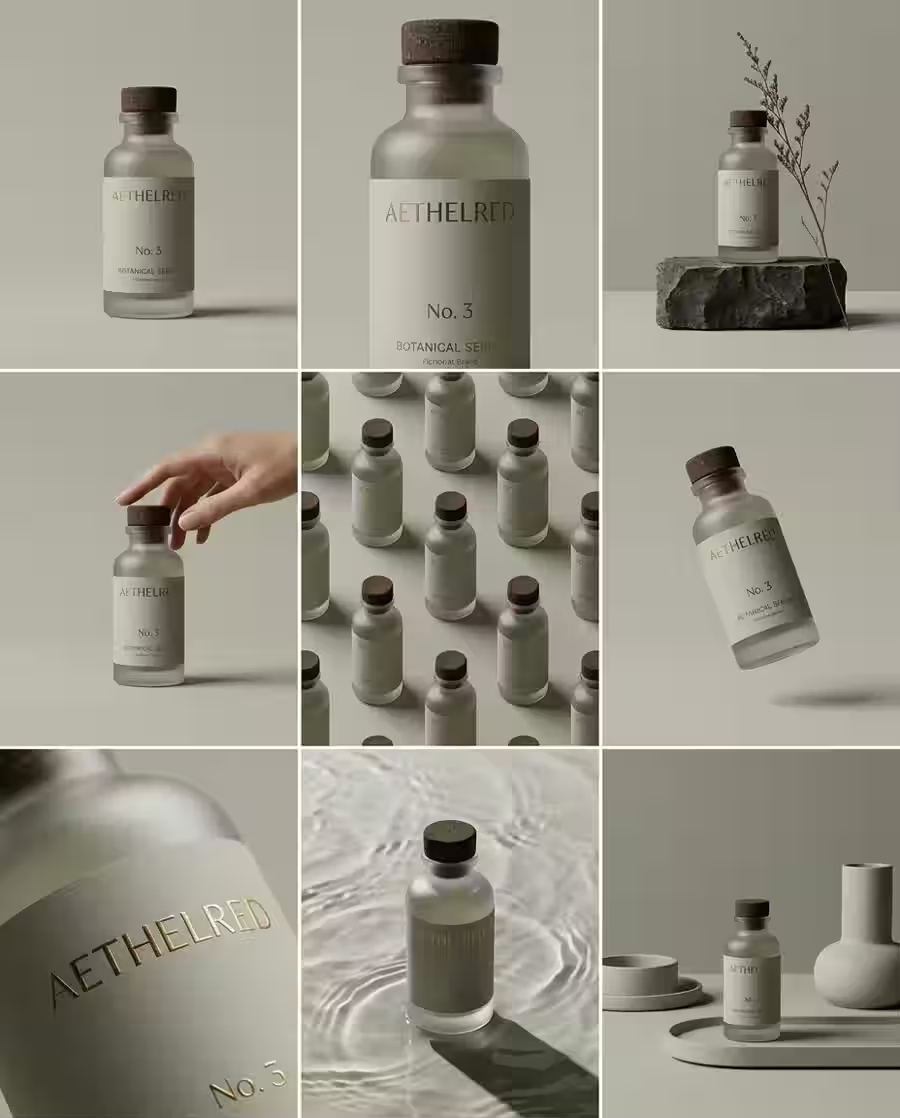
A visual planning board illustrating several source roles before one final composition

Compose Several Visual References into One Reviewable Draft

FLUX Kontext Multi Image is an experimental multi-reference editor based on Black Forest Labs’ FLUX.1 Kontext Pro. The useful idea is not simply uploading extra pictures. Each source should carry a distinct responsibility: one can define the subject, another the garment or product, another the palette, and another the environment. NanoPic keeps the prompt, two-to-four-image requirement, canvas, format, credit notice, task history, and result in one workspace so you can inspect what the model retained and what it changed.

Give Every Reference Image One Clear Job

A multi-image request becomes easier to review when the prompt identifies each source by number and limits what may be borrowed from it.

Primary subject

Use the first image for the person, product, character, room, or object that must remain recognizable. State the shape, identity cues, proportions, camera angle, and details that should survive the edit. Do not assume the model knows which image is primary simply because it was uploaded first; say so in the prompt and compare the output with the original at full size.

Style or material

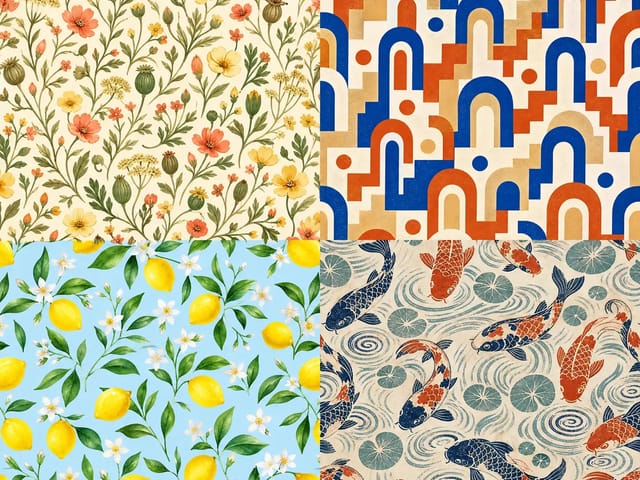
Use a second image to guide clothing, finish, texture, palette, lighting, or illustration language. Name the exact transferable property rather than asking to copy the entire frame. This distinction reduces accidental transfer of an unrelated face, background, logo, product detail, or camera position.

Scene and layout

A third image can define an environment, spatial arrangement, or composition. Explain where the primary subject should sit, which background elements are useful, and what must be omitted. Perspective, scale, contact shadows, and light direction should agree across the final frame even when the sources were photographed separately.

Optional fourth constraint

Reserve a fourth reference for a specific secondary object, graphic treatment, or approved color system. More inputs are not automatically better. If the fourth image cannot be assigned a unique role in one sentence, leave it out and keep the brief easier to interpret.

A Practical FLUX Kontext Multi Image Workflow

Build the composition in deliberate stages and keep the original references available for comparison.

1. Choose compatible, authorized sources

Select two to four images you own or have permission to adapt. Clear subjects and useful resolution matter more than a large reference count. Avoid screenshots with private information, platform UI, watermarks, or people whose likeness you are not allowed to use. When identity preservation matters, use a clear view and avoid extreme occlusion. When product accuracy matters, include the side that shows the important construction details.

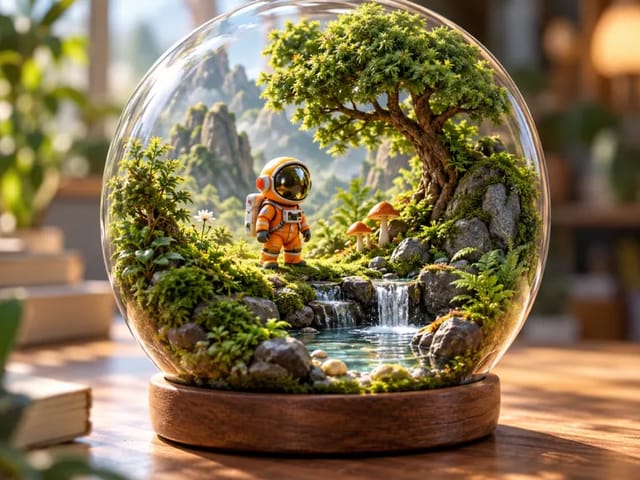
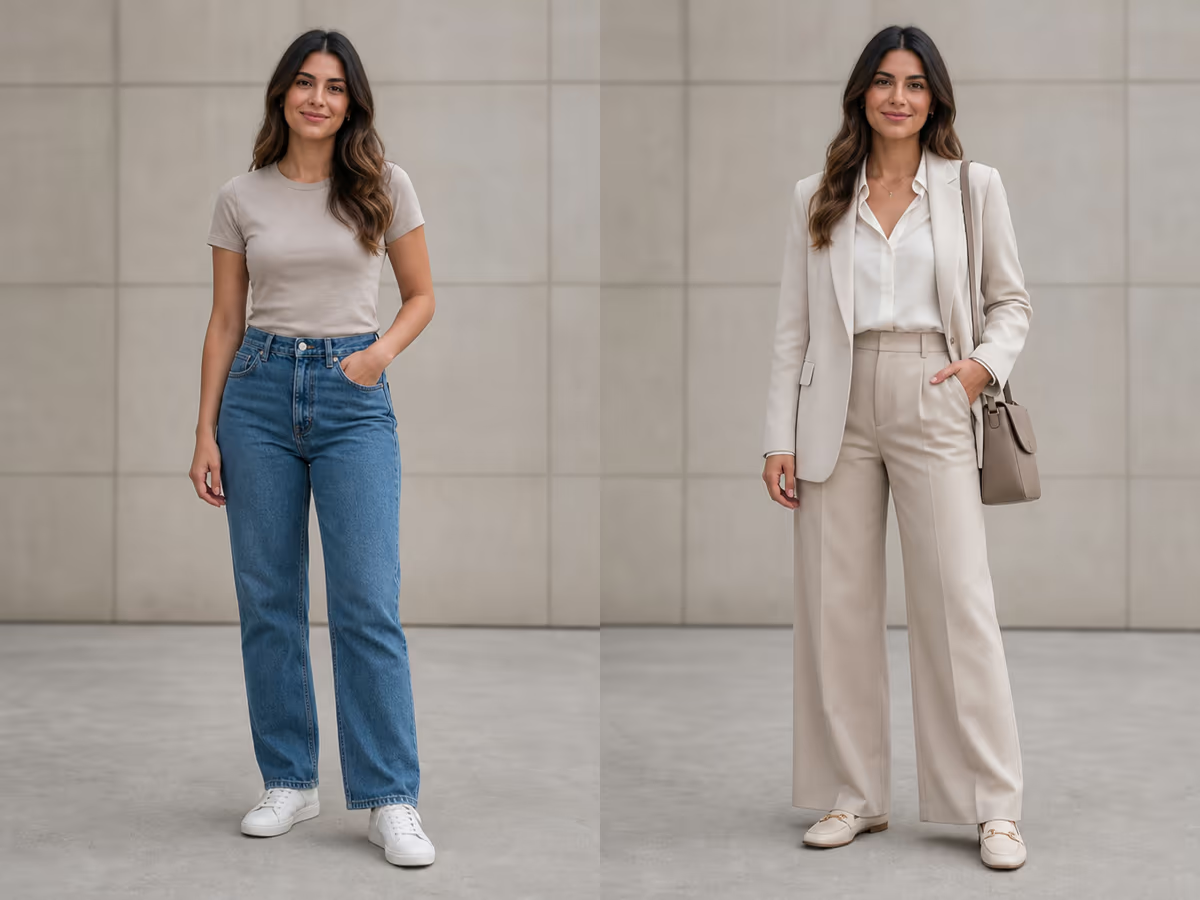
Organized reference roles for a multi-image composition

2. Number the roles in the prompt

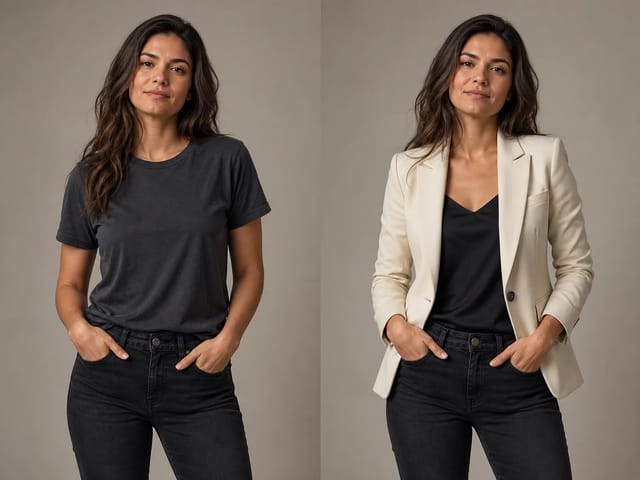
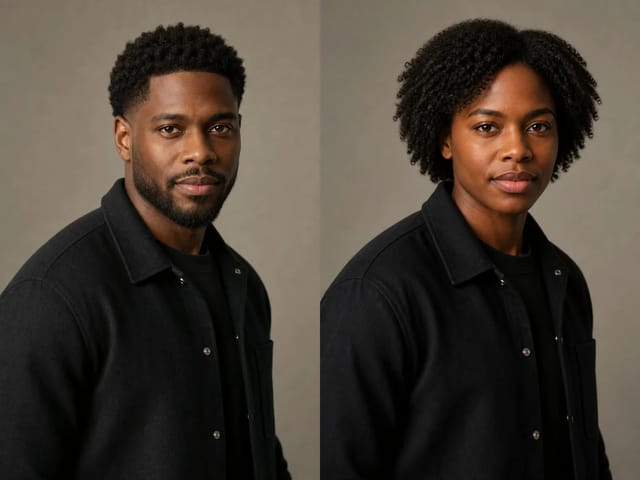
Write ‘image 1,’ ‘image 2,’ and so on, then assign one role to each. Separate preservation rules from requested changes. For example: keep the person and pose from image 1, apply only the jacket shape and fabric from image 2, use the muted studio light from image 3, and retain the face, hands, body proportions, and camera position from image 1. This is clearer than a long list of style adjectives.

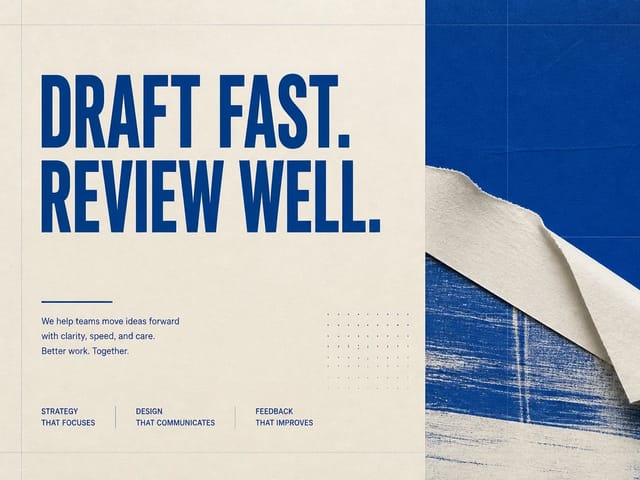
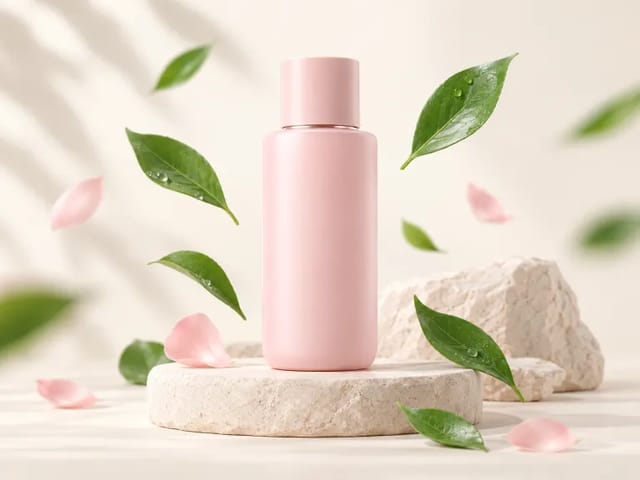
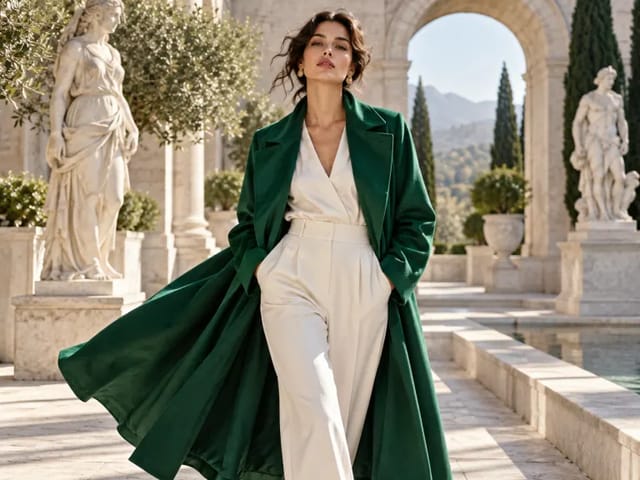
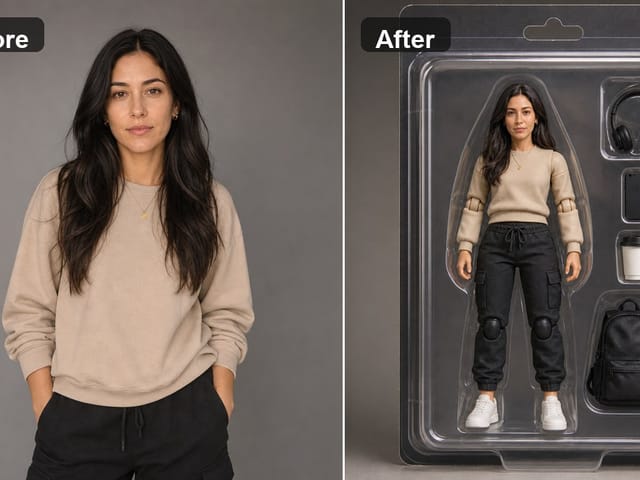
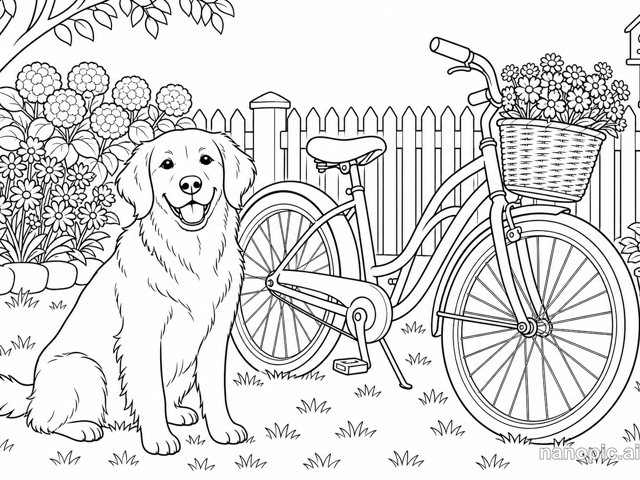
Editorial visual used to explain a subject and styling reference brief

3. Generate one controlled draft

Choose the canvas before submission and request one output. A square concept, portrait campaign card, and landscape banner need different space. NanoPic fixes the output count at one and shows the current task credits only inside the generator controls. Keep prompt enhancement on for a short brief; turn it off when you need a more literal wording comparison.

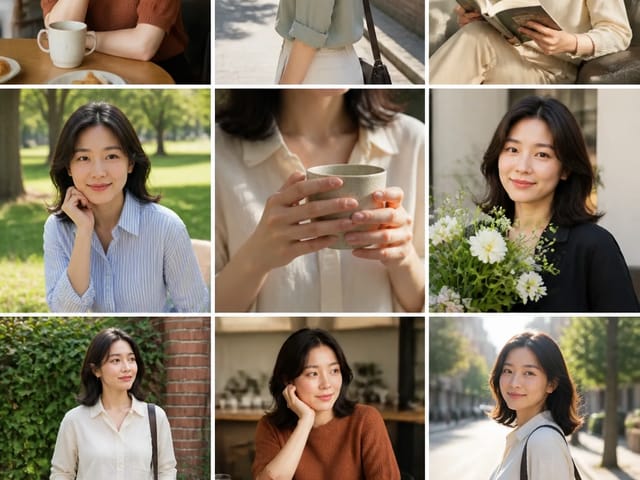
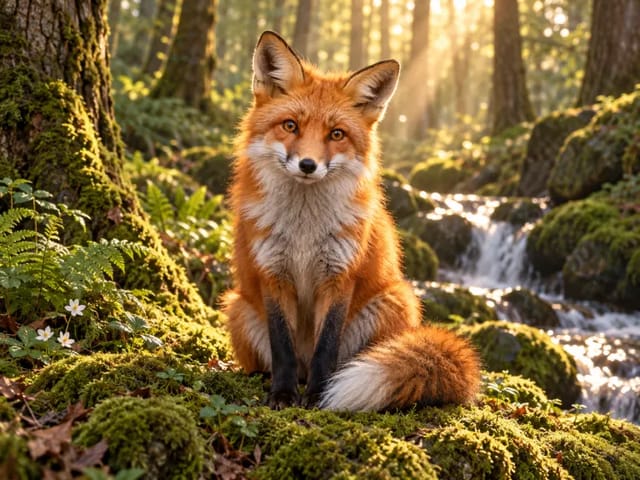
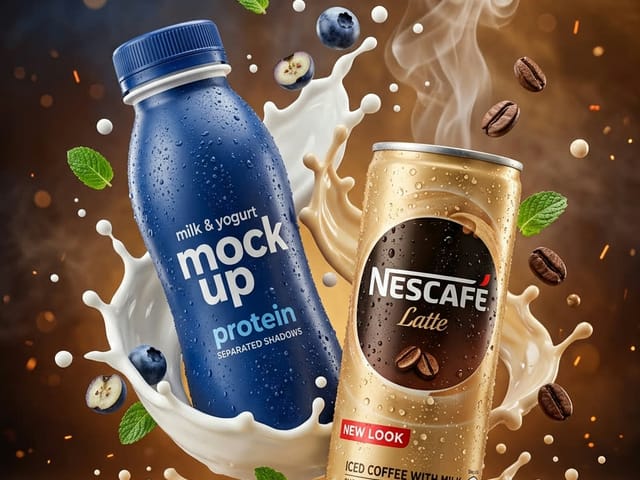
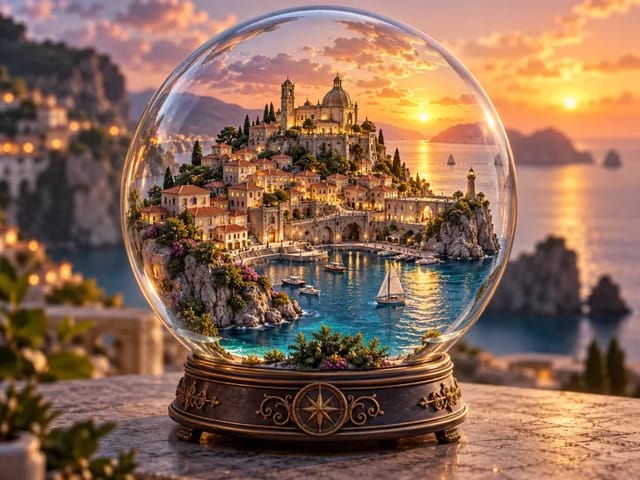
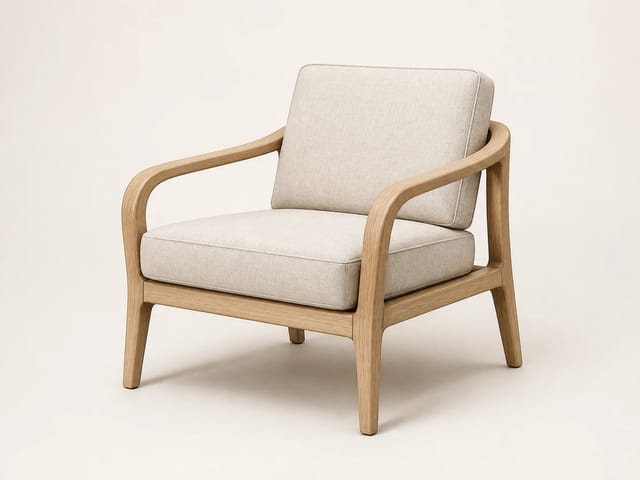
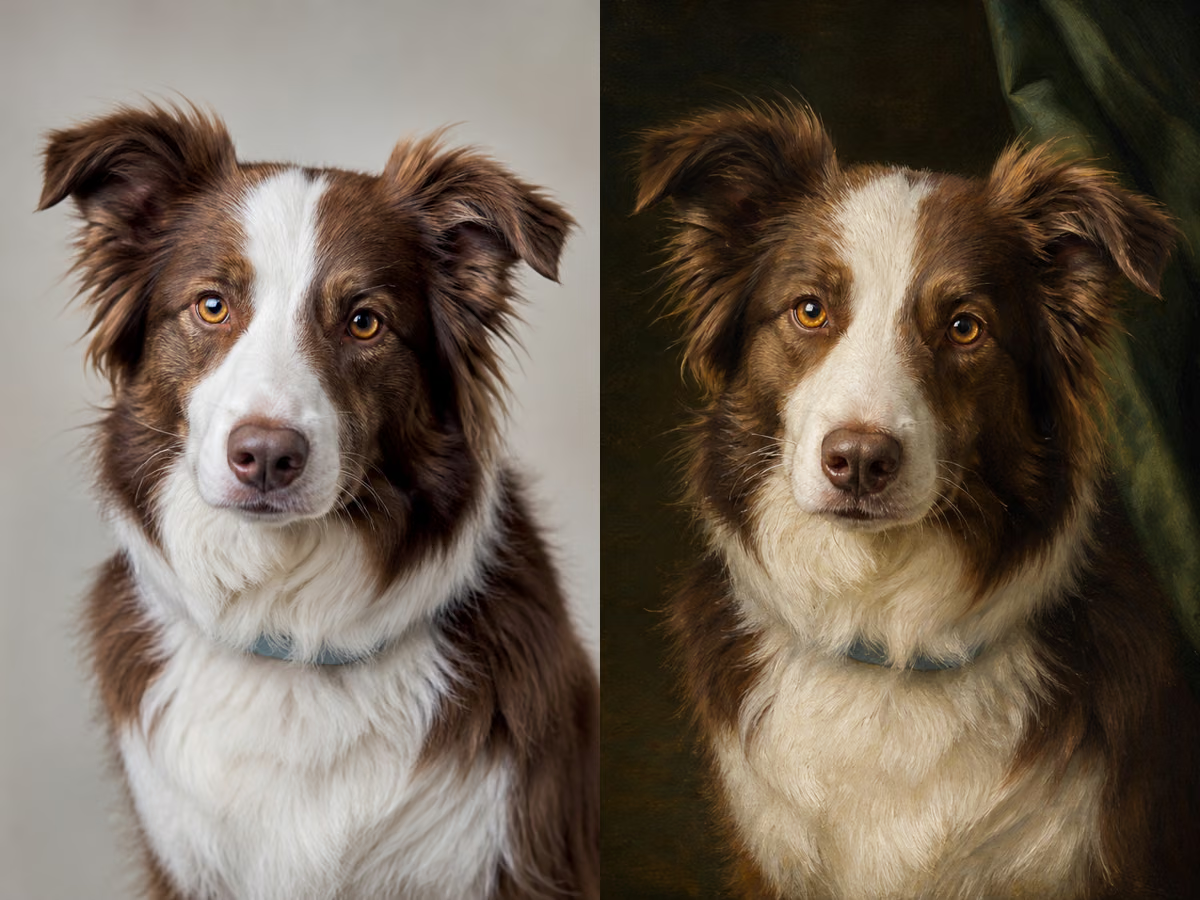
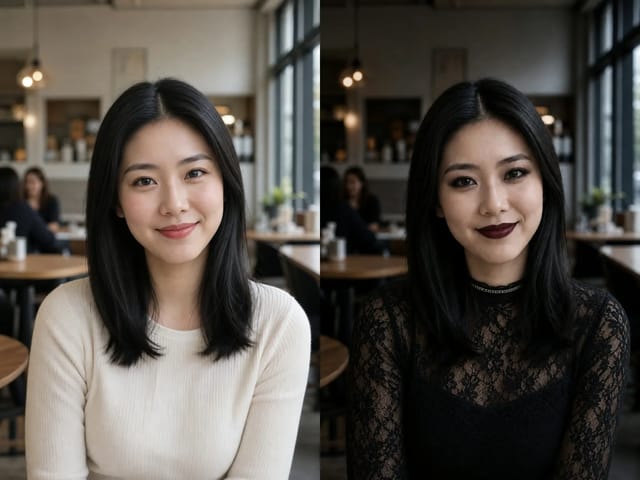
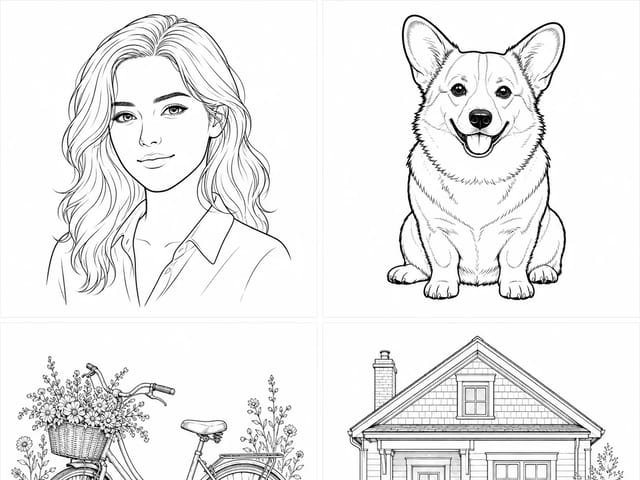
Single campaign composition prepared for review

4. Compare the complete frame

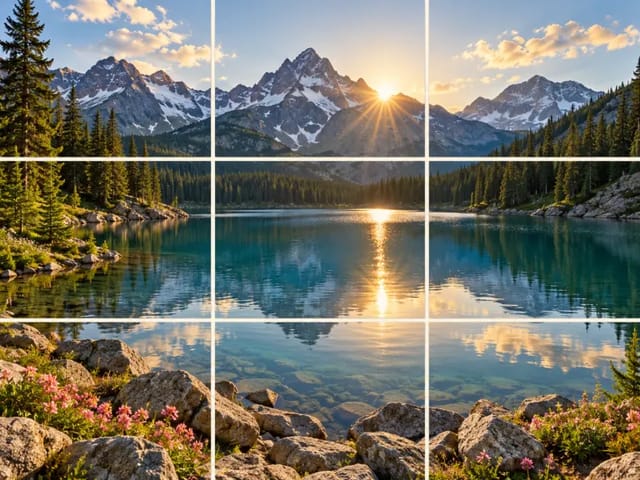
Check the requested combination first, then inspect details that were supposed to stay. Look at faces, hands, product geometry, labels, material transitions, object count, scale, perspective, edges, text, background artifacts, and unwanted elements copied from another source. Save the accepted output and the exact brief before asking for another variation.

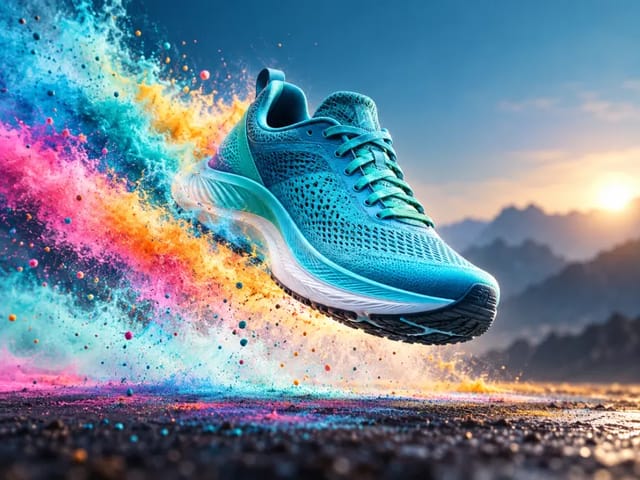
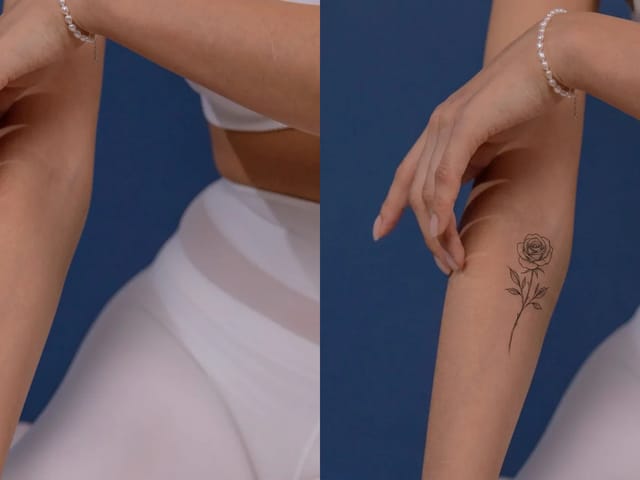
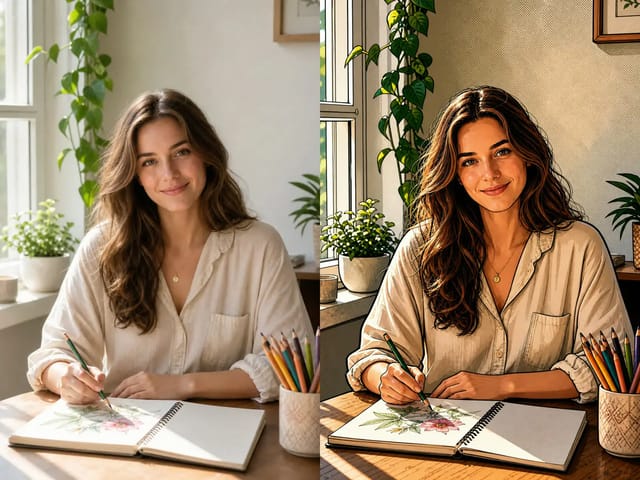
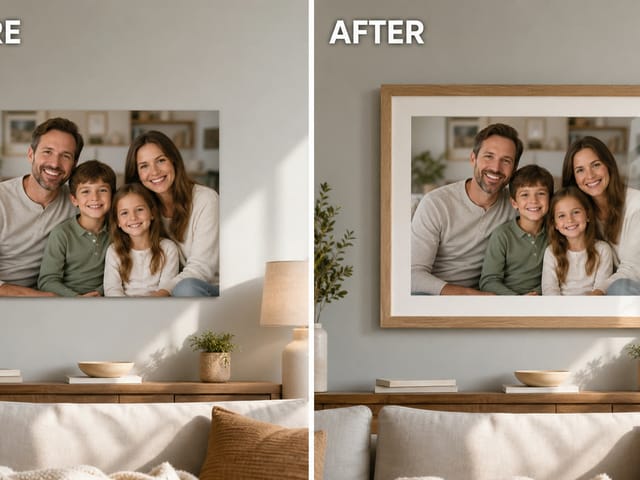
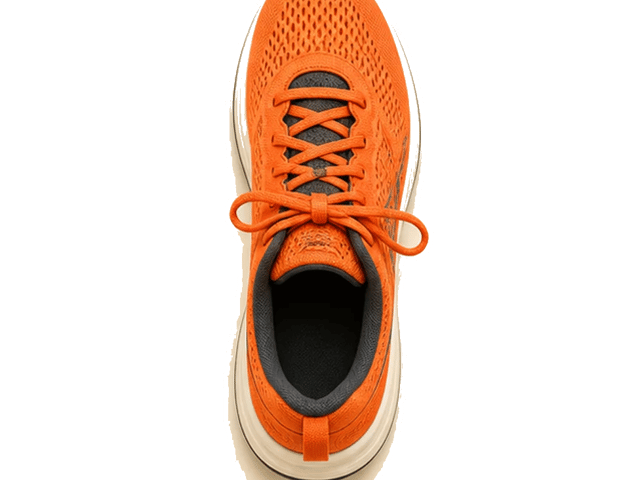
Finished campaign image reviewed as one coherent frame

Where Multi-Reference Image Editing Is Useful

This editor works best when the references have complementary roles and the final deliverable is one coherent image.

Wardrobe and styling concepts

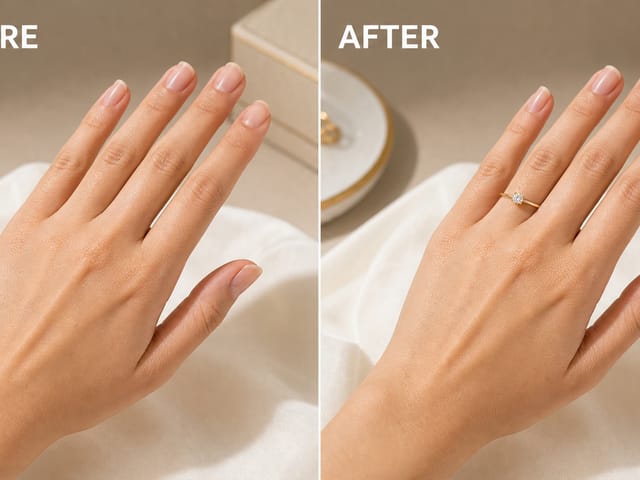
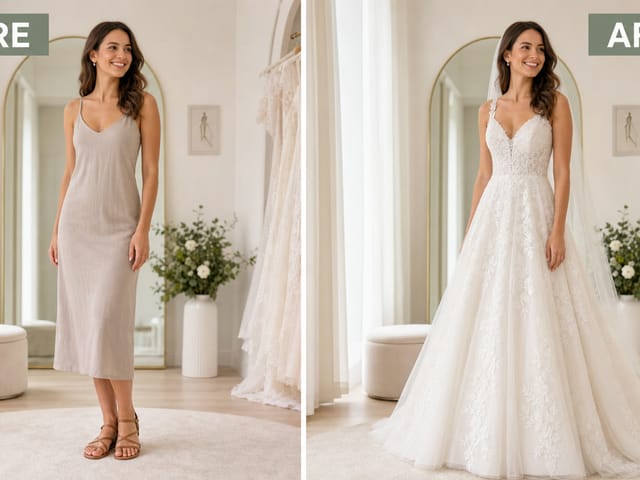
Combine an authorized portrait with a garment, color palette, and environment reference to test a visual direction before a real shoot. Protect the person's recognizable features and natural proportions, and treat the generated image as a concept rather than proof that the garment will fit or drape exactly. Do not use the workflow to impersonate another person or create misleading endorsements.

Product campaign studies

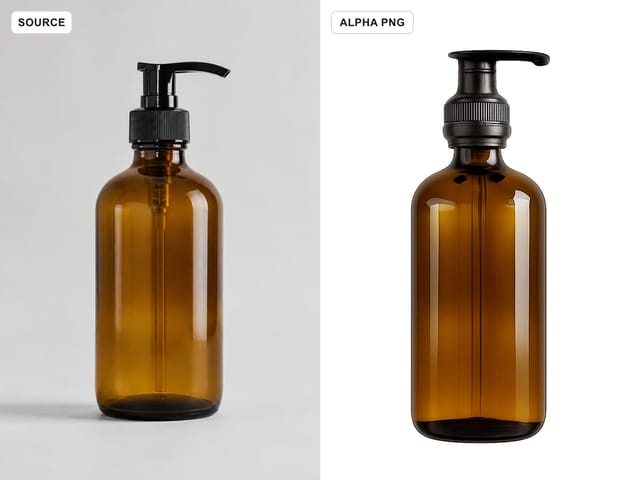
Keep the product from one source, borrow a surface or lighting direction from another, and use a third reference for the intended layout. Review shape, packaging, label, material, connectors, and color against the real product. A generated concept cannot verify specifications, ingredients, certification, safety, or inventory.

Interior and scene proposals

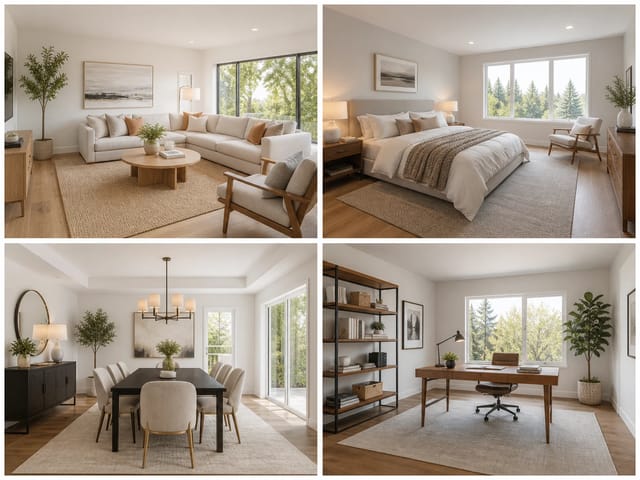
Use a room photograph as the structural anchor, then supply furniture, palette, and lighting references. Instruct the model to preserve walls, openings, paths, camera height, and perspective. The result can support a design conversation, but it is not a measured plan, construction drawing, engineering review, or guarantee that an item fits the physical space.

Character and editorial concepts

Combine an original character or licensed portrait with separate clothing, prop, and atmosphere references. Define which image controls identity and which sources are style-only. Check for drift between outputs, and do not imply that a fictional costume, historical detail, uniform, or equipment design is authentic or practically safe without specialist review.

Write Prompts That Separate Source Roles

A good multi-reference prompt reads like a small art-direction brief, not a pile of disconnected adjectives.

Start with the deliverable

Name what you are making and where it will be used: a portrait campaign concept, square product card, landscape editorial header, room proposal, or character key art. This gives the model a composition target and gives you a practical review standard. Specify the focal subject, camera distance, background complexity, and copy-safe space before describing finish or mood.

Use numbered source clauses

Write one clause for every uploaded image. ‘Image 1 controls the subject and pose. Image 2 controls only the coat. Image 3 controls the palette and soft side light.’ If the images conflict, state which source wins. Repeat critical preservation rules at the end so a visual preference does not quietly override identity, product shape, or scene geometry.

Separate changes from protections

List the requested changes, then list what must remain: face, body proportions, product dimensions, room structure, camera angle, hand count, logos, or absence of text. Avoid contradictory phrases such as ‘change everything’ and ‘preserve exactly.’ Ask for one coherent final scene, not a collage or side-by-side comparison unless a collage is genuinely the intended deliverable.

Finish with exclusions

Exclude duplicate people, extra products, floating objects, split screens, contact sheets, watermarks, random text, copied brand marks, mismatched shadows, impossible scale, and unwanted details from secondary references. Exclusions reduce common failure modes, but they do not guarantee compliance. Review the result rather than treating the prompt as a deterministic edit command.

Review the Result Before You Publish It

Multi-image synthesis can look convincing while changing small facts. Use the original sources as a checklist.

Identity and anatomy

For adult people, compare face shape, hair, visible age, expression, skin details, hands, limbs, and body proportions. Reject duplicated features, merged fingers, borrowed faces, or an identity shift caused by a style reference. Do not use this tool for deceptive impersonation, non-consensual intimate content, or attempts to represent a real event that did not happen.

Product and object fidelity

Check silhouette, openings, hardware, seams, label placement, text, materials, reflections, color, and object count. Generated pixels may invent features or remove details. Use original photography and controlled layout tools when exact documentation is required, and verify any public product claim against authoritative information.

Lighting and geometry

Look for inconsistent light direction, scale, perspective, contact shadows, horizon, room boundaries, and intersections between combined elements. A garment should sit on the body rather than float above it; a product should contact the surface; furniture should align with the room. Fix one major relationship per iteration instead of rewriting the whole brief.

Rights and disclosure

Confirm that every source may be uploaded and adapted. Generated output can still contain protected marks or recognizable elements. Obtain necessary permissions and disclose synthetic imagery when context, policy, or audience expectations require it. NanoPic cannot clear trademarks, copyright, publicity rights, or model releases for you.

What Experimental Multi-Image Editing Does Not Guarantee

FLUX Kontext Multi Image produces one generated interpretation from two to four references. It does not create an editable layer stack, a reversible mask, a 3D model, a trained identity, a reusable character lock, or a mathematically exact composite. Source details can drift, especially when images disagree in camera angle, scale, lighting, style, or subject identity. Text, logos, small geometry, hands, and repeated patterns require close review. Separate runs can differ even with similar instructions. Keep original files, treat the result as a draft, and use a conventional editor when pixel placement, typography, measurements, or legal documentation must be exact. This editing model is experimental and its behavior may change. Check the available controls and displayed credit requirement before generating.

FLUX Kontext Multi Image Generator FAQ

Practical answers about references, prompts, output, credits, and review.

How many images does FLUX Kontext Multi Image accept on NanoPic?

Upload two to four references. Give each image one clear role and keep the source set focused; adding more images does not guarantee that every detail will be followed.

How should I refer to each uploaded image?

Call them image 1, image 2, image 3, and image 4 in upload order. Assign one clear role to each, then state which image controls the primary subject. If two sources conflict, say which one takes priority.

Does the model merge the files like editable Photoshop layers?

No. It generates one new raster image influenced by the references and prompt. You do not receive source layers, masks, vectors, a 3D scene, or a reversible edit history with the generated image.

Can it keep a person or product exactly unchanged?

No exact preservation is guaranteed. Clear references, explicit protection rules, and compatible camera views can help, but identity, text, color, geometry, and small details may drift. Compare the output with the originals before use.

Which aspect ratios and formats are available?

Choose from the displayed aspect ratios, from 21:9 through 9:21, and request one JPEG or PNG result. Select the intended placement before generating; a different aspect ratio creates a new composition rather than a simple crop.

Where can I check the task credits?

NanoPic fixes the output count at one. The current task credits appear in the generator before submission. Use that live operation-area value rather than older screenshots or marketing copy.

Can I upload personal or branded images?

Upload only material you have permission to use. Avoid unnecessary personal data. You remain responsible for copyright, trademark, privacy, publicity, consent, disclosure, and any sector-specific rules that apply to the final use.

Is this the same as single-image FLUX Kontext editing?

No. This experimental FLUX.1 Kontext Pro workflow combines information from two to four references. Use it when different images need to guide the subject, clothing, materials, lighting or setting in one composition.

Can I use the generated image in a finished project?

Review the final image against your references before using it. Check identity, clothing, anatomy, product details, lighting, and any unwanted text. This experimental model can change small details, so keep the original files and use a conventional editor when exact pixel placement or typography is required.

Build One Coherent Image from Clear Reference Roles

Choose two to four authorized sources, name the job of each image, and review one controlled draft against the originals.

Related tools