










Save up to 73% on plans

Image Models
Sign In
Qwen Image 2.1
Source UI estimate (not a live quote)—

Qwen Image 2.1 Controls Preview

Qwen Image 2.1

Your results will appear here.

More AI Image Models & Effects

Turn your brief into a usable result

Build an isolated subject

Describe one complete subject with clear margins. The starter prompt uses a ceramic owl on a stone pedestal. For an isolated cutout, replace that scene with a single subject and remove the pedestal and environment. Choose transparent background explicitly rather than asking for scenery and a cutout together.

Select the background deliberately

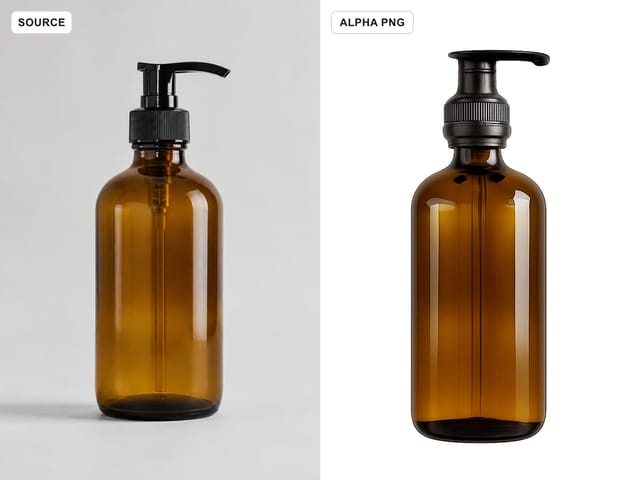
Choose transparent with PNG or WebP when compositing over another design. Preview the result against both light and dark backgrounds to find unwanted fringes. If the brief needs a wall, floor or environmental shadow, choose opaque instead. Transparency does not guarantee perfect edge extraction.

Keep typography short and inspect it

Put intended lettering in quotation marks and specify its position. Check every character rather than assuming prompt enhancement preserved your wording. For production layouts, you can generate an illustration without text and add final typography in your design editor.

Plan the subject and its final background

Describe a complete silhouette

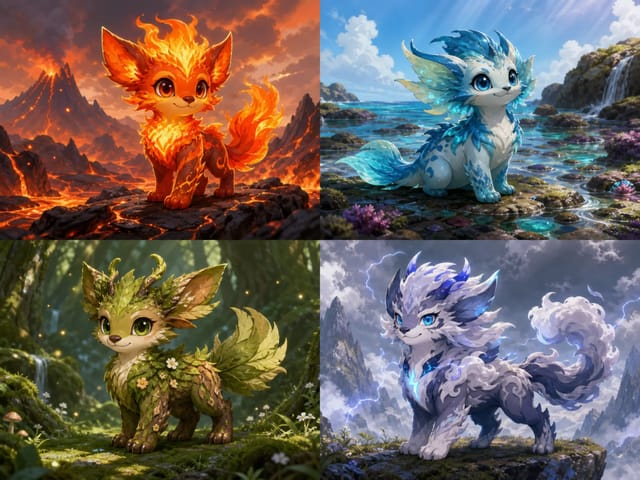
Qwen Image 2.1 can start a mascot, decorative object or illustration from a written brief. Name one main subject, its viewpoint, colors and proportions. For a small icon, prefer a few recognizable shapes over many fine details. Ask for the whole subject and clear margins so wings, ears or handles have room. A centered cutout and a busy environmental scene require different briefs.

Choose transparency as an output requirement

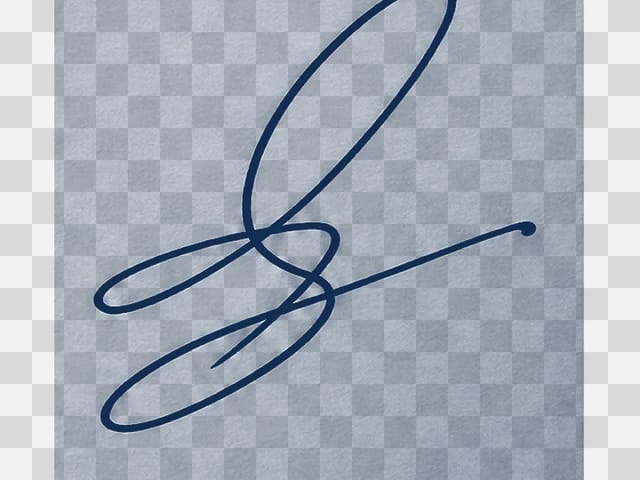
For a reusable cutout, select transparent in the background setting and choose PNG or WebP. Also describe an isolated subject without a wall, floor or scenery. A white-looking preview alone cannot tell you whether the file is transparent. Open the downloaded image in an editor with a transparency grid, then place it over the actual background color where it will be used.

A practical three-step workflow

Decide where the result will go

Choose the intended placement before generating. Match the canvas to it, identify the subject position and reserve any space needed for copy. Put the most important requirement first and remove contradictory instructions.

Review settings and the estimate

When generation access is enabled, confirm the model and scene, canvas, resolution, background, export format and displayed credit estimate before submitting once. Wait for that task to finish before deciding on another attempt. A new attempt is a separate generation, so inspect the first result before spending on a revision.

Inspect the file before iterating

Open the downloaded result and compare it with the original brief. Change one major variable per iteration and record the prompt and settings so you can explain what improved or regressed.

Edit references with a clear preservation brief

Choose image-to-image deliberately

Text-to-image starts with a written description. Image-to-image uses existing pictures to guide a revision. When access is enabled, choose the editing scene before uploading licensed JPEG, PNG or WebP references. The adapter accepts up to ten references, but more inputs do not guarantee better fidelity. Begin with one clear source. State which subject, silhouette, colors and product details must remain. Add another reference only when it has a distinct role, such as a palette or material. Conflicting identity, lighting and composition instructions make the result harder to evaluate.

Separate the requested change from what must stay

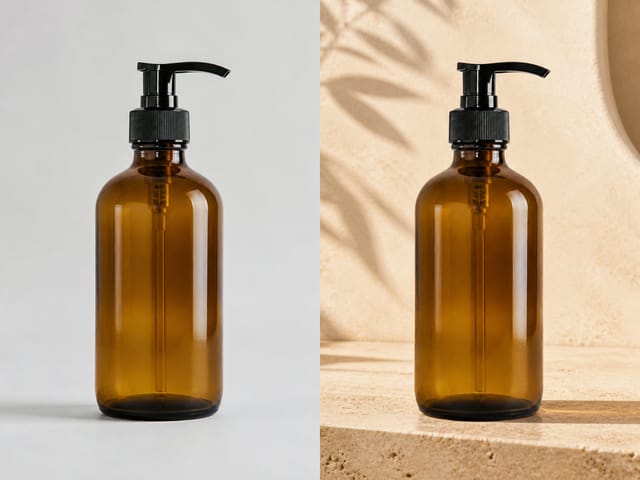
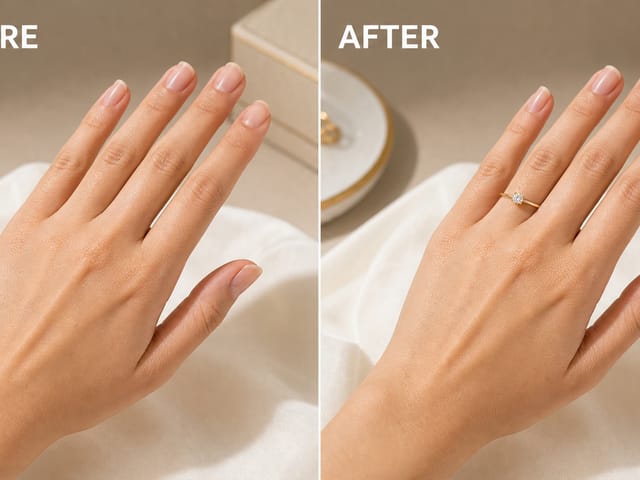
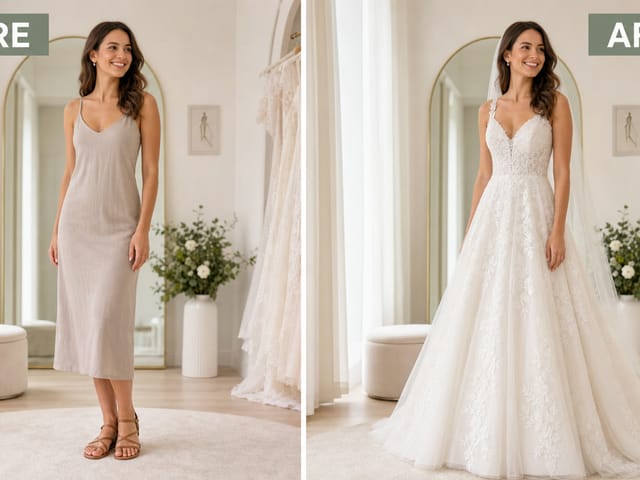
For a product edit, try: “Keep the mug shape, handle, camera angle and label placement; change only the glaze to deep blue.” Compare the result with the original at full size. Check whether the handle, small lettering or edge geometry drifted. Natural language editing does not lock pixels. Mask editing is not enabled in this integration, even though the provider documents a mask feature. For changes that require exact preservation, finish the selected region in a dedicated editor. Upload only references you are entitled to use and avoid sensitive personal material.

Useful starting points for a cutout

A mascot for a presentation

Describe an original character with a small palette and a readable silhouette. Decide whether it should face forward, point toward a heading or sit in a corner. After downloading, test the character at the size it will appear on the slide. Fine facial details may disappear when reduced. Generating a similar character again does not guarantee an identical identity or pose.

An illustration for a web layout

Specify whether the image needs to sit beside text, above a card or within a square badge. Leave breathing room around the subject instead of filling every pixel. Preview the cutout on both the light and dark versions of your design. An illustration generated to resemble vector art remains a raster image here; this form does not export editable SVG paths or layered design files.

Inspect transparency and edges before another run

The background appears solid

First inspect the original download, since a preview or other application may display transparency against a solid color. Confirm that transparent was selected and that the file is PNG or WebP. If the image itself contains a painted background, simplify the brief to one isolated object. Writing “transparent” in a prompt is not a substitute for checking the background setting and the resulting alpha channel.

Edges have halos or missing details

Examine feathers, hair, handles and other narrow shapes at full size. A pale fringe may be almost invisible on white but obvious on a dark card. Try a simpler silhouette or avoid a soft environmental shadow in the next brief. For an already useful image, finishing the edge in an image editor may be more predictable than requesting another entirely new composition.

Output scope and practical limits

The scope of these controls

The integration supports text creation and reference editing, 1K and 2K resolution, square, portrait and landscape canvases, and PNG, WebP or JPEG output. Transparent background cannot be combined with JPEG; invalid combinations are rejected. Mask editing is excluded. Each request produces one output. Higher resolution does not guarantee accurate lettering, anatomy or product details. Settings describe the requested output rather than a promise of professional suitability. Review faces, hands, labels, reflections and fine structures before publishing.

Qwen Image 2.1 FAQ

Is this Qwen 2.1 Turbo?

People also search for qwen 2.1 turbo. NanoPic integrates KIE Qwen Image 2.1 and does not claim to call a Turbo endpoint or promise Turbo speed. Compare the actual model name and settings rather than assuming that related names describe an identical service.

Can I use JPEG with a transparent background?

No. Choose PNG or WebP for transparency. JPEG is available only for an opaque background. Check the background setting and export format together; a white preview does not establish whether the downloaded file has an alpha channel.

How many credits does a generation use?

This read-only preview does not submit requests or consume credits. When generation is separately enabled, review the actual credit estimate for the selected settings before submitting. No live price is asserted by this preview.

What should I inspect before using an output?

Download the file and inspect subject geometry, lettering and edges at full size. Keep the prompt and settings with it. An example describes one generation and does not guarantee the same result on later attempts.

Can I edit reference images?

Not on this read-only preview. After separate validation and enablement, the configured image-to-image route is designed to accept up to ten references. Its mask editing option is not enabled. Reference editing is a separate scene from text-to-image; these configured controls do not prove a successful provider output.

Is generation enabled on this page?

Generation is disabled by default pending separate validation and approval. This read-only page displays Qwen Image 2.1 controls without allowing uploads, submissions or billing. It does not automatically substitute another model. Enabling generation will require a separate accepted release.

Explore the model controls

Review the read-only preview above. Generation will remain unavailable until separate validation and approval.

Related tools

FLUX Kontext Multi Image

FLUX Kontext Multi Image

FLUX Kontext Multi Image Generator combines 2 to 4 references into one coherent image. Assign each source a role, choose a canvas, and review the result.

Open tool
Qwen Image Generator

Qwen Image Generator

Qwen Image Generator creates images from prompts and edits references. Use Qwen Image 3 or Pro, choose your canvas, and review downloadable visual drafts.

Open tool
Creen AI Image Generator

Creen AI Image Generator Online | NanoPic

Use the Creen AI Image Generator to turn one written sentence into a finished picture in your browser, with no app to install.

Open tool
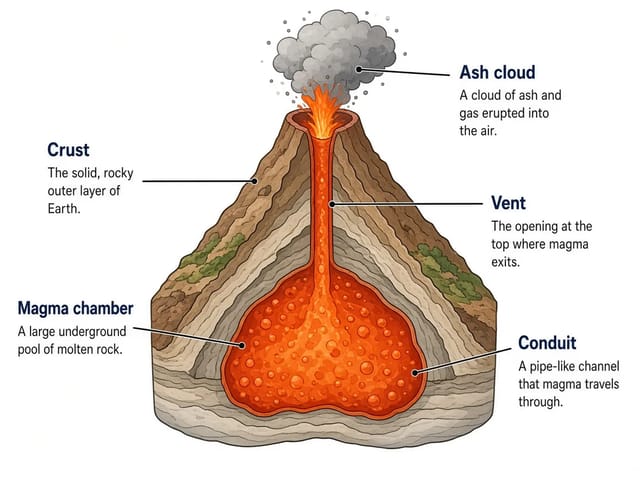
Labeled cross-section of a volcano with five named layers

FIBO 2.0 AI Image Generator: Text to Image | NanoPic

FIBO 2.0 AI Image Generator: turn detailed FIBO 2.0 style prompts into images that follow your words closely, with clear, readable text in the picture.

Open tool
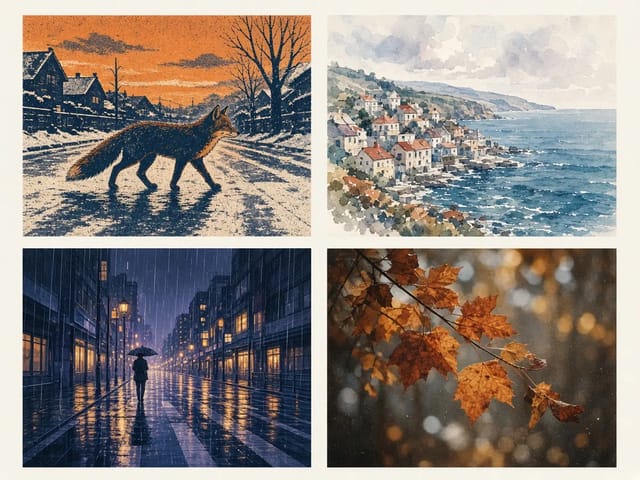
Krea 2 style grid: screen-printed fox, watercolour seaside town, anime rainy street and film-grain autumn leaves

Krea 2 AI Image Generator: Styles, Prompts & Tips | NanoPic

Krea 2 is a style-led AI image generator from Krea AI, built to keep each visual style distinct and carry a chosen look steadily across images.

Open tool
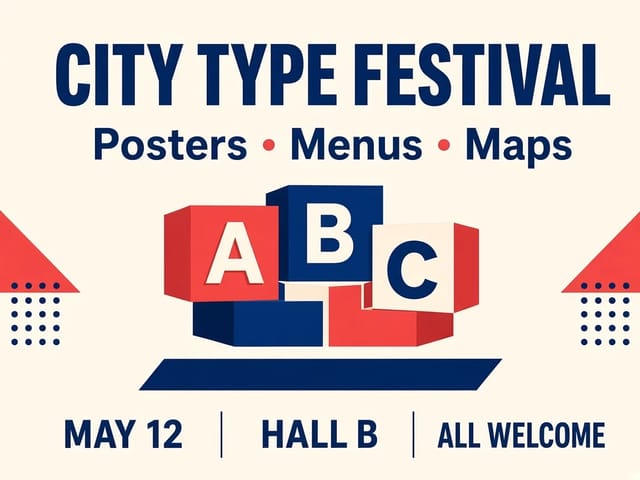
Text-and-layout poster reference image: "City Type Festival" headline, "Posters · Menus · Maps" subheading and three labeled info columns

MOSS Image ComfyUI: Clear Text & Layout Images | NanoPic

MOSS Image ComfyUI runs the open-weights MOSS-Image model in ComfyUI to render clear English and Chinese text and place each element where you want it.

Open tool
A matte white pump bottle on a pale stone block beside eucalyptus leaves, soft window light

Qwen Image 2.1 Turbo AI Image Generator | NanoPic

Qwen Image 2.1 Turbo AI image generator: turn a written description into a finished, realistic image with clear, readable text, right in your browser.

Open tool
A glowing photo of a sunset coastline floating over a desk, dissolving into a film strip of moving frames

ZSky AI Image & Video Generator Online | NanoPic

Create ZSky AI style images and videos with NanoPic: turn an idea into a finished picture, then bring that picture to life as a short clip.

Open tool