









AI Image Humanizer
Sign In

AI Image Humanizer

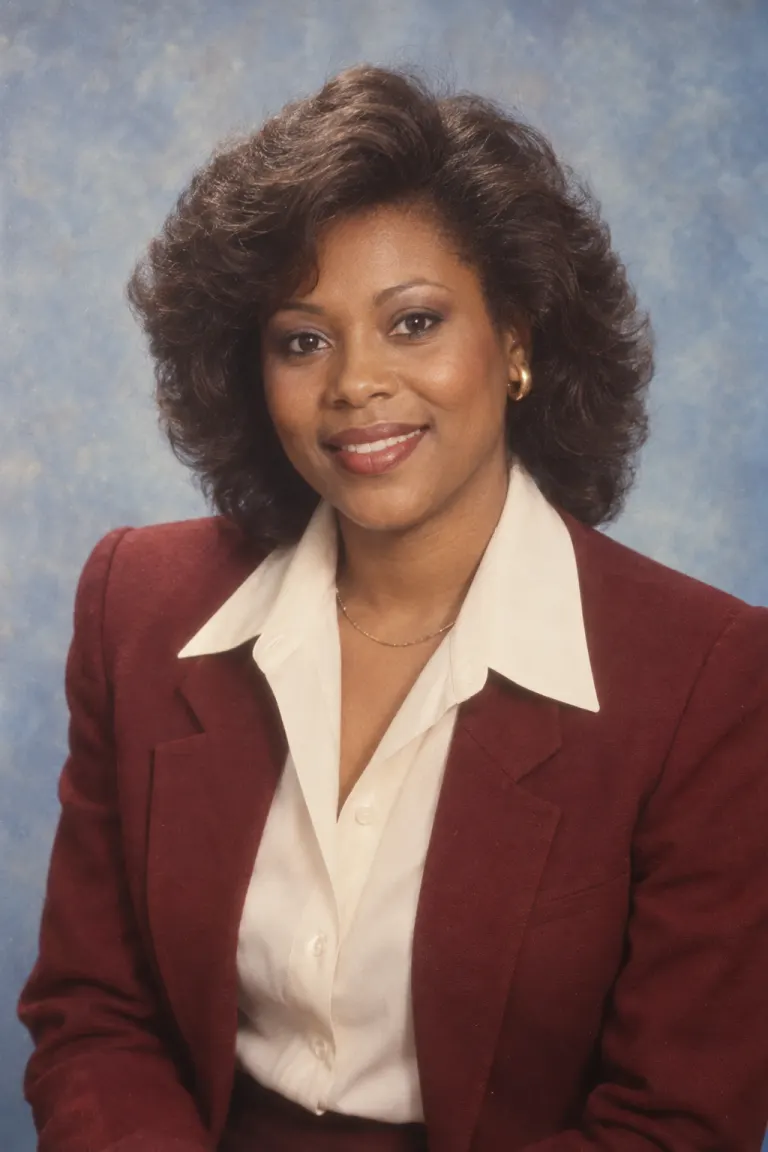
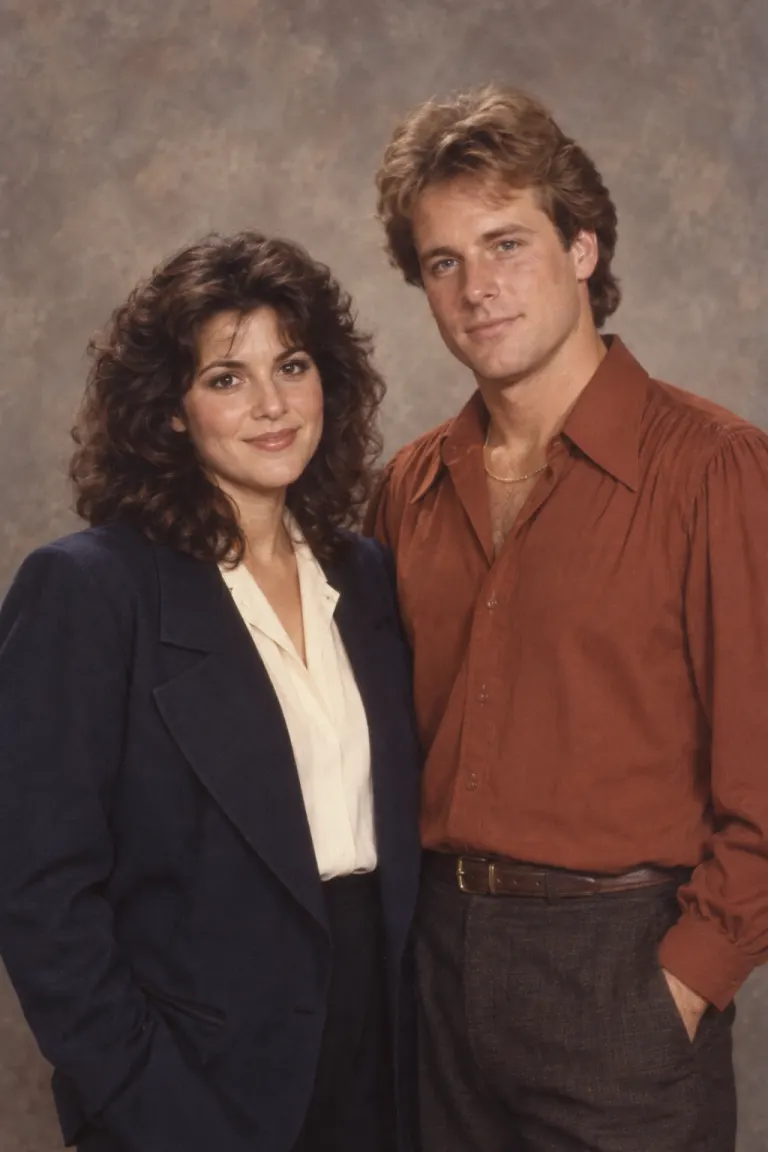
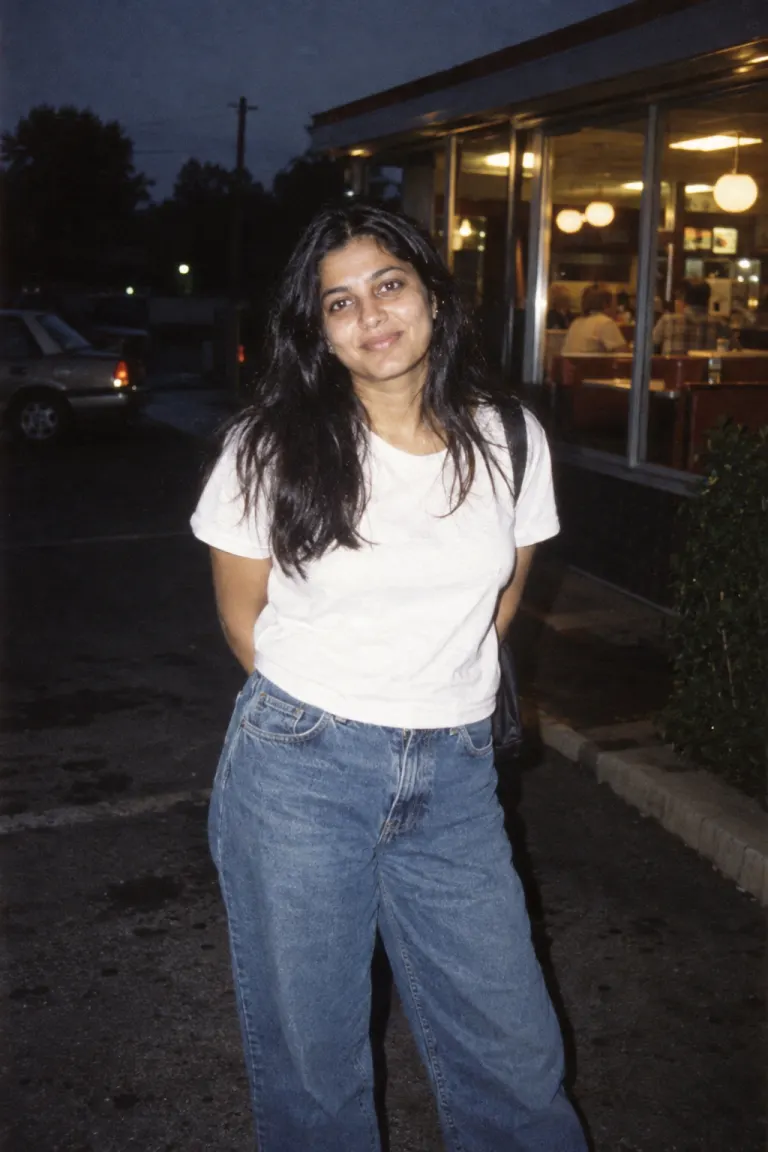
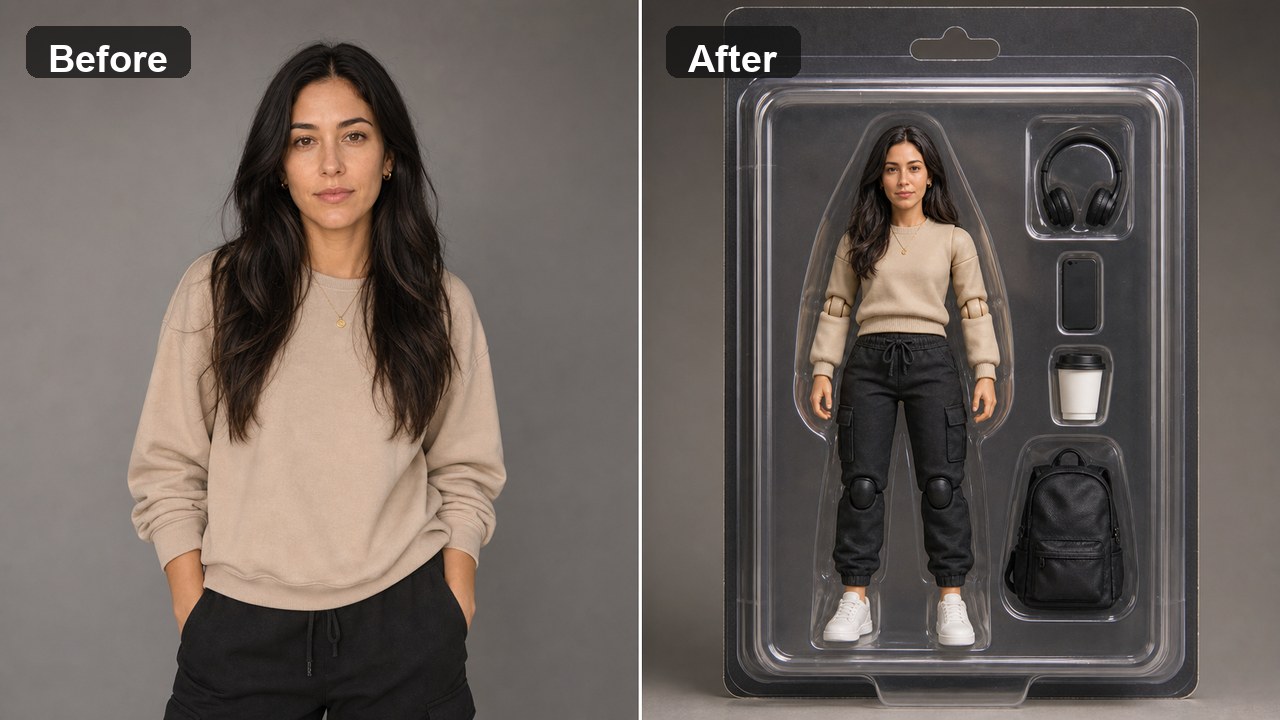
Upload one AI-generated portrait or scene and use the editable direction to reduce plastic skin, uniform hair, repetitive fabric, perfect surfaces, and overly polished light. NanoPic sends your source through a real Nano Banana 2 image-to-image workflow while asking the model to keep the same identity, expression, pose, objects, crop, camera angle, and composition. Generation is interpretive, so compare the result with the source before using it.

Upload an AI Image*
Try an AI-Looking Sample

431 / 800

Public Visibility
Copy Protection
Credits required:-

AI Image Humanizer

Image

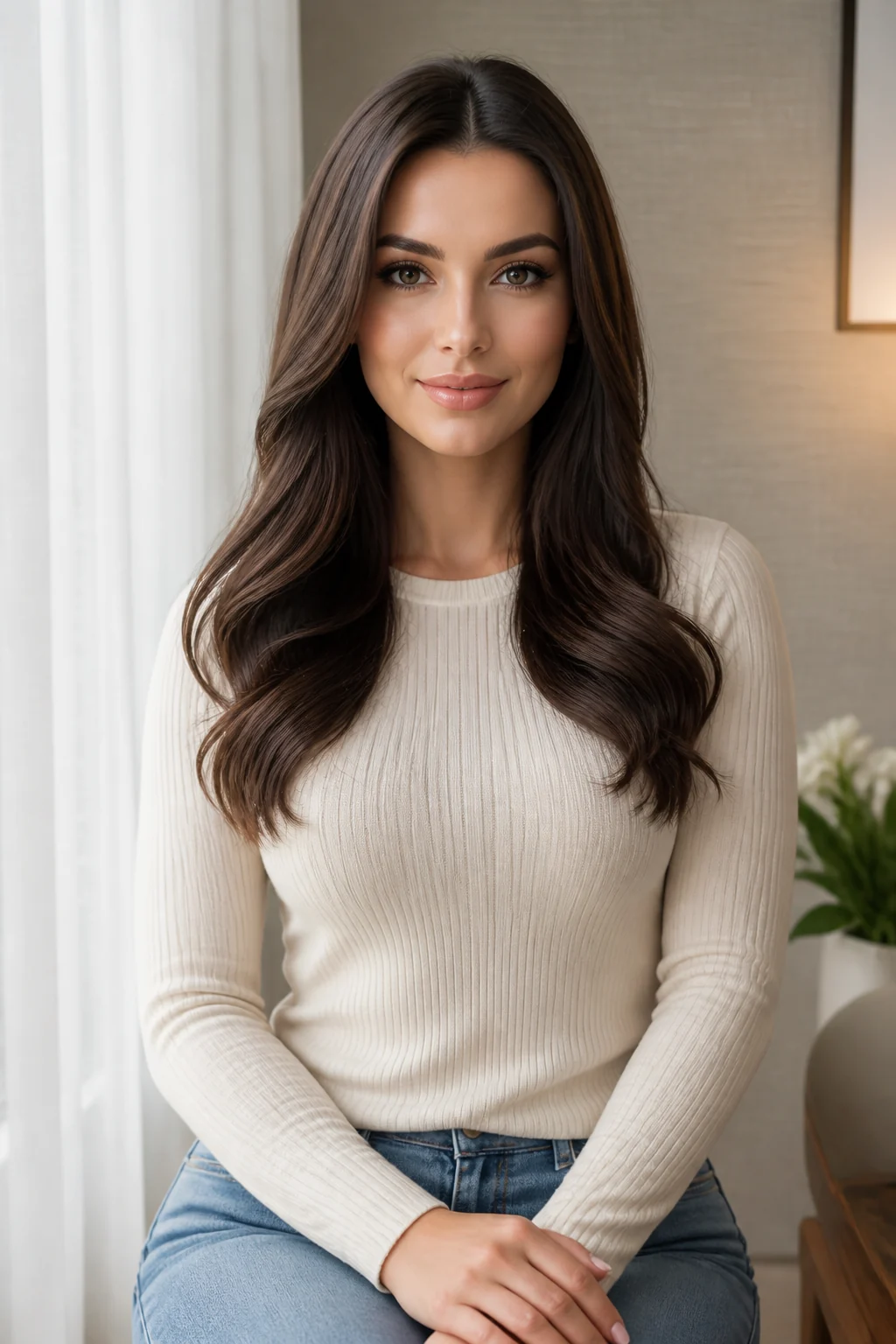
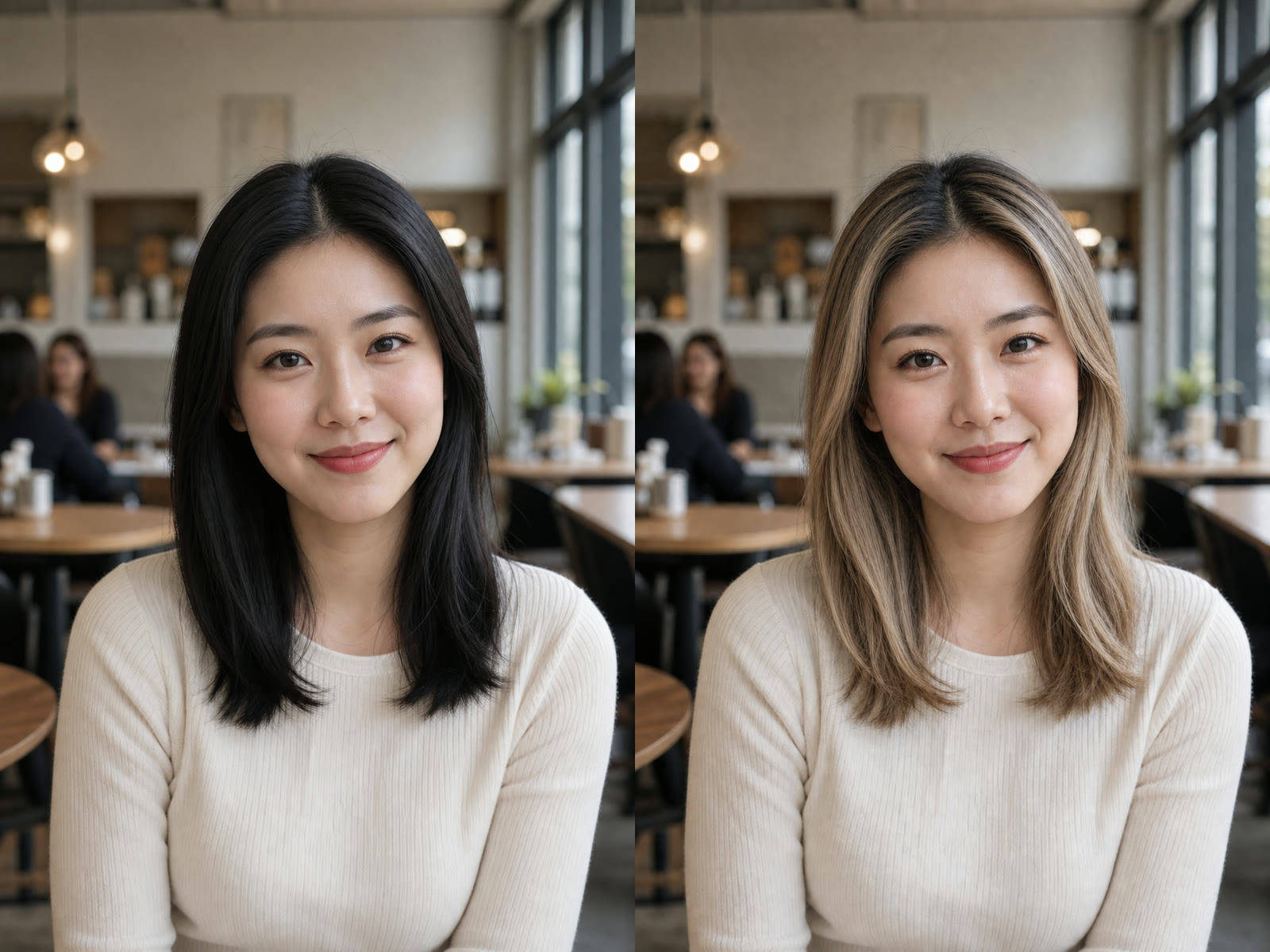
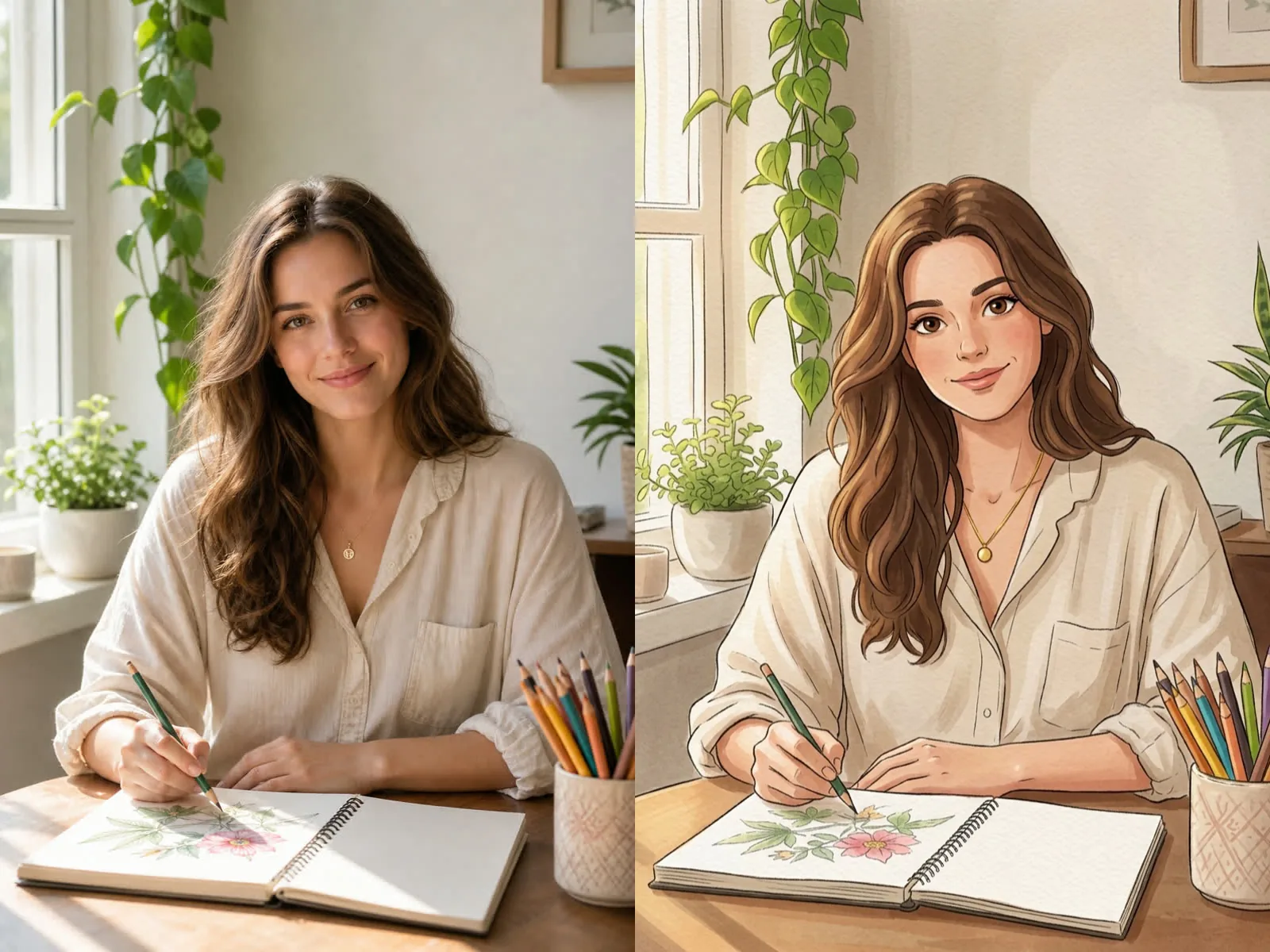
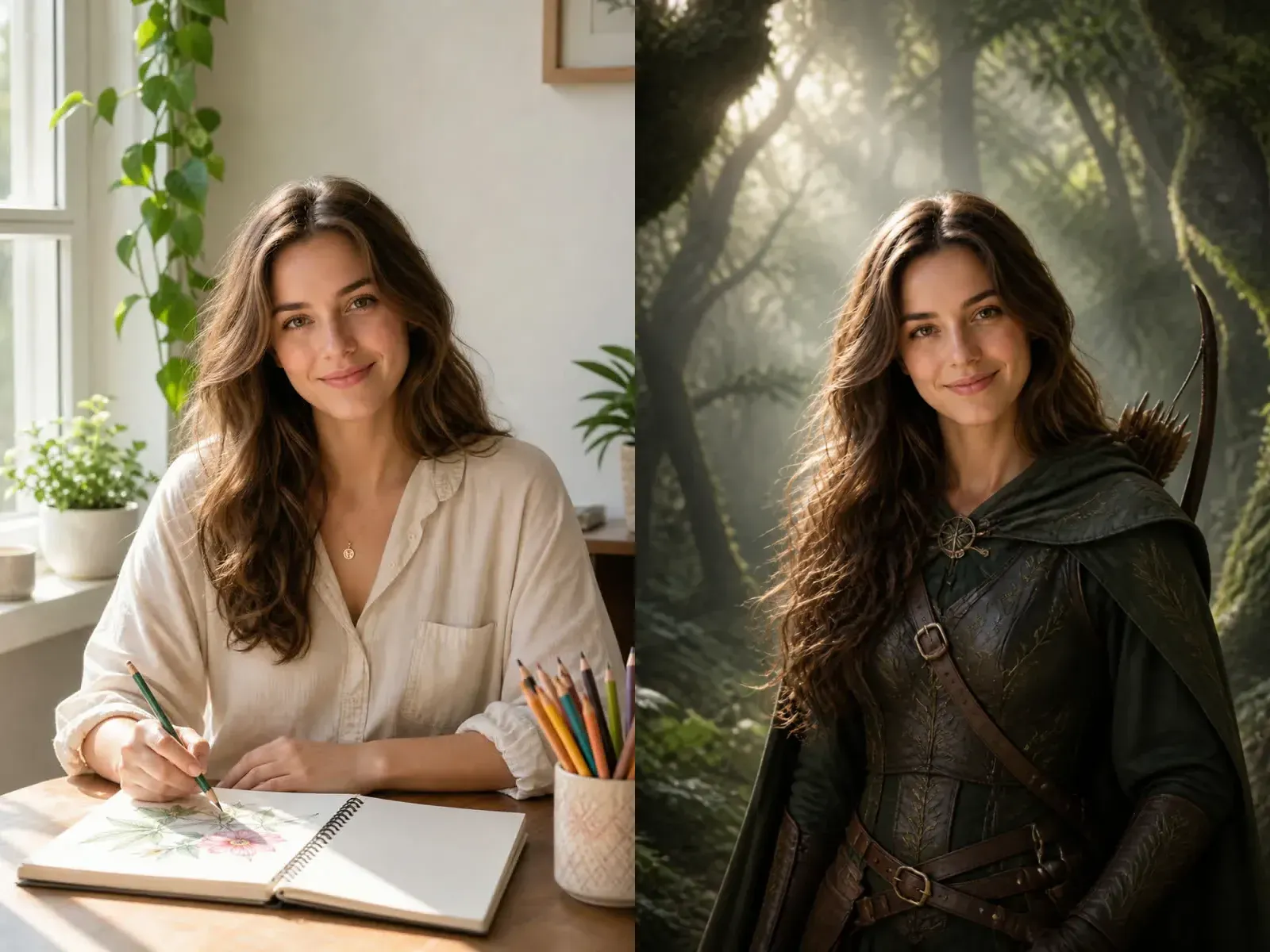
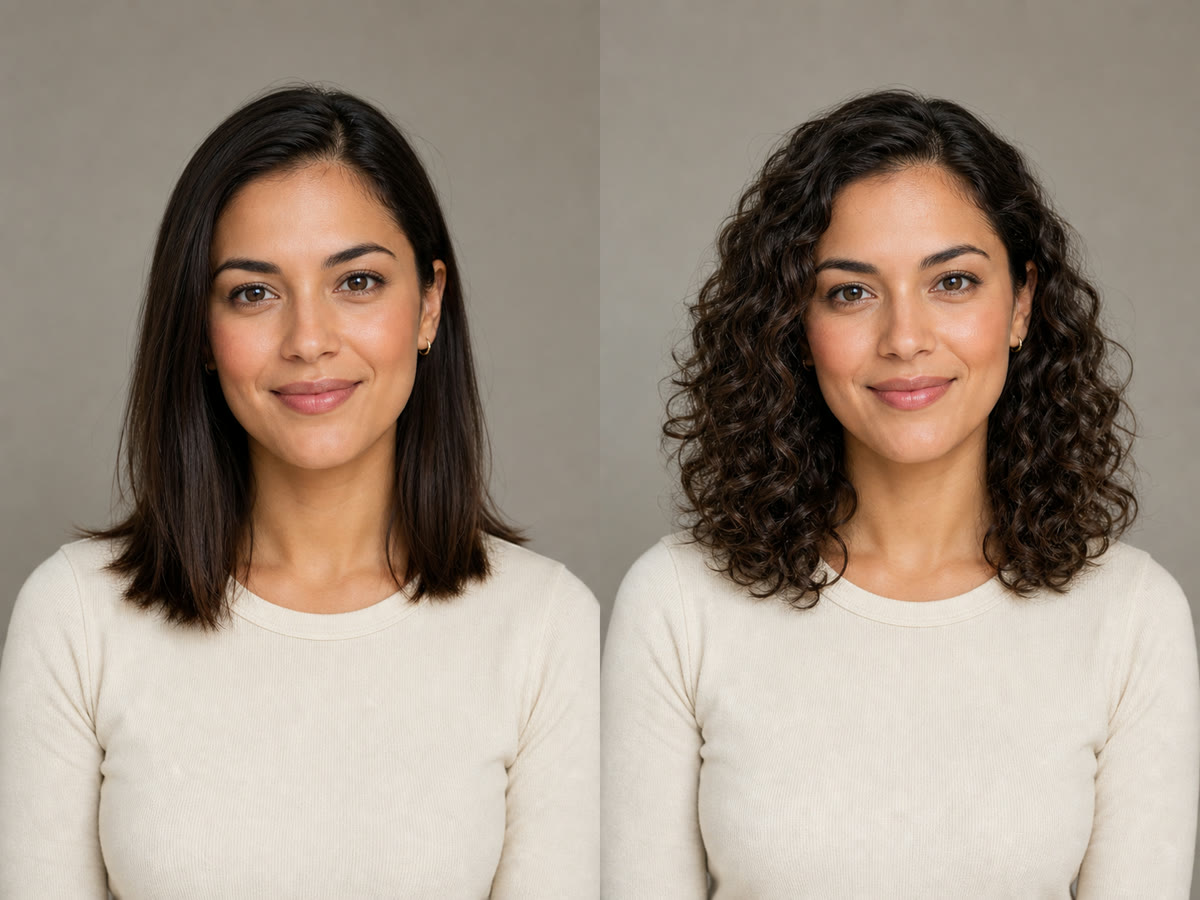
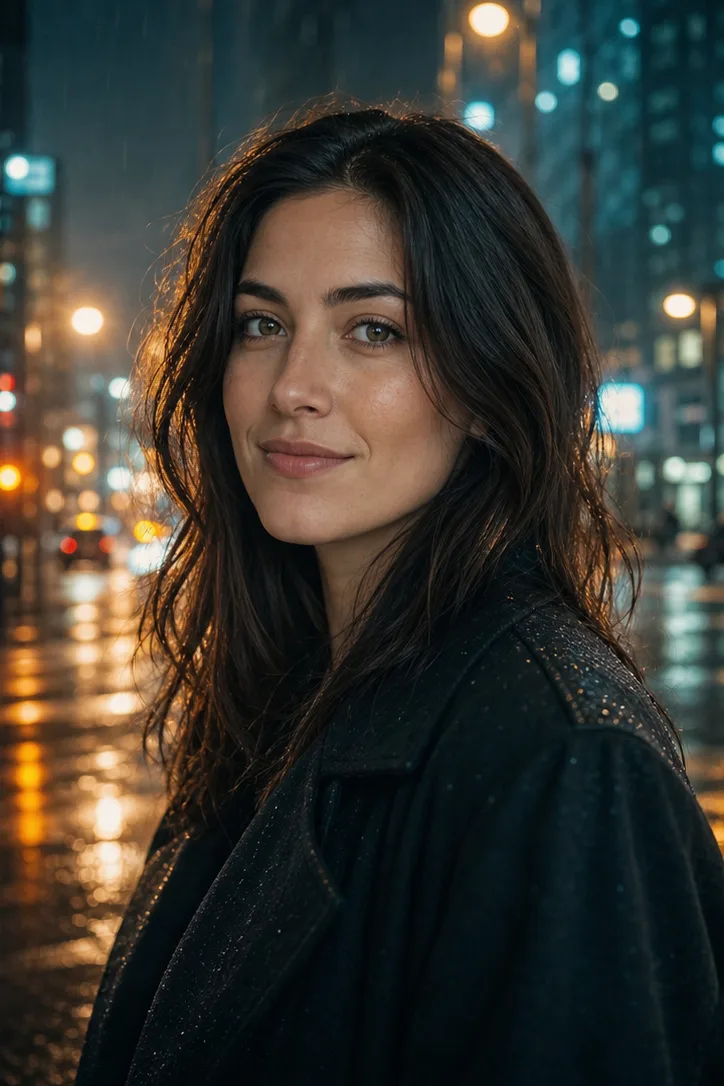
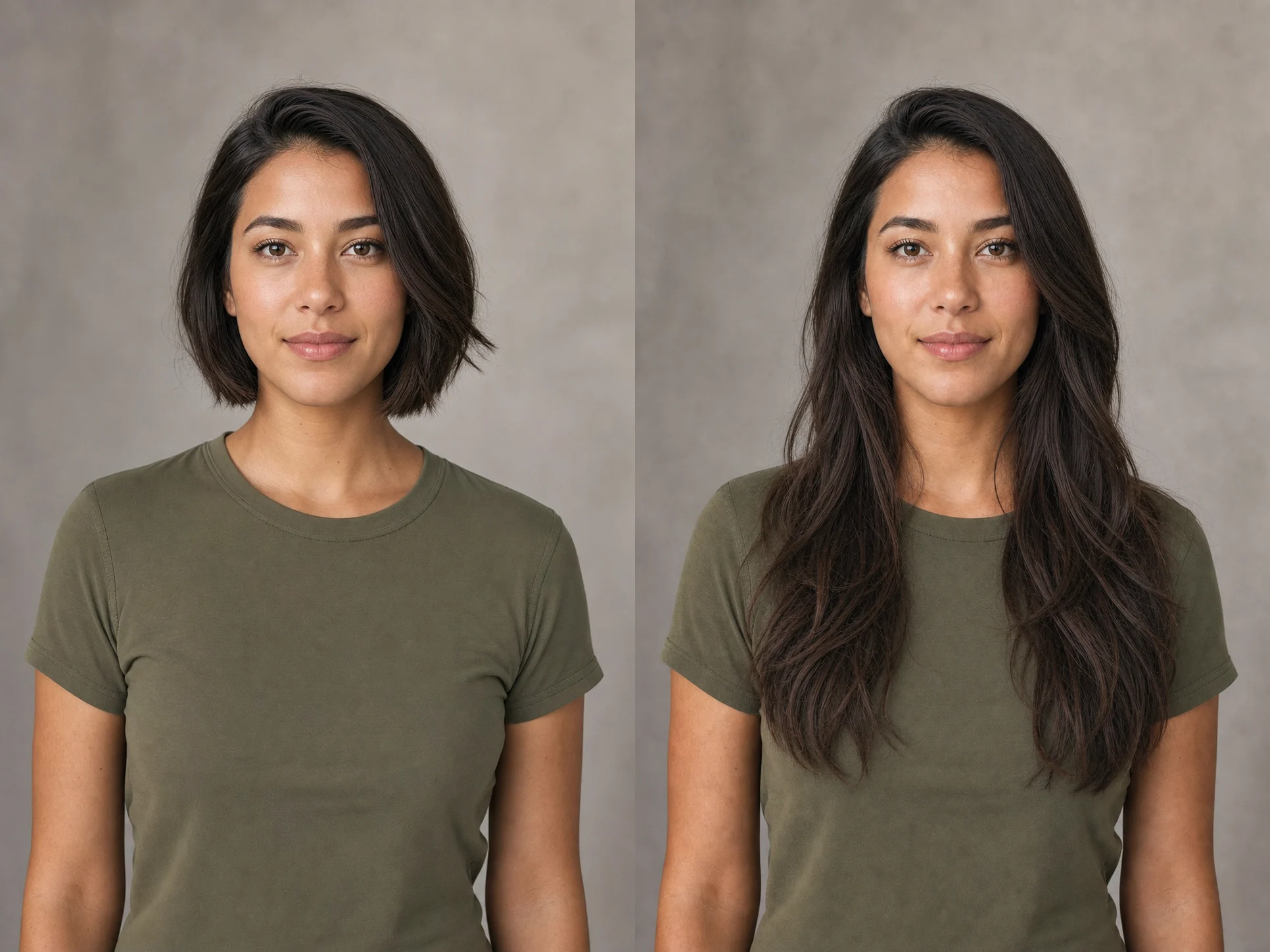
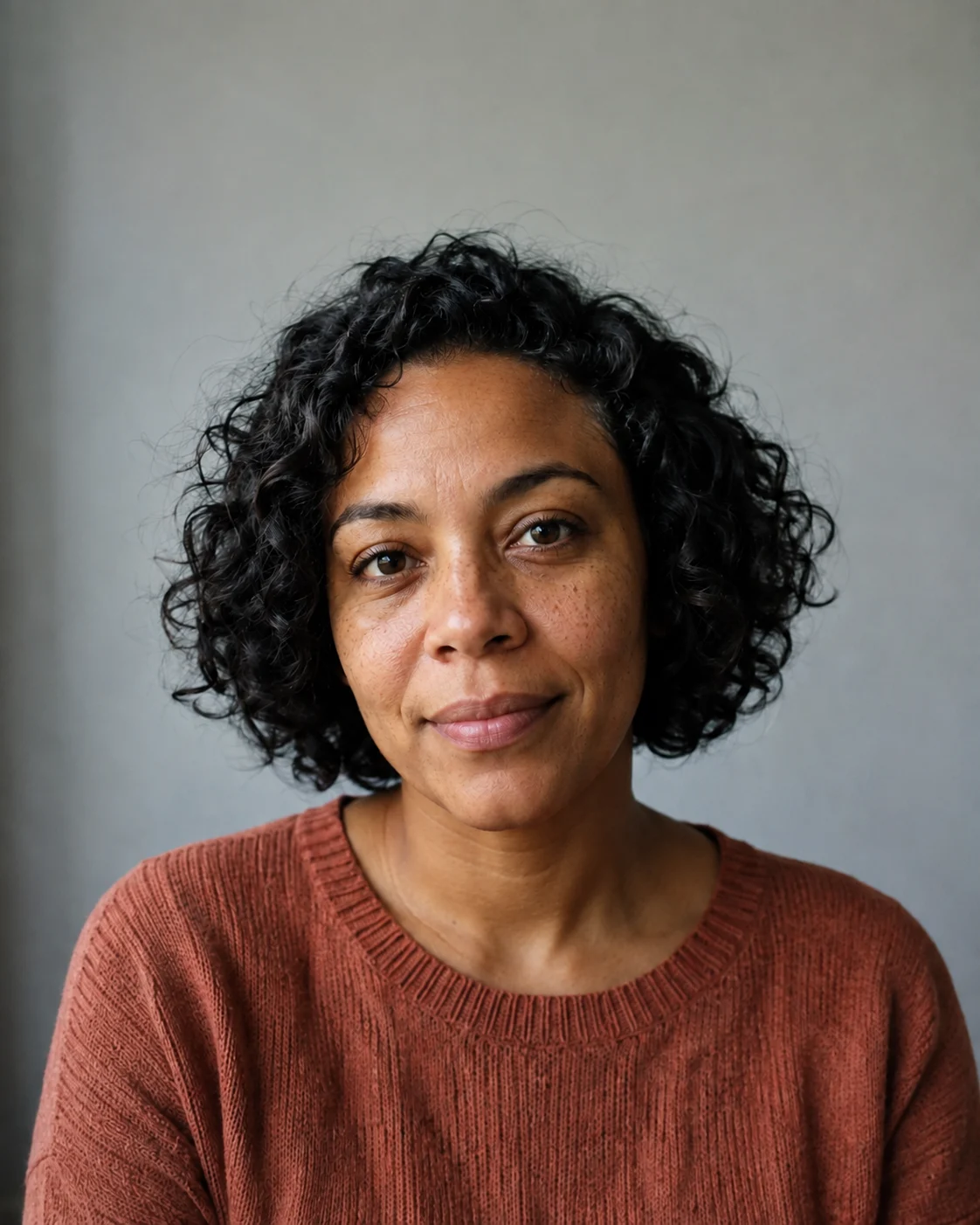
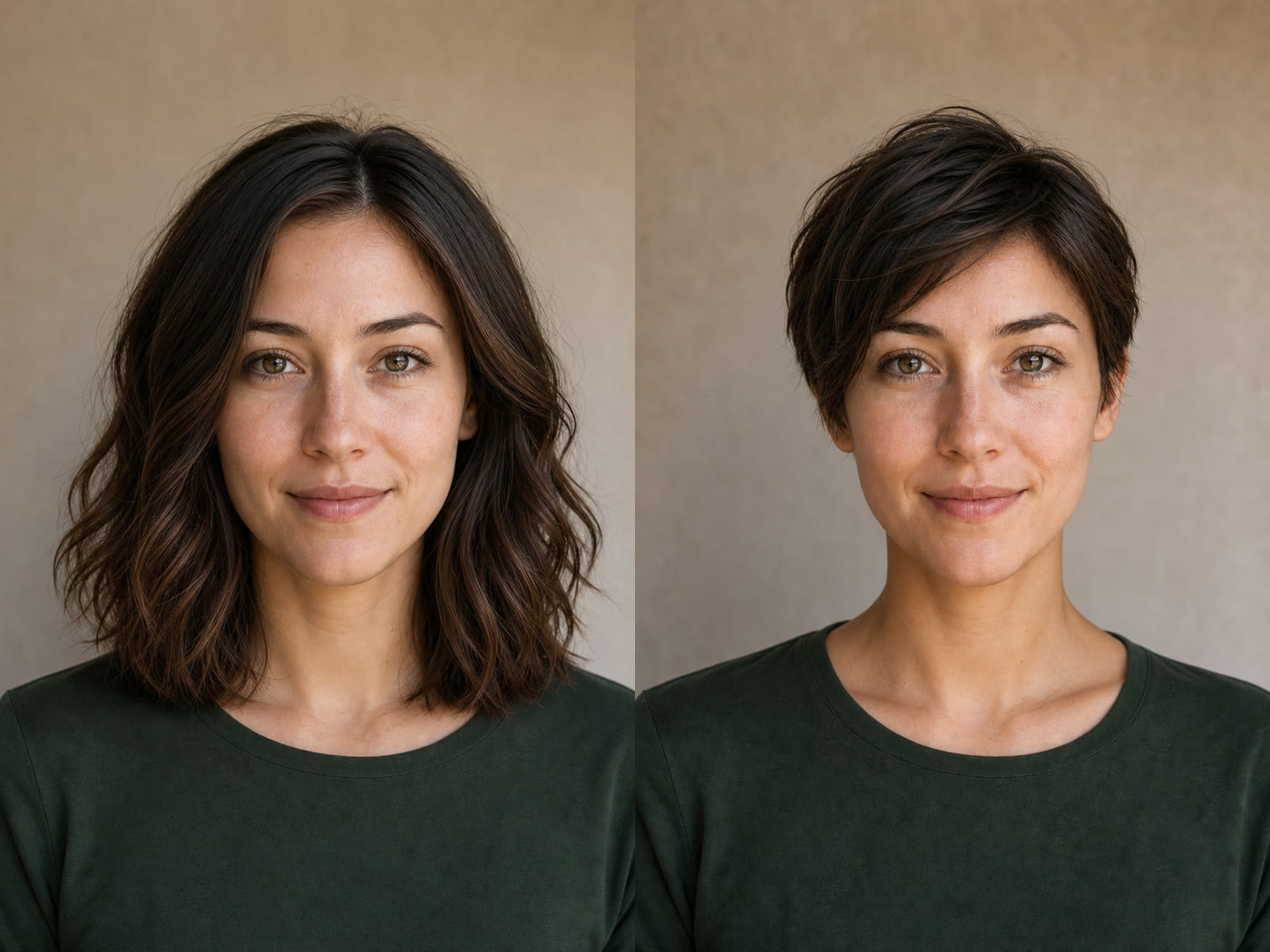
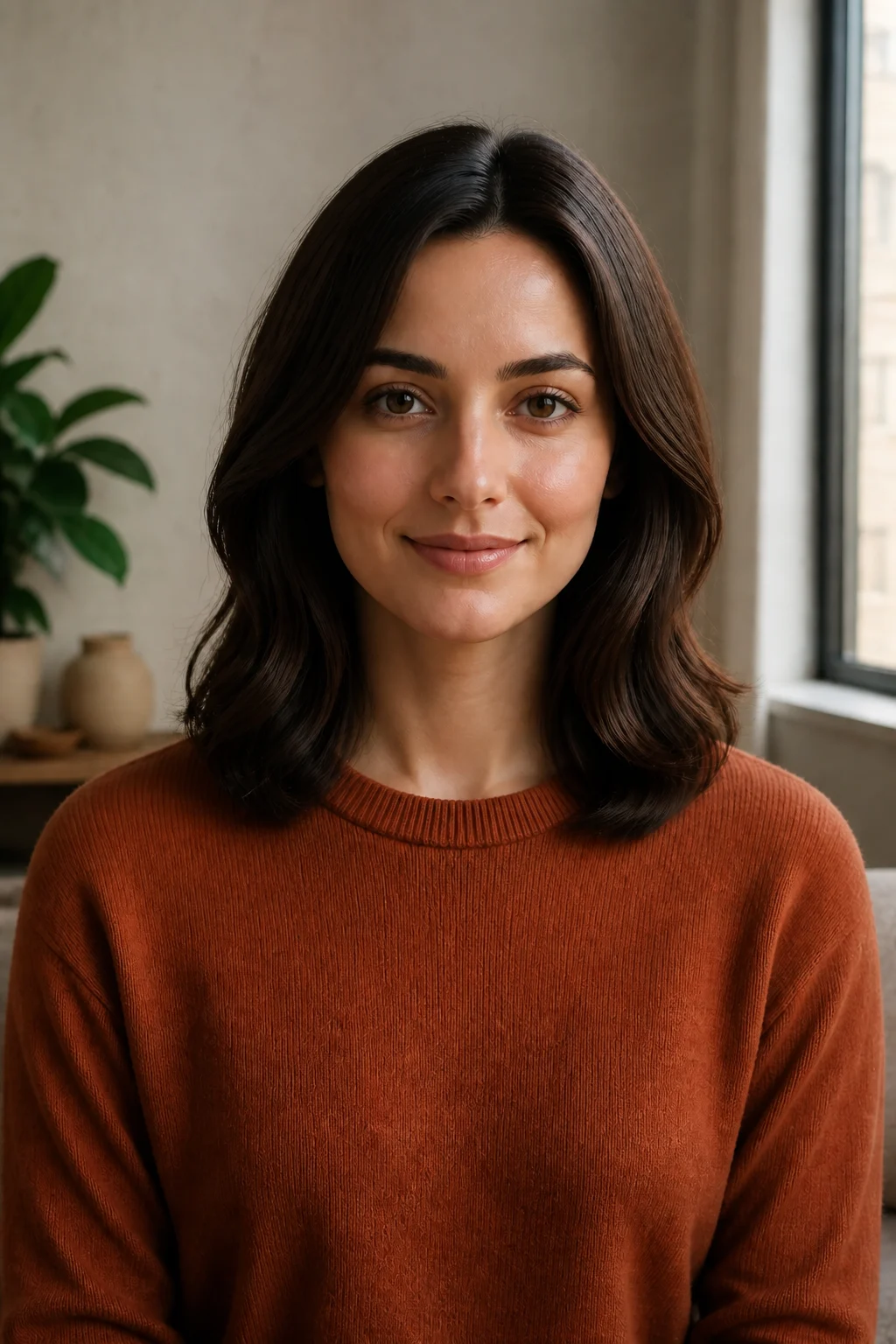
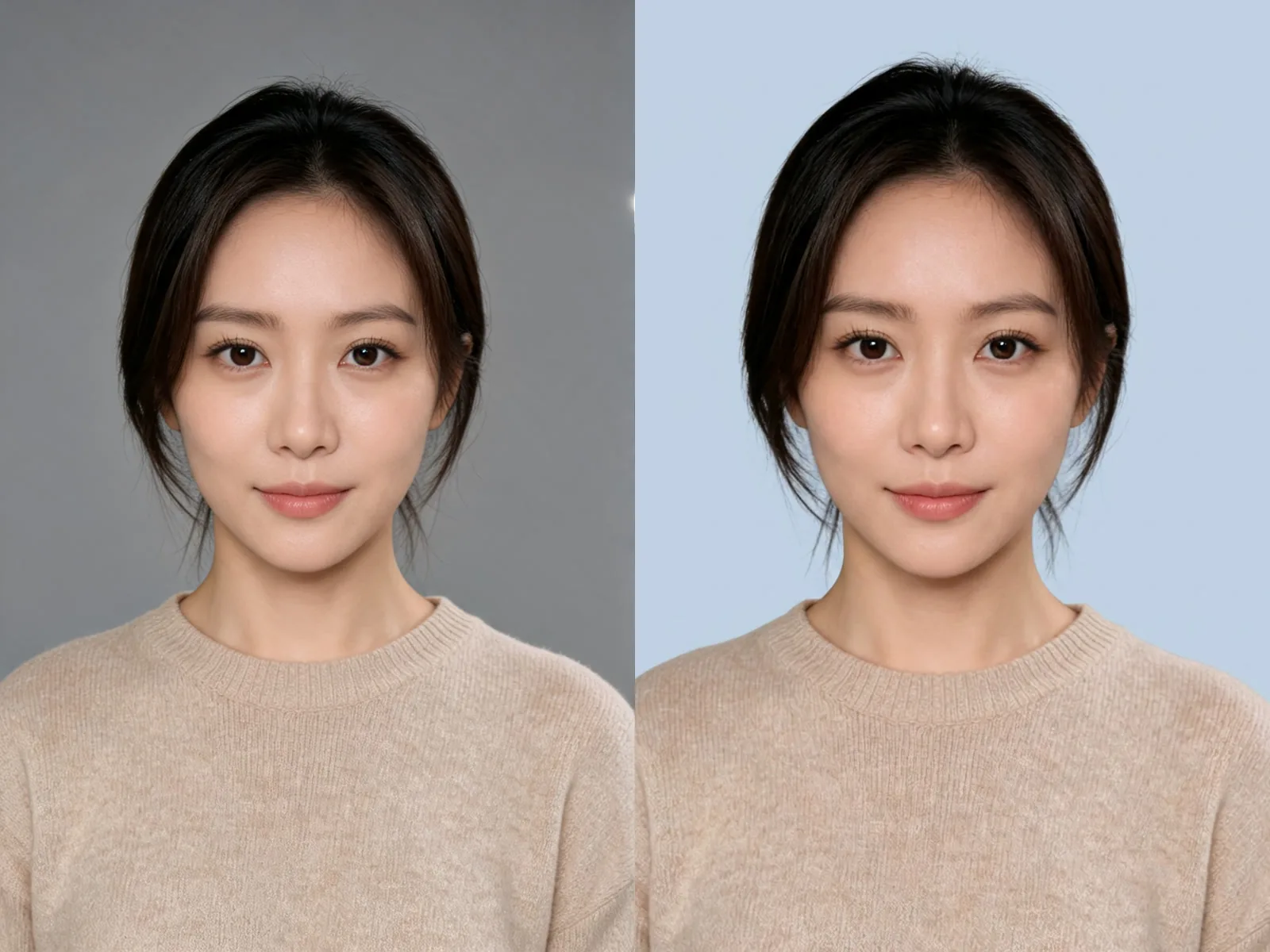
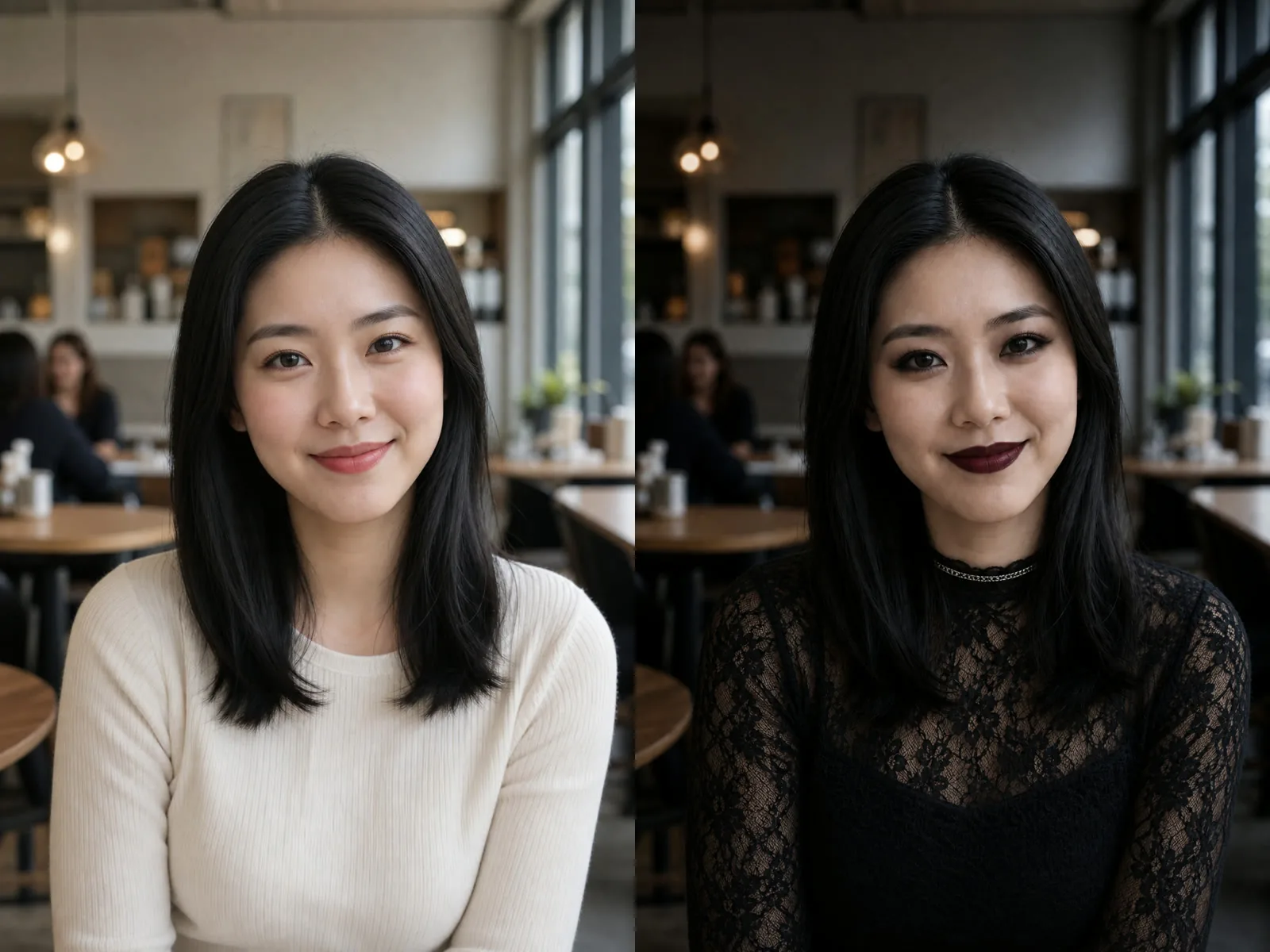
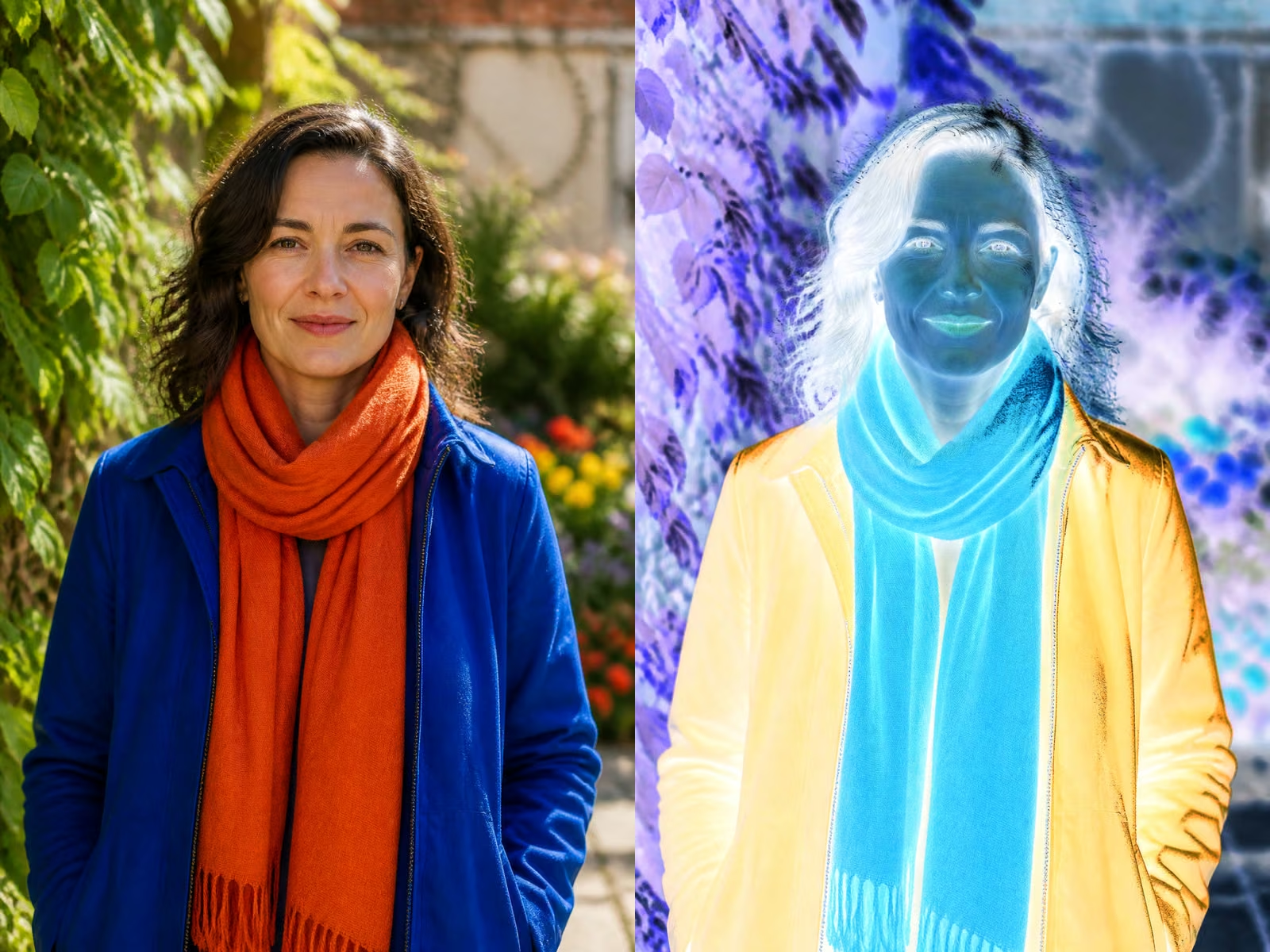
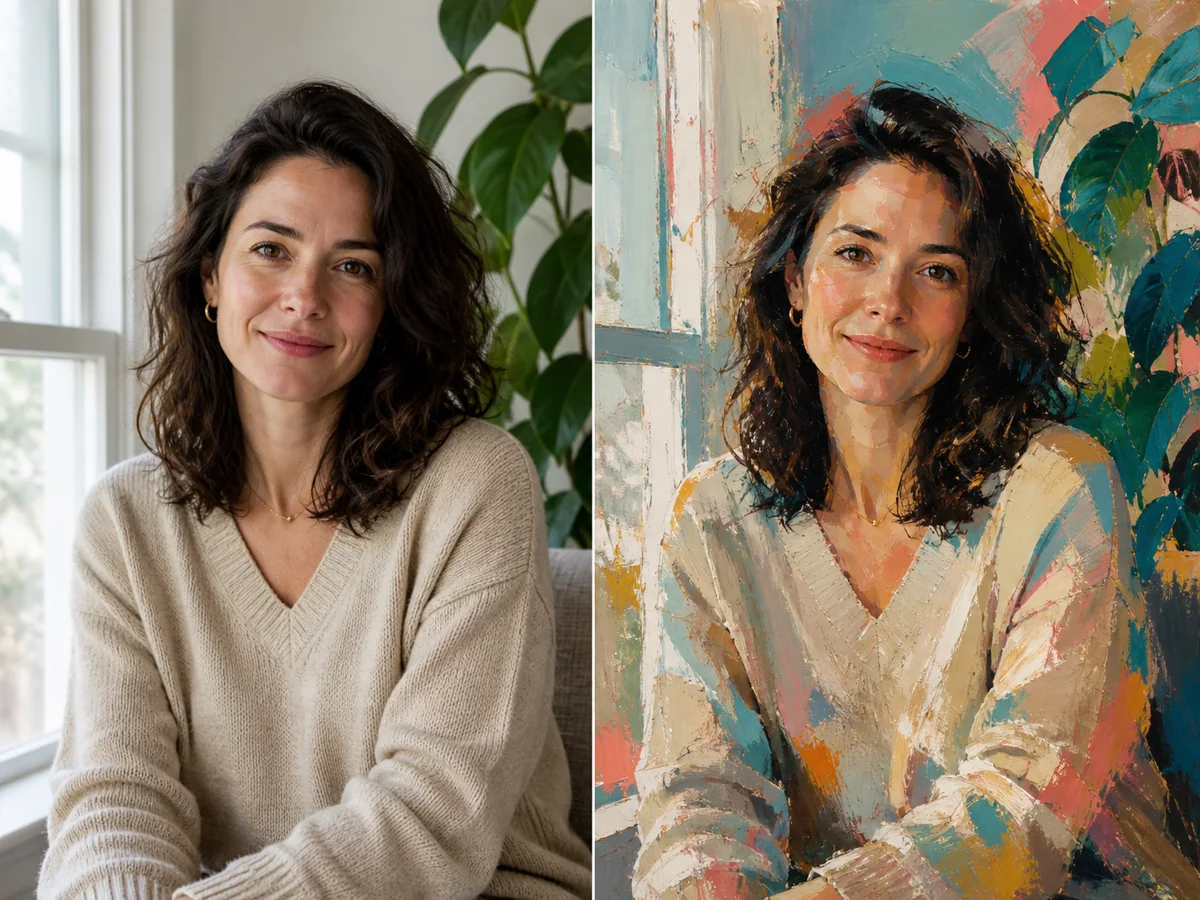
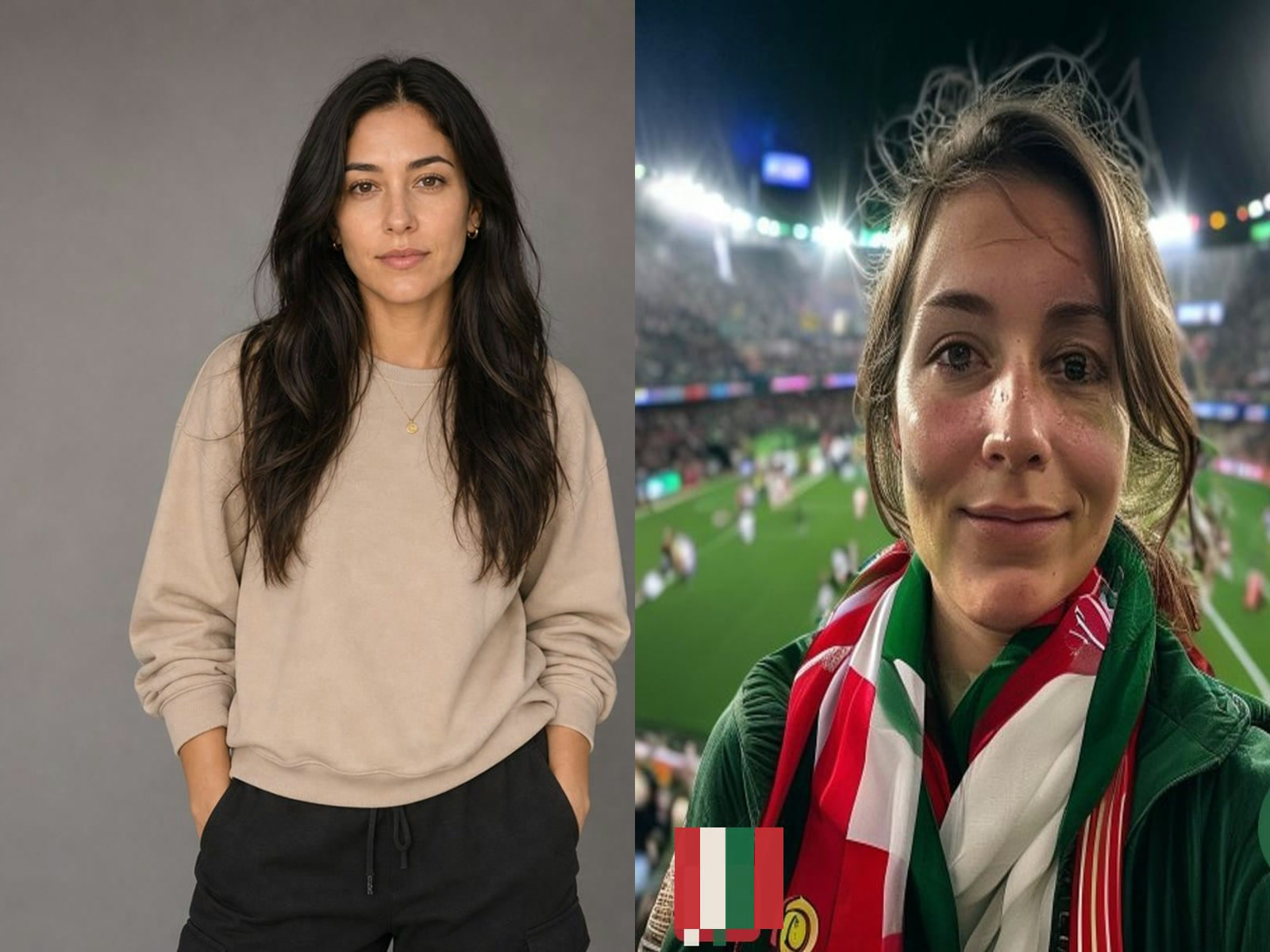
Fictional woman portrait with overly smooth AI-rendered skin and uniform detail
AI-Looking
Same fictional woman portrait with restrained skin texture and natural photographic detail
Humanized
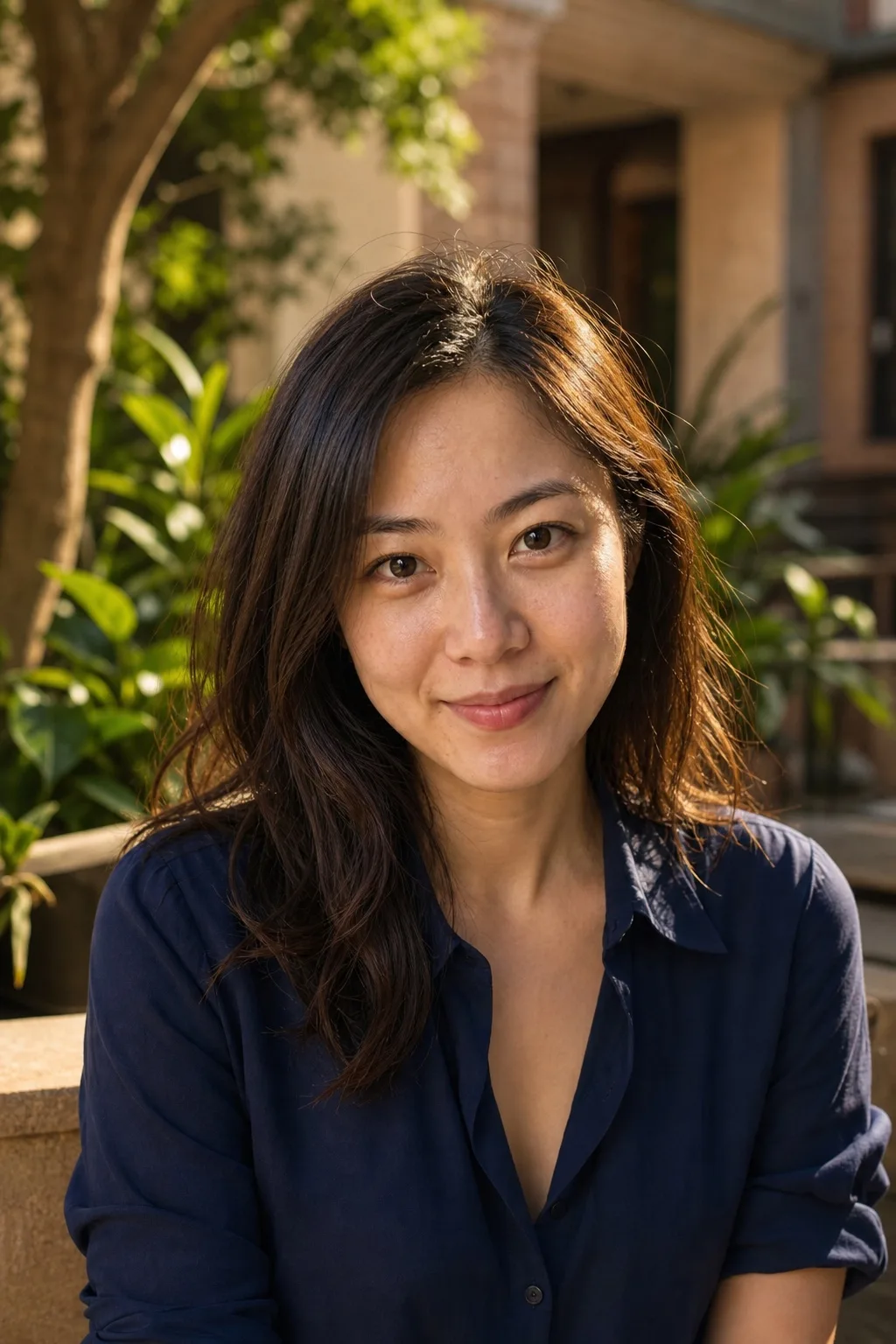
Naturalized fictional portrait created with AI Image Humanizer

Replace the Synthetic Finish, Not the Picture

An AI image humanizer is useful when an image already has the right person, pose, scene, and composition but still carries familiar generation cues: waxy skin, glassy eyes, uniformly perfect hair, repetitive cloth, spotless surfaces, or light that seems detached from the room. This workflow is deliberately narrower than a restyle tool. It asks for photographic micro-detail and local variation without asking for a new outfit, background, identity, or art direction. The model still redraws pixels rather than applying a deterministic camera filter, so facial features, hands, accessories, small objects, and text can change. Keep the source, inspect the output at full size, and retry with fewer requested changes if the result drifts.

Original Before-and-After Humanizer Examples

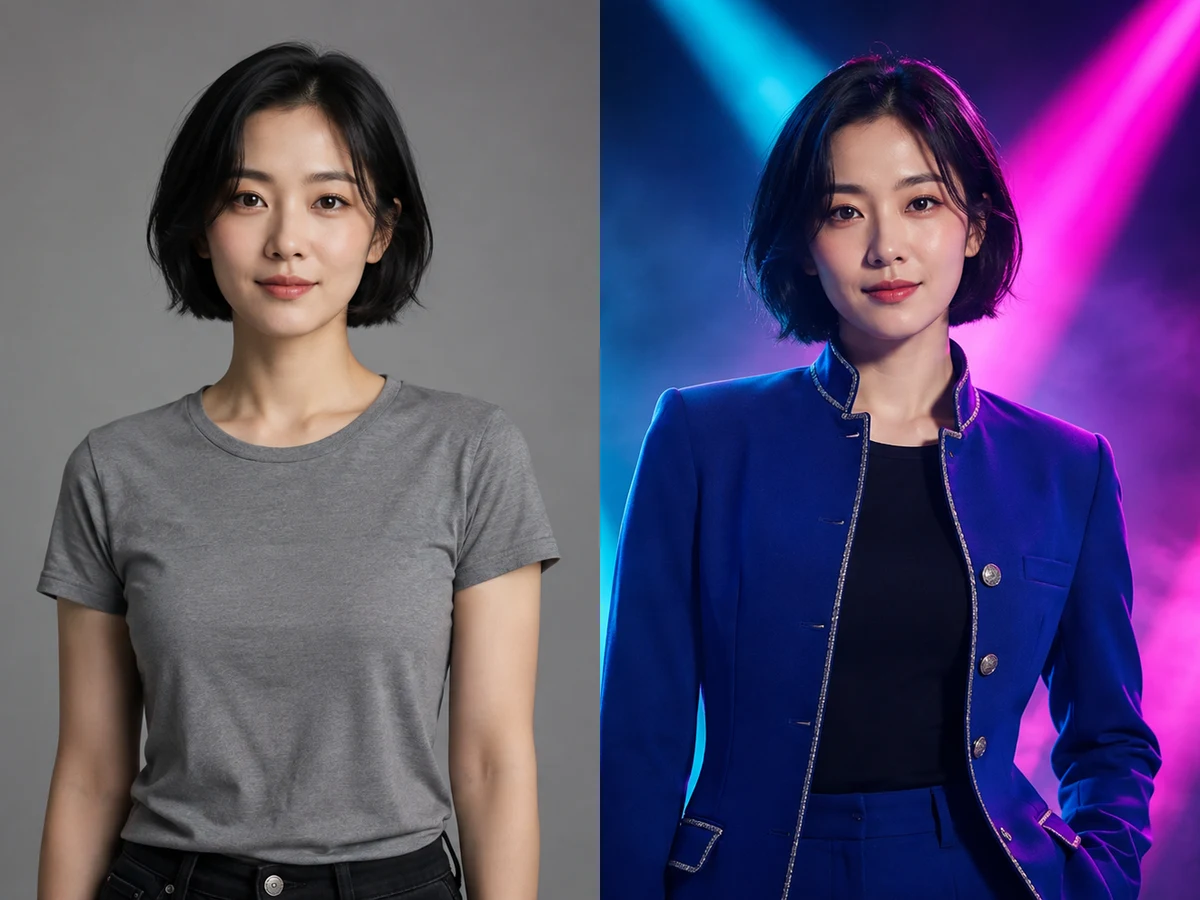
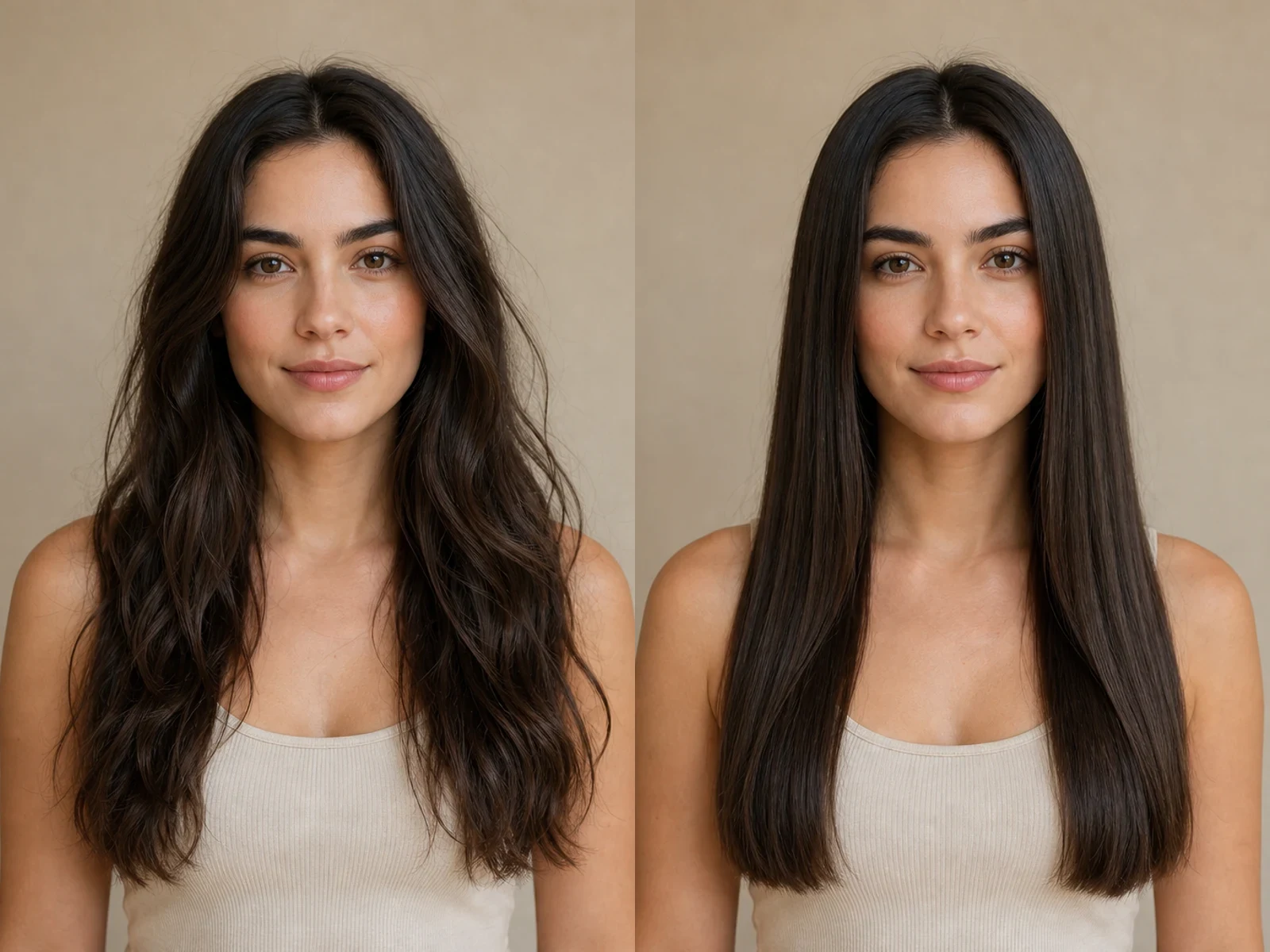
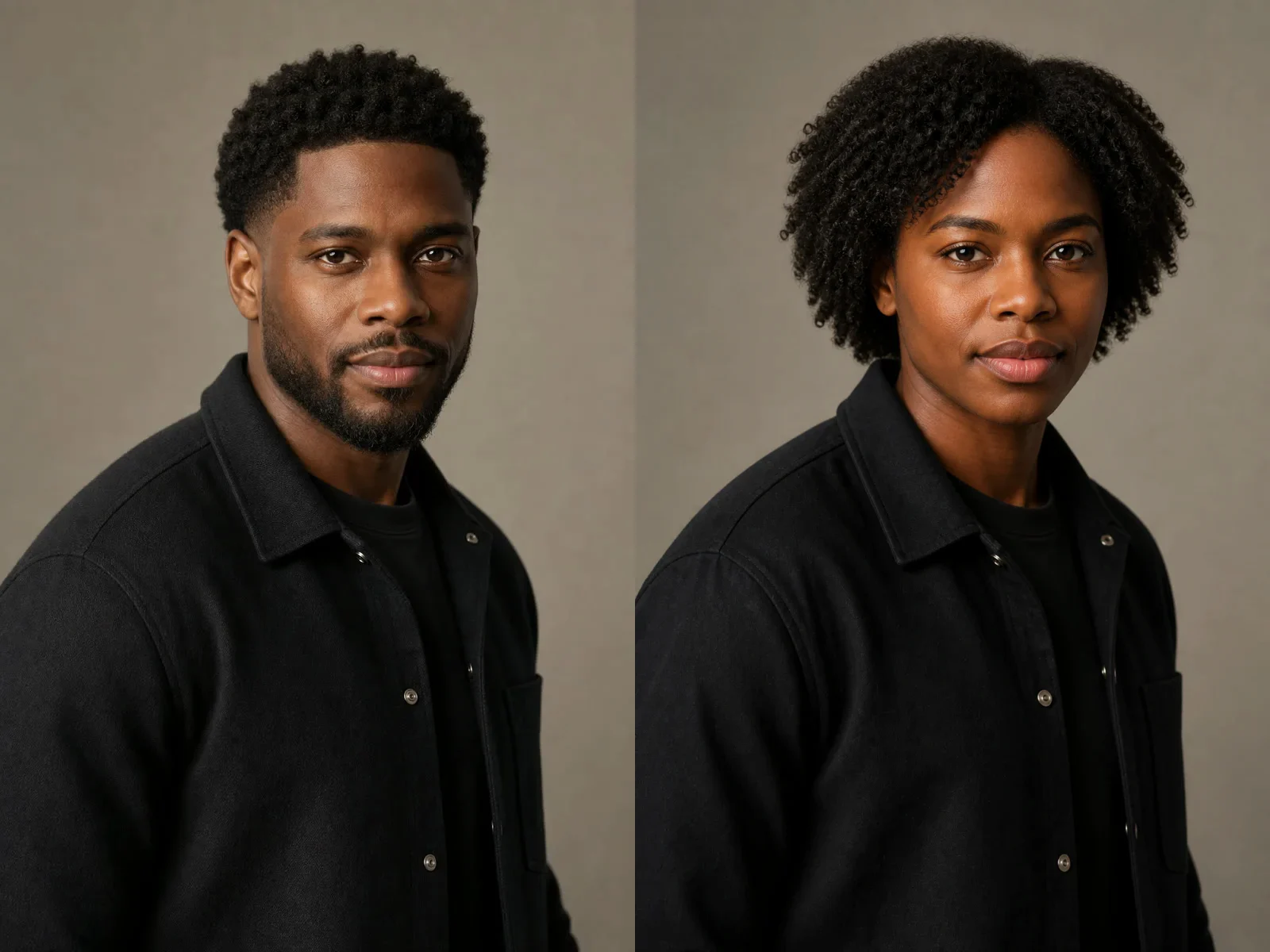
These paired fictional portraits were created for this page. Each pair holds identity, pose, objects, and framing steady so the visible change is the rendering quality—not a substitute person or an unrelated composition.

Indoor Portrait: From Airbrushed to Believable

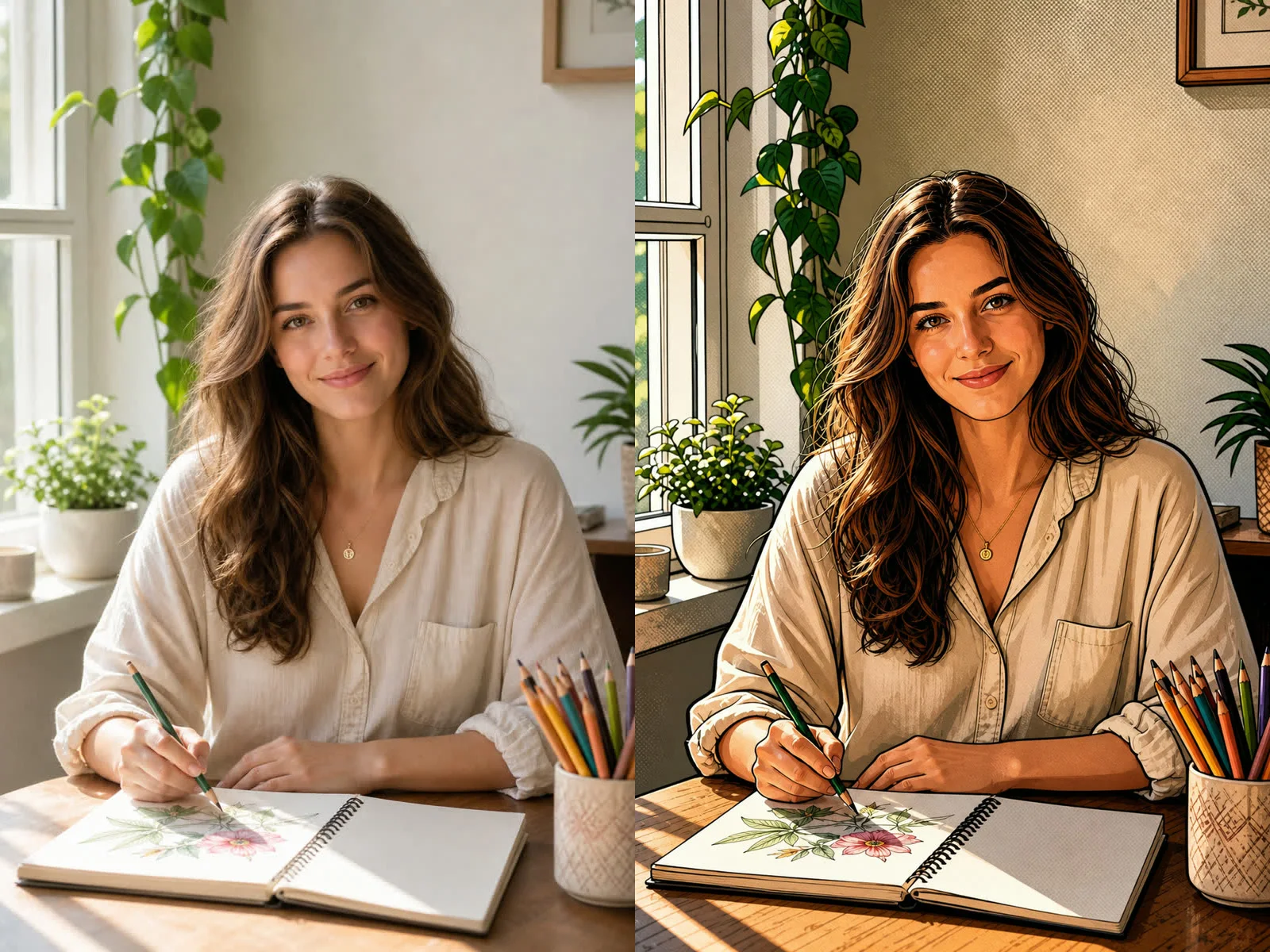
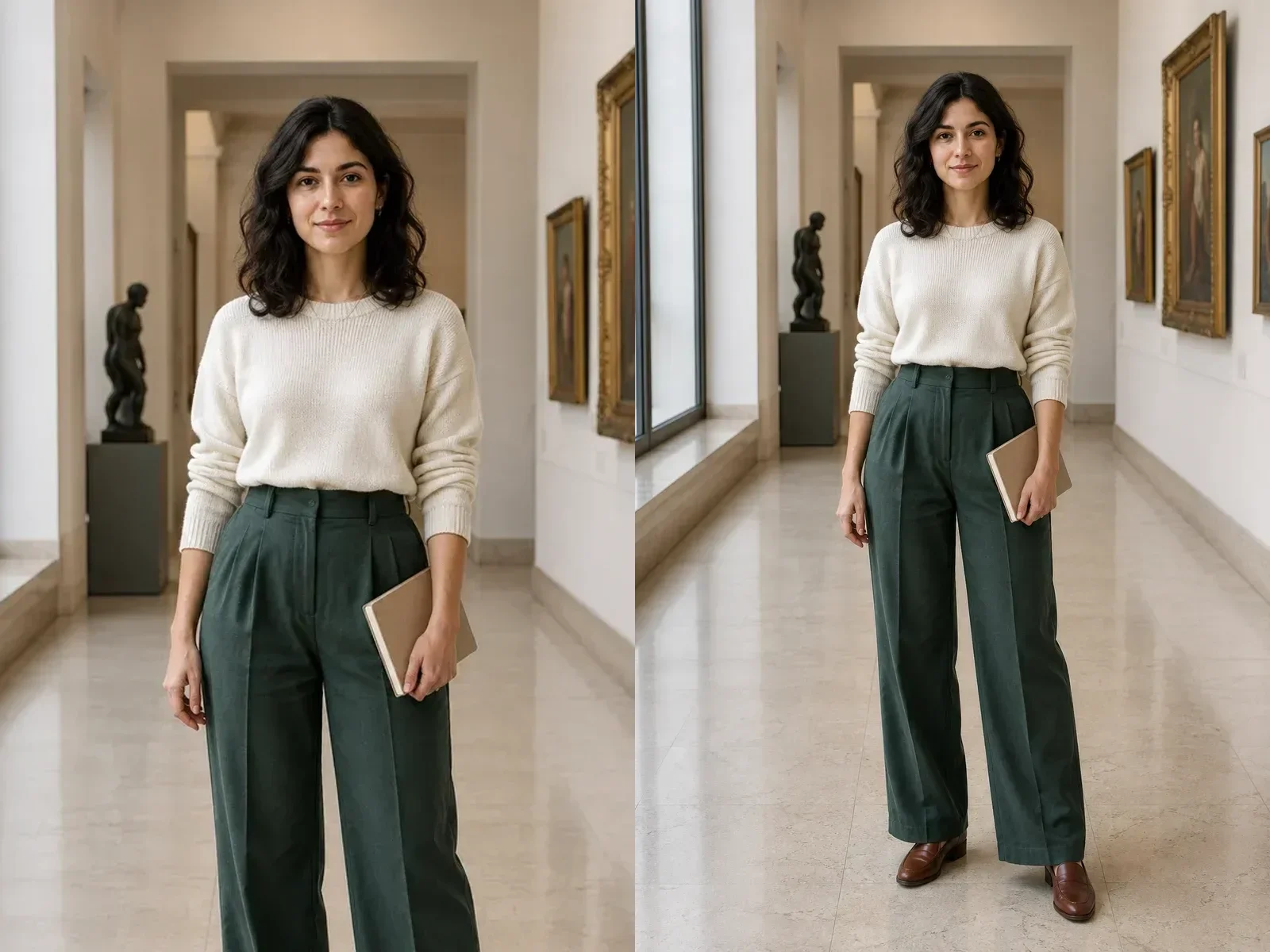
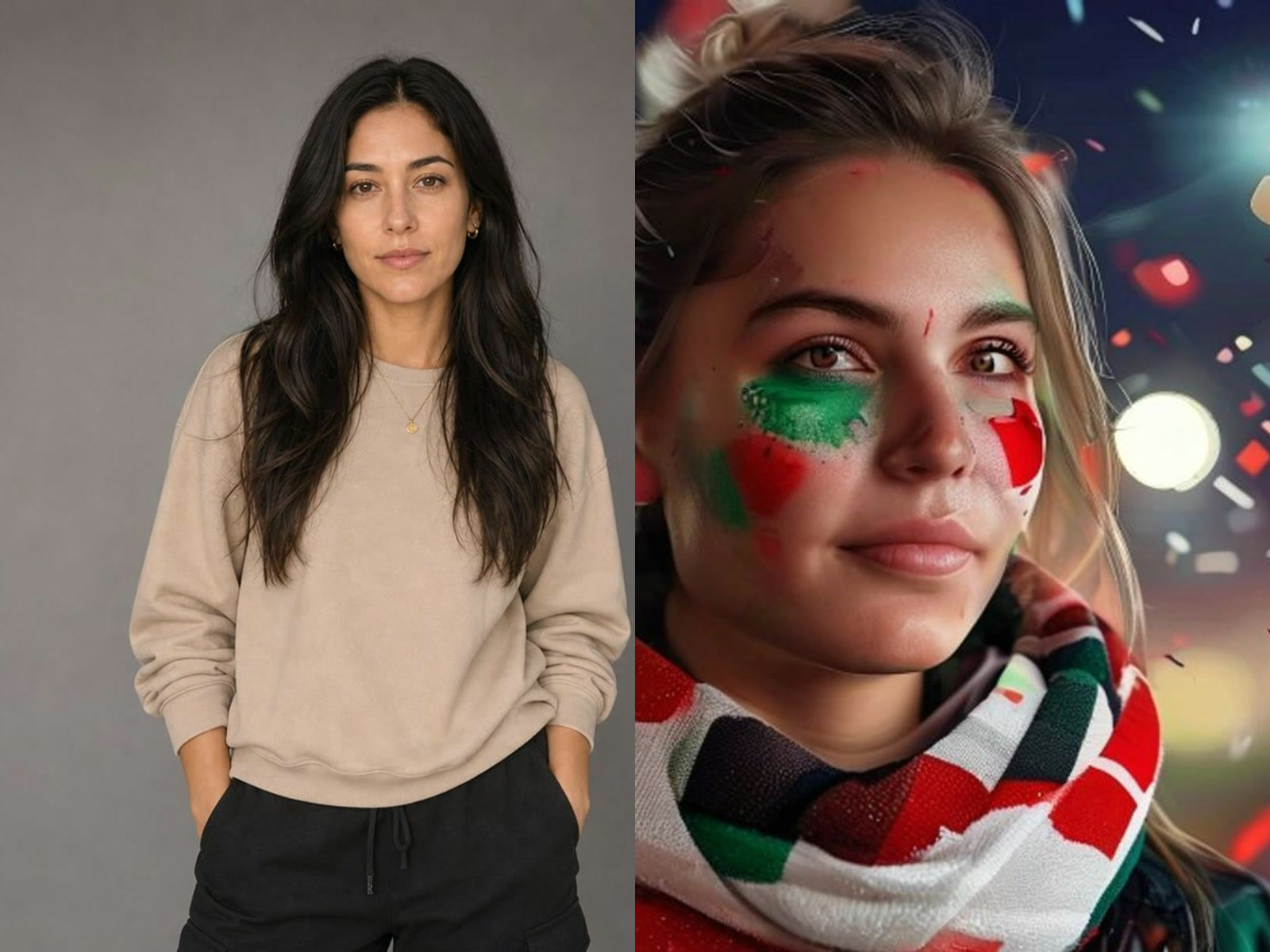
The source portrait is coherent, but the face is unusually even, the hair is too orderly, and the room has a polished synthetic finish. The humanized version introduces restrained pores, slight tonal variation, individual flyaway hairs, fabric weave, and less uniform background detail. It does not intentionally change the woman, her expression, her hands, her clothes, or the room. This is the right type of correction when the creative direction is already approved and only the photographic finish feels artificial.

Try the Indoor Sample
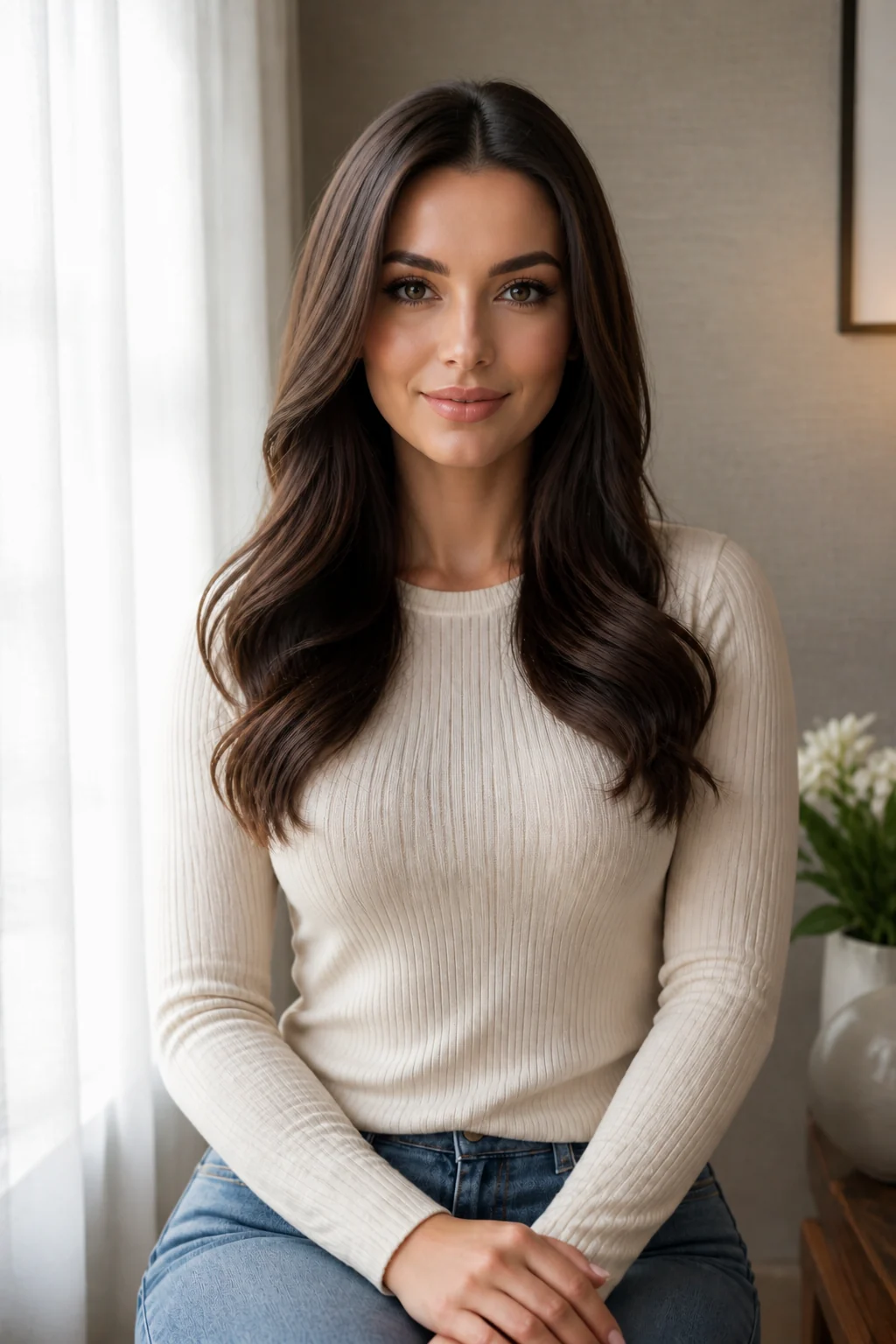
Humanized indoor portrait with natural skin and environmental texture

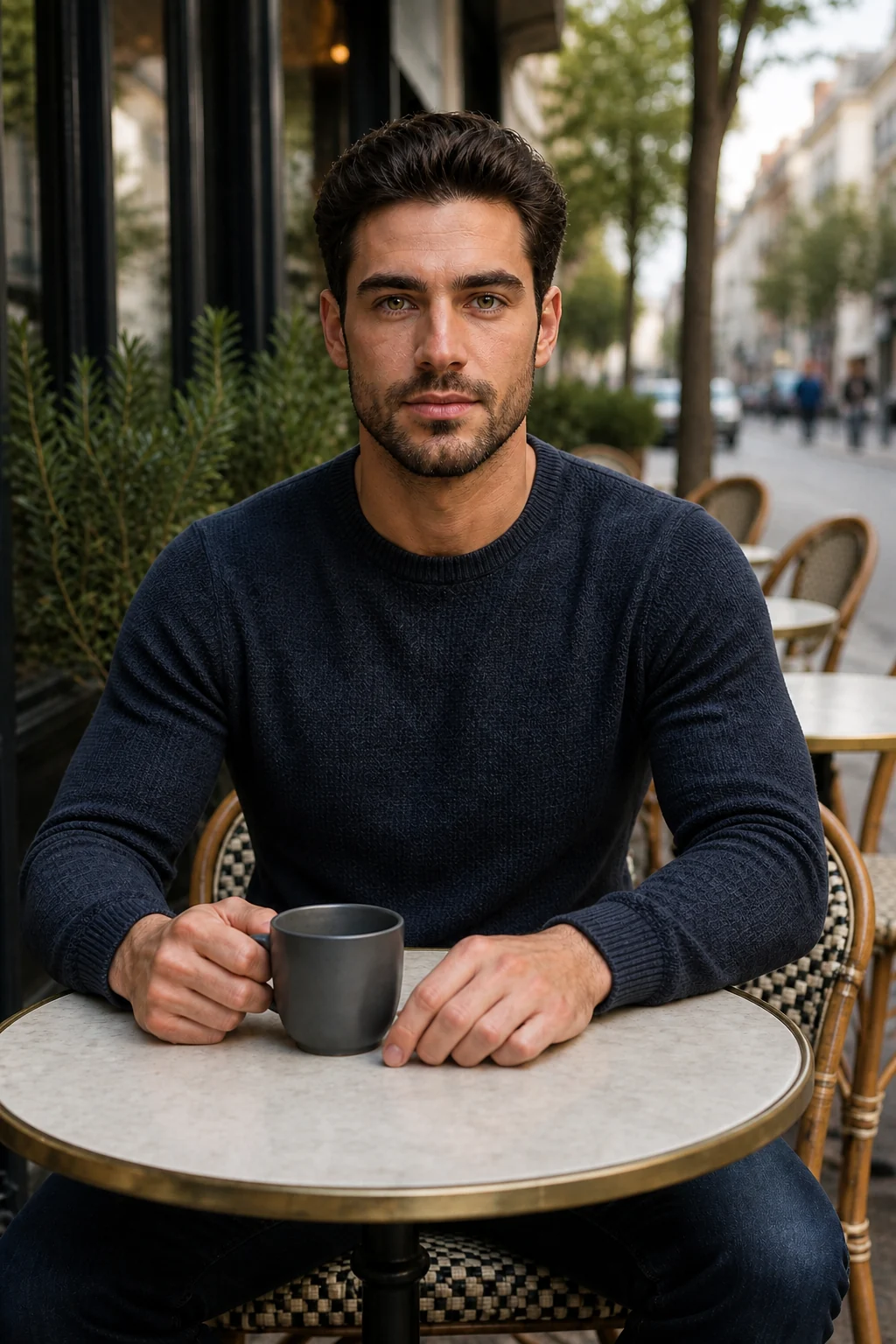
Cafe Portrait: More Texture Without a New Identity

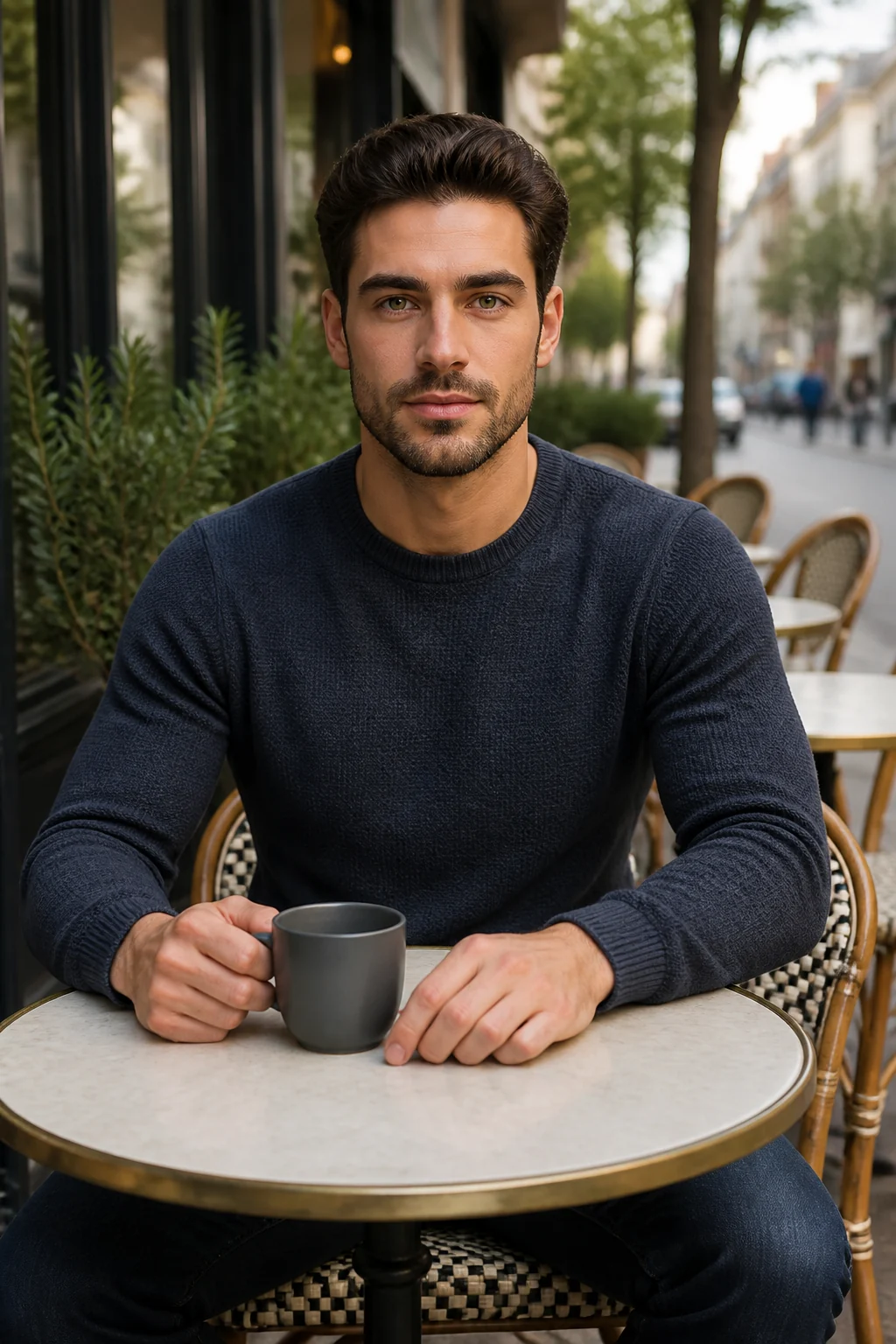
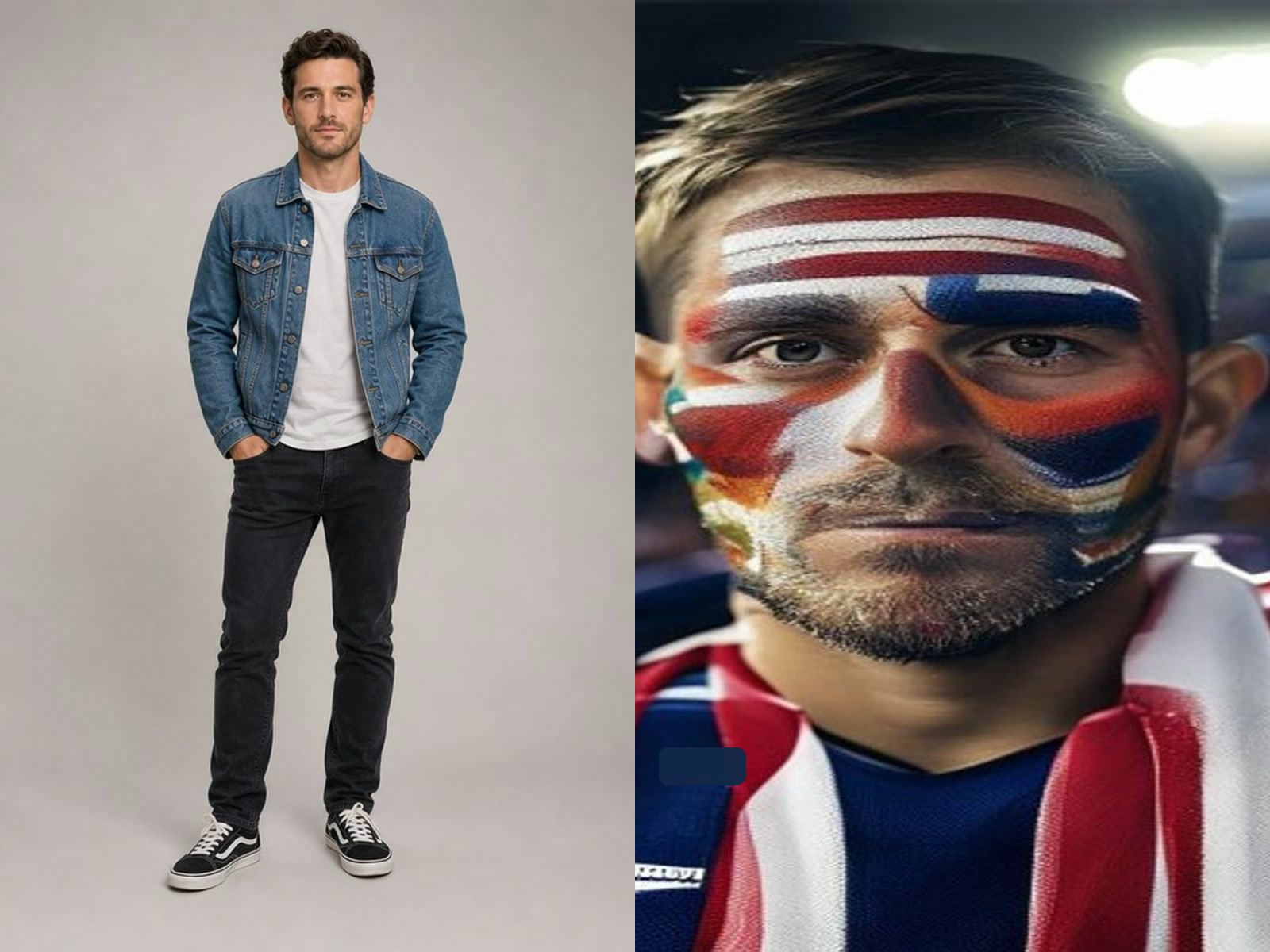
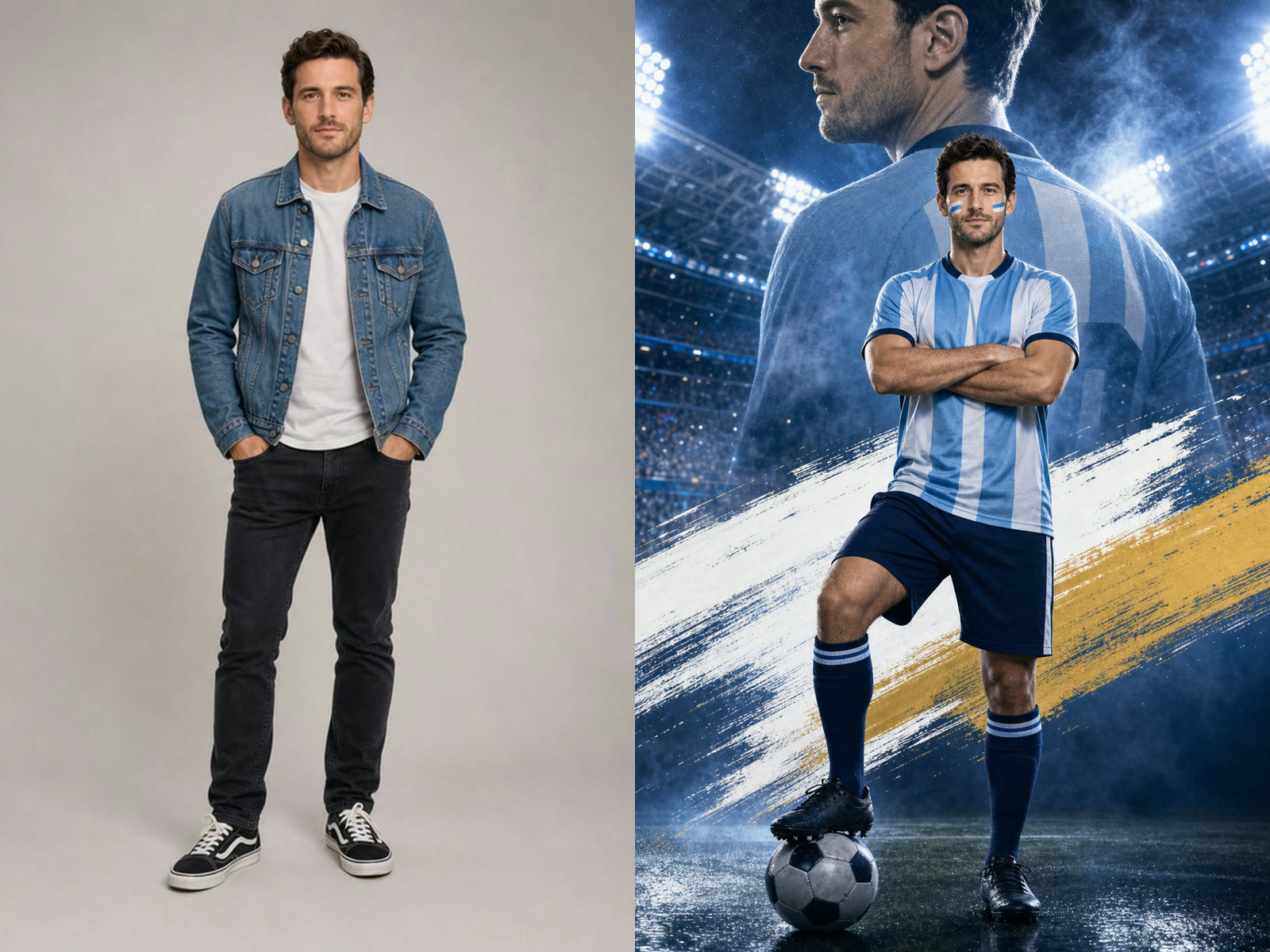
The cafe source uses attractive daylight, but the skin, beard, sweater, plants, and bokeh are too clean and evenly resolved. Humanization adds local irregularity, fine skin detail, varied facial hair, a more tactile knit, and believable shadow falloff. The mug, hands, table, chairs, street, clothing, face, and crop remain the visual anchors. When working on your own image, list those protected anchors explicitly rather than writing only “make it realistic.”

Try the Cafe Sample
Humanized cafe portrait with realistic beard, knit texture, and daylight

What the AI Image Humanizer Is Designed to Correct

The prompt focuses on small, distributed clues that make a generated image feel synthetic while protecting the decisions that already work.

Natural Skin Variation

Ask for restrained pores, fine lines, subtle color shifts, and realistic highlight rolloff instead of plastic smoothing or aggressive beauty retouching.

Less Uniform Hair and Fabric

Introduce varied strand thickness, flyaways, beard detail, cloth weave, seams, folds, and material response without changing the haircut or wardrobe.

Coherent Light and Surfaces

Bring reflections, contact shadows, depth of field, furniture, plants, walls, and background objects into the same believable photographic environment.

Editable Preservation Notes

The live prompt box lets you name the identity, expression, pose, object geometry, crop, colors, and scene elements that matter most before generation.

How to Humanize an AI Image

A controlled three-step review works better than asking the model to make every part of an image more realistic at once.

1. Upload One Clear AI-Generated Image

Choose the strongest version of the image, with the full head, hands, product edges, or other important details visible. Avoid tiny faces, severe crops, heavy compression, collages, or an image that already has broken anatomy. A humanizer can improve rendering cues, but it is not a reliable way to reconstruct missing content or repair every structural mistake.

Clear fictional AI portrait ready for humanization

2. Separate Corrections from Protected Details

Edit the prefilled prompt in two parts. First name the cues to soften, such as waxy skin, repeated strands, uniform fabric, perfect reflections, or artificial bokeh. Then name what must remain stable: identity, facial structure, expression, pose, clothing, product shape, objects, background, camera angle, crop, and lighting direction. A bounded request gives the model fewer reasons to redesign the picture.

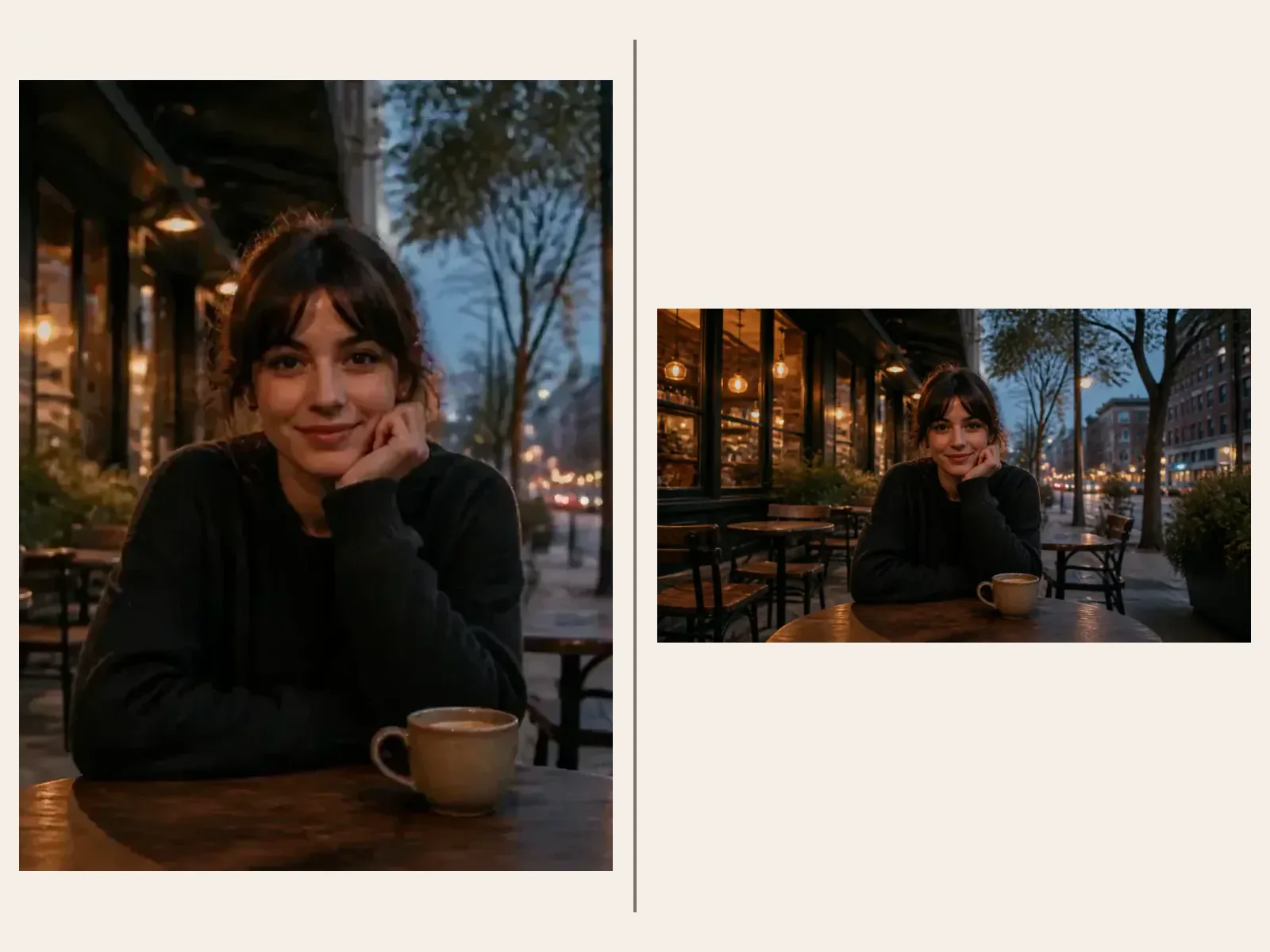
AI-looking cafe portrait with protected composition details

3. Compare at Full Size and Refine

Inspect the eyes, teeth, ears, hairline, fingers, jewelry, seams, edges, signs, and background objects beside the original. If the image becomes a different person or scene, reduce the prompt to one or two corrections and keep Auto ratio so the source composition has room. Save the result only after the natural texture improves without introducing a more important error.

Humanized cafe portrait ready for detailed comparison

Useful AI Image Humanizer Workflows

Humanization is most valuable after composition and subject choices are settled but before an image enters a final review or design stage.

Portrait Concept Review

Make an AI portrait easier to evaluate by reducing airbrushed skin, uniform hair, and detached lighting while keeping the fictional or consented adult subject recognizable.

Campaign Mood Boards

Create a more photographic draft for internal review, then replace generated claims, products, talent, and legal copy with verified production assets before publishing.

Character Reference Images

Add believable skin, cloth, hair, and environment detail to a fictional character reference while protecting costume, pose, palette, and framing.

Social and Thumbnail Drafts

Reduce obvious synthetic polish before adding final typography in a design tool. Review faces, hands, small props, and disclosure requirements for the destination platform.

Interior and Product Concepts

Improve material variation, reflections, texture, and contact shadows, but verify real dimensions, packaging, controls, colors, and availability separately.

Prompt Iteration Diagnostics

Use the before-and-after comparison to learn which realism cues need stronger instructions in the next original generation rather than repeatedly editing a weak source.

Important Limits of AI Image Humanization

A natural-looking result is still generated media. Human review and appropriate disclosure remain necessary.

Not an AI Detector Bypass

This tool is for visual refinement, not for misrepresenting authorship, evading platform rules, or guaranteeing that automated detection systems will classify an image in a particular way.

Reference-Guided, Not Pixel-Locked

The model redraws the image. It can alter identity, anatomy, text, logos, accessories, products, or background details even when the prompt asks for preservation.

No Masks, Layers, or Batch Mode

The current page accepts one image and one editable direction, then creates one result. It does not expose selective brush masks, layered files, or batch variations.

Credits and Rights Still Apply

Generation uses the credit amount shown in the live interface. Use only images you have the right and consent to edit, and review current plan terms before commercial use.

AI Image Humanizer FAQ

Answers about realistic texture, source images, identity preservation, prompts, detection, credits, privacy, and commercial review.

What is an AI image humanizer?

It is an image-to-image workflow that uses an AI-generated picture as a reference and asks a model to replace synthetic visual cues with restrained photographic detail. Typical targets include over-smoothed skin, uniform hair, repetitive fabric, perfect surfaces, artificial bokeh, and incoherent shadows.

How do I make an AI image look more real?

Upload one clear image, keep Auto ratio when possible, and edit the prompt so it names both the realism problems and the details that must remain unchanged. Generate once, compare the result at full size, and make a smaller correction if identity, anatomy, objects, or composition drift.

Will AI Image Humanizer keep the same face?

The template explicitly asks the model to preserve identity, facial geometry, expression, pose, clothing, and crop, but exact preservation is not guaranteed because the image is regenerated. Use a clear source and inspect the eyes, mouth, ears, hairline, and profile before sharing.

Can I use AI Image Humanizer free?

You can open and configure the tool without an unlimited-use promise. A generation uses the credit amount displayed by the live NanoPic interface. Starter credits, account limits, payment, and watermark behavior depend on current product settings, so review them before generating.

Does humanizing an image guarantee it will pass an AI detector?

No. Visual naturalization and automated AI detection are different problems, and detector outputs can be uncertain or inconsistent. NanoPic does not promise a classification result or support using the tool to evade platform, disclosure, school, workplace, or marketplace rules.

Which source image works best?

Use the strongest available image with important faces, hair, hands, text, products, and scene edges large enough to inspect. Avoid severe crops, tiny subjects, heavy compression, collages, and structurally broken anatomy. Humanization works best as a finishing pass, not as reconstruction.

What should I write in the humanizer prompt?

Name two or three specific cues, such as plastic skin, overly uniform hair, flat fabric, sterile background detail, or unrealistic shadow falloff. Then list the identity, expression, pose, clothing, objects, composition, crop, palette, and light direction that must stay stable.

Can it humanize products, rooms, or landscapes too?

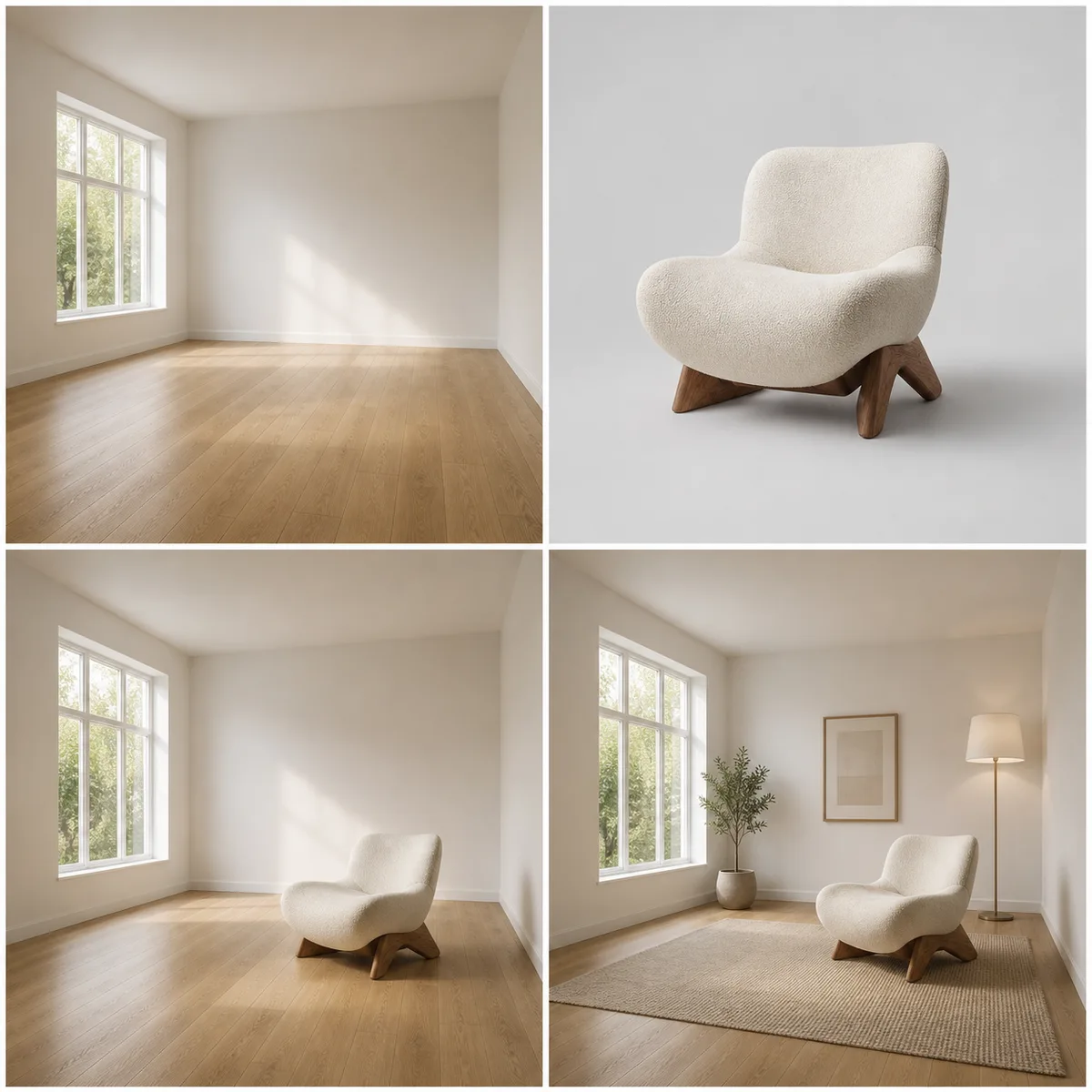
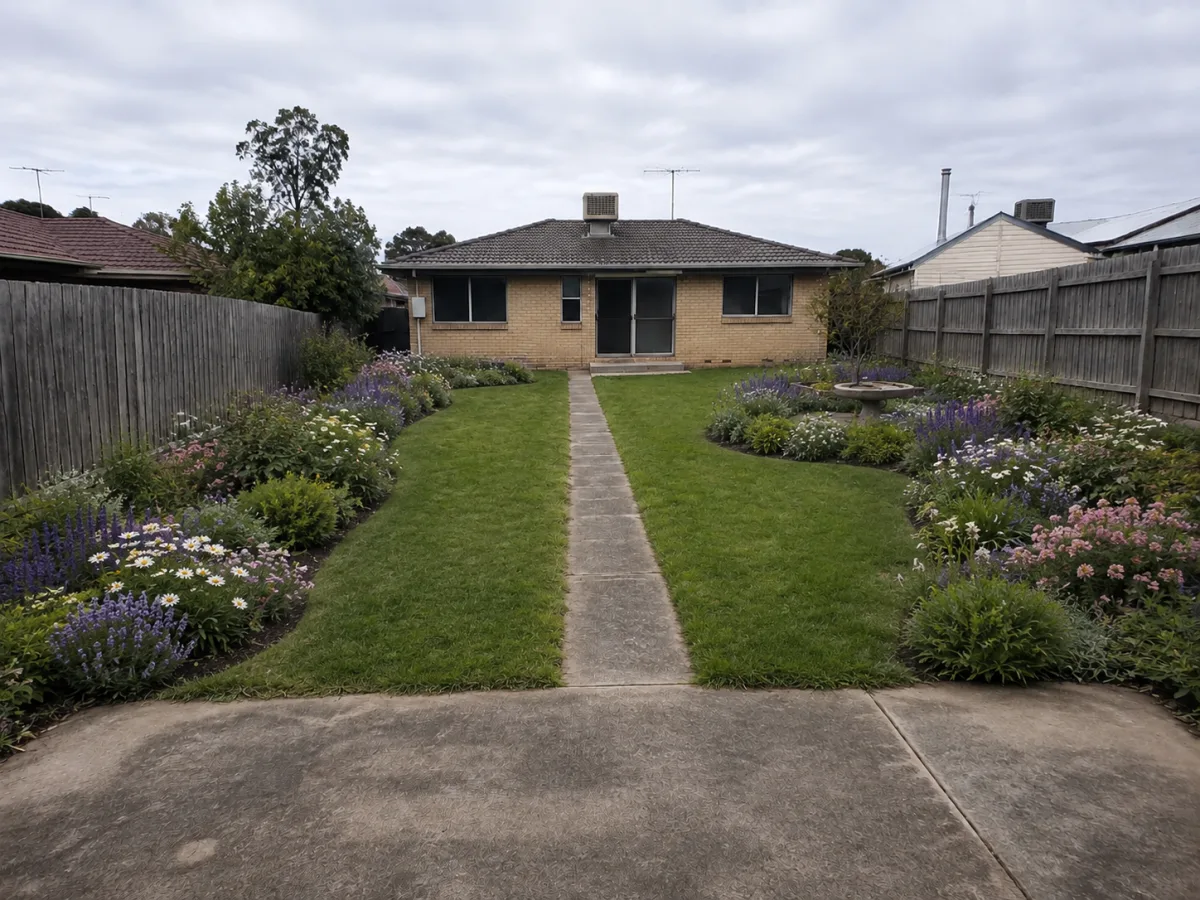
Yes, the same workflow can request varied material texture, coherent reflections, believable contact shadows, less repetitive foliage, and natural depth. Generated dimensions, packaging, labels, controls, architecture, and factual scene details still require separate verification.

Can I use the output commercially?

Check that you have the rights and consent needed for the source, review NanoPic’s current plan and usage terms, and inspect every generated detail. Do not treat generated packaging, people, places, claims, or events as factual evidence, and follow relevant disclosure requirements.

Keep the Image You Chose—Soften the AI Finish

Upload one clear source, protect its important details in the prompt, and compare the generated result with the original.