Save up to 73% on plans

Hedra Character 3 AI Video Generator
Sign In

Hedra Character 3 AI Video Generator

For a Hedra Character 3 clip, upload one image of a person, mascot, animal or drawn character, type what it should say, and add a short note on tone. Your character speaks the line with moving lips, eyes and head, and you get a short talking clip with sound.

Character image: a clear, front-facing face*(0/1)

Please add the required Character image: a clear, front-facing face before generating.

0 / 4,000

Public VisibilityAllow this result to appear in public inspiration surfaces.

What can you make with a talking character clip?

A talking-character clip takes one still picture and turns it into a face that speaks or sings, with lips, eyes and head moving along with the voice. Upload a photo, type a line, and the character says it out loud in the same short clip—no separate recording step. Real portraits, 3D renders, drawings and animal characters can all perform a greeting, a lesson point, a social post line or a tiny verse. Hedra Character 3 is built for that still-to-talking workflow on NanoPic.

How a talking character clip comes together

From a clean face to a short performance you can reuse, work through the still, the spoken line, the delivery note, and a sound-on check. Take your time on the first take: lock the image and the voice note before you chase a longer script. These samples follow the same path a Hedra Character 3 run uses from still to performance.

Start from one clear character still

Pick a sharp, front-facing picture where the mouth is easy to see and fills a good part of the frame. Photos, mascots, animals and hand-drawn characters all work for Hedra Character 3 when one face is the clear focus. Avoid hands, microphones, masks or loose hair over the lips, and skip tiny faces in crowded group shots. A clean still keeps the mouth, blinks and small nods readable once the character begins to talk, and it gives you a master file you can reuse for later lines. If you already like how a face looks in daylight, keep that lighting rather than switching to a heavy filter between takes.

Write the spoken line, then the delivery

Put the exact words in quotes, for example: says "Welcome back, let's look at three cameras today." Aim for one or two short sentences per Hedra Character 3 clip so the mouth can stay on the beat. After the line, add tone and movement in plain language: warm and relaxed, excited, quiet, a light nod, eyes on the lens. Name age, gender, accent and energy so the voice fits the face. Choose a vertical or wide frame, run it, then play the result with sound before you change anything else. When something feels off, change only the line or only the delivery note on the next try, so you can tell which part helped.

Try a short song or rap verse

A Hedra Character 3 character can attempt singing and rap as well as spoken lines. Put the lyric in quotes and say how to perform it, such as singing softly or rapping on a steady beat. One short verse per clip is easier to keep in time; for a longer song, split the lyric into numbered takes and reuse the same image every time. Watch the mouth on hard consonants, and listen for whether the energy matches the mood you asked for before you stitch verses in your editor. Leave a little silence at the ends of verses so cuts between takes stay easy to hide.

Shape the prompt like stage directions

For Hedra Character 3, think of the prompt as directions to an actor, not a redraw of the picture, because the picture already shows who the character is. Lead with the quoted line, then two or three cues for tone and movement, then what must stay: face, outfit and background as in the image. Add one speaker only and no captions on screen. A working example: says "This is the only trick you need for crispy fries." Friendly, confident, small nod at the end, keep the kitchen exactly as shown, no captions. Save the note that sounded best so the next take stays in the same register. A short voice card you can paste every time often matters more than rewriting the whole prompt from scratch.

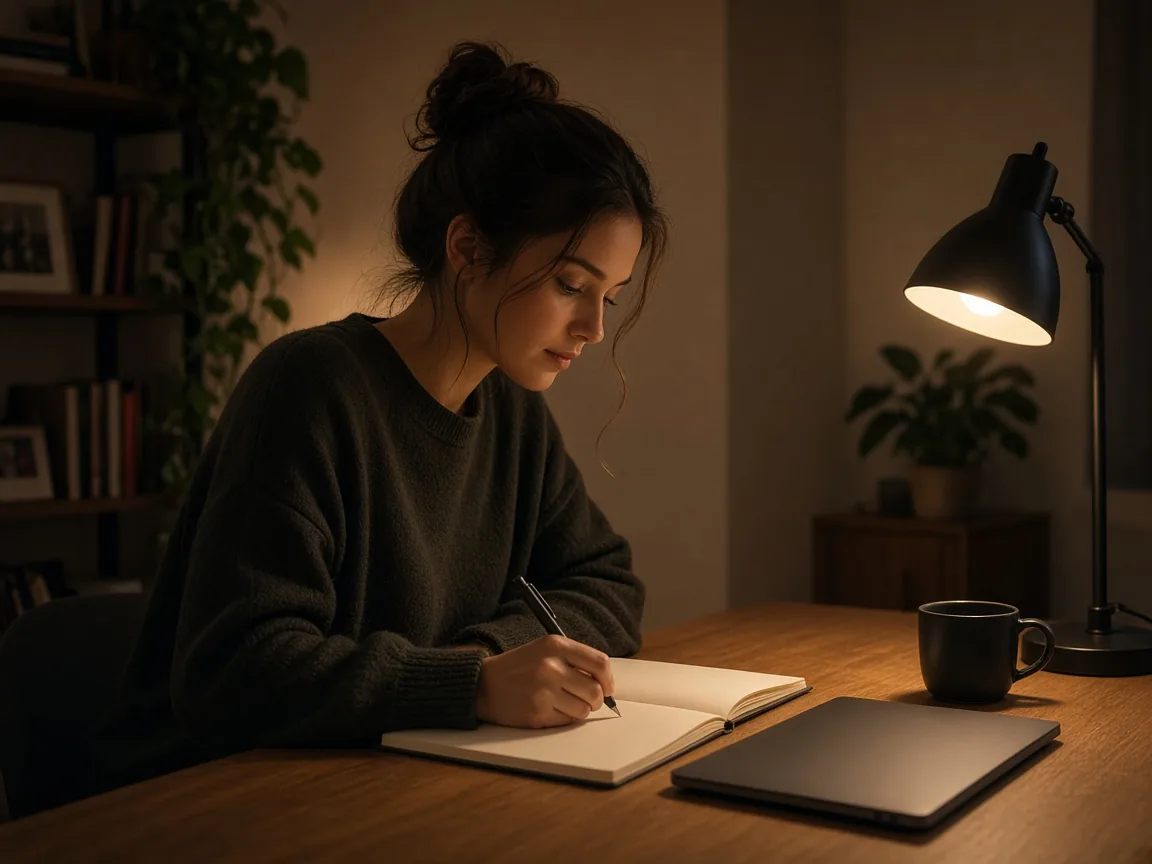
Creator writing a short spoken line at a desk

Keep one host consistent, and fix weak takes

A recurring Hedra Character 3 host or mascot only works when viewers recognize it every time. Reuse the exact same master image for every episode, and paste the same short voice note so energy stays steady. Plan longer messages as numbered one-sentence takes, then join the downloads in any editor with music or captions added later. If the mouth drifts, trim the line to one sentence. If the face shifts mid-clip, ask to keep the face as in the image and avoid big head turns. If the voice feels wrong, rewrite age, gender, accent and energy, then rerun only that line. Hedra Character 3 clips stay cleanest when you fix one take at a time instead of changing the image, the line and the note all at once.

Friendly golden retriever mascot portrait facing camera

Where a talking character clip fits

Use a Hedra Character 3 talking clip anywhere a face carries the message better than text alone. Channel intros, mascot posts, lessons, songs and greetings all share the same habit: one still, one clear line, then a sound-on preview.

Channel intros

Turn your headshot or brand avatar into a host that greets viewers and opens each video with the same face and a fresh line.

Mascots and pets

Give a logo mascot, a drawn hero or your pet a spoken line for a social post, a product mention or a seasonal greeting.

Lessons and explainers

Let a character read the key idea of a lesson so learners hear the point from a face, not only from slides.

Songs, raps and greetings

Write a short verse or a birthday wish, add a mood, and watch your character perform it before you post.

Tips for using your clips

Generating requires signing in to NanoPic, and the generator panel shows the credits a run needs before you start. Save the image and the note behind your best Hedra Character 3 take so the next line keeps the same look and voice. Keep a simple folder for master stills, winning voice notes and final downloads, so a series stays organized as it grows. Only upload images you have the right to use, and never make a real person appear to say something they did not say.

Related tools

Lip Sync with Your Own Audio

Have a voice recording? Pair one image with your own audio.

Open Lip Sync

More video effects

Browse every effect you can try with your photos and clips.

Browse all

Hedra Character 3 FAQ

Is this Hedra Character 3?

No. NanoPic is not affiliated with Hedra.

What do I need to get started?

A NanoPic account, one clear character image and the line to say. Sign in; the generator shows the credits that run needs before you start.

Can the character sing using a recording?

Type the lyrics and the character sings in a generated voice. To use your own recording, open the Lip Sync with Your Own Audio tool on NanoPic.

Can I make talking clips for TikTok, Reels or Shorts?

Yes—pick a vertical frame, keep the line short, then preview with sound before you post.

Can I use Hedra Character 3 clips commercially?

Follow NanoPic terms. Only upload images you have the right to use, and never make a real person appear to say something they did not say.

Does it support Chinese or other languages for lip sync?

Write the line in the language you want to hear. Results vary; try a short line first.

Do I need any software or coding skills?

No. Upload, type, generate and download in your browser.

Make your character talk

Upload one image, type the line it should say, and play your Hedra Character 3 talking clip with sound on.