

















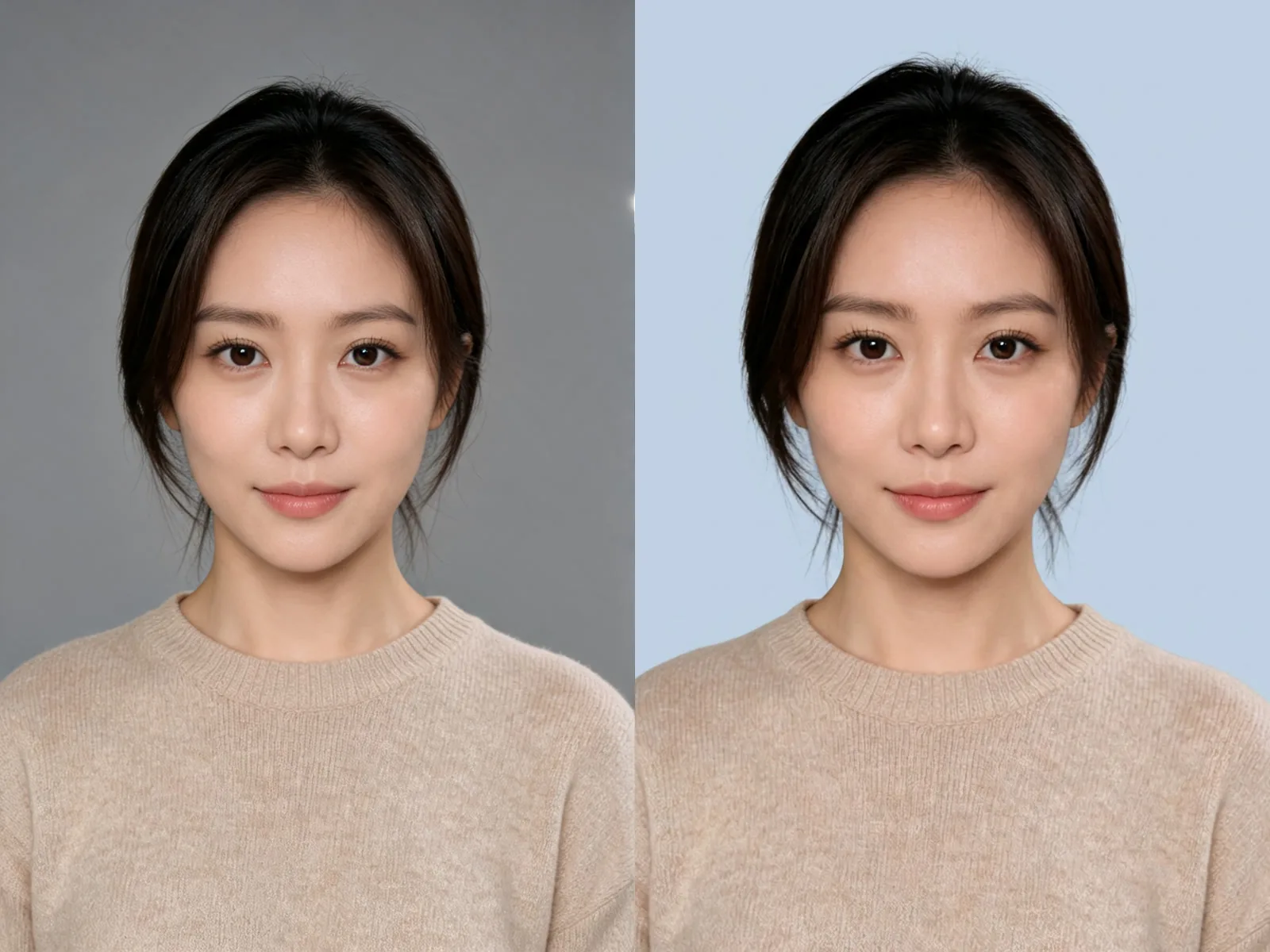
Change Background Color of Photo Free Online
Sign In

Change Background Color of Photo Free Online

Upload one portrait, profile, product, pet, or object photo and replace only its background color with Nano Banana 2.

Choose a starting color, then add a specific color note if needed.

Upload Photo*
Try Background Sample

0 / 500

Public Visibility
Copy Protection
Credits required:-

Change Background Color of Photo Free Online

Image

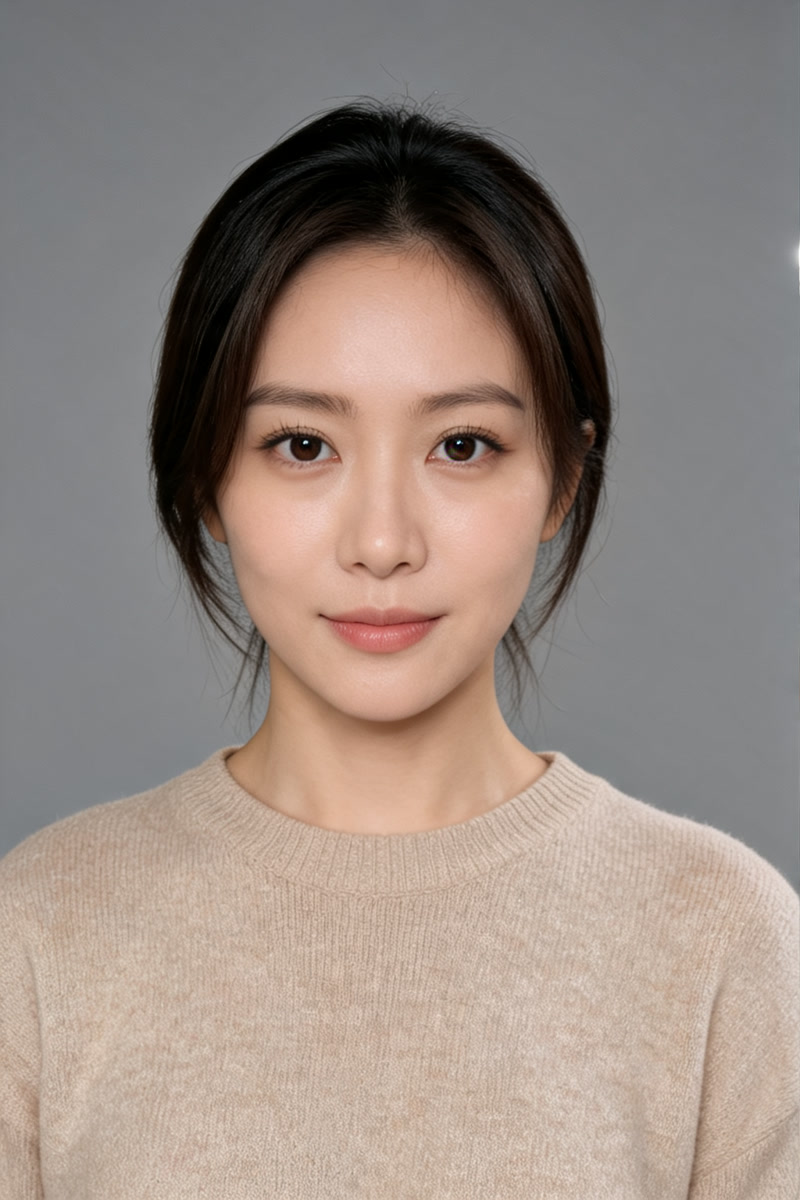
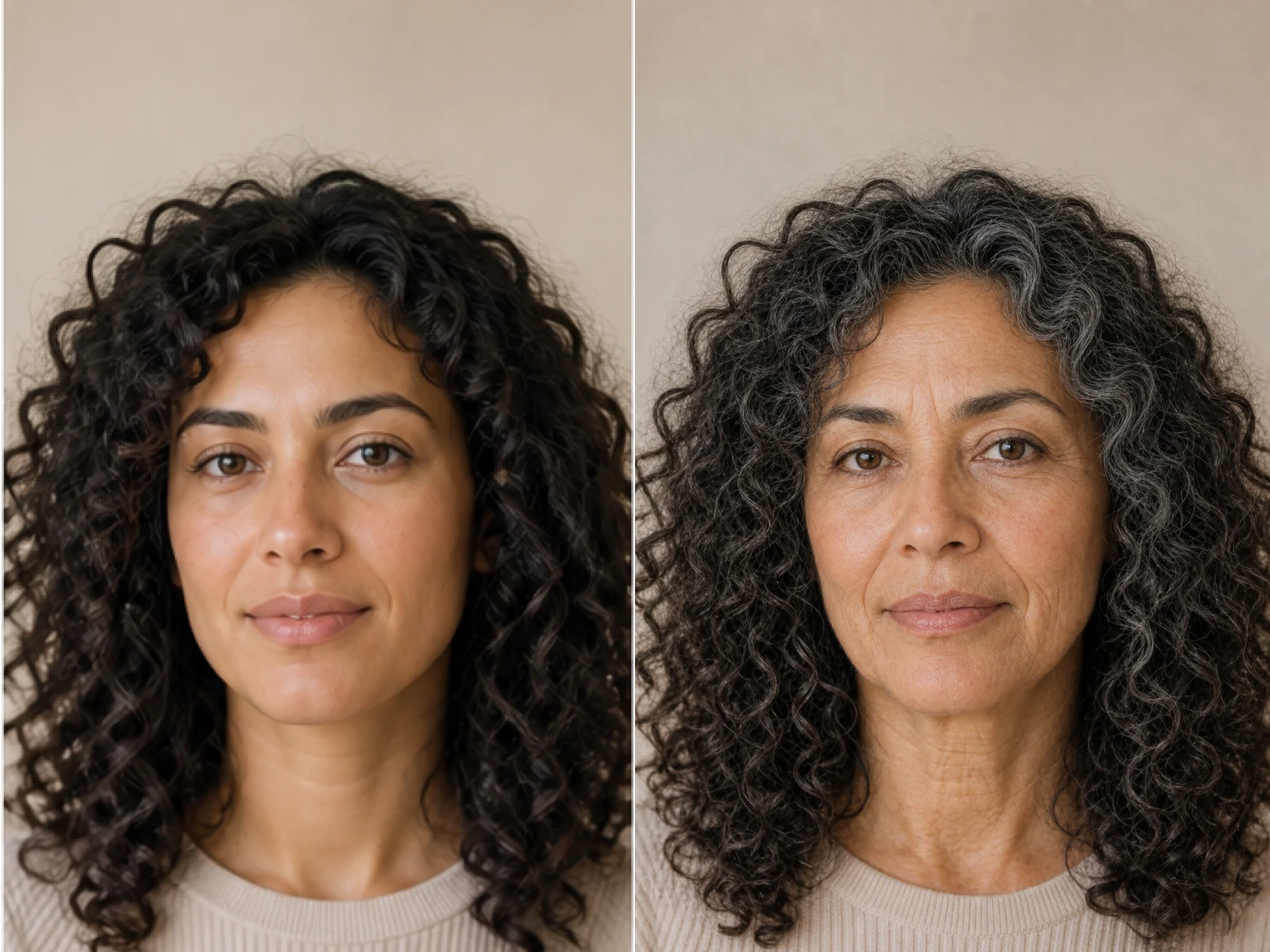
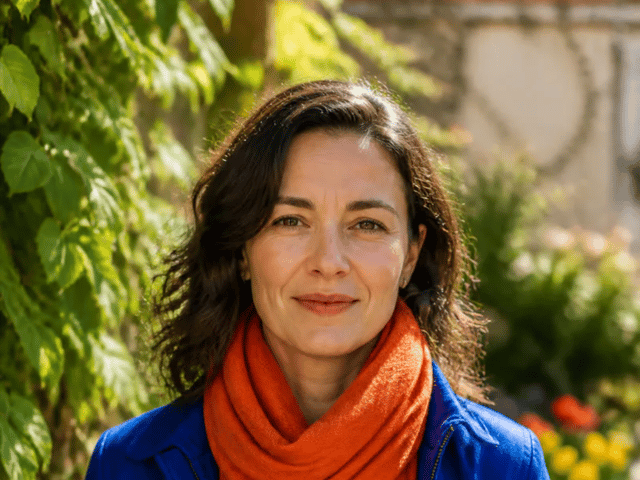
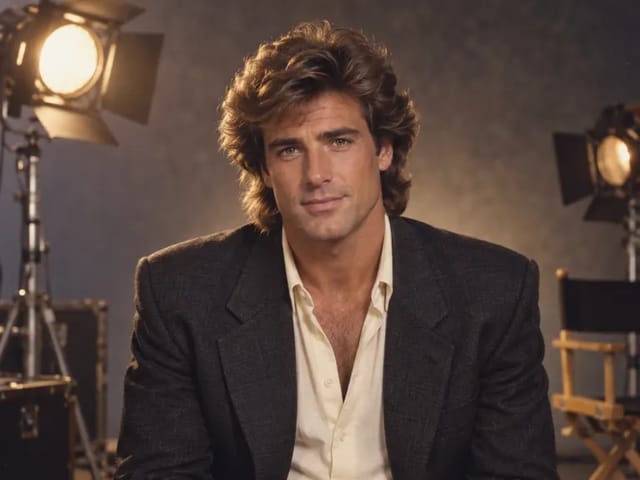
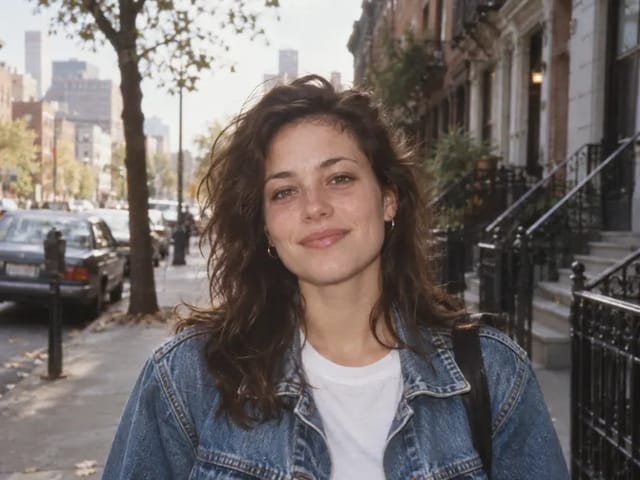
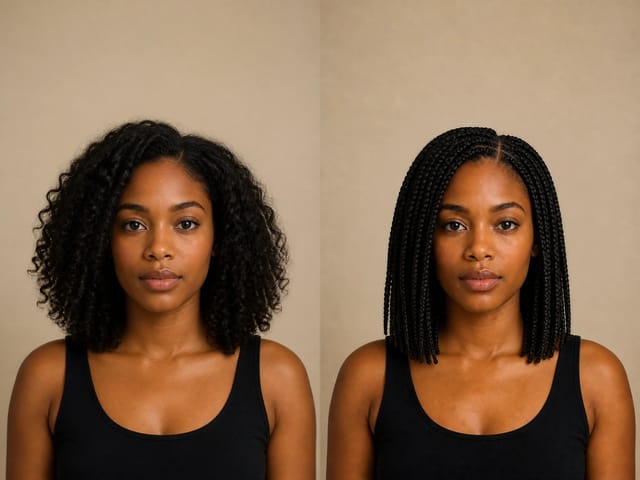
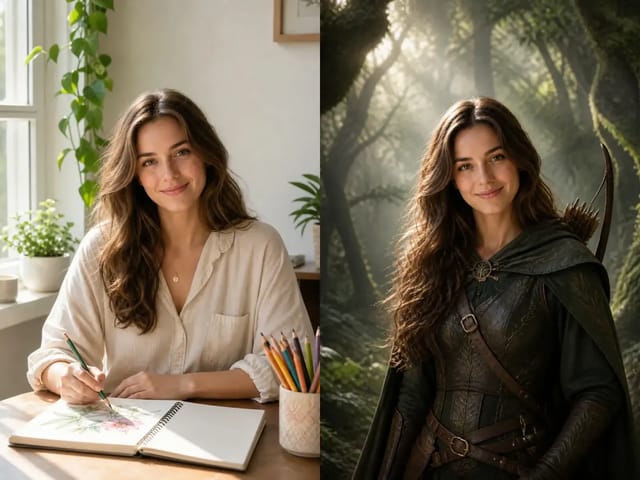
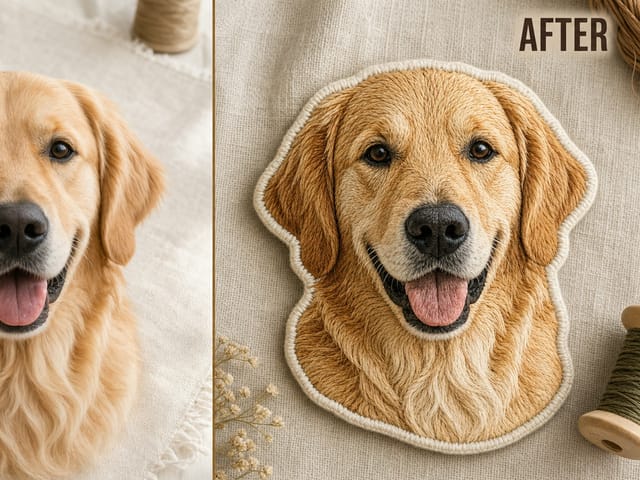
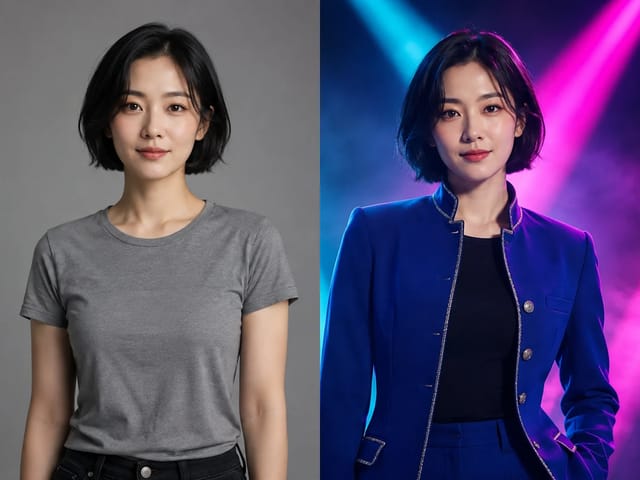
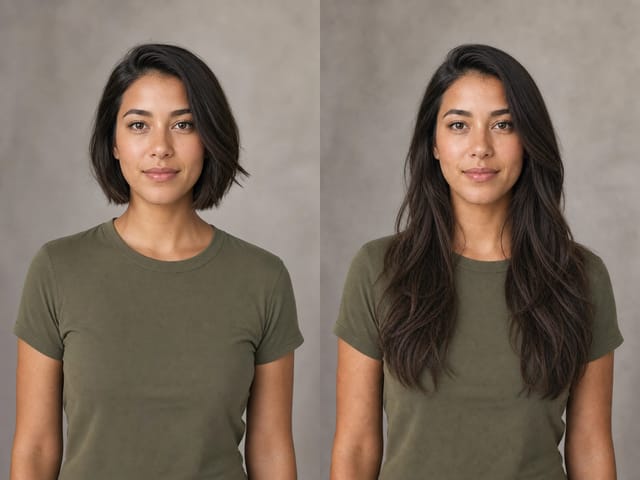
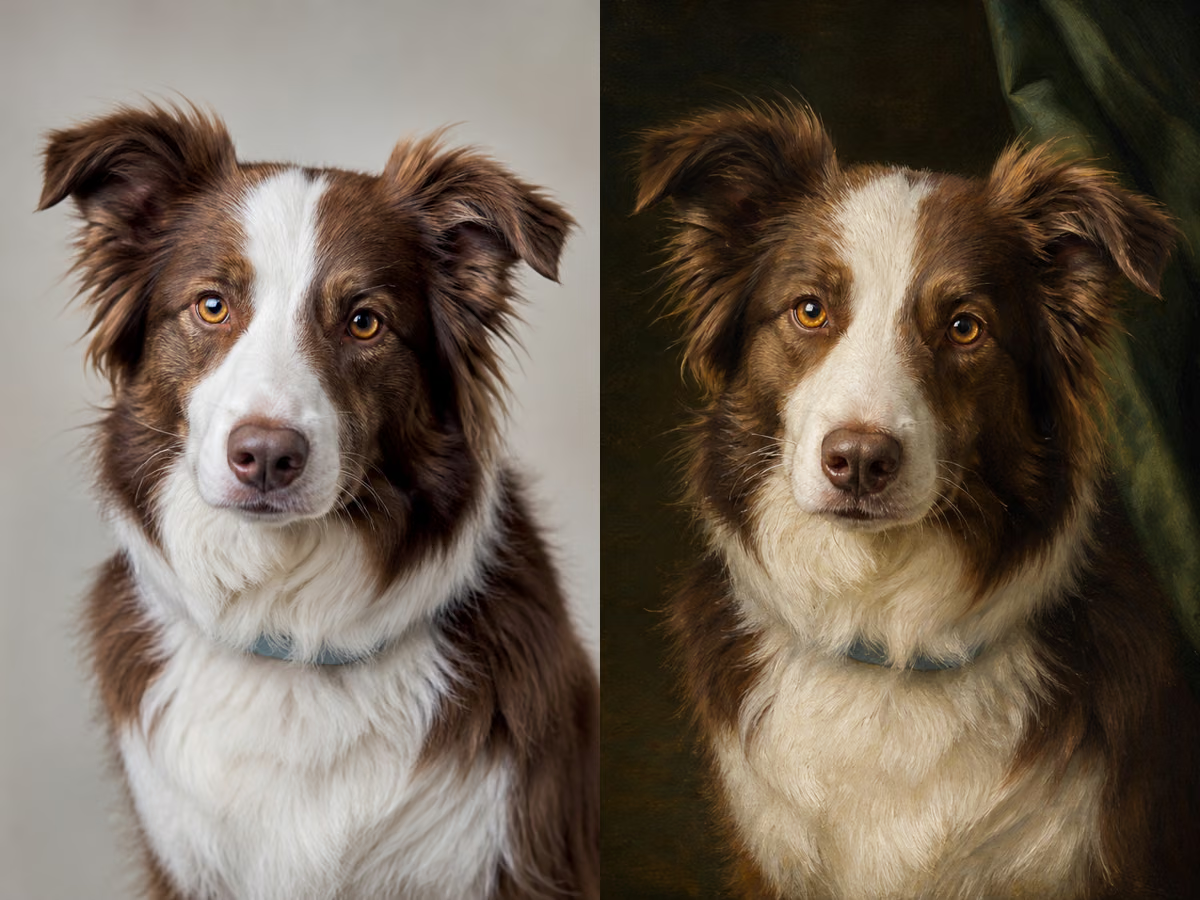
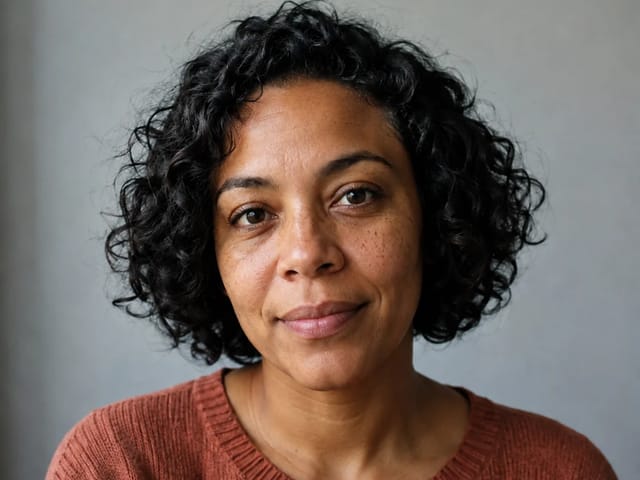
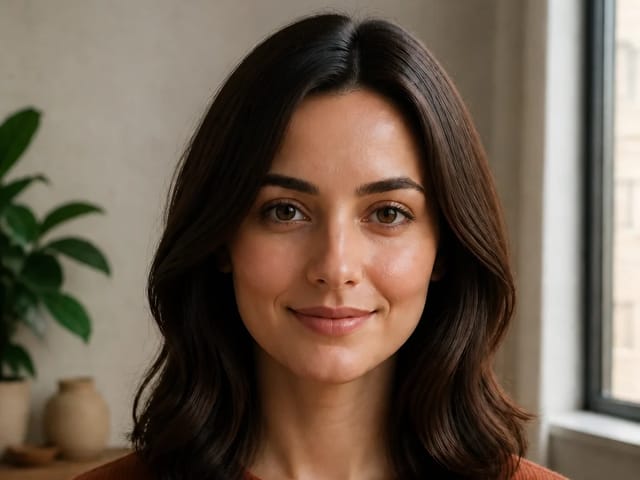
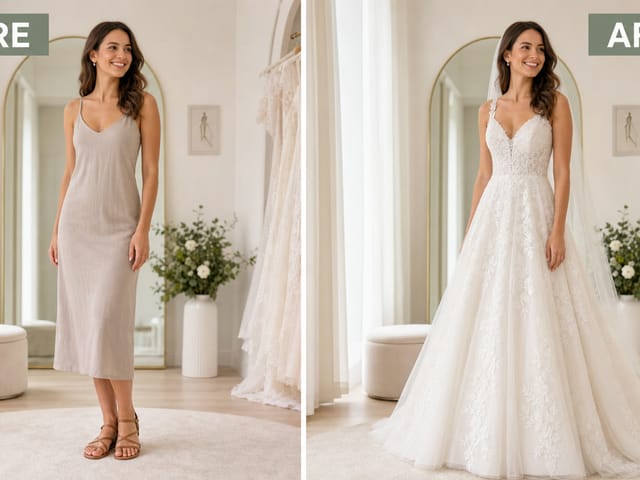
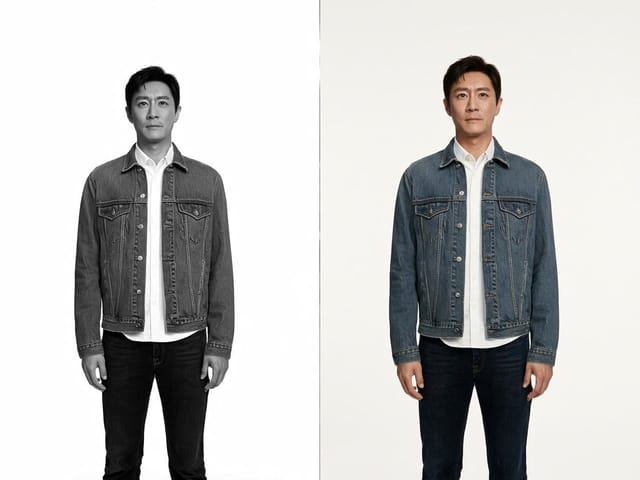
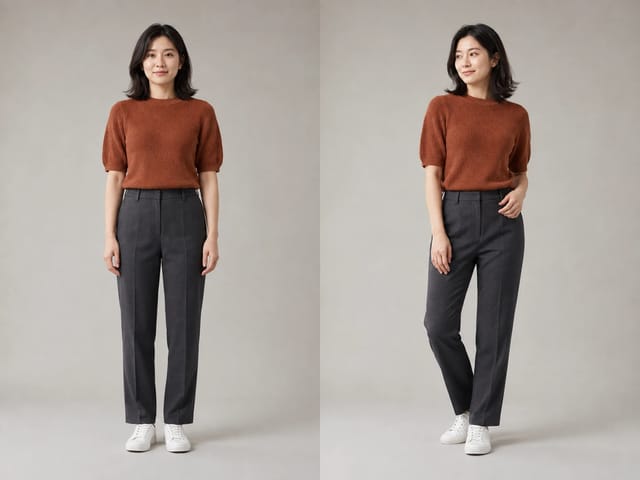
Portrait before changing the photo background color
Original
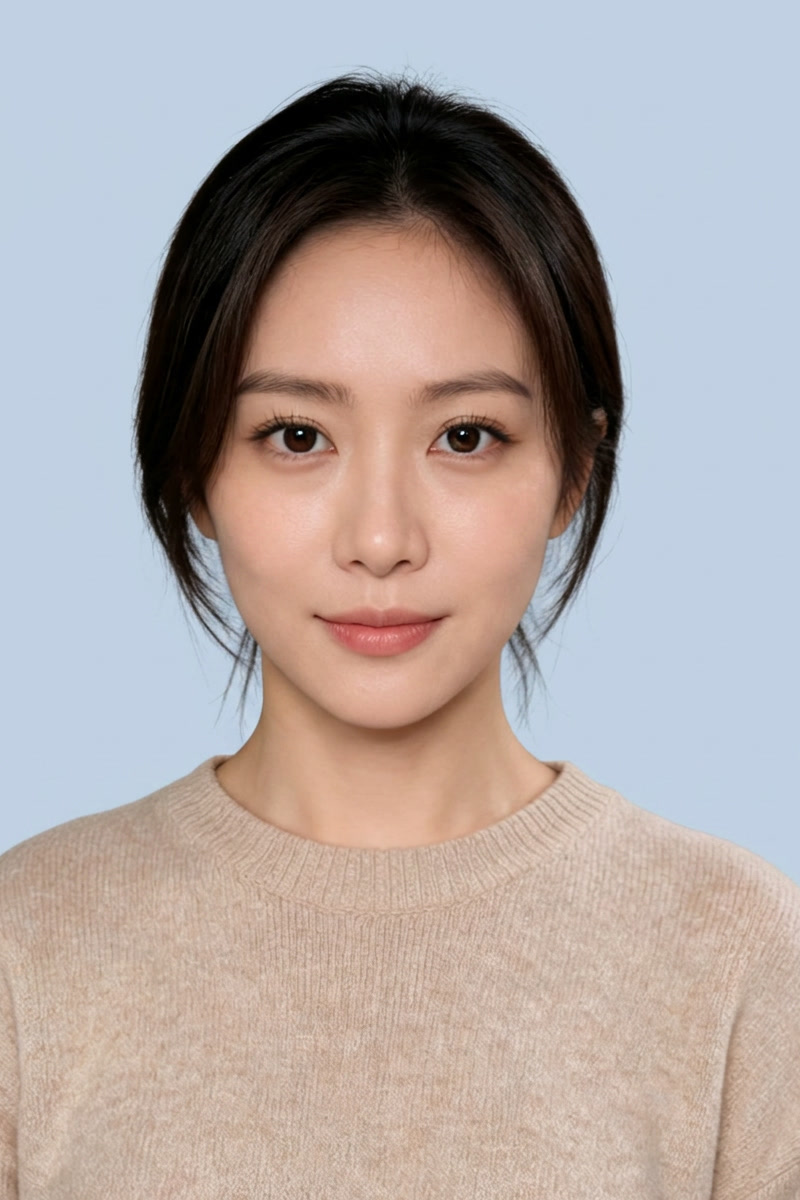
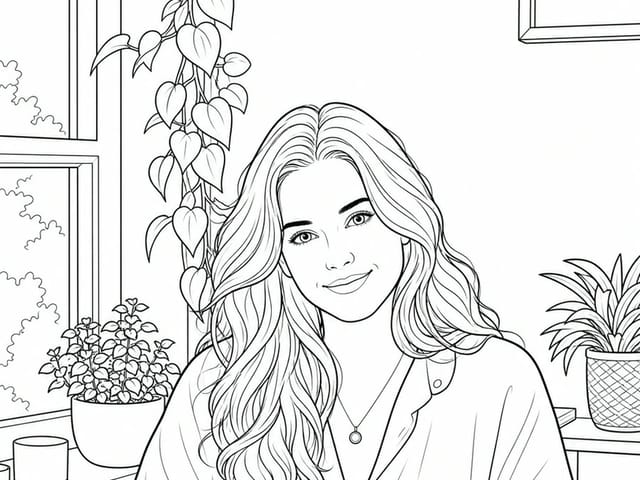
Portrait after changing the photo background to light blue
New Background
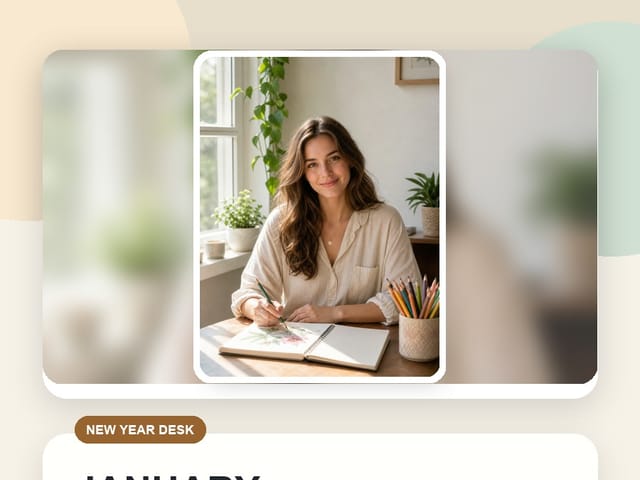
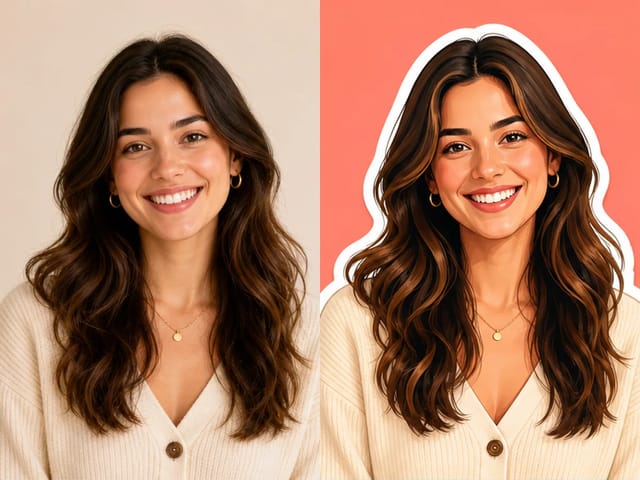
Before and after comparison showing a photo background changed to light blue

Change a Photo Background Color While Keeping the Subject Natural

NanoPic makes it easy to change the background color of a portrait, profile image, product photo, pet picture, or simple object shot. Choose light blue, white, pastel pink, or warm beige, then generate a polished 2:3 result. The editing instruction focuses on the background and asks the model to protect facial identity, natural skin tone, individual hair strands, flyaway edges, clothing colors and texture, product geometry, pose, framing, and useful shadows. This is a generative image edit rather than a claimed pixel-perfect mask, so always inspect fine edges and color spill before using the image for an important application or listing.

A Focused Background Color Changer for Portraits and Products

Changing a background looks simple until the subject has fine hair, translucent fabric, soft fur, reflective packaging, a pale shirt, or a natural floor shadow. A flat replacement can create jagged outlines, halos, missing strands, or an obvious cutout effect. NanoPic uses the whole uploaded image as a reference and gives Nano Banana 2 explicit editing constraints: alter the background, preserve the foreground, keep edge transitions believable, and retain the light and shadow cues that make the person or object belong in the scene. The preset colors cover common visual needs without forcing you to write a long prompt. Light Blue creates a friendly profile or portrait setting. White gives products and listings a clean neutral foundation. Pastel Pink supports softer creator and lifestyle visuals. Warm Beige provides a calm editorial tone. Optional notes let you request another color or mention a shadow that must remain. The result is meant to reduce repetitive setup, but it should still be reviewed rather than treated as an exact segmentation mask.

How to Change the Background Color of a Photo Free Online

Use the generator at the top of this page for a quick three-step edit with a fixed portrait-friendly format.

1. Upload One Clear Photo

Choose a portrait, profile picture, product, pet, or object photo with a visible subject outline. Clear lighting and sufficient resolution help preserve hair, fur, fabric, glass, and small contours. Avoid tiny screenshots, heavy compression, and images where the foreground blends completely into the background.

2. Select a Background Color

Pick Light Blue, White, Pastel Pink, or Warm Beige. Each preset includes guidance to change only the background and protect the subject. If you need a specific hue, add a concise note such as muted sage green, neutral gray, or #F2F2F2 while asking to retain the original floor shadow.

3. Generate and Inspect the Edges

Create the 1K image and zoom in around hair, ears, shoulders, sleeves, transparent objects, reflective surfaces, and contact shadows. Confirm that skin and clothing have not picked up an unwanted color cast. Regenerate with a clearer note if a critical detail changed.

Background Color Editing Features

Every preset is written to keep the foreground recognizable while producing a clean, coherent background.

Foreground Protection Instructions

The template tells the model to preserve identity, face, skin tone, hair shape, flyaway edges, clothing color and texture, product geometry, pose, framing, and subject shadows. It also discourages retouching, new props, random text, and unrelated changes.

Four Useful Color Presets

Start with pale blue for approachable portraits, neutral white for clean commerce, pastel pink for friendly creative images, or warm beige for understated editorial styling. Optional notes support more precise art direction without hiding the saved safety constraints.

Natural Edge and Shadow Guidance

The prompt asks for believable transitions around hair, fur, clothing, and products, plus reflected light and grounding shadows. These cues help avoid a sticker-like subject, although complex transparent or motion-blurred edges still need manual review.

Simple 2:3 Image Workflow

The page uses Nano Banana 2 in image-to-image mode with a 2:3 preview and 1K output. That consistent format works well for vertical portraits, profile assets, product cards, and social graphics while keeping the control panel straightforward.

When to Change a Photo Background Color

A consistent background can make a group of images feel intentional, improve readability, and fit a brand or platform layout.

Profile Photos, Team Pages, and Creator Avatars

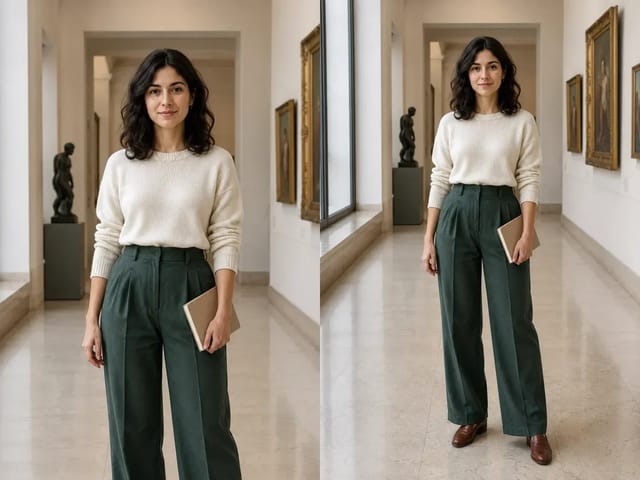
Give portraits a shared background family without organizing another photo shoot. Light blue can feel open and professional, beige feels warm and editorial, and pastel pink adds a friendly creator tone. Review hair and skin carefully, and check the destination's current photo requirements before using an edited image for formal identification.

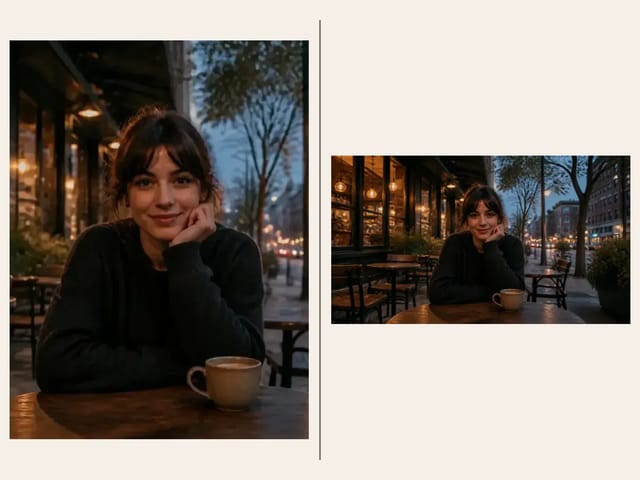
Edit a Portrait
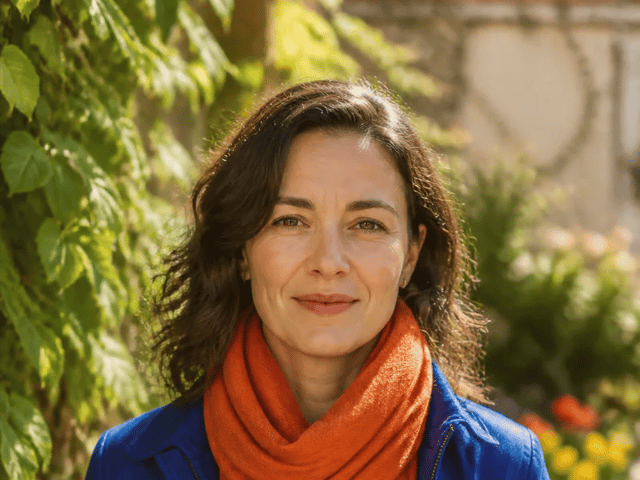
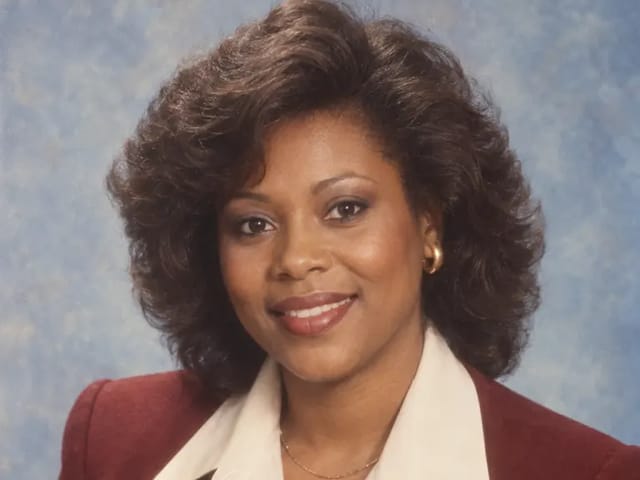
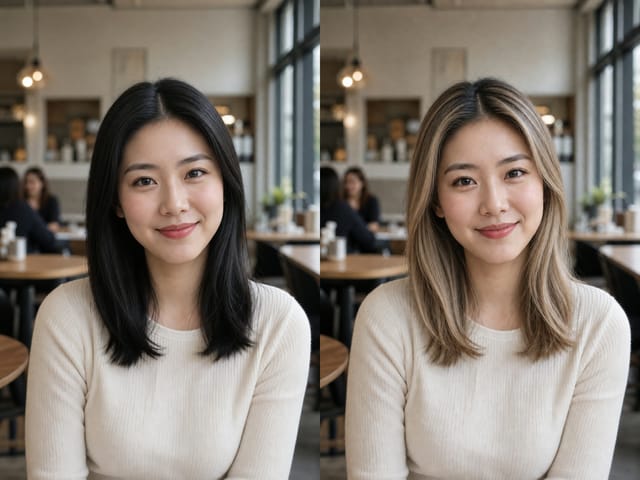
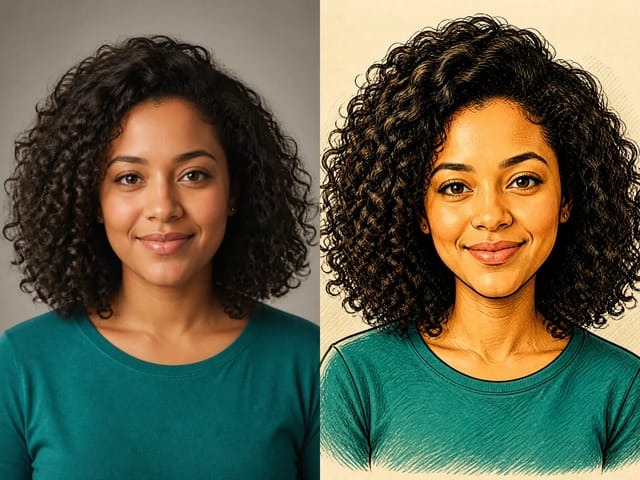
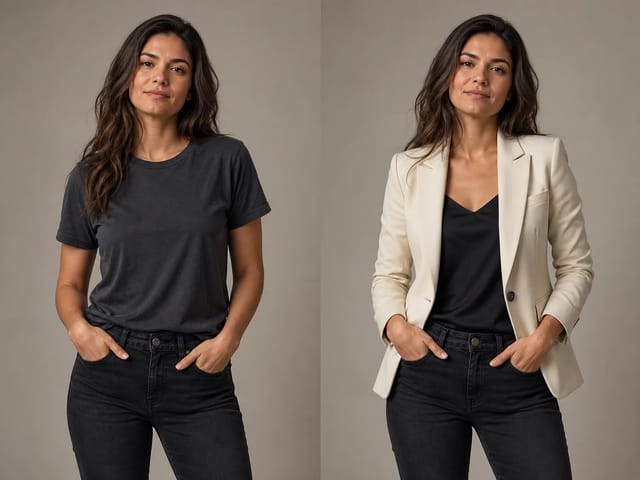
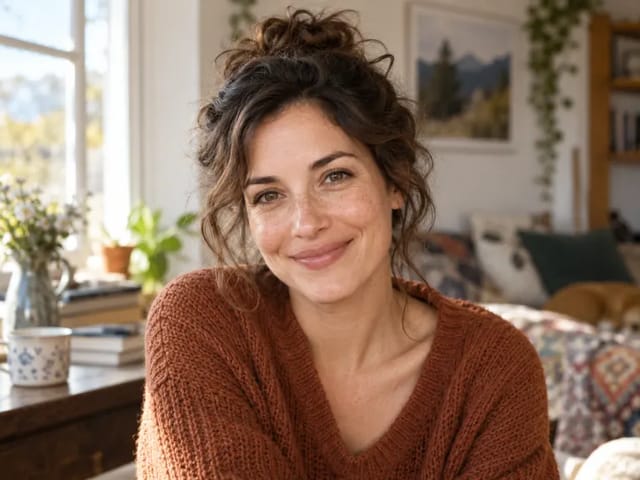
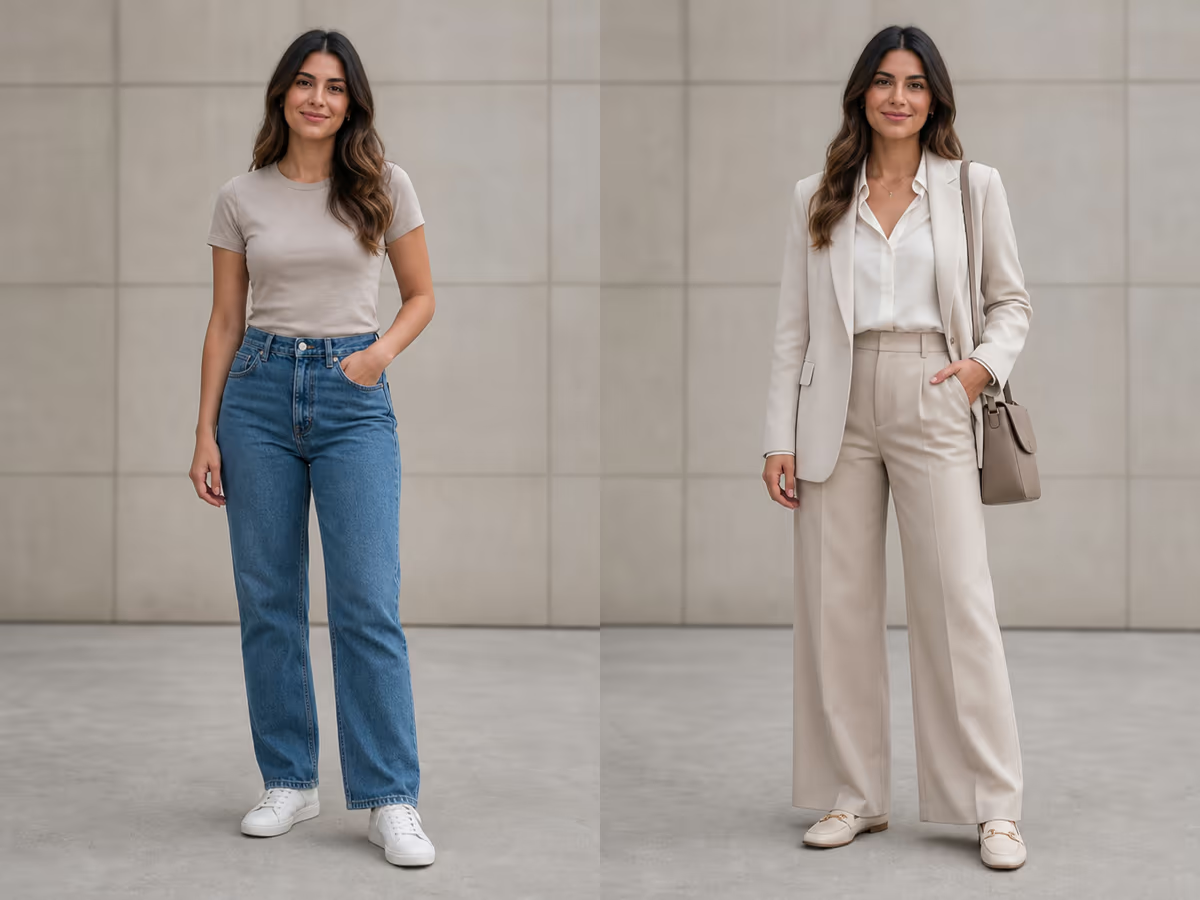
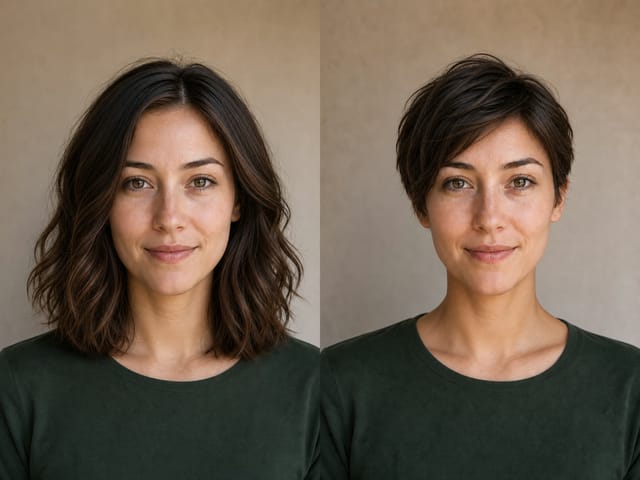
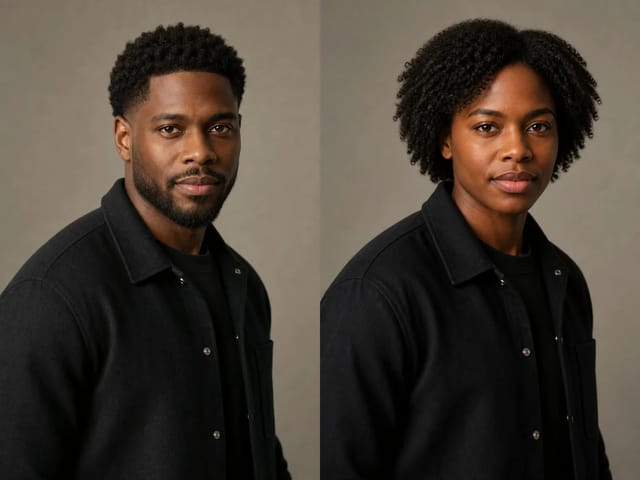
Portrait comparison after changing the background color

Product Listings and Catalog Drafts

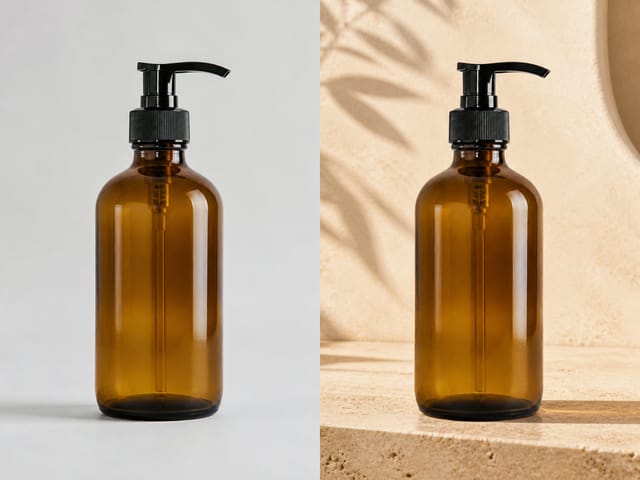
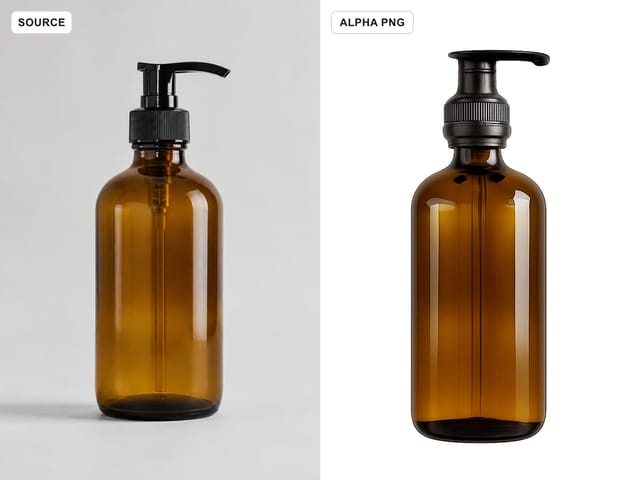
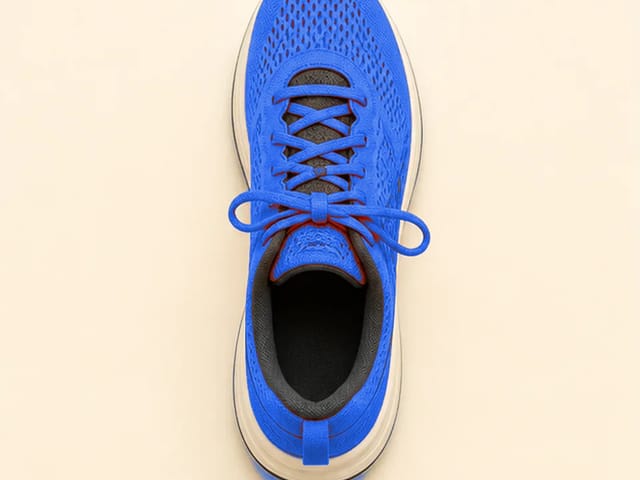
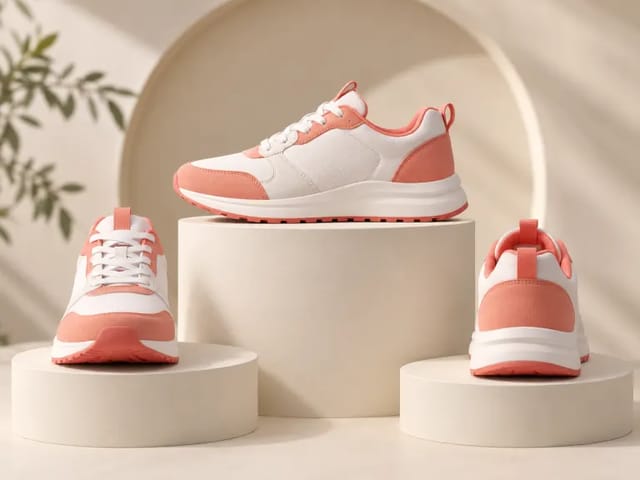
Place a product on white for a cleaner draft listing or on warm beige for a lifestyle catalog look. Check reflective packaging, transparent materials, labels, product contours, and the original contact shadow at full size. Marketplace image rules vary, and a generated background does not guarantee compliance with any platform.

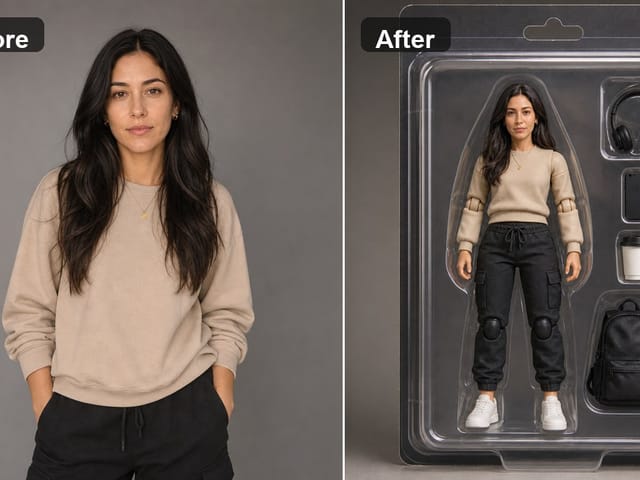
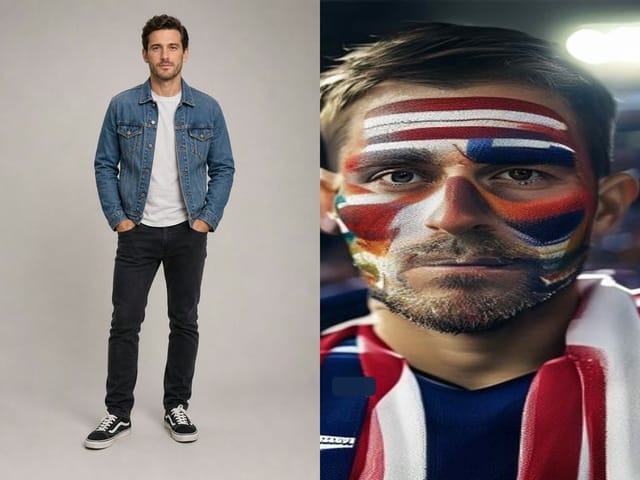
Create a Product Draft
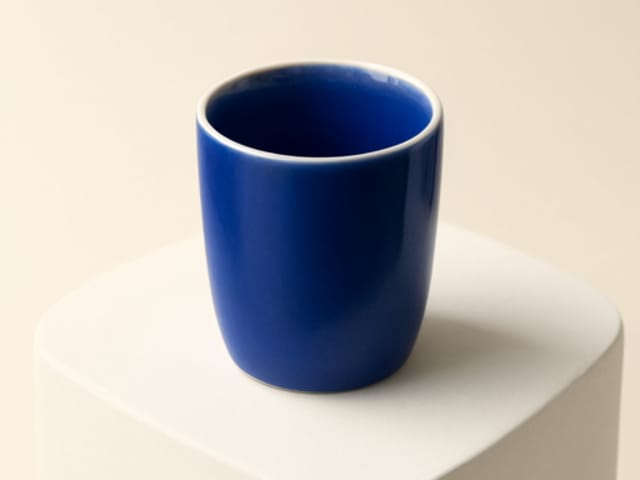
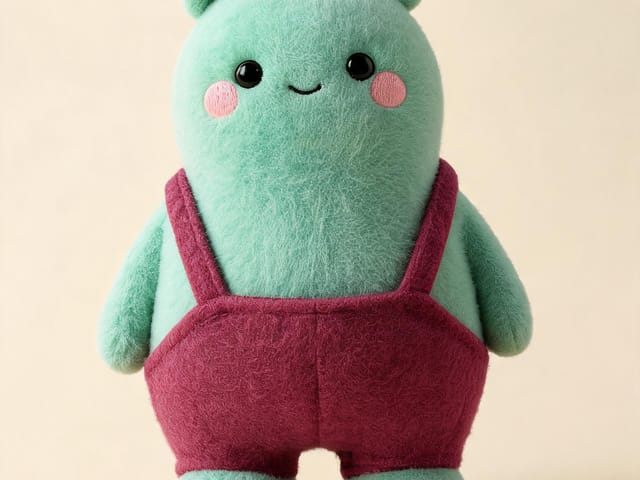
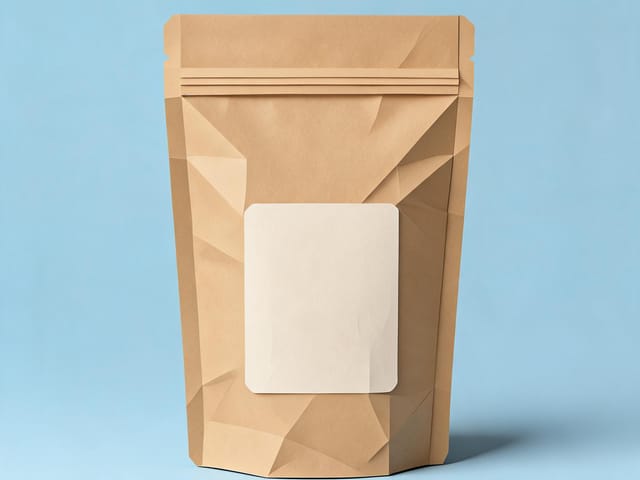
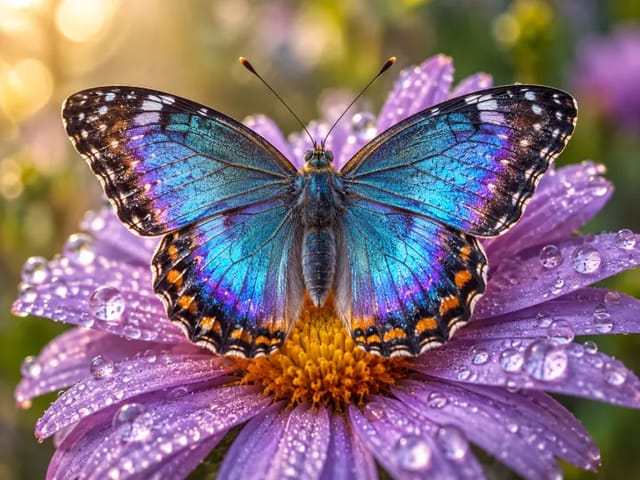
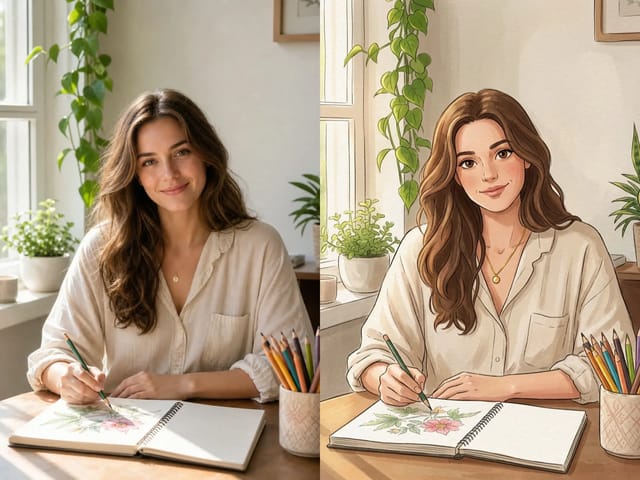
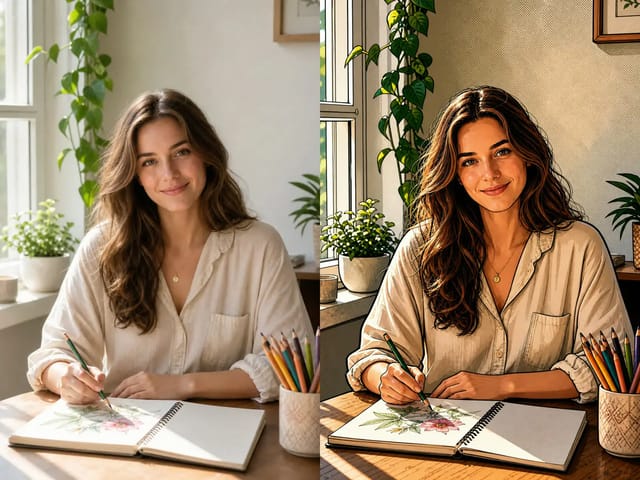
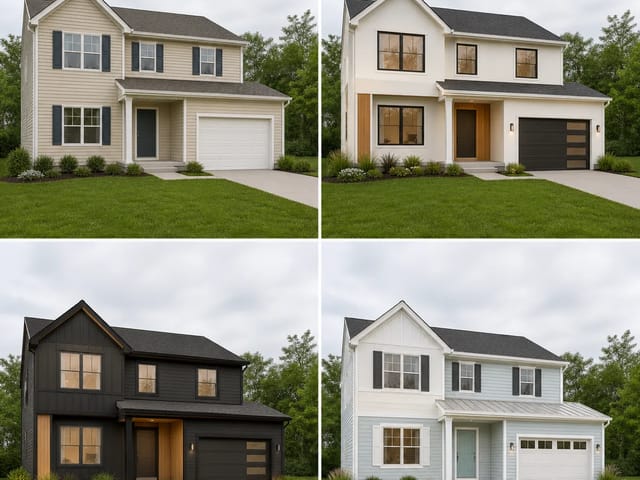
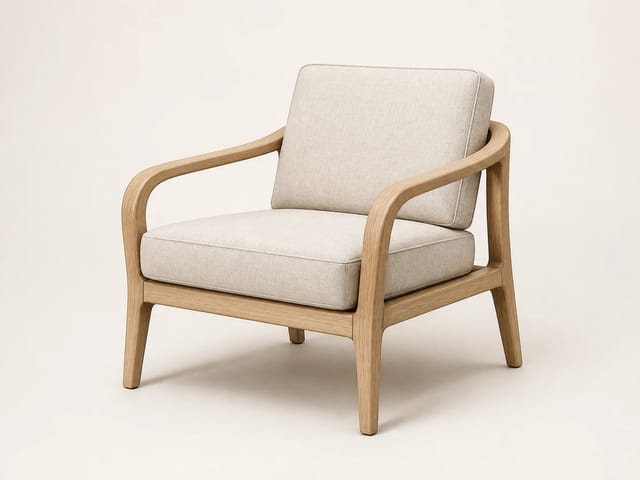
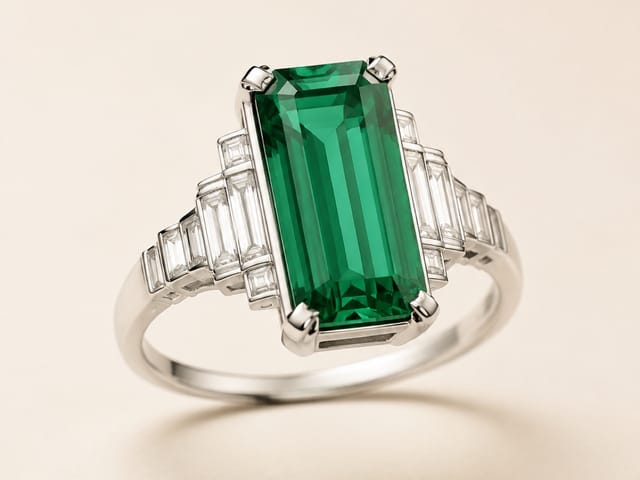
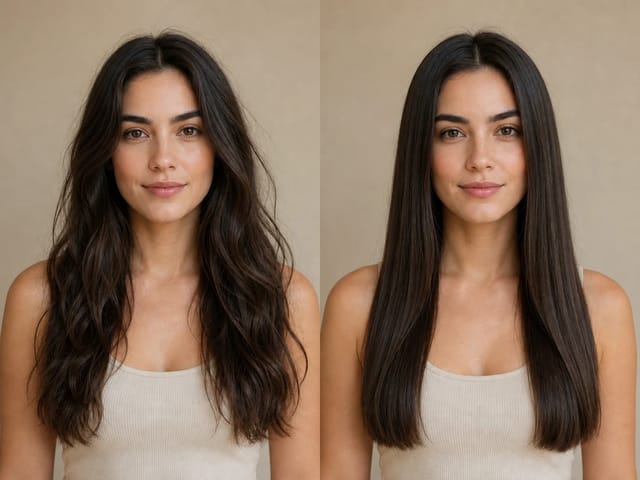
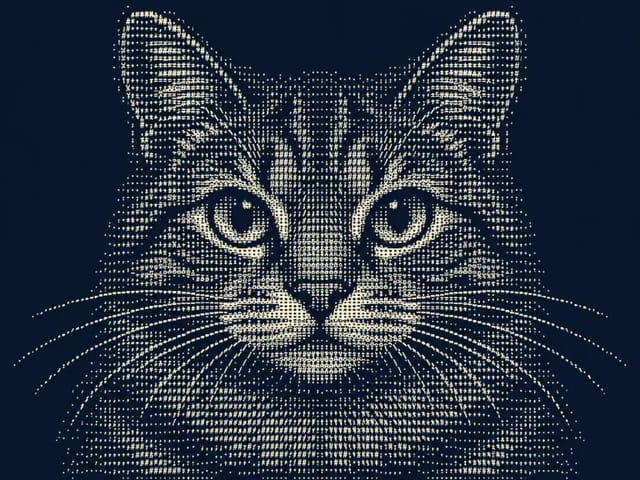
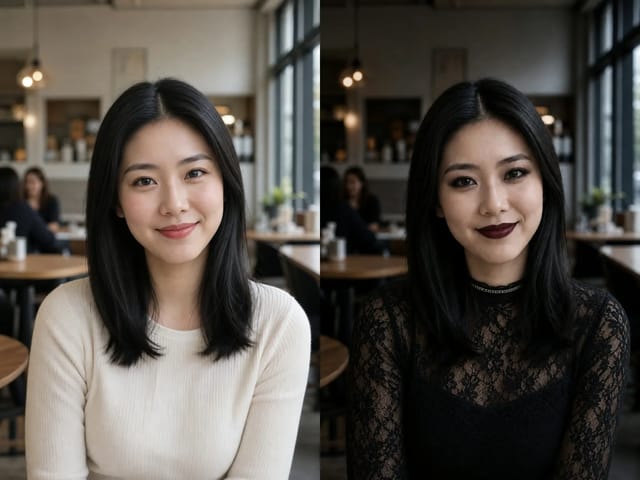
Clean light color background produced by the photo editor

Campaigns, Thumbnails, and Social Visual Systems

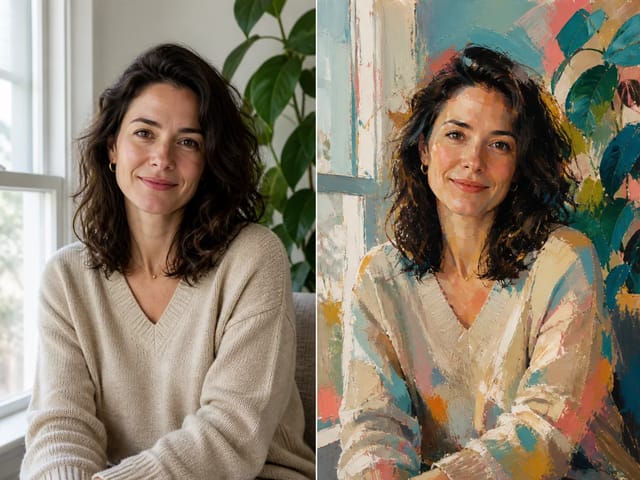
A repeated background palette helps event speakers, podcast guests, course instructors, campaign portraits, or content thumbnails look connected. Use the same preset and similar source lighting across the set, then review every result for consistent subject scale, edge quality, and unintended color spill.

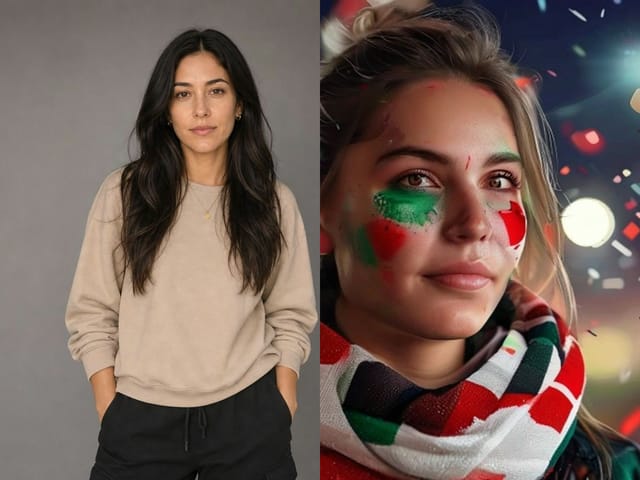
Build a Consistent Look
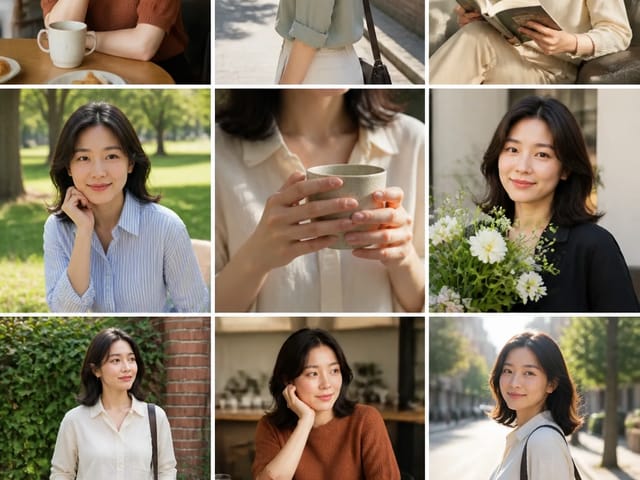
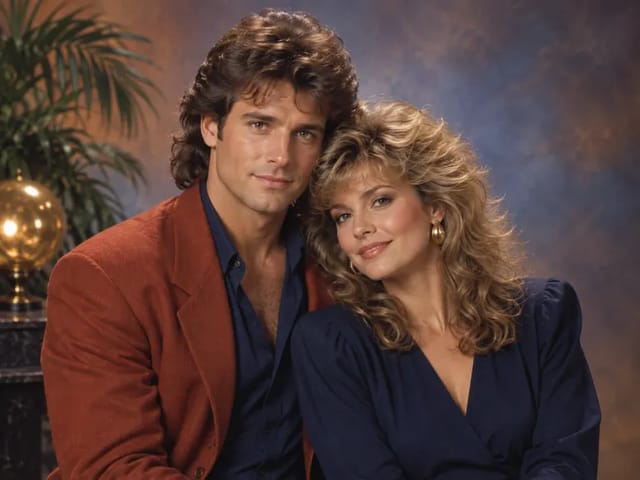
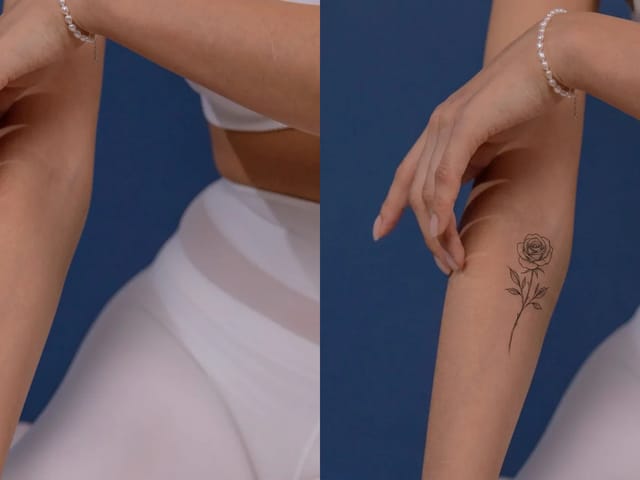
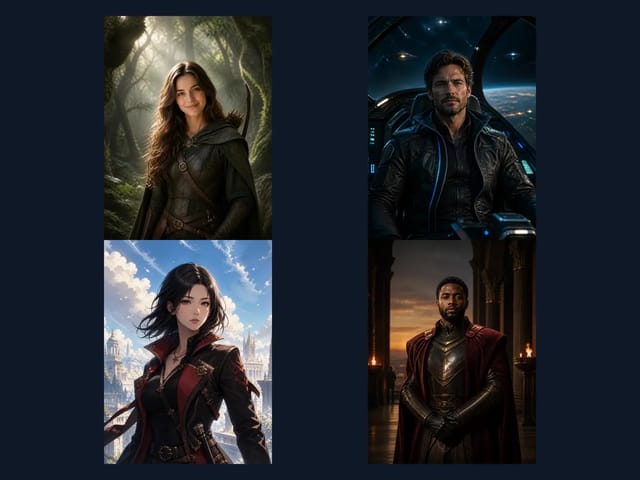
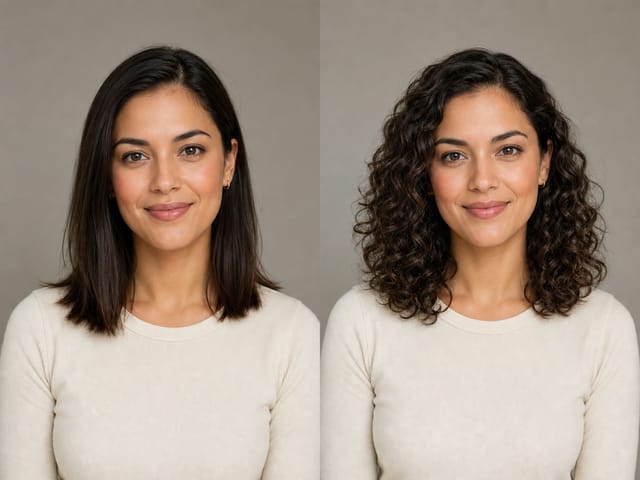
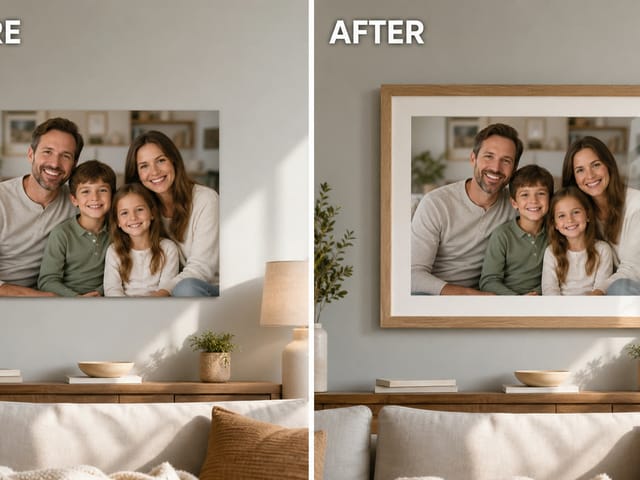
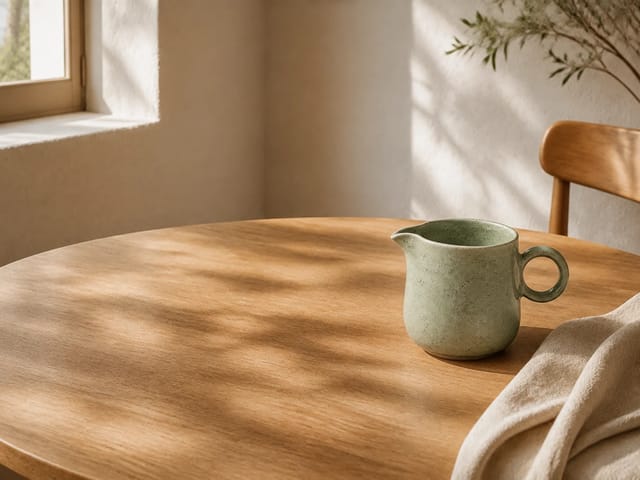
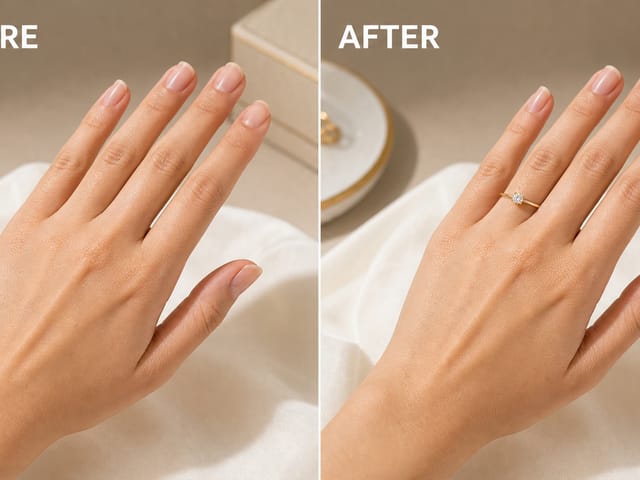
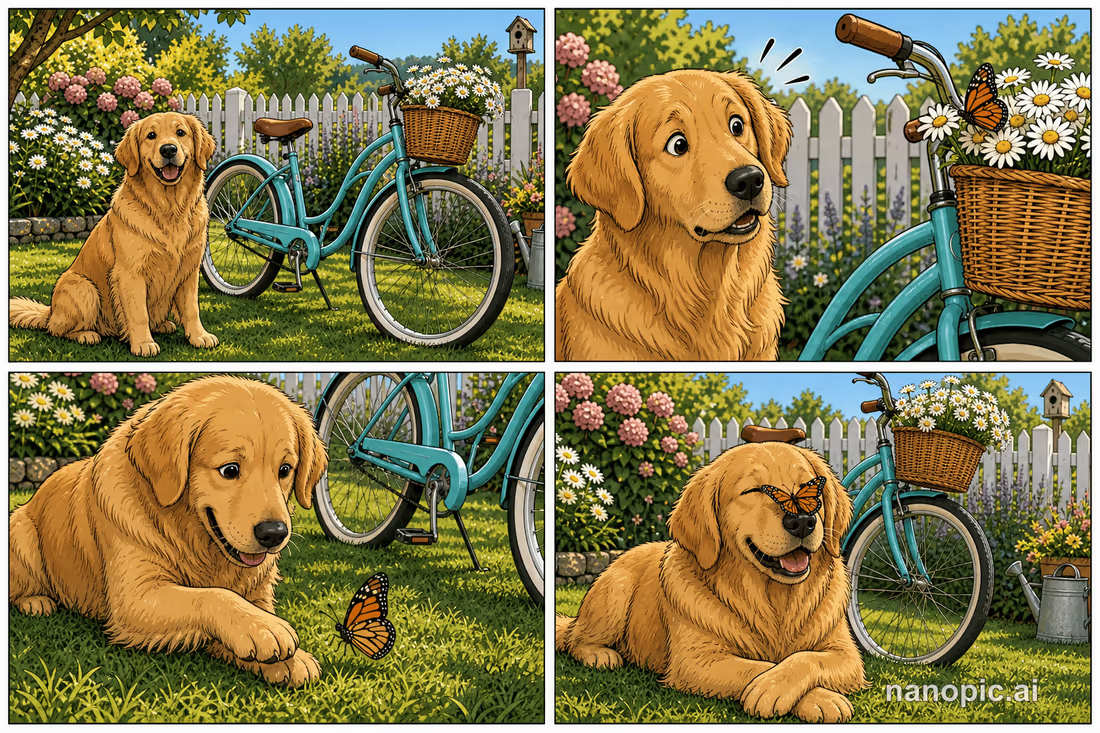
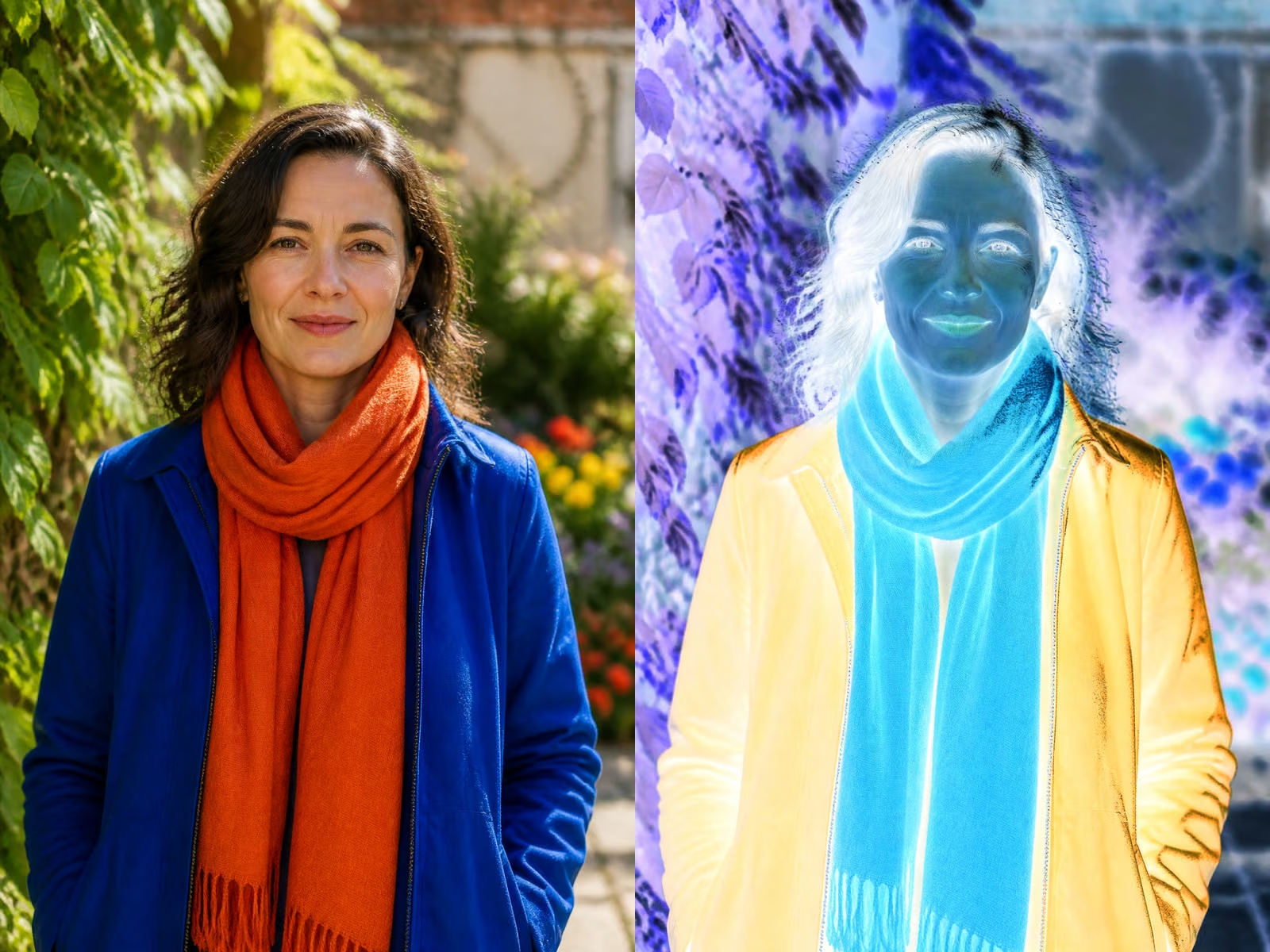
Before and after background color edit for a social visual system

Change Photo Background Color FAQ

Practical answers about subject protection, color choice, edge quality, and suitable uses.

Does the tool remove the background with an exact mask?

No mask claim is made. This is a generative image-to-image edit that is instructed to change only the background. Inspect fine hair, fur, transparent items, reflections, and motion blur because complex boundaries may be interpreted differently.

Can I change a photo background color for free?

You can open and configure the background color changer for free. Creating an image uses NanoPic credits; images created with free credits include a watermark, while paid credits generate images without that free-credit watermark.

Will it change my face, skin tone, or clothes?

The saved prompt explicitly asks the model to preserve identity, natural skin tone, facial features, clothing colors, texture, pose, and framing. Small generative changes remain possible, so compare the result with the upload before important use.

Can I request a color outside the four presets?

Yes. Choose the closest preset and add an optional note with a plain-language color, brand color, or hex value. Also say which shadows or lighting cues should remain. Exact device and export color can still vary.

Which background color is best for a portrait?

Light blue is a flexible profile choice, white is clean and neutral, pastel pink feels friendly and creative, and warm beige feels softer and editorial. Contrast the color with hair and clothing so the outline remains readable.

Can I use the output for a passport or official ID photo?

Check the current rules of the issuing authority first. Many official applications restrict digital alteration, background tone, dimensions, shadows, or expression. NanoPic does not guarantee that an edited image satisfies any government requirement.

How do I avoid halos around hair?

Upload a sharp image with visible contrast around the hair, avoid severe compression, and inspect the output at full size. The prompt protects fine flyaway edges, but complex backlighting or motion blur may need another generation or a specialist editor.

What if the subject has transparent or reflective parts?

Glass, veils, translucent fabric, polished metal, and glossy packaging are harder because the original background appears through or reflects from them. Review those regions closely and describe what should remain in the optional notes.

Change Your Photo Background Free Online

Upload one image, choose a useful color preset, and create a focused background edit while keeping the subject's natural detail in view.