How to Make an AI APT Music Video with Two Photos
Make an AI APT music video with a singer photo and a drummer photo. Follow NanoPic’s two-slot workflow and check faces, motion and playback before sharing.
 NanoPic Team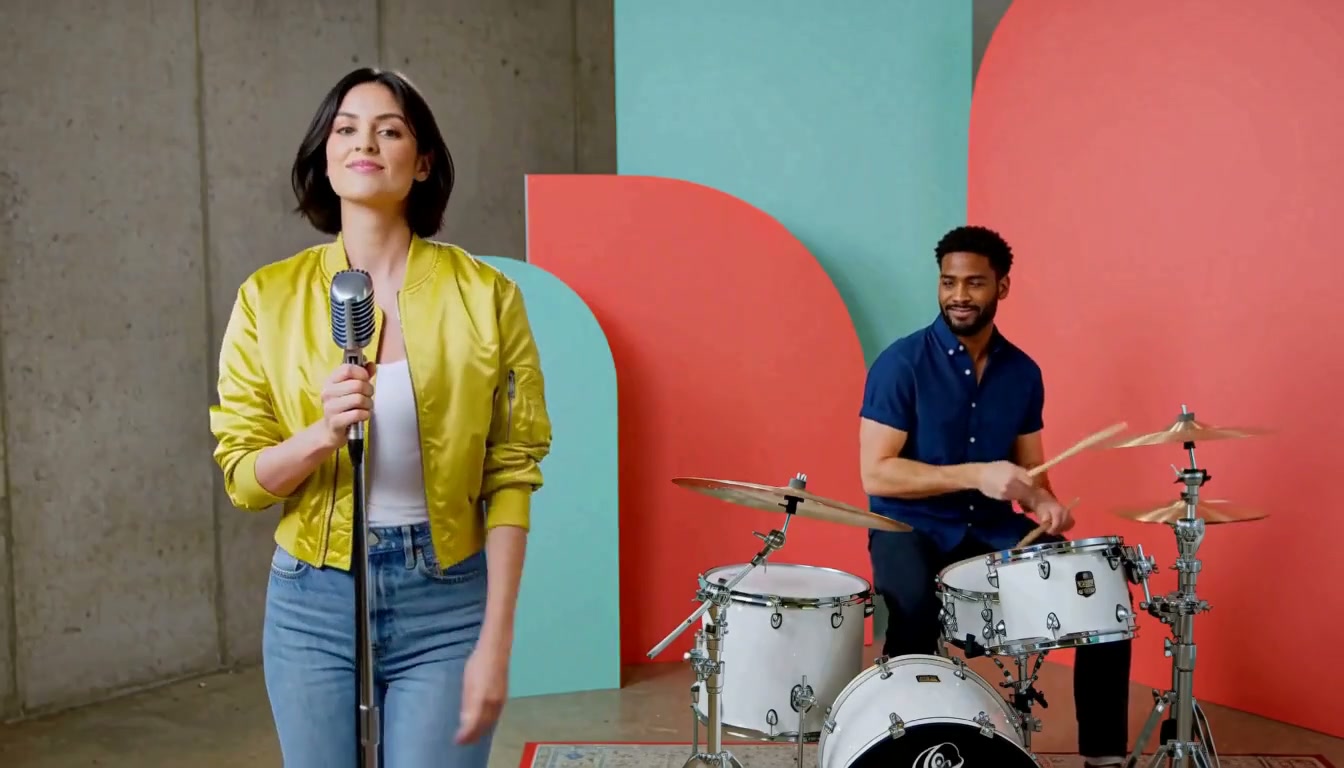
To make an AI APT music video on NanoPic, upload one performer photo to the singer slot and another to the drummer slot, then generate the template video. The page supplies the motion reference and settings. You do not need to write a video prompt or choose a model.
What the template creates
The current template requests a 15-second landscape video at 16:9 and 768P using MiniMax H3. Its two reference slots assign the people to a singer role and a drummer role. These settings are fixed for this template; it does not provide custom duration, aspect ratio or prompt controls.
Think of the result as a generated performance inspired by the template. The input photos guide appearance, but they do not guarantee an exact face match in every frame. Fast motion, occluded faces and instrument interaction deserve particular attention during review.
1. Choose two clear performer photos
Use one person per photo. Start with a sharp image where the face is easy to see, the lighting is even and hair does not cover the eyes. A visible head and shoulders give the model more appearance information than a very tight crop.
Avoid group photos, heavy blur, extreme side profiles, sunglasses that hide the face and large objects in front of the subject. Each uploaded file must fit the page's 10 MB limit. Use photos you have permission to use.
If you are testing the workflow before uploading your own pictures, the page includes original fictional adult performer samples. They are input examples, not a promise of how your photographs will animate.
2. Put each photo in the intended slot
Upload the lead performer's photo to Singer photo and the second person's photo to Drummer photo. Check the previews before continuing. Accidentally swapping the inputs can place the right people in the wrong roles.
Keep the images separate rather than combining two faces into a collage. Each slot has a specific job, and a single clear identity per input is easier to review.
3. Check the estimate and create the video
Sign in, review the credits shown on the page, and select Create Video. The template attaches its reference clip and fixed parameters automatically. There is no additional prompt you need to paste.
Allow the task to finish before submitting another request. A new submission is another generation attempt; repeatedly clicking because the first result is still processing can create unnecessary work and cost.
4. Review the whole clip
Open the generated video and play it from beginning to end. Check more than the opening frame:
- Does each performer remain recognizable during turns and faster motion?
- Do the singer and drummer remain in their intended roles?
- Are hands, drumsticks and instrument contact plausible?
- Does the frame avoid unwanted borders, abrupt crops or duplicated people?
- Does playback work after seeking, and is any included audio acceptable for your use?
The requested duration is 15 seconds; inspect the actual downloaded file too. Do not infer that a successful task status means the entire clip is ready to publish.
5. Improve the input before trying again
If a face changes during movement, try a clearer, more frontal photo with fewer obstructions. If roles appear confused, recheck the upload slots and ensure each image contains only one person. If a hand or instrument looks distorted, compare another result before choosing a final clip.
Change one input at a time so you can tell what helped. Keep the successful pair of photos and the generated result together for later reuse.
Common questions
Can I change the prompt or choose a different model?
Not in this template. NanoPic uses fixed motion and generation settings to keep the workflow focused. For an open-ended scene, use the AI video generator instead.
Can I make a vertical version here?
The current APT MV template uses a fixed 16:9 landscape frame. Cropping a finished video to vertical can remove one of the performers, so preview the crop carefully before exporting it elsewhere.
Does the result include permission to use a commercial song?
No. Generating or downloading a clip does not grant music rights. Review any included audio and use music you are allowed to publish on your destination platform.
What should I save?
Save the original inputs, the downloaded video and a note of which photo went into each role. Check the final file on the device and platform where it will be watched.
Create an AI APT music video, or explore the AI Face Dance generator for another portrait animation workflow.