






Save up to 73% on plans

Add Pumpkin to Photo Without Changing Faces or Pets
Sign In

Add Pumpkin to Photo Without Changing Faces or Pets

Upload one clear photo, then describe how many pumpkins you want and where they should sit. Add pumpkin to photo keeps recognizable faces, pet markings, clothing and the original framing, and never replaces a head or turns a person or pet into a pumpkin. Pick a direction such as realistic, glowing, pet-side, porch or cartoon, then review the result at full size and download the still.

Pick a look; its direction fills the notes box, where you can edit count, place and glow.

Upload One Photo*
Try Upload One Photo sample

Please add the required Upload One Photo before generating.

248 / 900

Public VisibilityAllow this result to appear in public inspiration surfaces.
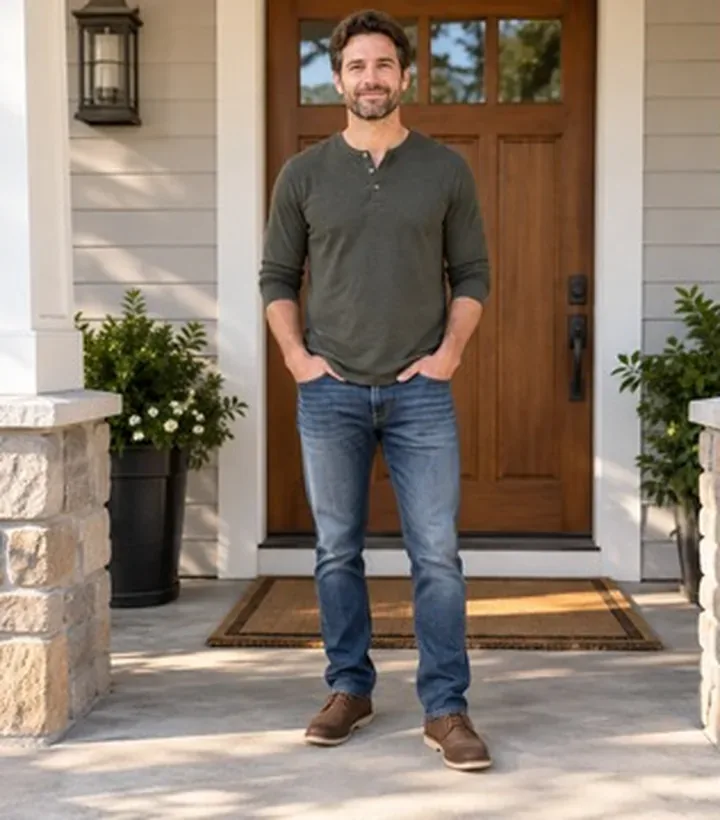
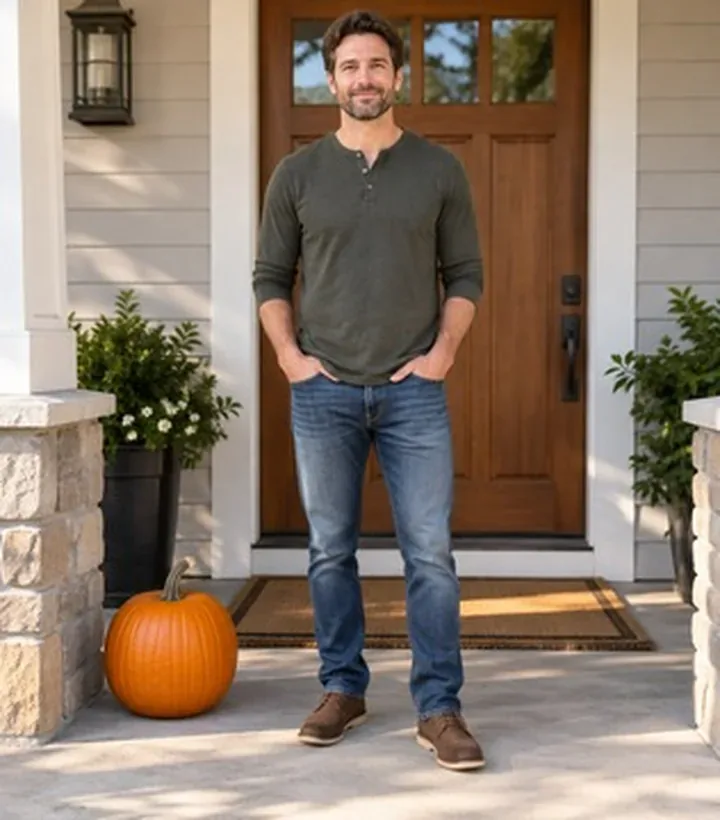
Man on a sunny porch without decorations
Before
Same porch with one orange pumpkin beside him
After

More AI Image Models & Effects

What Is Add Pumpkin to Photo?

Add pumpkin to photo is an AI photo edit that places Halloween pumpkins into a picture you already have. You upload one photo, describe the pumpkins in plain words, and the edit drops them onto the ground, steps, a table or a lap with light and shadows matched to the scene. People, pets, clothing, furniture and architecture stay as they were, so the result still looks like your own photo with a few seasonal props added. It is different from the Pumpkin Head Photoshoot effect: pumpkin head swaps your head for a carved pumpkin, while add pumpkin to photo never replaces a head and never turns a person or pet into a pumpkin. Pick pumpkin head for a costume portrait, and pick add pumpkin to photo when you want decorations around a face that stays yours. Families refresh last year's porch shots for Halloween cards without a new photoshoot. Pet owners make festive posts when the dog or cat will not pose with real props. Hosts preview doorstep arrangements before carrying heavy decorations outside. Small shops and cafés place pumpkins beside products or on the counter for October menus and stories. Rental and holiday listings warm up empty stoops with a few grounded pumpkins for autumn bookings.

Five Ways to Add Pumpkin to Photo

Each look keeps the people, pets and architecture you uploaded and only adds pumpkins that match the light and ground plane.

Realistic Pumpkin Beside a Person

A sunny porch portrait stays almost the same, except one orange pumpkin now sits on the concrete beside the subject with a soft contact shadow. That is the default way to add pumpkin to photo when you want a natural autumn prop instead of a costume trick. Faces, clothing seams and door lines stay recognizable, so the edit reads as decoration rather than a full reshoot. Ask for white or green pumpkins if orange feels too strong for your outfit. Leave a little empty ground in the source photo so the pumpkin has a clear place to land.

Try Realistic
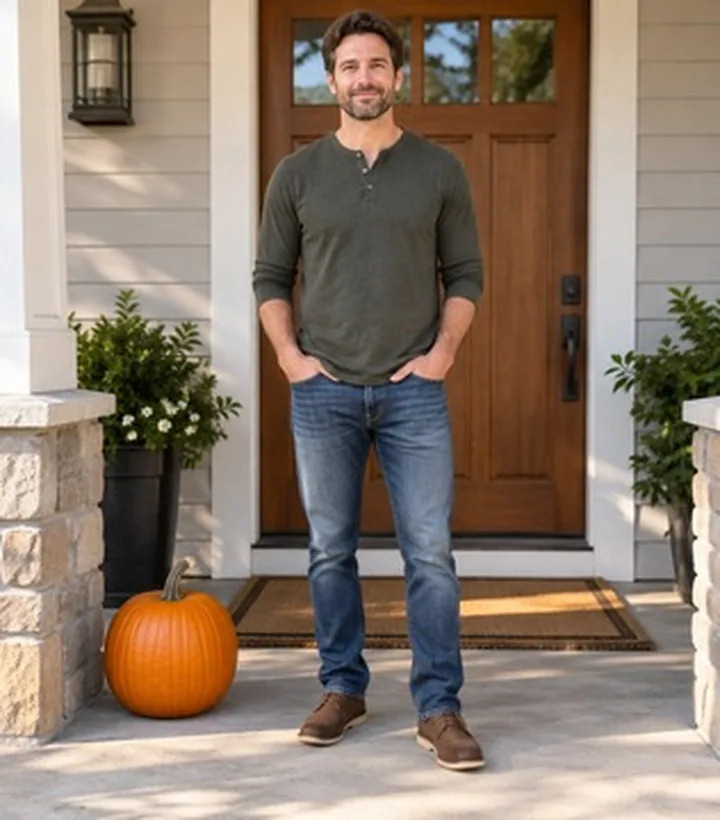
Portrait on a porch with one realistic orange pumpkin added beside the person

Glowing Jack-o'-Lantern for Evening Shots

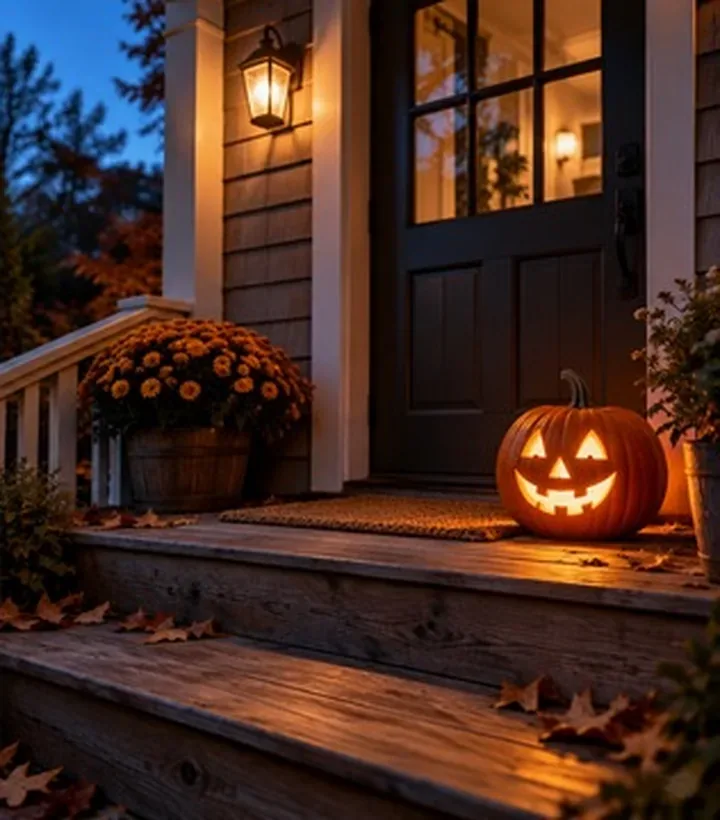
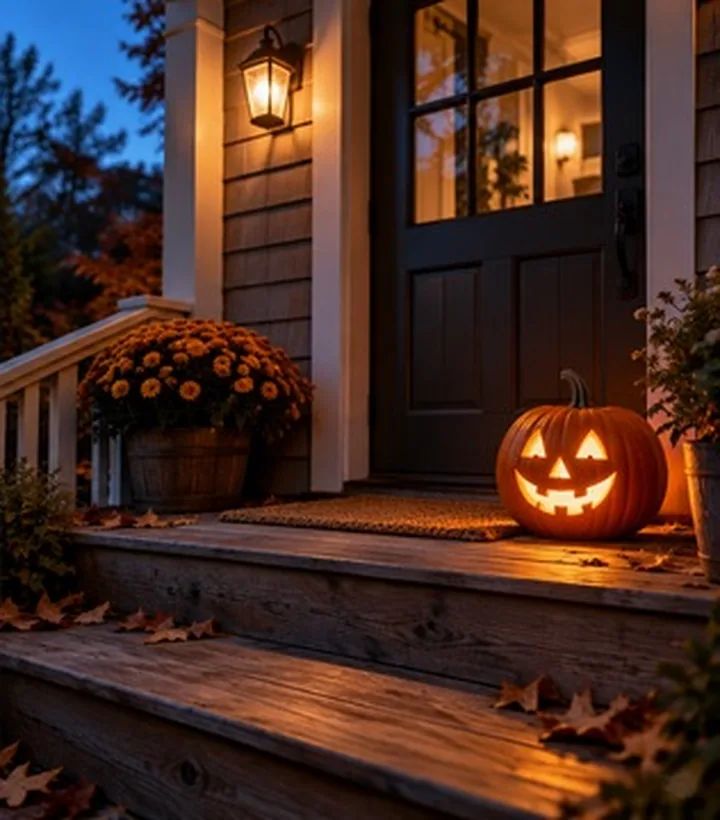
An evening doorstep gains a carved lantern whose warm light touches nearby wood and stone. When you add pumpkin to photo for night or dusk frames, ask for a friendly carved face and a gentle internal glow rather than a bright flood across the whole scene. Architecture, doormats and existing wall lanterns stay put while the new light sells the Halloween mood. This look suits porch listings, party invites and quick seasonal posts. If the glow feels too strong, regenerate and ask for a softer candle effect.

Try Glowing Lantern
Evening porch with a glowing carved jack-o'-lantern by the door

Pet Photos Without Costume Stress

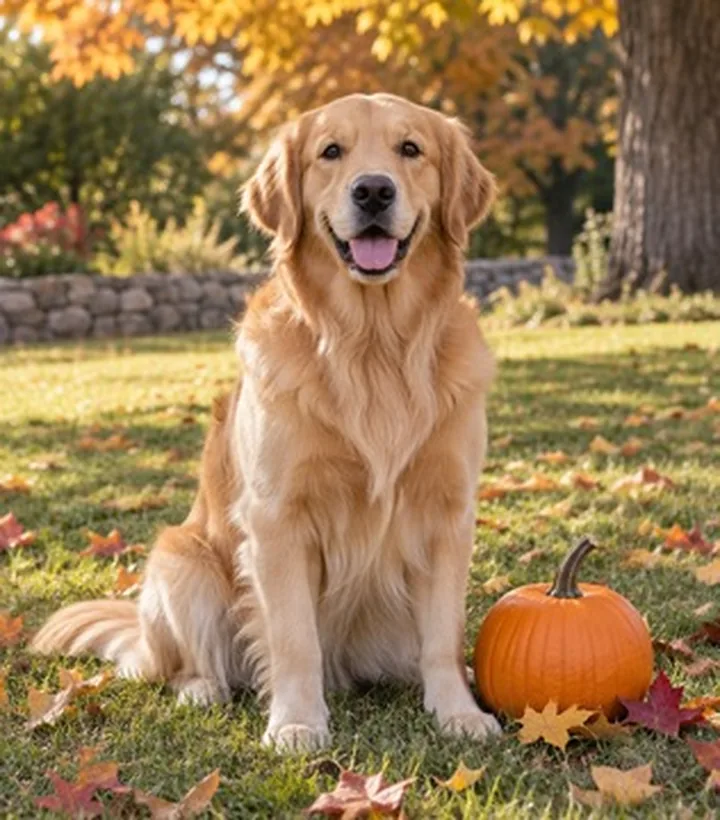
A golden retriever on autumn leaves keeps every marking and pose while a small pumpkin rests clear of the paws. Pet owners often add pumpkin to photo this way when the animal will not sit still for real props. Fur direction, ear shape and eye color stay intact because the edit is additive, not a pet transformation. Cats on rugs work the same way: describe a small pumpkin on the floor beside them. Always zoom in on paws and whiskers before you share the result.

Try Pet Side
Dog on a lawn with a small pumpkin placed beside the front paws

Porch Arrangements Before You Decorate

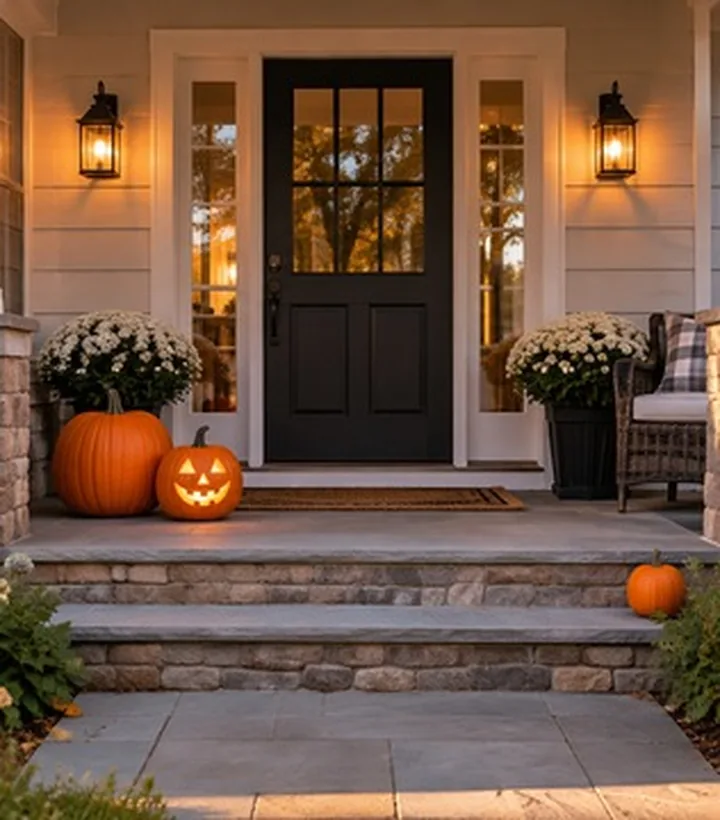
A twilight stone porch shows two pumpkins by the door and a third on the step, including one glowing lantern. Homeowners use this preview before dragging real decorations outside, so they can test spacing against the door and planters. Windows, trim and furniture stay aligned with the source, which makes the preview useful for rental listings too. Describe exact counts such as two by the door and one on the lower step. Start simple; crowded piles are harder to keep grounded.

Try Porch Arrangement
Stone porch with three pumpkins including a glowing lantern

Cute Cartoon Pumpkin Indoors

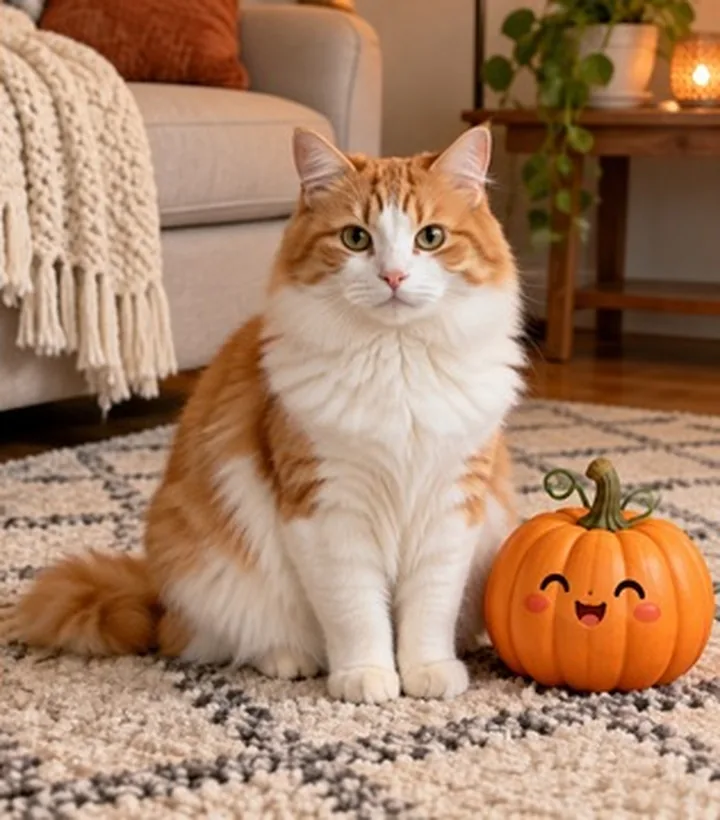
A living-room cat stays fluffy and unmoved while a cartoon-faced pumpkin sits on the patterned rug with a believable shadow. Choose this for a playful kids post without redrawing the whole room as illustration. Furniture, lamps and the pet remain photographic; only the pumpkin leans cute. Say cartoon face, blush cheeks or curly stem in the notes if you want that look. Check that the pumpkin still touches the floor so it does not float.

Try Cartoon Pumpkin
Indoor cat on a rug with a cute cartoon pumpkin beside it

How to Add Pumpkin to Photo in Three Steps

From one everyday picture to a seasonal still you can download and share.

Upload a Clear Photo With Open Space

Choose a JPG, PNG or WebP you own or have permission to edit, under 10 MB. To add pumpkin to photo cleanly, keep the subject fully visible and leave ground, steps, a table or a lap empty where decorations can rest. Front porches, gardens, living-room floors and café counters all work when the surface is readable. Avoid heavy blur, faces cut off by the frame and tiny subjects lost in a busy crowd. One photo per run keeps placement instructions simple.

Add Pumpkins
Clear porch portrait used as the starting photo

Describe Count, Place and Style

Pick a pumpkin look or write your own note: how many, where, how big, carved or plain, glowing or not. A short line such as two glowing jack-o'-lanterns on the steps beside the dog is clear enough to work from. If you leave the place blank, the default is one realistic orange pumpkin on open ground beside the main subject. Choose 3:2, 2:3 or 1:1 to match how you will post or print. The credits for your settings show in the generator before you start.

Add Pumpkins
Porch photo after one realistic pumpkin was added

Review Faces and Shadows, Then Download

Open the result at full size and compare faces, pet markings, clothing edges and background lines with your original. Confirm each pumpkin touches a surface and casts a contact shadow so the add pumpkin to photo edit feels grounded. If one detail drifted, change a single word in the direction and run again. Download the still you want to keep soon after it finishes, because results are easiest to save right away. Use the glowing or porch looks for evening posts and the realistic look for daylight cards.

Add Pumpkins
Evening porch result with a glowing jack-o'-lantern ready to download

Tips That Make Pumpkins Look Like They Belong

Name a surface in every direction: left step, beside the planter, on the rug, between the paws. When you add pumpkin to photo, relative size matters as much as position—say small, medium or large so a porch pumpkin does not dwarf a doorway. Match the time of day: daylight pumpkins need soft outdoor shadows; evening lanterns need a restrained amber glow. Keep counts modest on the first try; three well-placed pumpkins read better than a crowded patch. For pets, insist the pumpkin stays clear of paws and that markings stay unchanged. For people, remind the tool to keep faces and outfits recognizable and never replace a head. If you need a carved look, ask for a friendly face rather than gore. Save a clean original alongside every edit so you can compare before sharing.

Add Pumpkin to Photo FAQ

Short answers about placement, faces, pets and downloads.

How do I add pumpkin to photo with AI?

Upload one clear JPG, PNG or WebP under 10 MB, describe how many pumpkins you want and where they should go, then generate. The tool adds the pumpkins and aims to keep the rest of the scene recognizable.

Can I add a glowing jack-o'-lantern?

Yes. Ask for a carved jack-o'-lantern with a candle-like glow. In dusk or indoor photos the warm light can fall gently on nearby steps or wood.

Will my face or my pet change?

The effect is built to keep faces, pet markings, bodies, clothing, pose and framing as they are and only add pumpkins. Always check the full-size result and regenerate if a detail shifted.

What if I do not say where to put the pumpkin?

If your direction leaves out the number or place, the default is one realistic orange pumpkin on open ground beside the main subject.

Can it turn my head into a pumpkin?

No. This effect adds pumpkins to the scene and never replaces a head or turns a person or pet into a pumpkin. For a carved-head portrait, use the separate Pumpkin Head Photoshoot tool.

How do credits work when I add pumpkin to photo?

Credits for each render show in the generator before you start. If a run fails, those credits are returned automatically.

What photos work best?

Clear, well-lit photos with visible ground, steps, a table or a lap. Keep subjects fully in frame. The output follows the shape you select.

When should I download my edit?

Download the stills you want to keep soon after they finish, and keep your clean original next to them so you can compare faces, pets and background lines before you share.

Is NanoPic an official Halloween brand tool?

No. NanoPic is an independent AI photo tool and is not affiliated with any entertainment franchise or brand.

Add Pumpkin to Photo for This Season

Upload a clear picture, describe the pumpkins you want, and download a still that keeps your faces and pets while the decorations land where you asked.

Related tools

80s Photo Filter

80s Photo Filter

80s Photo Filter adds warm, faded film color to your photo in the browser. Adjust strength, preserve clothing and framing, and download a PNG.

Open tool
AI Age Filter

AI Age Filter

AI Age Filter creates a natural older-look concept from an authorized adult portrait. Review identity, complete-head framing, light and scene after editing.

Open tool
AI Age Progression

AI Age Progression

AI Age Progression creates a target-age concept from an authorized adult portrait. Set an age interval and review identity, framing and scene after editing.

Open tool
AI Labubu Generator

AI Labubu Generator

AI Labubu Generator helps explore your own monster doll concept from an authorized reference. Create original shapes and outfits, with no official affiliation.

Open tool
Camera Roll AI

Camera Roll AI

Camera Roll AI turns an authorized reference photo into one lifestyle collage. Plan varied scenes and a phone-gallery-inspired layout, then save one image.

Open tool
Face in Hole Generator

Face in Hole Generator

Face in Hole Generator places an authorized face into your chosen photo or template. Upload two references, refine the blend, and save a creative portrait.

Open tool
Hotpot AI Image Generator

Hotpot AI Image Generator Online | NanoPic

Create still images with the Hotpot AI Image Generator on NanoPic. Write a clear scene, generate with Nano Banana 2, refine the look, and download the picture you like.

Open tool
Make Image Higher Resolution

Make Image Higher Resolution

Make Image Higher Resolution with real 2× or 4× browser resizing. Compare pixel dimensions and download PNG without claiming recovered detail.

Open tool
Remove Glare from Glasses in Photos

Remove Glare from Glasses in Photos

Remove Glare from Glasses in photos with an editable AI image prompt. Upload your portrait, reduce lens reflections, and review the result before using it.

Open tool
Small mushroom-cap vinyl figure in a yellow raincoat beside a leaf-pattern box

AI Blind Box Generator: Turn a Photo into a Chibi Figure | NanoPic

AI blind box generator: upload one photo of you or your pet and get a cute chibi, plush or boxed collectible figure image to download and share.

Open tool
Black Friday sale scene with sneakers, knitwear and gift bags on dark stone

Black Friday Poster Maker: Product Photo to Sale Poster | NanoPic

Black Friday poster maker for sellers: upload one product photo, pick a sale style, and add an optional headline or offer text to your downloadable poster.

Open tool

Flashlight AI Photo: Tiny Character Scene | NanoPic

Turn one authorized adult portrait into a realistic flashlight scene with a miniature stylized double. Generate, then inspect identity, hands, light, scale, and crop.

Open tool

Funny AI Prompts — 12 Photo and Pet Editing Ideas | NanoPic

Try 12 original funny AI prompts on one authorized person or pet photo. Load, edit, generate, and review identity, anatomy, props, text, and visual coherence.

Open tool
Demo cover showing clearer detail after enhancement workflow

Magnific AI Image Generator Workflow on NanoPic | Clarity from One Photo

Run a magnific ai image generator style enhance on NanoPic: upload one photo, rebuild edges and textures toward 4K, then download after a full-size check.

Open tool

Mera Prompt AI Photo Prompts: Copy Viral Edits | NanoPic

Copy free mera prompt AI photo prompts for boys, girls, couples, festivals and cricket, then turn your own selfie into a viral edit on NanoPic.

Open tool

Minecraft Pixel Art — Turn a Photo Into Block Art | NanoPic

Turn one authorized photo into original blocky pixel art with six editable prompts. Generate, then review subject detail, geometry, text, rights, and composition.

Open tool

Prompt Seen Girl AI Photo Prompts & Generator | NanoPic

Prompt seen girl portraits from your own selfie: upload one photo, describe the outfit, setting and light, and keep your face looking like you.

Open tool
Row of glowing carved jack-o'-lanterns on a leaf-covered wooden porch at dusk

Pumpkin Head Photoshoot - Turn Your Photo into a Jack-o'-Lantern Portrait | NanoPic

Pumpkin head photoshoot from one photo: swap heads for carved jack-o'-lanterns while keeping your outfit and pose, with an optional autumn or spooky mood.

Open tool
Synthetic demo cover for sorry i lied ai Halloween costume reveal carousel

Sorry I Lied AI: Childhood Costume Reveal Photos | NanoPic

Make sorry i lied ai costume reveal photos from one authorized childhood costume shot: Perfect, First Apology, Almost Honest, then your real original last.

Open tool
Vikas editor style Diwali balcony portrait in a teal kurta with glowing diya lamps

Vikas Editor AI Image Generator: Vikas Prompts | NanoPic

Vikas Editor AI image generator: turn your own photo into a Vikas edit style portrait online, with editable prompts that keep your face recognizable.

Open tool