


















Free Grok Imagine Image 2.0 Image Generator
Sign In

Free Grok Imagine Image 2.0 Image Generator

Describe a subject, choose your framing, and generate an original image.

CreditsCost

Grok Imagine Image 2.0

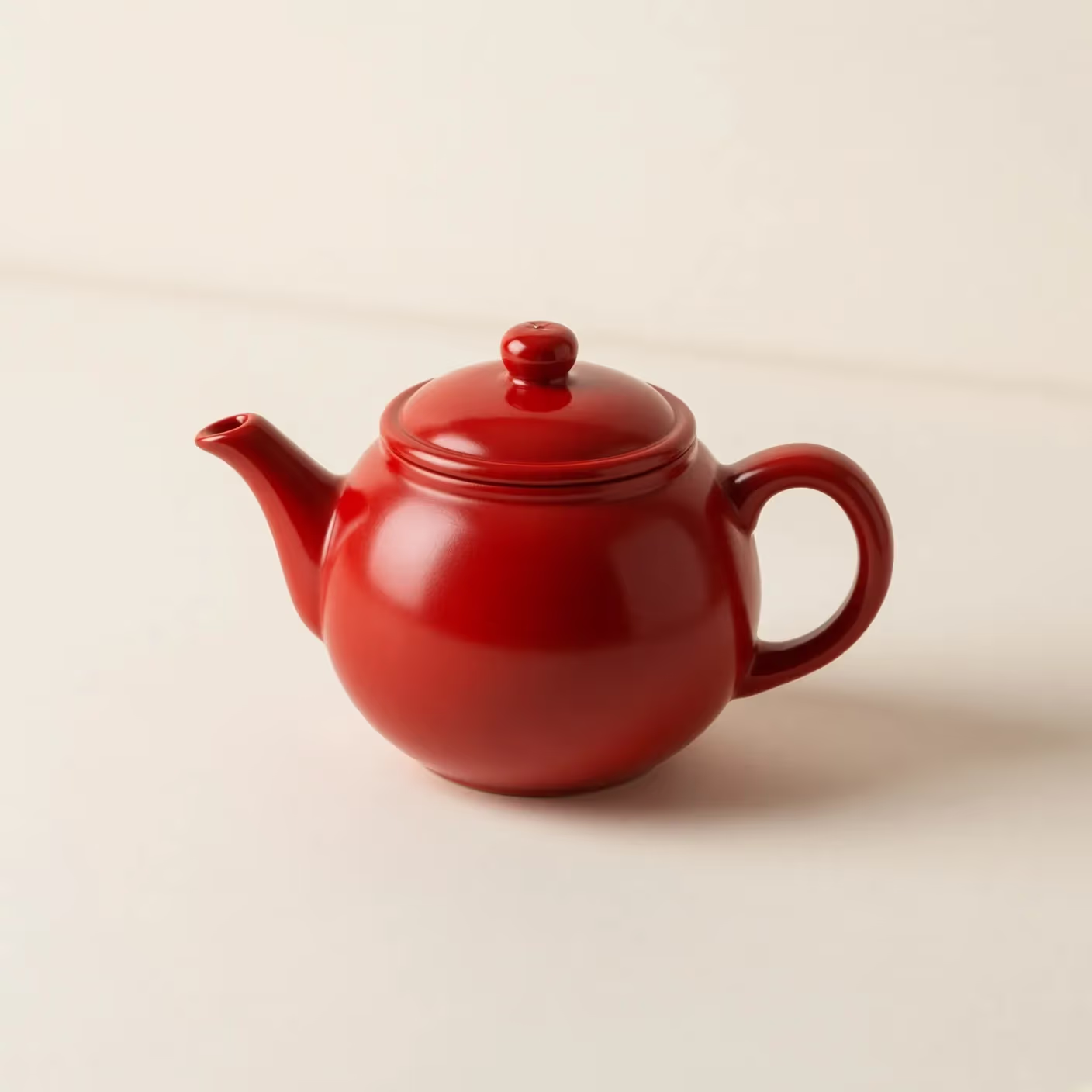
A small red ceramic teapot on a plain cream table, soft daylight, clean studio photograph, no lettering.

Red teapot: an actual generated example

A small red ceramic teapot on a plain cream table, soft daylight, clean studio photograph, no lettering.

Give your next visual idea a clear starting point

Grok Imagine Image 2.0 is an image model from xAI for turning written direction into visual concepts. On NanoPic, start with a subject you can describe clearly: a quiet still life, an illustrated reading corner, or a graphic scene for a personal project. The useful part of a first image is not how many details it contains, but whether the composition communicates your idea. Our red teapot example is a real text-to-image result, shown as a modest starting point rather than a promise that every prompt produces the same quality. Change its subject, light, or setting to begin your own direction.

Shape the picture before you add decoration

A few concrete decisions make an image brief easier to understand and a result easier to review.

Subject and composition

Name the main subject, how many objects should appear, and where they belong in the frame. A single red teapot on a plain table is easier to judge than a room full of competing objects. Leave space around the subject if the image will later sit beside a headline or a page caption.

Material, light, and visual style

Choose a small group of details that work together: matte ceramic, a linen surface, and soft window light, for example. Distinguish a photograph from an illustration or a graphic poster. Specific materials and lighting directions give you more useful creative control than a long list of vague quality adjectives.

A draft you can inspect closely

Look beyond the thumbnail before choosing a result. Check the subject silhouette, contact shadows, repeated objects, hands if present, and accidental text-like marks. A visually attractive image can still contain details that conflict with the brief. Treat review as part of creating the image, not an optional step afterward.

How to use Grok Imagine Image 2.0 on NanoPic

Begin with a small, readable composition and change one decision at a time.

1. Write a simple visual brief

Keep the default teapot prompt or replace it with one sentence covering subject, setting, and light. Add composition next: centered, close-up, overhead, or with open space on one side. Start with the square default when the final placement is undecided. Avoid asking for several unrelated pictures inside a single frame.

Back to generator
Red teapot image generated with Grok Imagine Image 2.0

2. Generate a focused first draft

Confirm the visible model and settings, sign in, and review the credit estimate before submitting. Let the task finish before judging its result. If the layout misses your intention, revise the placement instruction first; adding more style words is unlikely to solve an unclear relationship between objects.

Back to generator

3. Review, download, and keep your brief

Open the image at a useful size and check it against the original purpose. Save the prompt with the result you keep so that later attempts have a clear reference point. A new generation can change details, even with similar wording; use a separate design tool for exact final typography and layout.

Back to generator

Image 2.0 prompt ideas

These are editable creative briefs, not guaranteed output examples. Replace the subject and palette with your own.

A cozy editorial illustration

Prompt: An open book beside a small amber lamp on a wooden window seat, evening rain outside, warm paper texture, muted ochre and slate palette, square composition, clear central focal point, no lettering. The brief separates the main objects from the atmosphere and keeps the number of competing details low.

A simple poster concept

Prompt: A single orange bicycle against a pale blue wall, graphic editorial illustration, crisp shadows, bicycle in the lower half, generous empty space above for a headline added later, square frame, no text. Describing space for future copy is more dependable than expecting a finished poster to satisfy every typography requirement.

A miniature imaginary world

Prompt: A tiny greenhouse on a floating stone island, three large leafy plants visible through the glass, early morning mist, handcrafted model photography, gentle side light, centered square composition. Review the glass edges and plant shapes first. Change only the atmosphere or camera distance when testing a second version.

Creative uses for a prompt-first image

Choose a job where an original concept is useful and exact source-photo preservation is not required.

Moodboards and visual exploration

Explore a small set of palettes or environments for a personal project. Keep the subject constant and change one material, season, or lighting direction across drafts. Select the image that communicates the intended mood, then explain why it works instead of relying on an unexplained collection of attractive pictures.

Blog and story illustrations

Translate an idea into a concrete visual metaphor, with one subject readers can recognize at a glance. Leave room for the real article title to be added separately. For factual topics, avoid implying that an invented image documents a real event, location, or person, and label generated illustrations when appropriate.

Object and scene concepts

Sketch the appearance of a fictional prop, room corner, or collectible before investing in detailed design. Use consistent words for materials and camera angle. Generated concepts do not prove that a product can be manufactured, that a room meets building rules, or that a pictured object already exists.

Choose the image workflow that fits the job

Model names matter less than the input you have and the deliverable you need.

Grok Image 2.0 or an image editor?

Use this page when the starting point is language and you want a new image. If the job requires keeping a real face, package, or source photo intact, choose an upload-based editing workflow from the image model hub. A written description cannot guarantee an exact match to an existing photographed subject.

A still frame or a moving scene?

Stay with an image generator for posters, illustrations, and composed stills. If the deliverable needs movement, explore Seedance 2.5 or another model in the video hub. Motion introduces separate decisions about duration, camera behavior, sound, and continuity; an image model does not create a playable video.

Compare results using the same brief

When comparing image models, reuse the subject, composition, and intended placement. Judge legibility, unwanted objects, materials, and suitability for the actual project. Do not infer that one model wins every task from a single attractive result, and do not treat a leaderboard position as proof of your own output quality.

Image 2.0 FAQ

Practical answers about inputs, examples, and preparing a usable result.

What is Grok Imagine Image 2.0?

It is xAI's image-generation model family. This page offers a text-to-image workflow: you describe a scene and receive an image. It is intended for original visual drafts, including photographic concepts and illustrations, rather than video generation.

Can I upload a photo to edit on this page?

No. This Grok Imagine Image 2.0 page is prompt-first and does not provide reference-image editing, region selection, background removal, or Smart Resize. Choose a suitable editing tool from the image model hub when your task starts with an existing photo.

Can it create readable text inside an image?

You can request short text, but spelling, spacing, and layout still need review. Put exact words in quotation marks and keep the amount small. For important titles, prices, or labels, add verified typography afterward in a design tool.

What does the teapot example show?

It is an actual image generated with this model from the displayed teapot prompt. It demonstrates a simple square still life. The additional prompt ideas below the generator are suggestions, not claims that matching example images have already been generated.

Is Grok Imagine Image 2.0 free to use?

New accounts receive welcome credits that can cover an initial basic generation. Each submission consumes credits, so free to start does not mean unlimited free use. Check the displayed estimate and balance. Free-account outputs include a watermark; review plan and download conditions before publishing.

Can I publish the image?

Review applicable site and model terms, source rights, likeness permissions, and any trademarks before publishing. Inspect the final image for misleading details. Generating a picture does not automatically clear all commercial or third-party rights.

Which model is selected in this generator?

The default selector is Grok Imagine Image 2.0. Check the visible model name before each submission, especially if you switch models. The selector and current controls identify the workflow you will actually use on NanoPic.

Turn one clear idea into a picture

Start with a subject, a composition, and one lighting direction. Review the first draft before making the brief more complex.