
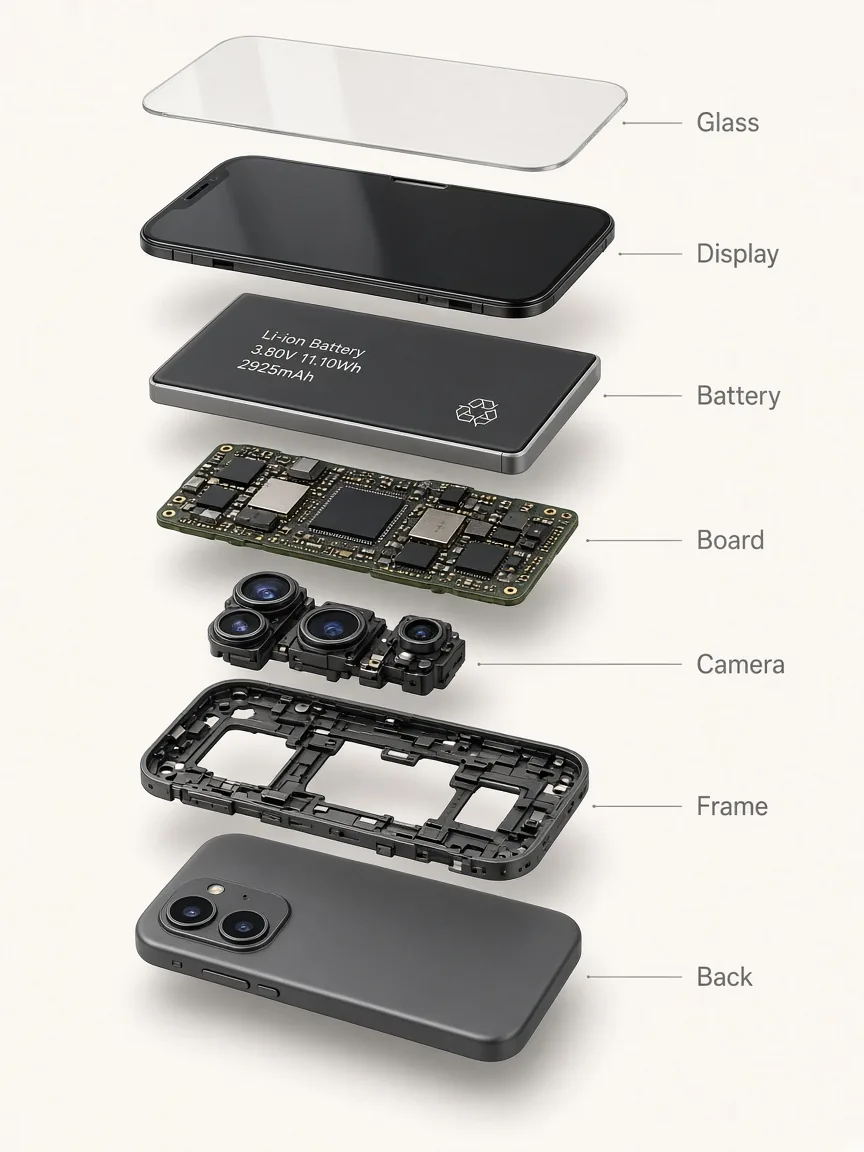
Labeled product diagram
An exploded phone with a callout for each part, the kind of small-text layout worth describing in detail.
Save up to 73% on plans
Images are created with Nano Banana 2.
These sample images were made separately as prompt examples and were not made with FIBO 2.0. Use them as a guide to the kind of label-heavy, layout-driven pictures you can describe in a prompt.
An exploded phone with a callout for each part, the kind of small-text layout worth describing in detail.
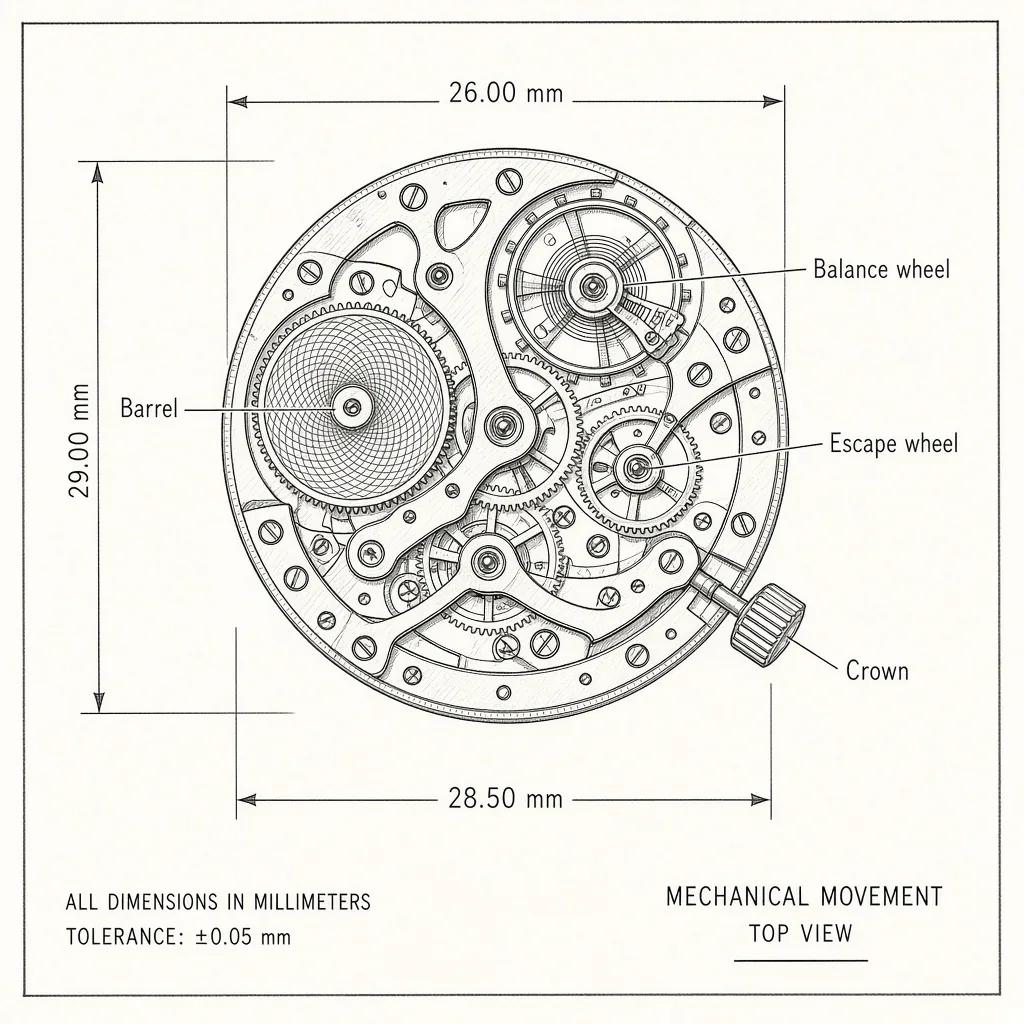
A watch movement drawn as a clean diagram with named parts and measurements.
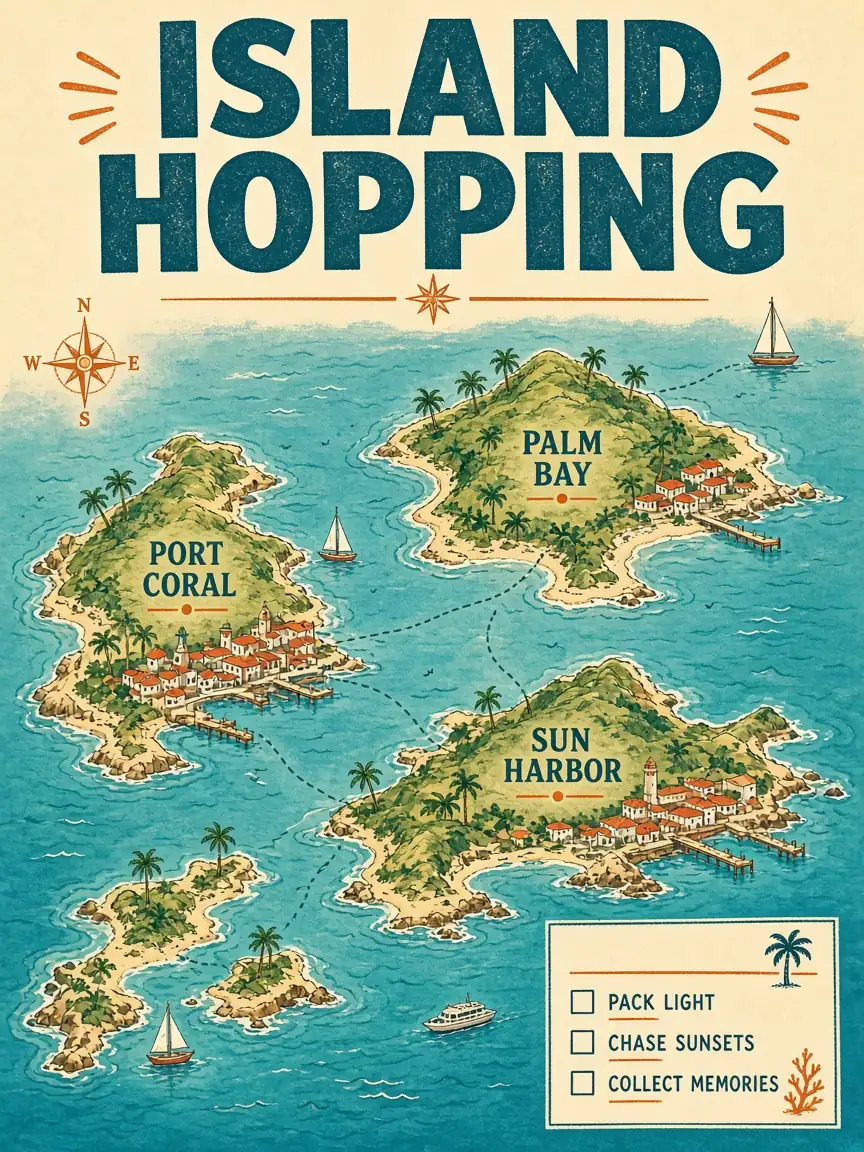
An illustrated travel map with a large title, city names and short lists.
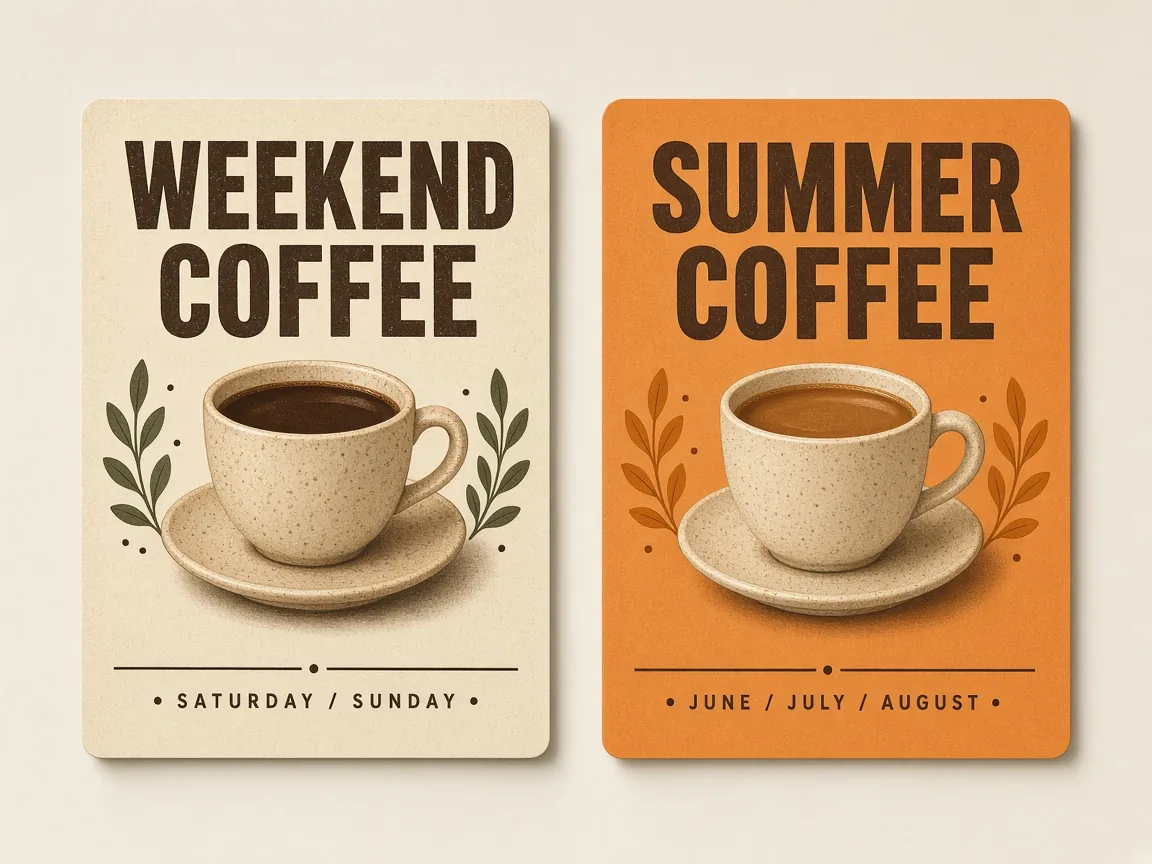
One coffee poster layout shown with two different headlines, a reminder to spell out the exact words you want.
FIBO 2.0 is an image model released on October 20, 2026. It turns detailed text prompts into images and is known for following those prompts closely, including readable words in the picture. It was trained only on licensed images. At launch, Artificial Analysis ranked it near the top among open-weights models for text-to-image, so it is a strong pick when you care about prompt control and readable text.
Bring an idea or a project, and you can turn it into four kinds of results.
Describe a scene, a character or a product shot and get a picture back, then refine the prompt.
Describe a product in a new setting, with the light and backdrop you want, and get a finished scene.
Posters, product scenes, infographics and social graphics, especially ones with words in the image.
Shape one idea into a banner, a square post and a tall story frame for the same campaign.
Everything starts from a written prompt. Here is what you control.
Name the subject, setting, light, camera angle and mood in one prompt.
Add a headline, a label or a caption in quotes and it becomes part of the picture.
Choose 1:1, 3:4, 4:3, 9:16 or 16:9 to match a post, a poster, a banner or a phone screen.
Change one detail in your prompt and create again until the image looks right.
Describe what you want to see, and you get a detailed picture that follows your words closely, including the light, the camera angle and any text you ask for. When one detail is off, rewrite that detail in your prompt and create again. On NanoPic you can pick a square, portrait or landscape frame: 1:1, 3:4, 4:3, 9:16 or 16:9.
Three areas where the latest version improves on earlier releases.
Headlines, labels and captions inside the picture come out clearer.
Surfaces such as glass, fabric and stone look more natural.
Hands, faces and poses are more dependable, though every result still deserves a close look.
Four steps take you from an idea to a finished image.
Name the subject, setting, light, camera angle and any words that must appear.
Pick the aspect ratio that suits where the image will be used.
Create the image, inspect text, hands and edges, and change one part of the prompt at a time.
Keep the prompts that land well. Specific, structured prompts tend to carry over between image models.
Prompts that need layout, reasoning or readable text suit this style best. Use these as starting points.
A minimalist concert poster, bold title at the top, date line at the bottom, grainy risograph texture, two-color palette.
A glass perfume bottle on a smooth stone in still water, soft fog, warm light near the top, no label.
A labeled cross-section of a volcano with five named layers, flat illustration, white background.
A woman reading on a city bus, film look, window light, light grain.
A chalkboard cafe menu with six drink names and short notes, hand-lettered, warm wood frame.
Describe the scene you need and get a ready visual from text alone.
Place a product or a person in a clean studio, on a beach or on a city street at night.
Ask for a bottle on stone, soft fog or a warm rim light, all in the prompt.
Rewrite the season, colors or frame size to make a set of matching campaign images.
Describe where a brand name and a headline should sit, and they appear in the scene.
Small habits make a big difference with detailed image prompts.
Put any headline or label in quotation marks so the exact wording is clear.
Mention soft window light, a low angle or a wide lens to steer the mood.
When you refine, change a single detail in the prompt so you can see what made the difference.
Zoom in on small text, hands and edges before you post or print an image.
The frame changes how the scene is composed, so pick it before you write the details.
Good for social posts, product tiles and profile images. Keep the subject near the center and leave a little space around it.
Suits posters, menus and flyers. Put the headline at the top and the supporting lines lower down so the layout reads from top to bottom.
Works for slides, blog images and labeled diagrams. Wider frames give room for callouts on both sides of a subject.
Made for phone screens and story posts. Stack the elements vertically and keep text away from the very top and bottom edges.
Fits banners, video covers and website headers. Describe what sits on the left and right so the space does not feel empty.
Most misses come from a prompt that leaves something open. These fixes usually help.
Shorten the text, put it in quotation marks and say where it should sit, for example a bold title across the top.
Ask for fewer elements, more empty space or a plain background, then add details back one at a time.
Name one clear style, such as flat illustration, film photo or watercolor, instead of mixing several in the same prompt.
Describe the pose simply, move the person a little further from the camera or crop to the upper body.
Treat each result as a draft until you have checked it. Zoom in on every word, because one wrong letter is easy to miss on a small screen. Look at hands, product edges and logos, and make sure nothing important is cut off by the frame. If an image will appear in a public campaign, compare it with your brand colors and fonts, and keep the prompt so you can create a matching version later. Avoid prompts that copy a real person, a trademark you do not own or another artist's signature style.
FIBO 2.0 is an image model from Bria AI. You describe a scene in words and get a detailed image that follows your prompt.
The model weights are shared under CC BY-NC 4.0 for non-commercial use. On NanoPic, the generator panel shows what each run needs before you start.
The generator here creates new images from text prompts. Describe the scene you want, pick one of five frames and create the image.
Fine control over each detail and readable text in the image. Posters, product scenes and labeled diagrams are where it shines.
The weights are licensed CC BY-NC 4.0, which covers non-commercial use only; commercial use needs a separate agreement with Bria.
No. FiboSearch is a WooCommerce search plugin, while FIBO 2.0 is an image model.
FIBO 2.0 is not connected to NanoPic yet. The generator here runs on Nano Banana 2, and the sample images were made separately as prompt examples. FIBO 2.0 will be added when it can be selected.
No. NanoPic is independent and not affiliated with Bria AI, which owns the FIBO name.
Describe a detailed scene, pick a frame and create a first draft image today.