
Save up to 73% on plans

Hotel Lobby AI Video Generator
Sign In
MiniMax H3

Hotel Lobby AI Video Generator

Upload two photos to put your cast into the Hotel Lobby duo performance. The left and right roles follow the reference clip.

Left performer photo*
Try sample
Right performer photo*
Try sample

Please add the required Left performer photo, Right performer photo before generating.

Public VisibilityAllow this result to appear in public inspiration surfaces.

Hotel Lobby AI Video Generator

Video

Hotel Lobby · Full-body photo references
1 / 2

More AI Video Models & Effects

Browse every other AI video model and effect published on this site in a continuous carousel.

Two Photos. One Hotel Lobby Performance.

Hotel Lobby AI turns two still character photos into a short duo performance guided by a reference video. The template uses the clip’s movement, camera framing, and timing while your photos guide the two identities. Upload each performer separately, keep their left/right order, and generate a 15-second video without writing a prompt.

Hotel Lobby AI Video Examples

These character photos and finished videos were generated with AI for NanoPic. View details to compare both input photos, the motion reference, and the output.

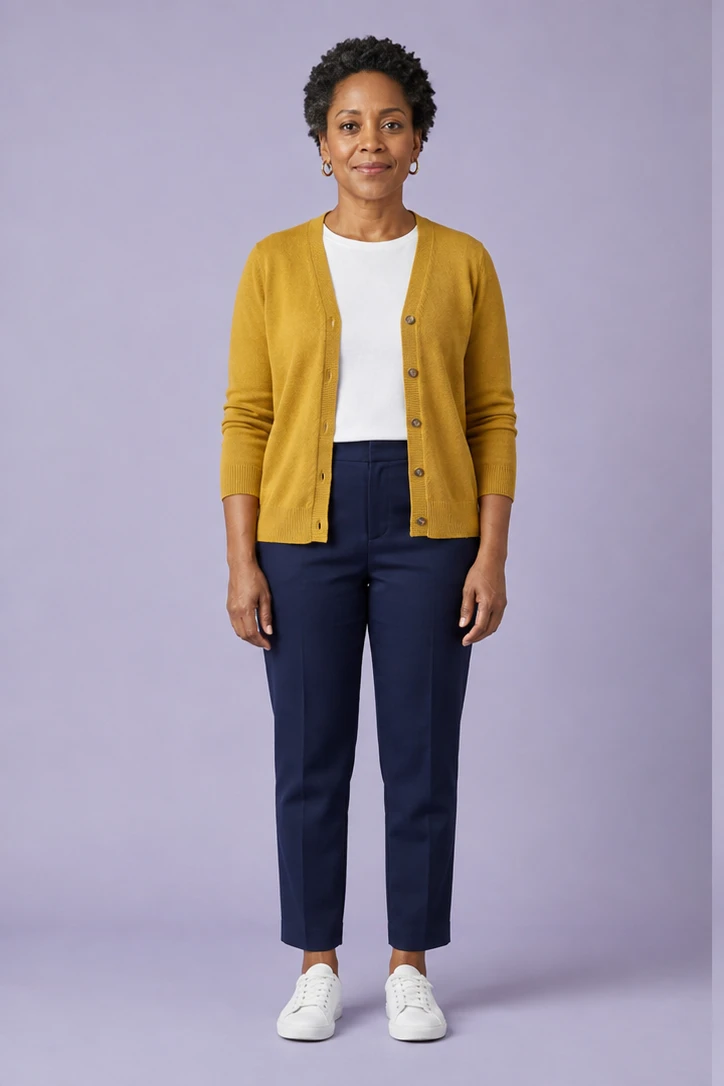
Full-body references provide more outfit detail

A full-body photo shows the model each performer’s proportions, trousers, and shoes. The output still follows the reference camera framing, so a full-body input does not guarantee feet remain in view. This is the default sample pair.

Try My Two Photos

Portrait references offer a useful comparison

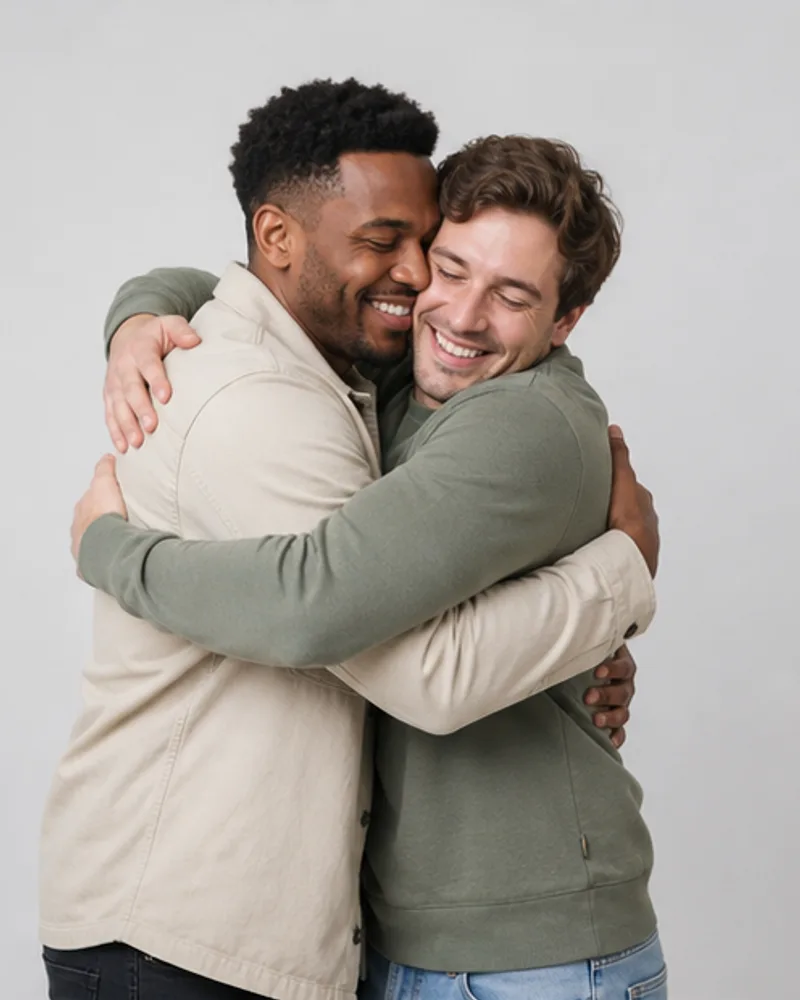
This version uses portrait references of the same fictional adults. Faces can remain recognizable, while the model has to infer clothing outside the photos. Compare the two examples before choosing your source images.

Prepare Your Two Character Photos

The photos identify your cast, while the built-in reference guides the performance. A little preparation makes it easier to judge the result and decide whether another photo would help.

Use separate, clear photos

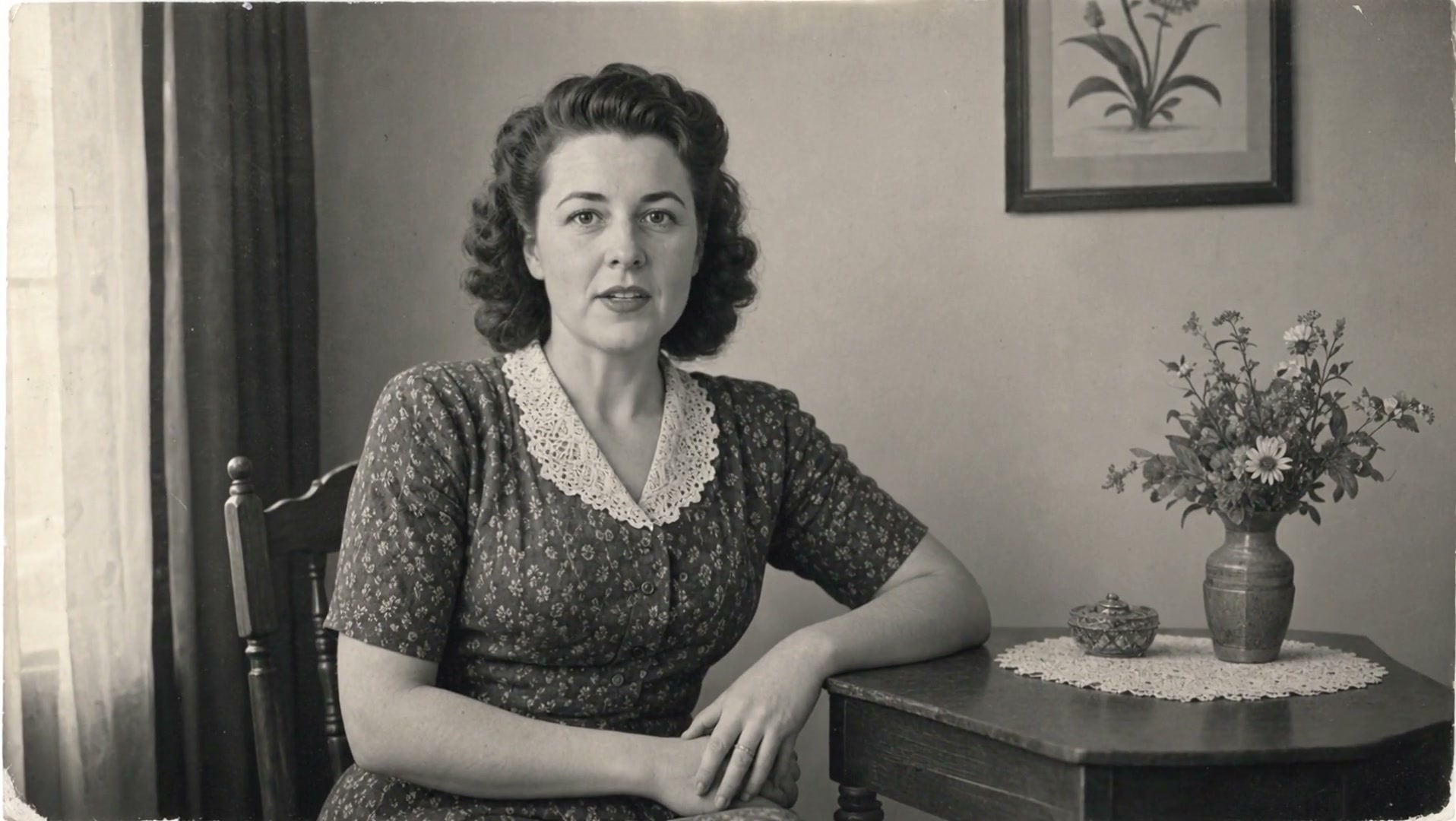
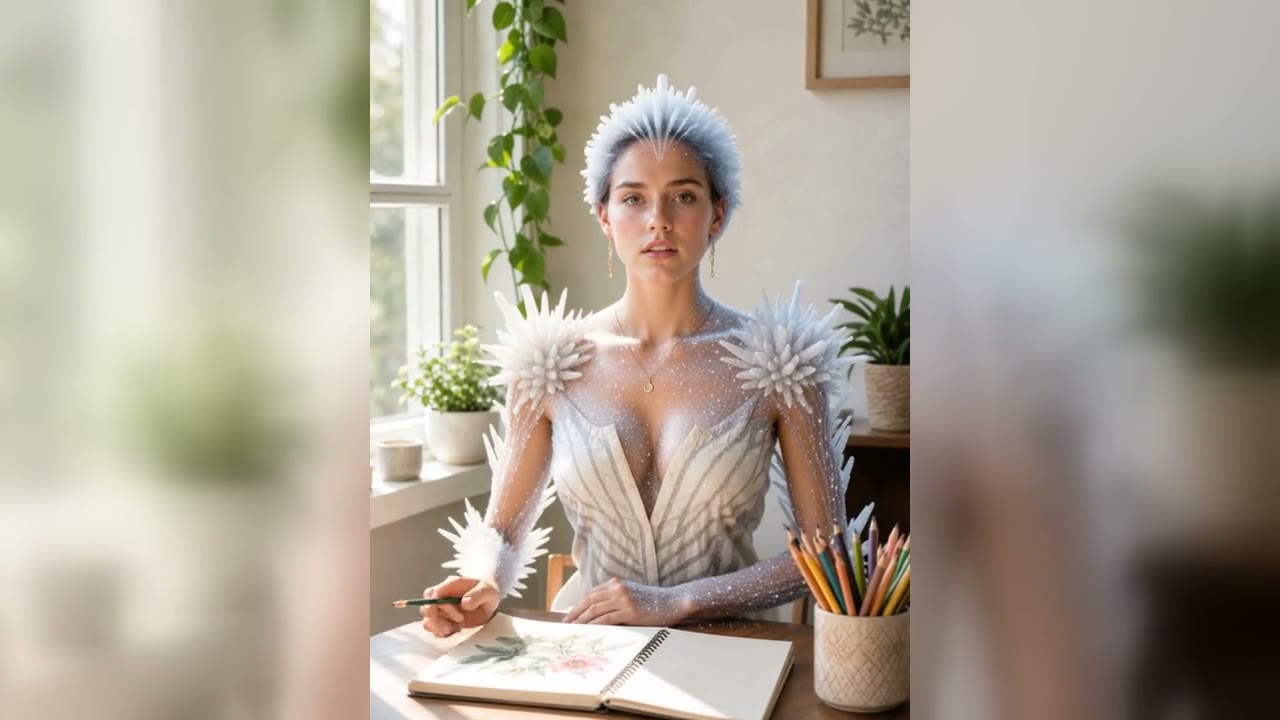
Choose one person for each upload. Avoid group photos, overlapping faces, heavy filters, and objects covering the eyes or mouth. Select an image where you can clearly see the face before uploading it. An evenly lit photo provides a more useful reference than a dark face against a bright window. Keep the full head inside the image and leave a little space around the body where possible.

Match the left and right roles

Place the person you want on the left in the left photo slot, then add the other person on the right. Check the two thumbnails before generating. The photos guide appearance; the reference clip guides movement and camera framing. Uploading a different portrait does not give you a separate camera or choreography control.

Compare full-body and portrait inputs

Start with a full-body image when clothing, proportions, and shoes matter to your character. A closer portrait may provide clearer facial detail, but leaves more of the outfit for the model to infer. Open the two sample details and compare their inputs with the finished videos. Judge both identity and clothing, rather than assuming one crop always wins.

Review the whole performance

Play the result from beginning to end. Look at both faces, visible hands, clothing changes, and how the performers follow the reference rhythm. Pause during movement as well as at the opening frame. A convincing thumbnail can still hide changes later in the clip. Download the finished video after reviewing it, and keep your source photos for future comparisons.

How to Make a Hotel Lobby AI Video

1. Choose the left performer

Upload one clear adult photo to the left slot, or choose its sample. Keep the face visible and use even lighting.

2. Choose the right performer

Add the second adult photo to the right slot. Separate images help keep the two roles distinct.

3. Generate and review

Check the credit estimate, start generation, and return to your task history when it finishes. Preview and download the result.

Hotel Lobby AI Questions

What does this template create?

It creates a short two-person performance following the built-in Hotel Lobby motion reference. It is a video effect for your characters, rather than a hotel interior design tool.

Are full-body photos better?

They provide more information about proportions and outfits. A clear face is still essential, and the reference video determines the framing. Portraits can work, but the model must invent the unseen clothing.

Which model and settings are used?

This template uses MiniMax H3 reference-to-video with a 15-second duration, 768P resolution, and adaptive aspect ratio. The credit requirement appears before you generate.

Will it reproduce the reference exactly?

No. AI generation can vary in faces, hands, clothing, motion, and audio. Review the full result; the examples show actual outputs rather than a guarantee of identical results.

Do I need to write a prompt?

No. Select the template and upload the two photos. NanoPic applies the generation recipe automatically.

What if generation is still running when I leave the page?

Open your generation history to check the task status and return to the result when it is ready. Leaving the page does not mean you need to submit the same photos again. Check the existing task before starting another attempt, then use its preview and download controls when the video is available.

What can I compare in View details?

View details groups the left photo, right photo, input reference video, and generated output. Use it to distinguish the identities supplied by the photos from the motion supplied by the clip. The two published examples use AI-generated character photos and finished videos, so you can inspect the actual input-and-output relationship before trying your own cast.

Create Your Hotel Lobby Duo

Choose two clear photos and bring your cast into the performance.