




Save up to 73% on plans

EzCreate AI Image & Video Generator
Sign In

EzCreate AI Image & Video Generator

Type a short scene in plain words and EzCreate AI turns it into a video clip. Want to start from your own picture instead? Add a photo to edit or animate it.

Public VisibilityAllow this result to appear in public inspiration surfaces.
Credits required:—

Kling 3.0

A 1950s family sitting on the front steps of a red brick house, the parents smile and the little girl swings her feet, warm film colours, gentle handheld camera.

AI output preview

A 1950s family sitting on the front steps of a red brick house, the parents smile and the little girl swings her feet, warm film colours, gentle handheld camera.

More AI Video Models & Effects

Edit, create and animate in one place

Change a detail in a photo, create a brand new picture from a sentence, or give a still image gentle motion. EzCreate AI works in your browser on a phone or a computer, so you can go from idea to finished picture without installing anything.

How to get results with EzCreate AI

Write a scene, edit a photo, make everyday content, then check the result before you share it.

Write a short scene and turn it into a clip

Open EzCreate AI and describe the place, the light and one clear action in everyday words. Keep the first try short so the motion stays easy to follow. Name what should stay still, such as a face or a product label, then download the clip you like.
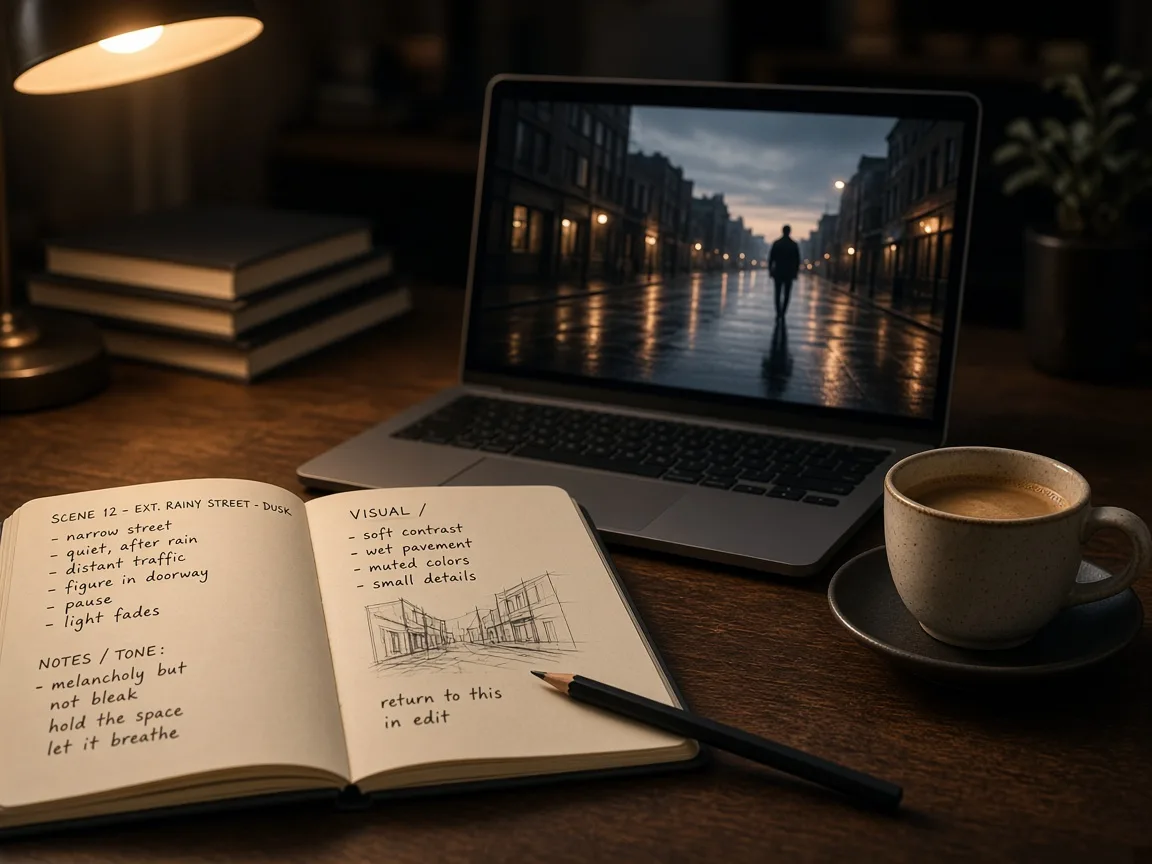
Open notebook with scene notes beside a laptop showing a rainy dusk street still

Edit a photo by saying what to change

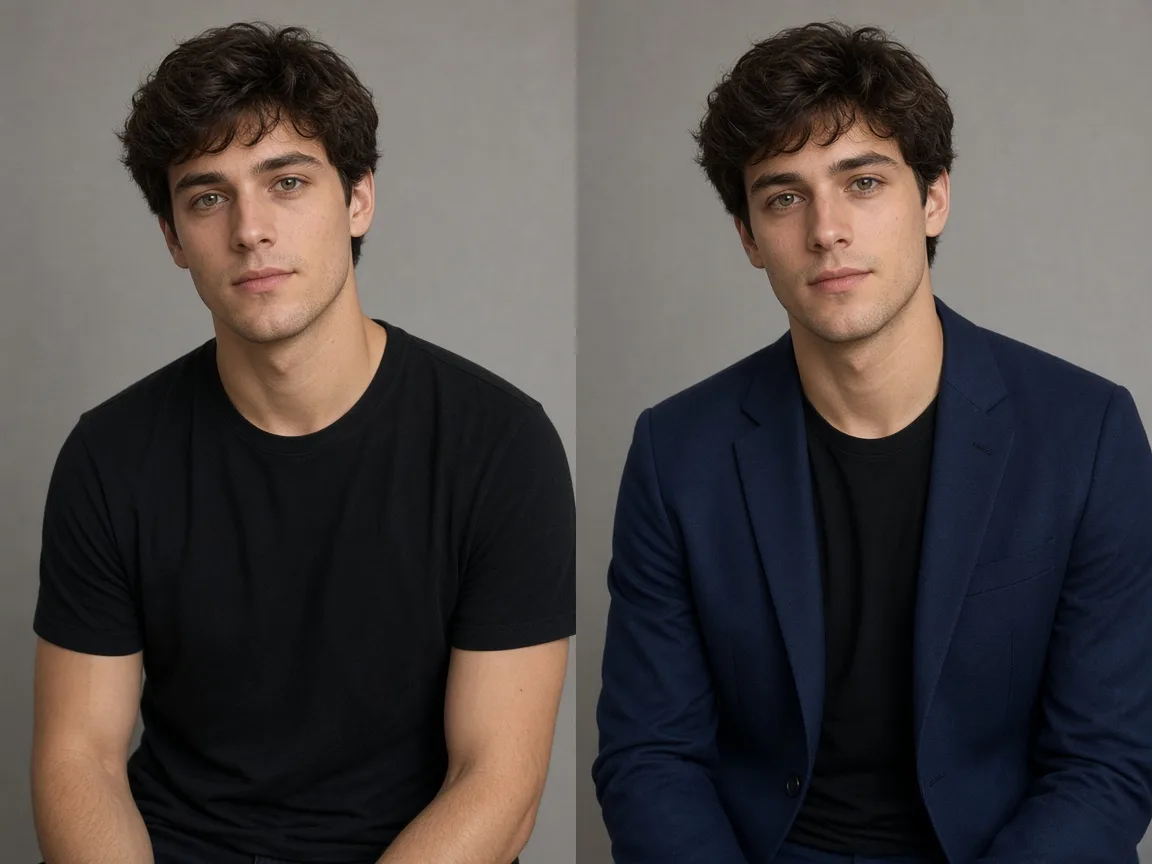
Upload a clear portrait or product shot and ask for one change at a time, for example a new jacket or a cleaner backdrop. End with what must not move, such as the face, pose or logo. If the first pass is close, tweak only one detail and run it again with EzCreate AI.

Split portrait of the same young man in a black T-shirt and then in a deep blue blazer

Make product, portrait and social content

Use EzCreate AI for shop photos with a clean table, profile pictures with a fresh outfit, restored family prints, or short clips for a feed. Start from one photo or one sentence and keep the framing simple so the subject stays readable on a phone screen.

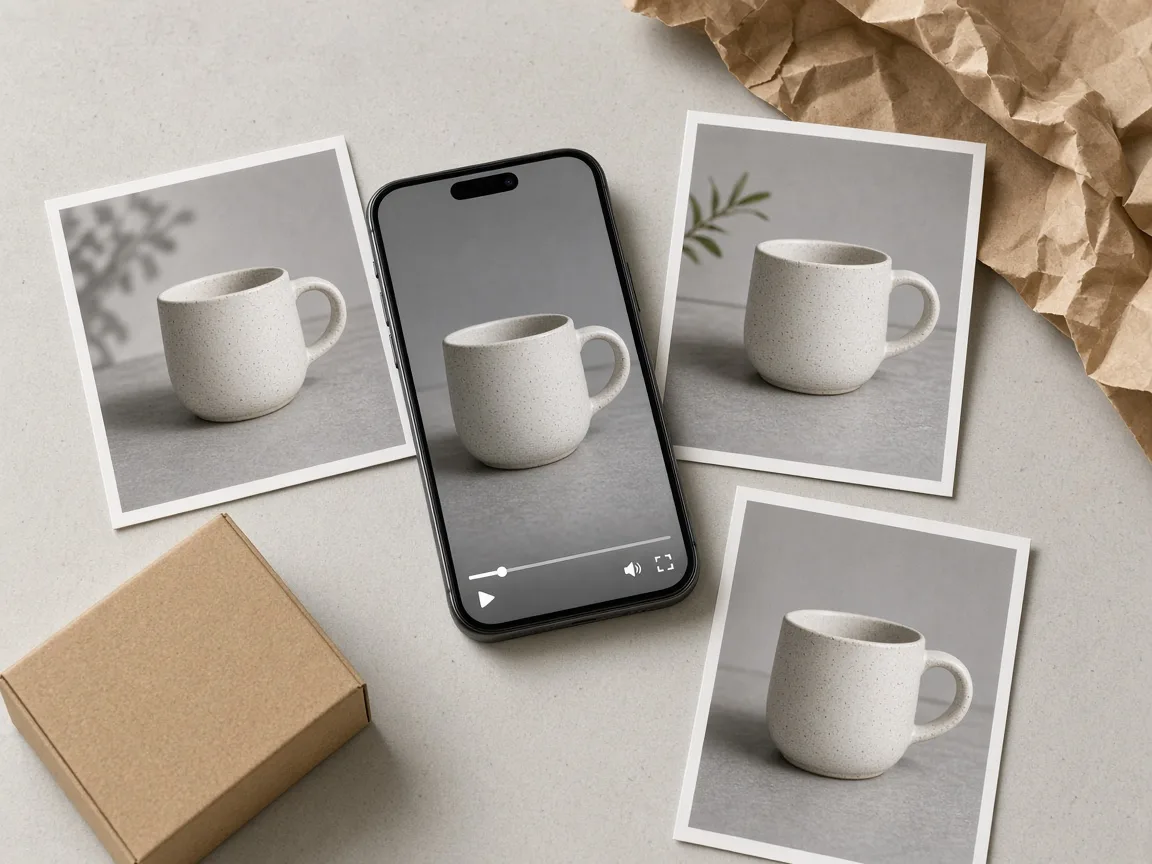
Desk flat lay with a phone showing a ceramic mug clip beside printed mug stills and packing paper

Check the result before you share it

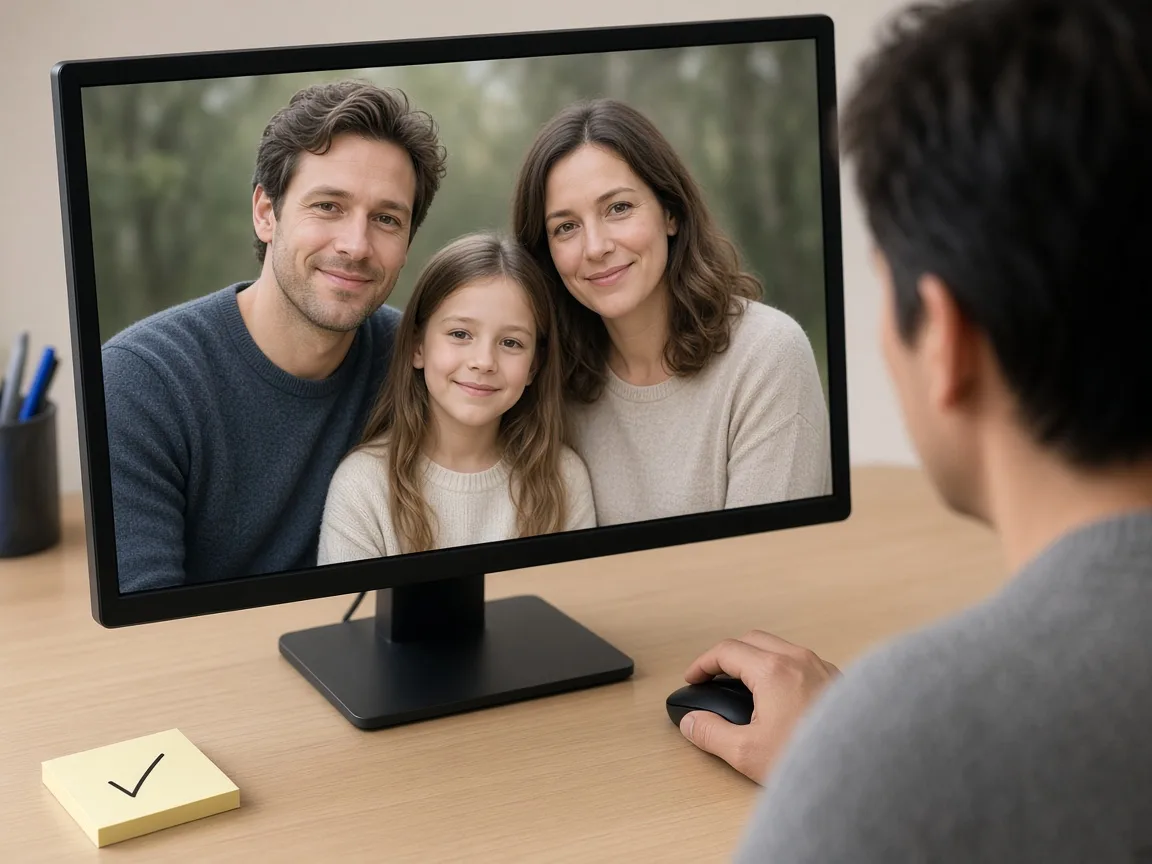
Zoom in on faces, small text and logos after every EzCreate AI run. If something drifted, add a keep-the-same line and try once more. For a real product, keep the original photo as your starting point so colours and labels stay true, and mark AI-made images when you post them.

Person at a desk reviewing a family portrait on a computer monitor with a checkmark sticky note

EzCreate AI prompt examples you can copy

Swap the words in brackets for your own subject.

Remove an object

Remove the [object] on the left and continue the wall and table behind it. Keep everything else the same.

Background edit

Keep the [product] exactly as it is. Replace the background with a light grey studio table and soft window light.

Outfit edit

Keep the same person, face and pose. Change the clothes to [outfit]. Keep the room and lighting.

Old photo

Repair the scratches and faded areas, add natural colour, keep the faces as they are.

Product spin

Slow 360 degree turn of the [product], steady camera, the label stays readable throughout.

What people make with EzCreate AI

Everyday projects that start with one photo or one sentence.

Product photos

Clean backgrounds, new scenes and spinning product clips for shops and listings.

Portraits and profile pictures

Fresh outfits, tidy backdrops and new styles for a profile or a team page.

Family memories

Restored and colorized old prints you can share again or print.

Social posts

Eye-catching images and short vertical clips made with EzCreate AI from a single photo or idea.

Tips for better EzCreate AI results

Small habits that make edits look better.

One change at a time

Ask for one change, then add the next once you like it.

Say what stays

End your request with what must not change, such as the face, pose, logo or background.

Start from a clear photo

A sharp, well-lit picture with the subject large in frame gives EzCreate AI the most to work with.

Before you share your EzCreate AI results

AI edits can sometimes change faces, small text or logos you wanted to keep, so take a close look before you post or print. For a real product, keep the original photo as your starting point so colours and labels stay true. Use photos you have the right to use, never edit real people to mislead or without their consent, and mark AI-made images when you share them.

EzCreate AI FAQ

What is EzCreate AI and how does it work?

With EzCreate AI you upload a photo or write a description, say what you want, and get an edited picture, a new image or a short clip.

Is this the official EzCreate AI website?

No. NanoPic is an independent site and is not affiliated with EzCreate AI; for EzCreate AI accounts or support, please use its official site.

Do I need to register?

You can look through the EzCreate AI examples without an account. Sign in to NanoPic to edit or create.

How do I edit a photo with EzCreate AI?

Upload your photo, say what to change and what to keep, then download the picture you like.

Can EzCreate AI remove backgrounds, objects or people?

Yes. Ask it to take out an object or a person in the background and describe what should fill the space, or cut the subject out onto a transparent background.

Can EzCreate AI create images from text?

Yes. Describe what you want to see, such as the subject, place and style, and get a brand new picture.

Can I turn a photo into a video?

Yes. Add your photo, say how it should move, and get a short clip that starts from your picture.

Can it fix old or blurry photos?

It can repair scratches and fading, sharpen details and add colour to black and white photos. Very damaged areas may need a second try.

Do I need to install anything?

No. Open EzCreate AI in your web browser on a computer or a phone.

Is it safe to upload my photos? Can others see them?

Upload only pictures you have the right to use. How uploads are stored, who can see them and how to delete them is set out in the NanoPic privacy policy. Avoid uploading ID documents or other sensitive files.

Can I use the results commercially?

Check the NanoPic terms for usage rights, make sure you own or have permission for the photos you upload, and label AI-made content where required.

Can I use it without design or prompt skills?

Yes. Write what to change and what to keep as if you were telling a friend, or copy one of the EzCreate AI prompt examples.

Will an edit change the face?

Small changes can happen. Add keep the face the same and use a clear, front-facing photo for steadier results.

What photos can I upload and how do I download?

Regular photos from your phone or computer work. When you like the result, download and save it.

What if a result fails or will not download?

Make sure you are signed in, refresh the page and try again, or use a different photo or a simpler request.

What if a result does not look right?

Try again with one change at a time and add a sentence listing what must stay, such as the face, pose or logo. A clearer source photo also helps.

Try EzCreate AI on your own photo

Upload a picture, describe one change and see the result; then turn your favourite into a short clip.

Related tools

25th Anniversary Video Maker

25th Anniversary Video Maker

Make a short silver 25th anniversary video concept from one or two authorized couple photos. Add names, year, mood, motion, and editor-ready greeting space.

Open tool
Storyboard cover of two fictional adults sharing a hug

AI Hug Video Generator

AI Hug Video Generator turns an authorized photo of consenting adults into a five-second friendly hug. Review faces, hands, clothing and scene throughout.

Open tool
Animate Picture

Animate Picture

Animate a picture into a short AI video. Upload one authorized photo, describe subject and camera motion, review the live credit cost, and generate with Seedance.

Open tool
Birthday Video Maker

Birthday Video Maker

Create a short birthday video concept from one or two authorized photos. Direct the theme, transition, motion, format, and clean space for exact editor-added greetings.

Open tool
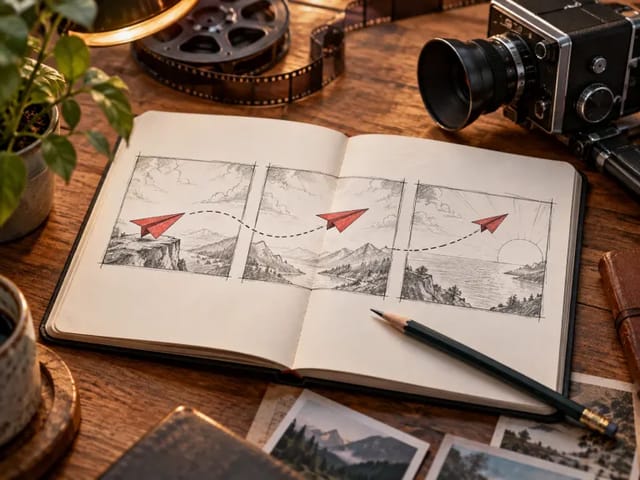
Draw to Video: Animate Images with Motion Arrows

Draw to Video: Animate Images with Motion Arrows

Draw to Video lets you add arrows, text and brush strokes to an image, then generate an AI video from your motion guide. Edit, save, create and download.

Open tool
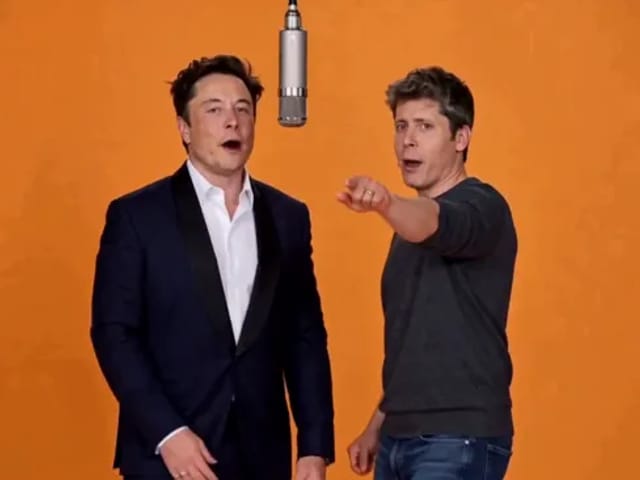
Elon Musk + Sam Altman

Hotel Lobby AI

Turn two photos into a 15-second orange-studio rap duo with MiniMax H3. Explore five actual videos, inspect their inputs and choose your left and right performers.

Open tool
STORM II dance with a lead and coordinated supporting dancers

STORM II Dance AI Video Generator | NanoPic

Create a STORM II dance with your lead photo and an AI-generated motion reference. Add a supporting cast, compare three videos and review your result.

Open tool
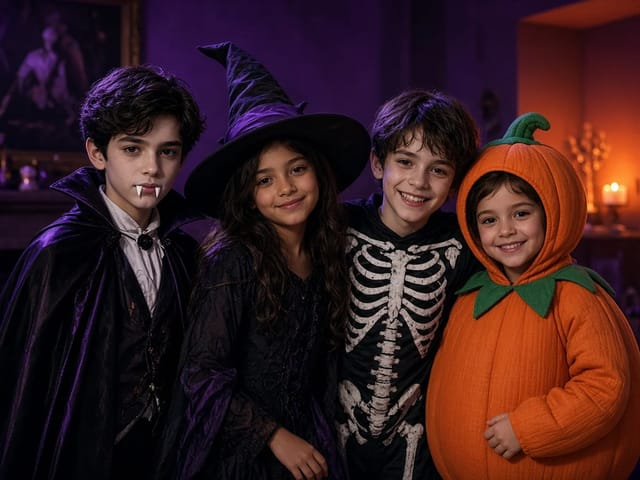
Four children dressed as a vampire, a witch, a skeleton and a pumpkin posing together in a candlelit room

AI Halloween Costume Transformation Video | NanoPic

AI Halloween costume transformation from one photo: pick a vampire, witch, skeleton or pumpkin look and watch your outfit change in smoke in a short video.

Open tool

Hedra Character 3 AI Video Generator: Lip Sync | NanoPic

Hedra Character 3 AI video generator: upload a portrait, mascot or cartoon, type a line, and get a lip-synced talking or singing character video.

Open tool
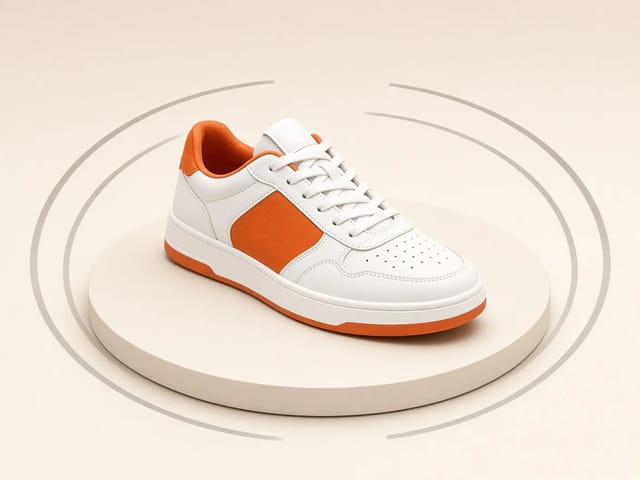
White and orange sneaker on a round turntable with a circular motion arc

MiniMax H3 360 Orbit AI Video Generator | NanoPic

Turn one photo into a MiniMax H3 360 orbit video: upload a product, shoe, figure or portrait and watch your subject turn a full circle in place.

Open tool
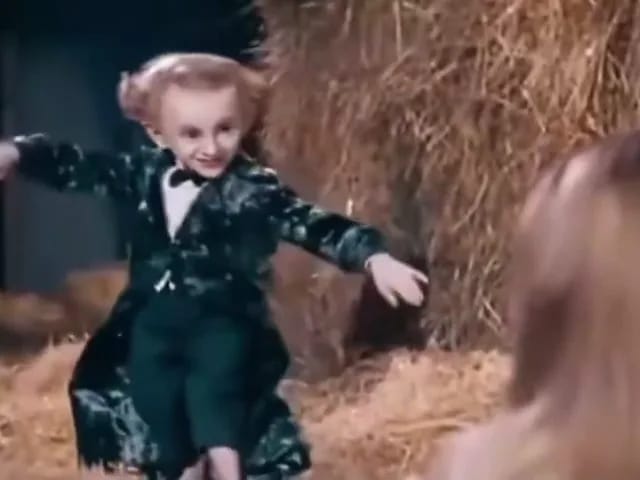
Performer in a dark tailcoat tiptoeing through a hay-filled barn with arms spread as a blonde woman watches from the foreground

Tip Toe In My Jordans AI Video Generator | NanoPic

Make a tip toe in my jordans AI video: upload two photos and see you and a friend sneak through the barn tiptoe dance as the lead and the stunned watcher.

Open tool