




Animate Old Photos Free Online with Gentle AI Motion
Sign In
Credits275 creditsKling 2.6

Animate Old Photos Free Online with Gentle AI Motion

Upload one old portrait and turn it into a quiet five-second video. NanoPic adds restrained blinking, breathing, a tiny head movement, and a minimal camera push while the built-in prompt protects the person's identity, period clothing, photographic texture, and original composition. The default output is silent to keep the memory natural and the generation cost lower.

Upload Old Photo*(0/1)
Try the Safe Sample Photo

117 / 600

Sound

Animate Old Photos Free Online with Gentle AI Motion

Video

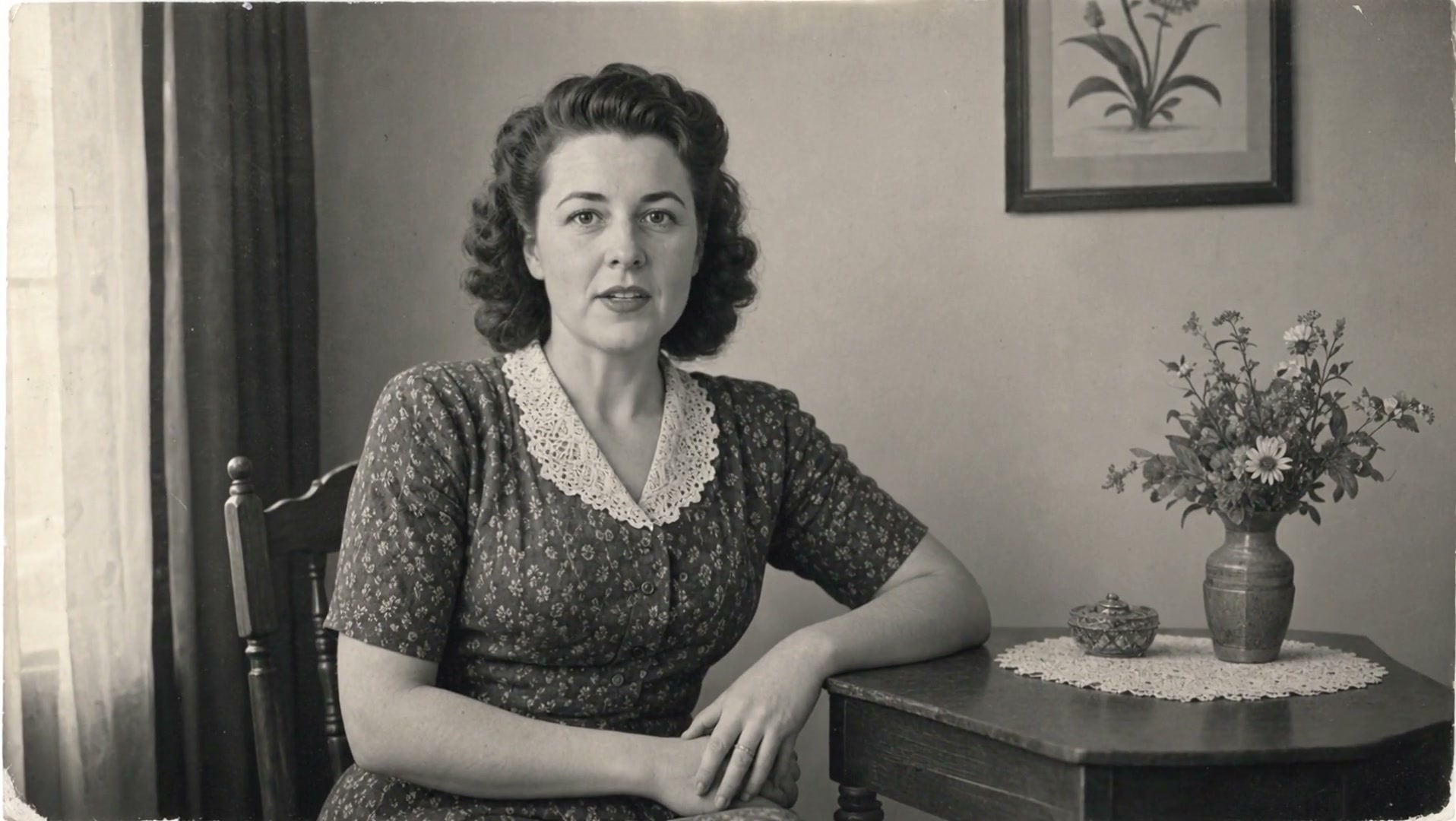
Fictional 1940s portrait gently animated with natural micro-movements

Bring a Family Photograph to Life Without Rewriting It

To animate old photos well, motion should support the memory rather than compete with it. This tool is designed for people who want a still family portrait, wedding photograph, school picture, military portrait, or studio print to feel briefly present again. Upload one image and the generator creates a short image-to-video clip with small human cues instead of a theatrical performance. The person can blink lightly, breathe, and make a nearly imperceptible head adjustment as the camera moves forward with restraint. The prompt explicitly asks the model to retain face shape, apparent age, hairstyle, clothing from the period, room details, monochrome treatment, grain, and framing. It also rejects speech, oversized smiles, exaggerated lip movement, identity drift, colorization, modern styling, and large camera moves. The result is intended as a respectful interpretation of an image you own, not a claim about what the photographed person actually did or said.

How to Animate Old Photos Free Online in Three Careful Steps

The generator keeps the practical workflow above the explanatory content so you can start immediately, then review these tips before using a valuable original scan.

1. Upload One Clear, Authorized Photograph

Choose a scan or digital photograph that you own or have permission to use. A face that is reasonably clear, fully visible, and not covered by severe glare gives the model better identity cues. Keep the original file somewhere safe and upload a copy. The tool accepts one image because a single source makes the desired identity and composition unambiguous. The included sample is a completely fictional, AI-created 1940s portrait, so you can inspect the workflow without uploading a personal family image.
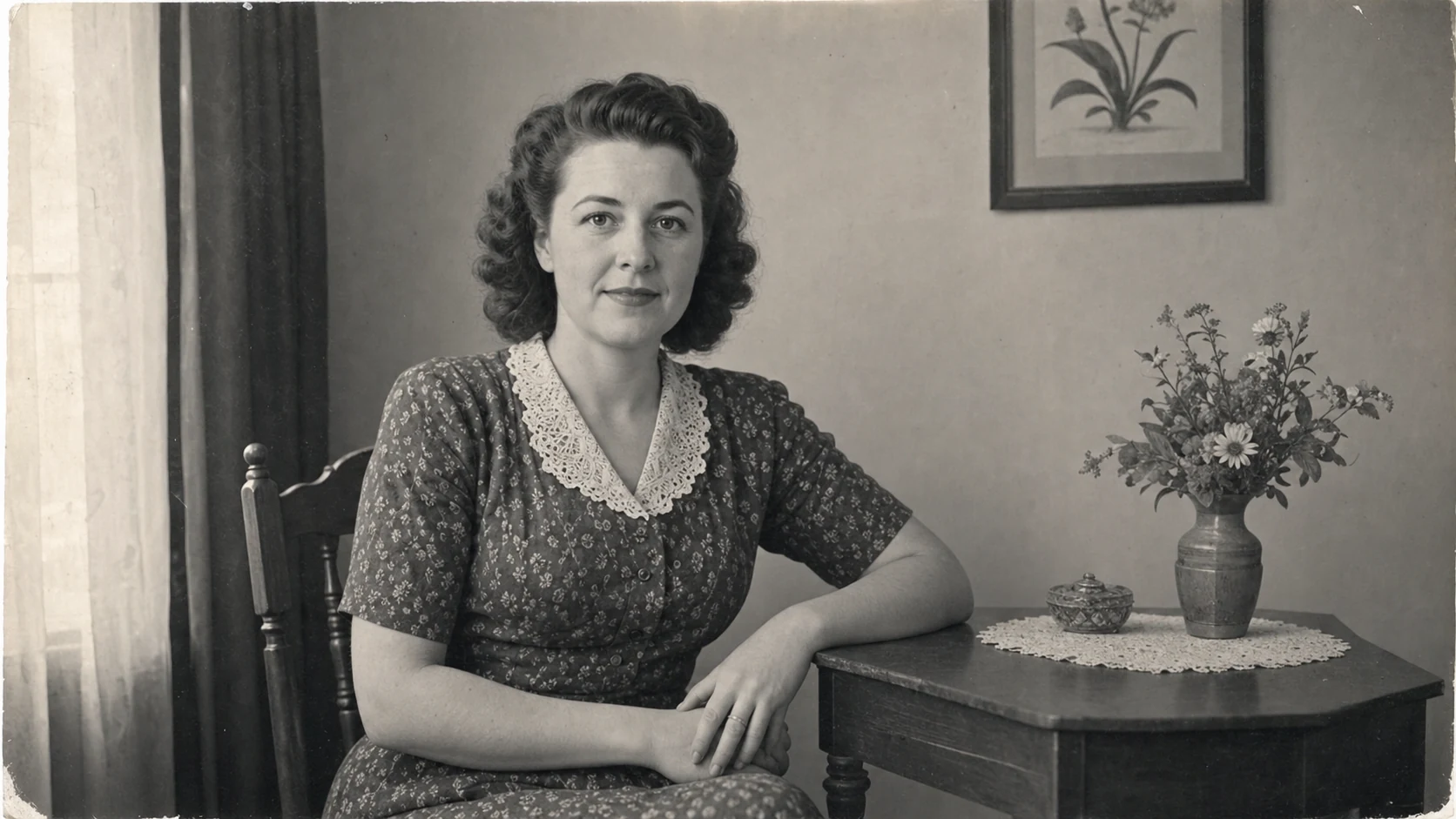
Safe fictional old portrait used as the animation input

2. Keep Motion Notes Small and Specific

A preservation-focused prompt is already applied. You may add a modest note, such as asking for especially gentle breathing or an almost still gaze, but avoid requesting dialogue, dancing, dramatic gestures, or a new scene. The safest instruction describes movement, not a new identity or story. NanoPic combines your note with constraints against mouth exaggeration, facial redesign, modernized clothes, colorization, heavy restoration, and sweeping camera motion.

Preview frame showing restrained motion and preserved old photo styling

3. Generate, Review, and Download the Five-Second Clip

Select the sample or upload your image, then start the generation. The template uses an existing image-to-video route configured for five seconds with sound disabled. Review the finished clip for facial consistency, period details, and comfortable motion before sharing it. AI video is probabilistic, so regenerate only when a result changes identity, invents a gesture, or departs from the source. Download a satisfactory clip rather than depending on a temporary task preview.

Downloaded five-second old photo animation preview

Which Old Photos Work Best?

The model can interpret many archive images, but source quality still shapes the stability of the animation.

Portraits with a Visible Face

Studio portraits, school photographs, wedding pictures, and seated family portraits are strong candidates when the eyes, mouth, jawline, and hair silhouette are visible. A calm expression and front-facing or gentle three-quarter angle usually support the restrained blink-and-breathe motion this template requests.

Scans with Useful Detail

Moderate grain, fading, and small scratches can remain part of the image's character. Extremely low resolution, deep creases across the eyes, severe blur, missing facial areas, or reflected glass may cause unstable details. Scan the print flat when possible, and crop distracting scanner borders only if they are not meaningful parts of the artifact.

One Main Subject or a Small, Clear Group

The template is optimized around a clearly framed portrait. A small group may work, but every additional face gives the video model more temporal details to maintain. For an important group photograph, consider starting with a crop of one or two people and compare the result with the uncropped original before choosing what to share.

Identity Fidelity, Consent, and Privacy

Old photographs can carry personal and historical meaning. Treat the generated clip as sensitive creative media, not as verified documentary footage.

Preservation Is a Prompt Goal, Not a Guarantee

The template repeatedly asks the model to preserve identity, age, wardrobe, photographic era, texture, and composition. Those constraints reduce unwanted changes, but no generative model can guarantee frame-perfect identity. Inspect the eyes, mouth, face outline, hands, clothing, and background in every result. Do not publish a clip that materially changes the person or creates a misleading action.

Use Images You May Legitimately Process

Upload only photographs you own, that are in the public domain, or that you have permission to animate. Consider the wishes of living relatives and the dignity of deceased subjects. Do not use the tool to impersonate a person, fabricate testimony, create deceptive evidence, or suggest that an imagined movement is an authentic recording.

Protect Sensitive Family Material

Avoid uploading documents, addresses, medical information, military identifiers, or other private details that happen to appear beside a portrait. Crop unnecessary sensitive areas from a working copy first. Keep your original scan offline, download the generated video when ready, and share it only with an audience appropriate for the photograph and your family's consent expectations.

Thoughtful Ways to Use an Old Photo Animation

A quiet five-second clip can add emotional context without turning an archive image into a spectacle.

Family History Presentations

Place a restrained clip between still photographs in a private family-history slideshow. Keep the original date, names, and source notes beside it, and label the motion as AI-generated so viewers understand which part is an interpretation.

Memorial and Anniversary Tributes

Use a gentle animation as a brief visual pause in a memorial, birthday, or anniversary montage when the family considers it appropriate. Silent output lets you choose respectful music or narration separately instead of inventing a voice for the person.

Museum and Classroom Storytelling

Educators and local-history groups can use clearly disclosed animation to invite attention to clothing, setting, and portrait conventions. Pair the clip with the untouched scan and reliable historical context; never present generated motion as newly discovered archival film.

Animate Old Photos FAQ

Practical answers about motion, source images, privacy, and the five-second video workflow.

How does NanoPic animate old photos?

NanoPic sends one uploaded image plus a preservation-focused motion prompt to an image-to-video model. The template requests blinking, breathing, a tiny head adjustment, and a slow restrained push-in while instructing the model to keep identity, age, clothing, texture, background, and framing close to the photograph.

Can I animate an old photo for free?

You can open and configure the old photo animator for free. Video generation uses NanoPic credits, and the exact required balance is shown before you create the five-second clip. Any promotional or earned credits available to your account can be used toward generation.

Will the tool make the person talk or sing?

No. This template specifically rejects speech, singing, lip-sync, and exaggerated mouth movement. It also requests silent output. The goal is a quiet visual memory, not a talking-photo simulation.

Does it colorize or restore the photograph?

No. The default instructions preserve the photograph's original monochrome or color treatment and discourage restorative redraw. If you need restoration or colorization, make a separate working copy and use a dedicated process before deciding whether to animate that version.

How long is the generated old photo video?

The template is fixed to a five-second clip with sound disabled. This duration is long enough for subtle motion to register and short enough to discourage large gestures, unnecessary scene changes, and higher generation cost.

Can I animate a group photograph?

You can try a clear group image, but a single main portrait or small group is usually more stable because the model has fewer faces to preserve across frames. Review each face carefully and consider testing a crop before animating the full scene.

Is the generated motion historically authentic?

No. The motion is an AI interpretation derived from the pixels and prompt. It is not evidence of how the subject moved, behaved, sounded, or felt. Label it as AI-generated when context could otherwise be confusing.

What should I do if the face changes?

Do not share that result as a faithful family keepsake. Try a clearer scan, crop around the subject without cutting off the head, remove any extra custom motion note, and generate again. Always compare the clip directly with the untouched original.

Animate an Old Photo Free Online

Choose a photograph you are permitted to use, keep the default preservation prompt, and create a silent five-second clip. Review identity and period details carefully before you download or share the result.