









































Save up to 73% on plans

Hotpot AI Alternative for Reference Image Editing
Sign In

Hotpot AI Alternative for Reference Image Editing

NanoPic is an independent Hotpot AI alternative powered by Seedream 5.0, with no Hotpot model connection or affiliation. Upload your reference, describe an edit, and review the generated result.

Upload your reference*

239 / 1,000

Copy Protection
Public VisibilityAllow this result to appear in public inspiration surfaces.

Hotpot AI Alternative for Reference Image Editing

Image

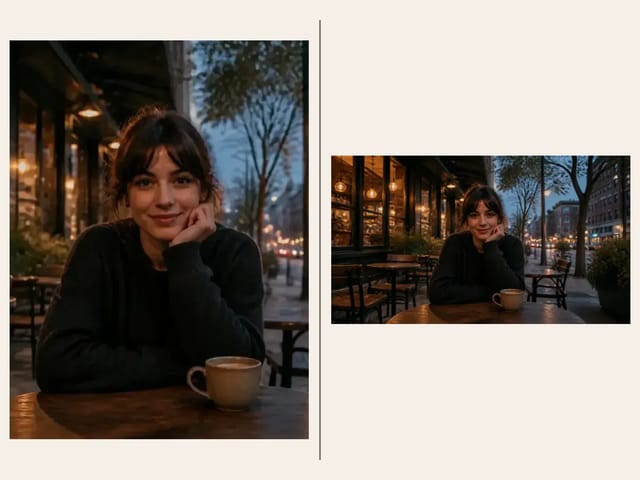
AI output preview
Input
AI output preview
Output

More AI Image Models & Effects

Browse every other AI image model and effect published on this site in a continuous carousel.

Actual Inputs and Result

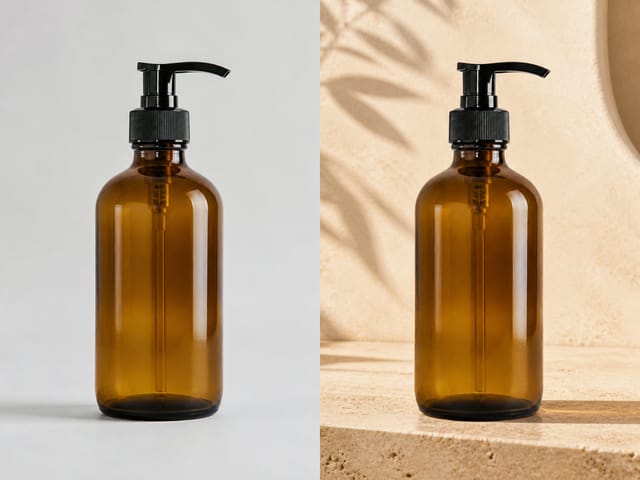
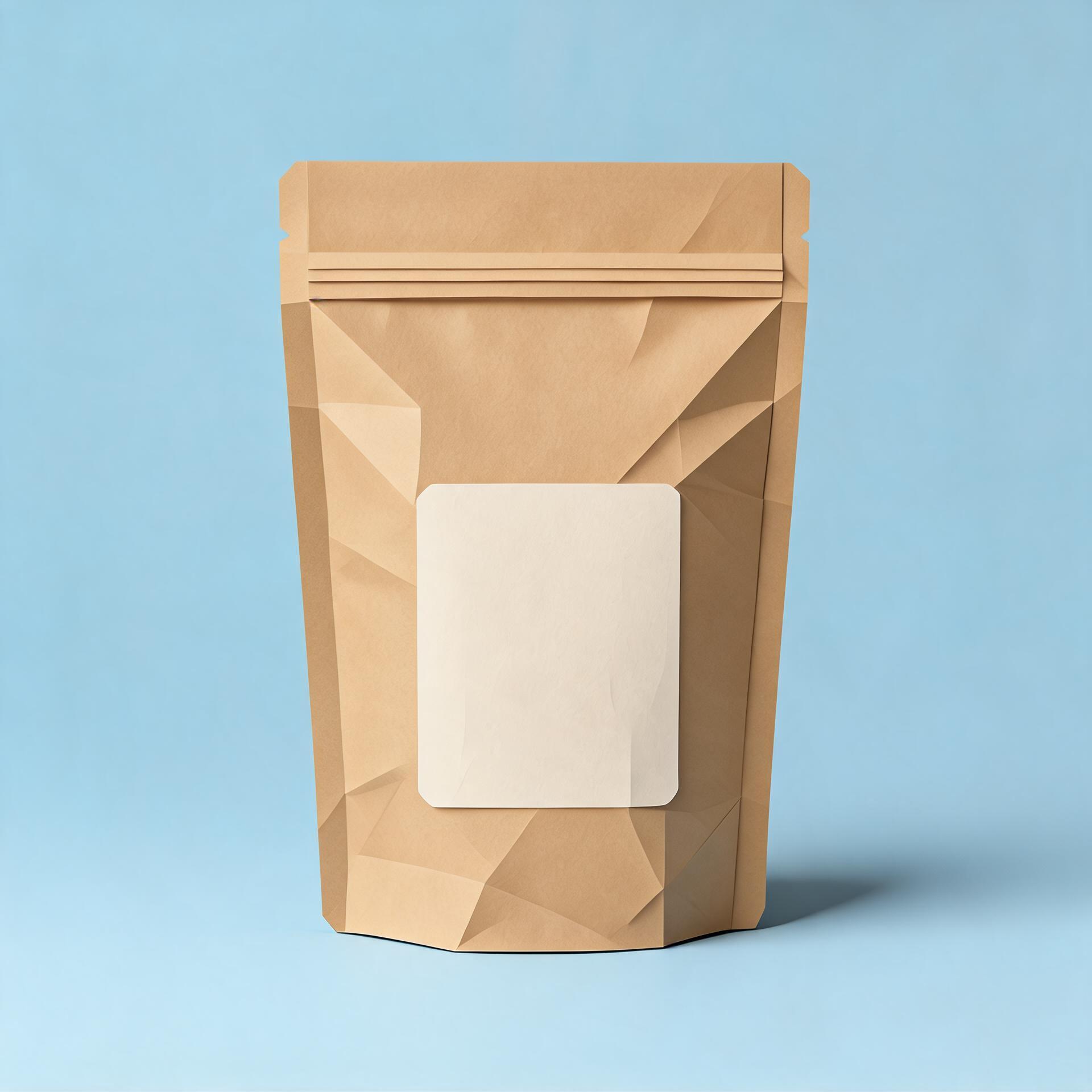
A coffee pouch reimagined in paper

NanoPic’s Seedream 5.0 editing workflow turns the pouch reference into a layered paper illustration with blue and amber colors. Compare the silhouette and label area. This is a creative reinterpretation, not a guarantee of unchanged product dimensions or print details.
A coffee pouch reimagined in paper

Choose an image workflow by the job you need done

Hotpot AI is a brand-oriented search, and visitors may be looking for the official service or comparing creative tools. This is NanoPic’s independent workflow page with a usable reference-image editor. NanoPic is not affiliated with Hotpot, and this page should not be mistaken for the official Hotpot service.

Start from a concrete deliverable

Decide whether you need a new illustration, a variation on a reference, a different visual treatment, or a technical file operation. Those jobs can require different tools even when they all involve an image. The editor above is for generative reinterpretation from your authorized reference and written direction. It is not a promise that every feature associated with another creative platform is available here. Use the actual controls and the resulting image to judge whether this workflow fits your task.

Use the reference editor on this page

Upload one image you have permission to transform, then describe the result you want. The default direction explores an editorial illustration with a restrained palette and paper-like texture, but you can edit that brief. Keep the main subject and composition requirements explicit. A generative edit can change details beyond the requested style, so review the result before treating it as finished artwork. The generator is a practical way to test a visual idea rather than a complete design suite.

Separate brand discovery from tool choice

If your intention is to access the official Hotpot account, product, or documentation, use the official service through your trusted source. This NanoPic page cannot manage that account or reproduce its settings. If your intention is to compare ways of making an image, begin with a representative task and assess the output against your requirements. That distinction avoids confusing a brand name with a particular model, feature set, or guarantee of equivalent results.

Turn a vague creative goal into a usable brief

The most useful prompt explains subject, treatment, composition, and constraints in ordinary language. It gives you something specific to check after generation.

Name the subject and the desired change

Describe what should remain recognizable and what should be reinterpreted. For example, keep the teapot and cup from the reference but render them as layered paper shapes in blue and amber. This is clearer than asking for a professional image without describing the work. If a particular object must stay unchanged, say so, while remembering that generative editing is not pixel-locked. For exact object preservation, a manual editor may be the better choice.

Set a restrained visual direction

Choose one principal style and a limited palette. A request that combines photorealism, watercolor, clay, neon, and paper texture can produce a visually confused result. Decide which treatment serves the final use, then use secondary details sparingly. For an editorial illustration, a clear focal subject and generous negative space may matter more than decorative complexity. Evaluate the result in that context instead of comparing it with an unrelated example from another service.

Explain the layout in visual terms

Specify whether the subject should be centered, placed to one side, or surrounded by open space. If you plan to add a headline in a design application, reserve that space in the prompt instead of asking the image to render a long paragraph. Check that important features are not cut off at the chosen ratio. The tool generates an image rather than editable layout layers, so plan typography and final composition work separately when precision matters.

Use the right starting image

A reference communicates information that is difficult to describe with text alone, but a poor reference can also introduce ambiguity. Choose a source that supports the actual change you want.

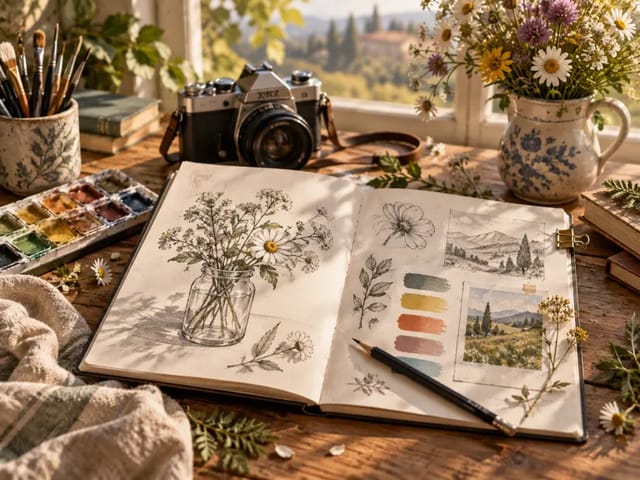
A still life for style exploration

A simple arrangement of a few objects makes it easier to compare texture, palette, and lighting. Use clear boundaries and avoid a cluttered background unless the scene itself is part of the brief. After generation, check whether the object count and relative sizes remain sensible. A beautiful new arrangement may be unsuitable if your project depends on the source composition. Keep the original beside the output while reviewing instead of relying on memory.

A sketch for concept development

An original sketch can establish placement and shape while leaving room for a new rendering treatment. Describe which parts are intentional and which are only rough placeholders. If the sketch includes handwritten labels, do not assume the model will reproduce them accurately. Add final text in a design tool where you can control spelling and alignment. Review the generated contours against the sketch, especially when a distinctive silhouette is central to the idea.

A product reference for a draft

Use a product image you are authorized to process and identify details that matter, such as the shape of a handle or the placement of a seam. Generative editing may alter logos, labels, dimensions, or material details. Treat the result as a creative draft until those elements have been checked. For a factual product listing, exact packaging or regulated text should come from verified source assets rather than being trusted to an image-generation pass.

Compare creative tools with the same small task

A fair comparison uses a consistent brief and a clear acceptance standard. A brand name alone does not tell you whether a tool will produce the result you need.

Keep the reference and goal stable

Use the same authorized source and describe the same visual objective when evaluating more than one workflow. Record differences in accepted inputs, available controls, and the format of the result. Avoid drawing broad conclusions from one unusually strong or weak image. The practical question is whether the workflow reliably supports your own task, including the amount of review and cleanup required. Keep claims limited to what you actually observed.

Review the whole path to a usable file

Consider how easily you can supply a reference, edit the prompt, inspect the output, and download the accepted image. If the next step is a presentation or a website, place the result in that context. A striking preview can still fail because of cropping, unwanted text, or poor readability at small size. The useful comparison is the path to your deliverable rather than the number of advertised features on a landing page.

Distinguish generation from utilities

Changing a picture’s style is different from resizing its raster, preserving exact colors, removing a specific object with a precise mask, or managing a layered document. Do not assume one generator replaces all of those operations. NanoPic’s separate local resolution and film-color tools address narrower tasks with different behavior. Choose a dedicated operation when its predictable effect is what you need, and use generative editing when reinterpretation is part of the creative goal.

Review generated edits before publishing

The generator can produce useful creative directions, but the returned image needs the same attention you would give other draft artwork. Build review around the details that matter to the intended audience.

Check the main subject first

Look at silhouette, proportions, object count, and recognizable features before evaluating decorative polish. If a cup has gained a second handle or a person’s hand is malformed, a pleasing palette does not resolve the issue. Compare the result with the source at a useful size and identify specific changes. A targeted revision is easier to evaluate than a broad request to improve everything. Keep the accepted version clearly distinguished from unreviewed alternatives.

Inspect text and marks

Generated text can be misspelled, incomplete, or unrelated to the brief. Even when you request no text, inspect labels, signs, packaging, and background details. Remove or replace unwanted marks through an appropriate editing workflow. Do not assume a small preview proves the image is clean. If exact text matters, compose it afterward in a tool that gives you character-level control and then inspect the final exported file.

Check the intended display size

An image for a small social card has different requirements from a full-width presentation slide. Reduce the result to the expected size and verify the focal subject remains readable. Check the crop used by the destination rather than relying on the generator’s preview. If the image needs a different ratio, create a considered version for that layout. Stretching the same image into every slot can distort the subject and undermine otherwise useful work.

Keep an iterative workflow organized

A short record of the source, prompt, and accepted result makes later revisions easier. It also helps collaborators understand what has actually been tested.

Save the accepted output and brief

Download the image you intend to keep and retain your own reference. Record the art direction and the important visual constraints so you can revisit the concept later. Do not assume a future generation will reproduce the same result exactly. If the output is used in a client review, identify it as a generated draft and explain which details still need verification. This sets a clear basis for the next revision.

Move to specialized editing when necessary

Once the creative direction is chosen, an image editor or design application may be the most efficient place to make exact adjustments. Typography, measured spacing, masking, and final layout often benefit from direct control. Use the generated image as one part of that process. A practical workflow can combine a useful concept image with careful finishing instead of repeatedly generating new versions for a small change that is easier to make manually.

Questions before you create

Is this the official Hotpot AI website?

No. This is NanoPic’s independent page for exploring image-creation workflows. NanoPic is not affiliated with or endorsed by Hotpot. If you need the official service or an existing Hotpot account, access that service directly through a trusted source.

What can I do with the generator above?

You can upload an authorized reference image, write an editable visual direction, and request a generated reinterpretation. It is suitable for concept and style exploration. It does not imply that every tool or setting offered by another creative platform is available here.

Can I transfer my account or settings from another service?

This page does not import or manage a Hotpot account. Use your NanoPic workflow independently and enter your own reference and prompt. Do not paste passwords, account secrets, or private access tokens into an image prompt.

Will the result preserve every reference detail?

No. Generative editing can alter proportions, small objects, text, and other details. Review the output against the reference and use a manual or specialized editor when exact preservation is necessary. The source remains the factual reference for product details and identity.

Can I use the same prompt to compare services?

Yes, a consistent authorized reference and a clear brief can make a comparison more informative. Keep conclusions limited to the tasks and outputs you actually test. Different controls and models can make identical wording behave differently, so assess the final deliverable and required cleanup.

Does this page include every image utility?

No. The generator on this page focuses on reference-based creative editing. Use dedicated tools for predictable file resizing, color filtering, or exact layout work. Choosing a focused operation is often more useful than assuming one generative interface covers every image task.

What should I verify before sharing the output?

Inspect the full image for changed subject details, extra objects, unwanted text, cropping, and suitability for the intended use. Confirm your rights to the reference and keep an accepted file separate from draft variations. Review the image in the actual layout where it will be published.

Is the generator connected to a Hotpot model?

No. This independent NanoPic editor uses Seedream 5.0 and is not connected to a Hotpot model. Check the selected model before generating; NanoPic has no official Hotpot affiliation.

Start with your own reference

Choose one clear goal, then inspect the result.

Related tools