























































Invert Image Colors Online
Sign In

Invert Image Colors Online

Upload or drop one image to reverse its RGB color values immediately. The file stays in this browser, the transformation uses no AI credits, and the result downloads as a PNG.

Processed in your browserNo AI creditsPNG download

Drop a JPG, PNG, or WebP here

or choose a file from your device

Choose an image

JPG · PNG · WebP · up to 20 MB

Turn Any Supported Photo into a Color Negative

An image color inverter replaces each red, green, and blue channel value with its opposite on the 0–255 scale. Black becomes white, white becomes black, red becomes cyan, green becomes magenta, and blue becomes yellow. NanoPic performs that calculation on the pixels decoded by your browser. It does not send your uploaded file to an AI model, storage endpoint, or editing API. The original width, height, and transparent alpha values are kept in the exported canvas, while camera metadata and animation are not carried into the downloaded PNG.

Real Before and After Color Inversion Examples

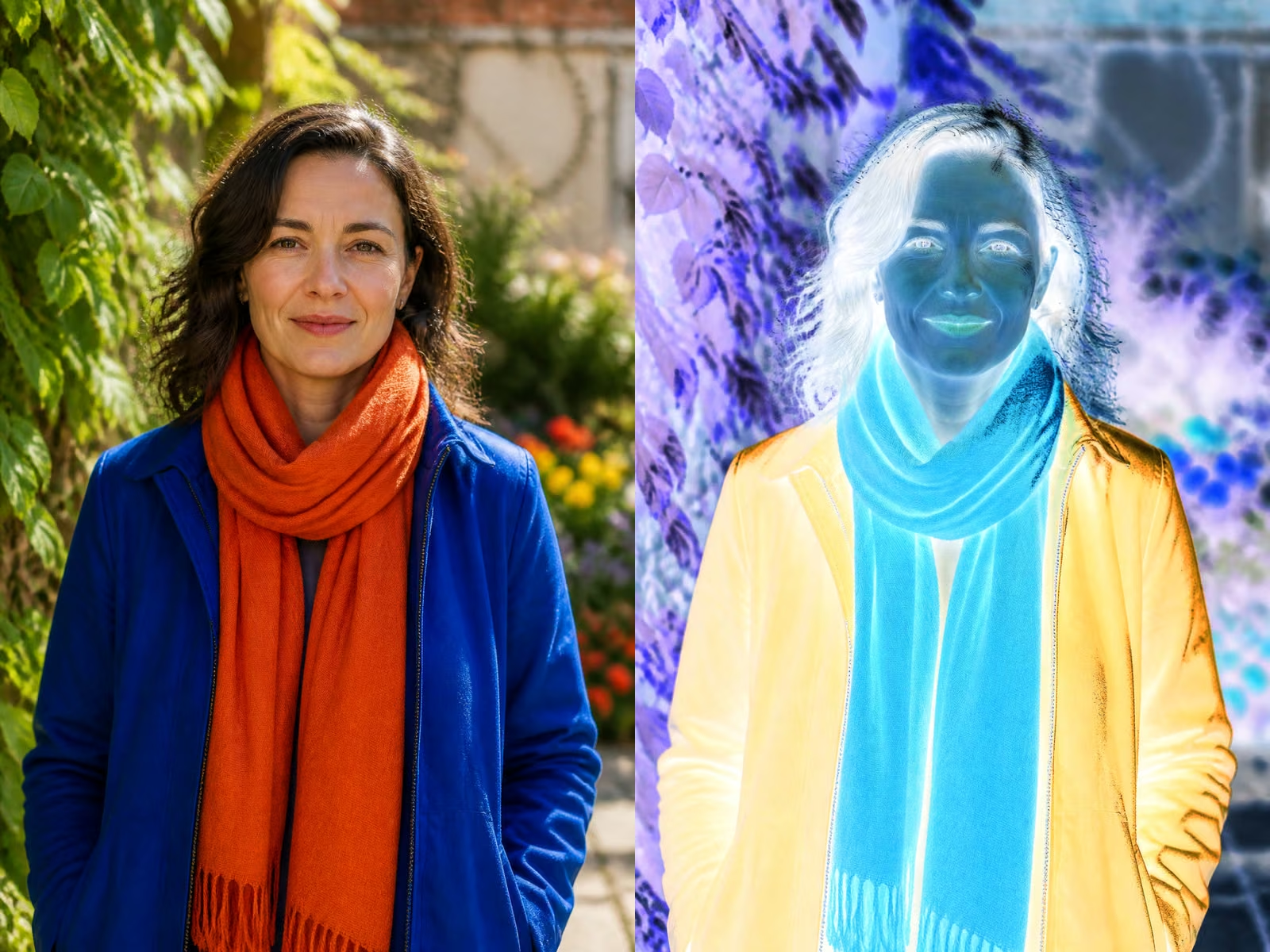
Each right-hand image below was made from the left-hand source with the same RGB inversion used by the tool above. The examples are not separately generated negative-style artwork.

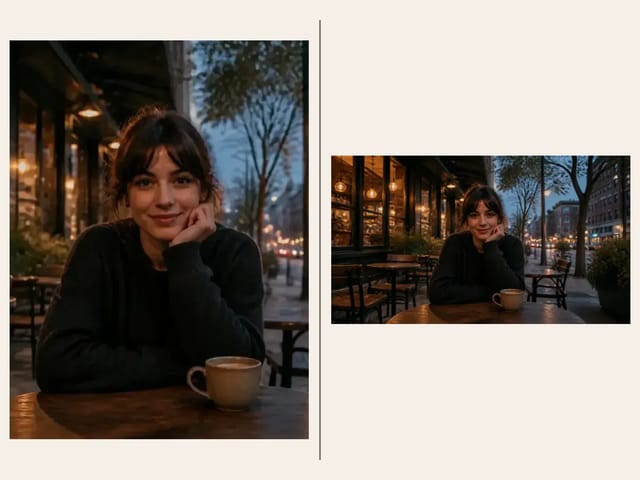
Portrait before and after inverting all RGB image colors

Portrait Color Negative

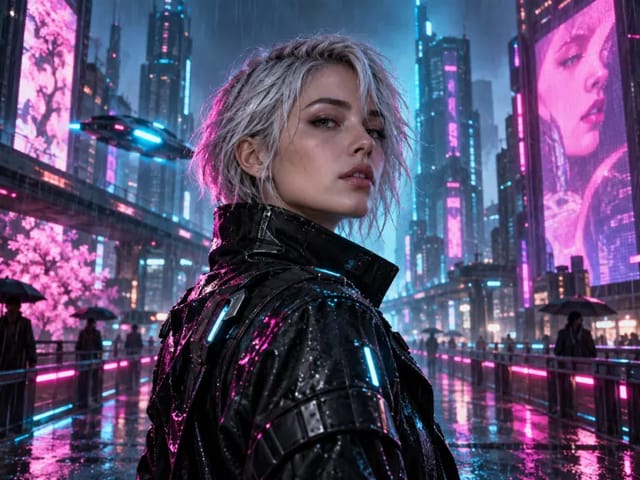
Blue fabric shifts toward yellow, orange moves toward cyan, green foliage turns magenta-purple, and skin tones become a photographic-negative palette. Shape, framing, and facial detail remain in the same pixel positions.

Invert Your Portrait

How to Invert Image Colors

The tool is deliberately short: choose one supported image, inspect the result, and save the PNG.

1. Upload or Drop One Image

Choose a JPG, JPEG, PNG, or WebP file up to 20 MB. The image may be no larger than 8,192 pixels on either side or 40 megapixels in total. Those limits keep browser memory use bounded, especially on phones. Animated GIF, animated WebP, HEIC, SVG, TIFF, RAW, and PDF files are not accepted by this focused tool.

2. Let the Browser Invert Every RGB Pixel

After the browser decodes the file, NanoPic draws it to an in-memory canvas. For each pixel, red becomes 255 minus red, green becomes 255 minus green, and blue becomes 255 minus blue. The alpha value is left unchanged, so transparent areas in supported PNG and WebP inputs remain transparent in the PNG result.

3. Download the Inverted PNG

Compare the original and inverted previews, confirm the displayed dimensions, then download. The export uses PNG so the transformed pixels and transparency do not receive another lossy JPEG encode. The new file does not contain the original EXIF, GPS, camera, copyright, or animation metadata.

What Inverting an Image Actually Changes

Color inversion is a deterministic channel transformation, not an AI interpretation and not the same as flipping or mirroring an image. Every decoded pixel keeps its location. The tool changes only its red, green, and blue values: R′ = 255 − R, G′ = 255 − G, and B′ = 255 − B. A mid-gray value near 128 remains close to mid-gray because it is near the center of the range. Very dark areas become very light, warm orange often becomes blue-cyan, and saturated green becomes magenta. Applying the same ideal inversion twice returns the original RGB values, although downloading and reopening formats that use lossy compression can introduce small differences. NanoPic exports PNG to avoid adding a second lossy compression step. This operation does not understand people, objects, lighting intent, accessibility needs, film chemistry, printing conditions, medical scans, or scientific measurements. It simply transforms color channels. Use a specialist workflow when calibration, diagnostic interpretation, color-managed print production, or archival fidelity matters.

Useful Ways to Apply an Image Color Inverter

A negative image can be practical, expressive, or diagnostic for ordinary design work, provided the result is not mistaken for calibrated analysis.

Create a Photographic Negative Effect

Reverse a portrait, landscape, product still life, poster, or digital illustration for a familiar negative appearance. The effect can reveal a different balance of highlights and shadows without changing the composition. It is a digital RGB negative, not a simulation of a specific film stock or darkroom process.

Explore Complementary Color Relationships

Use the output to observe common channel opposites: red and cyan, green and magenta, blue and yellow, black and white. Complex real colors contain several channel values, so their inverted counterpart may be less obvious than a textbook color-wheel label.

Prepare Creative Layers and Textures

Invert a scan, texture, light leak, ink mark, or abstract background before placing it in a layered design application. Because NanoPic downloads one flattened PNG, further blending, masking, typography, and print preparation should be completed in the editor that owns the final composition.

Make Light and Dark Structures Easier to Compare

Some users find a negative view helpful when checking edges, tonal clusters, dust, or contrast in ordinary creative images. This is a visual inspection aid only. It is not validated for medical imaging, microscopy, forensic evidence, accessibility diagnosis, or other high-stakes interpretation.

Browser-Local Processing and File Privacy

Your selected image is read through the browser File API and converted on an in-memory canvas in the current tab. The component does not call NanoPic upload, storage, AI generation, task, account, or credits endpoints. Preview URLs are temporary browser object URLs and are revoked when you replace the image, clear the tool, or leave the page. The downloaded PNG is created locally and saved only when you choose the download button. As with any website, the page itself still loads normal site code, fonts, images, and analytics according to NanoPic's published privacy policy; the statement here is specifically about the image file you select for this tool. Do not process a file on a device or browser profile you do not trust.

Related NanoPic Image Tools

Choose a neighboring workflow when you need a generative edit rather than a mathematical RGB inversion.

Photo Colorizer

Add plausible color to a black-and-white or faded photo with a credit-based generative workflow.

Open Photo Colorizer

Change Background Color of Photo

Replace only the background color while asking the image model to preserve the foreground subject.

Open Background Tool

AI Image Reimagine

Restyle a reference image when you want a new visual interpretation instead of fixed per-pixel inversion.

Open Image Reimagine

Edit Text in Image

Replace visible words in a flattened image with an AI-assisted image editing workflow.

Open Text Editor

Invert Image Colors FAQ

Accurate answers about files, privacy, color math, transparency, downloads, and tool limits.

How do I invert an image online?

Use the tool at the top of this page. Drop or choose one JPG, JPEG, PNG, or WebP image, wait for the browser to show the original and inverted previews, then download the PNG. No prompt, account, or AI generation step is involved.

Does NanoPic upload my image to invert its colors?

No. The selected file is decoded and processed in the current browser tab with the File API and an in-memory canvas. This component does not call NanoPic upload, storage, AI, task, login, or credits endpoints. The page itself still loads ordinary site resources and analytics under the published privacy policy.

Which image formats are supported?

Inputs are JPG/JPEG, PNG, and static WebP up to 20 MB, 8,192 pixels on either side, and 40 megapixels total. The download is PNG. Animated GIF, animated WebP, HEIC, SVG, TIFF, RAW, PDF, layered documents, and video are not supported here.

Does inverting an image use NanoPic AI credits?

No. This page uses a deterministic client-side canvas operation and does not create an AI task, so it does not consume NanoPic AI credits. The related generative editing tools linked farther down the page have their own displayed credit costs.

What happens to transparent backgrounds?

The algorithm changes red, green, and blue but leaves each pixel's alpha value unchanged. Transparent and partially transparent regions from a supported PNG or static WebP therefore remain transparent in the PNG download. Invisible RGB values under fully transparent pixels may still be numerically inverted, but they remain invisible while alpha is zero.

Will the output keep the original size and metadata?

It keeps the browser-decoded width and height. It does not preserve EXIF, GPS, camera, orientation, copyright, ICC, animation, or other original metadata in the new PNG. Modern browsers usually apply encoded orientation when decoding, so the displayed canvas dimensions may reflect that corrected orientation.

Is color inversion the same as flipping or mirroring an image?

No. Flipping changes pixel positions horizontally or vertically. Inversion leaves every pixel in place and changes its channel values to 255 minus red, green, and blue. If your search for invert image meant mirror or rotate, use an image transform tool instead.

Can I invert the image again to get the original back?

For the ideal RGB values, applying the same inversion twice returns the starting values. However, an uploaded JPG was already compressed, color management can vary by browser, and any later lossy conversion can introduce differences. Keep the original file rather than treating a twice-inverted export as an archival restore.

Can I use this for medical, scientific, or forensic images?

The tool can reverse RGB values, but it is not calibrated, validated, or designed for diagnosis, measurement, microscopy, evidence processing, or scientific interpretation. Use approved specialist software and procedures for high-stakes imagery.

Invert Your Image Colors Now

Return to the browser-local tool, choose a supported image, compare the true RGB negative, and download the PNG without creating an AI task.