





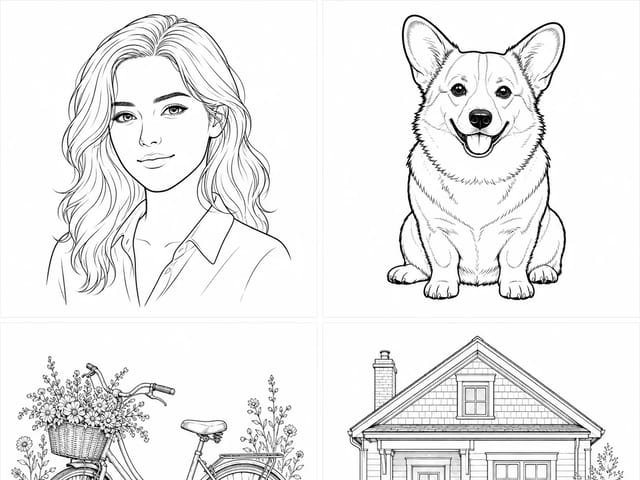
Free ai sticker maker from photos
Sign In

Free ai sticker maker from photos

Upload one clear photo to create a complete sticker-style image with an editable prompt, simple background, and crisp white contour. Eligible new accounts receive limited welcome credits, so they can start without buying credits; each generation uses the live credit amount shown. Images generated entirely with free credits include a NanoPic watermark, while purchased-credit generations do not. This page does not promise a transparent background.

Pick one tested look, then name the colors, features, props, or edges that must stay recognizable.

Upload a Photo*
Try a Sample Photo

272 / 600

Public Visibility
Copy Protection
Credits required:-

Free ai sticker maker from photos

Image

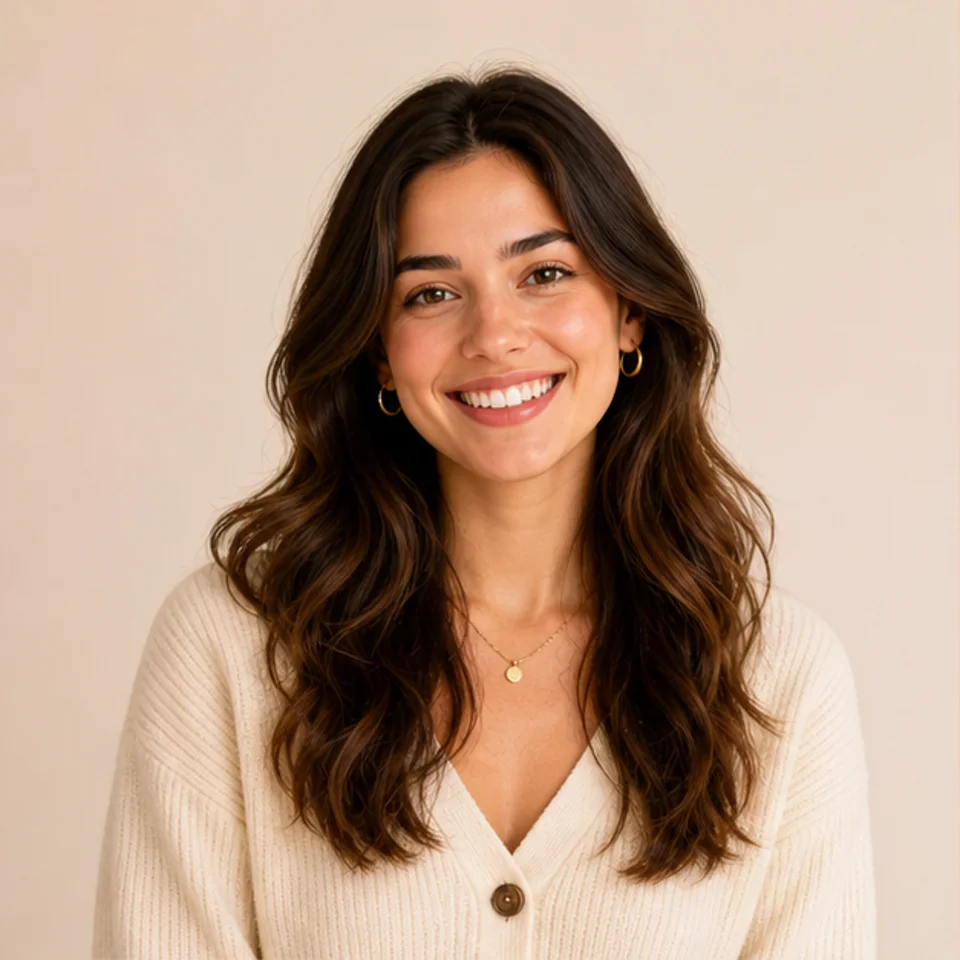
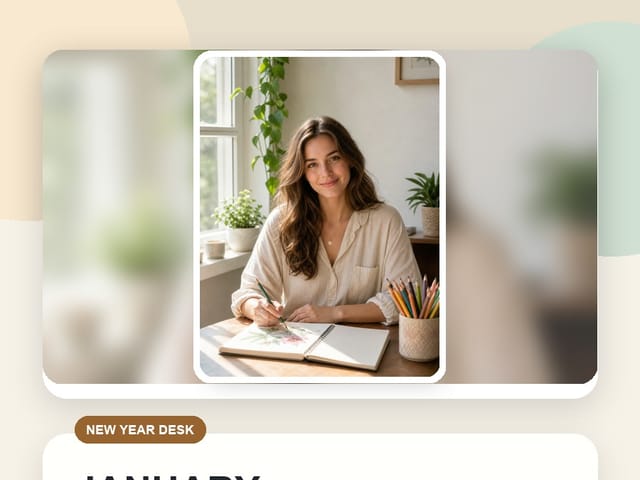
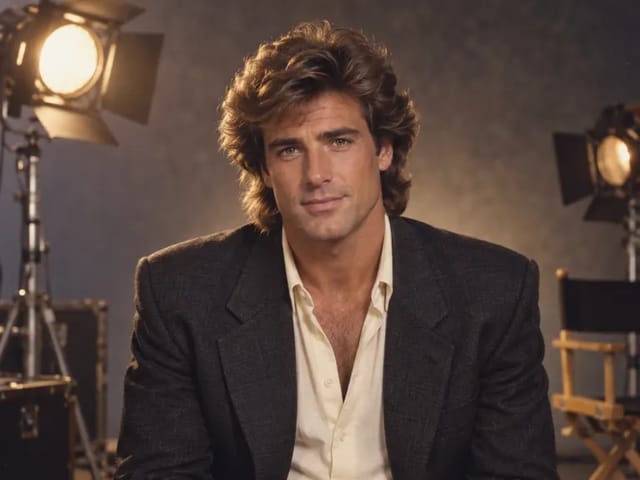
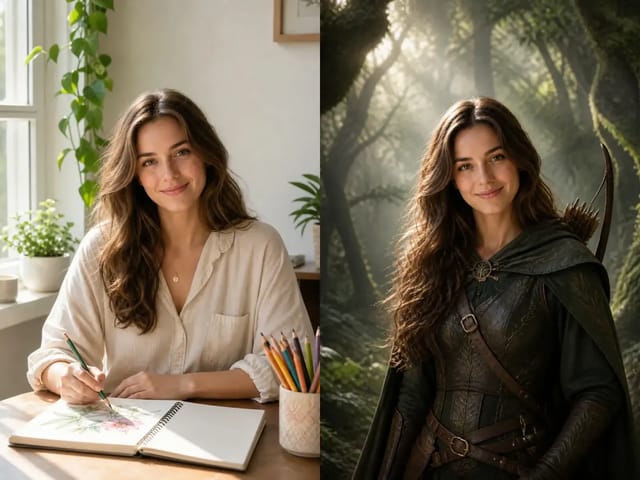
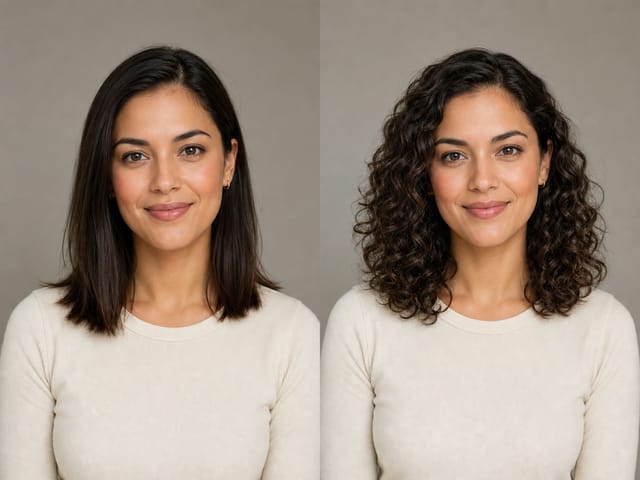
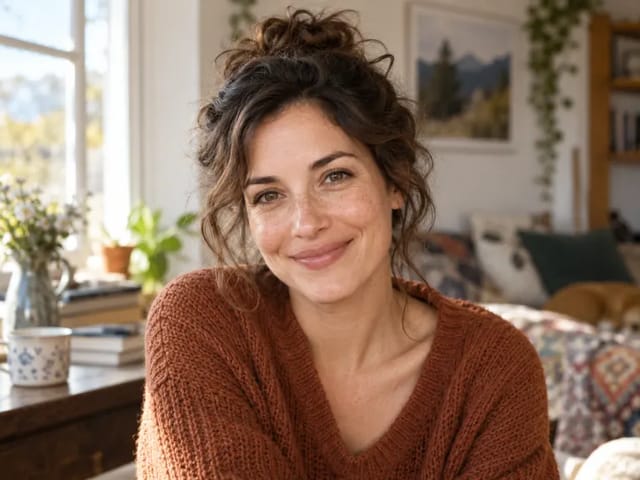
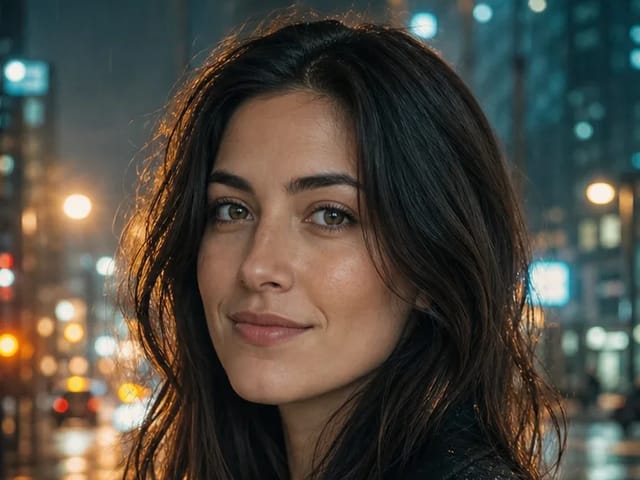
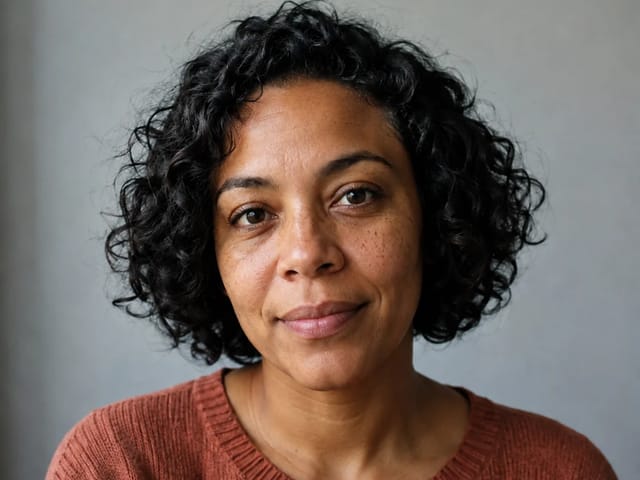
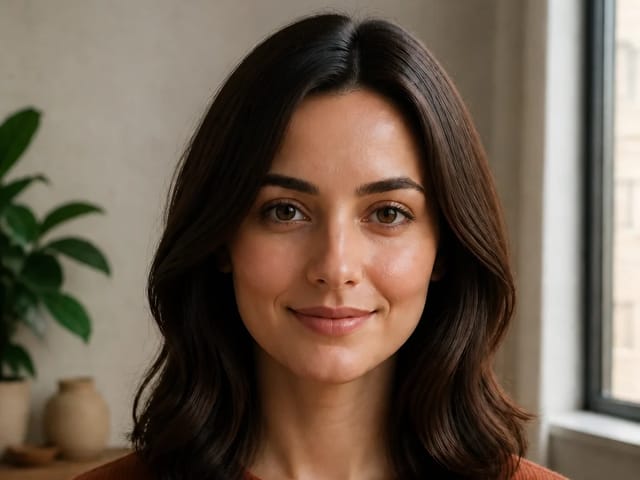
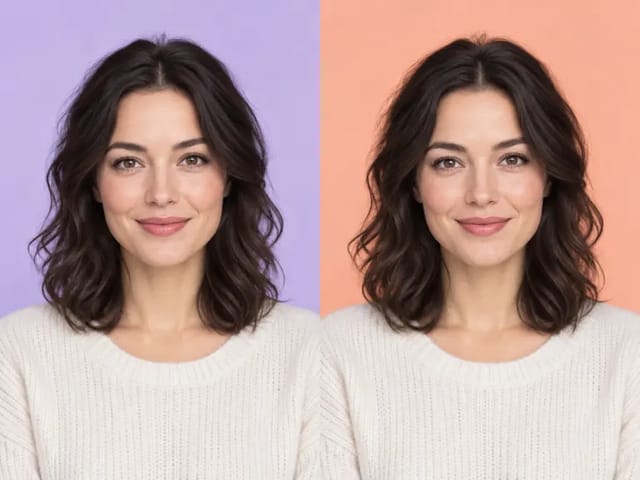
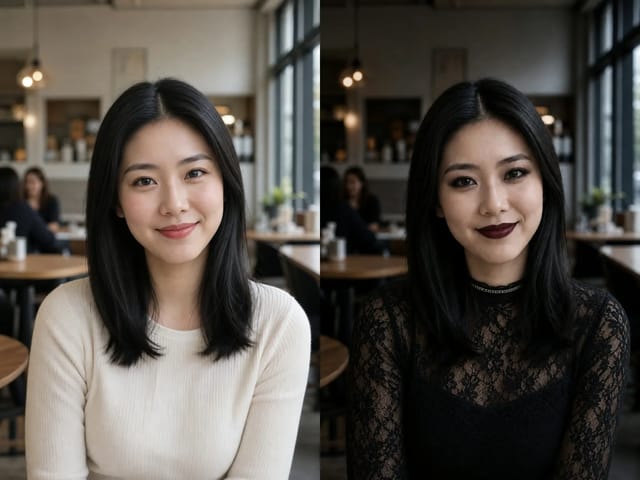
Fictional adult portrait before using the AI sticker maker
Photo
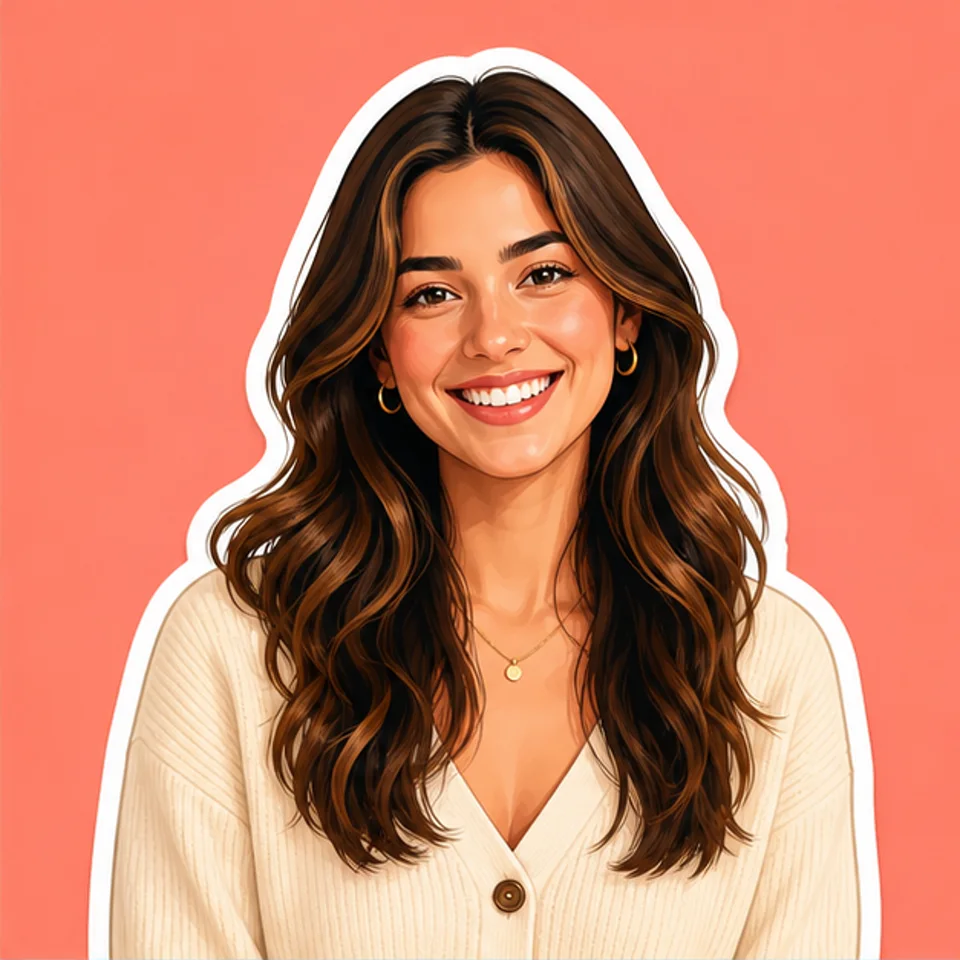
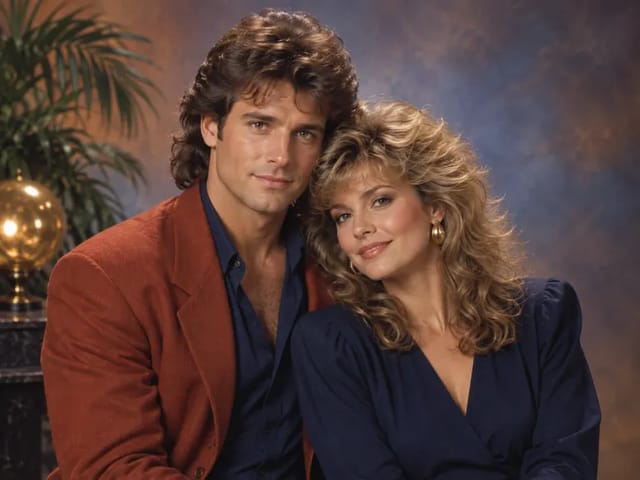
Recognizable fictional adult portrait rendered as a bold sticker illustration
Sticker

Turn One Clear Photo into a Focused Sticker Image

A useful photo sticker keeps the subject readable before it adds style. NanoPic starts from the uploaded image, so the prompt can protect a face, pet markings, product silhouette, pose, color, clothing, or prop instead of inventing an unrelated design from scratch. The selected preset then defines the rendering language: illustrated portrait, cute pet, clean comic, or retro product. Every direction asks for the complete subject, a clear white border, a simple opaque background, and uncluttered edges that still read at thumbnail size. This is a generative transformation rather than deterministic masking. Small features, hands, text, logos, fur, product geometry, and background details can change, so compare the result with the source at full size. NanoPic currently returns the generated image produced by the selected model; it does not verify an alpha channel or guarantee a transparent background on this page.

Original Photo-to-Sticker Examples

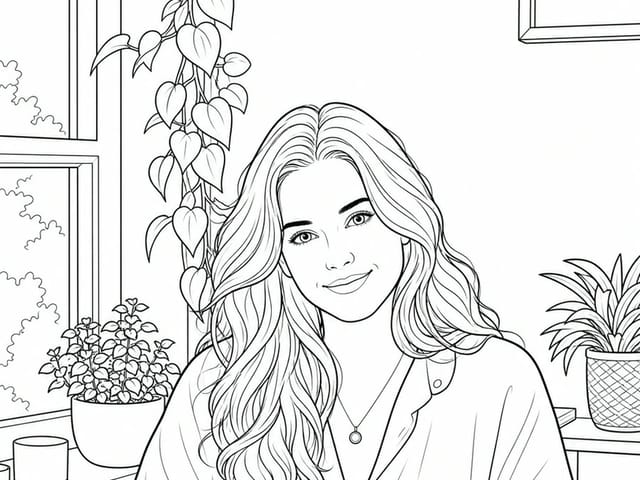
These original page assets were generated and cropped for the exact 1:1 generator preview, 4:5 style card, and 4:3 comparison slots. The pairs show the intended visual change without relying on copied competitor artwork.

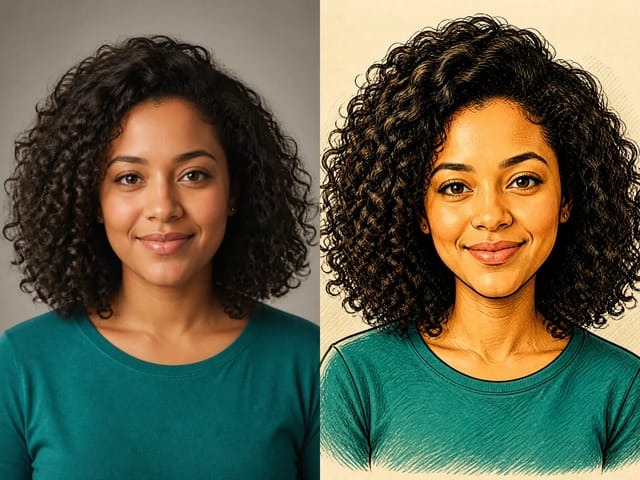
Portrait Sticker with a Complete Head

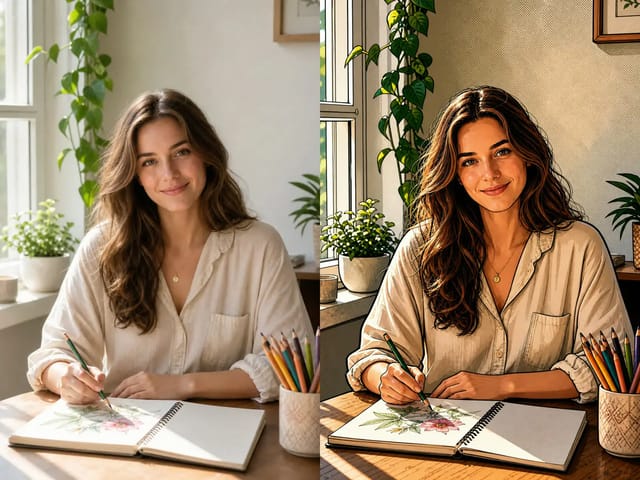
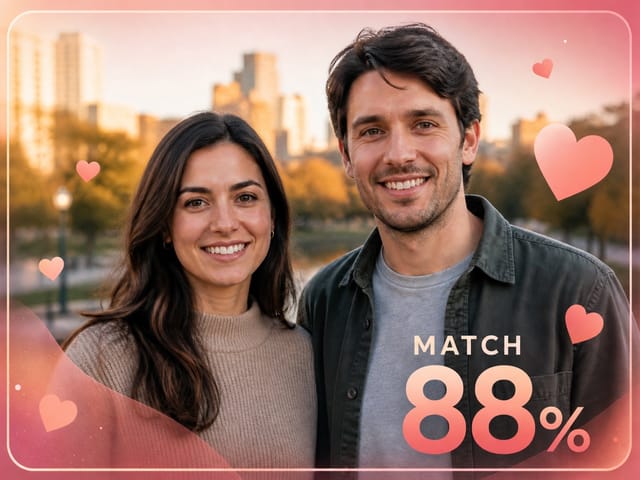
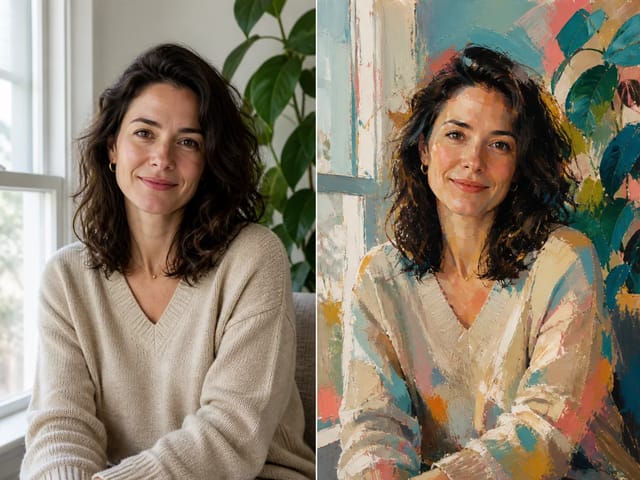
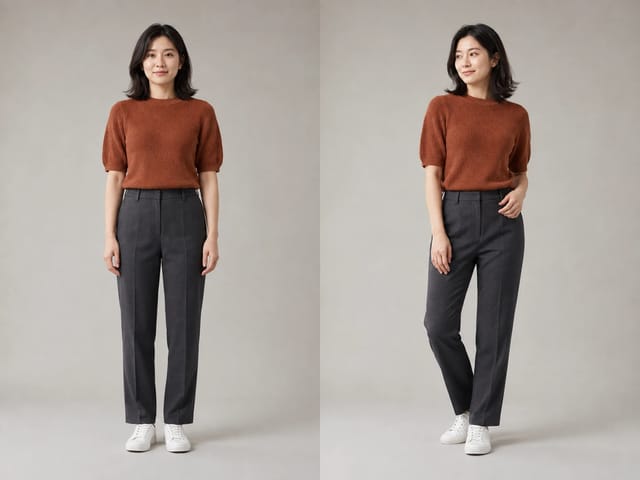
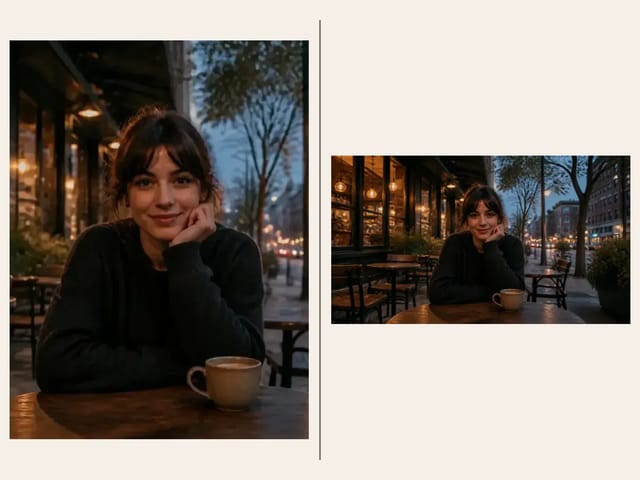
The source keeps the fictional adult's full hair, shoulders, expression, cardigan, and jewelry in view. The sticker version simplifies the rendering into warm illustrated color while retaining those recognizable anchors. A thick white contour separates the person from the coral background, but the background remains an ordinary visible part of the generated image. For your portrait, leave breathing room around hair, hats, hands, and shoulders and name any glasses, jewelry, or clothing color that should stay.

Try the Portrait Sample
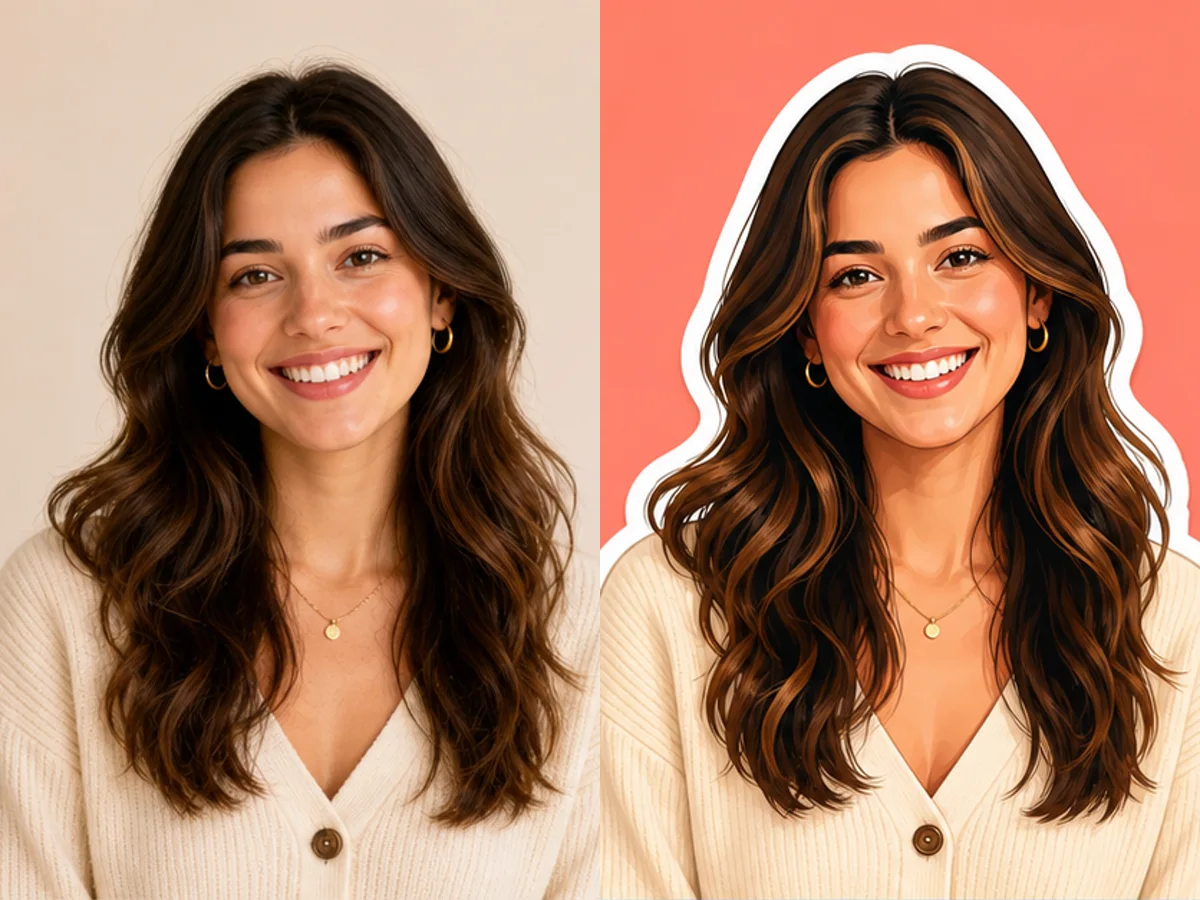
Fictional portrait before and after a bold AI sticker transformation

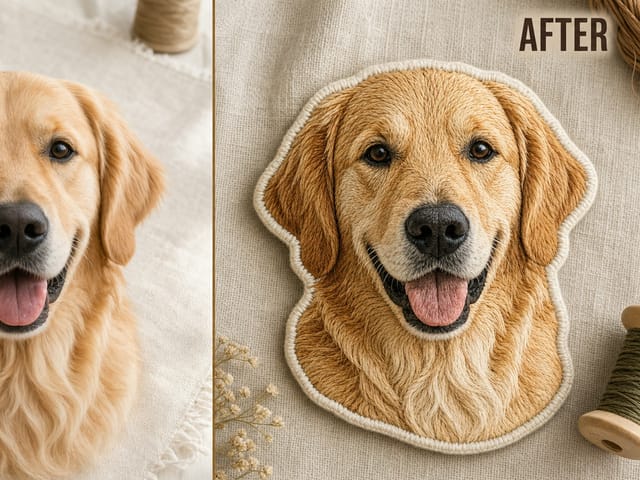
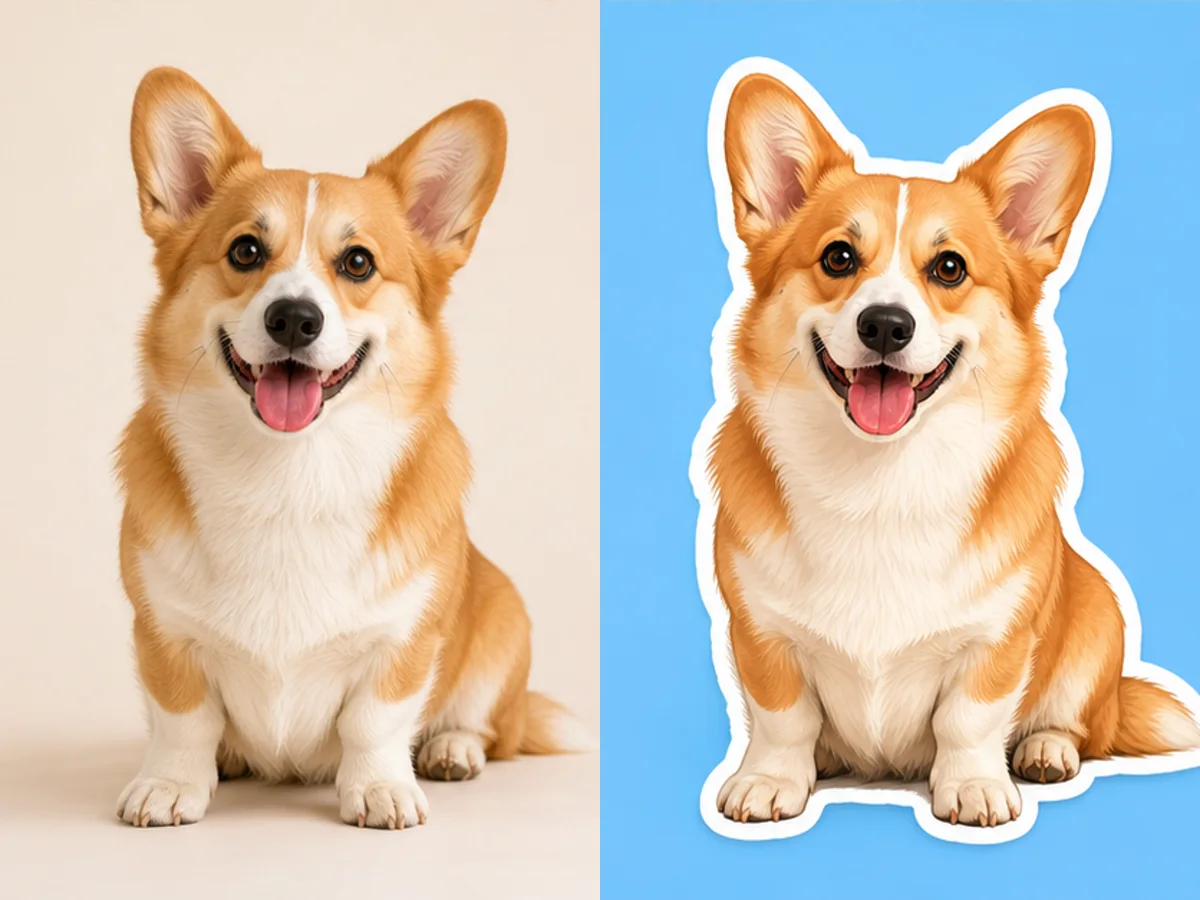
Pet Sticker with Readable Ears and Paws

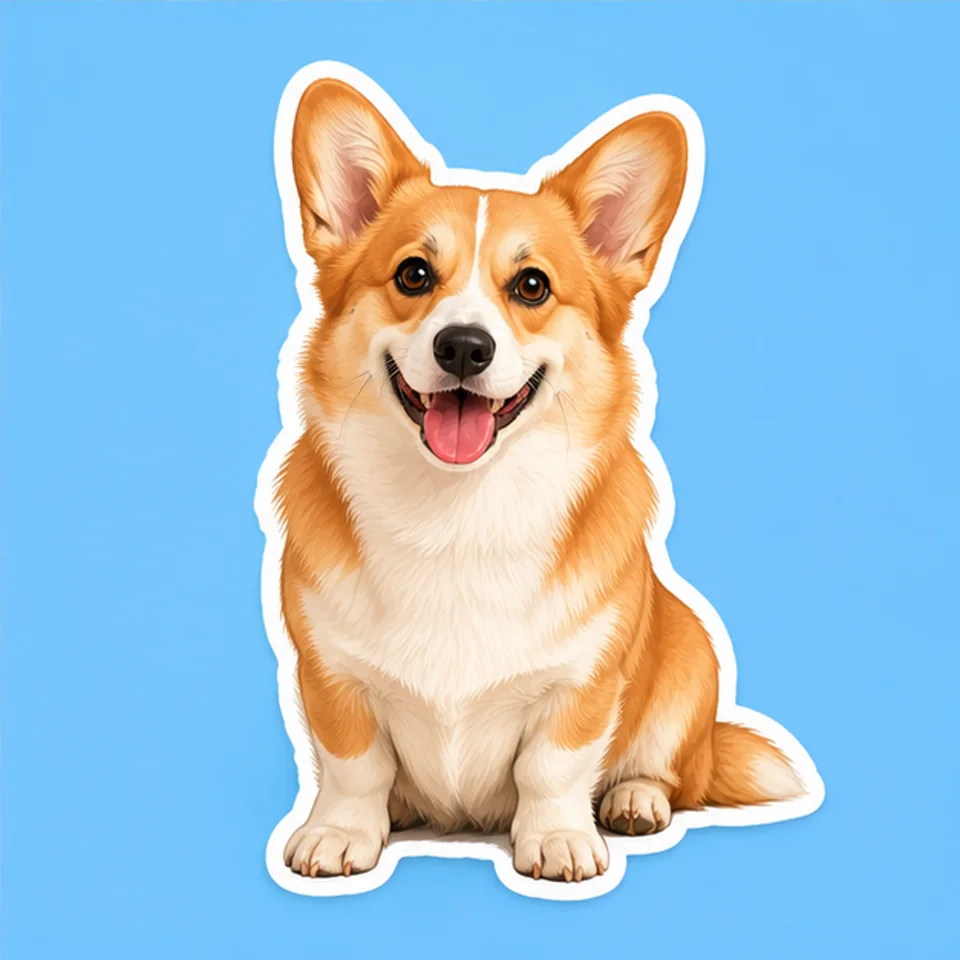
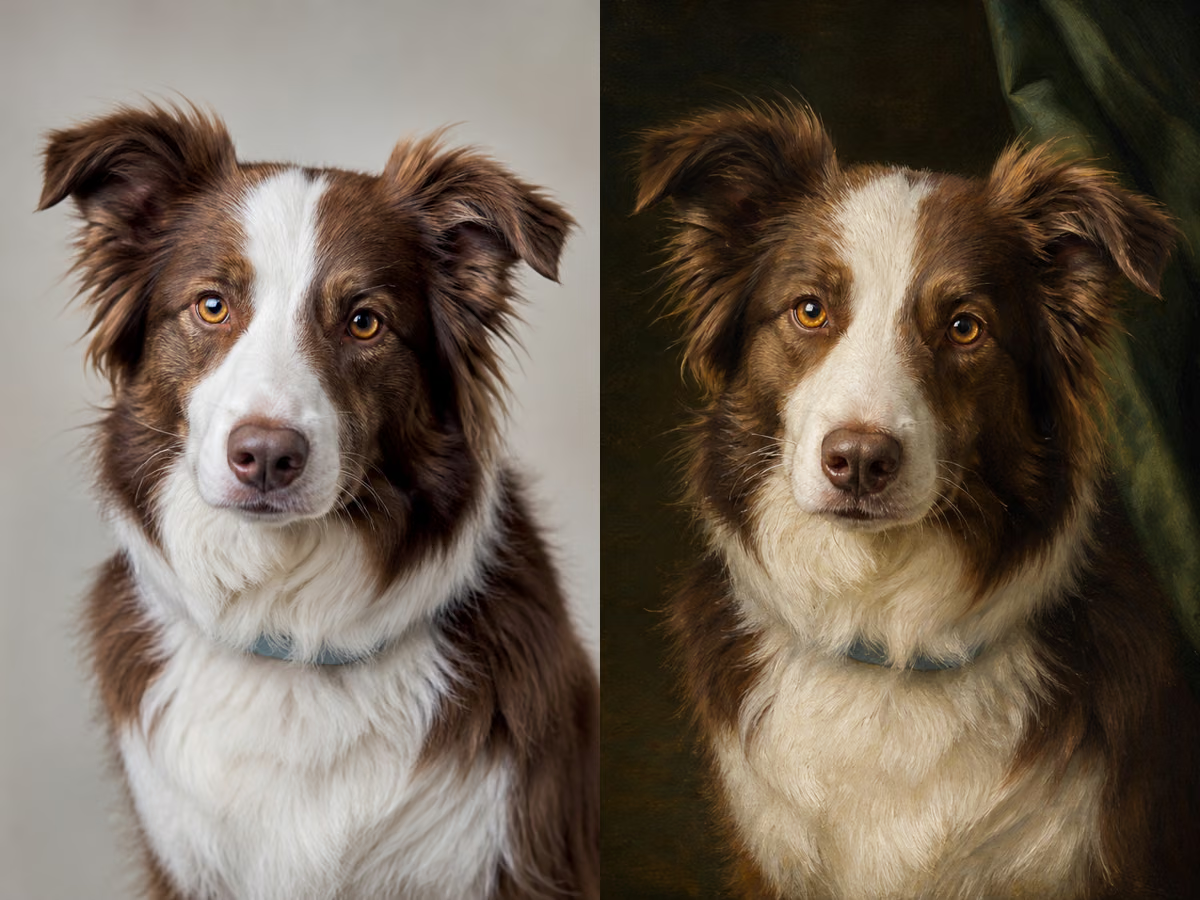
A pet sticker often fails when ears, paws, tails, or markings disappear into the crop. This corgi pair keeps the complete head, upright ears, chest markings, front paws, seated silhouette, and tail area visible. The Cute Pet preset adds friendly detail and a clean outline without asking for a different breed or pose. Use one well-lit animal photo, avoid motion blur, and mention distinctive markings or accessories in the editable notes.

Try the Pet Sample
Corgi photo before and after a cute AI sticker transformation

Product Sticker without Invented Branding

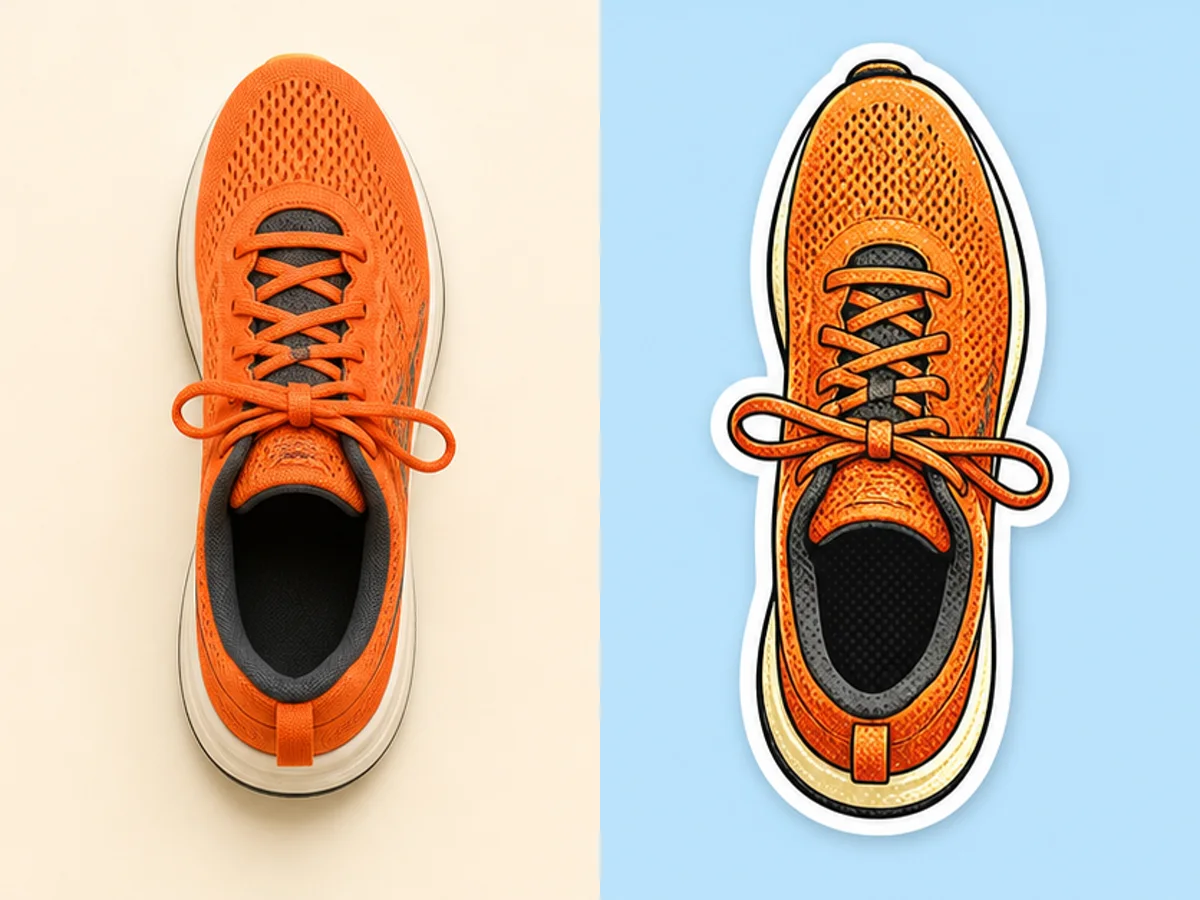
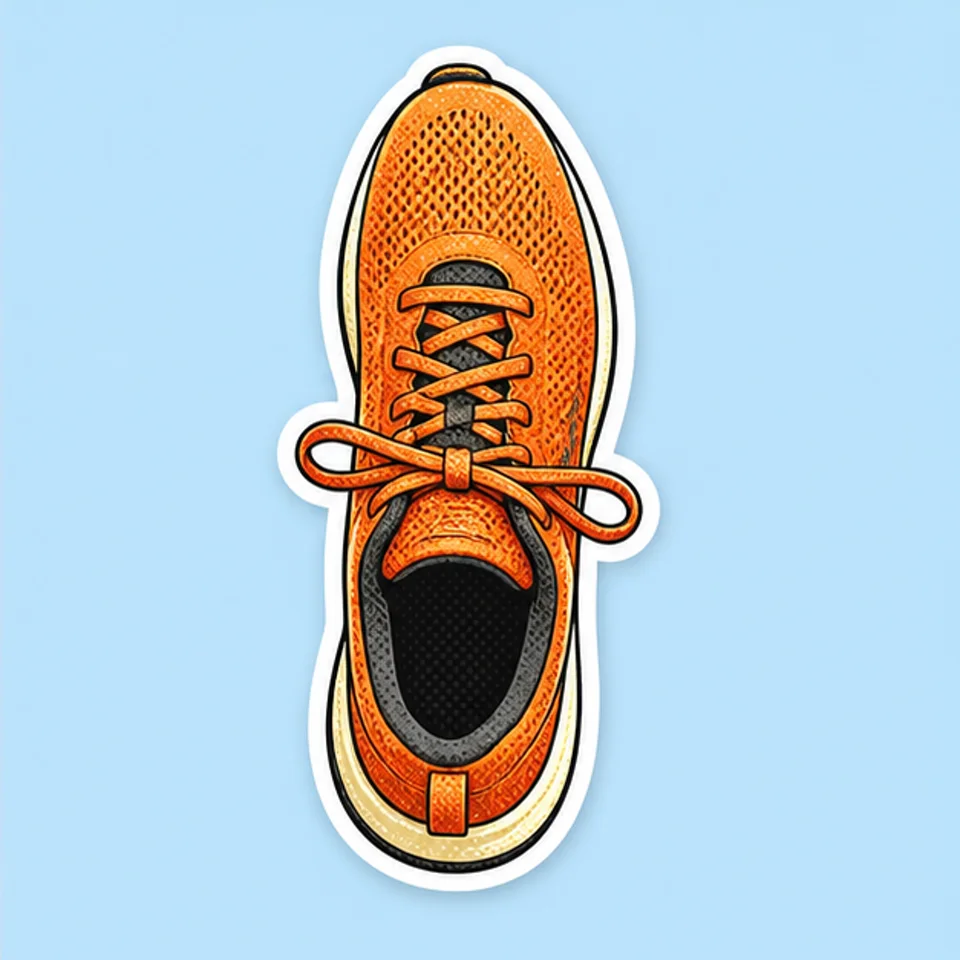
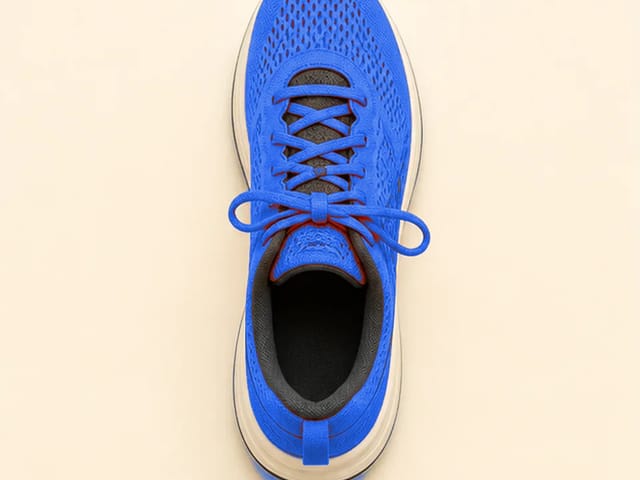
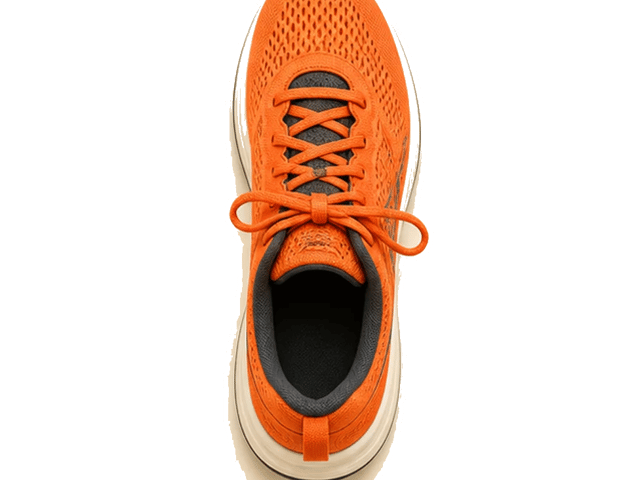
The shoe example demonstrates a narrow product silhouette that remains entirely inside the frame. Retro halftone texture and a white contour create a graphic sticker look while the prompt protects the orange mesh, laces, sole, and top-down angle. The source is intentionally unbranded because generative models are unreliable for exact logos and label text. For a real product, verify every brand mark, color, material, component, and proportion before using an output in commerce.

Try the Product Sample
Unbranded running shoe before and after a retro AI sticker transformation

AI Sticker Generator Controls That Affect the Real Request

The visible controls change the submitted image-to-image direction; they are not decorative examples placed above a generic generator.

Photo-Guided Subject Preservation

The uploaded photo supplies the person, pet, object, pose, color, and framing. The base prompt asks the model to retain those recognizable anchors instead of replacing them with an unrelated subject.

Complete-Subject Framing

The prompt explicitly protects heads, hair, ears, hands, paws, tails, product edges, and other important contours. Clear source framing still matters because a model cannot reliably reconstruct details already missing outside the photo.

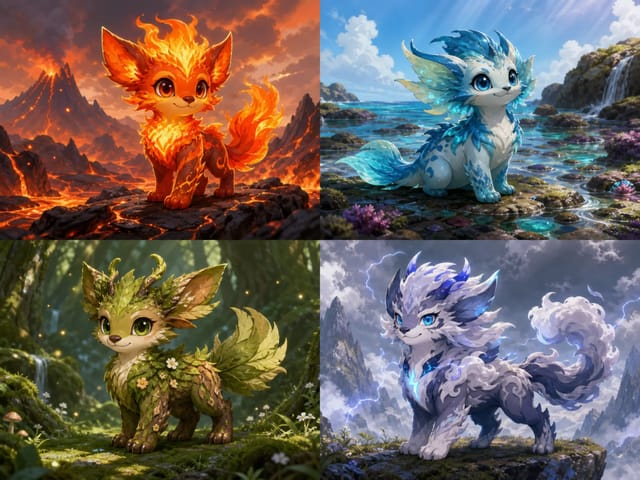
Four Distinct Sticker Directions

Bold Portrait, Cute Pet, Clean Comic, and Retro Product use different line, texture, and color systems. Choose the direction that matches the source rather than stacking incompatible styles in one request.

Editable Default Prompt

The prompt is visible and editable before generation. Keep the core constraints, then add concise notes about facial features, markings, clothing, props, material, color, background tone, or outline weight.

Square-First Output

The default 1:1 shape works well for sticker previews, profile graphics, and design tiles. Optional 4:5 and 3:4 shapes are available, but changing aspect ratio can introduce crop or extra border content.

Real Credit and History Flow

The page reuses NanoPic's working upload, sign-in, generation, task polling, result display, download, and history path. The live interface shows the current model and credit requirement before submission.

How to Make an AI Sticker from a Photo

A clear source and a bounded prompt usually produce a stronger sticker than a long list of conflicting visual ideas.

1. Upload One Complete Subject

Choose one sharp photo with the main person, pet, product, food item, collectible, or object large enough to inspect. Keep the complete head, hair, ears, hands, paws, tail, wheels, handle, laces, label area, or other defining edge inside the original frame. Leave a little surrounding space. Avoid tiny group subjects, heavy blur, busy collages, harsh filters, and an existing crop that already removes important anatomy or product geometry.

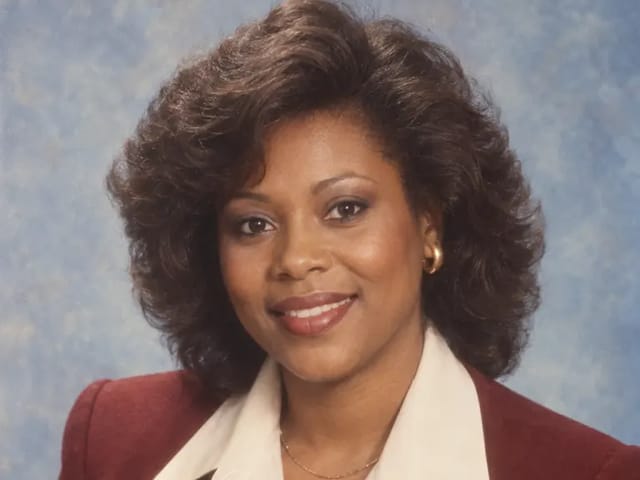
Clear fictional adult portrait with full head and shoulders visible

2. Choose a Style and Edit the Prompt

Start with the preset closest to the source: Bold Portrait for a person, Cute Pet for an animal, Clean Comic for a figure or action pose, or Retro Product for an object. Then name only the facts that matter. A useful note might say, “keep the green eyes, red collar, left-facing pose, and both ears; use a pale blue background and medium white outline.” Avoid requests for several unrelated art styles, multiple scenes, transparent checkerboards, or added slogan text.

Complete corgi rendered with a white sticker outline on blue

3. Generate, Compare, and Download

Run one generation, then compare it with the source at full size. Inspect faces, eyes, hands, paws, fur markings, tails, laces, handles, product edges, color, text areas, and the top of the subject. If one detail drifted, reuse the same source and add one short correction instead of rewriting every instruction. Download only a version that passes your own visual and rights review. If you need a verified transparent cutout, use a dedicated background-removal workflow after generation and inspect the edge alpha separately.

Retro orange shoe sticker ready for a full-size quality review

Useful AI Sticker Maker Workflows

A clean sticker-style image can become a flexible design ingredient after you verify the subject and prepare it for the destination format.

Chat and Reaction Images

Turn a clear expression or pet pose into a readable graphic, then resize and package it according to the current requirements of your messaging app.

Creator Avatars and Social Posts

Use a bold portrait sticker as an avatar, story element, thumbnail accent, or post graphic while keeping the face, hair, clothing, and important props recognizable.

Pet Keepsakes

Create a clean illustrated pet image for a card, scrapbook, phone wallpaper, or gift concept. Check breed features, markings, collar, ears, paws, and tail before sharing.

Product and Packaging Concepts

Make an unbranded product or owned product photo easier to place in an early layout. Verify logos, label text, dimensions, colors, and claims separately before commercial use.

Classroom and Club Graphics

Transform an authorized mascot, object, or activity photo into a friendly visual for a worksheet, announcement, event draft, or club post without requiring manual illustration skills.

Print Test Mockups

Use the generated image as artwork for an early sticker-sheet or merchandise mockup, then prepare bleed, cut path, color profile, resolution, and material with the chosen print vendor.

What to Put in an AI Sticker Prompt

Keep the prefilled safety and framing constraints, then add a few source-specific facts that help the model decide what must not change.

Name Protected Features

List the face, expression, pet markings, hair, clothing color, product shape, prop, or material that makes the source recognizable.

Describe One Visual Direction

Choose portrait illustration, cute pet, clean comic, or retro product rather than mixing watercolor, 3D, anime, neon, and vintage in one request.

Specify the Background Honestly

Request a plain opaque color or softly colored setting. Do not assume that writing “transparent” creates a validated alpha channel in the downloaded file.

Protect the Outer Contour

Ask to keep the complete head, hair, ears, hands, paws, tail, product edge, and props inside the frame with enough space for a clean border.

Important Limits Before You Use the Result

The page creates a sticker-style generated image. It is not a deterministic vector cutter, brand proofing system, or guaranteed transparent-background exporter.

No Transparent Background Guarantee

The prompt asks for a simple visible background and clean outline. The current generation and download path does not verify alpha transparency, so use a separate remover if transparent output is required.

Not Pixel-Locked

The model redraws the source and may change faces, hands, markings, text, logos, props, geometry, or color even when the prompt asks for preservation.

Not Print-Ready by Default

A good-looking PNG still needs vendor-specific resolution, bleed, cut path, color, laminate, material, and proof checks before physical printing.

Credits, Watermark, and Rights Apply

Generation uses the credits shown in the live interface. Images made with free credits follow NanoPic's current watermark behavior. Upload only content you may edit and review plan and usage terms before commercial use.

AI Sticker Maker FAQ

Practical answers about photos, prompts, styles, transparency, downloads, credits, printing, privacy, and commercial review.

What is an AI sticker maker?

An AI sticker maker uses a text prompt, a source image, or both to create a graphic that reads like a sticker. This page is photo-guided: you upload one image, select a style, edit the prompt, and generate a new sticker-style result that should keep the source subject recognizable.

Is this also an AI sticker generator?

Yes. AI sticker maker and AI sticker generator describe the same broad intent. NanoPic's page focuses on converting an uploaded person, pet, product, or object photo rather than creating an unrelated sticker from text alone.

Can I make a sticker from my own photo?

Yes, if you have the right and any needed consent to use it. Choose one clear subject, keep the complete outer contour visible, select the closest style preset, and use the editable prompt to protect important features, colors, clothing, markings, props, or product geometry.

Does the AI Sticker Maker create a transparent background?

Transparency is not guaranteed on this page. The default prompt requests a simple opaque background and clean white outline, and the current download path does not verify alpha pixels. If you need a transparent PNG, run the result through a dedicated background remover and inspect the edge at full size.

What photo works best?

Use a sharp, well-lit image with one clear focal subject and space around the complete head, hair, ears, hands, paws, tail, product edges, or important props. Avoid severe crops, tiny group subjects, heavy blur, busy collages, strong beauty filters, and objects hidden behind other elements.

Which sticker style should I choose?

Bold Portrait suits a clear person photo; Cute Pet is tuned for readable animal features; Clean Comic works for a figure, action pose, or strong prop; Retro Product emphasizes object geometry and graphic texture. Start with one direction and add only a few specific notes.

Is this free AI sticker maker free to start?

Yes, for eligible new accounts. NanoPic currently grants 40 welcome credits valid for 7 days, and this sticker workflow currently costs 40 credits per generation, so the welcome grant can cover one try. Generation is not unlimited or credit-free. Images generated entirely with free credits include a NanoPic watermark; outputs funded with purchased credits do not receive that free-credit watermark. Check the live interface because credit costs and offers can change.

Can I print the generated sticker?

You can use an output as artwork for a print test if you have the necessary rights, but it is not automatically production-ready. Check pixel dimensions, bleed, cut path, edge quality, color profile, material, laminate, and the print vendor's current file requirements.

Can I use an AI-generated sticker commercially?

Review the source rights, consent, NanoPic plan and usage terms, and every generated detail. Verify people, logos, trademarks, product shapes, packaging text, and factual claims. A generated result is creative output, not legal clearance or a guarantee of exclusive rights.

Will NanoPic keep the same face, pet, or product exactly?

The prompt asks for recognizable features, colors, pose, proportions, and complete framing, but exact preservation is not guaranteed because the model redraws the image. Compare the result with the source and correct one important drift at a time.

Make a Clean Sticker Image from One Photo

Upload a complete subject, choose one sticker direction, edit the prompt, and review the generated outline and details at full size.