Choose the actual model
Google’s current video documentation lists Veo and Gemini Omni as separate options. Confirm the displayed name before submitting; a page title or search phrase is not proof of the model behind a render.
Save up to 73% on plans
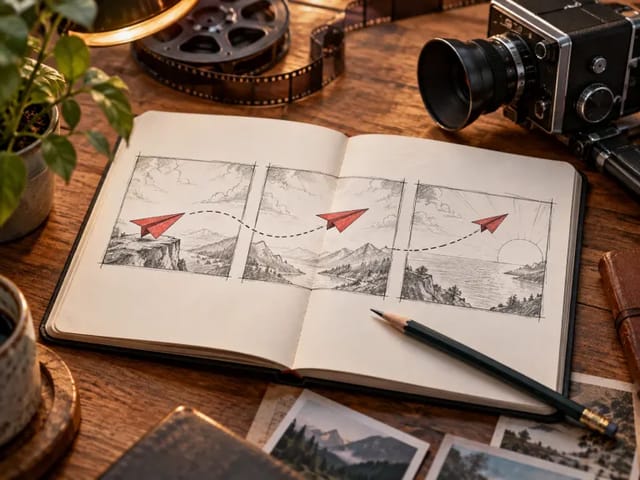
Plan a short film shot by shot. Edit the scene, camera and sound, then copy a timed brief.
Prompt planning only—no video is generated here. Google documents Veo and Gemini Omni separately; “Veo Omni” is not a model selector on NanoPic.
Subject and setting: An unbranded amber glass perfume bottle on a pale stone plinth at sunrise.

Keep consistent across shots: Keep the same bottle, cap, fill level, warm light direction and stone surface. No added lettering, logos or duplicate products.

Delivery aspect ratio: 16:9

Shot 1 (0–3s)
Action: Establish the bottle and its long soft shadow; the background stays uncluttered.
Camera: Locked medium-wide shot at tabletop height.
Audio: Quiet room tone; no speech.

Shot 2 (3–7s)
Action: Reveal the curved glass edge and a small highlight moving across its surface.
Camera: Slow close-up push-in, no sudden zoom.
Audio: Soft tonal swell; no added voices.

Shot 3 (7–10s)
Action: Return to the whole bottle and hold a clean ending frame.
Camera: Static three-quarter view; preserve screen direction.
Audio: Room tone fades gently.

Planned running time: 10s
This is an editable production plan, not a promise of supported clip length or aspect ratio. Check the selected generator’s available settings. Editing and copying start no generation task.
Google’s current video documentation lists Veo and Gemini Omni as separate options. Confirm the displayed name before submitting; a page title or search phrase is not proof of the model behind a render.
Use an establishing shot for context, a detail shot for material or action, and a held ending for an edit point. The planner computes consecutive time ranges as you add, remove or resize shots.
Save the subject description across every shot. Inspect changing geometry, light direction, background, audio and screen direction. Generate and review manageable clips before assembling the final sequence.
No. This page creates a local text brief. It neither uploads references nor sends video generation requests. Use the separately labeled NanoPic Veo 3.1 generator for its supported workflow, or follow Google’s official documentation for Gemini Omni.
This planner organizes a film into individual shots, durations, camera directions and sound cues. The Gemini Omni builder focuses on assigning roles to text, image, audio and video references for a multimodal edit.
Not necessarily. The total is an editorial planning target, not an API duration limit. Split it into clips supported by your selected model and assemble them in an editor. Check available length, ratio and audio controls before submitting.
Identify the speaker, exact short line, tone, shot framing and background sound. Avoid several overlapping speakers or unrelated camera moves in one shot. Listen to the result and inspect lip motion before using it.
Use only references you have permission to use. Specify which appearance details to preserve and review the result: labels, faces, hands, reflections and fine geometry can change. This planner does not upload or store reference files.
Yes. The planner works in your browser without a generation request. Separate video tools have their own sign-in requirements, supported settings and terms.
Browse every other AI video model and effect published on this site in a continuous carousel.