






Save up to 73% on plans

Pavo AI Video Generator
Sign In

Pavo AI Video Generator

Describe one scene, choose the length and frame shape, and get a short AI video made from your words with Pavo AI.

Public VisibilityAllow this result to appear in public inspiration surfaces.
Credits required:—

Seedance 2.5

AI output preview

More AI Video Models & Effects

What You Can Make with the Pavo AI Video Generator

Type a short description into Pavo AI and get a video clip back. A product turning in soft light, a city street at dusk, a character walking toward the camera, a cozy kitchen scene for a story: if you can describe it, you can try it. You choose how long the clip runs and whether it is wide, vertical or square, so it fits YouTube, Reels, Shorts, TikTok or your website. No editing skills are needed, and you can keep changing the words until the shot feels right. Download finished Pavo AI video generator clips for social posts, product pages, lesson demos or short dramas, or stitch several clips into one piece.

Make Your First Video with the Pavo AI Video Generator

Four simple steps from idea to finished clip.

1. Describe one scene

In Pavo AI, say who or what is on screen, what happens, where it happens, the light and how the camera moves. Keep it to one moment in the Pavo AI video generator. The balloon example video is a good model: one subject, one slow motion and a gentle pan.
2. Pick length and frame shape

Start with a short clip while you test an idea. Choose wide for YouTube or a website, vertical for Reels, Shorts and TikTok, or square for social feeds. Pick the shape before you create, because cropping a finished clip later can cut off heads, hands or the product.

3. Create and watch

Start the Pavo AI video, then play it from beginning to end. Look at faces, hands, text and edges, not only the first frame. Watch it a second time with the sound off, the way many people scroll through social feeds.

4. Adjust and download

Change one or two words at a time to fix what you do not like, so you can see which change made the difference. When the clip looks right, download it from your history and use it in your post or editor.

How to Write a Good Pavo AI Video Generator Prompt

Clear, simple words give the most reliable Pavo AI videos.

Lead with the subject

Begin with the main subject, such as "a golden retriever puppy" or "a glass perfume bottle", then add what it does. The first details usually show up most clearly.

Name one action

Ask for one main movement, like "turns its head toward the window". Several actions in one short clip often look rushed or messy.

Set the camera

Words like fixed camera, slow push-in, low angle, close-up or tracking shot decide how the view moves. If you leave the camera out, the result can drift in ways you did not plan.

Describe the light and mood

Soft morning light, neon night, warm candlelight or overcast daylight change the whole feel of the clip.

Say what to leave out

Add short notes such as no text, no logo or no extra people when you need a clean frame.

Keep it to a few sentences

Two to four short sentences are usually enough. A long paragraph with many ideas makes it harder to tell which words shaped the video.

Ideas to Try with the Pavo AI Video Generator

Short videos for social media

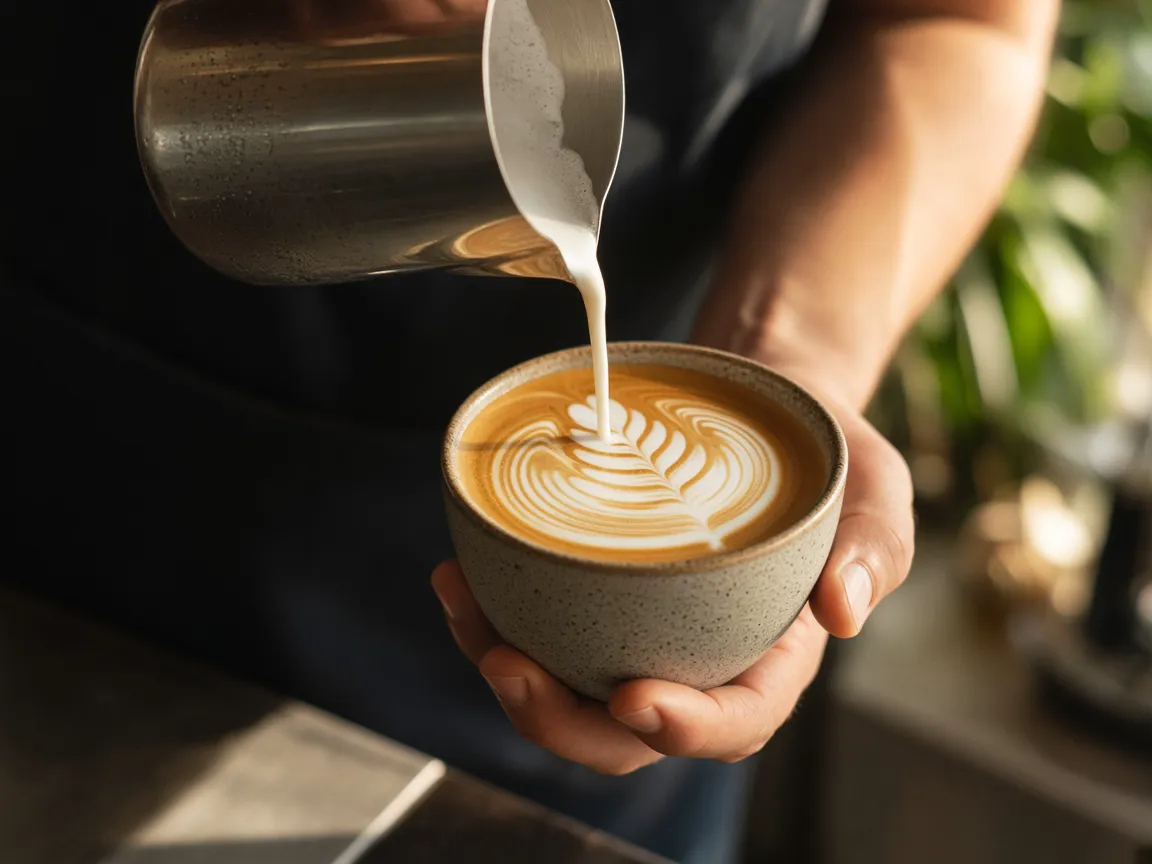
Turn one idea into a vertical Pavo AI clip for Reels, Shorts or TikTok. Add music and captions in the app you already use to post. Try: "A barista pours latte art in a sunny cafe, close-up, slow push-in, warm morning light."

Illustration of a barista pouring latte art in a sunny cafe

Product clips

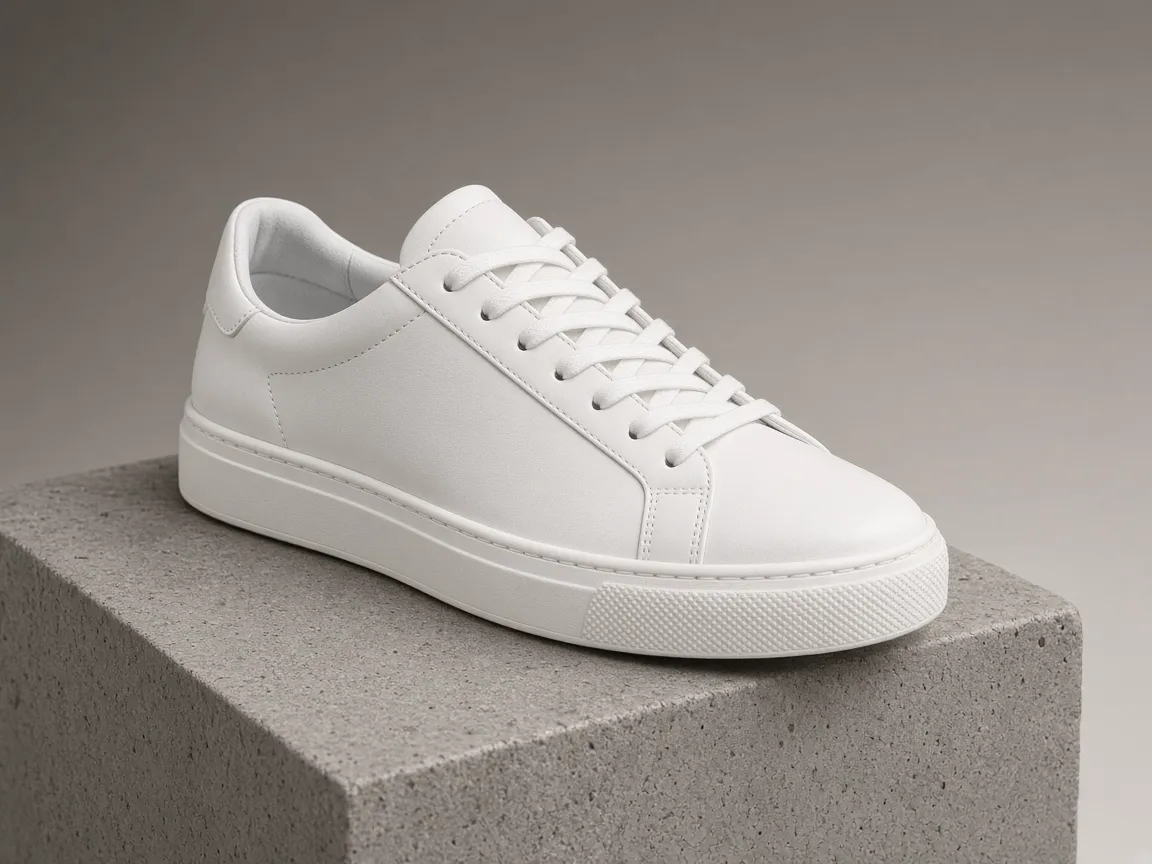
Show one product on a clean surface with a gentle camera move and soft light, like a slow studio pan. Check labels and shapes closely before you share. Try: "A white sneaker on a gray stone block, slow orbit around it, soft studio light, no text."

Illustration of a white sneaker on a gray stone block in soft studio light

Short story and drama shots

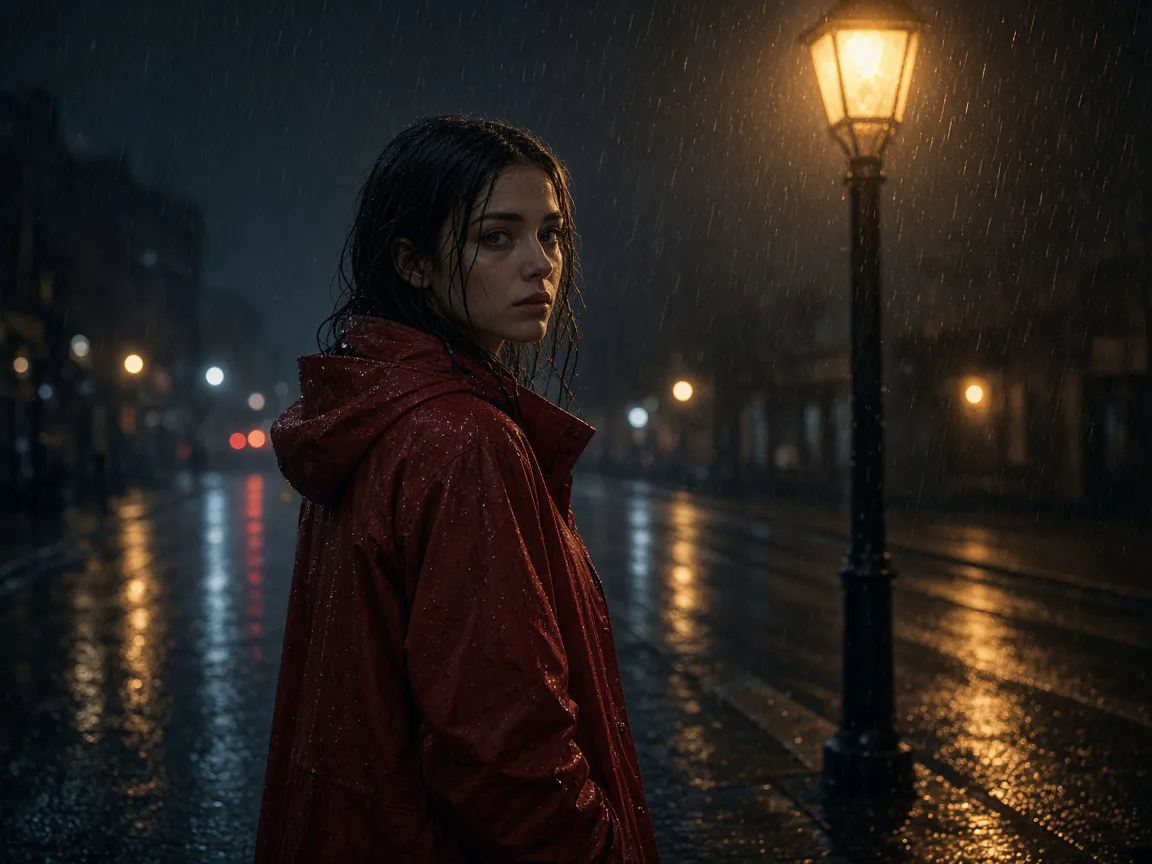
Write your story as a list of shots, then create one Pavo AI clip per shot and join them in an editor. Short scenes with one action each are easier to keep consistent. Try: "A young woman in a red raincoat stops under a streetlight and looks back, rainy night, medium shot."

Illustration of a young woman in a red raincoat looking back under a streetlight on a rainy night

From one line to a short drama

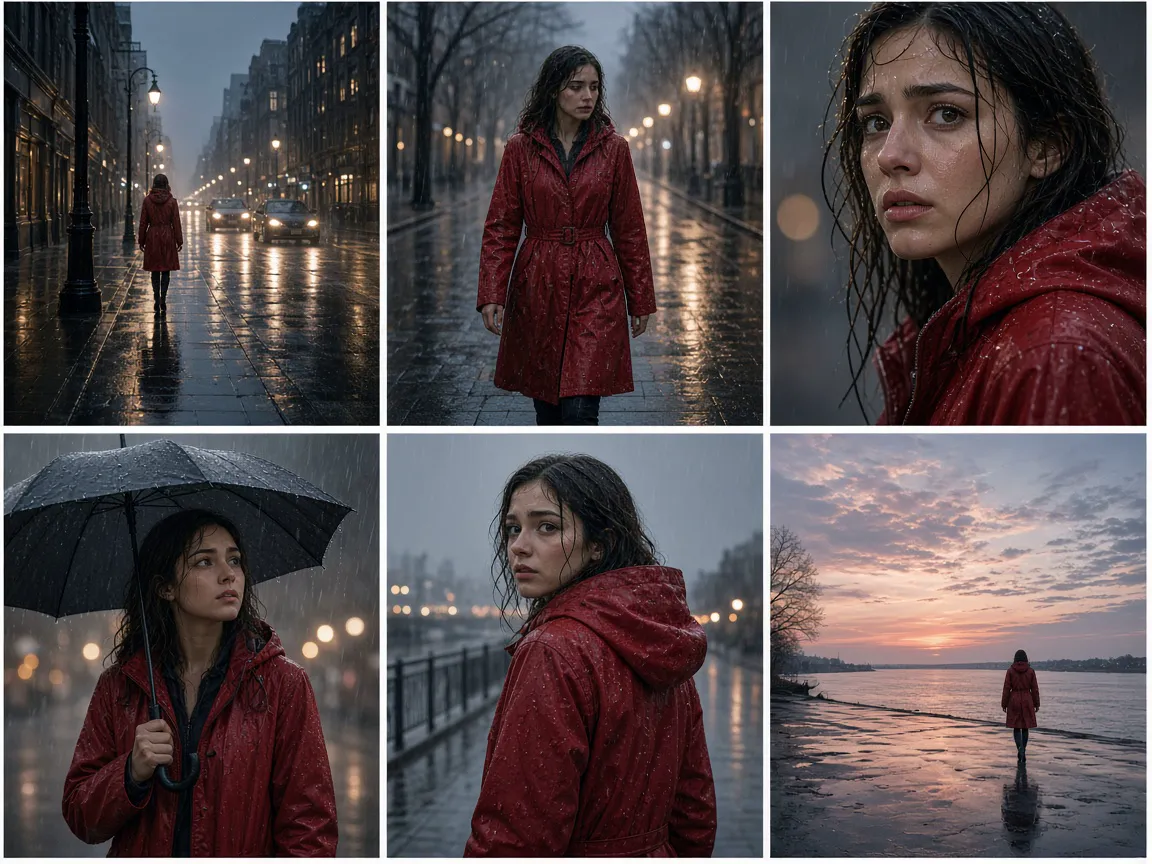
Start with a one-line idea, expand it into five or six shots, and build each shot separately. Reuse the same character description in every prompt so faces and outfits stay closer between clips. Add a wide opening shot, a close-up for the key moment and a calm closing shot.

Illustrated six-shot storyboard of a short rainy-night drama with one character

Lessons and explainers

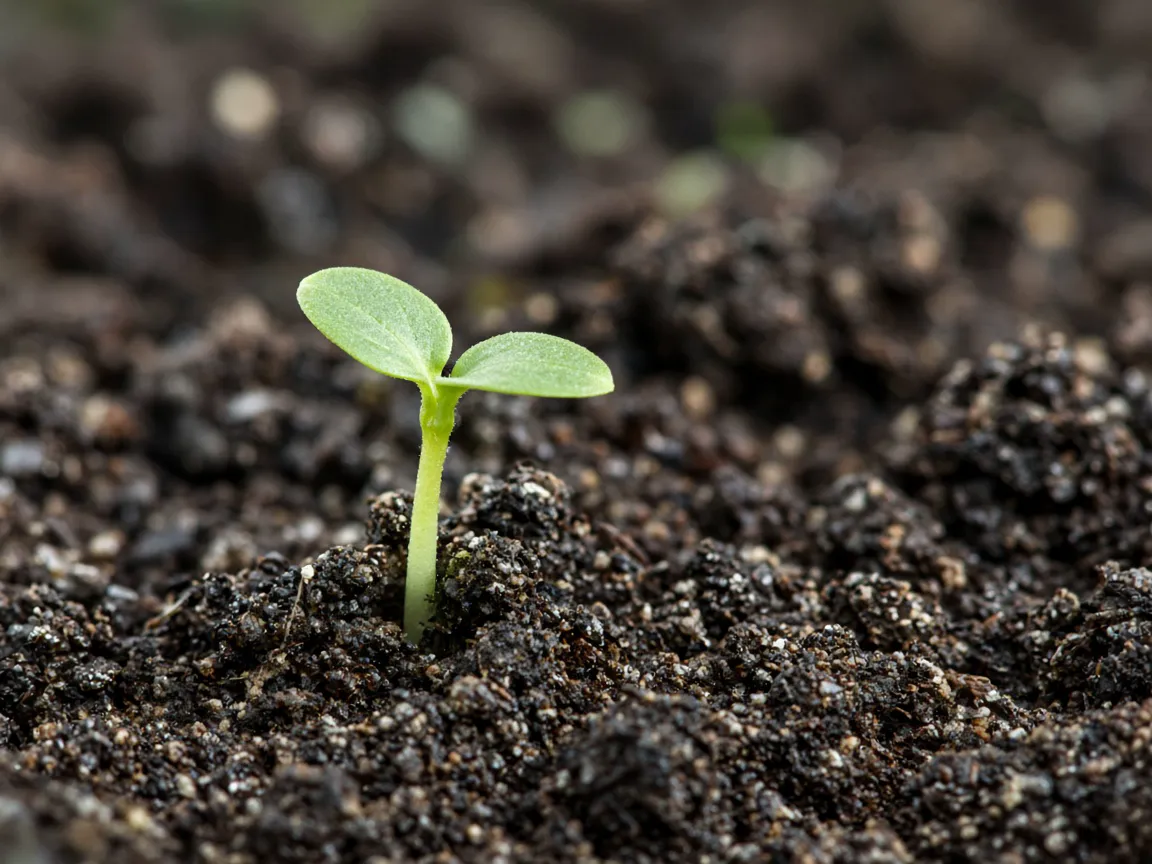
Make simple visual moments for a class, a tutorial or a slide deck, such as a seed sprouting in soil or a paper boat floating down a stream. Add your own voice-over to explain each step. Try: "Time-lapse of a green sprout pushing up through dark soil, close-up, soft daylight."

Illustration of a green sprout pushing up through dark soil

Mood and concept tests

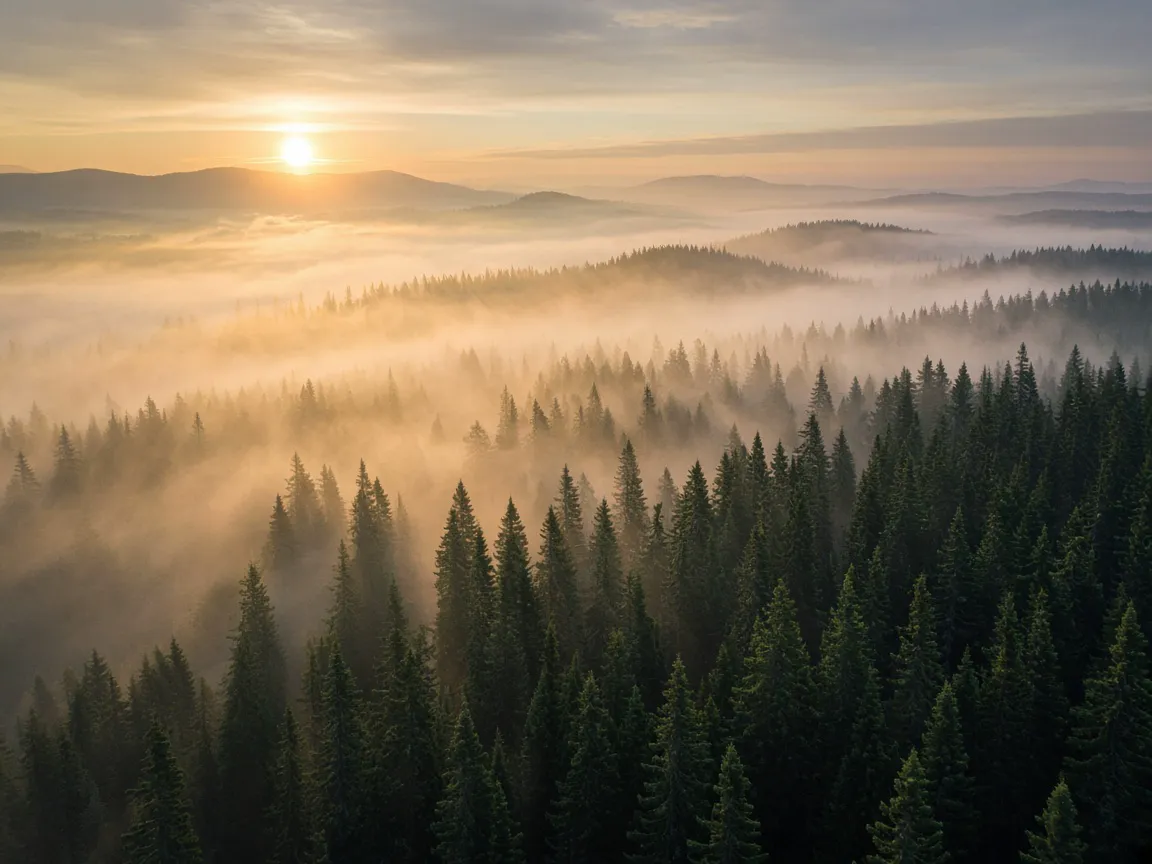
Try a location, a color mood or a camera idea before a real shoot. Use the clips as references and drafts for your team or client. Try: "Aerial view of a misty pine forest at sunrise, slow drift forward, calm and quiet mood."

Illustration of a misty pine forest at sunrise seen from the air

Realistic Motion and Consistent Characters

Tips for Pavo AI clips that look natural and stay on model from shot to shot.

Keep motion small

Gentle actions such as a smile, a head turn or a slow walk look more natural than jumps, spins or big fight scenes.

Reuse the same character words

For several clips with the same person, copy the exact same description of age, hair, clothes and setting into every prompt.

Match the camera

Use the same framing, such as medium shot at eye level, across related clips so they cut together smoothly.

Check the details

Watch hands, eyes, text and small objects. If something bends or changes, simplify the scene and try again.

Keep the setting steady

Describe the same room, weather and time of day in every related prompt. A sunny street in one shot and a rainy one in the next breaks the story.

When a Video Does Not Look Right

The motion is messy

Ask the Pavo AI video generator for less. Remove extra actions and keep one subject doing one thing.

The look is wrong

Change the light, color or style words, for example "soft daylight, natural colors" instead of "dramatic".

Things appear that you did not ask for

Add what to leave out, such as no text, no logo or no crowd, and make the setting more specific.

Nothing seems to happen

Check your connection and your account, then try again. A shorter, clearer prompt often helps too.

Text or letters look strange

Words on signs, labels or screens often come out garbled. Ask for no text in the video and add titles later in your editor.

The action ends too soon

Choose a longer clip, or describe a slower version of the action, such as "slowly lifts the cup" instead of "drinks".

Use Your Videos Responsibly

Respect people and brands

Do not use real names, faces, logos or characters you do not have permission to use.

Add your own sound and text

Put music, voice and captions on top in your usual editing app so the final video matches your brand and message.

Keep your best prompts

Save the prompts that gave you good results in the Pavo AI video generator. Reusing and lightly editing them is the easiest way to make a matching series.

Check before you publish

Watch the full clip on the screen your audience will use, and read the terms of the platform where you post.

Pavo AI Video Generator FAQ

What is the Pavo AI video generator on NanoPic?

It turns a short written description into a video clip that you can download when you like the result.

Do I have to pay to use the Pavo AI video generator?

You can see what each video needs before you start. Sign in to create videos; videos are not unlimited.

How do I make a video with the Pavo AI video generator?

Write one clear scene, choose the length and frame shape, and start. Adjust a few words if needed, then download.

Can I turn a photo into a video?

You turn text into video. To bring a photo to life, upload it in the AI video generator.

Can I make a short drama from one idea?

Yes. Break a one-line idea into a short shot list, create each shot with Pavo AI, then join the clips in an editor.

Do I need to download an app?

No. Pavo AI works in your web browser on a computer or phone.

How do I download my video?

Open your history after the video is ready and download the file.

Where can I post the videos?

Finished clips suit YouTube, Reels, Shorts, TikTok and websites. Match the frame shape to the platform before you create.

Can it make realistic videos with consistent characters?

Yes, with the right prompt. Keep the action simple, reuse the same character description in every clip and keep the camera steady.

Why did my video fail or look wrong?

Check your connection and account, then try again. If the video looks off, shorten the prompt and ask for one action.

Can I use the videos on YouTube, social media or for my business?

Read the NanoPic terms and the rules of the platform you post on, and make sure you have rights to any people, brands or characters in your prompt.

Can ChatGPT help me write prompts?

Yes. Ask it for a short scene description or a shot list, then paste one scene into the Pavo AI prompt box.

Is NanoPic affiliated with Pavo?

No. NanoPic is an independent site and is not affiliated with Pavo.

Create a Video with the Pavo AI Video Generator

Write one scene in Pavo AI, choose a frame shape and watch your idea become a short video.

Related tools

25th Anniversary Video Maker

25th Anniversary Video Maker

Make a short silver 25th anniversary video concept from one or two authorized couple photos. Add names, year, mood, motion, and editor-ready greeting space.

Open tool
Storyboard cover of two fictional adults sharing a hug

AI Hug Video Generator

AI Hug Video Generator turns an authorized photo of consenting adults into a five-second friendly hug. Review faces, hands, clothing and scene throughout.

Open tool
Animate Picture

Animate Picture

Animate a picture into a short AI video. Upload one authorized photo, describe subject and camera motion, review the live credit cost, and generate with Seedance.

Open tool
Birthday Video Maker

Birthday Video Maker

Create a short birthday video concept from one or two authorized photos. Direct the theme, transition, motion, format, and clean space for exact editor-added greetings.

Open tool
Draw to Video: Animate Images with Motion Arrows

Draw to Video: Animate Images with Motion Arrows

Draw to Video lets you add arrows, text and brush strokes to an image, then generate an AI video from your motion guide. Edit, save, create and download.

Open tool
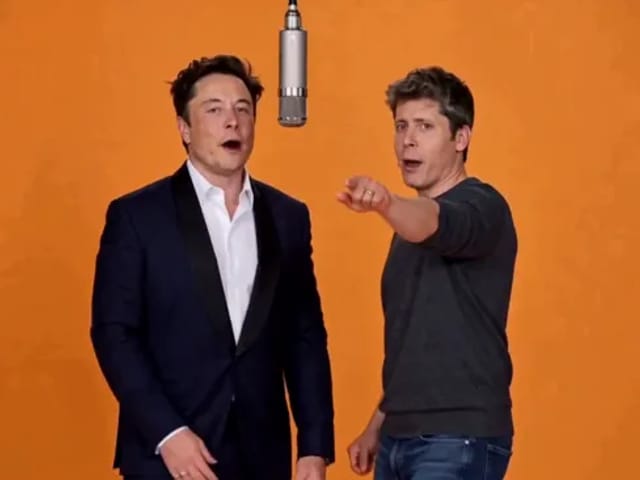
Elon Musk + Sam Altman

Hotel Lobby AI

Turn two photos into a 15-second orange-studio rap duo with MiniMax H3. Explore five actual videos, inspect their inputs and choose your left and right performers.

Open tool
STORM II dance with a lead and coordinated supporting dancers

STORM II Dance AI Video Generator | NanoPic

Create a STORM II dance with your lead photo and an AI-generated motion reference. Add a supporting cast, compare three videos and review your result.

Open tool
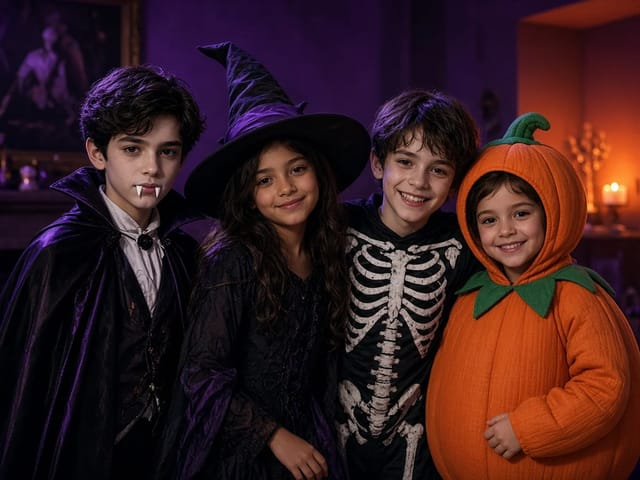
Four children dressed as a vampire, a witch, a skeleton and a pumpkin posing together in a candlelit room

AI Halloween Costume Transformation Video | NanoPic

AI Halloween costume transformation from one photo: pick a vampire, witch, skeleton or pumpkin look and watch your outfit change in smoke in a short video.

Open tool
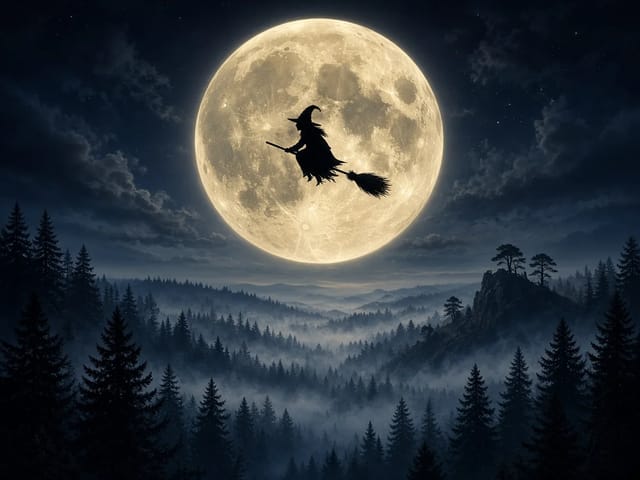
Silhouette of a witch riding a broomstick across a full moon over a misty forest

Broom Riding AI - My Ride Is Here Broom Video | NanoPic

Broom Riding AI puts you on a flying broom beside a moving car in the My Ride Is Here trend. Upload one photo, get a 10-second clip and add your own sound.

Open tool

EveryGen AI Video Generator | NanoPic

EveryGen AI video generator: describe a scene in plain words, choose a frame shape and turn your idea into a short AI video you can watch and download.

Open tool
Creative desk with a printed lake photo, a phone showing a sunset and a watercolour flower sketch

EzCreate AI Image & Video Generator: Edit and Animate Photos

Use the EzCreate AI Image & Video Generator online to turn your own photos and ideas into new pictures and short video clips.

Open tool

Hedra Character 3 AI Video Generator: Lip Sync | NanoPic

Hedra Character 3 AI video generator: upload a portrait, mascot or cartoon, type a line, and get a lip-synced talking or singing character video.

Open tool
Open notebook on a desk at night with glowing film frames of a castle, a forest and a starry sky rising from the page

LoreMotion AI Video Generator: Text to Video | NanoPic

Write a short scene or upload a photo and the LoreMotion AI video generator turns it into a short AI video clip you can download and share.

Open tool
White and orange sneaker on a round turntable with a circular motion arc

MiniMax H3 360 Orbit AI Video Generator | NanoPic

Turn one photo into a MiniMax H3 360 orbit video: upload a product, shoe, figure or portrait and watch your subject turn a full circle in place.

Open tool

Opus Clip Free AI Video Generator: Vertical Clips | NanoPic

Opus Clip free AI video generator: describe a scene in a few sentences and turn it into a short vertical 9:16 video clip.

Open tool
Performer in a dark tailcoat tiptoeing through a hay-filled barn with arms spread as a blonde woman watches from the foreground

Tip Toe In My Jordans AI Video Generator | NanoPic

Make a tip toe in my jordans AI video: upload two photos and see you and a friend sneak through the barn tiptoe dance as the lead and the stunned watcher.

Open tool