



Save up to 73% on plans

Couple Eyes Wallpaper Generator
Sign In

Couple Eyes Wallpaper Generator

Pick a look; its direction fills the details box, where you can change the light, colors or mood.

Photo 1: Left Eye*
Photo 2: Right Eye (Optional)

Please add the required Photo 1: Left Eye before generating.

219 / 600

Public VisibilityAllow this result to appear in public inspiration surfaces.
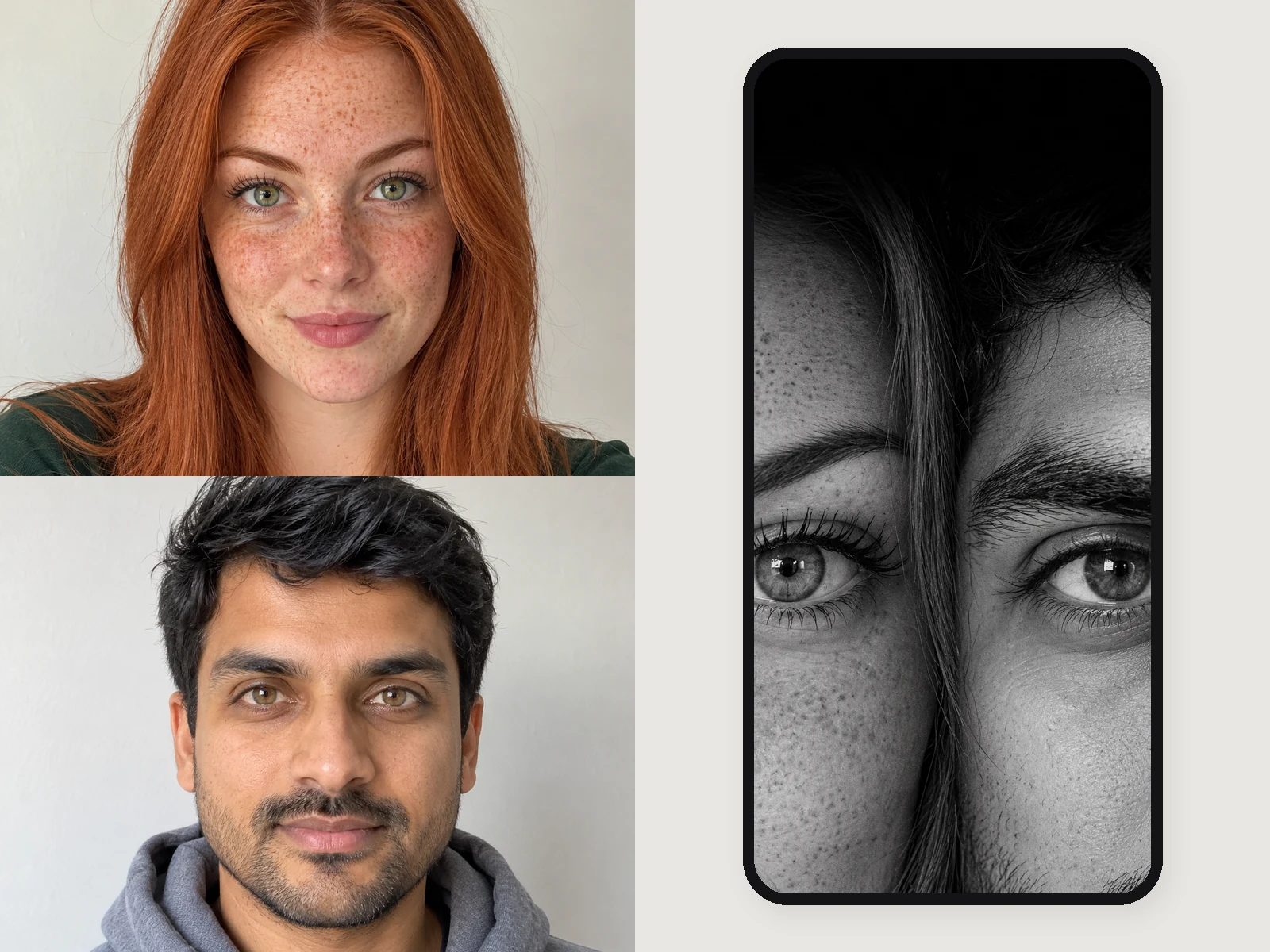
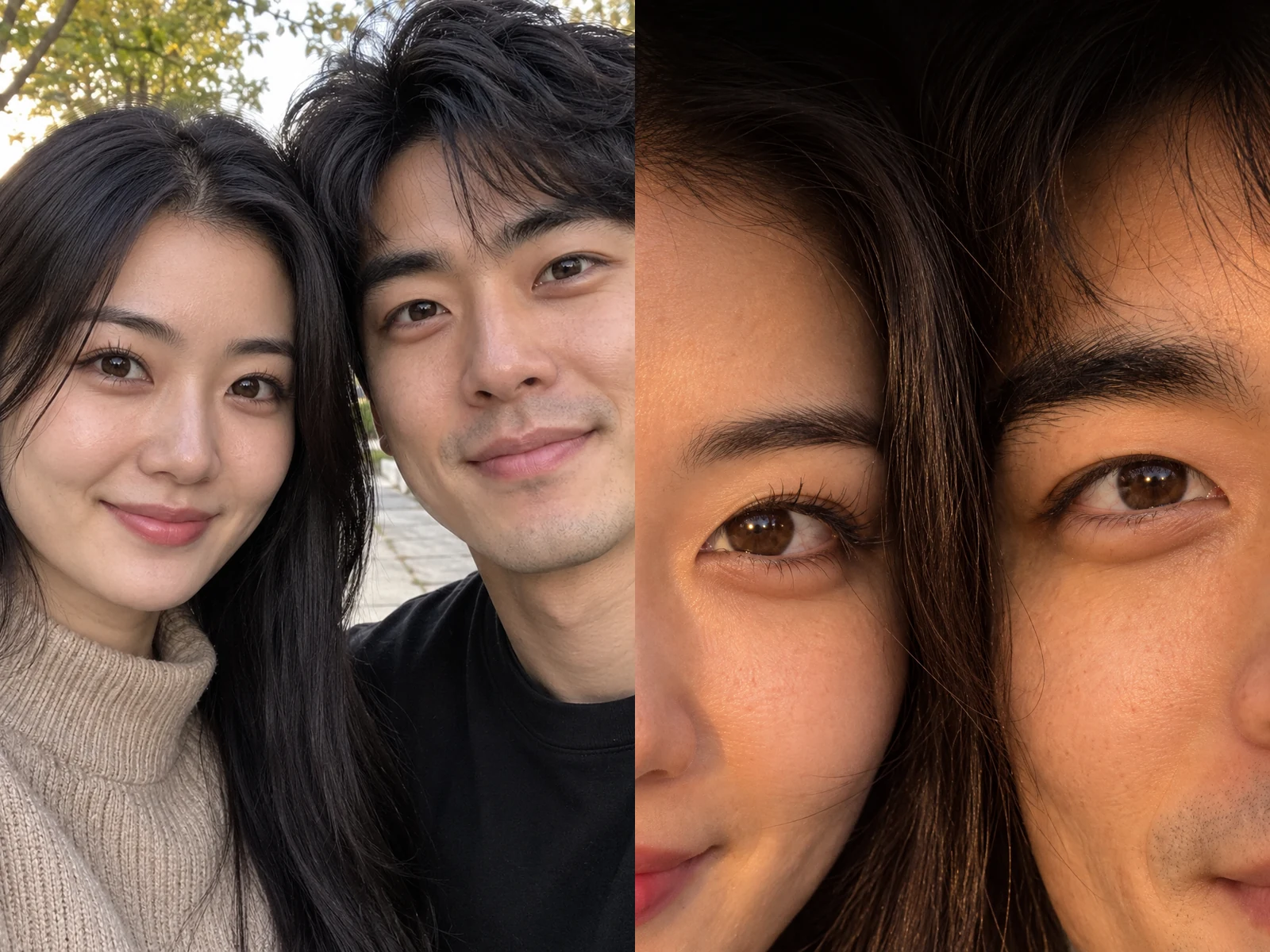
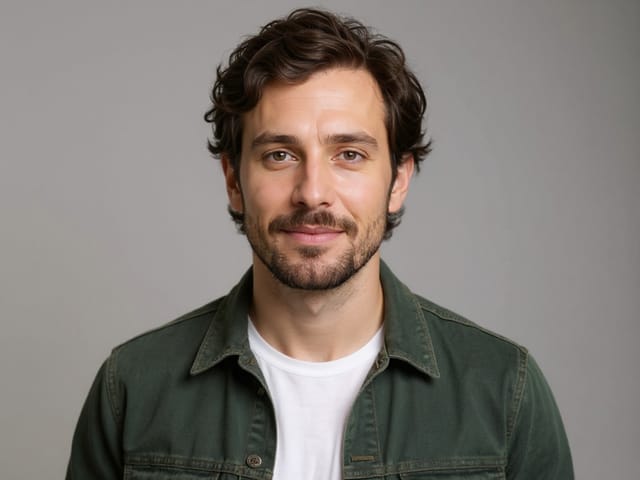
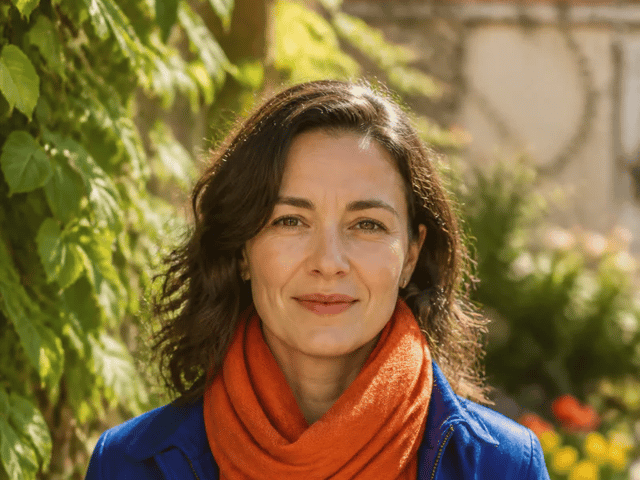
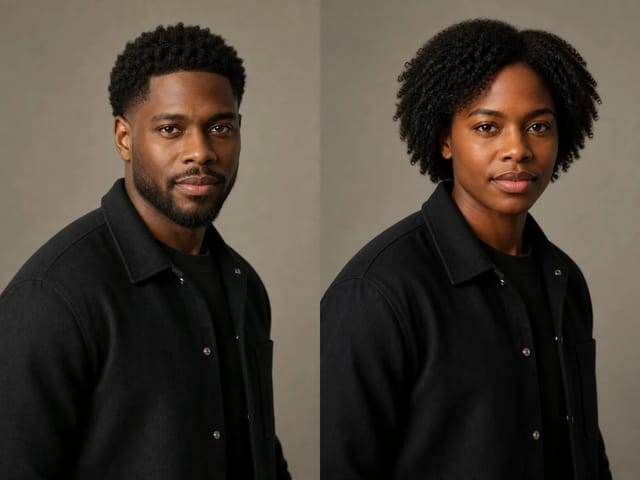
Two separate portraits of an adult man and woman facing the camera
Before
The same two people as a black and white split eyes wallpaper
After

More AI Image Models & Effects

What Is a Couple Eyes Wallpaper Generator?

A couple eyes wallpaper generator turns two everyday portraits into the close-up lock screen picture that couples keep sharing: an extreme crop where each partner shows one eye, the two faces meet in the middle, and nothing else competes for attention. Your eye shape, brow, lashes and skin tone come from your own photo, and your partner's half comes from theirs, so the picture reads as the two of you rather than two strangers. The top of the frame stays calm and dark, which leaves room for the clock on your lock screen. You can keep it photographic in black and white or natural color, turn it into two glowing irises linked by a stream of stardust, or warm it up with golden evening light. You do not need a photo shoot together. Two selfies taken in different cities work, which makes the couple eyes wallpaper generator a sweet idea for long-distance partners, anniversaries and matching phone screens. Save the image and set it as your wallpaper, or send it to your partner as a small surprise.

How to Make a Couple Eyes Wallpaper

Three steps take you from two ordinary selfies to a finished eyes wallpaper you can set on your phone.

Upload Two Clear Portraits

Put the person who should appear on the left in Photo 1 and the partner for the right side in Photo 2. Each photo should show one adult facing the camera with eyes open, good light, no filter or beauty mode and nothing over the eyes such as sunglasses or hair, in JPG, PNG or WebP under 10 MB. If you only have one close photo of the two of you together, upload it as Photo 1 and leave Photo 2 empty; the couple eyes wallpaper generator takes the left eye from the person on the left and the right eye from the person on the right. Only upload adults, and only photos both of you agreed to use.

Create Our Eyes Wallpaper
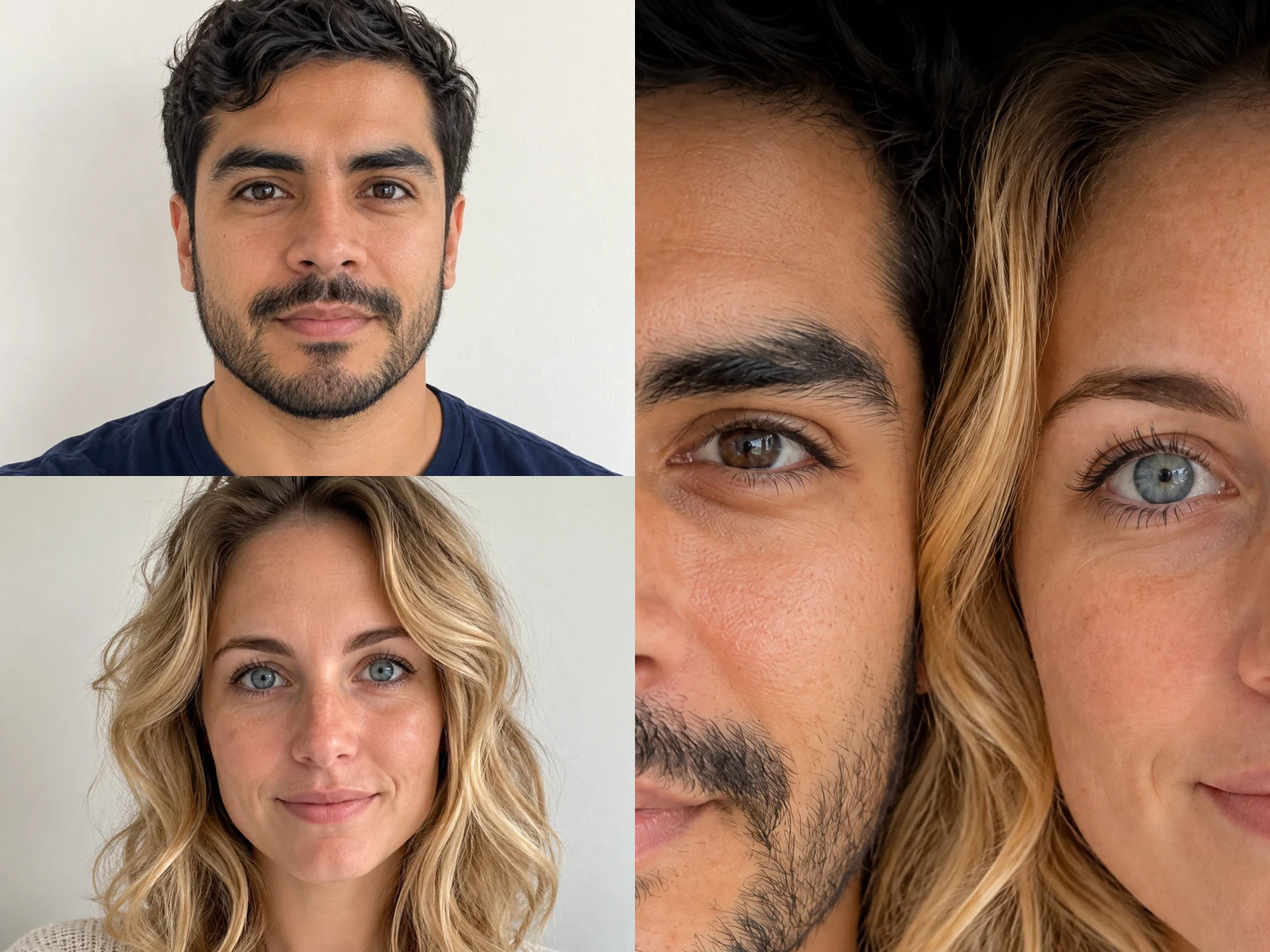
Before and after: two separate portraits of a man and a woman turned into one tall close-up with one eye from each

Pick a Look and a Shape

Choose Black and White Split, Natural Color, Stardust Irises or Golden Hour. The look fills the details box with its direction, and you can add short notes in plain words, such as warmer light, a darker background or keep her green eyes true. Pick 3:4 for a phone screen, 4:5 for a social post or 1:1 for a profile picture. Then press Create Our Eyes Wallpaper and wait for the picture to appear in the result panel.

Create Our Eyes Wallpaper
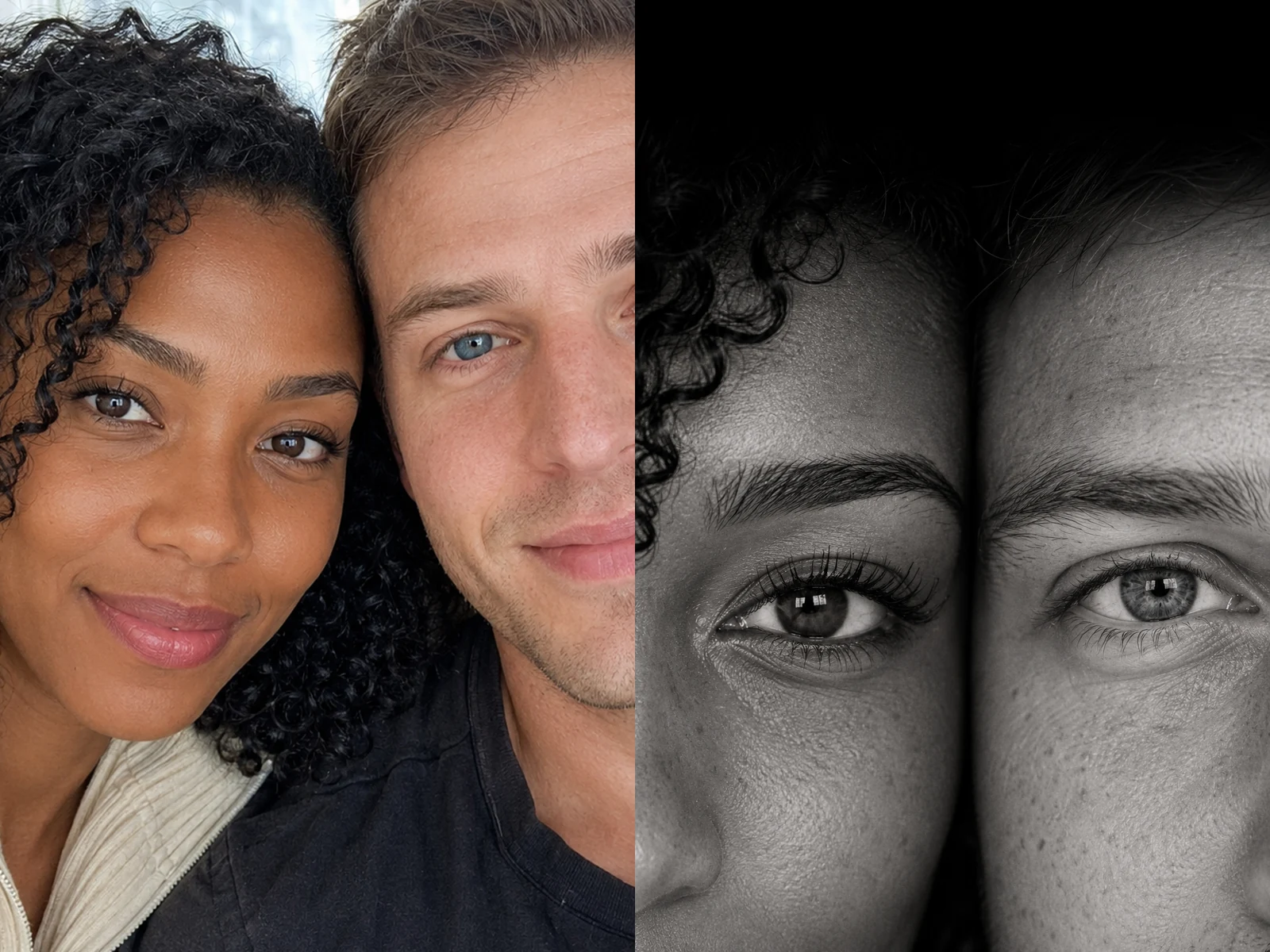
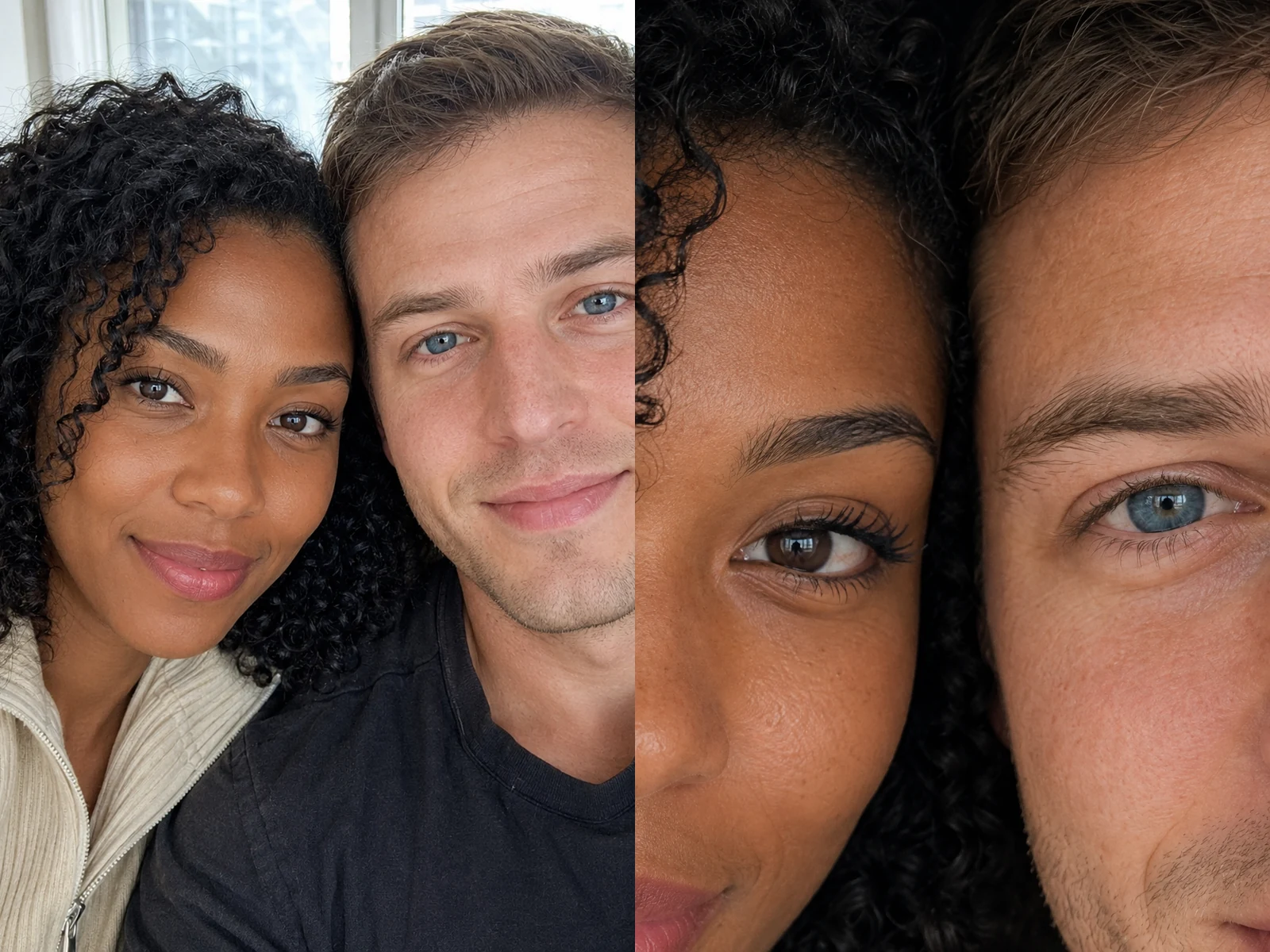
Before and after: one couple selfie turned into a natural color eyes close-up with brown and blue irises

Check and Set It as Your Wallpaper

Zoom in on both eyes before you save. Compare the iris color, eyelid shape and brows with your photos, and run it again with a sharper picture if one side looks off. Download the one you like, open it in your gallery and choose Use as Wallpaper or Set as wallpaper, then move it until the clock sits in the dark band and clears both eyes. Credits for each run show in the generator, and a failed run returns its credits.

Create Our Eyes Wallpaper
Before and after: two daylight selfies turned into a black and white eyes wallpaper shown on a phone

Eyes Wallpaper Looks You Can Create

Every look keeps the same idea, one eye from each of you in one tall frame, and changes the mood around it.

Black and White Split Eyes

The classic version is a high-contrast black and white close-up split down the middle, with your eye on one side and your partner's eye on the other. Without color, lashes, brow hair, freckles and the catchlight in each pupil carry the whole picture. Black and white also hides small lighting differences between two selfies, so it is the safest choice when your photos were taken in different places. The couple eyes wallpaper generator keeps a dark band at the top for the clock, which gives the lock screen a clean, quiet feel.

Create Our Eyes Wallpaper
Before and after: a couple selfie turned into a black and white split eyes wallpaper

Natural Color Close-Up

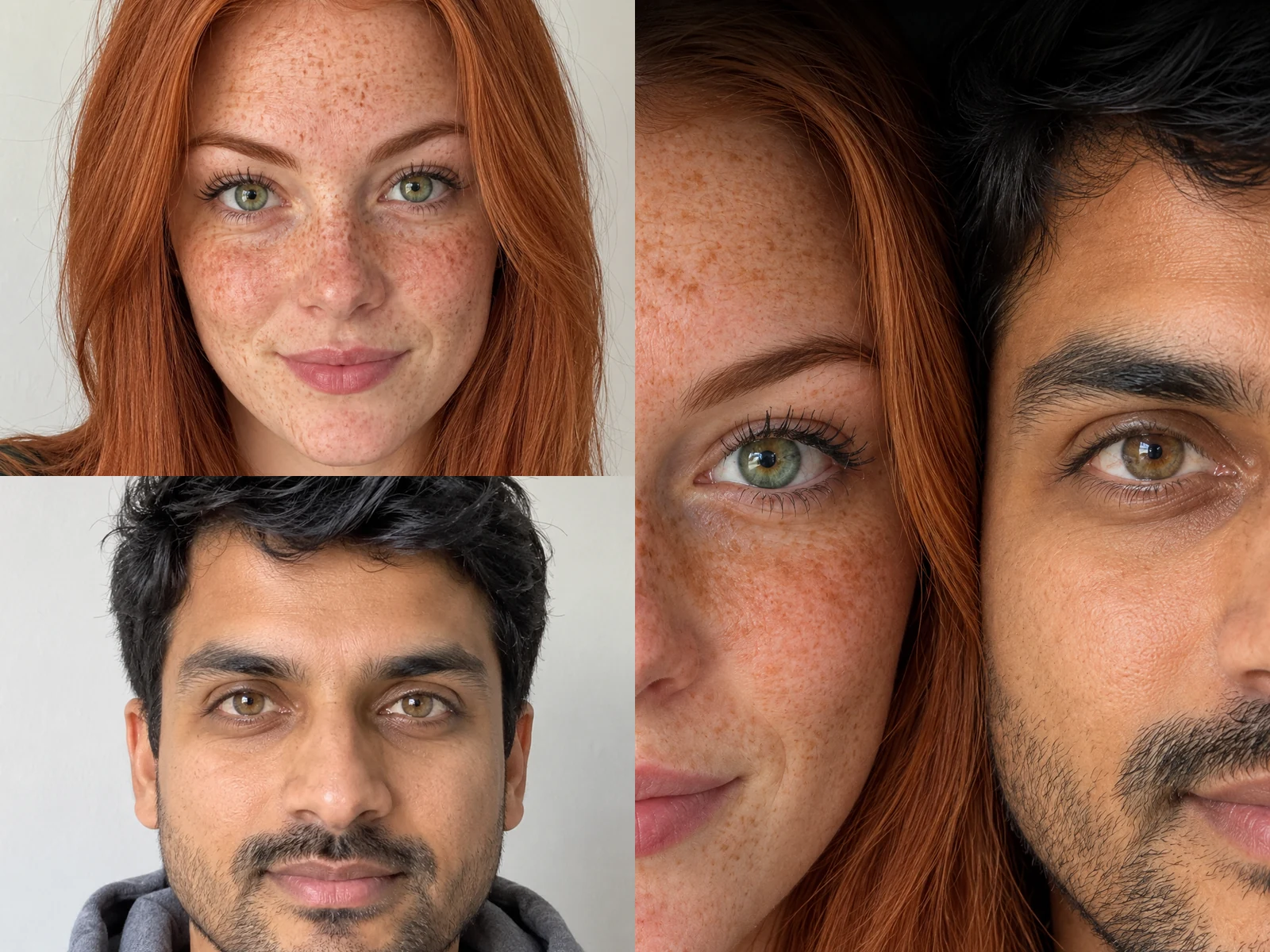
Natural color keeps your real iris colors, so brown next to blue or hazel next to green stays exactly as it is in your photos. Soft window light, real skin texture and gentle grain make it look like a phone photo taken very close, not a polished painting. This look works best when both portraits share similar daylight. If one photo is much warmer, ask for even, neutral light in the details box and the couple eyes wallpaper generator will balance the two halves.

Create Our Eyes Wallpaper
Before and after: two selfies turned into a natural color close-up with one hazel and one green eye

Stardust Irises

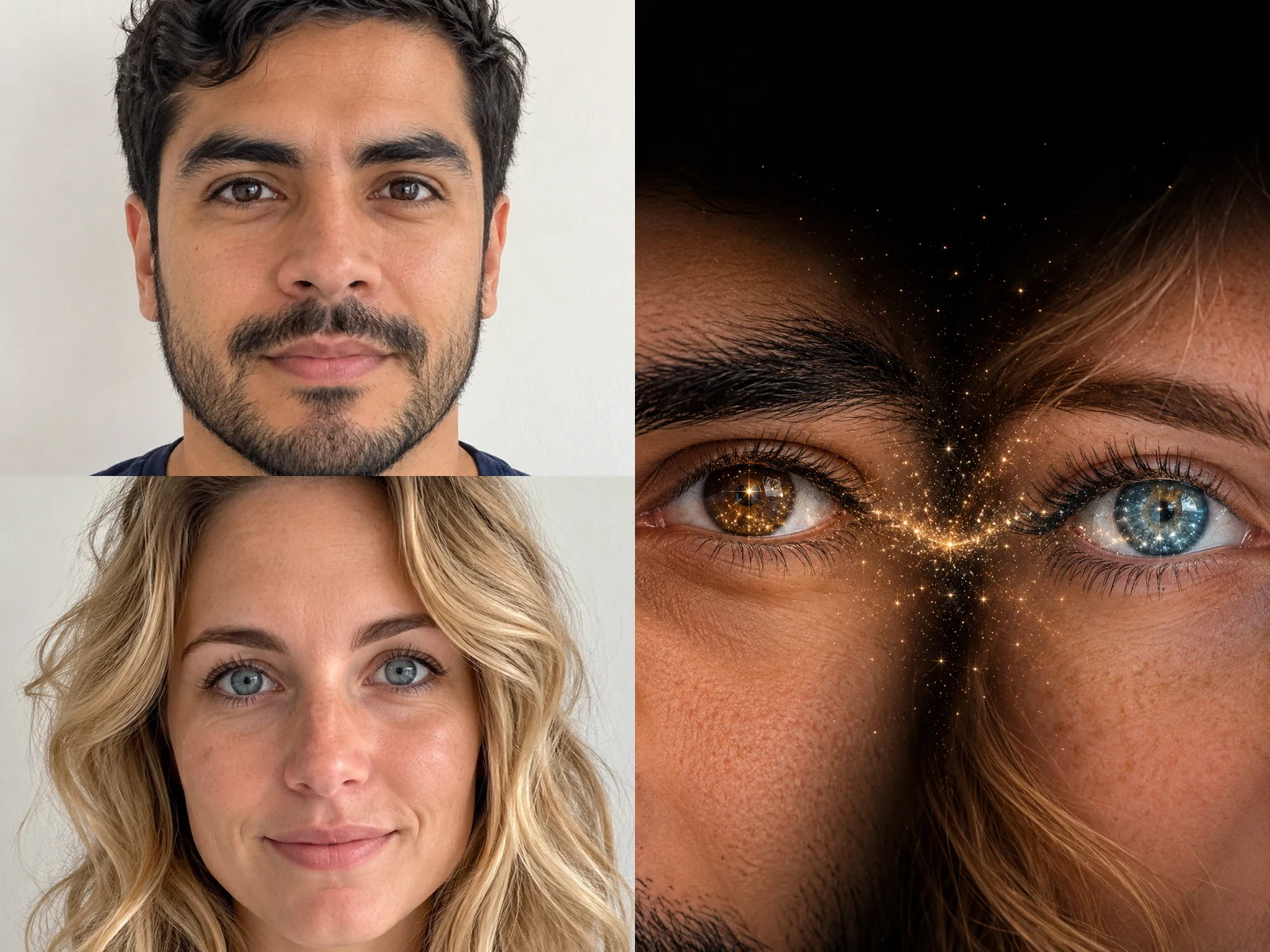
For a dreamier screen, the stardust look brings both eyes close on a deep black background, makes each iris glow, and lets a fine thread of sparkling dust drift from one to the other. Each iris keeps the color and pattern from its own photo, so you can still tell whose eye is whose. It suits a home screen where app icons sit on top, because the dark space around the irises keeps everything easy to read. Use sharp, close photos for this one, since the iris detail is the whole picture.

Create Our Eyes Wallpaper
Before and after: two portraits turned into two glowing eyes joined by a thread of stardust on black

Golden Hour Glow

Golden Hour wraps the same close-up in warm evening sunlight, with honey tones on the skin and a bright catchlight in every eye. It feels softer and more romantic than black and white, and it fits anniversary posts, travel memories and summer screens. Loose hair at the edges and a hint of a smile at the bottom can stay in frame. If you want both moods, make this version for your partner's phone and the black and white one for yours, so each screen is a little different.

Create Our Eyes Wallpaper
Before and after: a couple photo turned into a warm golden light close-up of one eye each

Photo Tips for a Clear Eyes Wallpaper

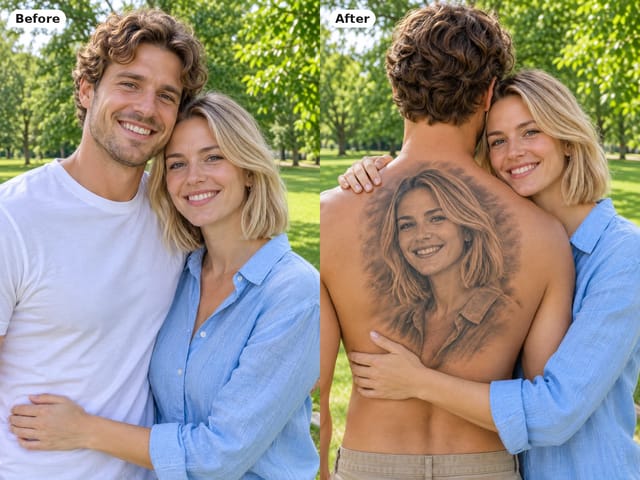
The whole picture is built from the eyes, so the photo matters more than anything else. Take each portrait straight on, close to the face, in soft daylight from a window, and keep both eyes open and looking into the lens. Remove sunglasses and avoid glare on glasses, heavy filters, beauty mode and hair over the eyes, because the couple eyes wallpaper generator follows what the photo shows. A face that fills most of the frame gives far more iris detail than a full-body shot where the eyes are only a few pixels wide. Try to use two photos with similar light and a similar head angle, and crop group photos to one face before you upload. Looking for another couple idea? Couple Back Tattoo AI puts one partner's face on the other's back as a portrait tattoo, and Couple Face Match shows how alike your two faces look.

Couple Eyes Wallpaper Generator FAQ

Answers about photos, likeness, phone shapes and sharing your wallpaper.

What is a couple eyes wallpaper generator?

It is a photo effect that turns two portraits into one tall close-up where each partner shows one eye, side by side, with calm space at the top for your phone's clock.

How do I make a couple eyes wallpaper?

Upload a portrait of each person, or one close photo of both, pick a look and a shape, add notes if you like, and press Create Our Eyes Wallpaper. Check both eyes, then download the image.

Do we need to be in the same photo?

No. The couple eyes wallpaper generator works with two separate selfies, even from different places. Photo 1 goes on the left and Photo 2 on the right. One close couple photo with both faces clear works as well.

Which shape should I choose for my phone?

3:4 is the tallest shape here. Most lock screens are closer to 9:16 or taller, so the phone trims the sides when the picture fills the screen. Move and zoom it until both eyes stay in view, or crop it to 9:16 yourself in any photo editor before you set it.

Will the eyes look like ours?

Eye shape, iris color, brows and skin tone are taken from your photos, and each half uses only its own photo, so your two faces are kept apart instead of blended into one. It is still an AI picture, so small details can differ; close, sharp, front-facing photos give the closest likeness.

Why do our two halves look different?

Usually the two photos have different light or head angles. Use photos with similar daylight, choose Black and White Split, or ask for even, neutral light in the details box.

Can I add our names, a date or a clock?

The picture is made without text or a phone interface, so your real clock and notifications sit on it cleanly. Add names or a date afterwards in any photo editor if you want them.

Can I use someone else's photo?

Only photos of adults who agreed to it. Ask your partner before uploading their face, and do not use the effect to mislead anyone about a real person.

Can we use it on both of our phones?

Yes. Download the image and send it to your partner, or make two versions in different looks so each phone gets its own.

How do credits work?

Credits for each run show in the generator before you start, and a failed run returns its credits.

Ready to Make Your Couple Eyes Wallpaper?

Upload two clear portraits, pick a look and let the couple eyes wallpaper generator put one eye from each of you on one screen.

Related tools

80s Photo Filter

80s Photo Filter

80s Photo Filter adds warm, faded film color to your photo in the browser. Adjust strength, preserve clothing and framing, and download a PNG.

Open tool
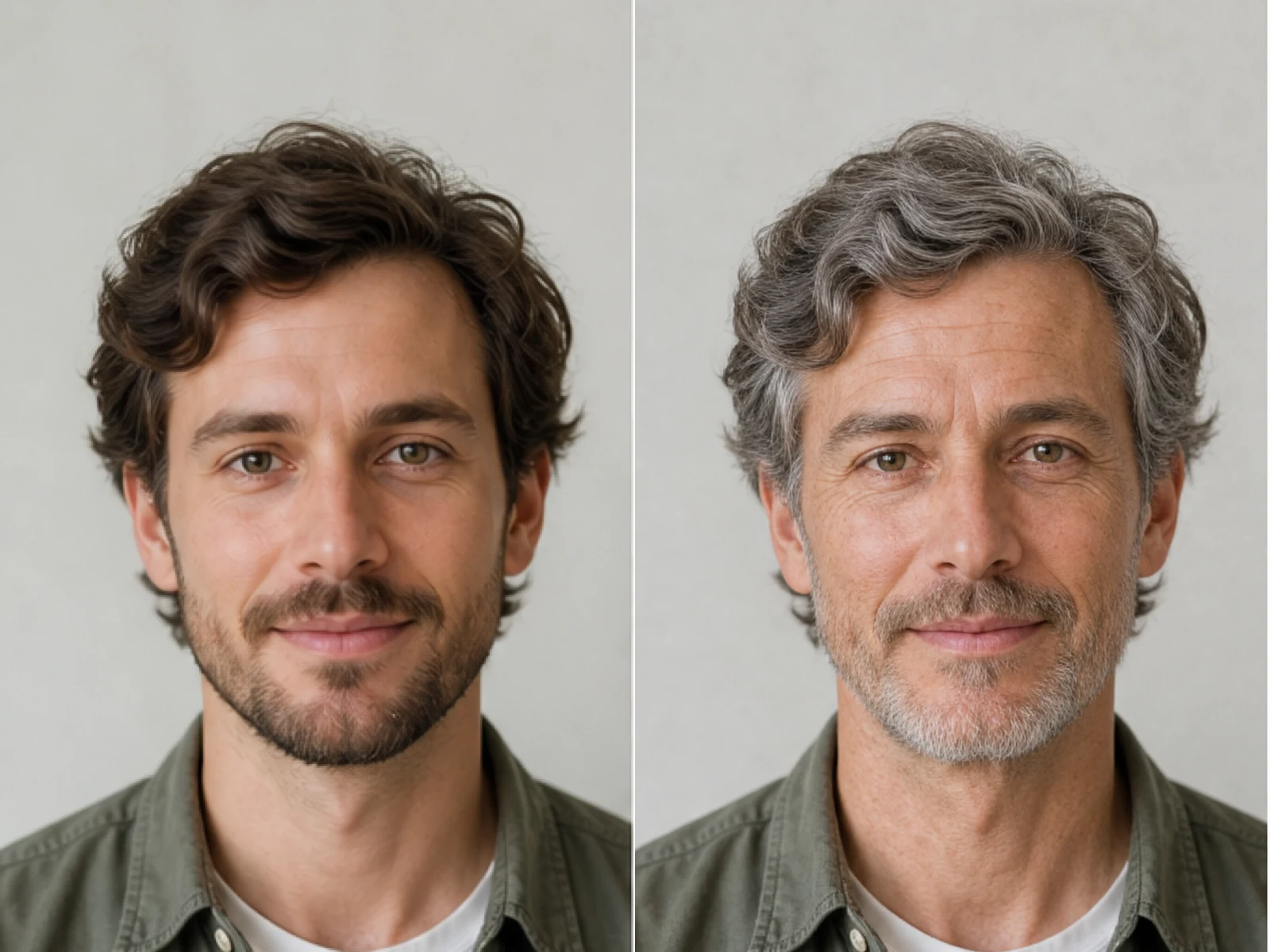
AI Age Filter

AI Age Filter

AI Age Filter creates a natural older-look concept from an authorized adult portrait. Review identity, complete-head framing, light and scene after editing.

Open tool
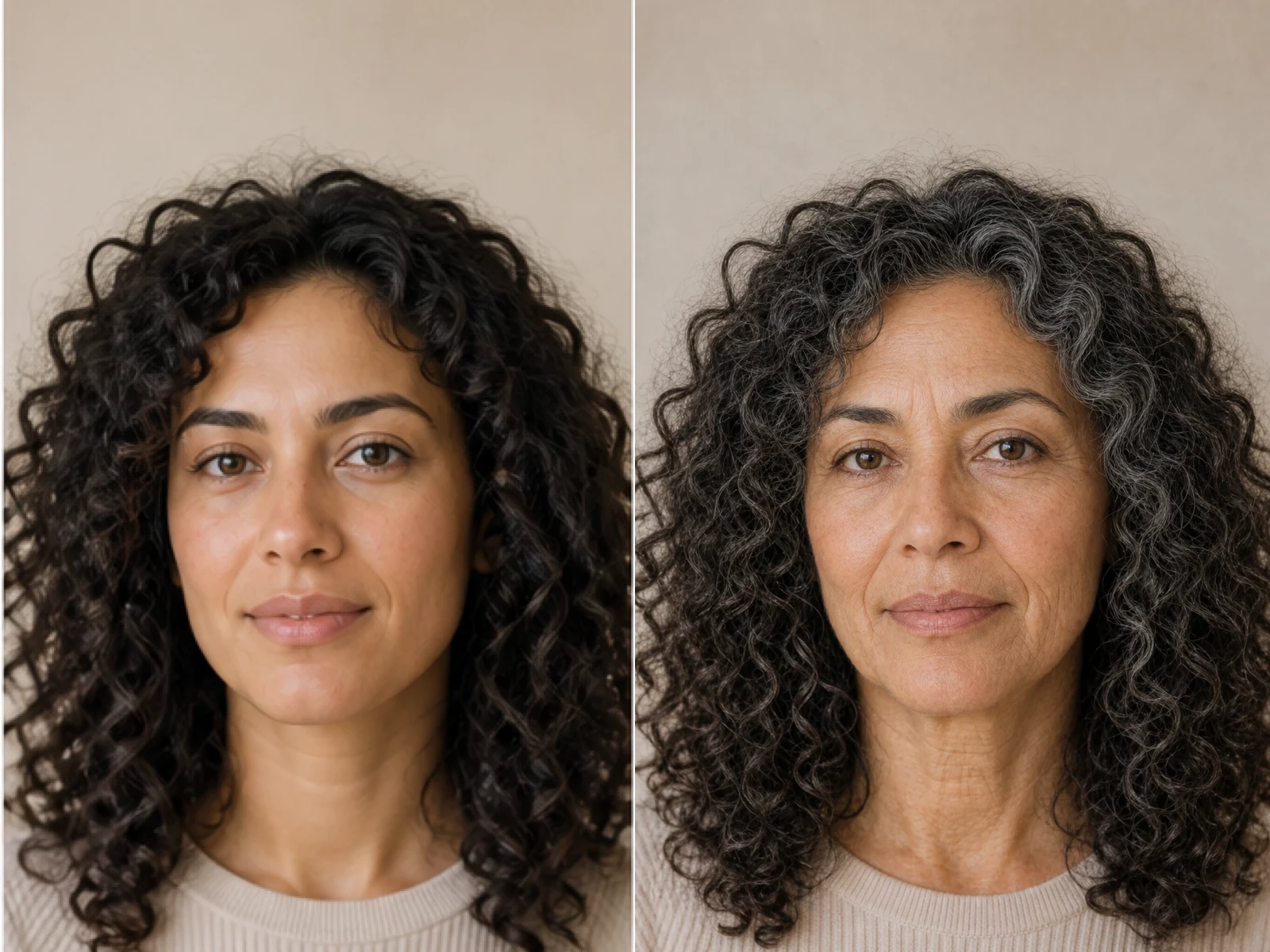
AI Age Progression

AI Age Progression

AI Age Progression creates a target-age concept from an authorized adult portrait. Set an age interval and review identity, framing and scene after editing.

Open tool
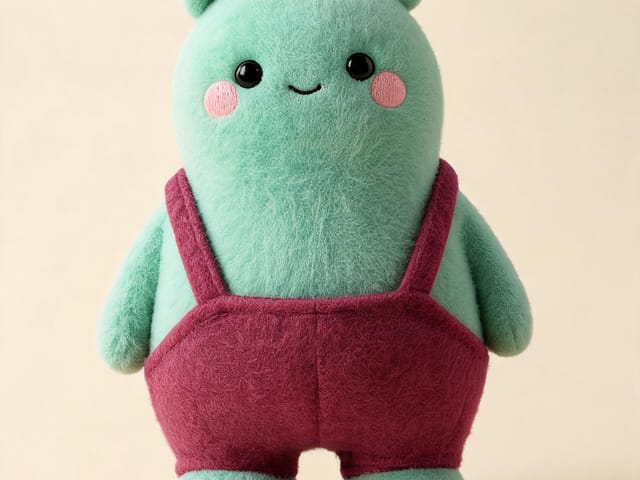
AI Labubu Generator

AI Labubu Generator

AI Labubu Generator helps explore your own monster doll concept from an authorized reference. Create original shapes and outfits, with no official affiliation.

Open tool
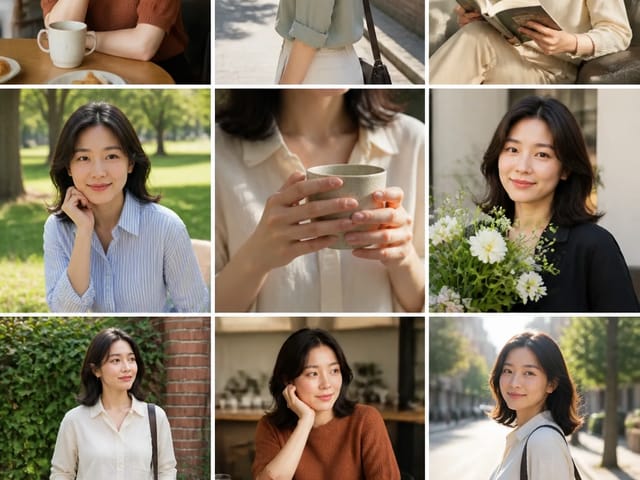
Camera Roll AI

Camera Roll AI

Camera Roll AI turns an authorized reference photo into one lifestyle collage. Plan varied scenes and a phone-gallery-inspired layout, then save one image.

Open tool
Face in Hole Generator

Face in Hole Generator

Face in Hole Generator places an authorized face into your chosen photo or template. Upload two references, refine the blend, and save a creative portrait.

Open tool
Hotpot AI Image Generator

Hotpot AI Image Generator

Create still images with the Hotpot AI Image Generator on NanoPic. Write a clear scene, generate with Nano Banana 2, refine the look, and download the picture you like.

Open tool
Make Image Higher Resolution

Make Image Higher Resolution

Make Image Higher Resolution with real 2× or 4× browser resizing. Compare pixel dimensions and download PNG without claiming recovered detail.

Open tool
Remove Glare from Glasses in Photos

Remove Glare from Glasses in Photos

Remove Glare from Glasses in photos with an editable AI image prompt. Upload your portrait, reduce lens reflections, and review the result before using it.

Open tool
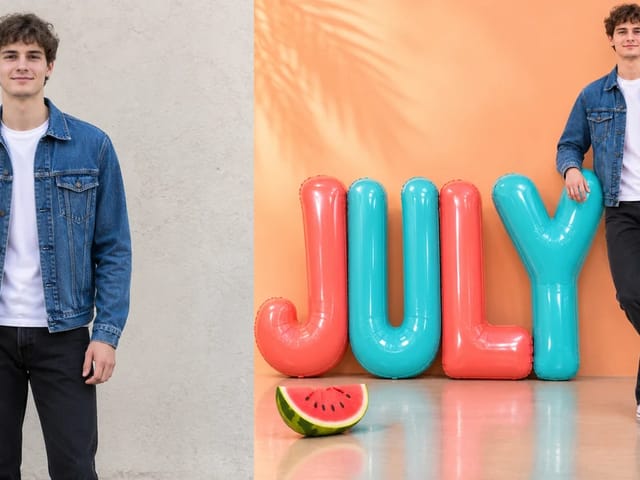
Before and after: man in a denim jacket beside the same man next to a row of JULY balloon letters

3D Month Letters AI Photo

Turn one full-body photo into a 3D month letters AI photo: you beside giant glossy balloon letters spelling any month, with your face and outfit kept.

Open tool
Wooden porch at dusk with a glowing carved jack-o'-lantern and autumn leaves

Add Pumpkin to Photo

Add pumpkin to photo: upload one picture, say how many and where, keep faces and pets, then download a still with realistic or glowing pumpkins.

Open tool
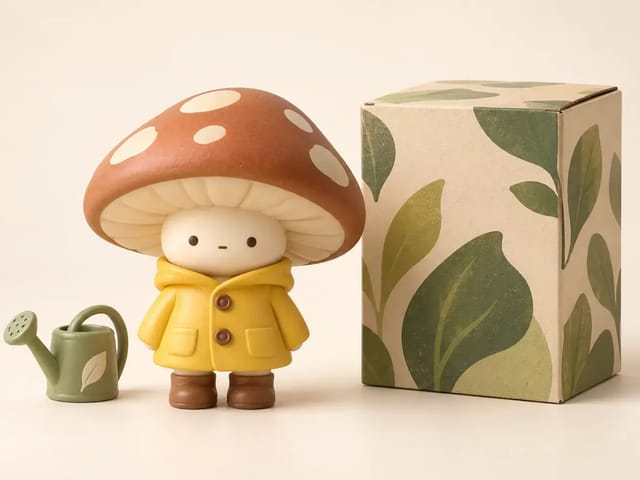
Small mushroom-cap vinyl figure in a yellow raincoat beside a leaf-pattern box

AI Blind Box Generator

AI blind box generator: upload one photo of you or your pet and get a cute chibi, plush or boxed collectible figure image to download and share.

Open tool
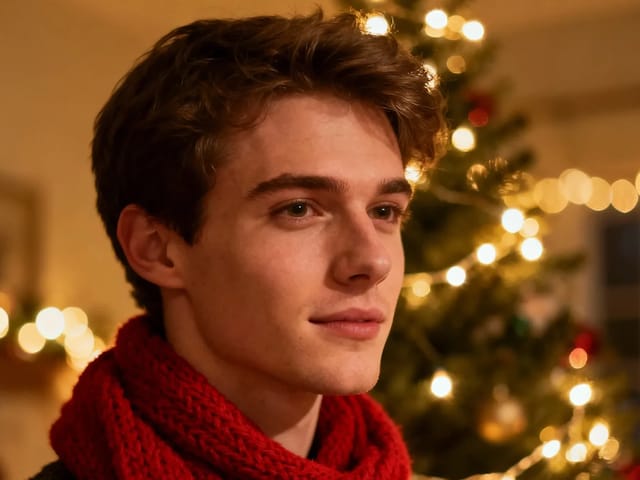
Young man in a red scarf smiling beside a glowing Christmas tree

AI Christmas Photo Generator

AI Christmas photo generator: upload one photo and get a cozy holiday portrait or a Christmas card picture that still looks like you, ready to download.

Open tool
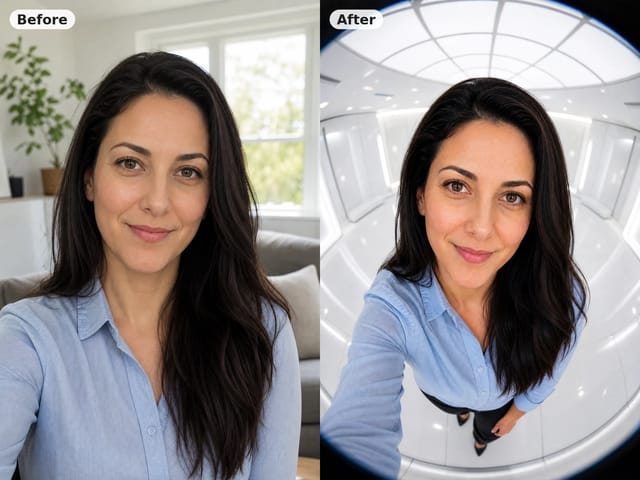
Before and after: woman selfie beside the fisheye white-room portrait

AI Fisheye Portrait Generator

AI fisheye portrait generator for selfies: upload one clear photo and get a curved, close-up fisheye lens look that still keeps your face recognizable.

Open tool
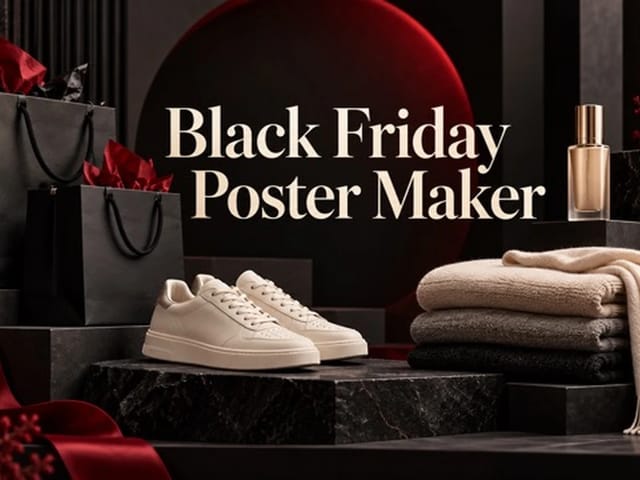
Black Friday sale scene with sneakers, knitwear and gift bags on dark stone

Black Friday Poster Maker From Your Product Photo

Black Friday poster maker for sellers: upload one product photo, pick a sale style, and add an optional headline or offer text to your downloadable poster.

Open tool
Man seen from behind with a black-and-grey portrait tattoo of his partner on his back while she hugs him

Couple Back Tattoo AI

Couple back tattoo AI turns your photos into a romantic picture: a partner's face as a black-and-grey back tattoo with roses and Love You script.

Open tool

Flashlight AI Photo

Turn one authorized adult portrait into a realistic flashlight scene with a miniature stylized double. Generate, then inspect identity, hands, light, scale, and crop.

Open tool
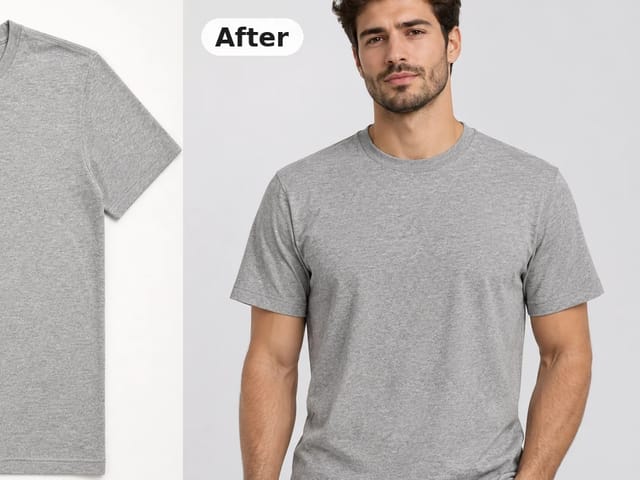
Before and after: gray crew-neck t-shirt laid flat beside the same shirt worn by a model

Flat Lay to On-Model Photo

Turn a flat lay, hanger or ghost mannequin shot into a flat lay to on model photo with a realistic model, pose and scene for product listings and ads.

Open tool

Funny AI Prompts

Try 12 original funny AI prompts on one authorized person or pet photo. Load, edit, generate, and review identity, anatomy, props, text, and visual coherence.

Open tool
Demo cover showing clearer detail after enhancement workflow

Magnific AI Image Generator Style Enhance on NanoPic

Run a magnific ai image generator style enhance on NanoPic: upload one photo, rebuild edges and textures toward 4K, then download after a full-size check.

Open tool

Mera Prompt AI Photo Prompts for Viral Selfie Edits

Copy free mera prompt AI photo prompts for boys, girls, couples, festivals and cricket, then turn your own selfie into a viral edit on NanoPic.

Open tool

Minecraft Pixel Art

Turn one authorized photo into original blocky pixel art with six editable prompts. Generate, then review subject detail, geometry, text, rights, and composition.

Open tool