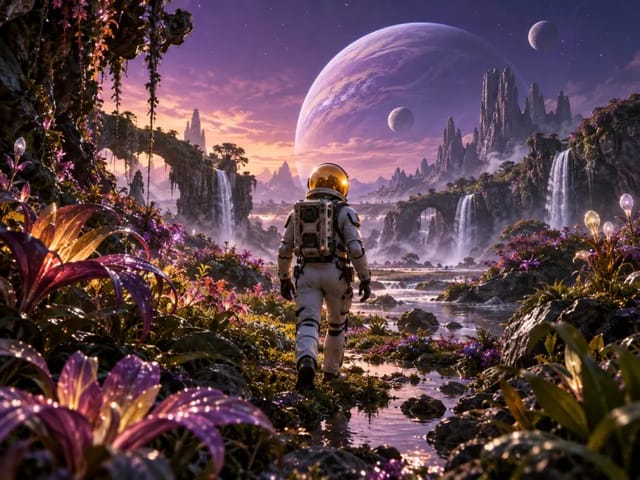

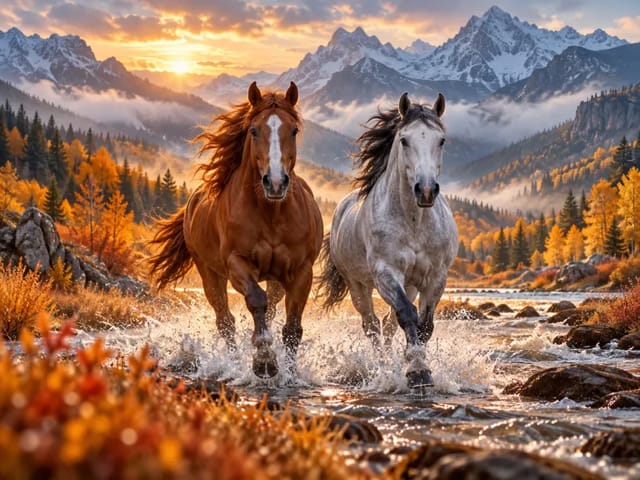
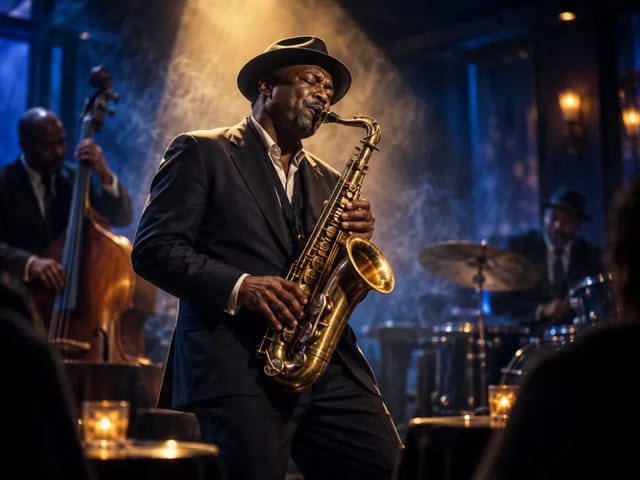
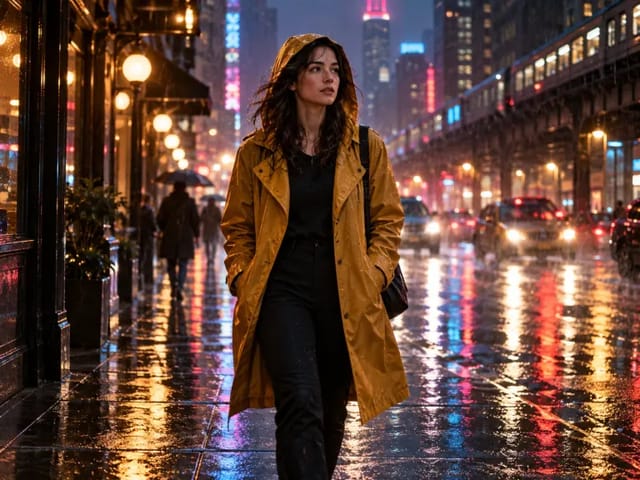















Save up to 73% on plans

HeyGen Video 1 Video Generator
Sign In

HeyGen Video 1 Video Generator

Describe a shot or upload one first-frame image. Choose duration and resolution, then review the credit requirement before generating.

Public VisibilityAllow this result to appear in public inspiration surfaces.
Credits required:—

HeyGen Video 1

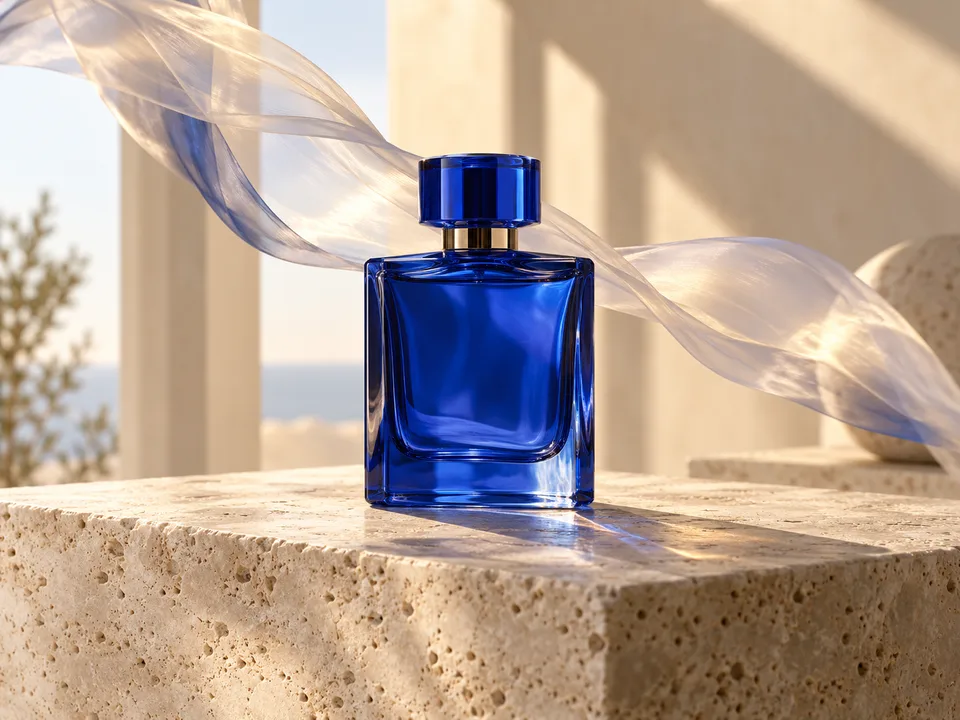
Product-shot concept · not a HeyGen output

More AI Video Models & Effects

Browse every other AI video model and effect published on this site in a continuous carousel.

Turn a visual idea into motion and sound

HeyGen Video 1 is a scene-generation model for short business and creative videos. Describe a subject, action, camera move and sound, or animate an existing product photo or scene. Use it for product reveals, social ads, training scenes and space walkthroughs, with dialogue, ambience and effects generated alongside the picture.

Choose how your shot begins

Text to video

Create a scene without source footage. Establish the subject and setting, then describe one visible action and one camera move. A five-second clip works well for a simple reveal; longer clips allow a clear opening, development and final hold.

Image to video

Upload one clear image to establish the opening composition. Focus your prompt on what stays consistent, what moves and how the camera travels. Product photos suit slow reveals and detail shots; room images can guide a gentle walkthrough.

Picture and sound together

Include ambience, dialogue or action sounds in your prompt. Tie sound to a visible event, such as a soft click when a cap opens. Play the complete result to check timing, intelligibility and whether the soundtrack fits the action.

Flexible framing and duration

Choose whole-second durations from 5 to 15, 480p or 768p resolution, and 21:9, 16:9, 4:3, 1:1, 3:4 or 9:16 framing. Validate motion with a short draft before increasing resolution or extending the shot.

From the first prompt to a usable clip

1. Define the subject and action

Name the subject, establish its position and describe one thing that happens. Break a complex ad into individual shots rather than packing several locations and transformations into five seconds.

2. Add camera and sound

Choose a locked camera, slow push-in or lateral move. Add lighting, material and background sound. For dialogue, identify the speaker and keep the line short. With a first-frame image, specify the shapes and colors that should remain consistent.

3. Review and change one variable

Check subject continuity, camera direction and sound timing. If motion misses the brief, revise the action before raising resolution. More pixels cannot repair an ambiguous shot. Keep the prompt and settings of a successful version for later revisions.

What can you create?

Product demos and ads

Start with a product image and explore lighting changes, slow camera movement and reveals. Keep the product as the focal point and limit competing motion in the background.

Training and onboarding scenes

Turn a process into short illustrative scenes for storyboards or presentations. Explain one action per clip and split longer workflows into separate shots that are easy to review and revise.

Spaces and social clips

Plan a slow walkthrough of an interior or choose portrait framing for a social clip. Check the opening composition before uploading so the subject and intended motion fit the delivery format.

HeyGen Video 1 FAQ

Does it generate images or videos?

The output is video. NanoPic offers text-to-video and single-first-frame image-to-video. An image is an input that guides the clip, not an image-generation output.

Is this a HeyGen avatar model?

No. Video 1 generates scenes from prompts and images. It is distinct from the talking-avatar workflow of HeyGen Avatar IV.

Which durations and resolutions are supported?

Choose any whole-second duration from 5 through 15 at 480p or 768p. This page does not offer 1080p, 4K or last-frame controls.

Can I upload video or audio references?

This page offers text and one first-frame image. The official model also has reference-driven capabilities, but video and audio reference uploads are not offered here.

How many credits does generation use?

The requirement depends on duration and resolution. Choose your settings and check the displayed credits before submitting. Generation consumes credits; this is not unlimited free generation.

Is it available on NanoPic now?

The integration is in testing; live generation verification and production release are still pending. The generator is fixed to HeyGen Video 1. If it is not enabled, it shows unavailable instead of substituting another model.

Plan your first HeyGen Video 1 shot

Start with one subject, one action and a five-second shot.