























































Save up to 73% on plans

MOSS Image ComfyUI AI Image Generator
Sign In

MOSS Image ComfyUI AI Image Generator

Describe a poster, sign or labeled scene and get an image with clear text and a clean layout.

95 / 100

Copy Protection
Public VisibilityAllow this result to appear in public inspiration surfaces.

MOSS Image ComfyUI preview

Image

Night Market poster with clear headline and three labeled columns

More AI Image Models & Effects

MOSS Image ComfyUI workflow for text-rich images

Use this path when words and placement matter: decide the picture, set up the graph, place boxes, check every line, then fix what failed. These five steps cover the jobs this model is built for, how to load it, how to pin each line with boxes, how to review the finished file, and how to recover when a graph fails.

What you can make with MOSS Image ComfyUI

MOSS Image ComfyUI shines on posters, shop signs, menus, maps and labeled diagrams—any scene where each word and its seat on the canvas matter. Before you open a graph, list every line of English or Chinese text and mark where it should sit. Decide whether a plain prompt is enough or each block needs its own box. Quote exact wording, keep each line short, and leave style notes for the scene caption so lettering stays readable. Event flyers with a two-line headline plus three info columns are a good first test; dense island maps with many place names are a harder stress check for small type.
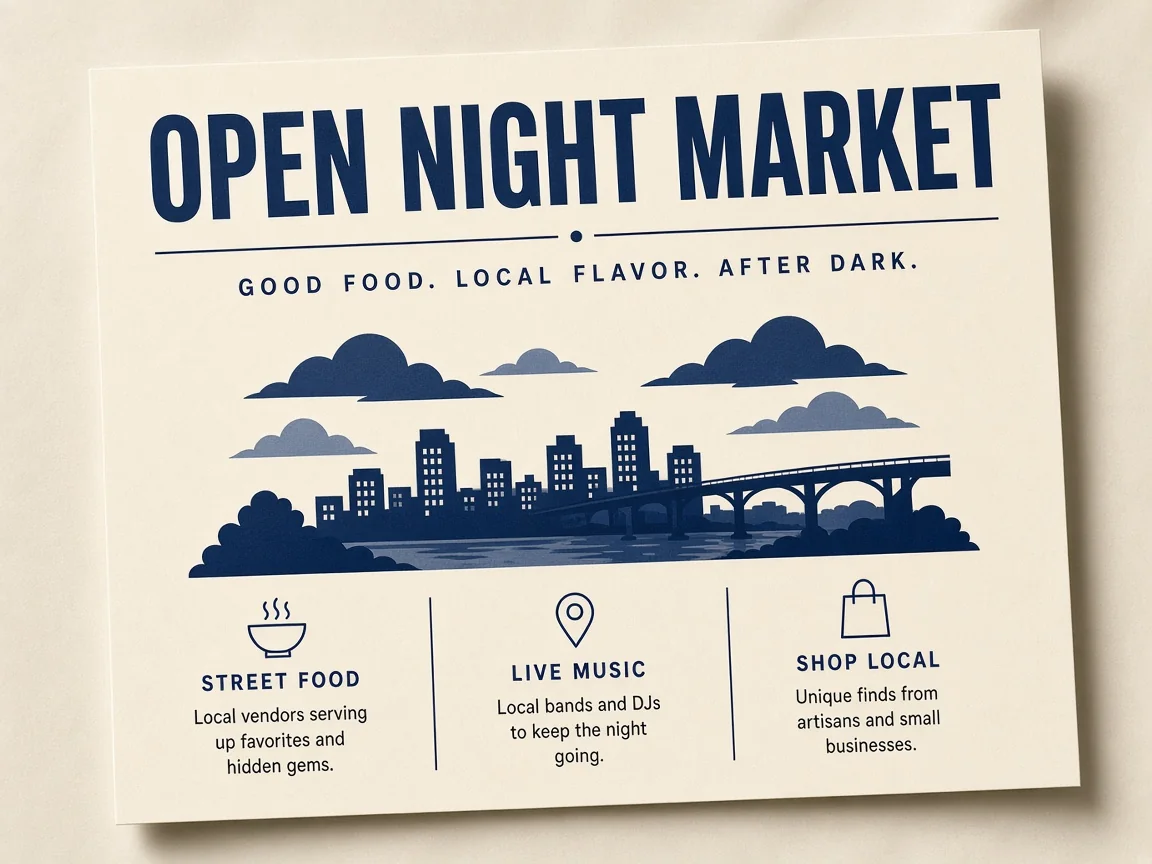
Cream night-market poster with bold OPEN NIGHT MARKET headline and three labeled columns for food, music and shopping

How to set up MOSS Image ComfyUI

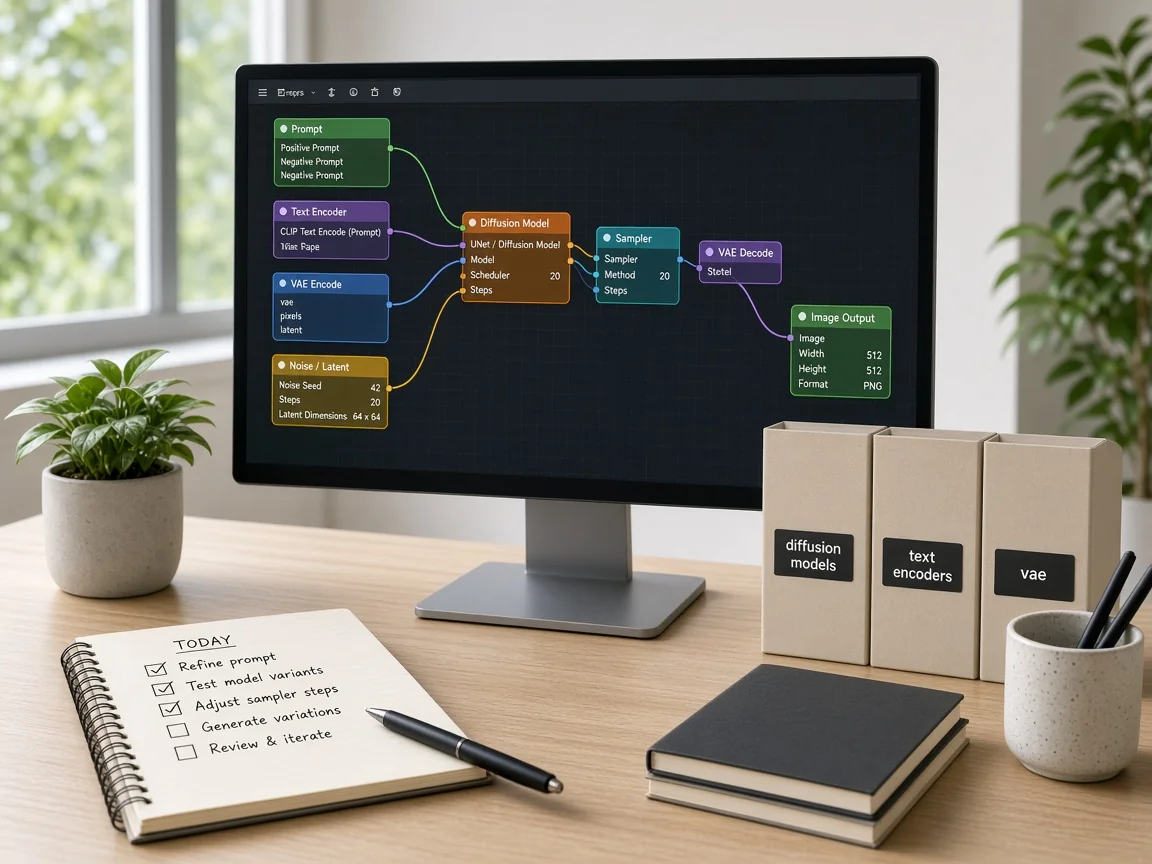
Update ComfyUI to 0.42.0 or later, then place the SFT diffusion file, the moss_image text encoder and the small VAE in diffusion_models, text_encoders and vae. Keep the downloaded file names unchanged so shared graphs find them without hand edits. Restart and load the text encoder as CLIP type moss_image. Open the workflow browser, search for MOSS-Image, and run an unmodified graph once before you change anything. Pick either the native Comfy-Org single-file route or the OpenMOSS custom-node route and never mix their files—mixing is the most common reason a graph fails to load.

Desk with a monitor showing a node graph and folders labeled diffusion models, text encoders and vae

Place each line with MOSS Image ComfyUI layout boxes

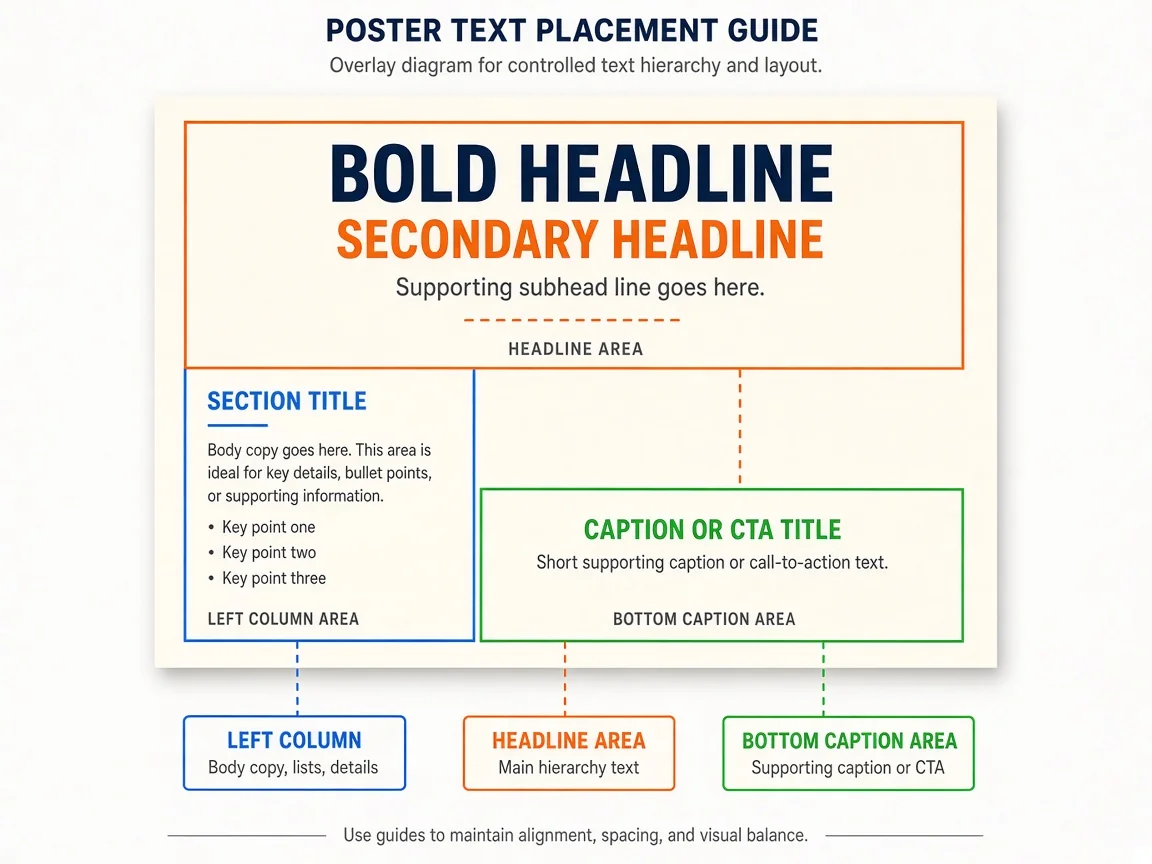
Open the Layout-Guided Text to Image graph. Draw one box per element, caption it, and type the exact words into text boxes. Put style and mood in the scene prompt; leave positions to the boxes instead of long prose. For line breaks, use real newlines or \n inside the quoted text. Start with the SFT checkpoint for cleaner text grouping, and keep the Base checkpoint for fine-tuning or LoRA work. When you only need a simple headline poster, the plain Text to Image graph is enough; switch to layout boxes as soon as columns or callouts must stay locked.

Poster layout guide with colored bounding boxes over headline, left column and bottom caption zones

Check a finished MOSS Image ComfyUI image

Read every rendered word against your quote list before you ship the file. Confirm each label sits next to the right object and that small place names on maps stay legible at the canvas size you chose. Watch for dropped characters, swapped glyphs in Chinese lines, and boxes that drifted away from their subjects. If one line is wrong, lock the seed and change only that phrase or box. Keep a short note of what each run changed so you can return to the version whose text came out cleanest.

Magnifying glass over a DAILY SPECIALS menu poster with checkmarks beside each readable line

Fix common MOSS Image ComfyUI problems

Missing nodes or no moss_image type means the build is too old—update ComfyUI and restart. Could not detect model type usually means a plugin folder was loaded into a native single-file loader. If noise appears after you edit the graph, reload the unmodified workflow and reapply changes one by one. For memory pressure, use the int8 diffusion model, w4a8 text encoder, small VAE, a canvas near 1 megapixel, and ComfyUI offload. Completely black frames have shown up on some builds and GPUs: reload the stock graph, drop unusual launch flags, and check open issues for your version.

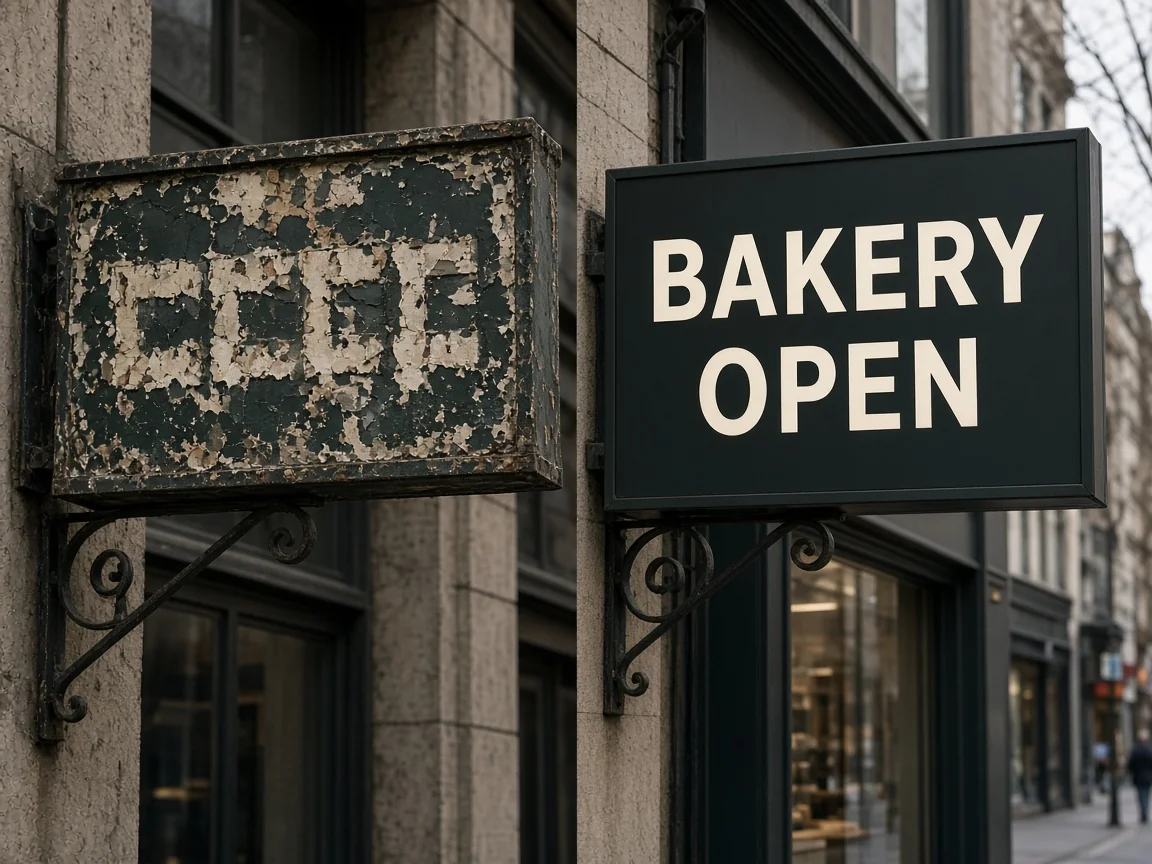
Two shop signs side by side: left with unreadable lettering, right with clear BAKERY OPEN text

What is MOSS Image ComfyUI?

MOSS Image ComfyUI means running MOSS-Image, an open-weights text-to-image model from the OpenMOSS team, inside ComfyUI. Docs describe it as a single-stream DiT that turns a full scene caption into one finished image, with a focus on English and Chinese lettering and layouts that place each object and line of text. Weights are Apache 2.0. In practice the graph is familiar: a diffusion model, a text encoder and a VAE feed a sampler, and layout graphs add a node for drawing boxes you can save and share. You can run these graphs on your own GPU without sending prompts to a remote service, which matters when poster copy must stay private until publish day.

Recommended MOSS Image ComfyUI settings

Start with the workflow defaults: 25 steps, CFG 2.5, er_sde, skip layer guidance at layer 22. If a result looks undercooked, try OpenMOSS's 50 steps at CFG 3. Keep the canvas near 1–2 megapixels with sides divisible by 16, and a short negative prompt. Turning SLG off can look more natural but may lose detail—try both on one seed. Comfy Org ships Text to Image and Layout-Guided graphs for both SFT and Base checkpoints. A built-in prompt upsampler can expand a short idea into a fuller caption; turn it off when you need your quoted wording left alone, and read the caption used in Preview Any.

MOSS Image ComfyUI prompting tips

Write a caption of the finished picture—not an instruction—for a stronger prompt.

Describe the result

Write 'a cream poster, headline NIGHT MARKET in bold blue at the top', not 'make me a poster'.

Quote exact text

Put every word you want rendered in quotes, in English or Chinese, and keep each line short.

Change one thing at a time

Fix the seed; change one phrase, box or setting per run so you can return to the cleanest text.

Running MOSS Image ComfyUI without a strong GPU

A local install needs a capable GPU and several large downloads. Neither OpenMOSS nor Comfy Org publishes a hard minimum VRAM figure, so treat lower-memory cards as trial and error. On a smaller card, use the int8 files at 1 MP, launch with --lowvram, and close other GPU programs. Or describe the scene in the NanoPic generator to make a text-rich image now, then reuse that wording in your local setup later.

MOSS Image ComfyUI FAQ

How do I install MOSS Image ComfyUI?

Update to 0.42.0 or later, place the three model files in diffusion_models, text_encoders and vae, restart, and open a MOSS-Image workflow. The native route needs no custom nodes.

Where can I download the model files?

Native single-file checkpoints live in Comfy-Org/MOSS-Image on Hugging Face. Full folders for the OpenMOSS custom node are linked from the OpenMOSS/MOSS-Image GitHub repository.

What is the difference between Base and SFT?

SFT is instruction-tuned and groups text more cleanly, so default workflows use it. Base has no post-training and is meant for fine-tuning and LoRA work.

Can MOSS Image ComfyUI make posters with accurate text?

Yes. Quote the exact words, keep lines short, and use the layout-guided workflow to place each text block in its own box.

How do I fix missing nodes or loading errors?

Update ComfyUI and restart, confirm Load CLIP offers moss_image, and do not mix plugin folders with native single-file checkpoints.

Is NanoPic affiliated with OpenMOSS or Comfy Org?

No. NanoPic is independent and not affiliated with OpenMOSS or Comfy Org.

Can it edit an existing photo?

No. MOSS-Image is text-to-image; the workflows create new images from a prompt and optional layout boxes.

Turn your MOSS Image ComfyUI ideas into images

Describe the picture you want and create posters, signs and labeled graphics with clear text.

Related tools

FLUX Kontext Multi Image

FLUX Kontext Multi Image

FLUX Kontext Multi Image Generator combines 2 to 4 references into one coherent image. Assign each source a role, choose a canvas, and review the result.

Open tool
Qwen Image Generator

Qwen Image Generator

Qwen Image Generator creates images from prompts and edits references. Use Qwen Image 3 or Pro, choose your canvas, and review downloadable visual drafts.

Open tool
Creen AI Image Generator

Creen AI Image Generator Online | NanoPic

Use the Creen AI Image Generator to turn one written sentence into a finished picture in your browser, with no app to install.

Open tool
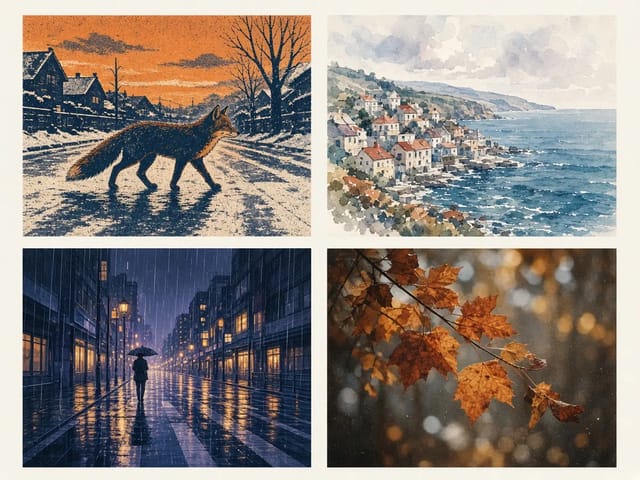
Krea 2 style grid: screen-printed fox, watercolour seaside town, anime rainy street and film-grain autumn leaves

Krea 2 AI Image Generator: Styles, Prompts & Tips | NanoPic

Krea 2 is a style-led AI image generator from Krea AI, built to keep each visual style distinct and carry a chosen look steadily across images.

Open tool