













Save up to 73% on plans

EveryGen AI Video Generator
Sign In

EveryGen AI Video Generator

Type what should happen in the scene, choose the frame shape and resolution, and generate a short AI video you can watch and download. Good for YouTube Shorts, TikTok, Reels, product teasers and story moments. Start with one subject, one action and one camera move so the first take is easier to judge.

Public VisibilityAllow this result to appear in public inspiration surfaces.
Credits required:—

Seedance 2.5

AI output preview

More AI Video Models & Effects

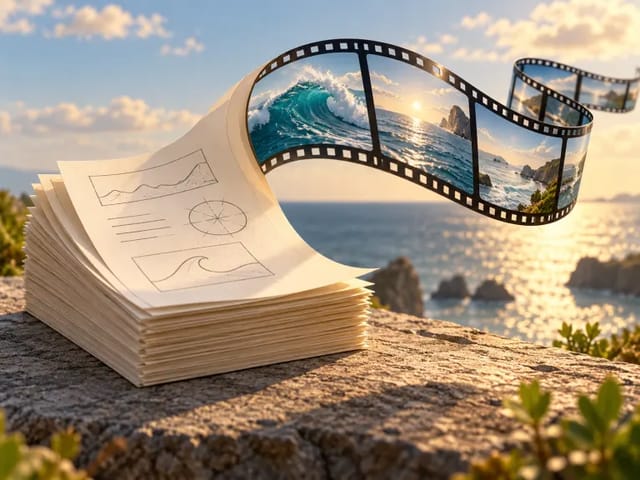
From Idea to a Finished Clip with the EveryGen AI Video Generator

Four practical steps: decide what the clip is for, write one clear scene, pick a frame that fits the platform, then review the result and refine weak spots.

What You Can Make with the EveryGen AI Video Generator

Use the EveryGen AI video generator when you need a short moving scene and filming is not practical. Describe who is in the shot, what happens, where it takes place and how the camera moves, then generate a clip that follows those words. Aim for a realistic look, a cinematic mood or an animated style, and keep the subject readable from the first frame to the last. Most creators start with vertical clips for social feeds, then reuse the same way of writing for product teasers, ad ideas, music visuals and single story moments.

Start creating
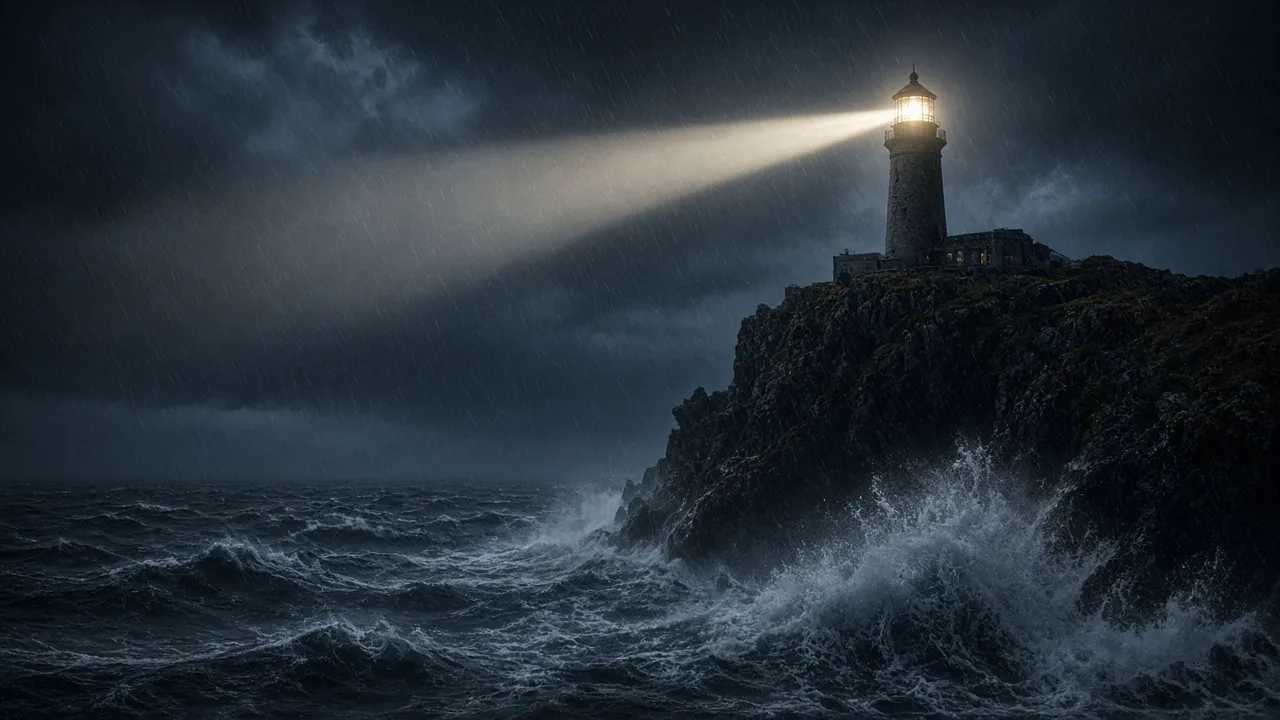
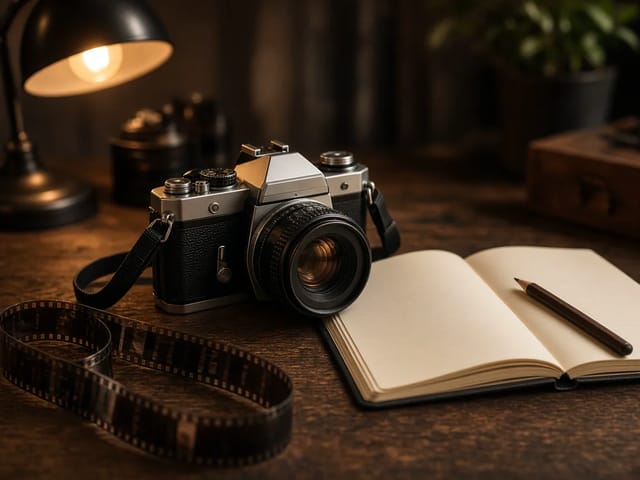
Storm lighthouse scene for a short AI video

How to Write a Clear Scene Description

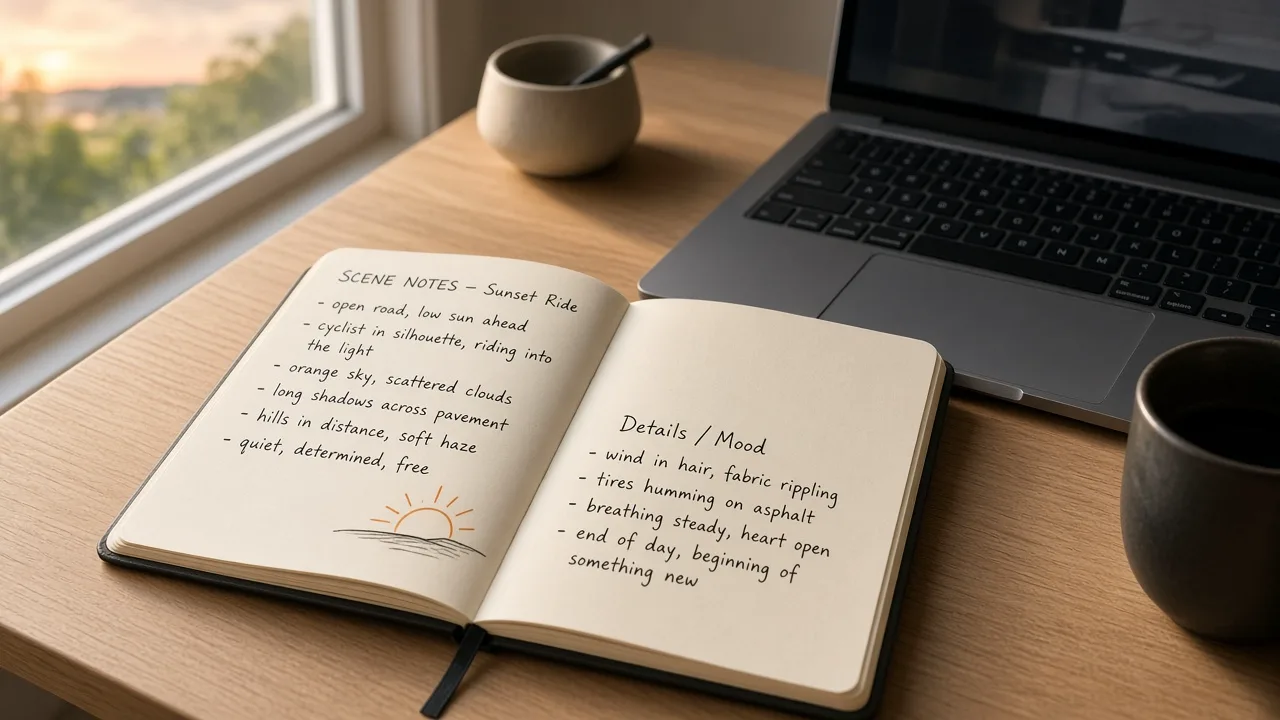
Keep one action and one camera move in each EveryGen AI prompt so the motion stays clean. Example: a cyclist rides down a narrow street at sunset while the camera tracks beside the handlebars. Add light and mood words such as golden hour, neon reflections or candlelit room so the tone stays consistent from start to finish. Name a style like realistic, 3D animation or anime. If the first EveryGen AI result is close but not right, change only one detail and generate again instead of rewriting the whole line.

Start creating
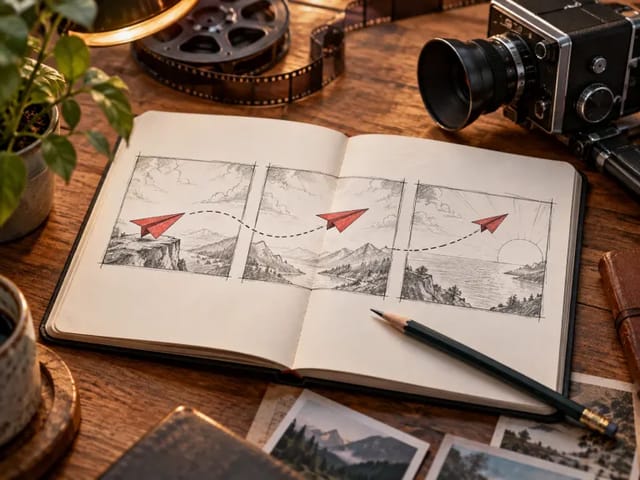
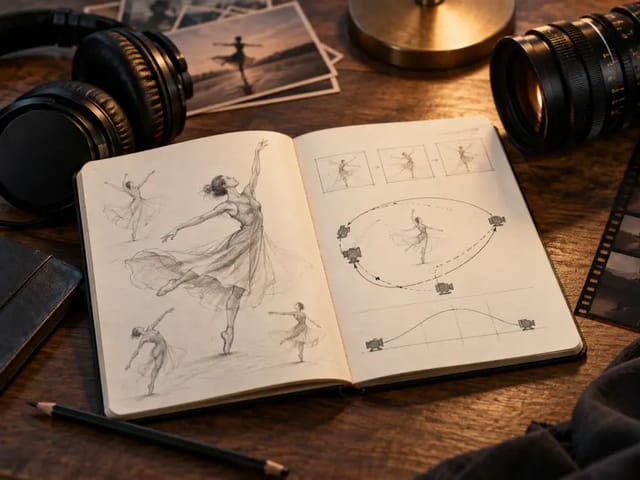
Notebook with scene notes for writing a video prompt

Where These Short Clips Fit Best

Choose the frame before you generate with EveryGen AI so you do not crop later. Use 9:16 for YouTube Shorts, TikTok and Reels, 16:9 for websites and presentations, and 1:1 for feeds. Product sellers can test a bottle catching morning light or sneakers in a puddle as promo ideas. Musicians can turn a lyric mood into a loop. Teachers can show a place or an event in a few seconds instead of only describing it. Each EveryGen AI clip works best when it has one clear job on the feed, then you can join several clips in an editor if you need a longer post.

Start creating
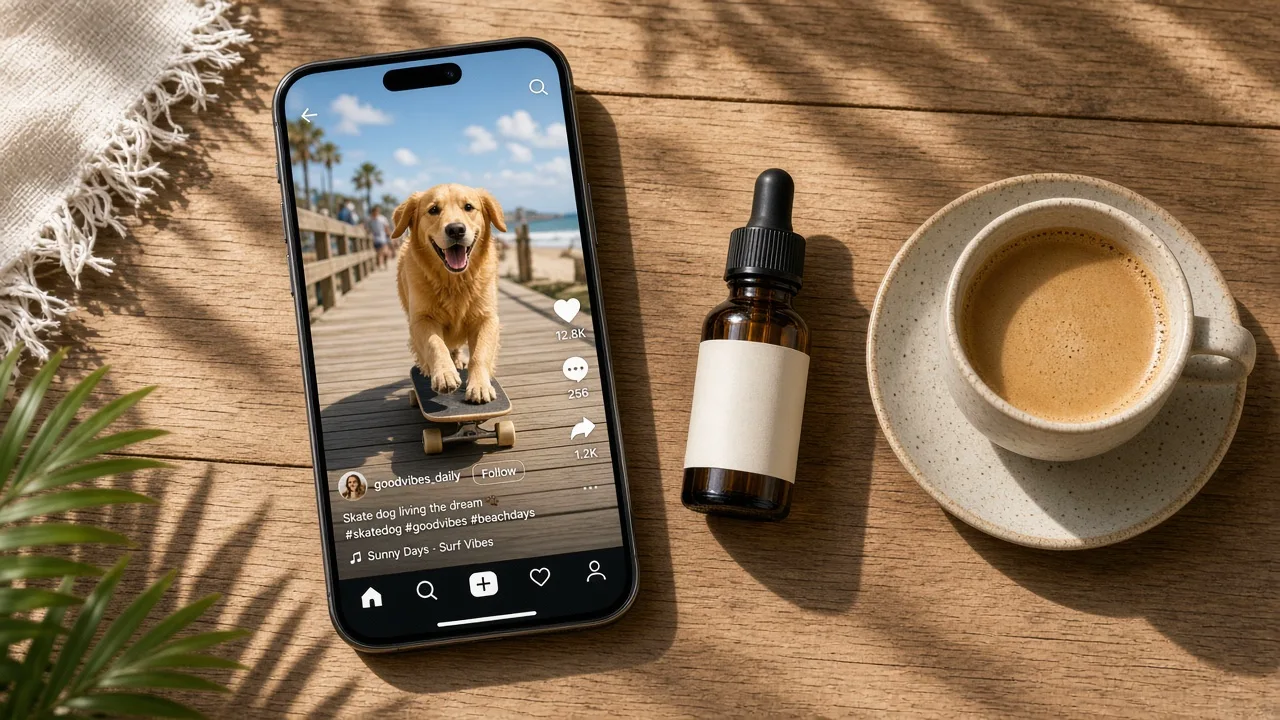
Phone showing a short social video next to everyday objects

Review the Finished Clip and Fix Weak Spots

Play the whole EveryGen AI clip from start to finish before you download it. Check faces, hands, small objects and any product details that must stay clear. If one part looks wrong, edit only that part of the description and generate a new EveryGen AI version. For a longer post, plan several short clips with the same style words and join them in your editor. Credits are used each time you generate, and the amount depends on the settings you choose; the generator shows what a clip needs before you start.

Start creating
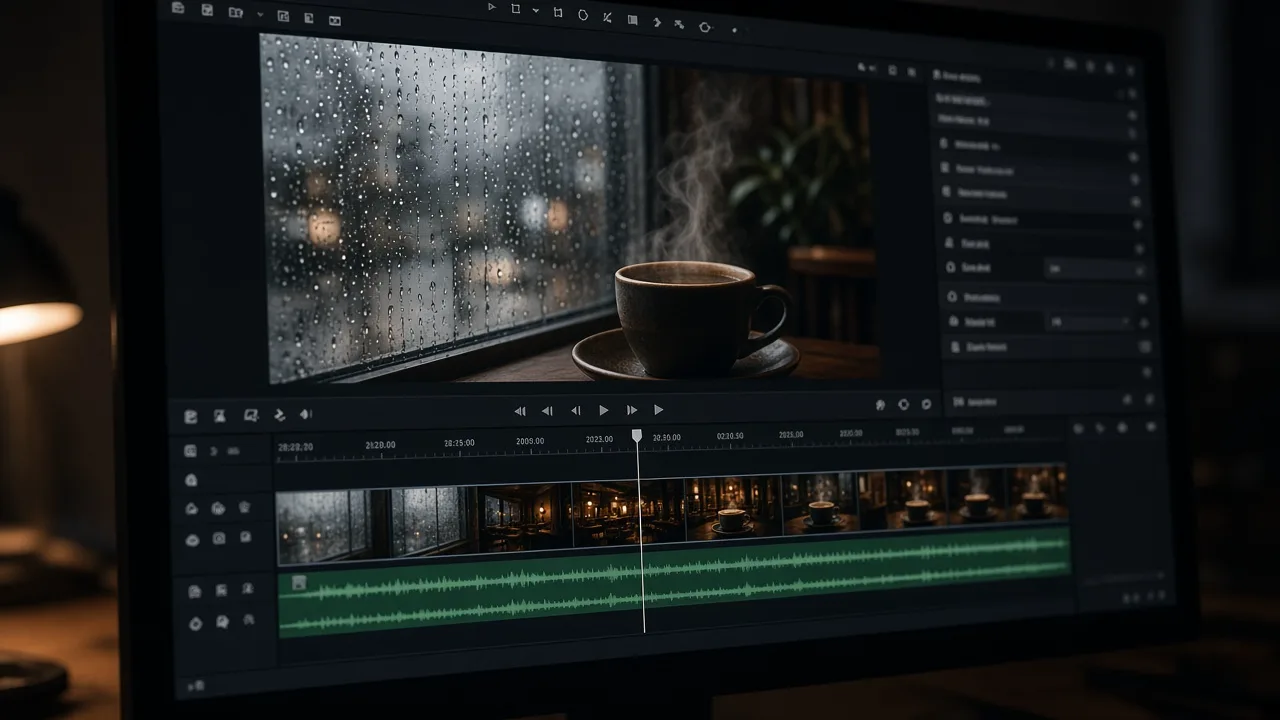
Editing timeline reviewing a finished short video

Short AI Video Examples

Sample EveryGen AI clips to show the kind of motion and framing you can aim for. Your own EveryGen AI videos will look different. Watch how the subject stays centered, how the camera moves once, and how light sets the mood across the whole shot.

Skateboarding dog

An EveryGen AI sample where a golden retriever in sunglasses rolls toward the camera on a skateboard along a sunny seaside boardwalk. The low tracking shot keeps the dog large in the frame and the ocean railing readable behind it.

Bottle on wet stone

An EveryGen AI product-style clip: a plain matte black bottle stands on wet dark stone while soft light moves across it and the camera slowly pushes in. The shallow background keeps attention on the bottle shape and the wet surface.

Rainy café window

An EveryGen AI mood loop: rain runs down a café window at night, a cup of coffee steams on the table and city lights glow out of focus. The still camera makes the steam and raindrops carry the motion.

Practical Writing Habits for Better EveryGen AI Clips

Small wording changes often matter more than starting over with EveryGen AI. Keep the subject specific: clothing colours, materials and the place all help. Prefer one camera instruction such as a slow push-in, a tracking shot or a still camera. Split long ideas into several short clips and keep the same style words across them so a series feels connected. Before you post an EveryGen AI result, watch the full clip once at normal speed and once while looking only at hands, edges and tiny objects. These habits work the same way whether you are making a social hook, a product teaser or a quiet mood loop.

One action per clip

For EveryGen AI, a dog jumps into a lake works better than a dog runs, jumps, swims and shakes off. Split long ideas into several short clips and join them later.

Light and mood words

In an EveryGen AI prompt, golden hour, neon reflections, overcast morning or candlelit room set the tone of the whole video and reduce random colour shifts.

Name the style early

Tell EveryGen AI you want realistic, 3D animation, anime, claymation or vintage film so the look stays consistent from the first frame to the last.

Be specific about people and products

EveryGen AI follows concrete details: clothing colours, materials and the setting. Keep any text in the frame short, because long words often come out unclear.

Review before you post

Check EveryGen AI faces, hands, small objects and product details. If one part looks wrong, adjust only that part of the description and try again.

EveryGen AI Video Generator FAQ

What is the EveryGen AI video generator?

The EveryGen AI video generator turns a short written scene description into an AI video clip. You describe the scene, choose the frame and resolution, then watch and download the result.

Do I need to install anything?

The EveryGen AI video generator runs in your browser, so there is nothing to install. Generating a video uses credits; you can sign up and check your balance before you create.

How do credits work?

Credits are used each time you generate, and the amount depends on the settings you choose. Plans and top-ups are listed on the pricing page.

Can I write the description in another language?

Yes. Clear, simple sentences give the most predictable results, including when you write in Chinese or another language.

Can I make Shorts, TikTok videos and Reels?

Yes. Choose the 9:16 frame and keep each clip to one clear moment. Join several clips in an editor if you want a longer post.

Can I upload my own files?

The EveryGen AI video generator works from text only. Describe the person, product or place in words, including colours, clothing and setting.

Can I use the videos commercially or in ads?

Commercial and advertising use depends on the terms that apply to your account.

Do downloaded videos have a watermark?

Whether a watermark is added depends on your account and plan; check this in your account before you generate.

Is this the official EveryGen AI site?

No, NanoPic is an independent site and is not affiliated with EveryGen AI.

Create Your First Clip with the EveryGen AI Video Generator

Describe a scene, pick a frame that matches where you will post, and turn your idea into a short video you can watch, download, and share today.

Related tools

25th Anniversary Video Maker

25th Anniversary Video Maker

Make a short silver 25th anniversary video concept from one or two authorized couple photos. Add names, year, mood, motion, and editor-ready greeting space.

Open tool
Storyboard cover of two fictional adults sharing a hug

AI Hug Video Generator

AI Hug Video Generator turns an authorized photo of consenting adults into a five-second friendly hug. Review faces, hands, clothing and scene throughout.

Open tool
Animate Picture

Animate Picture

Animate a picture into a short AI video. Upload one authorized photo, describe subject and camera motion, review the live credit cost, and generate with Seedance.

Open tool
Birthday Video Maker

Birthday Video Maker

Create a short birthday video concept from one or two authorized photos. Direct the theme, transition, motion, format, and clean space for exact editor-added greetings.

Open tool
Draw to Video: Animate Images with Motion Arrows

Draw to Video: Animate Images with Motion Arrows

Draw to Video lets you add arrows, text and brush strokes to an image, then generate an AI video from your motion guide. Edit, save, create and download.

Open tool
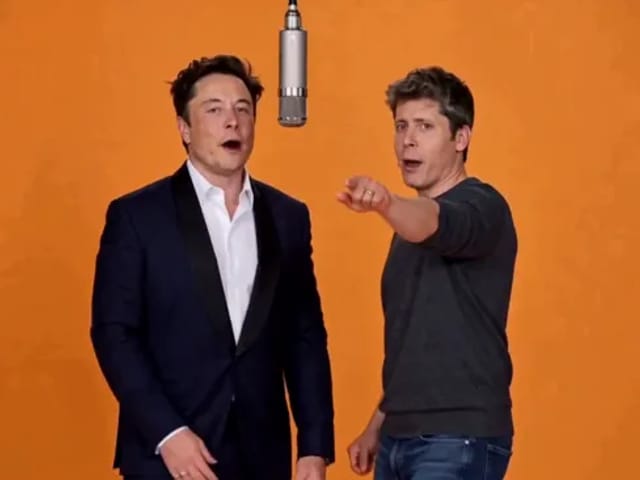
Elon Musk + Sam Altman

Hotel Lobby AI

Turn two photos into a 15-second orange-studio rap duo with MiniMax H3. Explore five actual videos, inspect their inputs and choose your left and right performers.

Open tool
STORM II dance with a lead and coordinated supporting dancers

STORM II Dance AI Video Generator | NanoPic

Create a STORM II dance with your lead photo and an AI-generated motion reference. Add a supporting cast, compare three videos and review your result.

Open tool
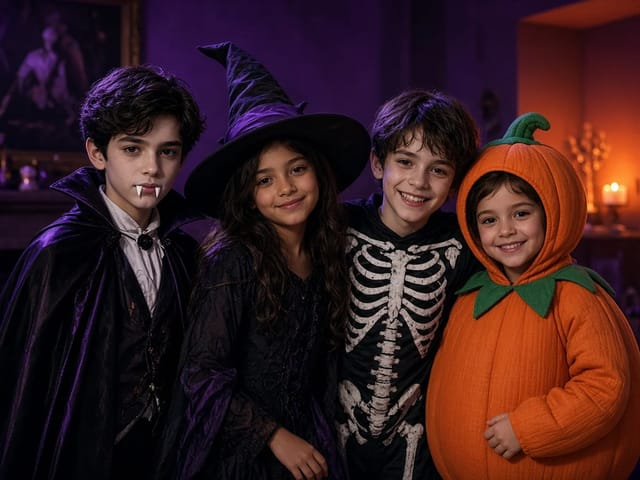
Four children dressed as a vampire, a witch, a skeleton and a pumpkin posing together in a candlelit room

AI Halloween Costume Transformation Video | NanoPic

AI Halloween costume transformation from one photo: pick a vampire, witch, skeleton or pumpkin look and watch your outfit change in smoke in a short video.

Open tool
Silhouette of a witch riding a broomstick across a full moon over a misty forest

Broom Riding AI - My Ride Is Here Broom Video | NanoPic

Broom Riding AI puts you on a flying broom beside a moving car in the My Ride Is Here trend. Upload one photo, get a 10-second clip and add your own sound.

Open tool
Creative desk with a printed lake photo, a phone showing a sunset and a watercolour flower sketch

EzCreate AI Image & Video Generator: Edit and Animate Photos

Use the EzCreate AI Image & Video Generator online to turn your own photos and ideas into new pictures and short video clips.

Open tool

Hedra Character 3 AI Video Generator: Lip Sync | NanoPic

Hedra Character 3 AI video generator: upload a portrait, mascot or cartoon, type a line, and get a lip-synced talking or singing character video.

Open tool
Open notebook on a desk at night with glowing film frames of a castle, a forest and a starry sky rising from the page

LoreMotion AI Video Generator: Text to Video | NanoPic

Write a short scene or upload a photo and the LoreMotion AI video generator turns it into a short AI video clip you can download and share.

Open tool
White and orange sneaker on a round turntable with a circular motion arc

MiniMax H3 360 Orbit AI Video Generator | NanoPic

Turn one photo into a MiniMax H3 360 orbit video: upload a product, shoe, figure or portrait and watch your subject turn a full circle in place.

Open tool

Opus Clip Free AI Video Generator: Vertical Clips | NanoPic

Opus Clip free AI video generator: describe a scene in a few sentences and turn it into a short vertical 9:16 video clip.

Open tool
Pavo AI Video Generator: Turn Text into AI Video

Pavo AI Video Generator: Text to Video | NanoPic

Pavo AI video generator: write one scene, pick the length and frame shape, and turn your text into a short AI video with natural motion and steady framing.

Open tool
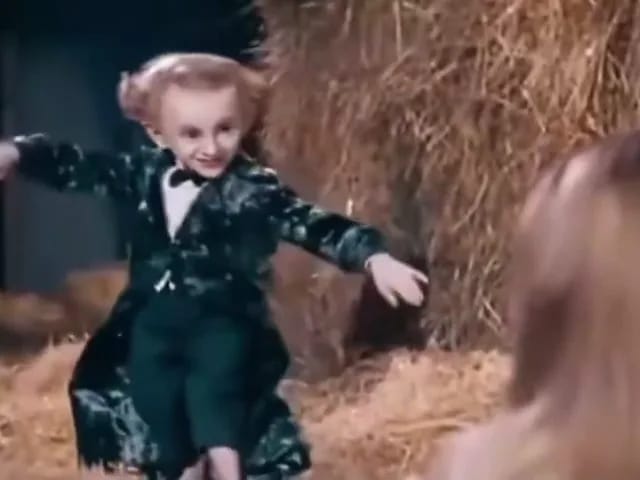
Performer in a dark tailcoat tiptoeing through a hay-filled barn with arms spread as a blonde woman watches from the foreground

Tip Toe In My Jordans AI Video Generator | NanoPic

Make a tip toe in my jordans AI video: upload two photos and see you and a friend sneak through the barn tiptoe dance as the lead and the stunned watcher.

Open tool