



































Save up to 73% on plans

H3 Max Lip Sync
Sign In

H3 Max Lip Sync

Upload a portrait and an authorized 5–14.8 second PCM WAV recording to create a talking photo.

5–14.8 seconds, maximum 12MB. Use authorized audio. Duration is verified by the server; credits update with audio length and resolution.

Reference images(0/4)
Public VisibilityAllow this result to appear in public inspiration surfaces.
Credits required:—

MiniMax H3 Max Lip Sync

AI output preview

More AI Video Models & Effects

Browse every other AI video model and effect published on this site in a continuous carousel.

Actual Input and Generated Result

A Talking Portrait with an Original Voice Recording

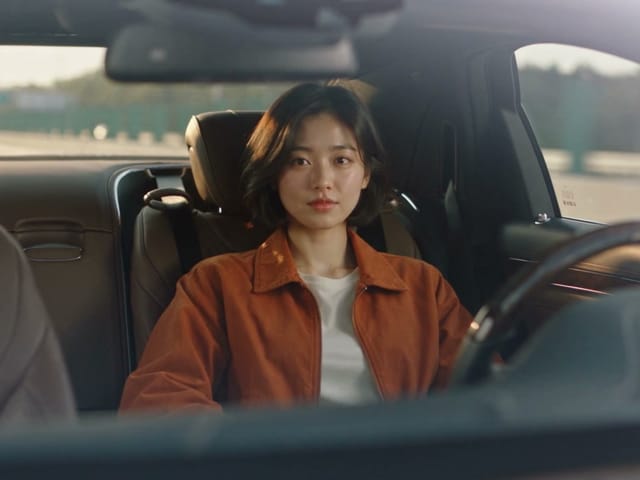
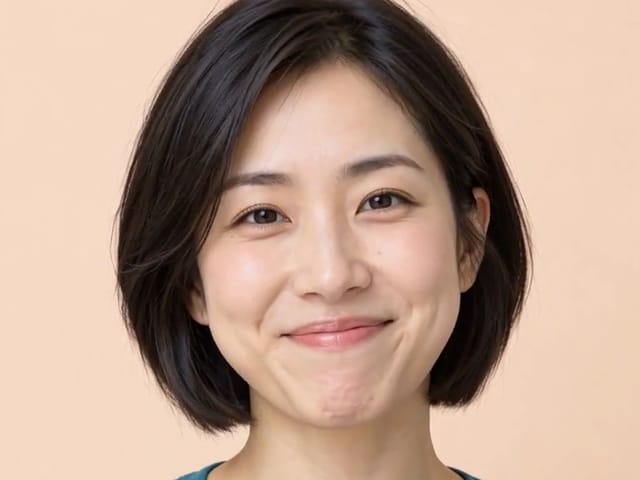
An actual MiniMax H3 Max Lip Sync result: a fictional adult image, a 5.42-second synthetic greeting, 480P and transcription guidance off. Open the original audio below to compare the voice and mouth movement. Teeth, expressions and identity details can vary.

Listen to the Original Audio

Turn a Still Portrait into a Talking Video

H3 Max Lip Sync combines one source image with a recording you provide. The recording carries the spoken words, vocal timing, pauses, and performance; the image supplies the visible person or character. The output is a generated video with that soundtrack. This is different from writing dialogue into a text-to-video prompt, and it is different from recording a new voice. Use it when you already have a short approved voiceover and want an accompanying talking portrait.

Image and audio are separate inputs

Choose one clear portrait, then upload a short PCM WAV. The image does not need baked-in subtitles or speech bubbles. The audio does not need to be described in a prompt because the actual recording is supplied to the lip-sync model. Keep source assets separate so you can change the performance without rebuilding the portrait.

A clip timed to your recording

Prepare an audio segment between five and 14.8 seconds. This interface rejects longer recordings instead of silently discarding the ending. Your complete line, including a natural opening and finishing pause, should fit inside the uploaded file. Split longer scripts into independent, clearly named segments before starting.

Four output resolutions

The generator offers 480P, 768P, 1080P, and 2K. Start with a small draft to judge identity, mouth timing, and expression before selecting a larger output. A higher resolution can reveal detail but does not correct poor source framing, clipped audio, or an ambiguous face. The source image determines the nearest supported output framing.

Optional transcription guidance

Transcription guidance helps the model interpret the supplied speech while synchronizing the mouth. It starts off on this page. It is not a subtitle editor or a translation tool: generated clips can still contain unwanted or inaccurate text. Check the whole video for text as well as mouth timing, especially when using guidance with singing or unusual pronunciation.

How to Use H3 Max Lip Sync

1. Select an authorized portrait

Use your own likeness, a consenting adult performer, or an original fictional character you have permission to animate. Start with a frontal or gently angled head-and-shoulders composition. Keep the mouth visible, leave a little breathing room around the face, and avoid a hand, microphone, hair, or costume covering the lips. A single visible speaker gives the model a clearer target than a group photograph.

2. Prepare the exact spoken performance

Record or edit the final line before uploading. Export uncompressed mono or stereo PCM WAV, between five and 14.8 seconds and no larger than 12MB. Listen for clipping, missing consonants, overlapping voices, abrupt edits, or excessive background noise. Include the delivery you want: speaking speed, emotion, pauses, and emphasis come from the recording, not a hidden text script.

3. Upload and listen again

The audio control verifies the file and shows its measured duration. Play the uploaded version before continuing; this catches the common mistake of selecting an earlier edit with a similar filename. The portrait and audio should describe the same intended speaker. Keep a copy of both source files with your project so any approved result can be traced to its inputs.

4. Choose resolution and generate

Select the output size and transcription setting, review the requirement beside the Generate action, and submit once. Wait for the task to finish in the result area or generation history. Avoid submitting duplicates while your video is processing. When complete, open the actual video and listen from beginning to end before deciding whether the clip is ready to use.

Prepare Images and Audio for Better Mouth Timing

Input quality is more useful than a long prompt for this workflow. H3 Max Lip Sync receives your portrait and audio directly; a generic cinematic description is not a replacement for either input.

Keep the face readable

The source image must have an aspect ratio between 0.4 and 2.5. Within that range, prefer a face large enough to inspect without zooming. Strong profile views, tiny faces, exaggerated open mouths, motion blur, and heavy occlusion make synchronization harder to assess. Do not use a low-quality screenshot and expect a higher output setting to restore facial detail that is absent from the source.

Avoid competing speakers

Use one dominant voice with consistent level. A duet, crowded interview, or heavily layered soundtrack may not provide an unambiguous performance for one face. Background music can also hide the small consonants that help viewers judge timing. For a first test, isolate the voice and add licensed music later in an editor after approving the visual performance.

Allow natural pauses

A line that starts instantly or ends mid-breath can feel abrupt even if the mouth follows it. Leave a short quiet interval before speaking and let the last syllable resolve. Do not stretch a short sentence unnaturally simply to reach five seconds; record an appropriate opening, greeting, or full thought at a comfortable pace.

Export a genuine WAV

Renaming an MP3 file to .wav does not convert its audio. Export PCM WAV in an audio editor and retain a normal sample rate. The upload checks the WAV structure and sample count rather than trusting the filename or browser-reported duration. Compressed WAV variants are not accepted by this interface, so export uncompressed PCM WAV before uploading.

Talking Portrait Ideas Worth Testing

Creator introductions

Pair your own portrait with a short welcome, channel introduction, or explanation recorded in your voice. Keep the message specific enough to fit in one clip. Clearly distinguish synthetic presentation from live recording wherever an audience could reasonably misunderstand how the video was made.

Original character dialogue

Give an original illustrated character a line performed by you or a licensed voice actor. Start with a face that has understandable mouth anatomy rather than a mask or featureless shape. Stylized results can be expressive, but they still need close review for teeth, lip edges, and identity drift.

Training and presentation drafts

Create a brief presenter segment while reviewing a script with collaborators. Use the draft to discuss timing and delivery, not to imply that a real employee said something they did not approve. Verify any factual statement separately from the quality of the animation.

Personal greetings

Make a short greeting using your own photo and recorded message. Keep names, accents, and emotional emphasis in the recording exactly as intended. Obtain consent before animating someone else's portrait or voice, and avoid deceptive endorsements, identity impersonation, or claims that the generated scene documents an actual event.

Review the Full Clip Before Sharing

A completed task means the file was returned, not that every frame meets your creative standard. Lip sync is judged in motion and with sound. A poster image cannot show whether a consonant lands at the right moment or whether the face changes halfway through the line.

Check synchronization at normal speed

Play the clip once without pausing and look for obvious audio-to-mouth delay. Then inspect the opening, a clearly articulated middle phrase, and the last word. A small timing issue can become noticeable when a video is reposted or edited next to other speaking footage.

Inspect the moving face

Compare the generated identity with the source portrait throughout the clip. Watch the mouth corners, teeth, jaw, eyes, and hairline for flicker or distortion. Check that the background and clothing remain consistent enough for the intended use. If the face is unstable, improve the input composition before increasing resolution.

Verify the soundtrack

Listen for missing endings, unintended silence, repeated syllables, or altered pacing. Use headphones when subtle synchronization matters. Open the downloaded file as well as the in-page player so you know the delivered video contains the expected sound and can be used in your normal editing workflow.

Keep approved sources and permissions

Save the final image, recording, output, and any performer consent together. If a result needs revision, change one variable at a time: portrait framing, audio performance, transcription guidance, or output resolution. This makes each test interpretable and helps prevent unnecessary duplicate generations.

Troubleshoot a Talking-Photo Draft

The mouth barely moves

Listen to the source file first. Very quiet speech, long instrumental sections, or a face too small in the image can make a draft hard to interpret. Choose a clear head-and-shoulders crop and a short single-speaker recording. Compare a clearly pronounced word with its corresponding video moment before deciding whether the issue is limited expression or an actual synchronization failure.

The face looks different

Use a more neutral expression and even lighting in the source. A deeply shadowed face, unusual angle, or heavily stylized mouth gives the generator less reliable structure. Keep the same audio for the next test so you can tell whether the revised portrait improves continuity. Do not add another face to compensate; this generator has one image input and expects one intended speaker.

The audio will not upload

Check format, duration, and size independently. A WAV container may contain compressed audio, a file may exceed the maximum despite having a short duration, or an exported segment may be slightly shorter than five seconds. Export ordinary PCM WAV at a standard sample rate and inspect the exact file. An expired upload authorization requires uploading again before submission; it does not mean a new video task has already been created.

The clip feels unnatural despite matching words

Timing is only part of a convincing performance. A broad smile in the source paired with a serious recording, an unusually fast line, or exaggerated intonation can feel inconsistent. Align expression, mood, and delivery before generating again. Review the clip at its intended display size; details that seem small on a phone may become distracting in a full-screen presentation.

Choose Lip Sync or General Video Generation

Use lip sync when the recording is fixed

This page is the appropriate starting point when a short approved performance already exists and the goal is a corresponding talking portrait. You supply actual audio rather than asking the model to invent spoken delivery. Keep this workflow focused on a readable speaker instead of adding requests for elaborate scene changes, rapid camera moves, or multiple participants.

Use H3 Max for a broader cinematic shot

The general H3 Max generator is useful when you want to direct subjects, camera movement, environment, and sound through a shot brief. Its controls and supported resolutions are different from this dedicated lip-sync model. Choose the tool that matches the input you have and the result you need instead of assuming every capability is interchangeable because the models share a family name.

Use an editor for final packaging

After approving the generated performance, add captions, licensed music, opening cards, and branding in your normal editing workflow. Keep text out of the source portrait when clean readability matters. This separates the uncertain part of generative animation from deterministic layout work and lets you revise the presentation without regenerating the face.

H3 Max Lip Sync Questions

Does H3 Max Lip Sync create a voice from text?

No. Upload the voice recording you want in the video. This page animates the supplied portrait to that recording; it does not clone a voice or turn a written script into speech.

Which audio files can I upload?

Use uncompressed PCM WAV, mono or stereo, five to 14.8 seconds long, no larger than 12MB. Export the file from an audio editor instead of only changing its extension. The server verifies the actual audio duration.

Can I generate a longer talking video?

Not in one request on this page. Divide longer material into approved short segments and edit the results together afterward. Prepare natural sentence boundaries so each segment begins and ends cleanly.

Can I choose 1080P or 2K?

Yes. The lip-sync model supports 480P, 768P, 1080P, and 2K. These settings are distinct from the separate H3 Max text-to-video generator. Review a short draft before increasing output size.

Where do I see the current requirement?

After signing in, upload the recording and choose a resolution. The generator shows the live requirement beside the submission action. It updates with the verified audio length and selected output setting.

Is mouth movement guaranteed to match perfectly?

No. Face framing, visual style, pronunciation, noise, and performance all affect the result. Review the entire clip with sound before publication, especially the mouth, teeth, identity, and last spoken word.

Which model does this page use?

This generator uses H3 Max Lip Sync, an image-plus-audio model that animates a portrait to an existing recording. It is separate from H3 Max text-to-video and H3 Max Turbo. Choose it when you already have your intended voice performance and want to synchronize a single face to that audio.

Make Your First Talking Portrait

Choose one authorized portrait, record a short clear line, and check the complete result with sound.

Related tools