

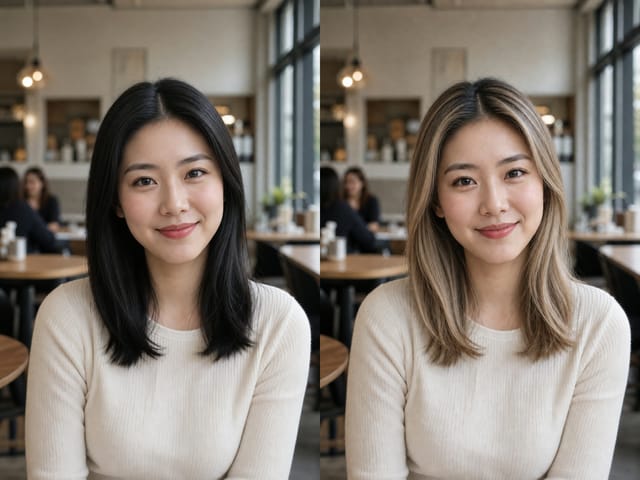
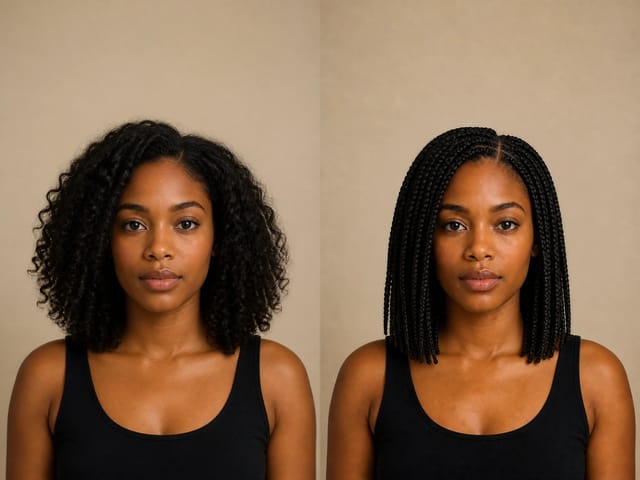
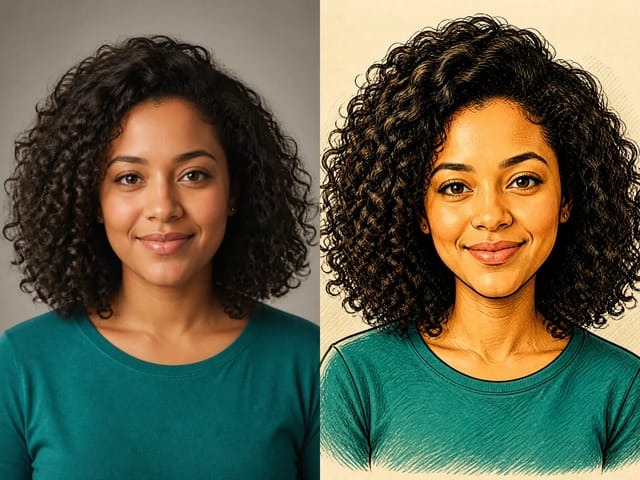
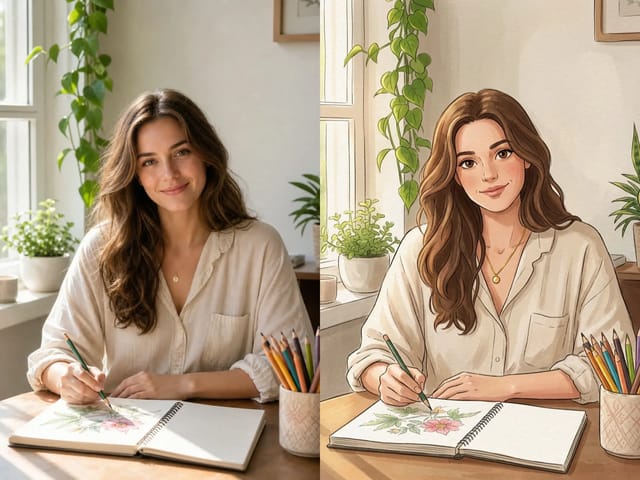
Free Uncrop Image: Expand Photos with AI
Sign In

Free Uncrop Image: Expand Photos with AI

Upload one image, choose a wider or taller canvas ratio, edit the prompt, and generate new surroundings beyond the frame.

Upload an Image*
Try a Cropped Source

364 / 800

Public Visibility
Copy Protection
Credits required:-

Free Uncrop Image: Expand Photos with AI

Image

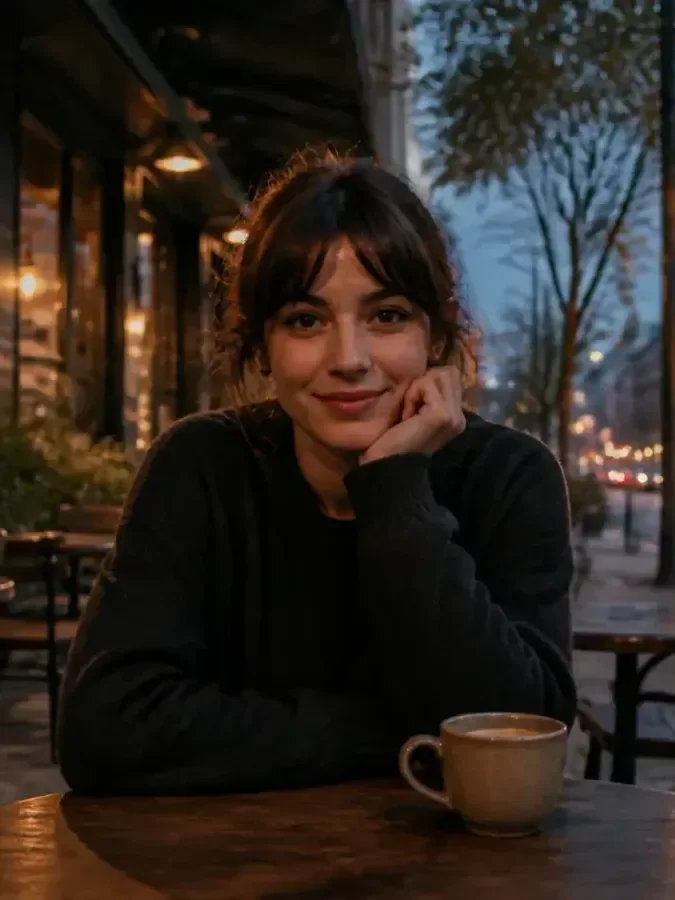
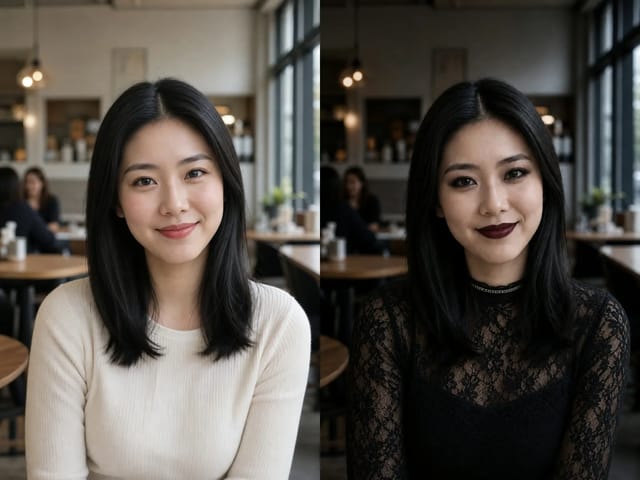
Tightly framed fictional cafe portrait before horizontal canvas expansion
Cropped source
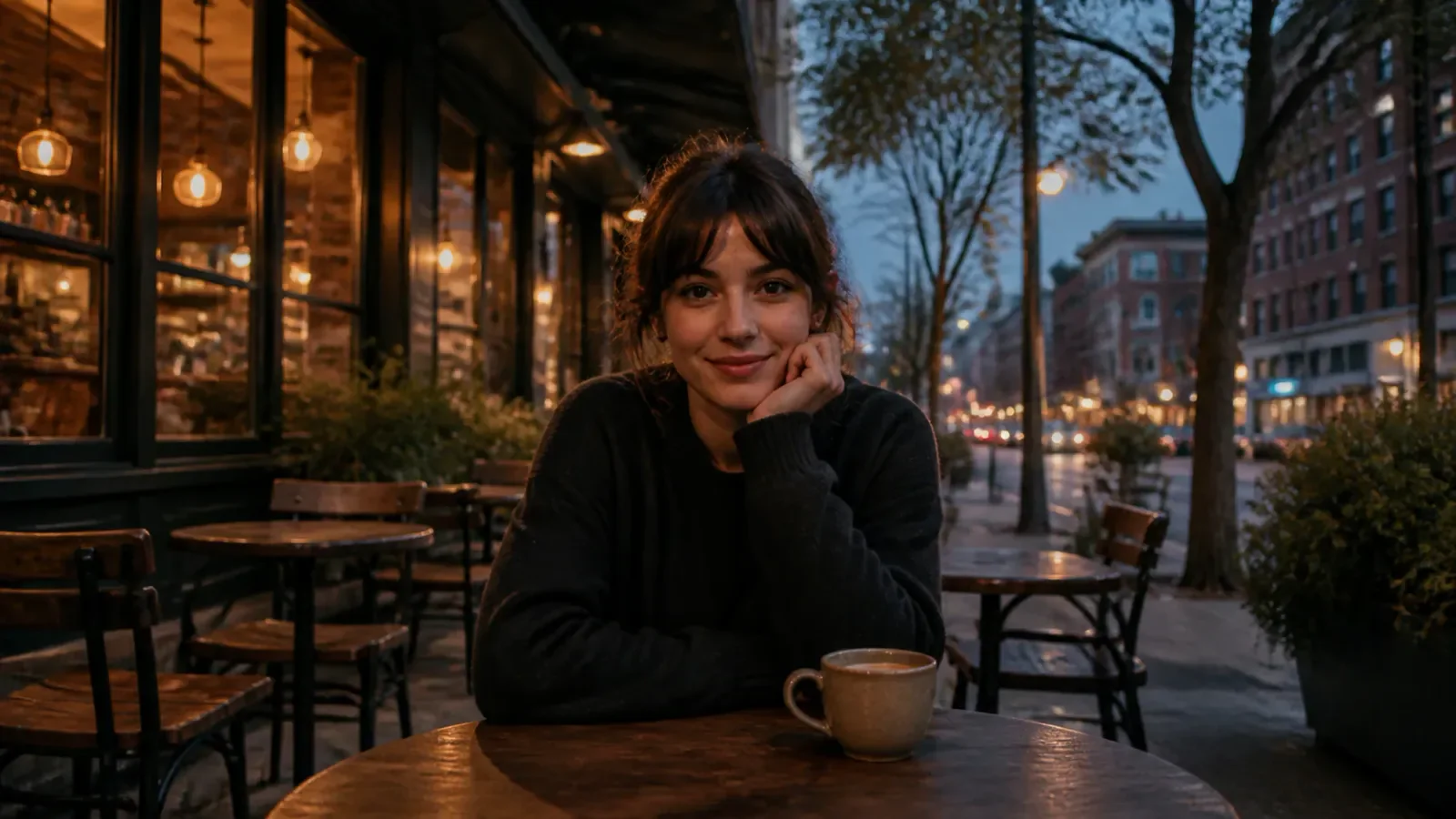
Wide cafe portrait with tables, storefront, sidewalk, and city depth visible around the subject
Expanded 16:9
Cropped cafe portrait and wide expanded scene shown side by side

Add Real Generated Scene Beyond the Current Frame

Cropping removes context; resizing only changes dimensions. AI uncrop uses the uploaded image as a reference and asks a generative image model to create plausible surroundings for a new aspect ratio. A portrait can gain breathing room for a banner, a square product image can become a vertical listing, and a tightly framed pet photo can gain more landscape. The model redraws an output rather than preserving a hidden layer stack, so exact pixels, faces, hands, labels, architecture, and geometry can still vary. Compare the result with the source at full size and keep only versions that preserve what matters.

Horizontal and Vertical Canvas Expansion Examples

These page examples use original generated scene masters and exact crops from those masters. The source area is genuinely contained inside the larger scene: no stretching, mirrored edges, black bars, or blurred padding. They illustrate the intended workflow, while live NanoPic results remain generative and can vary.

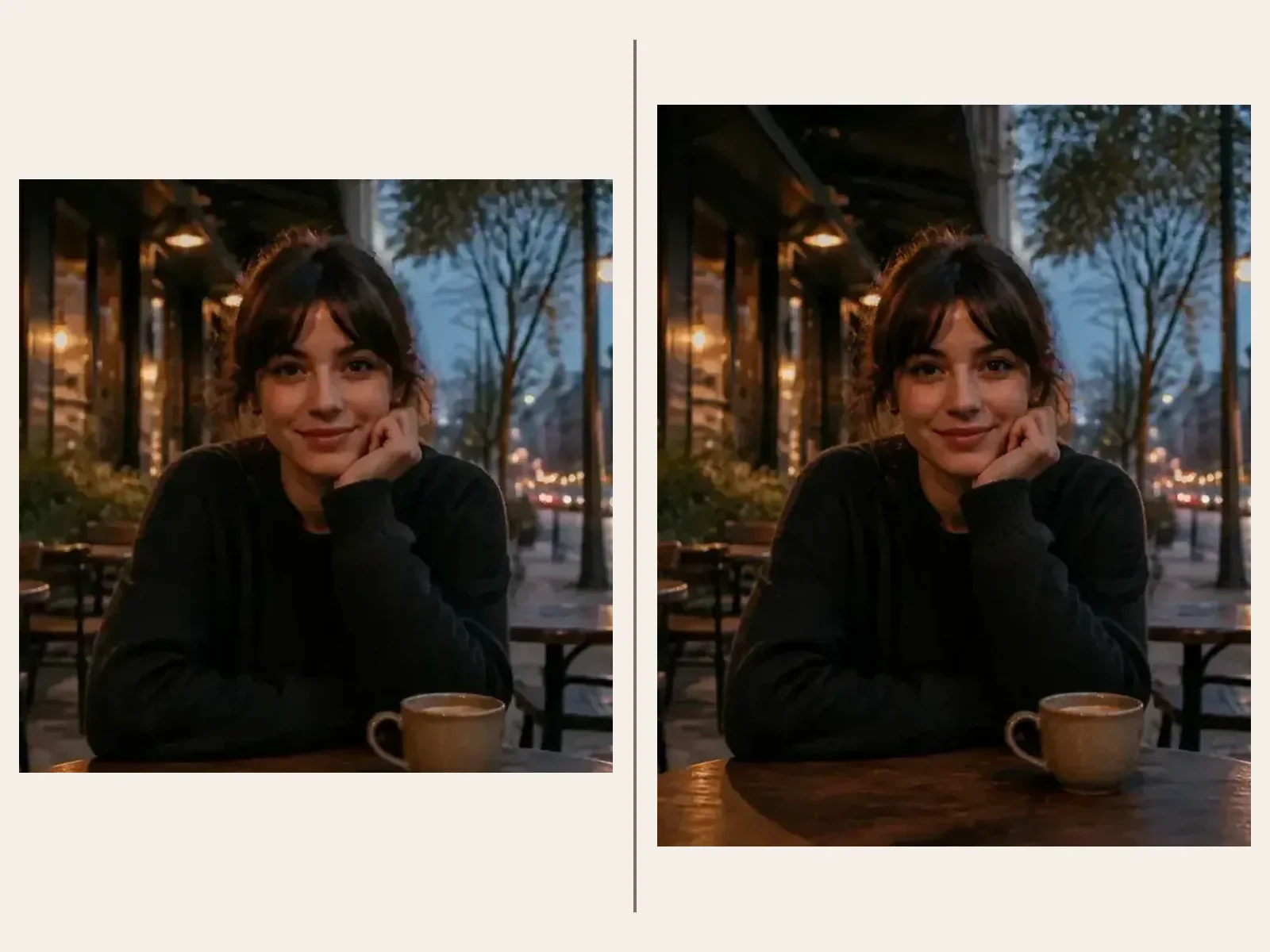
Portrait: Make Room for a Wide Layout

A narrow portrait leaves little context for a website banner or presentation. The wider version continues the storefront, tables, trees, sidewalk, and evening depth on both sides while keeping the person central. When prompting a real upload, name identity cues and small foreground anchors—the cup, hand position, table edge, and light direction—that should remain stable.

Expand a Portrait
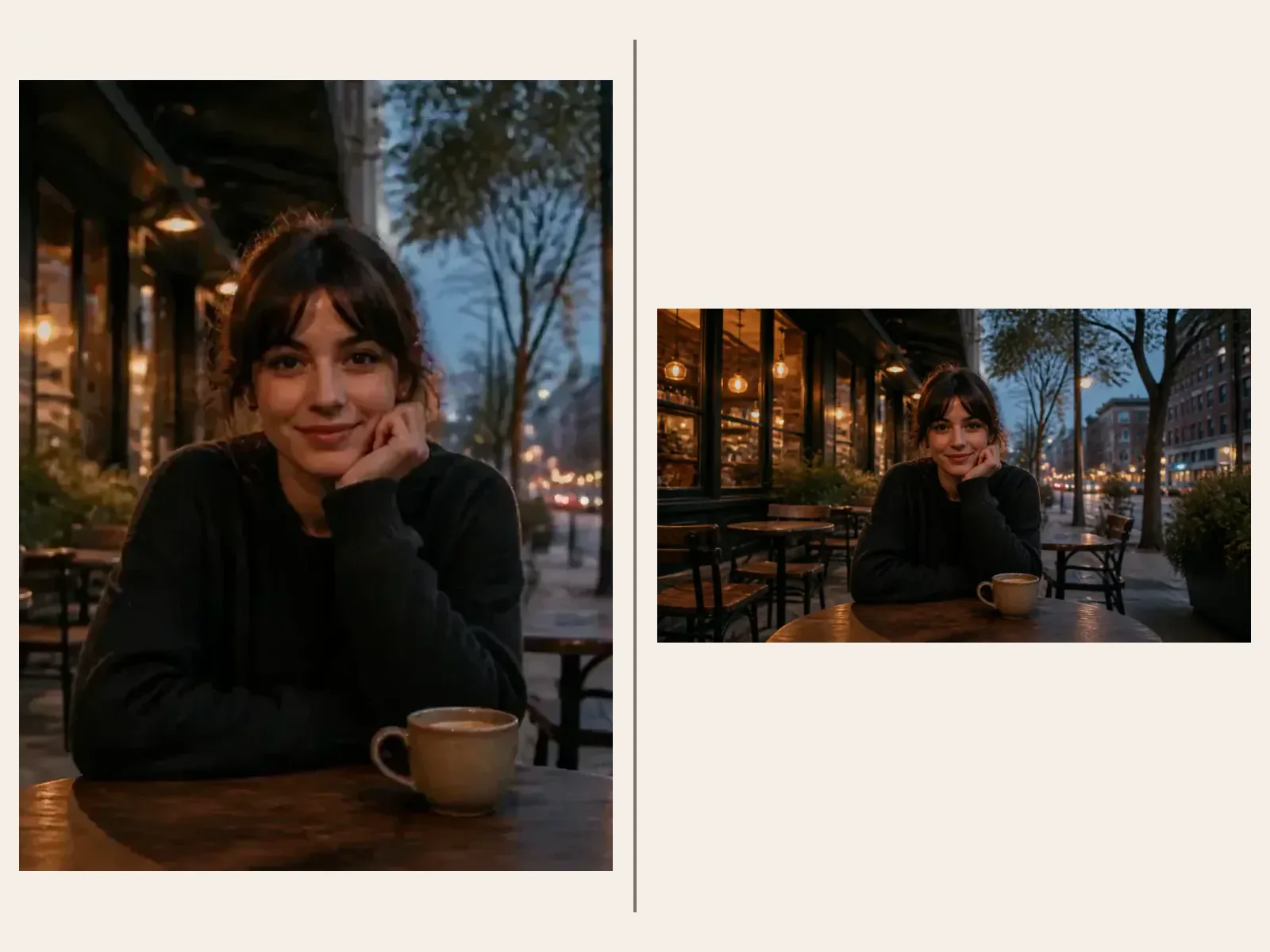
Portrait source and wide cafe continuation compared side by side

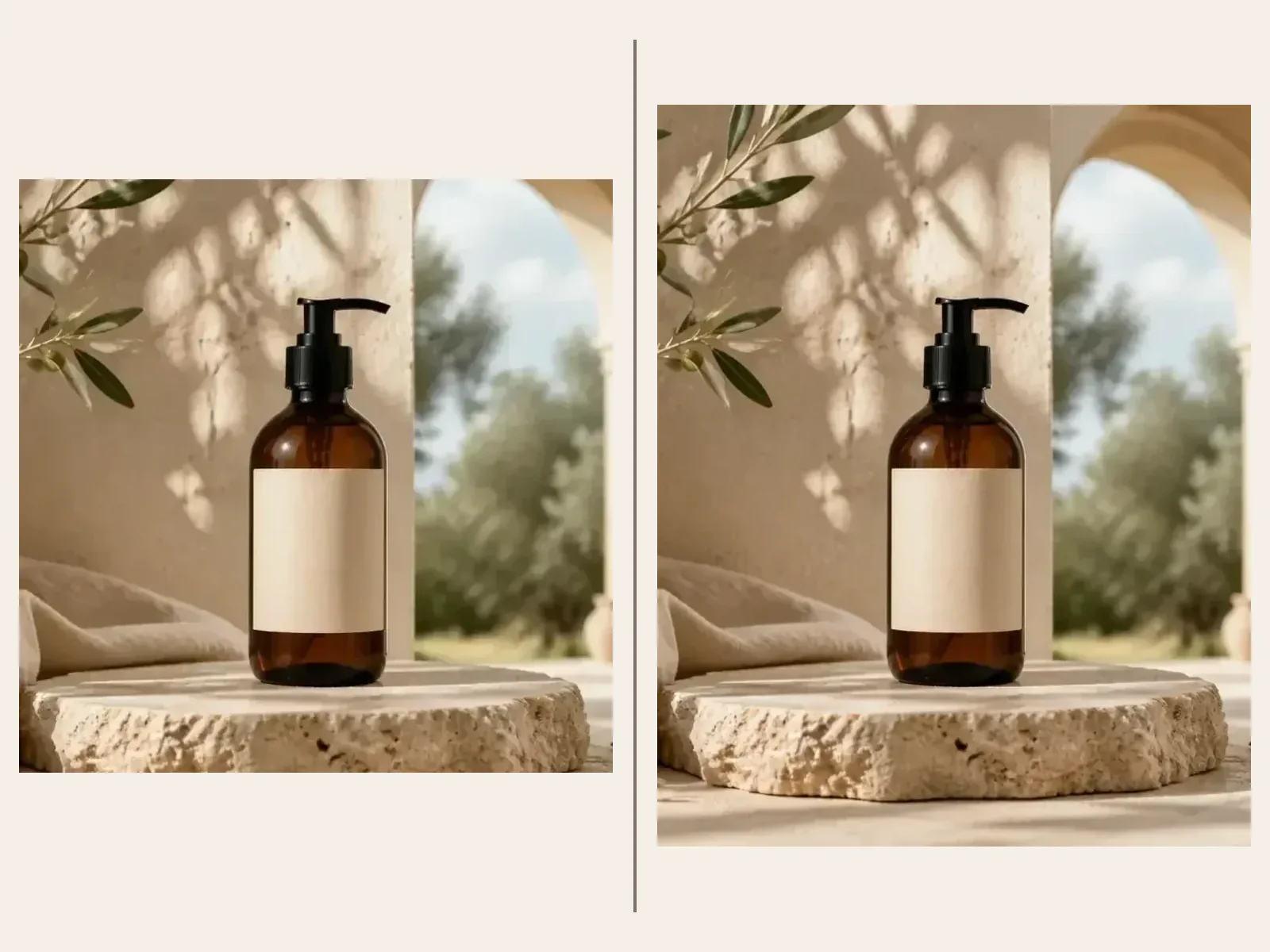
Product: Continue a Complete Set

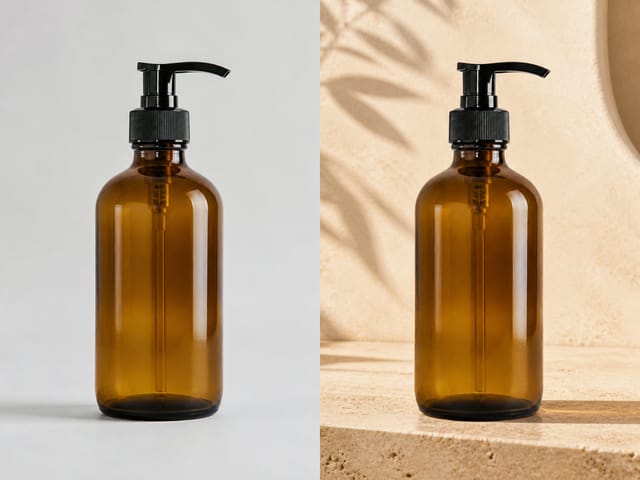
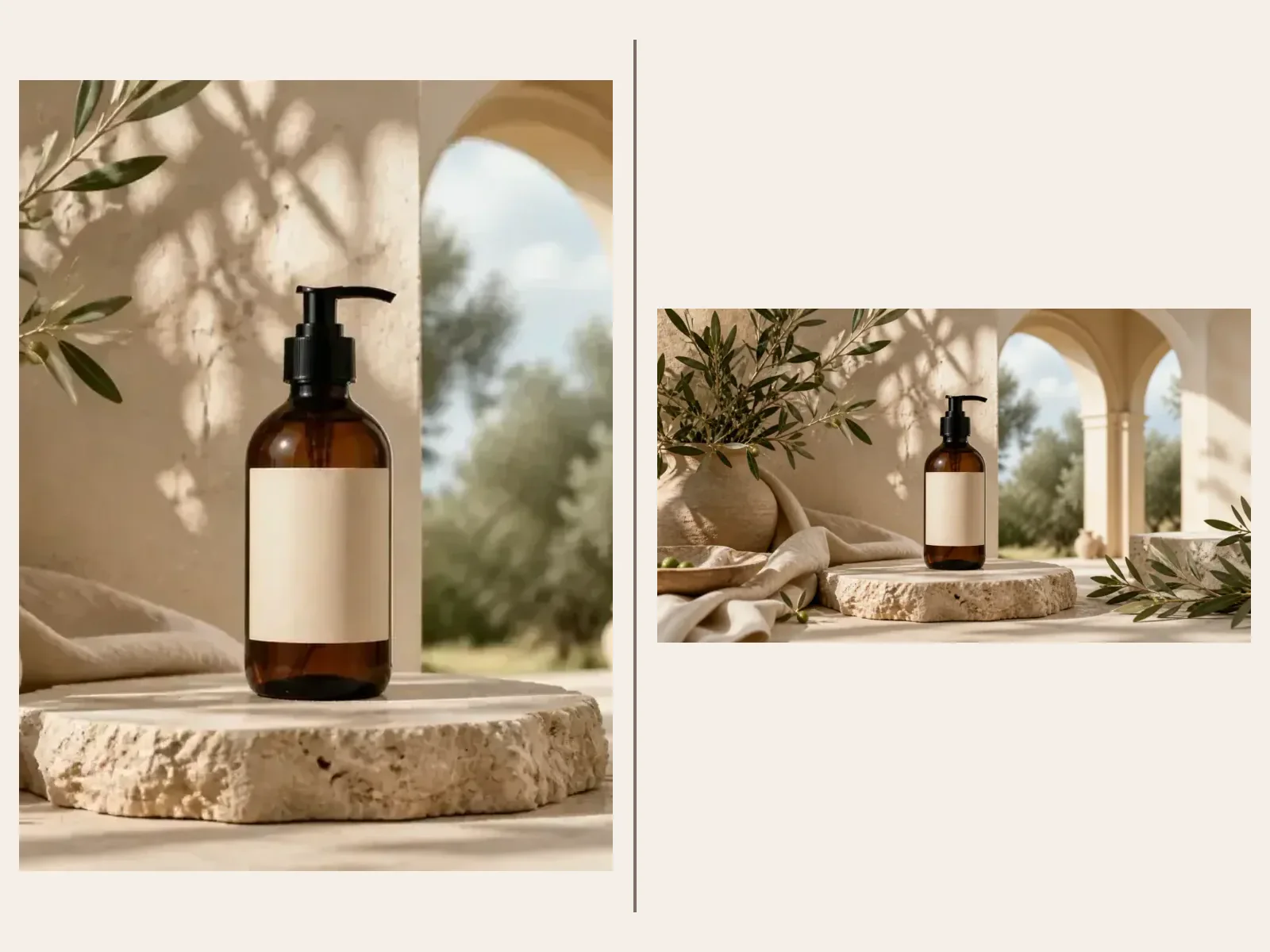
Product outpainting should extend surfaces, props, shadows, and background architecture without cloning the item. This example protects an unbranded bottle, blank label, pump, plinth, and camera angle. For commercial images, compare packaging shape, color, controls, legal copy, and logo areas against the real product before publishing; AI can alter any of them.

Expand a Product Photo
Cropped bottle scene and wide botanical set continuation

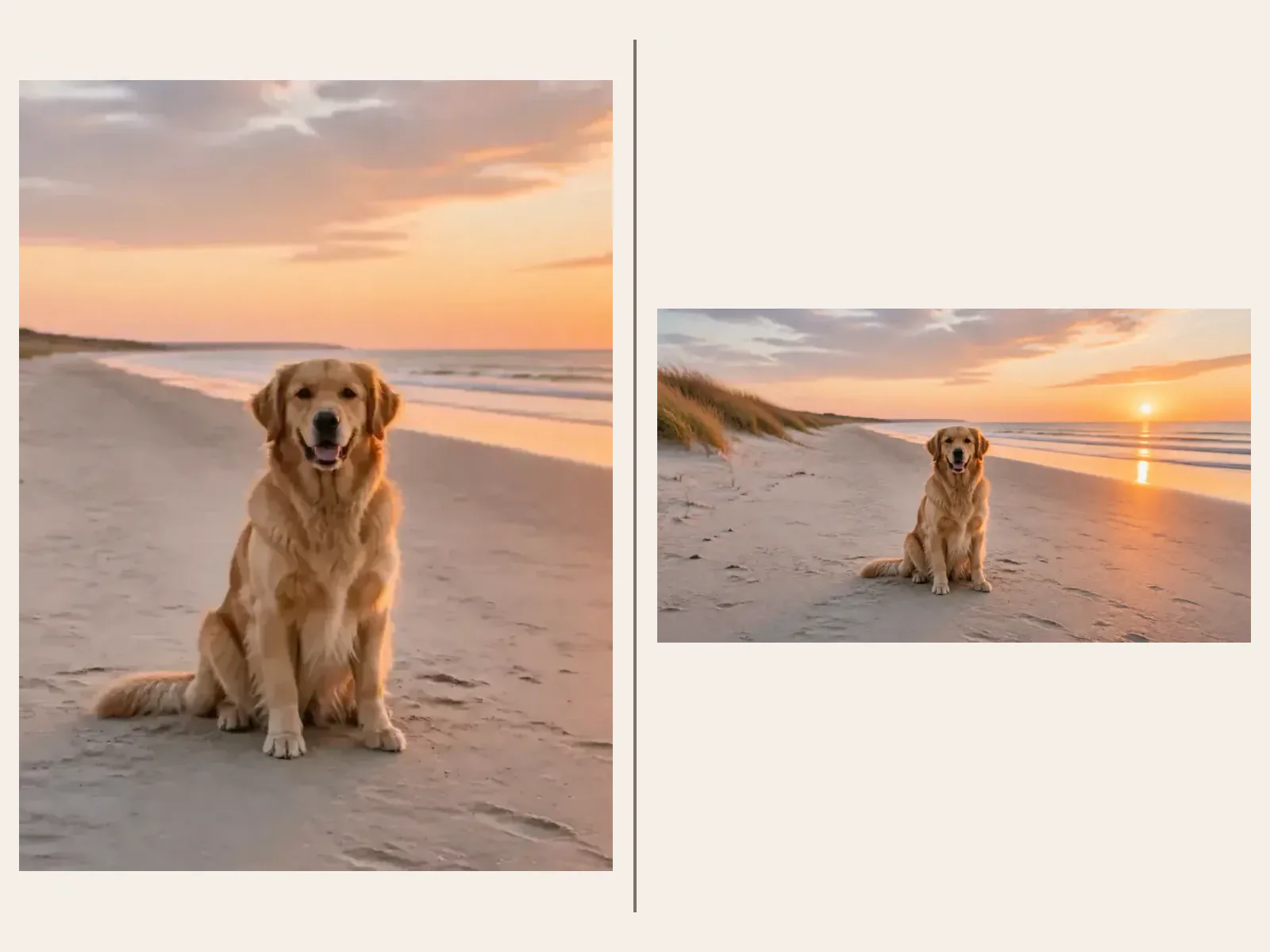
Pet: Extend Landscape and Sky

A simple beach gives the model readable lines to continue: dune slope, horizon, surf, sand texture, and sunrise direction. The prompt still protects the dog’s face, body, paws, coat, and pose. Natural scenery is usually more forgiving than typography or repeated architecture, but duplicated animals, bent horizons, and inconsistent shadows still need review.

Extend a Pet Photo
Cropped dog portrait and expanded sunrise beach scene

A Tool-First AI Image Extender Workflow

The upload, prompt, ratio control, credit state, generation button, and result review all stay in the first working section instead of being hidden below marketing copy.

One Real Reference Image

The model receives the actual uploaded image through NanoPic’s image-to-image route. The preview uses contain fitting so a portrait or landscape source is shown without CSS stretching.

Editable Outpainting Prompt

A complete default prompt is already in the visible field. Edit it to describe the new surroundings and list the face, product, perspective, lines, lighting, or textures that should remain stable.

Six Output Ratios

Choose 1:1, 4:5, 3:4, 4:3, 16:9, or 9:16. Pick a ratio that creates meaningful new canvas beyond the source rather than one that would force a tighter crop.

Source-to-Result Review

The completed generation can be opened and compared with the upload. Check the original subject, edge transitions, repeated objects, horizon, shadows, hands, text, and fine geometry before download.

How to Uncrop an Image Online

A clear source, a larger target ratio, and a focused continuation prompt give the model the strongest brief.

1. Upload a Complete, Readable Source

Use one clear JPG, PNG, or WebP where the subject is not already cut through the head, hands, paws, product edge, or other critical feature. Outpainting can add background context, but it cannot reliably reconstruct important anatomy or product geometry that is missing from the input. Avoid screenshots with UI, mixed collages, tiny subjects, severe compression, and legal text that must remain exact.

Upload an Image
Square portrait source and taller 4 by 5 continuation

2. Choose Where the Canvas Needs More Room

A wide 16:9 or landscape 4:3 output mainly asks for new scene to the left and right of a narrow source. A 4:5, 3:4, or 9:16 output can create more vertical context around a square or landscape image. This page does not expose a left-only, right-only, top-only, or brush-mask anchor. The selected aspect ratio and model interpretation determine placement, so leave enough margin around the important subject and review the returned composition.

Choose a Ratio
Square product source and portrait canvas extension

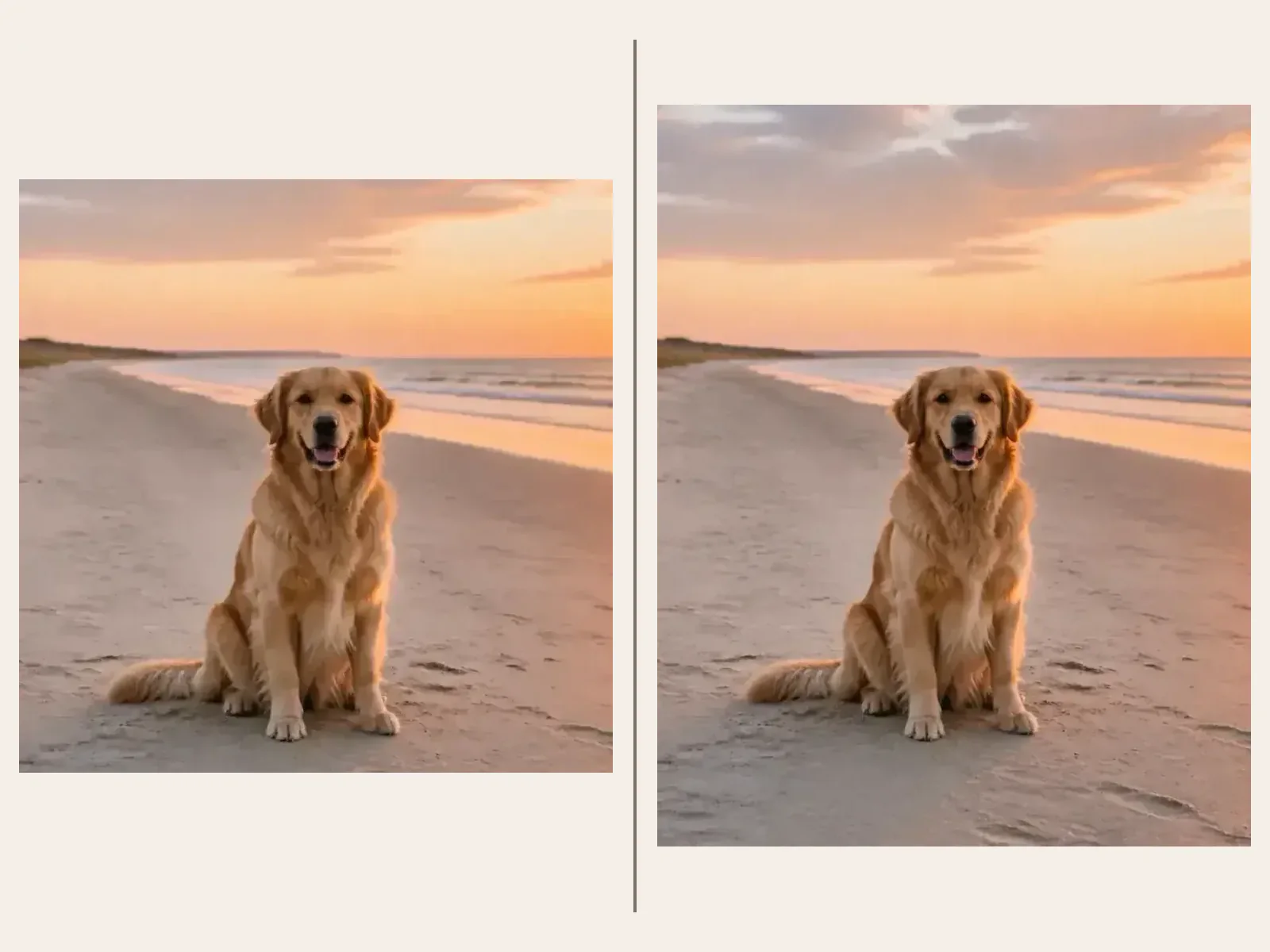
3. Generate, Open, and Inspect the Output

Select Uncrop Image and wait for the actual model task. Open the finished media rather than judging only the thumbnail. Look for a stable face or product, continuous lines, plausible perspective, matching grain and focus, consistent light, and natural detail in the new regions. If a boundary looks repeated or the subject changes, start again from the source and add one precise correction instead of stacking conflicting style instructions.

Generate and Review
Square dog portrait and vertically expanded beach composition

Useful Reasons to Expand an Image Canvas

Uncropping is most useful when the original subject already works and the layout needs additional believable context.

Website and Presentation Banners

Turn a narrow source into a wider composition with breathing room around the subject. Place exact headlines and interface copy later in a layout tool instead of asking the image model to typeset them.

Social Aspect-Ratio Adaptation

Explore 4:5 feed, 9:16 story, square, and landscape versions without stretching the source. Keep important faces and products away from platform crop zones.

Product Scene Extension

Continue a tabletop, studio sweep, lifestyle set, or natural background around an owned product. Review packaging and geometry against the actual item.

Portrait Breathing Room

Add environmental context around an intact portrait for editorial layouts, profile headers, mood boards, or keepsakes. Generated identity is not guaranteed to remain exact.

Travel and Landscape Recovery

Extend sky, water, trail, meadow, sand, or architecture beyond a tight frame. Check horizons, perspective, repeating patterns, and recognizable landmarks.

Creative Reframing Drafts

Test whether a subject works in a different composition before commissioning a new crop or photo. Treat the output as generated artwork, not documentary evidence of what existed outside the frame.

What This Uncrop Image Tool Does—and Does Not—Promise

The tool performs generative image-to-image outpainting. It is not a deterministic canvas editor, hidden-pixel recovery system, or service without usage limits.

Generated Extension, Not CSS Padding

The selected image and ratio are sent to Nano Banana 2. NanoPic does not claim that stretching a DOM preview, mirroring an edge, adding a blurred frame, or filling empty color is an AI expansion.

Reference-Guided, Not Pixel-Locked

The model can redraw the full output. Faces, hands, logos, text, patterns, architecture, colors, and product geometry may change even when the prompt asks for preservation.

No Direction Anchor or Local Mask

This page offers one source image, one editable prompt, and an output ratio. It does not expose a brush mask, layer stack, pixel-level selection, or a left-only or top-only canvas anchor.

Credits, Watermarks, and Limits Apply

Eligible new users currently receive 40 welcome credits for 7 days, and the reviewed 1K route currently costs 40 credits. Free-credit results are watermarked. Always follow the live UI if these settings change; no unlimited-free claim is made.

Uncrop Image FAQ

Answers about AI outpainting, output ratios, source preservation, prompts, credits, watermarks, and responsible review.

What does uncrop image mean?

To uncrop an image means to expand the visible canvas beyond its current edges. An AI outpainting model uses the uploaded image as a reference and generates plausible new surroundings for a wider, taller, square, portrait, or landscape output.

How do I uncrop an image with NanoPic?

Upload one clear source, choose an expanded canvas ratio, edit the prefilled outpainting prompt, and select Uncrop Image. The real image-to-image route sends the upload, prompt, and supported ratio to Nano Banana 2. Open the finished image and compare it with the source before download.

Does this tool really expand an image or just stretch it?

The generator sends a real model task that creates an output at the selected aspect ratio. The page does not treat CSS stretching, mirrored borders, blurred padding, black bars, or a solid-color frame as successful outpainting. Model output can still be imperfect and must be reviewed.

Which canvas ratios can I choose?

The current template supports 1:1, 4:5, 3:4, 4:3, 16:9, and 9:16. A wide ratio generally creates more horizontal context around a narrow source, while a portrait ratio can add more vertical context around a square or landscape source.

Will AI uncrop preserve every original pixel?

No exact pixel-lock guarantee is made. The source guides a generative image-to-image output, and the model may redraw or alter faces, hands, text, logos, patterns, object shape, color, or small details. Compare the result with the original at full size.

What should I write in an image extension prompt?

Describe the surroundings that should continue, such as a beach, studio wall, cafe, sky, floor, table, or landscape. Then list the details to protect: subject identity, pose, product silhouette, camera angle, horizon, architecture, light direction, color, and important foreground objects.

Can I expand only the left, right, top, or bottom side?

Not with a dedicated anchor control on this page. You choose an output aspect ratio and describe the continuation in the prompt, but the model decides placement. The page does not expose a directional canvas handle, local brush mask, or layered editor.

Is Free Uncrop Image unlimited?

No. Eligible new accounts currently receive 40 welcome credits valid for 7 days, and the reviewed 1K Nano Banana 2 route currently costs 40 credits per generated image. The live generator shows the current requirement, and no unlimited-use promise is made.

Will the output have a watermark?

Images generated with NanoPic free credits include a watermark under the current site configuration. Paid-credit and account behavior follow the live product rules shown in the interface. This page does not promise no-watermark generations with welcome credits.

Give the Existing Frame More Real Visual Context

Upload one complete source, choose a wider or taller ratio, edit the visible continuation prompt, and inspect the generated edges at full size.