

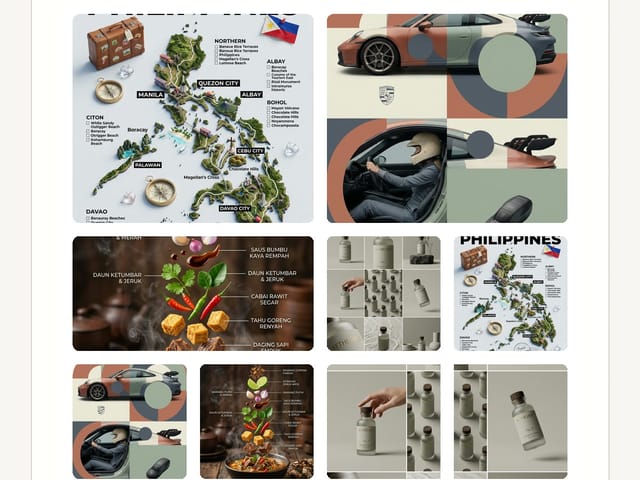
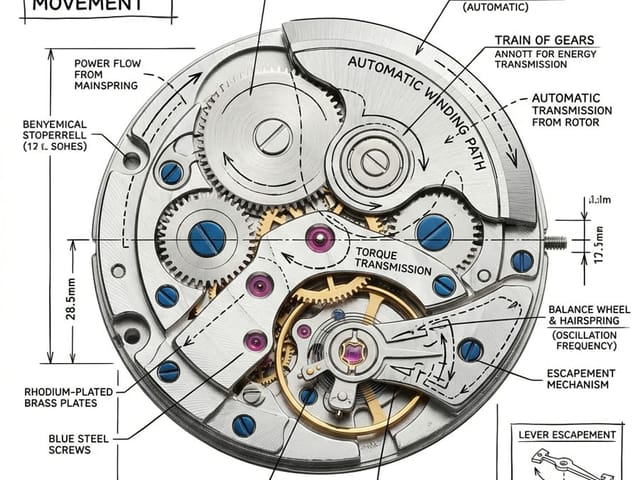
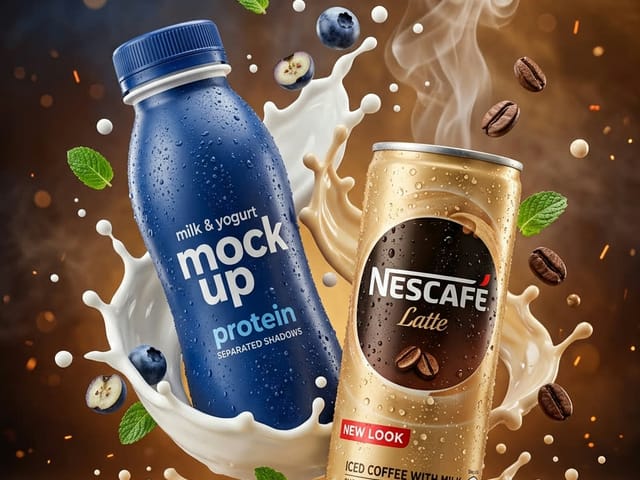
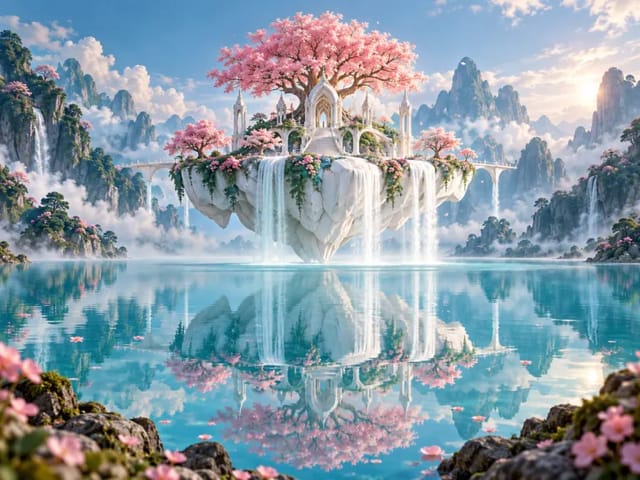
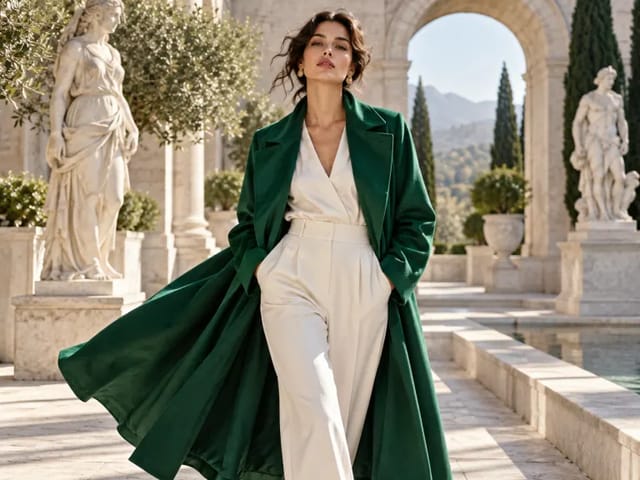
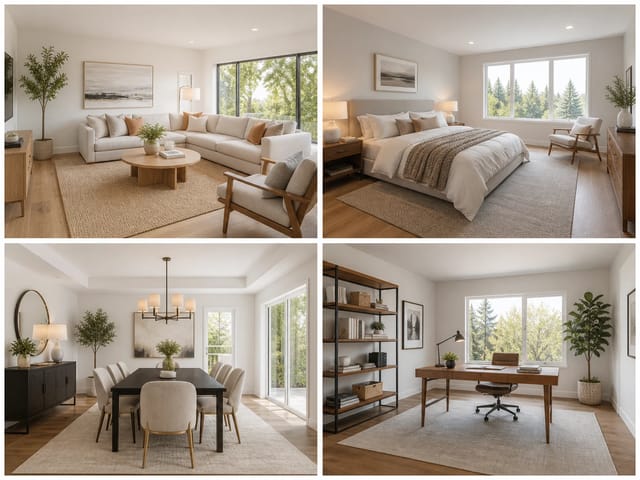
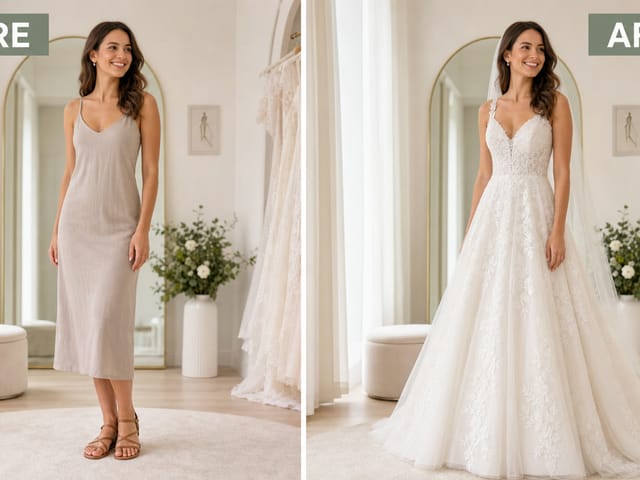
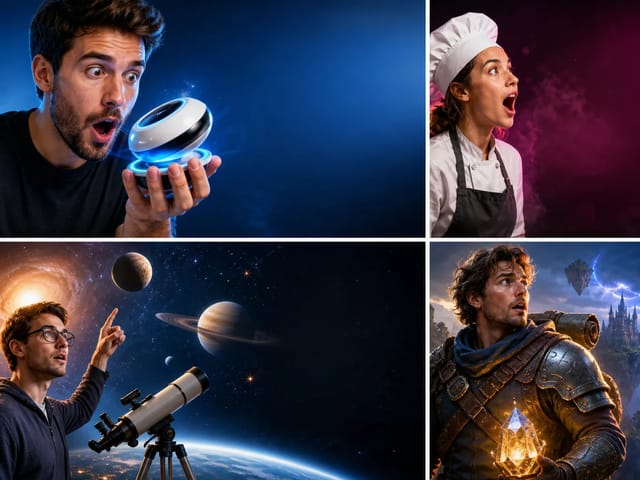
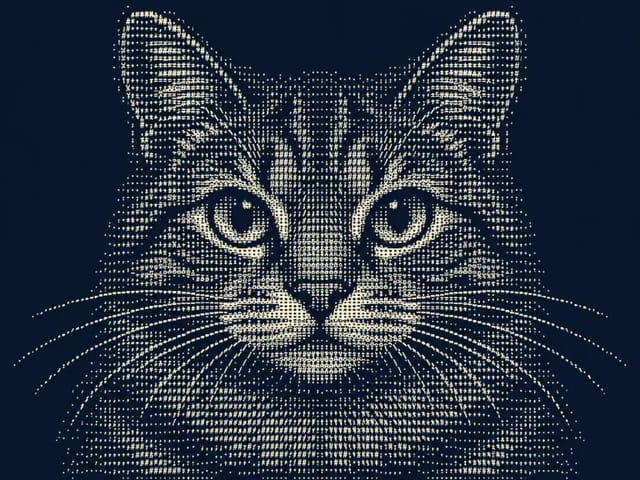
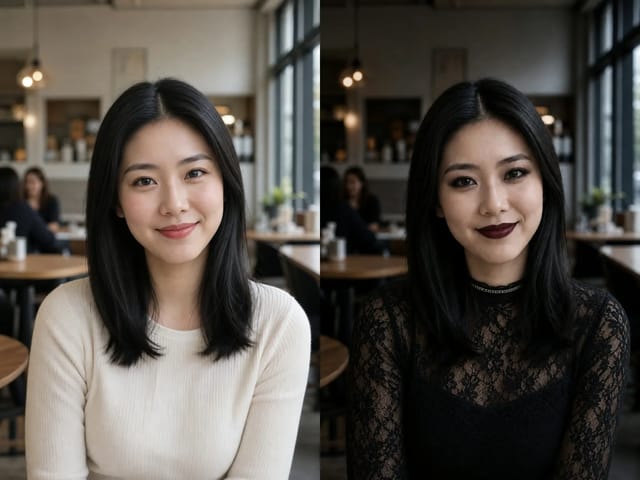
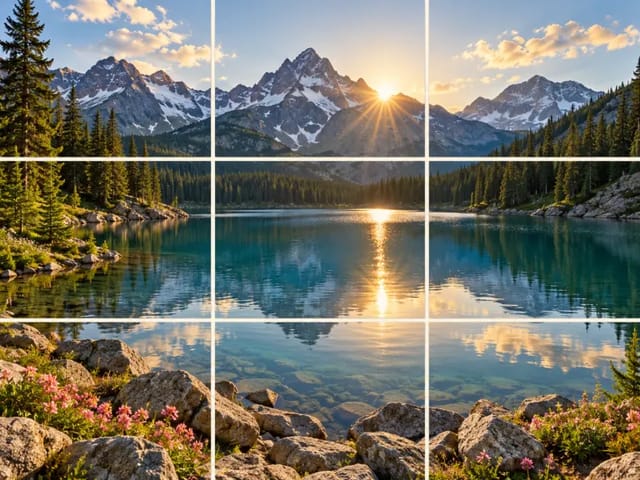
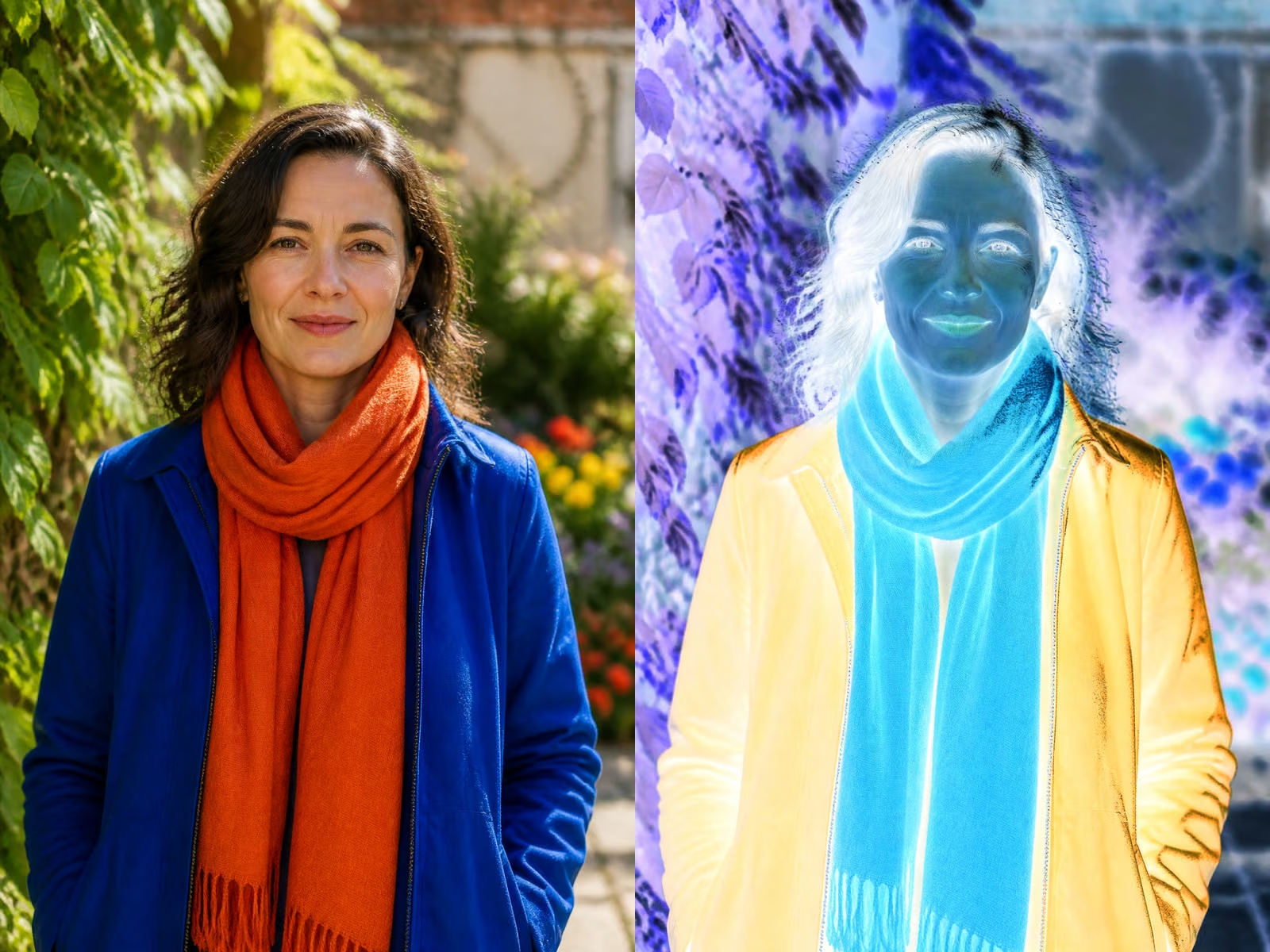
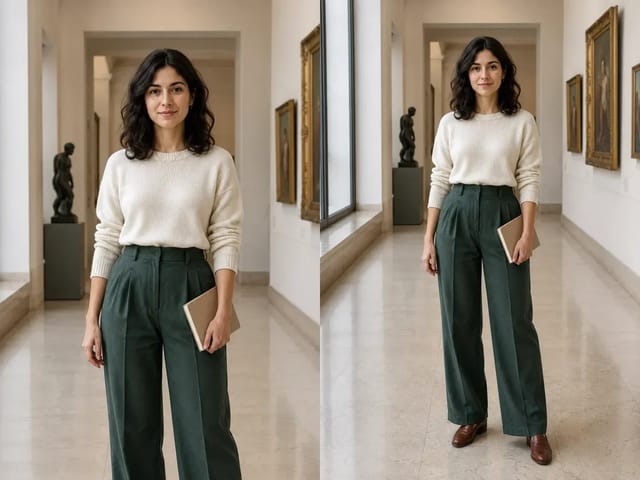
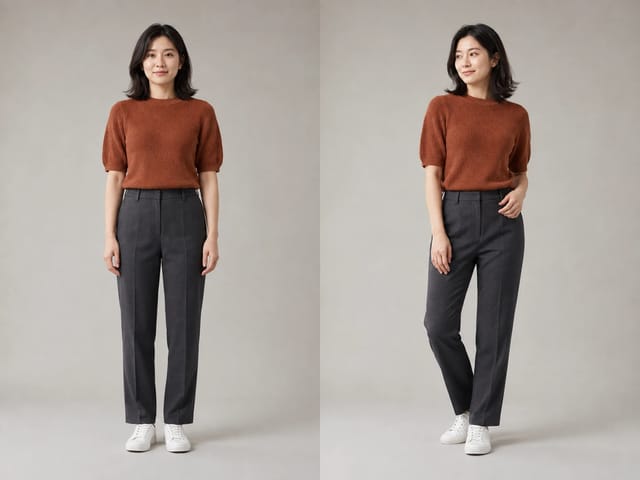
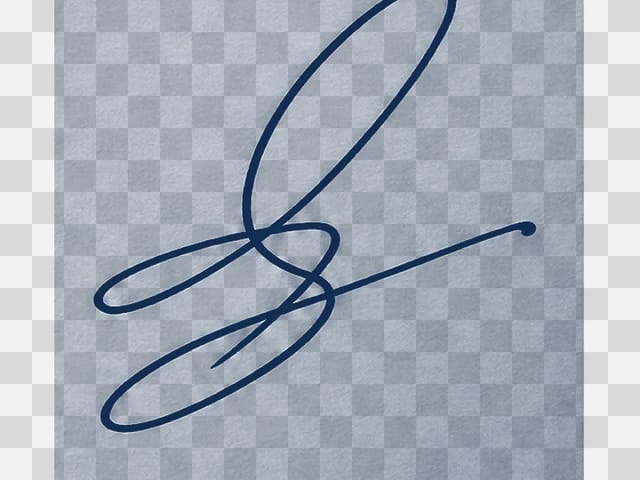
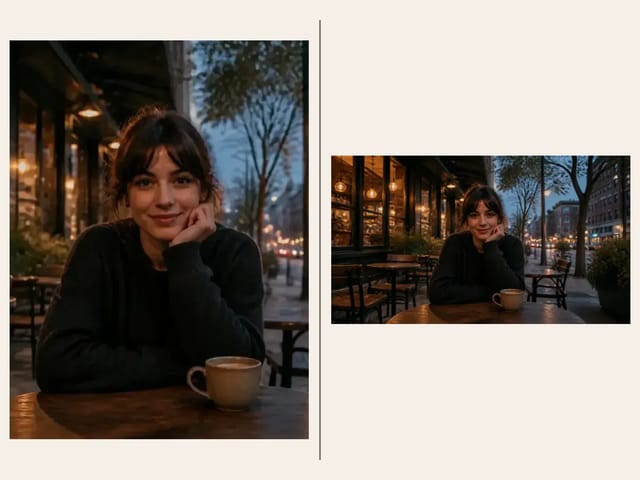
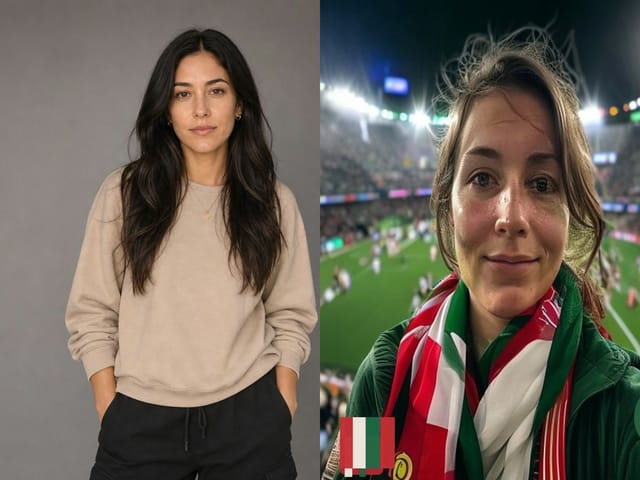
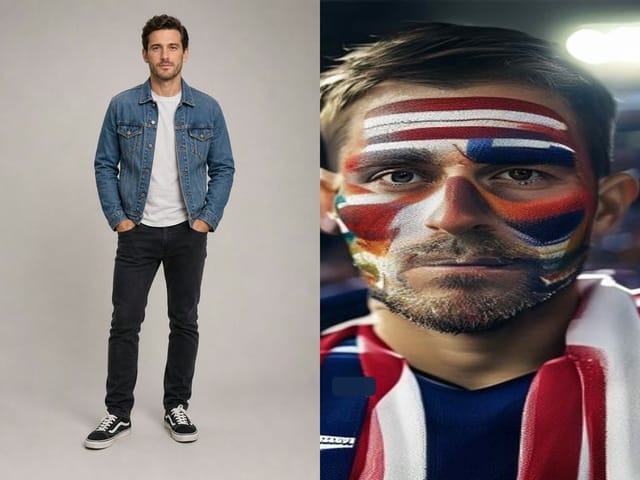
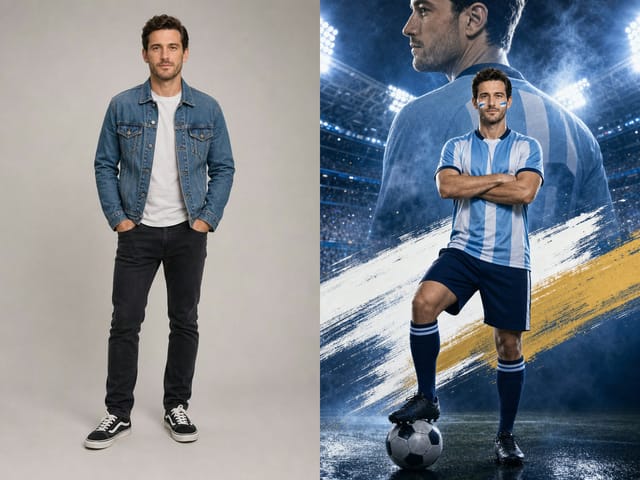
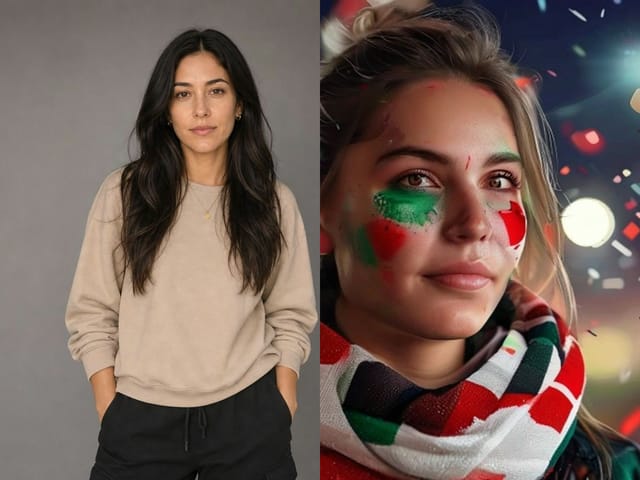
Made for style
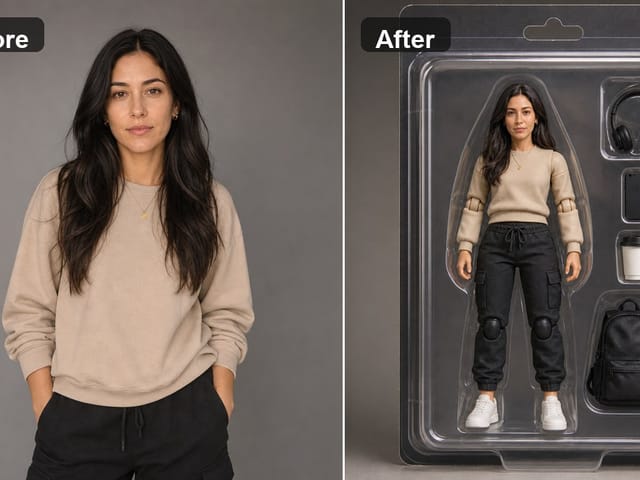
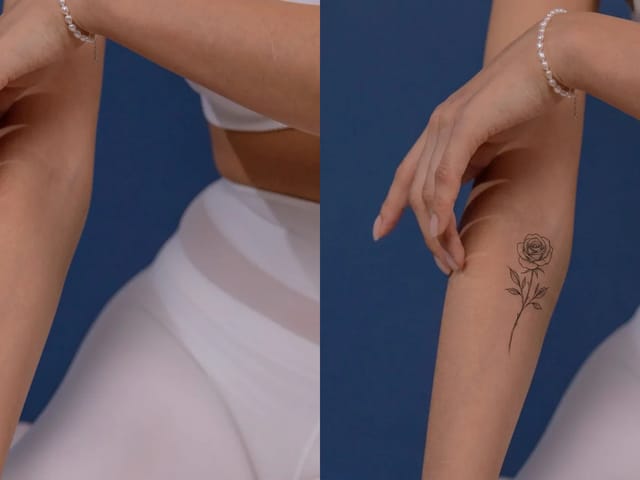
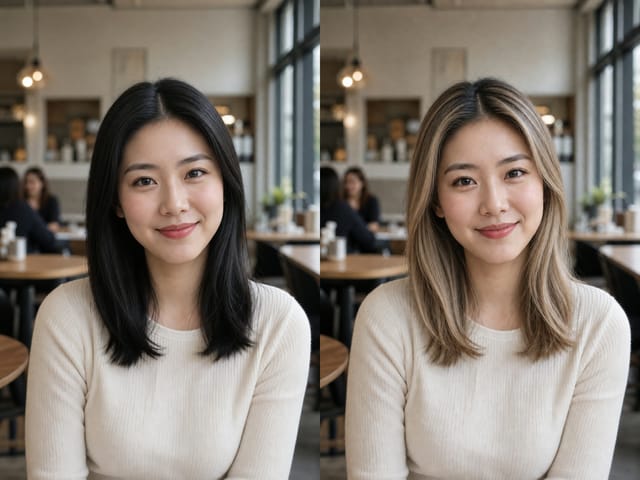
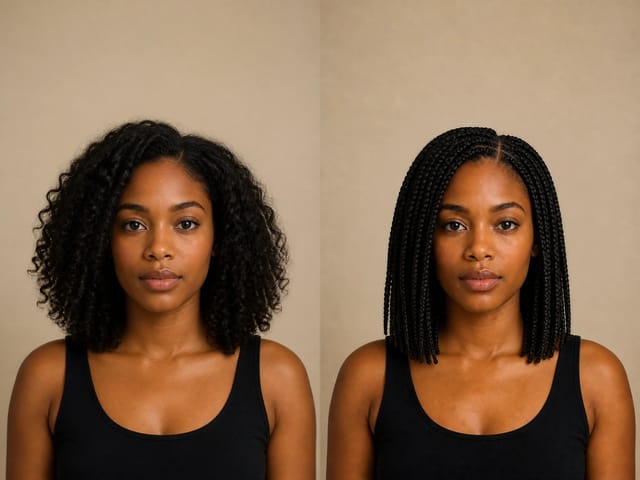
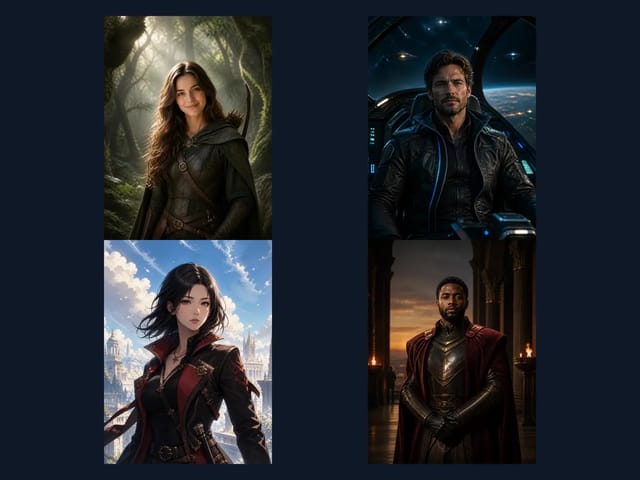
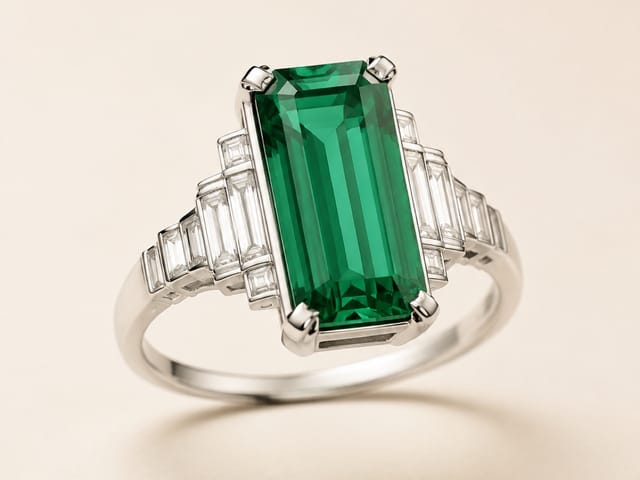
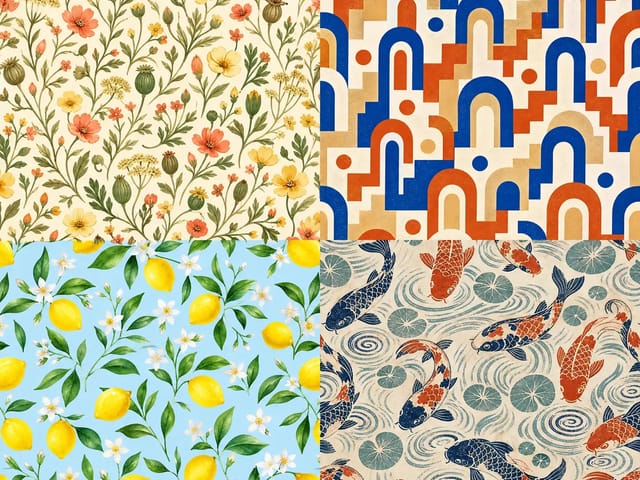
It shines when the look matters as much as the subject: posters, editorial art, fashion, concept art, and brand ideas.
Save up to 73% on plans
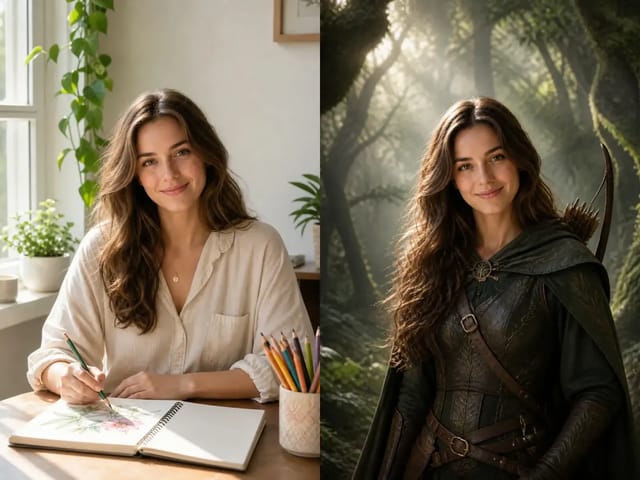
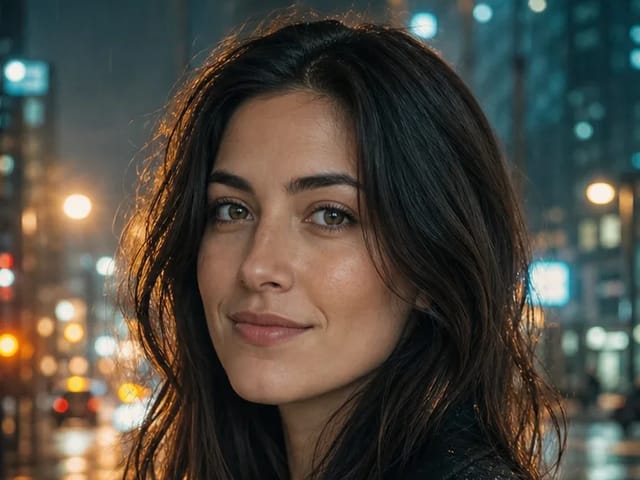
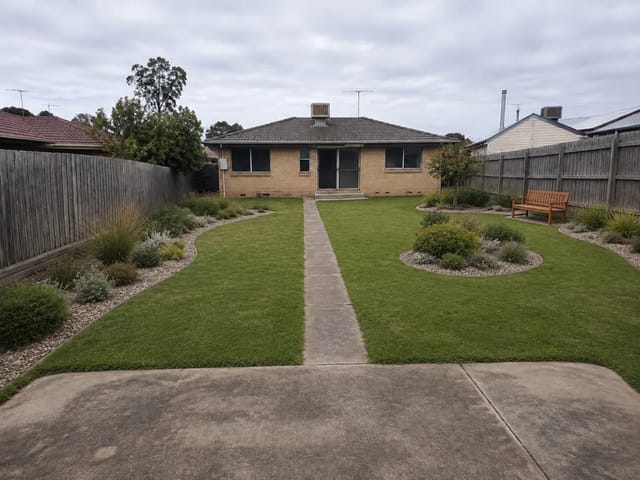
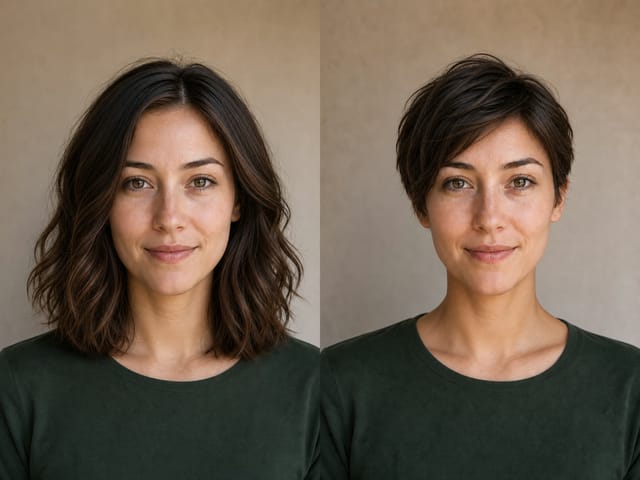
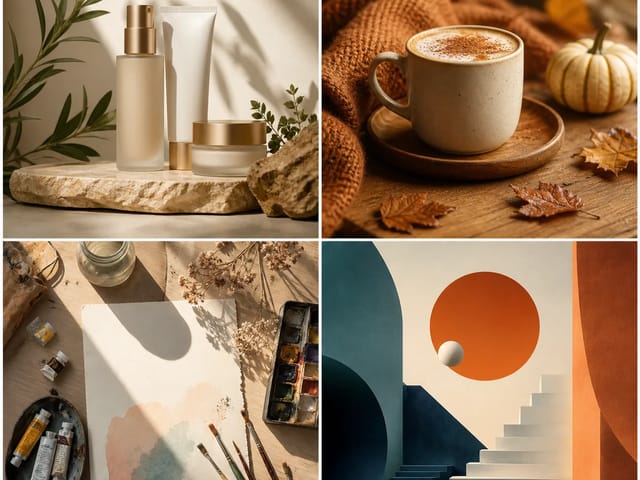
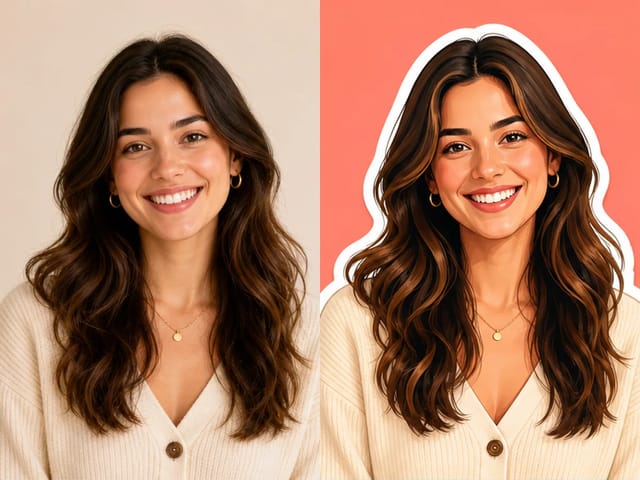
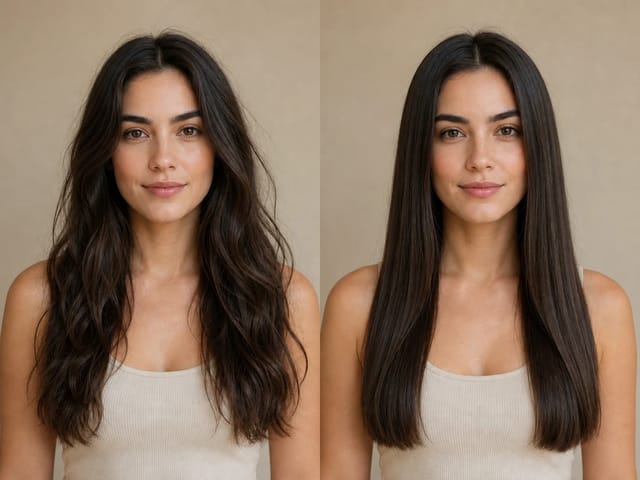
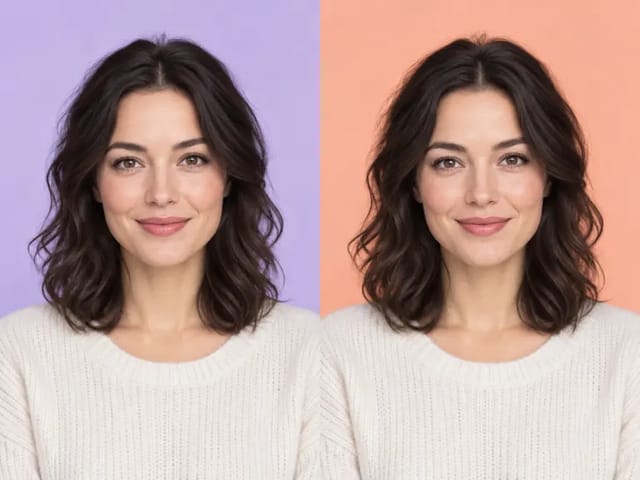
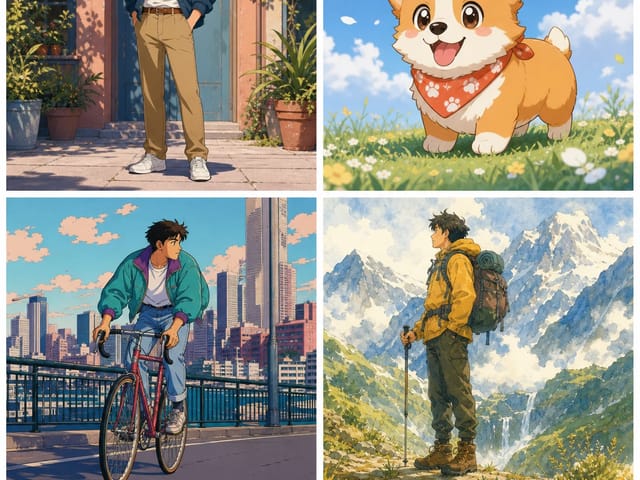
Krea 2 is a style-led text-to-image model from Krea AI that keeps looks apart—screen-print posters, soft watercolour, anime stills, grainy street photos.
Krea 2 is an image model built in-house by Krea AI. Instead of giving every prompt the same glossy finish, it keeps styles apart, so each medium looks like itself. You can steer it with words alone or show sample images to set the palette and texture of a new picture.
It shines when the look matters as much as the subject: posters, editorial art, fashion, concept art, and brand ideas.
It reads ordinary sentences well. Describe the picture the way you would brief an illustrator or a photographer.
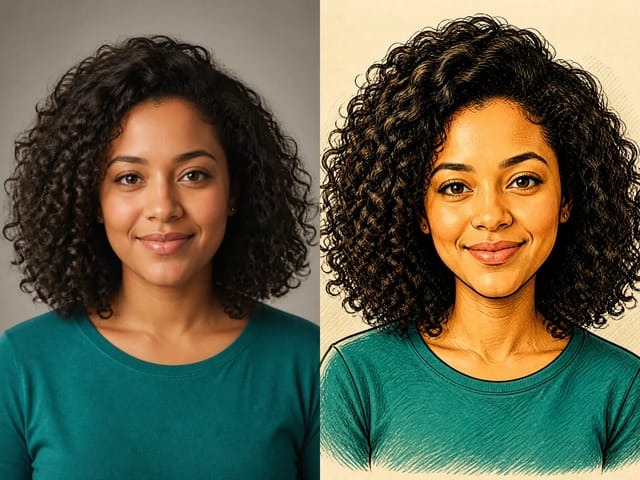
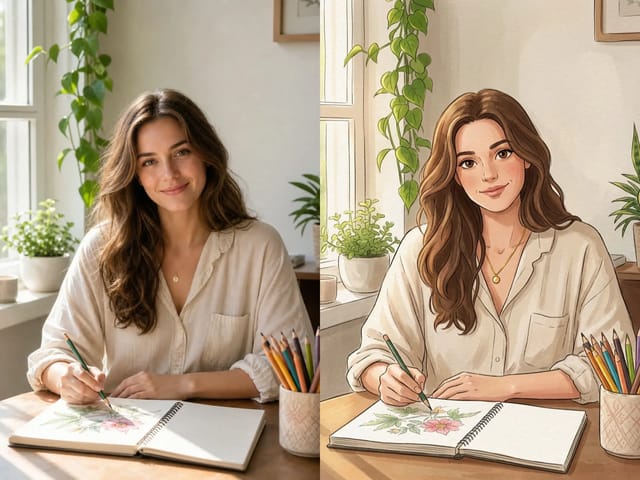
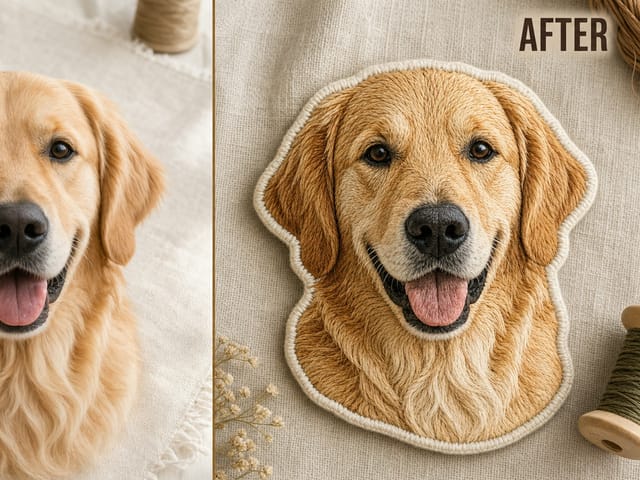
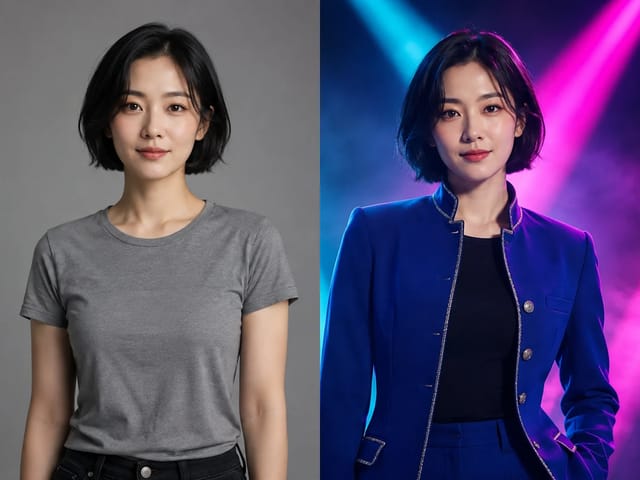
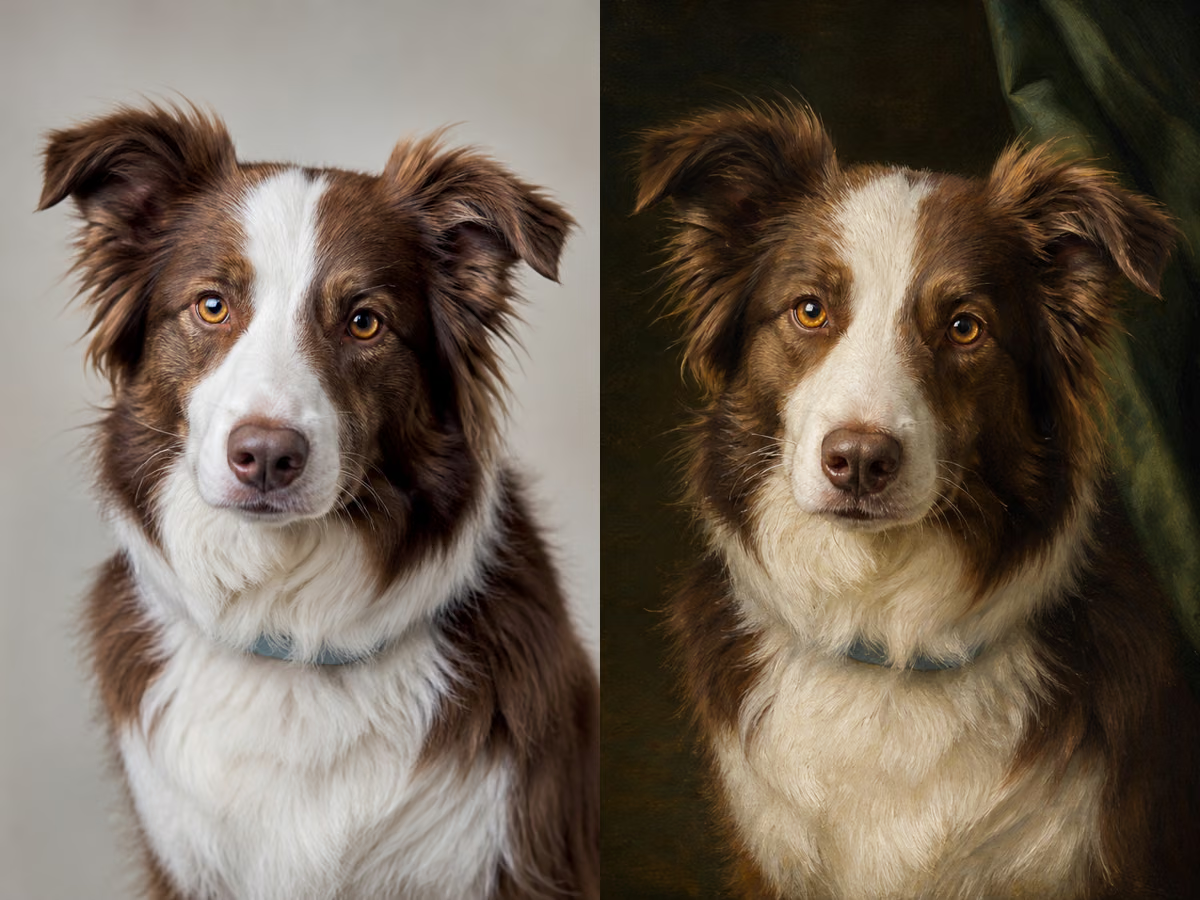
Show it a few images whose colours, brush marks, or grain you like, and it carries that feel over to a new subject.
A creativity setting decides how literally it follows you. Lower keeps close to your words; higher allows more liberties.
Everyday projects where Krea 2 helps keep a look steady.
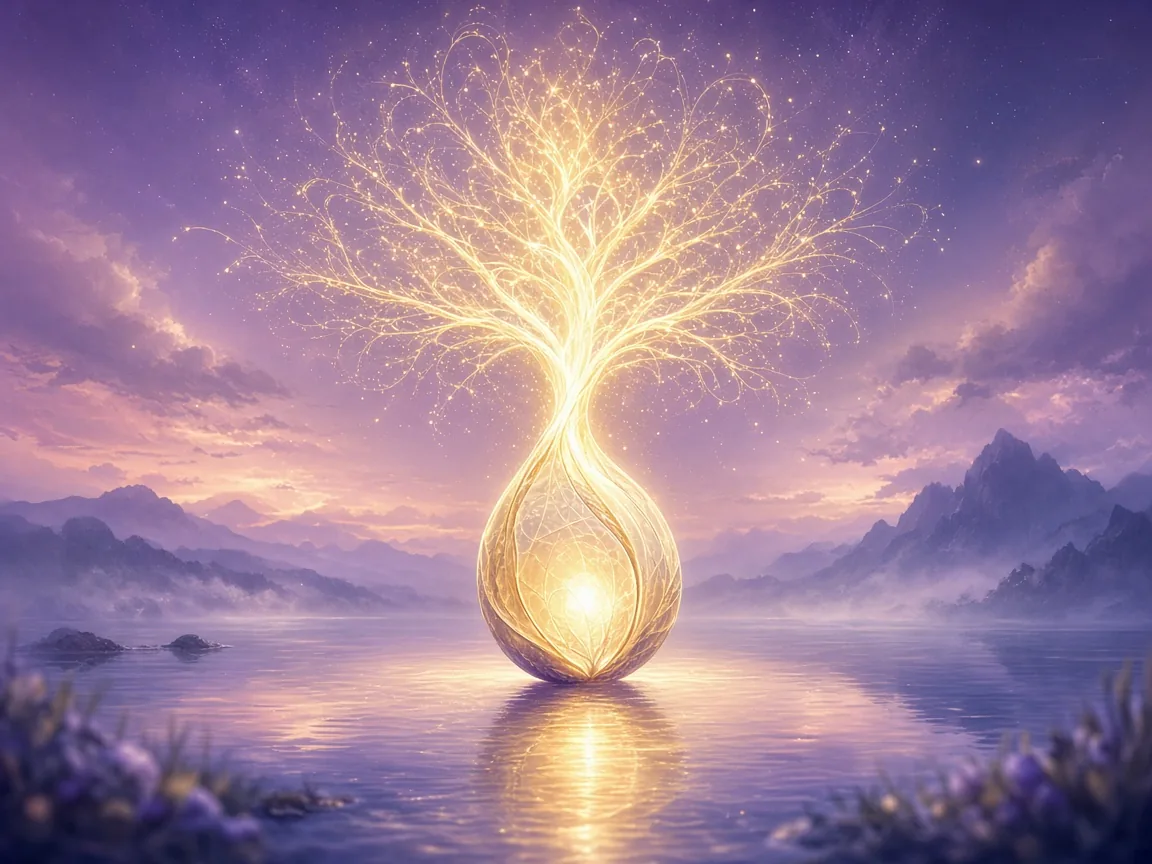
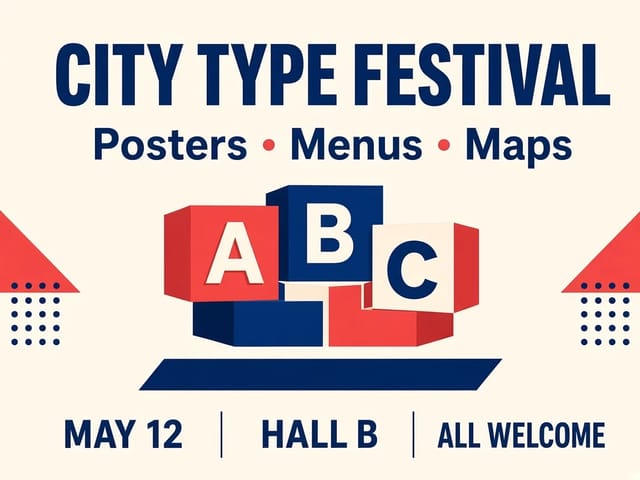
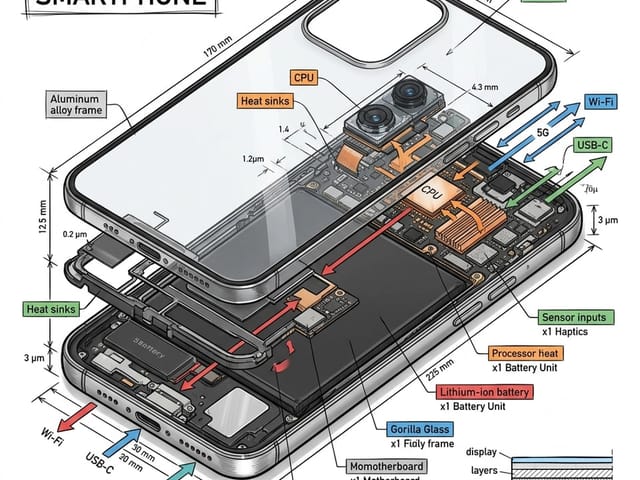
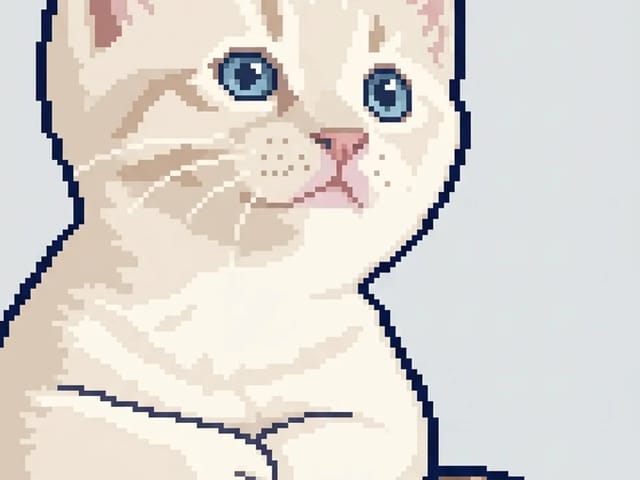
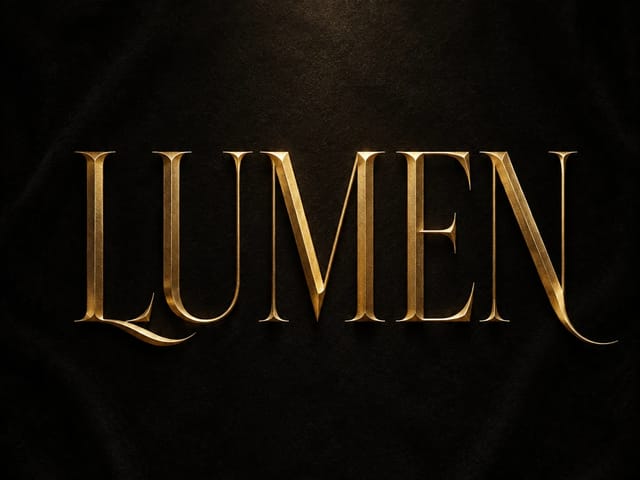
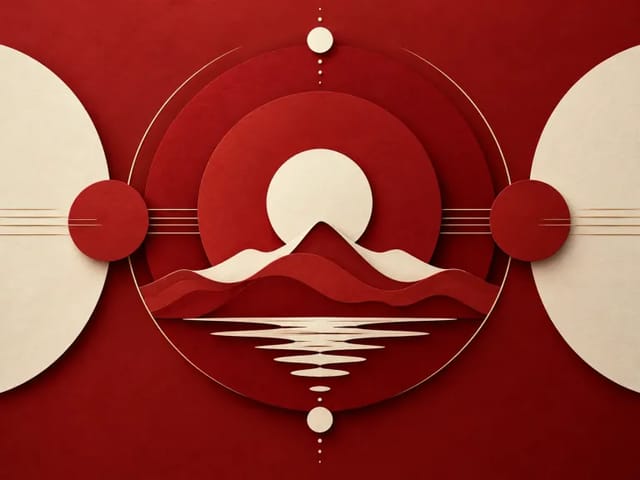
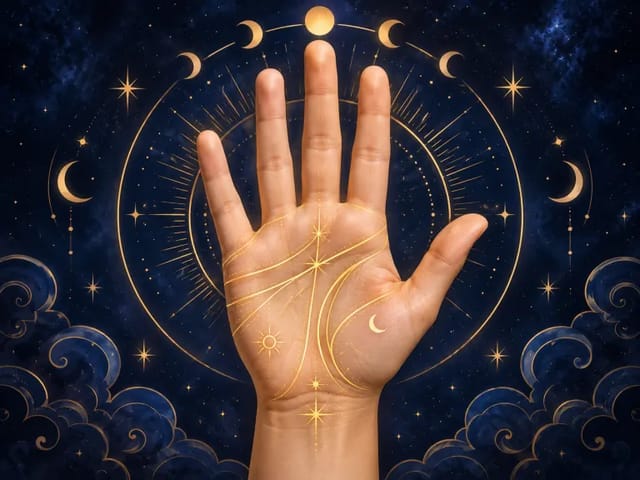
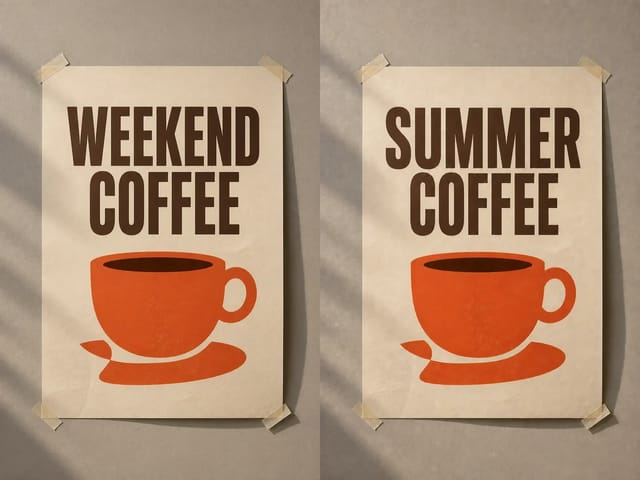
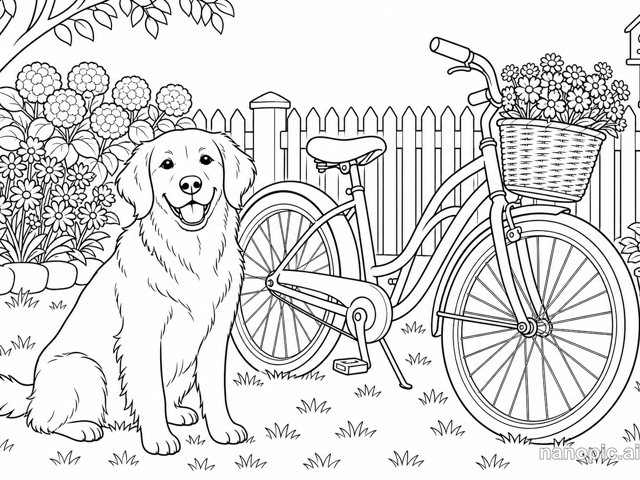
Bold shapes and limited ink for print-ready posters.
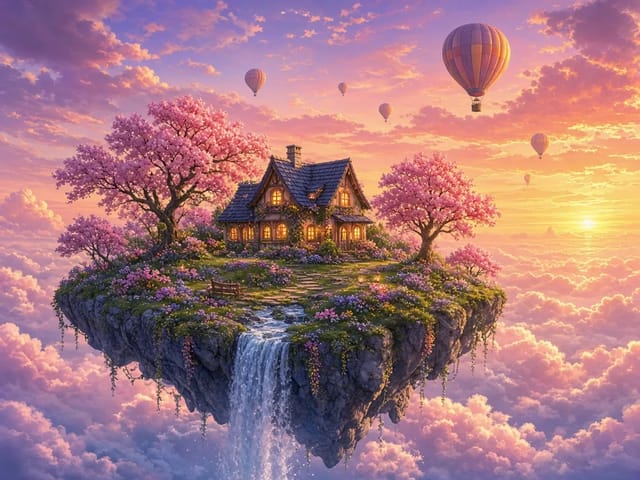
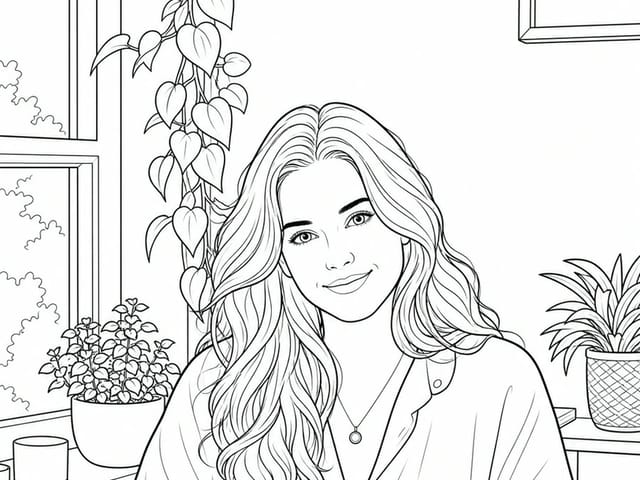
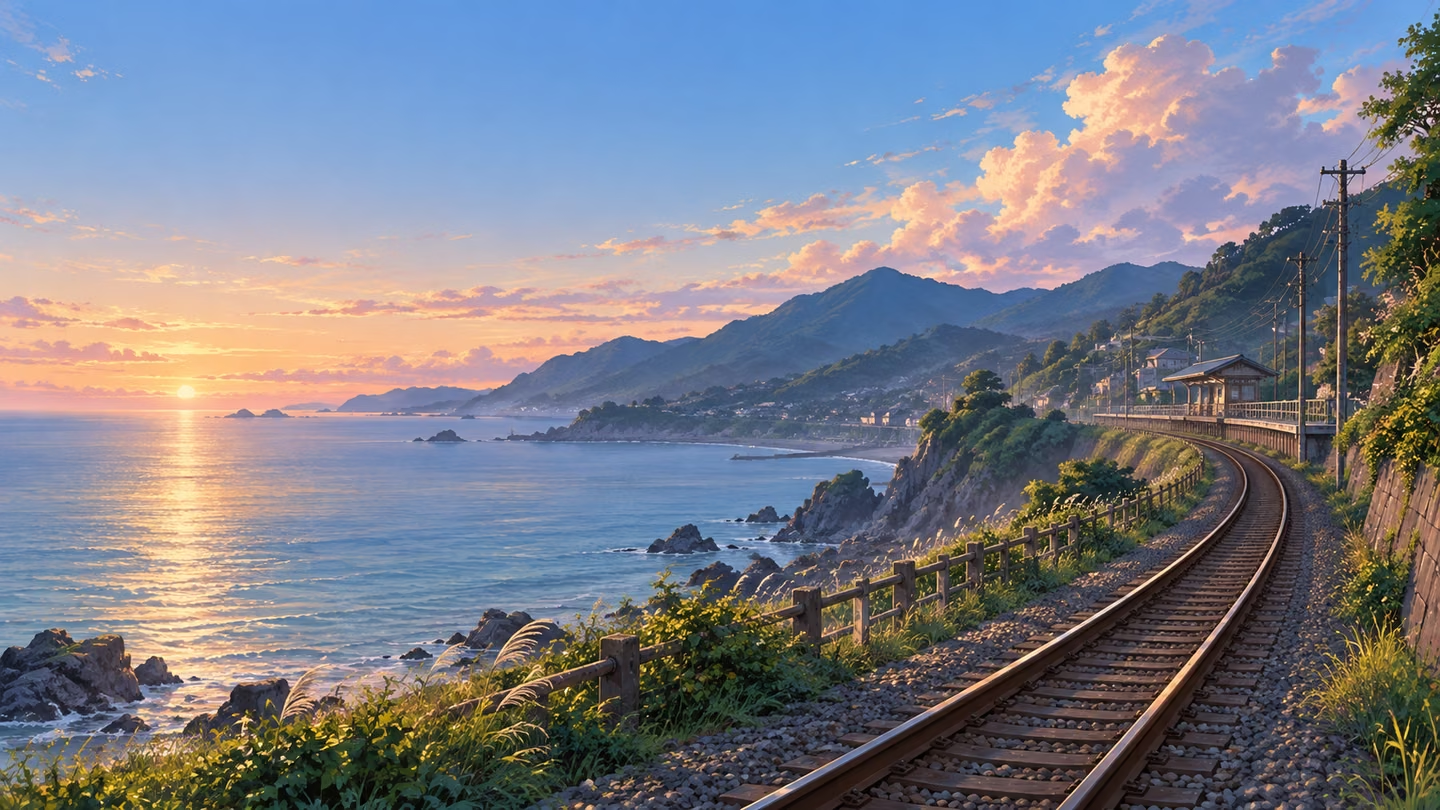
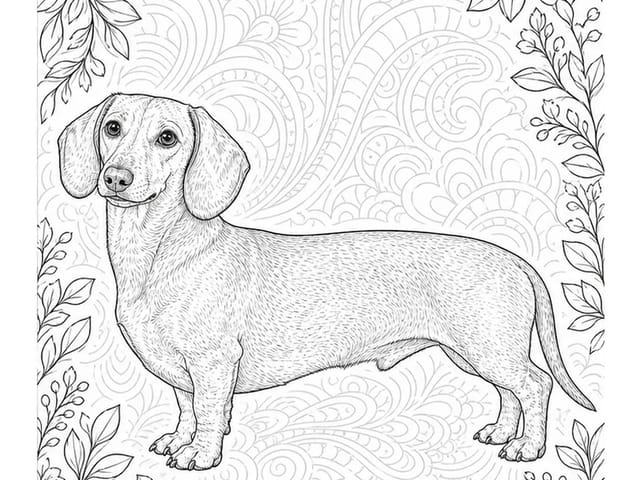
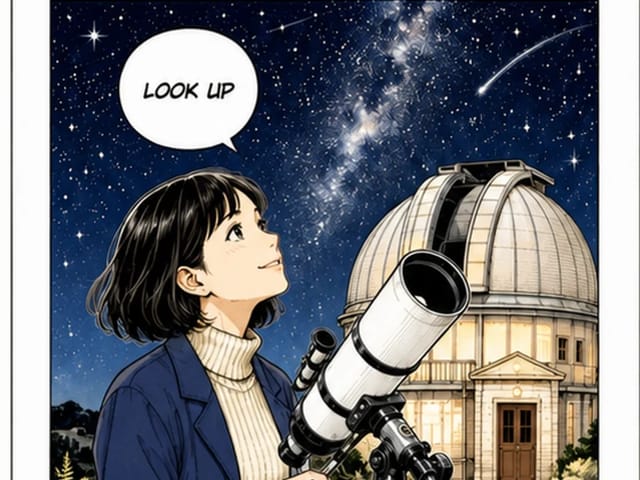
Clean line and cel shading for characters and stills.
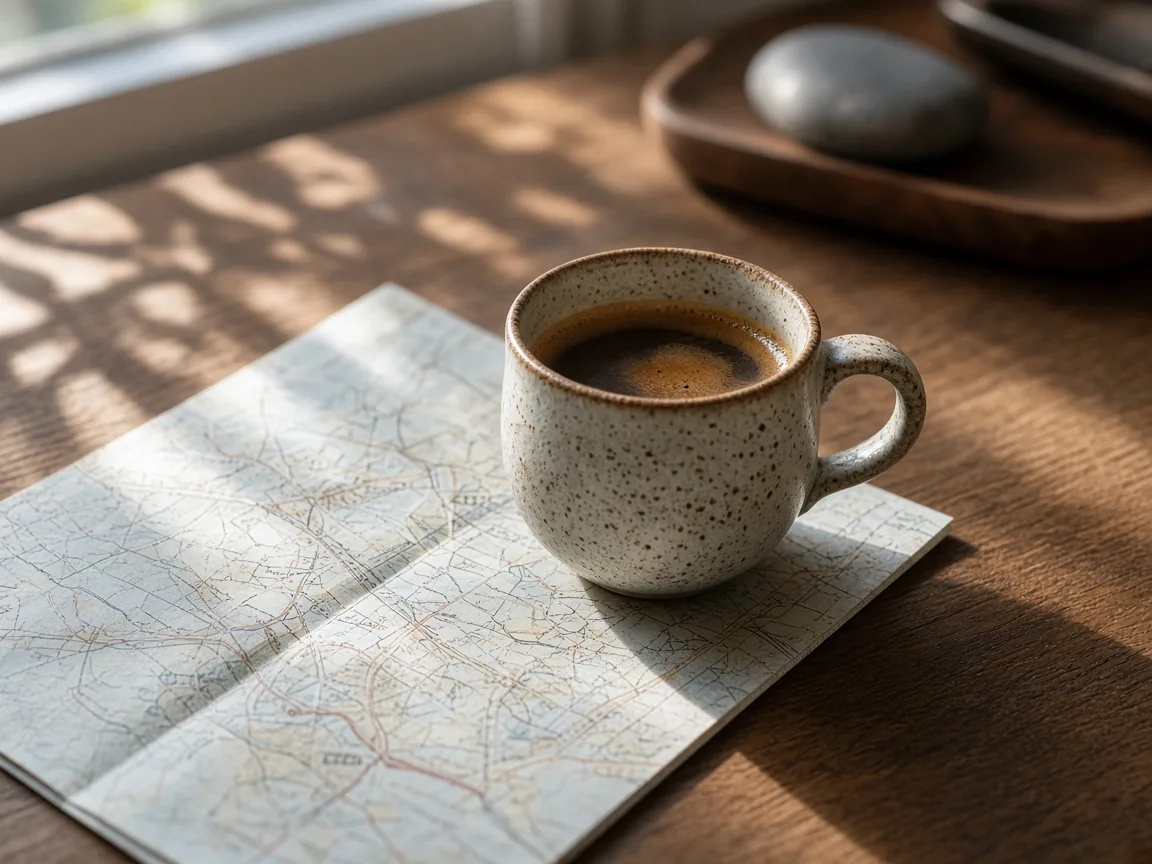
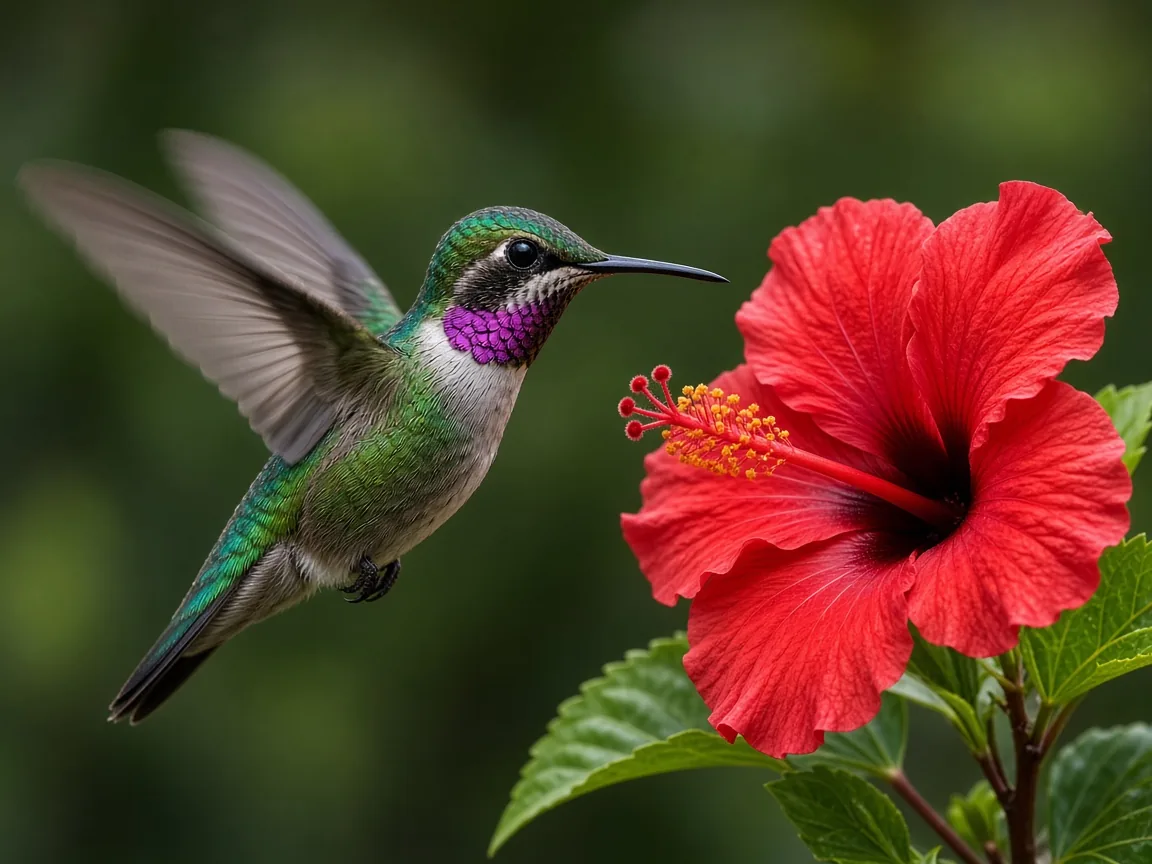
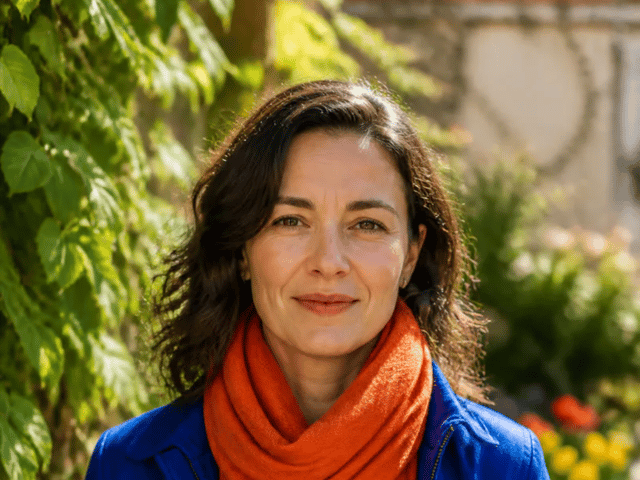
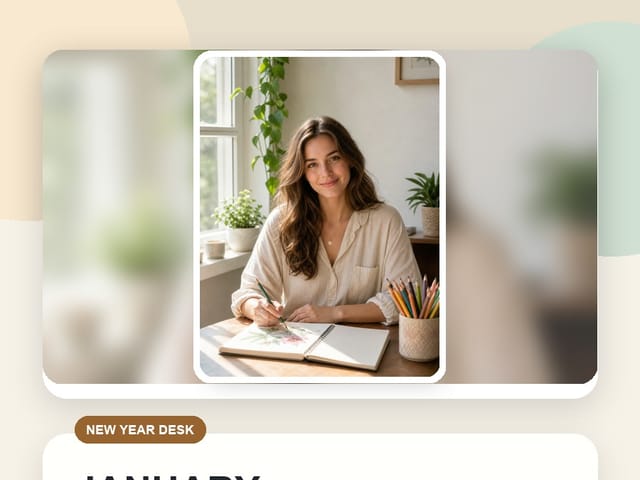
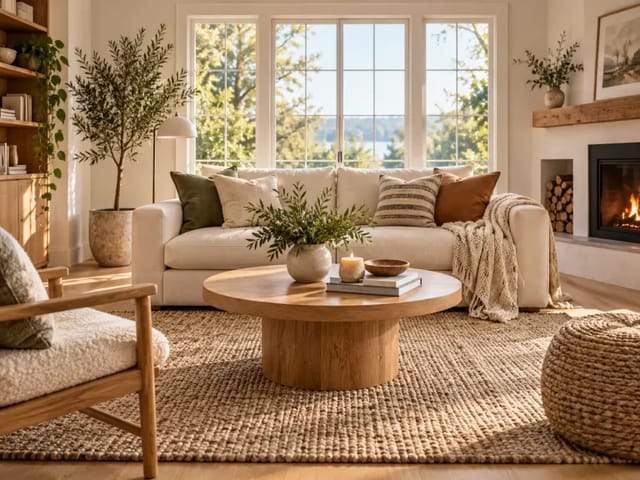
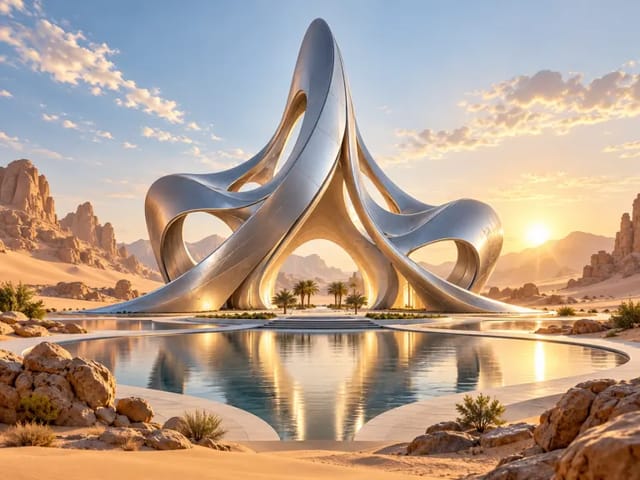
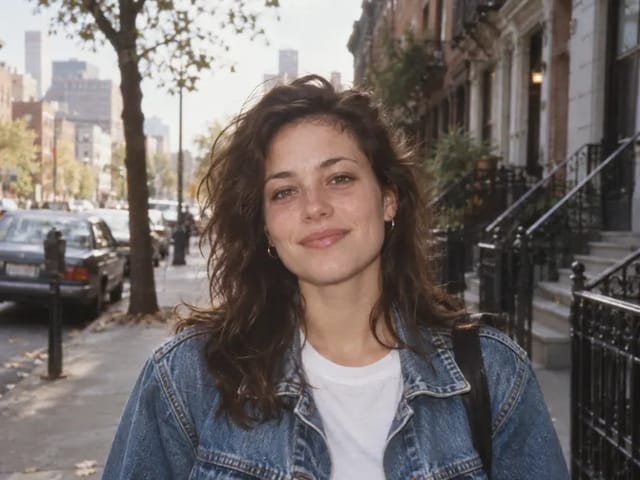
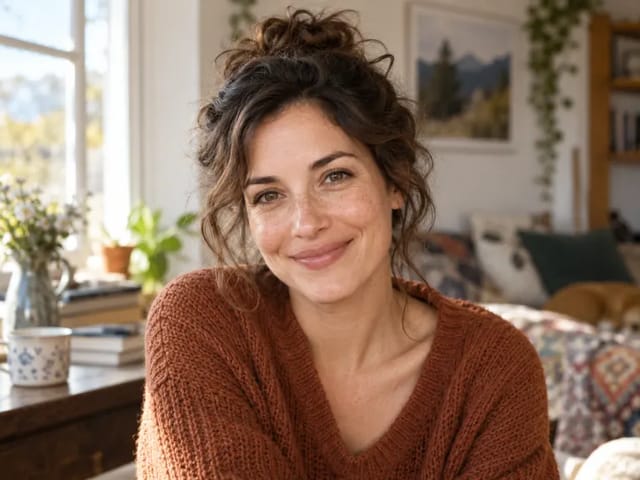
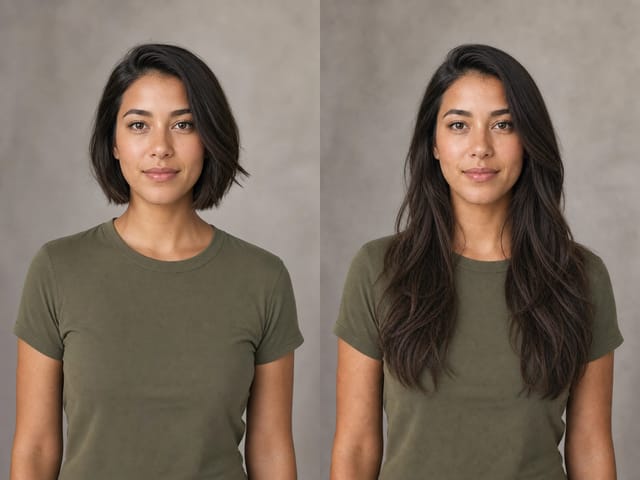
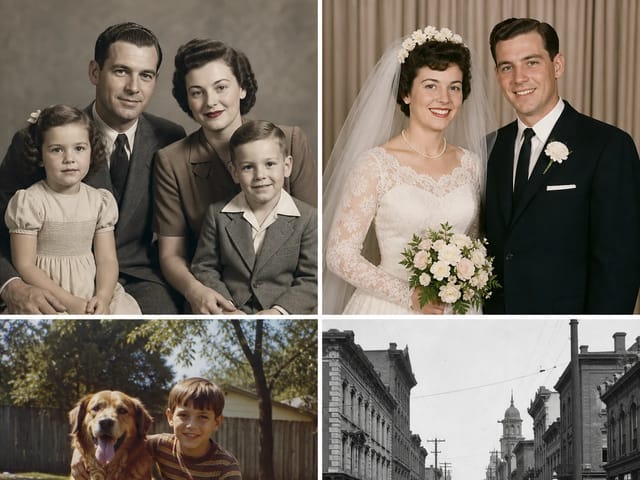
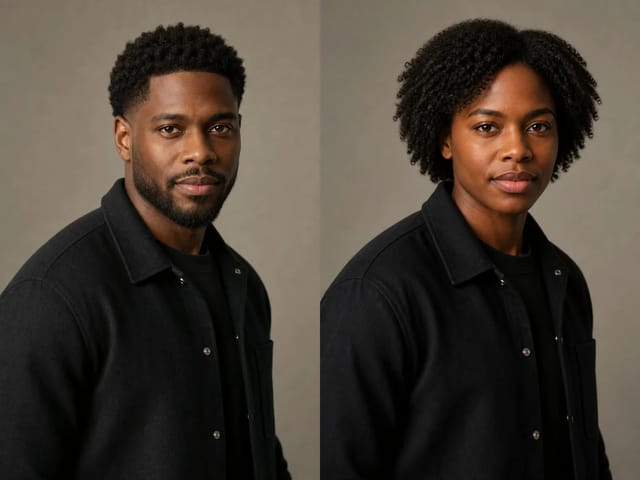
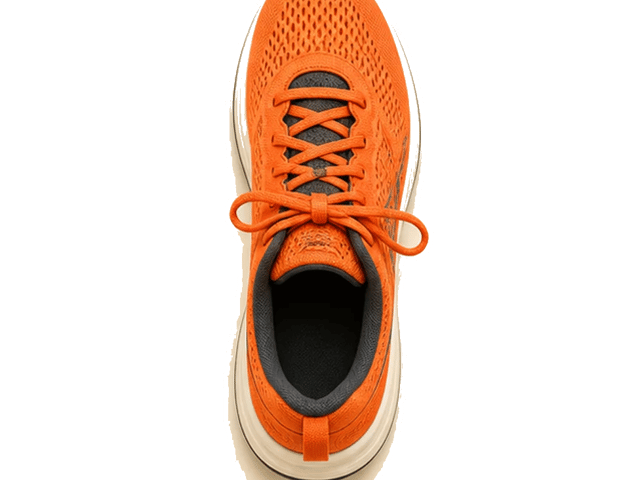
Grain, depth of field and natural light for photo-like frames.
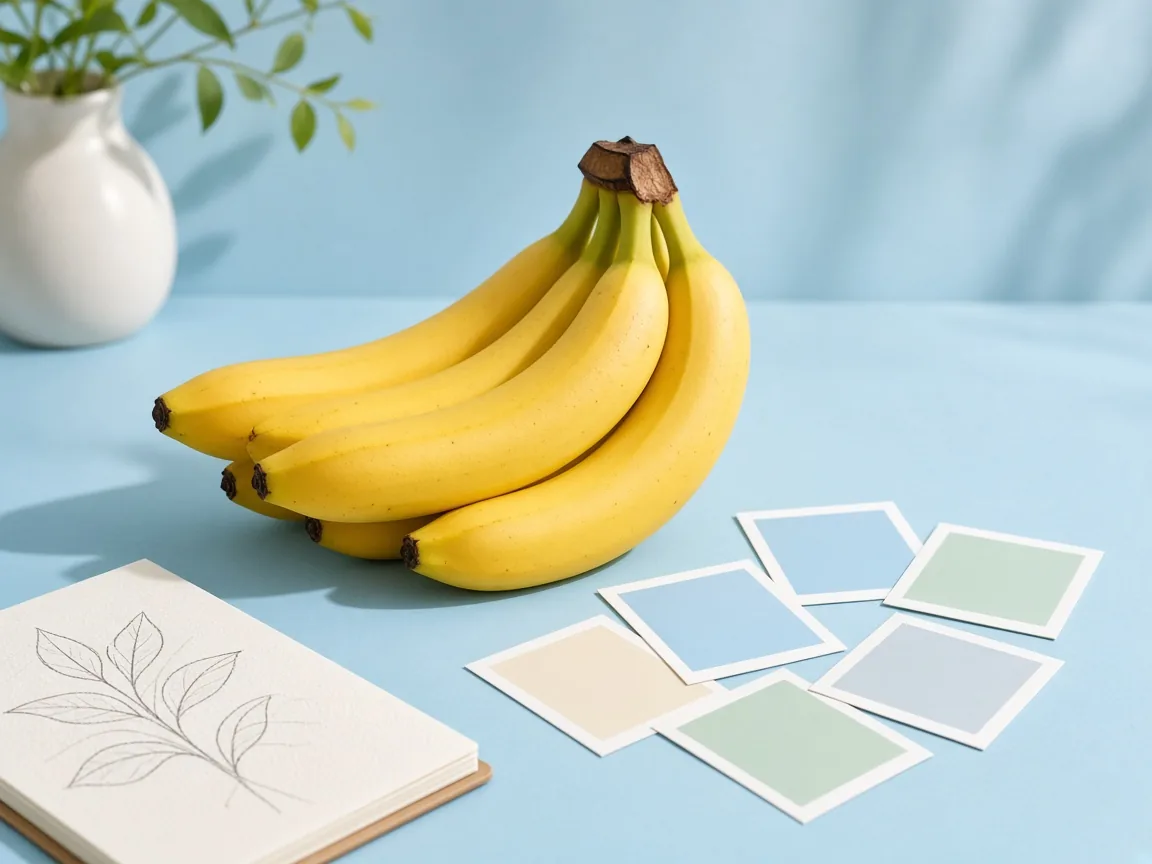
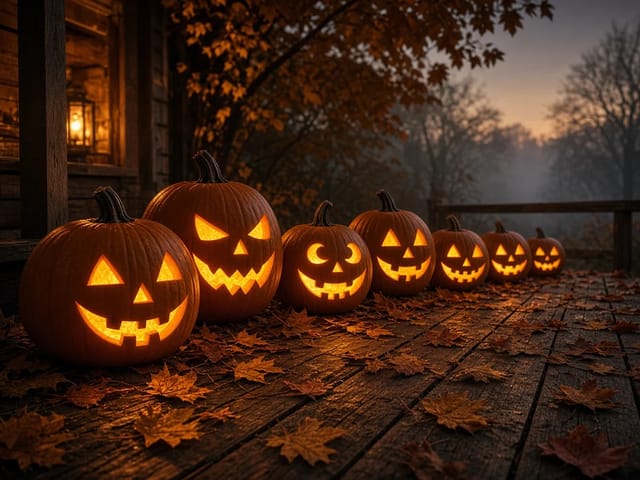
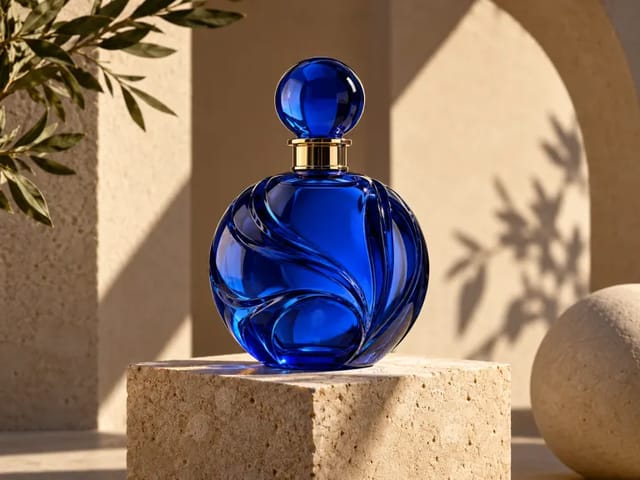
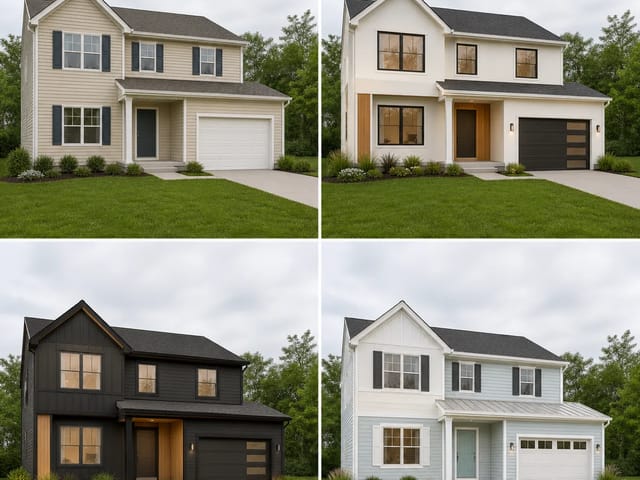
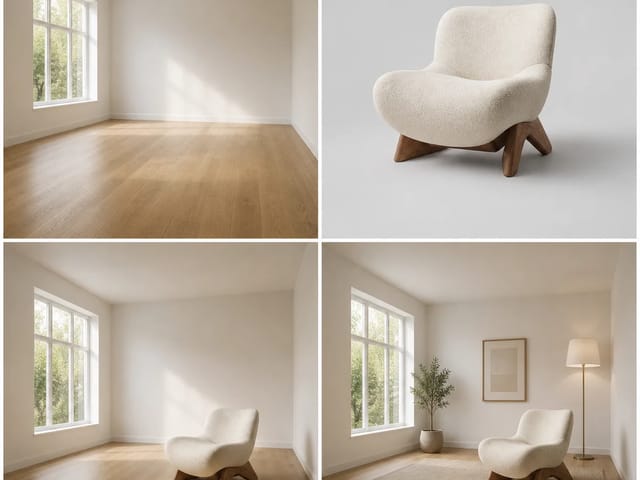
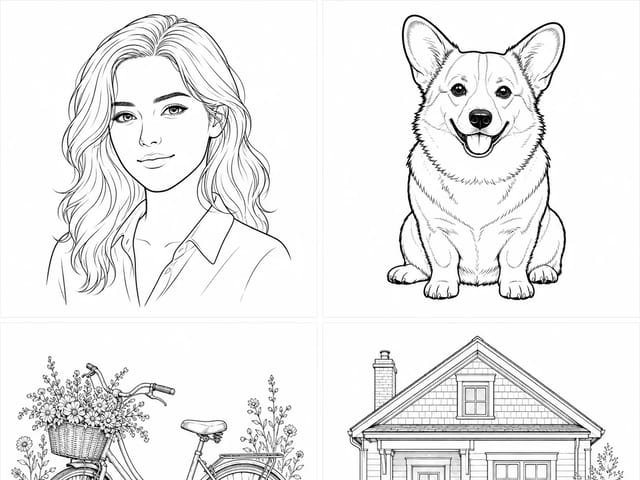
Restrained palettes that stay consistent across a set.
Conceptual differences between Medium and Large. NanoPic currently runs Krea 2 Medium.
The lighter version. Results tend to look alike from run to run, which suits drawn, painted, anime, and graphic work.
The bigger version. Pictures tend to be less polished and carry more surface detail, which fits photo-like images, film grain, blur, and bolder experiments.
A practical loop for style-led images on NanoPic: pick a look, write a clear prompt, steer with samples, then refine.
Krea 2 Medium works best when you decide the medium before you invent details. Screen print, watercolour, anime still, or grainy film each need different light and edges. Name that look early so the rest of the prompt supports it instead of fighting it. Keep one look for the whole run so posters, characters and product shots stay in the same visual family.
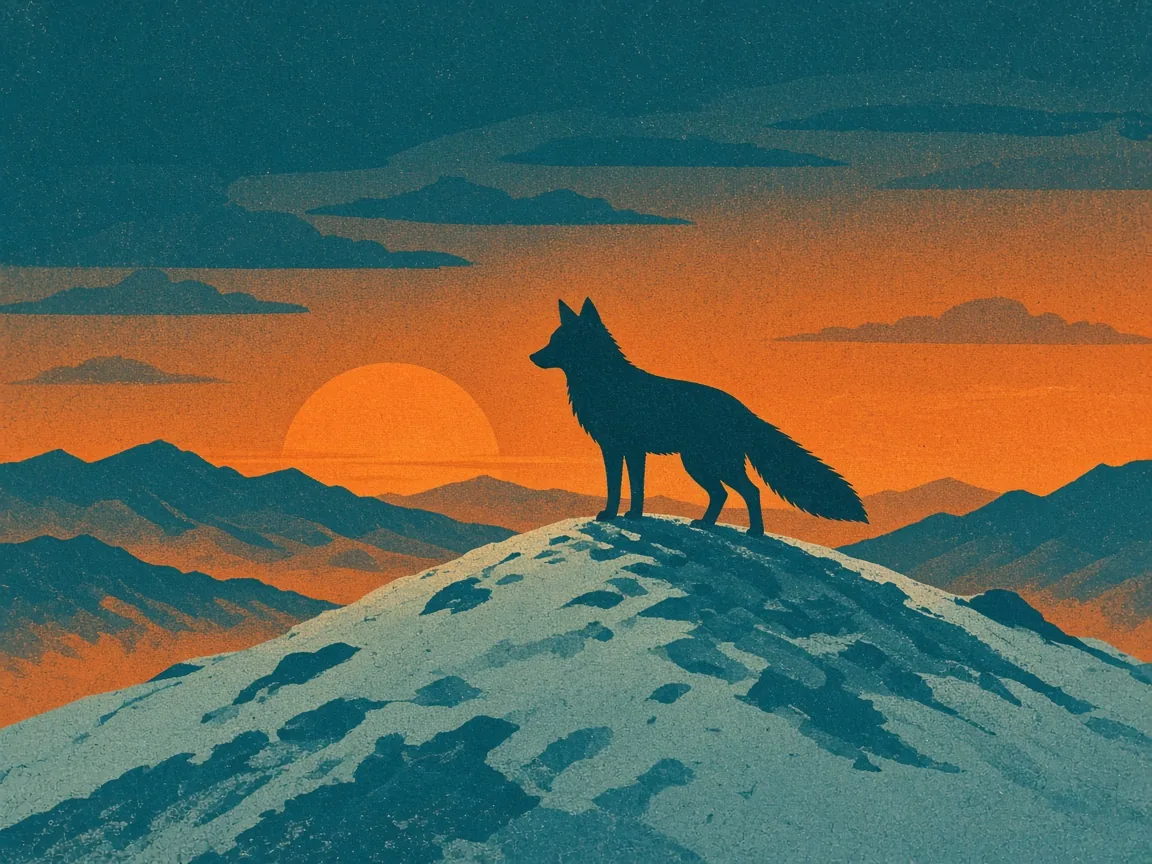
Lead with the subject, then materials, action or placement, setting, light, framing, and finally the medium. Short concrete phrases beat long keyword piles with Krea 2. If a result is close, change only one phrase—lens distance or time of day—so you can see what moved. Save the winning order and reuse it for the next frame.
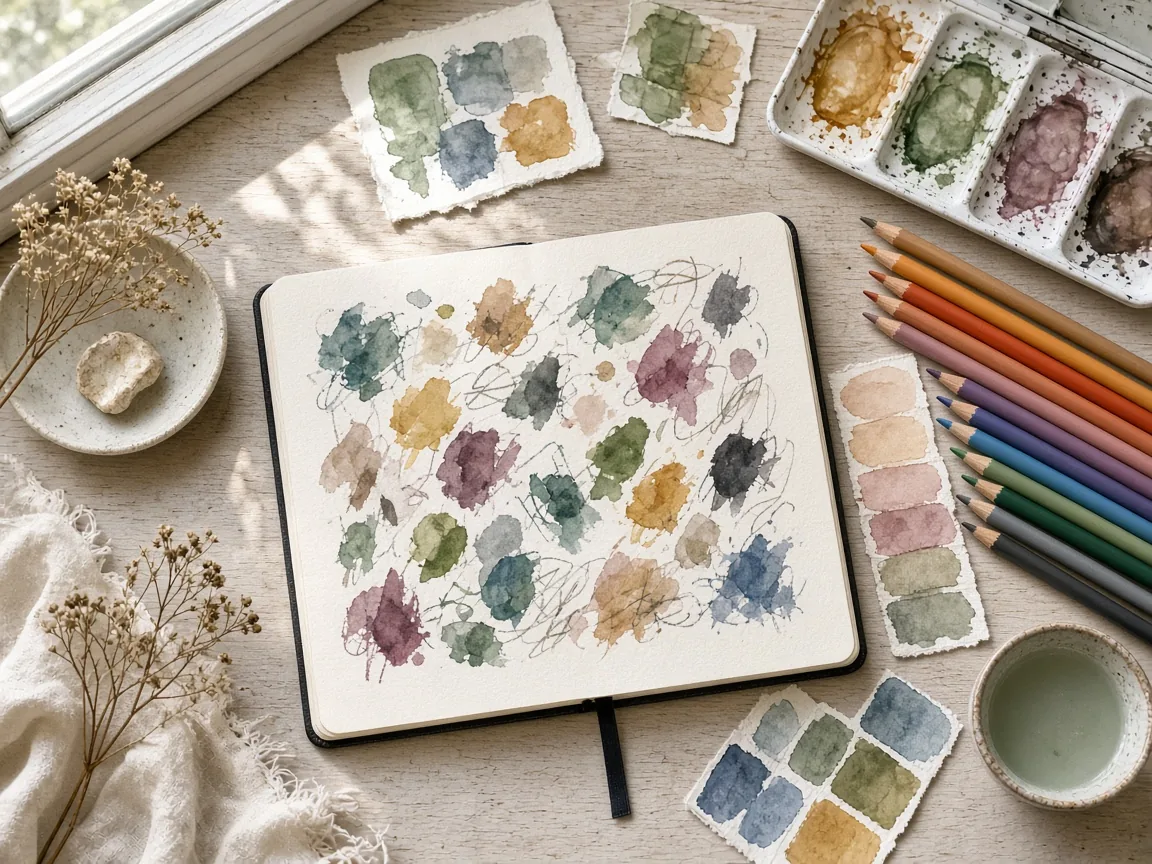
When you have a palette or texture in mind, add one or two sample images and keep the text about subject and composition. Let the samples define ink grain, wash softness or cel shading while Krea 2 Medium follows the written framing. Say what must stay the same—subject, crop, or colour family—so later variants do not drift.
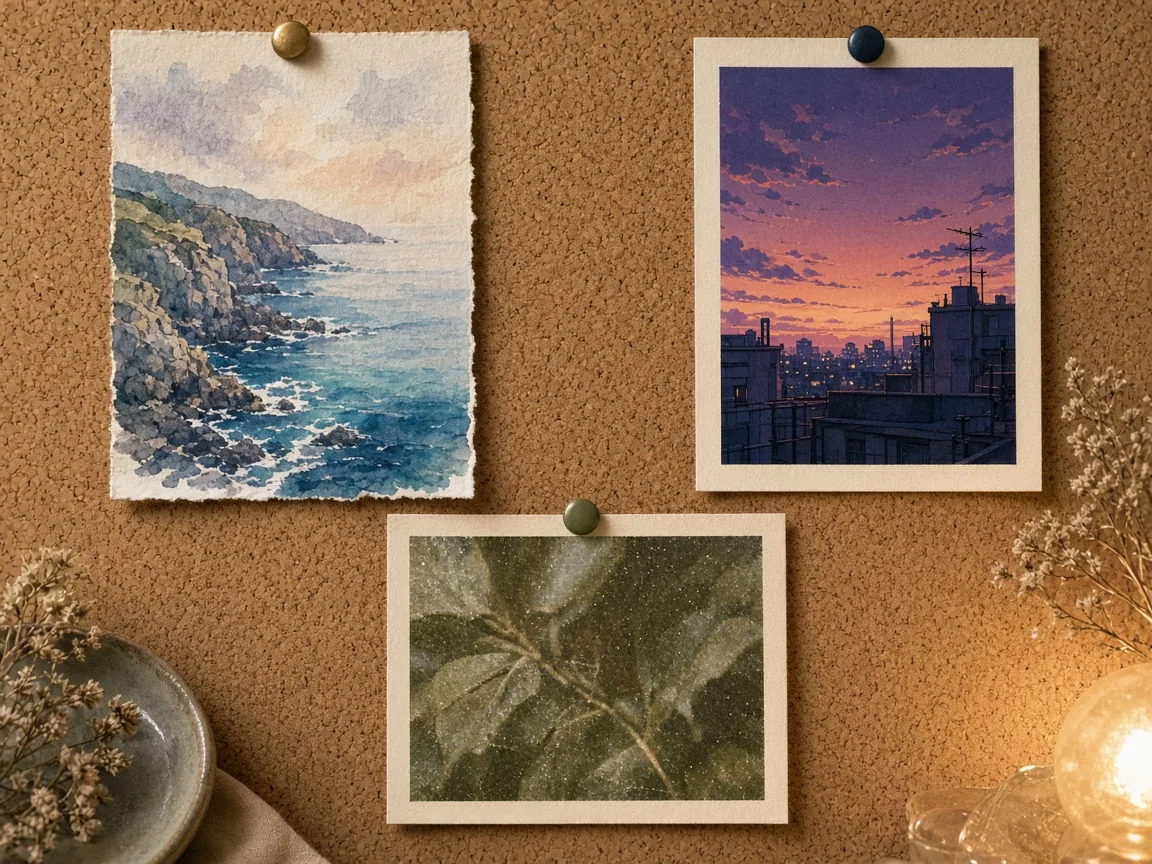
Before regenerating, check clutter, style drift, flat light and subject placement. If the frame is busy, cut props and ask for open sky or a plain wall. If the look drifted, restate the medium in plain words. If the subject sits wrong, name a shot type and where it sits in the frame, then run again with Krea 2 Medium.
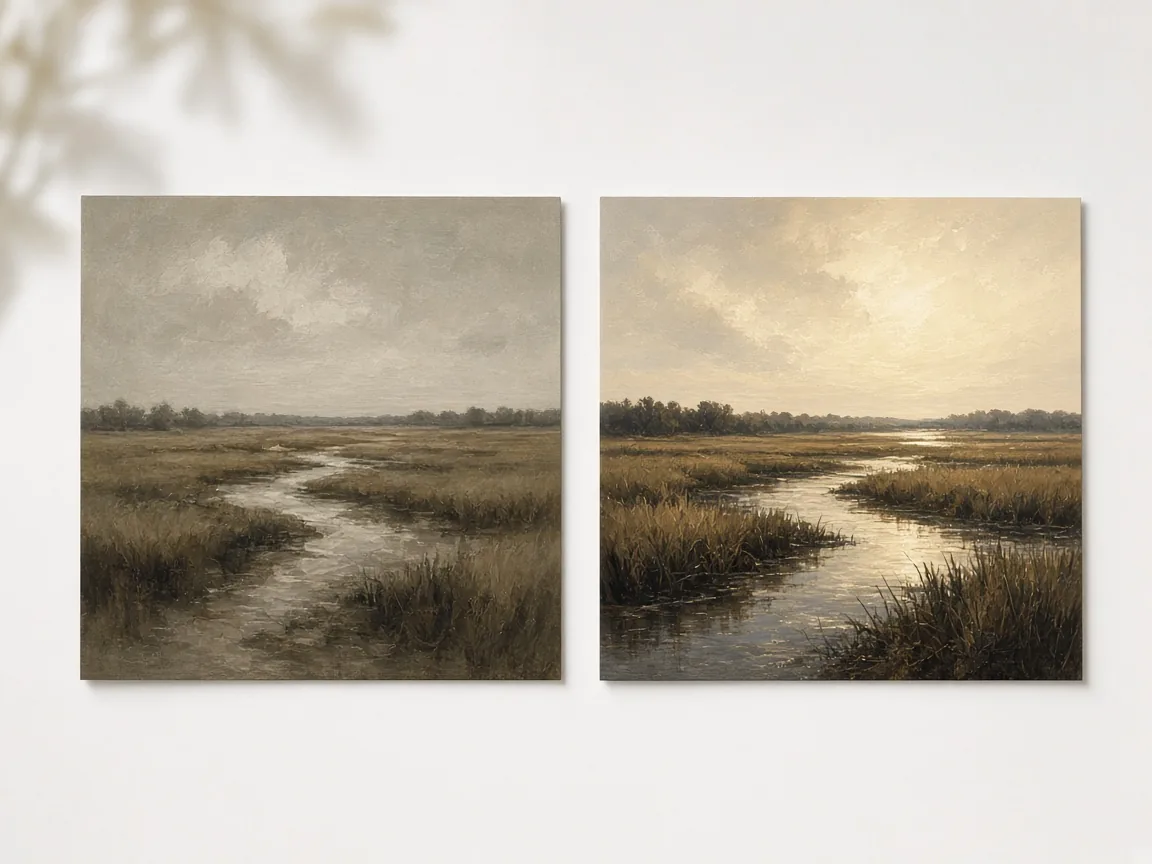
Short, clear art direction usually works better with Krea 2 than a long pile of keywords.
Subject, then appearance and materials, action or placement, setting, light and colour, framing, and finally the medium or style.
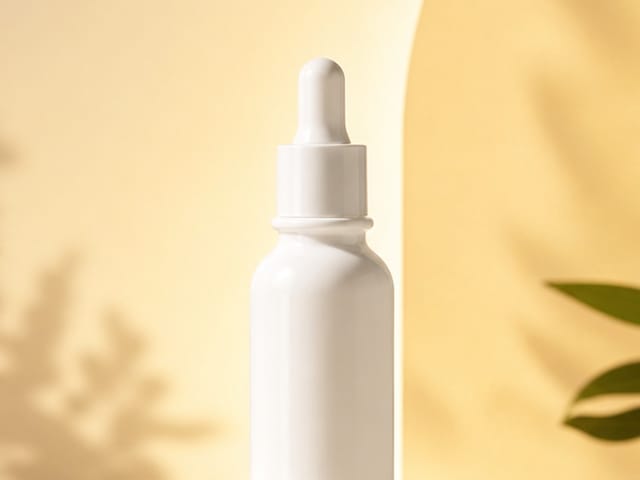
Instead of premium, write matte finish, clean background, soft side light, close-up framing, and a restrained palette.
Say screen print, gouache, ink wash, snapshot photo, film photo, or flat vector rather than beautiful or detailed.
When a result is close, swap a single phrase, such as lens distance or time of day, to see what each change does.
Sample images can carry palette and texture while the prompt stays about subject and framing.
Choose images that share one clear look. Mixing very different styles in one set tends to blur the result.
With samples attached, spend your words on who or what is in the picture and how it is framed.
Keep the same sample images across a series so every image feels like part of one campaign or story.
Keep the same seed and prompt to bring back a composition, then change one detail at a time.
Prompts that name a medium and a clear light usually land closer with Krea 2.
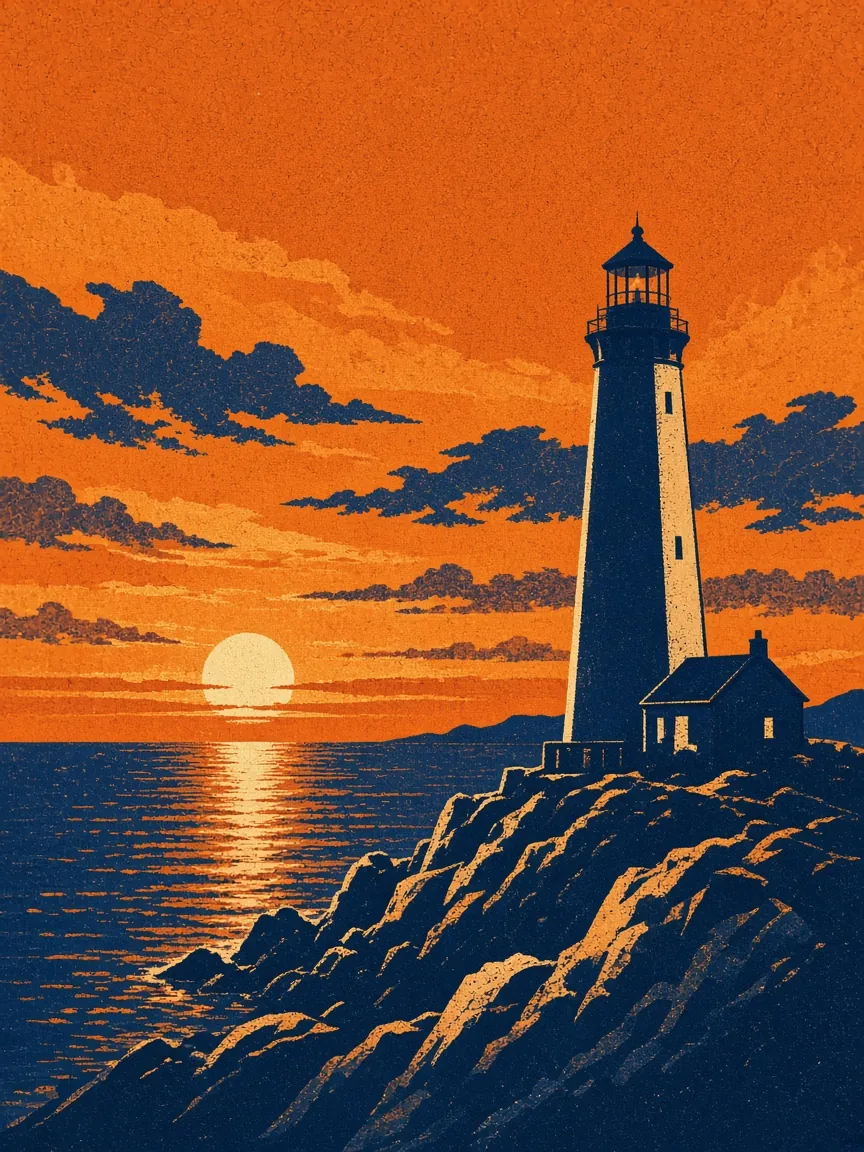
Screen-printed travel poster of a lighthouse on a rocky coast at sunset, bold orange and navy ink, simple shapes, wide sky, slight paper grain. Suits a steady graphic or poster look.
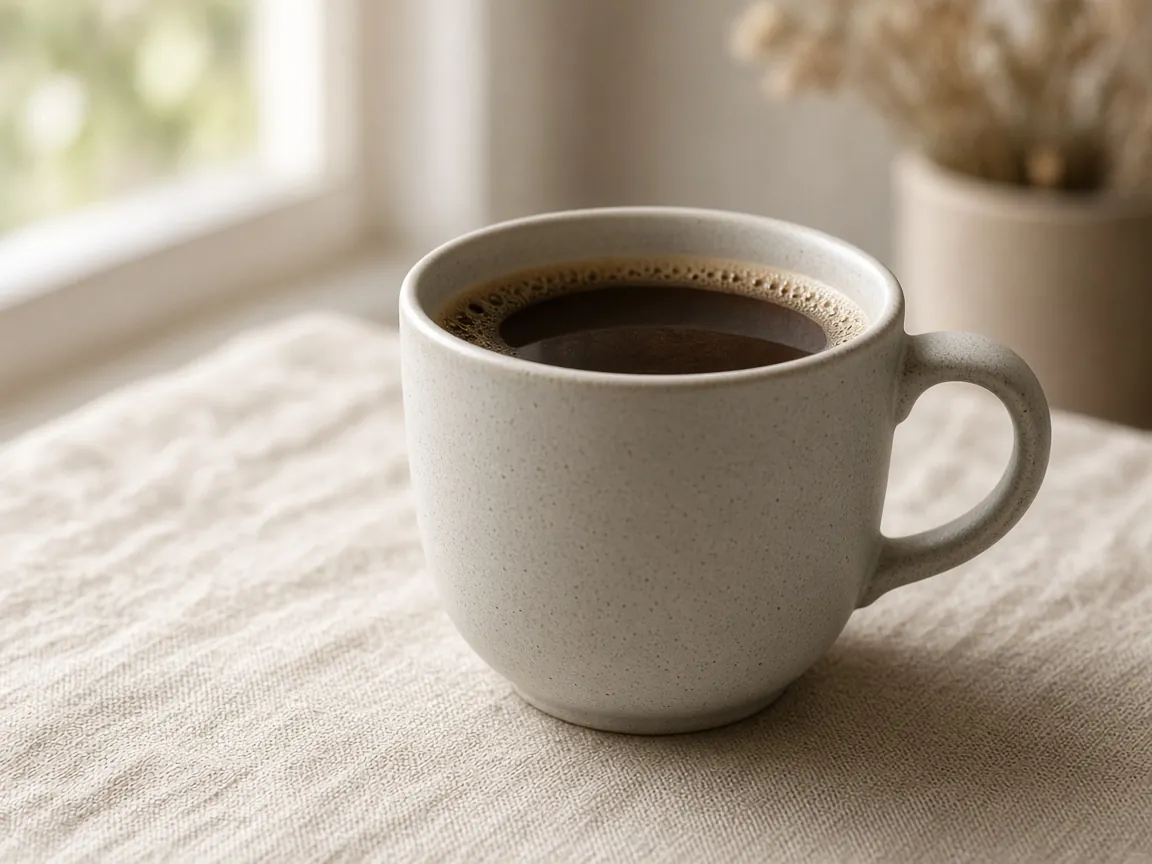
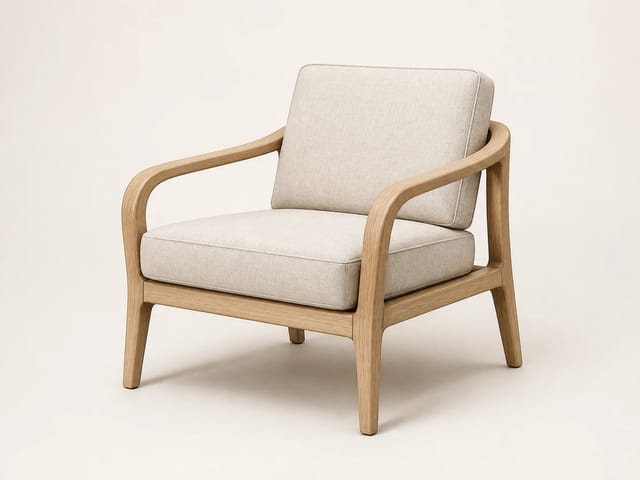
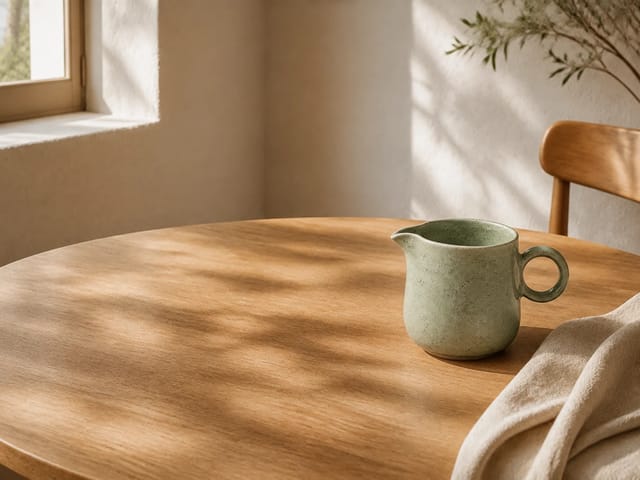
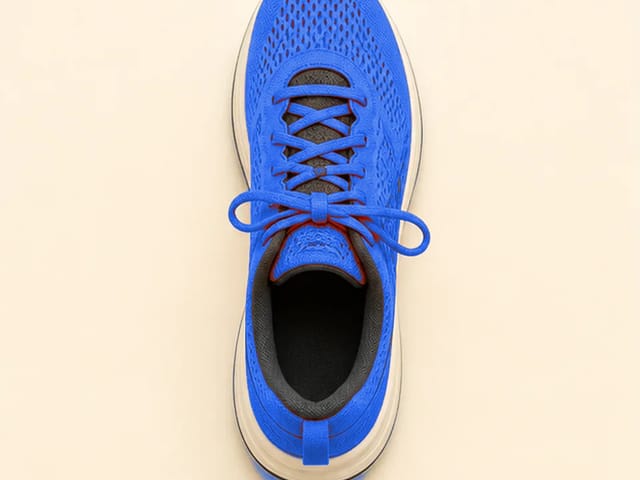
Close-up of a ceramic coffee cup on a linen tablecloth, soft morning window light from the left, matte glaze, shallow depth of field, warm neutral palette. Suits a photo-like product look.
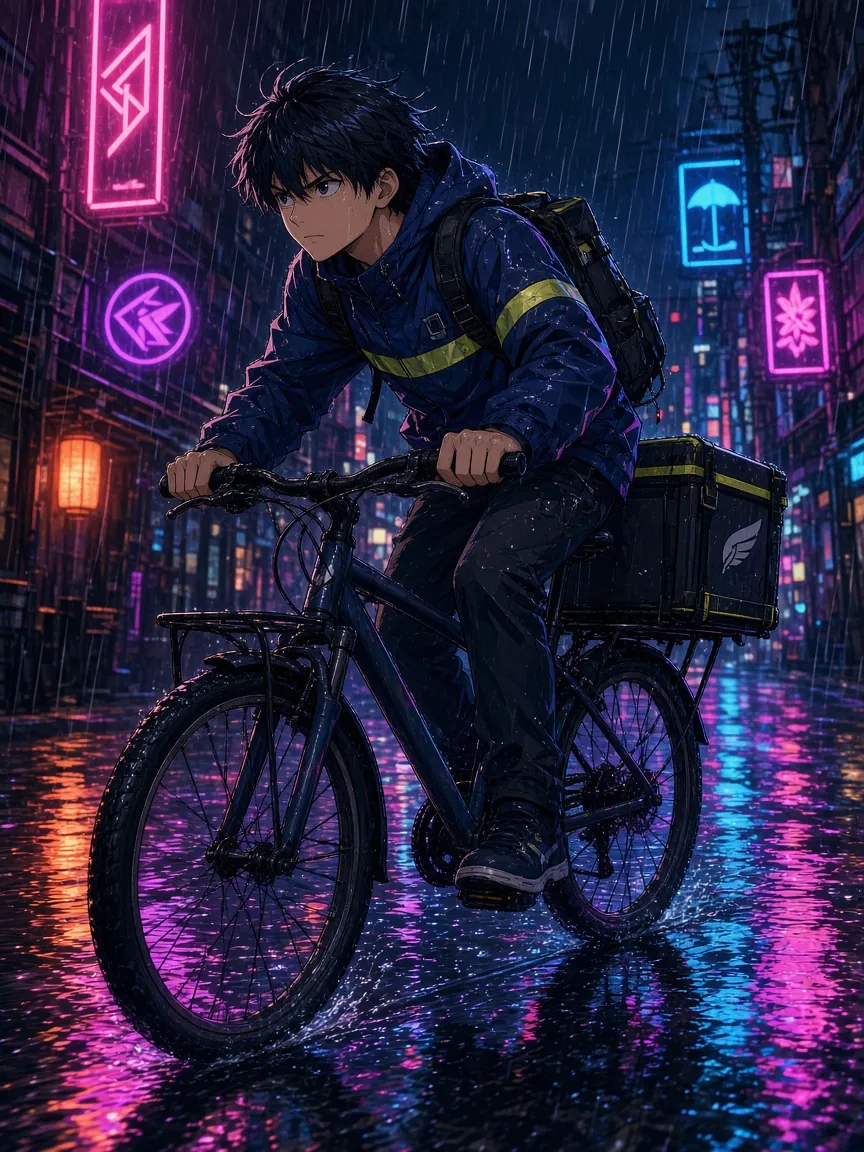
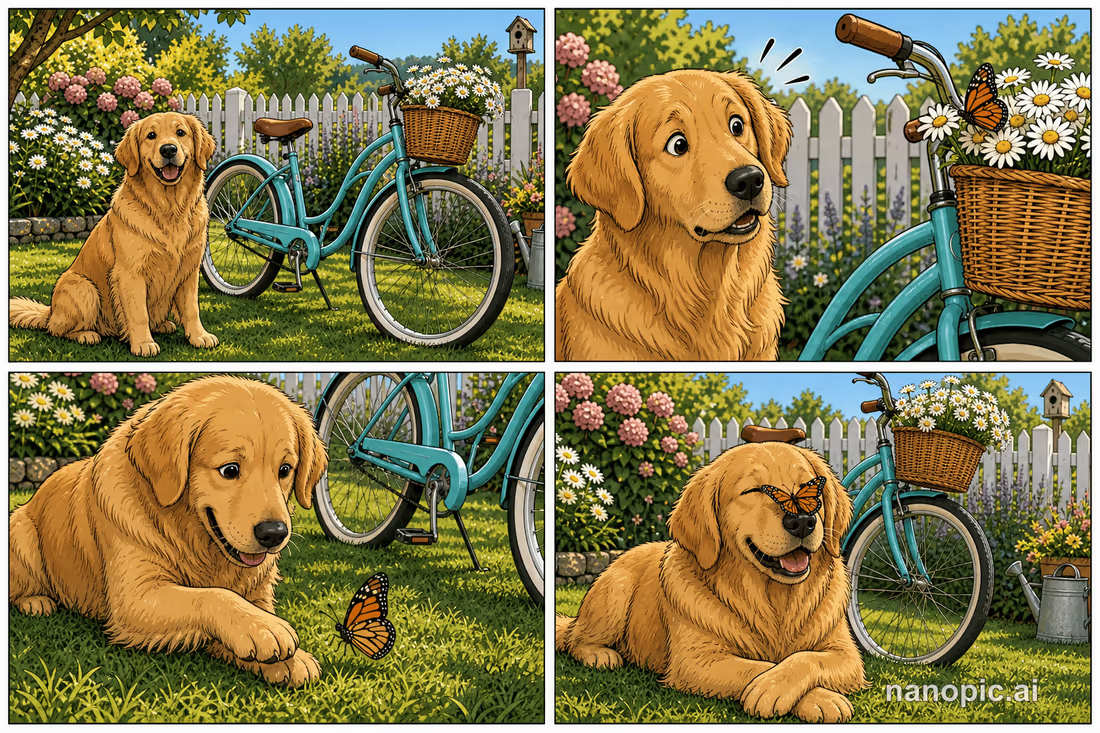
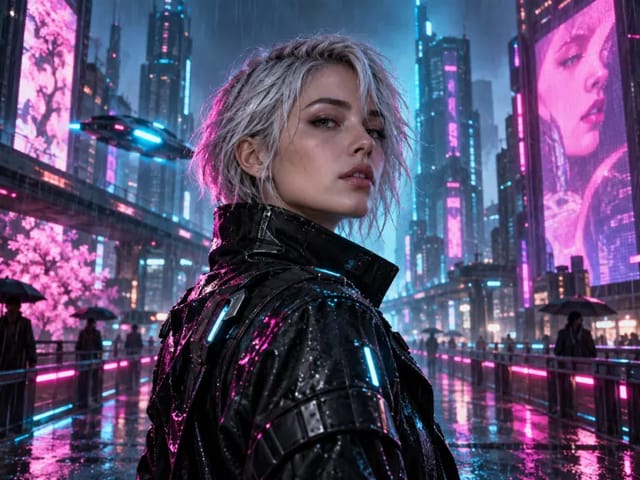
Anime-style portrait of a young courier on a bicycle in the rain, cel shading, neon signs reflected in puddles, dynamic three-quarter view.
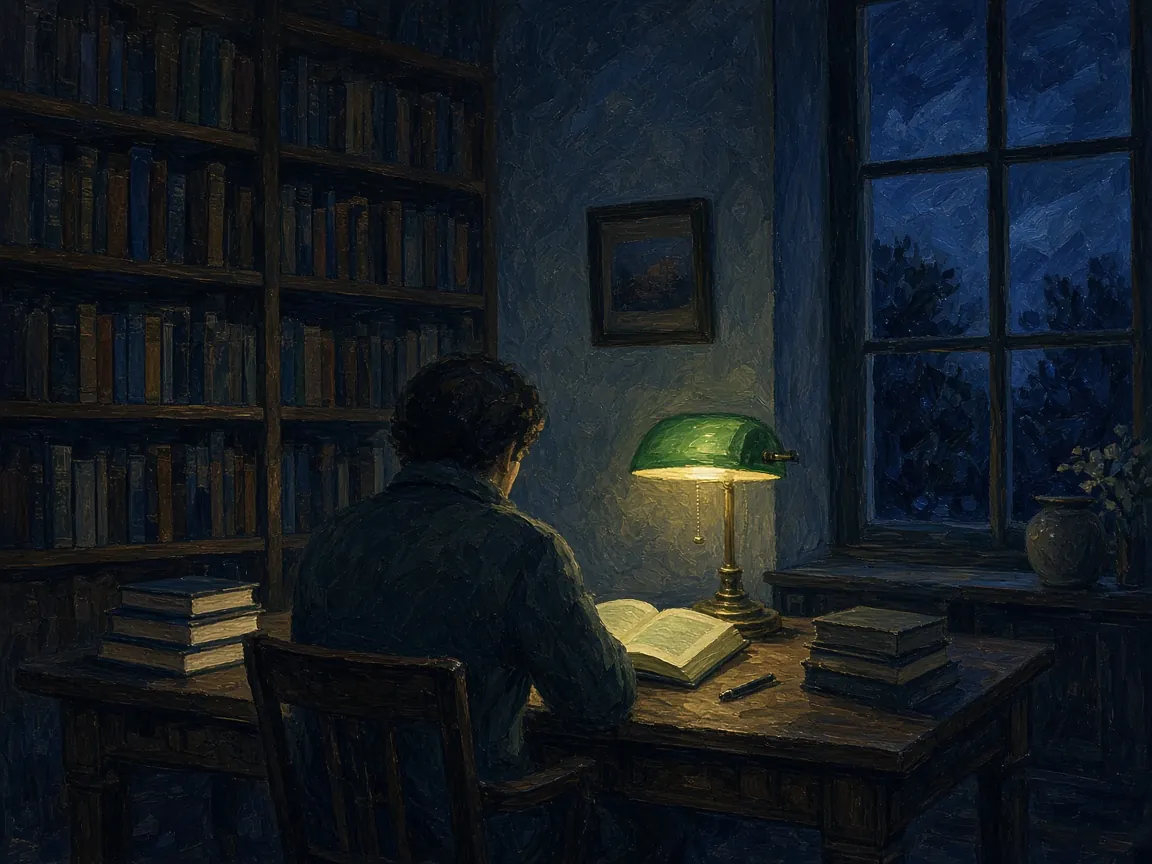
Gouache illustration of a quiet library at night, one reader under a green lamp, deep blue shadows, visible brush texture, calm mood.
Small prompt changes solve most problems with Krea 2.
Cut props and ask for open sky or a plain wall.
Restate the medium in plain words and drop rival styles.
Name a light source and where it falls.
Say the shot type and where the subject sits.
Everyday projects where Krea 2 helps.
Mood frames that keep one campaign look across sizes.
Editorial pieces with a named medium and clear light.
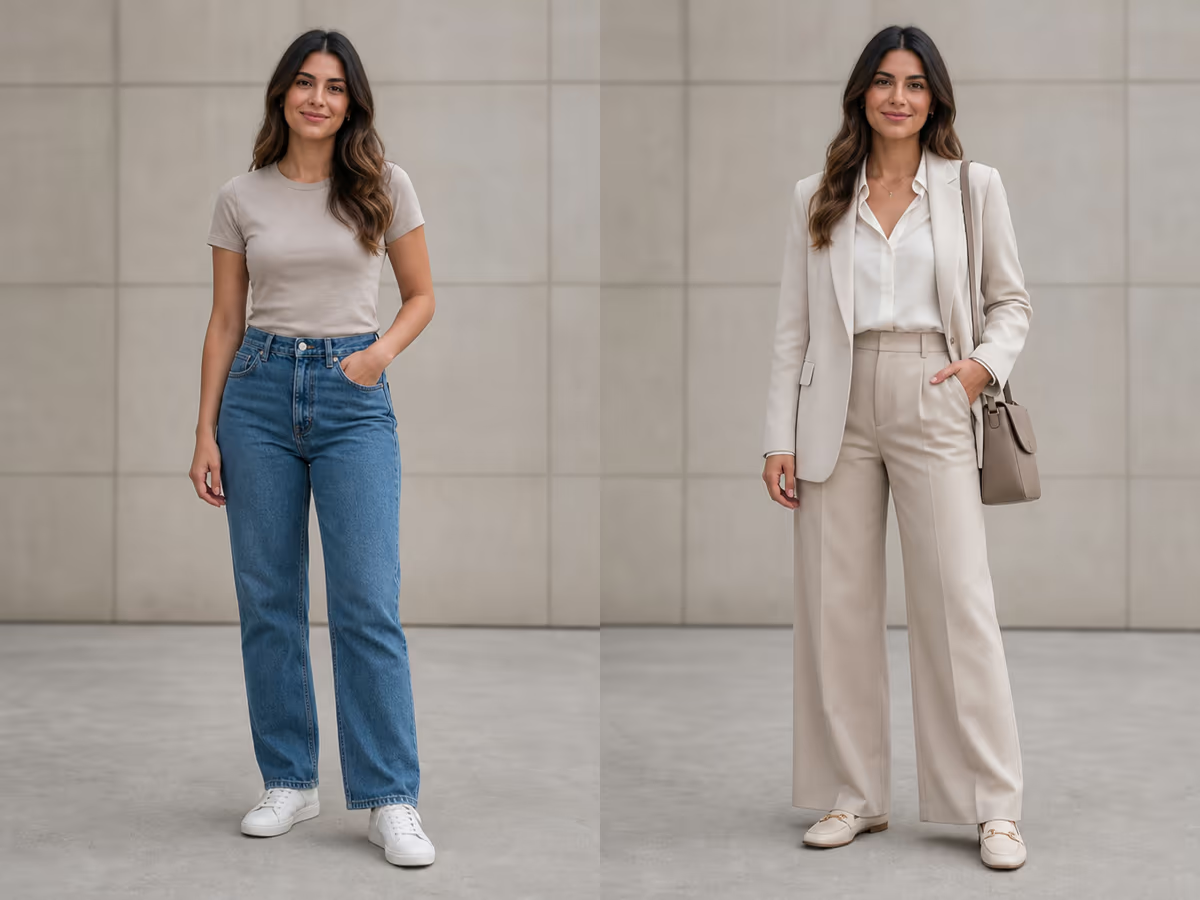
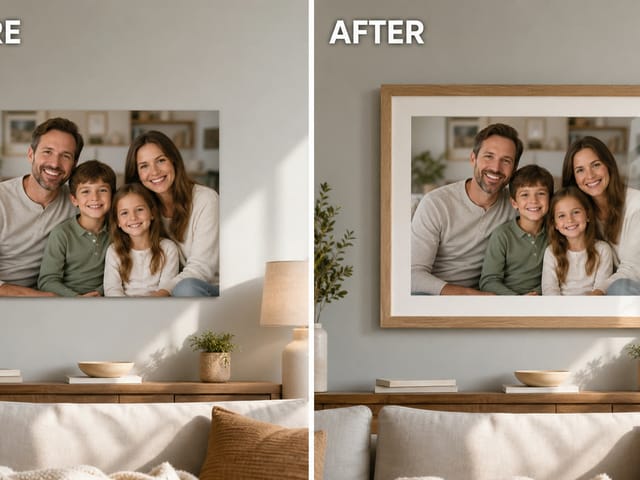
Product and fashion ideas with a steady palette.
Follow a simple prompt pattern: subject, setting, light, viewpoint, and medium. Practise it with Krea 2 Medium on NanoPic.
No, NanoPic is an independent platform not affiliated with Krea AI.
Medium is the lighter version and tends to give steady, consistent results. Large is the bigger version and tends to give rawer, more detailed, photo-like output.
Krea 2 is an image model made by Krea AI. You describe a scene in plain language, and it draws a new picture from it. It is known for keeping art styles clearly apart and for borrowing the look of sample images you provide.
Access terms vary by service, so check the terms wherever you use it.
It puts style first. Ask for gouache, then for a film photo, and the two results feel genuinely different. Sample images let you steer colour, texture, and mood without writing a long list of instructions.
Yes. Medium suits drawn, painted, anime, and graphic styles. Large suits photo-like images with grain, blur, and rich surface detail.
Plan your prompts and sample images, and explore the image models that are ready to use.