



























Save up to 73% on plans

AI Car Video Generator
Sign In

AI Car Video Generator

Upload a portrait for a ten-second passenger scene. Your subject stays seated inside an unbranded luxury car as the camera slowly moves closer.

Upload a Photo*(0/1)
Try Sample Images
Public VisibilityAllow this result to appear in public inspiration surfaces.

AI Car Video Generator

Video

More AI Video Models & Effects

Browse every other AI video model and effect published on this site in a continuous carousel.

A ten-second passenger lifestyle video from your photo

Your portrait becomes the passenger in an unbranded luxury-car scene. A slow windshield push-in, soft reflections and passing scenery create motion while the person remains seated. Upload a person photo, not a car listing photo. This effect is a fictional passenger scene, not vehicle testing, driving footage or a car-model visualization tool.

See the original example and result

The sample characters, input photographs and reference scenes were newly generated with AI for NanoPic.

Ten-second passenger lifestyle video

The sample characters, input photographs and reference scenes were newly generated with AI for NanoPic. Your portrait becomes the passenger in an unbranded luxury-car scene. A slow windshield push-in, soft reflections and passing scenery create motion while the person remains seated.

Try My Photo
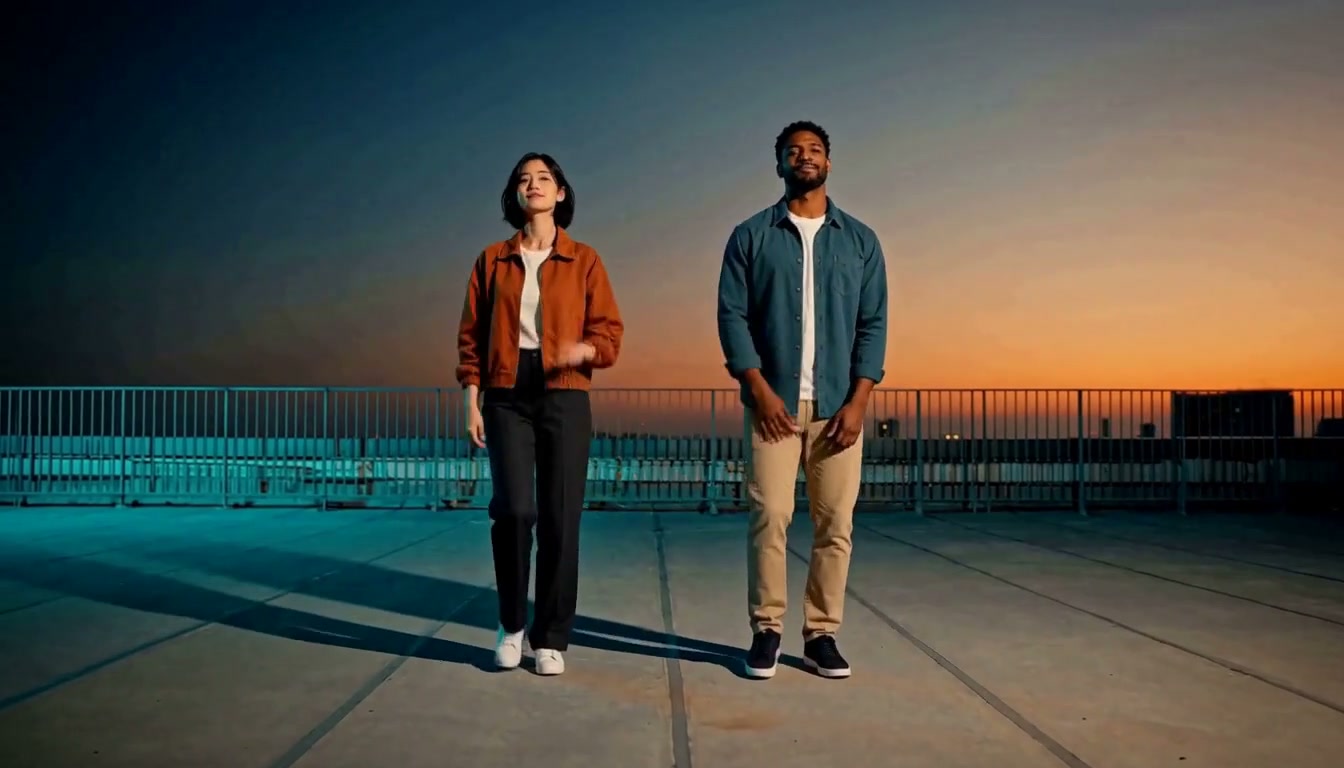
How it works

1. Choose a clear reference

Start with an in-focus photograph, an unobstructed subject and even lighting. Try the sample to understand the transformation, then use your own image. A clean input makes the result easier to judge.

2. Check the roles and credit estimate

Preview the uploaded image and make sure the important subject is not cropped out. Check the displayed model, settings and credit requirement before submitting.

3. Review and download

When the task finishes, inspect the complete output before downloading. Your generation history keeps the task available if you leave the page. Check the existing task before submitting the same input again.

Choose inputs that make the result readable

Subject and edges

Keep the complete subject inside the frame. Avoid cutting off faces, hands, ears or important object edges. A less crowded background helps separate the subject from details the model might interpret differently.

Review the transformation

Upload a person photo, not a car listing photo. This effect is a fictional passenger scene, not vehicle testing, driving footage or a car-model visualization tool.

Allow for variation

AI can change small details, proportions or movement. The example demonstrates a particular input and output, not a promise that every photograph will behave identically. Check important details at full size before sharing.

A practical guide to choosing, creating and reviewing

Upload a person, not a photograph of a vehicle

This effect starts with a portrait and places that person in a fictional passenger scene. A dealership photograph, a dashboard close-up or a picture of an empty car does not provide the facial reference the workflow needs. Choose one clearly visible person, with enough detail to recognize their eyes, face shape and hair. A relaxed upper-body portrait is a useful starting point because the finished scene is about someone seated inside a car rather than a vehicle moving on a track. You do not need to photograph the person in an actual luxury vehicle. The built-in setting supplies the interior and the cinematic framing. Before starting, inspect the upload preview and confirm that the face is not covered or cut off. The input should make it easy to answer a simple question later: does the passenger still look like this person?

Understand the windshield push-in

The scene uses a slow camera move from outside the windshield toward the seated passenger. Reflections, interior surfaces and passing scenery contribute to the feeling of a cinematic car shot while the person remains inside. This is a focused ten-second treatment, not a sequence of driving stunts or a tour around the outside of a vehicle. Knowing the intended framing helps you evaluate the result. The face should remain readable through the glass rather than disappearing behind a strong reflection, and the camera movement should not make the cabin change shape abruptly. A subtle gesture or a change in expression can fit the scene; leaving the seat or suddenly appearing outside the car does not fit this template. Watch the supplied example for the balance between the person and the surrounding interior before choosing your reference photo.

Choose a portrait that can remain recognizable in the cabin

Evenly lit photographs give the generator more facial information than a silhouette or an image with a harsh shadow across one eye. Avoid a source where the face is very small, heavily filtered or hidden behind an object. Dark glasses can be a deliberate style choice, but they also remove details that help viewers recognize the person; decide which matters more for your clip. A busy background in the source is less important than the face, yet a simpler image makes the intended subject easier to identify. You do not need matching car-seat colors or clothing that resembles the example. Focus on a clear identity reference instead of trying to recreate the entire scene in the upload. If the first result looks unfamiliar, try a sharper portrait before changing several other things about the input.

Keep the passenger story distinct from driving footage

The person is presented as a passenger in a fictional lifestyle moment. That distinction is useful both for choosing the photograph and for describing the result to viewers. The appeal can be a calm arrival, a travel-inspired mood or a playful portrait in a polished setting. It is not evidence that the person drove a particular vehicle, visited a location or performed an action while driving. The interior is unbranded, so do not use the generated design to claim a real manufacturer, model, trim level or vehicle feature. If you add a caption later, describe the creative scene rather than making factual claims about a car. This keeps the output suited to personal expression and concept work. A product listing, technical review or real-world driving demonstration needs genuine vehicle footage and a different production process.

Review the face, glass and seating as one scene

A useful review goes beyond deciding whether the first frame looks attractive. Watch the entire camera move and check the passenger at several points. Does the face retain a coherent shape? Do hands remain connected naturally to the body? Does the person stay in a believable seated position relative to the headrest, window and dashboard? Glass adds another thing to inspect: reflections should feel like a surface in front of the subject rather than a pattern painted onto their face. You may also notice changes in interior seams, mirrors or passing scenery. Decide which details will be visible at your intended sharing size, but do not overlook a large shift simply because the clip is short. A steady, recognizable passenger is more important to this effect than an unusually dramatic reflection in a single frame.

Use the wide frame deliberately

The sixteen-by-nine composition gives the cabin and windshield room around the person. That space is part of the look, so a tight portrait crop can remove the very details that explain the scene. If you plan to use the clip in a vertical social post, preview the crop in your own editor and check the passenger throughout the ten seconds. A crop centered on the opening frame may not remain suitable as the camera moves. This page does not provide a timeline for tracking a face or repositioning the finished scene. You can also keep the full wide frame inside a larger social layout rather than cutting away the sides. Whatever you choose, view the exported version once at normal playback speed and check that captions, stickers or platform controls do not cover the eyes or mouth.

Make another attempt only after finding a specific issue

If the face is unclear behind the glass, try a reference with stronger facial detail and fewer obstructions. If the source expression is extreme, a calmer photograph may fit the seated scene more naturally. Keep the earlier result available so that you can compare the same moments in both clips. Changing several input characteristics at once can make the comparison less useful. The goal is not to accumulate a large number of near-identical videos but to find a version that preserves the person and reads as one coherent scene. Check the task history before resubmitting an input, and review the credit requirement shown by the generator. Processing delays do not necessarily mean a request has failed. Wait for the task status or return to the existing result rather than creating duplicates because the preview has not appeared immediately.

Match the effect to the project you want to make

This preset is a good fit when the person, rather than the vehicle, is the central subject. A travel-themed profile video, a fictional arrival scene or a lifestyle concept can use the surrounding cabin as atmosphere. It is less suitable when the viewer needs to examine wheels, paint options, a vehicle exterior or the behavior of a real car. For those goals, start with a workflow built around vehicle images or a broader video creation tool. If you want a different portrait transformation, compare the other video effects before generating. The useful question is not simply whether a page mentions cars, but whether its actual input and example match the clip you have in mind. Here the promise is deliberately specific: your portrait becomes a seated passenger in an original, short, wide-format car-interior scene.

AI Car Video Generator questions

What will I receive?

You receive a ten-second passenger lifestyle video. Upload a person photo, not a car listing photo. This effect is a fictional passenger scene, not vehicle testing, driving footage or a car-model visualization tool.

Do I need to write a prompt?

No. Upload the required photograph or photos and start the generation. NanoPic applies this effect automatically, so you can focus on choosing the subject and reviewing the result.

Which photos should I use?

Use one clear portrait you have permission to use, with an unobstructed face and a natural head-and-shoulders or upper-body pose. Upload a person, not a photograph of a car.

Does generation use credits?

Each generation consumes the displayed credits. Video generation requires sufficient credits and is not unlimited free.

How is this different from nearby tools?

This page turns a portrait into a passenger lifestyle clip. It is not a car-listing slideshow, vehicle modification preview or driving simulation.

Choose a related creative workflow

Choose by the input you have and the result you want to make.

AI Video Generator — thematic cover illustration

Explore video creation

Compare the example and input requirements before choosing a workflow for your idea.

Explore tool
Explore video effects

Explore video effects

Compare the example and input requirements before choosing a workflow for your idea.

Explore tool

Start with your own photo

Review the example, choose your input and check the credit estimate.