
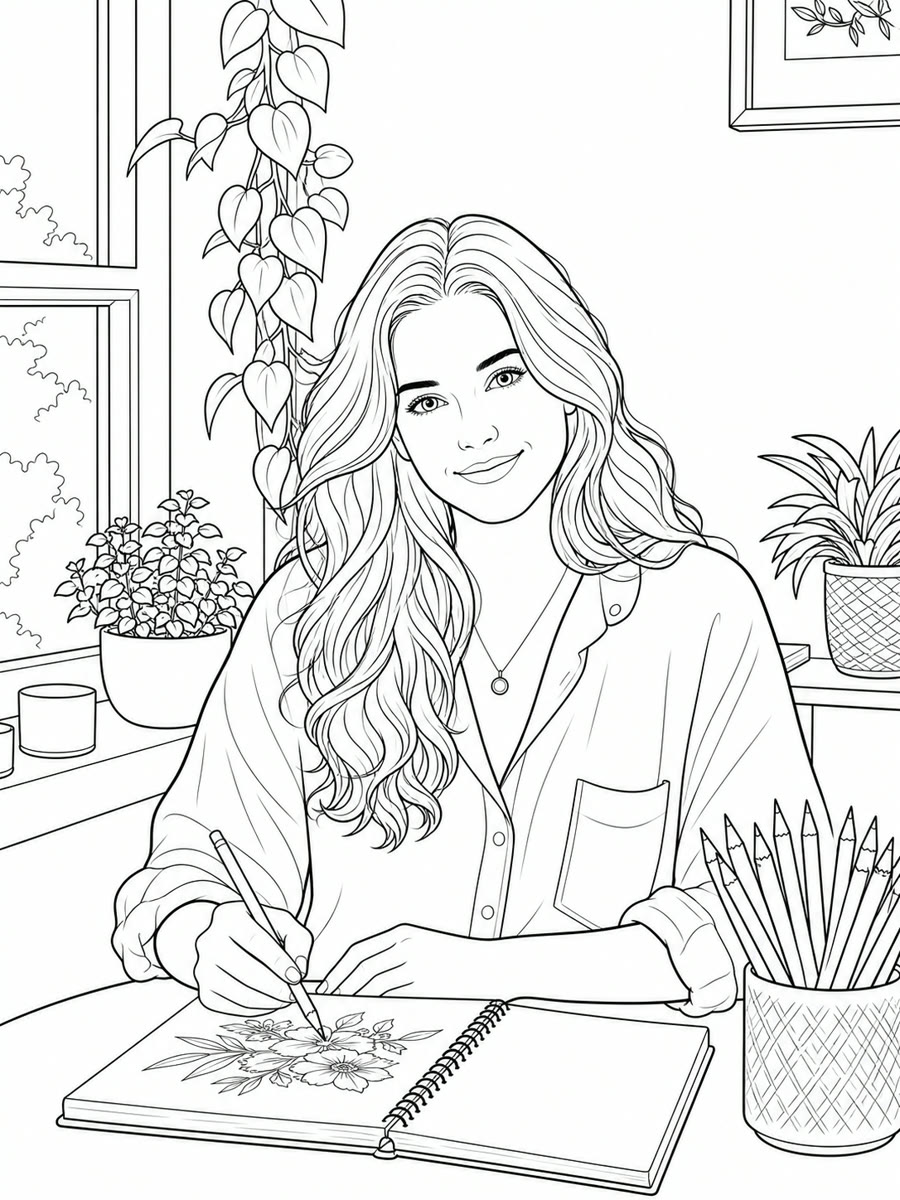


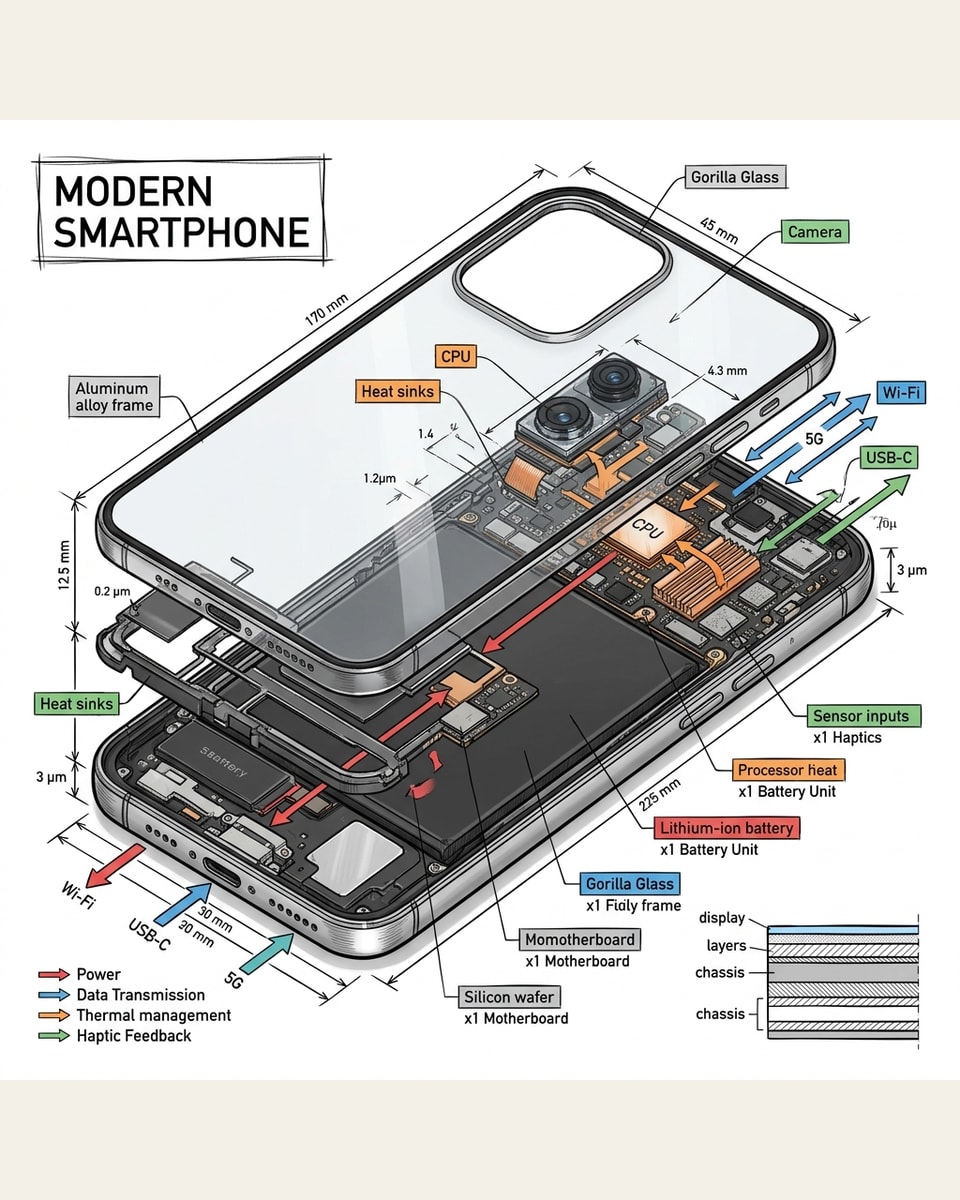
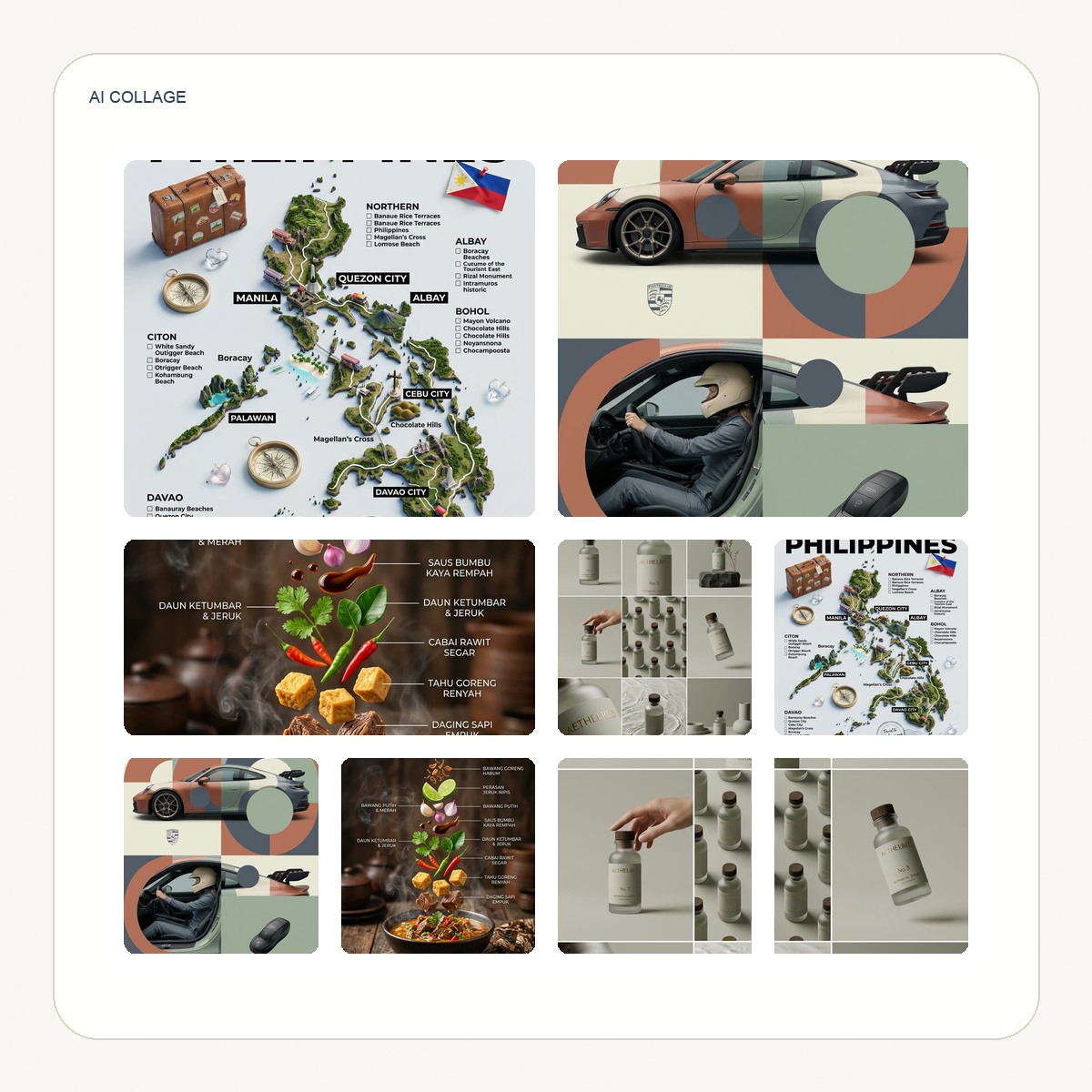


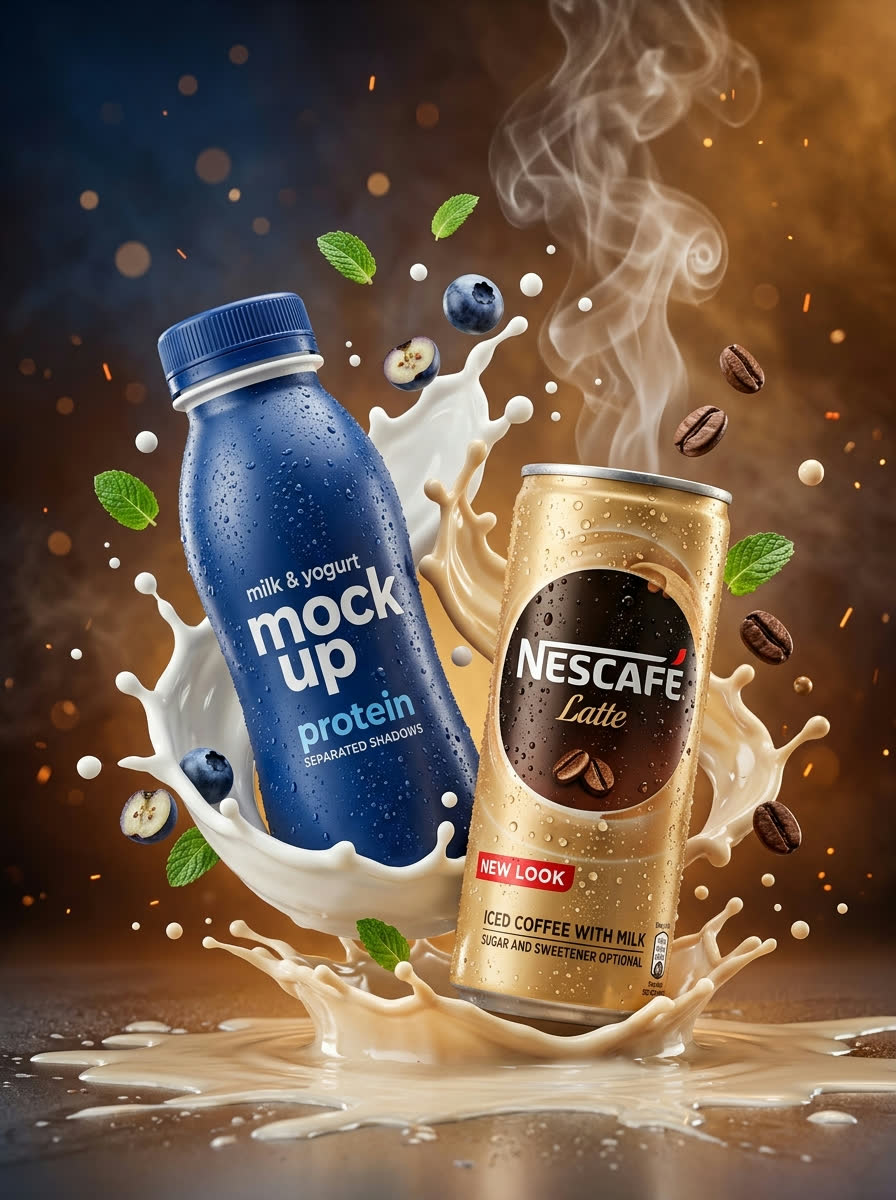


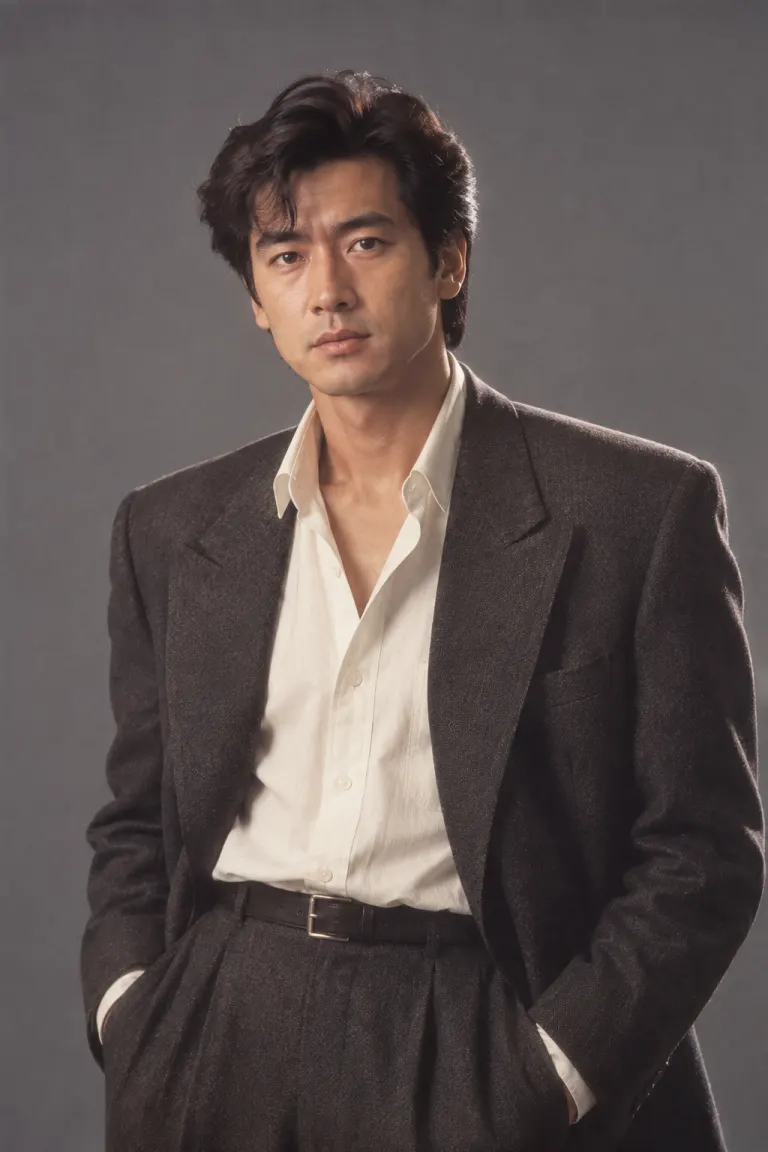
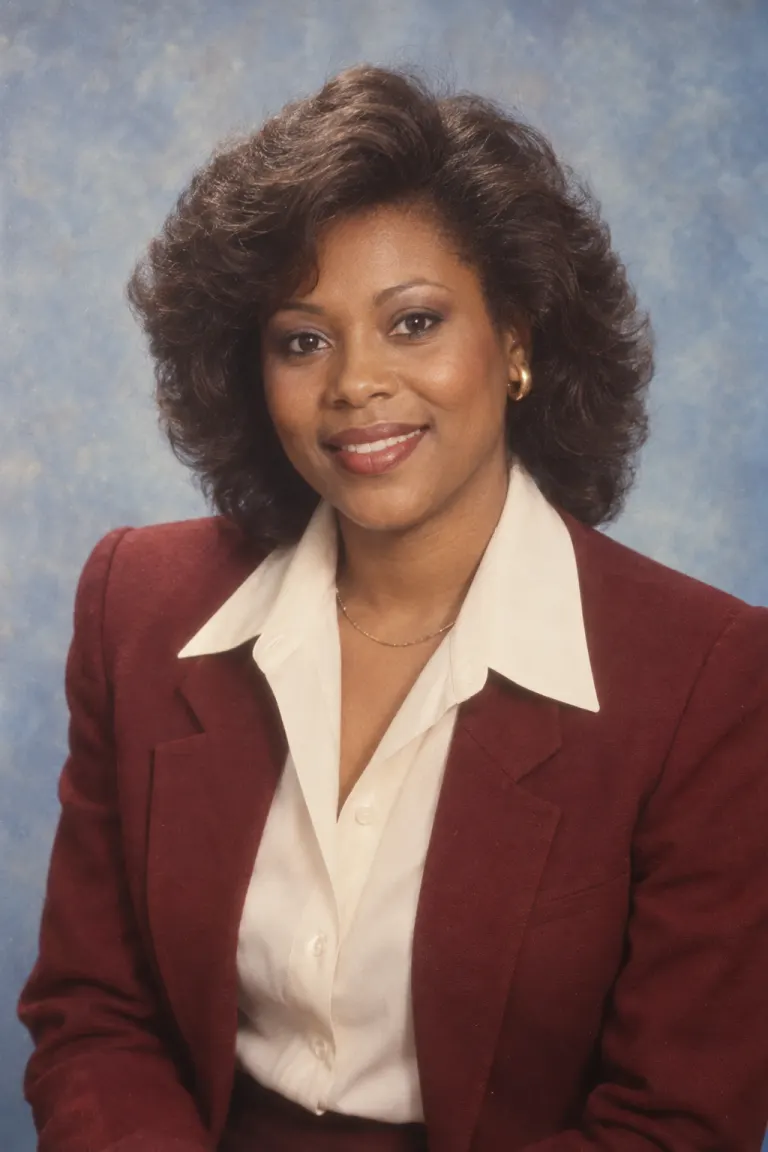
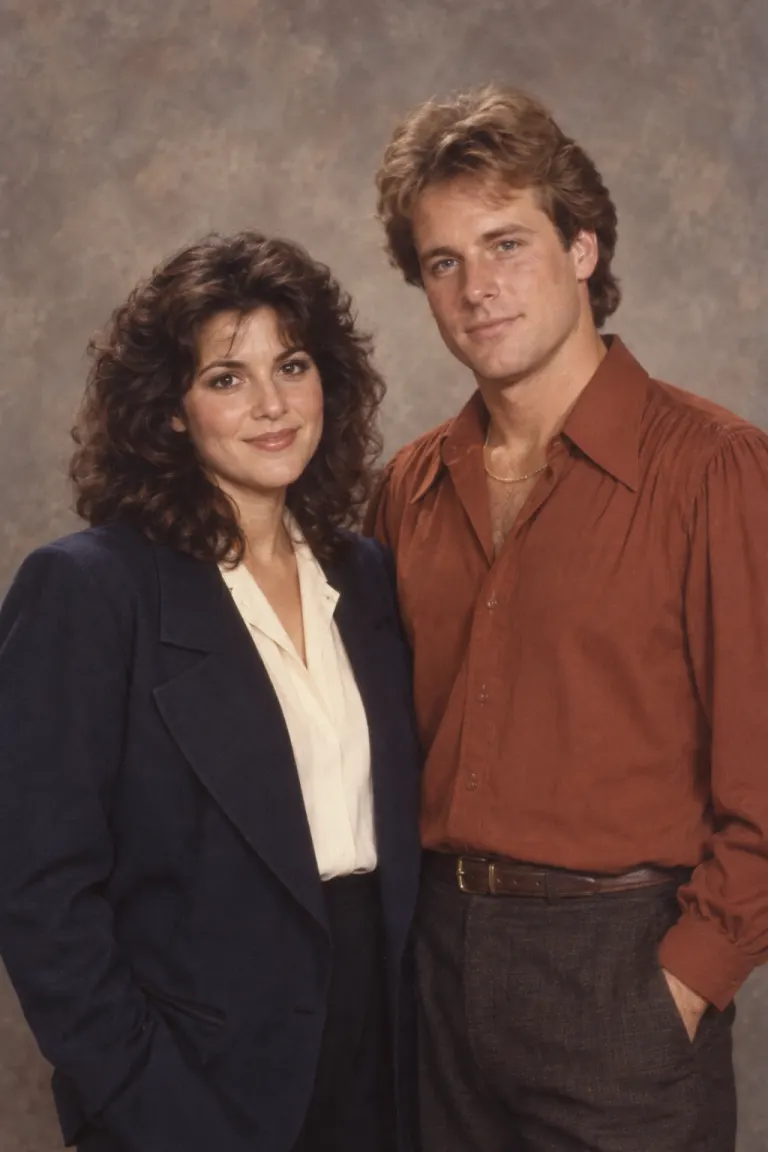
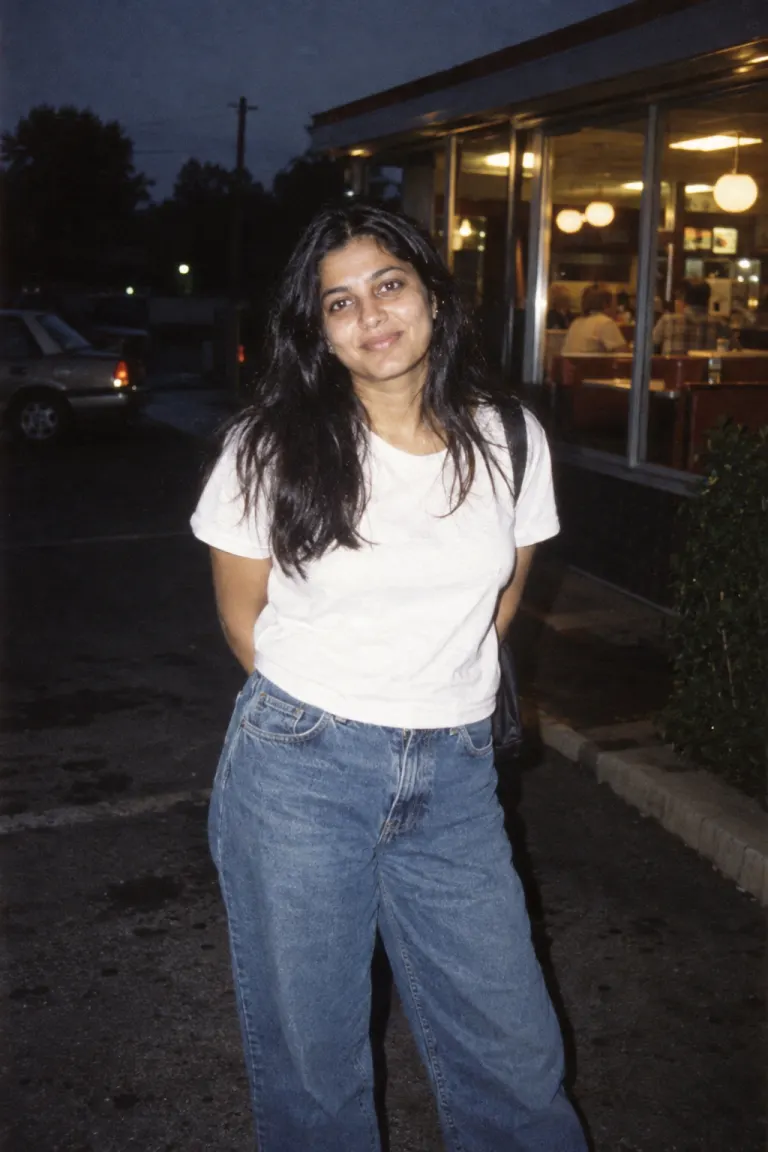
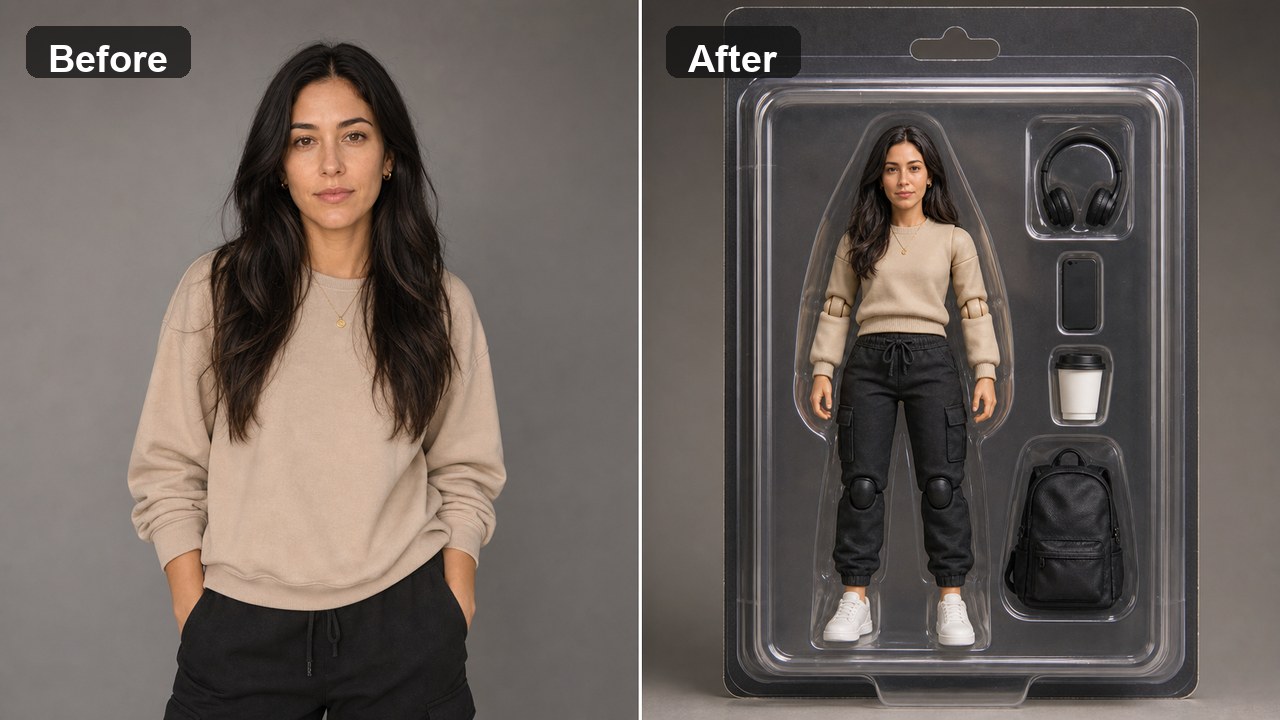

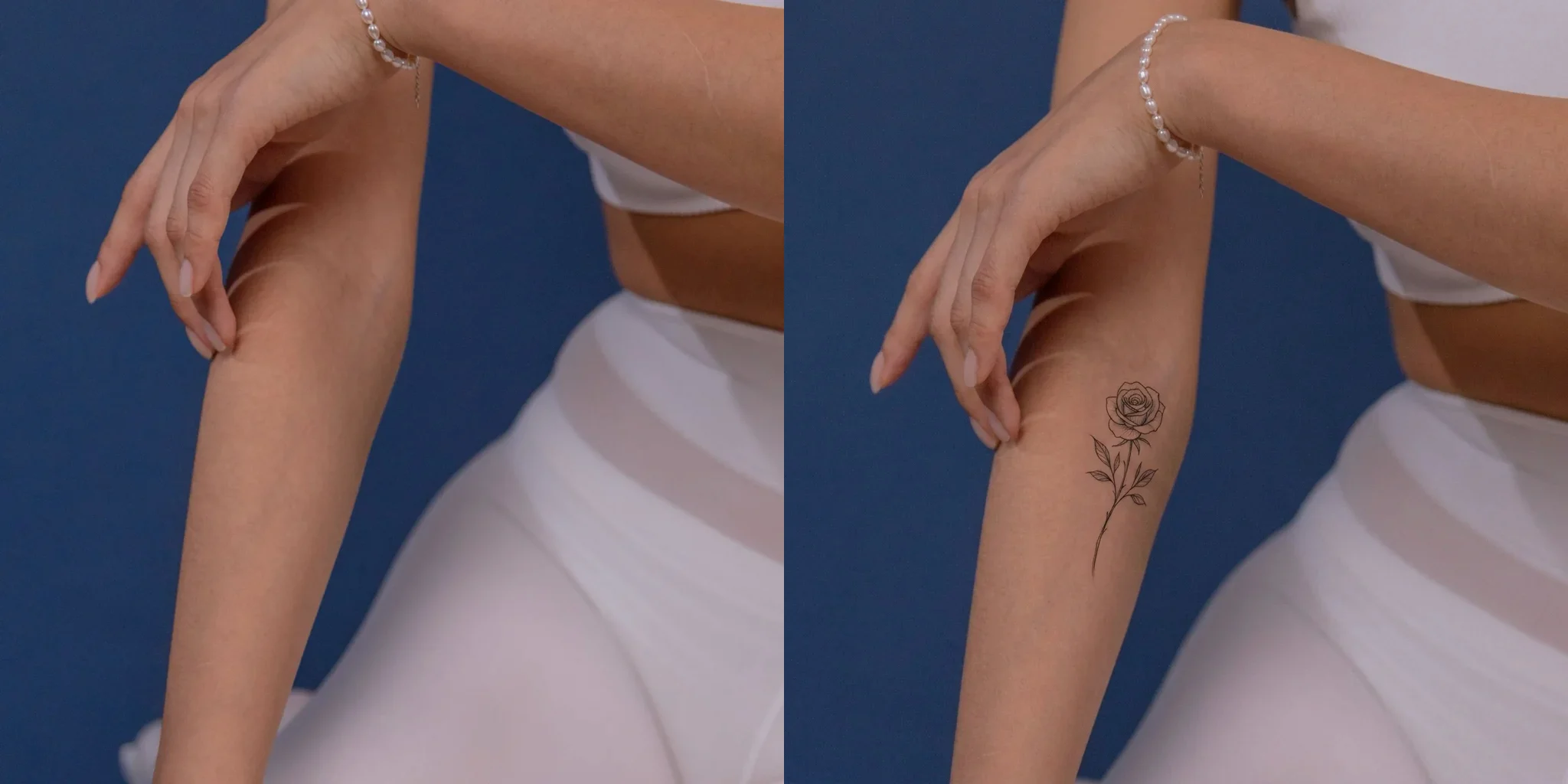
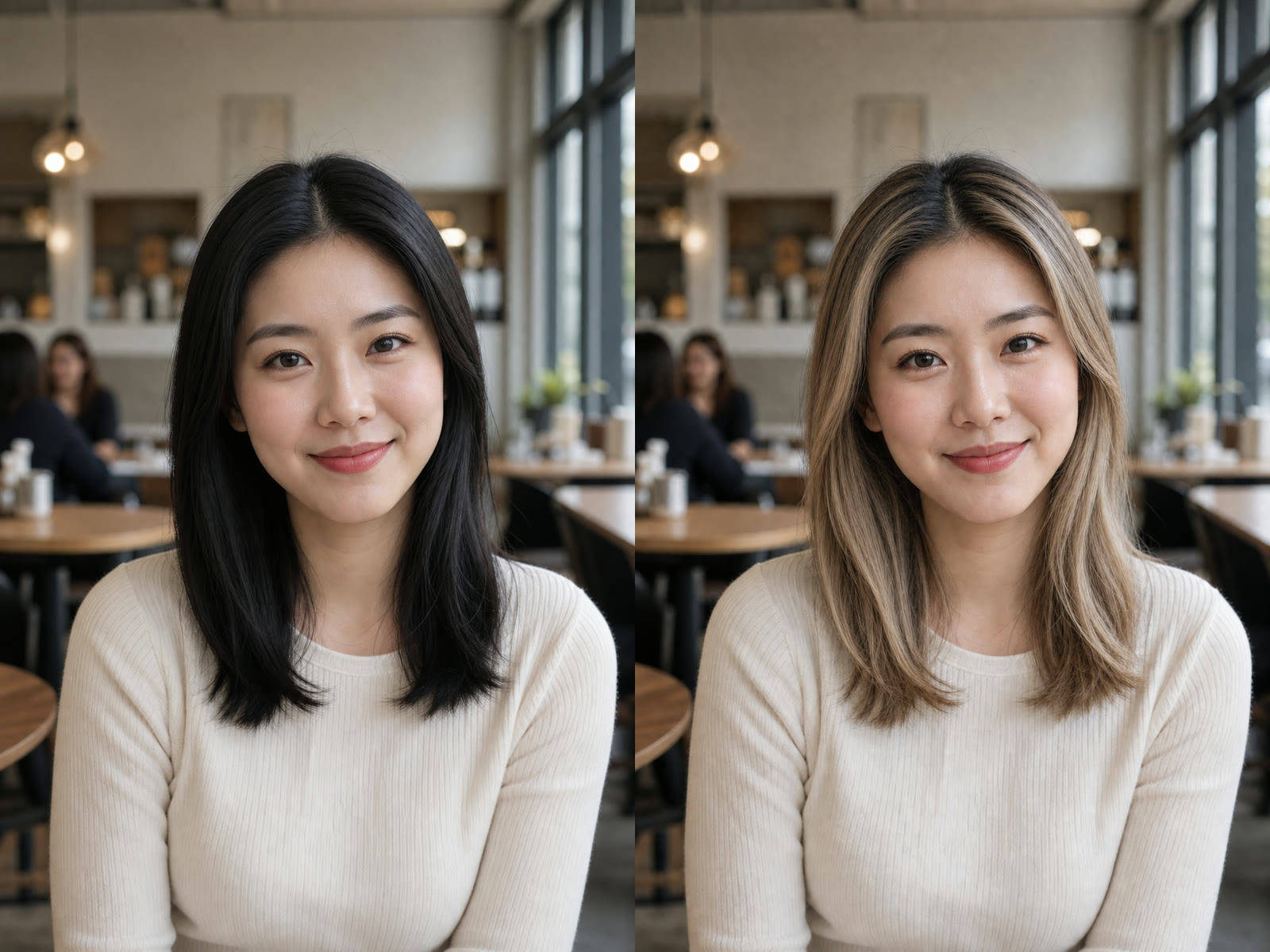
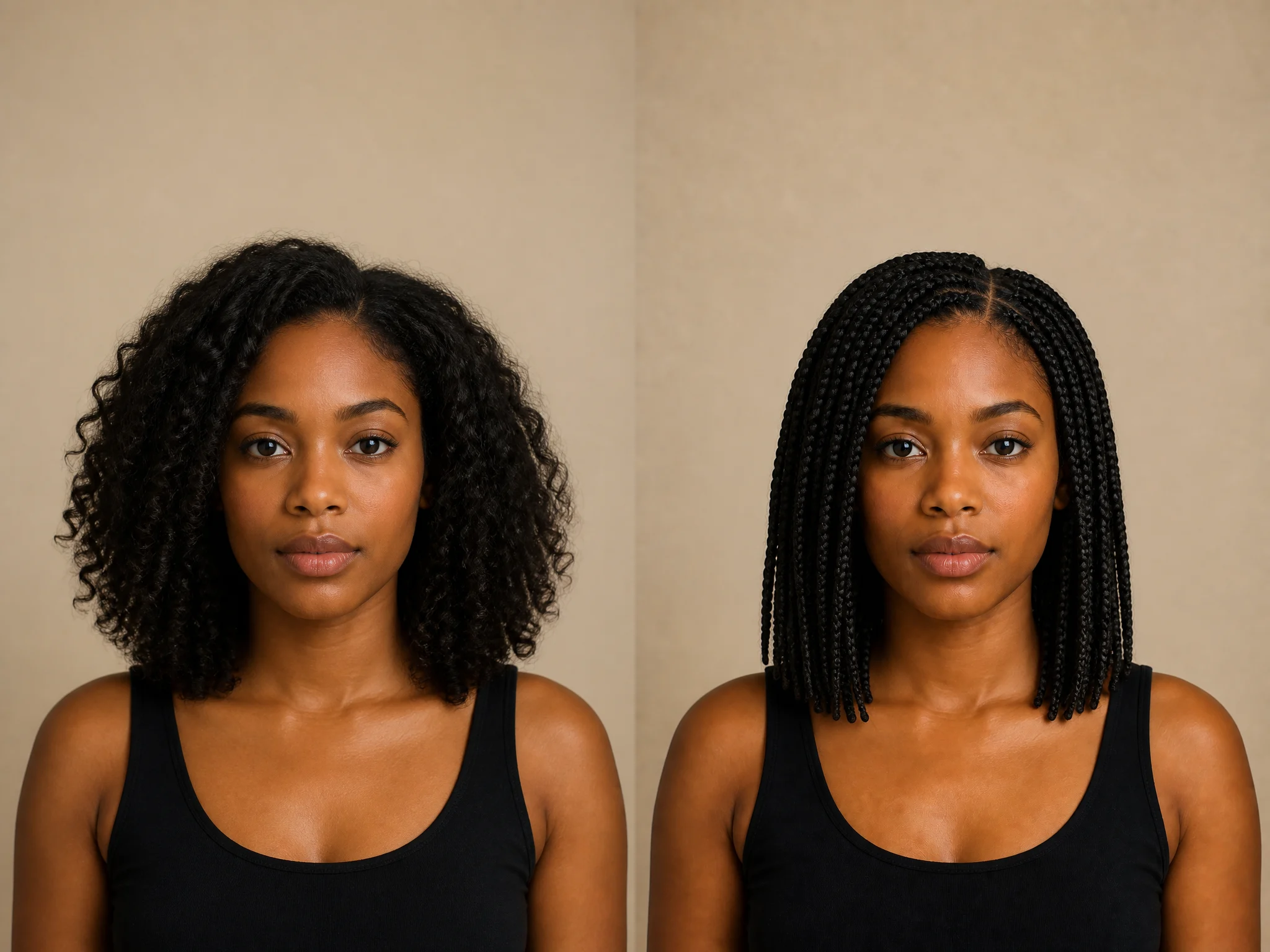
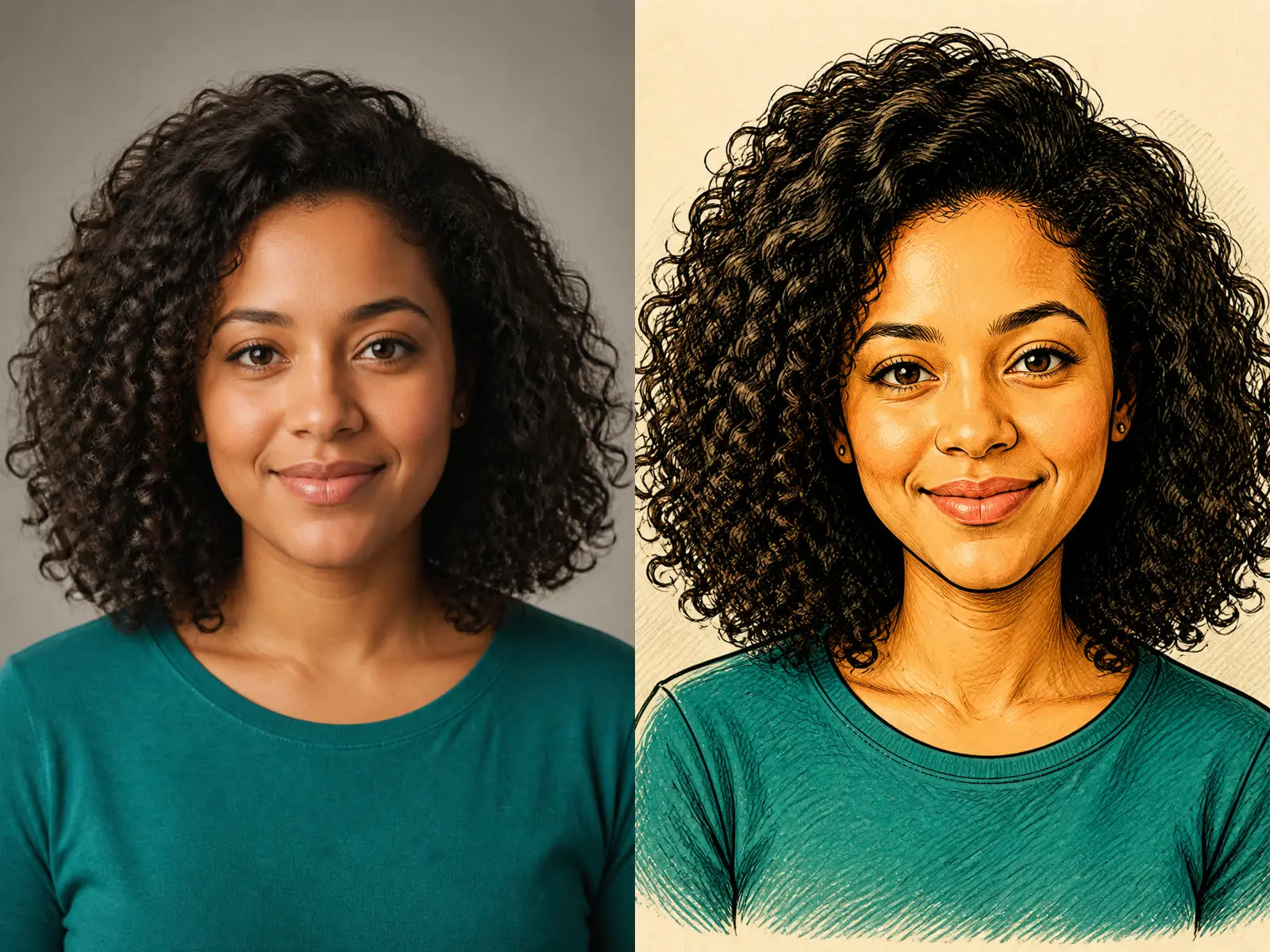
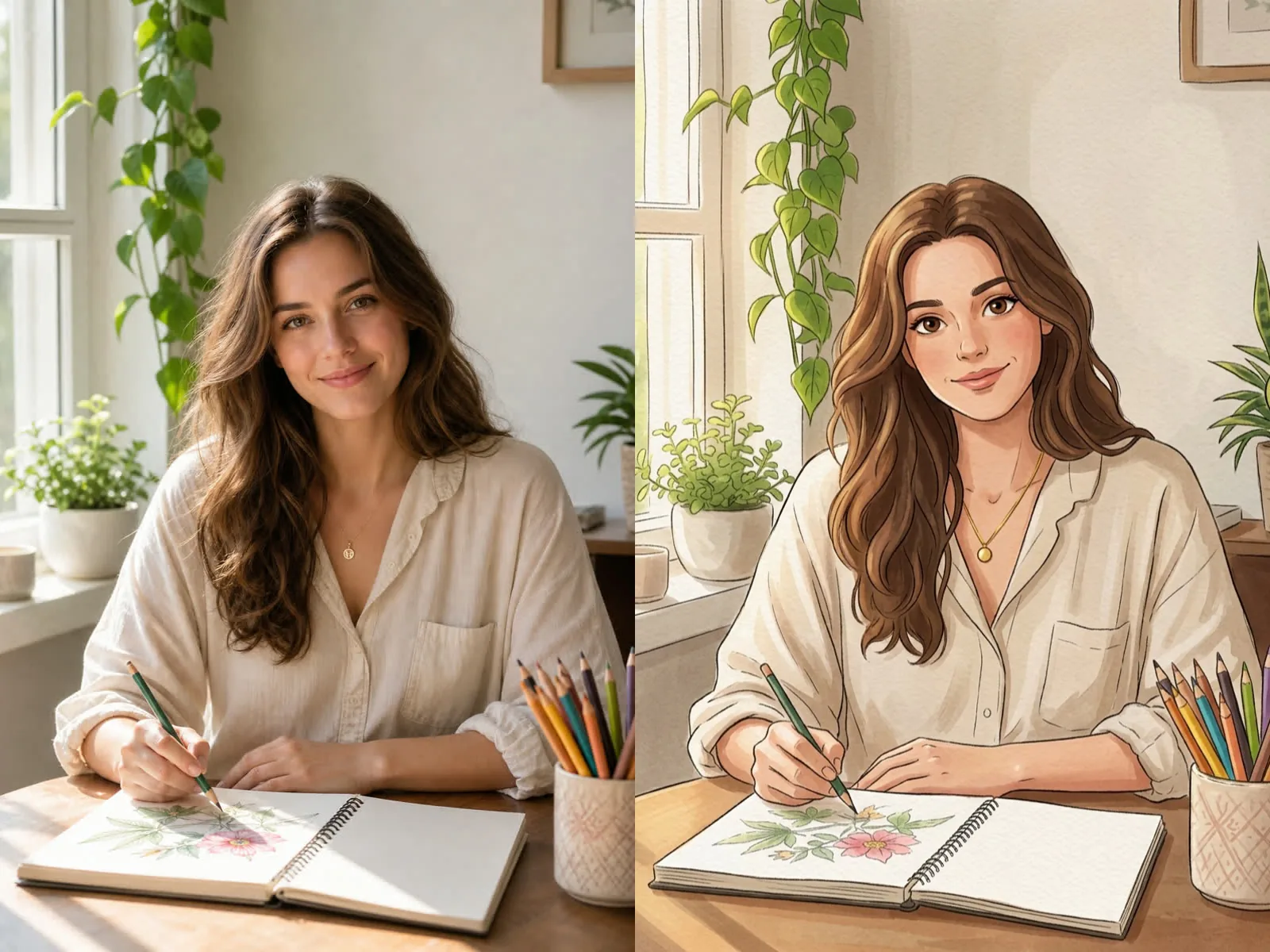
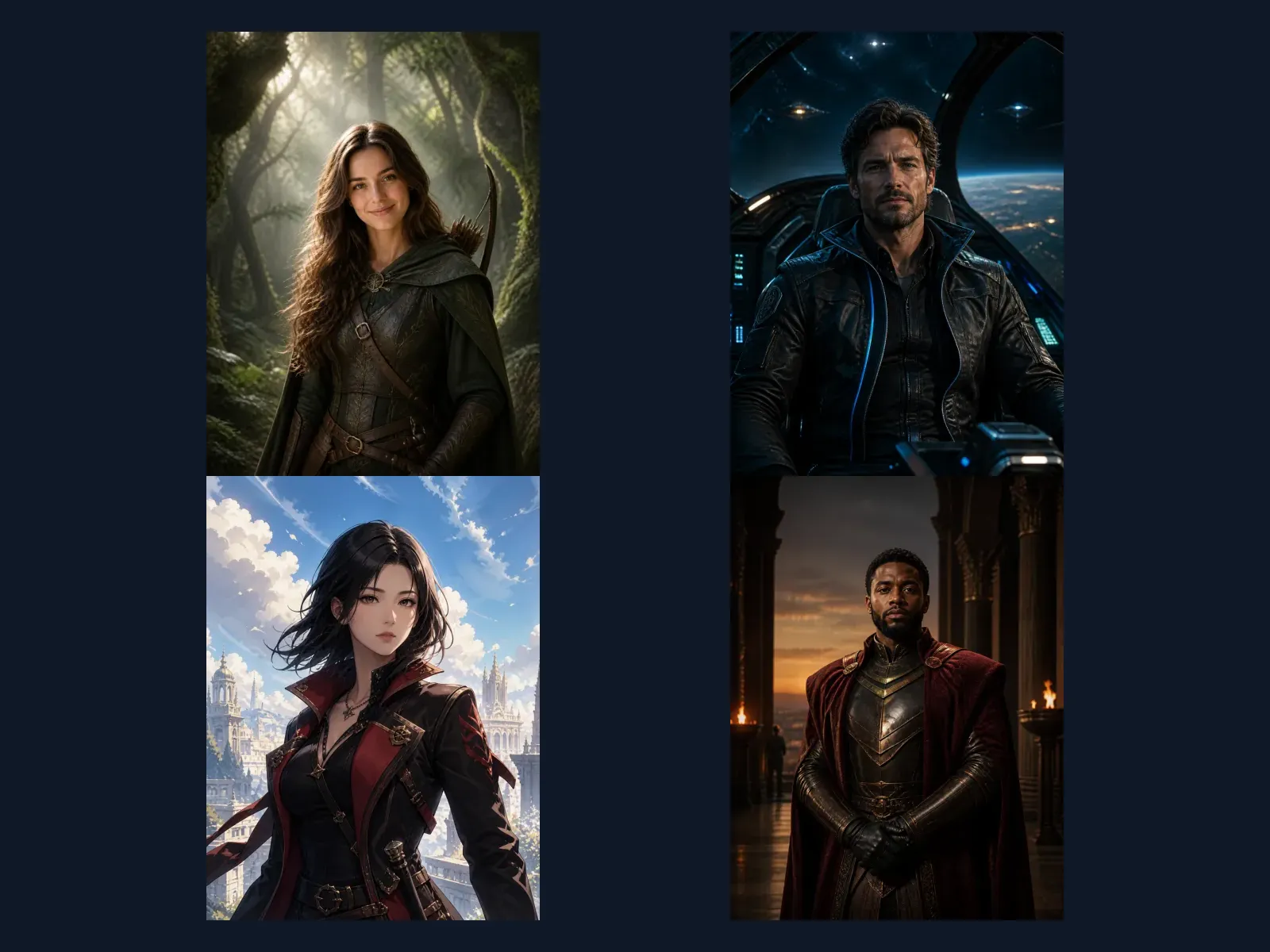
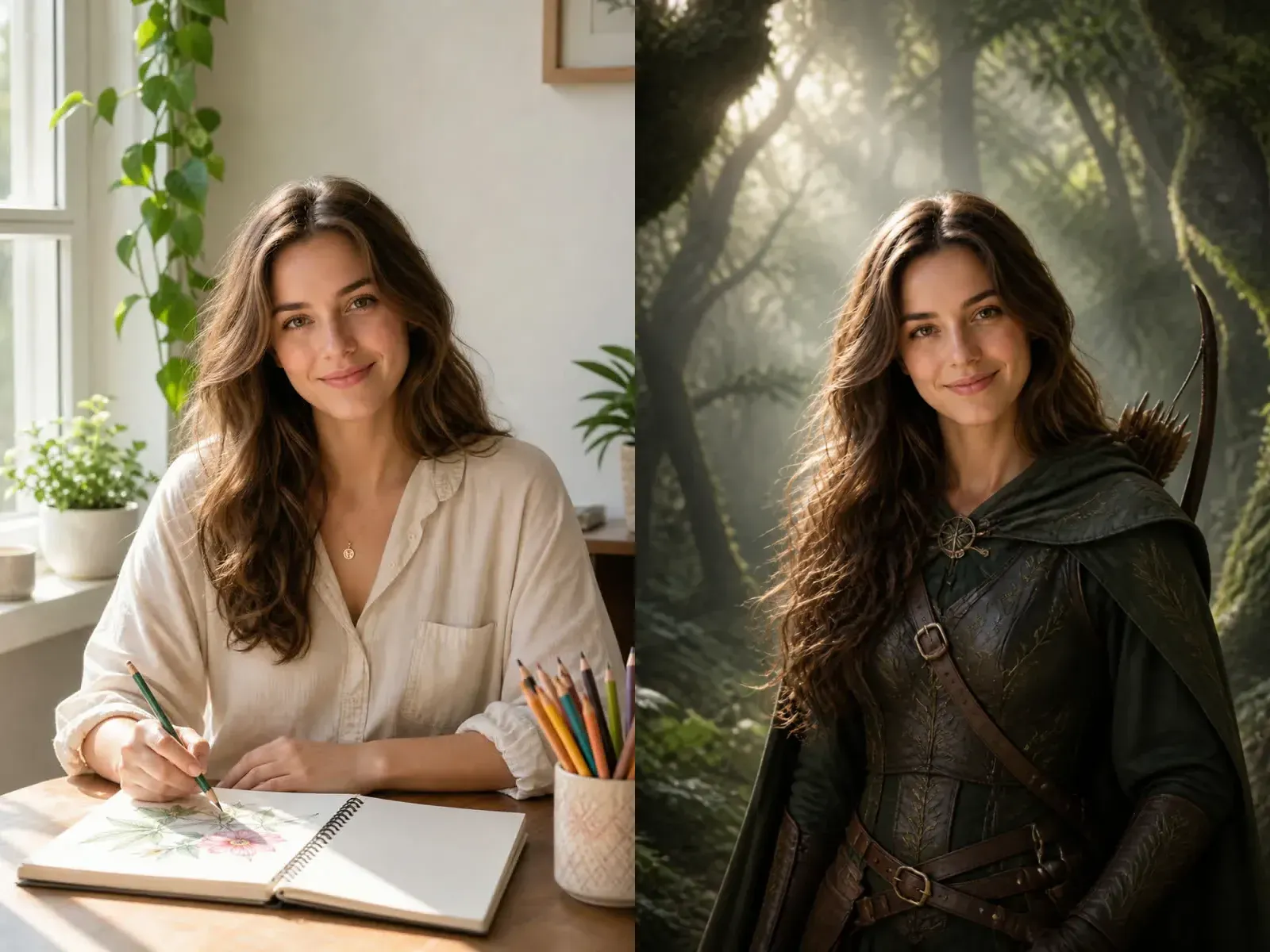
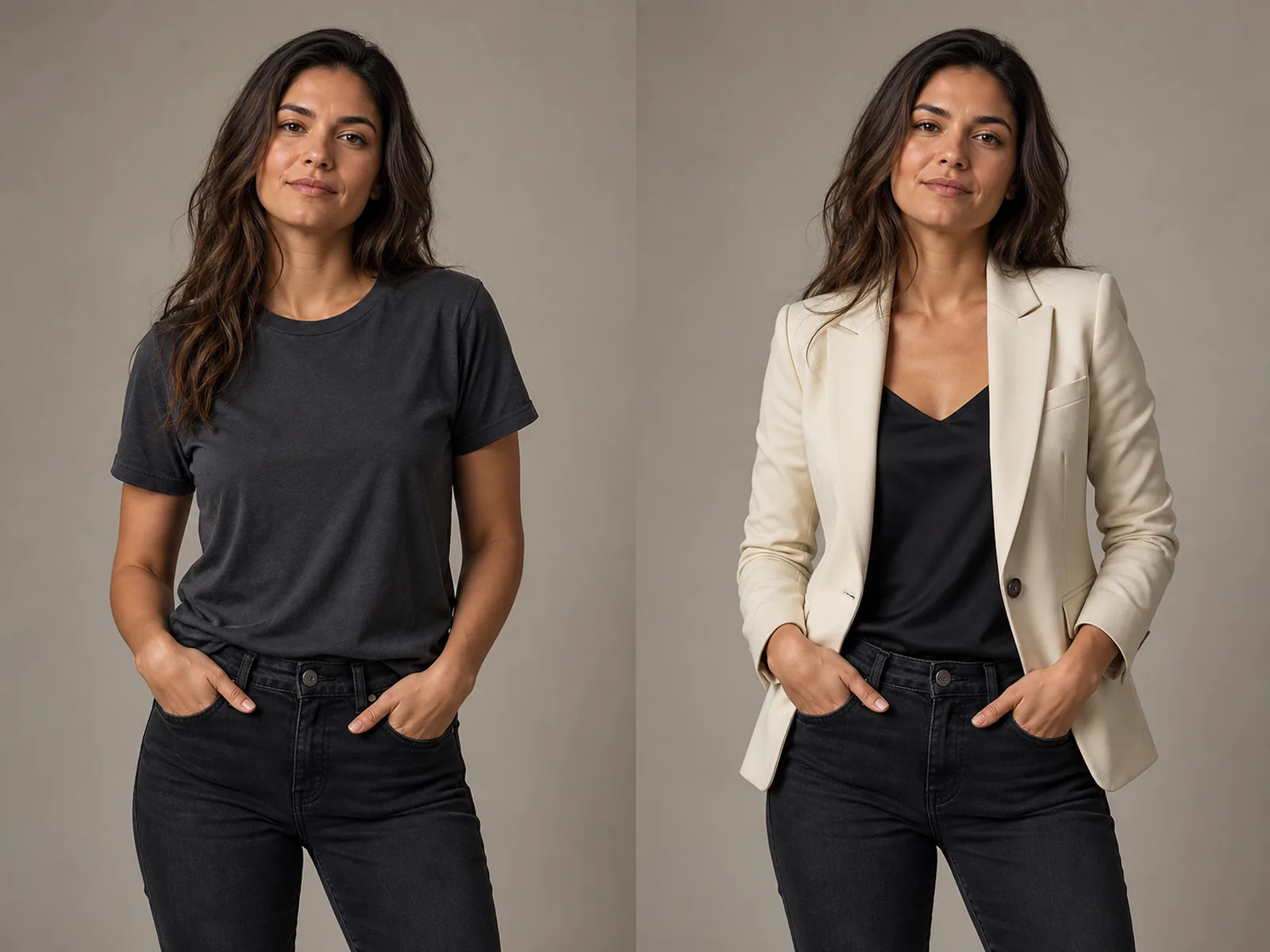
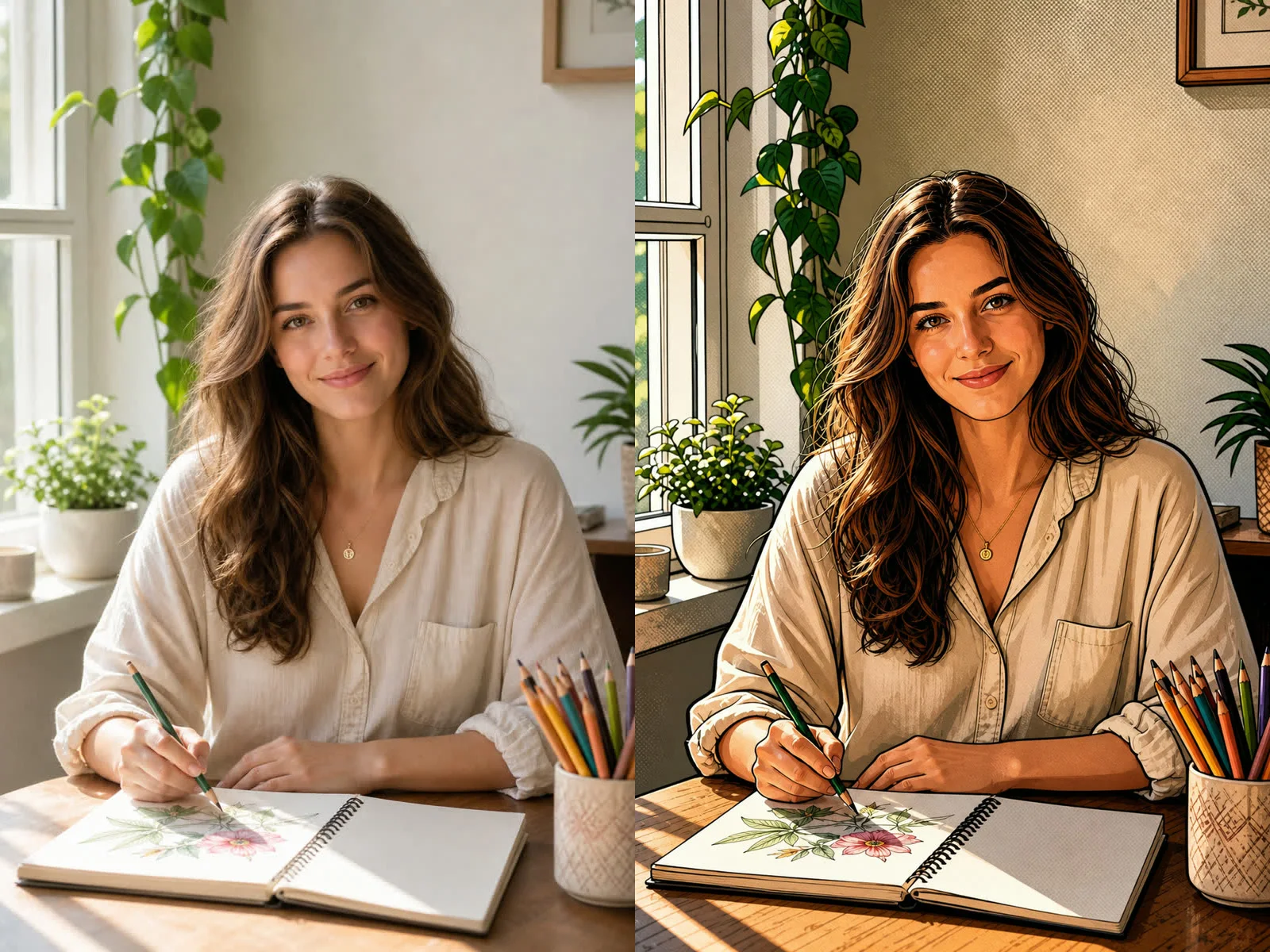
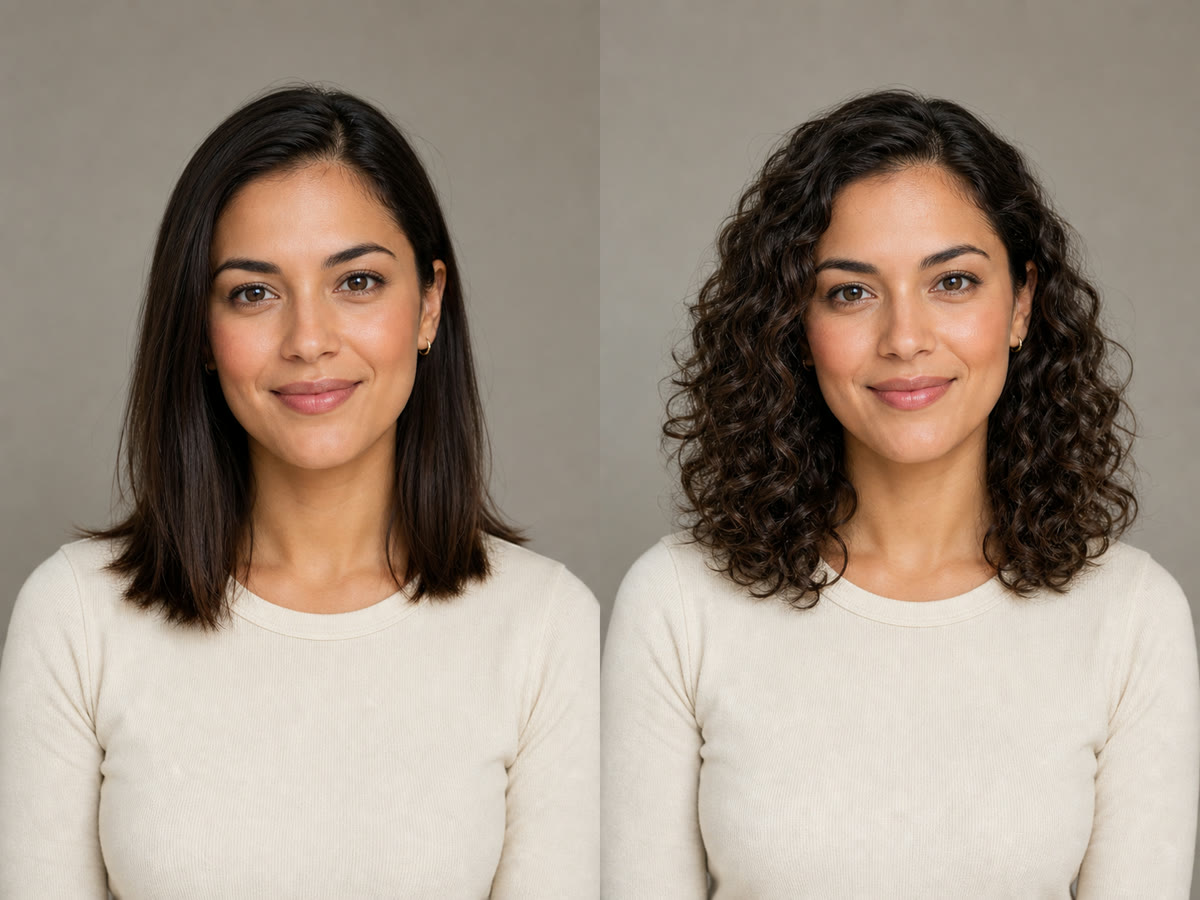
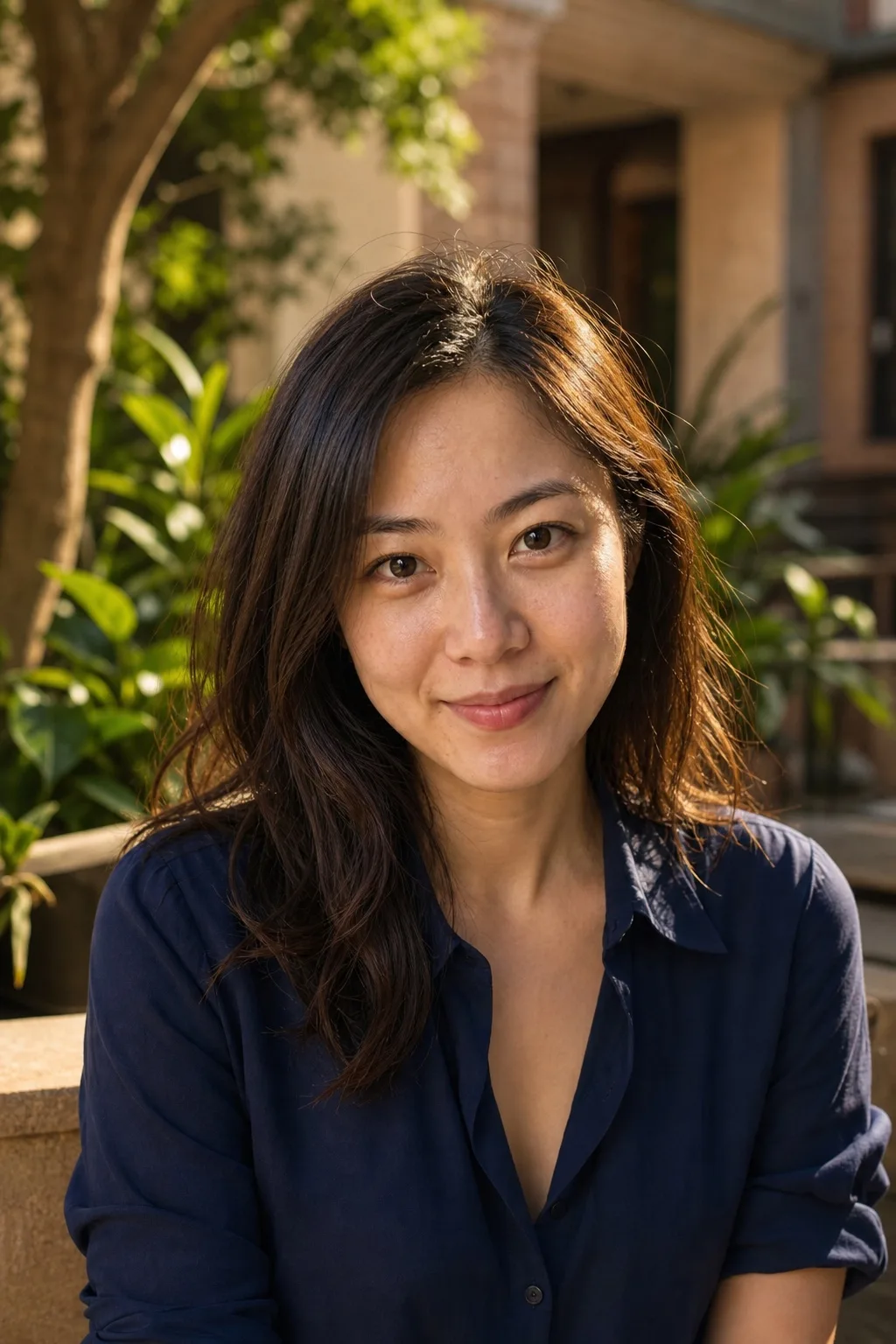
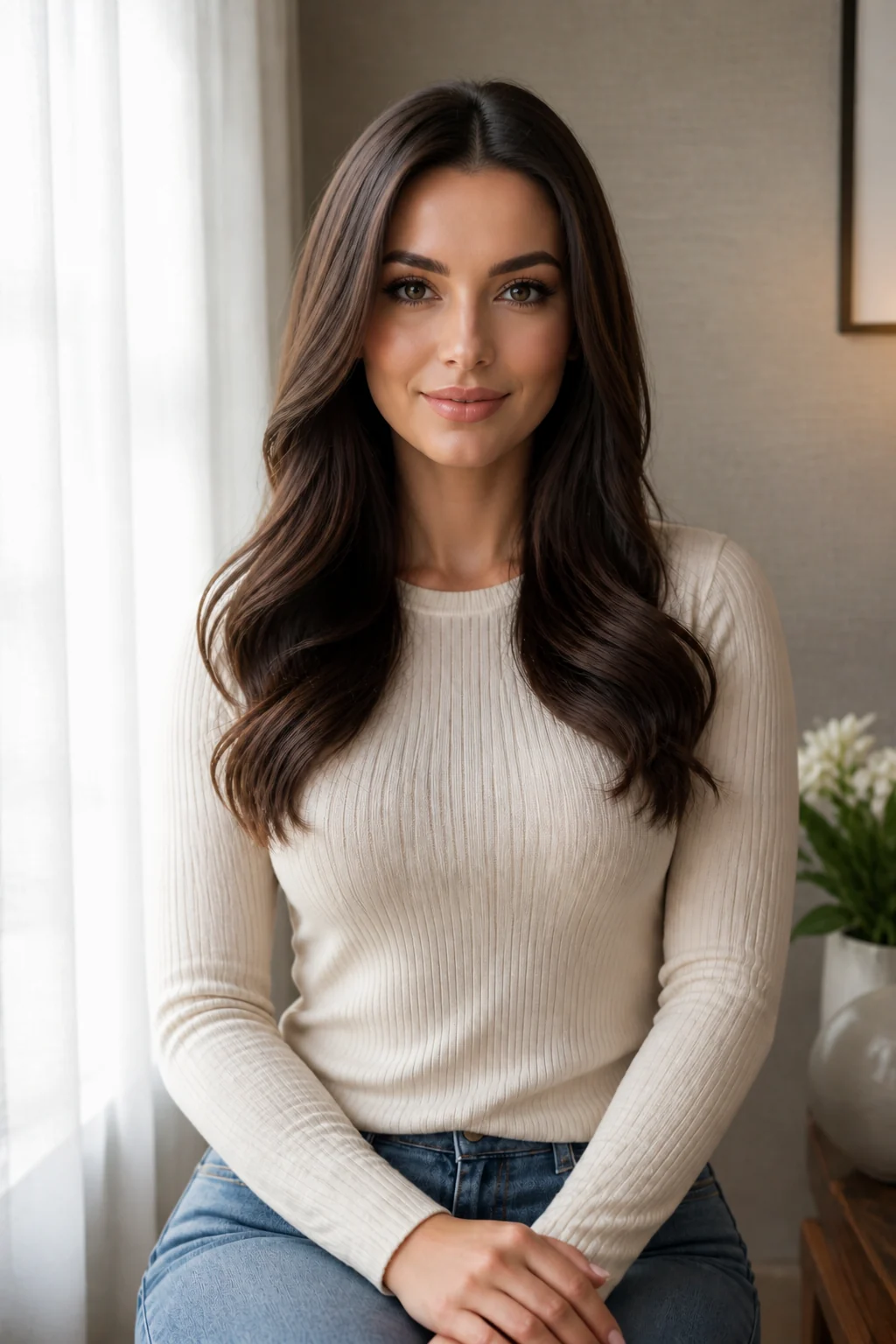
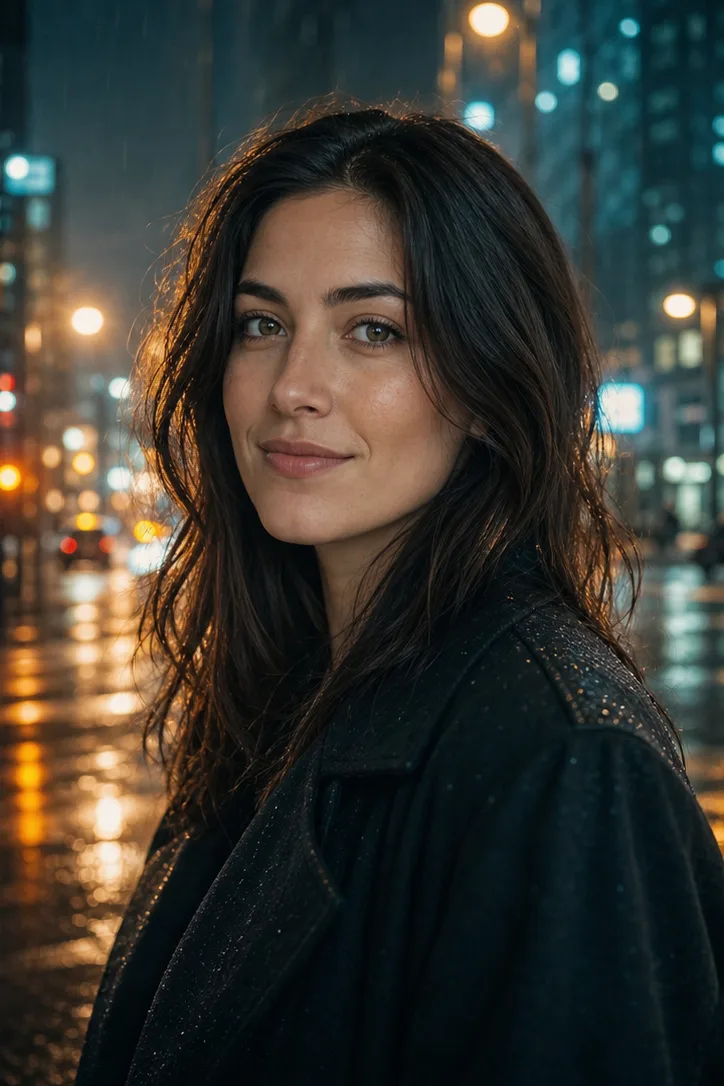
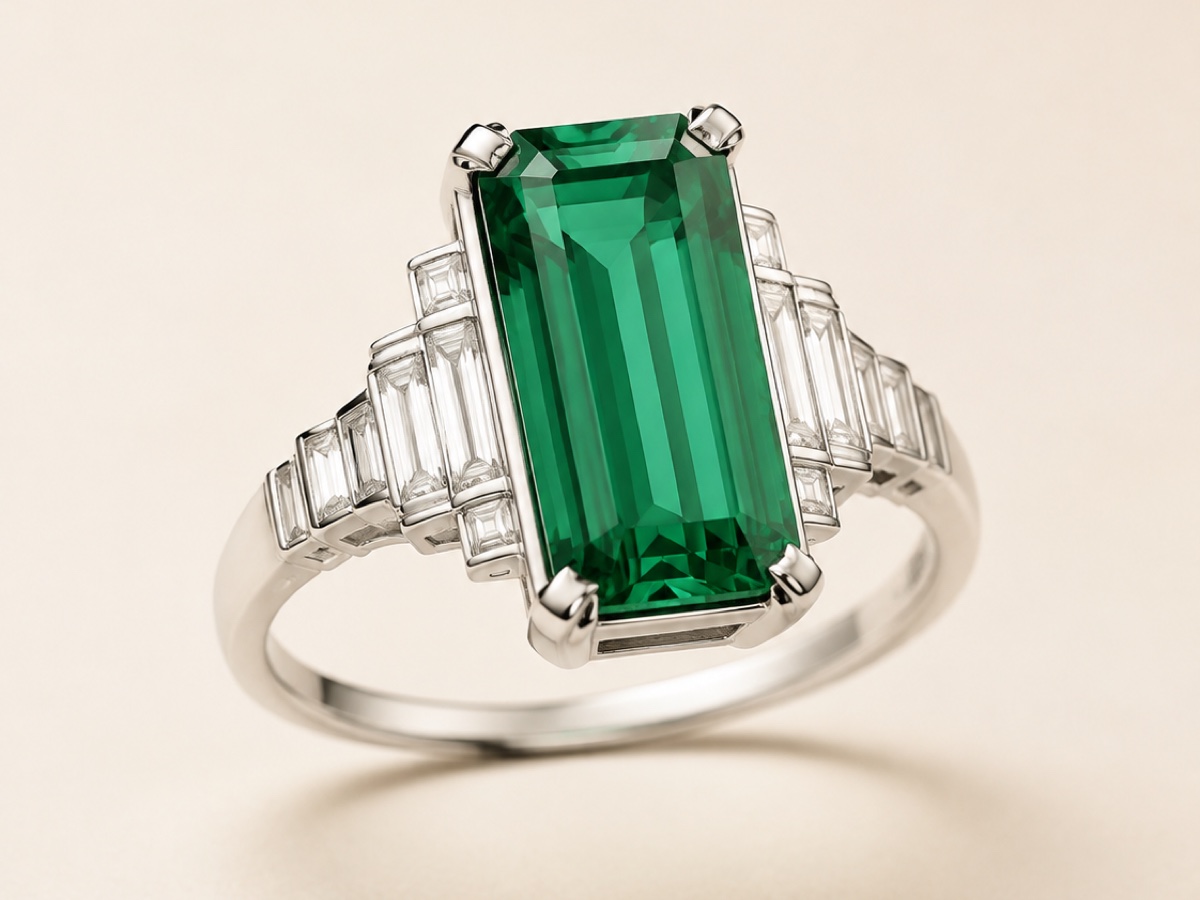
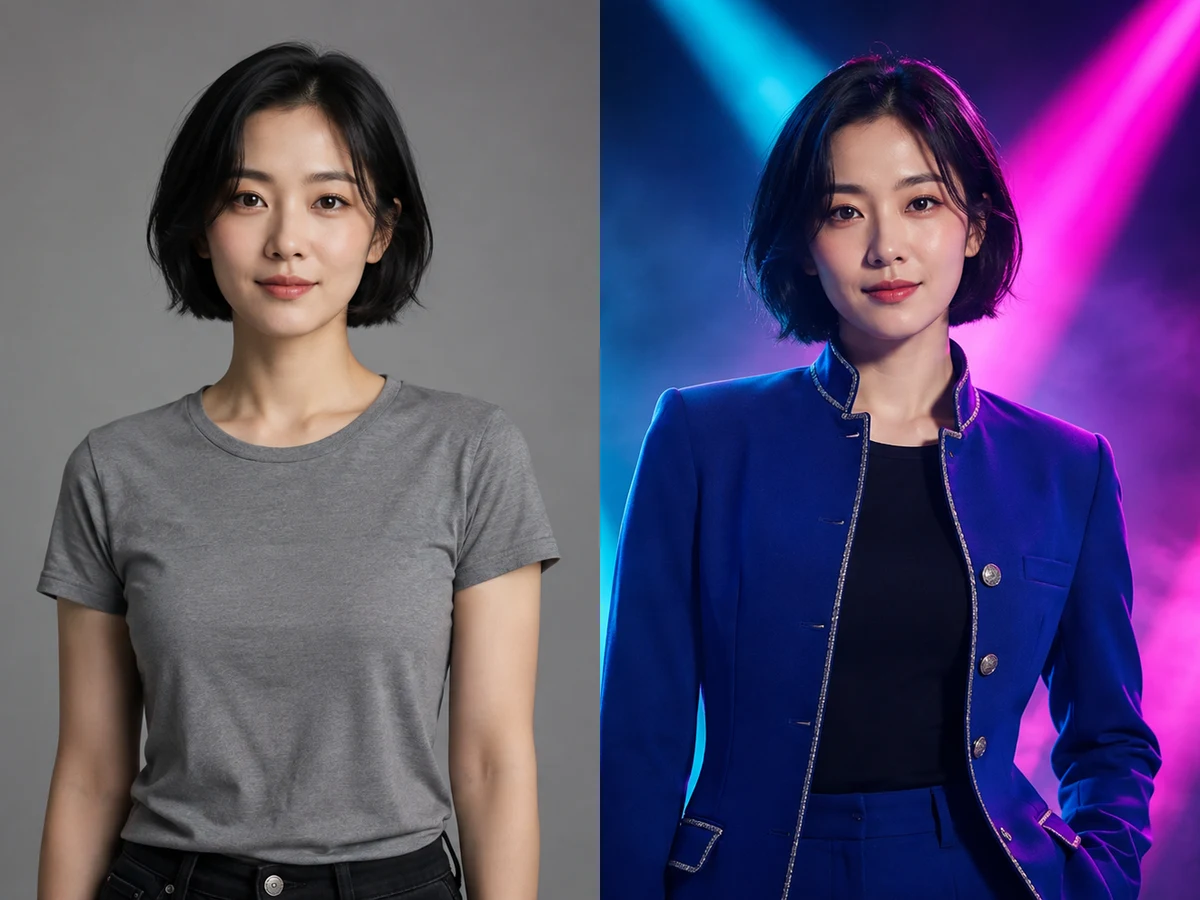
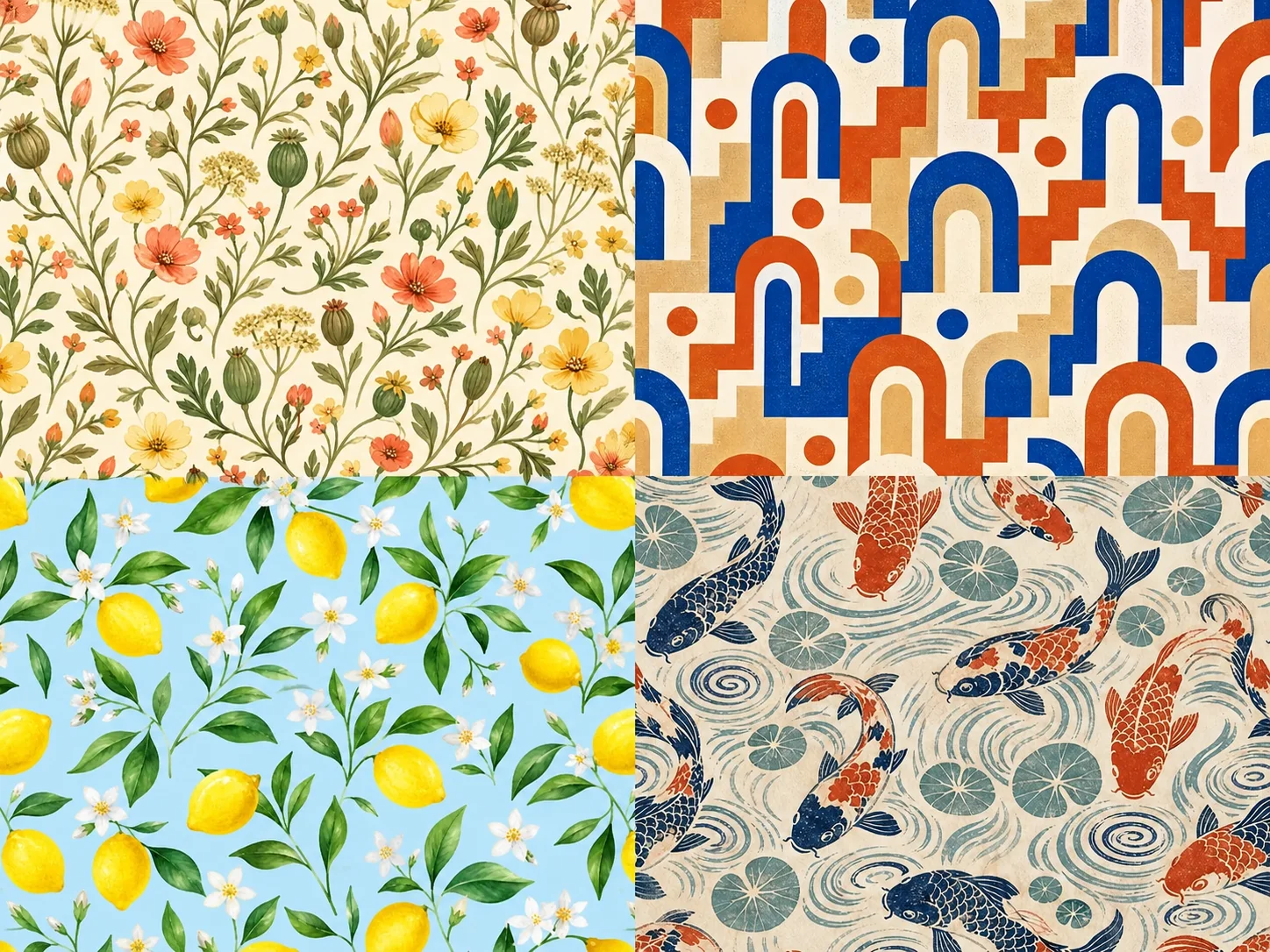
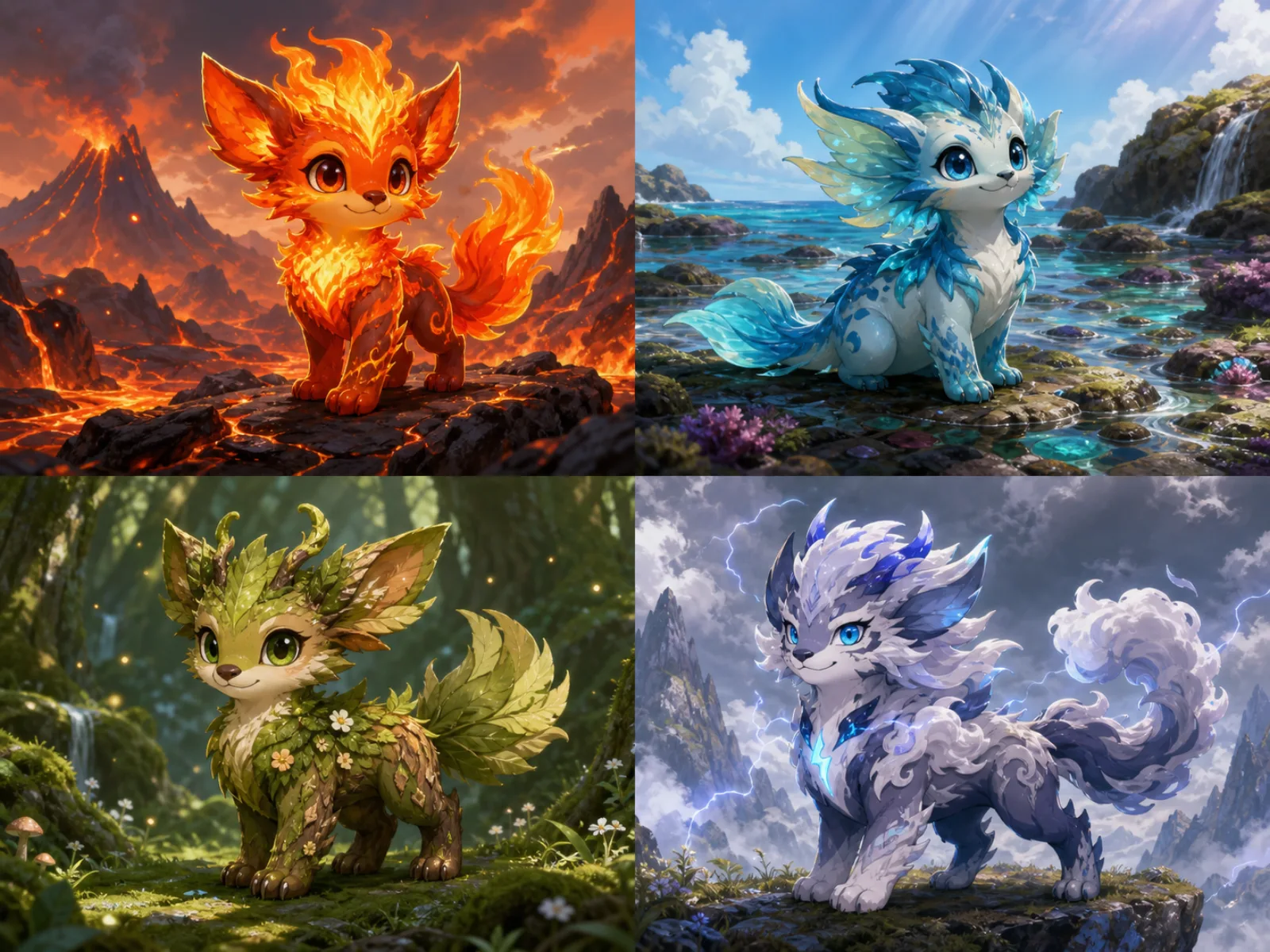
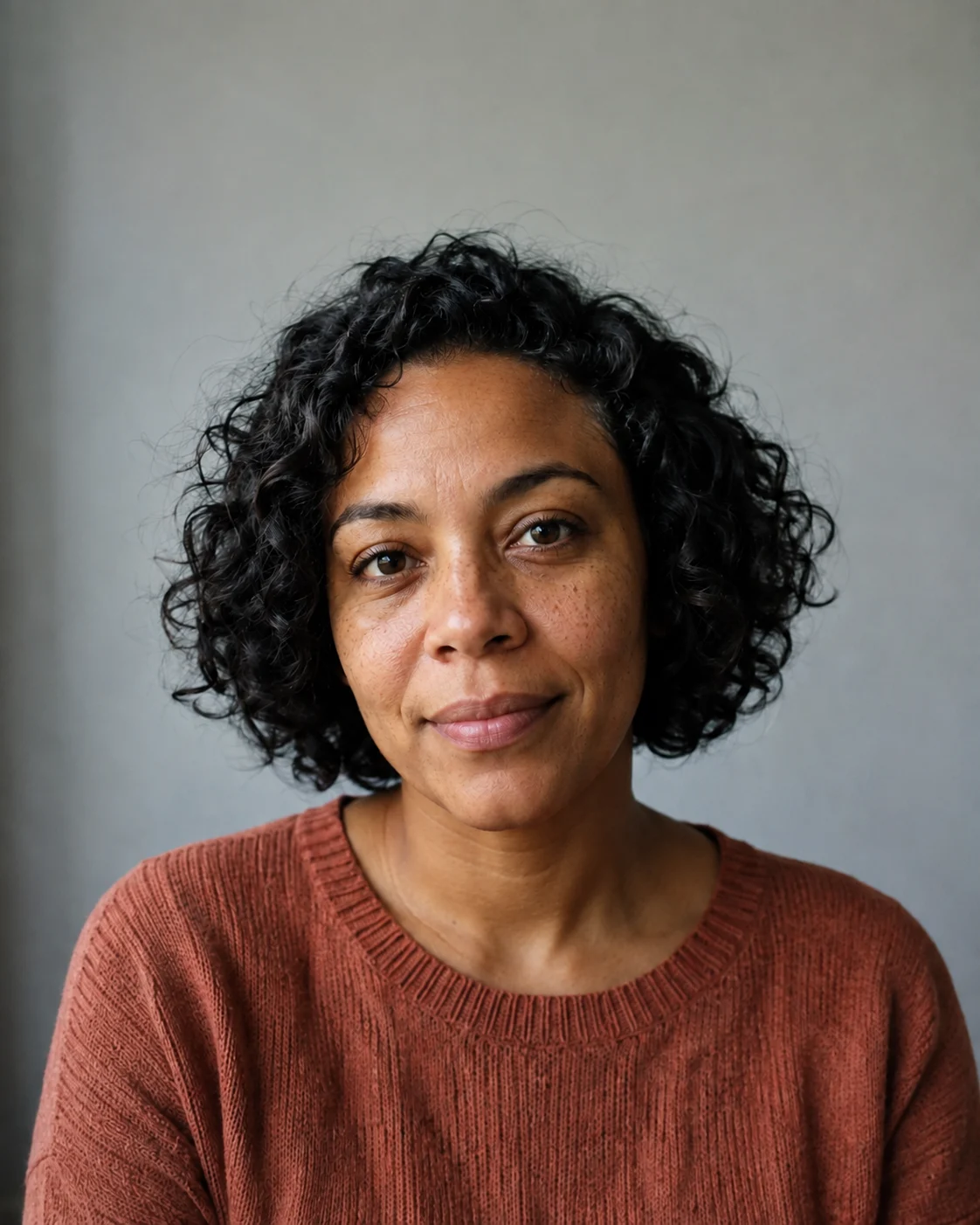
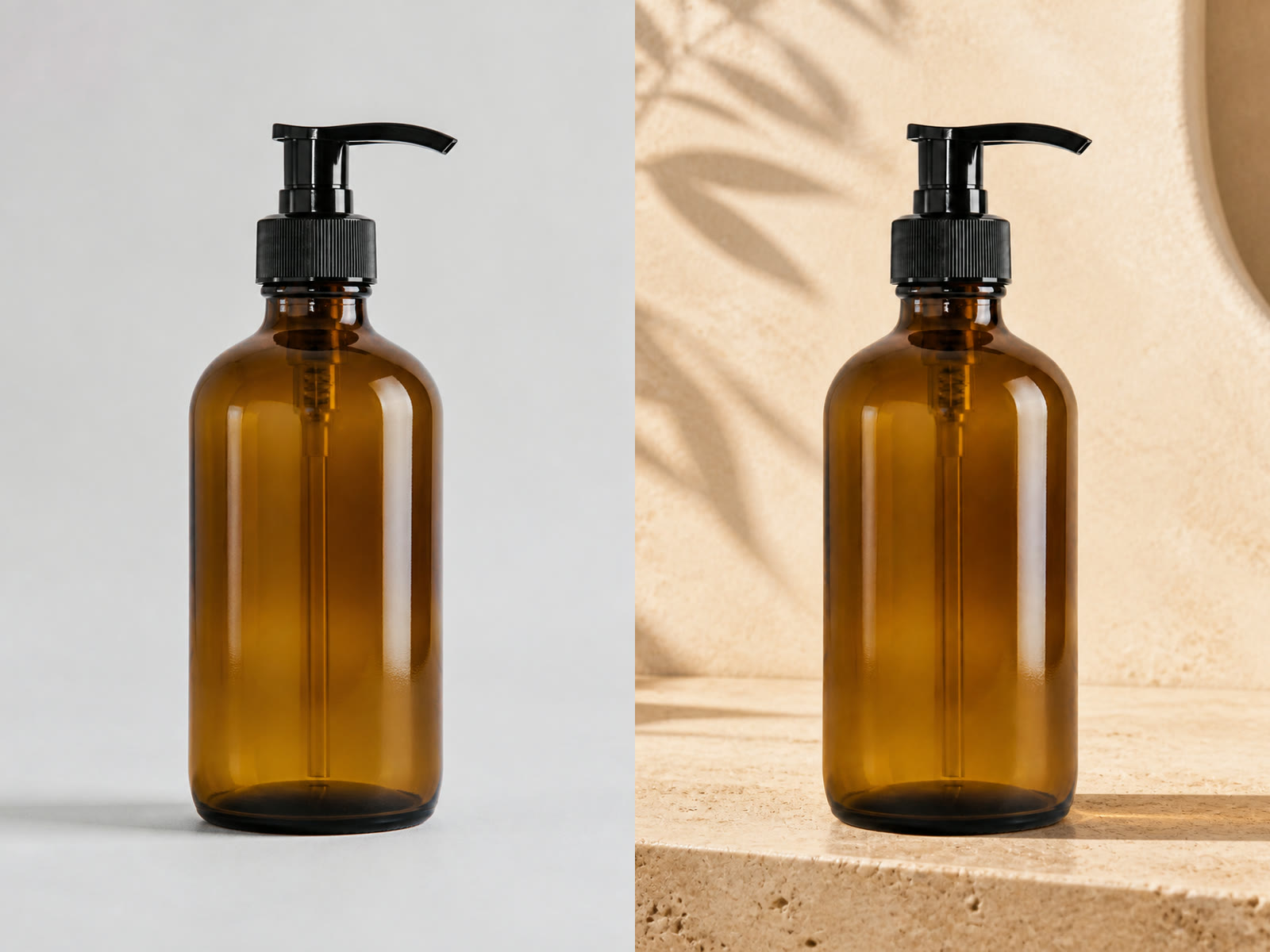

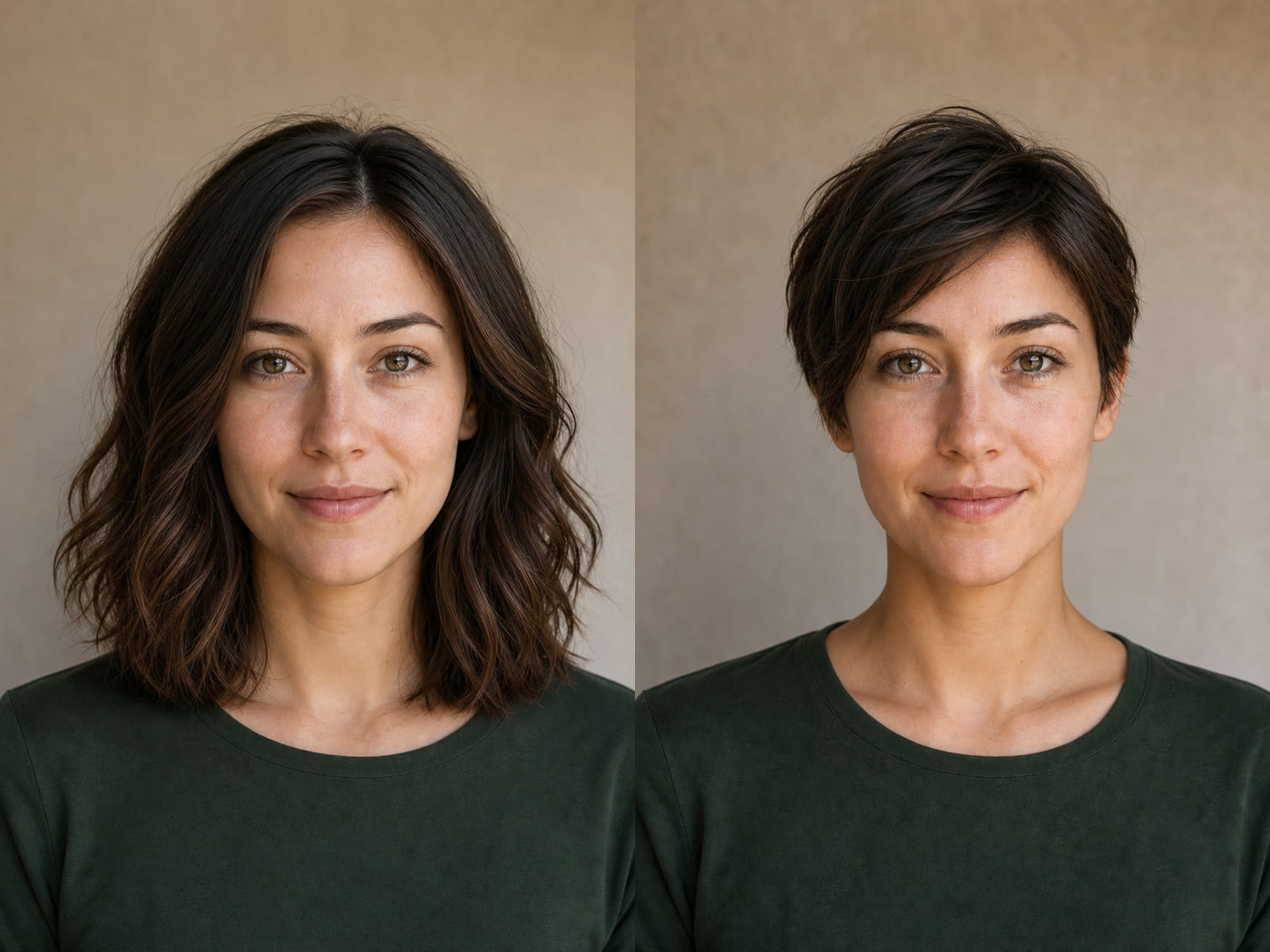

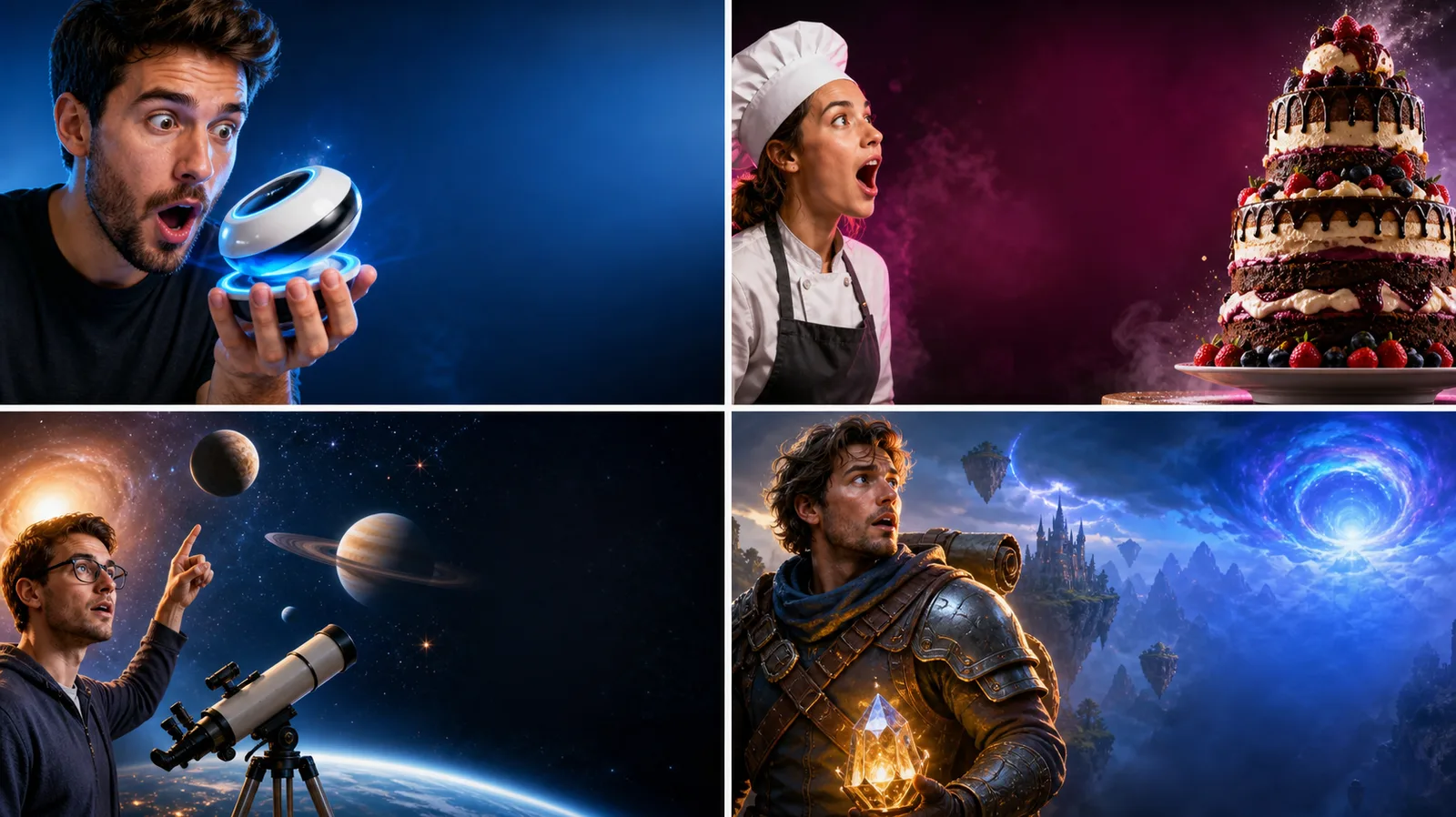
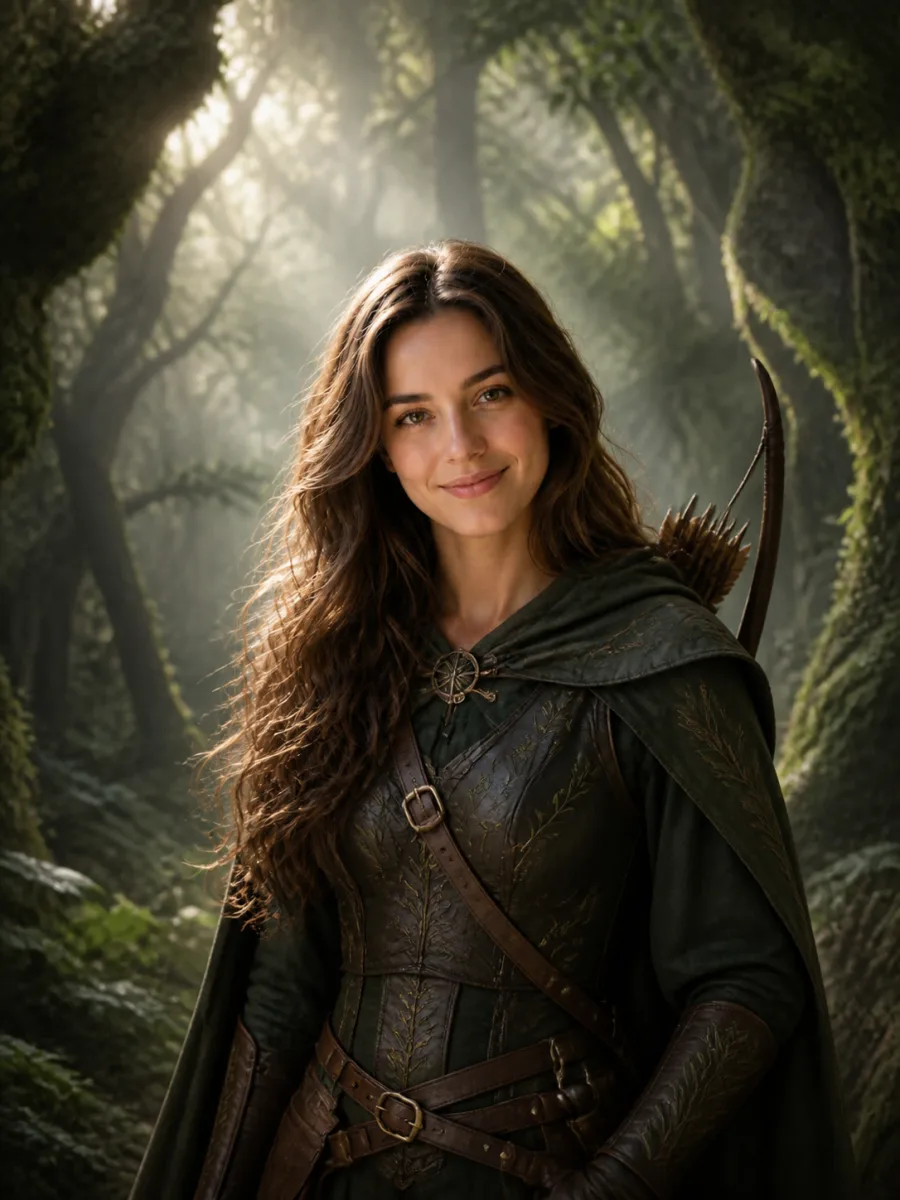
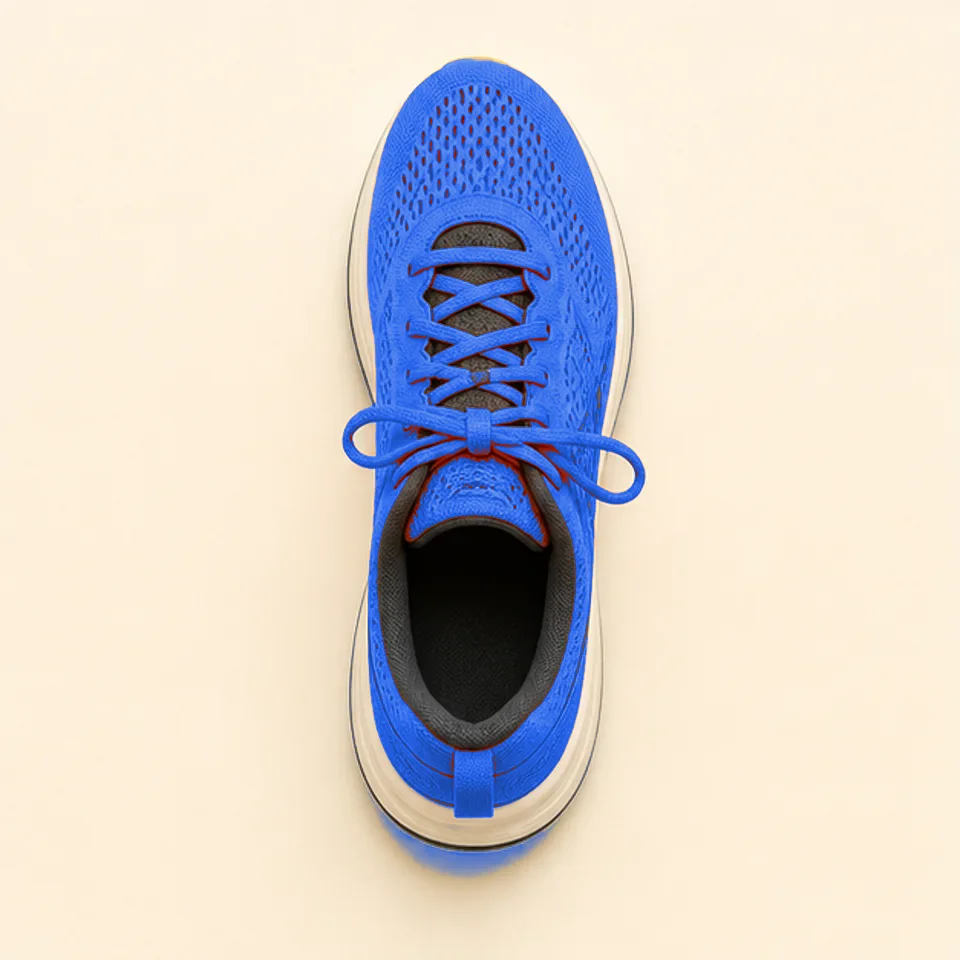

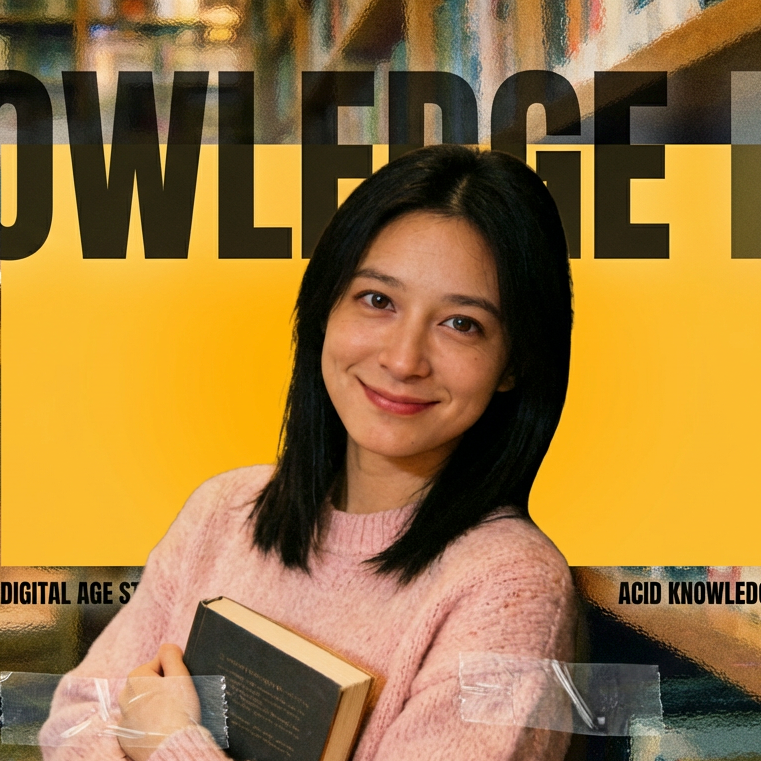
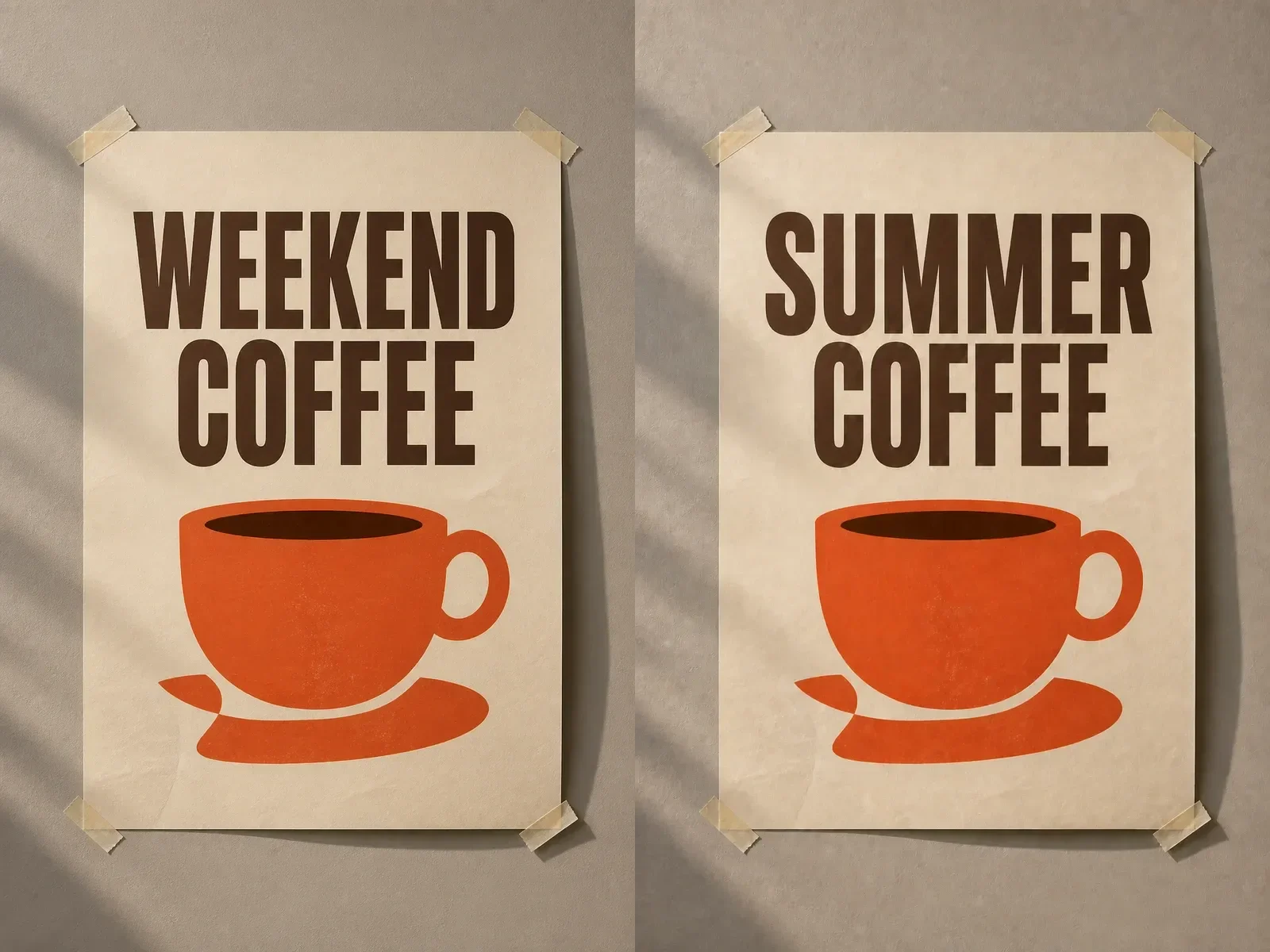
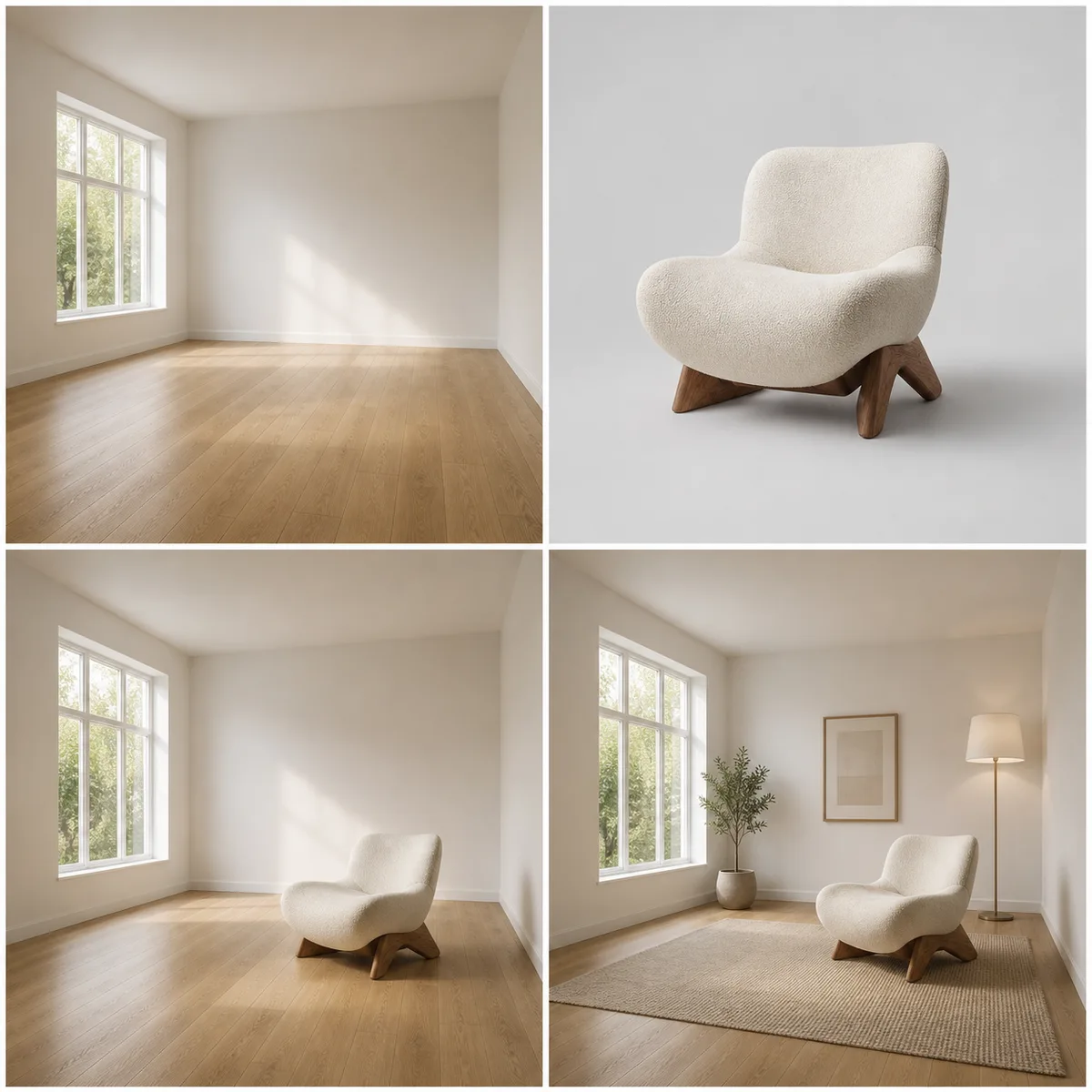
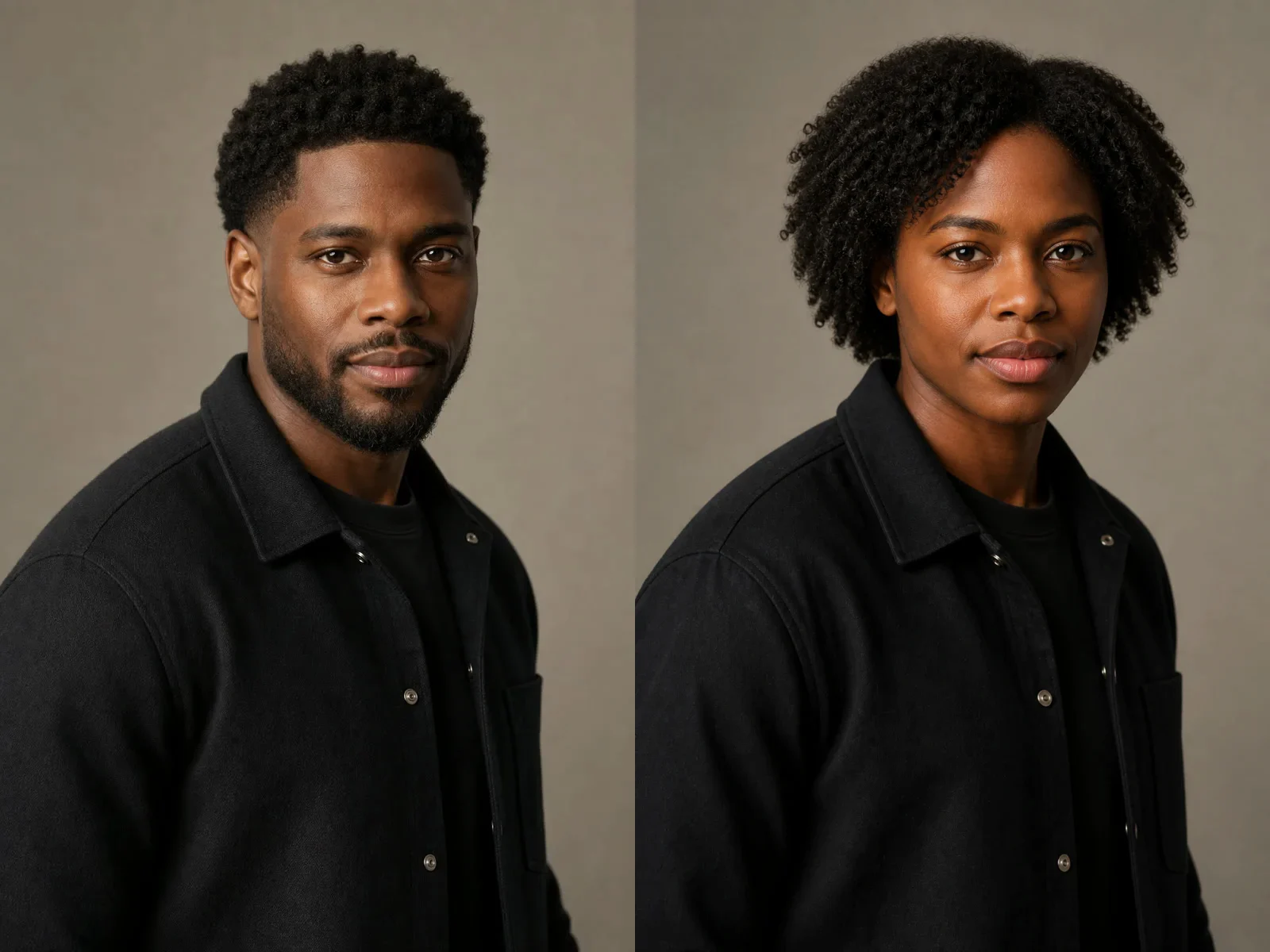
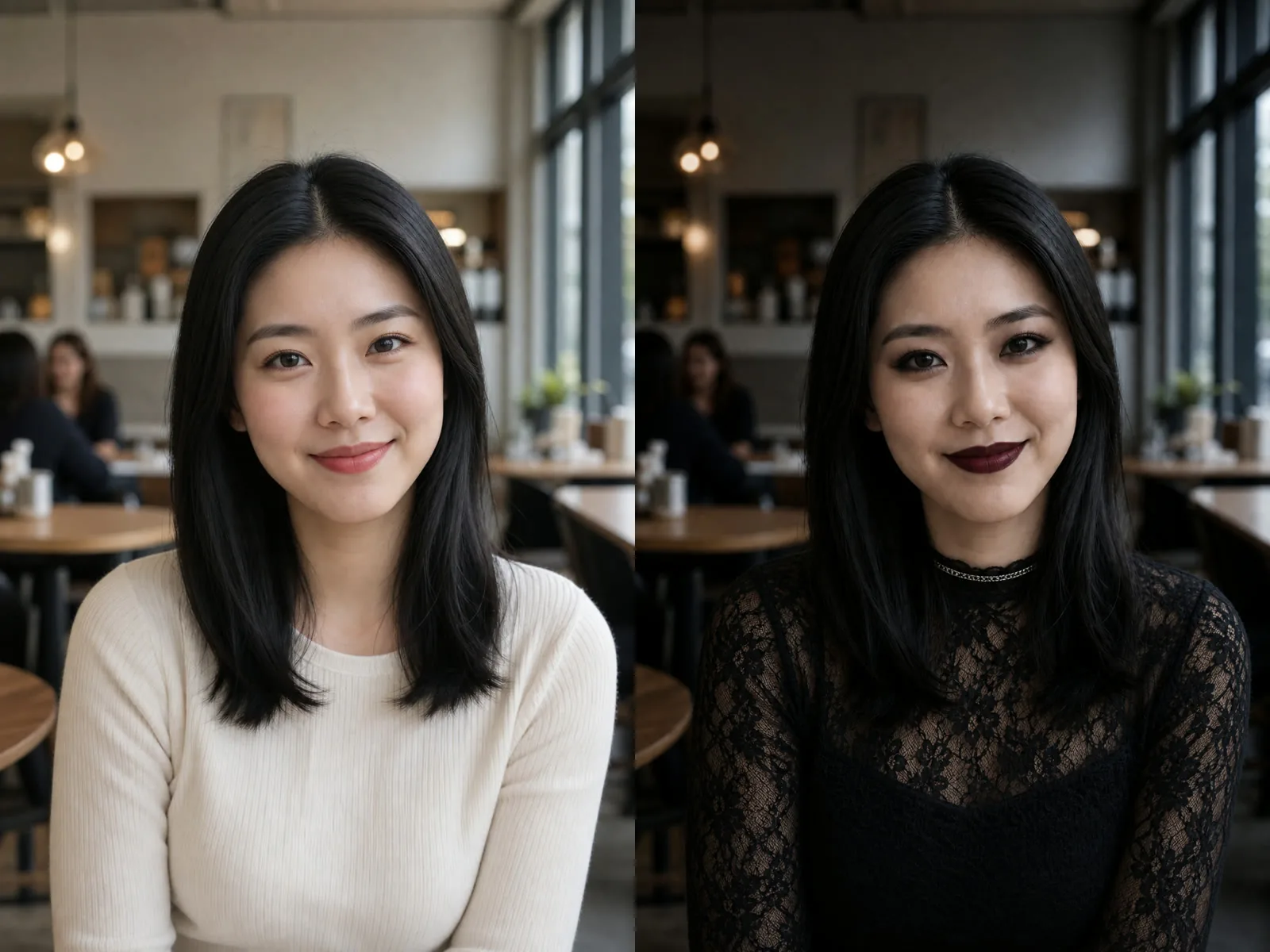
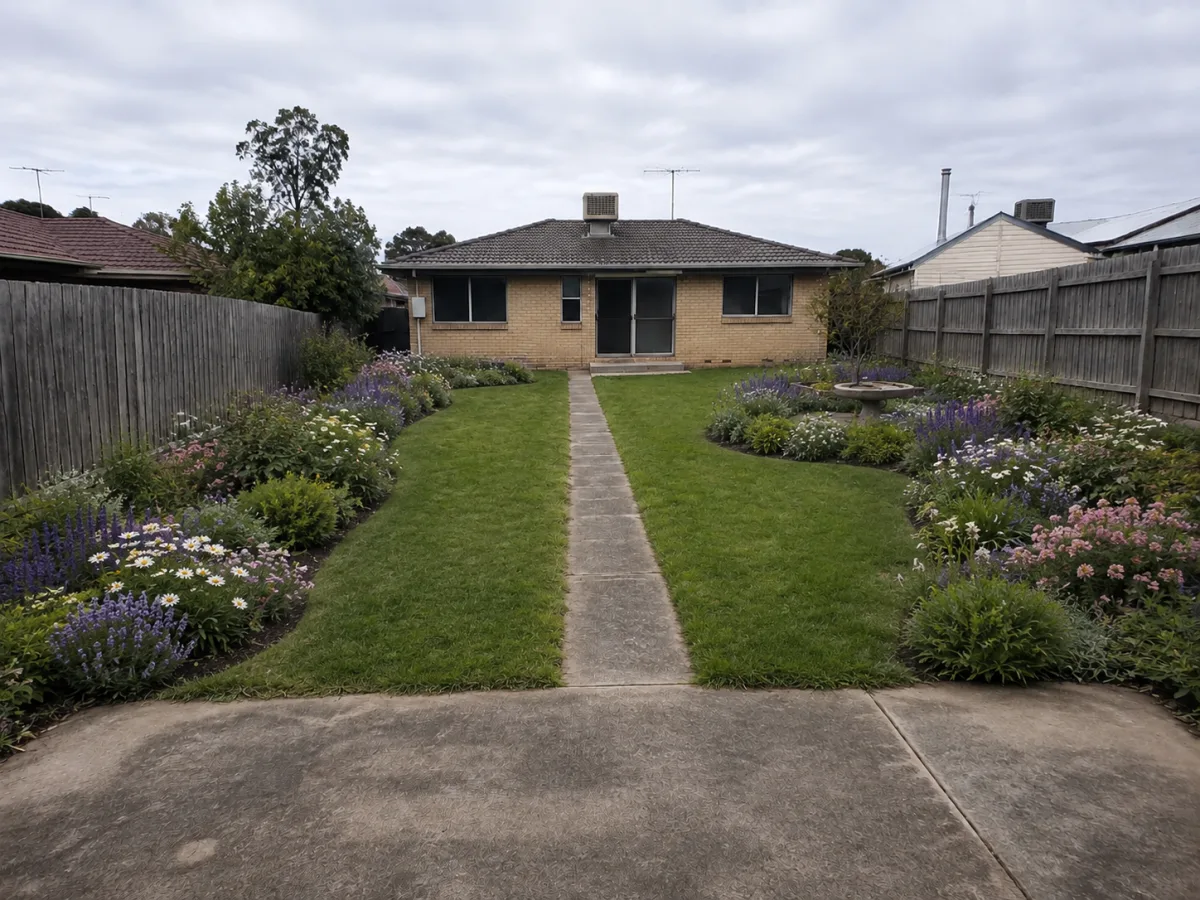
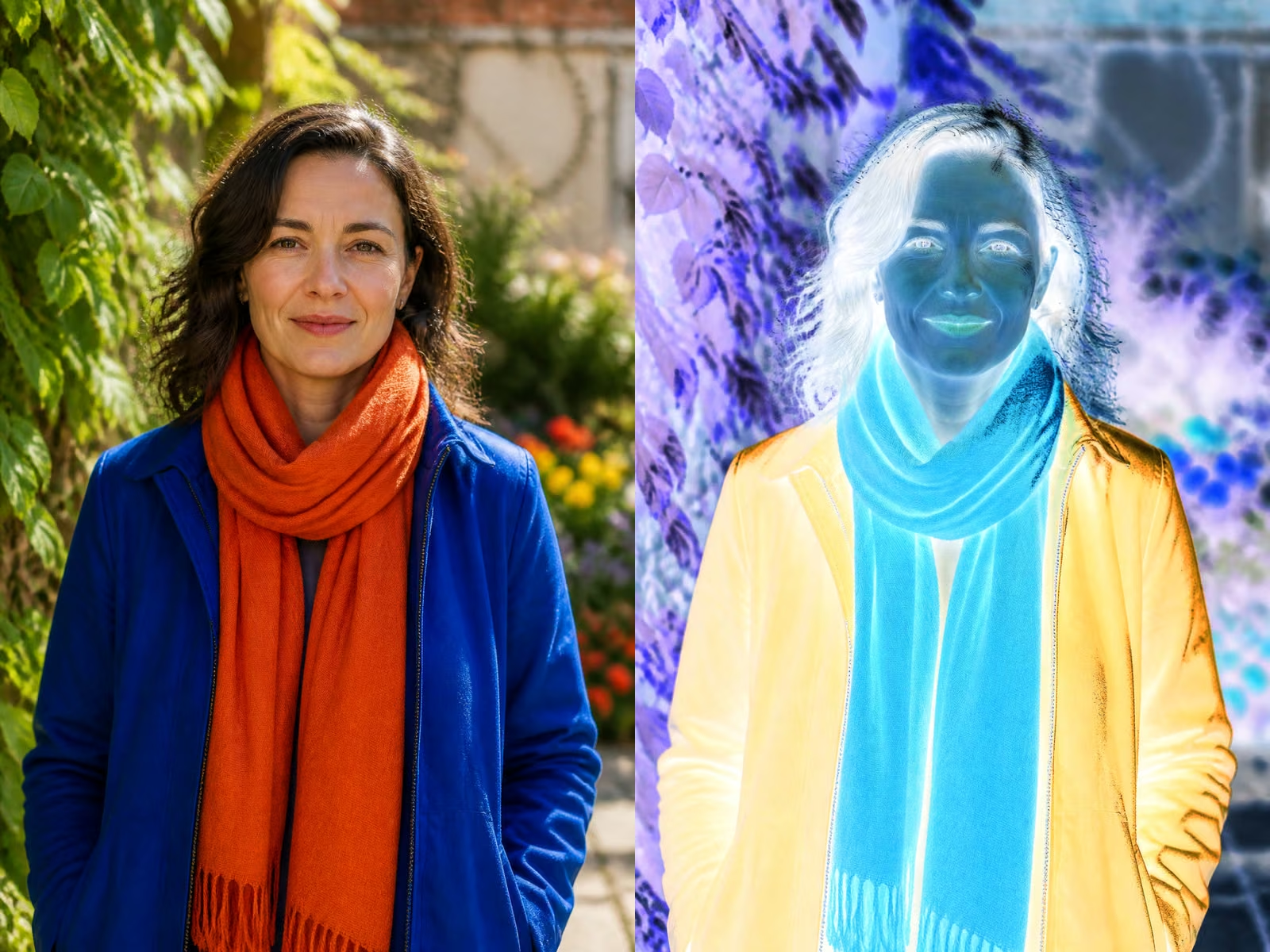
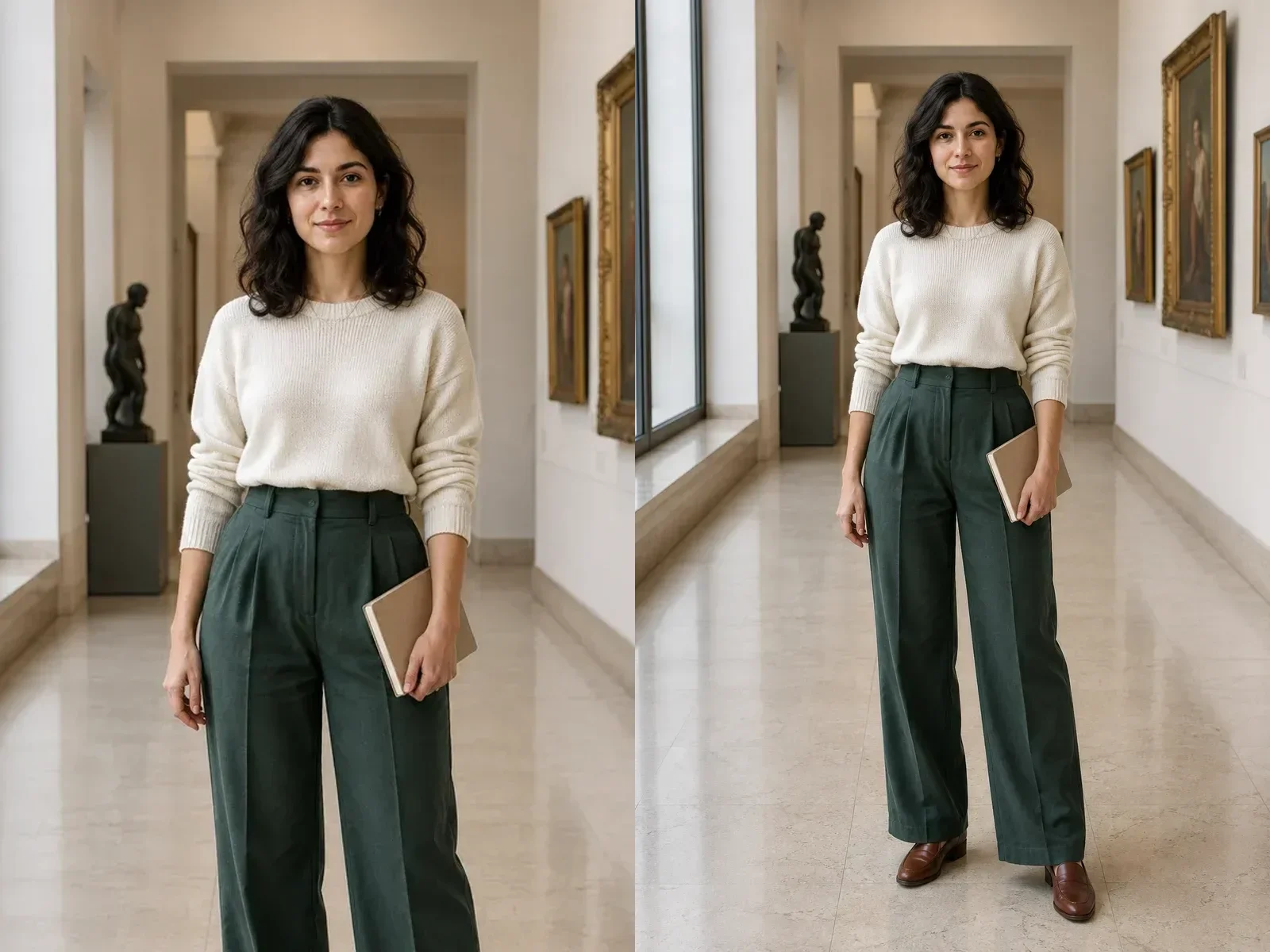
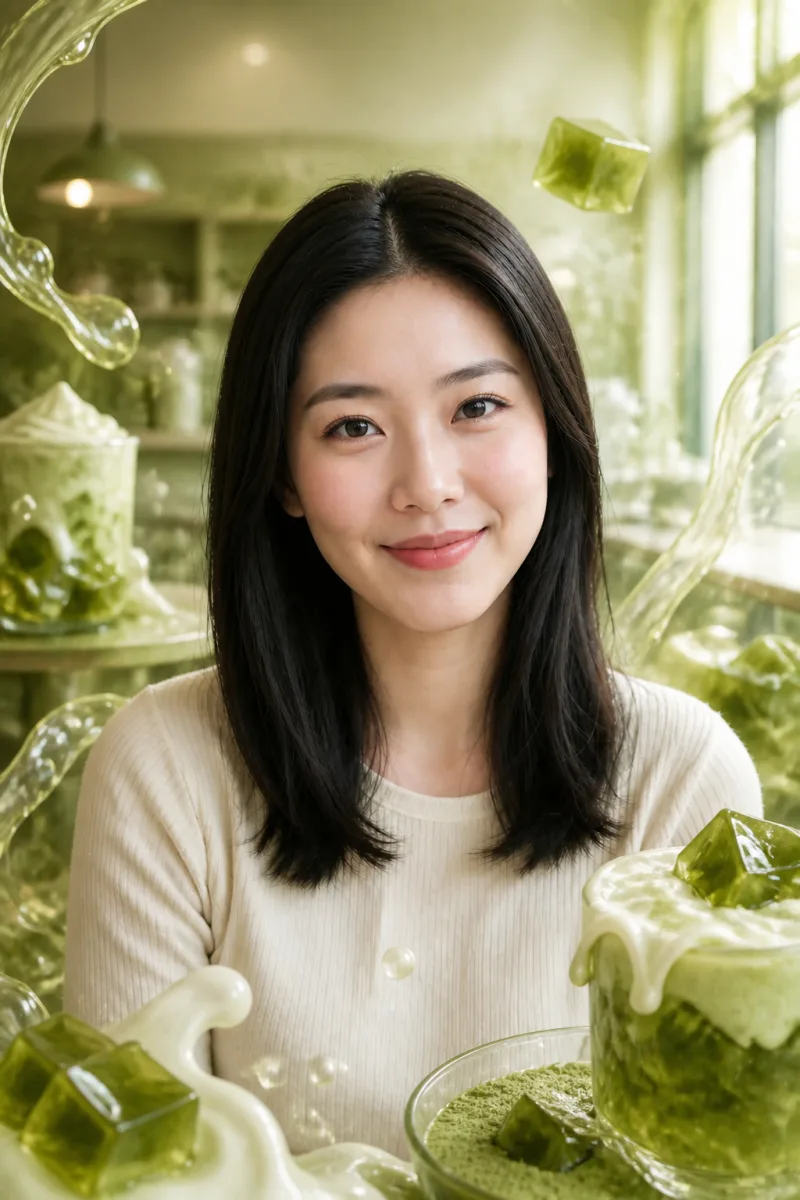
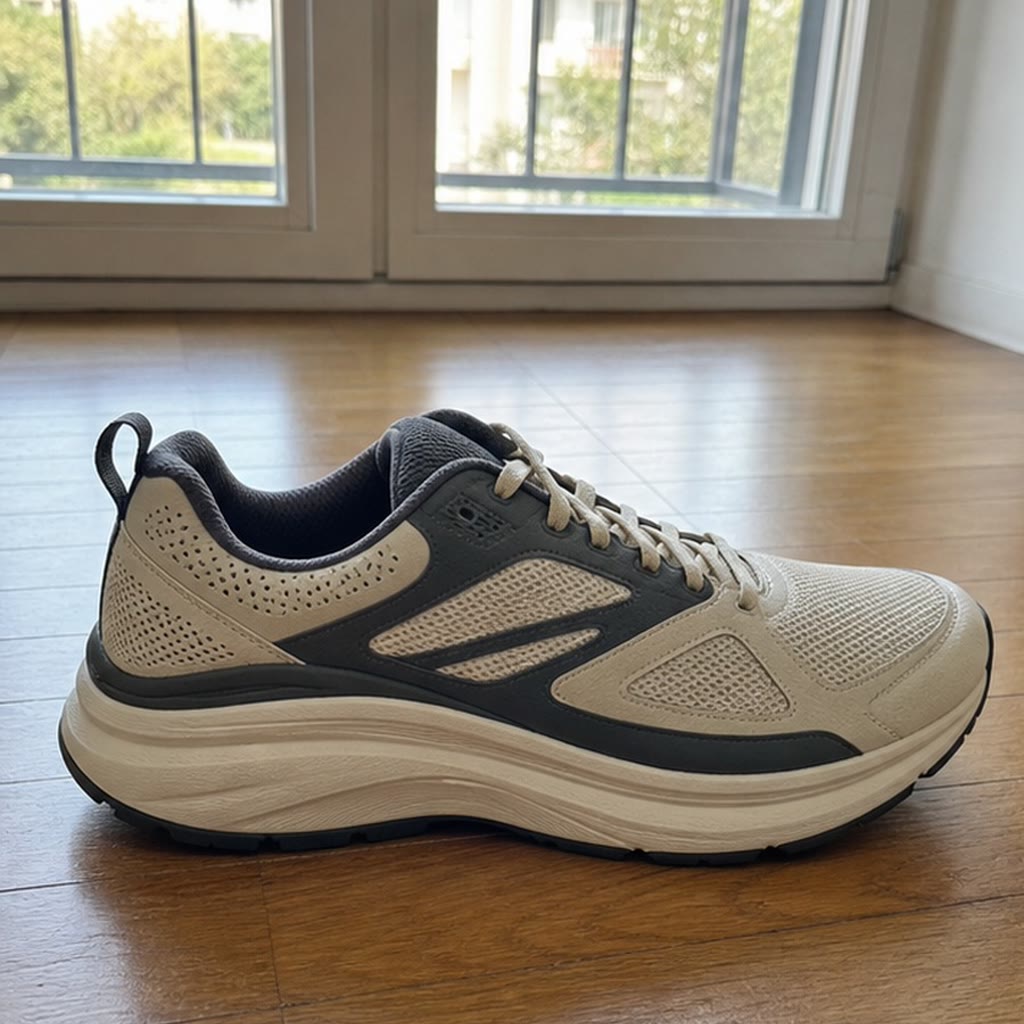
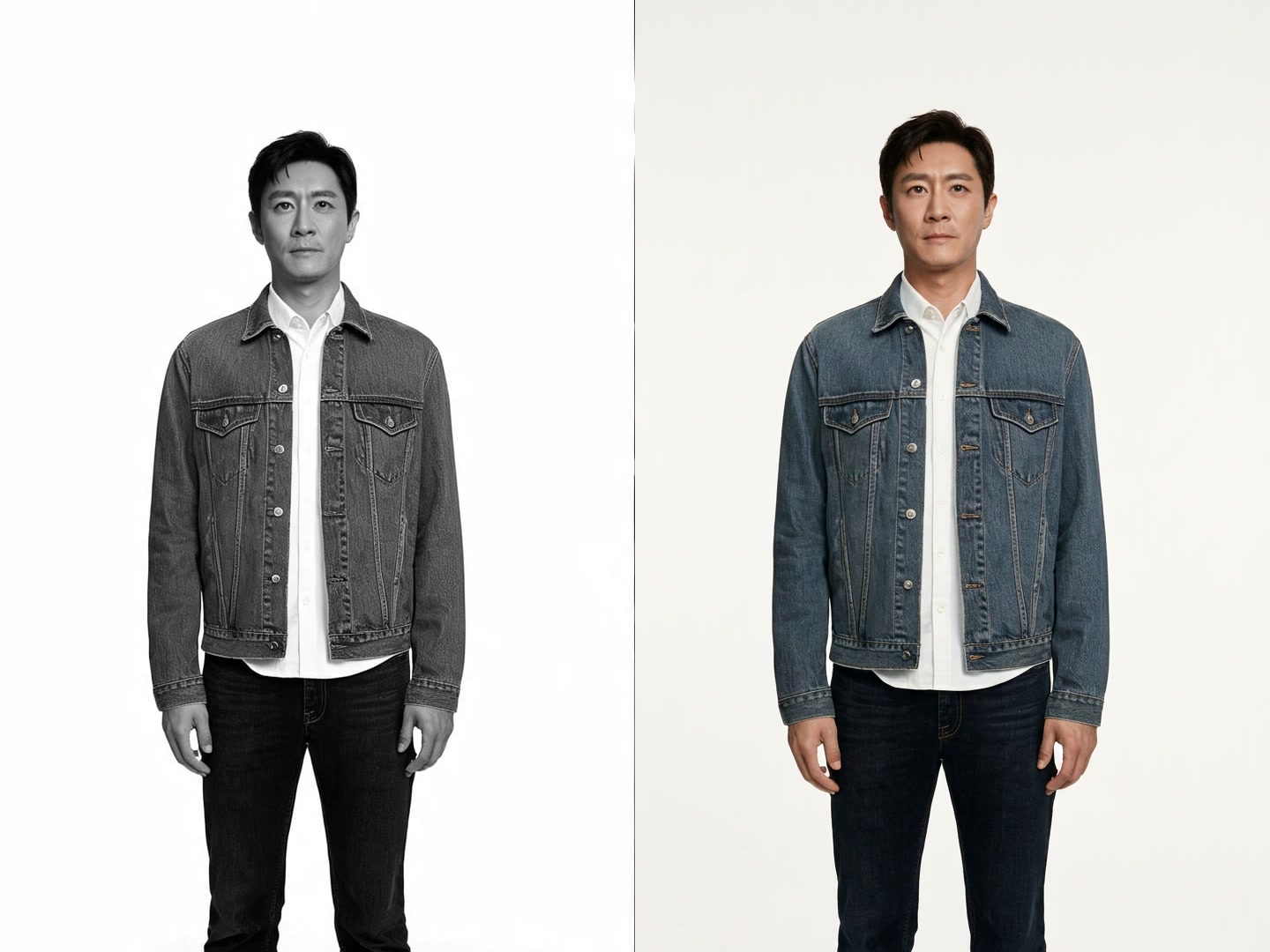
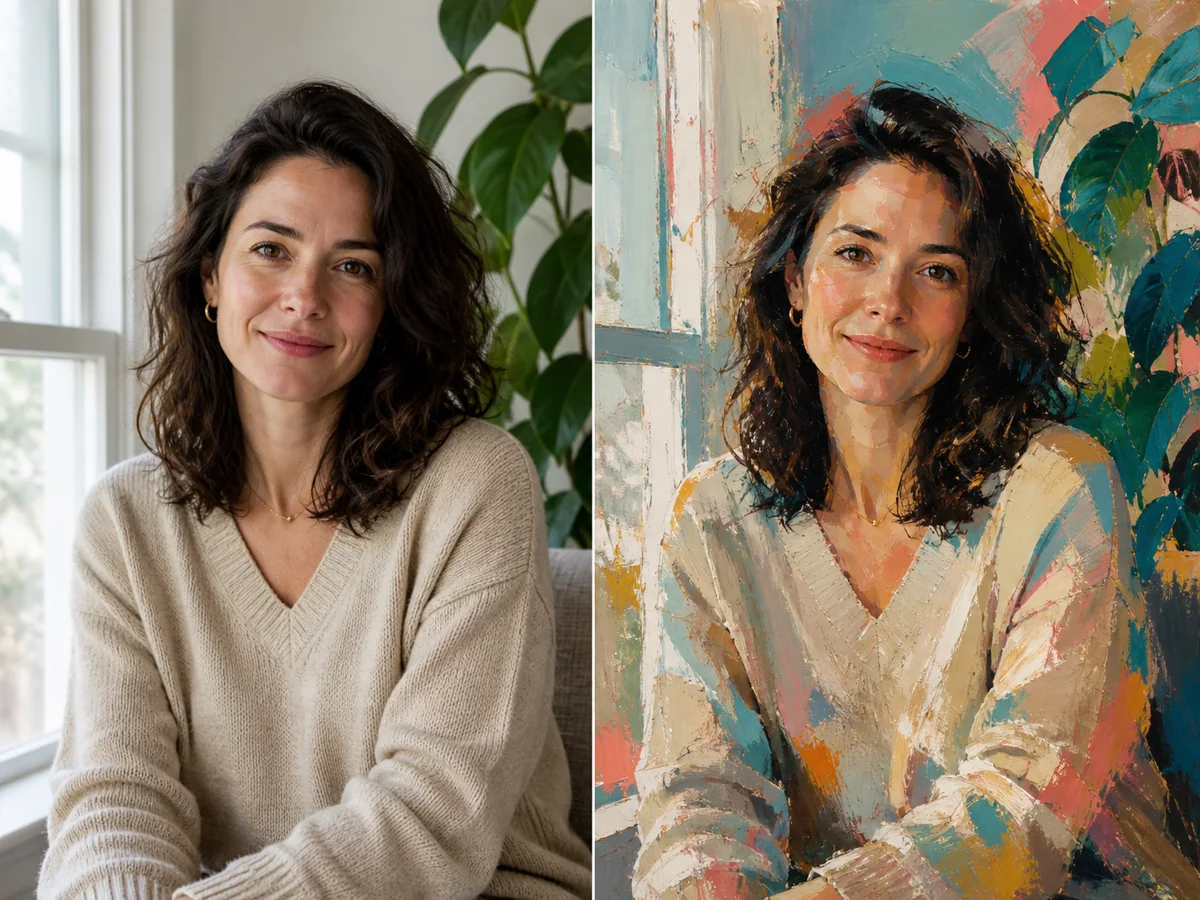
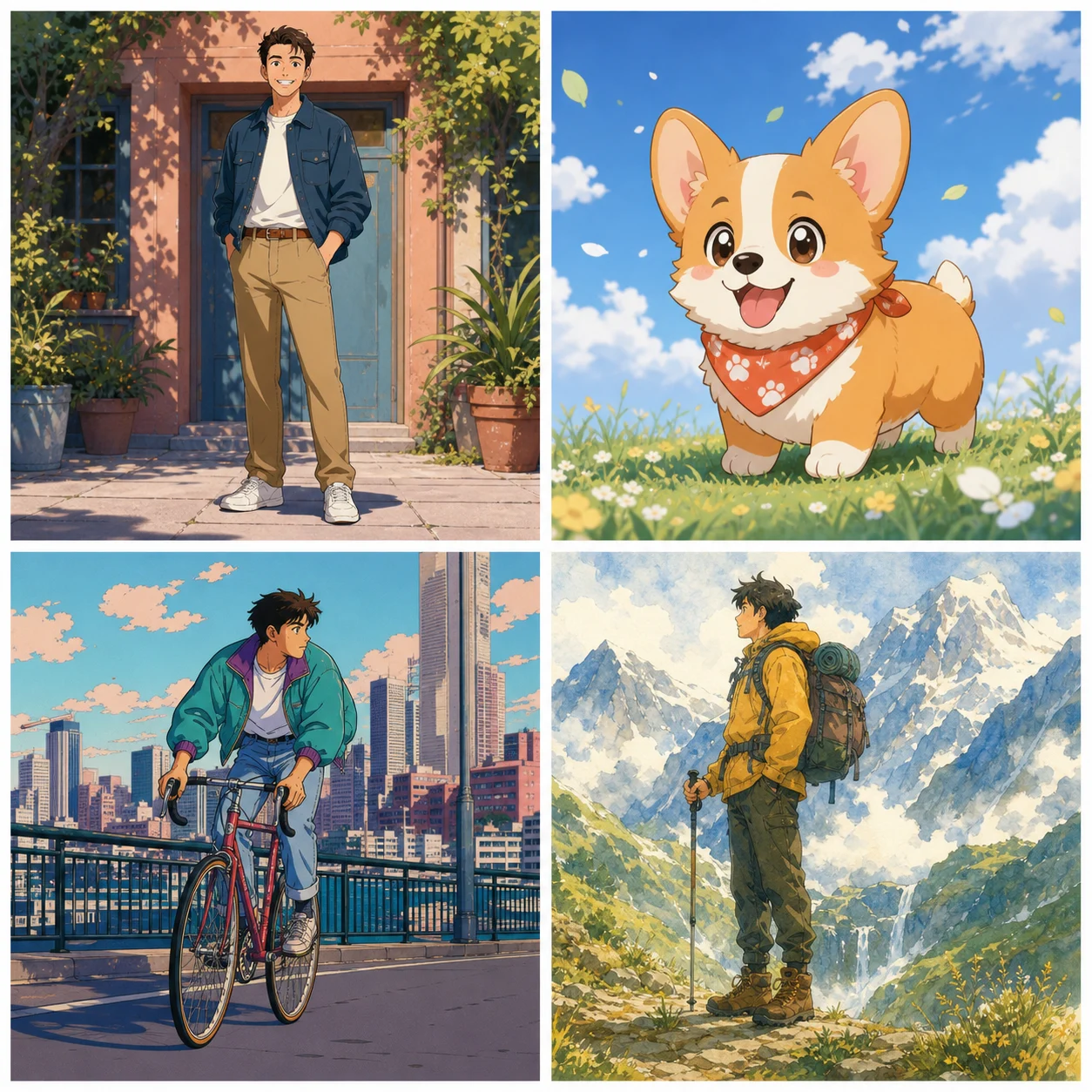
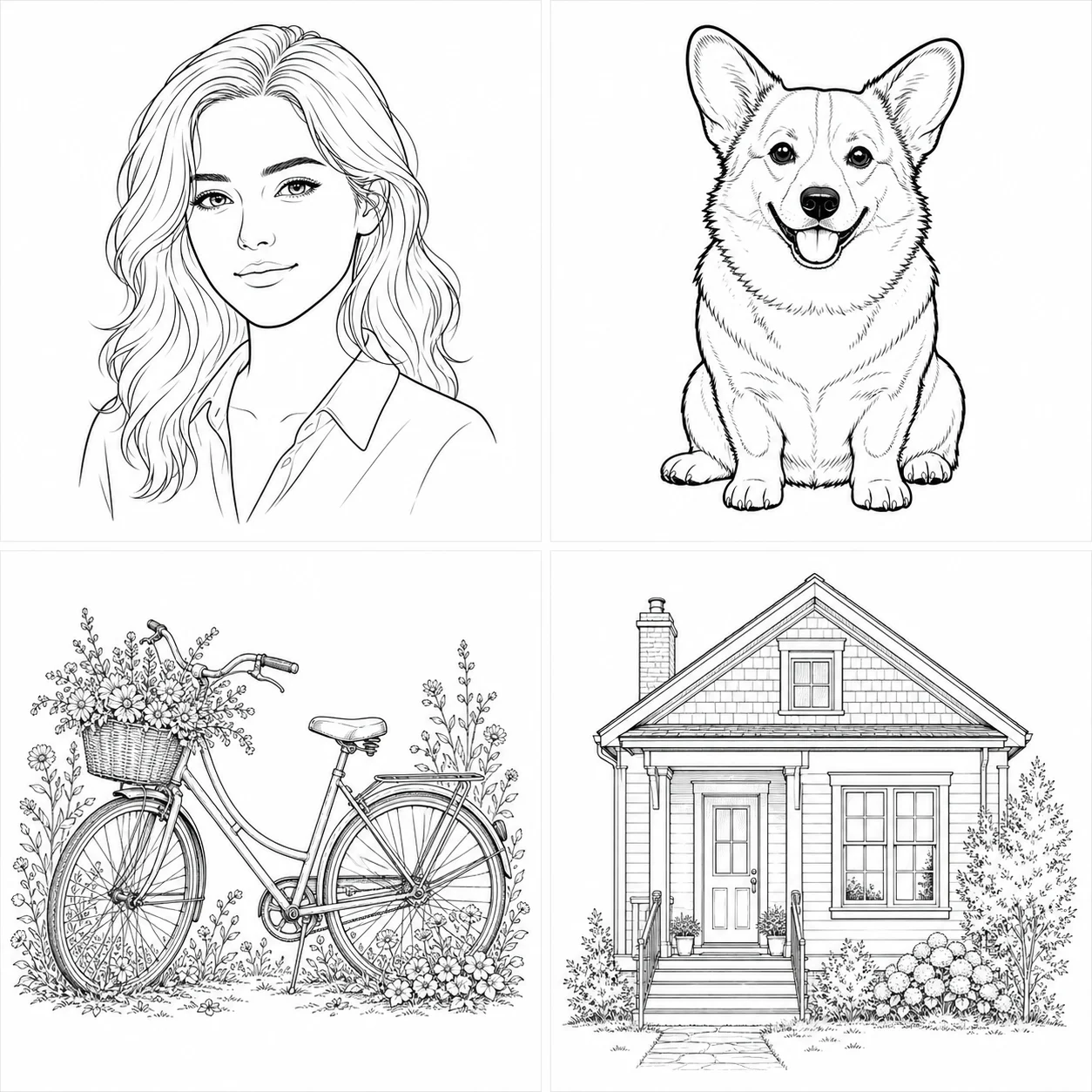
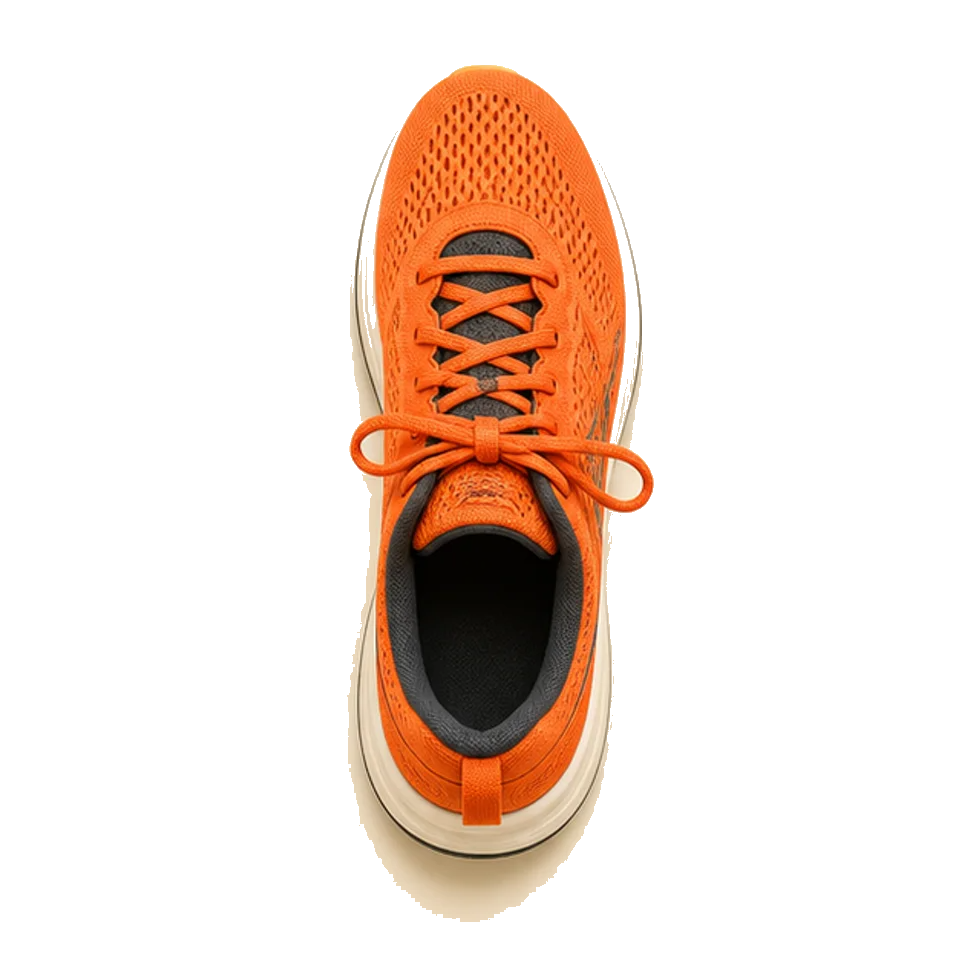
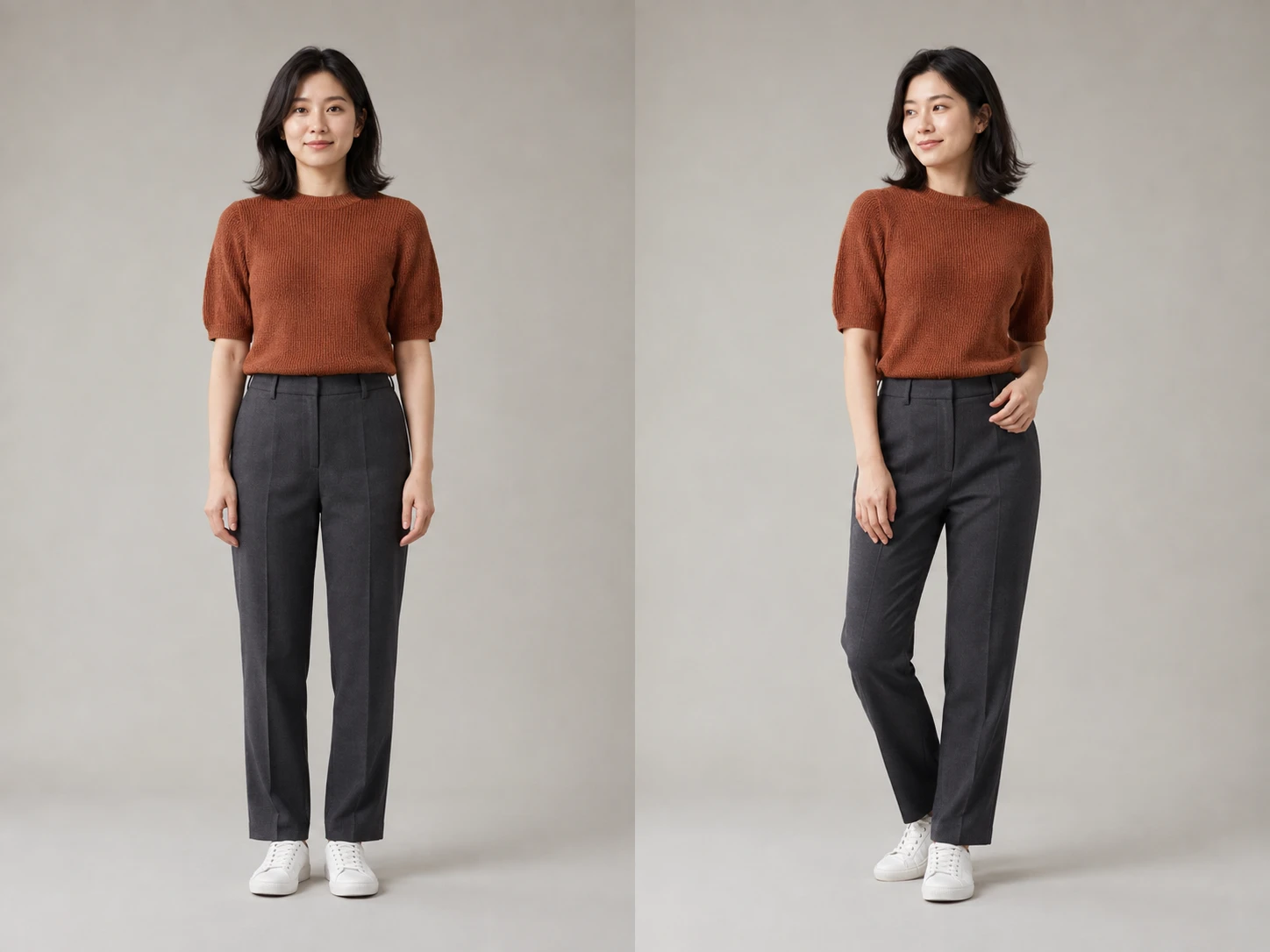
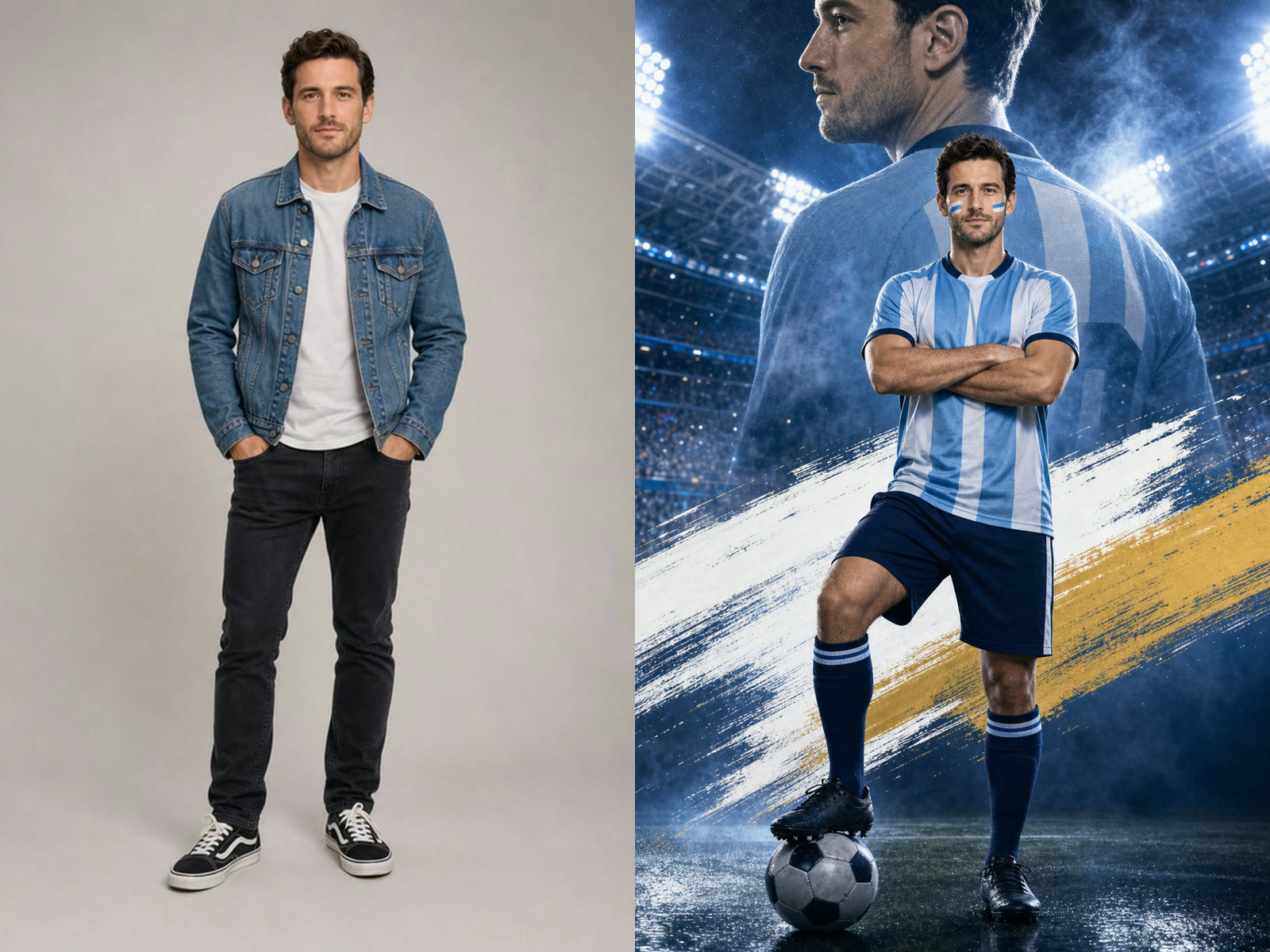
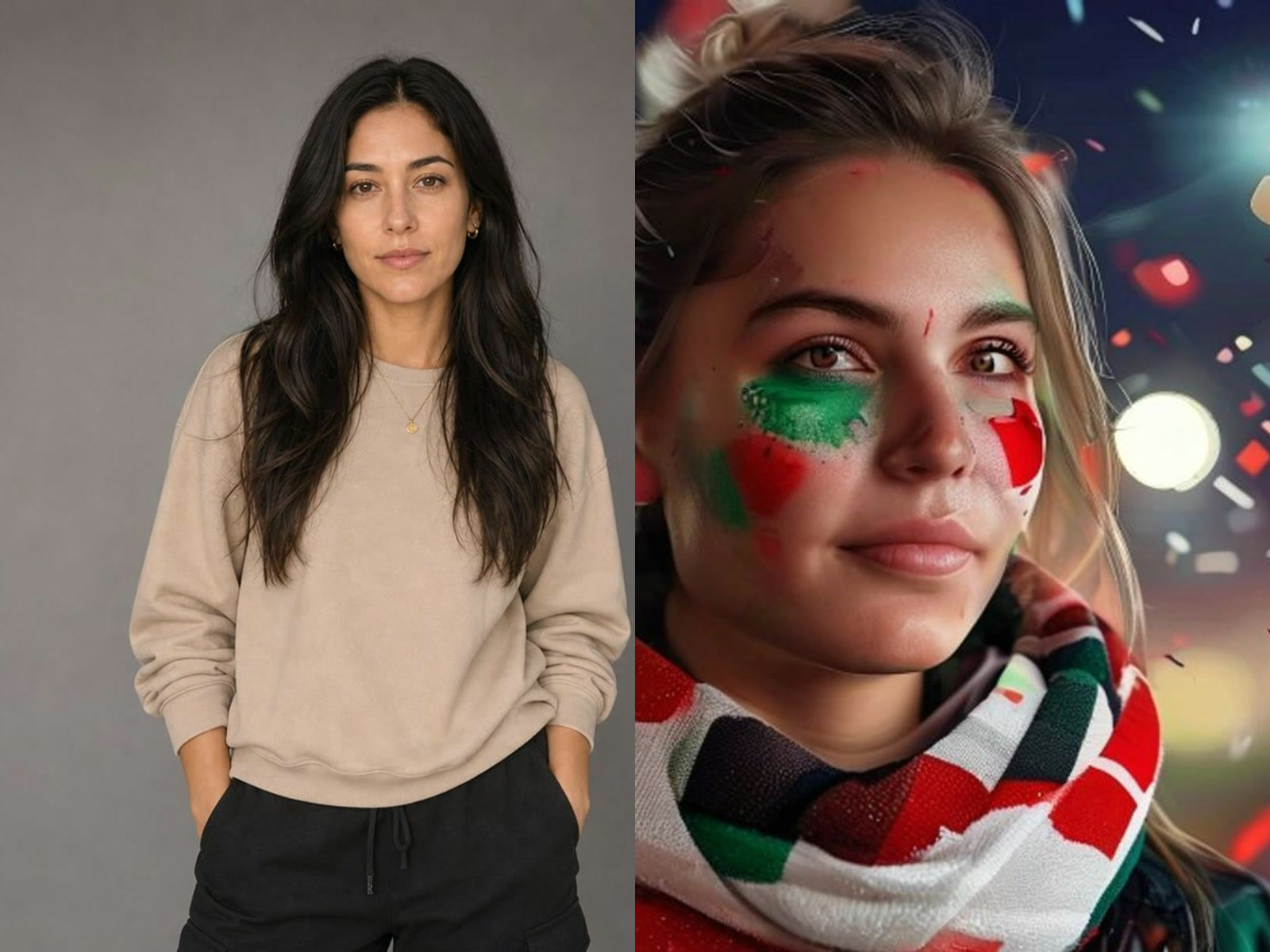
Prompt-first image creation
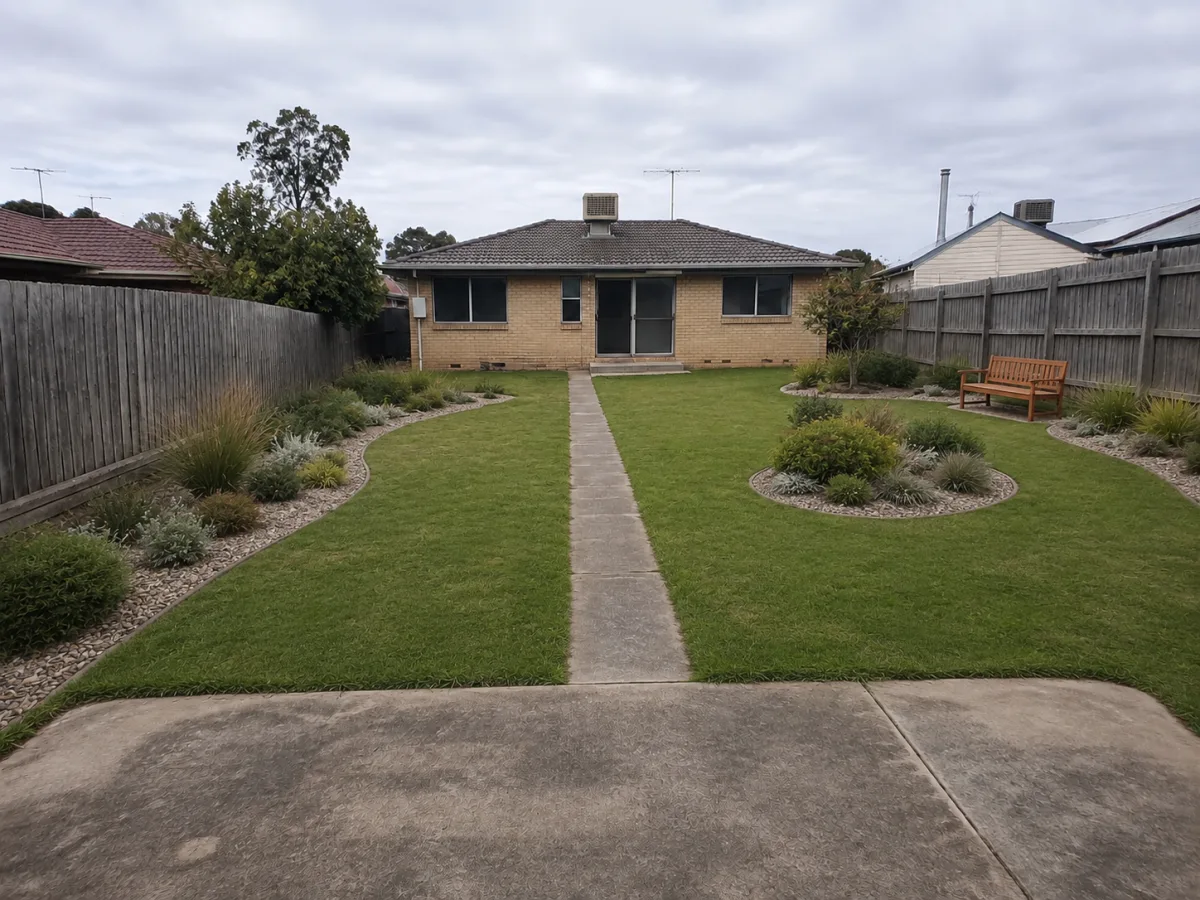
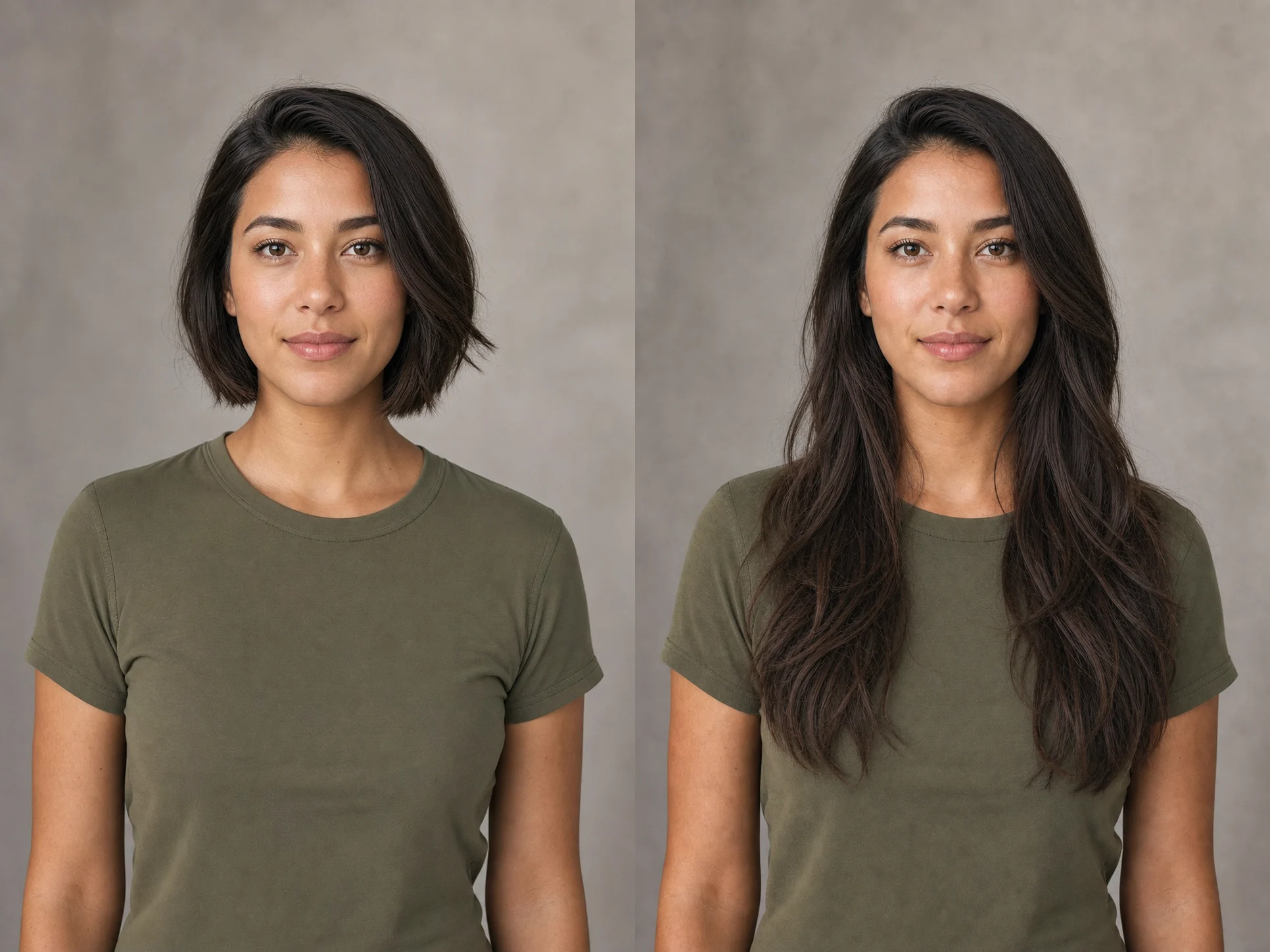
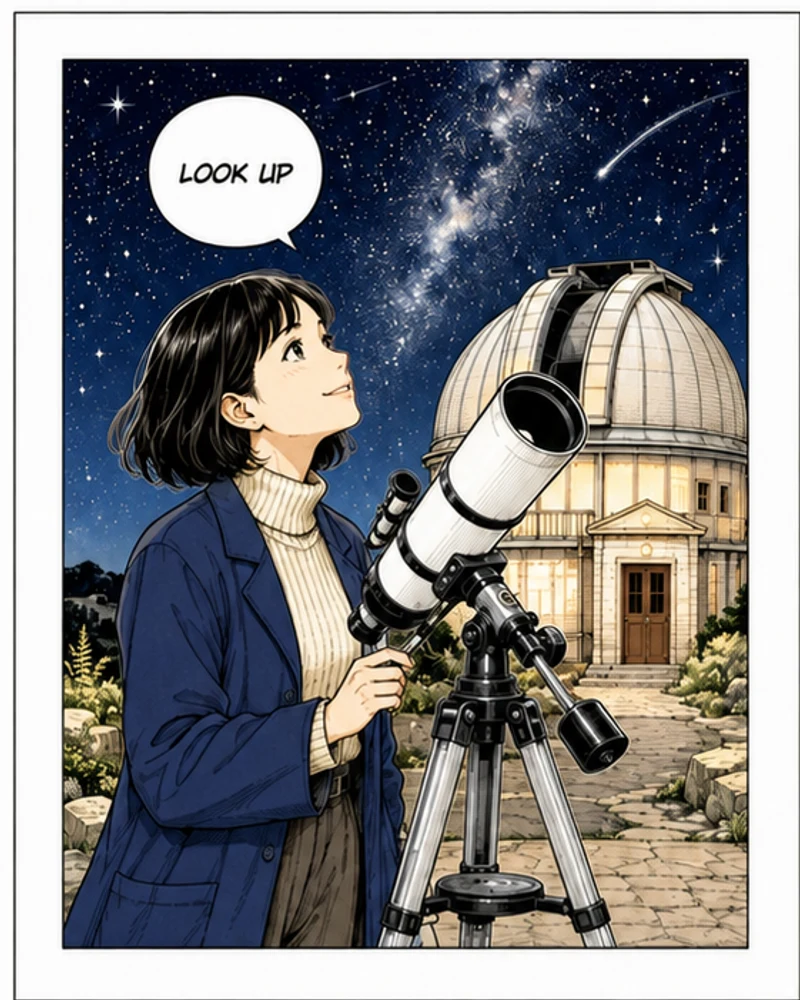
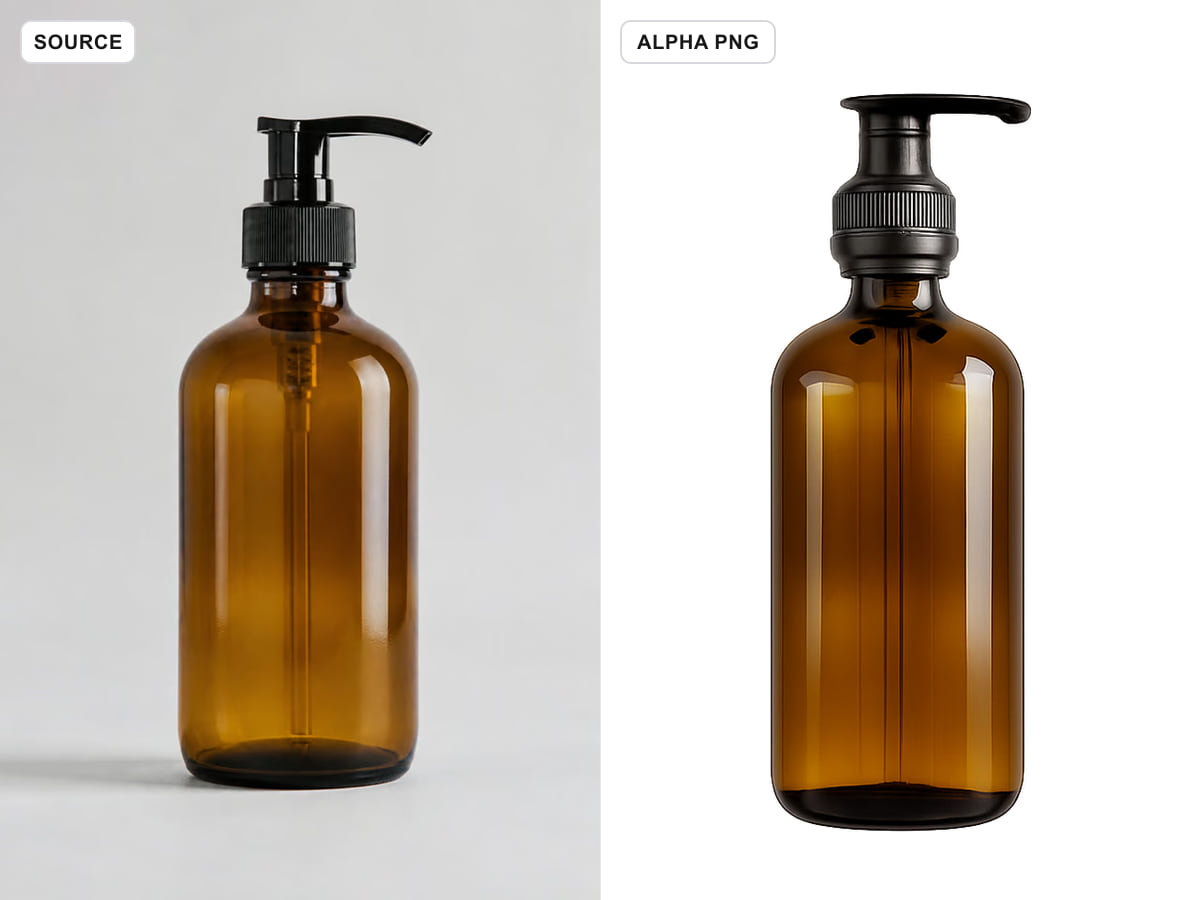
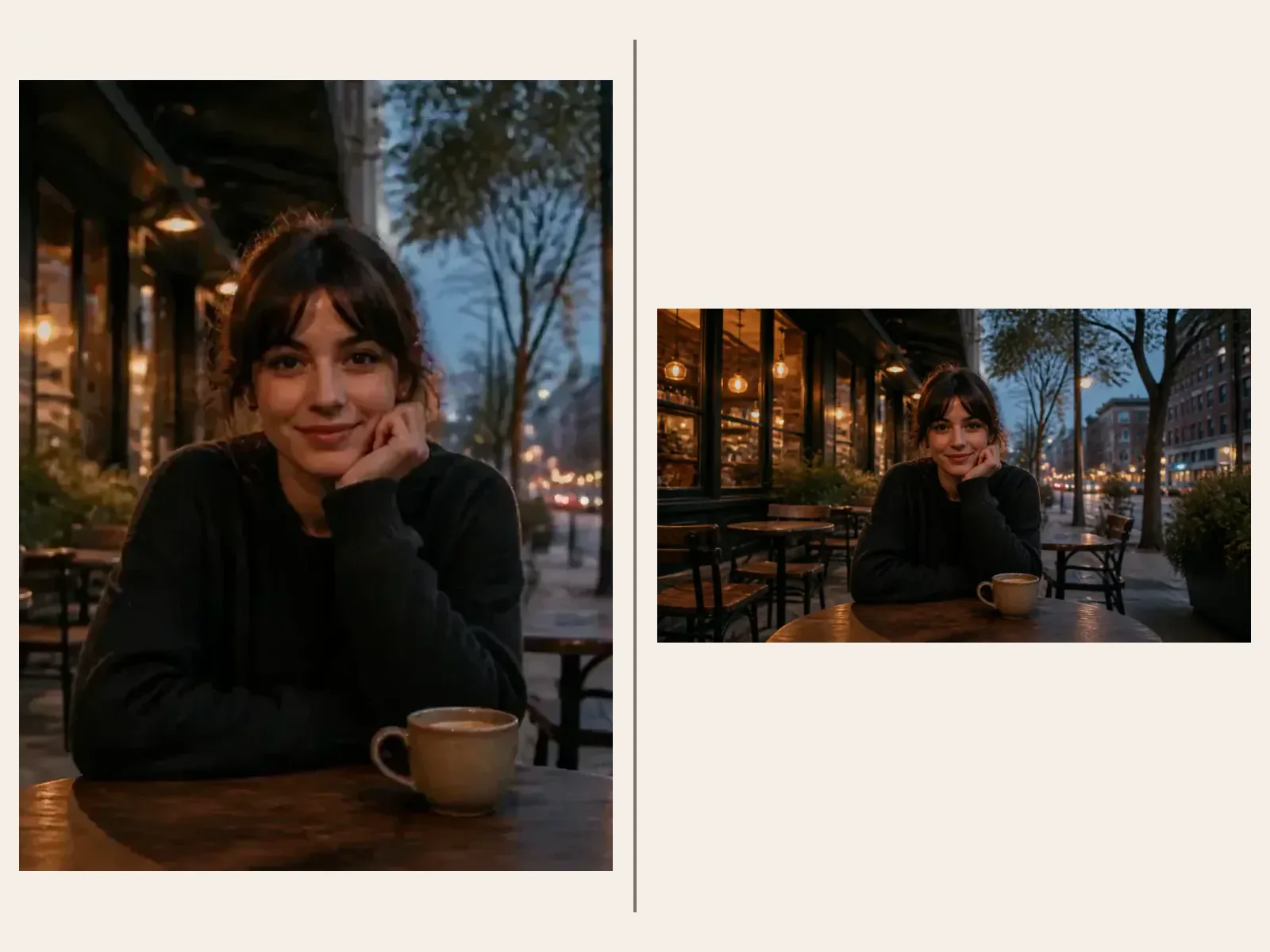
Describe the subject, relationship, setting, composition, color, light, and visual treatment in a concise hierarchy. Use an explicit aspect ratio to design for the final placement from the beginning.
Save up to 73% on plans
Grok Imagine
AI output preview
Browse every other AI image model and effect published on this site in a continuous carousel.
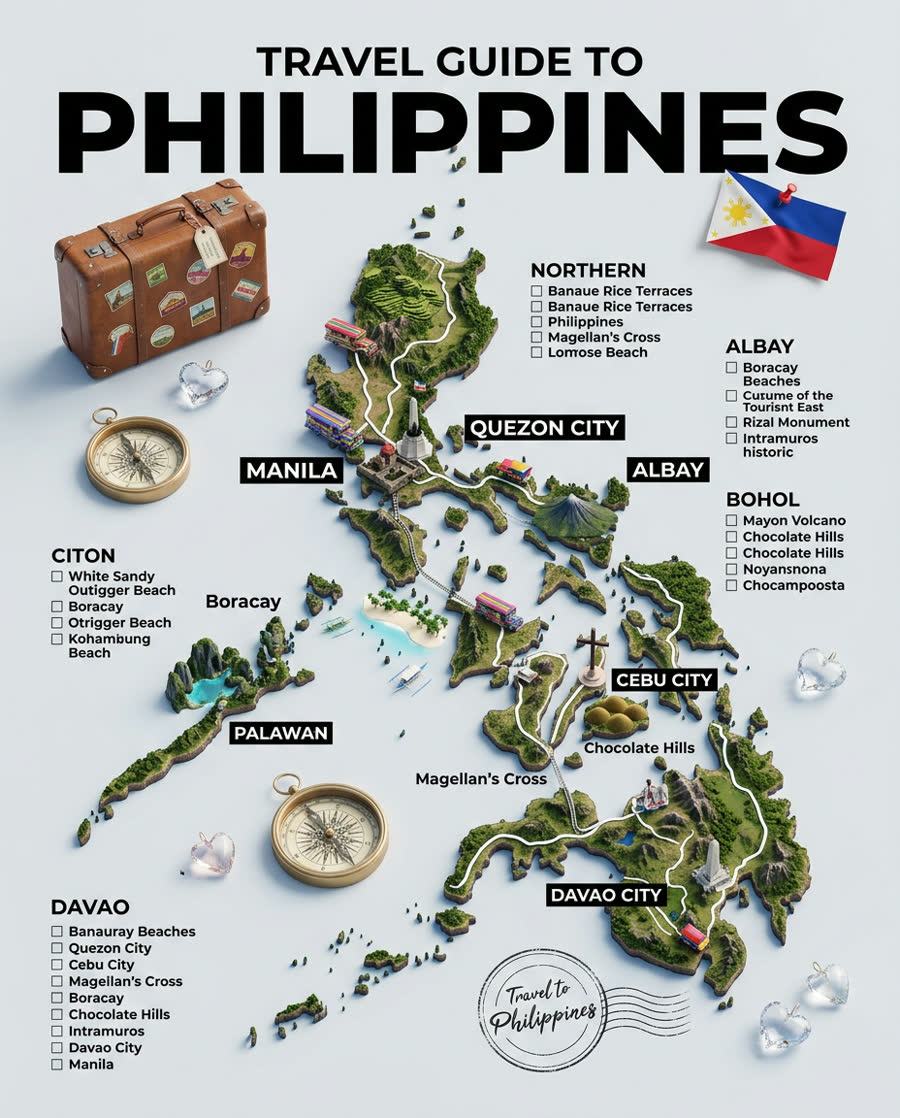
Grok Imagine is not limited to video. NanoPic exposes its KIE text-to-image route for original concepts and its image-to-image route for reference-based transformations, giving the image workflow its own canonical page, generator state, and guidance.
Choose the route based on whether the visual direction starts with language or an existing frame.
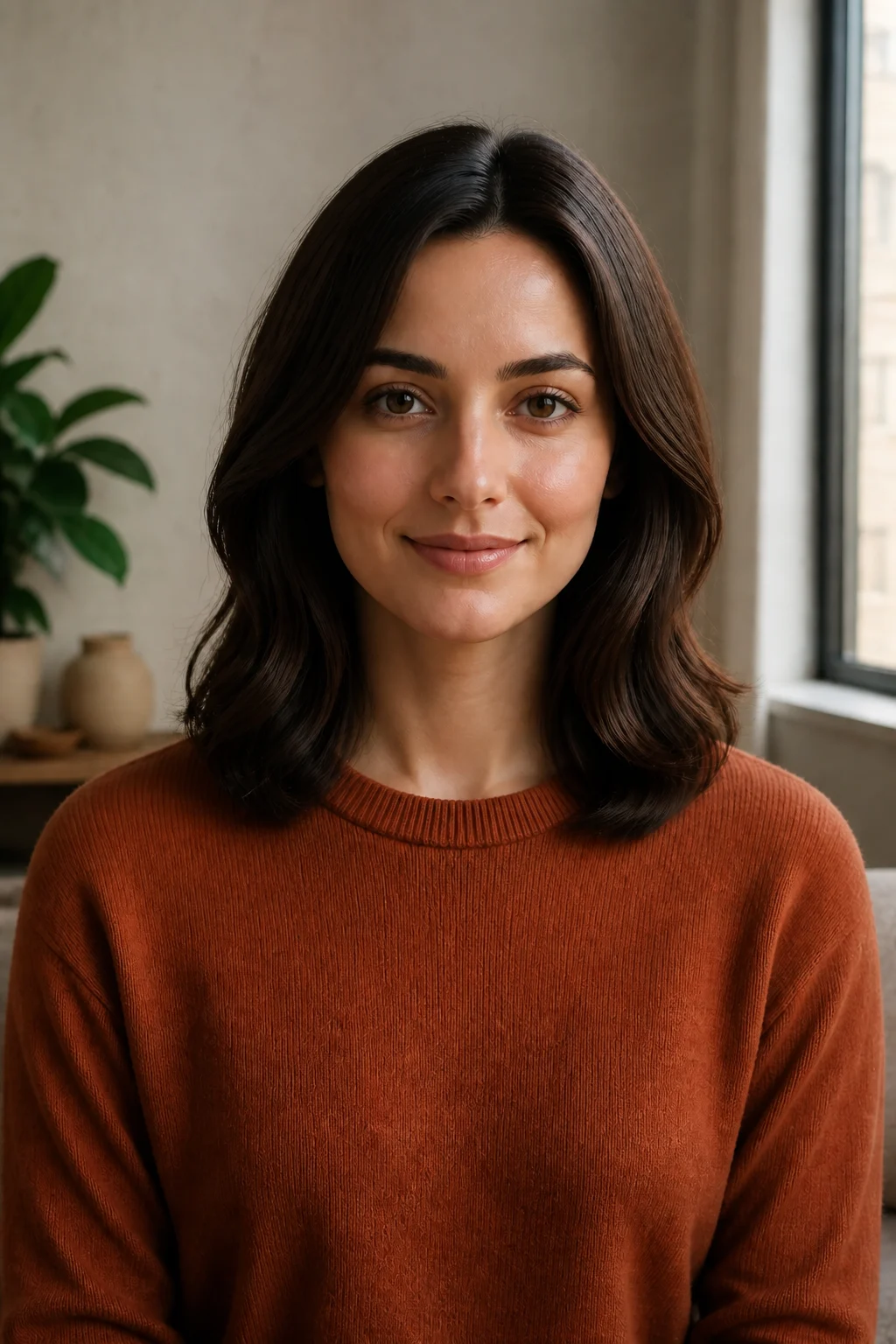
Describe the subject, relationship, setting, composition, color, light, and visual treatment in a concise hierarchy. Use an explicit aspect ratio to design for the final placement from the beginning.
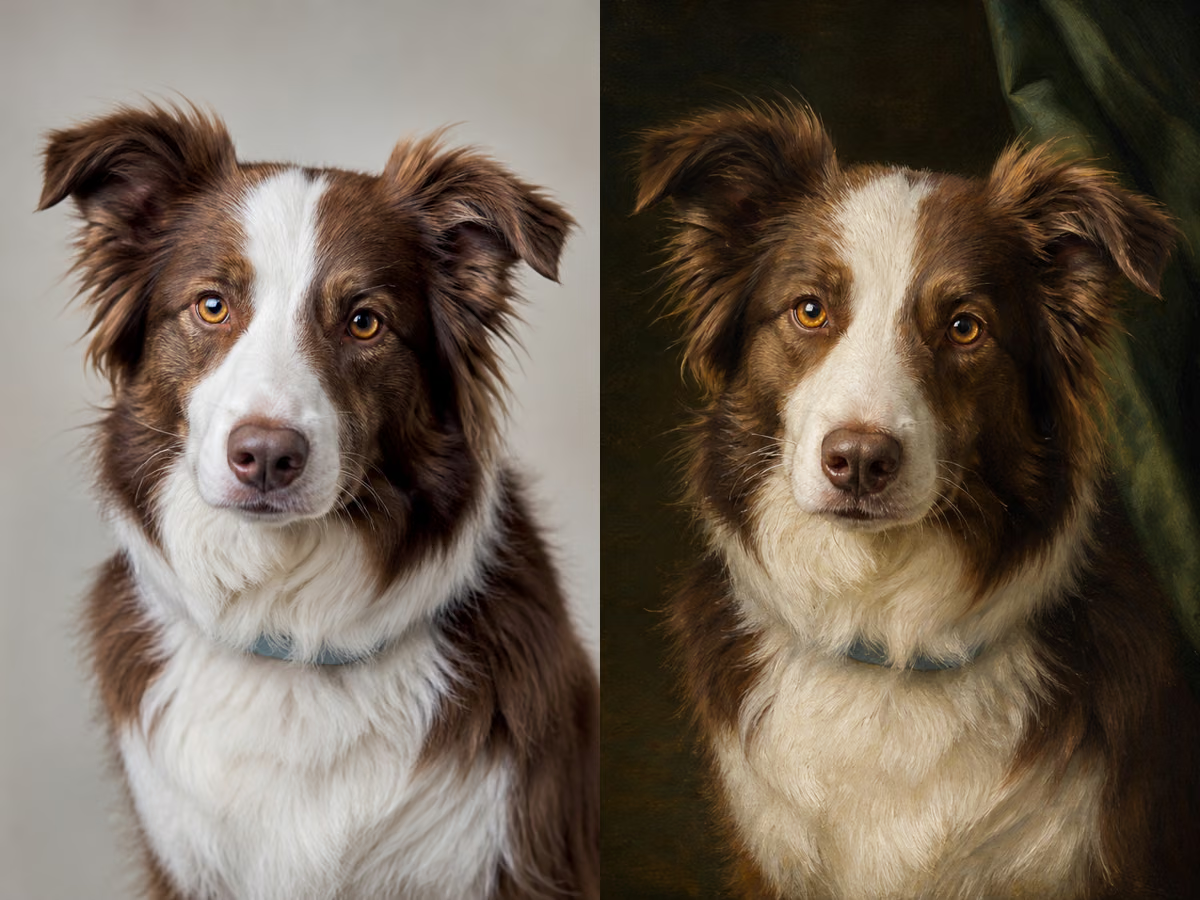
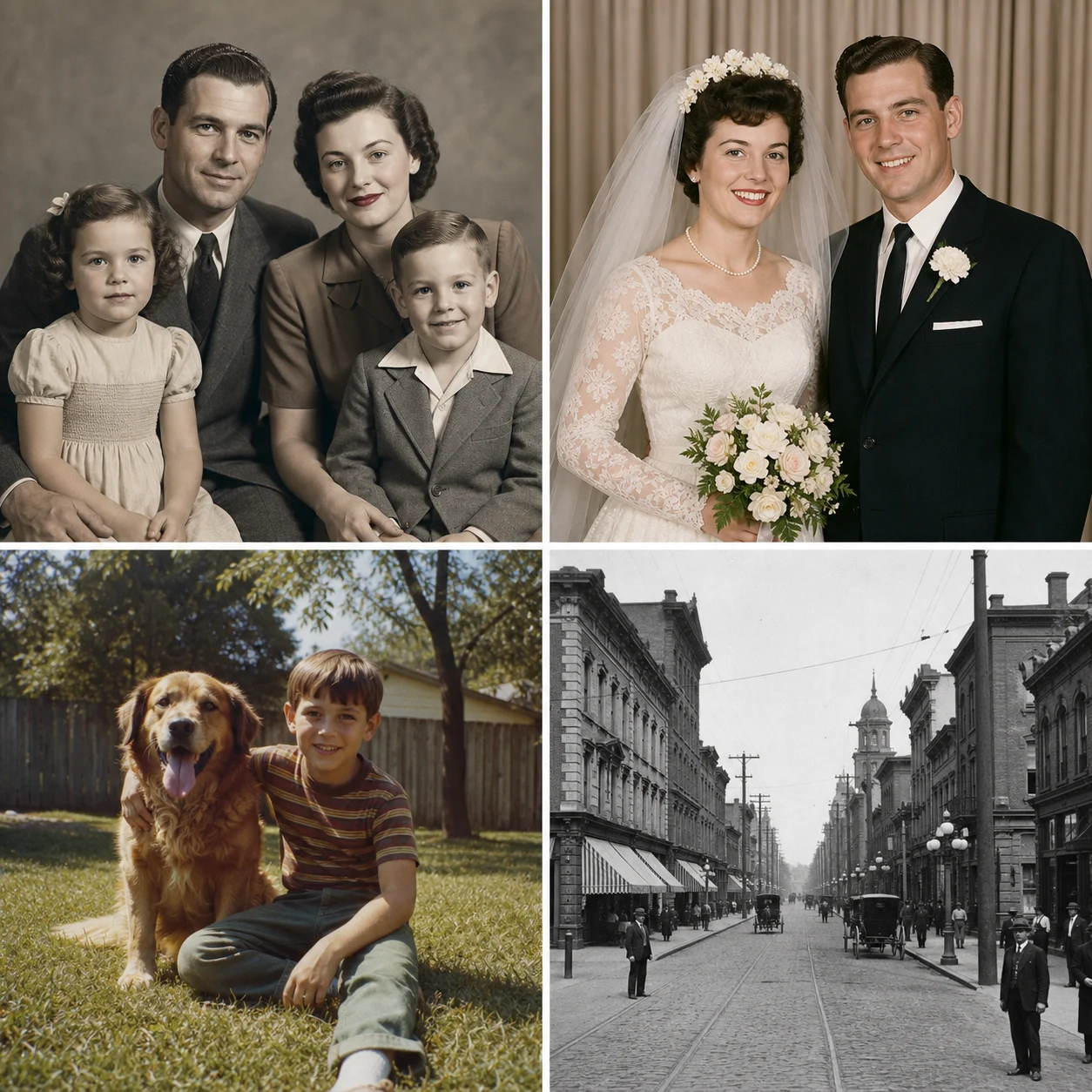
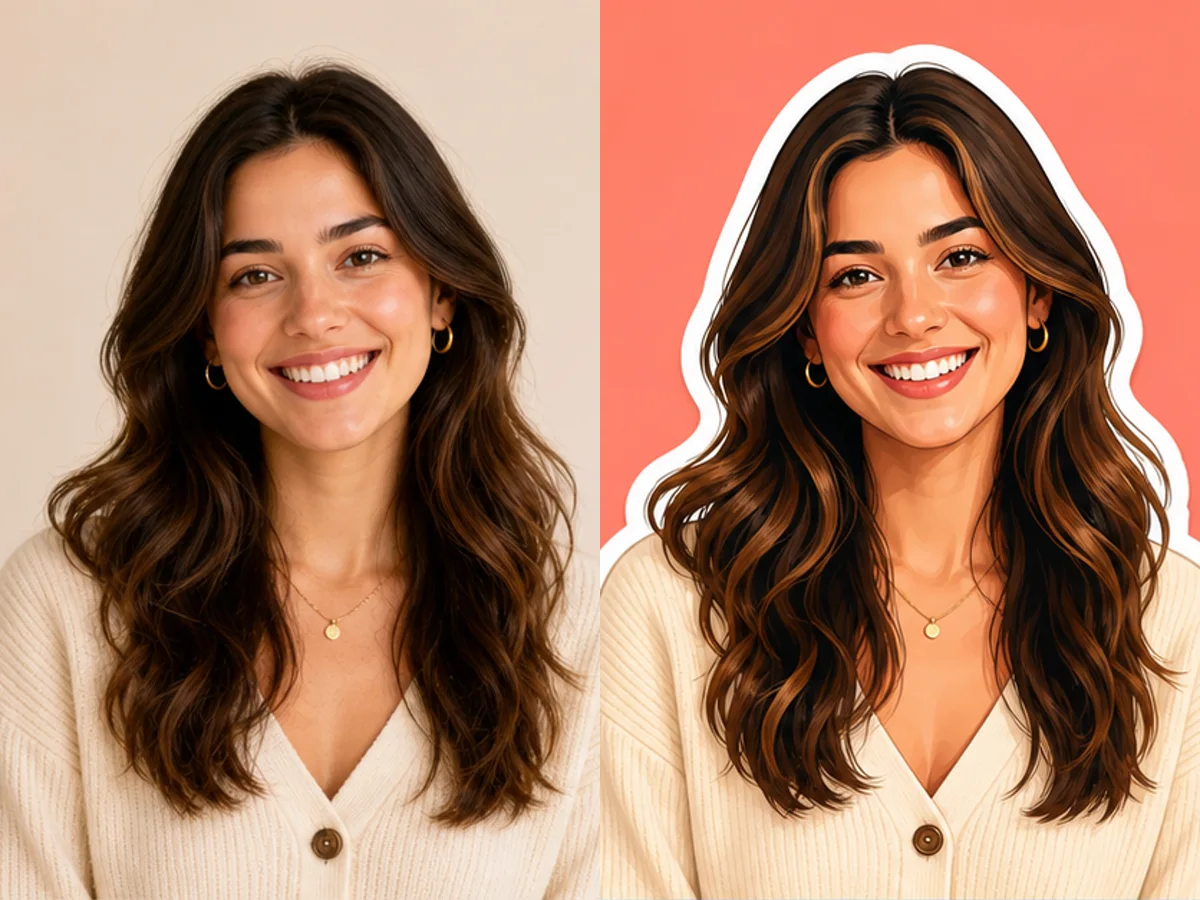
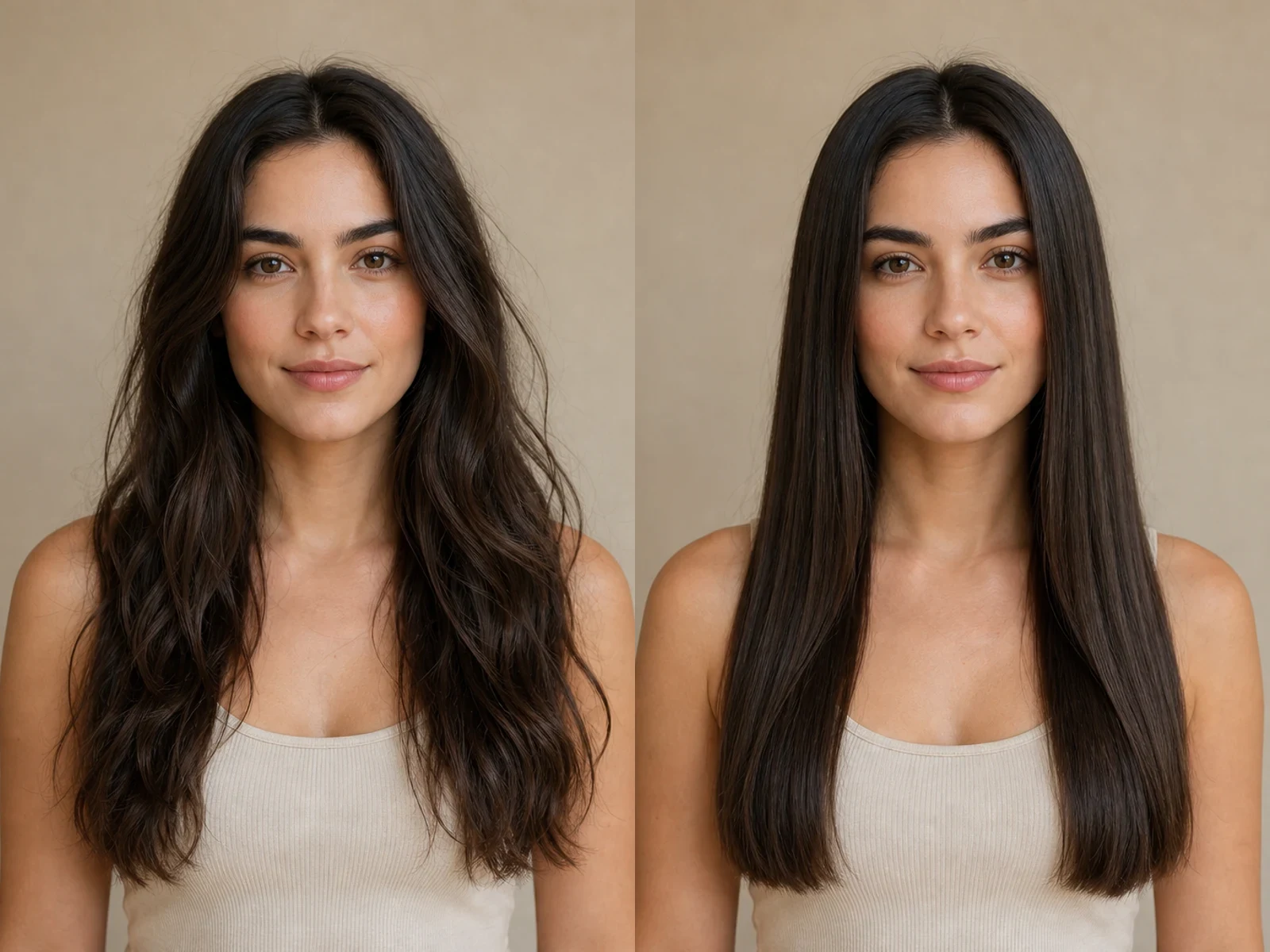
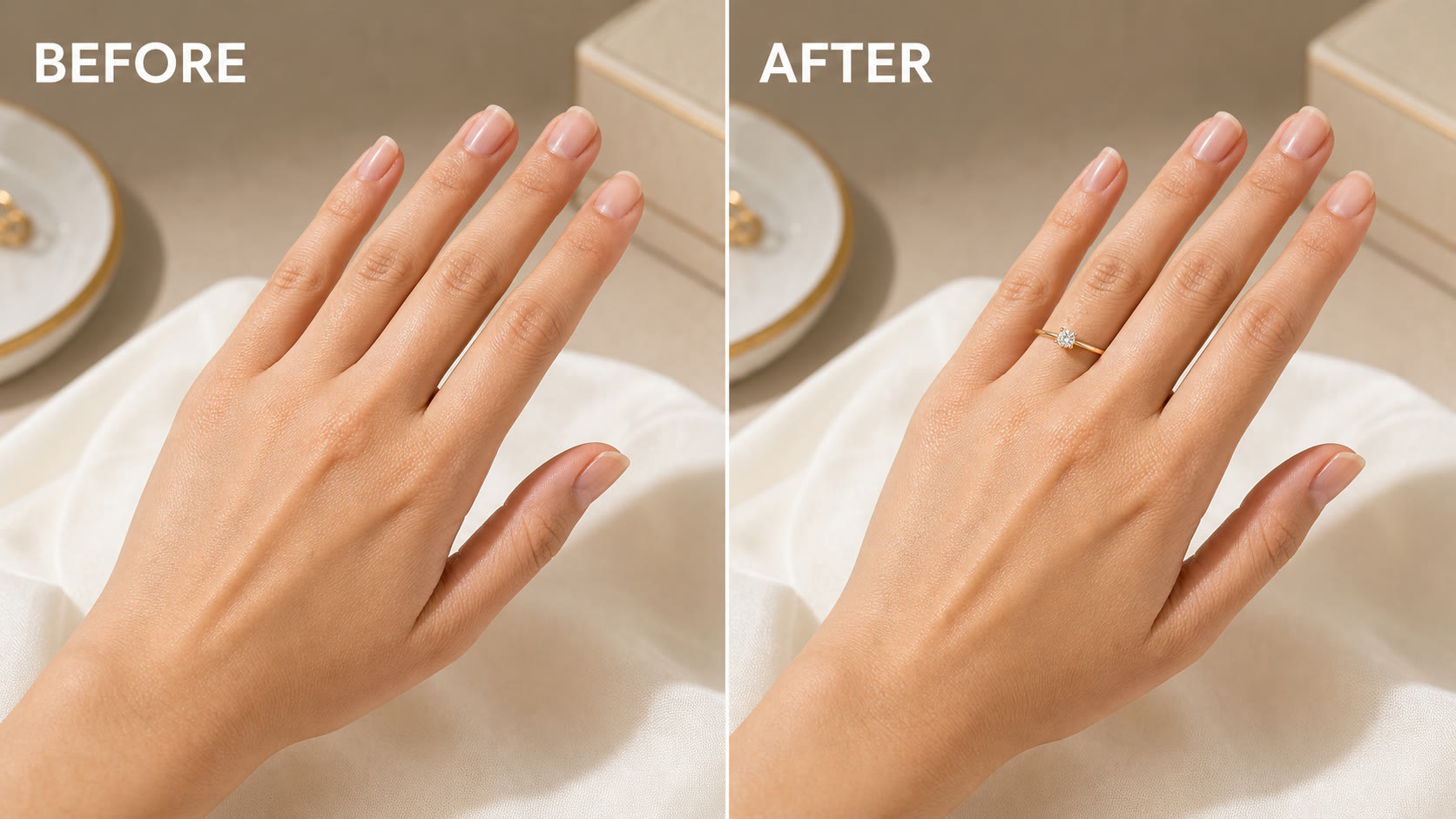
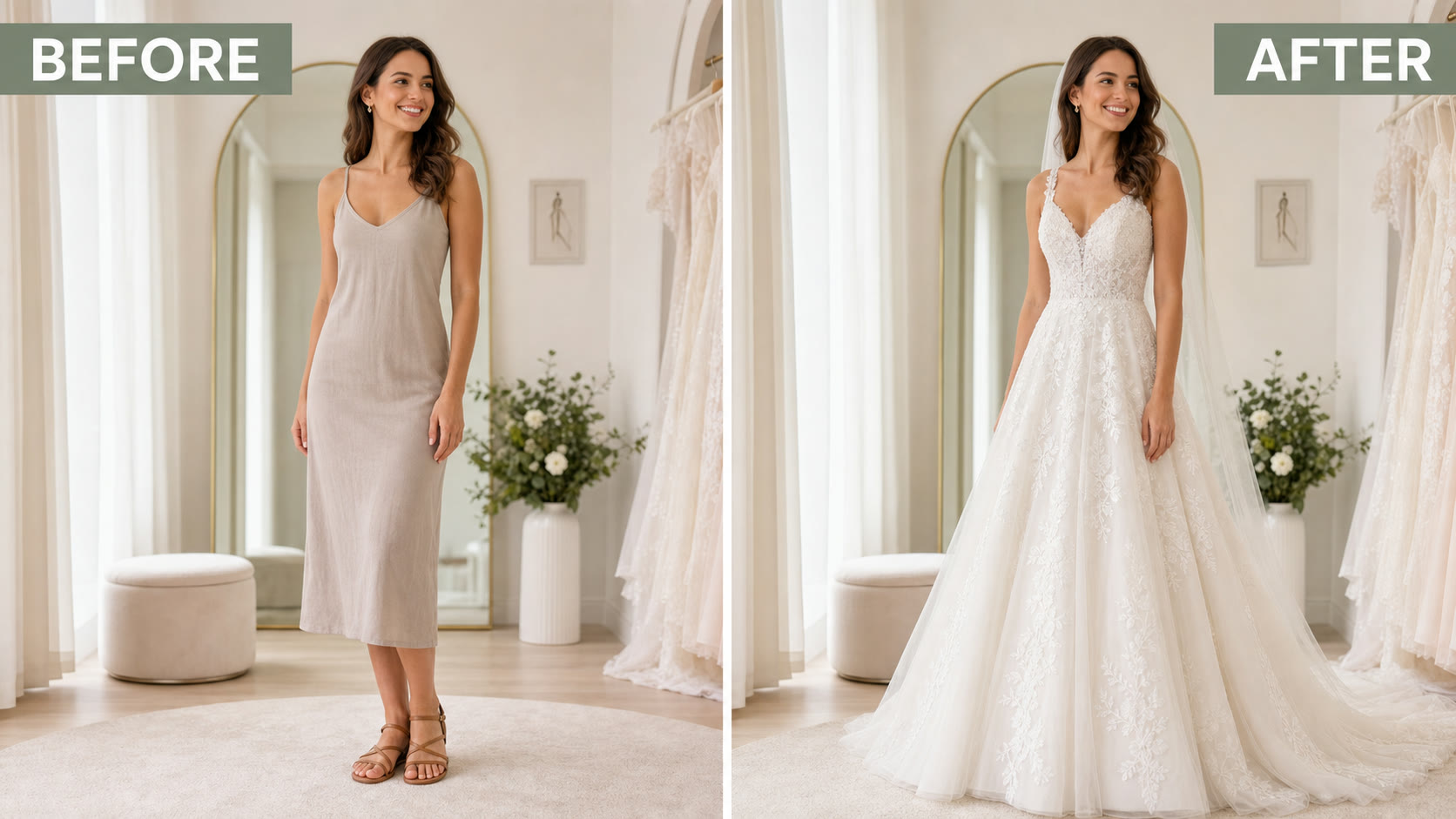
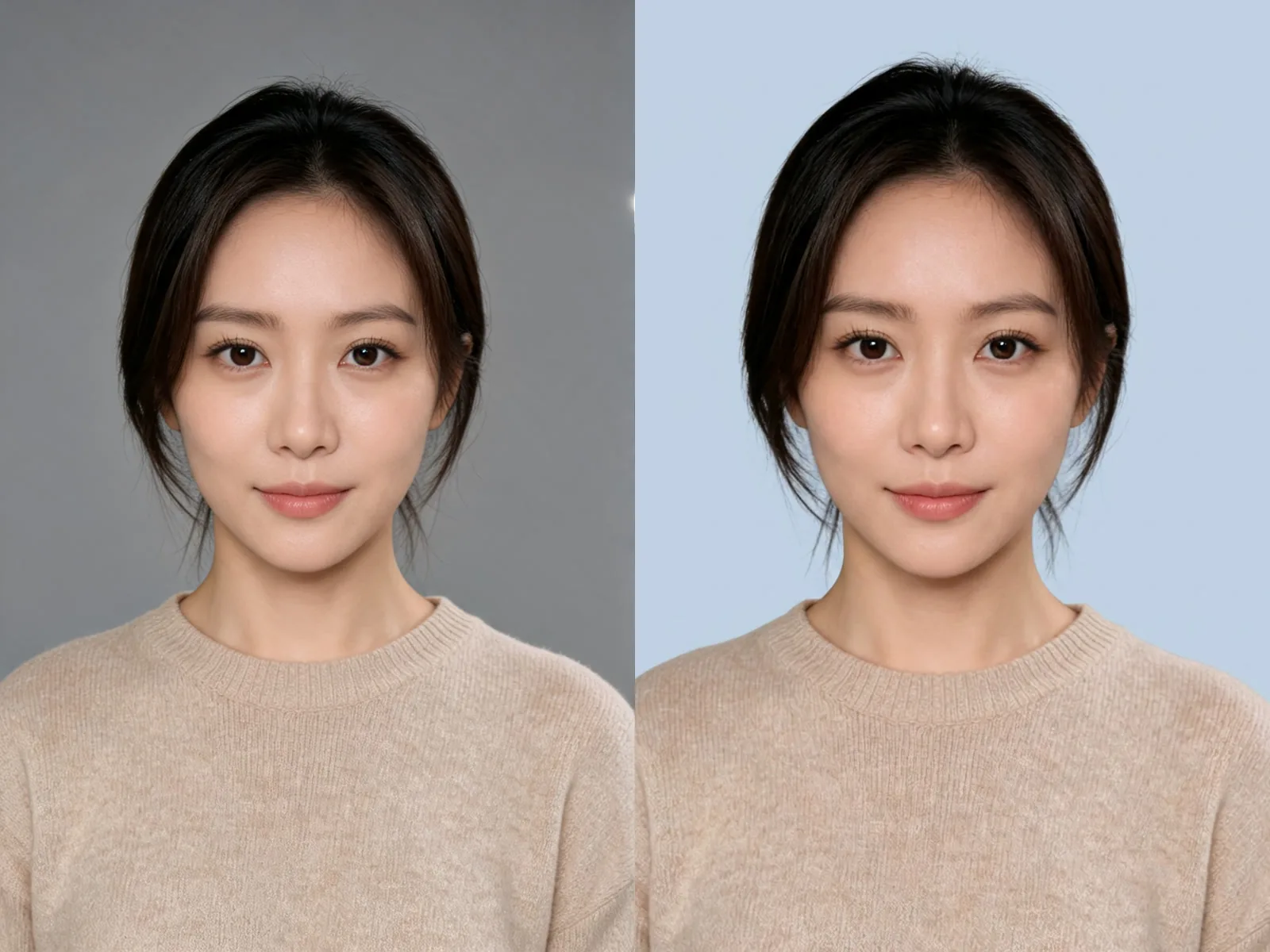
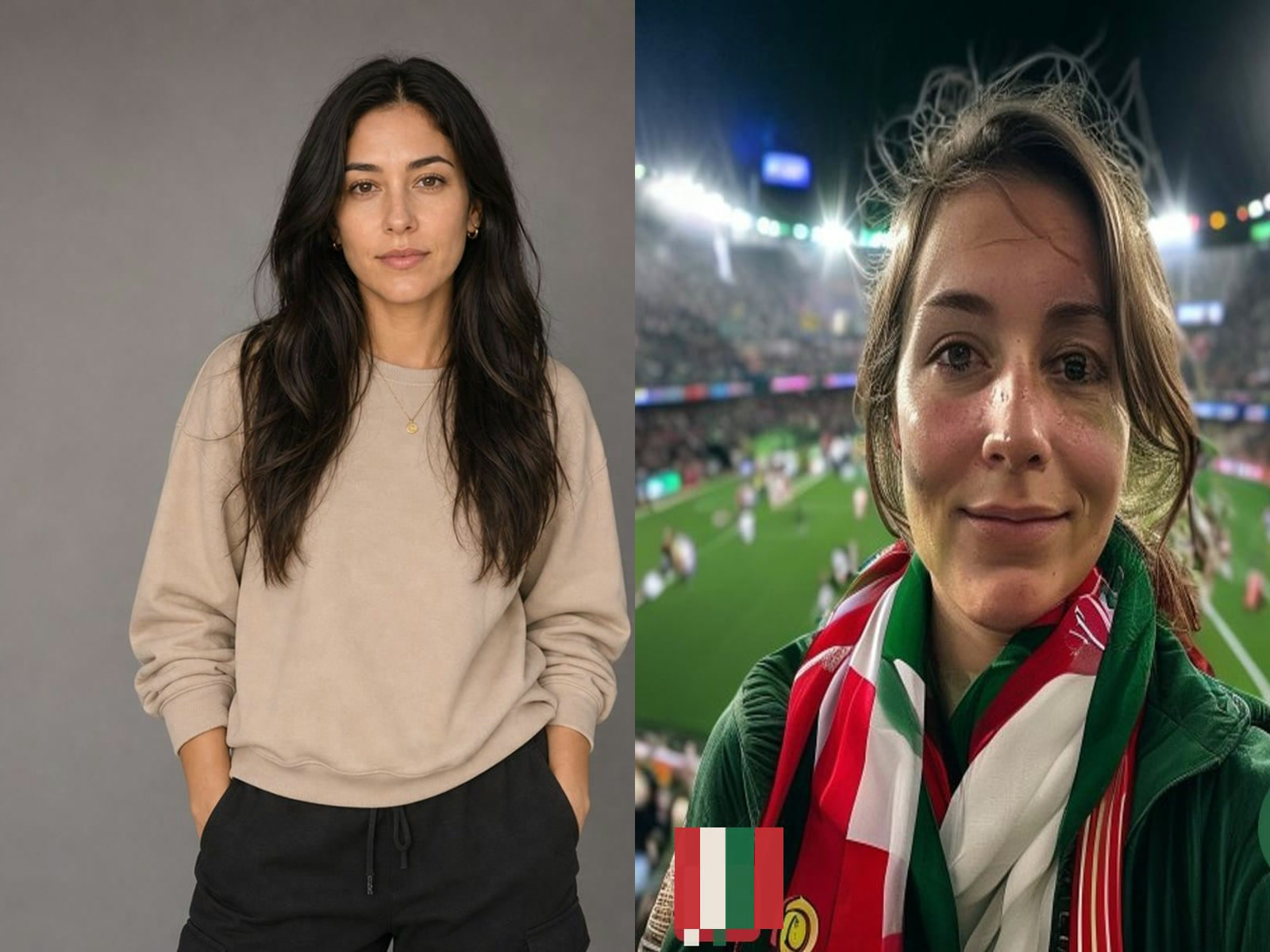
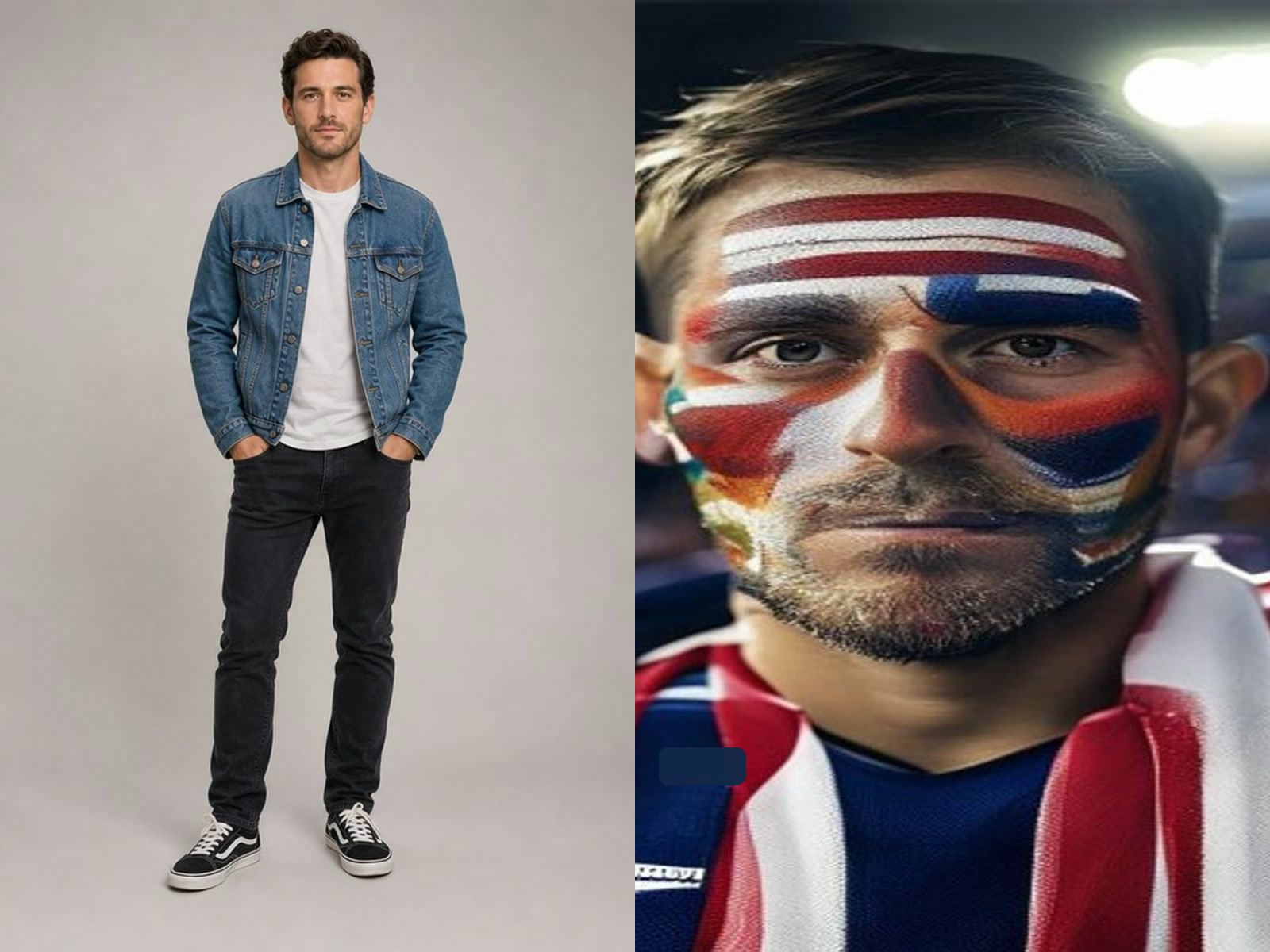
Upload a supported image and explain what to preserve, replace, restyle, or recompose. Refer to the source clearly in the edit instruction and review the result for unintended identity or object changes.
The image selector sends tasks to grok-imagine/text-to-image or grok-imagine/image-to-image. Video creation uses different provider IDs, controls, timing, and credits on the dedicated video page.
Use a short review loop that protects the central idea.
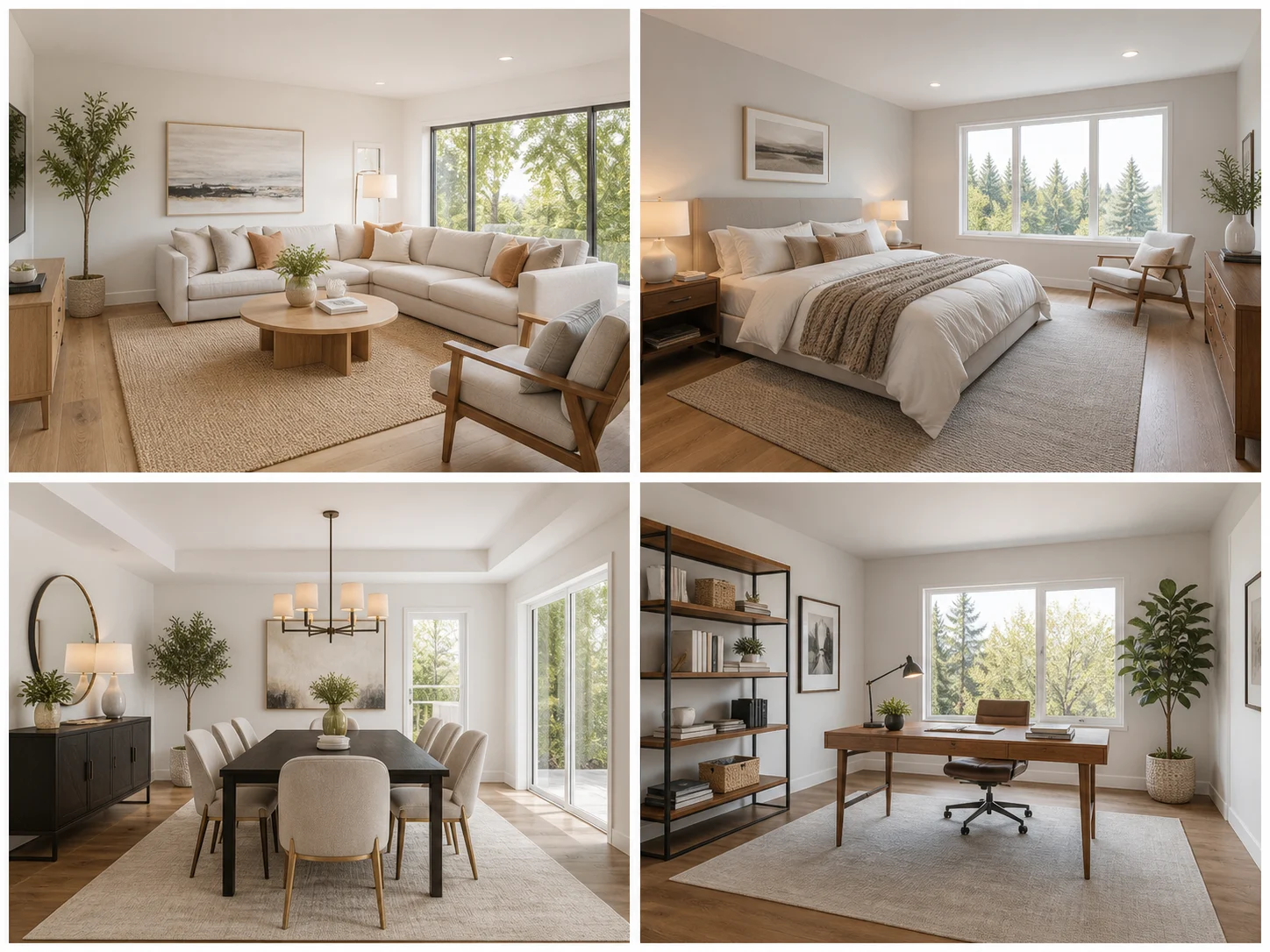
Start with subject count, placement, camera distance, background, and desired negative space. Add style only after the layout is understandable.
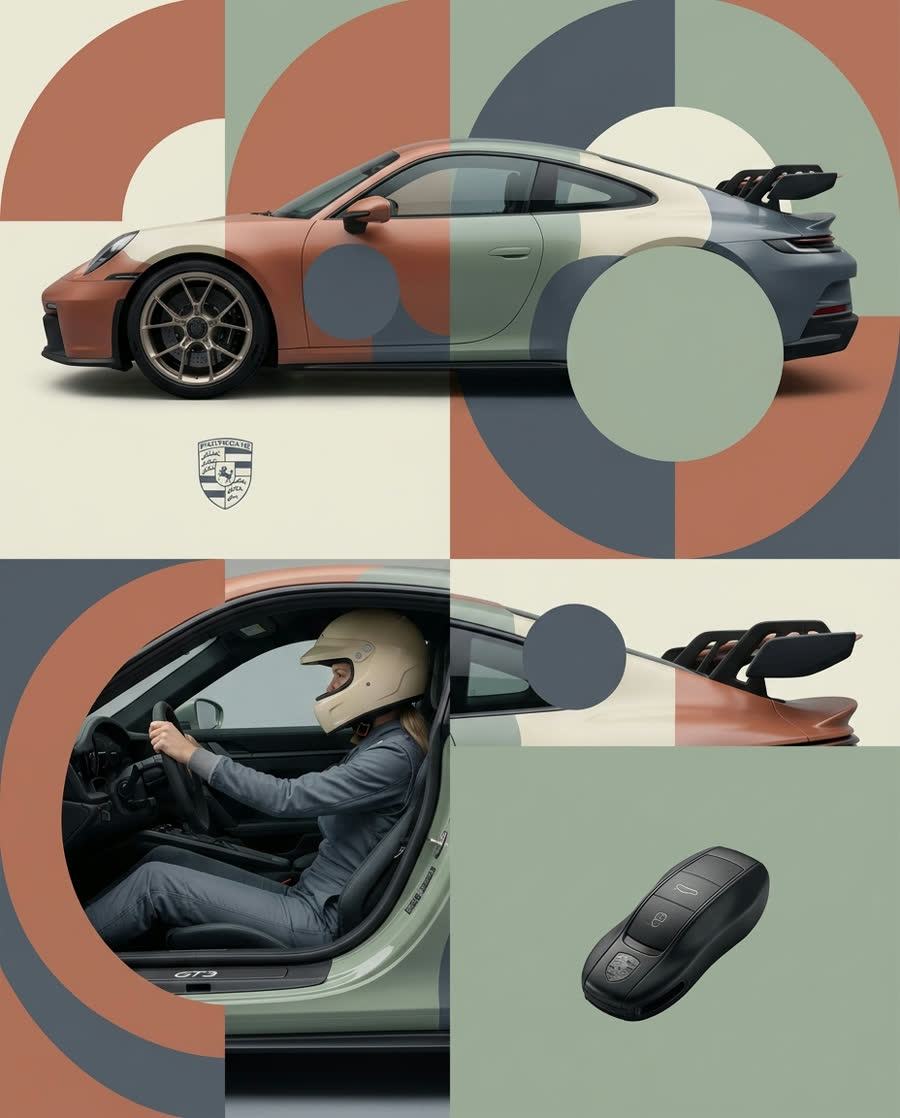
For image-to-image, separate protected elements from the requested change. A focused material swap or scene restyle is easier to assess than many unrelated edits at once.
Inspect people, products, text, background objects, cropping, and artifacts. Generated media remains a draft until it passes the checks required for its intended use.
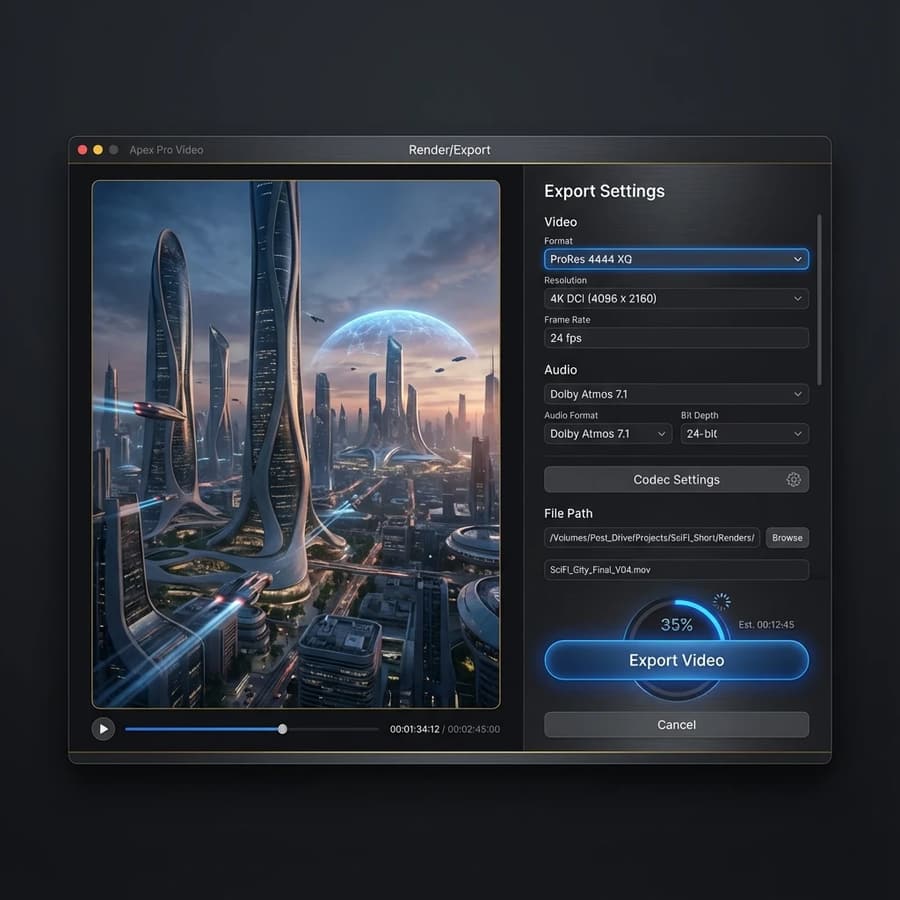
Choose the still-image route for deliverables that need a composed frame rather than motion, then document the selected direction, intended channel, source rights, and final acceptance checks for review.
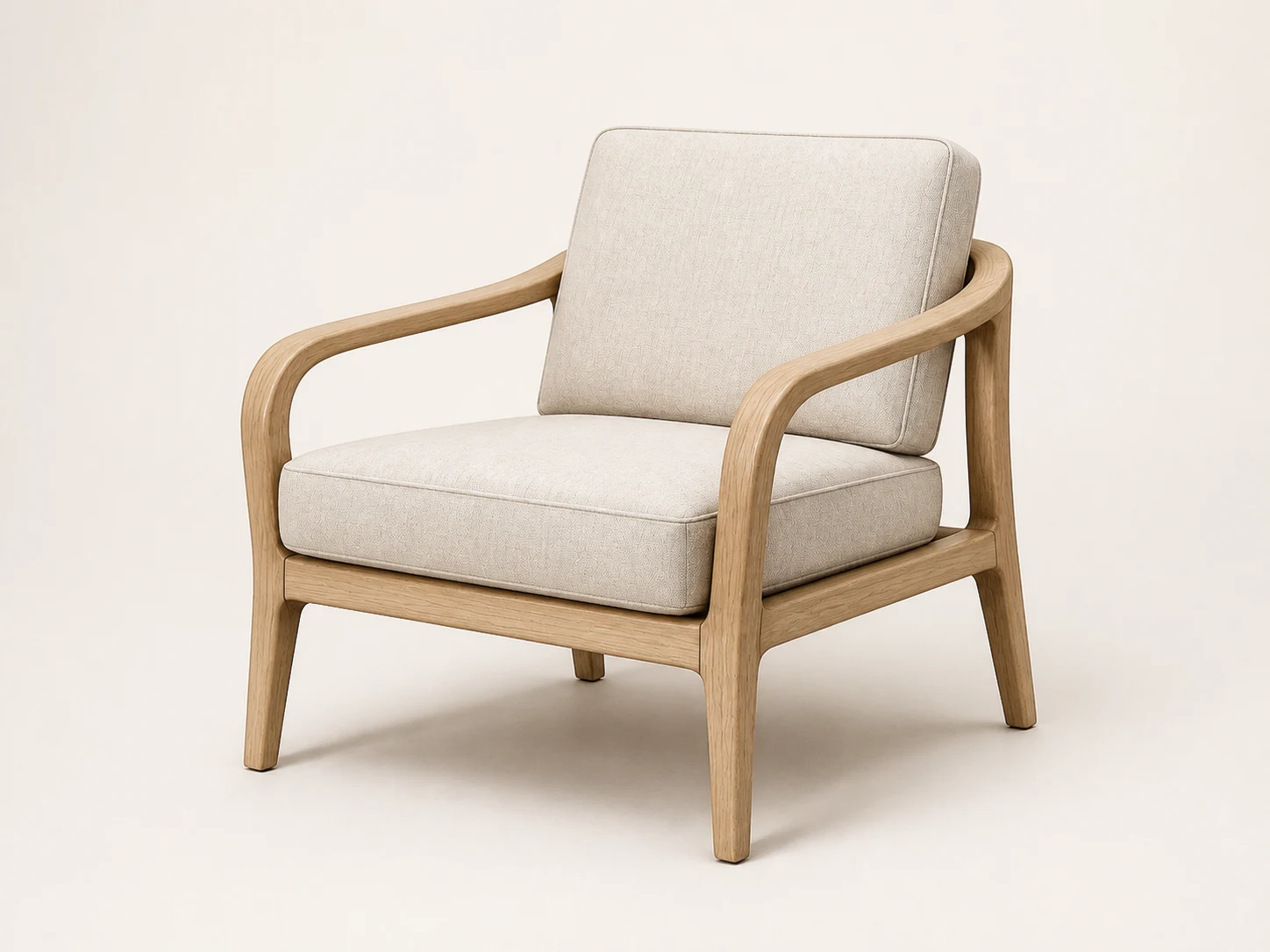
Write the message and intended placement before describing style. Define the hero subject, visual hierarchy, palette, copy-safe space, and one memorable treatment, then generate at the final ratio. Keep the strongest concept because it communicates the brief, not because it has the most decoration, and add accurate typography later in a controlled design tool.
Turn a theme into a concrete scene with named subjects, relationships, camera distance, light, and symbolic details that readers can understand. Specify whether the image needs room for a headline or caption. Review cultural context, factual implications, faces, hands, text-like marks, and sensitive identities before using an AI draft alongside published editorial content.
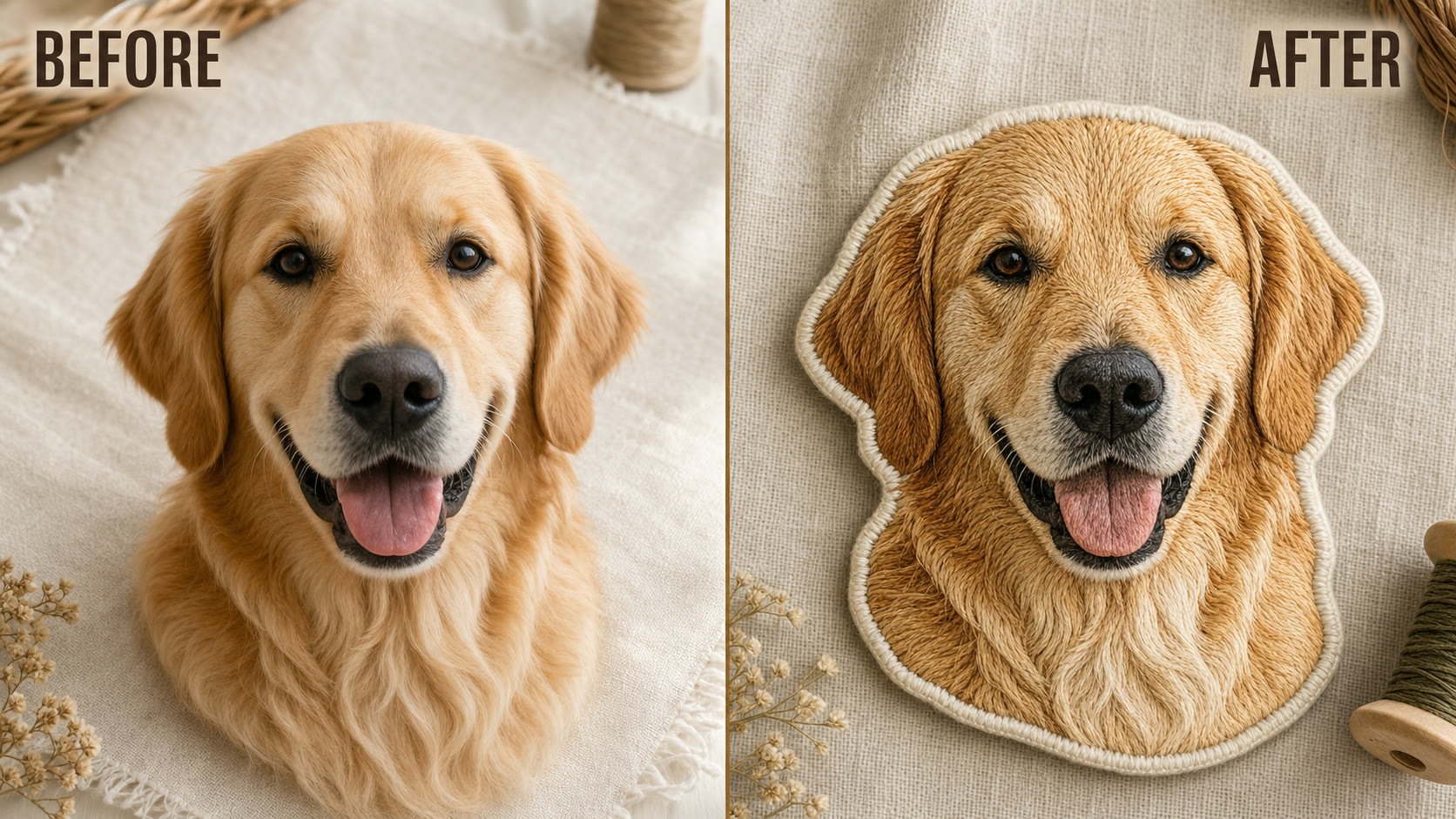
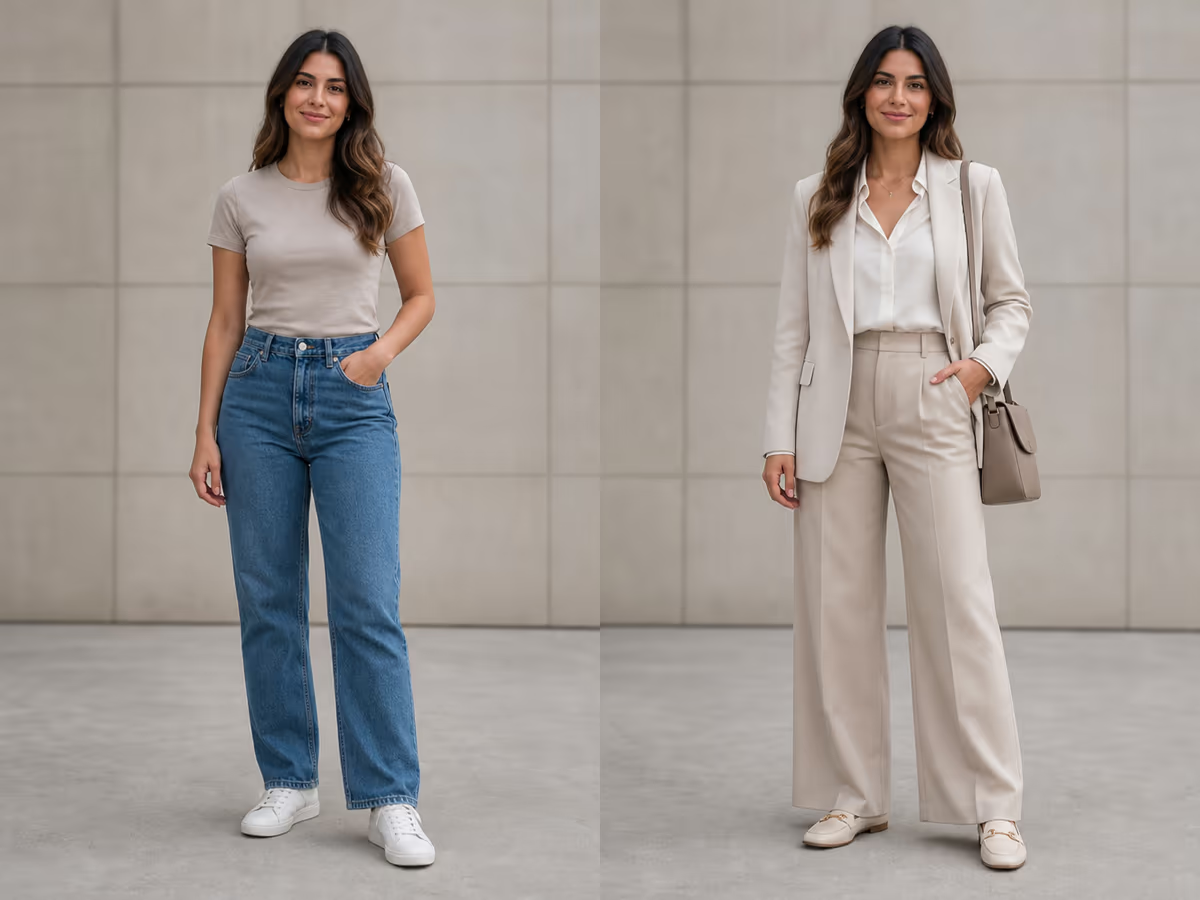
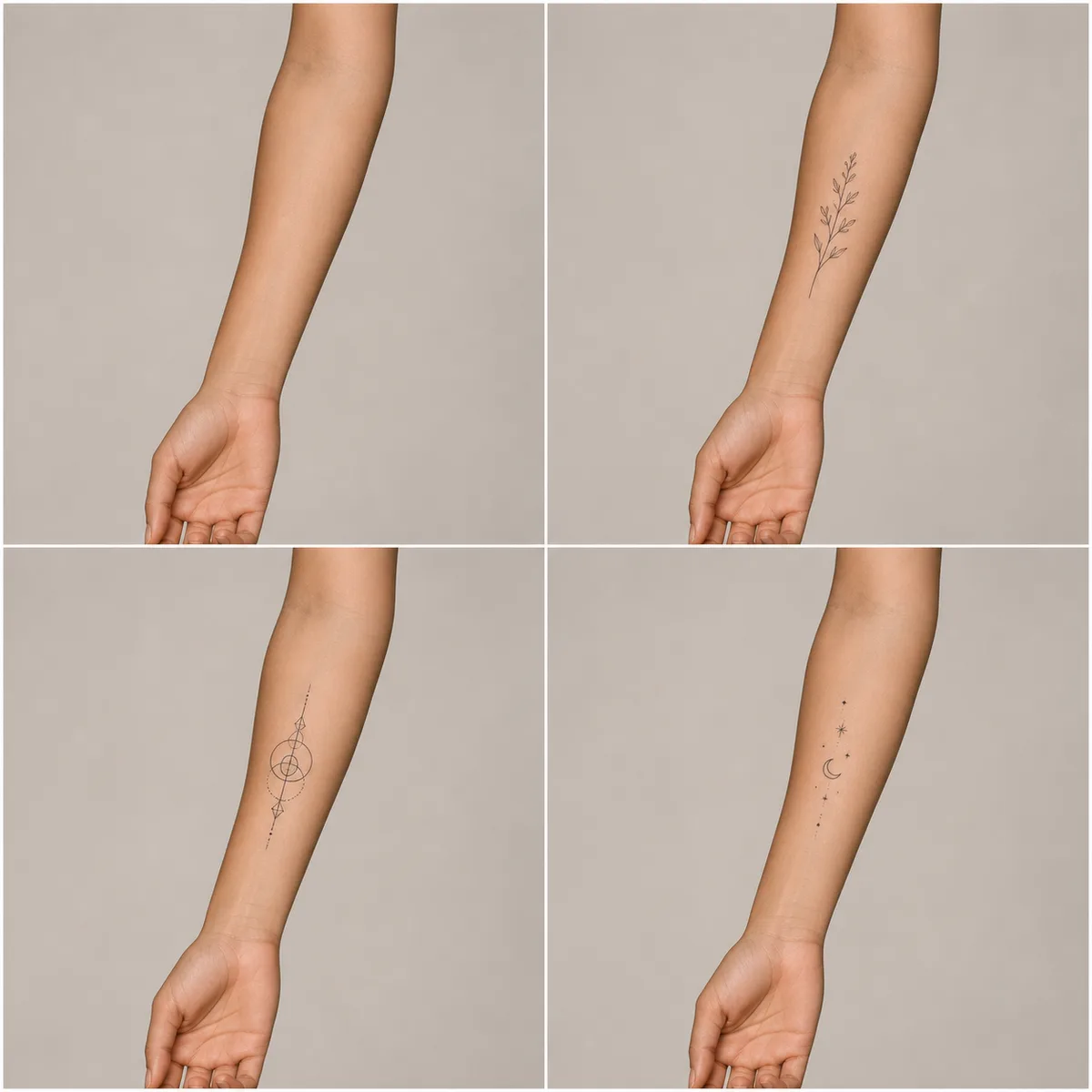
Upload one licensed reference and separate protected elements from the requested transformation. Ask to preserve identity, silhouette, or layout while changing a single dimension such as palette, material, season, or illustration method. Compare the output with the source at matching scale to catch distorted proportions, lost details, unintended logos, and changes outside the requested area.
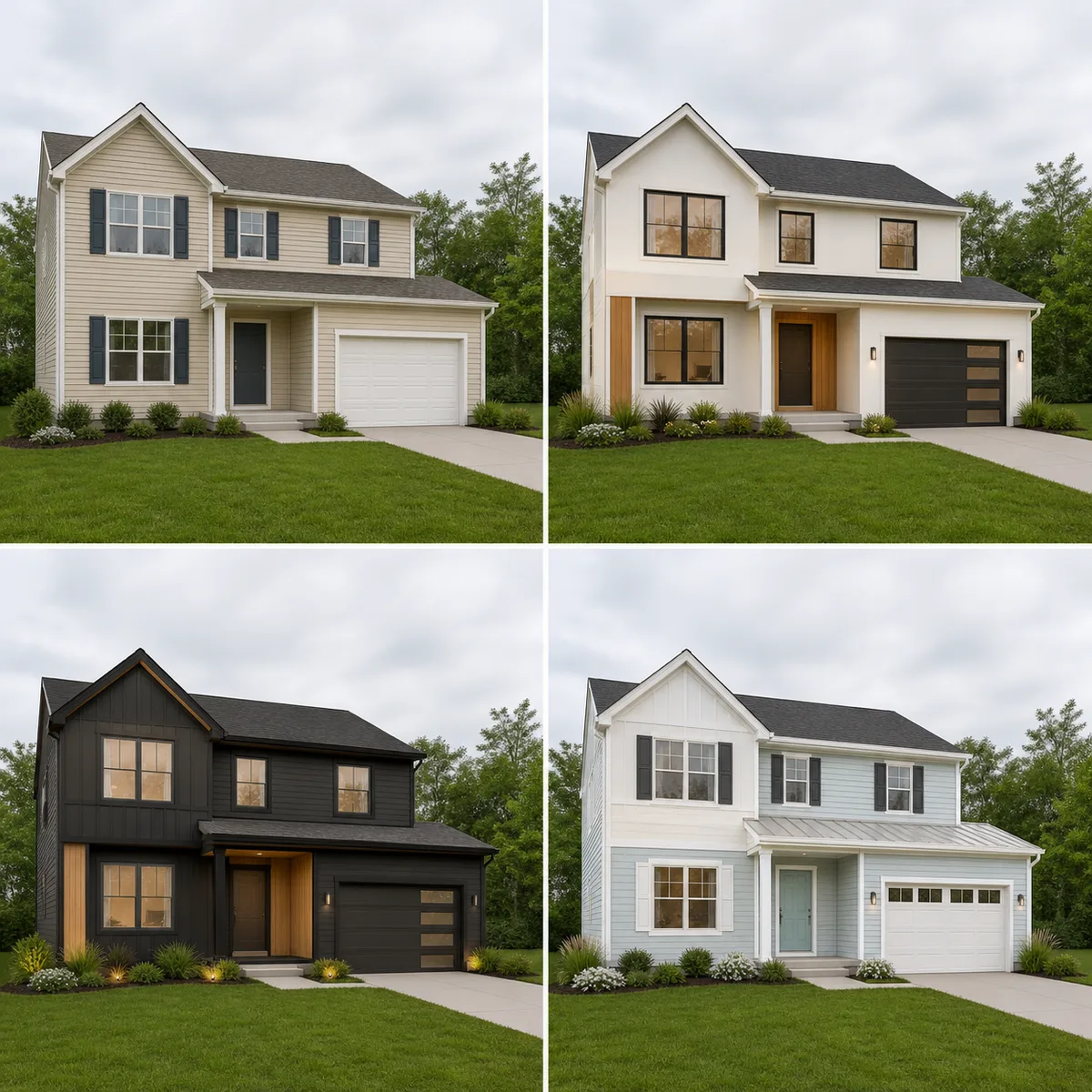
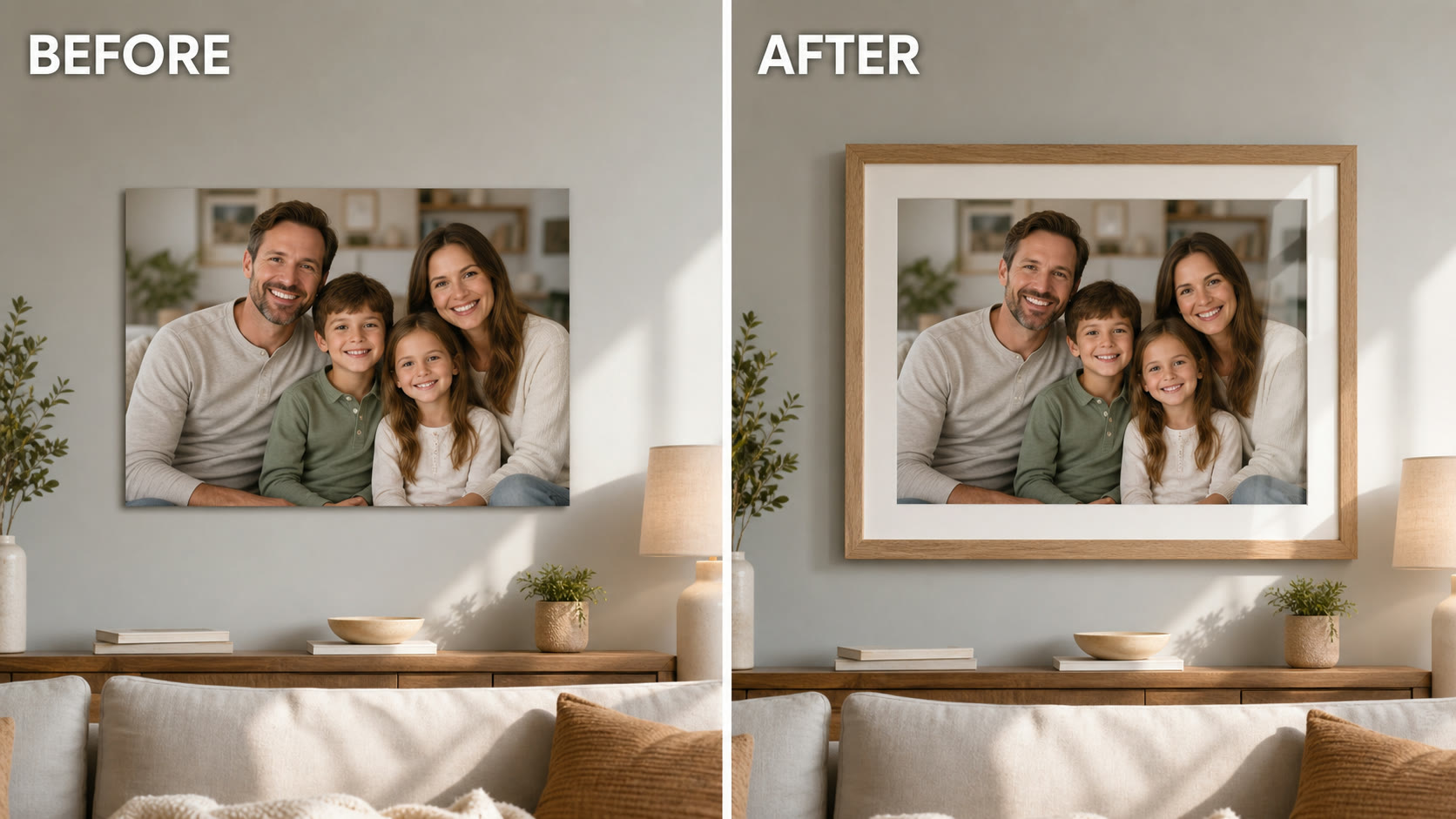
Create separate square, landscape, and portrait compositions from the approved visual idea instead of cropping one frame into every placement. Recheck focal position, negative space, product visibility, and small details in each ratio. Save prompts and settings with the selected result so future revisions can reproduce the direction without depending on an unexplained lucky generation.
Current details about the NanoPic image integration.
Yes. NanoPic supports KIE's Grok Imagine text-to-image and image-to-image routes in the image generator.
The model family provides both media types. Separate pages keep image controls and video controls accurate while connecting the two workflows.
Use a supported JPEG, PNG, or WebP reference within the displayed upload limit, then describe the intended transformation.
You can inspect the model and controls without signing in. A signed-in account with enough credits is required to submit a paid generation task.
Start from a written visual brief or reshape one licensed reference image.