
Hero in a misty forest
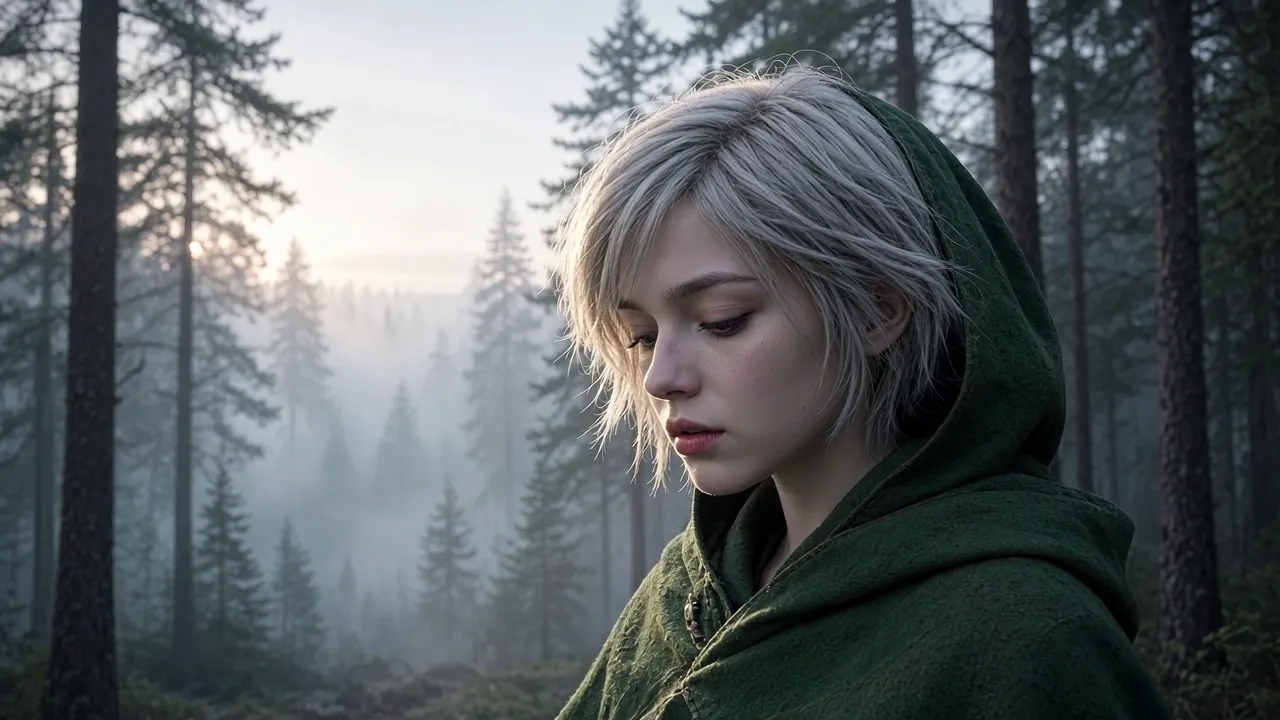
A silver-haired traveler in a green hooded cloak stands among pines at dawn as the camera moves closer.
Save up to 73% on plans
Sample AI clips for inspiration, each made from one short written scene. Your own clips will look different.
A silver-haired traveler in a green hooded cloak stands among pines at dawn as the camera moves closer.
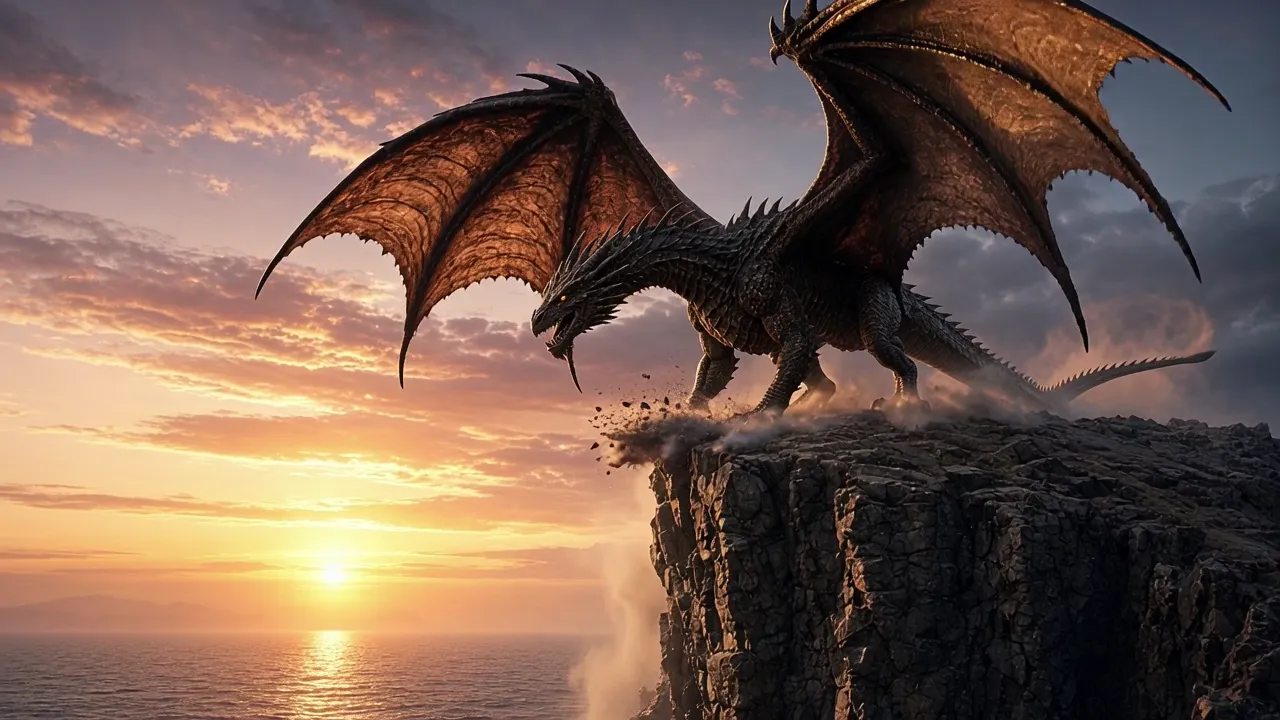
A dark-winged dragon lands on a rocky sea cliff at sunset, wings spread wide.
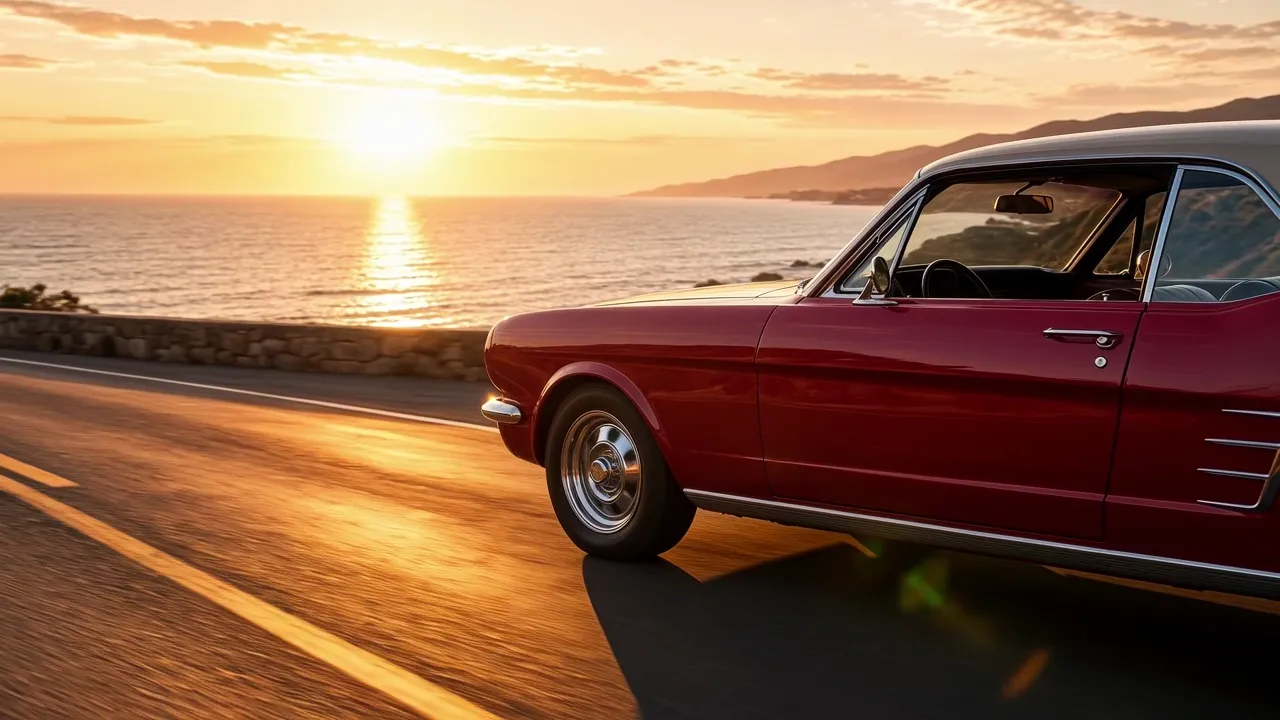
A red vintage car drives along the coast at golden hour in a low side tracking shot.
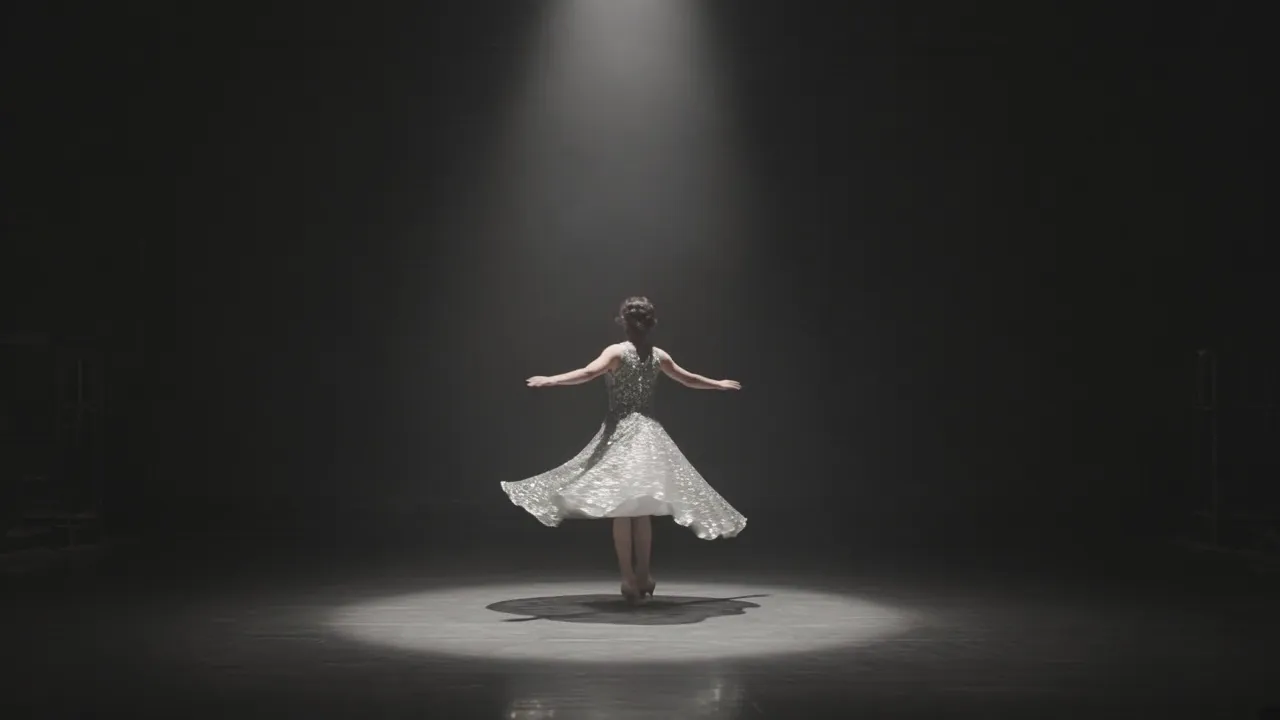
A dancer in a silver dress spins slowly in the center of a dark stage under a single soft spotlight.
Write a sentence about a scene, or start from a photo, and the LoreMotion AI video generator gives you a short moving clip you can watch, download and share. Bring a character from your story to life, show a product from every side, turn a family photo into a gentle moment or make a vertical clip for your feed.
Turn an idea into a finished clip with the LoreMotion AI video generator.
Name who or what is on screen, what happens and where. Add the light, the mood and one camera move, such as a slow push-in or an orbit.
Press the create button and your clip appears when it is ready.
Download the clip you like, or change one detail in your prompt and make another version.
When the look of the first frame matters, give the LoreMotion AI video generator a picture instead of text.
One main subject, good light and a simple background give the clip a clean start.
Your picture already shows the scene, so write what moves and how the camera behaves.
NanoPic video effects, such as old photo animation or a full-turn product orbit, come with the direction already written.
Want a different style? Open the NanoPic AI Video Generator, run your LoreMotion AI prompt again and keep the version you like.
Fantasy worlds, fan stories and character backstories work well as a series of short LoreMotion AI scenes.
Break the story into moments: an establishing view, a character close-up, an action beat and a closing image.
Describe each character the same way in every LoreMotion AI prompt: hair, clothing, colors and one signature item.
Make or pick one picture of your hero and animate it, so every scene opens with the same face and outfit.
Put the clips in order, add narration, music and titles, and your lore video is ready to share.
Build each vertical LoreMotion AI clip around one clear idea.
Say vertical or portrait framing in your prompt so the subject fills a phone screen.
Start your clip with the action straight away instead of a slow build-up.
Keep the top and bottom of the frame simple and add text later in your editor.
Choose the frame for where the clip will be watched, then say it in your prompt.
Wide scenes, YouTube videos and story openers with lots of setting.
Clips for phone feeds, character close-ups and dance or fashion moments.
Feed posts and product shots where the subject sits in the center.
Concrete, visual language gives the best results from the LoreMotion AI video generator.
In every prompt, put the main subject in the first sentence: a red vintage car, a ginger cat, a dancer in a silver dress.
One action per clip reads better than several. A cat jumping onto a windowsill beats a cat jumping, eating and sleeping.
In a prompt, words such as close-up, wide shot, low angle, handheld, dolly forward or slow orbit give each shot a clear direction.
Golden hour, neon night, soft overcast or a candlelit room change the whole look.
Start with one of these ideas and change the details to fit your story.
Describe your hero standing in their world, then ask for a slow push-in so the face fills the frame by the end of the shot.
Place one item on a clean surface, ask for soft studio light and a slow orbit, and keep the background simple so the shape stays clear.
Upload a family photo and ask for gentle motion only, such as hair moving in a breeze or a small smile, so the moment still feels real.
Pick one key moment from your story, such as a gate opening or a dragon landing, and describe the place, the weather and the light.
Ask for one simple repeating action, such as rain on a window or a candle flickering, framed vertically for phone screens.
Both ways work in the LoreMotion AI video generator. Pick the one that matches what matters most to you.
Choose text when you want to explore ideas, try different places and moods, or you do not have a picture yet.
Choose a photo when the face, outfit or product must look exactly right from the very first frame.
Explore a scene with text first, then pick a picture you like and bring it to life for the final version.
Share your LoreMotion AI videos with a little care.
Read the NanoPic terms of service for the current rules on using clips in your own projects.
Upload pictures you own or have permission for, and never imitate real people without consent.
If a LoreMotion AI video is based on someone else's world or characters, follow that creator's rules for fan work.
A few simple checks protect you whenever you use the LoreMotion AI video generator.
See how uploads are stored and how to delete your files.
Avoid putting addresses, phone numbers or private documents into photos or prompts.
Pause on close frames of each clip and check faces, hands and motion before a clip goes public.
Every AI video has weak spots, and LoreMotion AI clips are no exception. A clearer prompt often helps.
Shorten the prompt, keep one action and move the key detail to the first sentence.
Add words such as subtle, gentle or slow, or ask for a locked-off camera.
Name materials, colors, era and light instead of words such as beautiful or amazing.
Upload a photo and bring it to life, so your clip starts from that exact picture.
Sign in to NanoPic, open the LoreMotion AI video generator and write your first scene.
Write a scene or upload a still, press create, and download a short AI video clip.
No, NanoPic is not affiliated with LoreMotion.
Yes, sign in to NanoPic to use the LoreMotion AI video generator and save your clips.
Read the NanoPic terms of service and privacy policy first. Follow the latest rules shown on the site.
Name the subject, one action, the setting, the light and a camera move, then press create.
Yes. Upload a photo, describe the motion you want and the LoreMotion AI video generator makes it move.
Yes. Make several short LoreMotion AI scenes with the same character description, then join them in your editor with narration and music.
Yes. Ask for a vertical or portrait framing in your prompt.
Read the NanoPic terms of service for current usage rules, and make sure you have the rights to any photo or likeness you use.
Read the privacy policy, upload only photos you have the right to use and review every clip before you post it.
Yes. Change the light, mood or camera words in your LoreMotion AI prompt, or open the NanoPic AI Video Generator to try other looks.
Every LoreMotion AI clip is different. Before you post, check faces, motion, hands and blurry text; change the prompt if something feels off.
Download your finished clip and share it on TikTok, Reels, Shorts or another platform. Confirm rights to any photo or likeness, and follow each platform's rules.
Clips can miss parts of a prompt, overdo motion or blur hands and text. A shorter, more specific prompt and a careful review help.
Name the subject, one action, the setting, the light and a camera move, then try small changes until the clip feels right.
Write a scene, pick a camera move and turn your idea into a LoreMotion AI video clip.