






Save up to 73% on plans

Qwen Image 2.1 Turbo AI Image Generator
Sign In
Public VisibilityAllow this result to appear in public inspiration surfaces.
Credits required:—

Qwen Image 2.1 Turbo AI Image Generator

Qwen Image 2.1

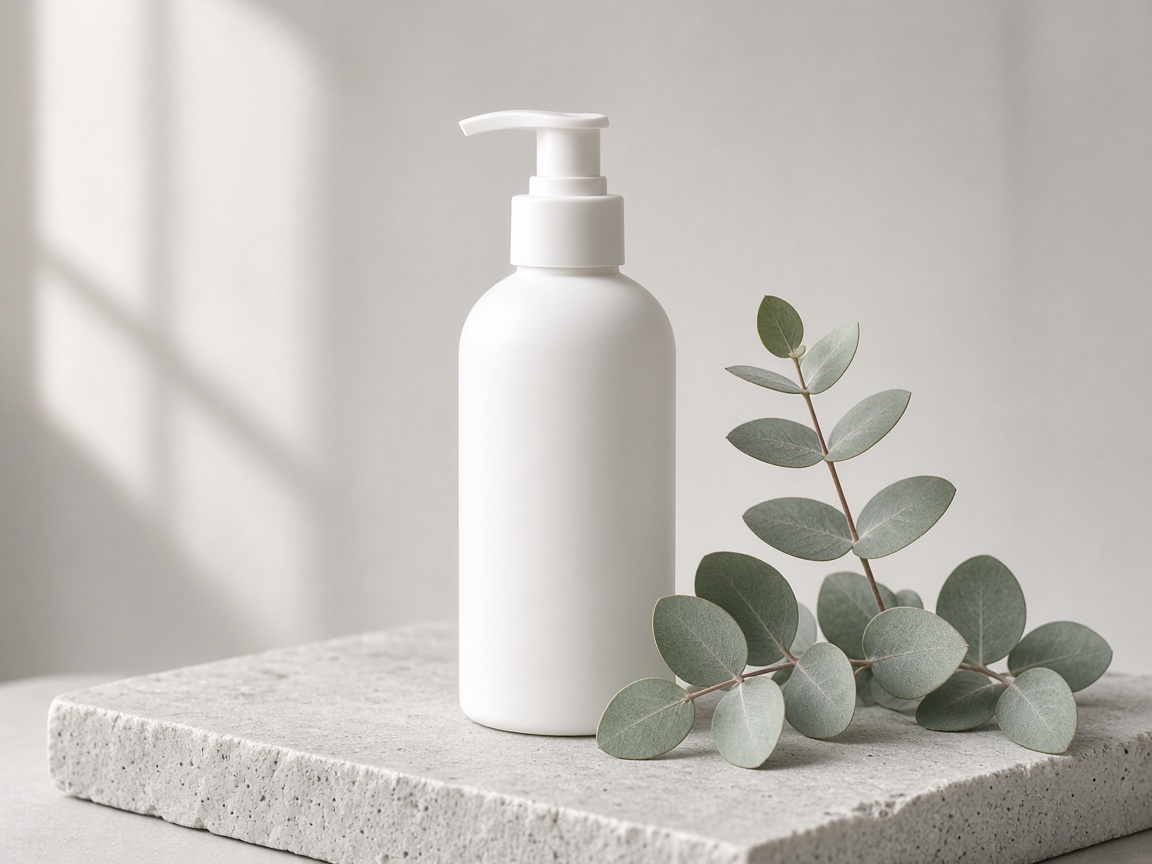
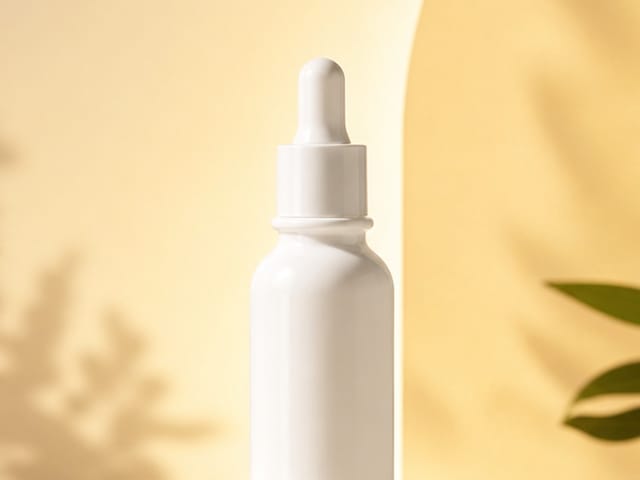
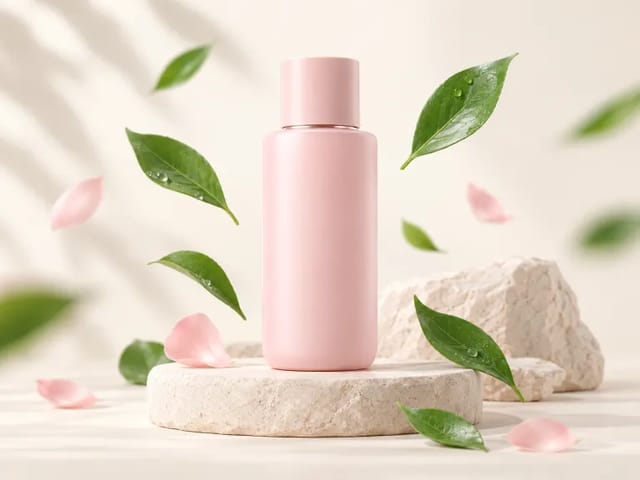
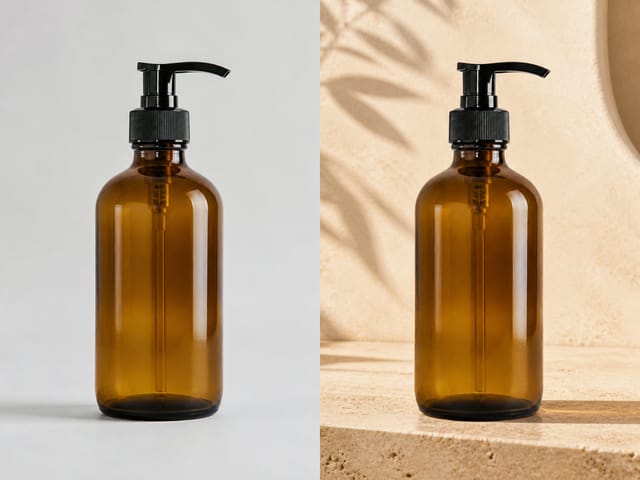
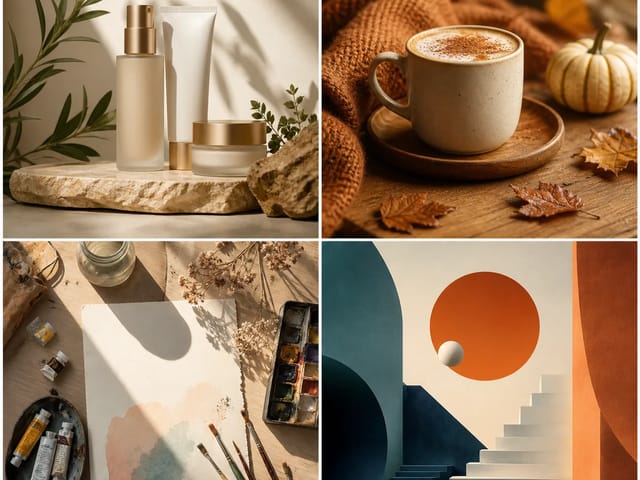
Matte white skincare pump bottle on a pale stone block with eucalyptus leaves in soft window light

AI output preview

Matte white skincare pump bottle on a pale stone block with eucalyptus leaves in soft window light

More AI Image Models & Effects

About Qwen Image 2.1 Turbo

Describe it, get a picture

With Qwen Image 2.1 Turbo you write a sentence or two about the picture in your head and get a finished image back. There is nothing to install and no code to write; everything happens in your browser. Open the generator, pick a shape that fits where you will post, and start with a short scene before you add more detail.
What it does well

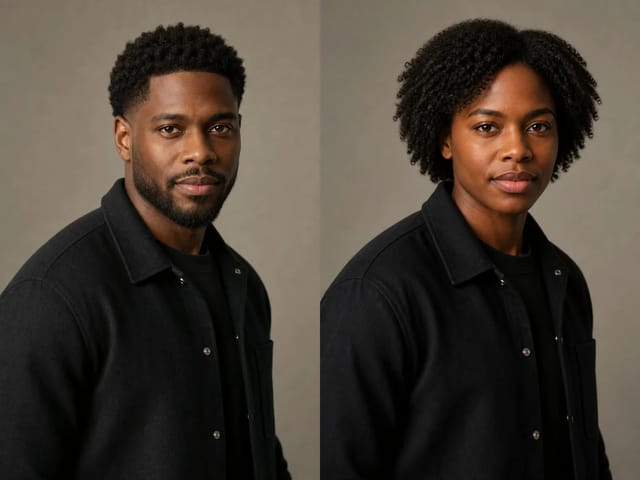
It is known for natural-looking portraits, clean poster layouts and short lines of text that read correctly, in both English and Chinese. That mix suits shop images, social posts and quick design drafts without leaving the browser. If a draft misses the mark, keep the subject and light the same and only rewrite the weak part of the prompt.

From Prompt to Finished Image with Qwen Image 2.1 Turbo

Four practical steps: pick a subject, write a clear prompt, match a real use case, then check the result before you use it.

What you can make with Qwen Image 2.1 Turbo

Start with one clear subject: a product bag, a poster with a short title, a street portrait, or a quiet room. Name the subject first, then the surface, the light and any empty space you need for copy. Keep the scene simple so edges, shadows and labels stay easy to read. Prefer everyday materials and soft daylight over crowded props. Leave a quiet margin on one side if you plan to overlay a logo later. When the first draft looks close, change only one detail and create again until the framing matches what you need.

Write a prompt
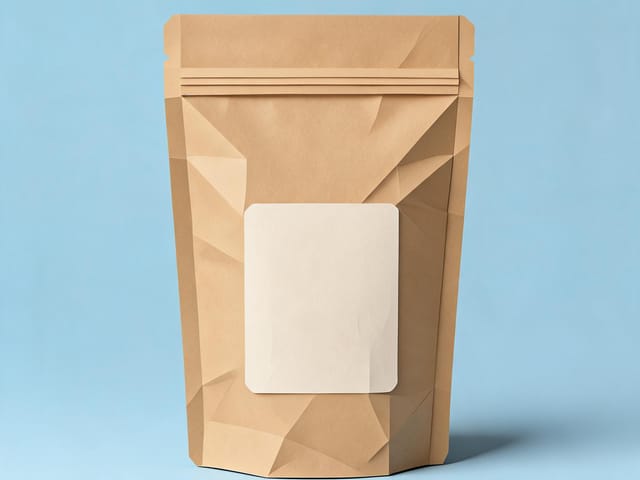
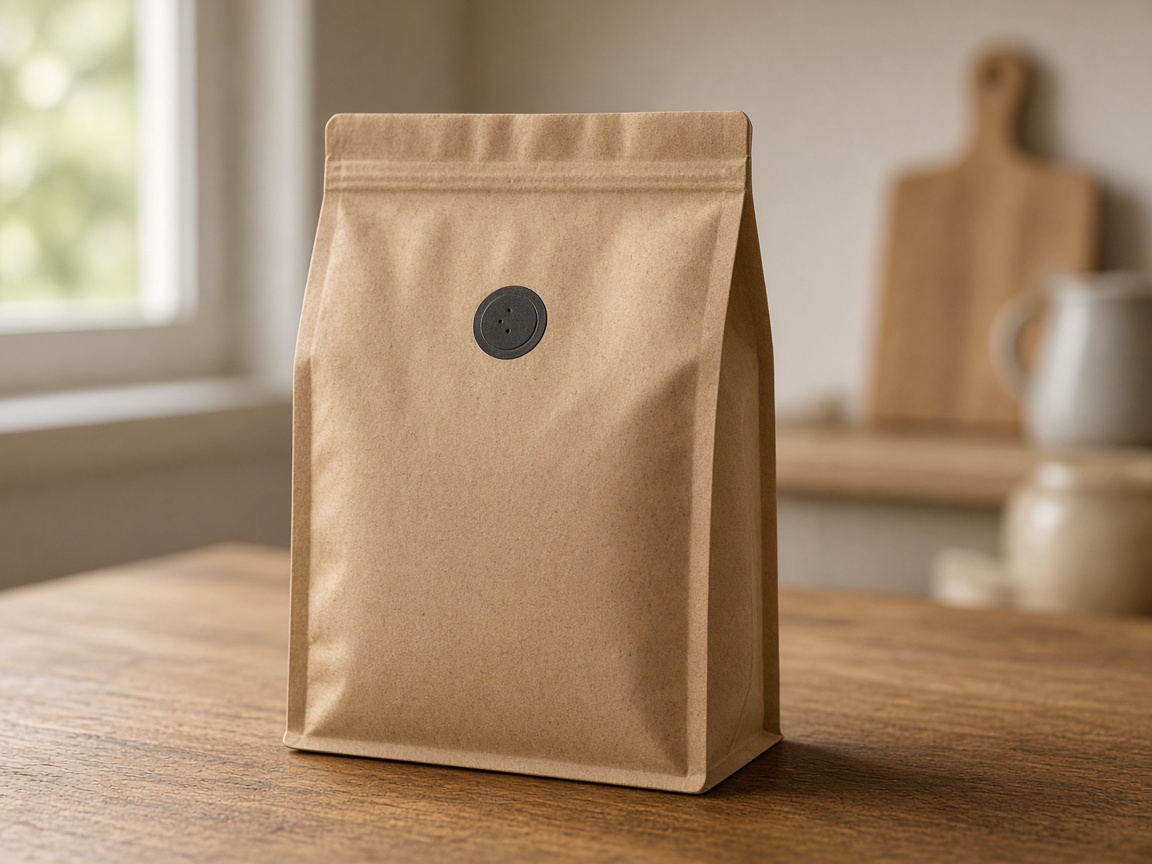
Blank kraft coffee bag with a black valve on a wooden kitchen counter

How to write prompts that hold text

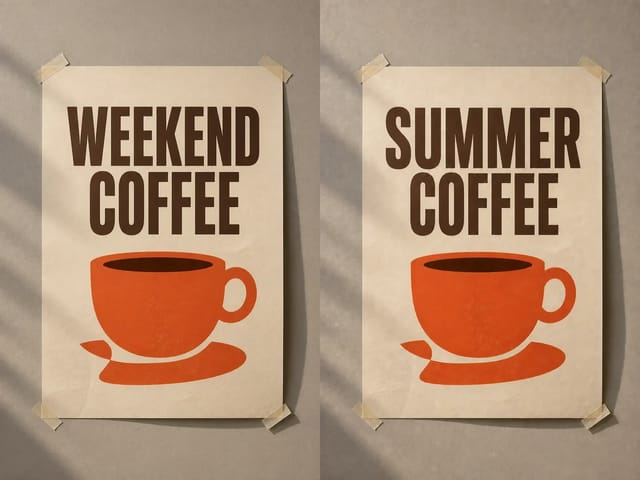
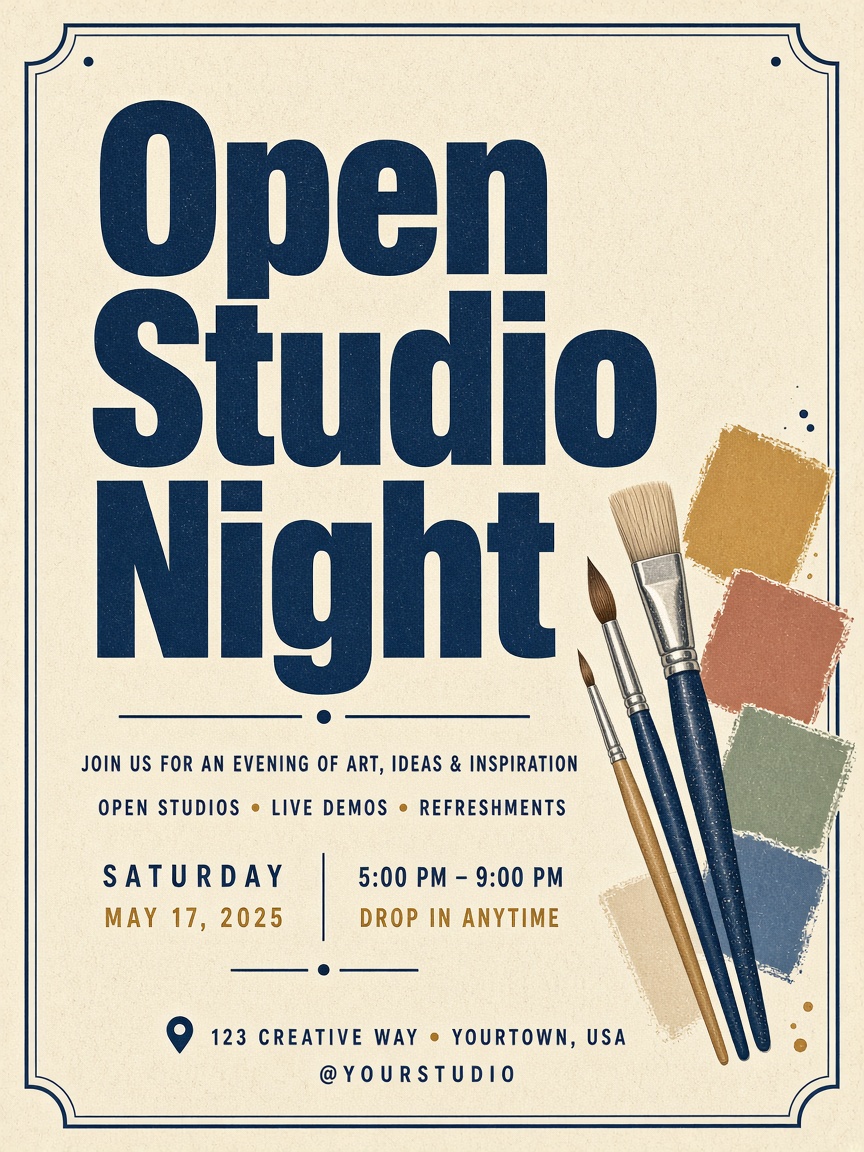
For posters and signs, put the exact words in quotation marks and keep them short. Add the palette, the layout and where the title sits, for example large navy letters at the top and paintbrushes along the side. Ask for a clean border and readable type rather than long paragraphs. If a letter looks wrong, shorten the line or move the title and create once more. Prefer two or three words in the title over a full sentence. After you create, zoom in and check every letter before you save the file.

Try a poster prompt
Open Studio Night poster with navy type, paintbrushes and color swatches

Use cases you can ship the same day

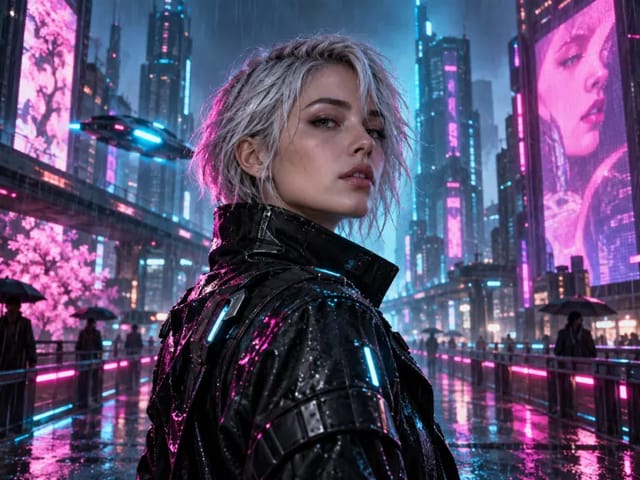
Shop listings need open space for a label or logo; event posters need a bold title and a date; profile pictures need a calm face and soft background light. Describe the outfit, the street or the room, and the time of day so the mood stays consistent. Mention rain, neon, or late sun when you want a stronger mood, and keep props to a minimum. Say whether the subject faces the camera or looks away so the pose stays consistent across drafts. Qwen Image 2.1 Turbo handles these everyday jobs well when the prompt stays concrete. Copy one of the sample prompts in the next section, swap the details, and create.

Create for your use case
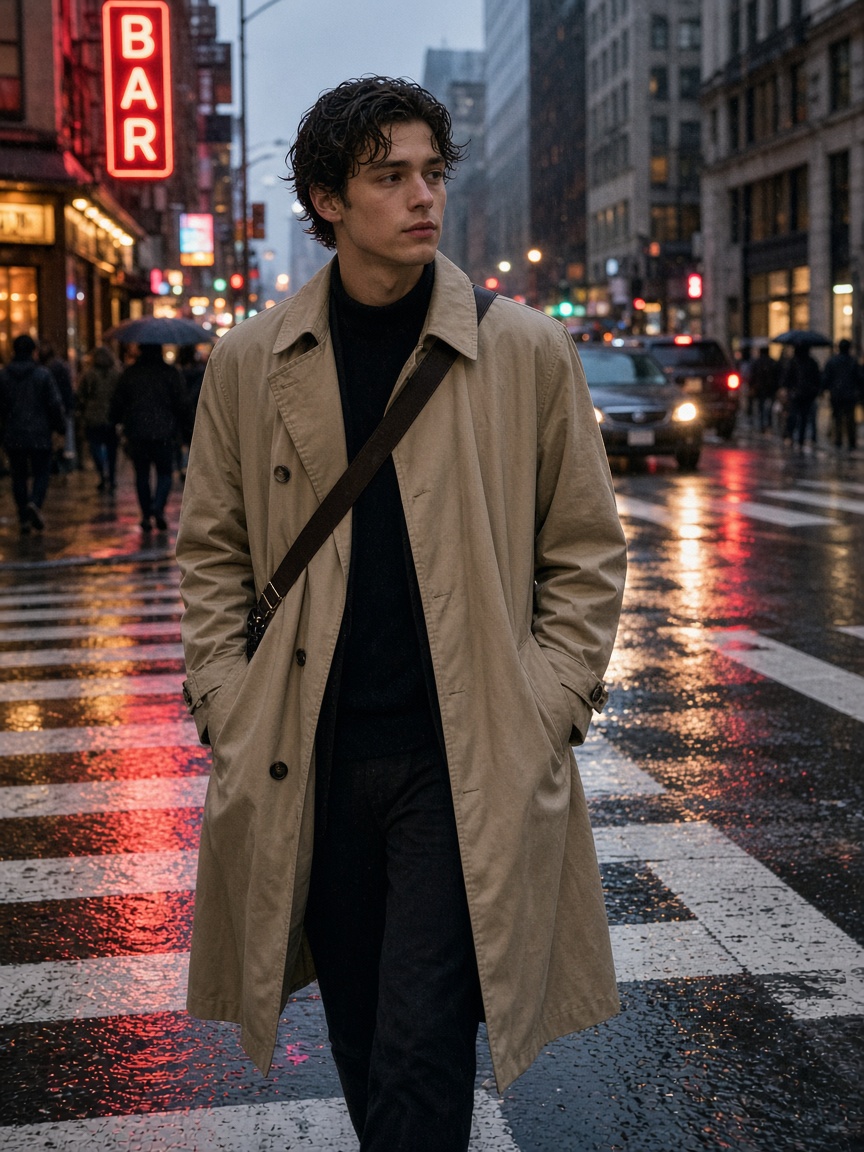
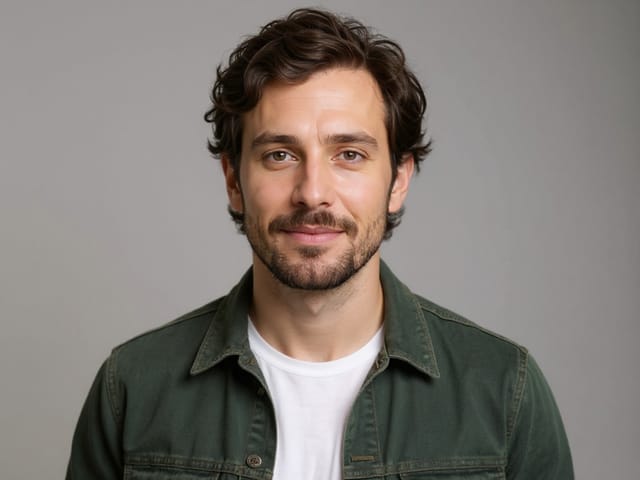
Young man in a tan trench coat on a wet city street at night

Check the result before you publish

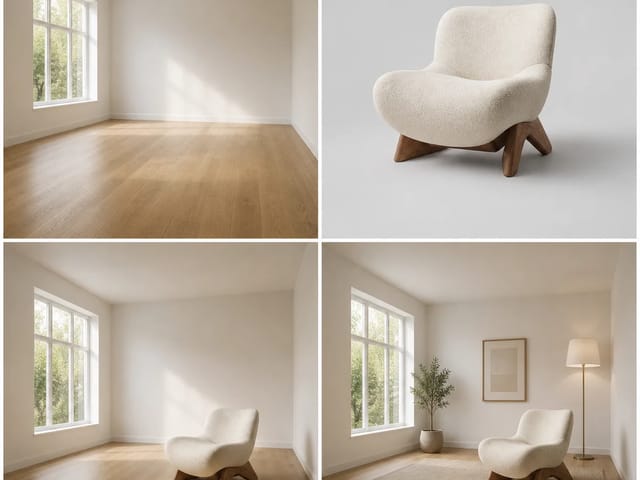
Open the image at full size and look at outlines, contact shadows and any text first. Hands, crowded groups and tiny Chinese characters are the spots that most often need another try. If something is off, keep the approved parts in the prompt and change only the weak spot. Compare two drafts side by side when you are unsure which light or crop works better. Save the stronger draft before you rewrite the prompt so you do not lose a usable frame. A quiet interior with clear light and texture is a good second test after a product shot.

Check your next image
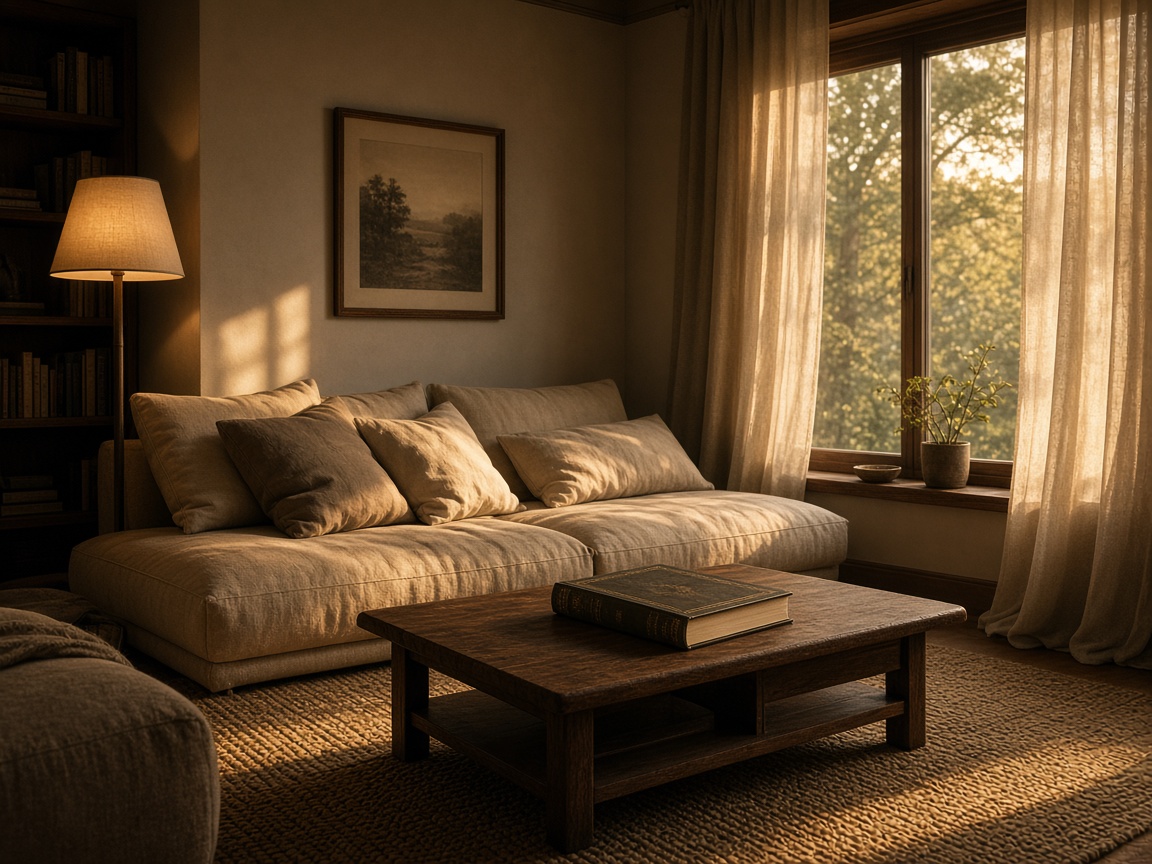
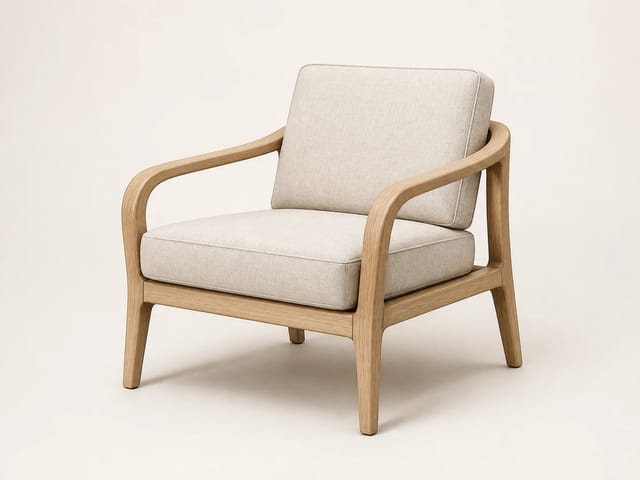
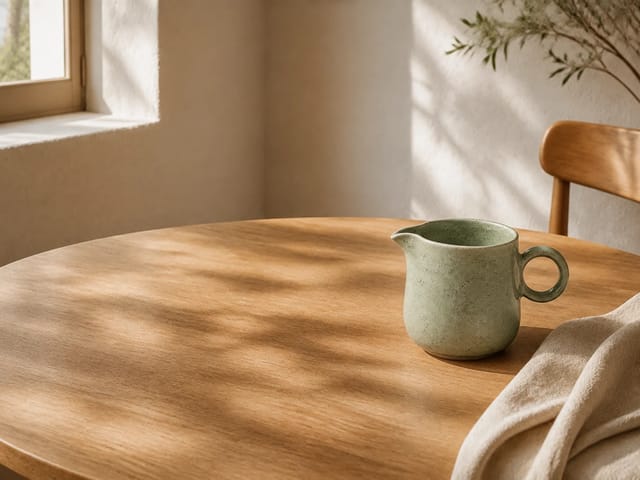
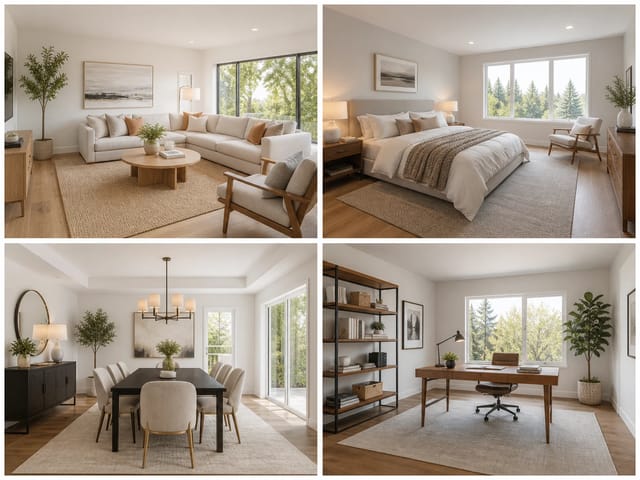
Warm living room with a beige sofa, wooden table and sunlight through linen curtains

Prompt Examples for Common Jobs

Copy a prompt, change the details, and create. These three cover the jobs people ask for most often.

Matte white skincare pump bottle on a stone block with eucalyptus leaves

Shop product photos

Example: "A matte white skincare bottle on a pale stone block, soft morning light, eucalyptus leaves at the edge, plenty of empty space on the left."

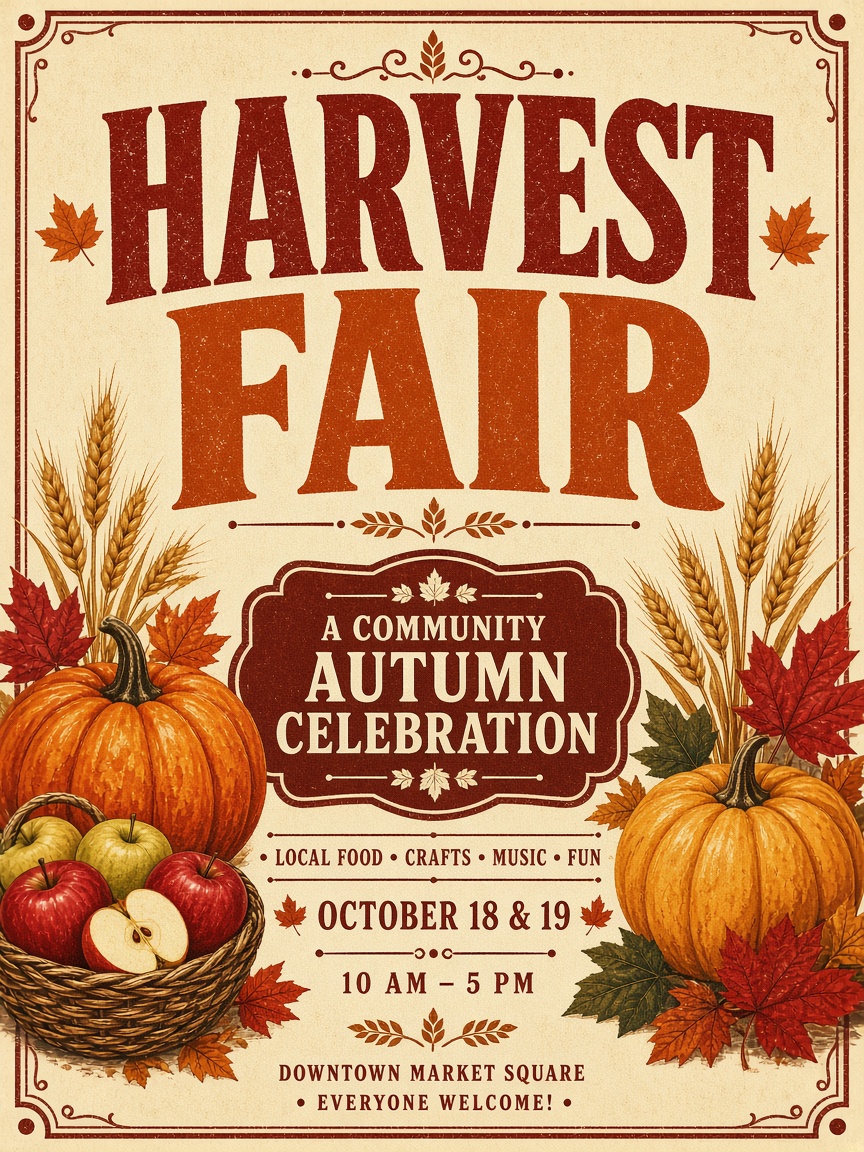
Harvest Fair autumn market poster with pumpkins, apples and wheat

Event and sale posters

Example: "A bold autumn market poster, warm orange and cream palette, the words 'Harvest Fair' at the top in large serif letters, illustrated pumpkins, apples and wheat along the bottom."

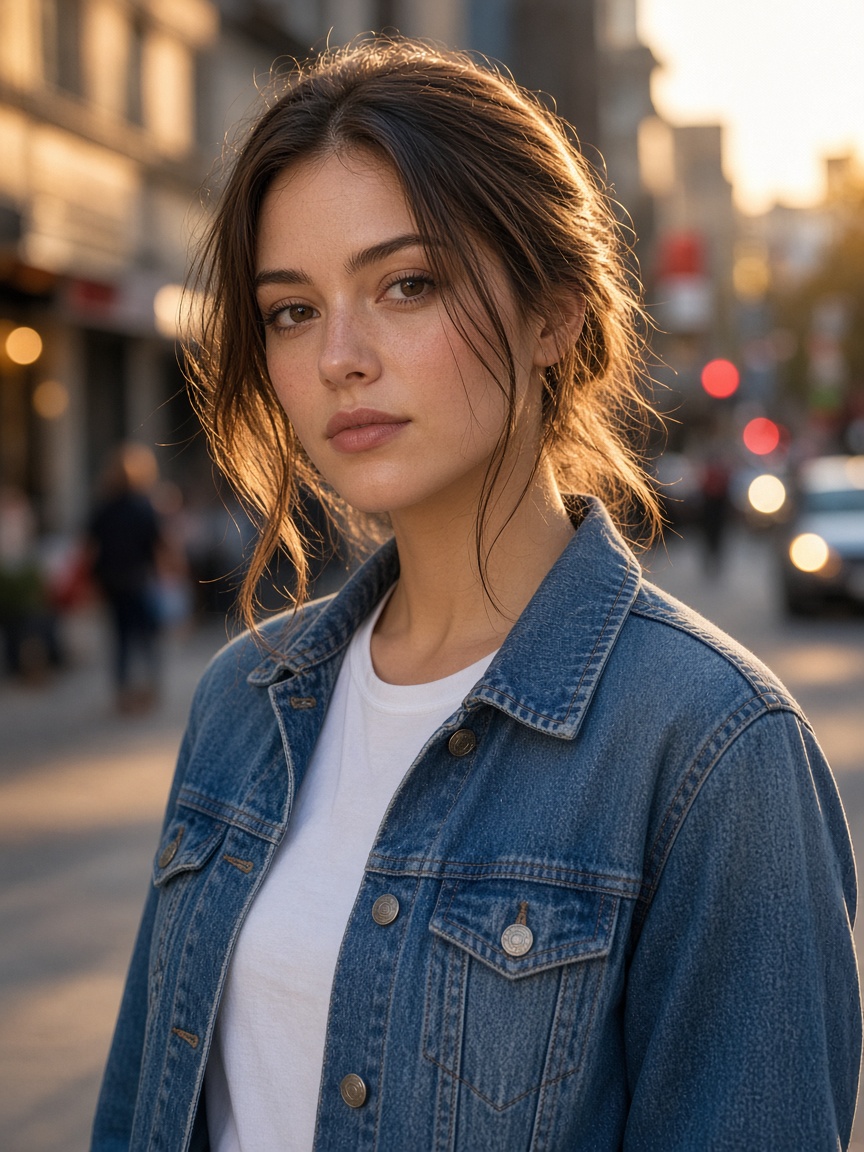
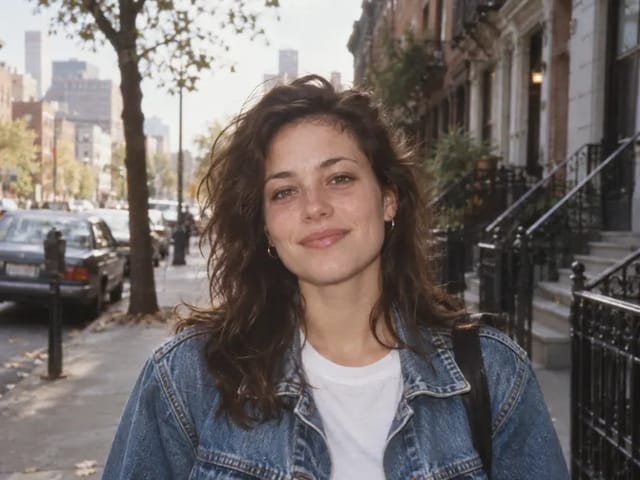
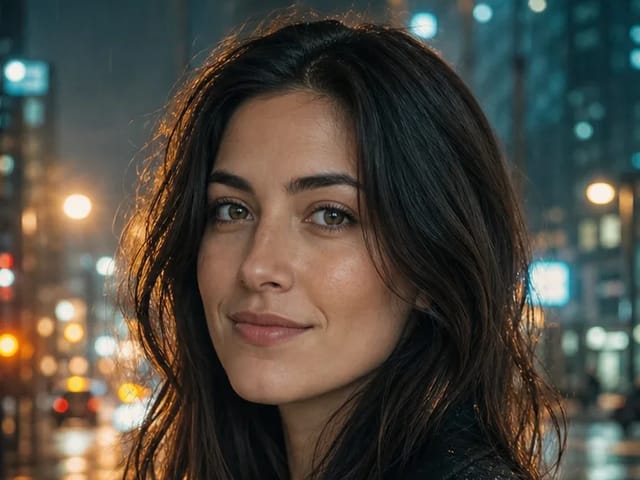
Young woman in a denim jacket on a city street at golden hour

Portraits and profile pictures

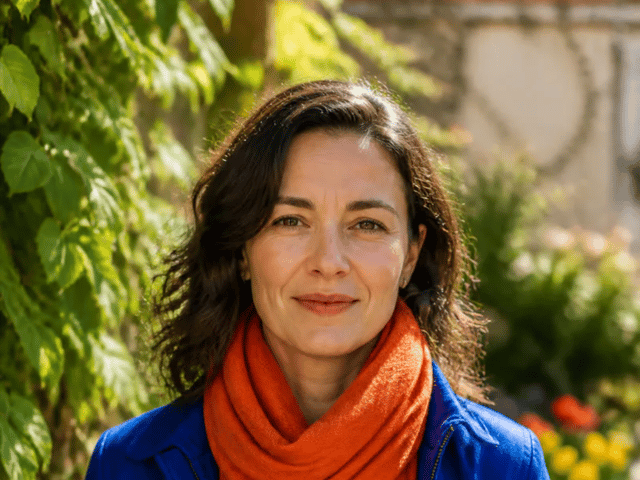
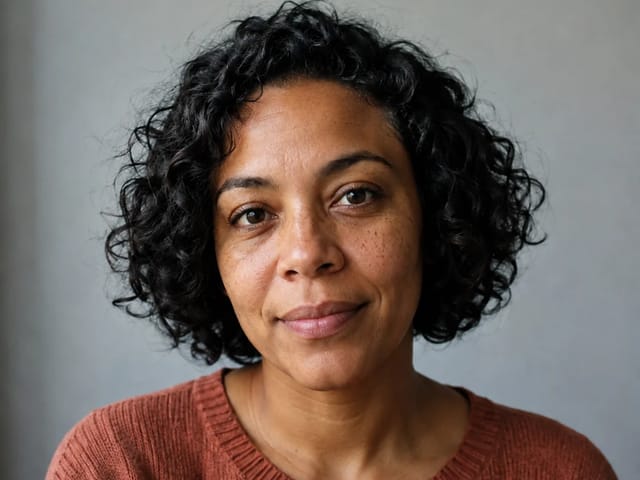
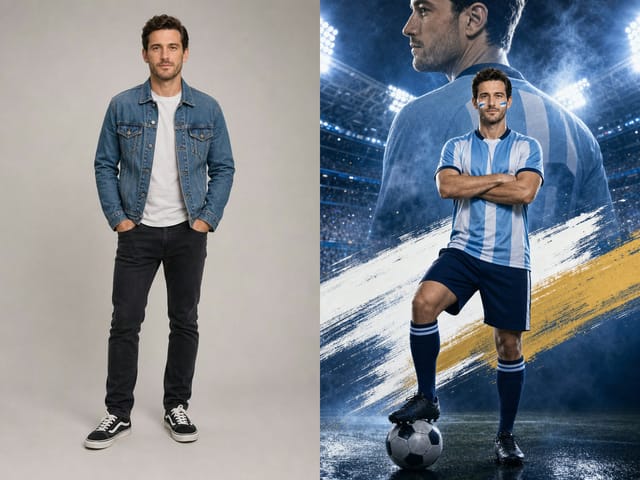
Example: "Portrait of a young woman with a calm expression in a denim jacket over a white tee, city street softly blurred behind her, golden late-afternoon light."

Prompt Habits That Improve Results

Say what you want, not what you don't

Describe the result directly, for example a plain cream background with no text, instead of listing things to avoid. Clear positive wording usually steers Qwen Image 2.1 Turbo better than a long list of exclusions. Name the surface and the backdrop in the same sentence so they stay coherent.

Keep text short and quoted

For signs and posters, write the exact words in quotes and keep them to a few words. Longer lines raise the chance of a wrong letter, so cut filler before you create.

Add the light and the view

Mention where the light comes from and how close the camera is, such as soft window light, close-up. A short note about depth of field also helps when you want a blurred street behind a portrait.

Change one thing at a time

Adjust the light, then the background, then the angle, so you can see what made the picture better. Write down the change you made so the next draft stays intentional.

Limits to Keep in Mind

Small and long text

Long paragraphs and very small Chinese characters can come out wrong. Keep wording short and proofread. If you need more copy, leave blank space in the image and set the type in your design app afterward.

Busy scenes and hands

Crowded groups and fine finger details often need another try. Simpler scenes stay steadier, so start with one person or one object before you add a crowd. Pockets or clasped hands hide fingers when detail keeps failing.

Rights and fair use

Avoid trademarks, real people's likeness and protected characters unless you have permission. When in doubt, invent a brand name and a fictional face. Review NanoPic's terms before you use an image in a paid campaign.

Qwen Image 2.1 Turbo FAQ

Can I use it online?

Yes. Type a description in the generator, choose a shape and create, right in your browser. No app install is required, and the same flow works on a phone or a laptop.

Do I need to know how to code?

No. Write what you want to see in everyday words; no setup or programming is needed. Full sentences usually work better than a raw list of tags.

How good are the results?

It is strong at realistic portraits, poster layouts and short text. Results vary between attempts, so check each image at full size before you publish, especially faces, hands and any lettering.

Can it make Chinese text and posters?

Yes. Short Chinese or English titles work best. Proofread before you use the image, and keep titles to a few words when the layout is busy.

Can I upload a photo and edit it here?

The generator here creates new images from text. To change a photo you already have, try AI photo editing rather than pasting a reference into this prompt box.

Do I have to pay?

The panel shows the credits needed before you create, so you always know before you start. Confirm the number on screen each time you change the size.

What is Qwen Image 2.1 Turbo?

Qwen Image 2.1 Turbo is a fast image model from the Qwen team, known for clean typography and realistic portraits.

Is NanoPic affiliated with the Qwen team?

NanoPic is an independent website and is not affiliated with the Qwen team.

Create Images with Qwen Image 2.1 Turbo Prompts

Use these tips, create your image in the generator, and check the result at full size.

Related tools

FLUX Kontext Multi Image

FLUX Kontext Multi Image

FLUX Kontext Multi Image Generator combines 2 to 4 references into one coherent image. Assign each source a role, choose a canvas, and review the result.

Open tool
Qwen Image Generator

Qwen Image Generator

Qwen Image Generator creates images from prompts and edits references. Use Qwen Image 3 or Pro, choose your canvas, and review downloadable visual drafts.

Open tool
Creen AI Image Generator

Creen AI Image Generator Online | NanoPic

Use the Creen AI Image Generator to turn one written sentence into a finished picture in your browser, with no app to install.

Open tool
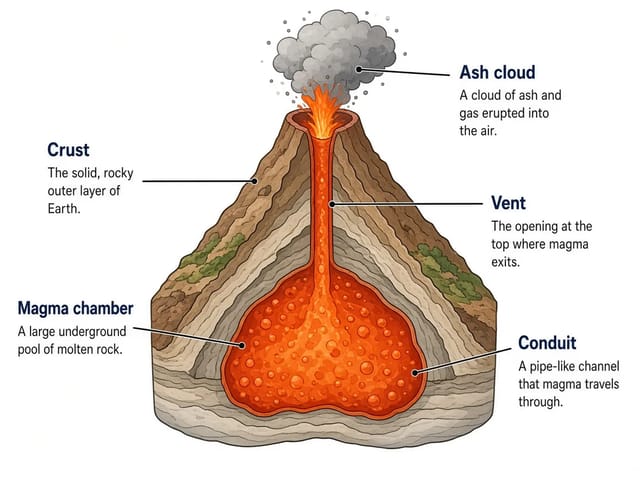
Labeled cross-section of a volcano with five named layers

FIBO 2.0 AI Image Generator: Text to Image | NanoPic

FIBO 2.0 AI Image Generator: turn detailed FIBO 2.0 style prompts into images that follow your words closely, with clear, readable text in the picture.

Open tool
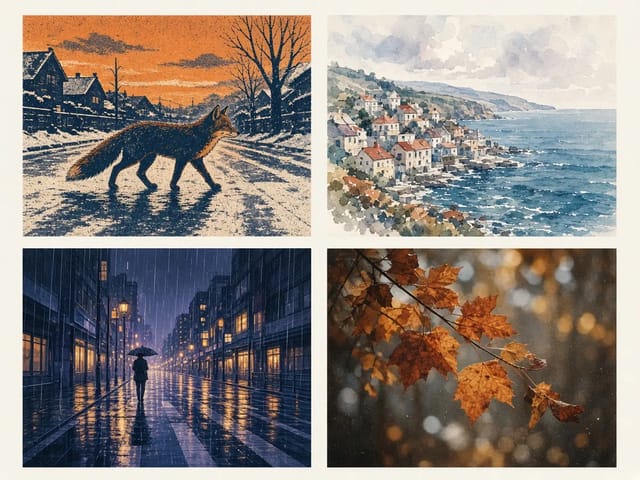
Krea 2 style grid: screen-printed fox, watercolour seaside town, anime rainy street and film-grain autumn leaves

Krea 2 AI Image Generator: Styles, Prompts & Tips | NanoPic

Krea 2 is a style-led AI image generator from Krea AI, built to keep each visual style distinct and carry a chosen look steadily across images.

Open tool
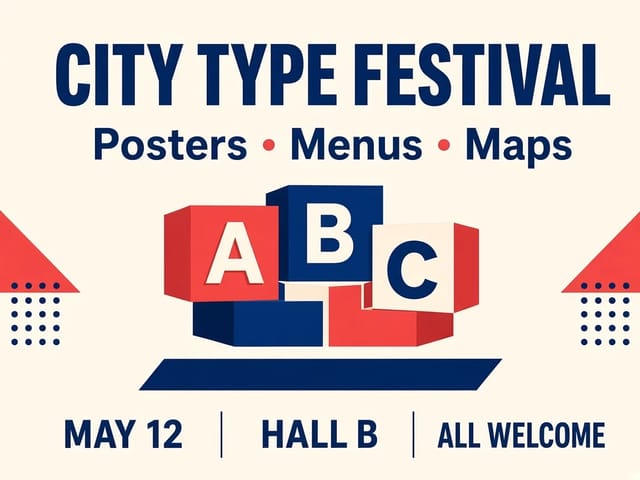
Text-and-layout poster reference image: "City Type Festival" headline, "Posters · Menus · Maps" subheading and three labeled info columns

MOSS Image ComfyUI: Clear Text & Layout Images | NanoPic

MOSS Image ComfyUI runs the open-weights MOSS-Image model in ComfyUI to render clear English and Chinese text and place each element where you want it.

Open tool
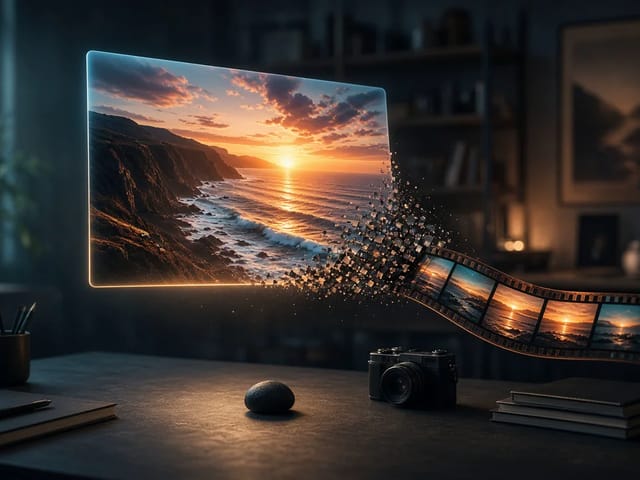
A glowing photo of a sunset coastline floating over a desk, dissolving into a film strip of moving frames

ZSky AI Image & Video Generator Online | NanoPic

Create ZSky AI style images and videos with NanoPic: turn an idea into a finished picture, then bring that picture to life as a short clip.

Open tool