Save up to 73% on plans

FastH3 Omni Video Generator
Sign In

FastH3 Omni Video Generator

Describe one shot, add a reference image if you have one, and get a short clip with synced sound. Pick 16:9, 768P and five seconds to start, then refine one detail at a time.

Public VisibilityAllow this result to appear in public inspiration surfaces.
Credits required:—

MiniMax H3

FastH3 Omni paper bird sample

Cinematic close-up of a folded white paper bird resting on a warm wooden table. The paper bird slowly lifts its head, unfolds both wings, and takes one graceful step forward as late-afternoon sunlight moves across the wood grain. Slow camera push-in, shallow depth of field, realistic paper texture, quiet room ambience, no text, no watermark.

Create Short Videos with Sound from One Prompt

FastH3 Omni is the fast, open-weight version of MiniMax H3 that turns text and reference media into short videos with synchronized audio. If you like the FastH3 Omni idea but do not want to install weights or rent a GPU, start in your browser now. Write a clear shot, pick 16:9 and 768P, and get a five-second clip with picture and sound together.

What Is FastH3 Omni?

FastH3 Omni is an open-weight video model released in October 2026 by Nuva Lab with the FastVideo team at UC San Diego. It is a distilled MiniMax H3: about eight transformer evaluations instead of roughly fifty sampling steps. It accepts text plus up to nine images, three videos and three audio clips (twelve references max) and outputs five to fifteen seconds at 24 fps with stereo sound. Weights follow the MiniMax-H3 Community License—read it before commercial use of local renders.

FastH3 Omni vs MiniMax H3

Both share the same roots. The differences are origin, steps per clip, how you run them and licensing.

Origin and positioning

MiniMax H3 is a hosted model, while FastH3 Omni is an open-weight version trained from it through distillation. Distillation kept the mixed text, image, video and audio references, and it kept synchronized sound as well. The visual style stays close to the base model, so the main differences are deployment and speed. Think of FastH3 Omni as a lighter local edition of the same capabilities rather than a model with a different look.

Large model rig beside a compact glowing replica

Steps per clip

The base model samples roughly fifty steps for each clip, while FastH3 Omni needs about eight evaluations to finish. Fewer steps mean much shorter waits on the same GPU, which makes it practical to test many shot ideas in one session. The trade-off is that hands, small text or fine textures can look slightly softer on complex shots. When that happens, rendering two or three versions and keeping the best one usually solves it.

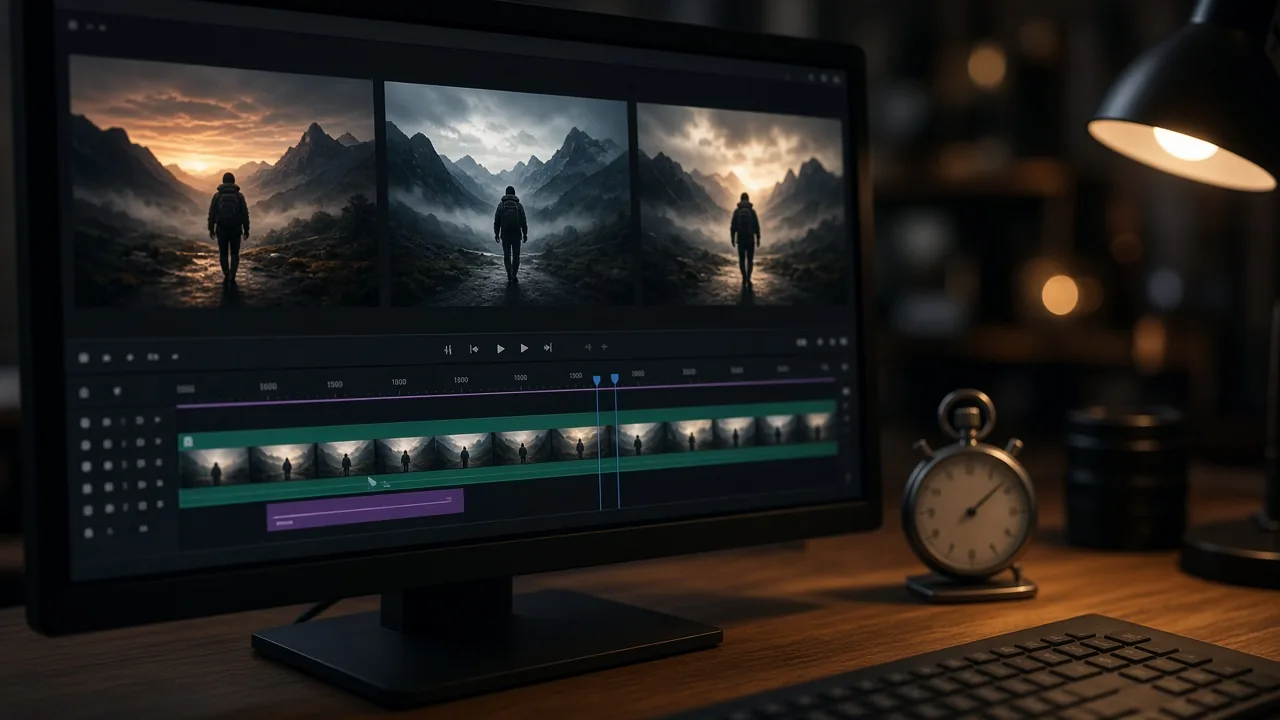
Editing monitor with a stopwatch on the desk

Run locally or create online

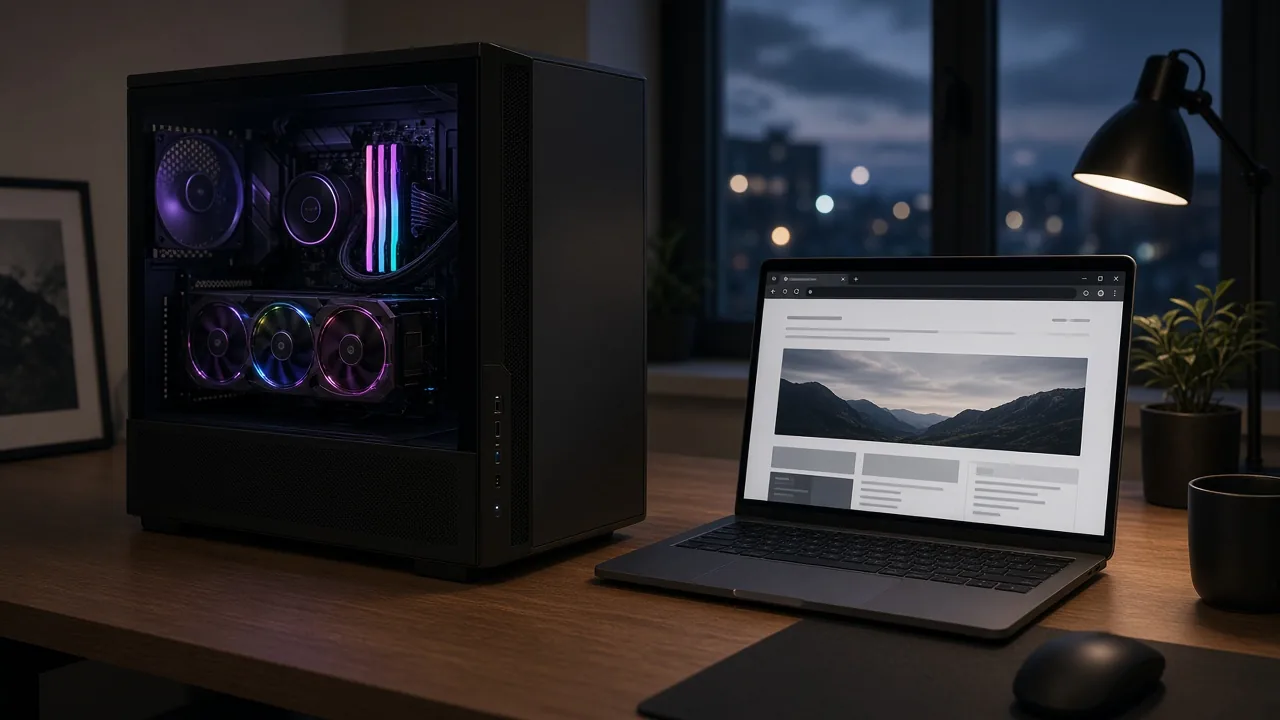
Running FastH3 Omni locally starts with downloading the weights from Hugging Face and preparing the shared text encoders and VAE. An RTX 5090 can use the NVFP4 weights, an RTX 4090 usually needs FP8, and ComfyUI offers a dedicated checkpoint with its own nodes. Expect a few rounds of memory and resolution tuning before the first clean clip. If you only want to test a shot idea, typing a prompt in your browser gets a clip with sound without drivers or node graphs.

Desktop GPU tower next to a laptop browser

Licensing and access

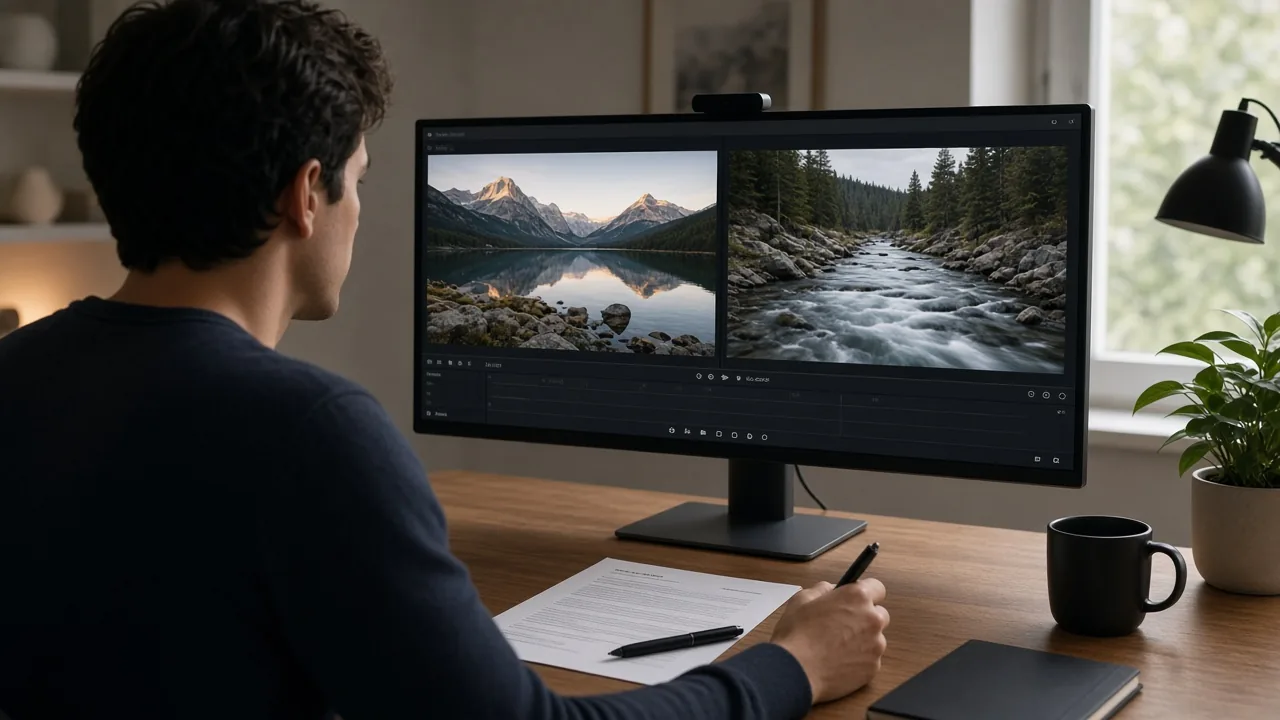
FastH3 Omni weights follow the MiniMax-H3 Community License, so read its terms before any commercial use of local renders. MiniMax H3 is offered as a hosted model with fuller controls, longer durations and higher resolutions. Running the same prompt through both is the clearest way to compare picture detail and sound. Once you know which result you prefer, you can decide between local weights and a hosted workflow for regular work.

See the MiniMax H3 video generator
Creator comparing two clips with a license sheet

What You Can Make with FastH3 Omni and Why It Works

Each card pairs a common shot with the model capability that makes it work.

Product shorts with sound in one pass

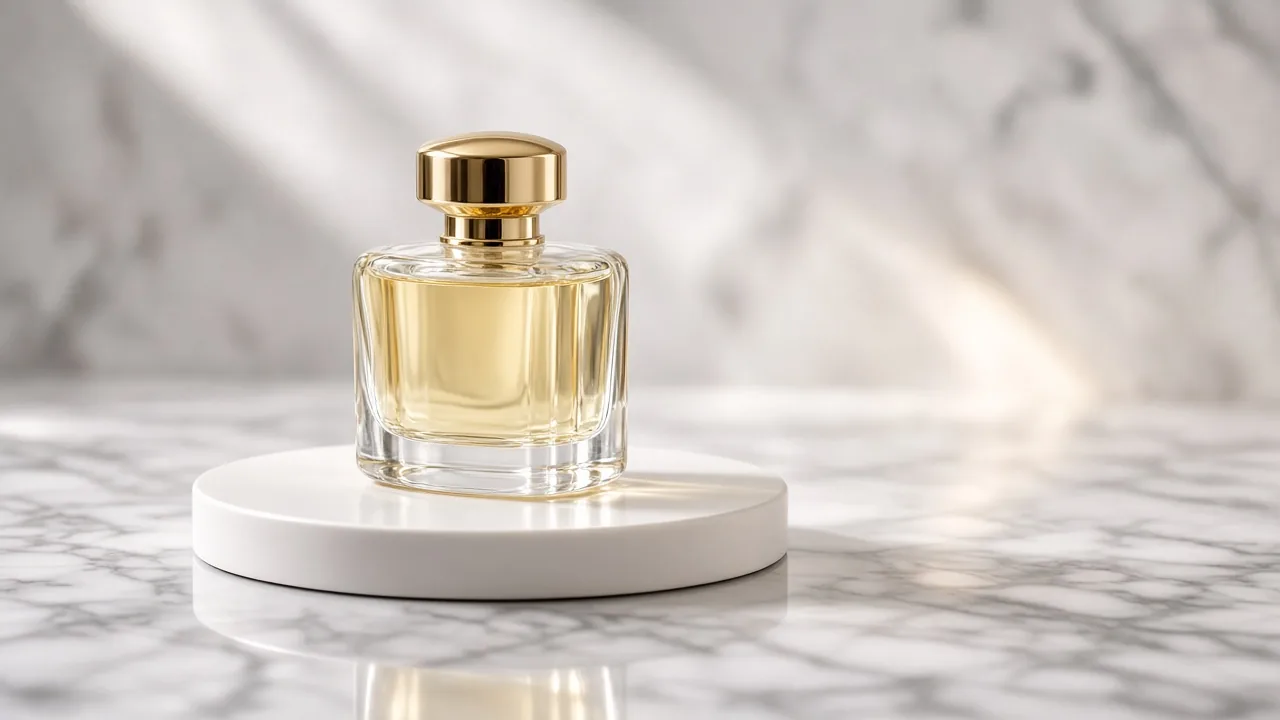
FastH3 Omni generates synchronized 32 kHz stereo audio in the same pass as the picture, so there is no separate soundtrack step. A perfume bottle turning slowly under studio light with one crisp glass chime makes a five-second launch teaser. Keep a single product and one camera move in the prompt, and name the material, the surface and the sound you want. On the next run, change only the angle or the sound so you can see what improved.

Try this shot
Glass perfume bottle on a white turntable

Social ads with a speaker

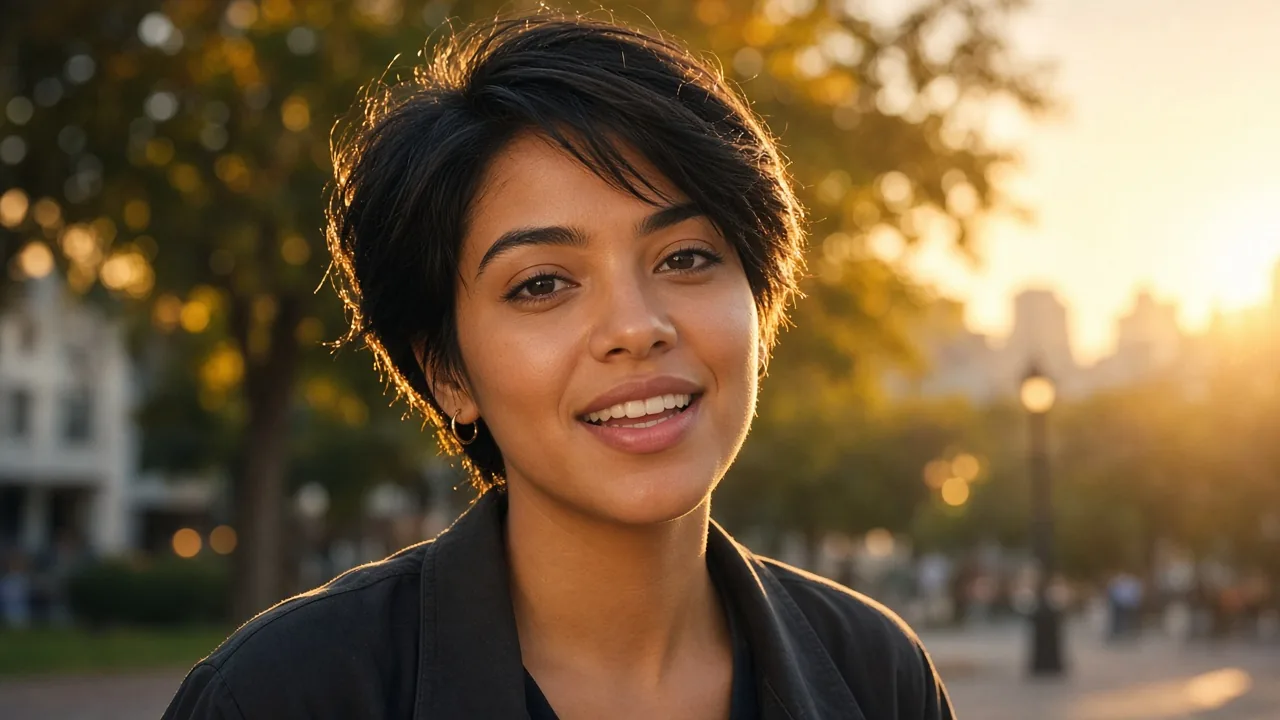
When a person speaks, FastH3 Omni keeps lip movement, dialogue and ambience aligned with the picture. One speaker, one spoken line and a light music bed are enough for a five-second feed hook. Put the speaker's look and the first words at the start of the prompt, and keep the background simple. The face stays steadier and the voice reads more clearly, which matters most in the first second of an ad.

Try this shot
Young woman speaking to camera at golden hour

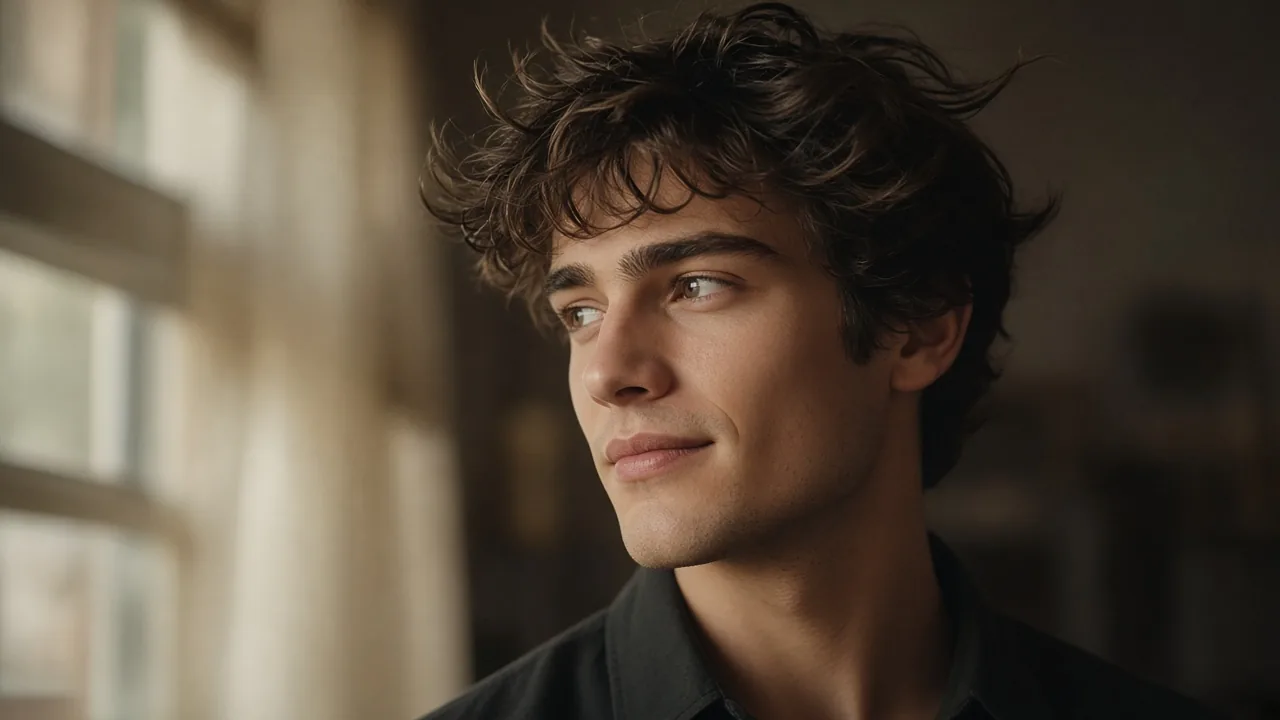
Bringing stills to life with references

FastH3 Omni accepts mixed references, and the local weights take up to nine images, three video clips and three audio clips. Online, upload one portrait as the opening frame and describe only what moves, such as hair in the wind or a slow smile. Keeping the face and wardrobe fixed while making the motion small protects likeness from the first frame. A layer of soft room tone then makes the still feel alive.

Try this shot
Young man by a window with soft wind in his hair

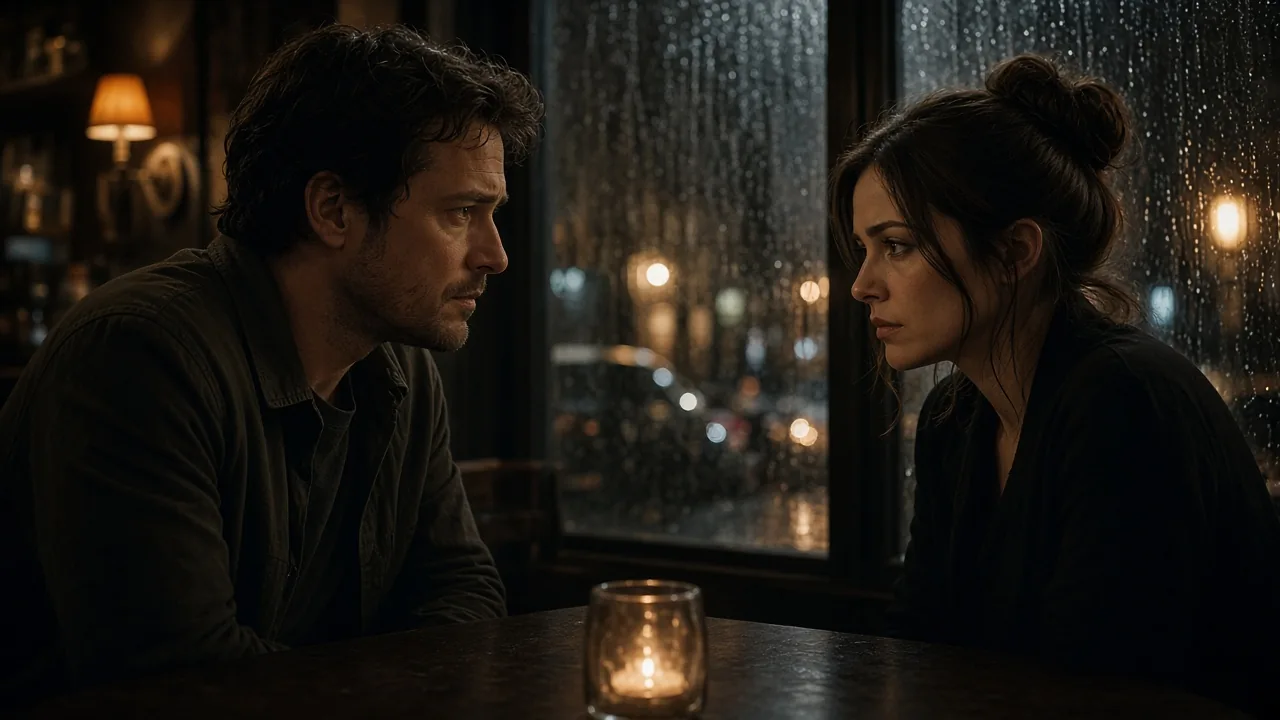
Short drama beats from five to fifteen seconds

FastH3 Omni outputs five to fifteen seconds at 24 fps, which is enough room for one story moment. Name the two characters, the place and the single line of dialogue you need, and let rain and voices arrive together. Reference tags can point to a separate face for each character, so multi-person scenes stay more consistent. After a few short takes, you can join them in your editor into a complete scene.

Try this shot
Two people talking across a rainy cafe table

How to Create a FastH3 Omni Style Video in 3 Steps

1. Write one clear shot

Write a FastH3 Omni style prompt in this order: subject, action, place, light and one camera move, then add the sound you want. Keep it to one beat, such as a dancer turning, rather than turning, jumping and bowing in five seconds. Pick a push-in, an orbit or a locked frame and stay with it. A specific first sentence usually decides whether the whole clip holds together.

2. Add a reference image if needed

Upload a still when a face, product or outfit must match from the first frame; otherwise explore from text alone. Online generation supports an opening frame, an optional closing frame or several reference images. Video and audio references currently belong to the local open weights only. A reference with a clean background helps the subject read accurately.

3. Pick the format and iterate

For a first clip, keep 16:9, 768P and five seconds so you can check that picture and sound both arrive. After that, change only the action, the light or the sound on each new run. If the shot feels restless, lock the camera, and if the audio feels random, describe one sound source. That habit shows exactly what each edit changes, and a stable prompt usually appears within a few rounds.

FastH3 Omni FAQ

What is FastH3 Omni?

FastH3 Omni is an open-weight distilled MiniMax H3 from Nuva Lab and UCSD FastVideo. It makes five to fifteen second videos with synced audio from text plus image, video and audio references in about eight steps.

Is FastH3 Omni the same as MiniMax H3?

No. MiniMax H3 is the base model; FastH3 Omni is its accelerated open-weight distillation that trades the long sampling schedule for speed.

Is FastH3 Omni open source and free to use?

Weights and training code are public under the MiniMax-H3 Community License. Local runs use your own hardware; online generation uses NanoPic credits.

Can I use FastH3 Omni without a GPU or ComfyUI?

Not the open checkpoint. You can still create synced-sound clips in a browser; online clips here are generated with MiniMax H3.

How long are the videos and do they include audio?

Open weights: five to fifteen seconds at 24 fps with stereo sound. Online defaults: five seconds, 16:9, 768P, also with audio.

Which inputs can I use online?

Text prompt, opening frame with optional closing frame, or up to nine reference images. Video and audio references are for local open weights only.

Is NanoPic the official FastH3 Omni site?

No. NanoPic is independent and not affiliated with MiniMax, Nuva Lab, UC San Diego or the FastVideo project.

Related Video Models

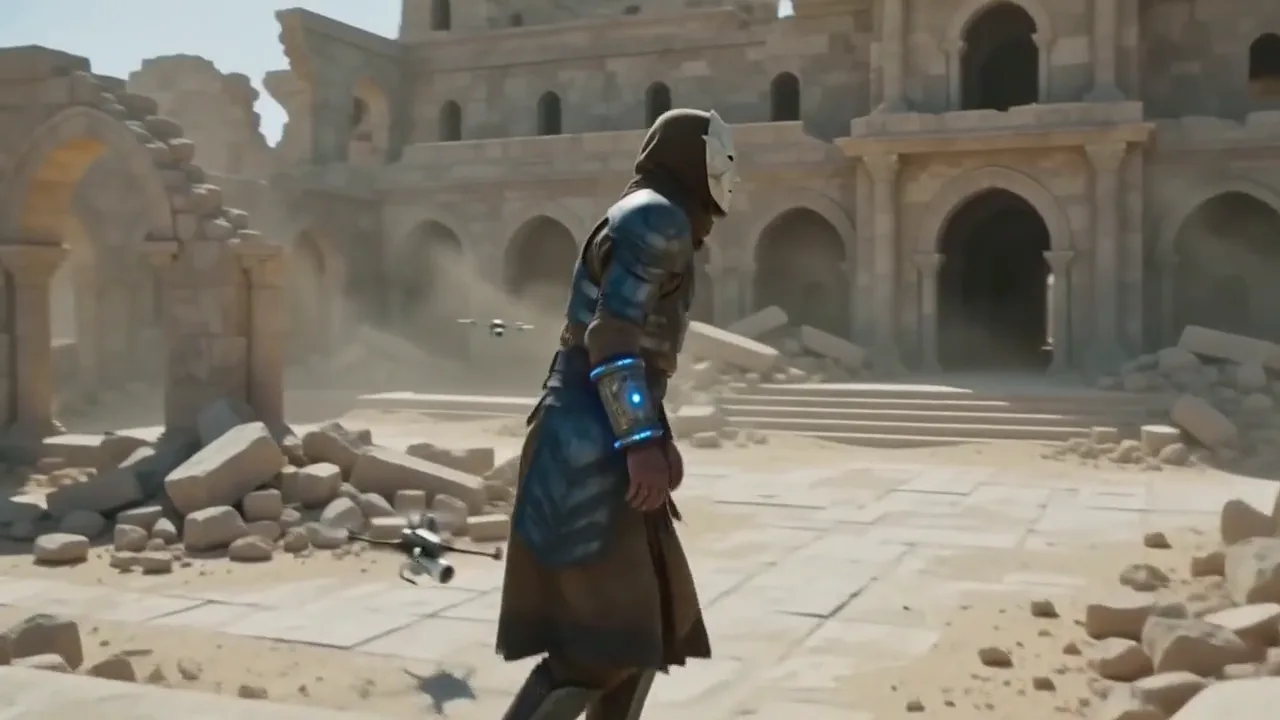
Warrior in desert ruins

MiniMax H3

The original hosted model, with fuller controls, longer durations and higher resolutions.

Open MiniMax H3
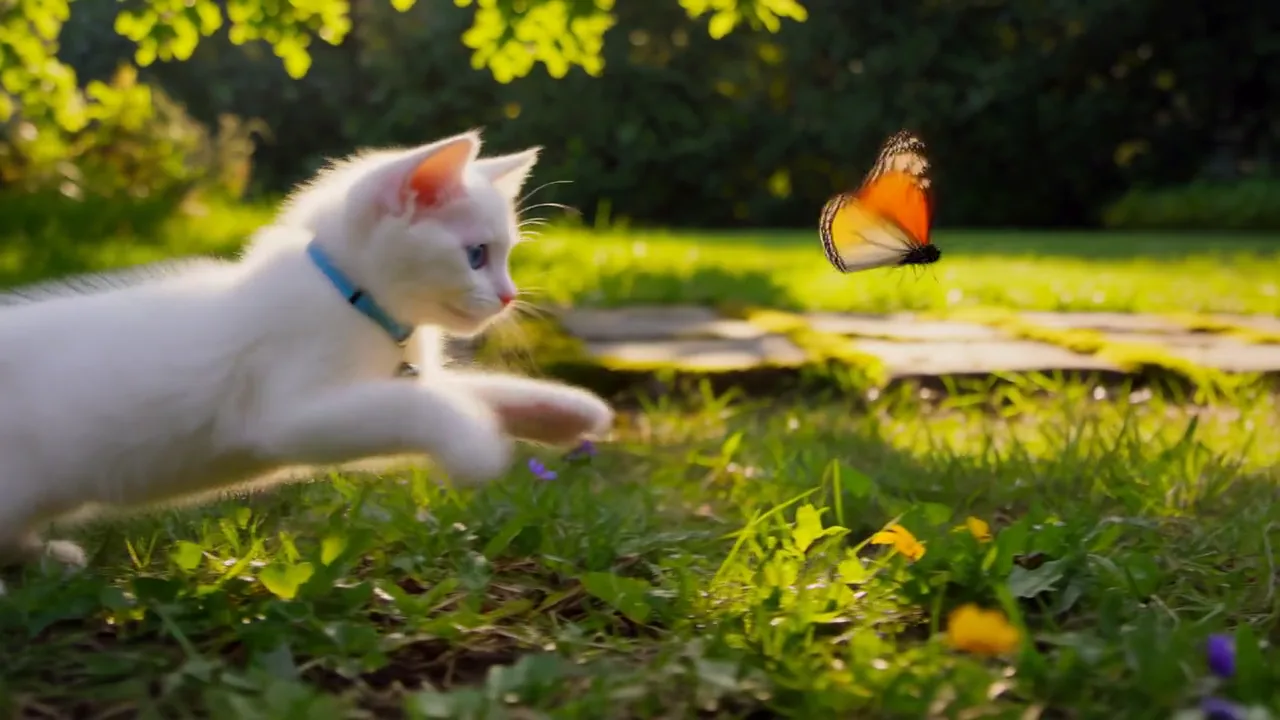
Kitten leaping toward a butterfly

All Video Models

Browse every video model available online for your next clip.

Browse video models

Start Your First FastH3 Omni Style Clip

Write one shot with a subject, an action and a sound, then generate a five-second video with audio in your browser.