

























Save up to 73% on plans

25th Anniversary Video Maker from Photos
Sign In

25th Anniversary Video Maker from Photos

Use one authorized couple photo or a then-and-now pair. The first image opens the clip and the optional second image closes it; write names, year, silver-anniversary mood, and camera direction in the editable notes.

1. Opening Couple Photo*(0/1)
Try 1. Opening Couple Photo sample
2. Closing Photo(0/1)

Please add the required 1. Opening Couple Photo before generating.

400 / 1,200

Public VisibilityAllow this result to appear in public inspiration surfaces.

25th Anniversary Video Maker from Photos

Video

More AI Video Models & Effects

Browse every other AI video model and effect published on this site in a continuous carousel.

Actual Materials and Result

Give a Shared Photo a Moment of Motion

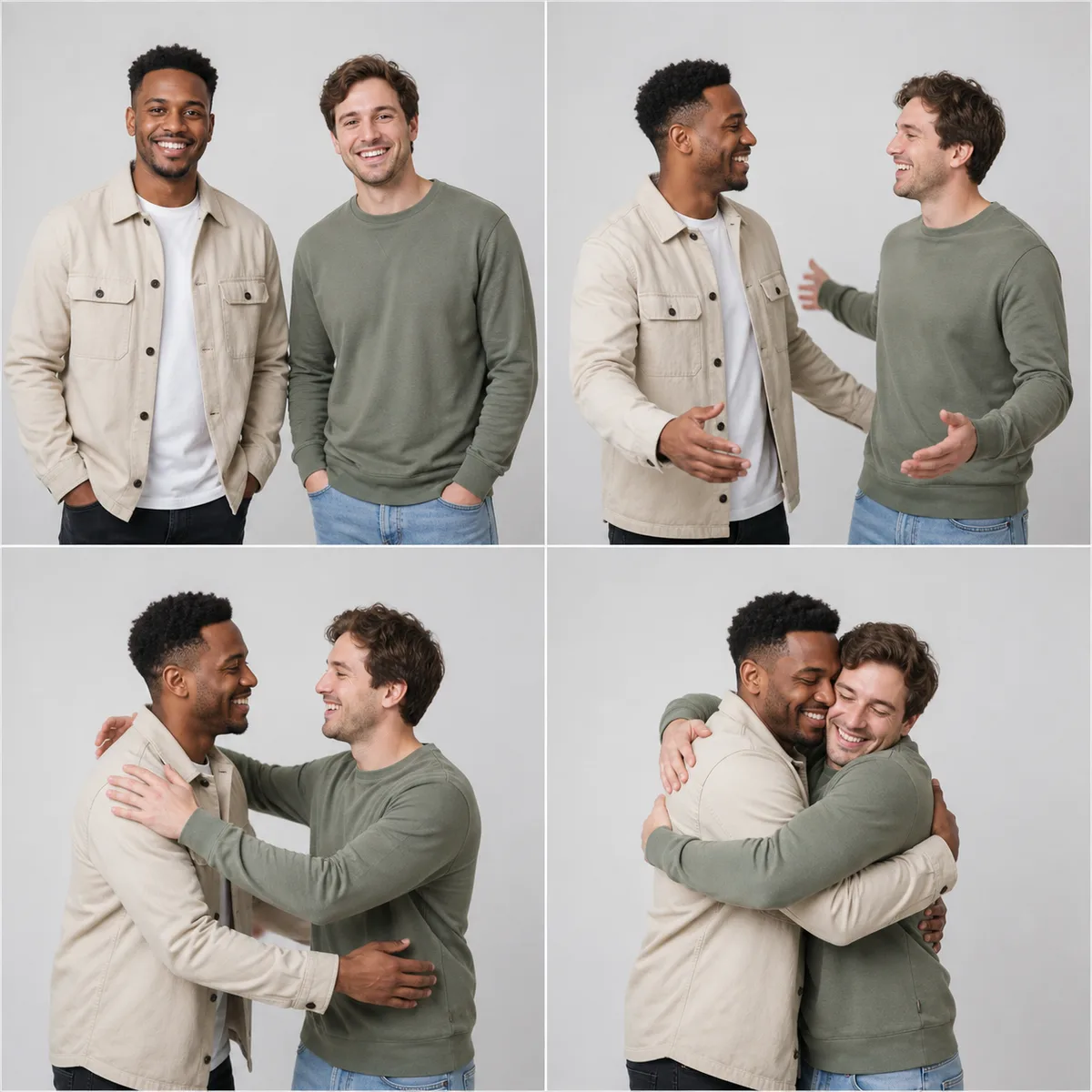
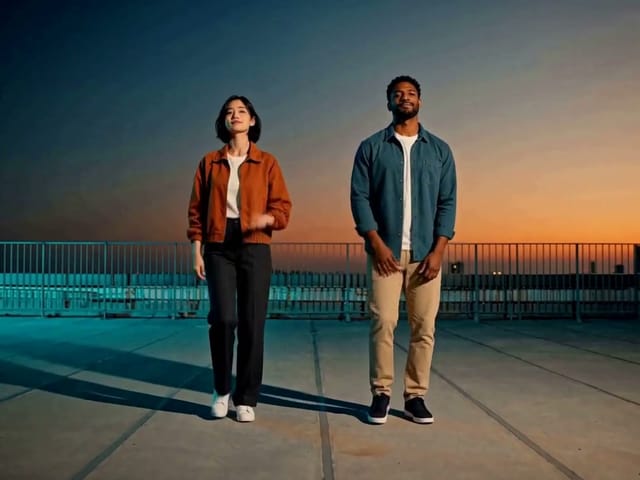
This Seedance 2.5 result starts with a two-person photo. Watch faces, arms and clothing as the pair turn toward each other and smile. Use such a short shot as material for an anniversary video, adding dates, captions and editing separately.


Fictional adult couple sample for a 25th anniversary video

Create a Silver-Anniversary Transition Without Faking Exact Typography

A useful 25th anniversary video maker needs more than a generic romantic prompt. This workflow accepts one couple image or a then-and-now pair, treats the first as the opening frame and the second as the closing frame, and asks Seedance to generate a short transition with restrained celebratory motion. The prompt protects both adult identities, clothing, hands, rings, setting, and photographic character while introducing silver-toned light and a clean area for titles. Generative video is unreliable at exact spelling, so names, dates, and the words Happy 25th Anniversary should be added after generation in a normal editor. The result is a creative tribute, not proof of an event or a replacement for the original photos. Use images you own or have permission to process, and confirm the couple is comfortable with the planned use.

How to Build a 25th Anniversary Video Concept

Choose meaningful source photos, define a restrained transition, then finish exact text in an editor.

1. Choose One Photo or a Then-and-Now Pair

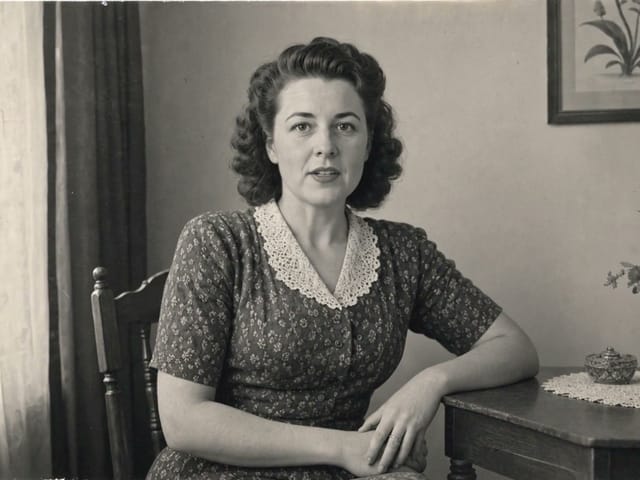
For one-photo motion, use a clear adult couple image with readable faces and hands. For a transition, upload the earlier photograph first and the recent photograph second. Similar framing helps the model connect them, but preserving two different ages and eras remains a generative goal rather than a guarantee.

Fictional adult couple source for an anniversary video

2. Write the Celebration Direction

State the names and year for planning, then describe silver accents, lighting, motion, camera behavior, and the tone: intimate, formal, playful, or documentary-inspired. Ask for uncluttered negative space rather than model-rendered lettering. Avoid inventing locations, vows, dialogue, or events not represented by the photos.

Fictional celebratory couple preview used to plan gentle motion

3. Review, Download, and Add Exact Titles

Check both identities, apparent ages, faces, hands, rings, clothing, and the transition. Download an acceptable clip, then add the exact names, dates, greeting, music license, captions, and family credits with a deterministic editing tool. Preserve the original photos separately.

Contact sheet used to compare a fictional couple source and video concept

Plan the Tribute Before You Generate

A short source and publishing checklist prevents most avoidable problems.

Permission and Audience

Confirm the couple has agreed to the animation and intended audience. Avoid private documents, addresses, or sensitive family information in the frame.

Then-and-Now Compatibility

Two photos with related framing, visible faces, and similar subject scale are easier to transition than an extreme close-up paired with a distant group shot.

Exact Greeting Workflow

Ask the generator to reserve clean space, not to spell the final greeting. Add names, anniversary year, subtitles, and logos later so every character is correct.

Music and Voice

Use licensed music and separately recorded narration when needed. Do not invent a cloned voice or imply that generated speech came from either person.

25th Anniversary Video Maker FAQ

Answers about photos, transitions, text, audio, cost, and responsible sharing.

Can I use two photos in the 25th anniversary video maker?

Yes. The first photo is used as the opening frame and the optional second photo as the closing frame. This produces one generative transition, not a multi-slide timeline.

Will it write our names correctly?

Exact spelling is not dependable inside generative video. Ask for clean title space, then add names, dates, and the final greeting in an editor after downloading the clip.

Does it create a complete long slideshow?

No. This page creates a short AI video concept from one or two photos. Assemble a longer history, additional photos, exact timing, captions, and music in a timeline editor.

Can the couple's faces change?

Identity preservation is prompted but not guaranteed. Compare every frame with both source photos and reject results that materially change either person.

Can I use wedding photos from 25 years ago?

Yes if you own the photos or have permission from the relevant rights holders and people. Scan a working copy and keep the original archive safe.

How much does generation cost?

The current credit requirement is displayed in the generator for the selected duration and resolution before submission. That live notice is authoritative.

Can it add music?

The selected video model may generate audio when enabled, but review it carefully. For a meaningful song or narration, add properly licensed audio in an editor.

Is the generated transition authentic footage?

No. It is a synthetic interpretation between photos. Disclose that when viewers might otherwise understand it as a recovered recording.

Make a Short Silver-Anniversary Video

Upload an authorized couple photo or then-and-now pair, keep the transition restrained, and add exact names and greetings after generation.

Related tools