
















Save up to 73% on plans

AI Halloween Costume Transformation Video Generator
Sign In

AI Halloween Costume Transformation Video Generator

Upload a clear half-body or full-body photo, then choose a vampire, witch, skeleton or pumpkin costume. The AI Halloween costume transformation starts in your everyday clothes, swirls you in soft smoke and ends on a full-body costume reveal with a short final hold.

Your photo*(0/1)

Please add the required Your photo before generating.

Sound
Public VisibilityAllow this result to appear in public inspiration surfaces.

More AI Video Models & Effects

From everyday outfit to Halloween costume in one clip

Costume reveal videos are an October favorite: someone turns, the frame fills with smoke, and they come back as a vampire or a witch. Filming that for real takes a costume, a fog machine and careful editing. This AI Halloween costume transformation builds the whole moment from one photo, so you can preview a look before the party or share a playful reveal without sewing a single stitch. Keep the camera at chest height in your source photo so the finished cape or robe has room to move. Save a few alternate photos so you can retry quickly if the first reveal softens the face.

AI Halloween costume transformation examples

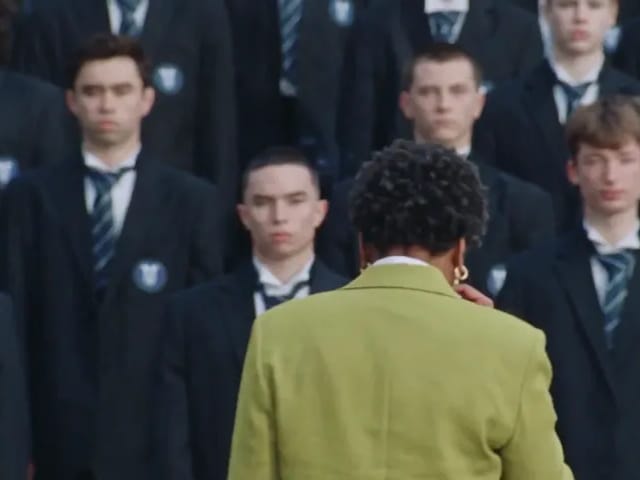
Frames from sample clips showing the kind of reveal the effect produces. Each starts with ordinary clothes and ends on a finished costume you can download and share. Use them as a reference for pacing: everyday clothes, smoke turn, then a clear final pose.

Vampire look with cape and collar

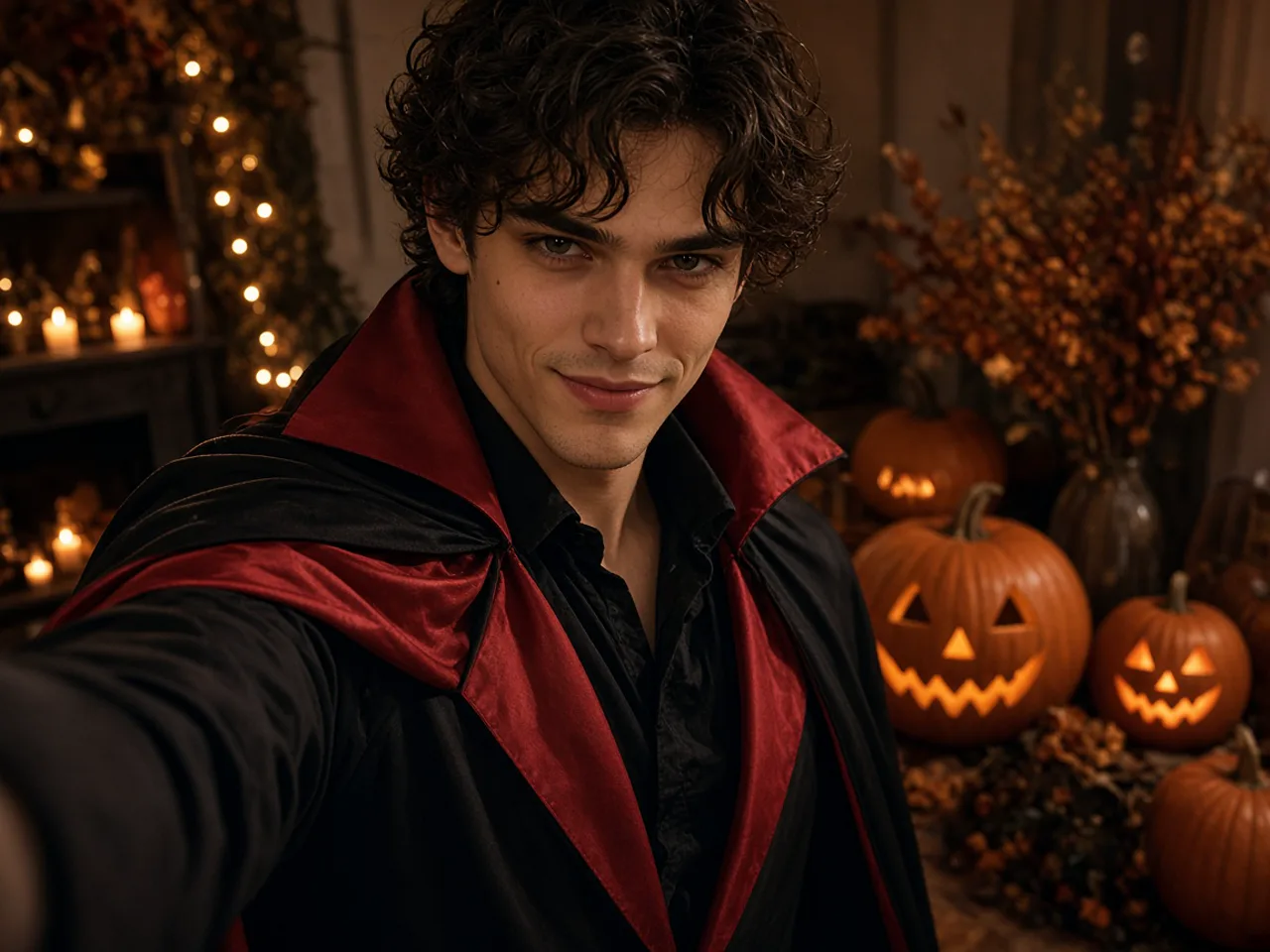
Start with the vampire when you want a clear before-and-after in an AI Halloween Costume Transformation. Everyday clothes open the clip, then a dark cape with a deep-red lining and a high collar settles in as the smoke clears. Keep your source photo half-body or fuller so the cape has room to fall. Watch the final hold: the collar should stay sharp and your face should still look like you. If the cape feels thin, run the same photo again before you switch looks.
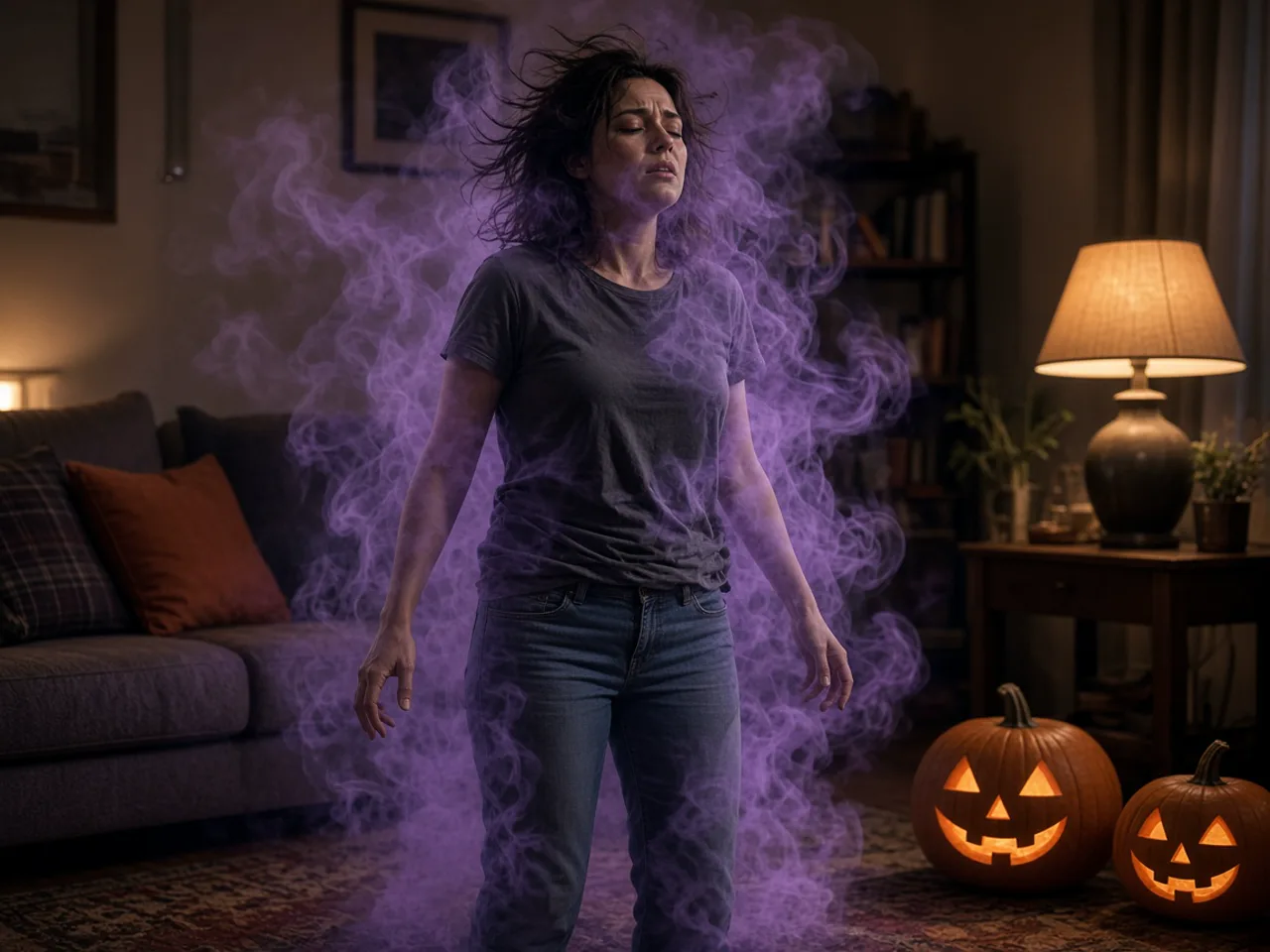

Smoke transition during the turn

In an AI Halloween Costume Transformation, the turn is where the outfit change should hide. Soft purple smoke wraps the body while you rotate, so viewers see the moment of change without a hard cut. Leave a beat of ordinary clothes at the start so the smoke has something to cover. After download, slide your music so the drop lands as the smoke thins. If the clothes jump early, try a cleaner background and a slower, clearer standing pose.

Final pose and full-body reveal

An AI Halloween Costume Transformation should end on a full-body reveal, a short hold, and a gentle camera push-in. Warm autumn light and jack-o'-lanterns help the finished costume read on a phone screen. Pause on the last second and check face, hands, and fabric before you share. For social posts, cut in right at this hold so the costume is the first clear frame. If the ending feels cropped, start from a wider half-body or full-body photo next time.

How to make an AI Halloween costume transformation ready to share

Four practical steps after you open the generator: pick a look, shoot a usable photo, place the clip where it fits, and fix weak reveals before you post.

Choose a look and watch everyday clothes become a costume

The clip starts from the clothes in your photo, wraps you in soft purple smoke while you turn, and ends on a full-body reveal with a short hold. Pick vampire for a flowing cape with deep-red lining, witch for a pointed hat and dark robe, skeleton for a clear bone-print outfit, or pumpkin for a friendlier orange look. If you are unsure, run the vampire first on the same photo, then try a second look so you can compare which silhouette suits your face and hair. Capes and robes should read clearly against warm autumn light and jack-o'-lanterns in the background.

Open the generator
Person in everyday clothes wrapped in purple smoke during a Halloween costume change

Shoot a clear half-body photo before you upload

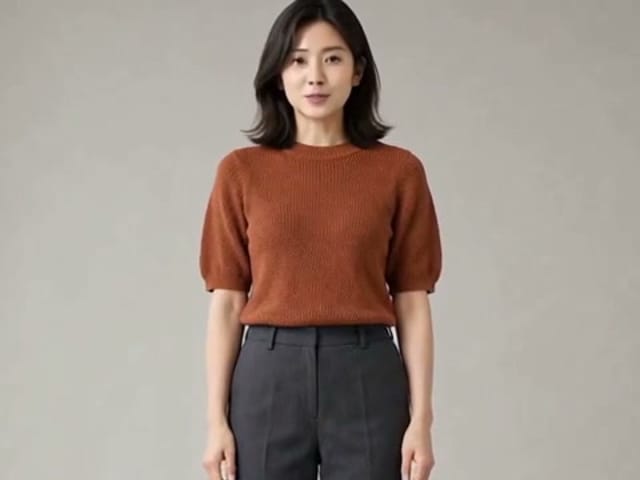
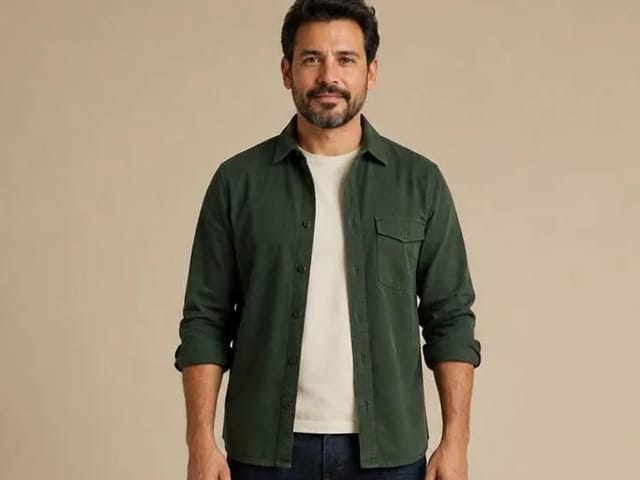
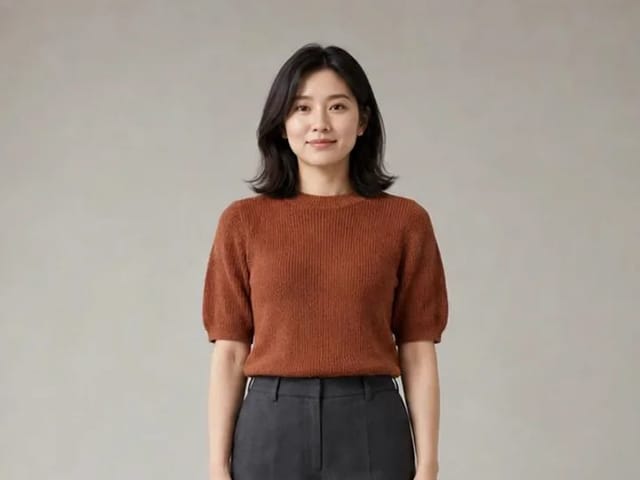
Use one adult standing toward the camera in everyday clothes, with the face and outfit both lit evenly from a window or shade outdoors. Crop group shots down to a single person so the costume does not jump to the wrong body. Skip blurry selfies, heavy filters, covered faces, and face-only crops, because the reveal needs shoulders and torso to read. A plain wall or tidy room helps the smoke stay sharp instead of fighting busy wallpaper. Only upload photos you own or have permission to use, and keep jewelry or busy patterns simple so the outfit change stays easy to follow. Stand a step farther from the wall if your shadow is harsh, and keep both arms visible so the finished sleeves look natural.

Upload a photo
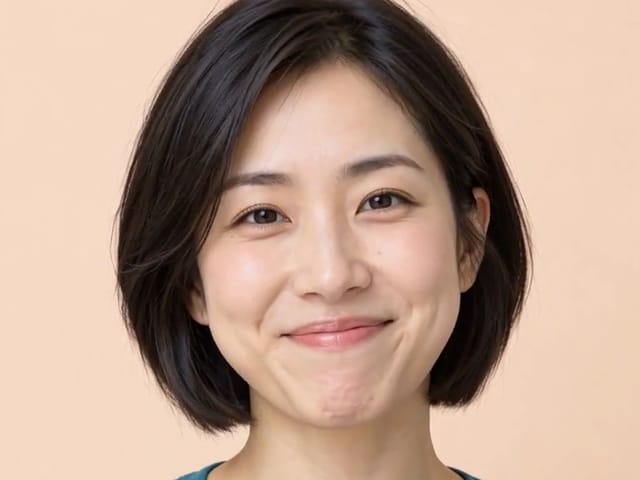
Adult facing the camera in a plain navy shirt against a clean wall

Use the reveal for parties, social posts, and matching looks

Preview a vampire or witch look before you buy or sew a costume, then send the clip with a party invite so guests know whether the night feels spooky or playful. For TikTok, Reels or Shorts, download the video, add a trending Halloween sound, and slide the beat to the moment the smoke clears and the finished outfit appears. Couples and friends can each make their own clip and cut the reveals together in an editor for a matching post. Creators can also drop the reveal as a short intro or transition in a longer October video between bigger uploads.

Make your reveal
Person in a vampire cape taking a Halloween selfie beside glowing jack-o'-lanterns

Review the full clip and fix weak reveals

Watch the finished AI Halloween costume transformation at full size before sharing. Check that the face stays the same person from start to end, that hands do not merge during the turn, and that the outfit change happens inside the smoke instead of as a hard cut. Capes and robes should move with the body instead of clipping through it. If the face drifts, start again with a sharper front-facing photo in even light and a calmer background. There is no soundtrack on the file, so add music or captions yourself after download, and judge the result from the full clip rather than a tiny thumbnail.

Try another look
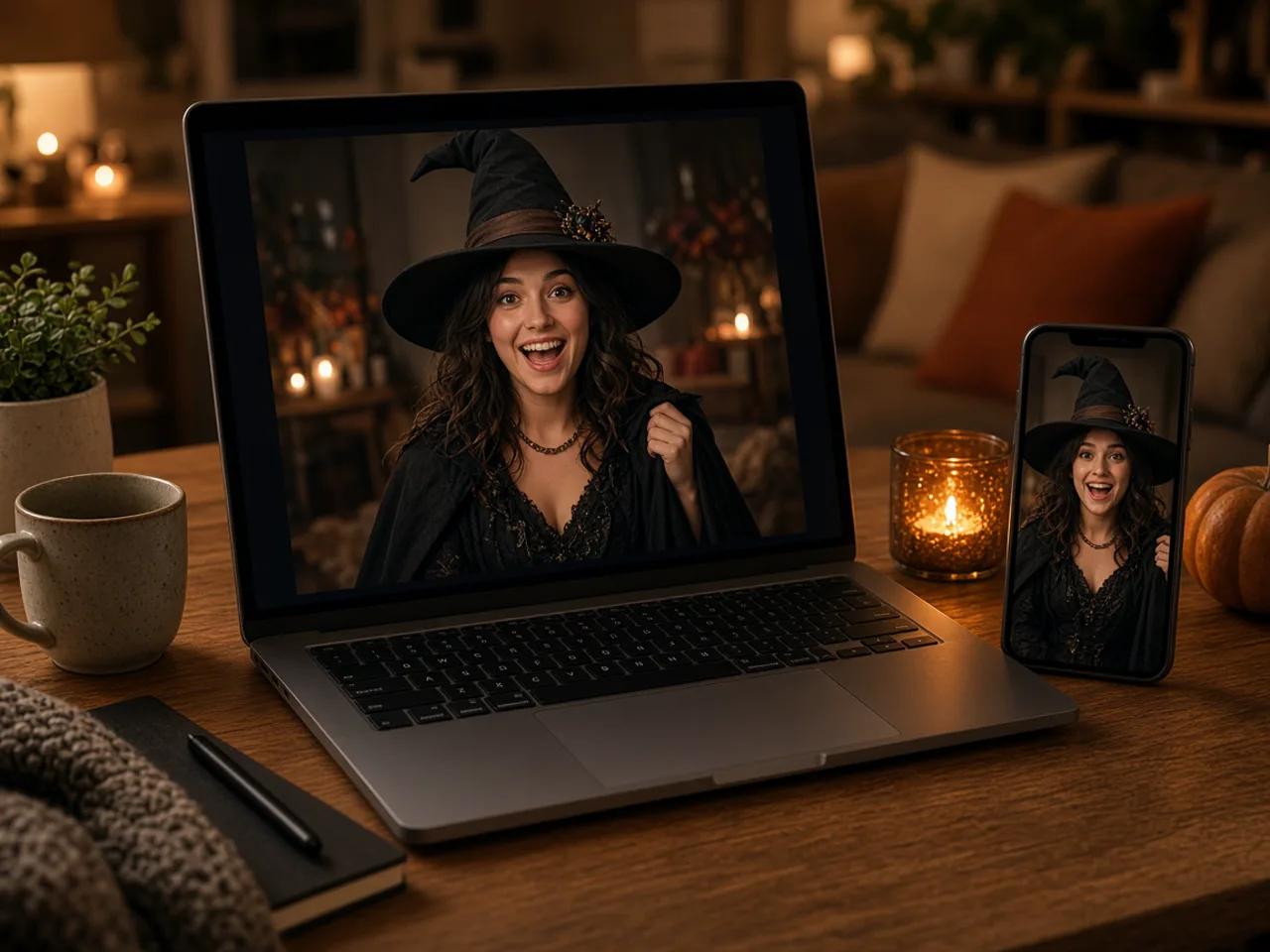
Laptop and phone showing a finished witch costume reveal on a desk

Access and account notes

Sign in to NanoPic to create your AI Halloween costume transformation. Before you start, the generator panel shows what the run needs. Upload only photos you have the right to use.

Frequently asked questions

What is an AI Halloween costume transformation?

An AI Halloween costume transformation is a short video that starts with you in everyday clothes and ends with you in a Halloween costume, with a smoke transition in between.

Which costumes are available?

Four looks: vampire, witch, skeleton and pumpkin. Vampire is selected first, and you can switch before you start.

How long is the video?

Clip length follows the duration you pick in the generator before you start.

Will it keep my face?

It aims to keep your facial features, hairstyle and expression recognizable. Results vary, so review the clip before you share it.

Can I transform my pet?

This effect is made for people. For a dog or cat, try the Halloween Pet Hat effect in More Halloween effects.

Can couples use it?

The effect works on one person per clip. Make one for each person and combine them in an editor.

Does the video include music?

No. Add a soundtrack yourself after downloading.

Do I need video editing skills?

No. Upload a photo, pick a costume and start. Editing is only needed if you want to add sound or captions.

What photo should I avoid?

Blurry photos, covered faces, heavy filters and tight face-only crops.

Can I make a pumpkin head picture instead?

Yes. Pumpkin Head Photoshoot turns one photo into a still portrait with a glowing jack-o'-lantern head; you can open it from More Halloween effects.

Can I time the reveal to a beat drop for TikTok?

Yes, in your editor. The classic format is everyday outfit, beat drop, costume. Download the clip, add a trending Halloween sound in TikTok, CapCut or Instagram, and slide the audio so the drop lands at the moment the smoke clears and the finished costume appears.

Why does my face change during the transformation?

Faces drift most when the photo is small, dark or turned away, or when the outfit in the picture is busy. Start again with a sharp, front-facing half-body photo in even light. A plain background also helps the effect keep your features steady while the clothes change around you.

Can I dress up as a film or game character?

The four looks are general Halloween styles, not named characters or branded costumes. Pick the closest one, such as the vampire with a flowing cape or the witch with a pointed hat, and add props or captions in your own edit if you want to hint at a favorite character.

Start your AI Halloween costume transformation

Upload a clear photo, pick a costume and watch your outfit change in a short Halloween reveal you can post the same day.

More Halloween effects

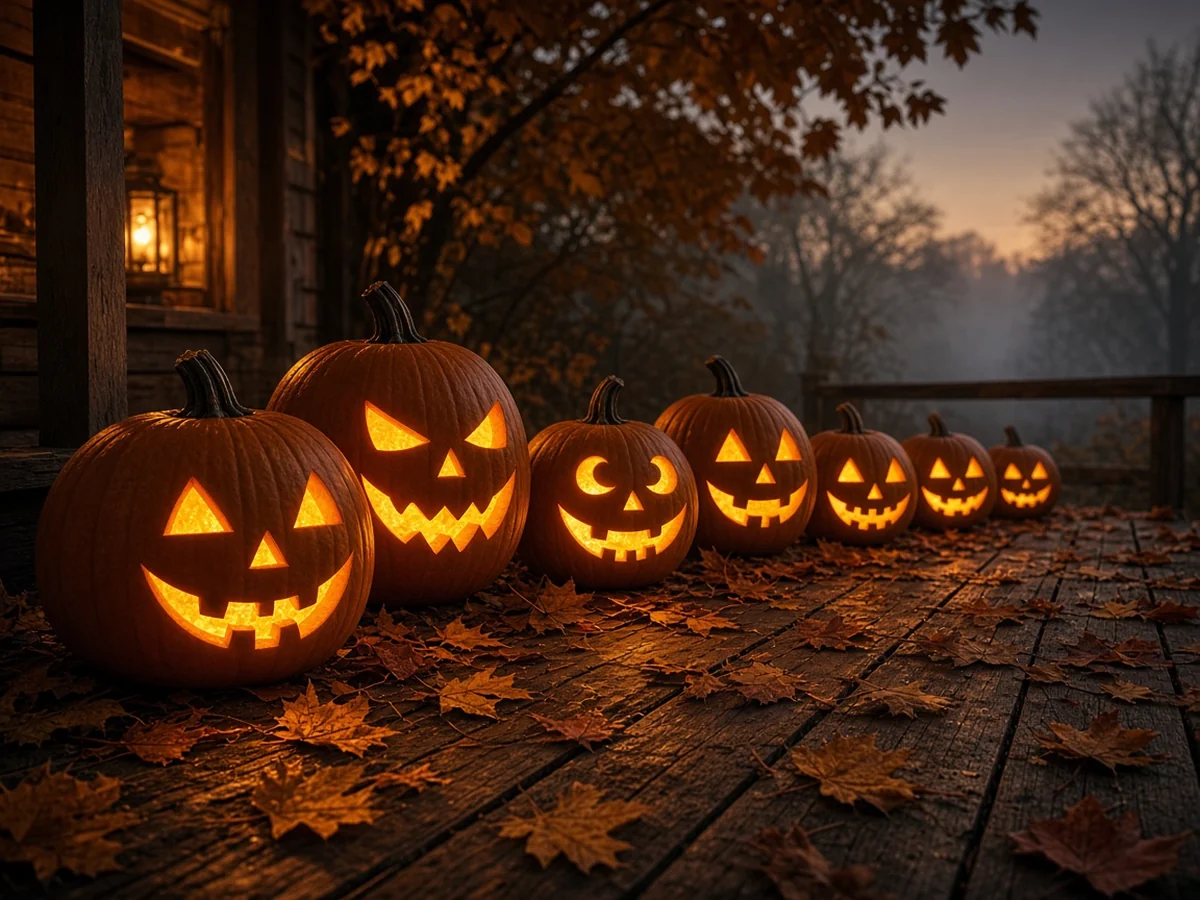
Person with a glowing carved jack-o'-lantern head in an autumn scene

Pumpkin Head Photoshoot

Turn one photo into a still portrait with a carved, glowing jack-o'-lantern head.

Open tool
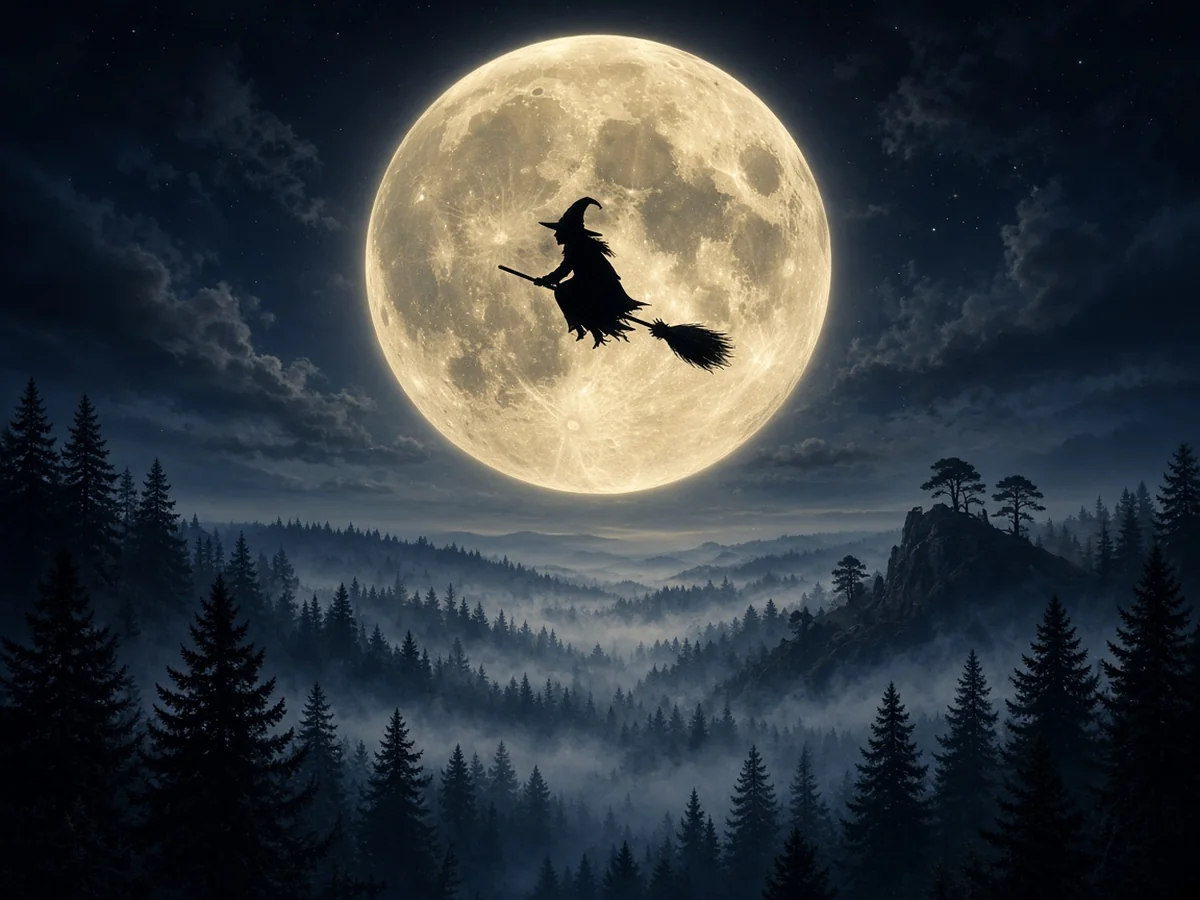
Silhouette of a witch riding a broomstick across a full moon

Broom Riding AI

Put yourself on a flying broom beside a moving car in a short trend clip.

Open tool
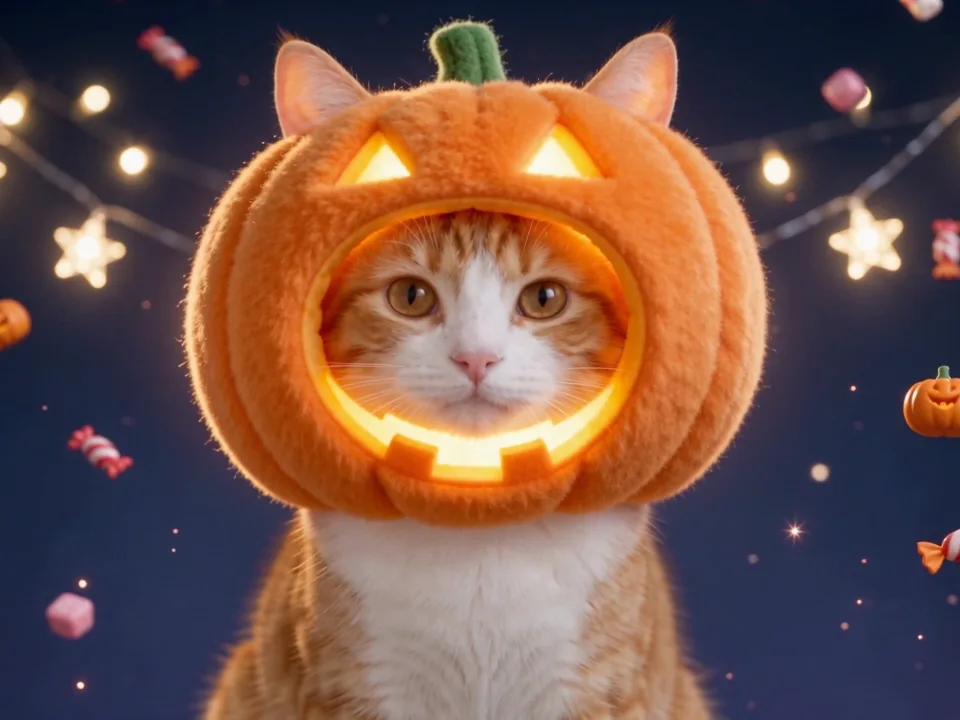
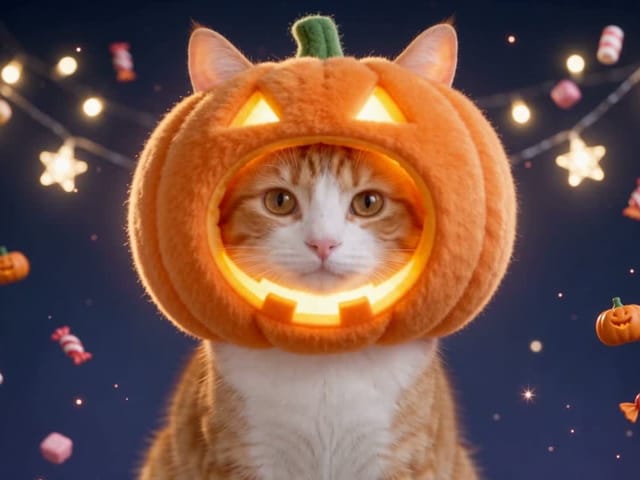
Orange cat wearing a glowing pumpkin hat

Halloween Pet Hat

Want your dog or cat in on the fun? Put a Halloween hat on your pet instead.

Open tool