





































Free Matcha Filter for Photos
Sign In

Free Matcha Filter for Photos

Upload one authorized photo, choose a matcha style, and edit the prefilled prompt. Review the live cost, then generate the effect.

Start with the viral jelly look or choose a lighter editorial variation.

Upload One Photo*
Try a Sample Photo

227 / 500

Public Visibility
Copy Protection
Credits required:-

Your Matcha Filter Preview and Result

Image

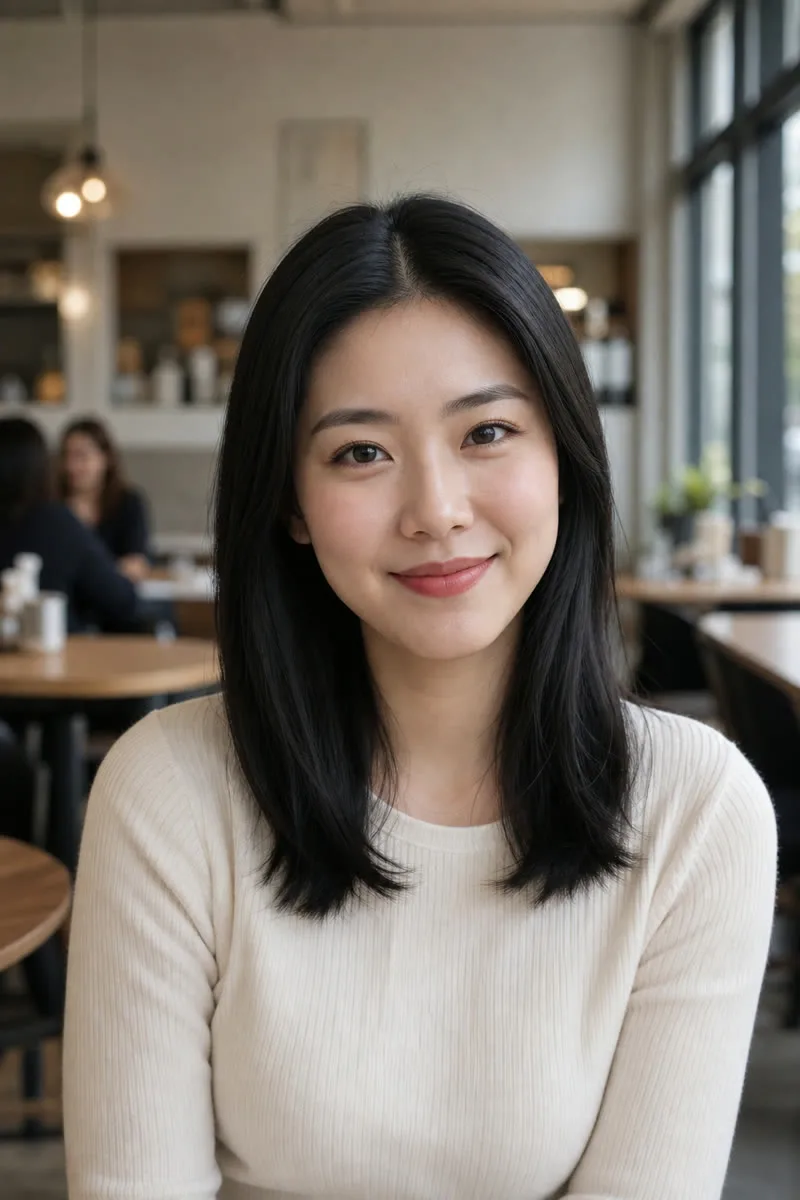
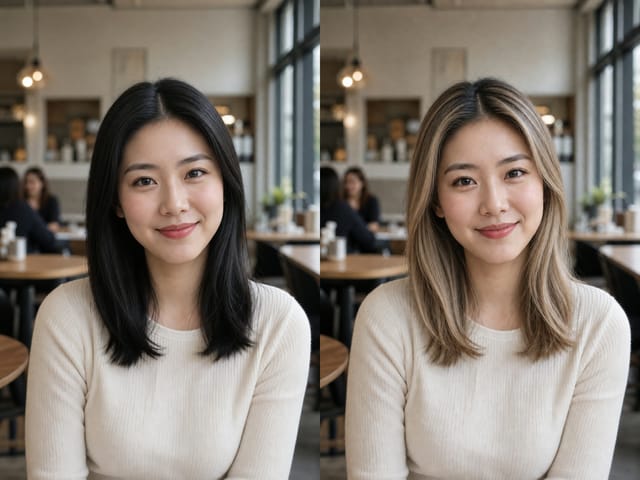
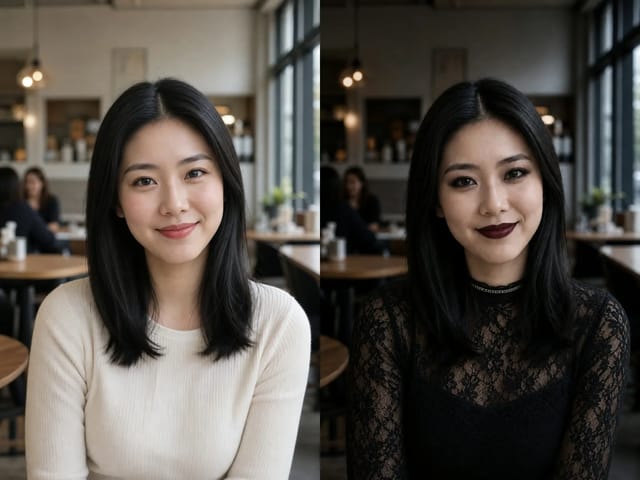
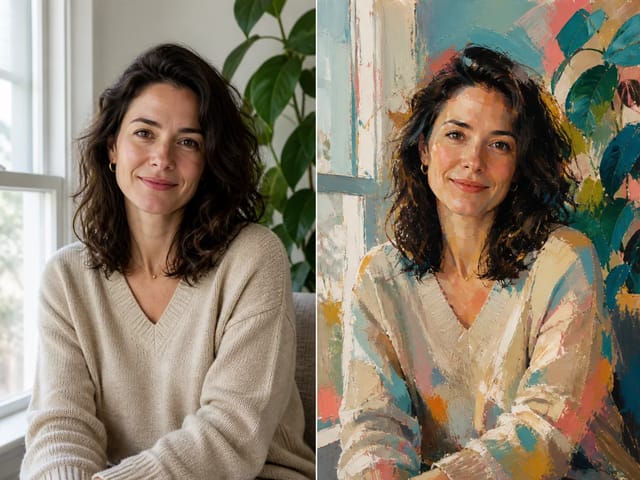
Adult East Asian woman in a cafe before using the Matcha Filter
Source
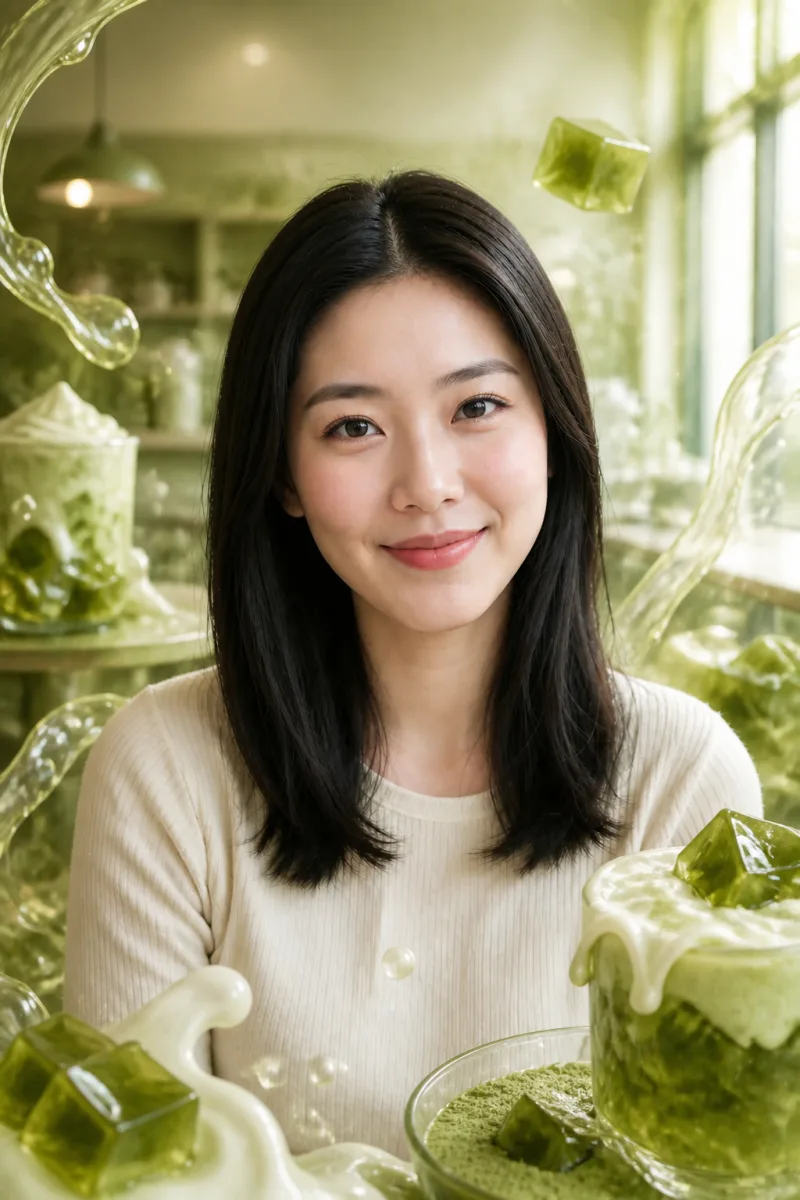
Same adult with translucent matcha jelly around a naturally rendered face
Matcha Jelly
Before and after portrait comparison showing a viral Matcha Filter effect

Add the Viral Matcha Look Without Hiding the Photo

Current Matcha Filter examples are more than a green color preset: they combine translucent jelly, liquid motion, creamy highlights, and a poster-ready matcha palette. This page follows that visual intent while treating the uploaded photo as the composition anchor. The default prompt protects the face, natural skin tone, visible age, hair, pose, object geometry, and camera view, then concentrates the strongest effect on clothing, props, background, and transparent foreground accents. AI edits can still drift, so compare the generated image against the source before downloading or publishing.

Matcha Filter Before and After Examples

Five matched 2:3 source-and-result pairs show whether the transformation is visible without relying on cropped social screenshots, unknown likeness rights, or flat green overlays. The selected portraits cover varied skin tones, ages, lighting, and hair so natural-face rendering can be checked directly.

Viral Matcha Jelly with a Readable Face

Translucent olive jelly and creamy ivory swirls build the recognizable liquid trend around the cafe portrait. The face remains exposed, warm, and detailed; the head, hair, smile, shoulders, window direction, and central composition stay easy to compare with the source.

Use Matcha Jelly
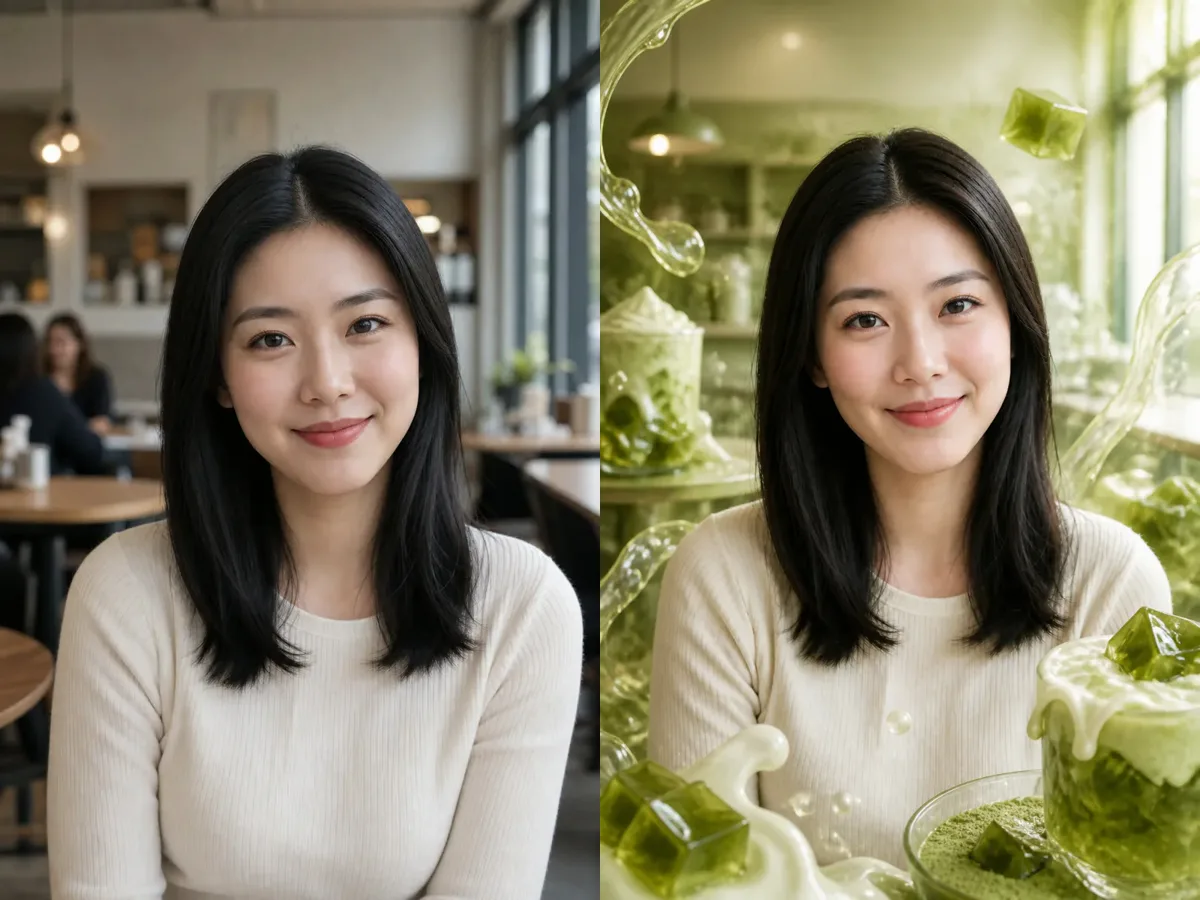
Matcha Jelly Filter before and after portrait with natural skin

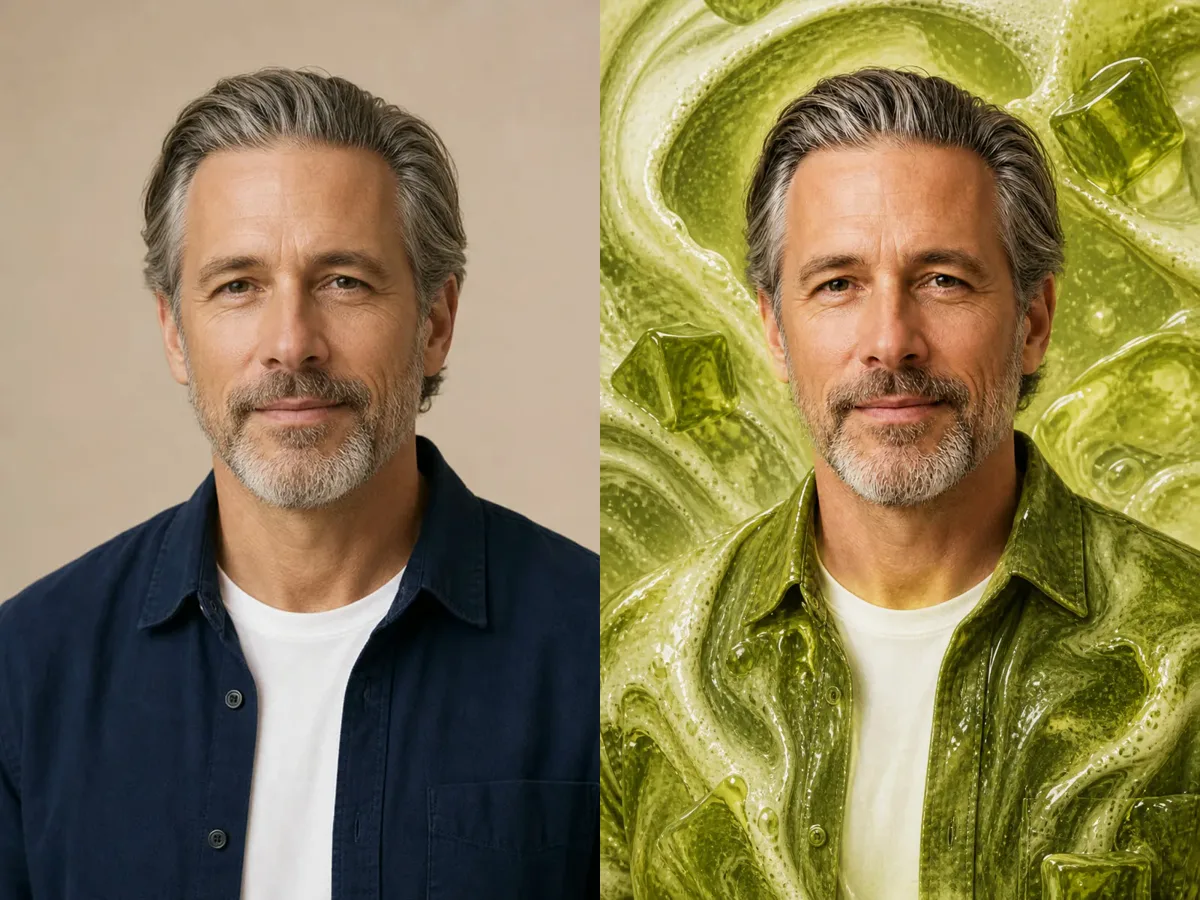
Creamy Matcha Around Mature Skin

Pale foam and glassy green layers reshape the studio mood without erasing visible age. Fine forehead texture, eye shape, gray hair, beard, expression, and head-and-shoulders proportions remain available for a careful identity check.

Use Creamy Matcha
Creamy Matcha Filter before and after mature portrait

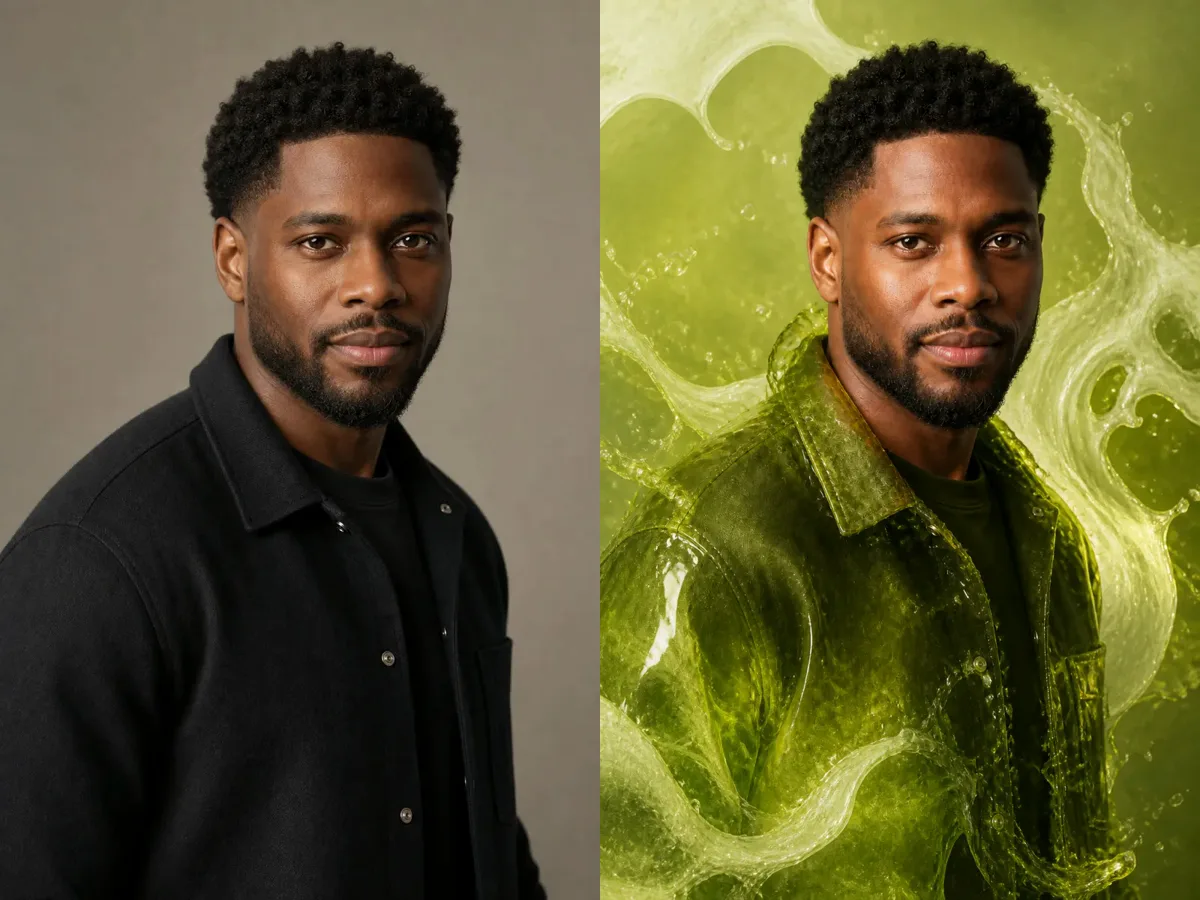
Neon Matcha with Natural Dark Skin

Chartreuse light, deep moss contrast, and glossy liquid motion make the jacket and background feel poster-ready. Natural dark skin, eyes, facial hair, expression, curls, shoulder angle, and anatomy are not replaced by a uniform green mask.

Use Neon Matcha
Neon Matcha Filter before and after portrait with natural dark skin

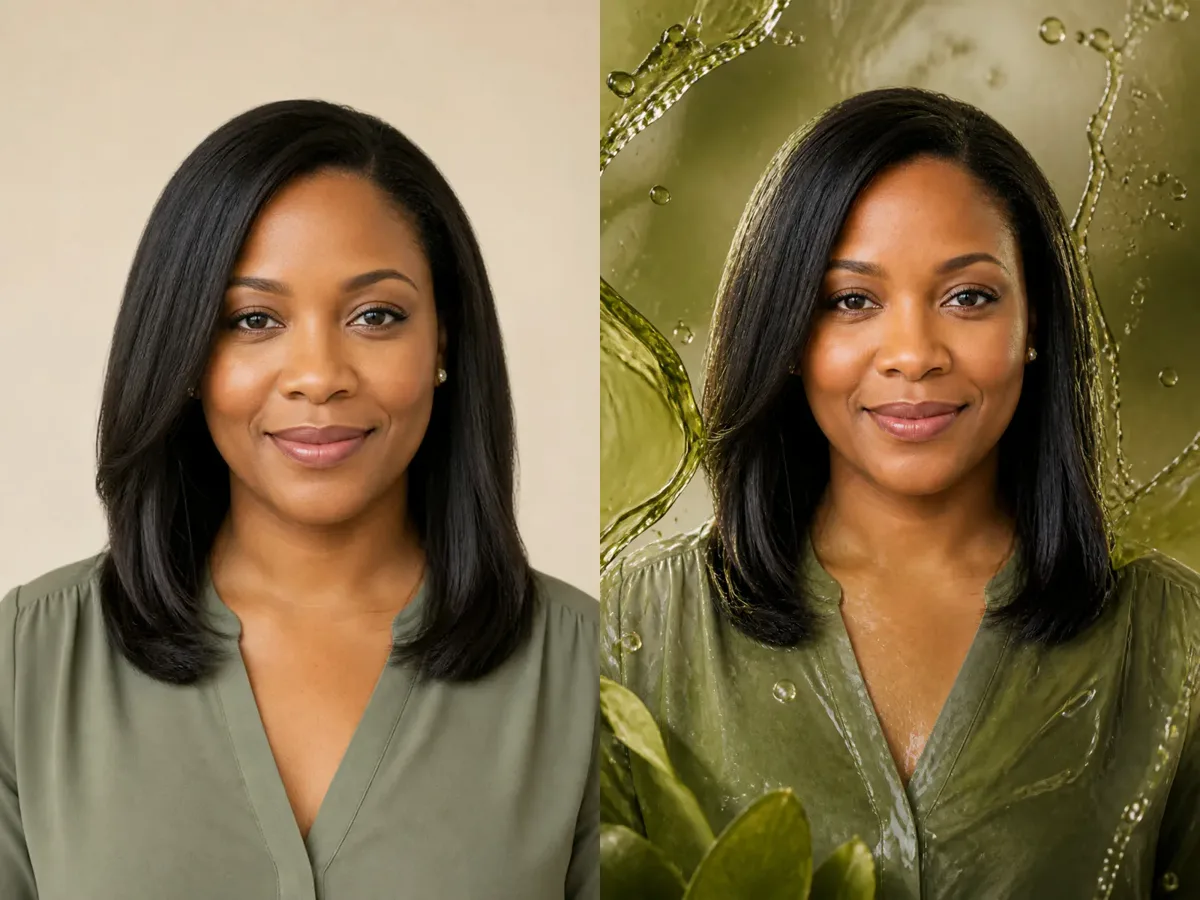
Earthy Moss Editorial Styling

Dark moss, muted khaki, polished olive material, and restrained cream highlights produce a fashion-editorial variation. The result should retain the same face, skin tone, hair texture, jewelry, front-facing posture, and clean studio framing.

Use Moss Editorial
Moss Matcha editorial before and after portrait

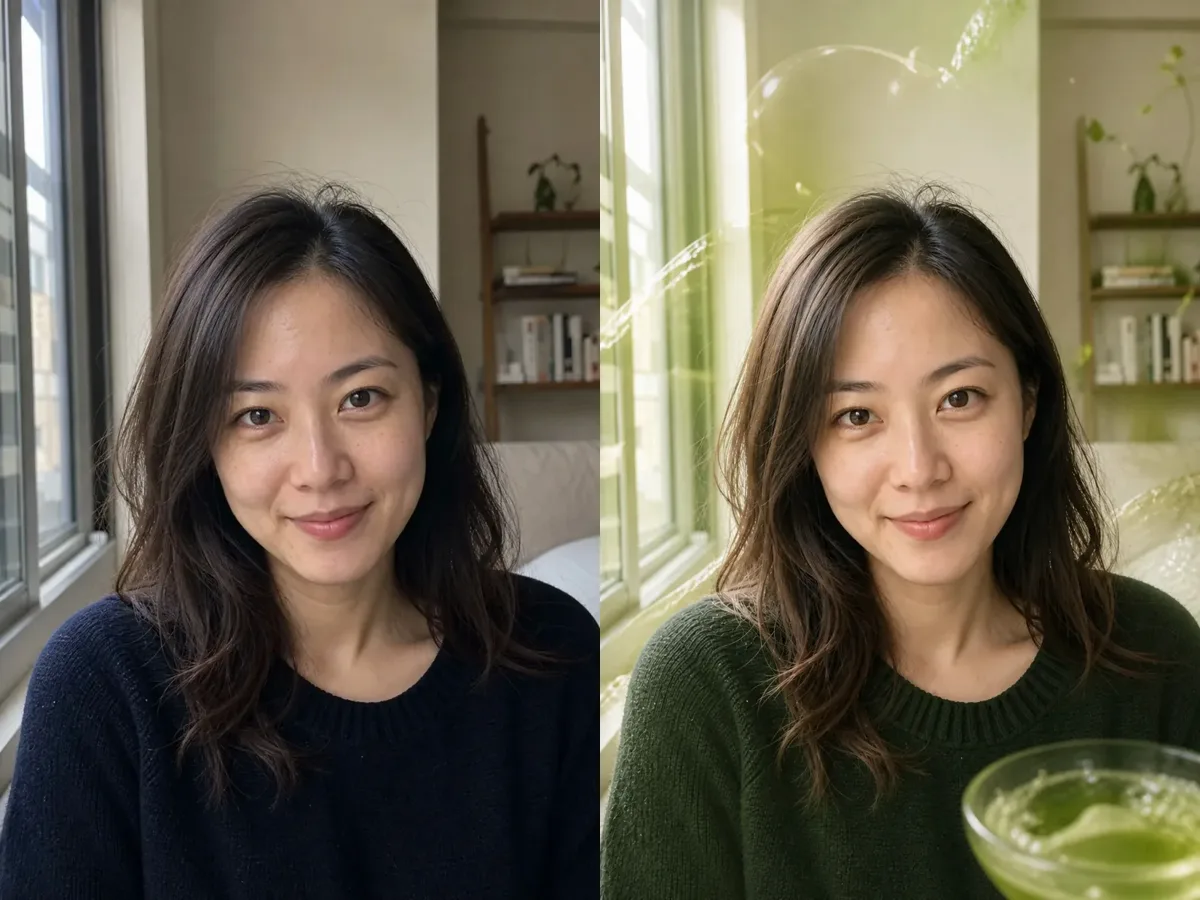
Soft Matcha Glow in Window Light

This lighter option uses pale-green jelly arcs and a muted olive ambience rather than a heavy face treatment. Natural skin, expression, dark hair, window-light direction, close portrait crop, and background structure stay readable while the matcha effect remains visible.

Use Soft Matcha Glow
Soft Matcha Glow before and after window-light portrait

How to Apply the Matcha Filter

One clear source, one coherent style, and one focused note make the result easier to control and review.

1. Upload a Clear Photo

Choose an image you are allowed to edit. For portraits, keep the full head, eyes, face, shoulders, and some clothing visible. For objects, keep the entire silhouette and key edges in frame. Avoid tiny faces, clipped heads, heavy pre-filters, blur, deep shadows, and obstructed features.

Upload a Photo
Clear portrait prepared for a Matcha Filter edit

2. Choose a Matcha Direction

Use Matcha Jelly for the trend-defining liquid look, Creamy Matcha for pale foam, Neon Matcha for brighter poster light, Moss Editorial for earthier fashion tones, or Soft Matcha Glow for a lighter touch. The prompt is prefilled and editable, so add one useful constraint such as keeping the cafe or reducing green near the face.

Choose a Style
Matcha Jelly style card in the Matcha Filter generator

3. Compare Before Downloading

Check face shape, eyes, nose, mouth, hairline, visible age, skin tone, pose, body proportions, object edges, and camera angle. Then check whether the jelly is translucent, the matcha palette is intentional, and important details remain visible. If the face turns green or the subject changes, add one direct correction and try again.

Generate and Review
Matcha Filter comparison used to check identity and effect strength

What This Matcha Photo Filter Controls

The workflow narrows a general image-to-image model into a specific, reviewable visual treatment.

Viral Jelly Default

The main preset targets translucent matcha jelly, liquid motion, creamy foam, and a chartreuse-to-moss palette—the current visual trend, not a generic cafe LUT.

Natural-Skin Guardrail

Portrait instructions keep faces exposed with believable skin tone, pores, undertones, eyes, and age details while moving the strongest green material to clothing and surroundings.

Editable Prompt

A complete identity-preserving prompt is filled in by default. You can edit it before generating instead of starting from an empty box or relying on a hidden one-click effect.

Five Clear Variations

Jelly, Creamy, Neon, Moss, and Soft presets differ in material, contrast, and lighting while staying within one matcha-filter intent.

Matched Evidence

Before-and-after pairs use the same framing so effect strength, identity drift, crop changes, and skin rendering can be reviewed instead of inferred from unrelated samples.

One-Photo Workflow

The tool requires an upload and creates a new generated edit. It does not claim to recover pixels from an already filtered photo or promise exact reconstruction.

Ways to Use a Matcha Filter Result

Treat every output as generated creative material that needs a final rights and detail check.

Social Profile Experiments

Test a recognizably green profile image while preserving a readable face, then inspect the small-size crop before posting.

Campaign Moodboards

Explore olive jelly, chartreuse highlights, creamy foam, and moss contrast for beverage, beauty, music, or fashion concepts without treating the result as a product-accuracy guarantee.

Poster and Cover Concepts

Use glossy liquid motion and controlled negative space as a starting point for a poster or cover, then add licensed typography in a separate editor.

Editorial Portrait Directions

Compare brighter Neon Matcha, earthier Moss Editorial, and lighter Soft Matcha Glow before planning a styled shoot or commissioned artwork.

Matcha Filter FAQ

Answers about the trend, upload workflow, natural skin, credits, watermarks, and the separate removal intent.

What is the Matcha Filter?

On this page, Matcha Filter means a generative photo effect that combines translucent matcha-green jelly or liquid material, creamy highlights, and a chartreuse-to-moss palette. It is stronger than a simple tint and is designed to keep the uploaded subject and composition readable.

Does the Matcha Filter work directly on my photo?

Yes. Upload one authorized photo, choose a style, edit the prefilled prompt if needed, and generate an image-to-image result. The uploaded photo supplies the subject and composition reference; the model creates a new stylized output.

Will the Matcha Filter keep skin looking natural?

The template explicitly asks the model to preserve skin tone, pores, undertones, facial structure, visible age, eyes, expression, and hair while moving the strongest green effect away from the face. Generative results can still drift, so compare every output with the source and retry with one direct correction if skin becomes flat or green.

Is this the same as remove Matcha Filter?

No. This tool adds a matcha effect to an uploaded photo. Removing a Matcha Filter is the opposite task and cannot reliably reconstruct hidden original pixels from a previously generated or heavily filtered image. This page does not claim to recover an original photo.

Is the Matcha Filter free?

Eligible new users currently receive 40 welcome credits valid for 7 days, and the current 1K Nano Banana 2 image-to-image request costs 40 credits, so that offer can cover one generation. Images generated with free credits include a NanoPic watermark; paid-credit images do not carry the free-credit watermark. Offers and costs can change, so the live account balance and displayed generation cost are authoritative. This is not unlimited free generation.

Does opening the page or choosing a sample spend credits?

No generation happens when you read the page, choose a style, load a sample input, or edit the prompt. Credits are used only when you submit an actual generation request; review the visible cost before pressing the generate button.

What photo should I upload?

Use a clear photo that you are allowed to edit. For people, keep the full head, face, eyes, shoulders, and some clothing visible with balanced exposure. For objects or pets, keep the full main subject and important edges in frame. Avoid clipped heads, tiny subjects, severe blur, heavy existing filters, and obstructed features.

Can I edit the Matcha Filter prompt?

Yes. The generator starts with a complete editable prompt. Choose a preset for the main direction, then add one focused note such as keeping the background, using less green near the face, adding more foam, or preserving a garment shape.

Can I use the result commercially?

Use only source images you are authorized to edit, then review the applicable plan terms, consent, likeness rights, trademarks, generated details, and local requirements. NanoPic provides a creative generation workflow, not a legal clearance or a guarantee of perfect subject preservation.

Turn One Photo into Matcha Jelly Art

Upload an authorized image, choose a coherent matcha direction, edit the prefilled prompt, and compare the generated result with the source before saving it.