






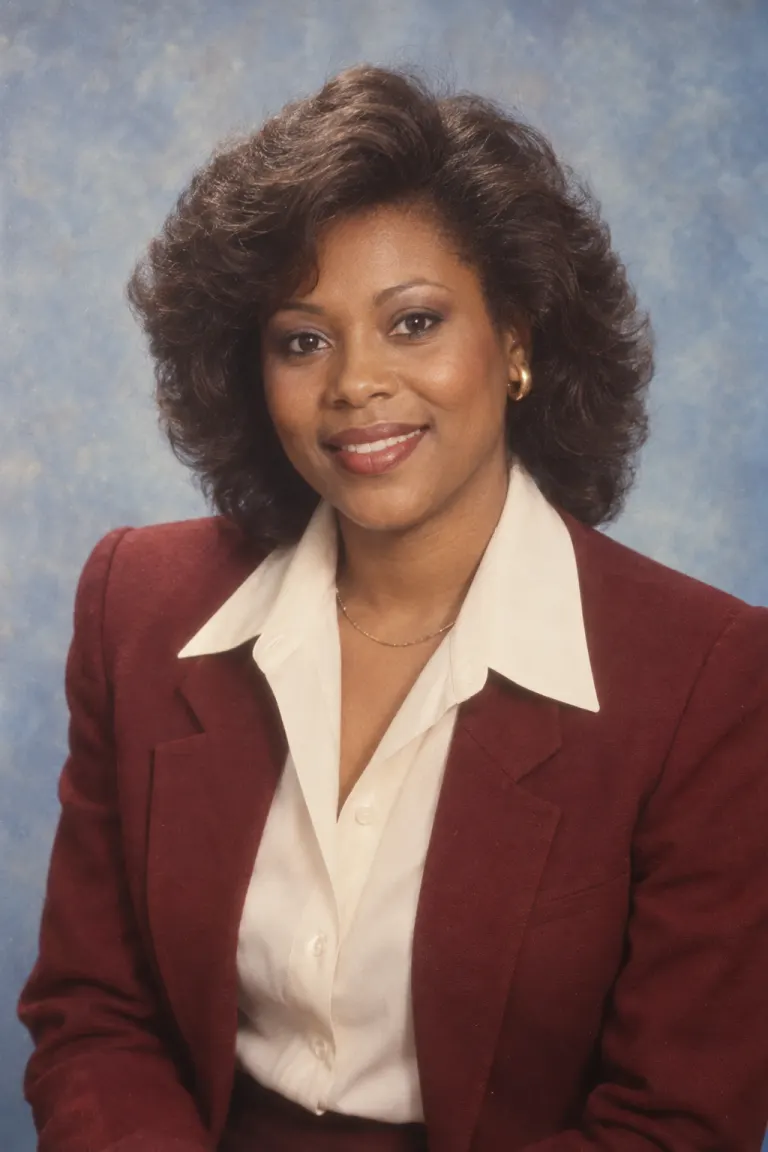
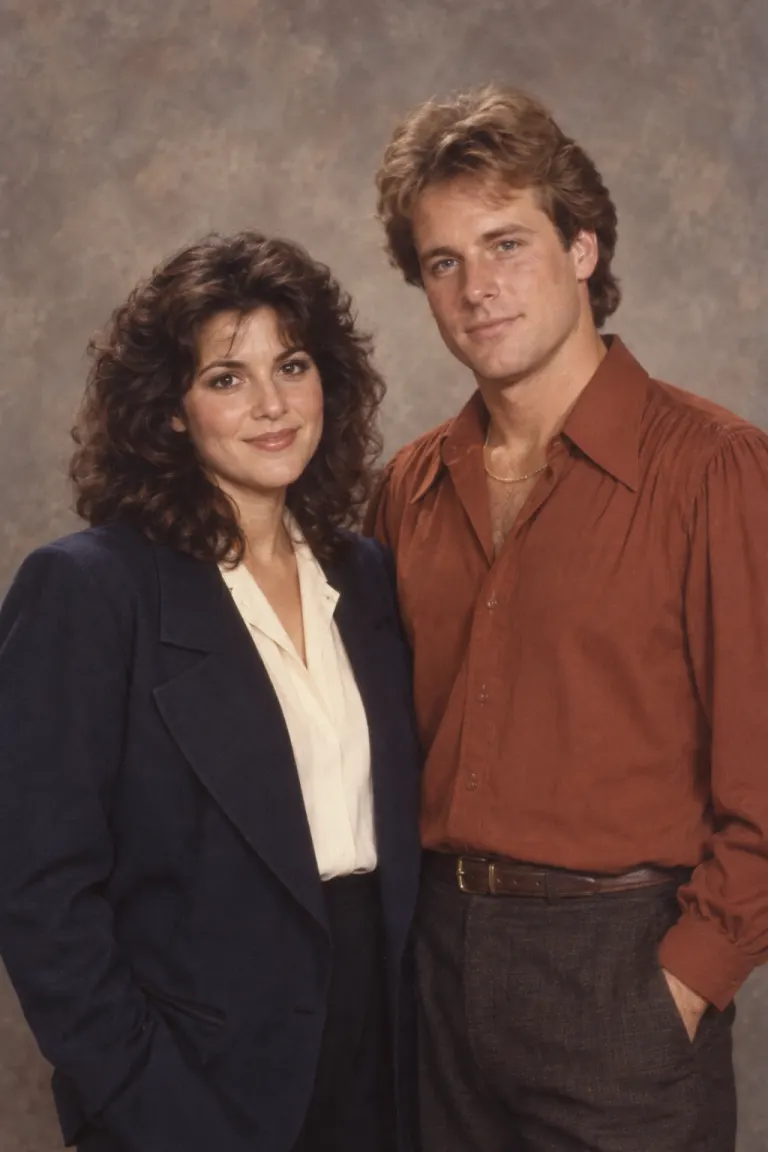
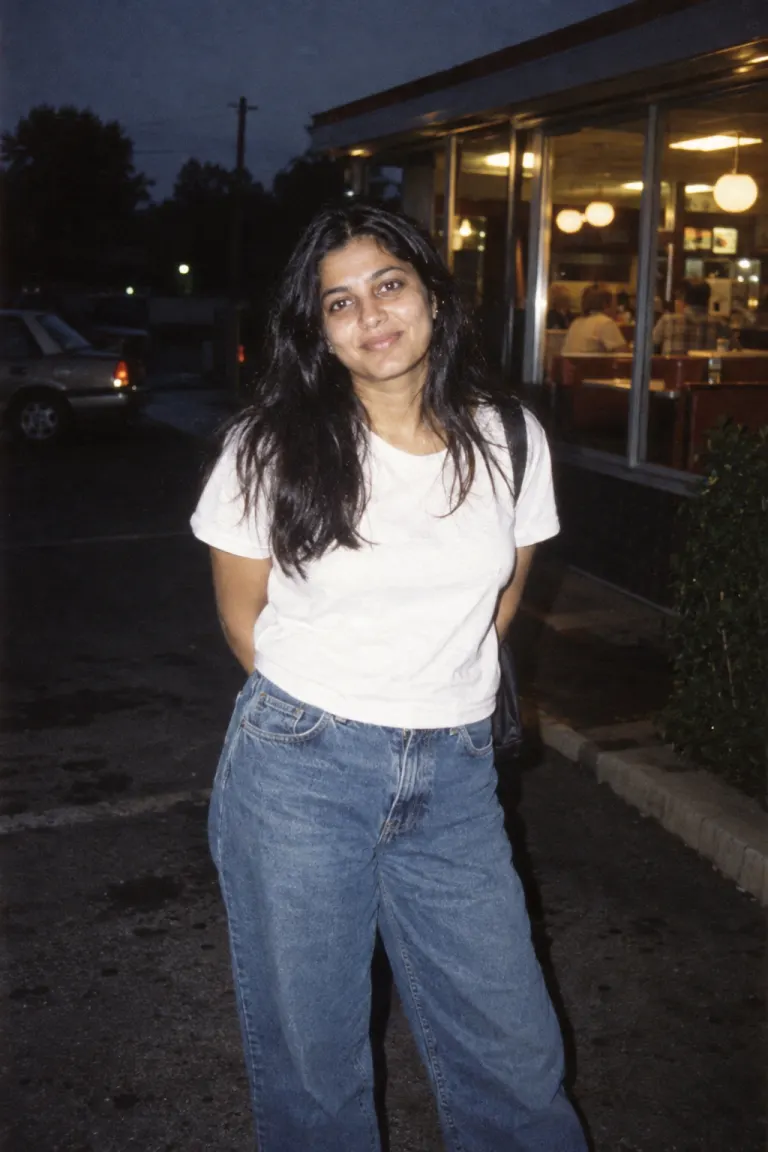

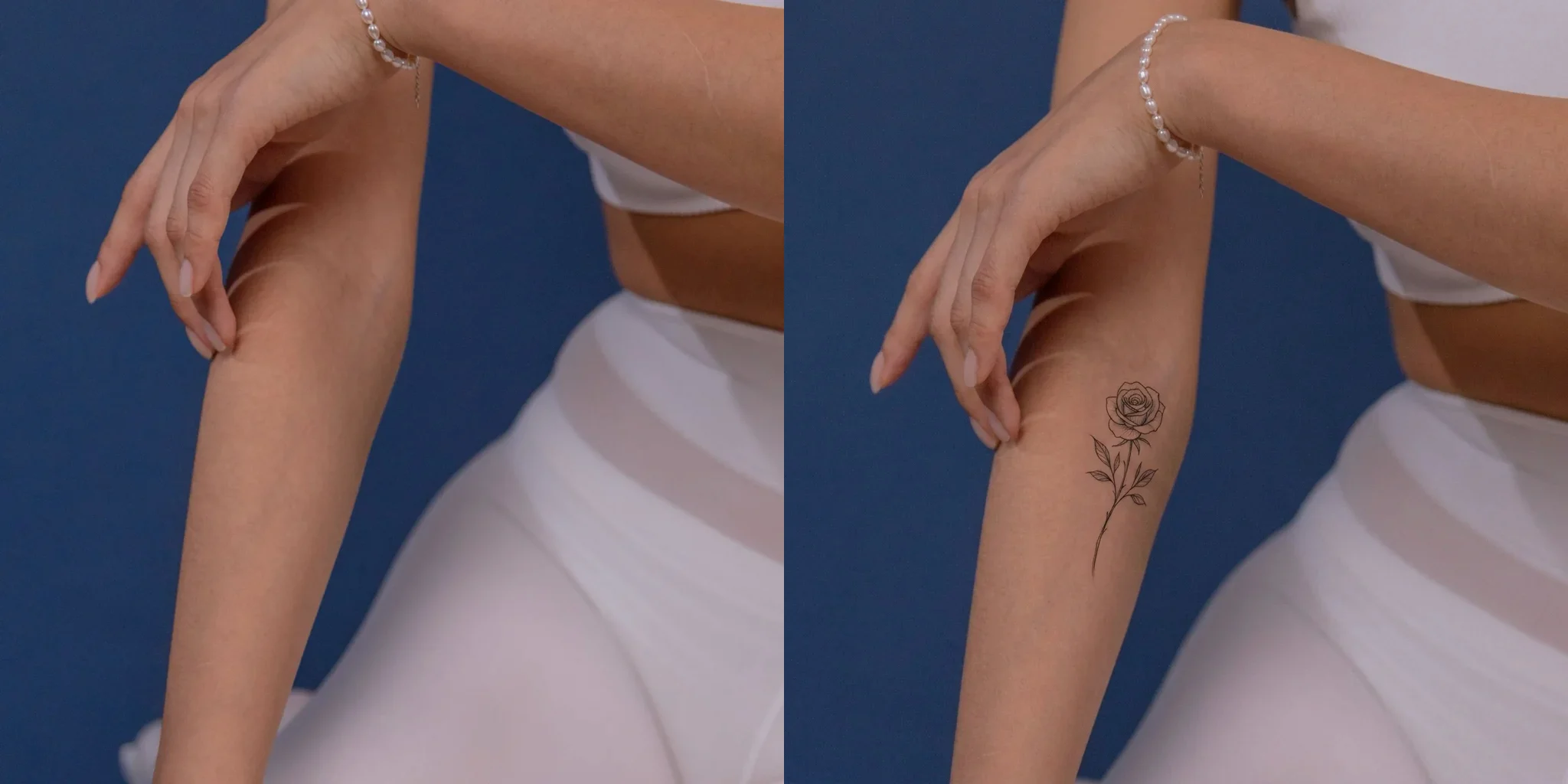
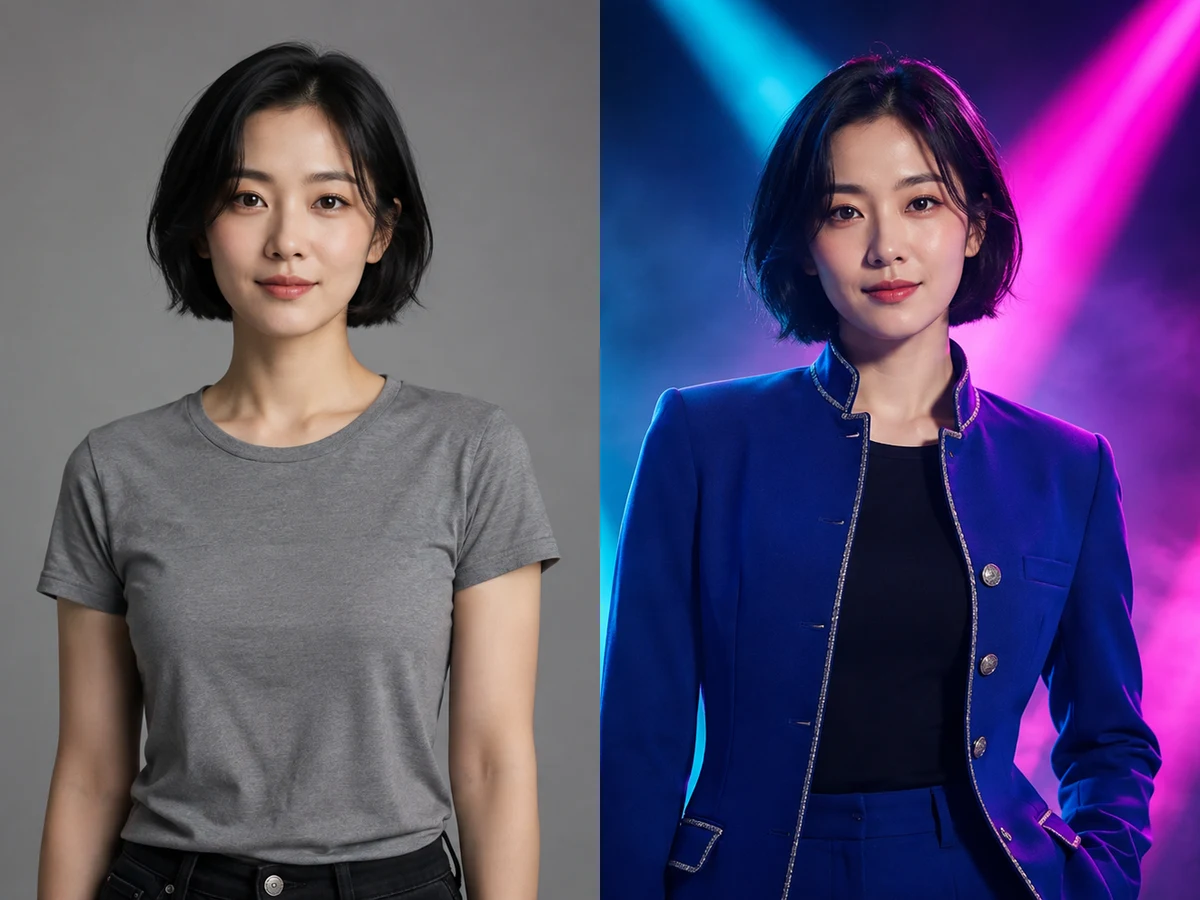


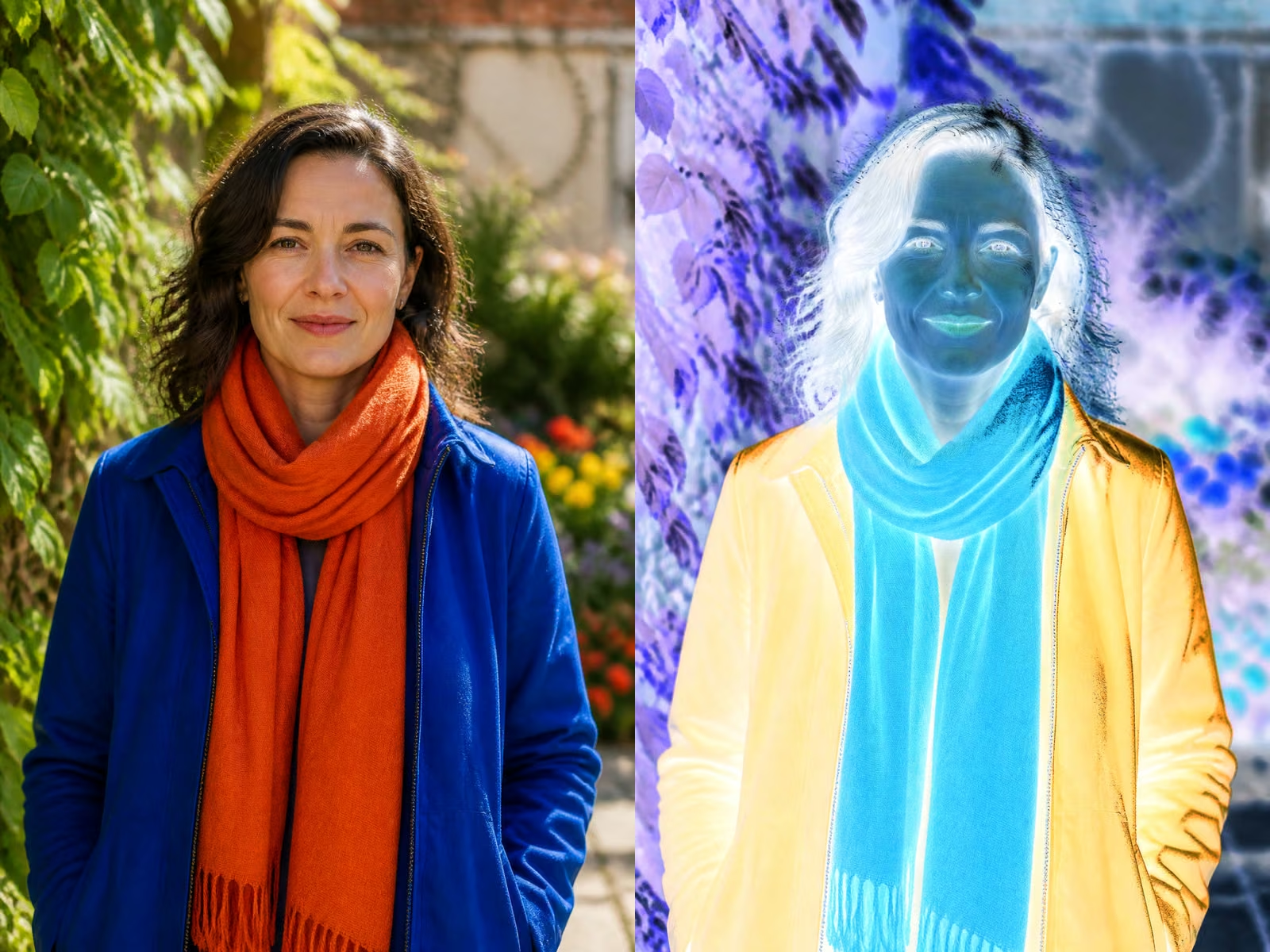
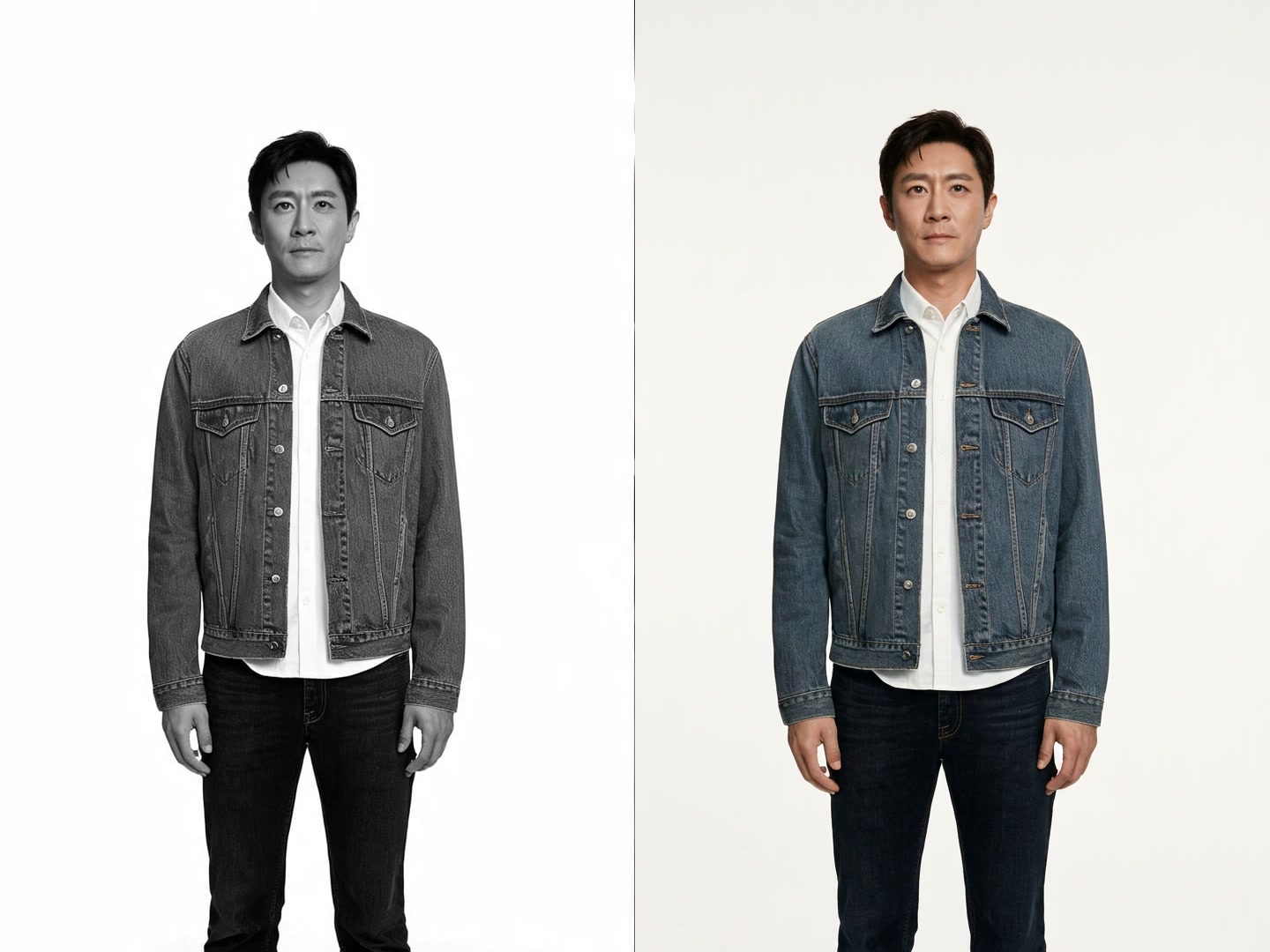
AI to Real Image Converter
Sign In

AI to Real Image Converter

Upload one AI-generated portrait, product, interior, character, or scene. Choose a real preservation priority, add optional realism notes, and run NanoPic’s existing Nano Banana 2 image-to-image workflow. The model redraws the image toward believable photography; it does not prove that the depicted person, event, place, or object was photographed in real life.

Choose how strongly the workflow should favor source fidelity over broader realism corrections.

Upload an AI-Generated Image*

0 / 800

Credits required:-

AI to Real Image Converter

Image

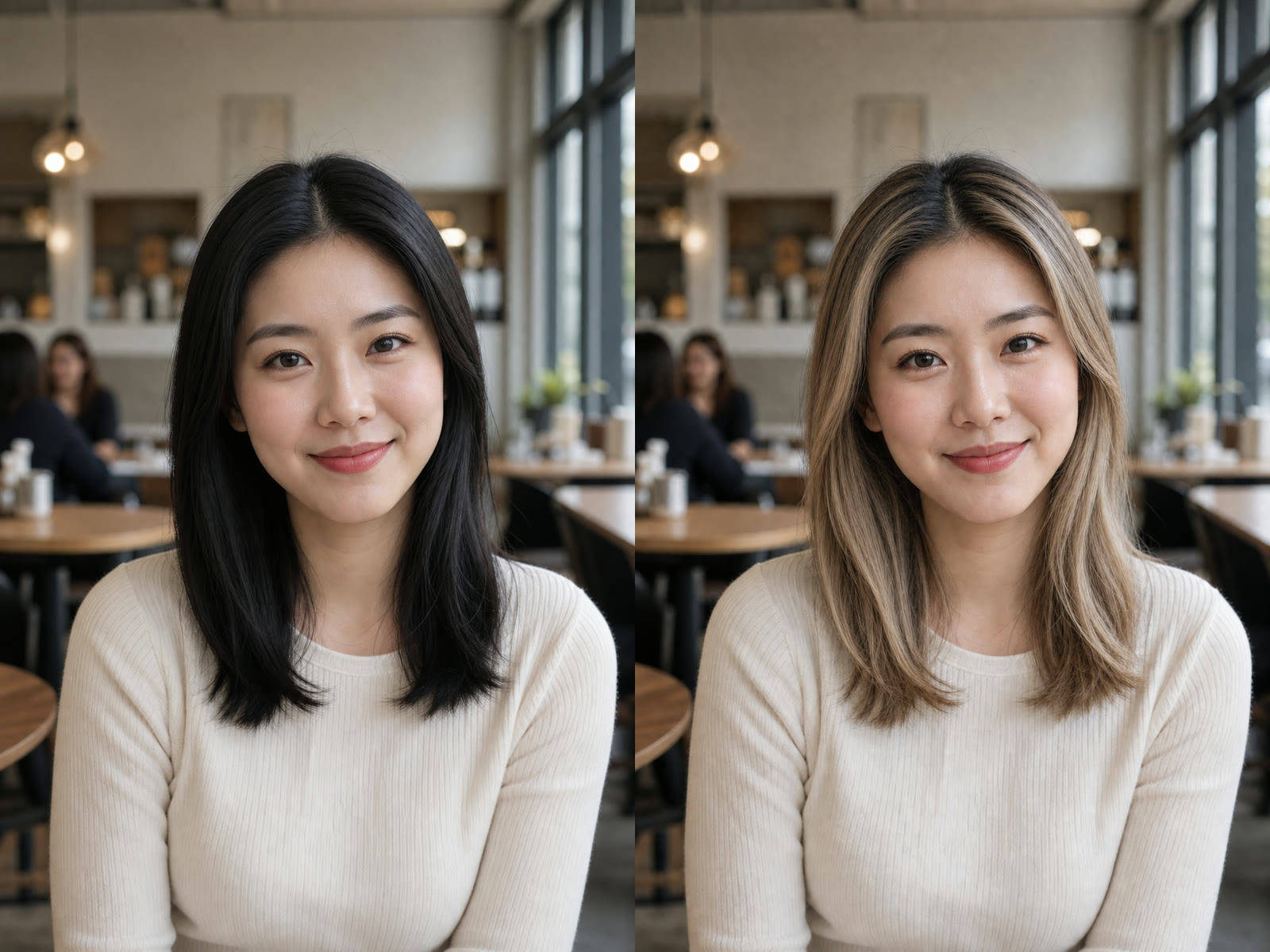
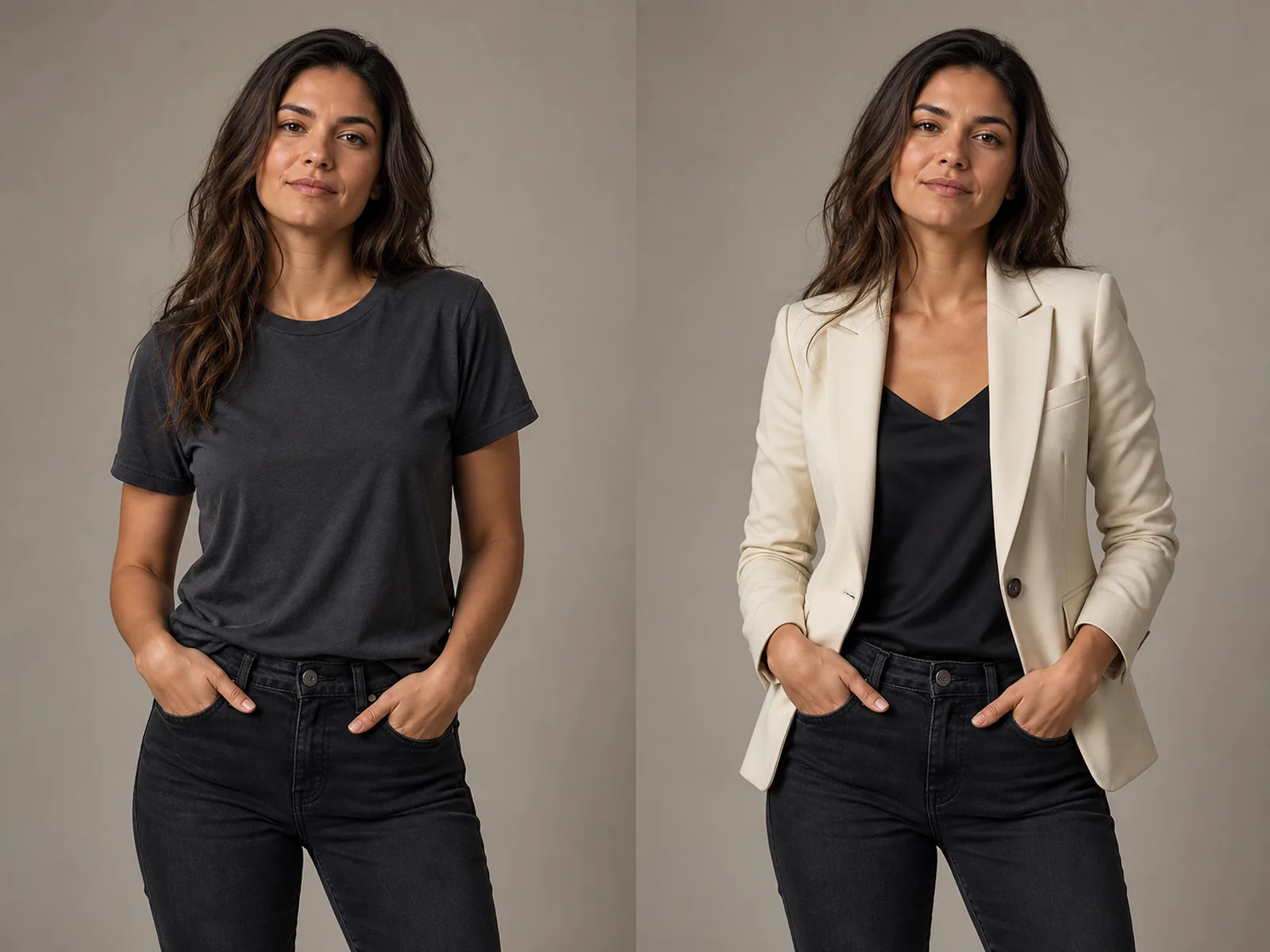
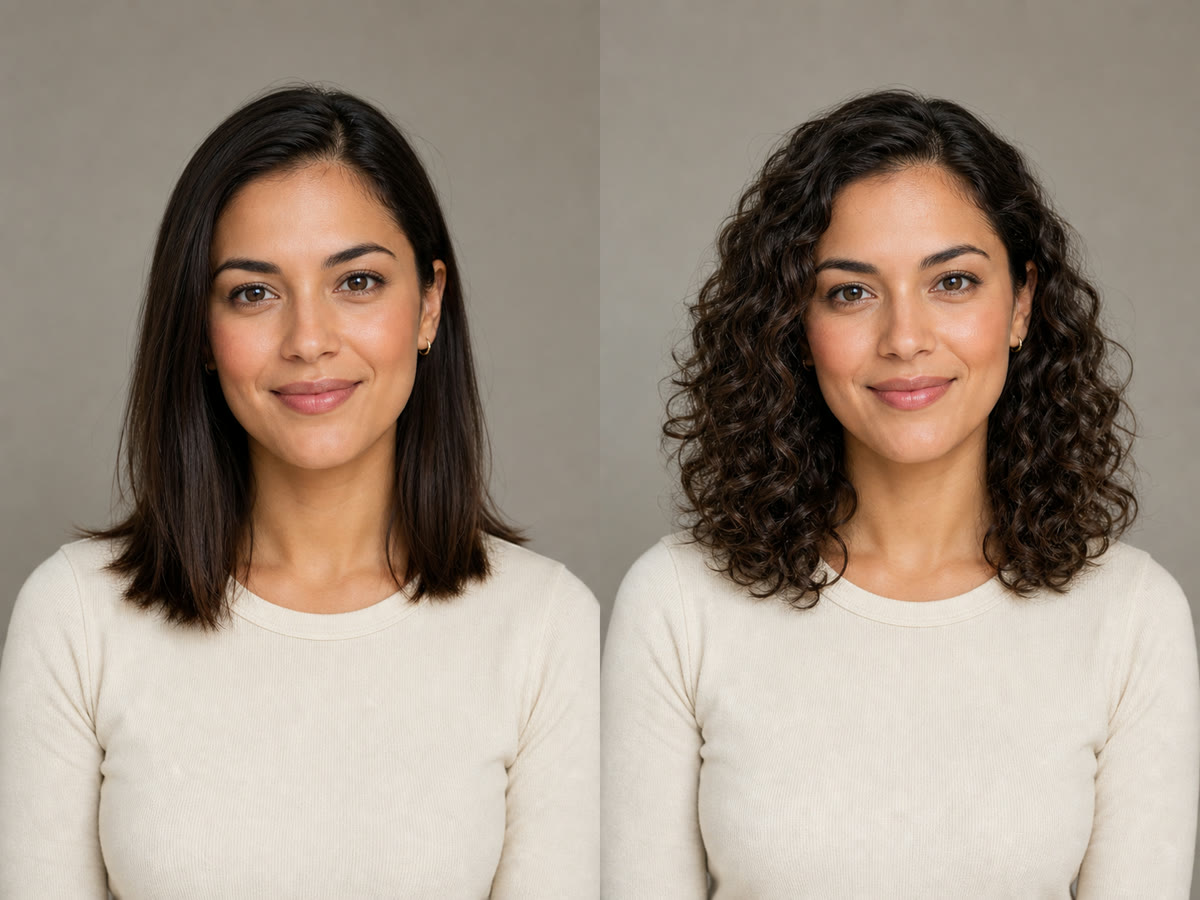
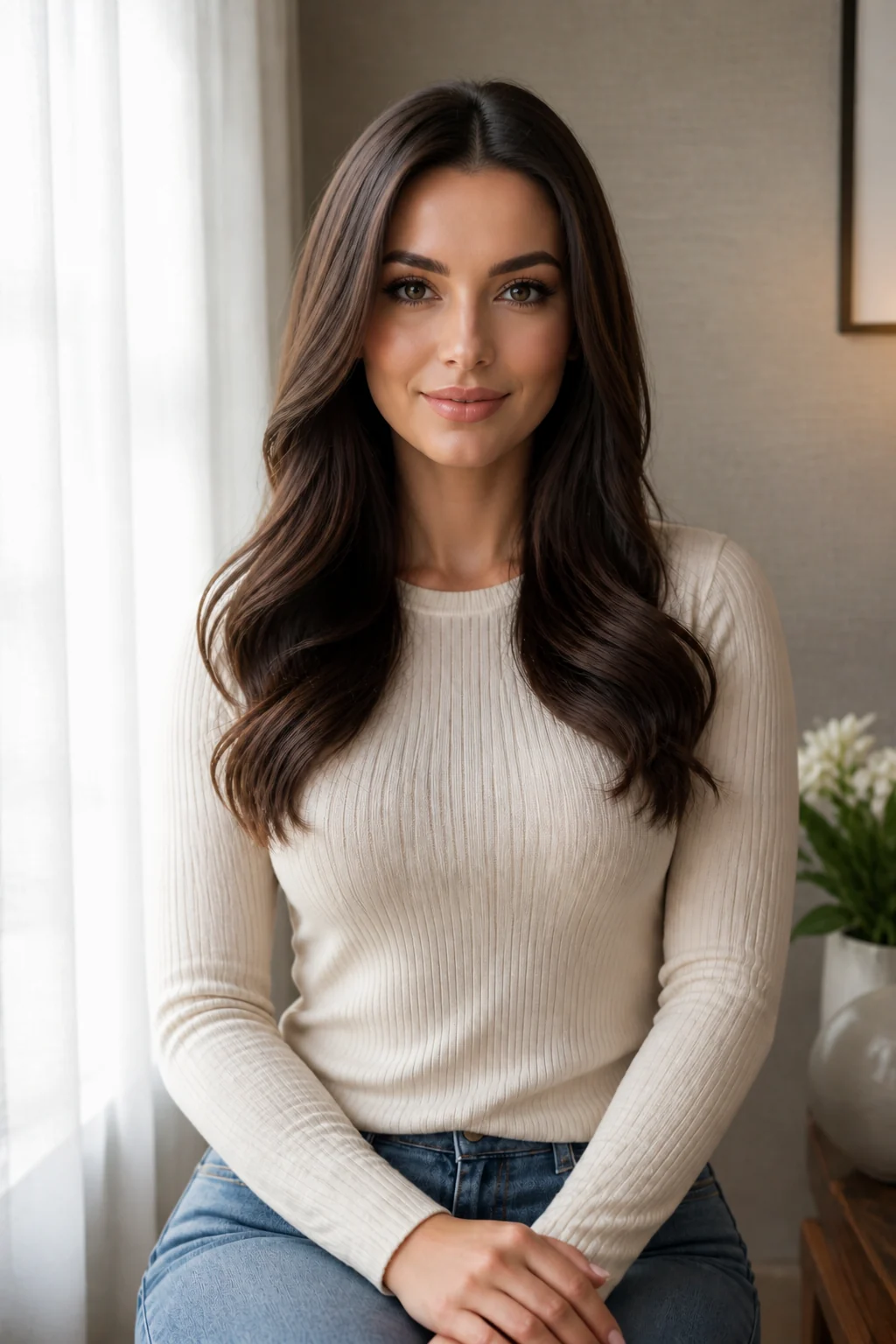
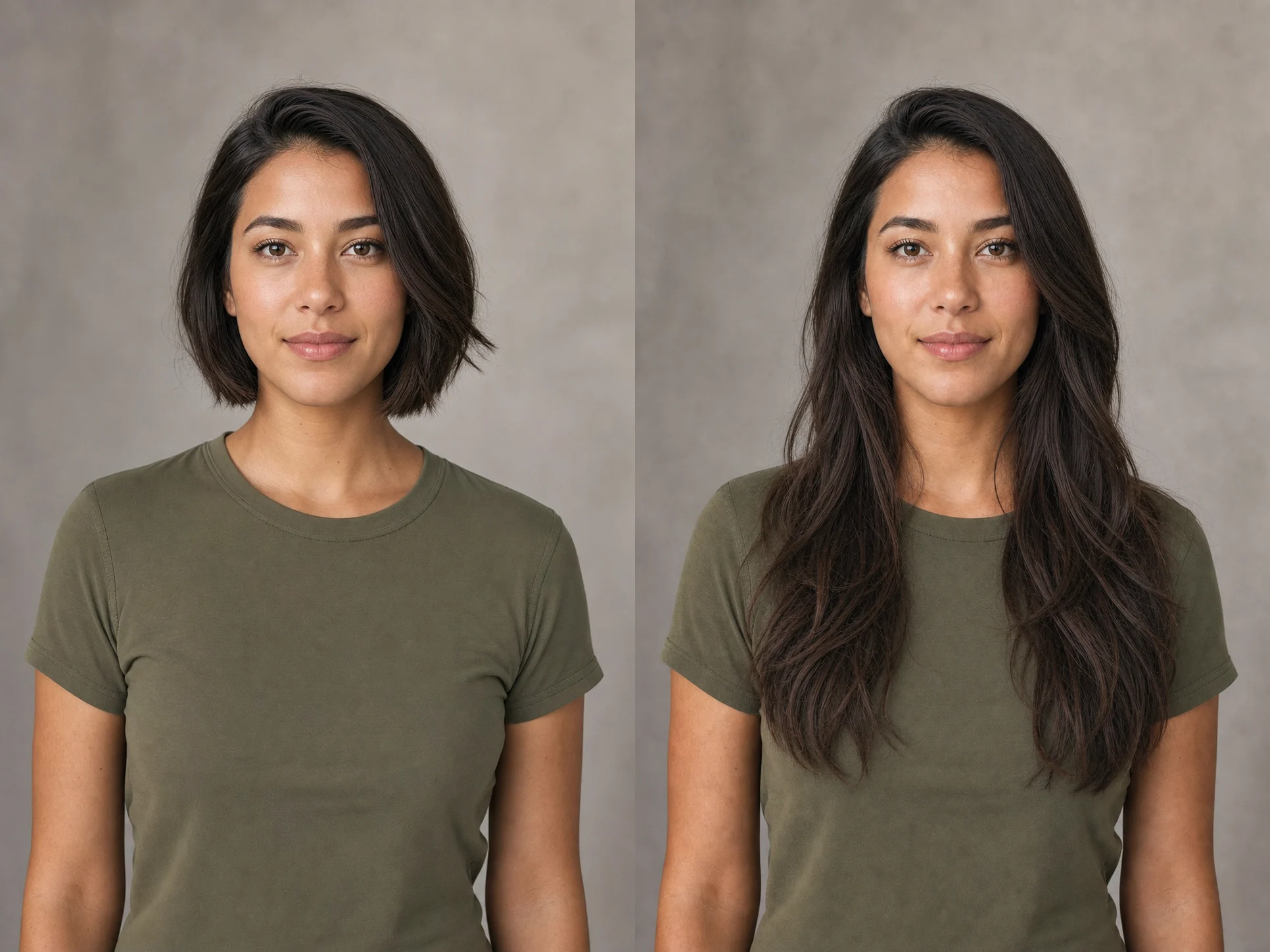
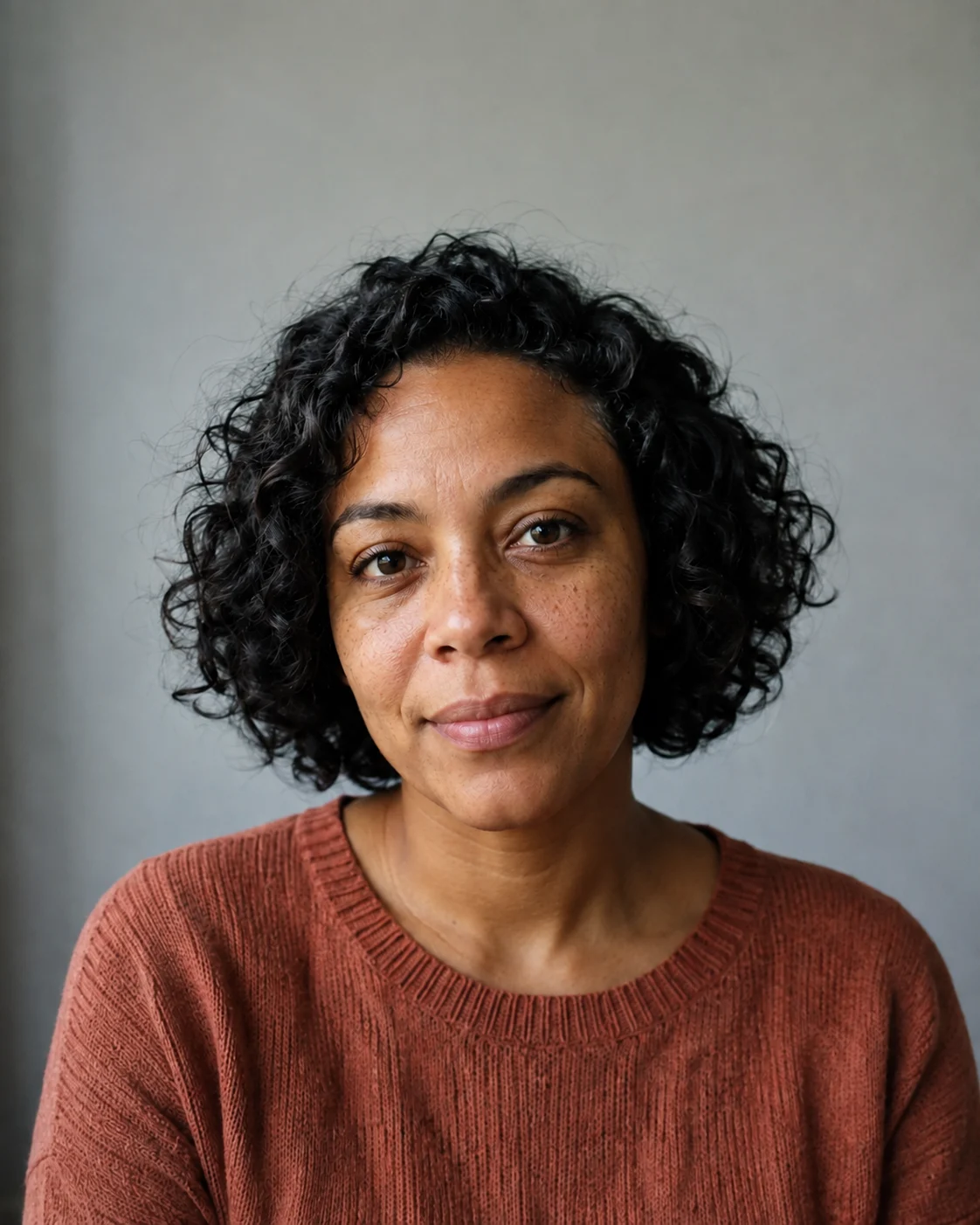
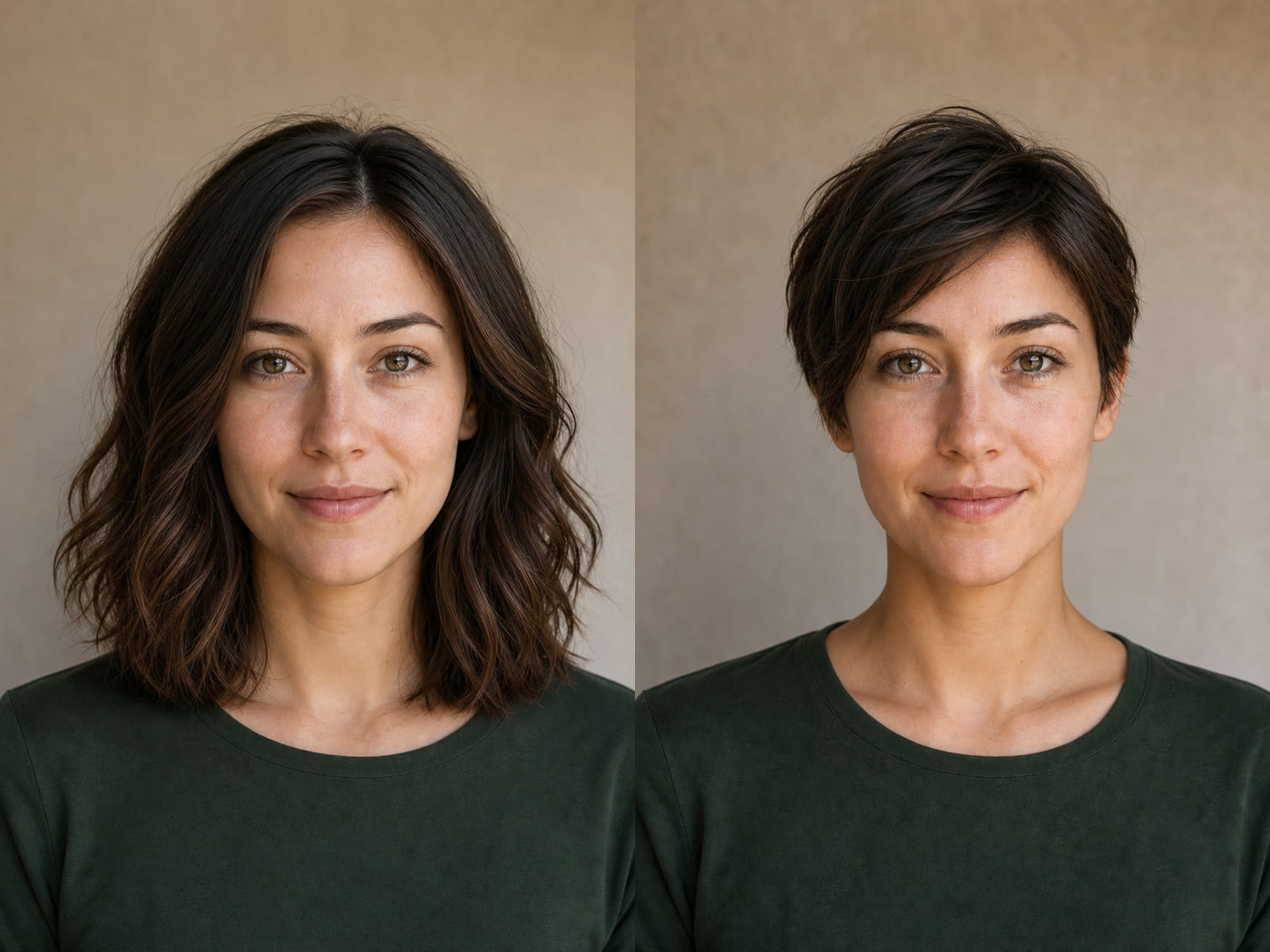
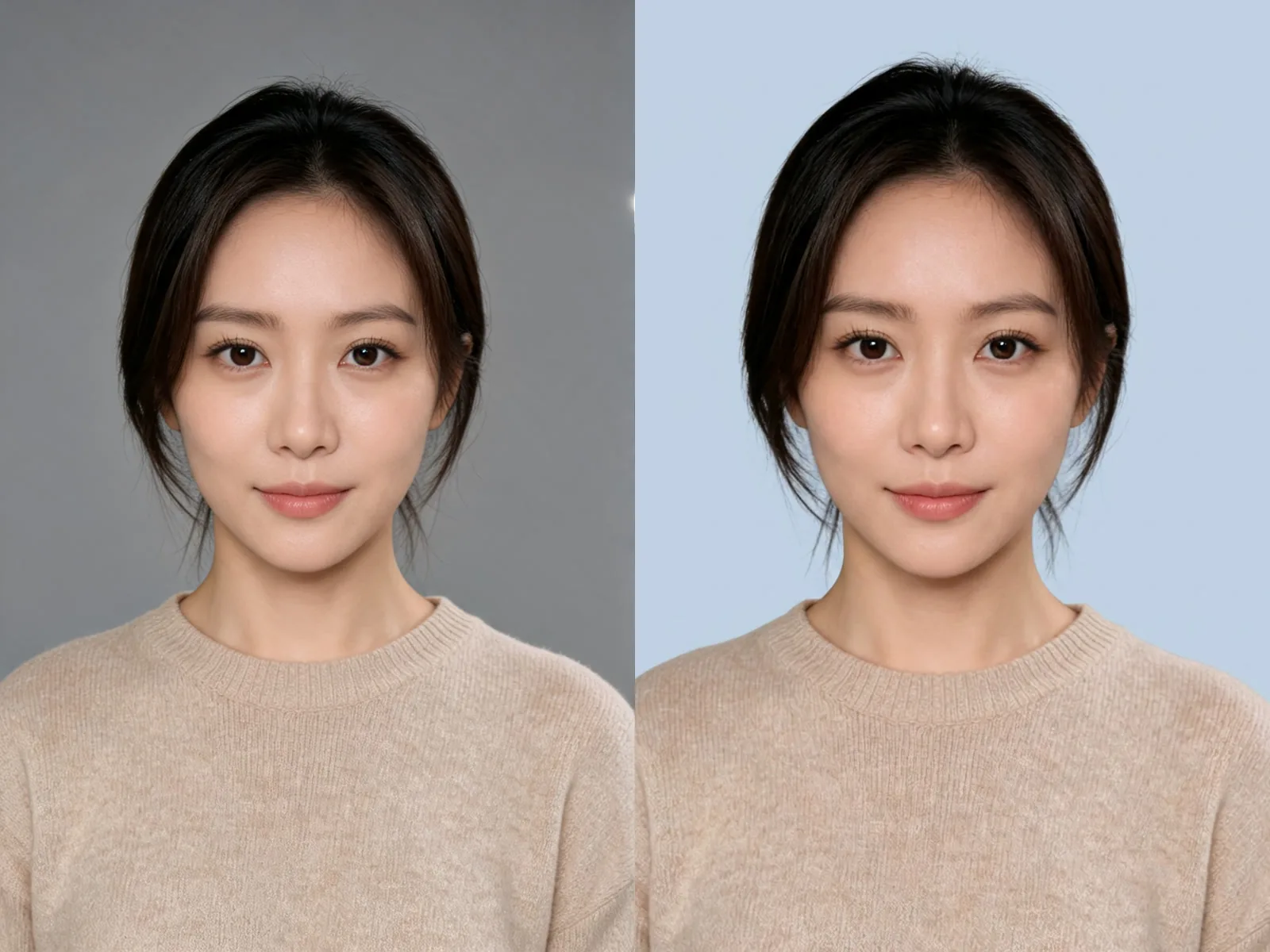
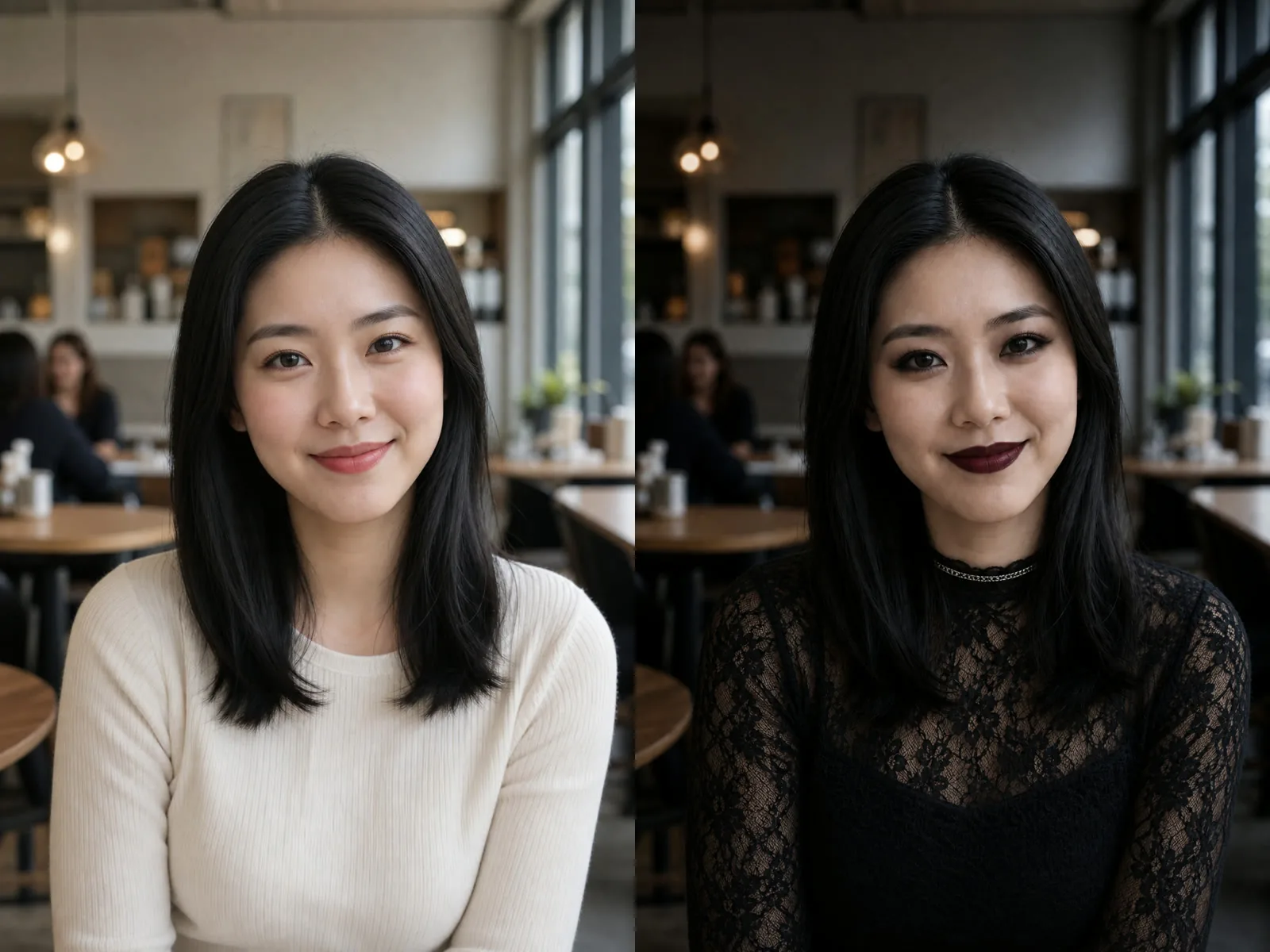
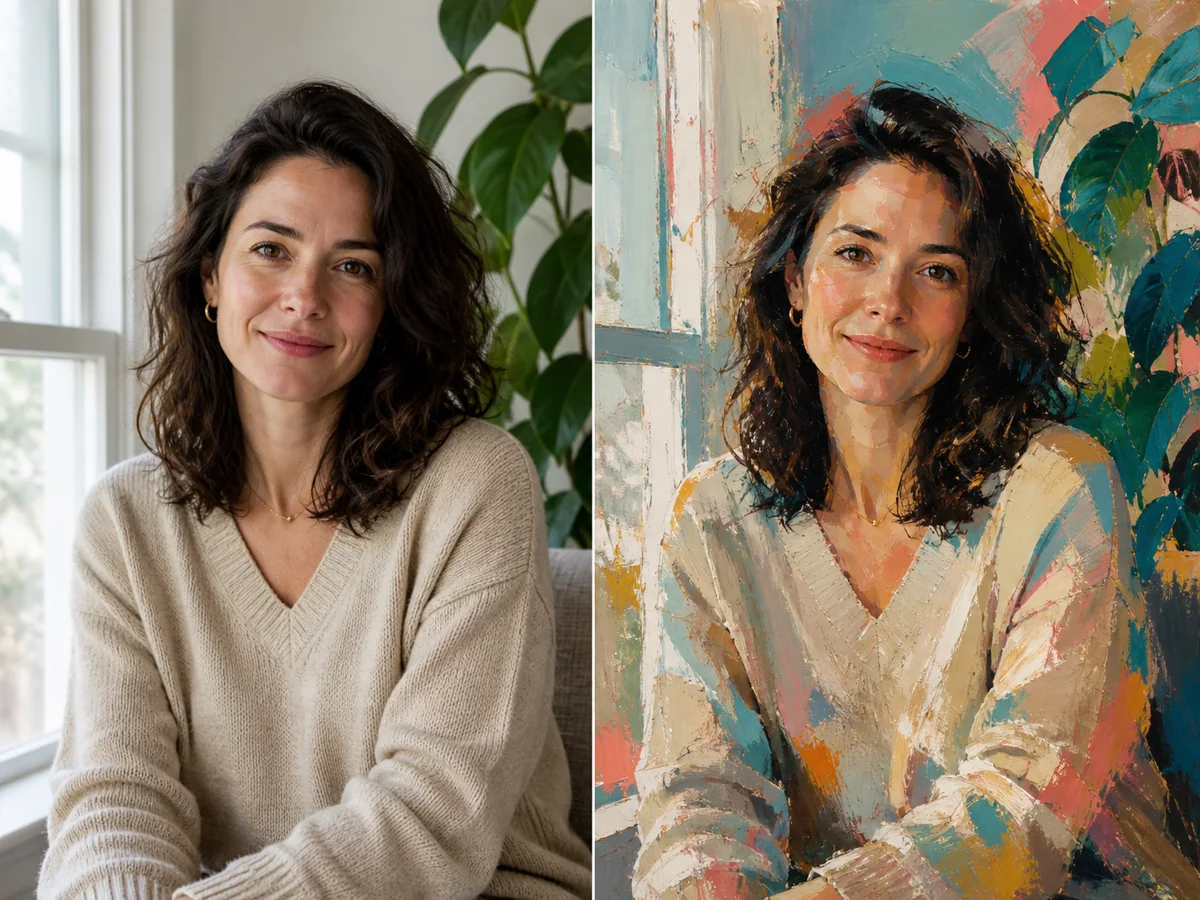
Fictional adult portrait with overly smooth synthetic skin and uniform light
AI Render
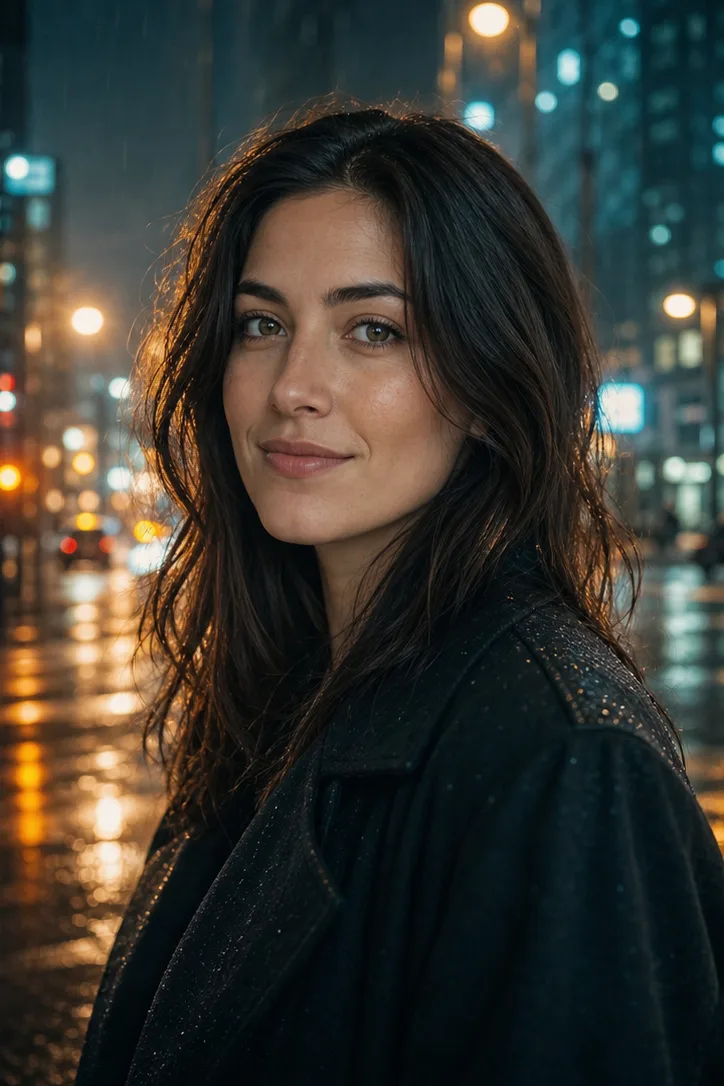
Same fictional adult portrait with restrained skin texture, natural shadow falloff, and preserved composition
Realism Pass

Rebuild Photographic Cues Without Reimagining the Scene

An AI to real image converter is for a source image whose idea already works but whose pixels still look rendered: plastic skin, uniform hair, flat lighting, perfect fabric, weightless objects, disconnected reflections, or a room where every surface shares the same texture. This workflow asks a generative image editor to rebuild those cues as a coherent photograph while protecting the subject, framing, and scene. It is intentionally narrower than AI Image Reimagine, which is designed to change the environment, style, season, or campaign direction. It is also different from an AI Image Humanizer: a humanizer is best understood as a restrained cleanup pass for isolated AI-looking details in an image that is already close to photographic. This converter can redraw light, materials, depth, and background coherence across the whole frame, so it offers more corrective power and a greater risk of small changes. Always compare the result with the source.

Original AI-to-Real Examples Across Three Image Types

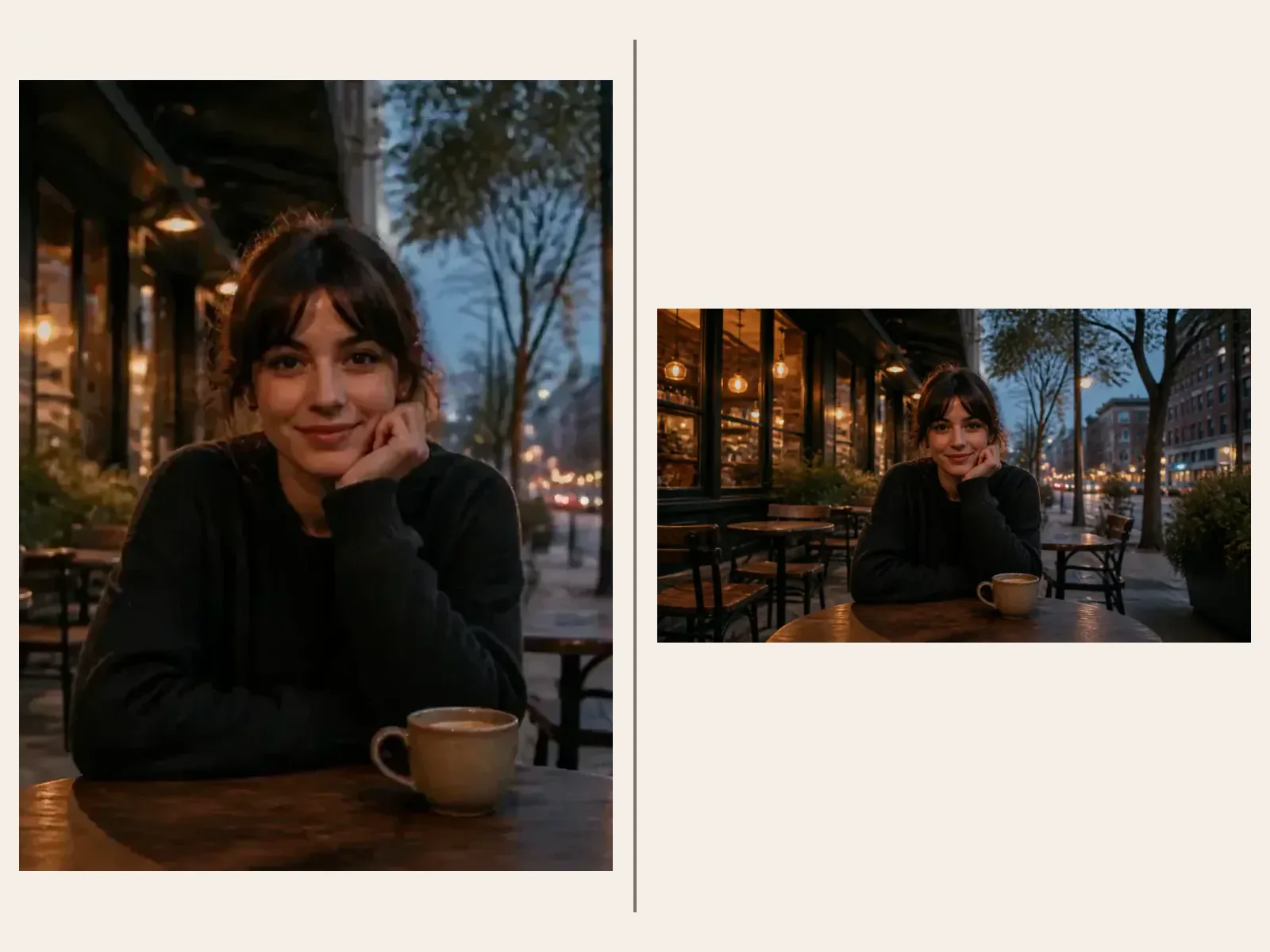
These page-specific pairs were created at a 2:3 ratio so the generator comparator can show every subject without stretching, black bars, or accidental head crops. Each example keeps the idea and layout while changing the photographic cues that make the source feel synthetic.

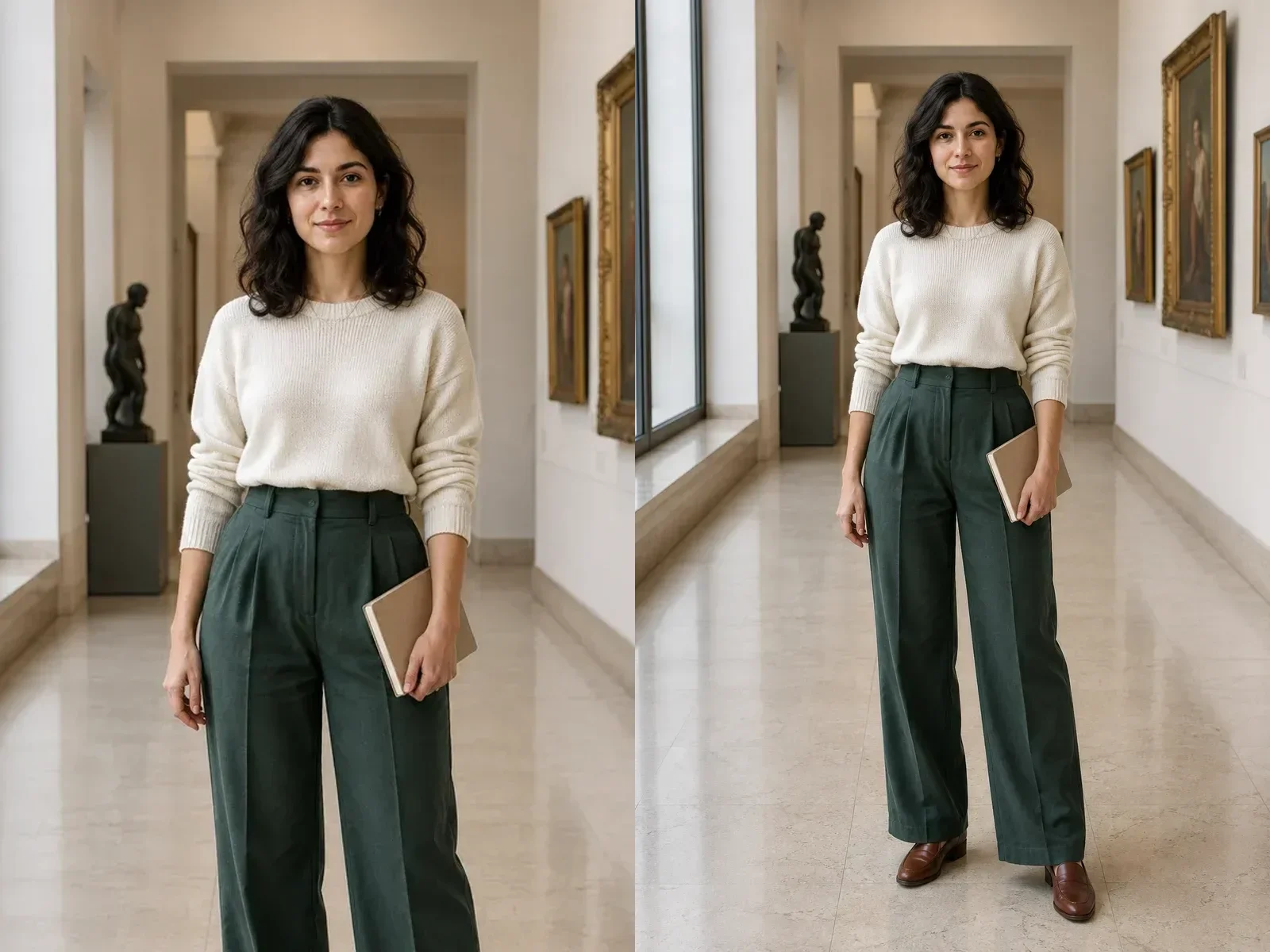
Portrait: Skin, Hair, Fabric, and Daylight

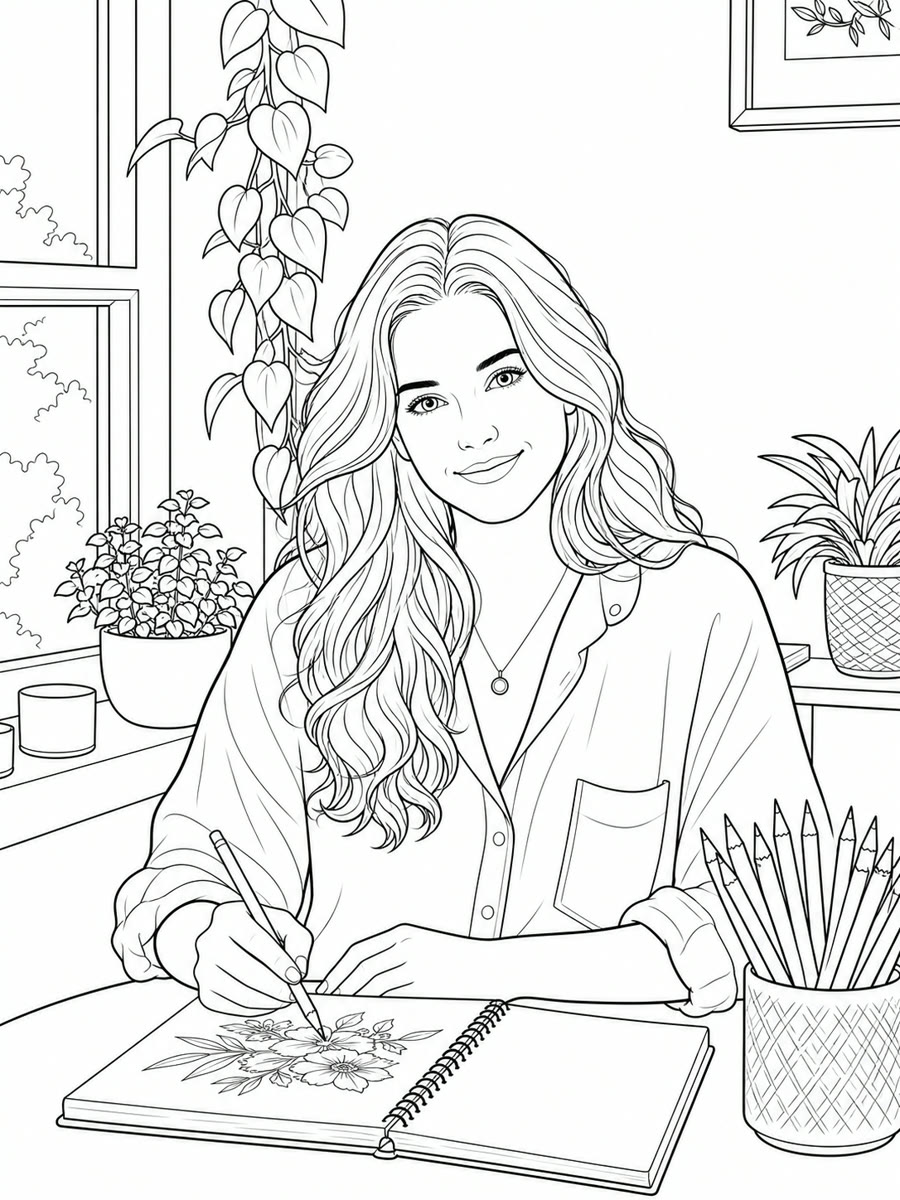
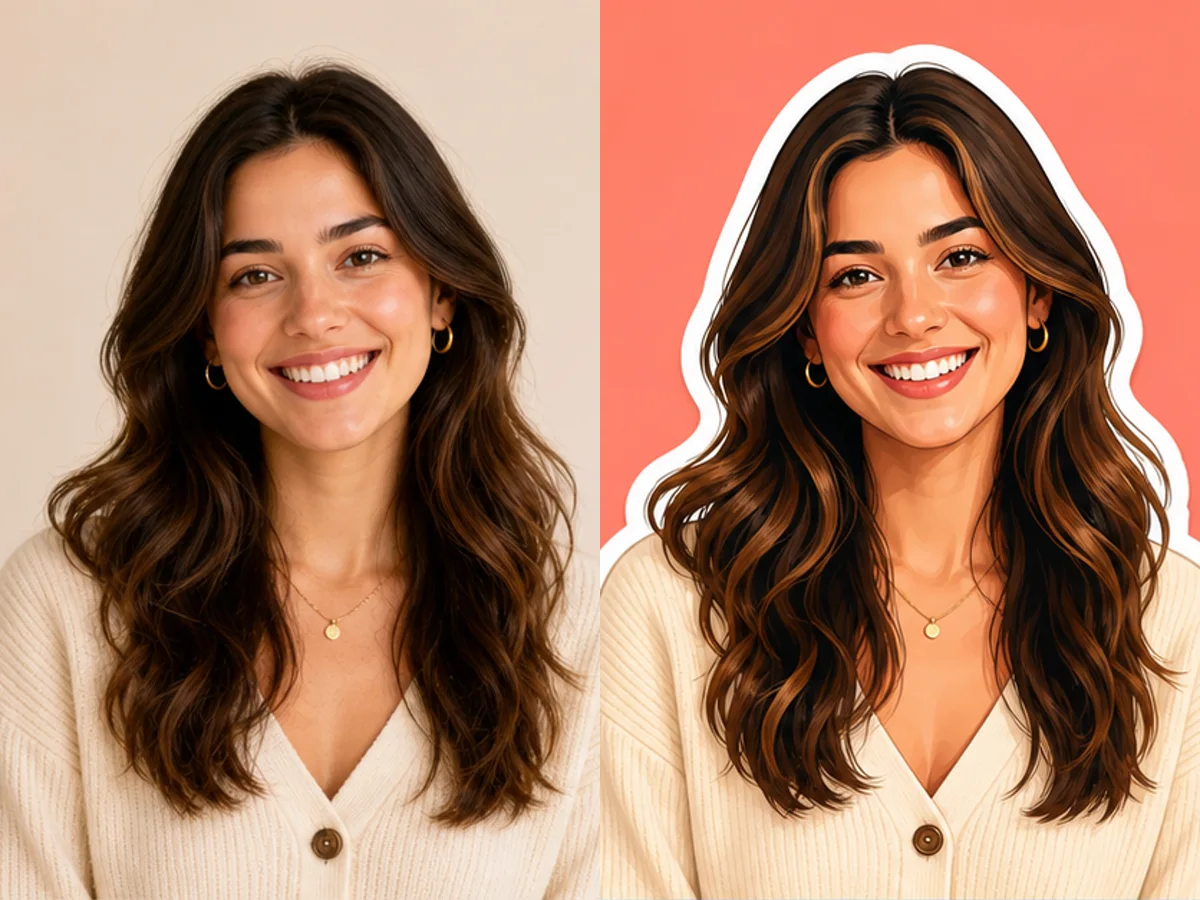
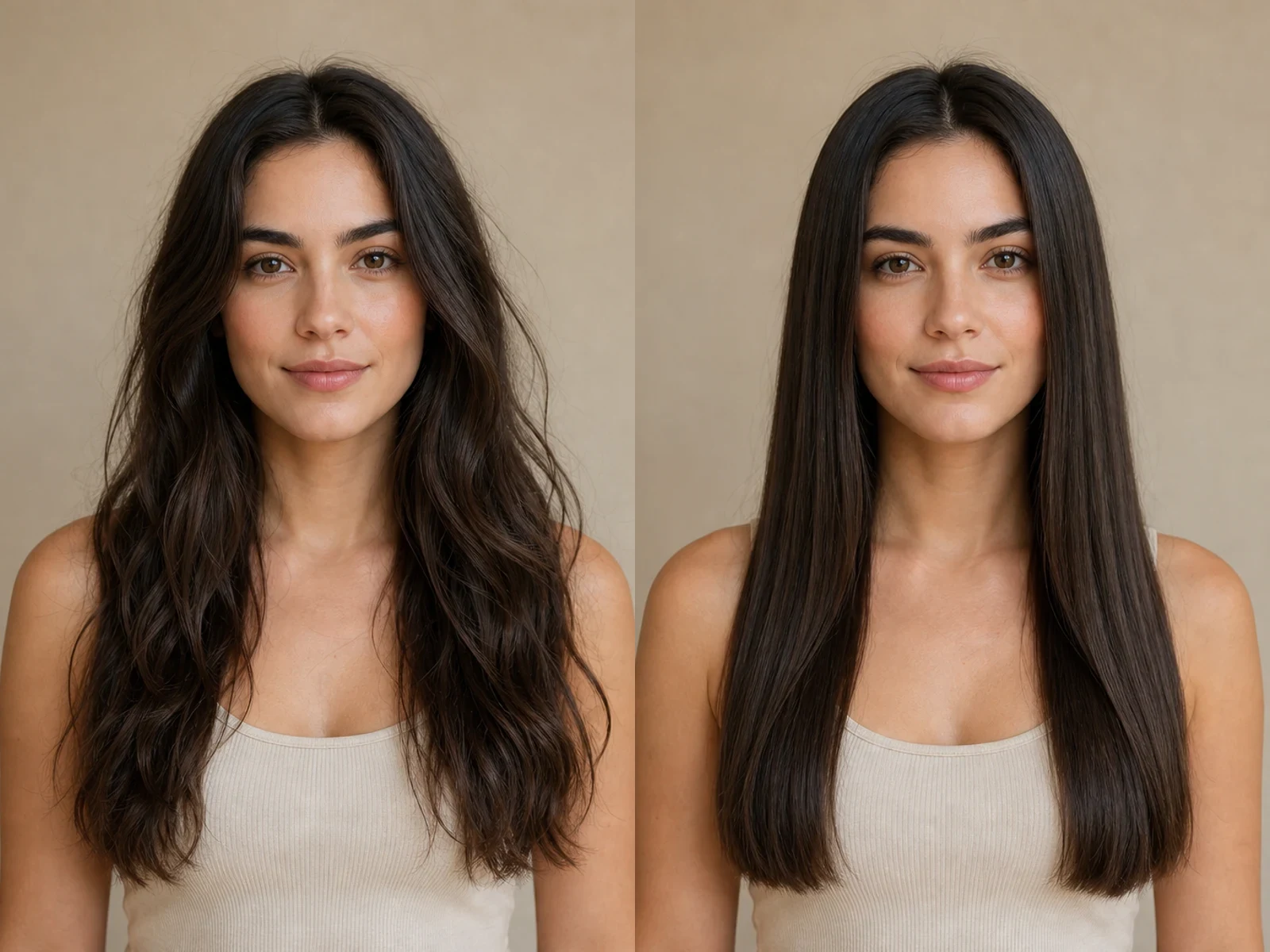
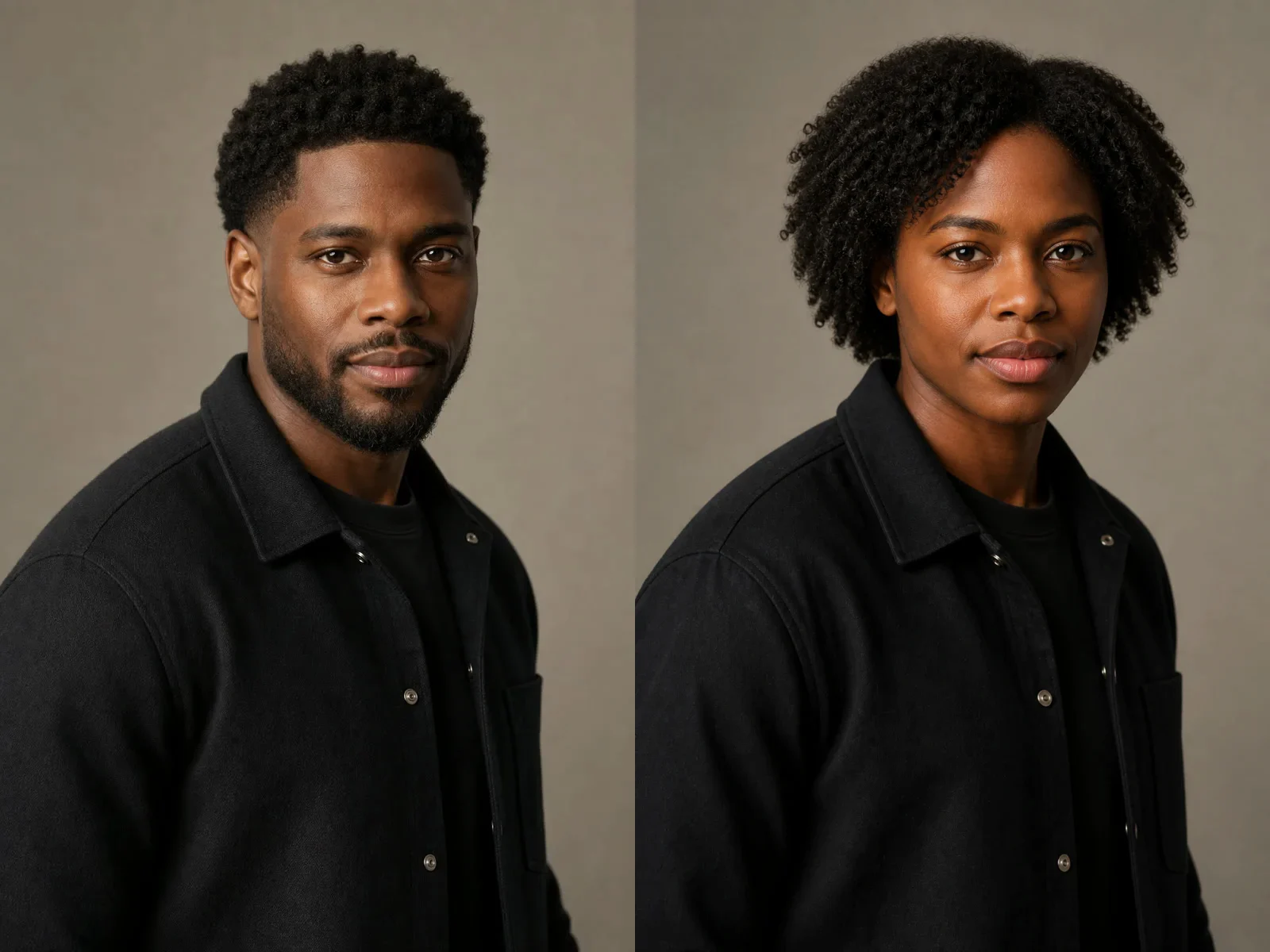
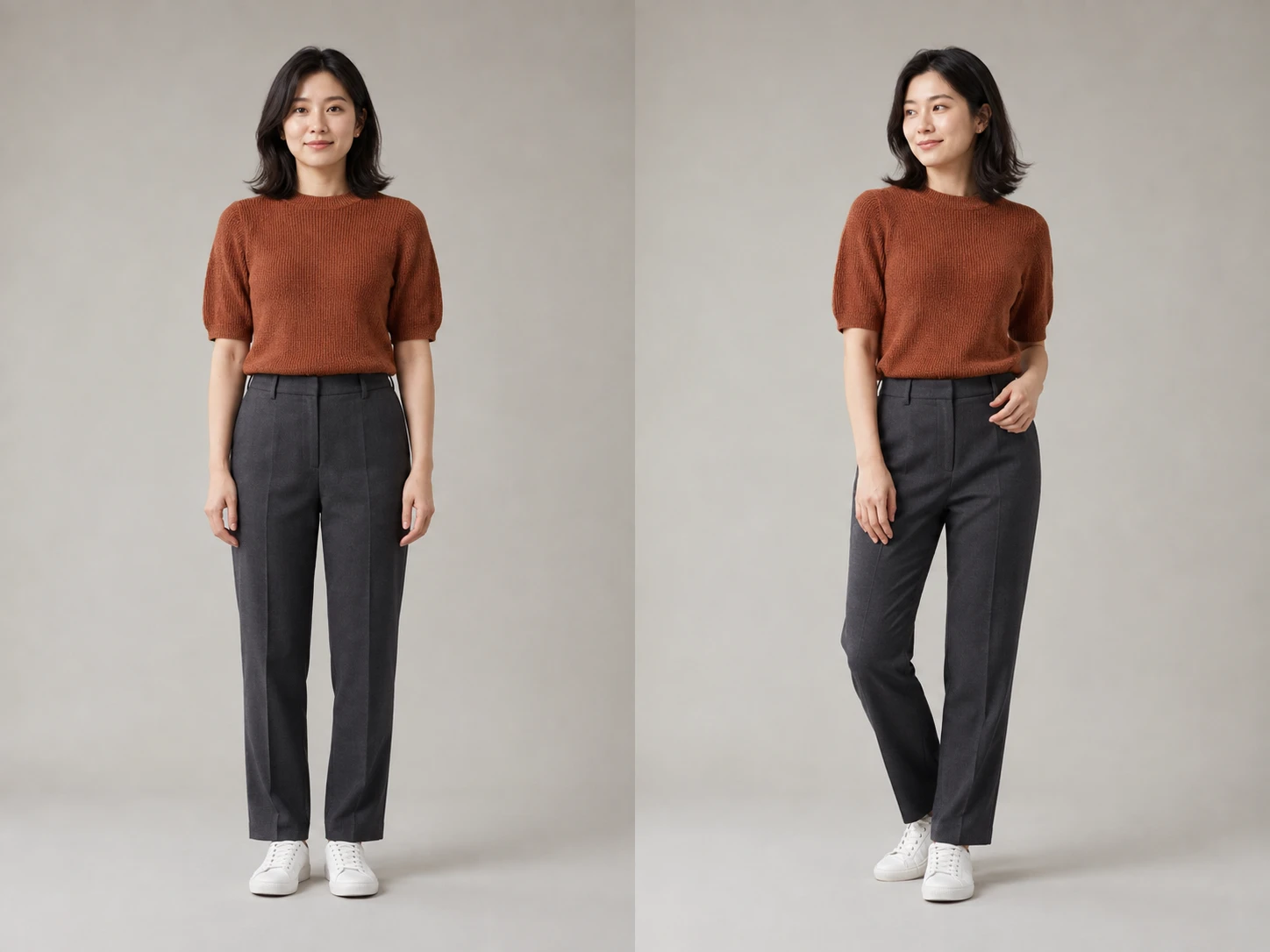
The before portrait is intentionally polished: skin is too even, hair is too uniform, and the sweater and background share a similar smooth finish. The realism pass keeps the same fictional adult, expression, hairstyle, clothing, crop, room, and window while introducing restrained tonal variation, individual hair detail, knit texture, and more believable shadow falloff. Strict Preservation is the safest starting point when identity matters, but it still cannot promise a pixel-locked face.

Try a Portrait

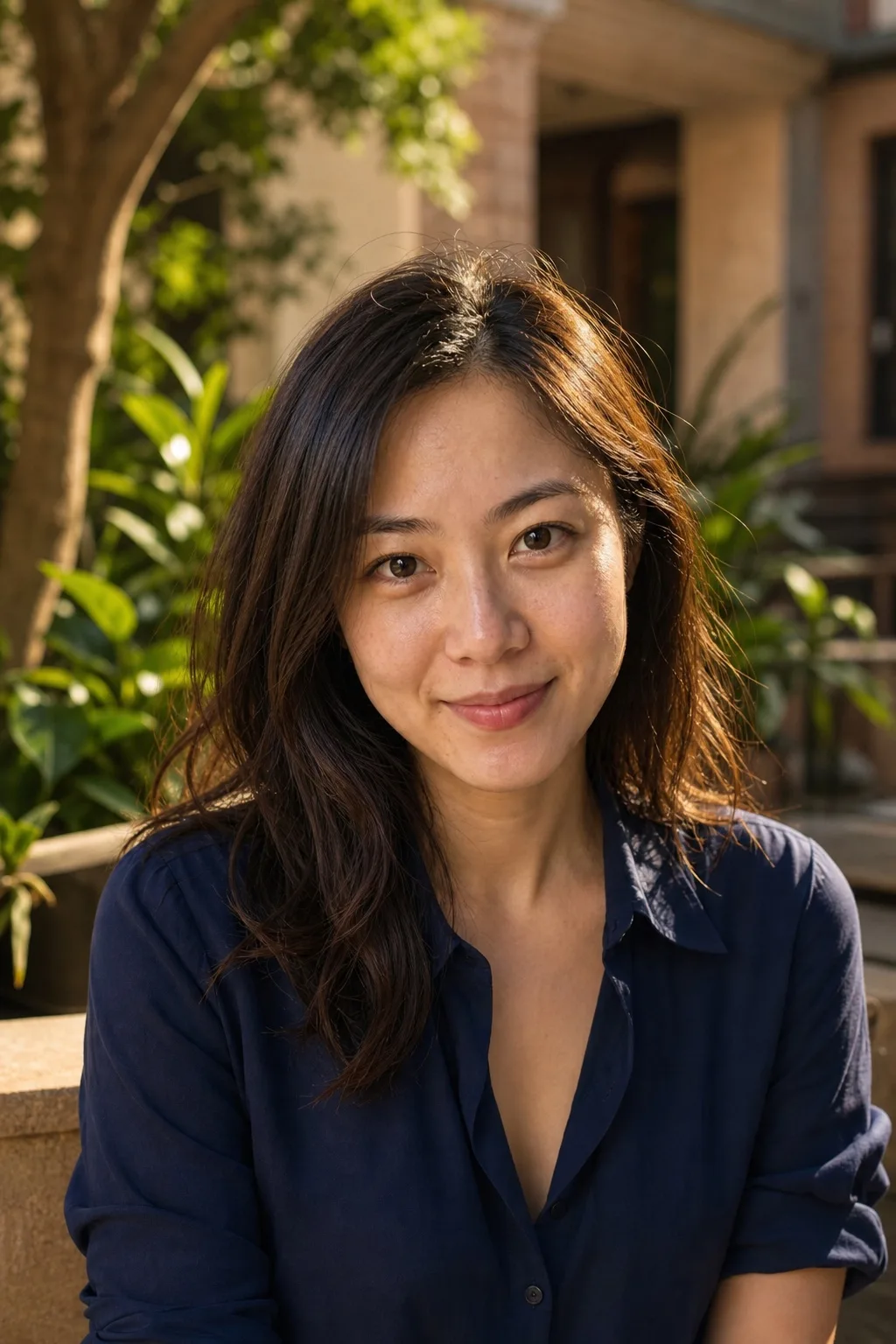
Fictional portrait after a restrained AI-to-real photographic realism pass

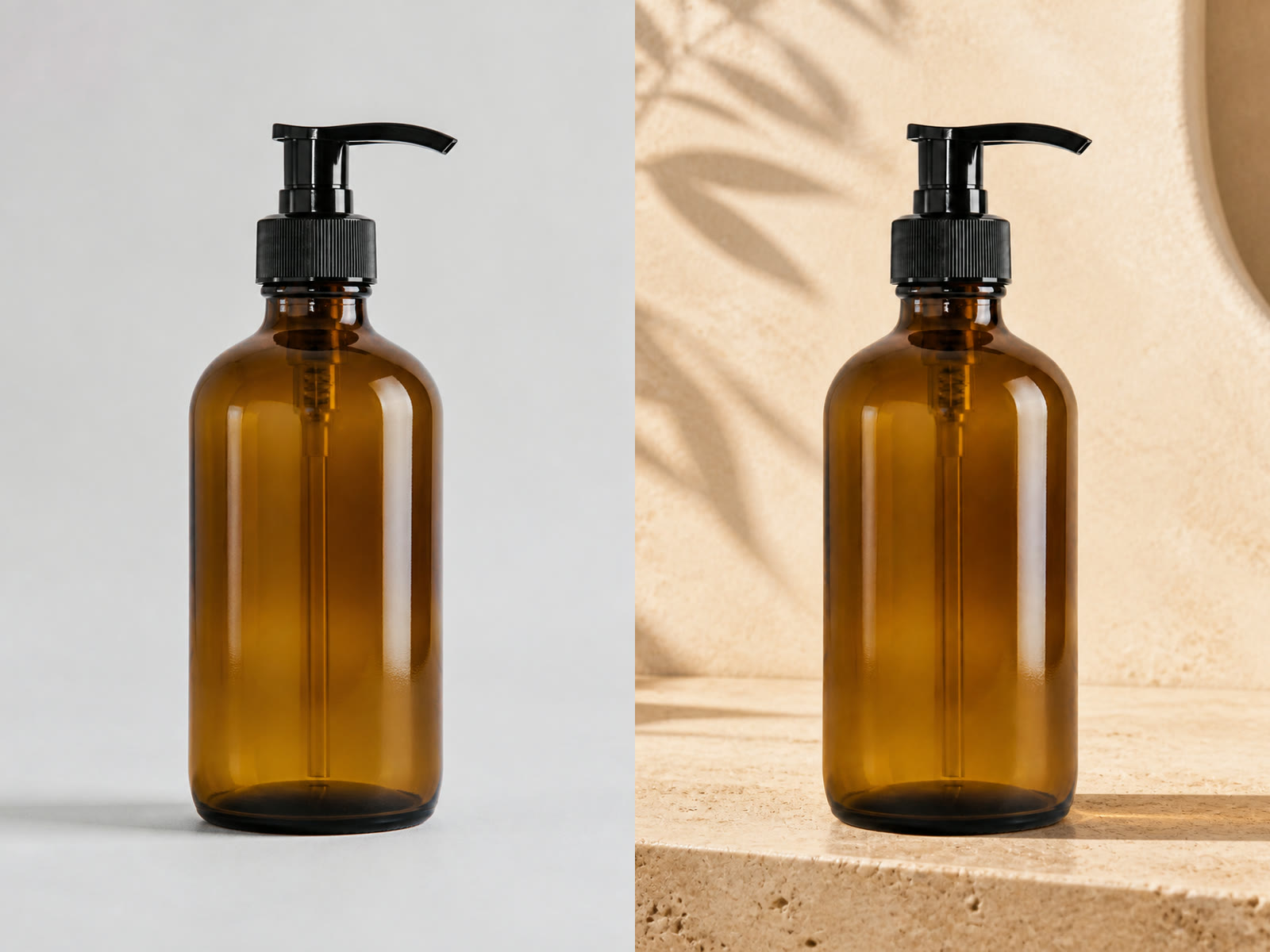
Product: Material Response Without Invented Branding

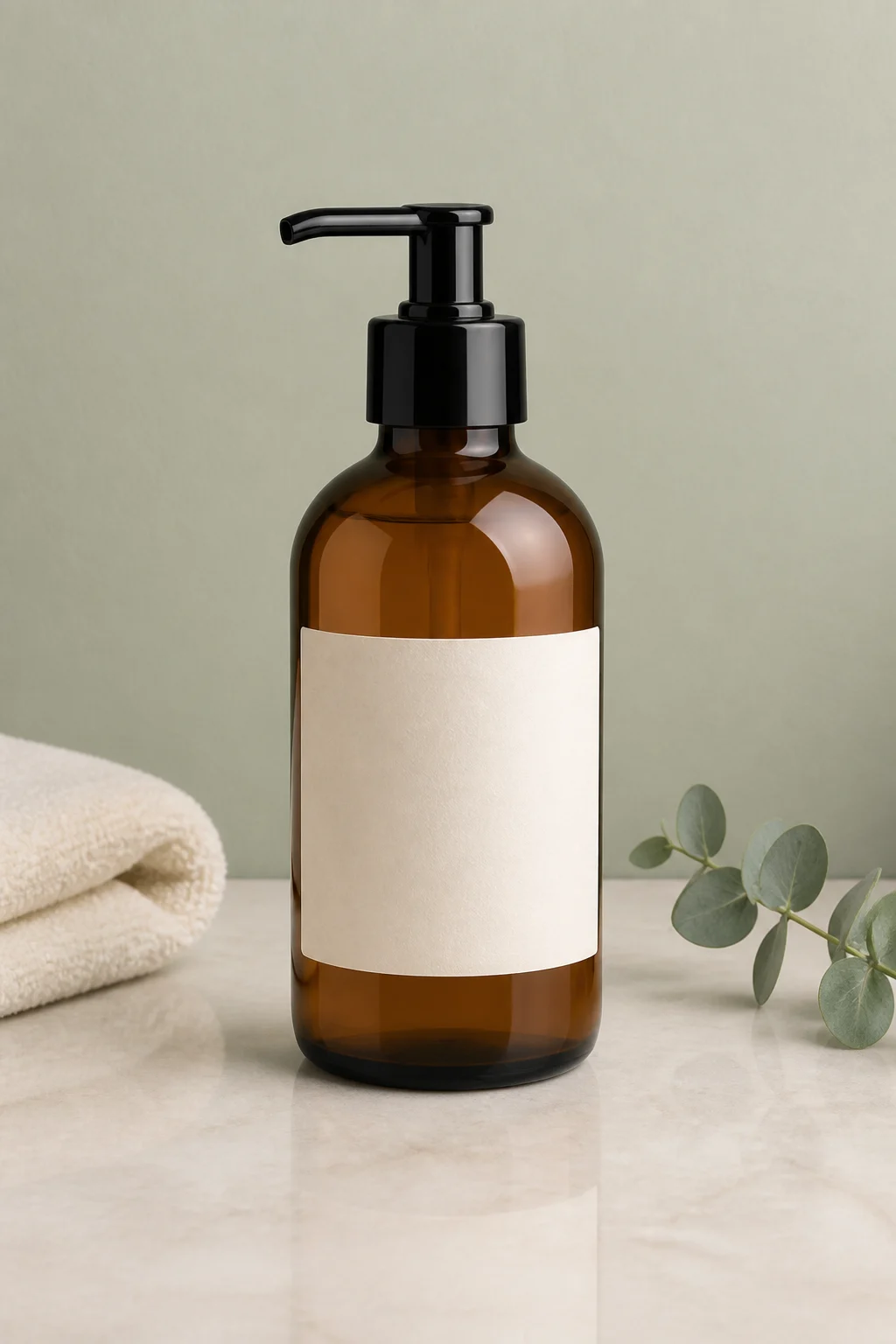
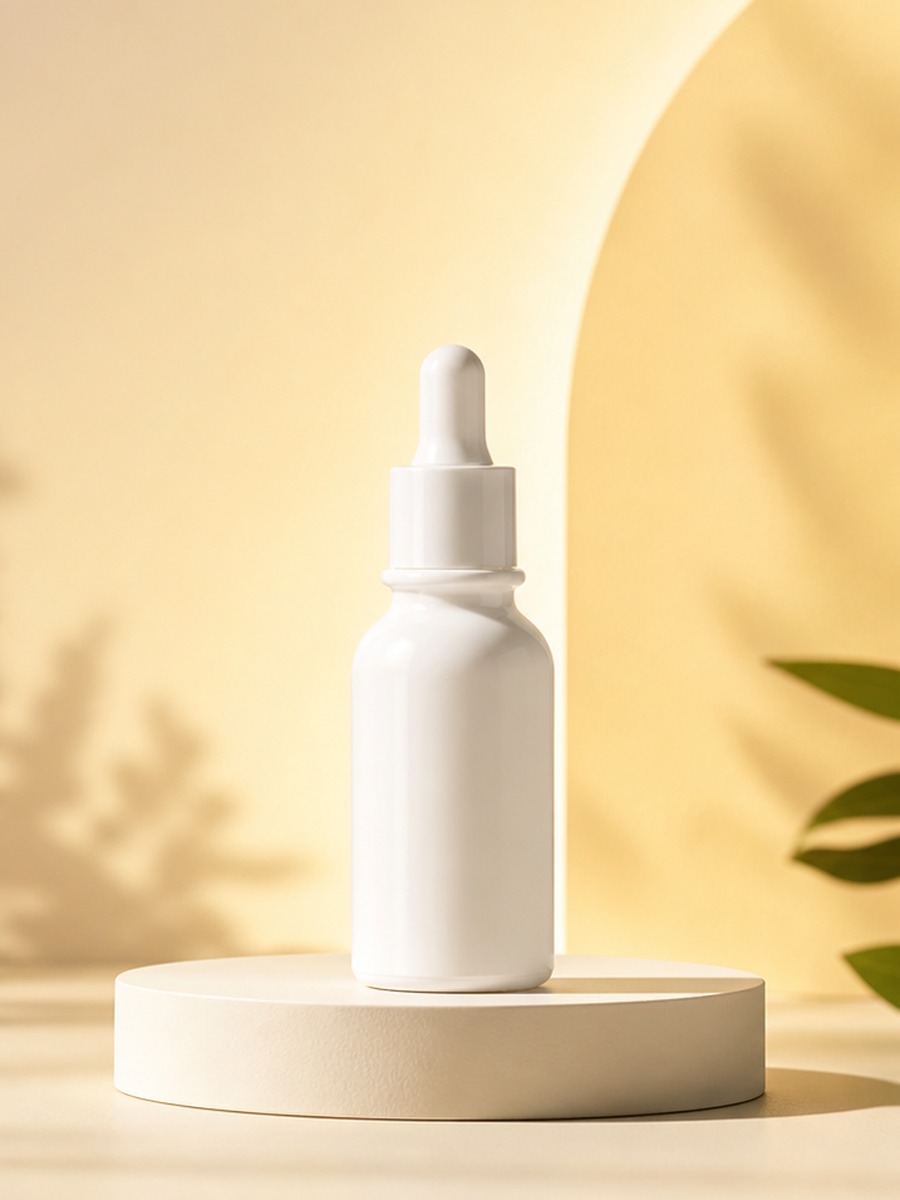
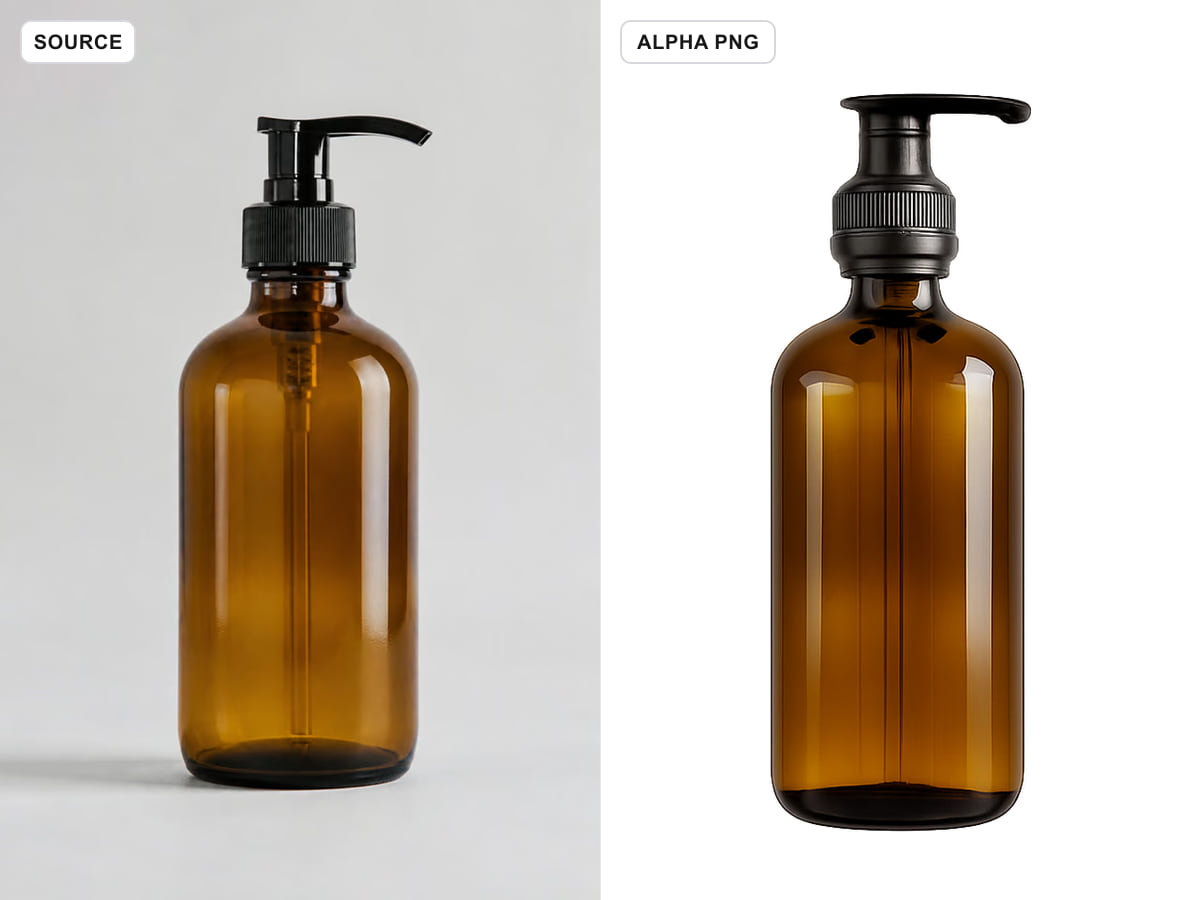
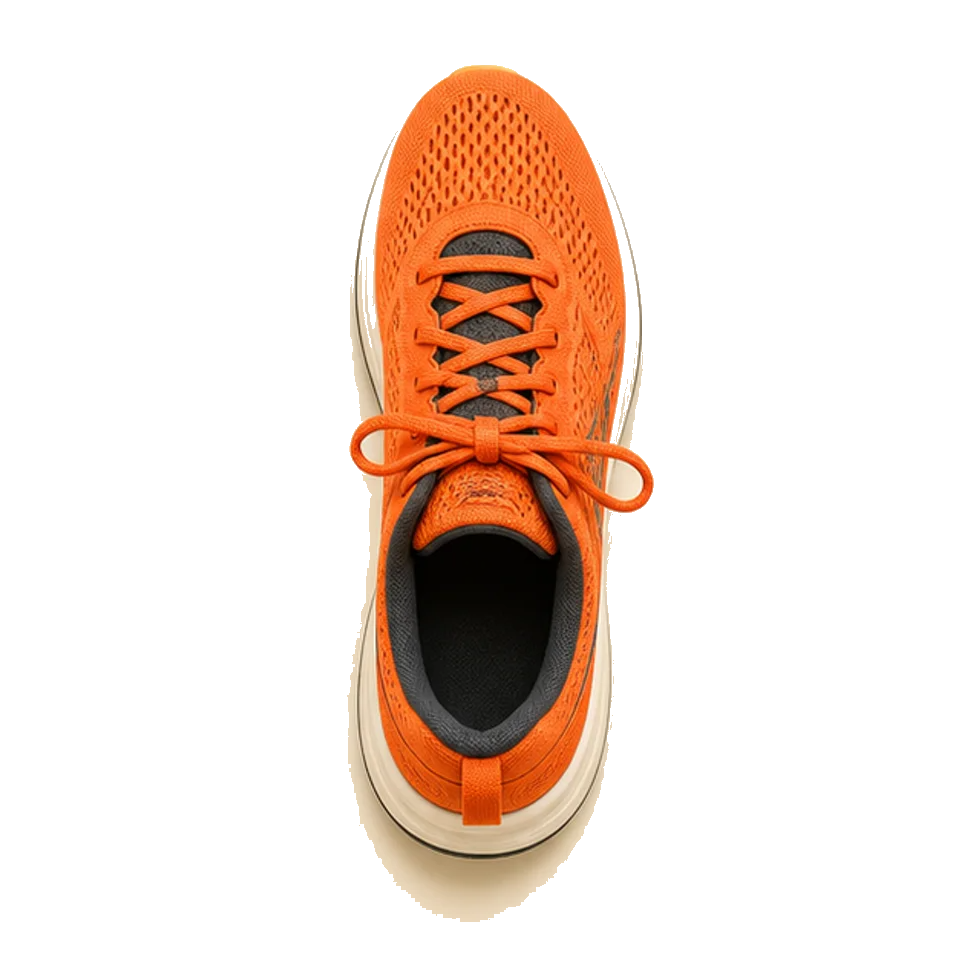
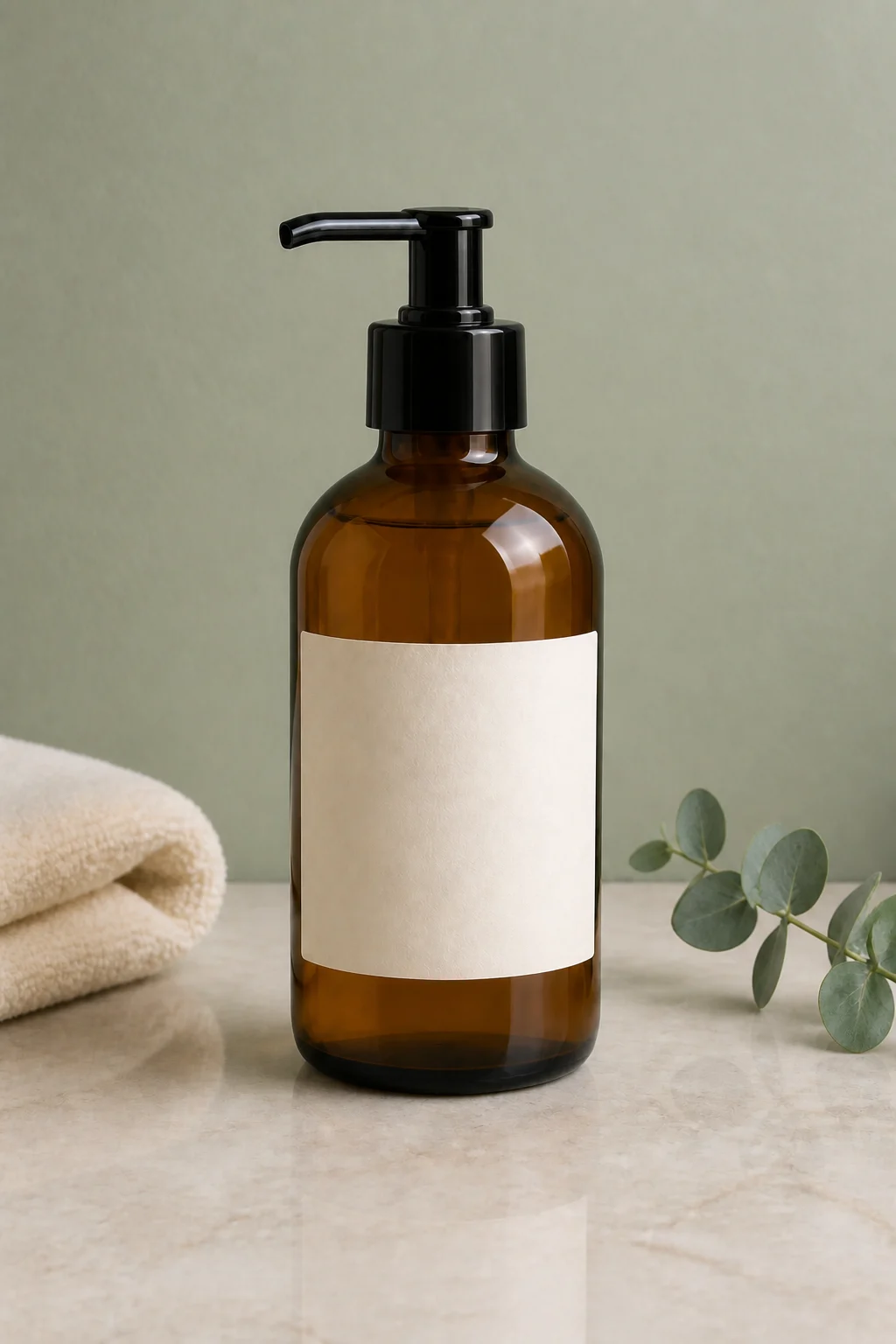
The product source already has clean geometry, but its glass, paper, towel, stone, and reflections look like a uniform 3D render. Balanced Realism asks for material-specific behavior while protecting the pump shape, amber bottle, blank label, camera angle, and arrangement. This is useful for an unbranded concept or a product you have permission to edit. It is not safe for final packaging proof: verify label copy, dimensions, color, controls, and legal details against the real product.

Convert a Product Render
Unbranded amber bottle after an AI-to-real material and lighting correction

Interior: Coherent Light, Texture, and Depth

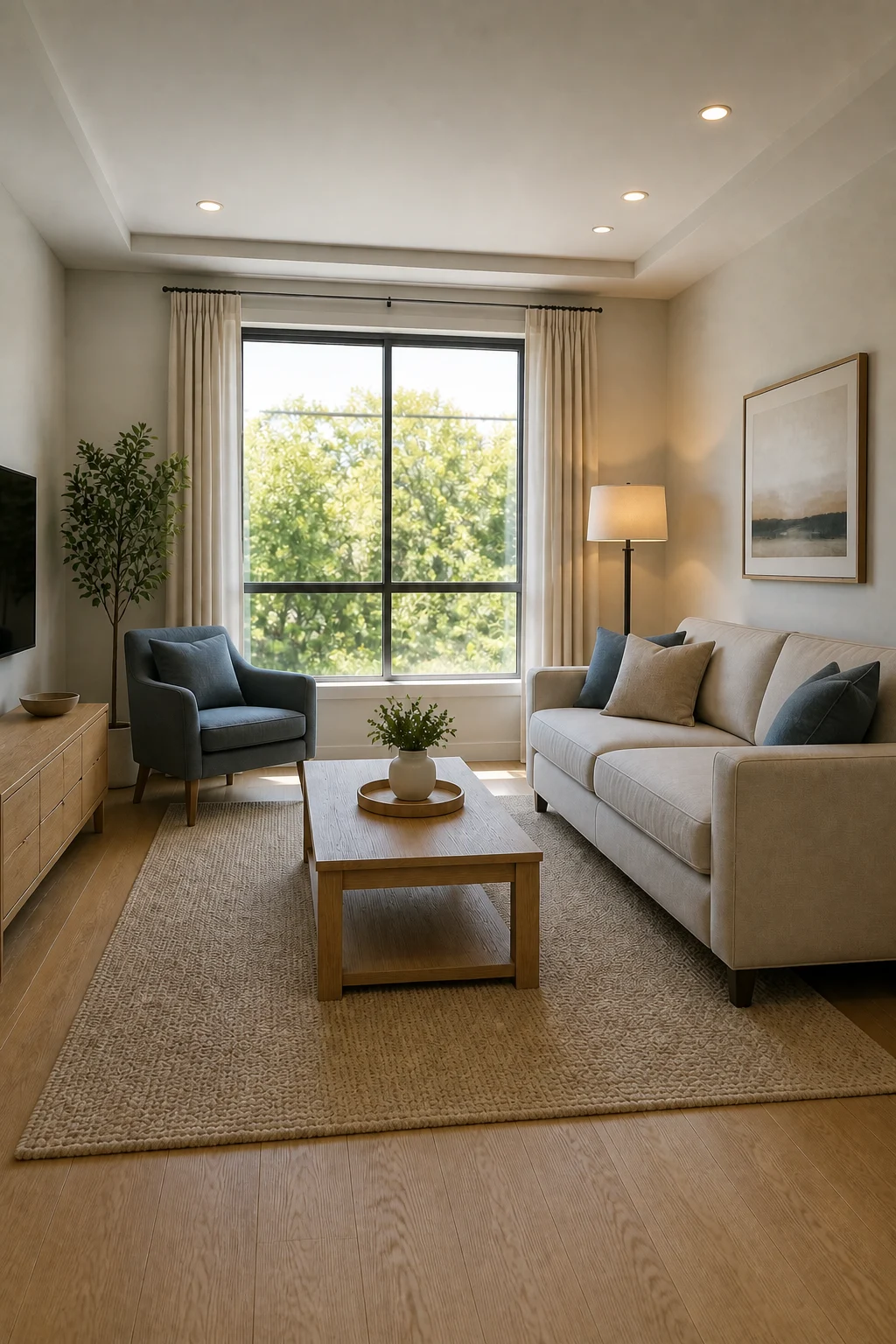
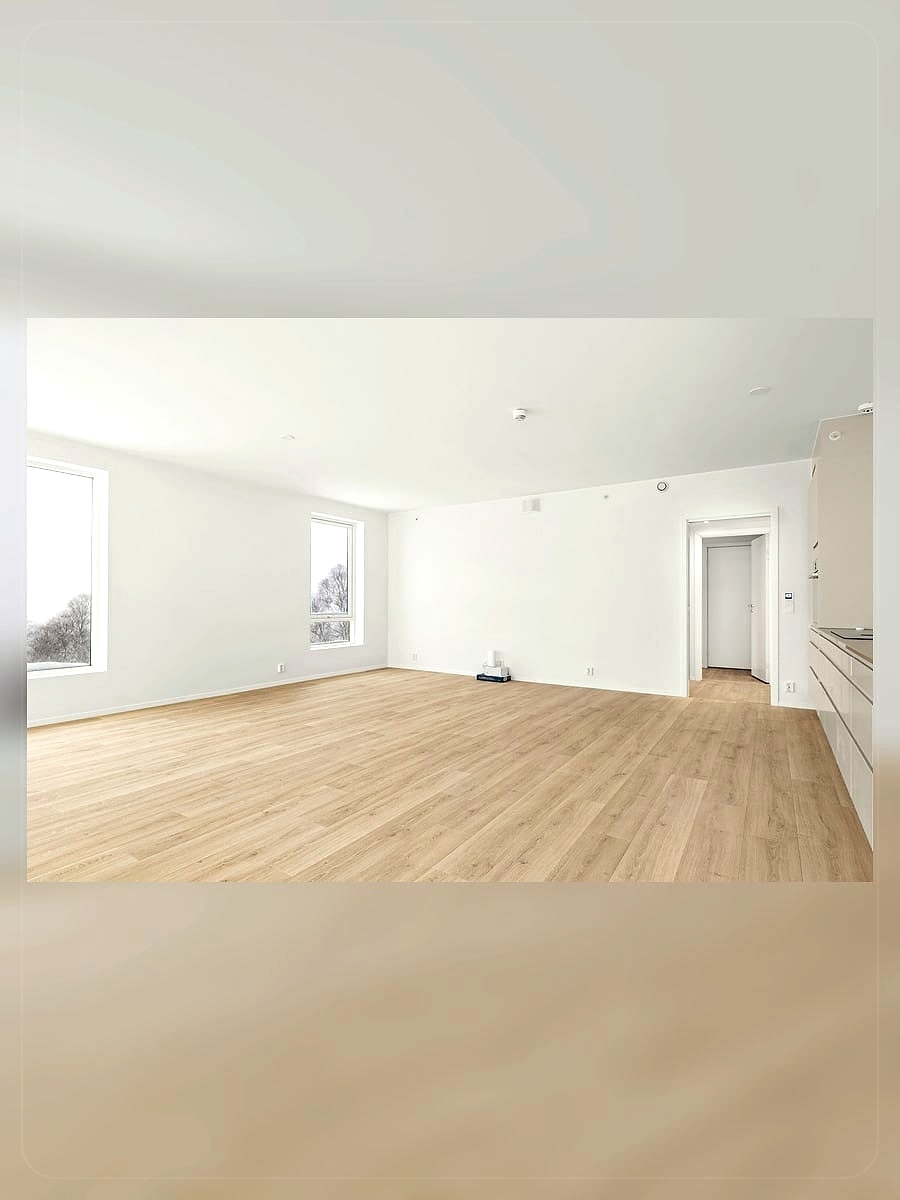
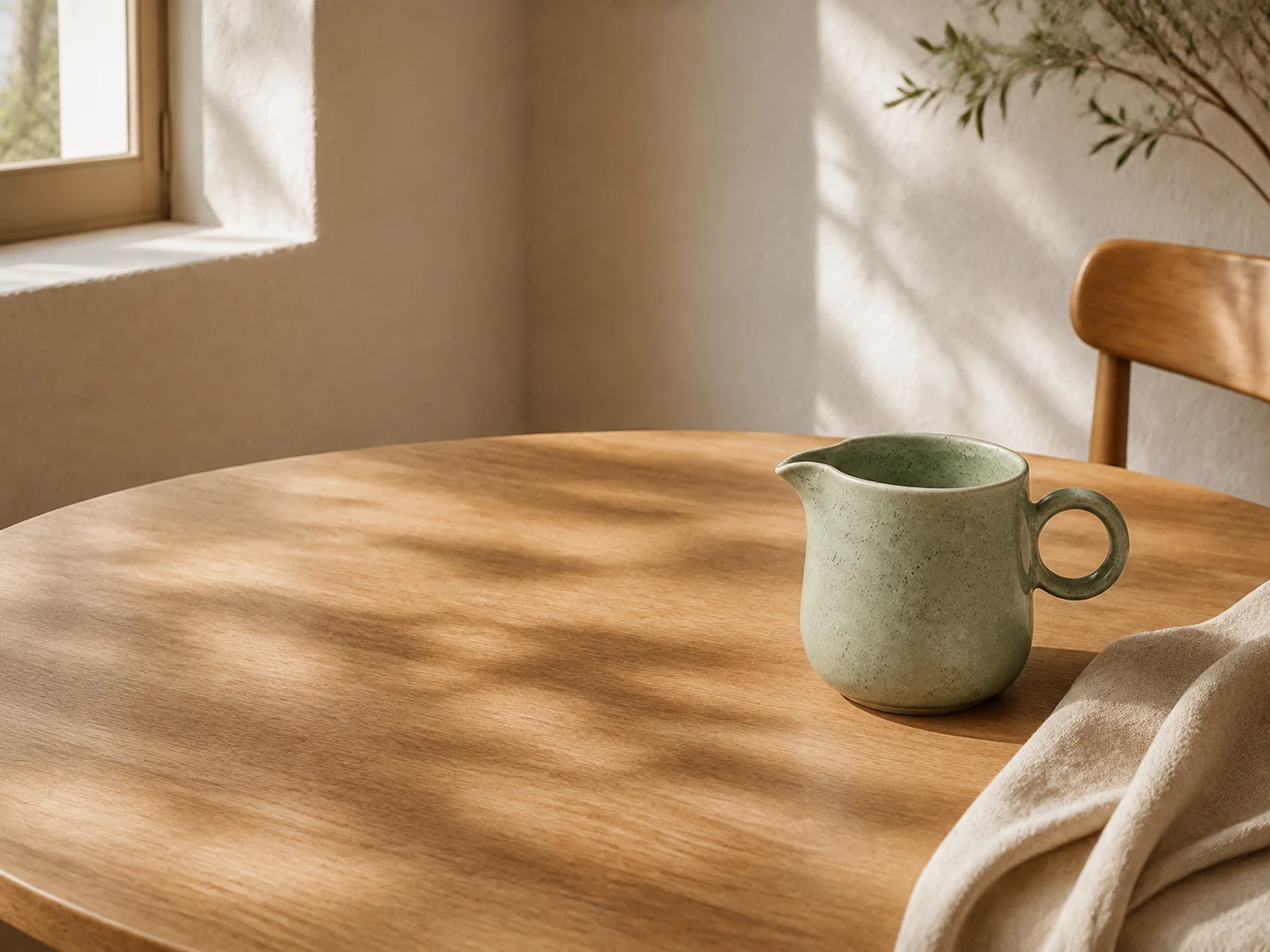
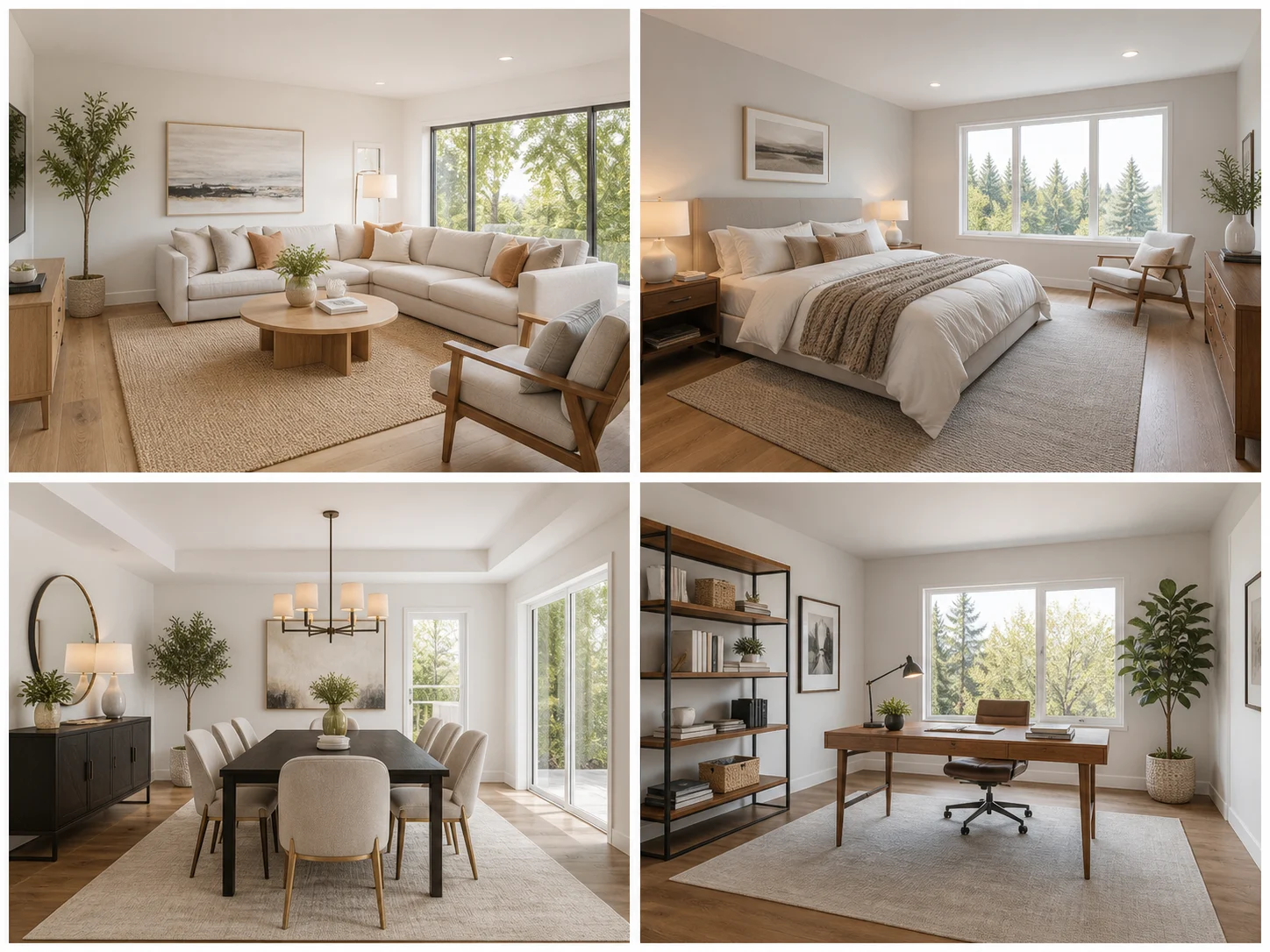
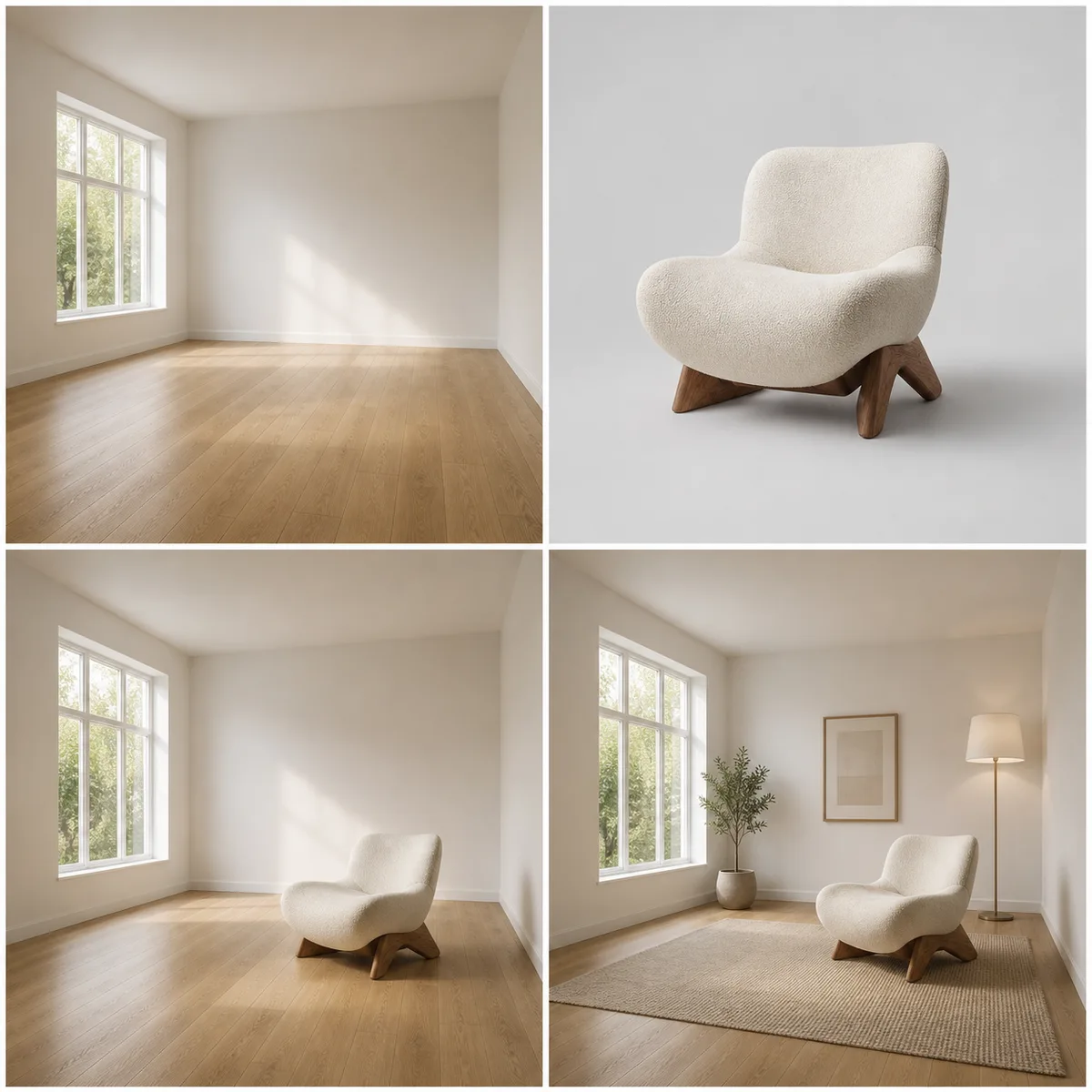
The interior source has plausible architecture but overly clean edges, repeated fabric, and bright global illumination with weak local shadow behavior. Strong Photo Rebuild keeps the camera position, window, furniture placement, artwork, plant, and room geometry while allowing broader texture and light corrections. Stronger passes may move small decor, change fabric seams, or soften geometry, so use them for visual concepts rather than measured design, construction, or real-estate documentation.

Convert an Interior Render
Living room render after an AI-to-real interior photography realism pass

Preservation Controls That Change the Submitted Direction

The three visible priorities are not decorative labels. Each adds a different instruction to the real generation request, while your optional notes name the details that matter in your specific source.

Strict Preservation

Protect identity, expression, age, skin tone, pose, crop, object placement, product geometry, text areas, and background layout. Use it when the source is already close to photographic and the correction should stay subtle.

Balanced Realism

Keep the recognizable subject and composition while permitting moderate local redraws for lighting, materials, reflections, edges, perspective, and minor anatomy. This is the practical default for most products and scenes.

Strong Photo Rebuild

Protect the main subject, camera position, geometry, and scene meaning, but allow broader texture, foliage, fabric, background, and depth corrections. Review faces, hands, labels, jewelry, and straight lines carefully.

Keep Source Shape

Auto keeps the input aspect-ratio intent. Optional 1:1, 2:3, 3:4, 4:5, 4:3, 16:9, and 9:16 outputs are available, but changing shape can force the model to crop or invent new border content.

How to Convert an AI Image into a More Realistic Photo

A clear source, one preservation priority, and a short review loop produce more useful results than a vague “make it real” request.

1. Upload One Clear AI-Generated Image

Choose a single image up to 10 MB. Keep the complete head visible for portraits, the full silhouette and label area visible for products, and straight architectural lines visible for interiors. Severe crops, tiny faces, unreadable packaging, collages, and heavy blur leave more information for the model to invent.

Upload Your Image
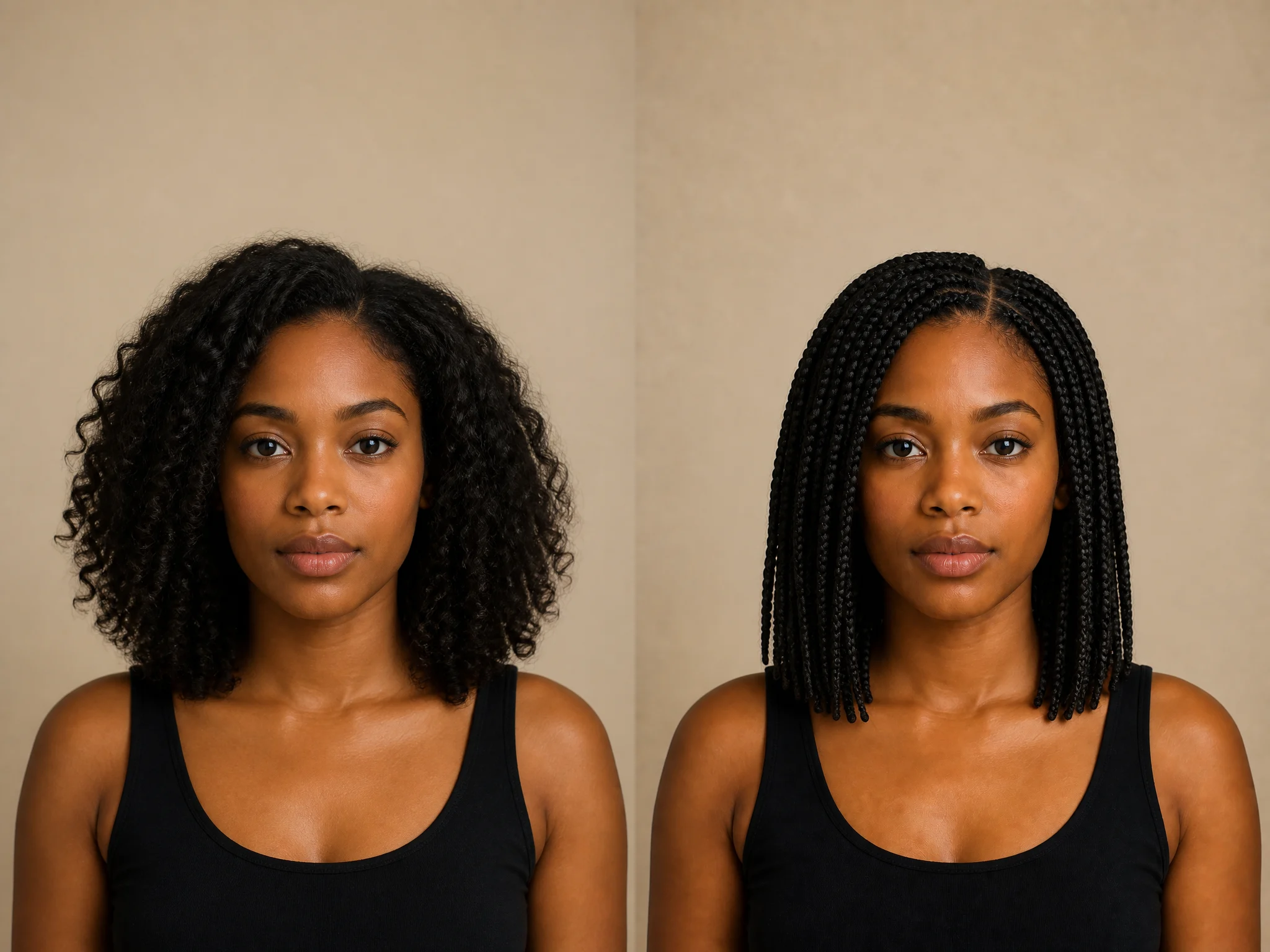
Clear fictional AI-rendered portrait prepared for conversion

2. Choose What Must Stay Stable

Pick Strict, Balanced, or Strong, then add concrete notes. A useful note separates protected facts from visual repairs: “keep the same face, age, expression, rust sweater, crop, and room; improve skin texture, hair variation, knit detail, and daylight shadows.” Do not ask for a new location, wardrobe, season, or art style here—use AI Image Reimagine for those creative changes.

Set Preservation
Unbranded synthetic product render with geometry ready to protect

3. Generate Once, Then Inspect at Full Size

Compare the result with the source. Check facial identity, hands, eyes, teeth, jewelry, packaging, text areas, controls, furniture edges, window lines, reflections, and contact shadows. If one detail moved, reuse the source with Strict Preservation and name that detail explicitly. Every generation can vary; download only a version that passes your own visual, rights, and factual review.

Generate and Review
AI-to-real living room output ready for full-size geometry and lighting review

Converter vs Humanizer, Reimagine, and Upscaler

These jobs overlap in everyday language, but choosing the right page reduces prompt conflict and protects each search intent.

AI to Real Image Converter

Use this page when the entire image needs coherent photographic reconstruction: natural light behavior, material texture, depth, reflections, edges, anatomy, and background consistency—while the subject and scene should remain recognizable.

AI Image Humanizer

Use a humanizer for a restrained cleanup of isolated AI-looking details when the image is already close to a photo and the overall composition should barely move. NanoPic does not position either workflow as a detector-bypass tool.

AI Image Reimagine

Use Reimagine when you deliberately want a new environment, style, mood, season, wardrobe direction, campaign treatment, or creative concept. Its job is transformation, not just photographic correction.

Upscaler or Manual Editor

Use an upscaler when the main problem is resolution. Use a layer-based editor when you need a pixel-exact mask, reversible edits, exact typography, legal packaging copy, measured geometry, or local control over one object.

Truthful Limits and Responsible Use

A more photographic appearance does not change where an image came from or make its subject historically, commercially, or legally true.

Generative Redraw, Not Pixel Preservation

The upload guides a newly generated result. Identity, hands, jewelry, labels, small objects, patterns, straight lines, and material details can drift even under Strict Preservation.

No Detector-Evasion Promise

This page improves visible realism. It does not promise to bypass AI detectors, remove provenance information, strip watermarks, fabricate EXIF data, or make synthetic media “undetectable.”

One Image, One Result at a Time

The template accepts one source image up to 10 MB and generates one result per request. It does not expose batch processing, masks, layers, a history timeline, or pixel-level retouching controls.

Credits and Watermarks Follow Live Settings

The interface shows the current credit cost before generation. Starter-credit eligibility, account limits, payment, and watermark behavior follow NanoPic’s current settings; this page does not promise unlimited free generation.

AI to Real Image Converter FAQ

Answers about source images, preservation, photographic realism, credits, limitations, and responsible use.

What is an AI to real image converter?

It is an image-to-image workflow that takes an AI-generated source and redraws synthetic-looking light, texture, material, depth, reflection, edge, or anatomy cues toward a more believable photographic result. The source still guides the subject and composition.

Does the converter make an AI image genuinely real?

No. It can make the pixels look more photographic, but it cannot turn a fictional person, event, product, room, or place into evidence that it existed or was photographed. Keep appropriate disclosure and verify factual or commercial details separately.

How is this different from AI Image Humanizer?

This converter is designed for a frame-wide generative realism rebuild across light, materials, depth, reflections, edges, and background coherence. A humanizer should be used for a restrained cleanup of isolated AI-looking details when the image is already close to a photo. Neither workflow promises detector bypass.

How is this different from AI Image Reimagine?

AI Image Reimagine is for changing the creative direction: a new scene, style, season, mood, wardrobe, or campaign treatment. AI to Real Image Converter aims to keep the existing idea and scene while correcting photographic realism.

Which preservation priority should I choose?

Start with Strict Preservation for faces, branded products, important geometry, or an image already close to photographic. Use Balanced Realism for general products and scenes. Use Strong Photo Rebuild only when the source looks heavily rendered and you can review small drift in identity, objects, labels, and lines.

Will it preserve the exact same face, product, or room?

Exact preservation is not guaranteed because the model generates new pixels. Clear sources and explicit notes can help keep identity, pose, geometry, framing, and layout recognizable, but you must compare faces, hands, labels, controls, jewelry, straight lines, and measurements with the source.

What files and limits does the page use?

The current page accepts one uploaded image up to 10 MB and one output per request. It supports Auto, 1:1, 2:3, 3:4, 4:5, 4:3, 16:9, and 9:16 output shapes through the reviewed 1K PNG template. It does not expose batch, mask, or layer controls.

Is the AI to real image converter free?

You can open and configure the page without charge, and eligible accounts may have starter credits. Generation uses the credit amount shown in the live interface. Starter-credit limits, payment, and watermark behavior follow the current NanoPic account settings; unlimited free use is not promised.

Can I use the result commercially?

Use depends on your rights to the source, the depicted people and property, trademarks, model terms, and the laws and platform rules that apply to you. Review packaging, claims, logos, likenesses, product geometry, and disclosure before publishing. NanoPic’s tool is not legal advice.

Can this bypass AI detection or remove provenance?

No such promise is made. The workflow targets visible photographic coherence, not detector evasion. It does not provide a control for stripping watermarks, removing provenance data, injecting fake camera metadata, or representing generated media as documentary evidence.

Make the Image More Photographic—Then Review What Changed

Upload one clear AI-generated image, choose a preservation priority, name the details that must stay, and compare the generated result with the source at full size.