

























Save up to 73% on plans
Image Splitter
Image Splitter
Choose an image, preview grid or custom straight cuts, and download real PNG pieces individually or in one ZIP.
Local processing · no upload · no credits
Up to 20 MB, 8,192 pixels per side and 24 megapixels. At most 100 tiles. Original dimensions and existing transparency are preserved; no automatic resizing.
More AI Image Models & Effects
Browse every other AI image model and effect published on this site in a continuous carousel.
One original, six real pieces
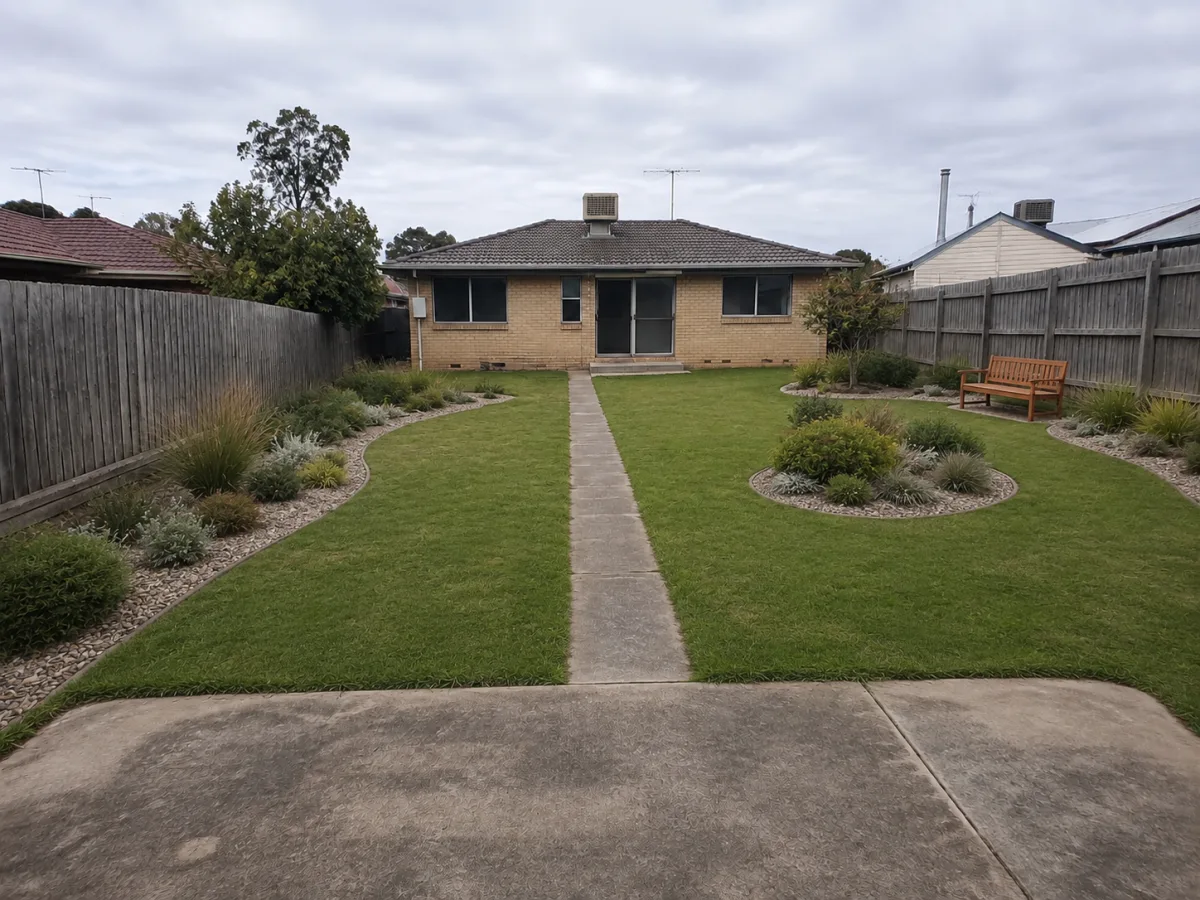
This existing NanoPic fictional garden image is divided into two rows and three columns. Each original PNG piece is 400 × 450 pixels from a 1200 × 900 source; these previews are compressed for display.
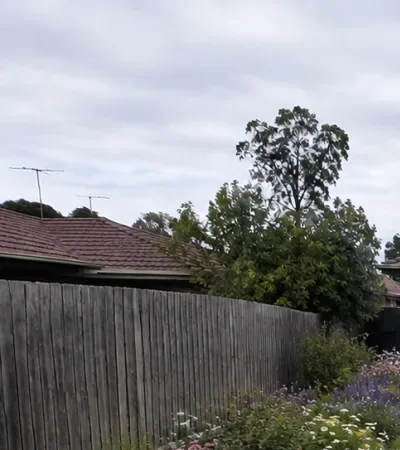
Row 1, column 1
Split your image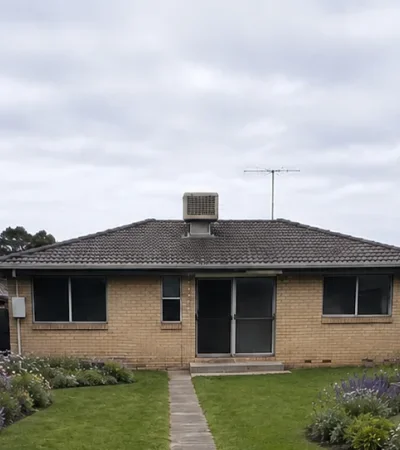
Row 1, column 2
Split your image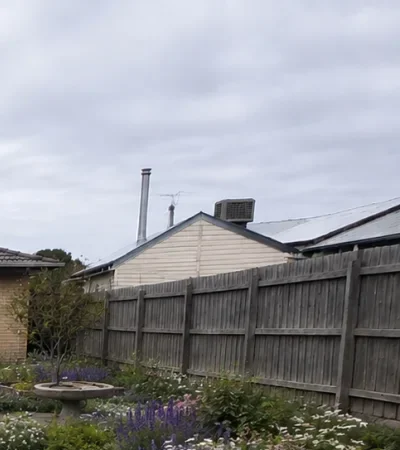
Row 1, column 3
Split your image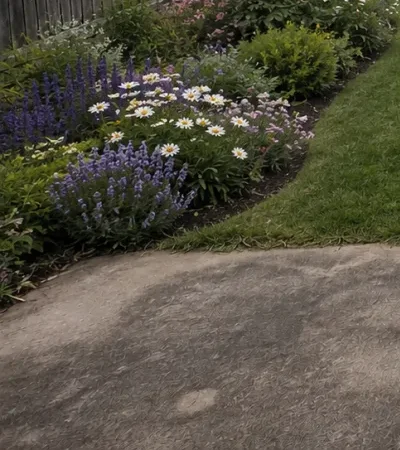
Row 2, column 1
Split your image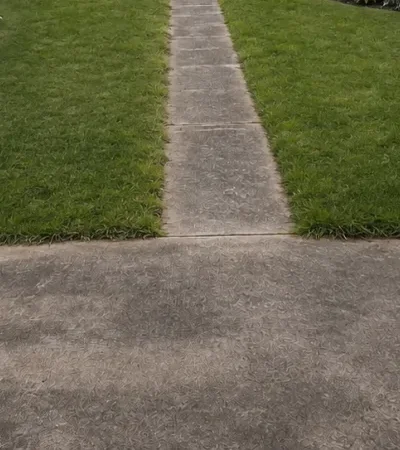
Row 2, column 2
Split your image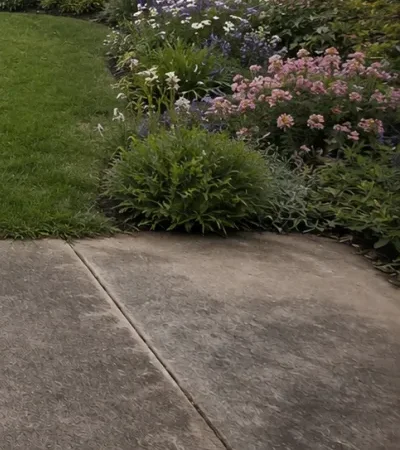
Row 2, column 3
Split your imageSplit an image without changing its size
Choose a JPG, PNG or WebP and select how the image should be divided. The numbered preview shows every rectangle before you create the files. Equal grid mode is useful when you know the number of rows and columns; custom straight cuts are useful when you already know the pixel positions of important boundaries. The tool reads the image in your browser and exports the actual pieces as PNG files. It does not redraw, enlarge or regenerate the picture. Keep your original file so you can return to a different layout later.
Choose rows and columns for an equal grid
Rows divide the image from top to bottom; columns divide it from left to right. A two-row, three-column layout creates six pieces. One row makes a horizontal strip, while one column makes a vertical strip. Each direction accepts one through ten divisions, with a maximum of one hundred tiles. The preview labels each piece by row and column so you can identify its position without guessing from a cropped detail. A grid cannot have more columns than the image has pixels in width, or more rows than its height.
Use custom cuts when equal pieces do not fit
Switch to custom straight cuts to place boundaries at exact pixel positions. Vertical positions are measured from the left edge; horizontal positions are measured from the top edge. For example, on a 900-pixel-wide image, vertical cuts at 200 and 650 create widths of 200, 450 and 250 pixels. Enter positions separated by commas. The tool sorts them and treats a repeated position as a single boundary. Zero and the full width or height are already the outer edges, so they should not be entered as cuts. Empty fields leave that direction undivided.
Understand what happens to uneven dimensions
Image dimensions are not always divisible by the chosen grid. This splitter places each grid boundary at an integer pixel position and keeps the final boundary at the original edge. A 17-pixel-wide image split into three columns therefore produces widths of 5, 6 and 6 pixels. Nothing is silently stretched or discarded to force perfectly identical sizes. Tiles in an equal grid can differ by one pixel in a direction. If every output must have exactly the same dimensions for another system, prepare a source whose dimensions divide evenly by your chosen rows and columns.
Download individual PNGs or one ZIP archive
Create PNG tiles after you are satisfied with the preview. Each result has a filename, dimensions and its own download link. Download all as ZIP collects the same PNG files in one archive, avoiding a sequence of browser download prompts. The archive also includes a small manifest listing the original dimensions and the position of every tile. A ZIP is a container for separate files, not a merged picture. Extract it with your operating system or usual archive application before importing the images into another editor. The tool does not post the pieces to any social account.
Keep the order clear when you move the files
Filenames use a stable row-first convention: r01-c01 is the top-left piece, r01-c02 is the next piece to its right, and r02-c01 begins the next row. Leading zeroes keep the ordinary alphabetical order useful. Use the numbered source preview when assembling a layout or handing assets to someone else. Other applications may sort imports differently, so check their order before publishing. A carousel, tiled profile and slide deck may each need a different arrangement. This tool supplies the pieces and their coordinates; it does not assume a particular platform upload sequence.
Preserve existing transparency
PNG outputs preserve transparency already present in the decoded source. A transparent logo or illustration can therefore be divided without automatically adding a white background. The preview background is part of the interface and is not painted into the output. A JPEG normally has no alpha channel, so its background remains opaque. Splitting is not background removal. Browser decoding can normalize color information or discard RGB values beneath fully transparent pixels, and the output does not preserve all original metadata. Compare visible edges and alpha values when working with assets that have delicate translucent details.
Plan a carousel or a larger composition
A wide image can be divided into a single row of panels for a sequence, or a larger artwork can become a grid for a presentation. Choose boundaries that keep important faces, text and product details away from awkward seams. The splitter does not add overlap, gutters or print bleed between tiles. If a destination requires a particular aspect ratio or safe area, prepare the source in an editor first and check the destination requirements separately. A geometrically correct split alone does not guarantee that an external service will display every image without cropping.
Use the tool for design assets and learning materials
Splitting can help separate a contact sheet, create rectangular puzzle pieces, or prepare sections of a diagram for a lesson. Custom cut positions are helpful when a source contains unequal panels or an irregular margin. The resulting pieces remain ordinary raster images: they do not contain editable text, vector paths or the layers from a design document. Curved pieces, transparent polygon masks and automatic detection of panel boundaries are outside this tool. For those tasks, use a dedicated image editor and export a suitable raster source when you need a simple rectangular split.
Know the limits before exporting
Supported files are at most 20 MB, no more than 8,192 pixels on either side and no more than 24 megapixels overall. These limits help keep browser processing manageable, especially on mobile devices. Accepted images keep their decoded dimensions; the tool does not quietly reduce a large upload to a smaller working copy. At most one hundred non-empty rectangles can be exported. A PNG archive may be larger than the source JPEG because the formats compress images differently. If your device runs short of memory, try a smaller source or fewer pieces, and close other image-heavy tabs.
Your selected picture stays in this browser workflow
Choosing a local file lets the browser read it for the preview and export. This tool does not upload that selected image to an editing server or send it to an AI model, and it does not consume generation credits. The sample button fetches the sample image from this website. Once you download the pieces, those files live wherever your browser saves downloads. Keep them if you need to return later: the page is not a cloud storage workspace. Refreshing or leaving the page can discard the current editing state.
Check the pieces before sharing
After export, open several files rather than judging only the thumbnail grid. Confirm the dimensions, numbering, image edges and transparent areas. Compare the outer tiles with the original image to make sure the intended content reaches every edge. If you change the grid or custom positions, create a fresh export; previous results are cleared so that old downloads are not presented as matching the new preview. The original file on your device is not modified. For important delivery work, retain that original along with the ZIP and its manifest so the layout can be reproduced.
Frequently Asked Questions
Does Image Splitter upload my photo?
The selected file is processed in your browser. The sample is fetched from this website; your local upload is not sent to an image model.
Are all grid tiles exactly the same size?
Only when the image dimensions divide evenly by the rows and columns. Otherwise tiles may differ by one pixel, with no pixels discarded.
Can I draw a curved or freehand cut?
No. Custom mode accepts horizontal and vertical straight cuts at pixel positions and produces rectangular PNG files.
Will the pieces have the original resolution?
Yes, accepted images are not resized. Each tile keeps the pixels in its rectangle, within the displayed file and dimension limits.
Can I download every piece together?
Yes. Create the tiles and choose Download all as ZIP. Individual PNG downloads and a boundaries manifest are also available.
Does this create print-ready posters?
It exports image tiles, not a PDF print layout. It does not add bleed, paper margins, color proofing or automatic scaling.