Muse Video Prompt Builder
Sign In

Muse Video Prompt Builder

Describe a clip, plan its action and sound, and copy a ready-to-edit text brief.

Start with a sample brief

Choosing a sample replaces your current brief.

One clear action sequence
Match sound to the scene

Your copy-ready video brief

Subject and scene: An unbranded cobalt-blue ceramic teapot on a pale stone table.

Opening frame: Wide view of the whole teapot with the handle and spout visible.

Main action: A gentle ribbon of steam rises as the camera moves closer.

Ending frame: Hold a close view of the glaze while keeping the spout in frame.

Camera movement: One slow straight push-in; no cuts or orbit.

Light and visual style: Soft morning sidelight, realistic ceramic texture, calm editorial mood.

Continuity: keep unchanged: Keep one teapot, its shape, color and handle consistent throughout.

Exclude from the clip: Extra handles, floating lid, labels, sudden cuts or distorted steam.

Sound plan: Sound on

Background ambience: Quiet room tone.

Sound effects and action cues: A soft kettle hiss begins with the first visible steam.

Speaker and exact dialogue: No speech or music.

Target aspect ratio: 16:9

This free local tool produces text, not video. Frame and sound choices are creative targets; check support in the video tool you use.

Build a Muse Video brief around motion and sound

Give the action a beginning and an end

Describe what is visible before anything moves, choose one main action, then specify the final frame. A product reveal needs a visible product throughout; a landscape can end by holding the same composition. Split complicated choreography into separate clips.
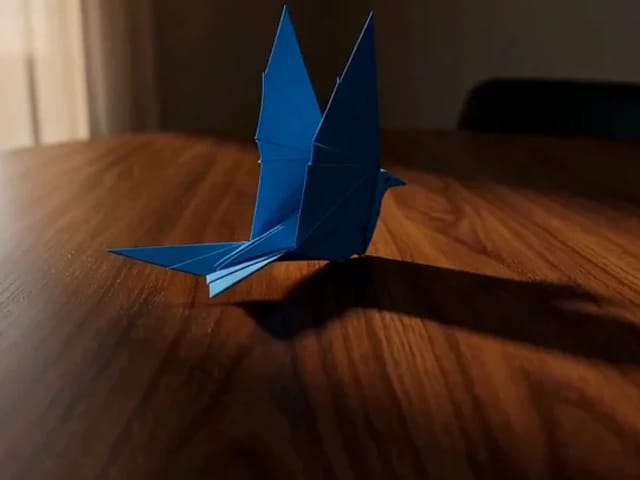
Attach sound cues to visible events

Keep ambience separate from effects and dialogue. Name who speaks, write one short line and say who stays silent. Tie a cup tap to the moment a cup meets the table. Use silent mode to remove all sound fields from the copied brief.

Review continuity before you render

List the details that should stay stable: subject identity, clothing, object count, background and light direction. These are instructions, not guarantees. In a generated clip, check every cut, mouth movement and object interaction before publishing.
Muse Video prompt questions

What makes this different from a shot planner?

This builder focuses on one clip's opening, action, ending and sound cues. Use a shot planner for multiple shots and timed transitions. You can copy a brief from here into a larger storyboard.

What should I write for dialogue?

Identify each speaker and write the exact short line. Specify who remains silent and avoid several simultaneous voices. Review any resulting clip for lip-sync, speaker consistency and unwanted speech; a written prompt cannot guarantee synchronization.

What happens when I choose silent mode?

The copied brief explicitly requests silence and excludes ambience, sound effects and dialogue. Your sound-field edits stay in the form if you switch sound back on. Choosing a new sample or Reset replaces the whole brief.

Can I plan an image-to-video clip?

Yes. Describe the authorized reference image in the subject field, then specify what should move and what must remain unchanged. This tool does not upload images. Attach your reference separately in a video tool that supports it.

Are the samples actual Muse Video outputs?

No. They are editable text examples for planning, not generated videos or performance demonstrations. The aspect ratios are composition targets, not a claim about model parameters, supported durations or output resolution.

Does NanoPic generate native Muse Video here?

No. This independent NanoPic page builds a text brief locally and is not affiliated with Meta. Meta's July 2026 announcement describes Muse Video as a video model with native audio, while noting remaining synchronization and motion challenges. Consult Meta for current access. NanoPic's separate AI Video Generator uses the model shown in that tool; it is not a Muse Video connection.

Official model context