













Free AI Photo Colorizer
Sign In

Free AI Photo Colorizer

Upload one black-and-white or faded photograph, choose a natural, warm, or archival treatment, and create a color interpretation with Nano Banana 2.

Choose a starting treatment. Verify historically important colors yourself.

Upload Photo*
Try Colorizer Sample

0 / 600

Public Visibility
Copy Protection
Credits required:-

Free AI Photo Colorizer

Image

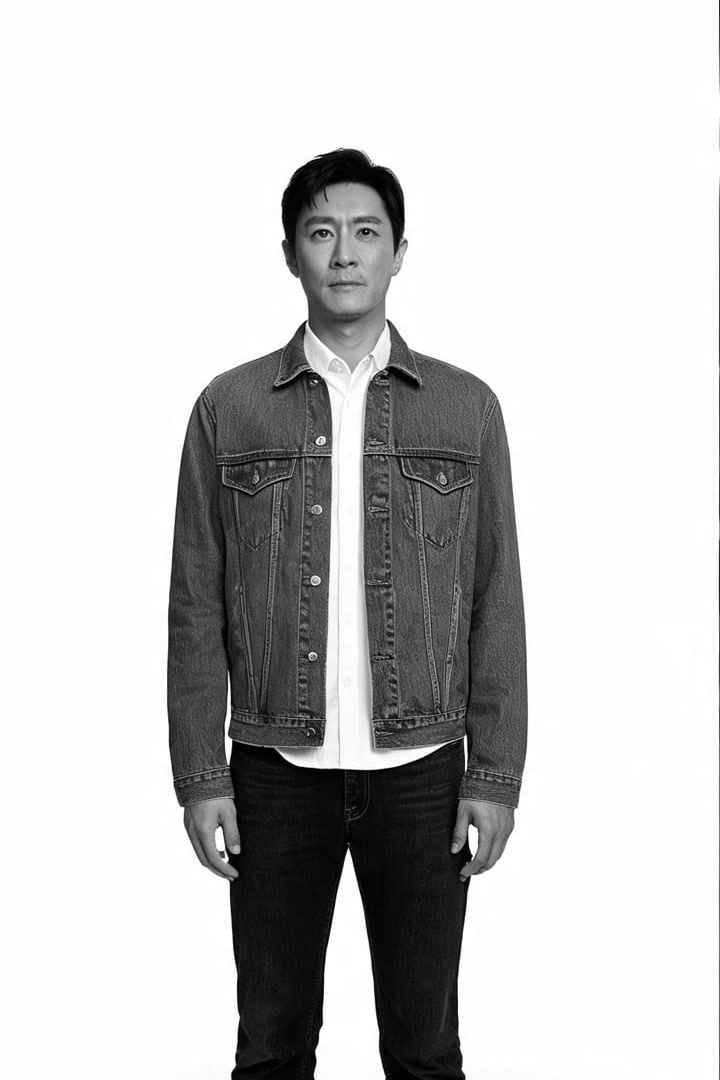
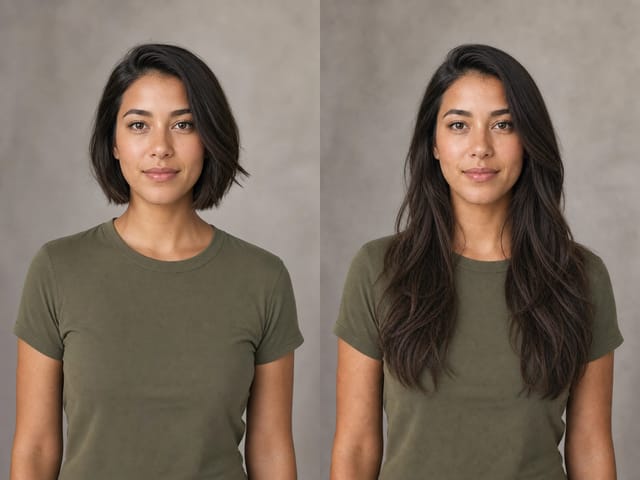
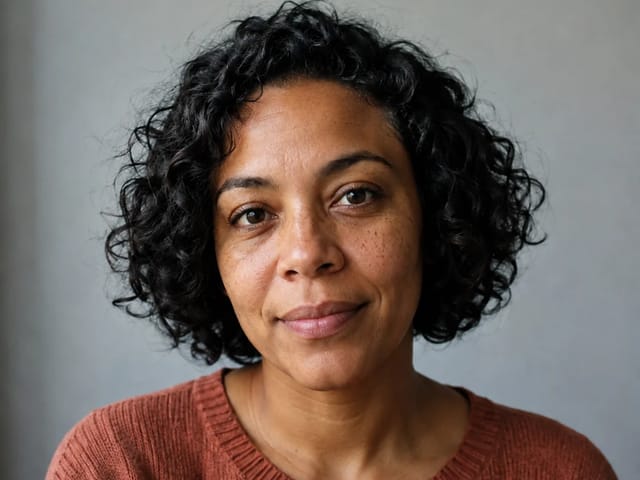
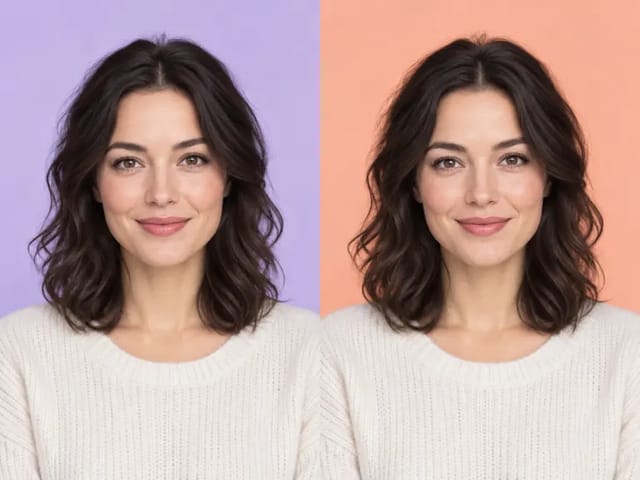
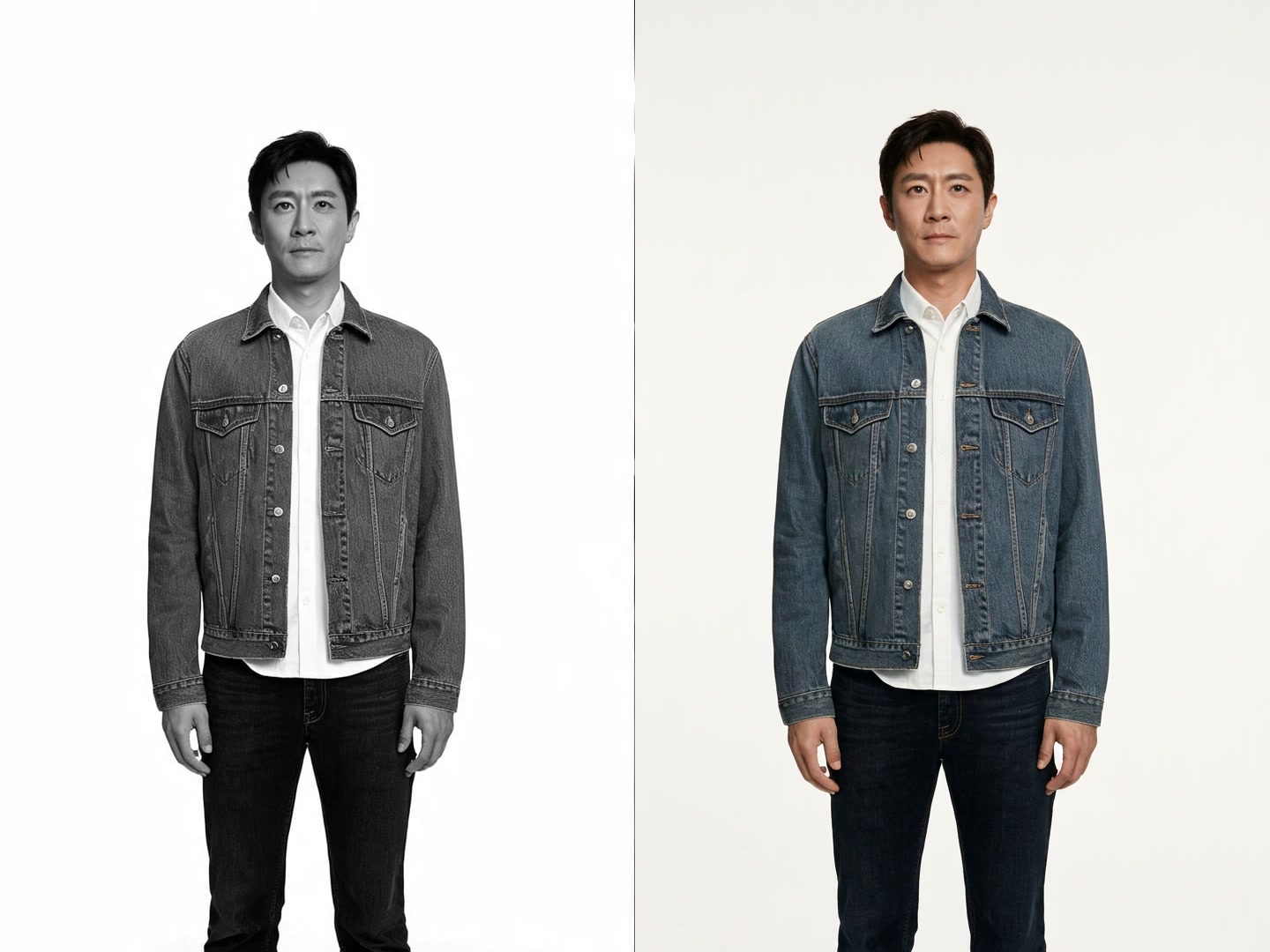
Black-and-white portrait before using the AI photo colorizer
Original
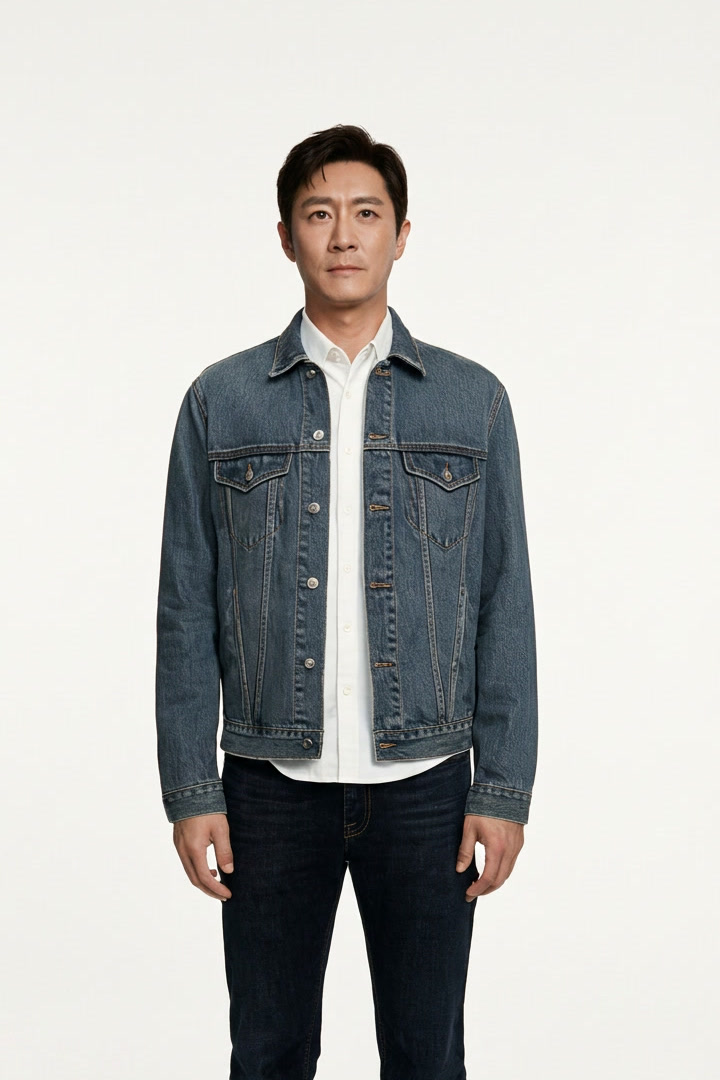
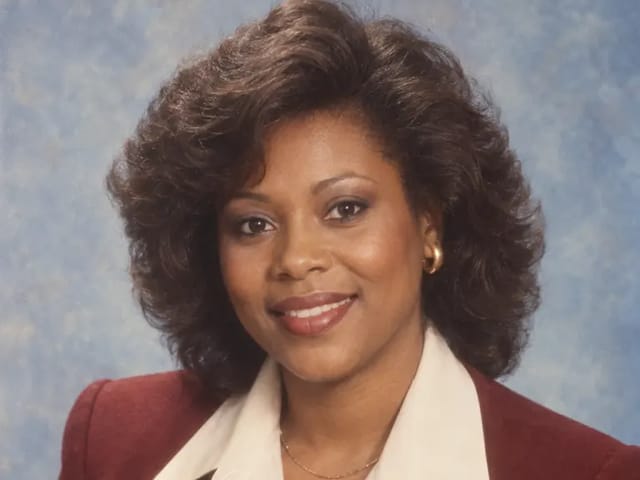
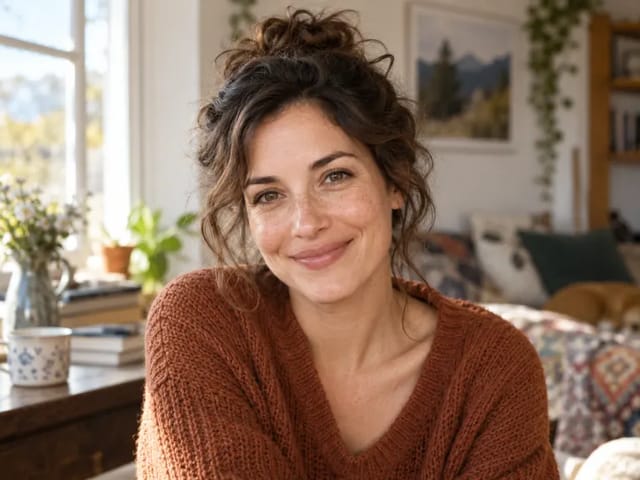
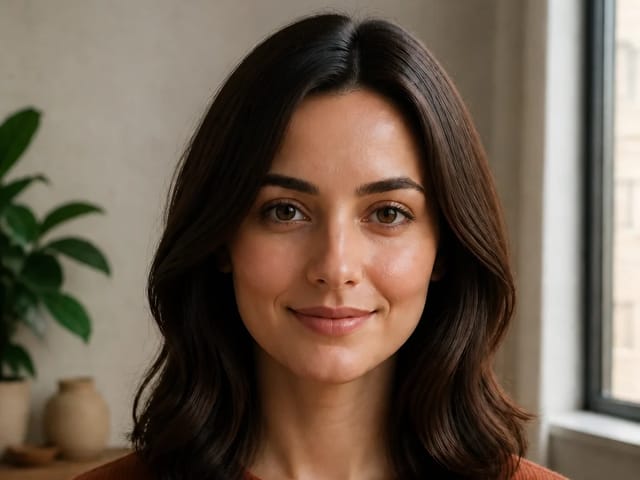
Naturally colorized portrait created by the AI photo colorizer
Colorized
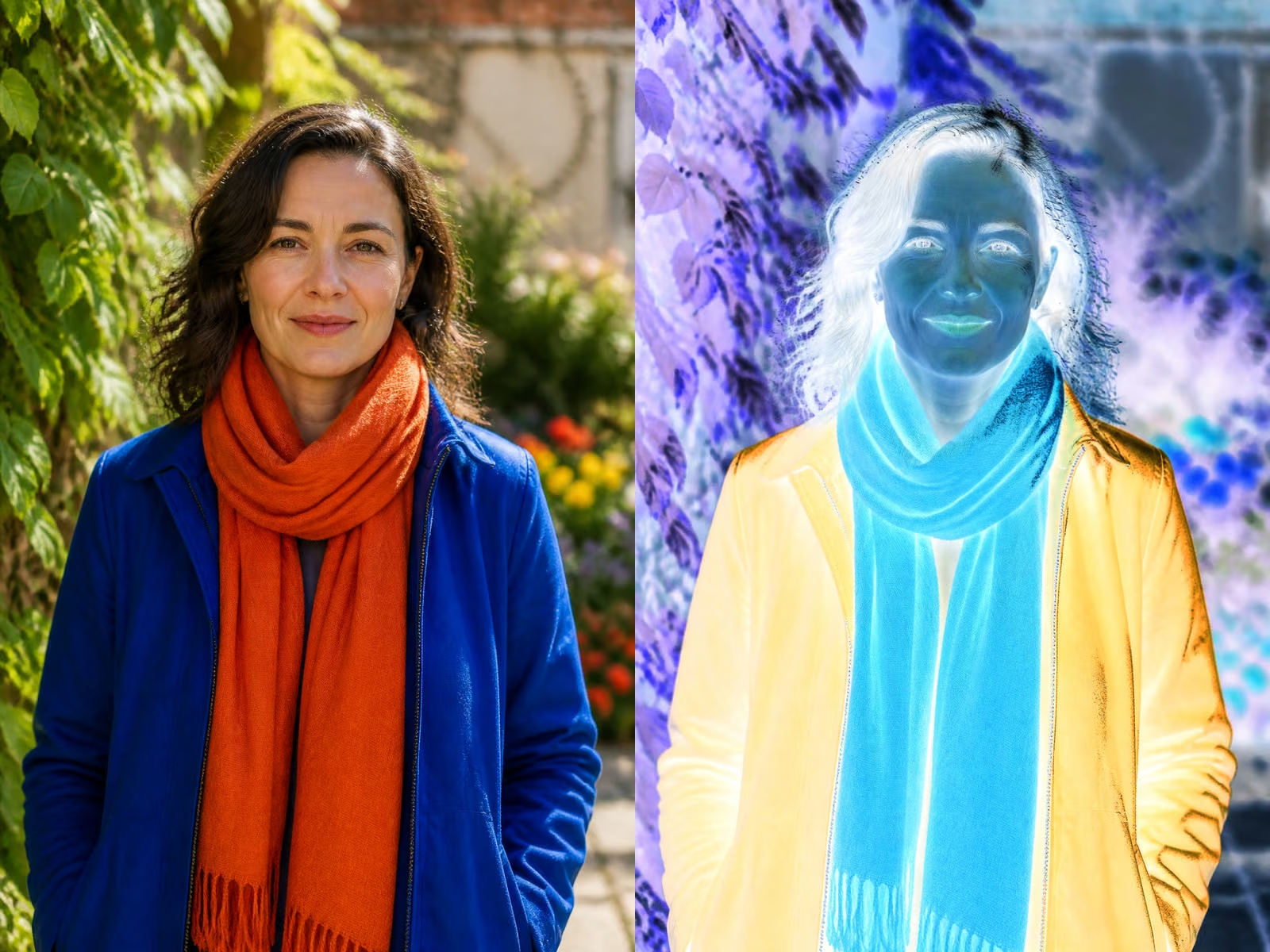
Before and after comparison of a black-and-white photo colorized with AI

Colorize Black and White Photos Without Losing Their Character

NanoPic Photo Colorizer gives old portraits, family snapshots, scanned prints, and faded photographs a thoughtful color interpretation. It is designed to preserve the people, framing, grain, light, and visual history already present in the source instead of turning the image into a glossy modern portrait. Use it to explore how a memory might look in color, prepare a more engaging family archive, or make an old image easier to connect with. AI cannot know every historically correct color from grayscale pixels alone, so uniforms, flags, vehicles, architecture, and personally important details should always be checked by a human against reliable records.

A Practical AI Colorizer for Personal and Creative Photo Work

A useful photo colorizer does more than pour color over gray pixels. It must infer where skin, hair, fabric, foliage, wood, metal, sky, and painted surfaces begin and end, then apply a coherent palette without erasing fine detail. NanoPic uses an image-to-image workflow so the uploaded photograph remains the visual reference throughout the edit. The saved instructions ask the model to keep facial identity, expressions, pose, clothing structure, objects, architecture, lighting direction, and photographic texture stable. Natural is the balanced starting point, Warm adds gentle golden character without heavy orange grading, and Archival uses restrained saturation for careful review. These treatments are creative interpretations. A grayscale photograph usually contains no conclusive evidence that a coat was navy instead of green or that a wall was cream instead of pale gray. When accuracy matters, add known color notes and compare the result with family knowledge, dated catalogs, museum references, or other documentary sources.

How to Colorize a Photo Free Online in Three Steps

The generator appears at the top of the page so you can start immediately and review the result before reading the deeper guidance.

1. Upload a Clear Scan or Photo

Choose one black-and-white, sepia, or faded image. A reasonably sharp scan with visible eyes, hair edges, clothing boundaries, and background detail gives the model more useful evidence. Crop away scanner borders if they are not part of the photograph, but keep meaningful handwritten notes in a separate original file.

2. Choose a Color Treatment

Select Natural for balanced realism, Warm for a gently inviting palette, or Archival for conservative saturation. Add optional notes when you know a specific detail, such as a dark green uniform, blue eyes, a red bicycle, or the original paint color of a house.

3. Generate, Compare, and Verify

Create the 1K colorized result, compare faces and boundaries with the original, and inspect historically important objects. Keep the unedited scan as your master. If a color is uncertain, describe it as AI interpreted rather than historically restored or proven.

Photo Colorizer Features Built Around Preservation

The workflow prioritizes a recognizable photograph and a believable palette over dramatic reinvention.

Identity and Composition Guidance

The template explicitly asks Nano Banana 2 to preserve faces, expressions, body position, camera framing, clothing construction, background objects, and light direction. This reduces avoidable drift, although every output still deserves visual review.

Restrained Skin and Material Color

Prompts favor natural skin, neutral whites, plausible fabric and material hues, controlled saturation, and consistent reflected light. This helps old photographs feel present without making them look like aggressively filtered contemporary images.

Editable Historical Notes

You can supply facts the pixels cannot contain. A short note about eye color, military branch, school uniform, vehicle paint, wedding flowers, or room decor gives the generation a better constraint while leaving the original image in control.

Fixed Portrait-Friendly Output

The template uses a 2:3 image-to-image composition at 1K resolution, matching the portrait example and avoiding a confusing set of incompatible layout controls. The original upload should still be archived at its full scan resolution.

Ways to Use an AI Photo Colorizer

Color can make an archive easier to explore, but the strongest projects keep the original and explain where interpretation begins.

Family History and Memory Sharing

Create a color version beside the untouched scan for family albums, reunion slides, oral-history interviews, or private memory books. Ask relatives to review clothing, hair, eye, vehicle, and home colors. Their corrections can become useful notes for a second generation while the original remains the authoritative artifact.

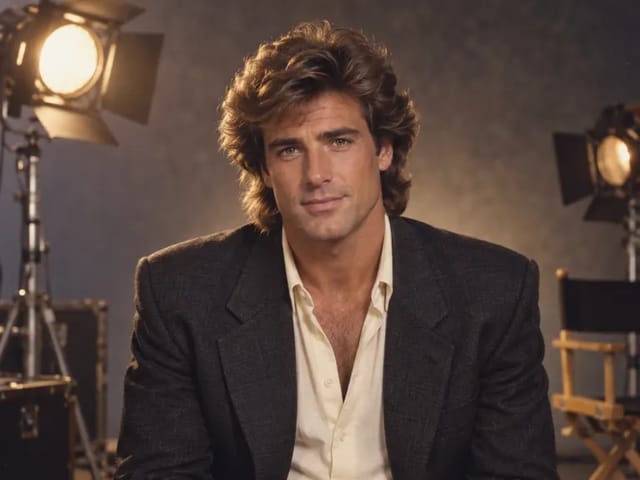
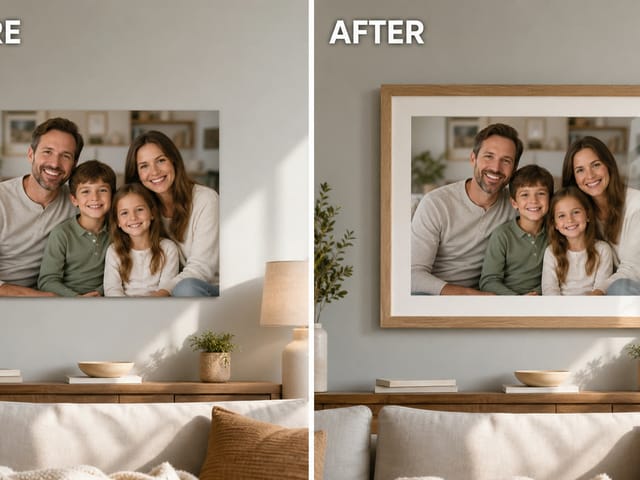
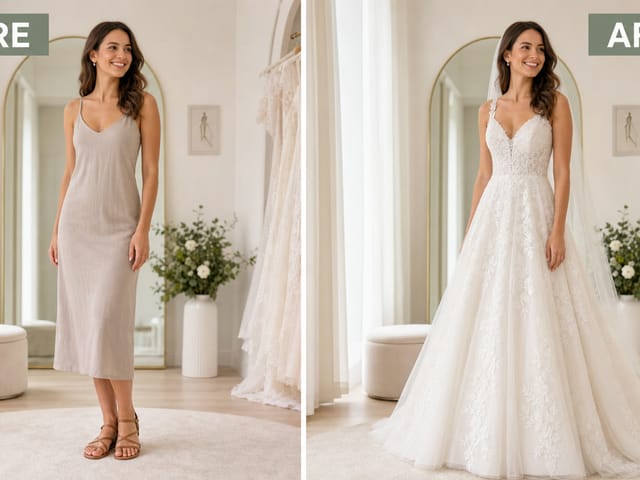
Colorize a Family Photo
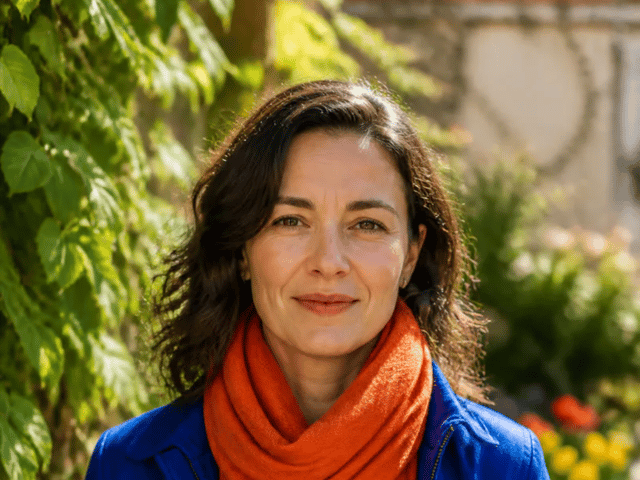
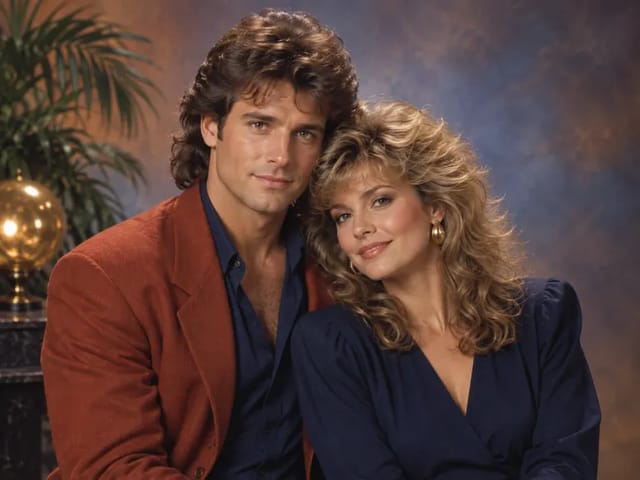
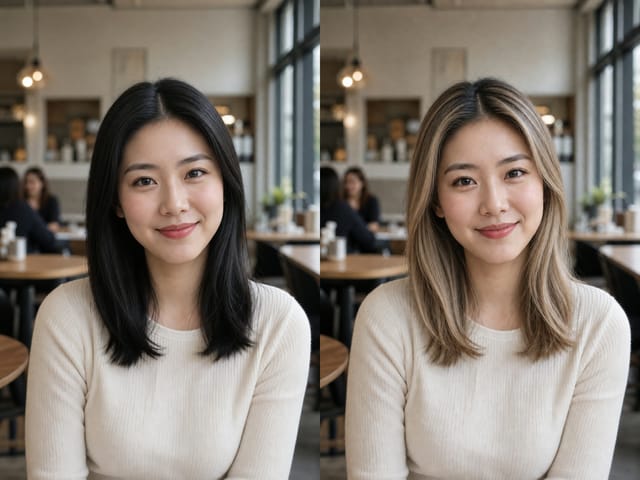
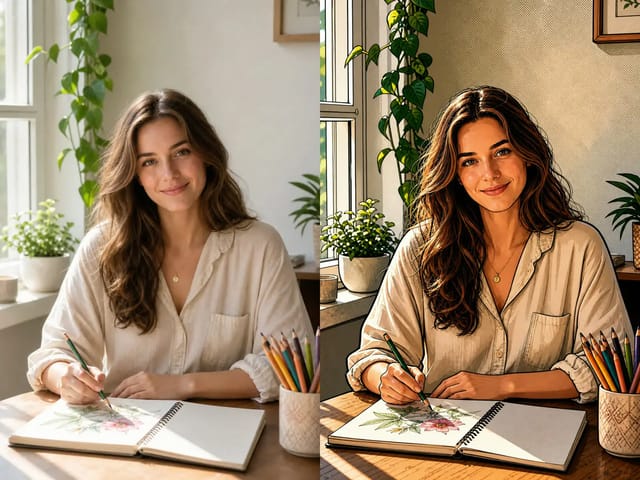
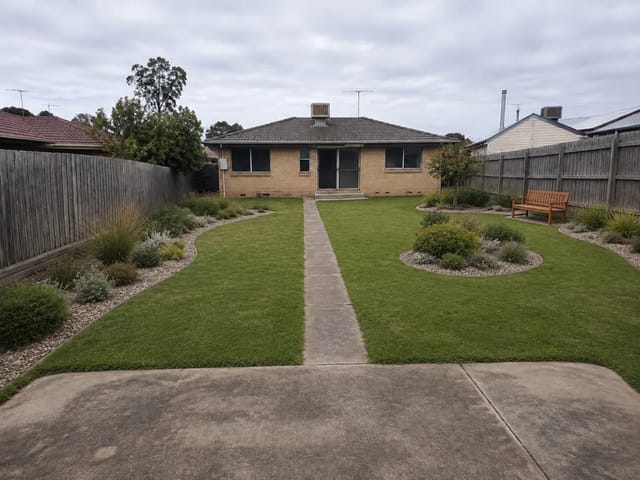
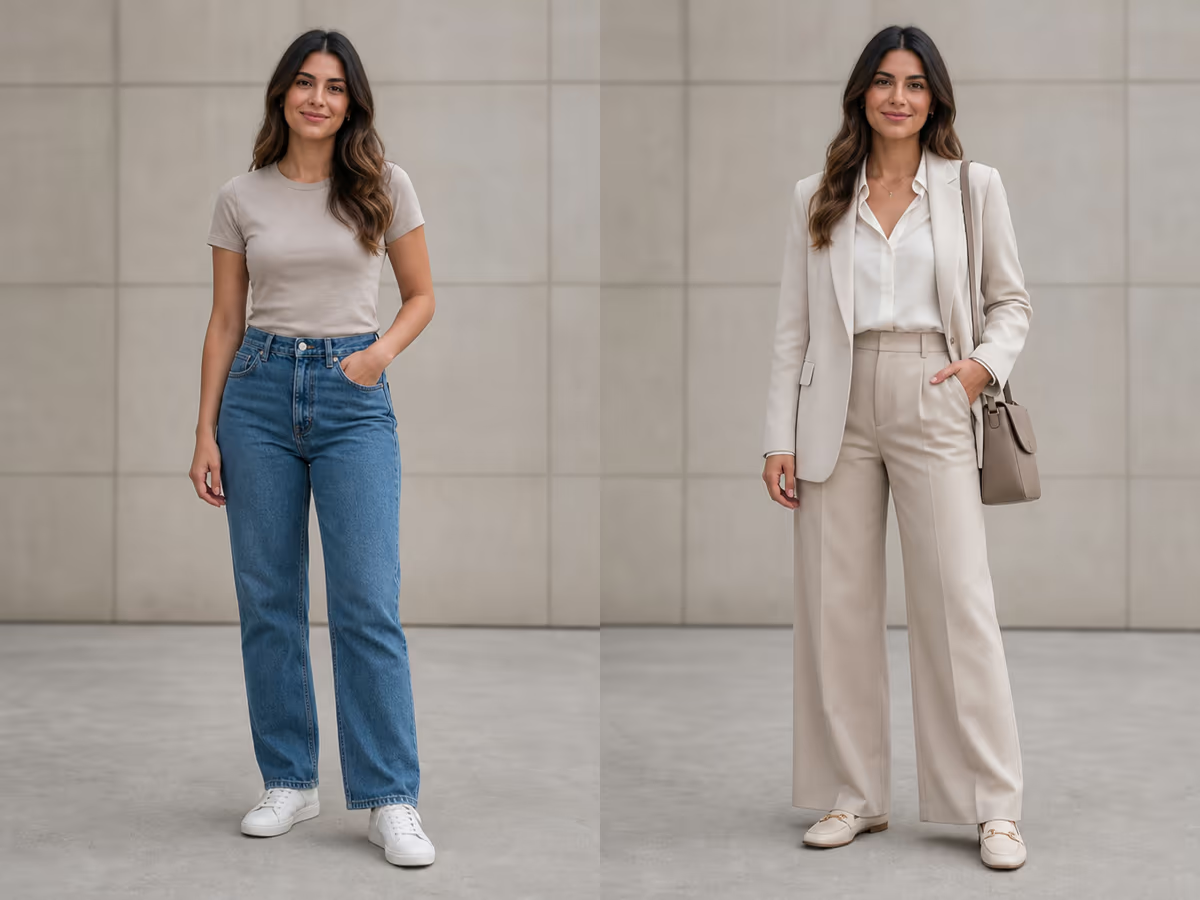
AI photo colorizer comparison for a family history project

Museum, Classroom, and Local History Concepts

Use colorized drafts to support discussion, exhibit planning, or educational storytelling when they are clearly labeled as interpretations. Researchers should verify period clothing, insignia, flags, machinery, signage, and architecture before publication. AI color is a visual hypothesis, not a substitute for conservation expertise or primary-source research.

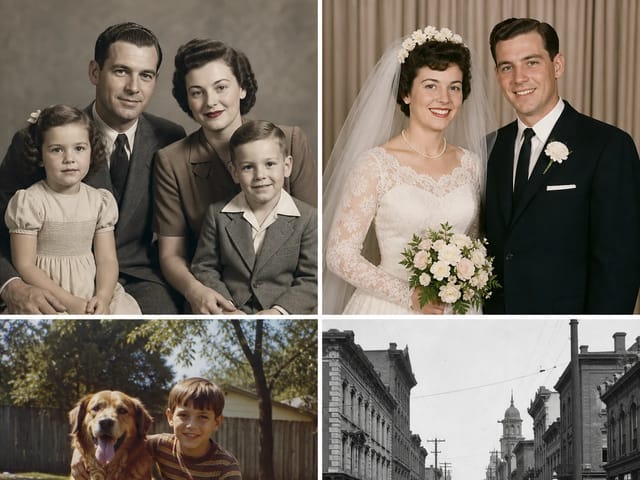
Try Archival Color
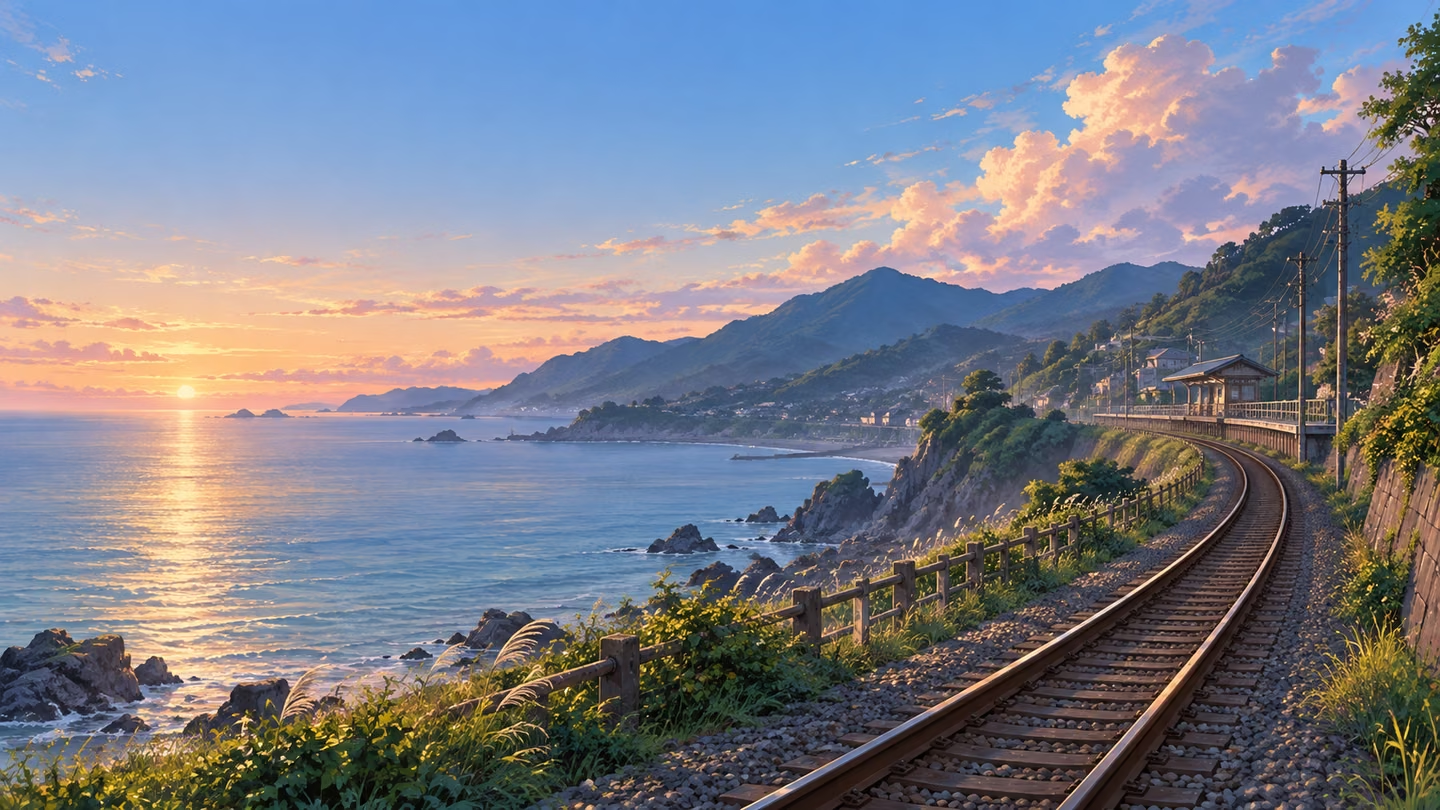
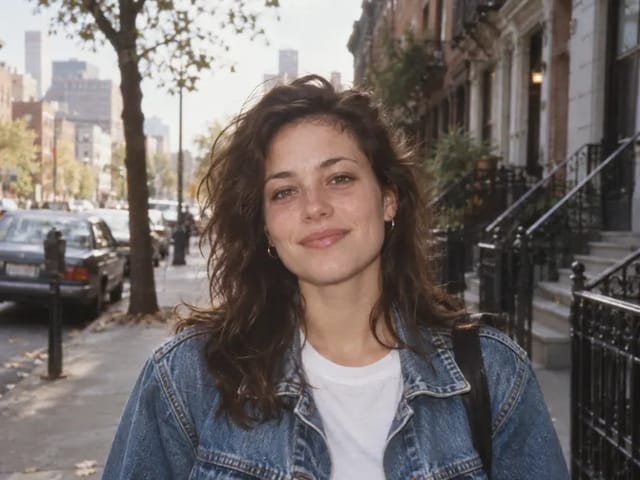
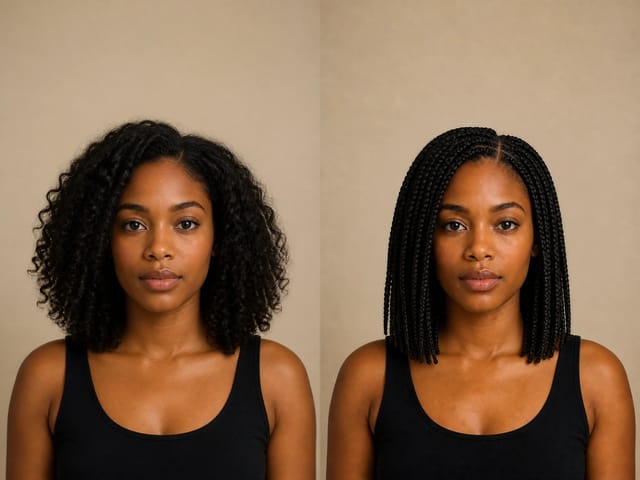
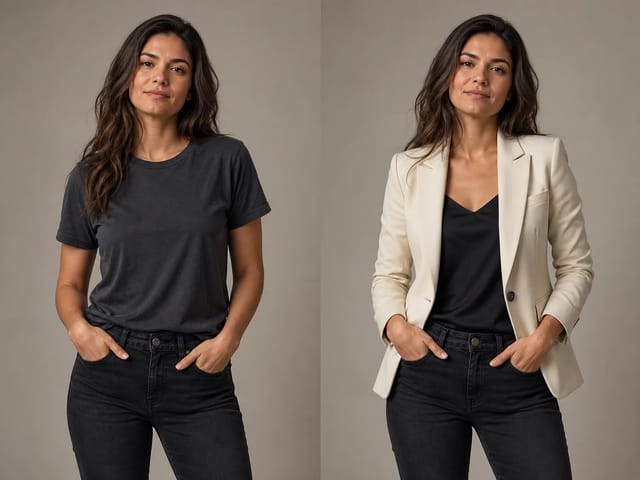
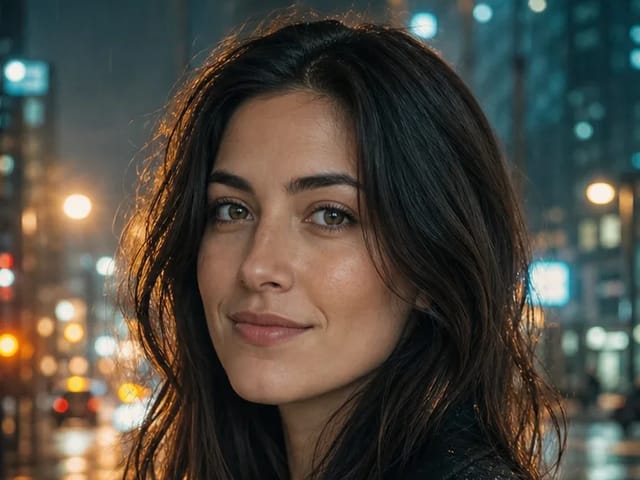
Restrained archival-style colorized historical photograph

Documentaries, Social Posts, and Creative References

A carefully reviewed colorized still can help a documentary pitch, historical social post, biography draft, or design moodboard feel immediate. Preserve source attribution, disclose the AI colorization when context requires it, and avoid presenting inferred colors as direct evidence about the photographed event.

Create a Color Draft
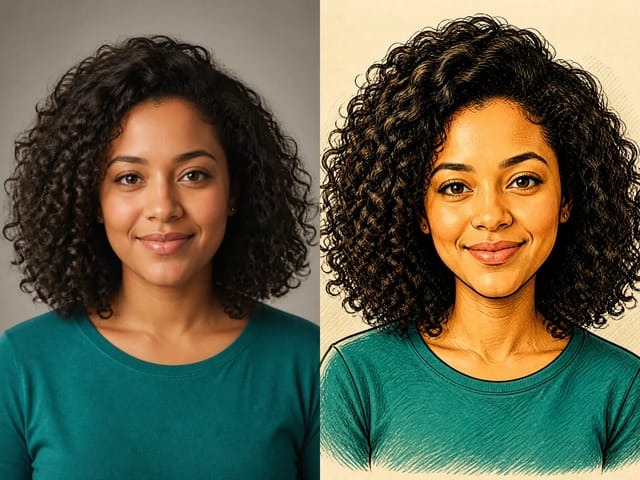
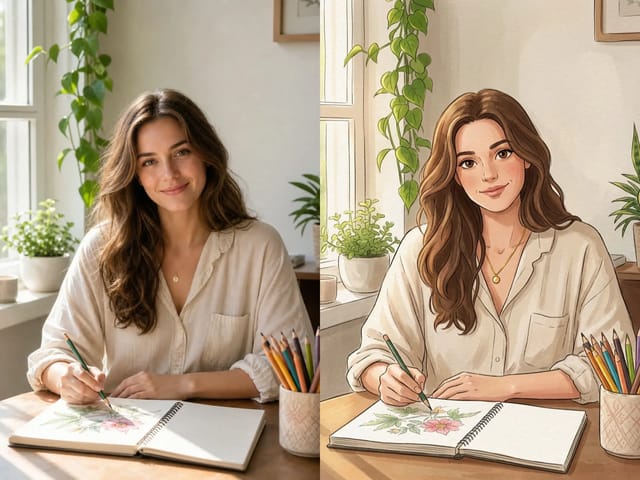
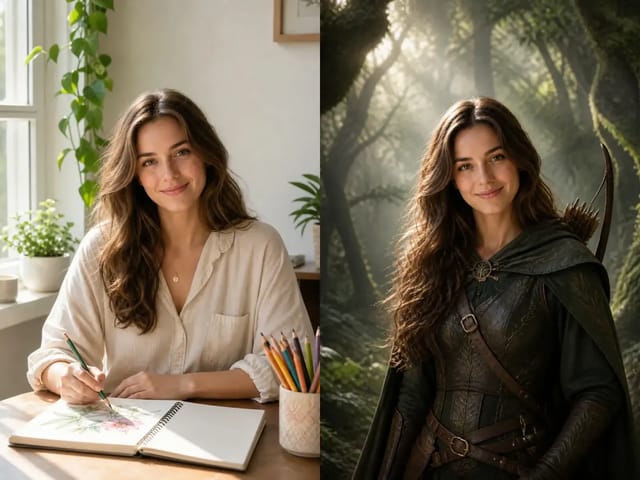
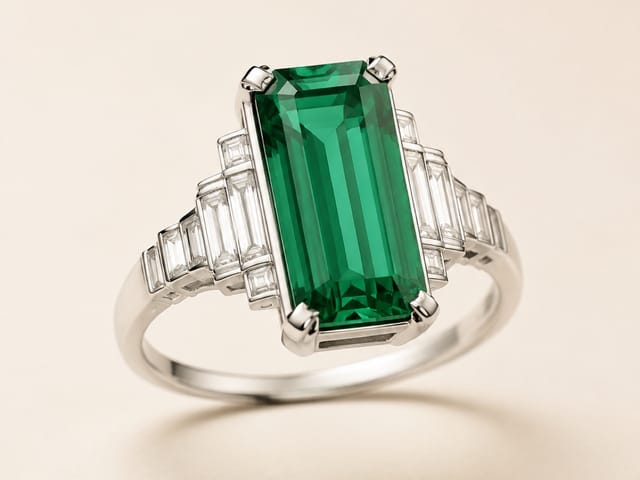
Original and colorized photograph for creative storytelling

AI Photo Colorizer FAQ

Answers about accuracy, source quality, preservation, and responsible use.

Can AI determine the historically exact colors in a black-and-white photo?

Not reliably. Grayscale values can correspond to many different colors, and film stocks or lighting can change tone relationships. Treat the result as a plausible interpretation and verify important colors with trustworthy human or documentary evidence.

Is the AI photo colorizer free to use?

You can open and configure the photo colorizer for free. Creating an image uses NanoPic credits; images created with free credits include a watermark, while paid credits generate images without that free-credit watermark.

Will the photo colorizer change faces or objects?

The template tells the model to preserve identity, expressions, objects, composition, texture, and lighting. Generative editing can still introduce small changes, so compare eyes, hands, jewelry, insignia, text, and object boundaries with the original before using the result.

Which preset should I choose?

Natural is the best general starting point. Warm suits personal albums and inviting storytelling. Archival keeps saturation conservative for review-oriented work, but its colors still require human verification.

What upload produces the best result?

Use the clearest scan available, ideally without glare, compression blocks, severe blur, or scanner borders. Moderate grain and age marks are acceptable and can help preserve the photograph's character.

Does colorization repair scratches and missing areas?

This page is focused on adding color, not full restoration. It may visually soften minor damage, but you should not expect accurate reconstruction of missing faces, text, or objects. Restore severe damage separately and retain the untouched master.

Can I add a color I know is correct?

Yes. Use the optional notes to name confirmed details such as clothing, eye, flower, vehicle, or building colors. Keep the note concise and review whether the output follows it without changing unrelated parts.

Should I replace my original scan with the colorized version?

No. Keep the highest-quality original scan and store the AI output as a derivative. For archives or public history, label the color version, date the edit, and retain source and verification notes.

Try the Free AI Photo Colorizer

Upload one black-and-white image, choose a restrained treatment, add any known color facts, and compare the result with the original.