Save up to 73% on plans

MiniMax H3 360 Orbit AI Video Generator
Sign In

MiniMax H3 360 Orbit AI Video Generator

Upload one image of a product, shoe, figure or person. A MiniMax H3 360 orbit turns your subject a full circle while the frame stays steady, so the front, sides and back all show. Nothing to install, and the short note is optional.

Your photo*(0/1)

Please add the required Your photo before generating.

0 / 4,000

Public VisibilityAllow this result to appear in public inspiration surfaces.
1 / 3

What a MiniMax H3 360 orbit clip looks like

Upload one photo and make a MiniMax H3 360 orbit video: your subject turns through a complete rotation in one continuous shot, so the front, sides and back all show. Post it, loop it or drop it into a product page. A clear subject and a plain backdrop give the cleanest spin.

Working through a MiniMax H3 360 orbit

Four practical steps from a still photo to a full-circle clip you can post, loop or drop into a listing.

See every side in one continuous turn

A MiniMax H3 360 orbit takes one still photo and spins the subject around its own axis while the frame holds steady. Viewers get the front, both sides and the back in a single short clip, without moving a physical turntable. Solid products, shoes, bags, figures and a single clear portrait all work well. Keep one main subject near the center so the turn stays readable from start to finish.

Try it with your photo
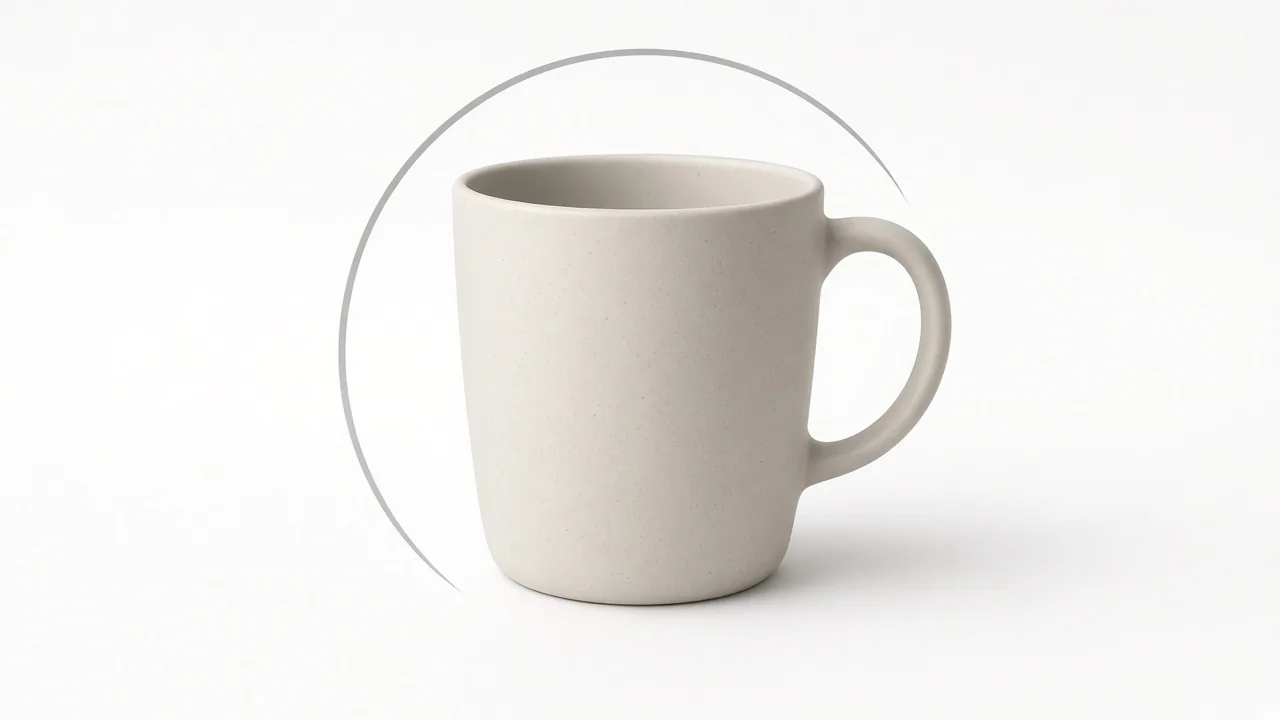

Matte ceramic mug on a white studio backdrop with a thin grey orbit arc

Upload a clean photo, then add a light note

Choose a sharp image with space on every side and an even, plain backdrop. Crop to the frame shape you want before you upload. The spin is already included, so leave the note blank for a clean showcase look, or add one short phrase about light or mood—such as soft white studio backdrop. Skip restating the rotation, and avoid new props that pull focus from the turn.

Open the generator
Laptop on a desk showing a handbag photo ready to upload

Where these full-circle clips fit best

Use a MiniMax H3 360 orbit as the first video on a product listing, as a looping hero on a landing page, or as a short reel that shows a new drop from every angle. Sneaker and bag posts benefit when followers can see the heel and side profile. Collectors can turn a figure or handmade piece in one pass. Outfit reveals work when one person stands clear in even light.

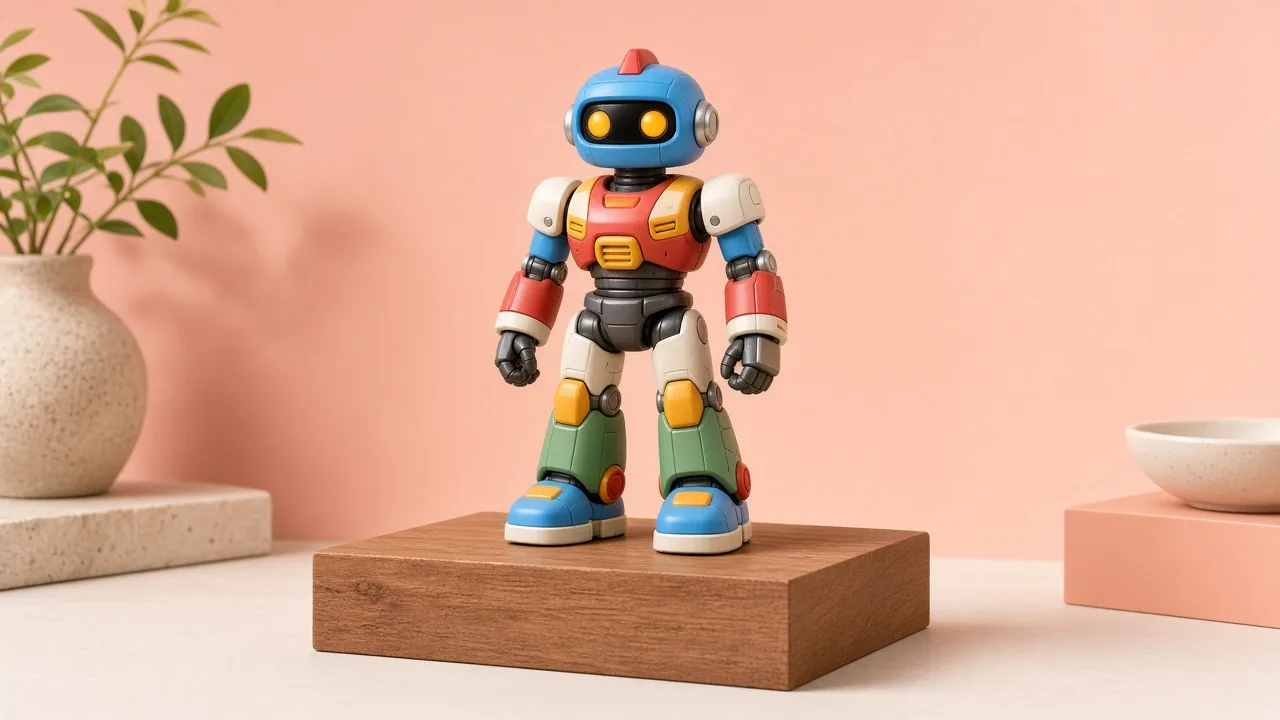
Colorful toy robot figure on a wooden pedestal against a peach wall

Check the finished spin and fix common issues

Play the whole clip before you post. Motion should stay even through a full circle, the invented back should look plausible, and light should shift naturally as each face turns forward. If the shape melts, the spin stops short, or edges clip the border, start over with a cleaner photo and more margin. Labels may drift, so do not rely on the clip for exact product markings.

Run another orbit
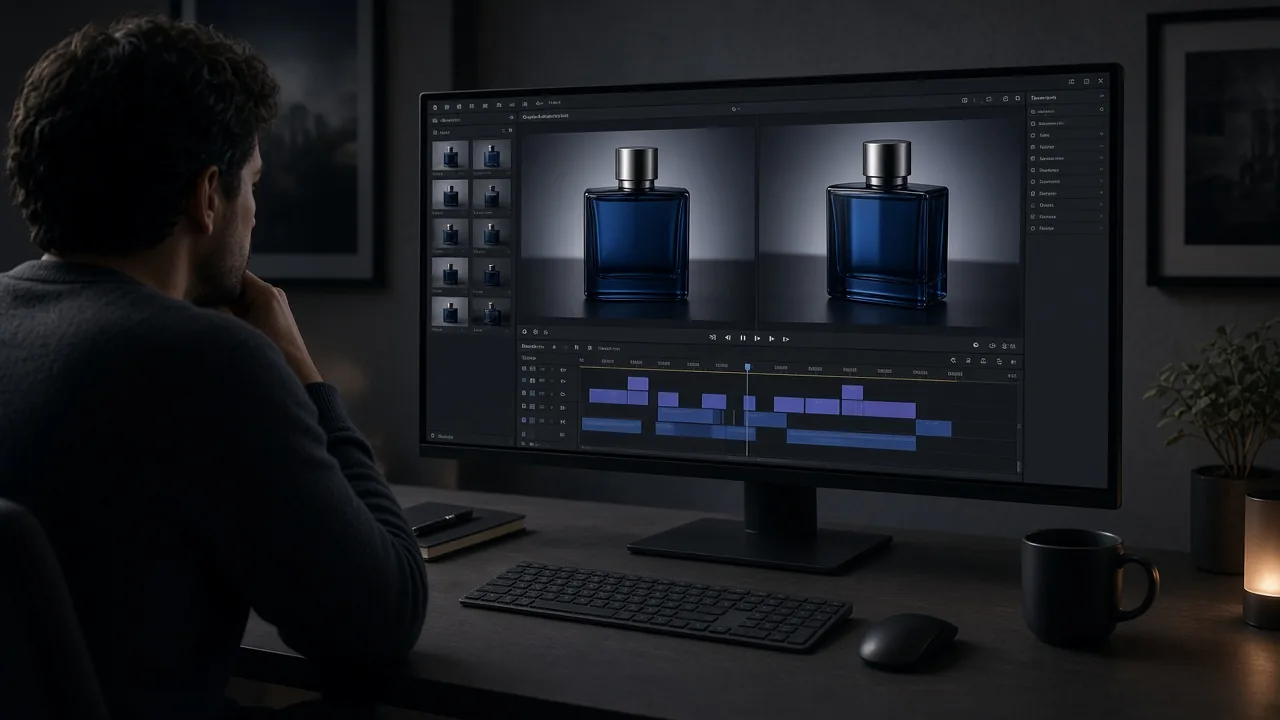
Editor comparing perfume-bottle turn frames on a large monitor

Examples from single photos

Each clip below began as one still. The frames show the subject partway through its turn on a MiniMax H3 360 orbit.

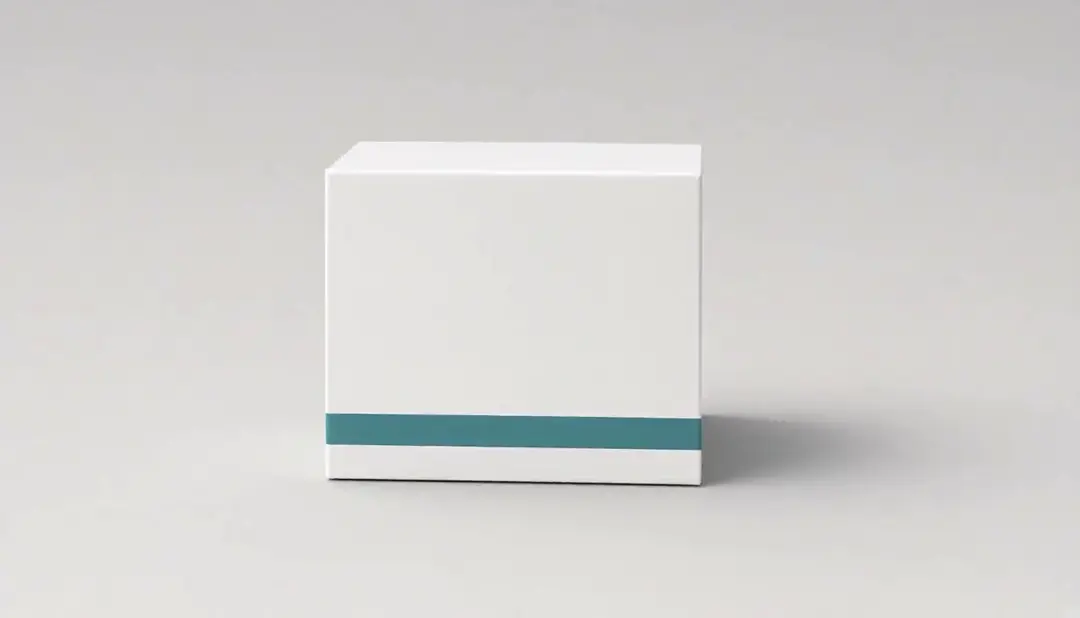
Boxed product turning in place

A plain white box with a teal stripe rotates on a light grey backdrop. Edges and the stripe stay put as each face comes around—the kind of clean product turn this effect is built for.

Plain white box with a teal stripe facing the camera on a light grey background

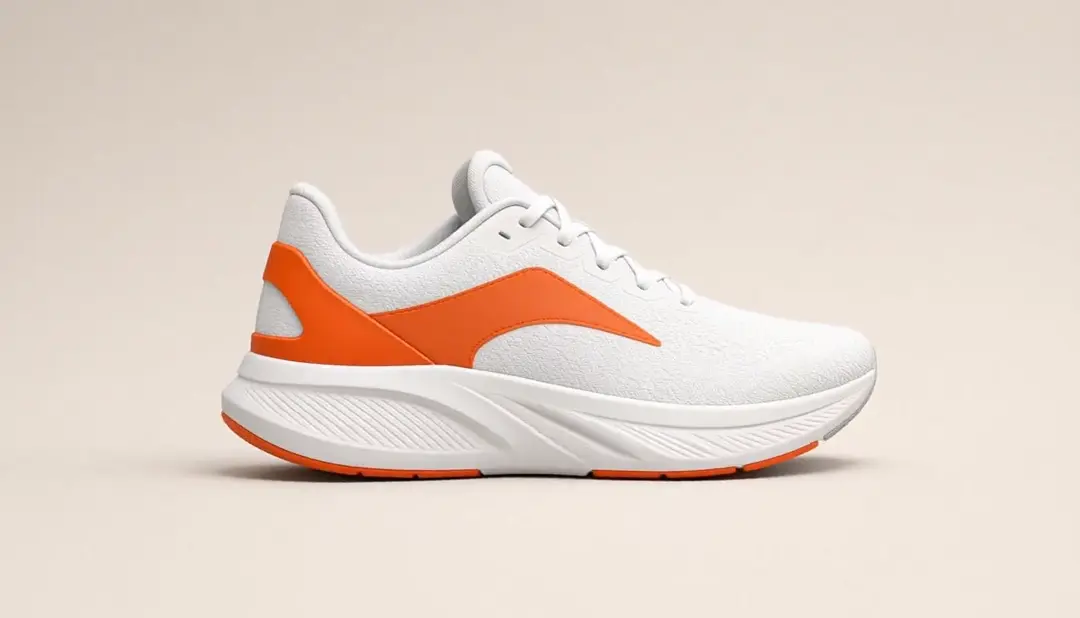
Running shoe, toe to heel

A white and orange runner turns from the toe through the side profile to the heel—the views shoppers usually want. Leave room around the shoe so the sole and heel never clip the border mid-spin.

White and orange running shoe seen in side profile mid-turn on a beige background

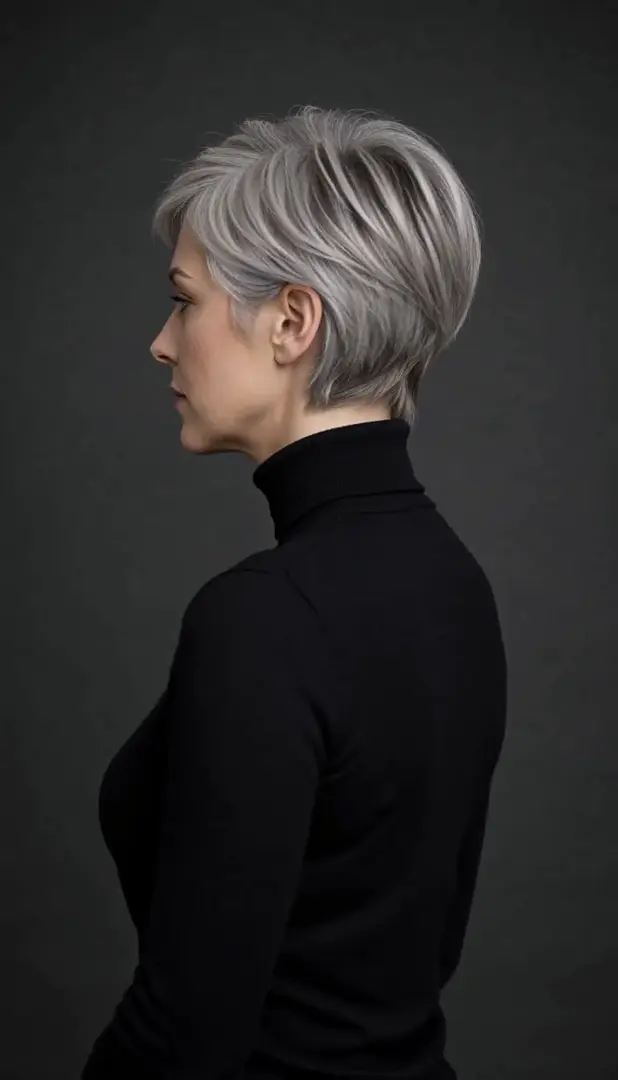
Studio portrait in profile

A woman with short silver hair and a black turtleneck turns slowly against dark grey. Her profile appears without changing her look, which works when one person stands clear in even light.

Woman with short silver hair in a black turtleneck turned to show her profile against a dark grey backdrop

Photo tips that keep the spin smooth

The model invents every side it cannot see, so the input photo shapes the whole result. Spend a minute on framing before you generate.

Leave a clear margin

Tight crops make heels, handles and hair hit the border mid-turn. Keep visible space on every side of the subject.

Prefer solid, simple shapes

Boxes, bottles, shoes, bags, figures and one clear adult turn most cleanly. Glass, thin wires and crowded groups are harder.

Start face-on in even light

A straight-on angle and soft light give a natural first frame. Hard shadows and blur weaken the spin.

Quick fixes when the turn looks off

Most problems clear up faster with a cleaner photo than with a longer note. Review the full clip once before you post.

Shape bends or melts

Use a plainer backdrop and a simpler subject, then generate again.

Spin stops early

Run it again. How far the subject turns can vary between runs.

Back looks wrong

The far side is filled in by AI. For exact product accuracy, photograph each side for real.

Related tools

MiniMax H3 prompts

Copy tested prompt ideas for MiniMax H3.

See prompts

3D AI Video Generator

Give a still photo depth and camera motion.

Try 3D video

More video effects

Browse every effect you can try with your photos.

Browse all

MiniMax H3 360 orbit FAQ

What is MiniMax H3 360 orbit?

It turns one photo into a short clip where your subject spins a full 360 degrees, so viewers see the front, sides and back in one shot.

Can I use it online without installing anything?

Yes. Upload a photo in your browser and get your 360 orbit clip; there is nothing to set up and no graphics card needed.

What kind of photo works best?

One clear subject near the center, a plain backdrop, even light and space on every side. Tight crops are the most common reason a MiniMax H3 360 orbit looks cut off or warped halfway through.

What prompt should I use?

None is required. The full spin is already included, and the optional note is best used for one detail such as backdrop or mood.

Does it keep the face, clothes and background consistent?

It aims to, and simple portraits of one person usually hold up well. Hidden sides are generated, so check the back of hair, clothing and products before using the clip.

Why does my video distort or not finish a full 360 turn?

Busy backgrounds, tight crops, glass, thin wires and crowded scenes are the usual causes. Use a cleaner photo, then run it again, since the amount of rotation can vary between runs.

Can I make a seamless loop?

Many clips finish near the angle they started from, so a small trim usually loops cleanly. Check both ends before posting.

Is MiniMax H3 any good for this?

For solid objects and simple portraits it produces convincing turns. It struggles most with transparent, very thin or heavily patterned subjects.

Are there content rules?

Yes. Generation follows NanoPic's content rules, and you should only animate people who have agreed to it.

What does a 360 orbit show?

A MiniMax H3 360 orbit turns your subject a full circle, so the front, sides and back all appear in one clip.

Can I get a bullet-time or frozen-moment look?

Your subject spins a full circle in a steady frame, so every side shows in one continuous shot. That is the look most people want for products and single portraits.

Is this an official MiniMax tool?

No. NanoPic is not affiliated with MiniMax.

Try a MiniMax H3 360 orbit with your photo

Pick one clear image, leave room around the subject and watch it come around a full circle.