




Save up to 73% on plans

STORM II Dance AI Video Generator
Sign In

STORM II Dance AI Video Generator

Upload your lead photo, choose reference motion, and create your crowd dance.

Lead character photo*
Try sample
Background (optional)
Reference video

MP4 · 1–15 seconds · max 20MB

Public VisibilityAllow this result to appear in public inspiration surfaces.

STORM II Dance AI Video Generator

Video

STORM II · Lead and supporting dancers

More AI Video Models & Effects

Browse every other AI video model and effect published on this site in a continuous carousel.

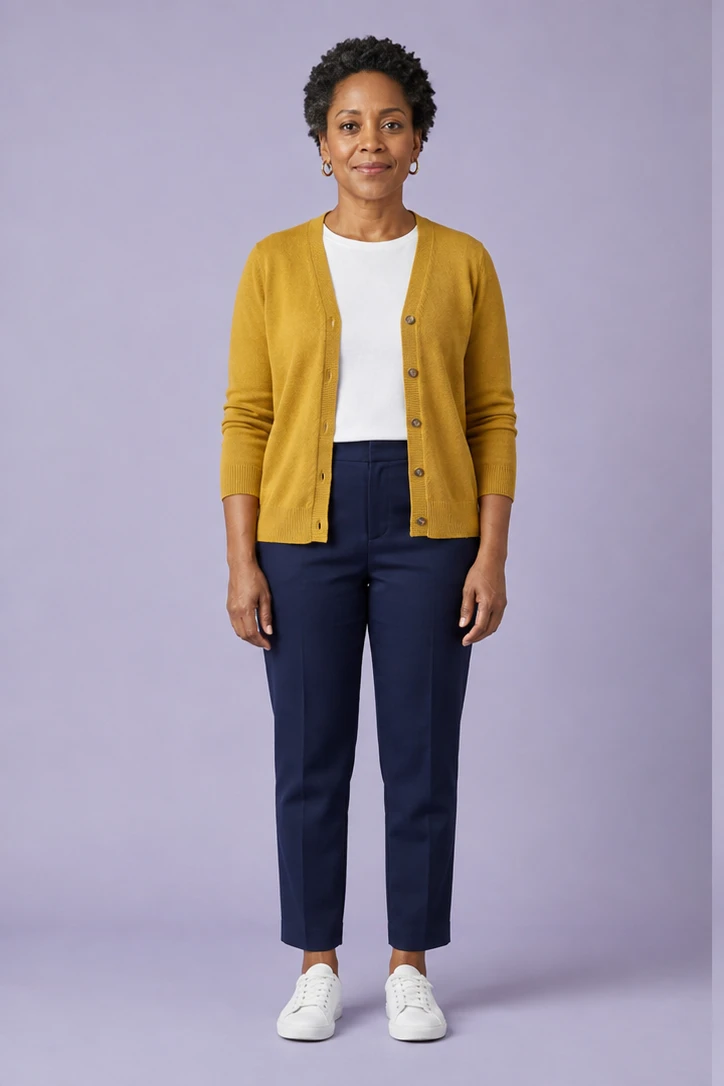
Fictional full-body adult prepared for an AI dance video

Put Yourself at the Center of a STORM II Crowd Dance

Turn a still portrait into a short crowd dance with a lead performer, coordinated supporting dancers, and a moving camera. Your first photo defines the lead, while an optional second photo gives the background dancers their own appearance or changes the setting. Leave that second slot empty to use the standard crowd scene. The lead wears a lime blazer, white shirt, and black tie. Choose reference motion and length, check the credits, and generate without writing a prompt or finding a dance clip.

STORM II Dance Video Examples

Explore different crowd looks and camera movement, then make a dance video with your own lead photo.

Bring your lead and background dancers together

Your lead photo guides the central performer, while a second character photo guides the supporting dancers and their outfits. Open the materials to compare both photos, the motion reference, and the finished clip, then create a crowd dance with your own cast.

Create My Dance Video
Step into a coordinated crowd

See how a single lead stands out against a coordinated crowd. The walk and turn bring the character into focus while the surrounding dancers give the scene depth. Use this example for inspiration when choosing a clear lead photo, then create your own version with the standard crowd or a supporting character of your choice.

Create My Dance Video

Follow the lead through each turn

A lime blazer creates a strong visual contrast with the darker background dancers. Watch how the camera follows the lead through the movement and into the closing pose. Choose a photo with a clearly visible face and an unobstructed silhouette to give your own character a strong starting point for this style of video.

Create My Dance Video

Create a colorful pink supporting cast

A pink supporting cast gives this crowd dance a playful, colorful backdrop. The contrast draws attention to the lead while repeated costumes tie the scene together. Try a background character with a recognizable outfit to suggest a coordinated look for your own supporting dancers, keeping your lead photo in the first upload slot.

Create My Dance Video

How to Make a STORM II-Inspired Dance Video

Choose your lead, personalize the background if you want, then generate and download your video.

1. Choose a Full-Body Adult Photo

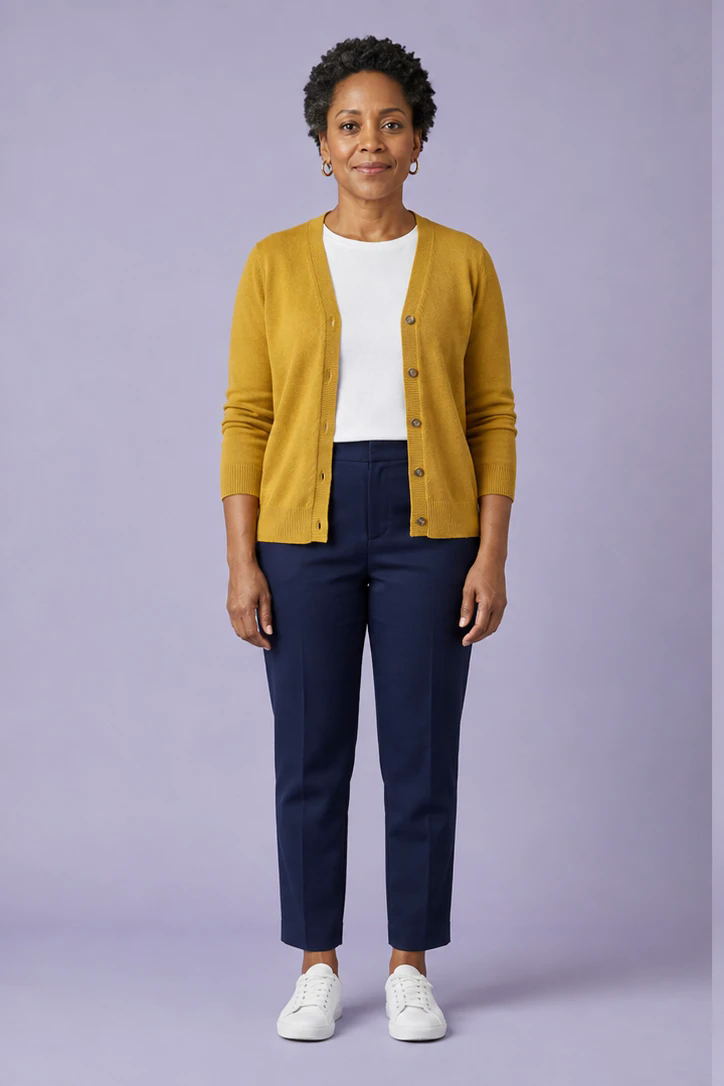
Select a clear photo with the head, shoulders, arms, legs, and feet visible. A simple background and even lighting make the subject easier to distinguish. Choose a photo of one adult rather than a group so the intended lead is unambiguous. You can also try the full-body sample before uploading your own picture.

Create My Dance Video
Fictional adult photo used in these dance examples

2. Choose Your Background and Crowd Dance Motion

Want a different supporting cast? Add one character image to guide the background dancers and their outfits, or use a scenery photo to suggest a setting. Leave it empty to follow the reference scene. Pick a crowd dance from the built-in motion library or upload your own reference clip. Set the length and resolution, review the credits, and create your video without writing a prompt.

Create My Dance Video

3. Preview and Download Your Dance Video

Play the finished video to see your character move through the crowd. Review the face during turns, the hands and feet, and the transition into the ending pose. Download the result you like, then add captions or music in your usual editor if needed. Your completed video is also available in generation history, so you can return to it later.

Create My Dance Video

Get More from Your STORM II Dance Video

A few photo choices help your lead and supporting cast read clearly on screen.

It Creates Generative Dance Motion

Combine your lead photo with reference motion to create a crowd dance with walking, turns, and camera movement. Photo composition, setting, and motion choices shape the finished scene.

Give the Lead and Background Dancers Separate Looks

The first photo is always the lead. A character in the optional second photo guides the supporting dancers, so you can give the crowd a coordinated look without changing who leads the scene.

Full-Body Sources Are More Reviewable

When the feet and ground are visible, you can judge balance and contact. Tight portraits may still produce upper-body movement, but they cannot reliably communicate the requested footwork.

Exact Text Belongs in an Editor

Add captions, usernames, or event titles in an editor after generation to keep lettering clear and consistent when sharing your STORM II crowd dance.

STORM II Dance Generator FAQ

Answers about lead photos, supporting dancers, reference motion, video length, and downloads.

What is a STORM II dance video?

A STORM II-style crowd dance combines a distinctive lead performer, coordinated supporting dancers, and a camera that follows the movement. Use your photo as the lead, then personalize the cast and motion to create your own crowd dance clip.

Can I use any photo?

Use only a clearly adult subject and an image you own or have permission to animate. A full-body source with visible feet and floor contact is the most useful for dance motion.

Does it copy a reference dance video?

A STORM II motion reference is included. You can replace it with your own 1–15 second H.264 MP4, up to 20MB. The reference guides choreography, camera movement, and crowd formation while your photos guide the cast.

Do I need to write a prompt?

No. Upload your lead photo, optionally add a background dancer photo, use the sample motion or upload a reference, and choose the video length. Dance instructions are prepared automatically.

Will the face and clothes stay exact?

The lead photo guides the face, hairstyle, and proportions, while the template gives the lead a lime blazer outfit. AI video can change small details during movement. Preview the full clip, especially turns and close-ups, before sharing.

How much does generation cost?

Credits update with your generation settings and include both reference and output video duration. Review the displayed amount before generating.

Can I use a minor's photo?

No. This template is deliberately restricted to clearly adult subjects. Do not upload minors or people who have not consented to the intended use.

Can I publish the result as real footage?

No. It is an AI-generated interpretation. Disclose the synthetic nature whenever viewers could mistake it for authentic footage of the person.

What happens if generation fails?

Open the task details in generation history to read the error. Check that your photos and reference video meet the requirements, adjust your inputs, and submit again when ready. Paid retries do not start automatically.

What is the optional background photo for?

If it shows a character, that character’s appearance and costume guide the supporting dancers throughout the crowd. If it shows scenery without a person, it guides the setting instead. It does not replace the lead photo. Use a clear single-character image for a coordinated supporting cast, and leave this slot empty if you prefer the standard crowd. AI may interpret clothing and scenery rather than reproduce every detail exactly.

How long can my STORM II dance video be?

With the default reference motion, you can create a video up to 20 seconds long or choose a shorter clip. Available lengths adjust to your reference video and generation settings; check the duration control for the current range. Landscape output supports 480p, 720p, and 1080p. Reference and output lengths together stay within 30 seconds, and the credit estimate updates with your choices.

Create Your Own STORM II Crowd Dance

Upload your lead photo, add an optional background image, and turn the scene into a short crowd dance. No prompt writing needed.