











Custom Font Generator for Text Effect Images — Not TTF/OTF Files
Sign In

Custom Font Generator for Text Effect Images — Not TTF/OTF Files

Enter the exact words you want to see, choose a lettering style, and edit the art-direction prompt. NanoPic generates a raster image containing styled text; it does not build, export, or download an installable TTF, OTF, WOFF, or complete alphabet font file.

Enter the exact visible words. Keep the copy short so every character is easier to verify in the generated image.

13 / 80

Choose a starting direction, then refine materials, color, spacing, and background in the editable prompt.

0 / 900

Copy Protection
Credits for this setting:-
Public VisibilityAllow this result to appear in public inspiration surfaces.

Your Generated Lettering Image

Image

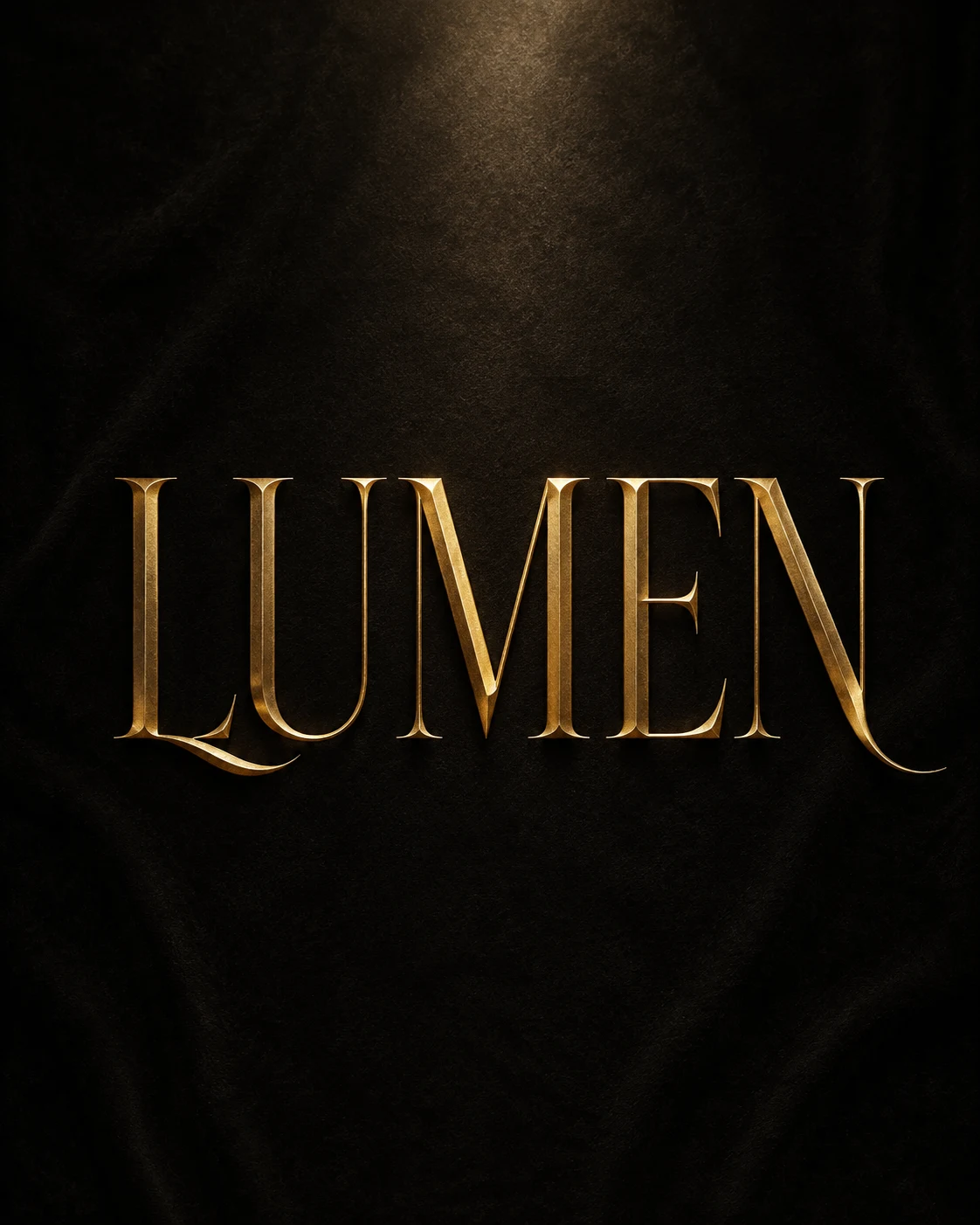
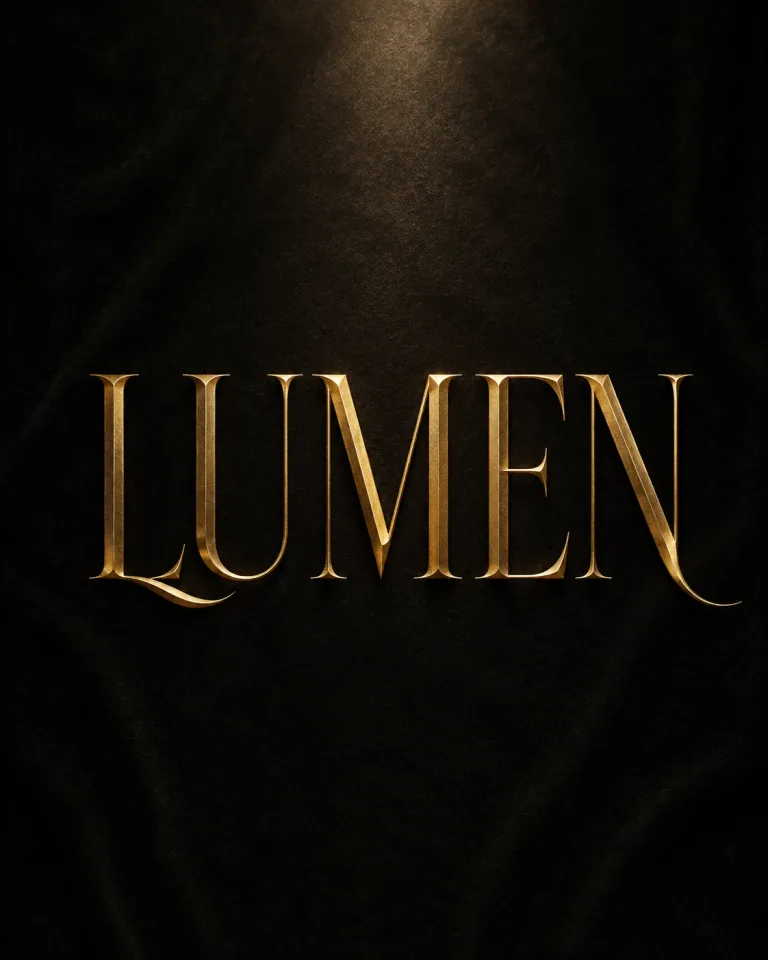
Original luxury serif lettering image spelling LUMEN in gold on charcoal
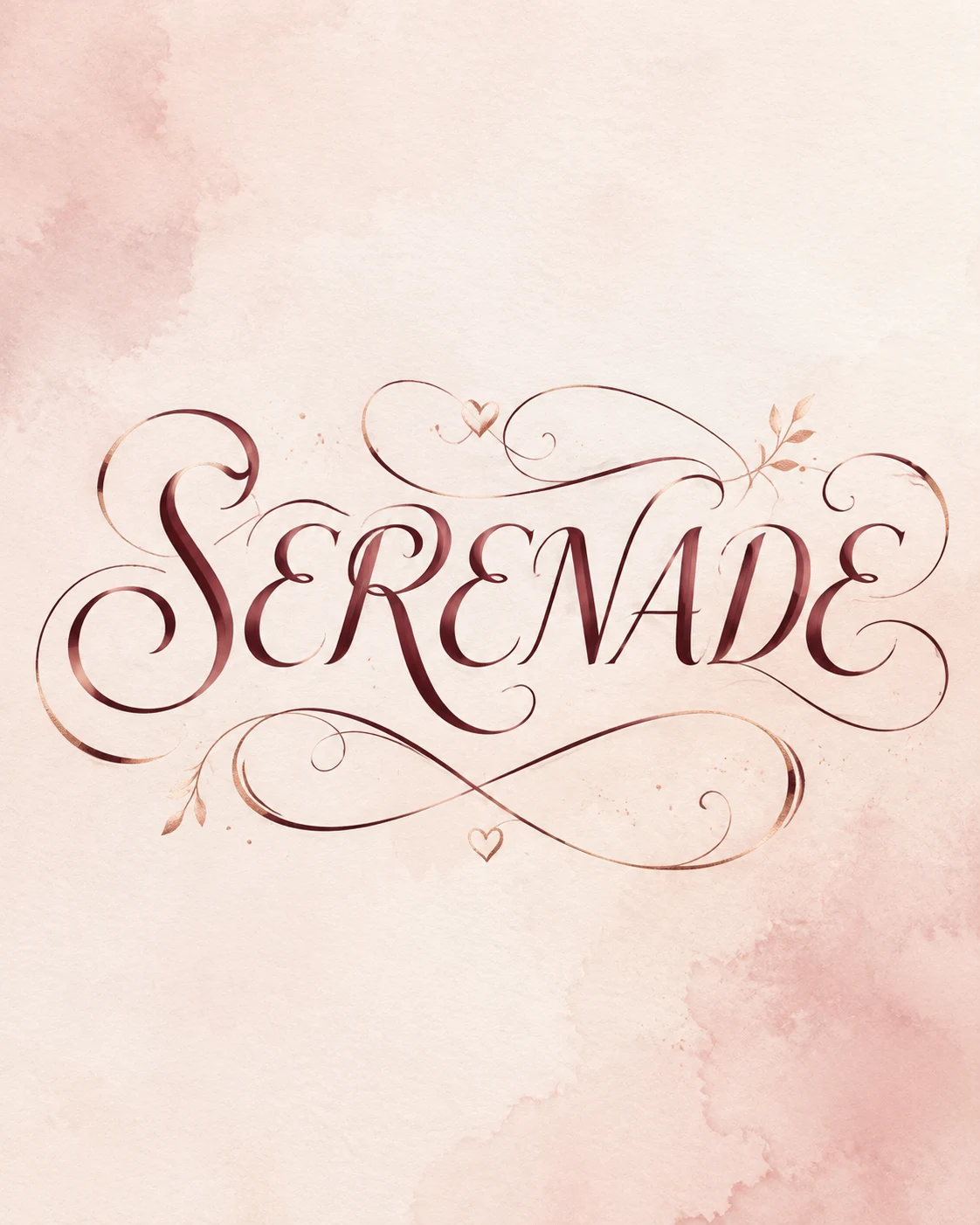
Original cursive lettering image spelling SERENADE in burgundy on blush paper
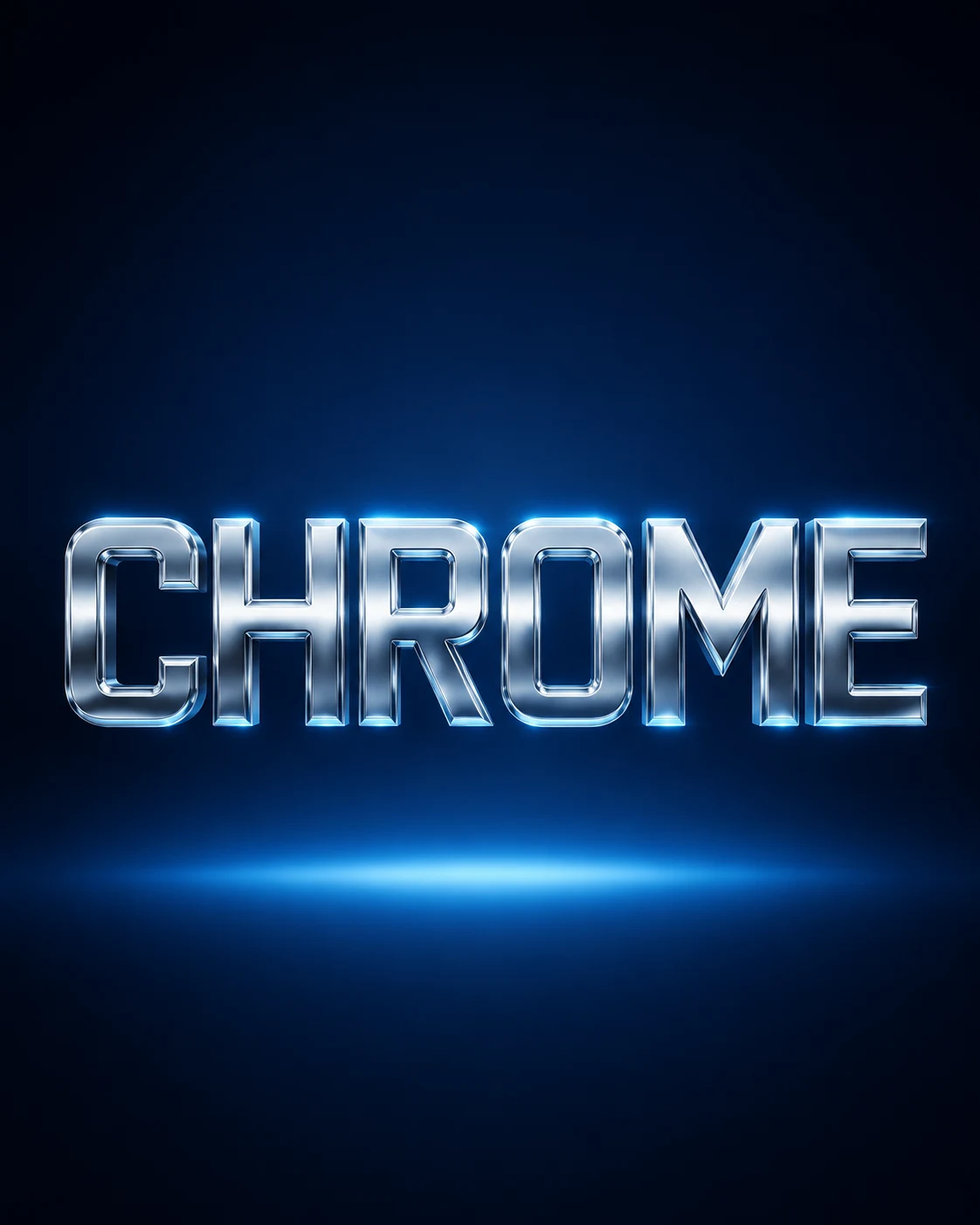
Original chrome lettering image spelling CHROME on a dark blue studio background
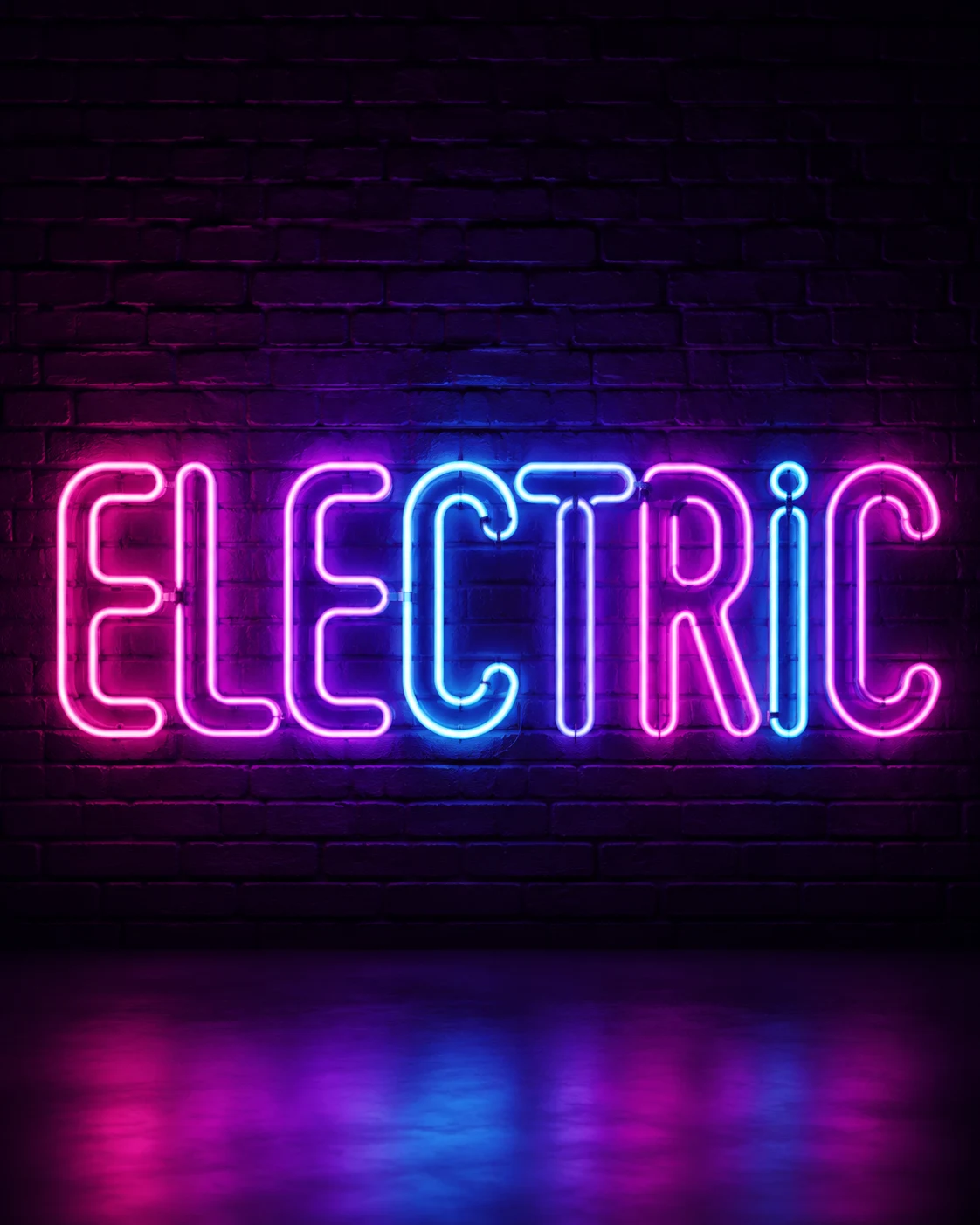
Original neon lettering image spelling ELECTRIC in magenta and cyan
Original chrome text effect image spelling CHROME

Design a Custom Lettering Image from Your Own Words

Create a distinctive visual treatment for a word, phrase, heading, invitation, social post, cover, or mood board. The text field stays separate from the art-direction prompt, protecting the literal copy while you explore serif, script, blackletter, chrome, neon, bubble, retro, or graffiti-inspired looks. Generate from text alone or use one authorized reference for broad visual cues. The result is an image to review for spelling and layout—not a coded typeface, complete character set, or substitute for professional font design.

What the Custom Font Generator Actually Produces

A clear product boundary makes the output more useful: NanoPic creates styled text inside an image, while the controls help you specify the copy and art direction.

One Styled Raster Image

Each request returns one visual in the selected ratio and resolution for use as a headline graphic, decorative title, concept board, social asset, or design reference. It is not an installable font and contains no complete alphabet, kerning data, OpenType features, or editable vector outlines. For consistent live text across many words, license a suitable typeface or commission professional font design.
Exact Text Kept Separate

Text Content identifies the required characters, while the editable prompt holds material, spacing, background, and composition notes. The request asks for the text once and forbids extra labels, signatures, and watermarks. Image models can still misspell, duplicate, or merge letters—especially in long phrases and unfamiliar names—so compare every character before publishing.

Optional Reference, Limited Promise

Text to Image needs no upload. Image to Image accepts one legally usable reference for broad palette, texture, lighting, composition, or lettering mood. It is not permission to clone a logo, signature, proprietary typeface, artwork, or protected brand identity. Ask for an original result and check rights, confusing similarity, and commercial suitability yourself.

Eight Original Lettering Style Starting Points

Every preset changes the visual recipe rather than replacing your exact text. These examples are original generated outputs with fictional, non-branded words. Use the matching style card in the generator, then adjust color, material, background, spacing, contrast, and mood in the prompt.

Gold luxury serif lettering spelling LUMEN

Luxury Serif

Use high-contrast serif forms, restrained gold or engraved materials, a deep neutral background, and gallery light for invitations, packaging directions, covers, and title cards. Short copy leaves room for elegant terminals and spacing. Describe proportions and materials instead of requesting an existing wordmark.

Use This Look

How to Generate a Custom Text Effect Image

Separate the literal copy from the visual instructions, then verify the generated image before you reuse it.

1. Enter the Exact Text

Type the word or short phrase exactly as it should appear, including capitalization, spaces, accents, and punctuation. Short phrases are easier than paragraphs or full alphabets. For two lines, state the break and choose enough vertical space. The request uses an exact-copy instruction, but generation is probabilistic, so read every character in the result.

Enter Your Text
Legible five-letter luxury text effect example

2. Pick a Style and Refine the Prompt

Choose one of eight presets, then describe material, palette, background, lighting, spacing, alignment, texture, and use in the Art Direction Prompt. Describe properties instead of an existing logo or artist’s exact style. With Image to Image, upload only material you can use and name the broad cues to borrow.

Choose a Style
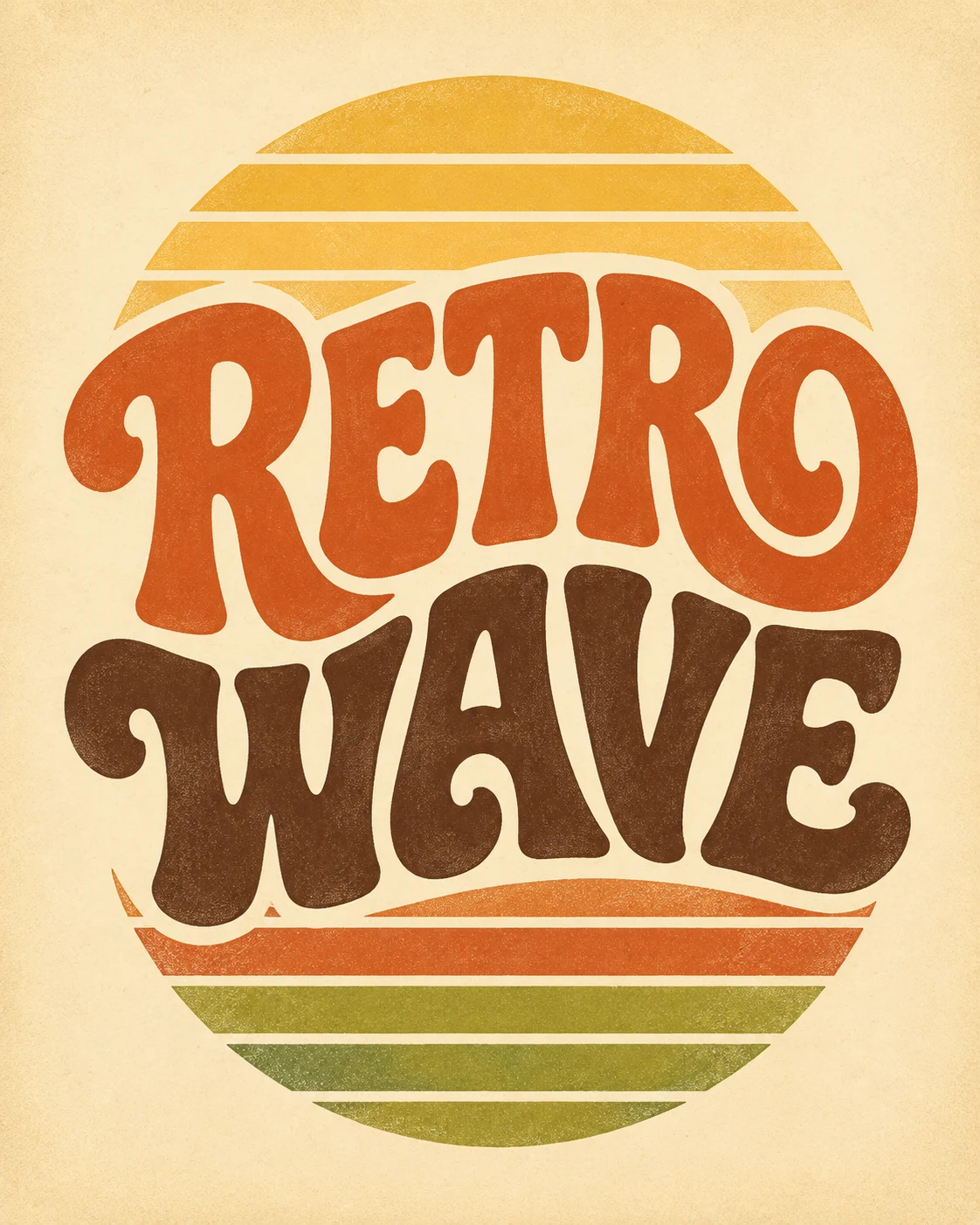
Retro style example with warm screen-print texture

3. Set Ratio and Resolution, Then Review

Use square for social assets, landscape for wide headings, portrait for covers, or 9:16 for mobile graphics. Select 1K, 2K, or 4K based on the detail and final placement you need. Higher resolution can preserve more material detail, but it does not guarantee correct text. At full size, check spelling, repeated characters, spacing, cropping, contrast, and extra text.

Review Settings
High-contrast neon lettering example ready for character review

Practical Uses for Generated Lettering Images

The most successful uses treat the result as a visual asset or concept—not as a hidden promise of a complete font family.

Social and Video Titles

Create a bold word treatment for a post cover, story, thumbnail, stream card, or video title. Match the publishing ratio, leave safe edges for platform controls, and add final accessible text in your design tool.

Invitations and Celebration Graphics

Explore names, dates, and short greetings in cursive, luxury, or cute directions. Verify every name and date. For print, use enough resolution and let a designer prepare bleed, color profile, and production files.

Cover and Poster Concepts

Compare chrome, gothic, retro, neon, or serif title directions before building a campaign. Safe margins and a simple background ease later art direction. Final multi-format production may still need licensed fonts or custom lettering.

Merchandise Mood Boards

Explore screen-print, embroidery-like, metallic, puff-ink, or painted directions for merchandise and packaging. Before manufacturing, check resolution, color separation, trademark risk, and reproducibility, then have a production designer rebuild the approved concept.

Early Brand Exploration

Compare visual territories with fictional or working copy, never a competitor’s exact wordmark. Before adoption, run name and trademark checks, test small-size legibility, and have a designer create reproducible files and usage rules.

Creative Reference for Lettering Artists

Build a mood reference for material, contrast, rhythm, shadow, or composition. Share the prompt and limitations with a lettering artist so everyone knows which ideas came from the model and which require deliberate redesign.

Write Better Custom Lettering Prompts

A useful prompt describes the desired visual system and constraints while the Text Content field protects the literal words.

Name the Letterform Character

Describe high-contrast serif, geometric sans, condensed block, monoline script, bubble, or readable blackletter forms. Add weight, width, slant, terminals, and spacing. Do not guess a font name from a reference or request exact proprietary typeface reproduction.

Specify Material and Surface

Specify whether letters look printed, painted, embroidered, inflated, carved, engraved, chrome plated, neon, or paper-cut. Describe the background and light. Physical detail helps, but competing materials reduce clarity.

Control Layout and Readability

Request alignment, line count, tracking, contrast, complete letters, clear counters, and safe margins. Add no extra text, logo, watermark, or cropped flourishes. For longer copy, widen the canvas or simplify the style.

Where an AI Font Image Stops and a Real Font Begins

A real digital font maps many characters to consistent outlines, spacing, kerning, language coverage, weights, and OpenType behavior. This tool instead composes your specific text as one image. The result cannot be installed, selected in a word processor, used to type new words, or repeated reliably across a brand system; letter shapes may change between generations. Use it for visual concepts, decorative images, and creative direction. Choose a licensed typeface, professional lettering, or font software when you need live text, source files, a full character set, accessibility, localization, or production ownership records.

Related NanoPic Image Tools

Continue with adjacent workflows when you need general image generation, existing-image text replacement, or structured visual layouts.

NanoPic AI image generator example

AI Image Generator

Create a broader scene or campaign image when custom lettering is only one part of the composition.

Open Generator
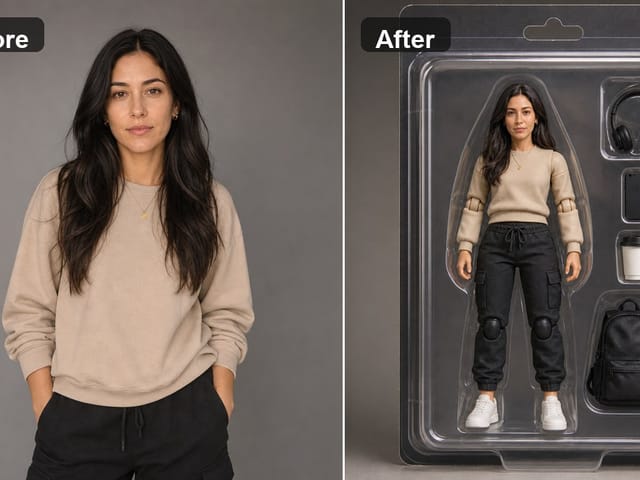
Before and after example of editing text in an image

Edit Text in Image

Upload an authorized flattened image and replace visible words while preserving the surrounding design as closely as the model can.

Open Text Editor
AI infographic generator example

AI Infographic Generator

Build structured visual explanations with headings, icons, sections, and concise labels.

Open Tool

Custom Font Generator FAQ

Answers about file types, text accuracy, reference images, resolution, rights, and practical use.

Does this custom font generator create a TTF or OTF font?

No. It creates a raster image containing styled text, not an installable TTF, OTF, WOFF, complete alphabet, font family, kerning table, or editable vector typeface.

Can I type new words with the generated result?

No. The result contains only the rendered text in that image. For installable, repeatable live text, use a licensed font or professionally developed typeface.

Will every character be spelled correctly?

The separate exact-copy instruction helps, but generation remains probabilistic. Long phrases, repeated letters, unfamiliar names, punctuation, and complex scripts can contain mistakes. Inspect the full-size output character by character.

Can I upload a lettering or mood reference?

Yes. Image to Image accepts one authorized reference for broad palette, texture, material, composition, or mood cues—not to clone a logo, signature, proprietary typeface, brand identity, or unlicensed artwork.

Which ratio and resolution should I choose?

Use square for social graphics, landscape for wide titles, and portrait or vertical ratios for covers and mobile posts. Explore at 1K; choose 2K or 4K when the final placement needs more output detail.

Does higher resolution guarantee more accurate text?

No. Higher resolution can preserve finer texture and edges, but spelling remains probabilistic. Keep the phrase short, use clear separators, and inspect every character in the full-size result.

Can I use the image commercially?

Commercial suitability depends on your text, references, similarity, local law, contracts, and platform terms. Use authorized material, avoid protected identities, perform clearance checks, and seek qualified review for important work.

Why does the same preset produce different letters each time?

A preset is art direction, not a deterministic font file. The model redraws each request, so letter shapes, spacing, texture, and lighting vary. Treat the chosen result as one image asset.

Create an Original Text Effect Image

Enter the exact words, choose a lettering style, refine the prompt, and review the output as an image—not an installable font file.