Save up to 73% on plans

Magnific AI Image Generator Style Enhance on NanoPic
Sign In

Magnific AI Image Generator Style Enhance on NanoPic

Upload one soft or compressed photo and run a magnific ai image generator style rebuild for clearer edges, textures and natural light. Aim for a cleaner 4K-ready export while keeping faces recognizable and avoiding plastic over-sharpening. Write what to protect in the prompt box—skin texture, product labels you must not invent, or soft background blur you want to keep. Sign in to see the live credit cost before each enhancement starts. This NanoPic workflow is an independent enhance path, not a branded platform home page.

Photo to enhance*

Please add the required Photo to enhance before generating.

0 / 100

Copy Protection
Public VisibilityAllow this result to appear in public inspiration surfaces.
Low-resolution demo photo before enhancement
Input
Clearer demo result after enhancement
Output

Turn a soft still into a readable large-canvas export

A magnific ai image generator style pass on NanoPic reads structure in your upload and rebuilds plausible detail instead of only stretching pixels. Use it when a social download, scanned print or compressed product shot needs cleaner edges for a larger canvas. You still own the judgment call: open the result at full size, check faces and text, and keep the original file beside the enhanced export. If you only need honest interpolation without reconstruction, use the separate higher-resolution resize tool instead. Decide early whether you need print proofing, a social crop, or a catalog zoom—those destinations change how strict face and label checks should be.

Magnific AI Image Generator style workflows you can copy

Four practical enhancement runs: pick a source, write a short protect list, inspect at native size, and retry gently. Demo stills come from public competitor sample frames used only as layout references.

Family scan with a magnific ai image generator pass

Pick a scan or phone copy where faces are still recognizable even if the file is soft. Ask the pass to keep facial features steady while cleaning dust-like noise and restoring fabric or paper texture in the background. In the finished frame, eyes and smile lines should stay familiar; reject plastic skin or moved moles. If the face drifts, shorten the prompt to face-preserving language and run again from the same original. Keep the untouched scan so you can compare honestly before sharing the enhanced export.

Enhance a scan
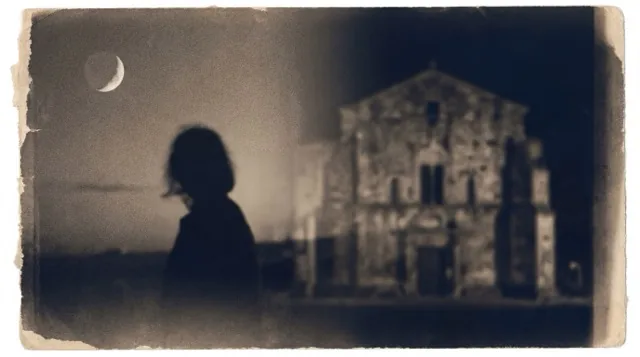
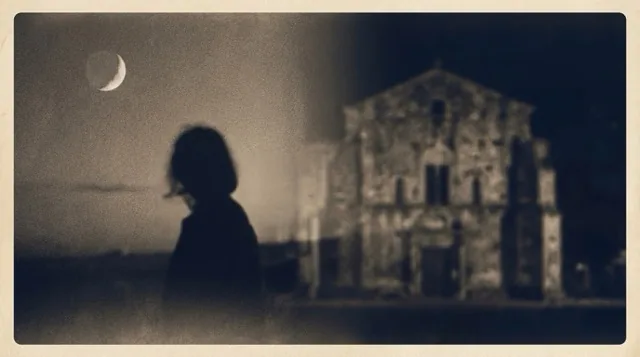
Demo family photo after enhancement

Print-ready edges with a magnific ai image generator pass

Choose a source that already looks acceptable at screen size but fails on a larger poster layout. Tell the enhancer you need cleaner edges and steadier textures for print review, not a brand-new illustration. Check hairlines, logo corners and dark gradients at one hundred percent after download. Pixel count alone is not a print proof—place the file in the layout and confirm effective size with your printer. If ringing appears around type, ask for gentler sharpening and regenerate once with the same protect notes. Confirm paper stock with the printer before you treat the export as final.

Prepare for print
Demo print graphic after enhancement

Illustration and anime with careful outline control

Start with a still that has clear line art or flat color regions rather than a tiny illegible thumbnail. Ask the enhancer to keep outlines crisp and avoid adding photo-like pores onto drawn skin. Inspect junctions where lines meet and any screen-tone areas for muddy fill. If colors shift, mention the palette you want preserved and retry from the original upload. For franchise art, only process files you are allowed to edit; treat this enhance step as editing help, not a license.

Upscale art
Demo illustration after enhancement

Product photos with a magnific ai image generator check

Upload a product frame with the full item visible and labels still roughly readable. Guide the enhancer to clarify material texture while refusing to invent certifications or text that was never there. Zoom into stitching, reflections and corners; reject melted logos or hallucinated badges. When a label must stay exact, regenerate with a stricter note or set type in a layout tool afterward. Store the camera original beside the enhanced export so the listing still audits cleanly.

Enhance a product shot
Demo product photo after enhancement

How to run a magnific ai image generator style enhance

Four steps for a careful enhance run: pick an honest source, write a short protect list, review at native size, and know when a plain resize is enough.

Start from the best original you have

Prefer the camera file or a lightly compressed export over a screenshot of a screenshot. The model rebuilds from whatever structure remains; a mushy thumbnail cannot become forensic evidence. Crop only after you confirm the subject still has enough pixels to read. Upload only photos you own or have permission to enhance. Keep a named copy of the original so you never overwrite it with an enhanced export from this workflow.

Open the generator
Source selection demo for enhancement

Write what a magnific ai image generator pass must protect

Use the prompt box to name faces, fabrics, logos or soft backgrounds that should stay familiar. A short note such as keep freckles and fabric weave beats a long wish list of conflicting styles. The built-in direction already targets 4K-oriented clarity, edge cleanup, texture restore and gentle denoising. Avoid asking it to invent missing documents or change a person's identity. Change one instruction at a time when you retry so you know which note helped.

Open prompt box
Prompt guidance demo for enhancement

Review a magnific ai image generator result at full size

Download the file and open it at one hundred percent rather than trusting a fit-to-window preview. Check faces first, then edges, text, jewelry and repeating patterns for invented detail. A strong result can look impressive in a thumbnail while quietly rewriting a logo. If the result feels over-sharpened, ask for softer edges and run again from the same source. Accept the export only when it remains useful for your real destination after this full-size check.

Compare carefully
Full-size review demo for enhancement

Know when resize is enough instead of rebuild

If you only need larger pixel dimensions for a form and you accept soft interpolation, use the higher-resolution resize tool instead of a rebuild. Reach for this enhancer when you need reconstructed edges and textures, not just a bigger grid. Portrait light fixes belong on the portrait enhancer; brand-new 4K concepts belong on the 4K image generator. Writing down the real goal before you upload prevents mixing those workflows. When preservation is critical, keep the original as the source of truth.

Choose the right tool
Tool choice demo for enhancement

Where an enhanced export helps most

Common destinations after a magnific ai image generator style enhance once faces, text and edges pass a full-size review.

Social crops and presentation slides

Compressed downloads often look muddy when placed large on a slide. Enhancement can restore usable edge contrast for that larger placement. Still crop with safe margins so faces are not cut after platform resizing. Export a web derivative if the destination compresses uploads again. Keep alt text and true dimensions so layout shift stays low after your prep.

Open the generator
Social crop demo after enhancement

Catalog and marketplace listings

Marketplace viewers zoom into materials. Run enhancement on authorized product frames, then reject any invented seals or warped labels. Match white-background expectations only if the source already supports them. Record which export passed review so teammates do not re-enhance blindly. Never treat a generated label as legal copy, even after a clean enhance pass.

Enhance catalog shots
Catalog photo demo after enhancement

Uploads, credits and honest expectations

Photos are uploaded to NanoPic servers for enhancement; review the live privacy terms and credit cost before you submit. Only process images you are allowed to use. Enhancement reconstructs plausible detail—it cannot guarantee recovery of information that was never captured. Severe motion blur may stay soft even after enhancement. This magnific ai image generator style workflow is cloud-based, not an on-device-only processor. Credits are shown before you confirm; cancel if cost or privacy terms do not fit. If a result invents jewelry or logo fragments, discard it and restart from the original.

Related photo tools

Make Image Higher Resolution

Browser 2× or 4× resize without claiming AI detail recovery.

Open

AI Portrait Enhancer

Gentle clarity and light fixes for an authorized adult portrait.

Open

4K Image Generator

Create or edit a new 4K image from text or references.

Open

Frequently asked questions

What is a magnific ai image generator style enhance on NanoPic?

It is an image-to-image rebuild that clarifies edges and textures from one upload. It is not plain resizing and not a blank-canvas text-to-image studio. Use it when you already have a photo that needs cleaner large-canvas detail.

How is this different from Make Image Higher Resolution?

The resize page interpolates pixels to 2× or 4× without claiming recovered detail. A magnific ai image generator style enhance reconstructs plausible structure. Choose resize when dimensions alone matter; choose this tool when you will review generative changes.

How do I aim for a 4K-ready export here?

Upload one photo, optionally note what to protect, review the live credit cost, generate, then open the download at full size. Aim for a cleaner 4K-ready file while judging faces and text yourself after the magnific ai image generator style pass.

Is enhancement free here?

You can open the page and inspect demos before generating. Each enhancement uses NanoPic credits shown in the tool after sign-in. There is no claim of unlimited free cloud runs.

Will enhancement fix blurry photos and keep faces natural?

It can sharpen soft detail and reduce compression noise, but heavy motion blur may not become truly sharp. Compare faces carefully and reject plastic skin or drifted features.

Can I use the enhanced result for printing?

Many people enhance files before large layouts, but print success still depends on final size, effective PPI, color and the printer. Place the file in the layout and proof it; the tool does not certify print readiness.

Where is my photo processed? Is everything local in the browser?

Photos are uploaded to NanoPic servers for enhancement. Read the site privacy terms before you submit private images. Prefer an offline desktop app if you cannot upload.

Does enhancement work on anime or illustrations?

Yes for many line-art and flat-color stills. Ask it to keep outlines crisp and avoid photo-like texture on drawn skin, then inspect junctions and fills carefully.

Is NanoPic the official Magnific or Freepik product?

No. NanoPic is an independent tool and is not an official Magnific or Freepik product. Mentions of Magnific-style workflows only describe user intent, not affiliation.

When should I use the AI Portrait Enhancer or 4K Image Generator instead?

Use the portrait enhancer for gentle face and light fixes on an authorized adult portrait. Use the 4K image generator when you want a new concept rather than clarifying an existing still. Keep this tool for upload-based clarity rebuilds.

Run a magnific ai image generator style enhance on your photo

Upload an authorized still, protect what matters in the prompt, and download a clearer export after a full-size check on NanoPic.