







Edit Text in Image Free Online with AI
Sign In

Edit Text in Image Free Online with AI

Upload one image, state the exact original and replacement words, and run a real image-to-image edit. The page is free to open and configure; generation uses NanoPic credits.

Upload Image*
Try Upload Image sample

Please add the required Upload Image before generating.

317 / 800

Public Visibility
Copy Protection
Credits required:-

Edit Text in Image Free Online with AI

Image

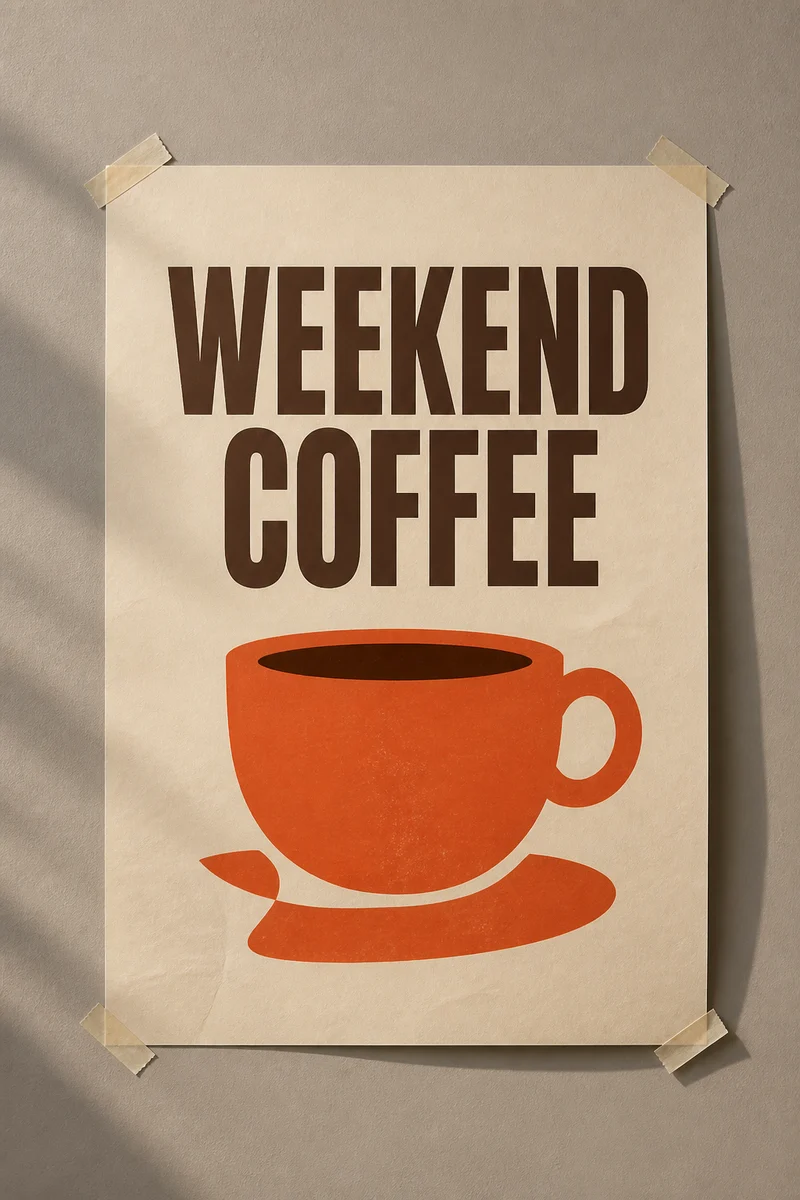
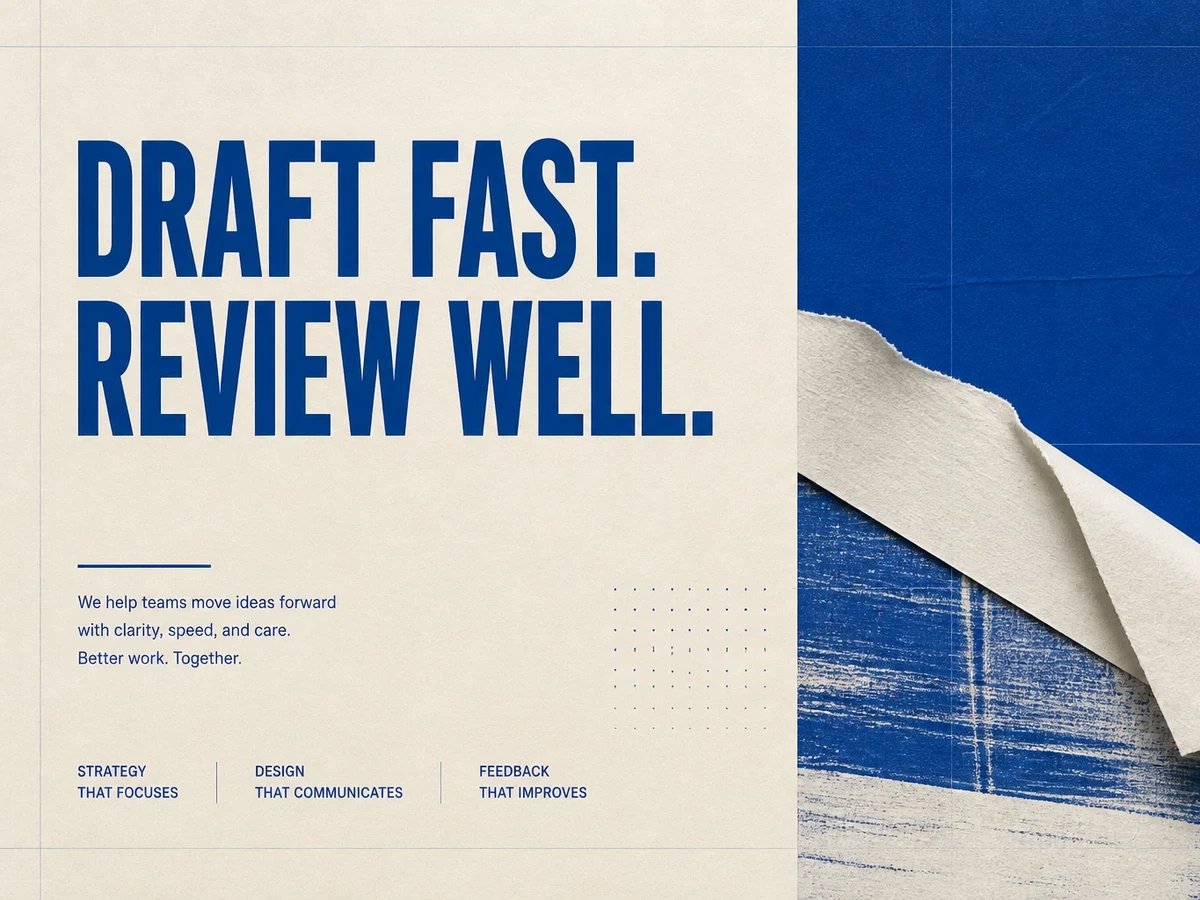
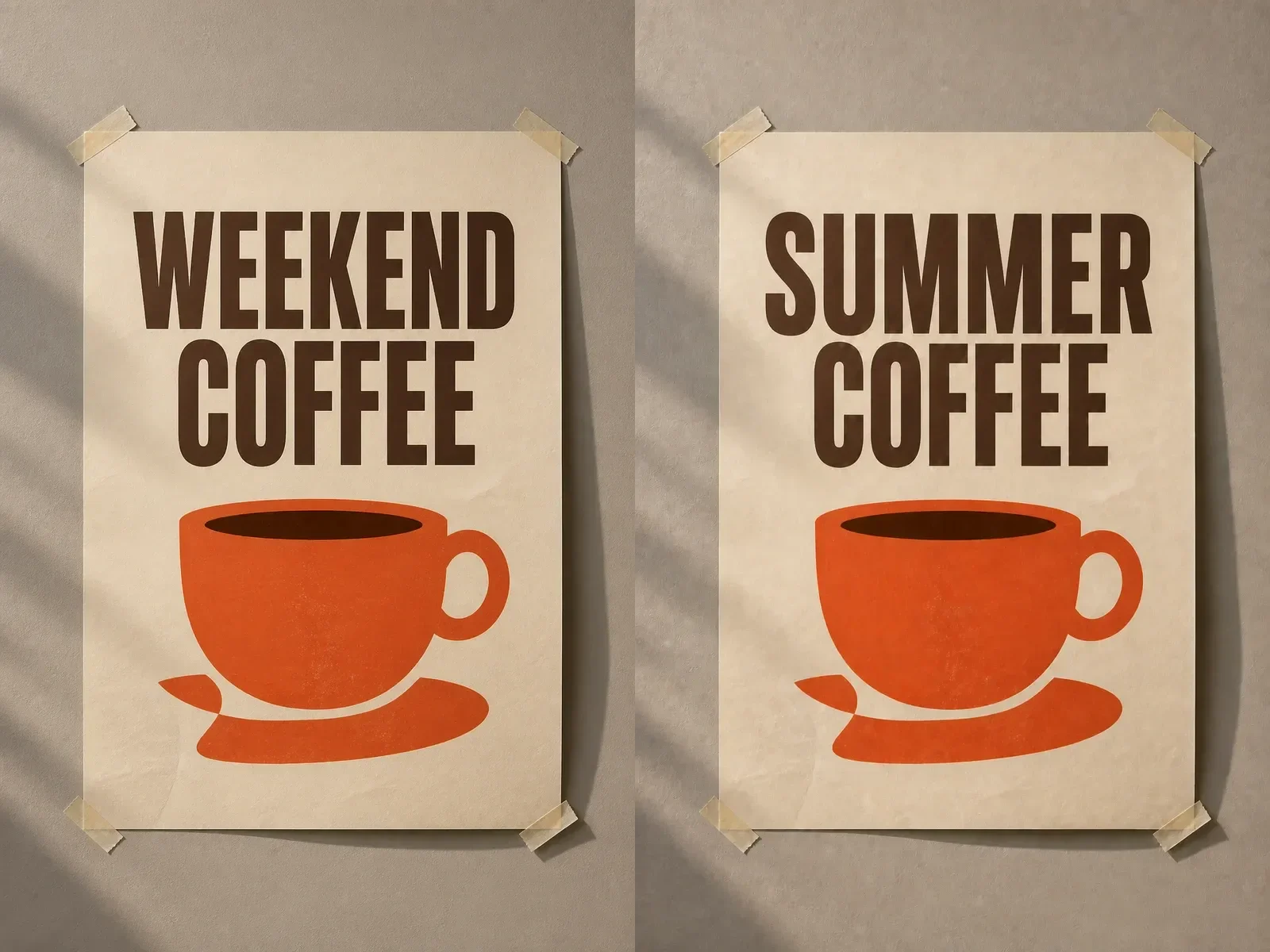
Weekend Coffee poster before editing text in the image
Original
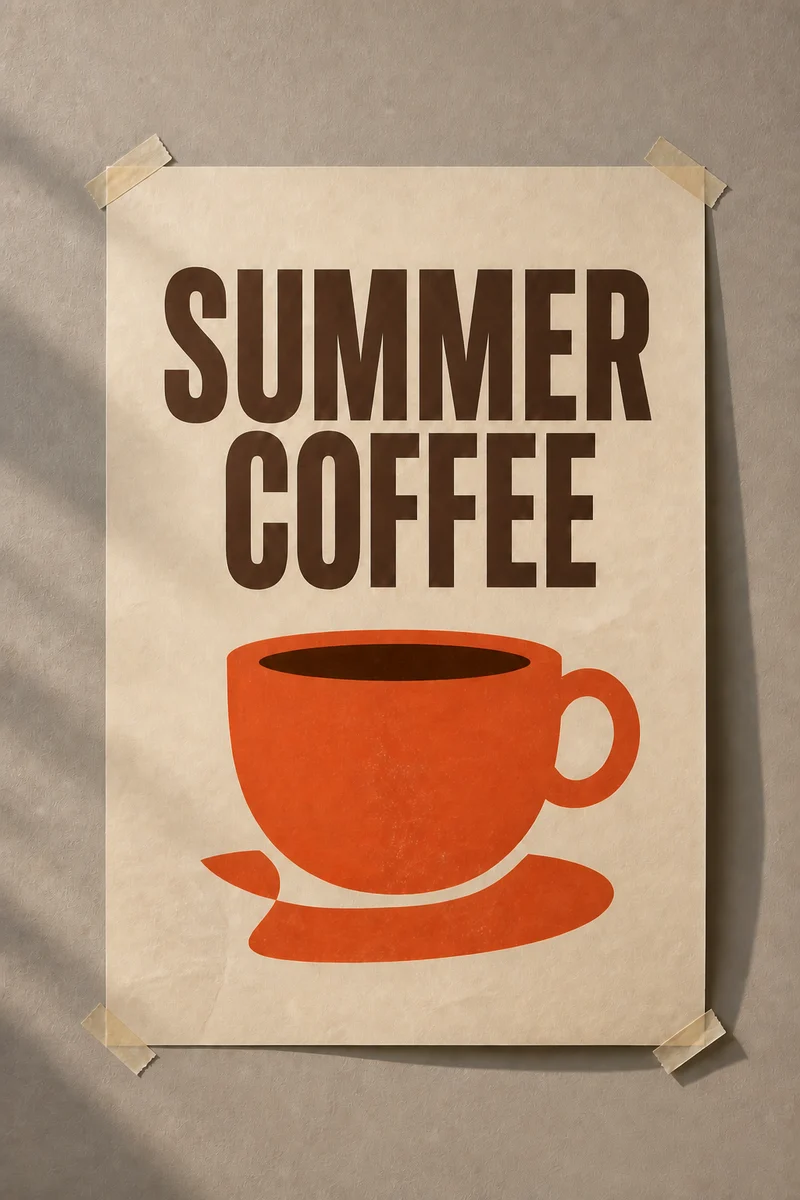
Summer Coffee poster after replacing the headline text
Edited Text
Before and after poster comparison showing an in-image headline replacement

Change Existing Words Without Rebuilding the Whole Design

When text is baked into a JPG, PNG, poster, product mockup, sign, or screenshot, adding another text box on top often leaves the old letters visible and makes the edit look patched together. NanoPic sends the uploaded image and your exact replacement instruction through an image-to-image workflow. The saved template asks the model to reconstruct the old text region, fit the new words into the existing space, and protect unrelated people, objects, illustrations, labels, lighting, framing, and background detail. It also asks for a visually similar type style, weight, color, scale, alignment, and perspective. This is generative editing, not access to the original font file or design layers, so same-font matching is an objective rather than a deterministic promise.

A Prompt-Based Image Text Editor for Flat Files

An exported image does not contain editable typography in the way a PSD, Figma file, or layered design document does. Its letters are pixels mixed with paper grain, reflections, shadows, perspective, print texture, and nearby objects. A useful edit therefore needs two jobs: remove or repaint the original characters, then generate replacement characters that belong in the same scene. This page is designed around that job when you need to edit text in image online without the source layers. Upload one clear image and write an instruction that quotes the old text and the new text. Add only the constraints that matter, such as keeping the current color, two-line layout, sign angle, curved label, or soft shadow. NanoPic combines those details with a saved protection prompt that limits unrelated changes. The workflow is useful for typo corrections, price or date updates, draft localization, event graphics, packaging concepts, mockups, signs, menus, and AI-generated artwork with misspelled words. It is not an OCR layer editor, does not expose individual font controls, and cannot recover the original font name from a flattened image with certainty. If exact legal copy, a licensed brand typeface, or a print-production file is required, verify the output and finish the text in a dedicated design application.

How to Edit Text in Image Free Online

Use the generator at the top of the page and keep each request focused on one clearly described text replacement.

1. Upload One Clear Image

Choose a JPG, PNG, or supported image with readable letters and enough resolution around the target area. Straight headlines, labels, signs, dates, and short captions are easier than tiny body copy, heavy blur, ornate handwriting, extreme perspective, glare, or text hidden behind objects. Upload only material you own or are authorized to modify.
2. Quote the Old and New Words

Write a specific instruction such as: Replace “WEEKEND COFFEE” with “SUMMER COFFEE.” Naming both versions helps the model locate the intended region and reduces accidental edits to other words. Add one short style constraint when useful, for example: keep the same two-line layout, dark-brown color, condensed appearance, and perspective.

3. Generate, Zoom In, and Verify

Open the result at full size. Check every replacement letter, spelling, line break, baseline, margin, background repair, edge, shadow, and untouched word. Also compare faces, products, logos, and nearby objects with the source. If something drifted, regenerate with one narrower correction instead of adding several new requests at once.

Edit Text in Posters and Product Images

These original examples show two common jobs and the level of review a generated edit still needs.

Update a Poster Headline

The poster example changes WEEKEND COFFEE to SUMMER COFFEE while aiming to retain the tall condensed appearance, dark-brown ink, cream paper, orange cup illustration, tape, wall texture, and directional shadow. Short replacements that fit the original line structure usually provide the clearest starting point. A much longer phrase may force smaller letters, new line breaks, or broader reconstruction.

Edit a Poster
Weekend Coffee changed to Summer Coffee in a poster while keeping a similar visual style

Revise a Product Label Draft

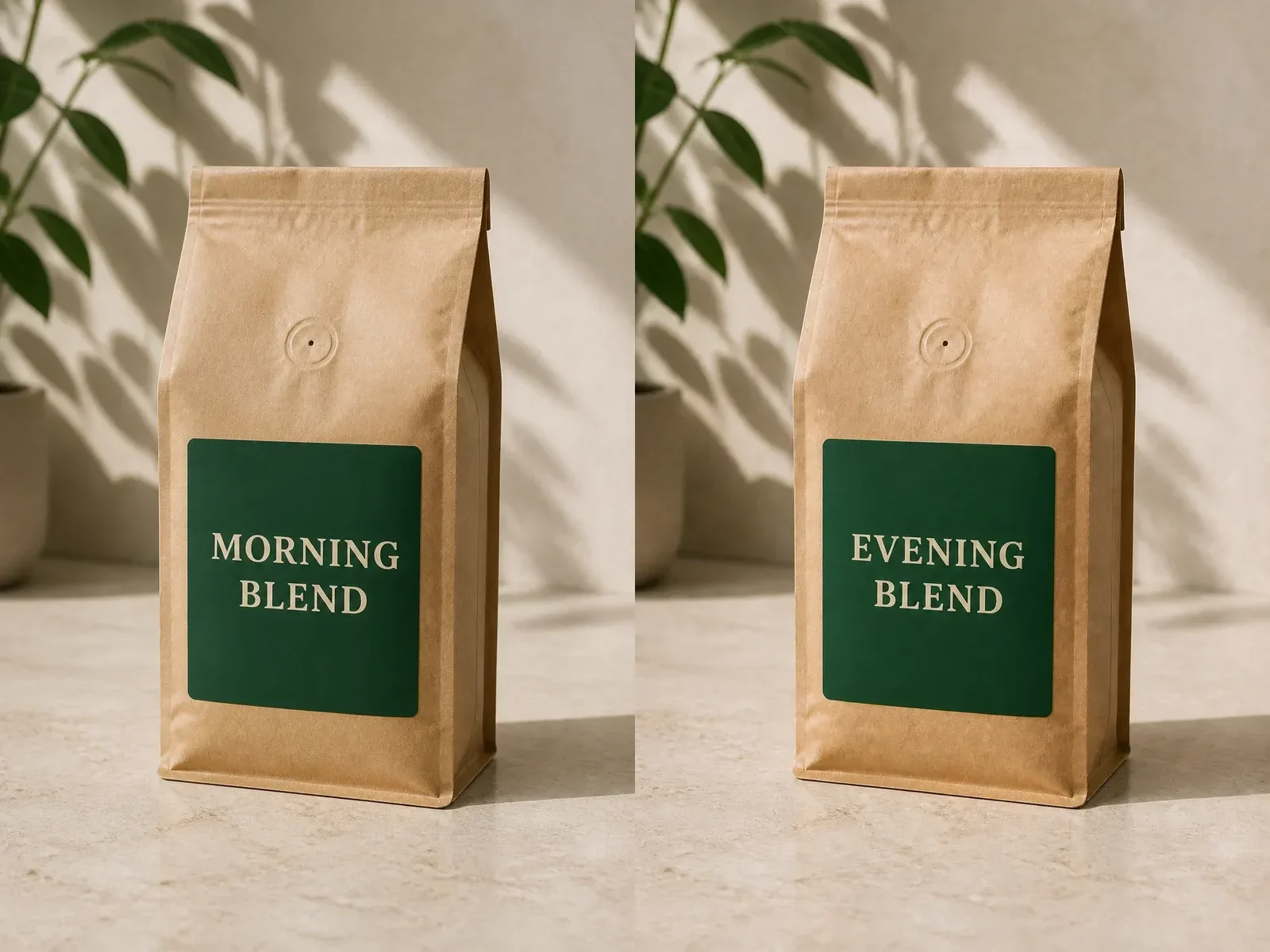
The packaging example replaces MORNING BLEND with EVENING BLEND on a green coffee label. The request protects the two-line serif treatment, cream lettering, kraft-paper material, bag geometry, valve, counter, and plant shadow. Use generated packaging edits as concepts or drafts, then verify every claim, ingredient, quantity, barcode, warning, and trademark in the real production artwork.

Edit a Label
Morning Blend changed to Evening Blend on a coffee package label

Edit Text in Image With Same Font: What to Expect

The template aims for visual continuity, but a flattened image does not provide the original font file, layer metrics, or exact effects.

Visually Similar, Not Guaranteed Identical

The model can use visible letter shapes, weight, color, spacing, texture, and context as clues. It may produce a convincing similar style, but it does not deterministically identify, license, or reproduce the exact font. Distinctive brand lettering, custom glyphs, scripts, and small decorative type need especially careful review.

Text Length Changes the Layout

Replacement copy that is close to the original length is easier to fit. Longer wording may require smaller letters, tighter spacing, extra lines, or a larger repaired area. If exact dimensions matter, shorten the phrase or request a deliberate layout change instead of insisting that incompatible copy occupy identical space.

Background Complexity Affects Repairs

Plain paper and simple labels are easier than reflective metal, fabric folds, transparent glass, patterned surfaces, curved packaging, neon glow, motion blur, or letters crossed by objects. Inspect the reconstructed area for smears, repeated textures, warped edges, and changes to neighboring details.

Important Copy Needs Human Proofreading

AI image models can misspell, merge characters, add marks, or change untouched wording. Proofread at 100% zoom and compare against the source. Use a layered editor for contracts, certificates, identity documents, medical information, regulated labels, financial claims, or any text where one wrong character creates risk.

Practical Uses for an Online Image Text Editor

A focused replacement workflow can save time during creative iteration, provided the result is treated as generated pixels and reviewed accordingly.

Posters, Flyers, and Event Graphics

Correct a typo, update a short headline, revise a date, or explore a new campaign phrase when the editable source file is unavailable. For a public event, confirm dates, locations, ticket details, and sponsor names separately before publishing.

Product Mockups and Packaging Concepts

Test a flavor name, collection title, or short label direction without recreating the entire mockup. Keep final packaging production in a controlled design file so required claims, trademarks, measurements, and barcodes remain accurate.

Signs, Menus, and Storefront Drafts

Preview a new sign message or menu heading while retaining scene perspective, material, lighting, and surrounding objects. Avoid using generated edits to misrepresent real prices, availability, notices, or business information.

Screenshots and AI Artwork Corrections

Repair short labels or visibly misspelled words in a concept image. For software documentation and evidence, capture a fresh authentic screenshot instead of altering one. Never use the tool to fabricate conversations, transactions, credentials, or official records.

Related NanoPic Editing Workflows

Choose a neighboring tool when your job extends beyond replacing existing words.

AI Image Reimagine

Restyle a whole reference image when the desired change is broader than one text region.

Open AI Image Reimagine

Change Background Color of Photo

Use a constrained workflow when the foreground should remain recognizable and only the background color needs to change.

Open Background Color Tool

Photo Colorizer

Add restrained color to a black-and-white or faded photo without turning the task into a text edit.

Open Photo Colorizer

Nano Banana 2

Review the existing image model workflow used by this template; live routing and displayed cost remain the source of truth.

Open Nano Banana 2

Edit Text in Image FAQ

Answers about free access, same-font expectations, source quality, privacy-sensitive material, and final review.

Can I edit text in image free online?

You can open the page, upload or choose a sample, and configure the edit without charge. Creating a new image uses NanoPic credits. Images made with free credits include the current free-credit watermark; paid-credit generations do not include that free-credit watermark. The interface shows the current cost before you generate.

Can NanoPic edit text in image with the same font?

The prompt asks the image model to aim for a visually similar type style, weight, size, color, spacing, position, and perspective. It does not recover or guarantee the exact original font. A flattened image may not reveal the font name, licensing, layer metrics, or effects, so inspect the result and use the real font in a design editor when exact typography is required.

Does this add a new text box on top?

No editable browser text layer is added. The workflow sends the full image and replacement instruction to a generative image model, which rebuilds pixels in and around the requested text region. The result is another flattened image rather than a layered design file.

What instruction should I write?

Quote both strings and name the limited change: Replace “OLD WORDS” with “NEW WORDS.” Then add one or two constraints, such as keep the two-line layout, cream serif appearance, green label, angle, and shadow. Avoid combining unrelated redesign requests with a precise text correction.

Which images work best?

Use clear, sufficiently large images with readable target text. Short straight headlines and labels on simple surfaces are easiest. Tiny characters, handwriting, ornate scripts, curves, glare, severe perspective, compression, patterned backgrounds, and occlusion can reduce accuracy.

Will everything outside the words stay identical?

The saved prompt asks the model to preserve unrelated content, but generative editing can still shift texture, lighting, nearby objects, faces, logos, or other text. Compare the source and result carefully. This page does not promise a pixel-identical edit outside the selected region.

Can I use it for product labels or ads?

It can create useful drafts and concepts. Before commercial use, verify spelling, claims, prices, dates, ingredients, measurements, required warnings, trademarks, and brand rules in the source design file. Generated packaging and ad copy should not be treated as production-ready without review.

Can I edit screenshots, documents, or official records?

Use the tool only for lawful, authorized creative work. Do not fabricate evidence, conversations, transactions, identity documents, certificates, medical information, financial records, or official notices. For documentation, capture a fresh authentic screenshot or update the original source.

Does NanoPic support masks, OCR boxes, layers, or batch editing here?

This focused page accepts one reference image, one editable instruction, and one generated result at a time. It does not expose brush masks, detected OCR boxes, editable text layers, or a batch interface. Use a specialist editor when those controls are essential.

Edit the Words in Your Image

Upload one authorized image, quote the original and replacement text, keep the request focused, then inspect the generated spelling, style, background repair, and unchanged details before using the result.