




Save up to 73% on plans

Create a Video with OmniHuman 2.0
Sign In

Create a Video with OmniHuman 2.0

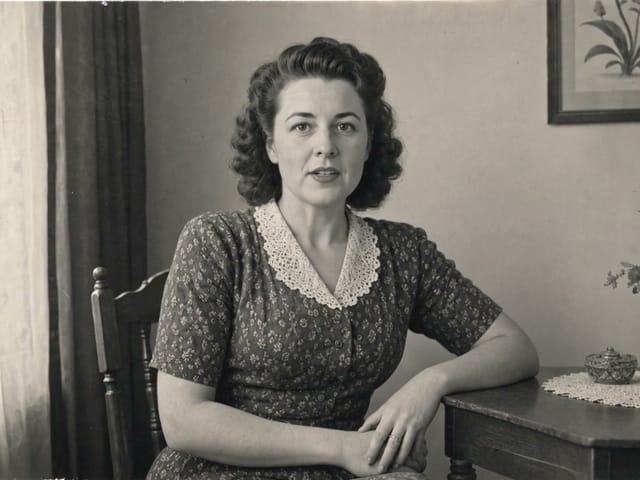
Upload one clear portrait, describe the motion you want, and generate an image-to-video clip with OmniHuman 2.0 on NanoPic. A short written direction guides smile, gesture and camera while the face stays steady.

Reference images(0/4)
Public VisibilityAllow this result to appear in public inspiration surfaces.
Credits required:—

MiniMax H3 Max

Portrait motion clip

The person in the portrait faces the camera, blinks naturally, offers a soft warm smile, and leans slightly forward as the camera makes a slow gentle push-in. Soft window light, realistic skin detail, steady framing, no text, no watermark.

More AI Video Models & Effects

What Is OmniHuman 2.0?

OmniHuman 2.0 is an audio-driven avatar video model from ByteDance. The idea is simple: one portrait plus one recording should return a video in which the person in the photo speaks or sings that recording, with mouth shapes, expressions, head turns and gestures following the delivery. What makes OmniHuman 2.0 interesting is that it listens to how a line is said, not only which syllables appear. A calm explanation should look steady. A laugh should lift the cheeks and eyes. An excited announcement should bring bigger movement. Because the full performance is meant to come from audio, creators can keep the same face and change the script as often as they like. On NanoPic you use OmniHuman 2.0 through a photo-to-video flow: upload a clear portrait, write a short motion direction, and generate a moving clip. That habit of starting from one authorized face is the foundation for greetings, product intros, short explainers and other talking-avatar style clips.

How to Make a Video with OmniHuman 2.0 on NanoPic

1. Upload one portrait you have the right to use

Choose a sharp, well-lit photo in which the face is clearly visible and the mouth is relaxed or closed. Crop the image to the frame you plan to publish: a vertical portrait for short-video apps, a horizontal frame for lessons and presentations, and a half-body shot if you want hands and gestures to show. Only upload a photo of an adult who has agreed to be animated, or a character you own. Photos of celebrities and of minors are not allowed.
2. Write a short motion direction

Describe the mood, gestures or camera you want in one or two sentences, for example "smiles warmly, leans toward the camera, slow push-in". OmniHuman 2.0 workflows thrive on clear, consistent direction. Keep the instruction aligned with a natural performance instead of a rigid checklist.

3. Generate, review and download

Run the generator, watch the clip once from start to end, check the opening expression and the last pose, then download the result. If the framing feels tight or the gesture feels too strong, adjust the OmniHuman 2.0 direction and generate again with the same portrait. Soft light and a steady face usually travel better than a busy background.

What OmniHuman 2.0 Brings to Your Photo

Four ways OmniHuman 2.0 helps you turn a still into a living image-to-video performance.

Natural Motion from One Still

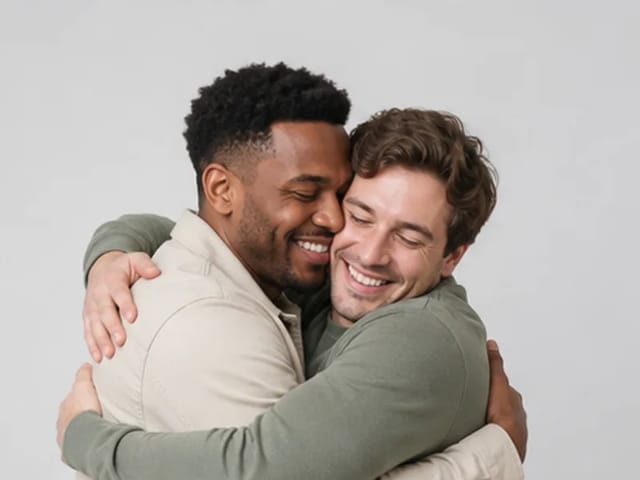
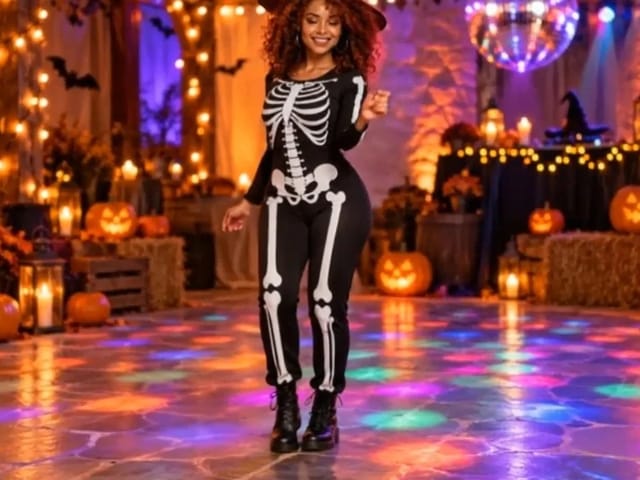
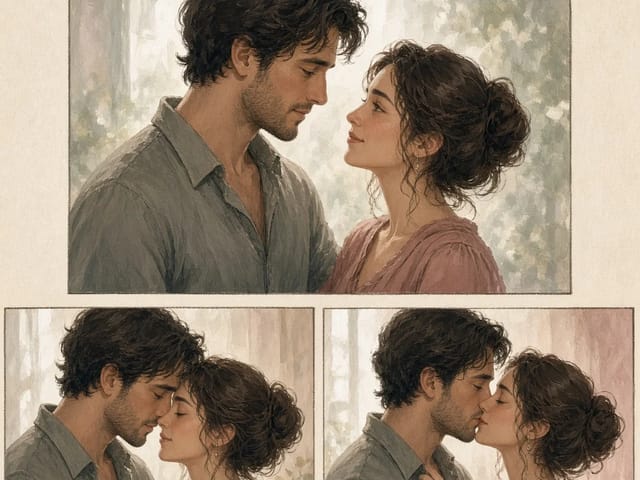
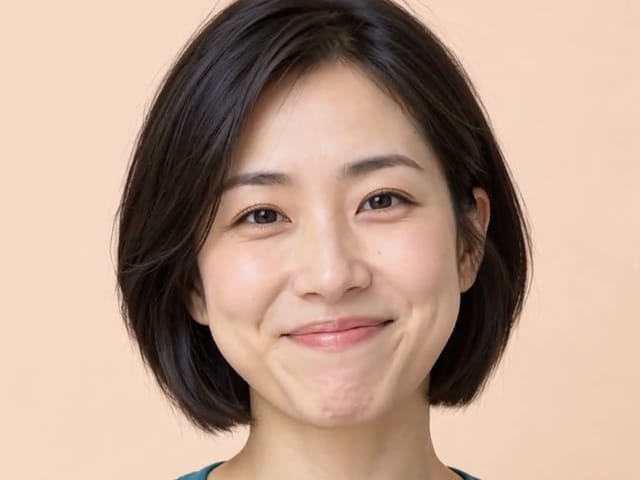
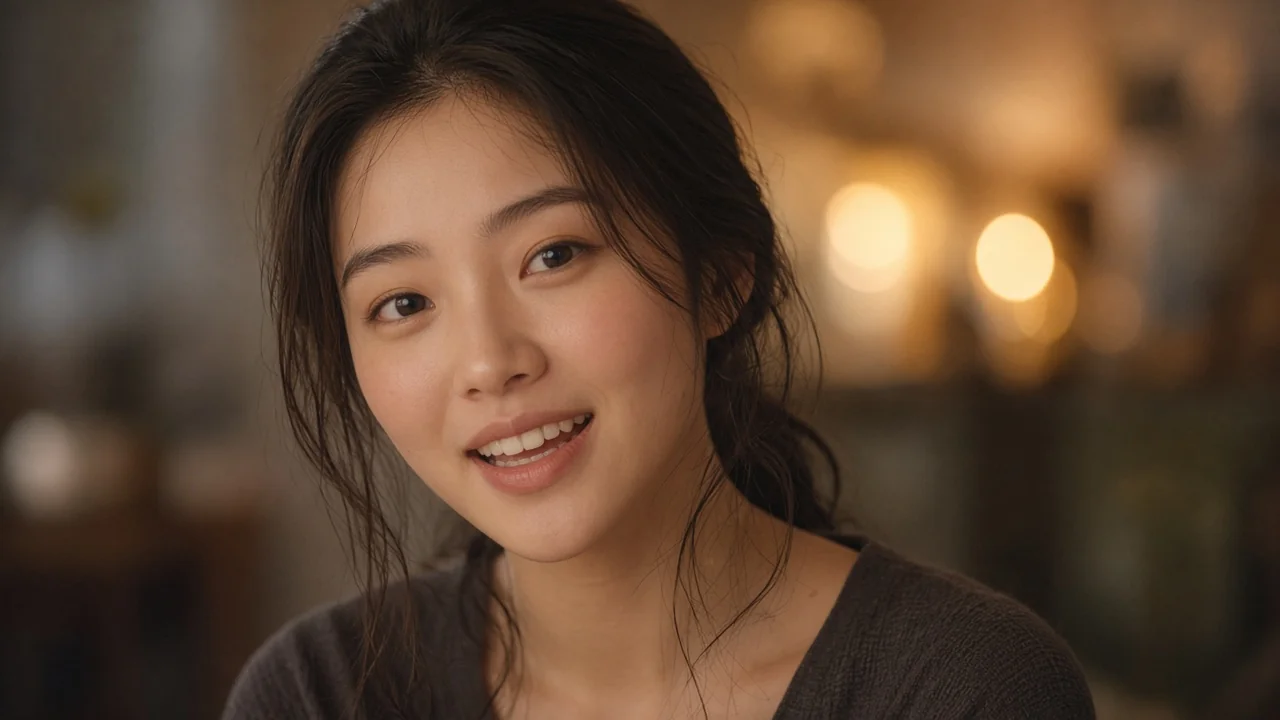
OmniHuman 2.0 is built so a single still can become a living face on screen. On NanoPic you start with that first half of the workflow: upload the portrait, ask for a gentle smile, a nod or a soft turn, and review how framing holds. The same habit of starting from one clear face carries into talking-avatar style clips for greetings, product intros and short explainers.

Create a Portrait Video
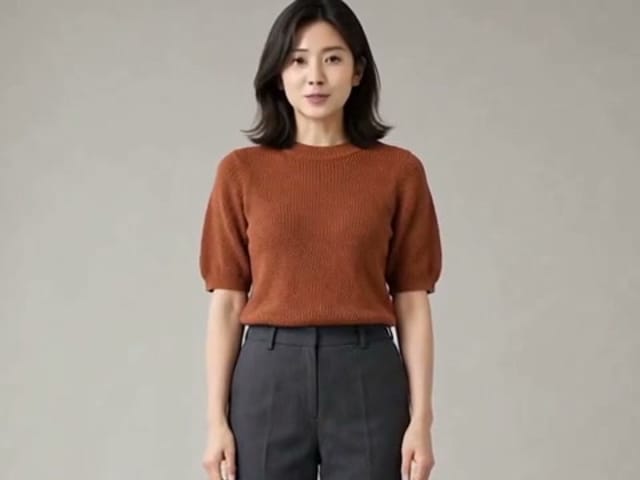
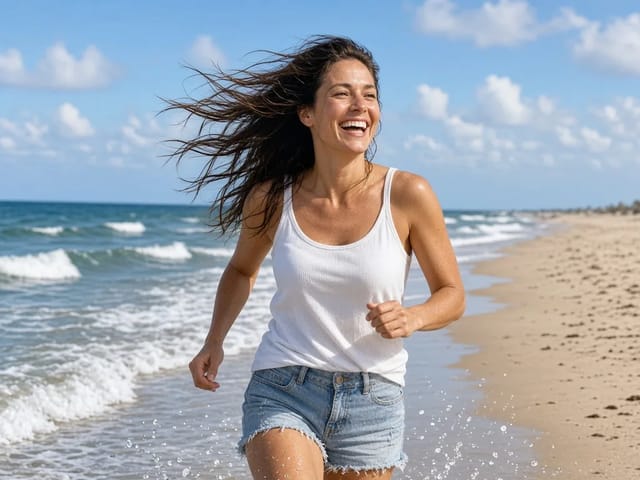
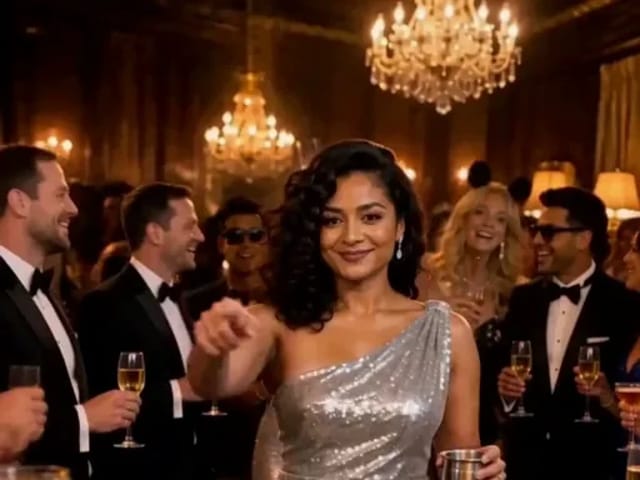
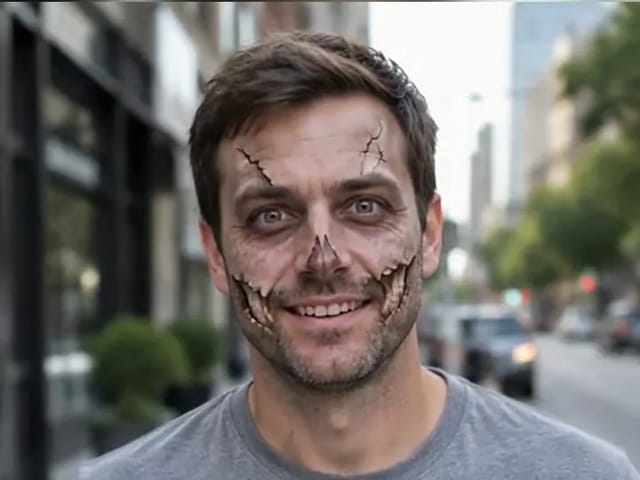
Portrait beginning to smile toward the camera

Performance Energy You Can Aim For

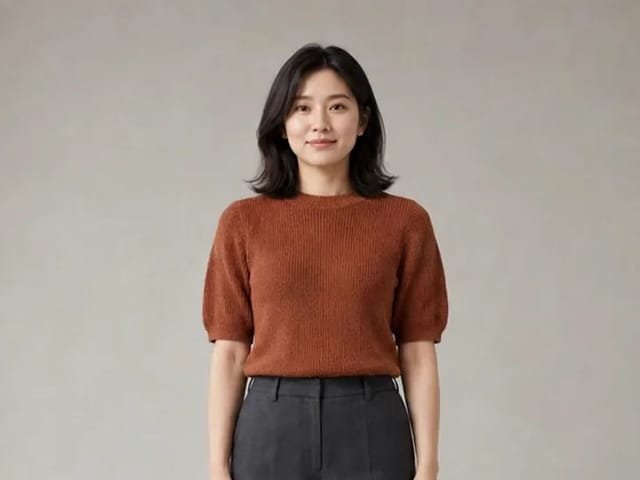
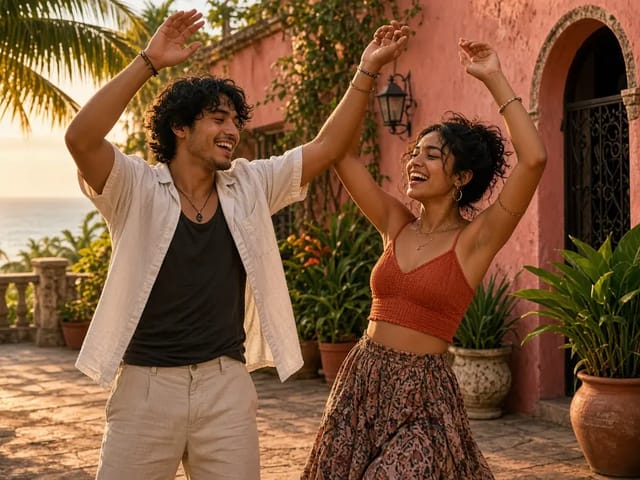
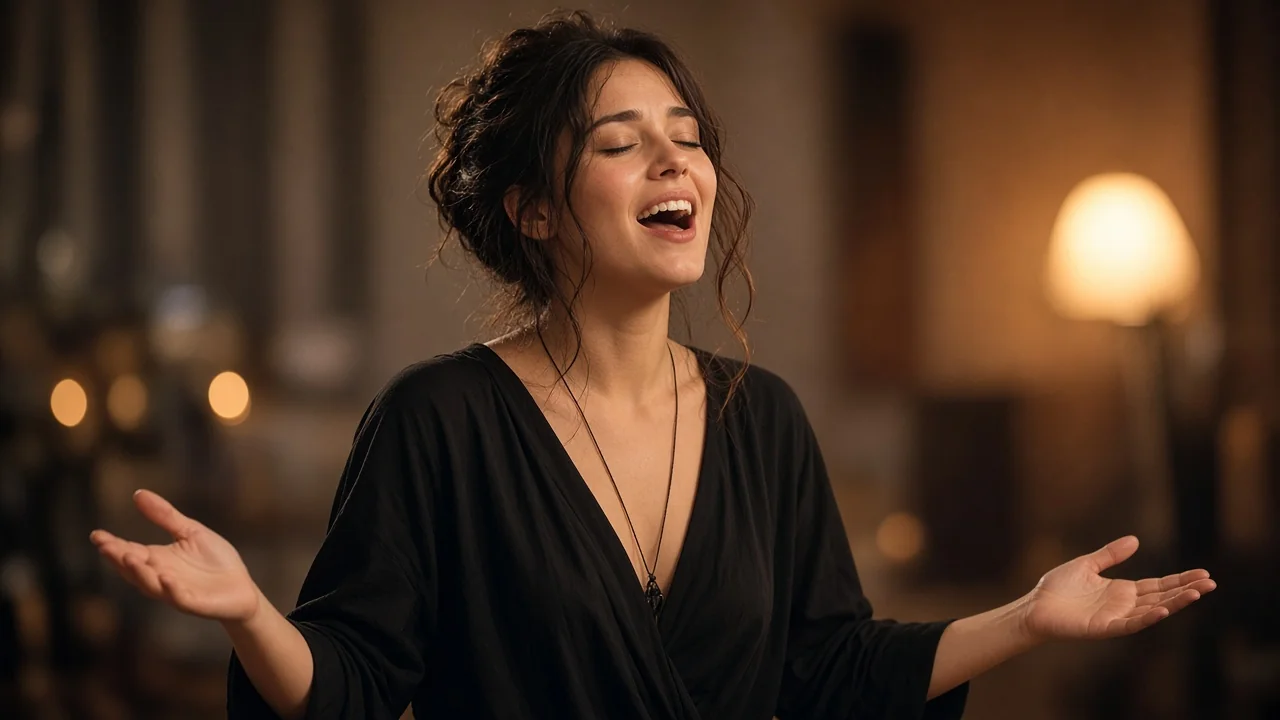
Creators look to OmniHuman 2.0 for singing and speaking energy that matches delivery. Use the prompt to aim expressive motion: held notes as a calm open posture, an upbeat chorus as brighter movement, a birthday greeting as a warm lean-in. Keep directions concrete so the clips stay readable from the first frame.

Try a Motion Direction
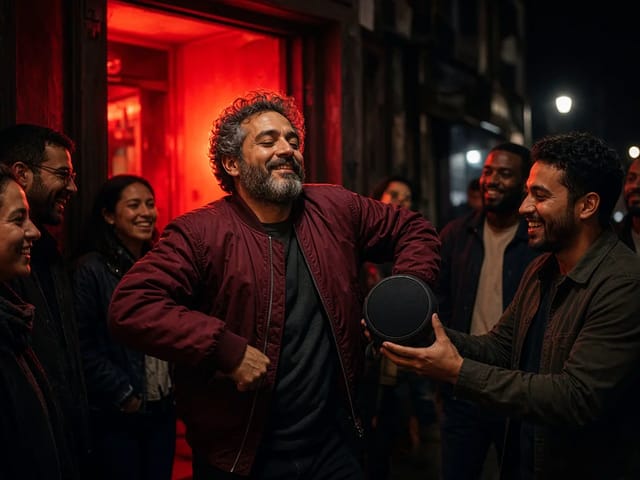
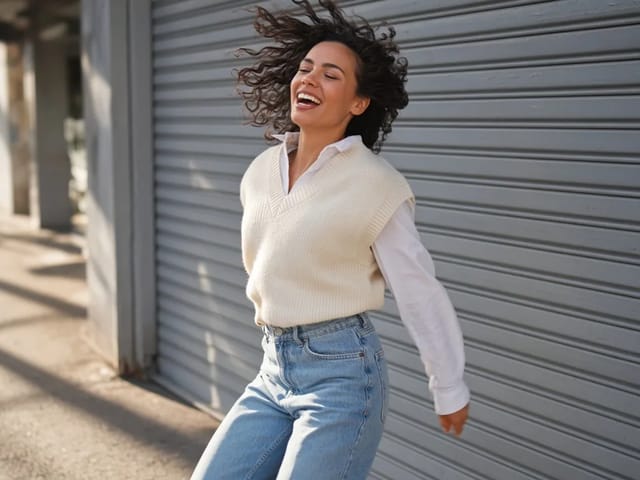
Performer mid expression with open posture

Gestures and Camera You Can Direct

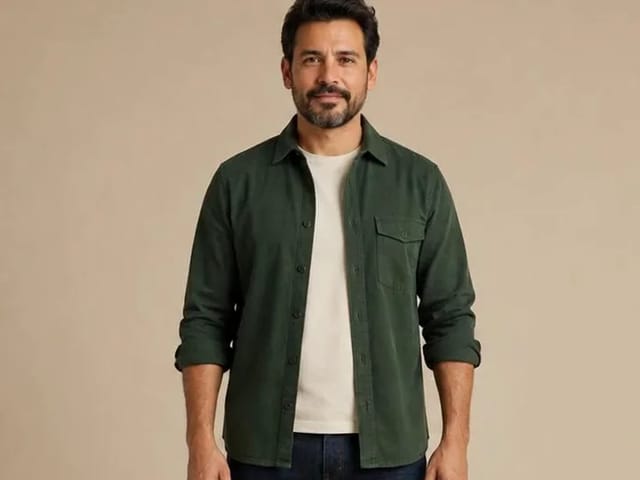
A short written direction guides posture, emotion and camera while the subject stays steady under OmniHuman 2.0. You might ask for calm, small gestures for a lesson, an open and confident stance for an announcement, or a slow push-in for a closing line. The best results come from directions that match the tone of the message, instead of fighting it.

Direct the Shot
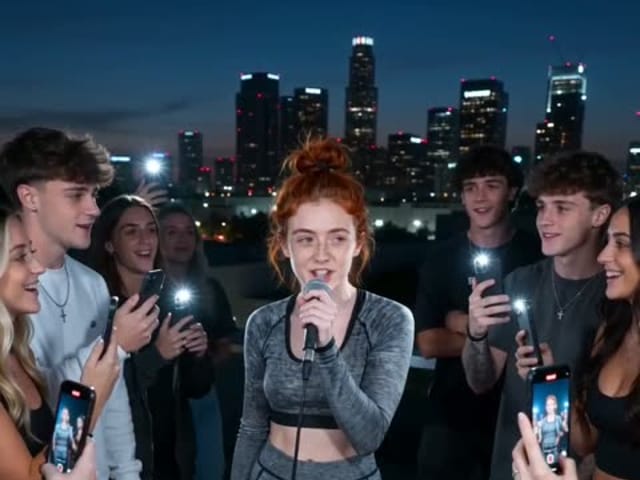
Presenter gesturing at a clean desk

More Than One Person in the Frame

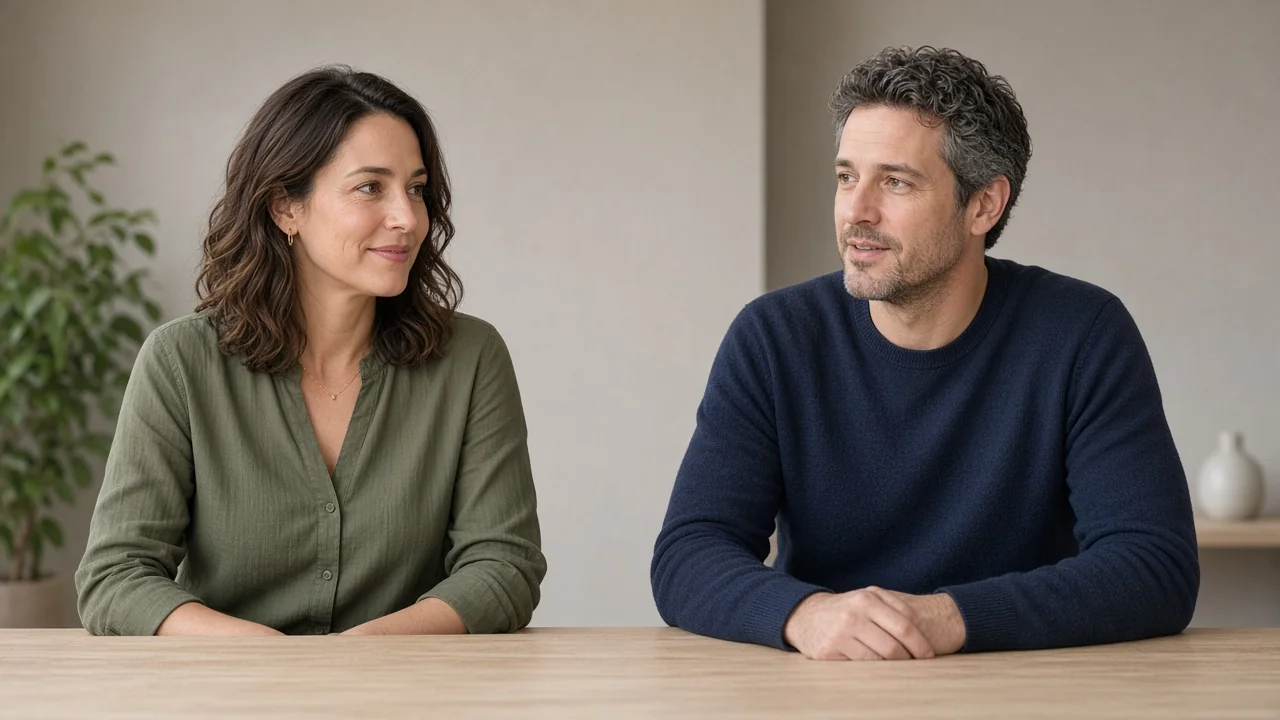
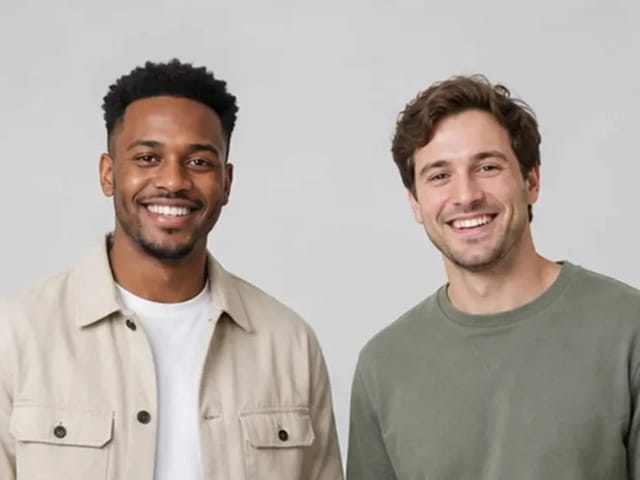
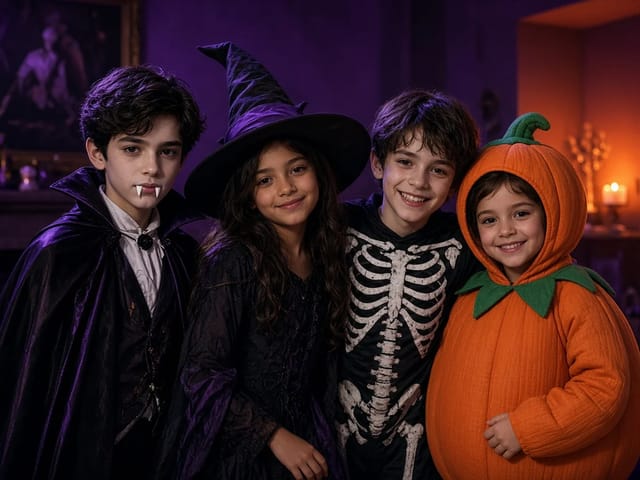
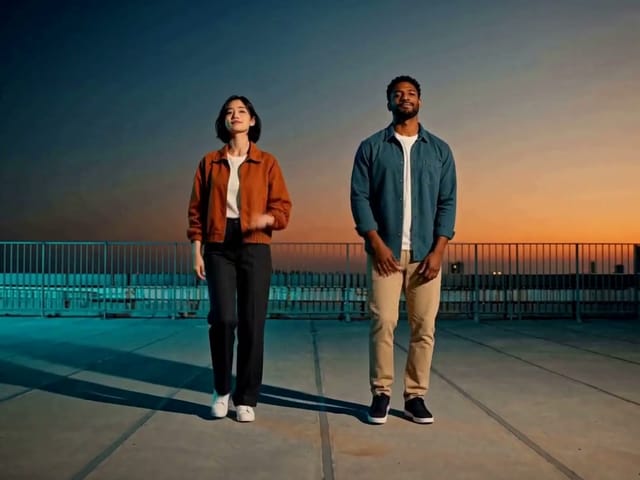
OmniHuman 2.0 can target images with several people, such as two hosts at a desk or a small group of friends. Use the direction to say who leads and how the others react, for example "the woman on the left speaks while the man listens and nods". For back-and-forth dialogue, plan one clip per speaking turn. Every person in the photo must have agreed to be animated.

Animate a Group Photo
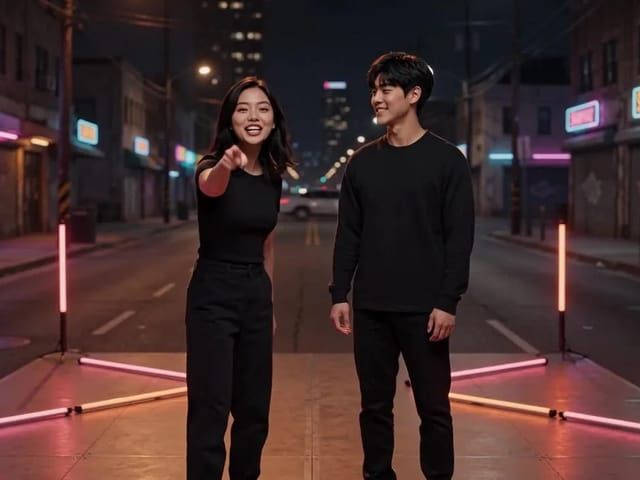
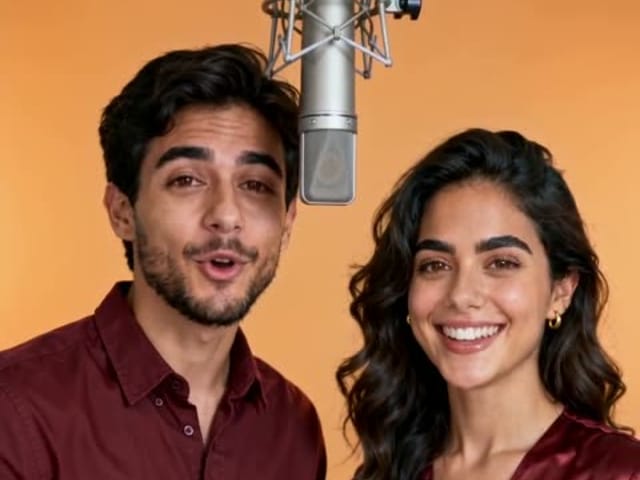
Two co-hosts sitting together at a desk

Tips for Better OmniHuman 2.0 Results

Start with a clean photo

One clear, front-facing face gives OmniHuman 2.0 the strongest signal. Plain or softly blurred backgrounds stay steadier than busy streets or patterned walls. Avoid text, logos and fine stripes in the image, since small details can shimmer as the person moves.

Choose a neutral starting expression

A closed mouth and relaxed face leave room for OmniHuman 2.0 to form natural expression changes. A wide grin in the source photo can clash with motion that needs the mouth to open and close.

Keep directions short and consistent

One or two sentences about mood, gestures and camera work better than a long list. Describe a natural flow of movement, such as raising a cup, smiling and turning back toward the camera.

Test a short idea first

Before you commit a long script, try a short direction on the same portrait. If framing and gestures look right, reuse the photo and tighten the wording for the full take.

Reuse the same authorized portrait

Keep one clear, authorized portrait as your OmniHuman 2.0 base. Reusing the same face across greetings, product intros and explainers helps identity stay consistent while you refine motion directions.

OmniHuman 2.0 FAQ

What is OmniHuman 2.0?

OmniHuman 2.0 is an audio-driven avatar model from ByteDance. It is designed to turn one portrait and one voice or song recording into a video in which the person speaks or sings, with matching mouth shapes, expressions and gestures.

How do I use OmniHuman 2.0 on NanoPic?

Upload one portrait, write an optional direction about mood or camera, and generate an image-to-video clip. Review the result, then refine the direction if you want a softer smile, a stronger gesture or a slower camera move.

Which files can I upload?

Upload one image in a common format such as JPG, PNG or WebP. Choose a clear face and a crop that matches the frame you plan to publish.

Can OmniHuman 2.0 make a photo sing?

OmniHuman 2.0 is built for expressive talking and singing performances from a portrait. On NanoPic you start by directing motion and energy on the still, then review how the face and posture read on screen.

Does it work with illustrations, 3D characters or pets?

Illustrated, 3D-rendered and stylized characters can work well with OmniHuman 2.0 when the face is clear and facing the camera. Results vary more for animals and very abstract art, so test a short clip first.

Can two people appear in one image?

Yes. OmniHuman 2.0 style pages accept photos with several people. Say who leads in your direction, and for turn-taking dialogue plan one clip per speaking turn.

Can I use someone else's photo or voice?

Only with their clear permission. Upload portraits and voices you own or are authorized to use. Photos of celebrities, public figures used without consent and anyone under 18 are not allowed.

How do credits work?

The credits needed for each render show in the generator before you submit. If a generation fails, the credits are refunded automatically.

Will my video have a watermark?

No. Videos you download from NanoPic do not carry a NanoPic watermark.

Is this the official OmniHuman 2.0 website?

No. NanoPic is an independent platform and is not affiliated with or endorsed by ByteDance.

Ready to Start with OmniHuman 2.0?

Upload a portrait, add a short motion direction, and generate an OmniHuman 2.0 image-to-video clip on NanoPic.

Related tools

Flux Video Edit

Flux Video Edit: Prompt-Based Video Editing | NanoPic AI

Flux Video Edit revises existing footage with a text prompt. Upload a short MP4, describe a visible change, and review an edited clip at up to 720p.

Open tool
HeyGen Video 1 creative concept illustration, not a model output example

HeyGen Video 1

HeyGen Video 1 turns text or a first-frame image into 5–15 second videos with audio. Create product demos and image animations at 480p or 768p on NanoPic.

Open tool
H3 Max Lip Sync

H3 Max Lip Sync

H3 Max Lip Sync animates an authorized portrait with your uploaded voice audio. Create a talking photo, choose resolution, and review the video with sound.

Open tool
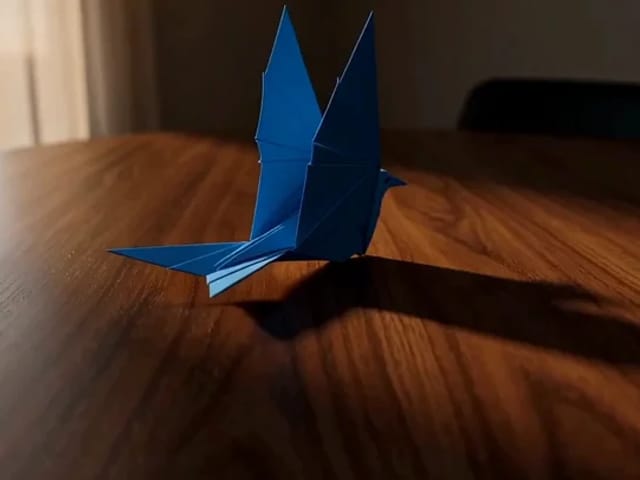
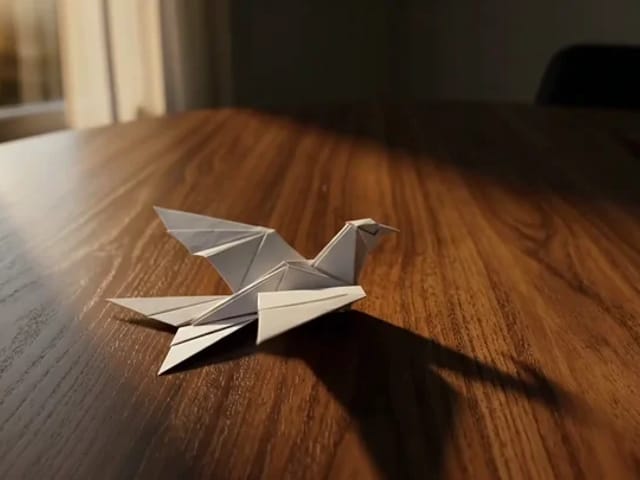
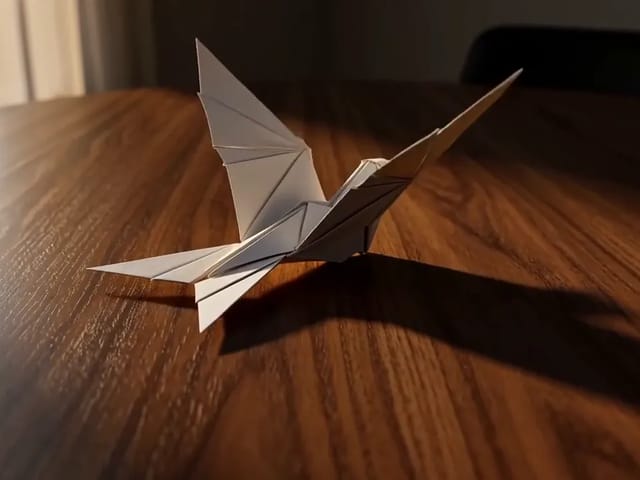
Folded paper bird on a sunlit wooden table

FastH3 Omni Video Generator: Fast Video with Audio | NanoPic

Learn what FastH3 Omni is and create short videos with synced sound online. Write a prompt, add a reference image and get a clip with no GPU or setup.

Open tool
Skateboarder gliding across a sunny concrete plaza

Pika H3 Flex AI Video Generator: Text and Image to Video | NanoPic

Use Pika H3 Flex online to turn a prompt or a photo into a short AI video. Write the action, add a first frame if you like, and generate in your browser.

Open tool
Blue teapot and cup in a Vidu Q4 video example

Vidu Q4 AI Video Generator: Photo to Video | NanoPic

Vidu Q4 AI Video Generator: upload one image, describe the motion, camera and sound, and turn your still into a 3–15 second clip with audio.

Open tool