
Save up to 73% on plans
4K Image Generator
GPT Image 2.5 Flare

AI output preview
More AI Image Models & Effects
Browse every other AI image model and effect published on this site in a continuous carousel.





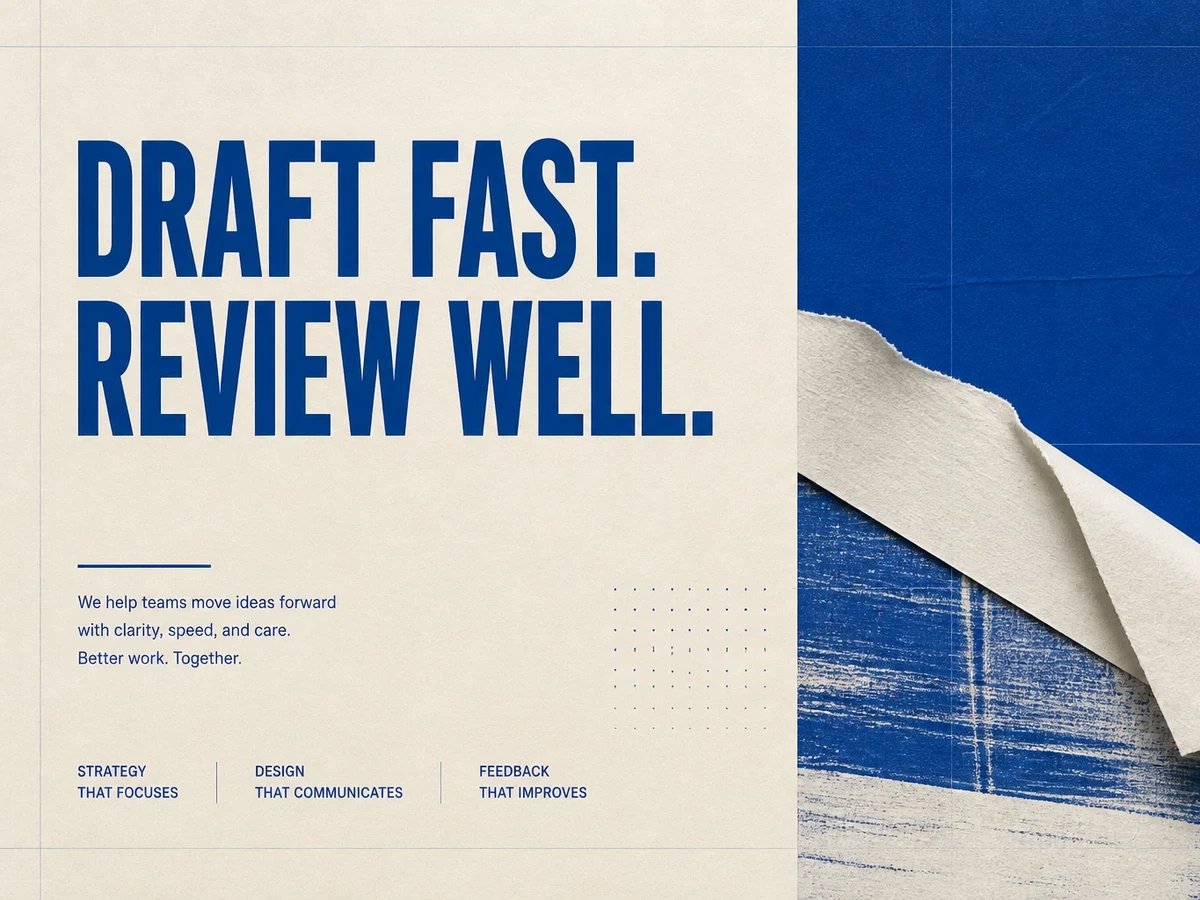
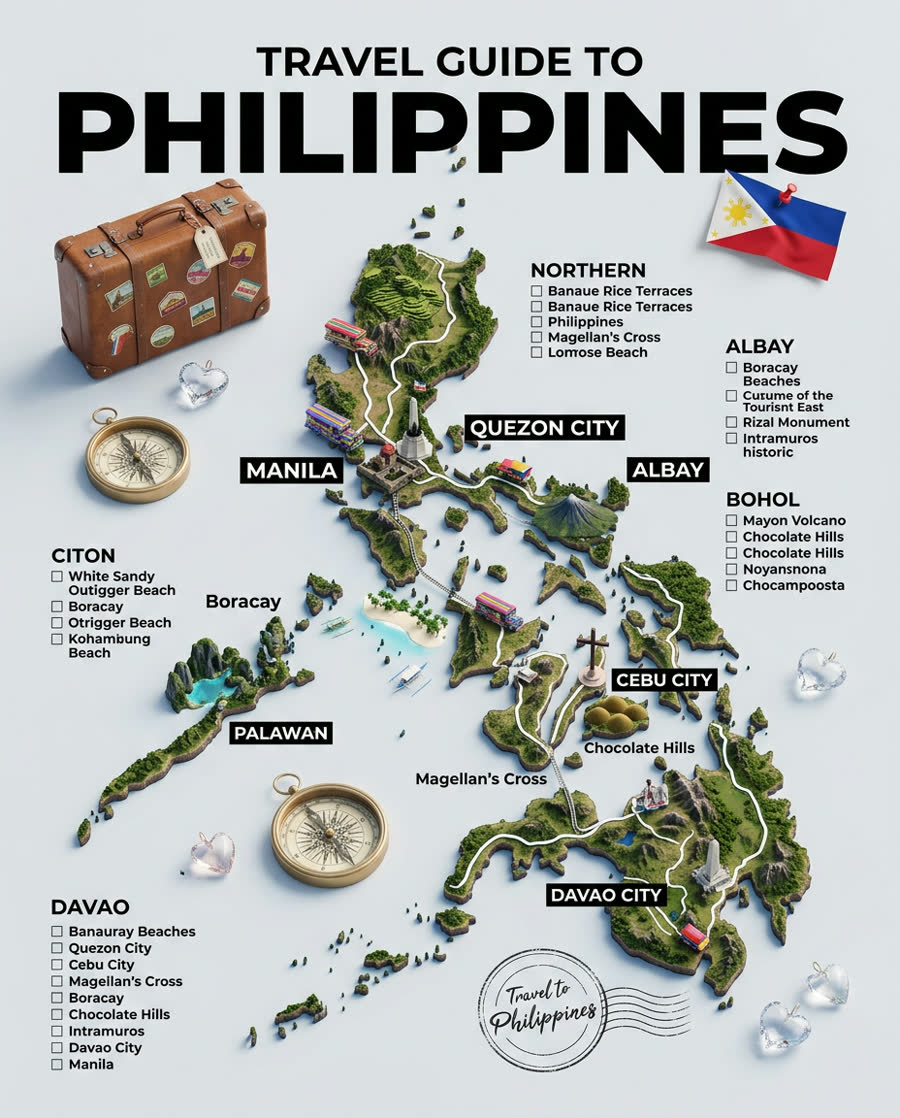
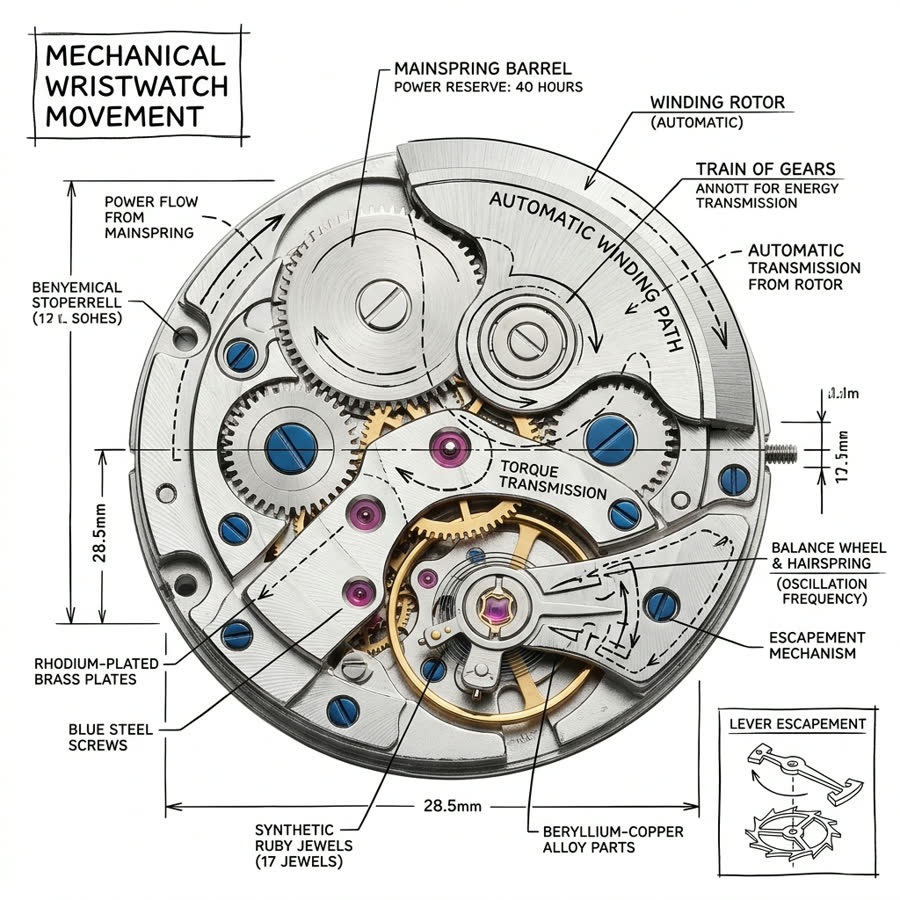
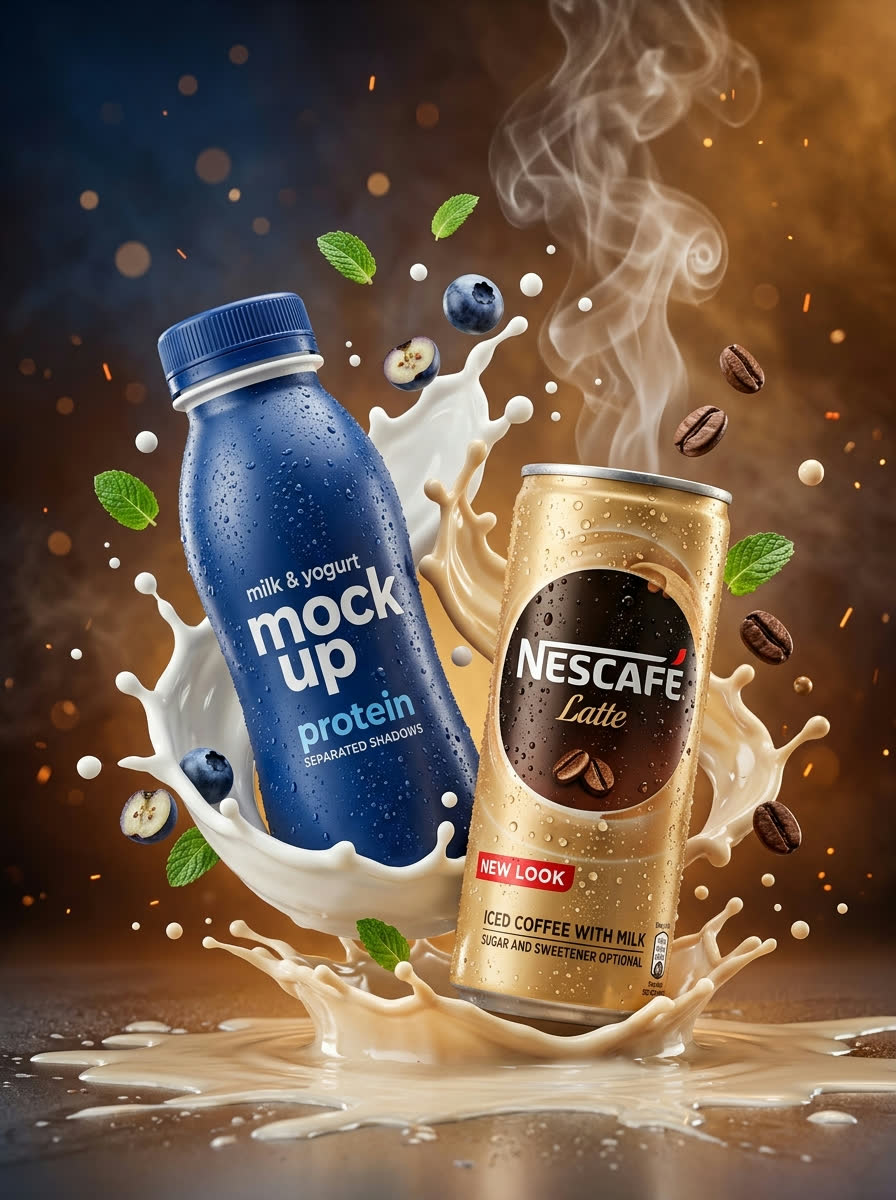


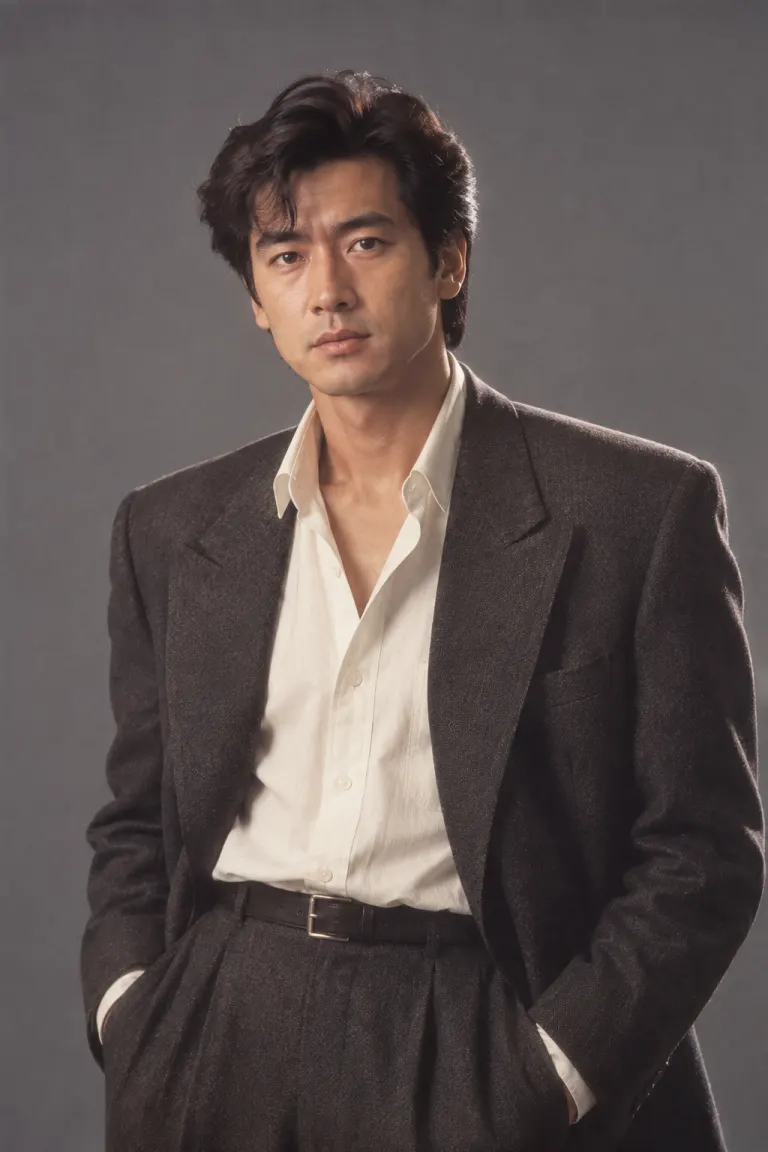
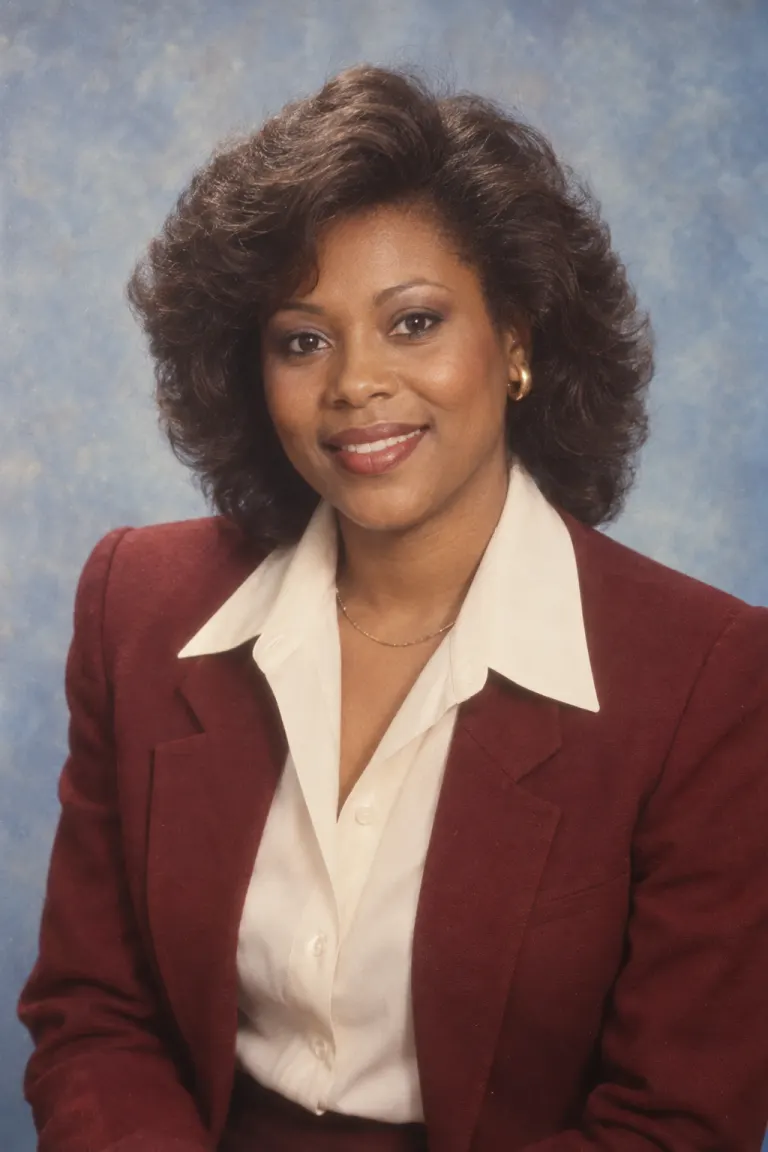
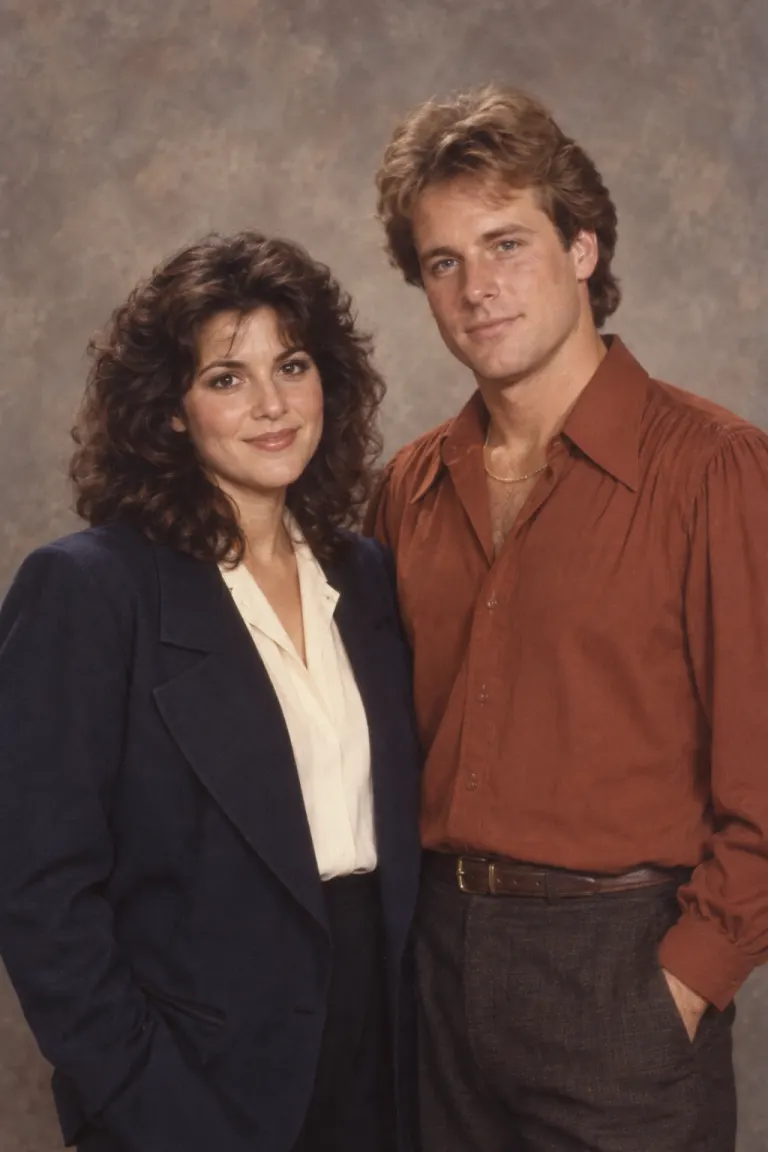

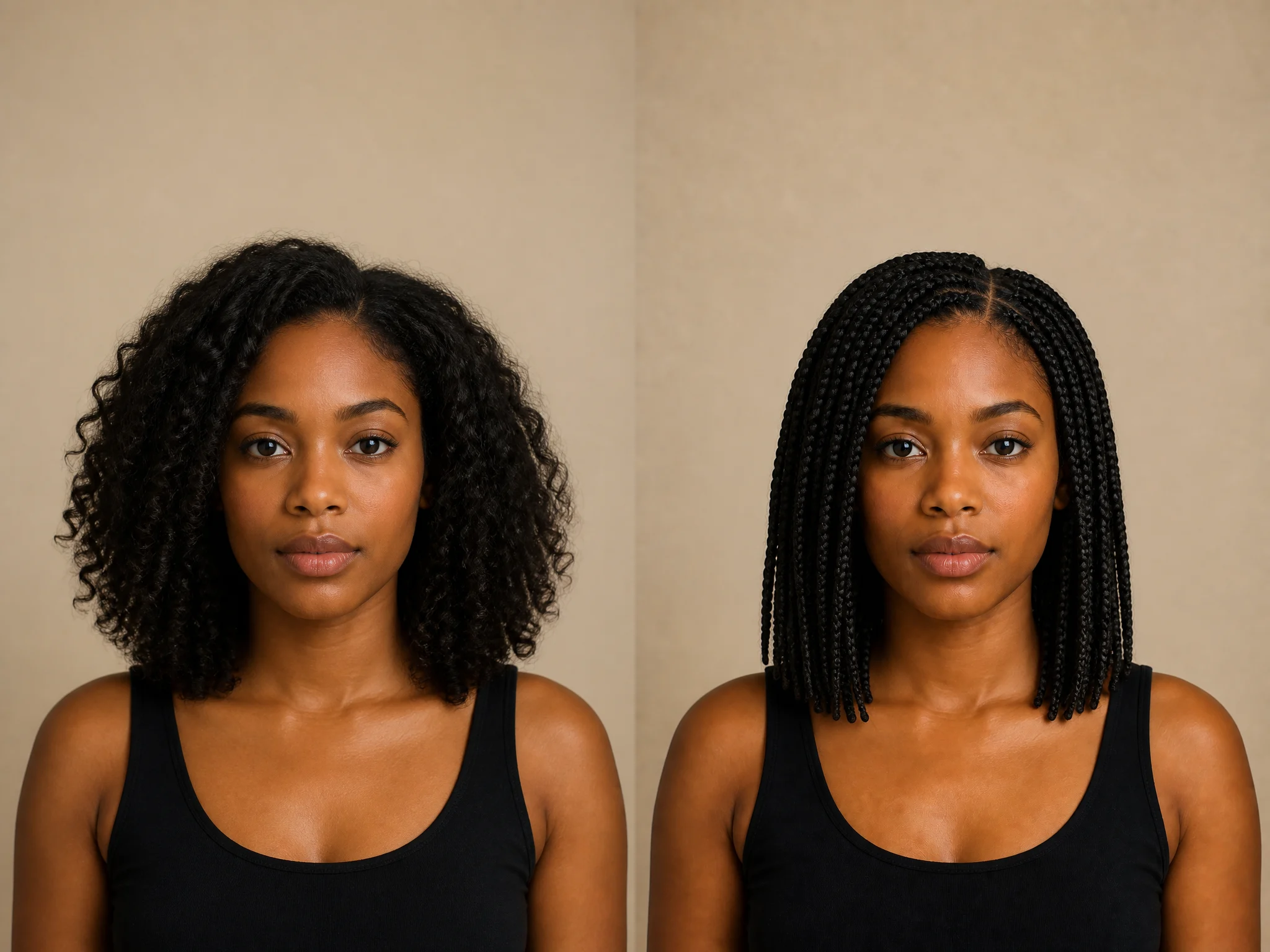
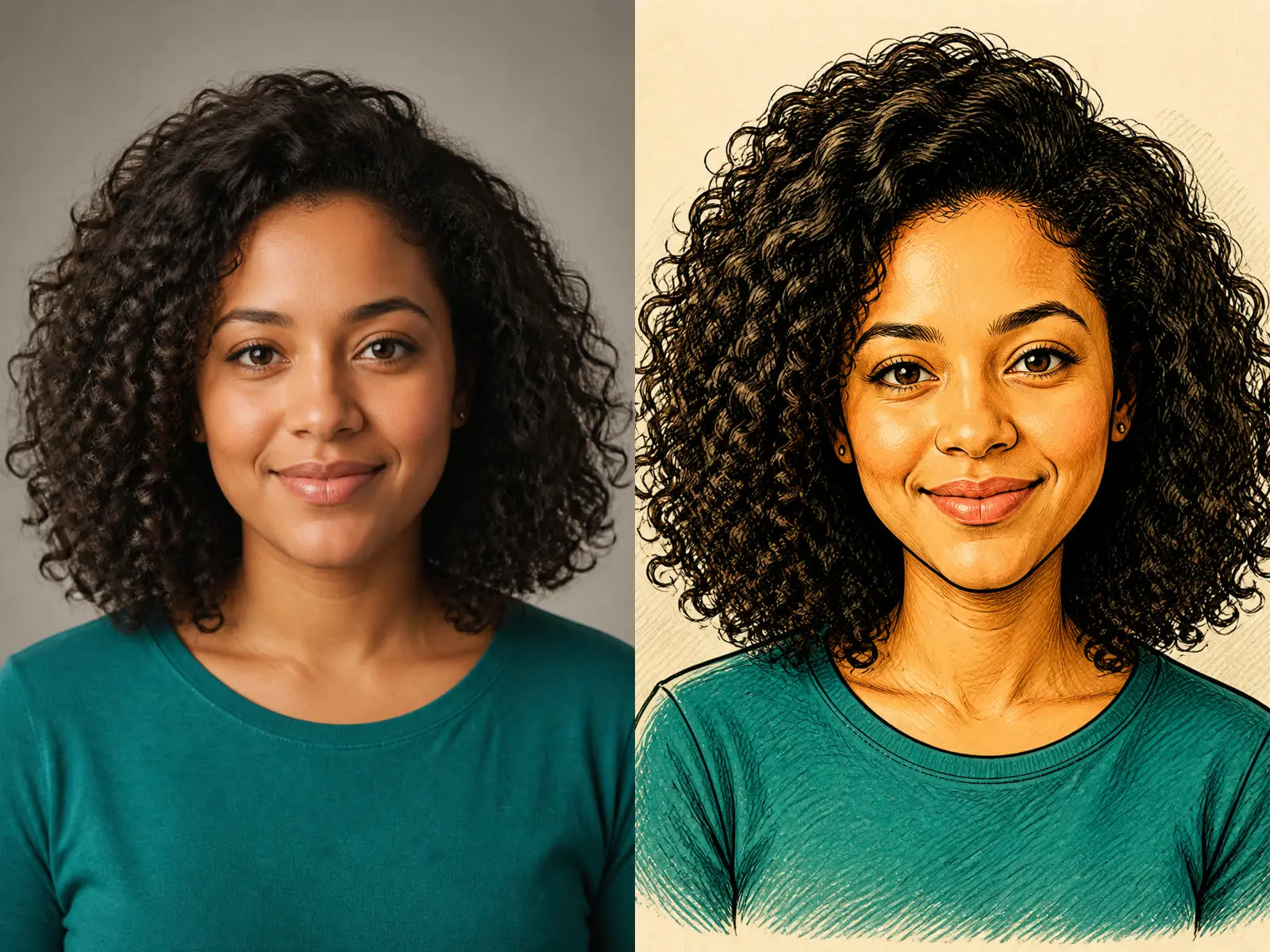
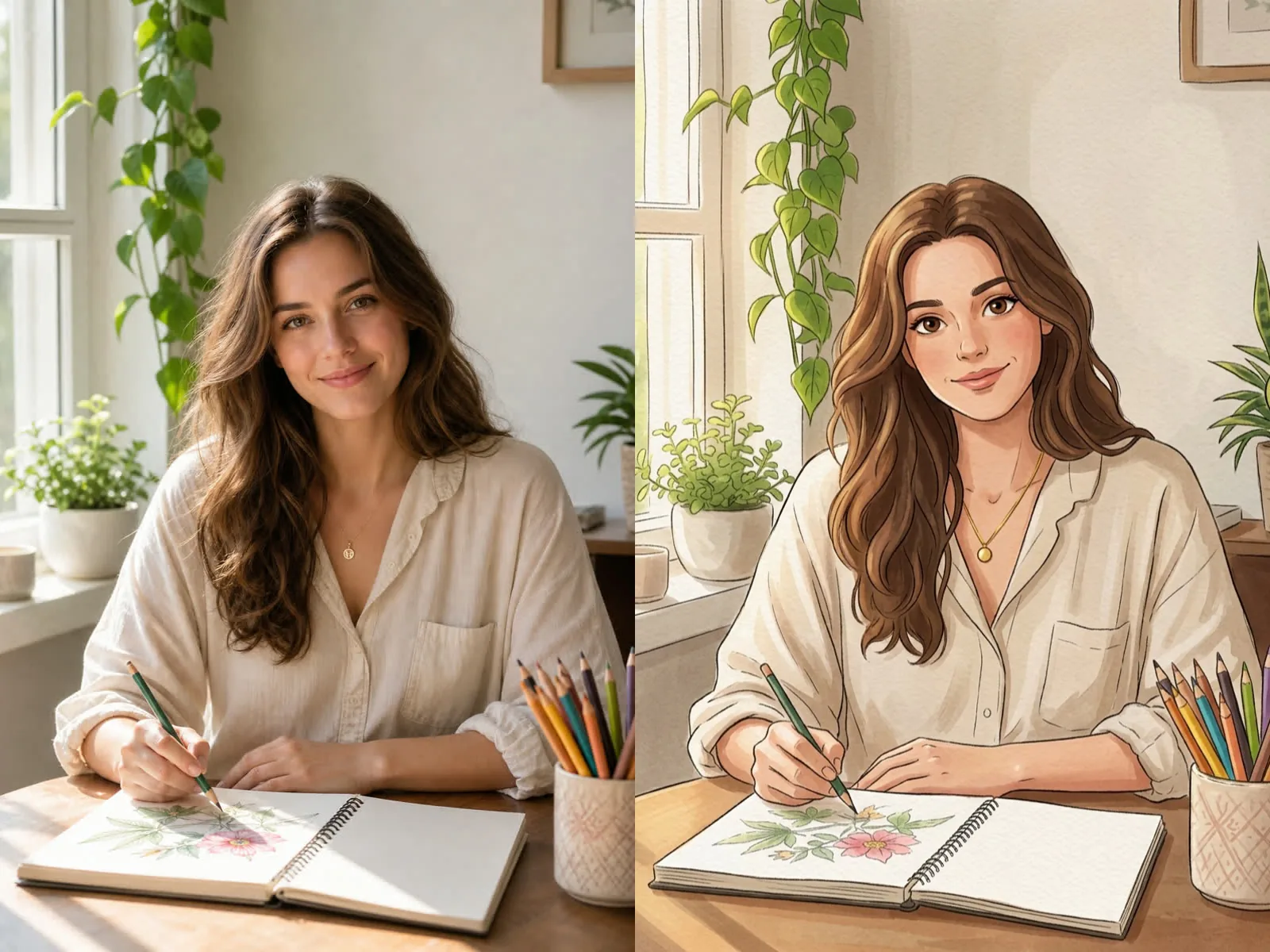
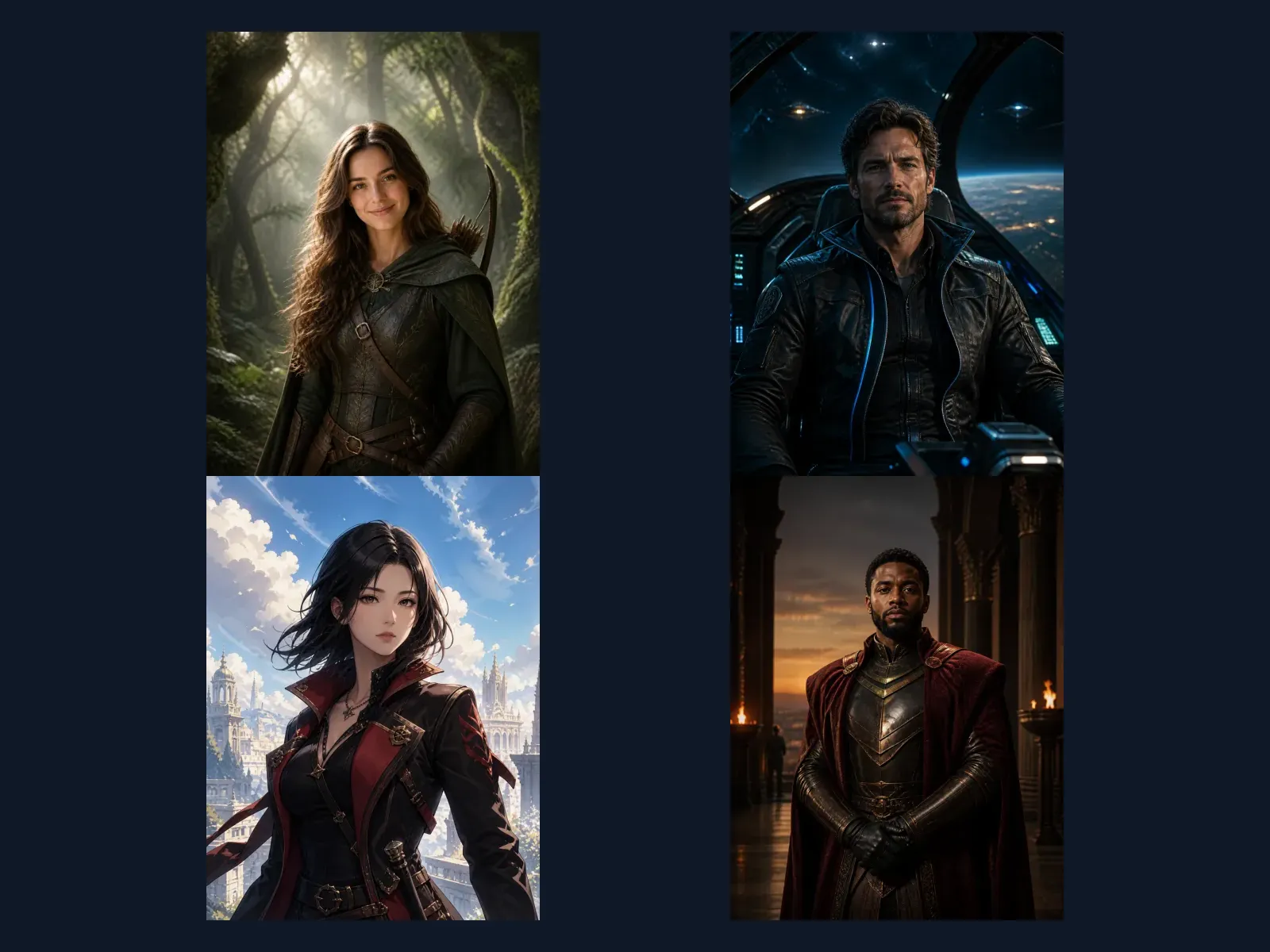
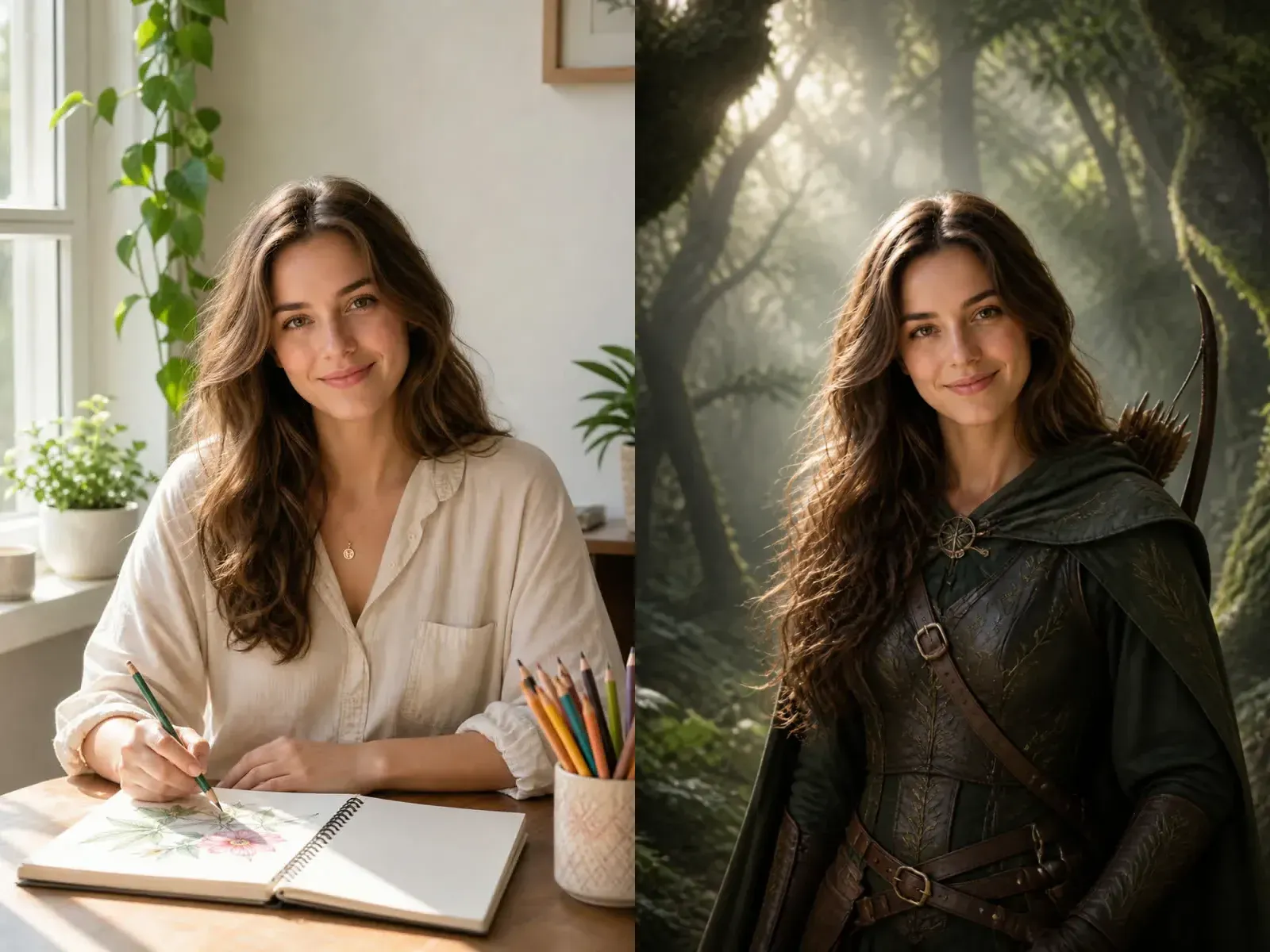
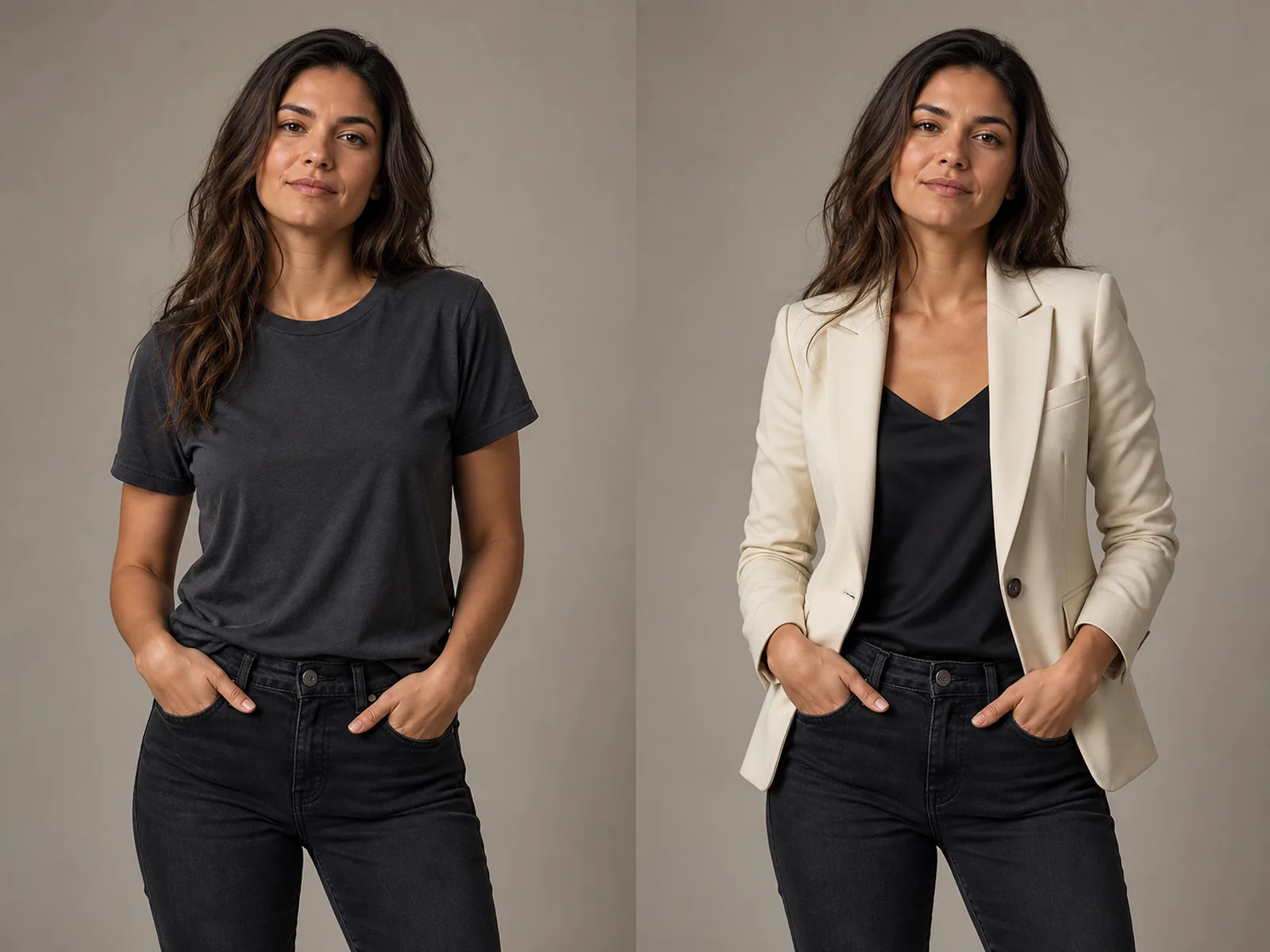
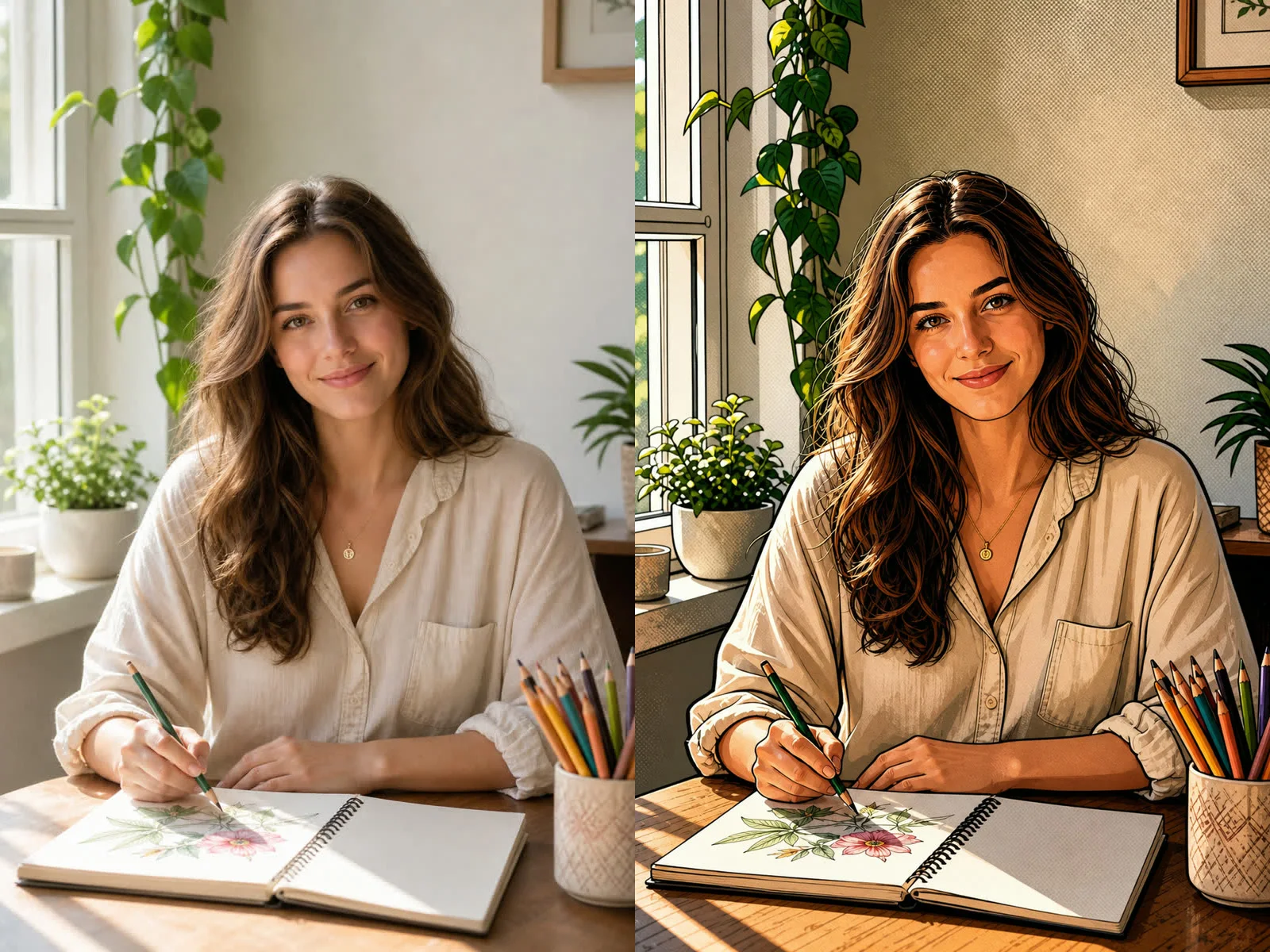
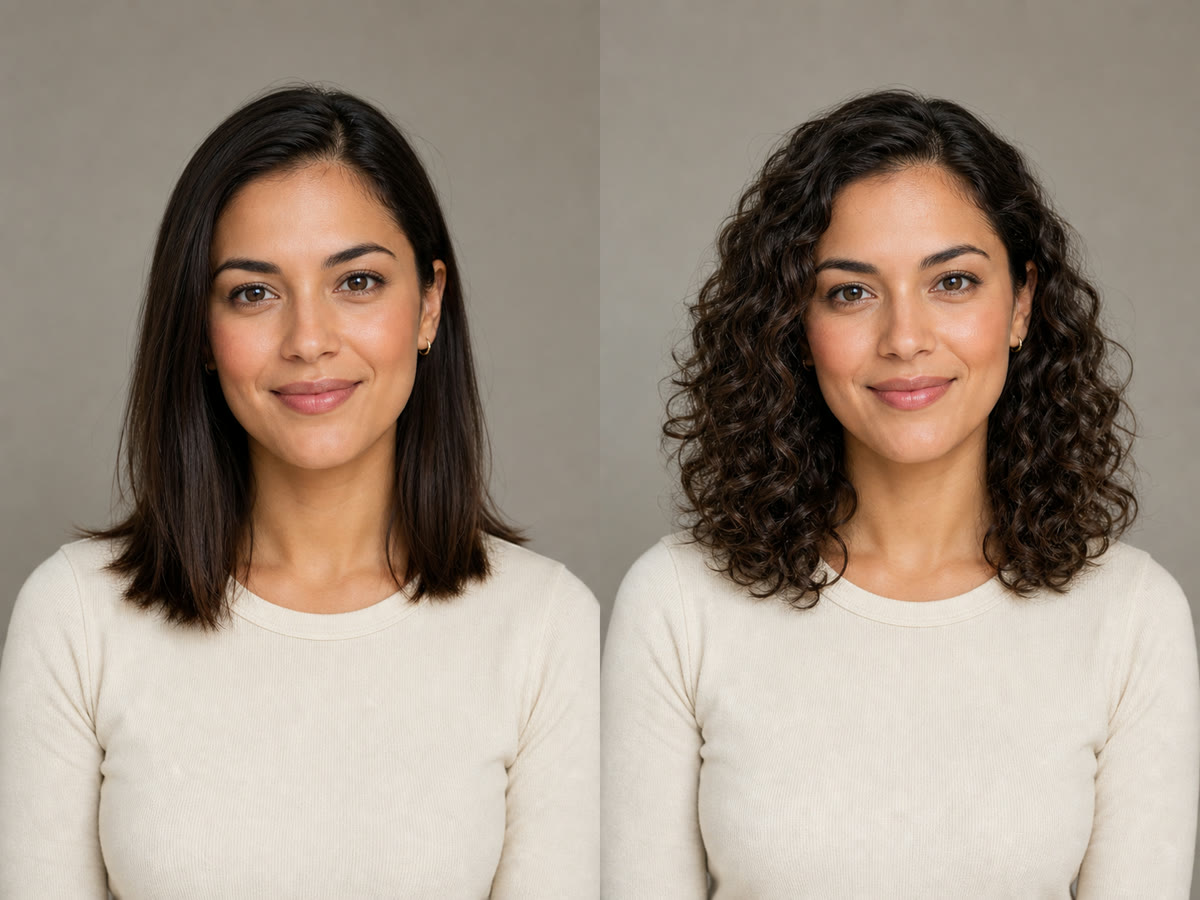

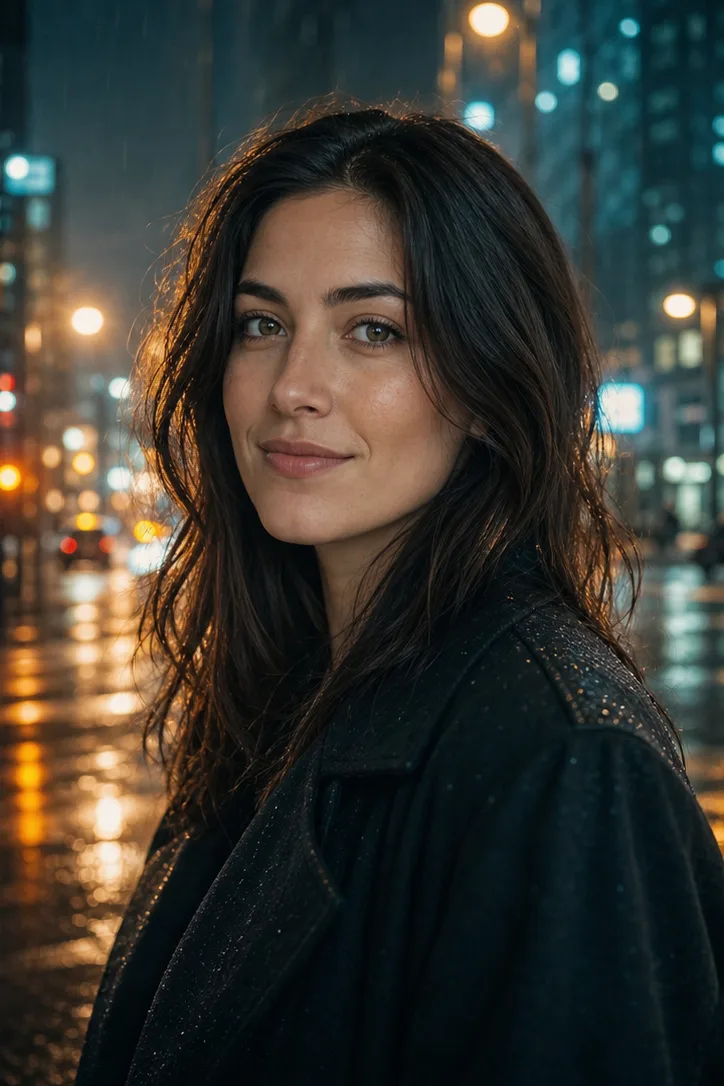
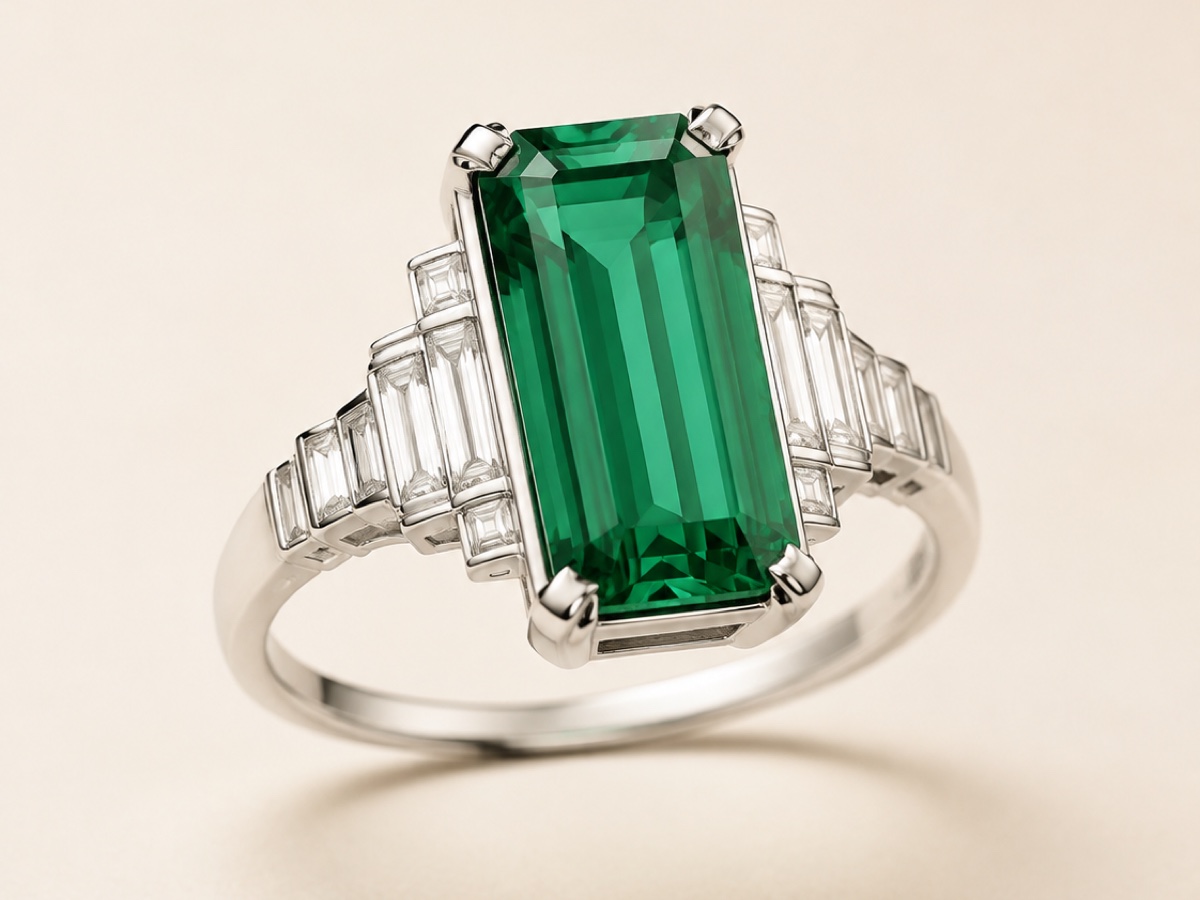
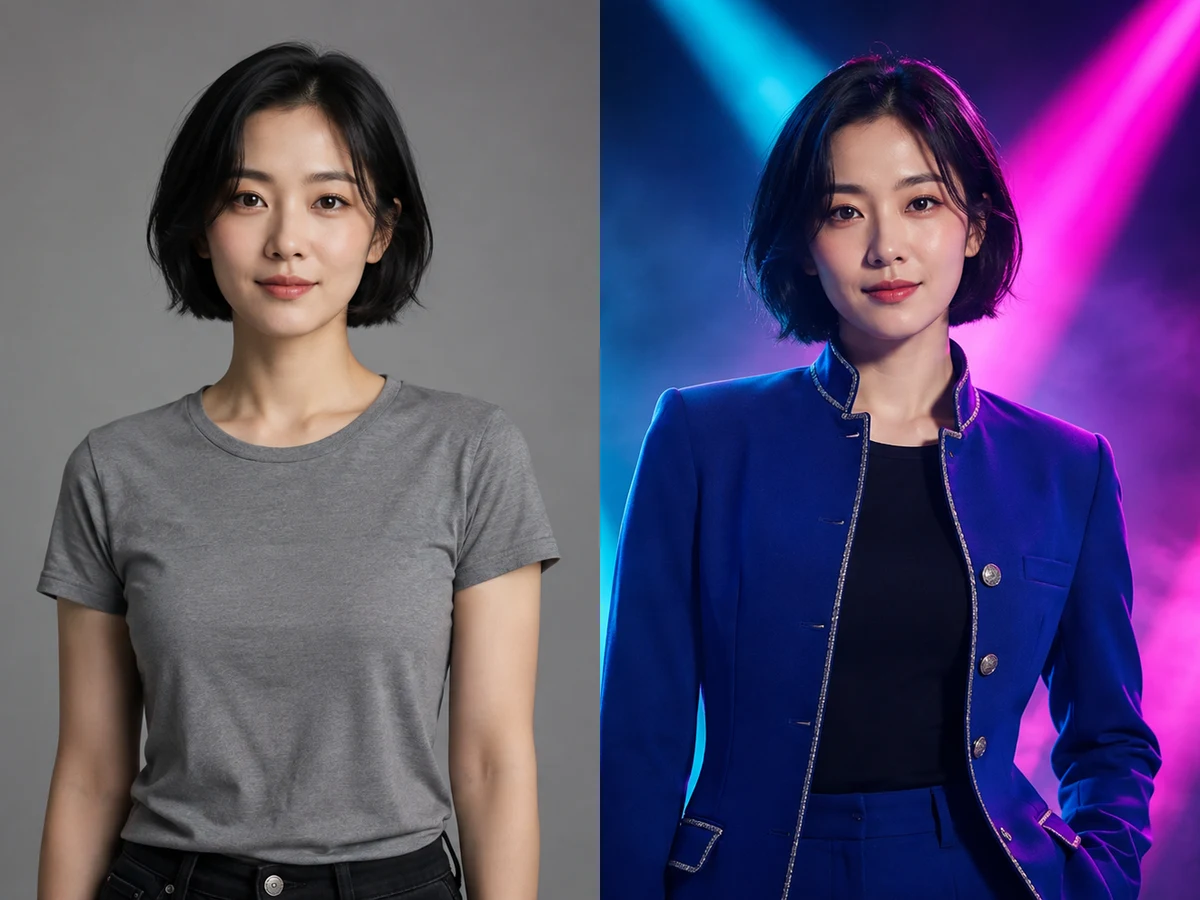
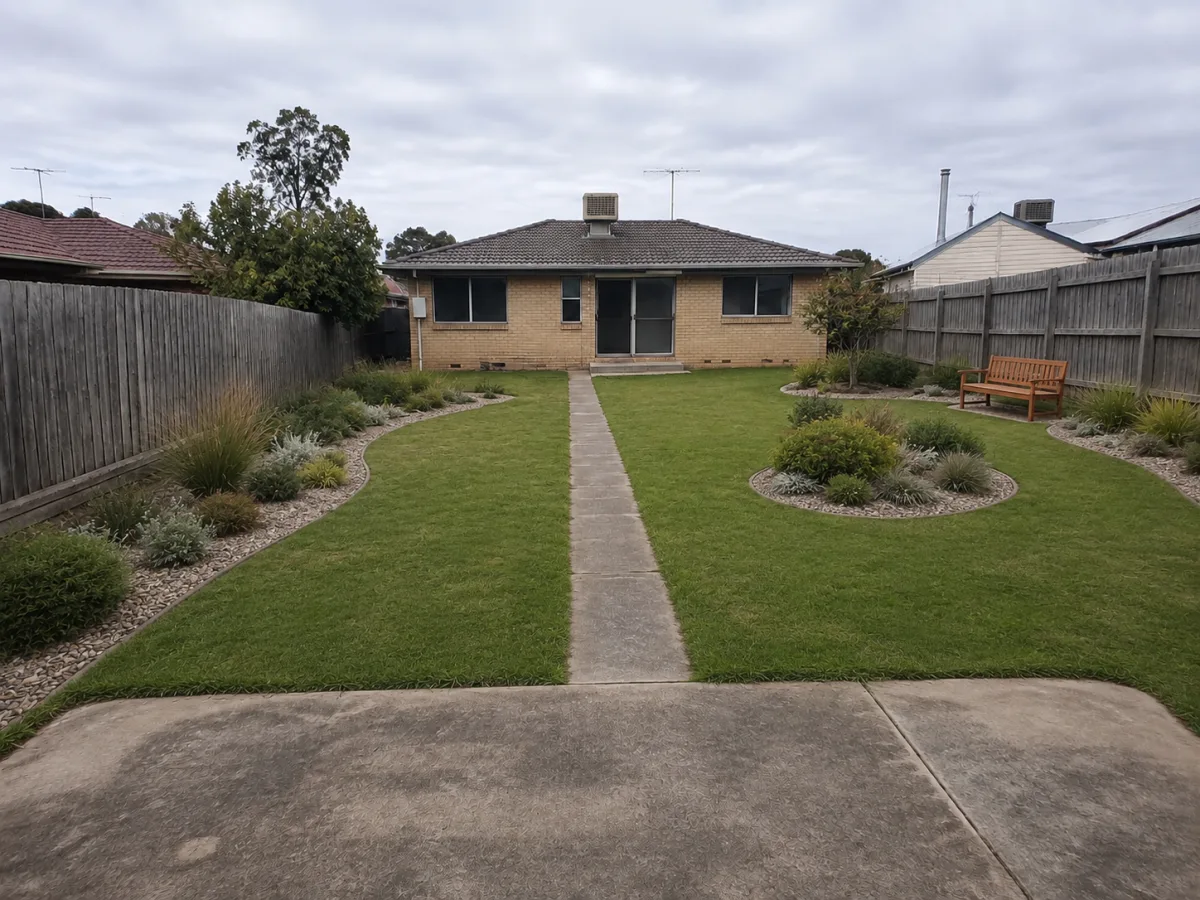
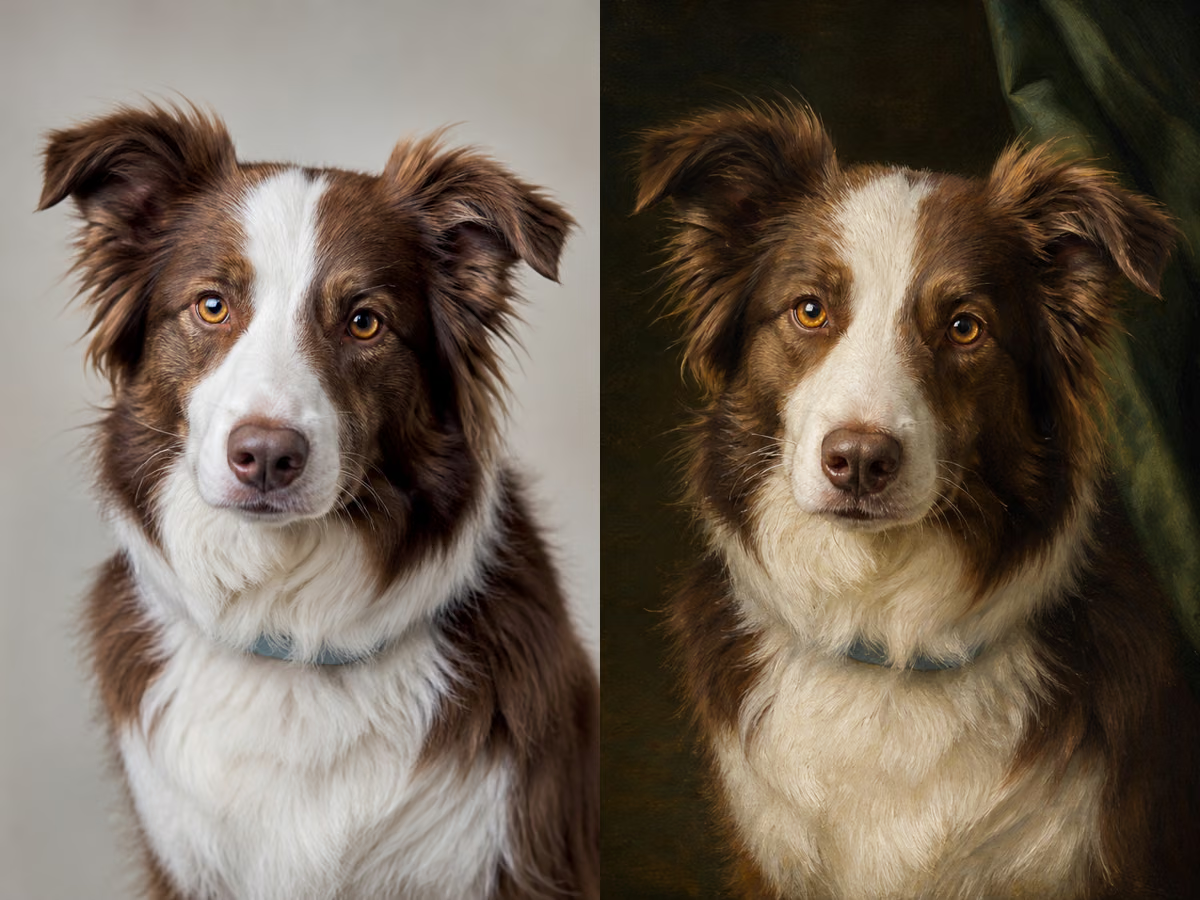
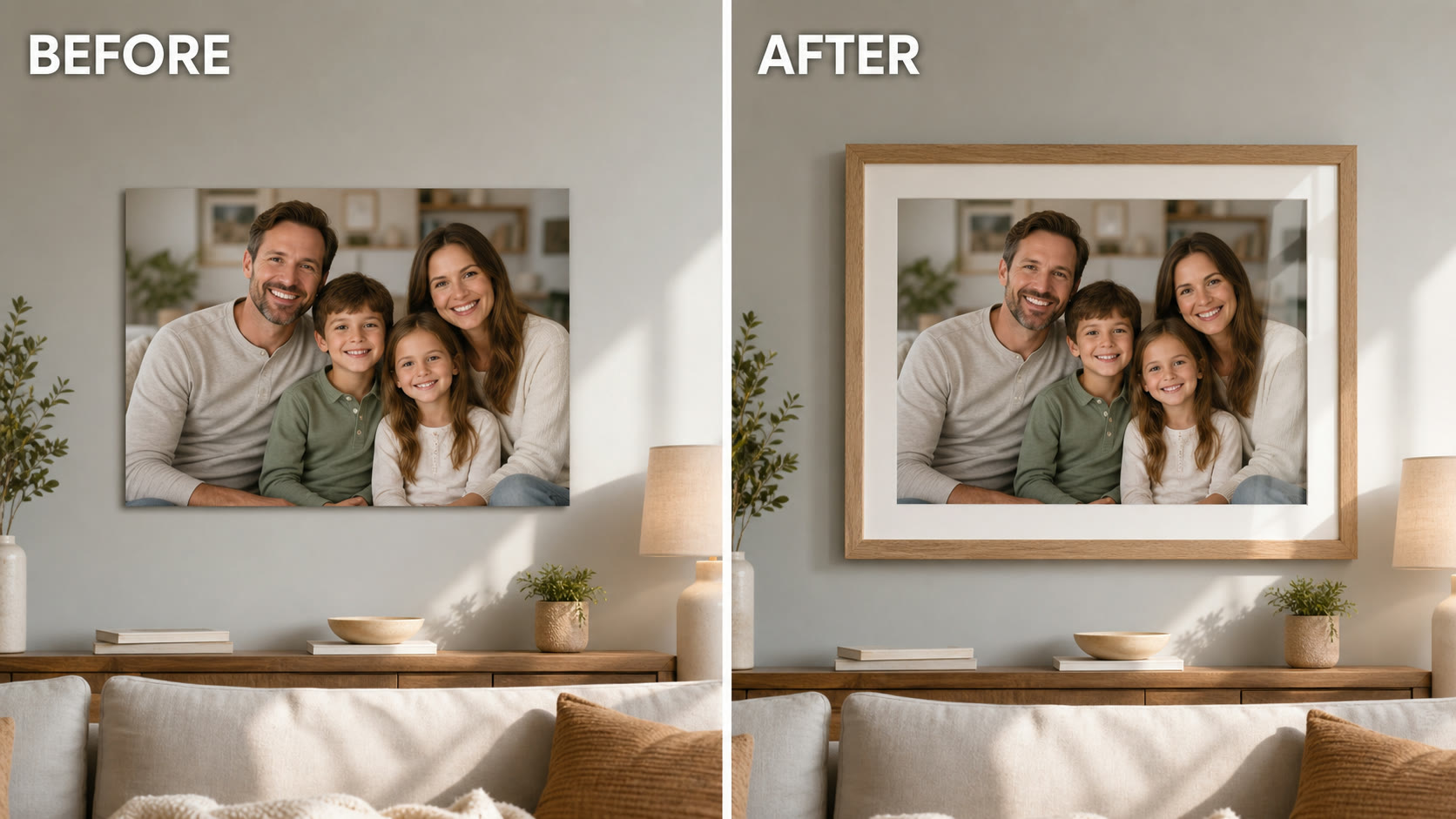
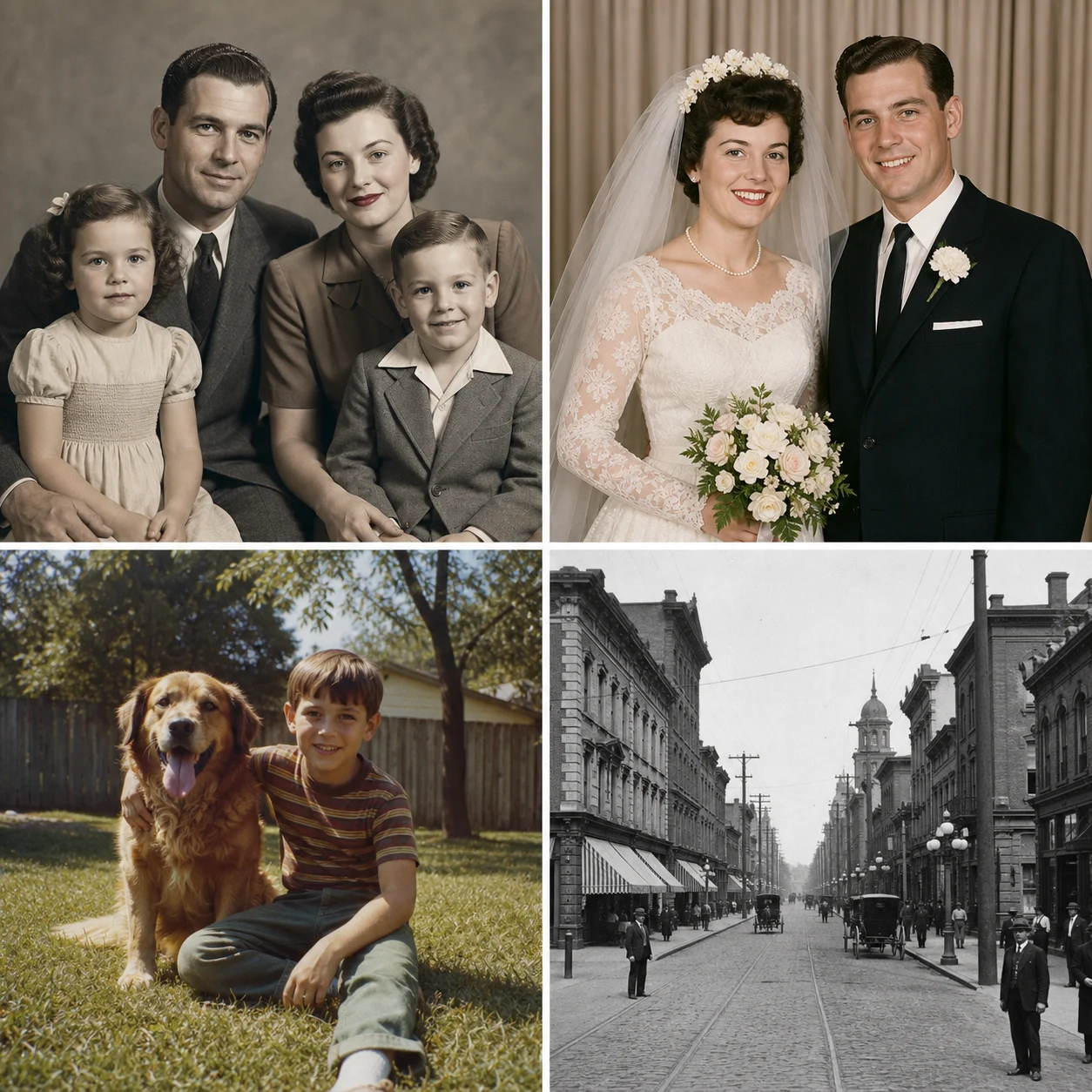
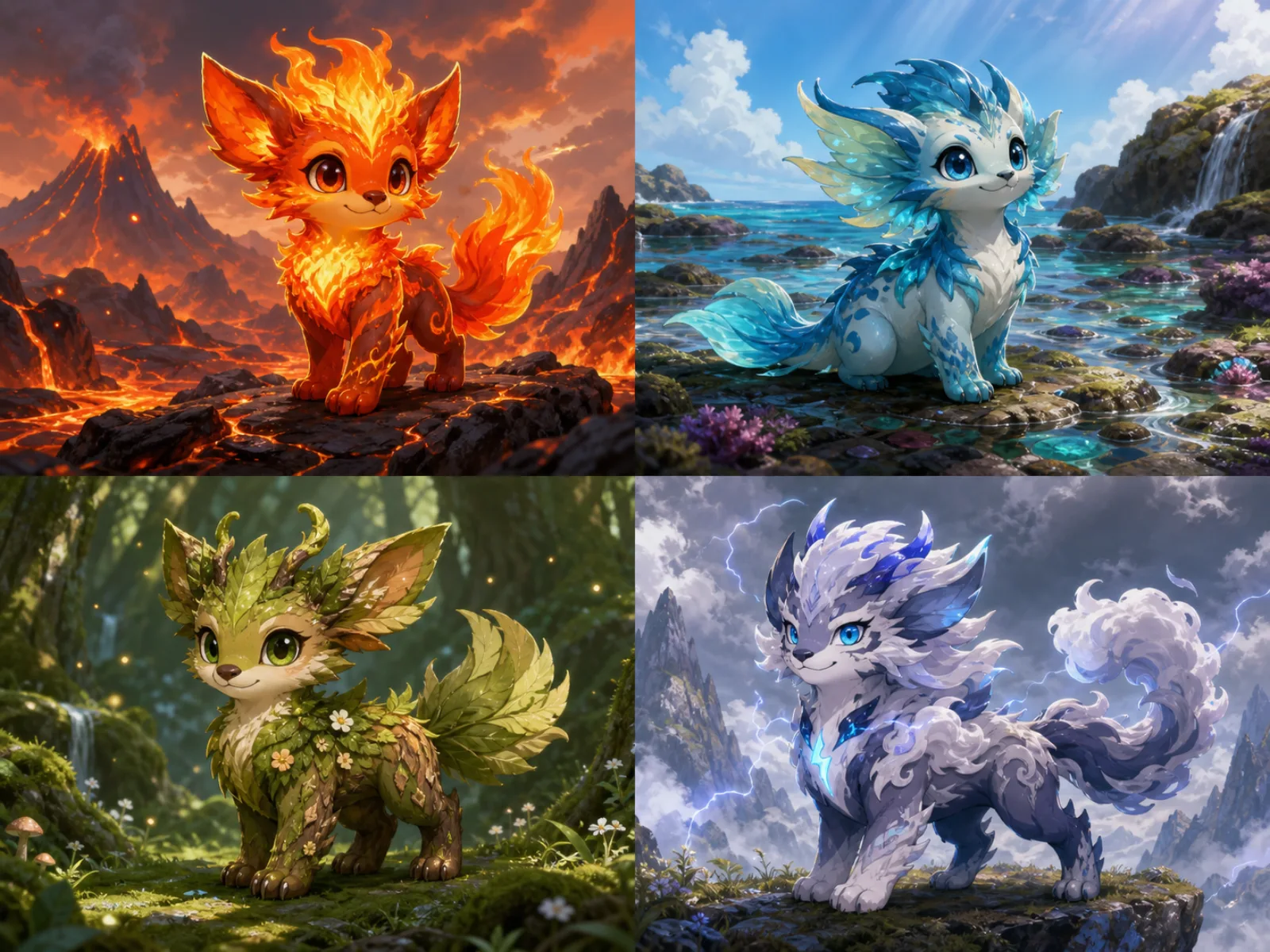





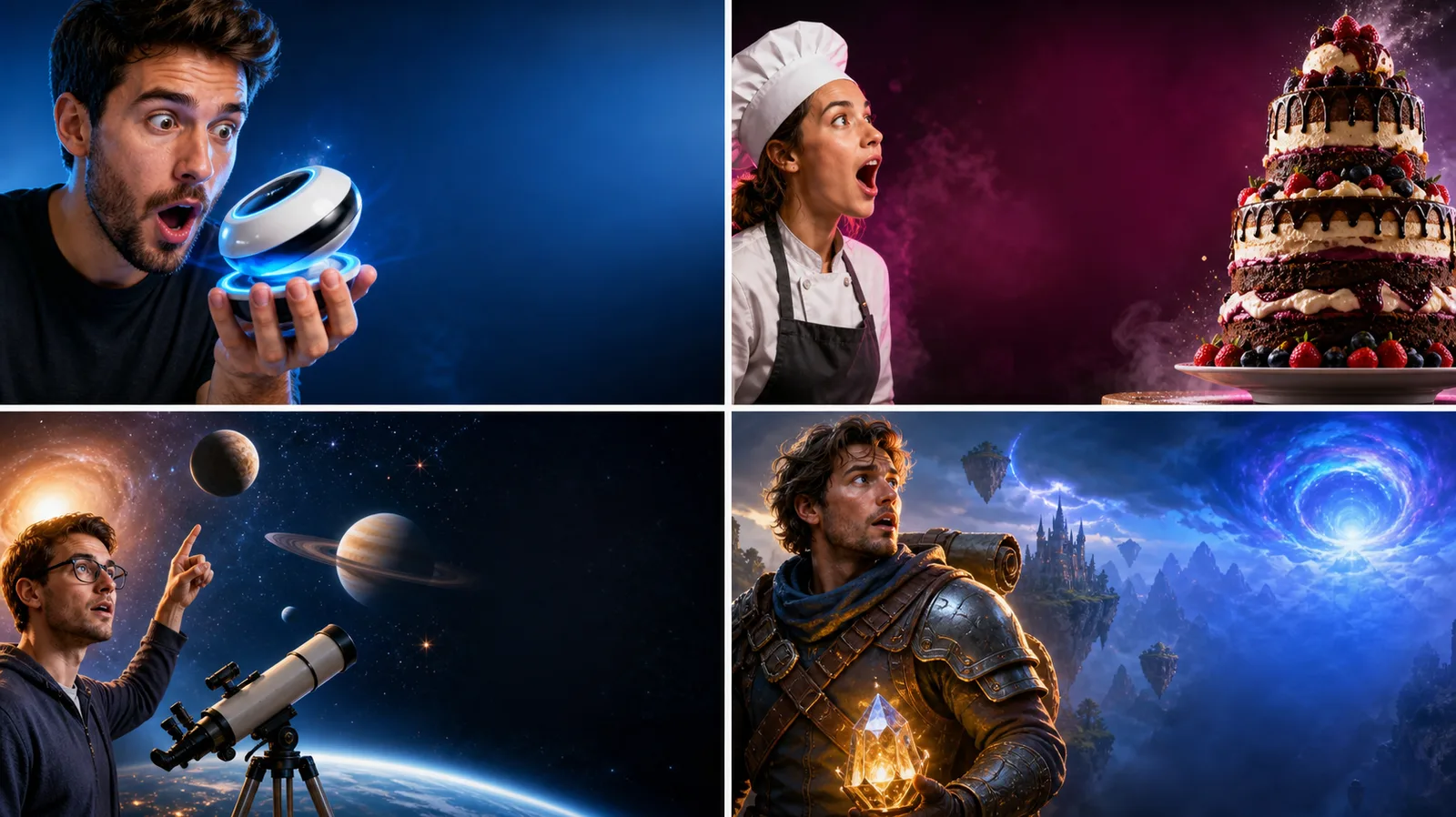
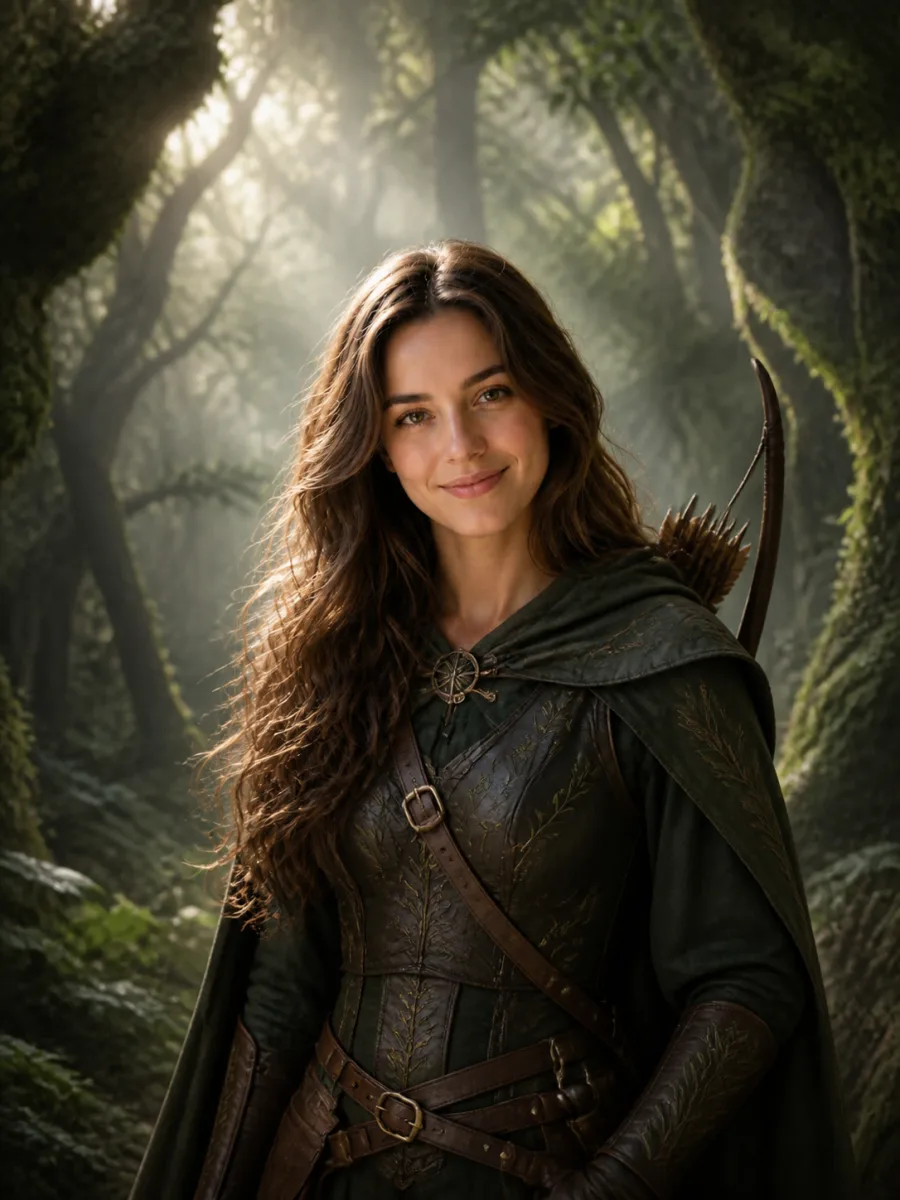
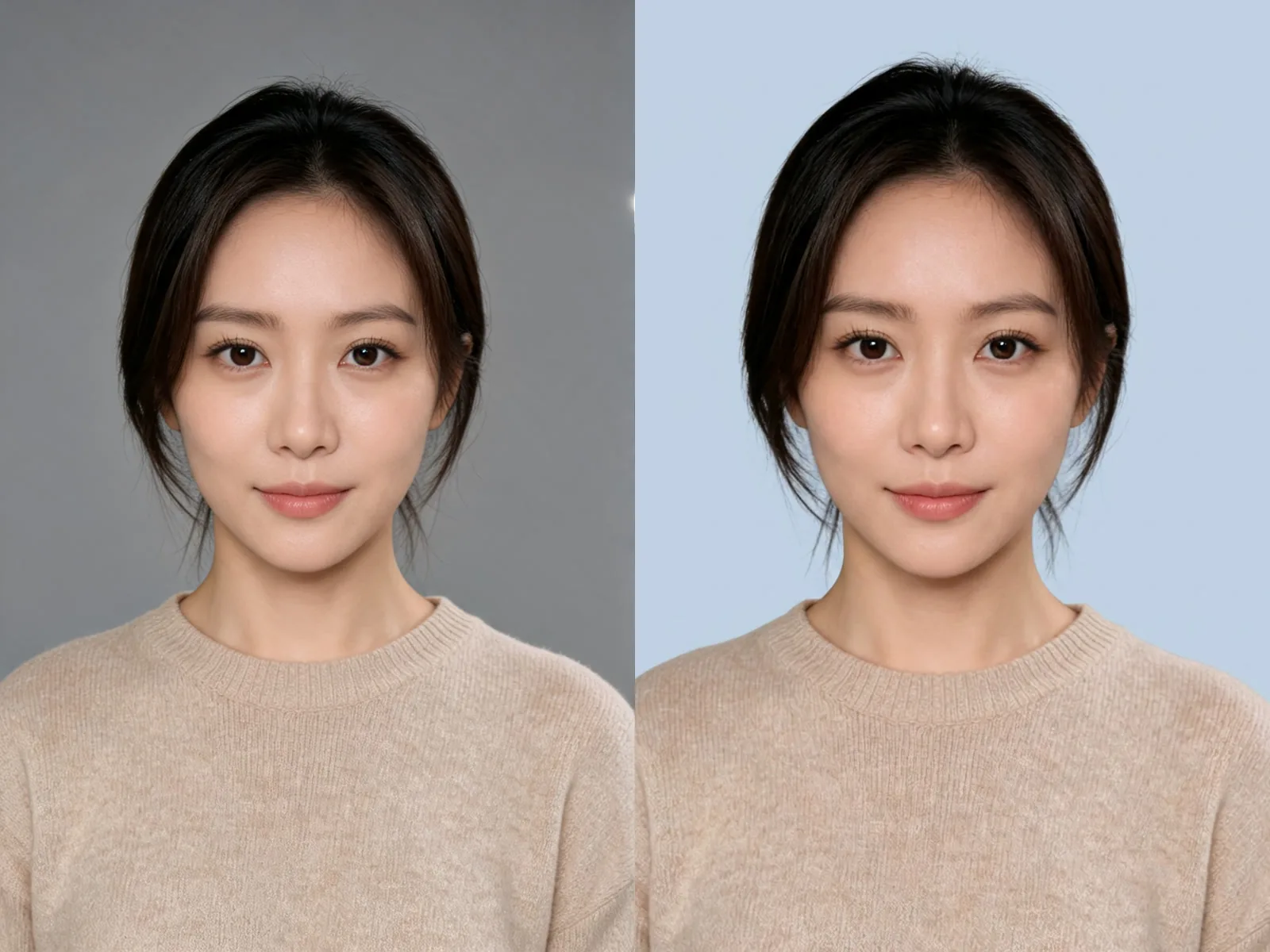
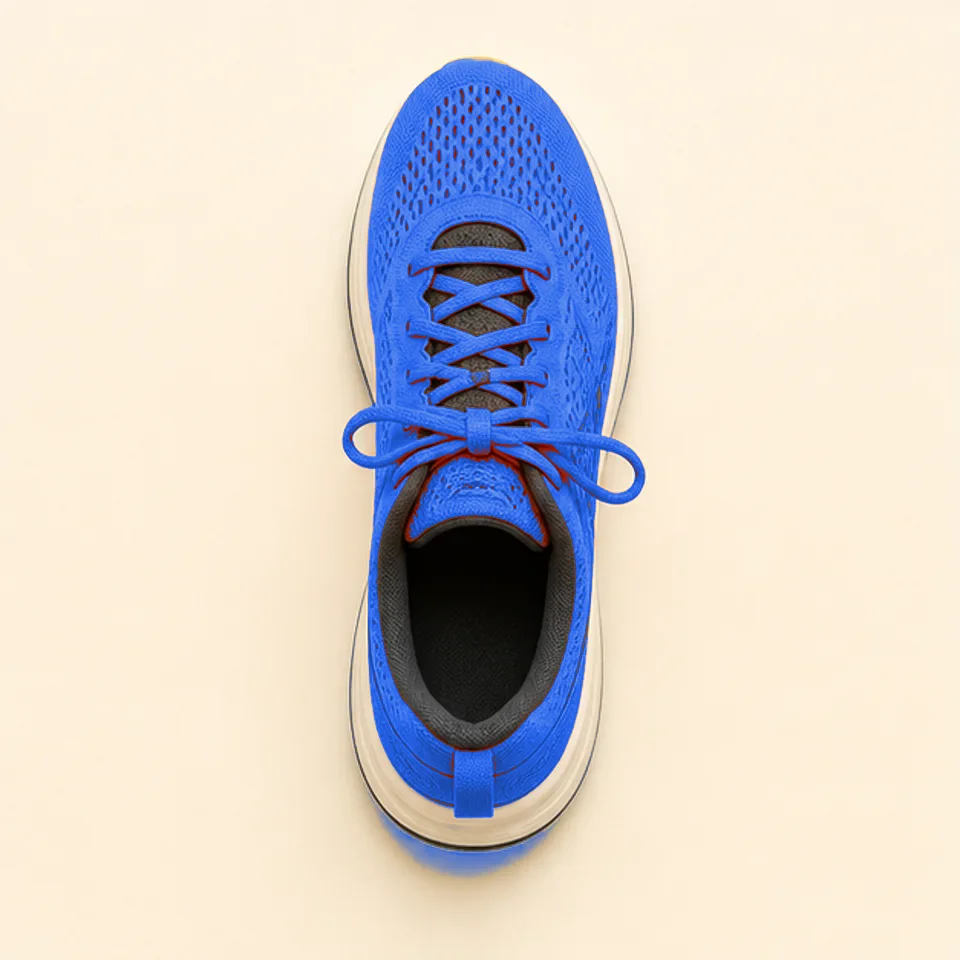

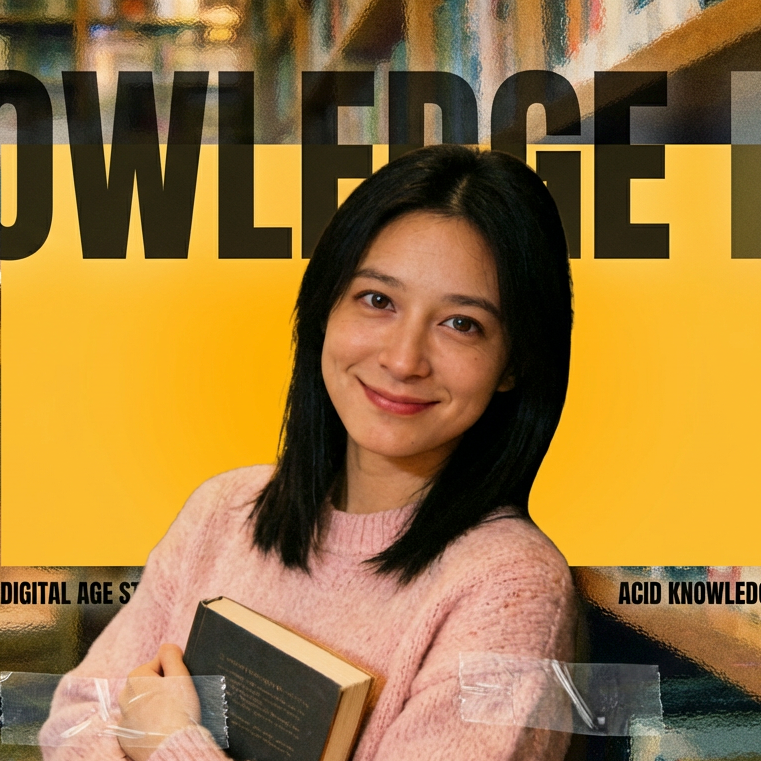
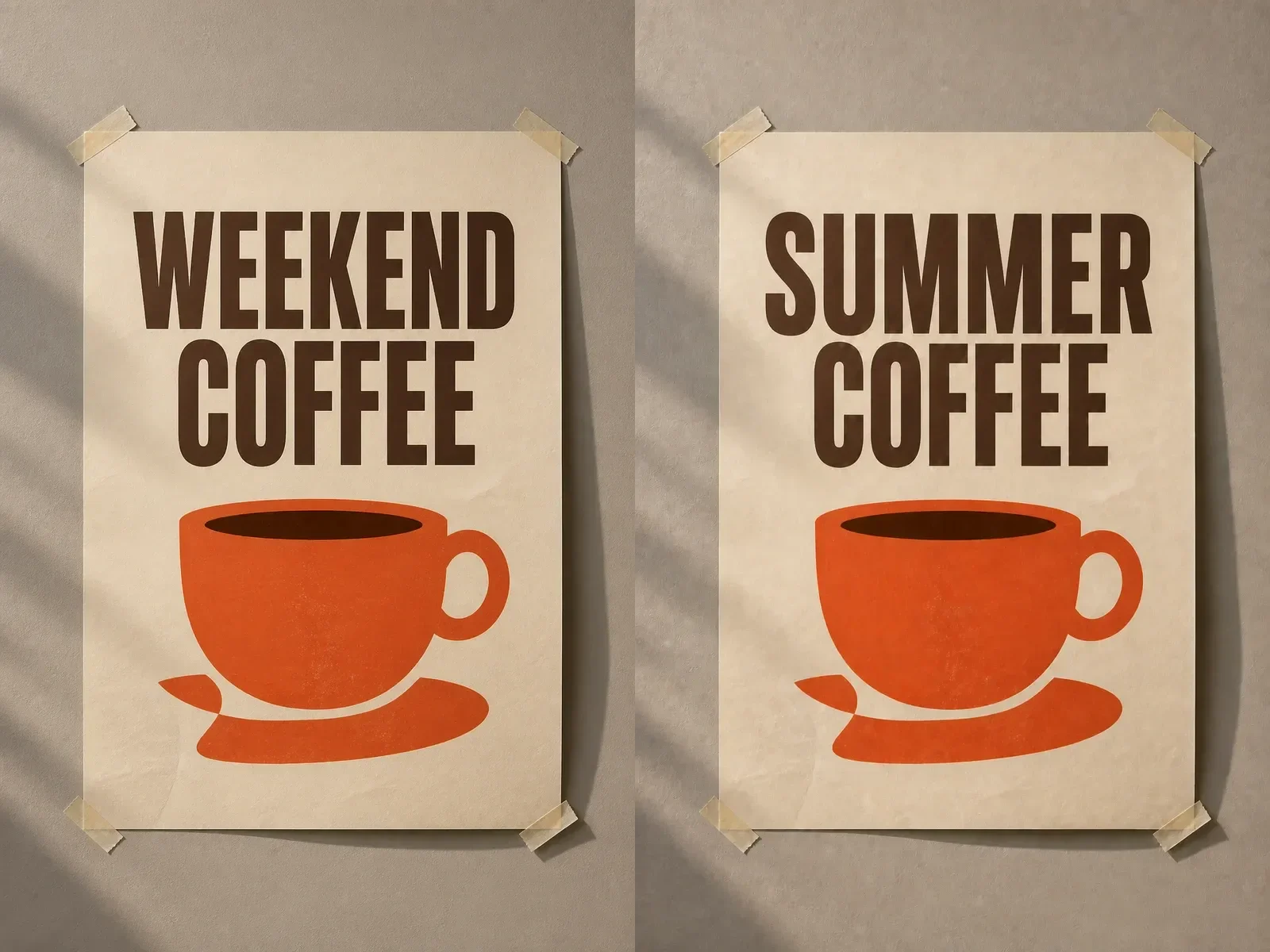
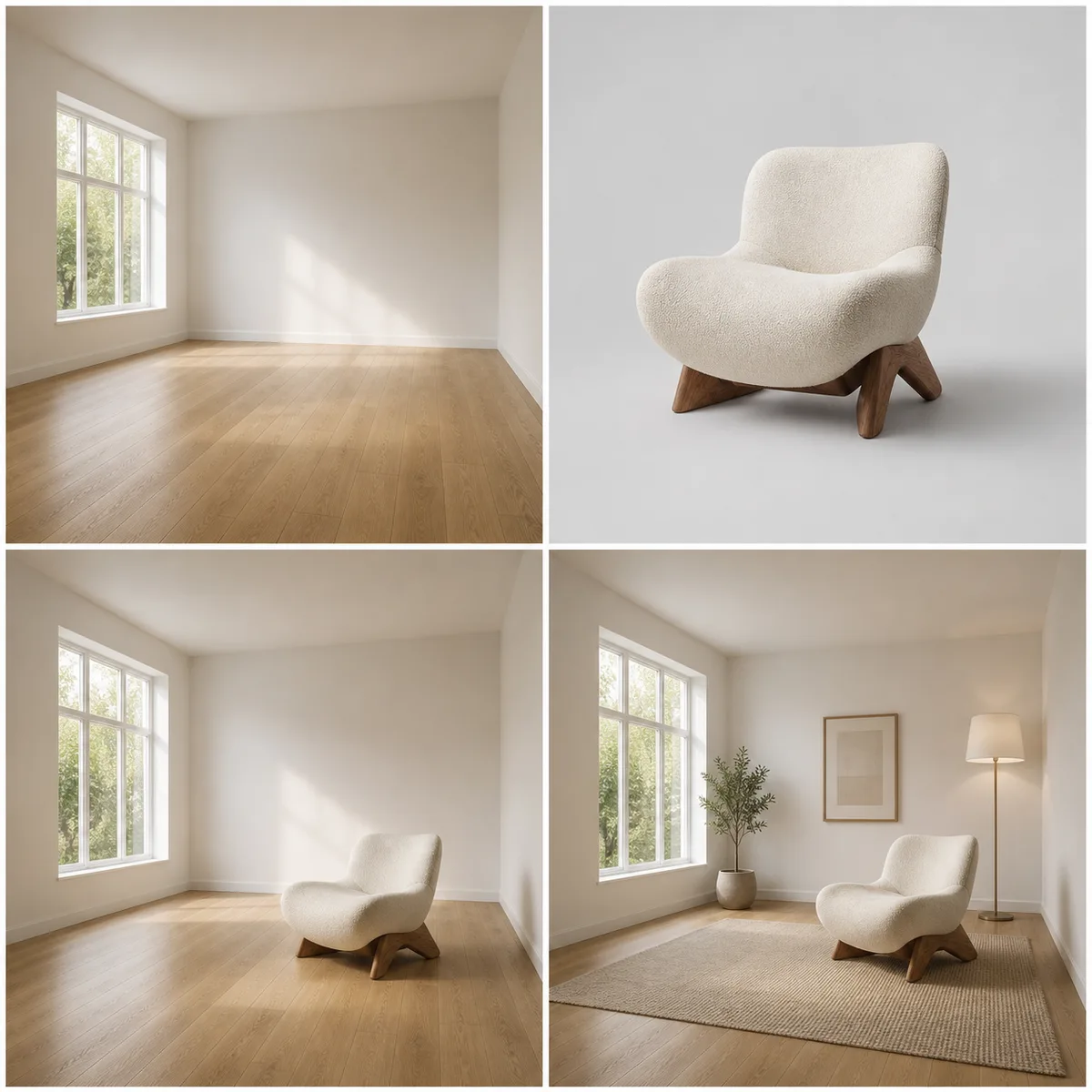
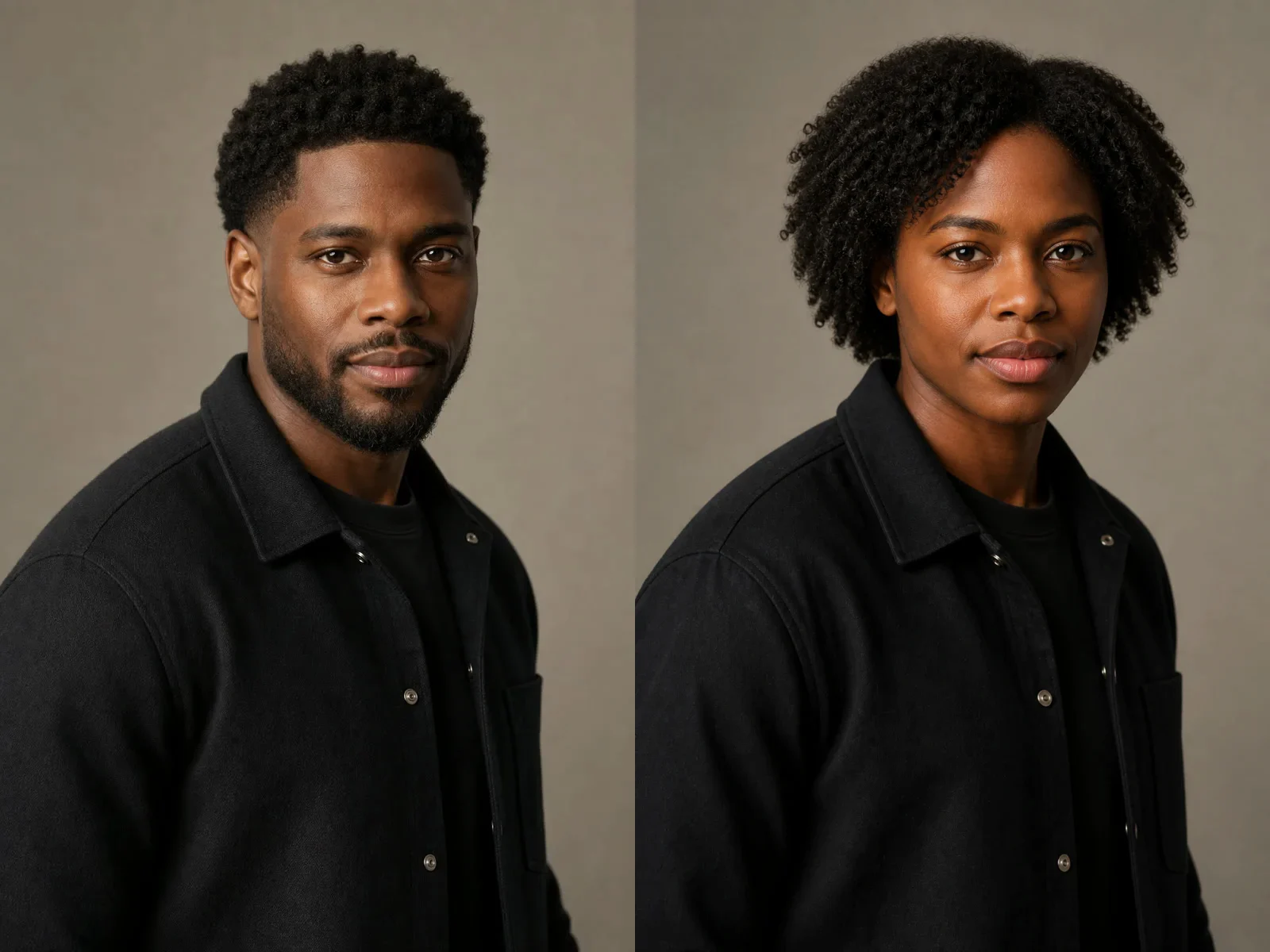
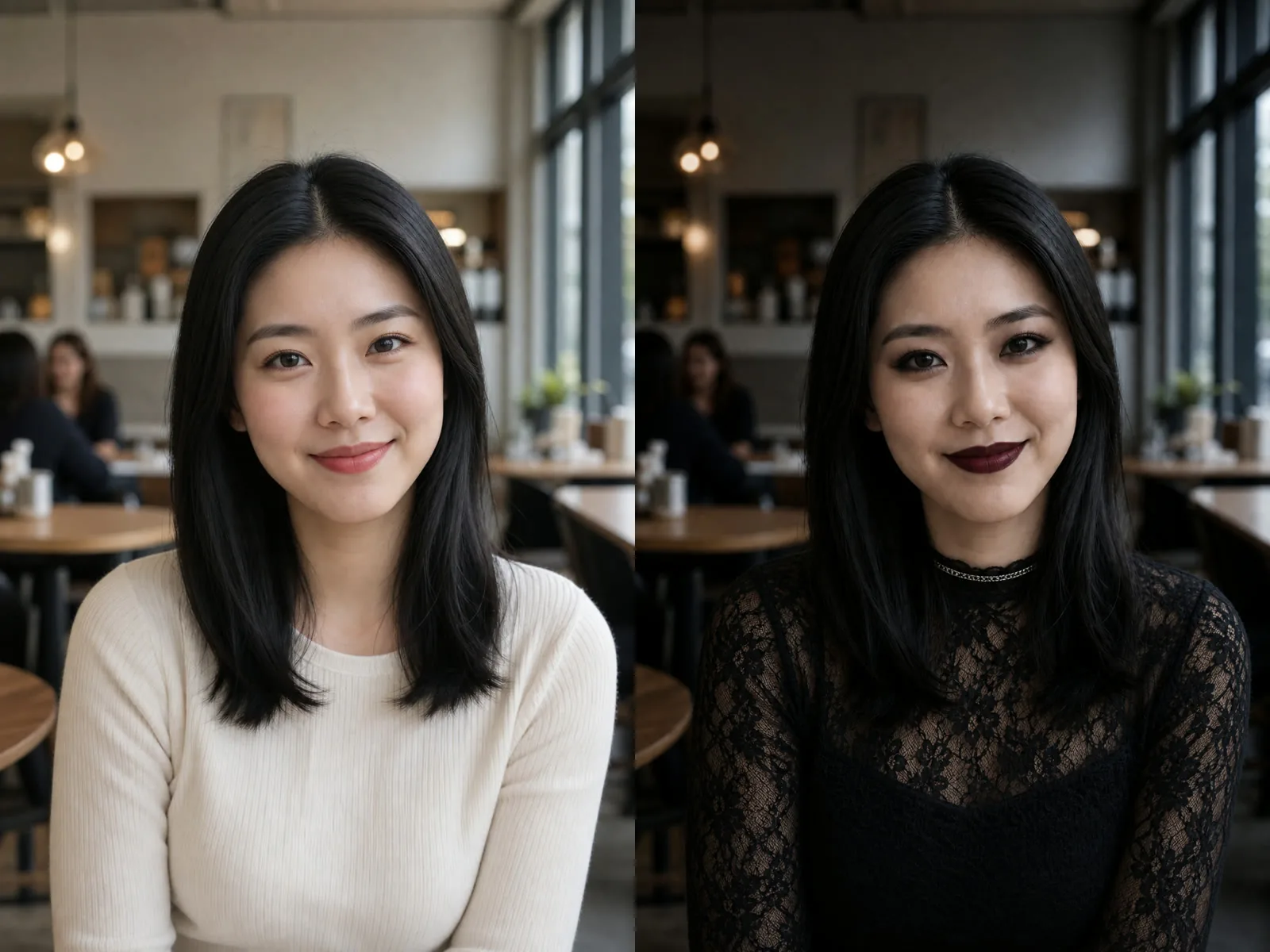
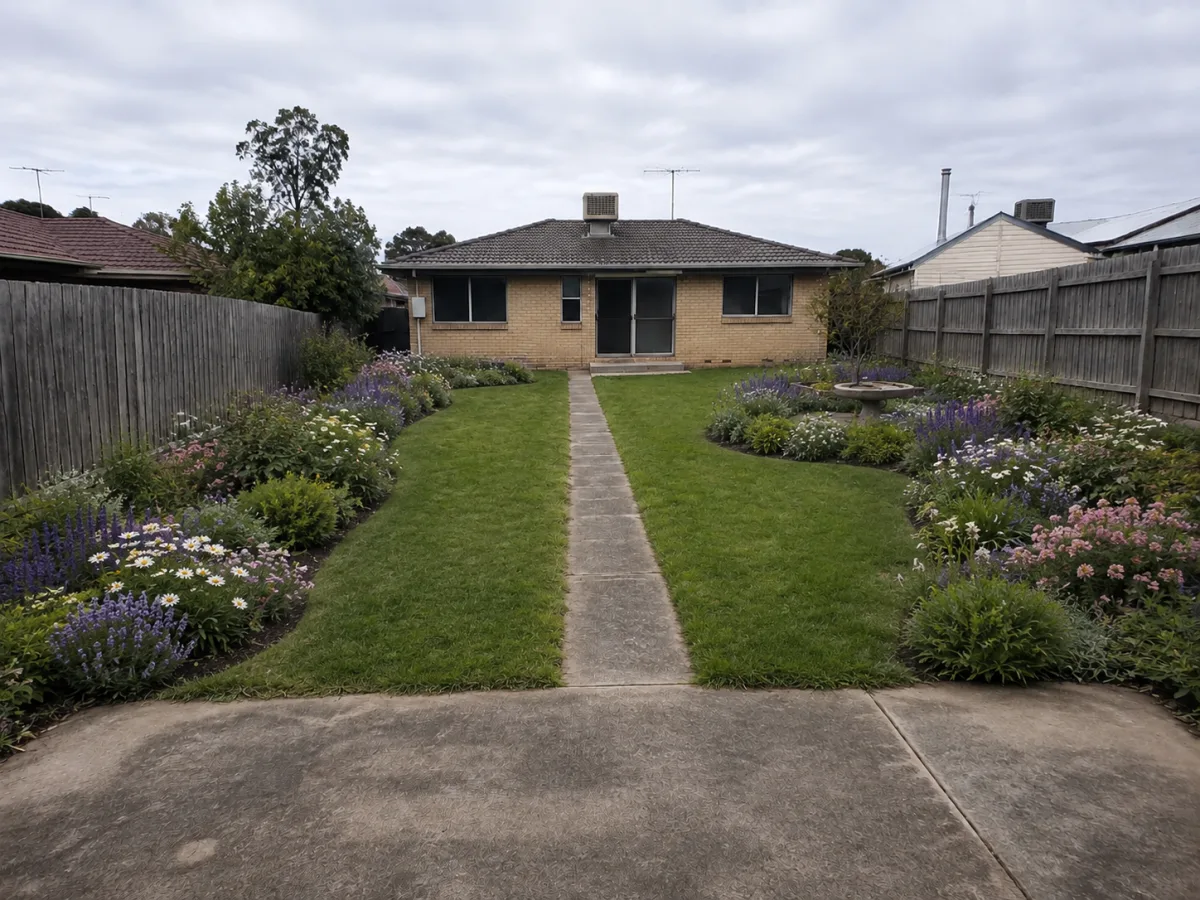
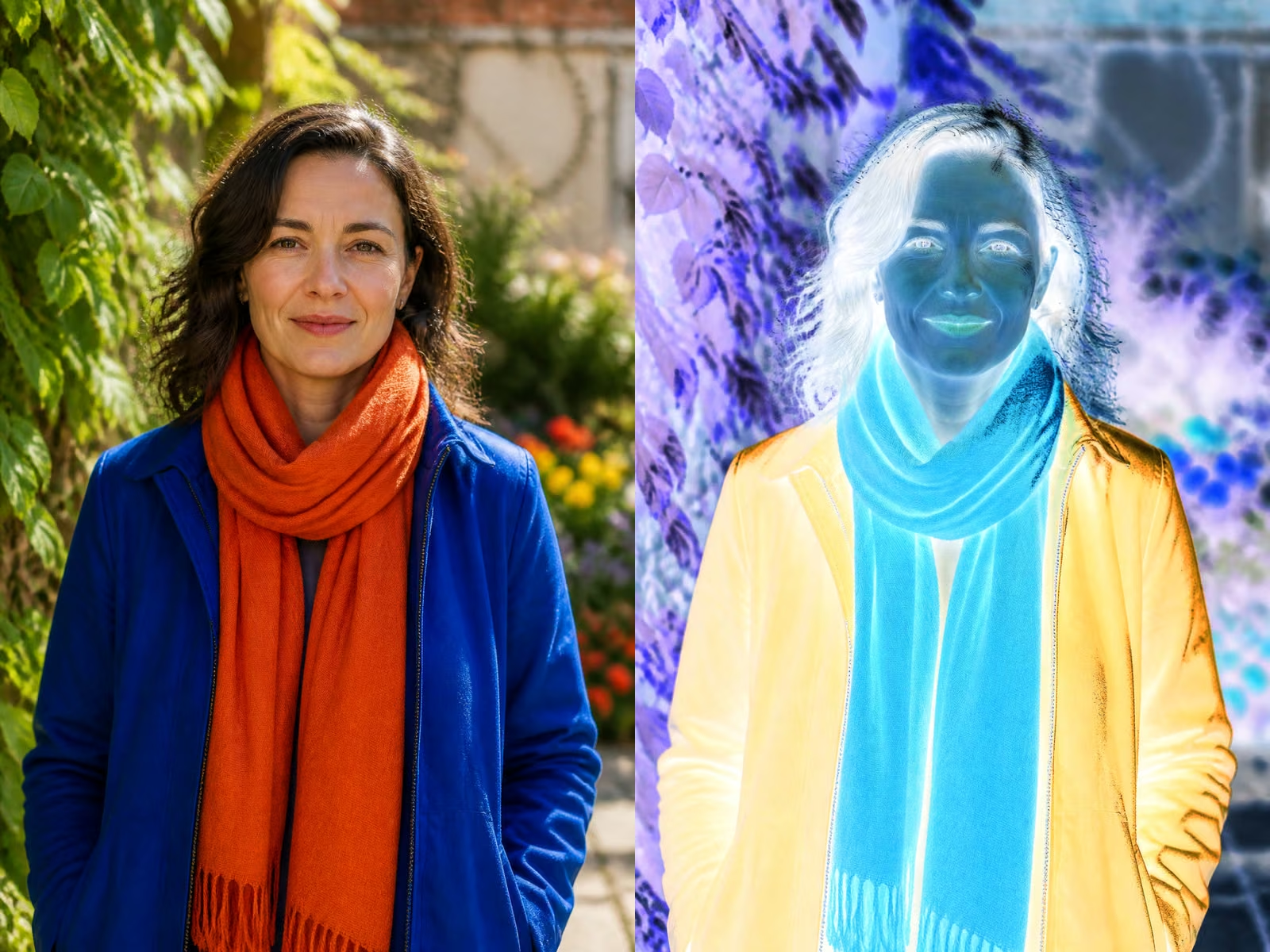
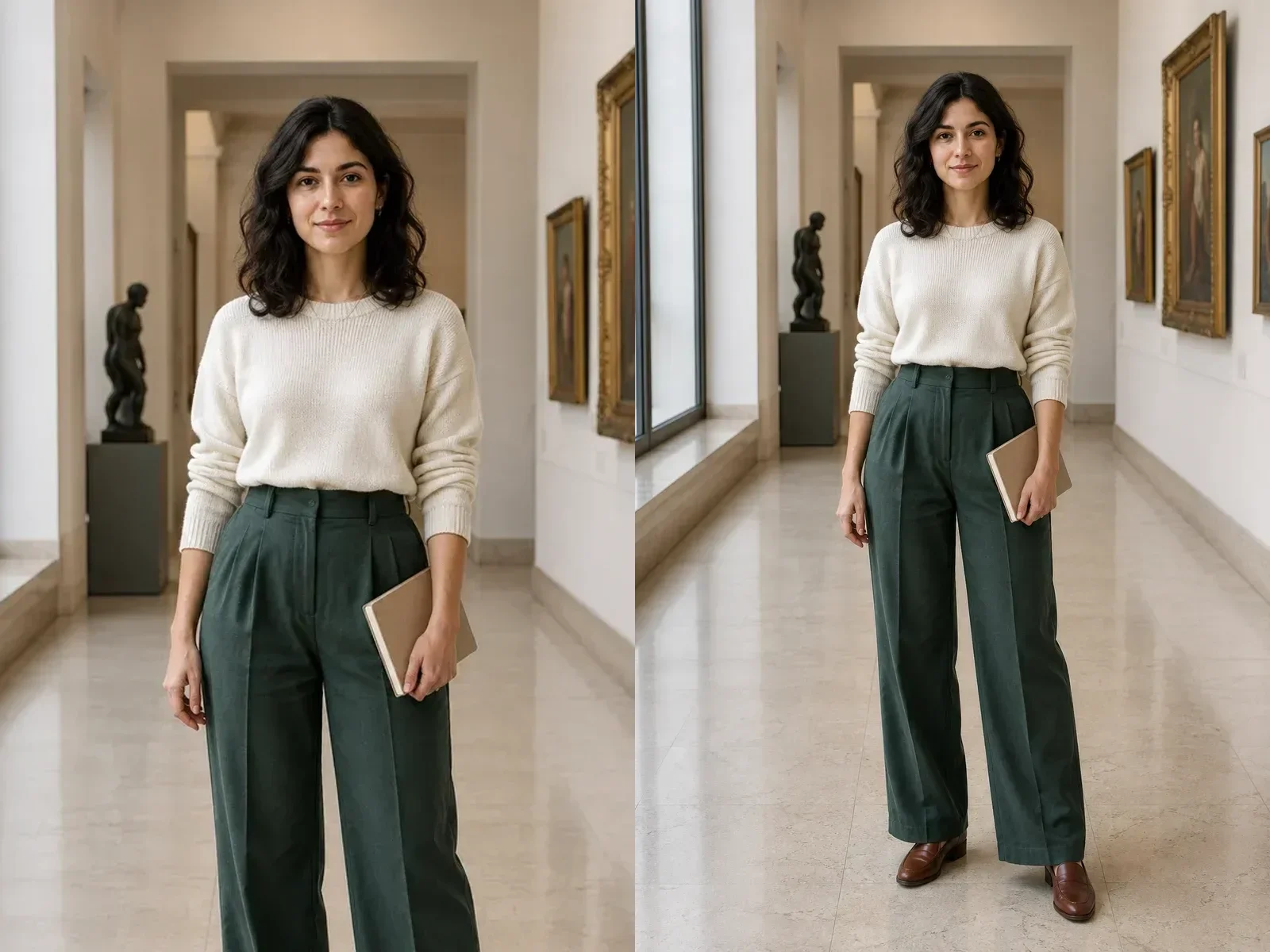

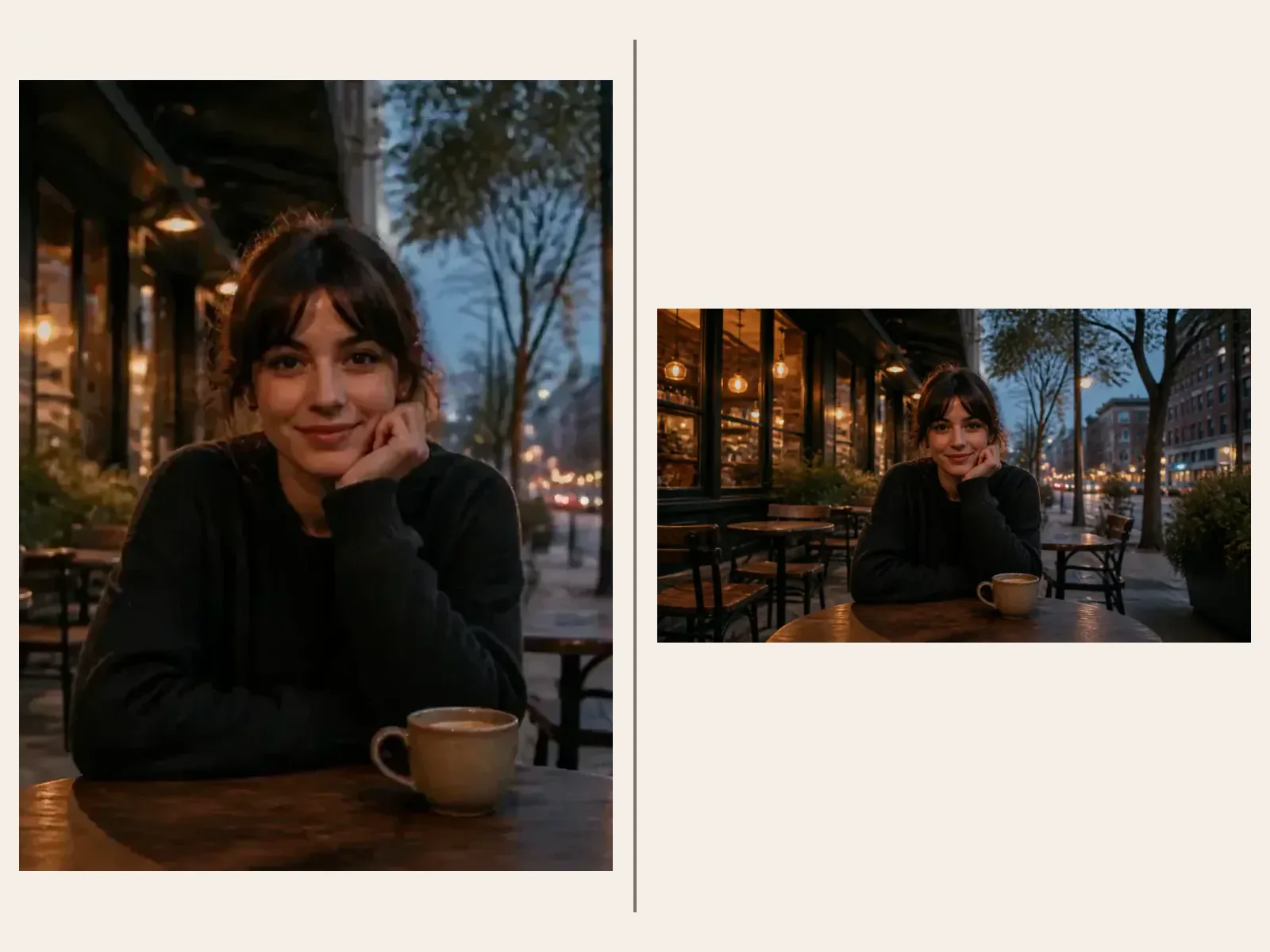

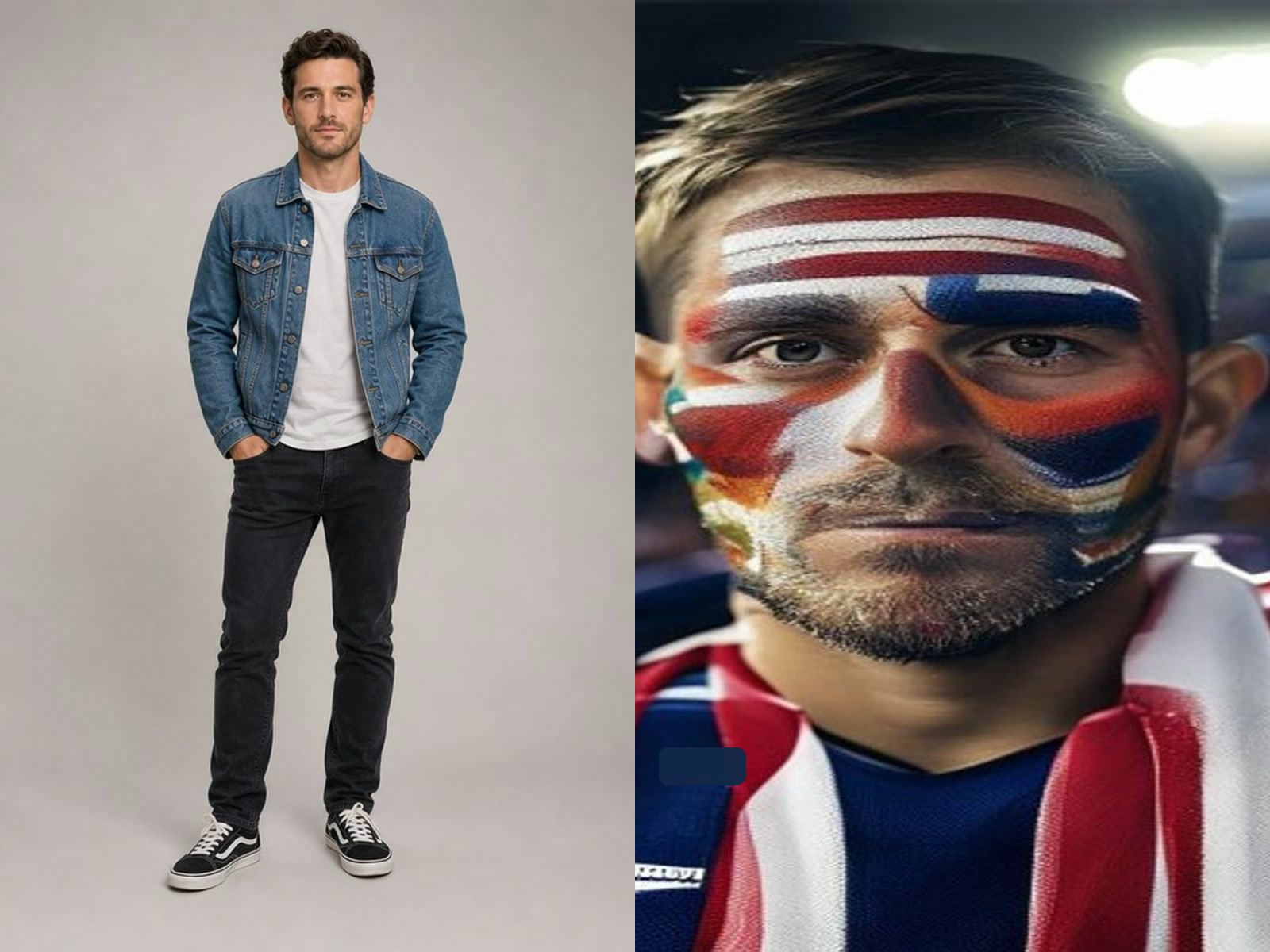
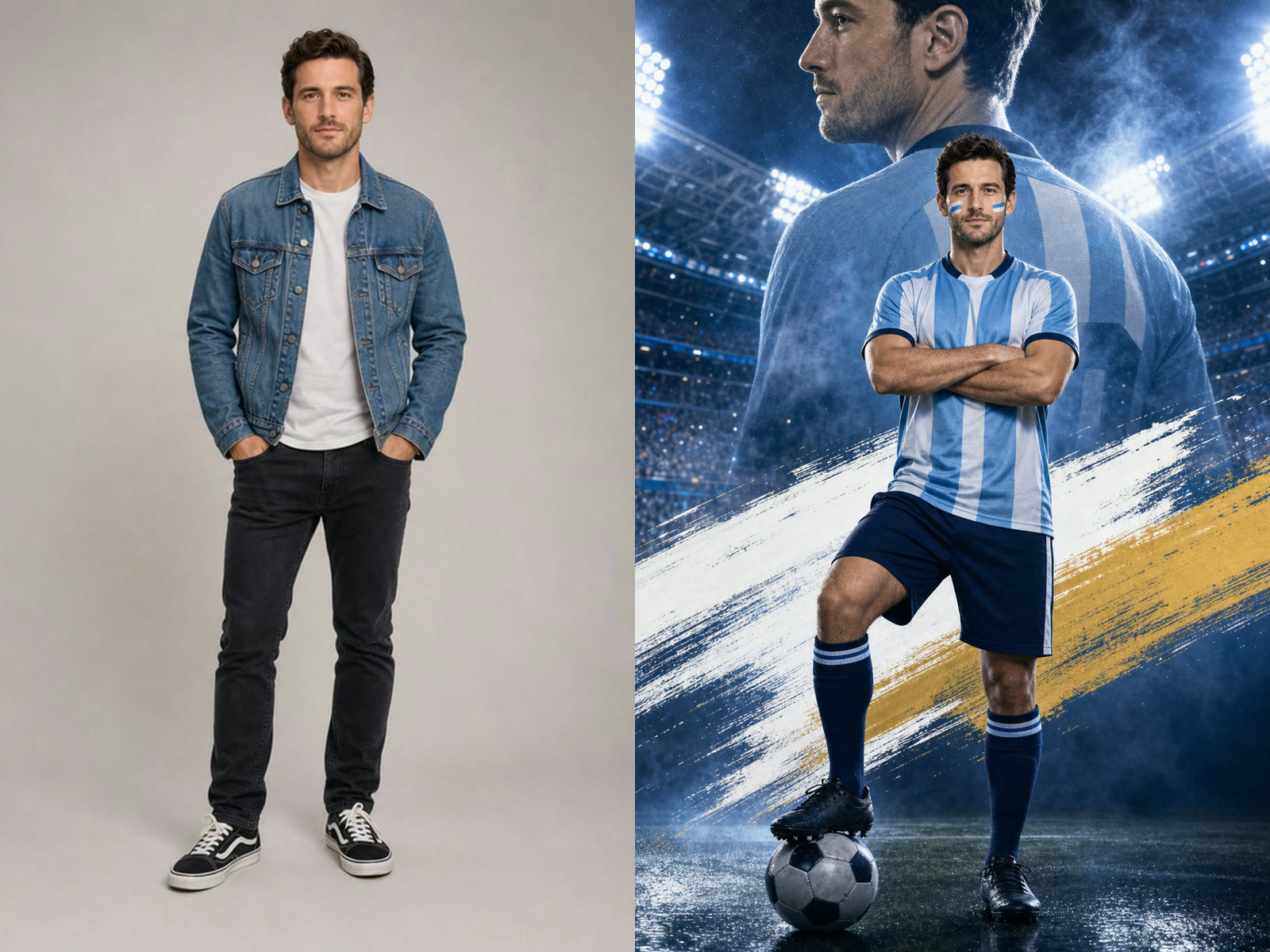

Understand 4K generation versus conventional upscaling
This page uses the GPT Image 2.5 Flare 4K output setting to create a new image from text or perform a generative edit from references. It is not a conventional pixel-preserving upscaler. Image editing may reinterpret faces, text, product details, texture, and background content instead of only increasing the original dimensions. If your goal is to enlarge an existing file while changing as little as possible, use a dedicated super-resolution tool. Here, 4K describes the selected generation output tier; it does not guarantee factual accuracy, perfect identity preservation, print readiness, or authentic extra detail.
Write the prompt from the intended deliverable
Decide whether the image is for a presentation cover, product hero, social poster, editorial illustration, or wide background. That purpose determines subject scale, negative space, aspect ratio, and room for typography. Describe the primary subject, materials, colors, and relationships first. Add camera position, focal hierarchy, lighting, and visual direction. Finish with exclusions. Avoid relying on strings such as ultra HD, masterpiece, or 8K. A 4K setting cannot repair an ambiguous brief. Put verifiable requirements first: product color, number of subjects, space for a headline, and logos or claims that must not appear.
Select a canvas that matches placement before generating
A banner, portrait poster, square product card, and presentation cover use space differently. After selecting the ratio, keep faces, products, and important props within safe areas and leave room for later text or cropping. Changing the ratio can trigger a new composition rather than a simple crop of the same image. The 4K option also does not imply that every unusual ratio works in exactly the same way; treat the current generator controls as the source of truth for supported combinations. When a layout needs exact margins and grids, generate the visual asset first and complete the final composition in a design tool.
Tell reference editing what to change and what to keep
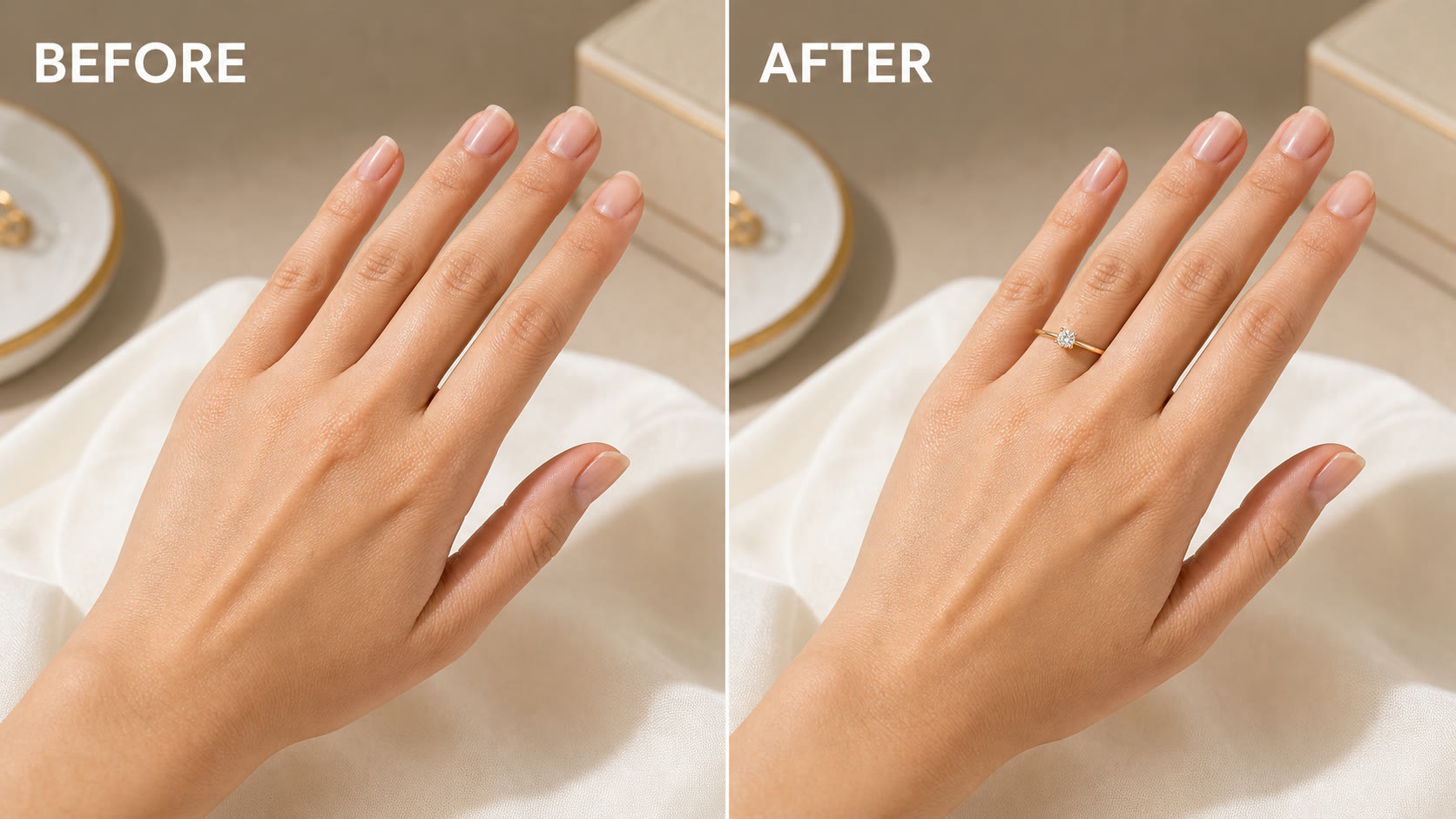
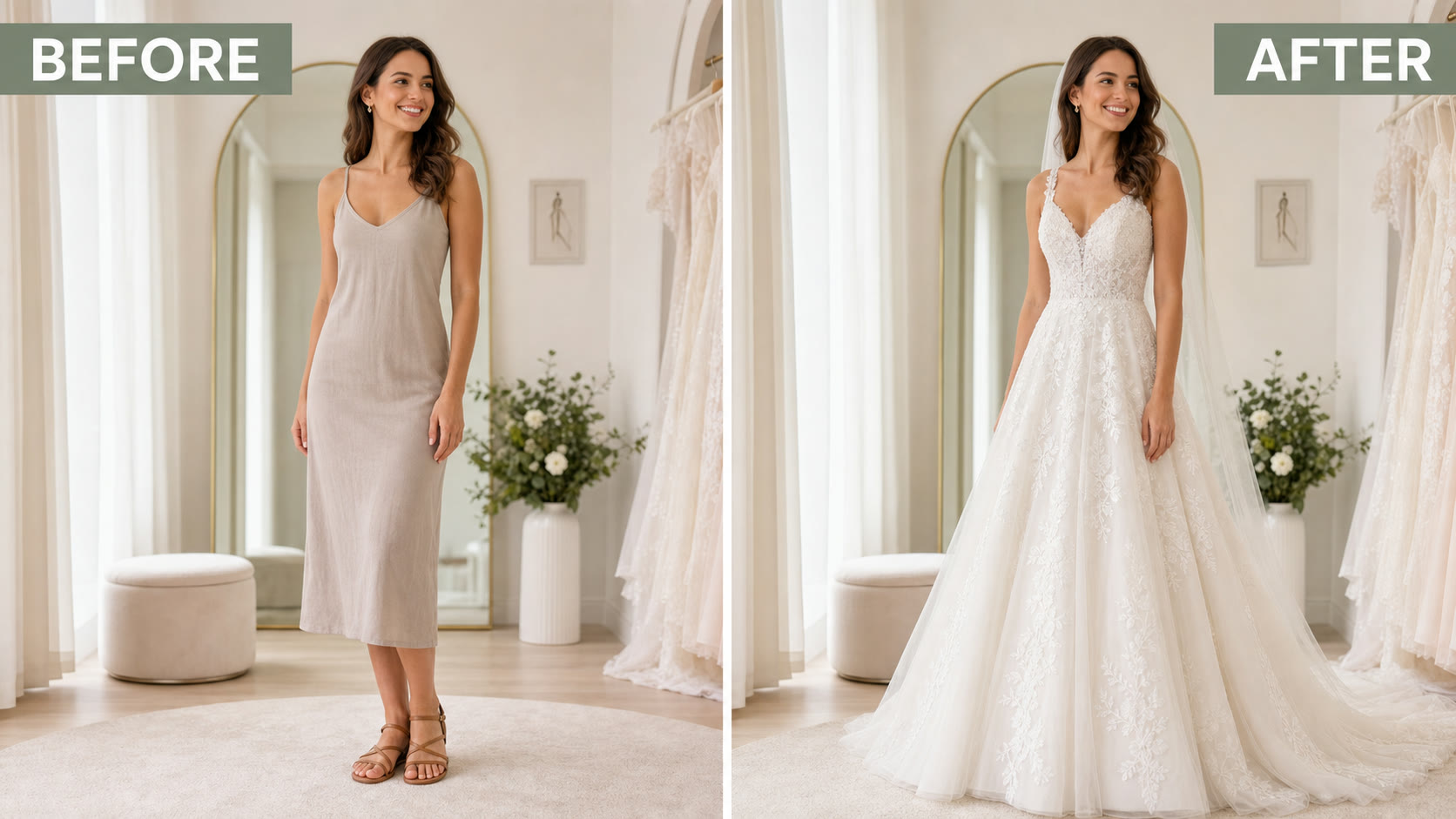
When uploading a reference, name the requested change in one sentence and list the subject, camera, colors, wording, or background relationships that must remain. For example: change the wall to muted sage green while preserving the sofa, floor, window light, and camera position. When several references are supplied, explain the role of each so unrelated details are not mixed accidentally. Generative editing can alter areas you did not request, so compare the entire result with every source. Keep the originals and do not treat the generated edit as documentary evidence or a reversible modification.
Inspect text, faces, hands, and products at full size
An attractive thumbnail does not prove that a 4K file is correct. Open the output and check spelling, dates, logos, faces, fingers, repeated patterns, small accessories, and product construction. Image models can produce plausible but inaccurate wording and facts, while seams and artifacts may become clearer at larger size. For products, do not let a generated scene imply accessories, specifications, certification, or performance that does not exist. If wording must be exact, generate the background without text and add verified copy in a layout editor where typography can be controlled directly.
Do not treat a 4K label as a print specification
Pixel dimensions are only one part of print production. Final physical size, effective PPI, color space, bleed, trim, safe area, substrate, and the print device all affect the result. Place the downloaded image in the final layout, check its effective resolution at the intended size, and ask the printer for current requirements. The generator does not automatically provide CMYK proofing, vector paths, or print clearance. For transparent edges, inspect the image over light and dark backgrounds for halos, missing fine detail, and areas that should remain translucent. Never promise professional print quality from the 4K label alone.
Iterate one requirement at a time
When a result is close, change one major issue per request: add headline space, correct the subject color, remove background props, or preserve the reference structure more strongly. Repeat the important preservation instructions and compare against the same checklist. Adding many conflicting demands at once makes it difficult to understand the next result. Record the prompt, role of each reference, aspect ratio, model, and accepted output. If the project needs pixel-level repeatability, technical measurements, or exact brand layout, move to conventional editing, CAD, or design software rather than assuming more generations will create deterministic control.
Know the work this page is and is not suited for
The workflow suits high-resolution concepts, campaign visuals, product-scene drafts, presentation illustrations, and carefully reviewed reference edits. It is not suitable as proof of a real event, medical or legal evidence, an automatic technical drawing system, a guarantee of identity consistency, or a content-preserving enlargement of an old photo. Use only references you are authorized to process and avoid unnecessary private information. Check rights, facts, and platform policies before publication. A polished result is not automatically truthful, exclusive, or commercially cleared.
Use 4K when the final placement benefits from more pixels
Higher-resolution generation is most useful when a reviewed image must fill a larger digital placement, survive a moderate crop, or enter a layout that needs more pixel area. It is not automatically the best first draft. Resolve subject, composition, wording, and factual problems at a lower or less costly setting when appropriate, then choose 4K for the accepted direction. This reduces waste and makes review easier. Do not generate private or sensitive references merely because the output setting is larger. The same consent, privacy, and rights rules apply at every resolution.
Compare generative editing with super-resolution
Super-resolution attempts to enlarge an existing image while preserving content, sometimes reconstructing texture conservatively. Generative editing follows instructions and can deliberately or accidentally change content. Choose between them based on the required tolerance for change. An old family photograph, medical image, evidence photo, scanned artwork, or exact product shot may need restoration or content-preserving enhancement rather than a generative rewrite. A creative campaign image may benefit from broad edits. Write down which pixels or facts must remain trustworthy before choosing the workflow. If preservation is essential, do not use a generative result as the only copy.
Manage file size and downstream delivery
A 4K image contains more pixels and may produce a larger file, but encoding, transparency, and image complexity also affect size. Keep the full reviewed download as a source, then create web derivatives in modern formats and dimensions suited to each placement. Do not serve a large original to every mobile visitor merely because it exists. Preserve alt text, dimensions, responsive sources, and lazy loading where appropriate. For collaboration, identify the source file and exported derivative clearly. Repeatedly re-saving lossy formats can degrade edges and text, so avoid using a compressed derivative as the next editing reference.
Record model and settings for reproducible review
Save the selected model, scene, resolution, background, aspect ratio, prompt, reference roles, and accepted output identifier. Generative systems are nondeterministic, so the same prompt may not reproduce an identical image later, but the record still explains the creative decision and helps diagnose changes. If a model or route changes, compare against the accepted asset rather than assuming the name guarantees the same behavior. For regulated, factual, or brand-critical work, maintain an approval log that identifies who reviewed content, rights, claims, spelling, and final placement.
Create web-ready derivatives without discarding the reviewed master
After approving a 4K result, keep that reviewed file as the master and create smaller derivatives for actual delivery. A card, article image, social preview, and full-width hero usually need different dimensions and compression. Crop deliberately rather than relying on a browser to hide important edges. Compare the derivative with the master for text, faces, fine lines, transparency, and color changes introduced by encoding. Use responsive image sources so a phone does not download the desktop master when a smaller file is sufficient. Record width and height to prevent layout shift, write useful alternative text, and avoid placing essential wording only inside the image. If a platform recompresses uploads, inspect the published copy as well as the local export. Keep naming and version information clear so teammates know which file passed review. This downstream work is separate from generation, but it determines whether the extra resolution improves the user experience or simply increases transfer size and storage. A disciplined derivative workflow gets value from the 4K source while preserving performance and review evidence. Confirm that the derivative still communicates the same factual and visual message at its real display size before replacing the previously approved asset.
4K Image Generator FAQ
Answers about 4K output, upscaling, references, printing, credits, and accuracy.
Is this a conventional image upscaler?
No. This page performs generative creation or editing and may reinterpret content. Use dedicated super-resolution when the goal is content-preserving enlargement.
Does 4K guarantee a more accurate image?
No. Check words, faces, hands, product details, and facts. An output tier cannot repair an ambiguous brief.
Can I upload and edit an image?
Yes. Switch to image mode, use an authorized reference, and state what should change and what must remain.
Is a 4K result automatically ready for print?
No. Check final size, effective PPI, color, bleed, trim, and the printer’s current requirements.
Which model does this page use?
The page defaults to GPT Image 2.5 Flare with resolution set to 4K. Treat the live controls as the source of truth.
How many credits does a request use?
After sign-in, the generator shows the live cost for the selected model, scene, resolution, and options. Review it before submitting.
Create and Review a 4K Image
Write the deliverable and verifiable requirements first, then inspect the full-size file after generation.