






Save up to 73% on plans

AI Cheek Pinch Video Generator
Sign In

AI Cheek Pinch Video Generator

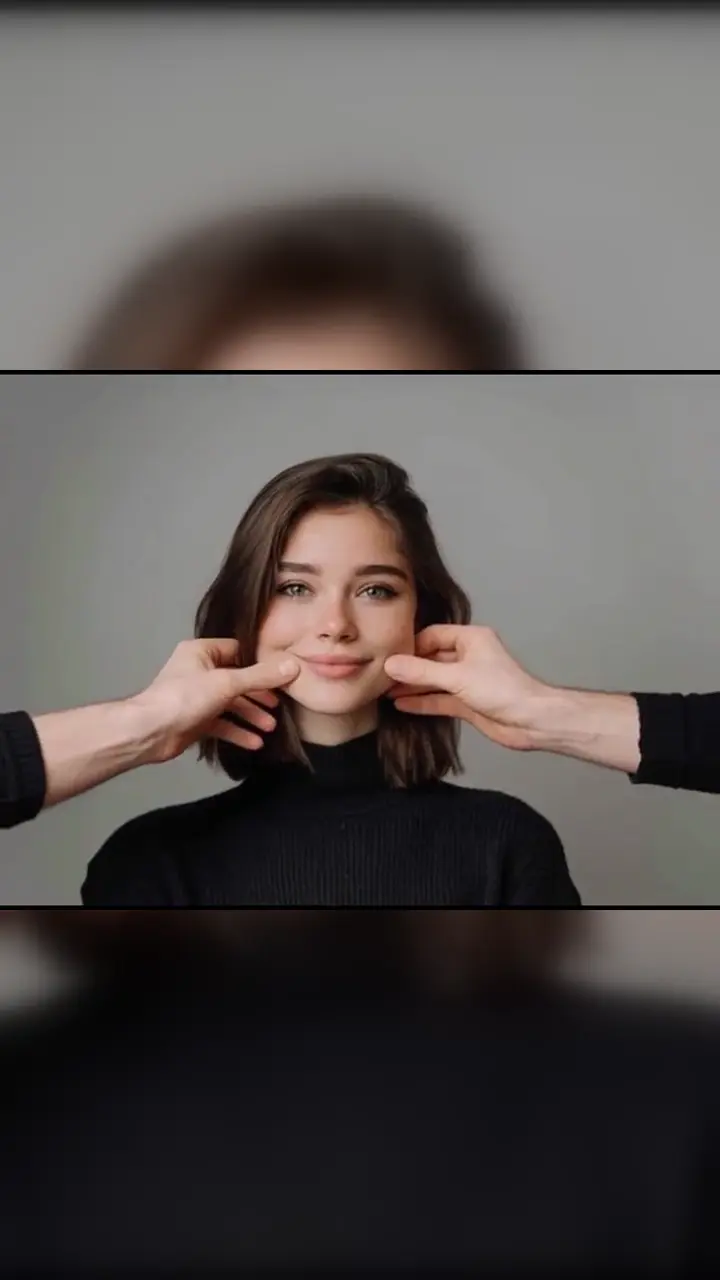
Upload one clear front-facing photo and get an ai cheek pinch clip where realistic hands gently squeeze the cheeks, the skin stretches a little, then the cheeks bounce back with a playful reaction. Use a photo of yourself or another adult who agreed, or your own pet. Photos of children are not allowed. Credits for each render show in the generator; failed renders refund credits automatically.

Your photo*(0/1)

Please add the required Your photo before generating.

0 / 500

Public VisibilityAllow this result to appear in public inspiration surfaces.

Your cheek pinch clip

Video

Adult cheek pinch
1 / 3

More AI Video Models & Effects

What Is an AI Cheek Pinch Video?

An ai cheek pinch video turns a still portrait into a short, playful clip: two realistic hands enter the frame, gently pinch the subject's cheeks, the skin stretches naturally, and then the hands release so the cheeks bounce back. People know the move from social feeds as a cheek-pinch filter or hand-pinch meme—the same soft squeeze you might give a friend or a pet. This generator keeps that idea simple: one photo in, one continuous cheek-pinch motion out, without filming yourself or editing frame by frame. You can run the effect on a selfie, on a consented adult friend, or on a clear front-facing photo of your cat or dog. The goal is a recognizable face with a light, shareable reaction—not a game-style character edit. Only adults with permission, or your own pets, belong in an ai cheek pinch upload. When the clip finishes, review the full motion, download the MP4, and label it as AI-generated wherever a platform asks. Friends often compare takes of the same cheek-pinch look, so a sharp source photo helps every render stay consistent.

How to Make an AI Cheek Pinch Video

Three steps from one photo to a downloadable cheek-pinch clip.

1. Upload a photo

Open the generator and add one JPG, PNG, or WebP of a single adult with consent or your own pet. A front-facing portrait with both cheeks visible works best for an ai cheek pinch. Photos of children are not allowed. You may add an optional short note—such as a bigger smile—without changing the core pinch motion. Keep file size within the upload limit shown in the form.

Upload now
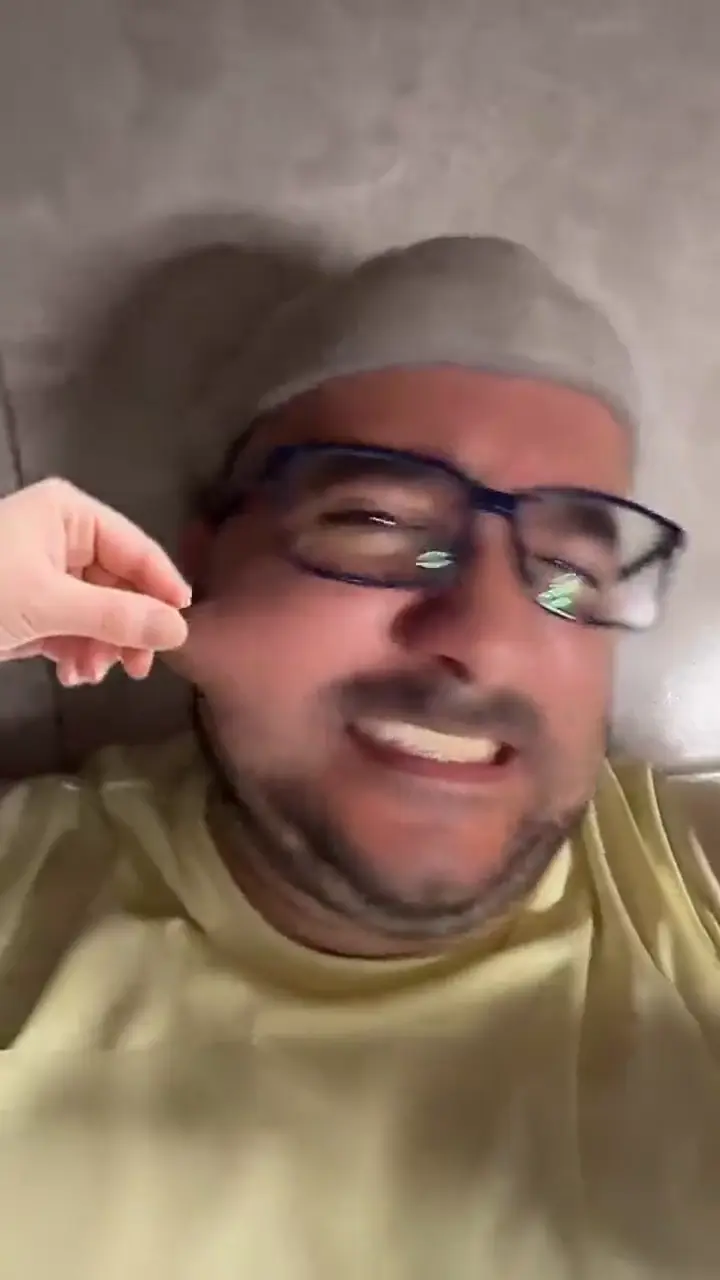
Step one of ai cheek pinch: upload a front-facing photo

2. Generate the cheek pinch

Start when the photo looks right. The ai cheek pinch path runs automatically: hands enter, soft squeezes land, cheeks rebound. Credits required for the render appear in the generator before you confirm. If a run fails, credits return to your account automatically. Wait for the result panel instead of refreshing mid-render. Optional notes only nudge expression; they do not replace the fixed pinch.

Generate my clip
Step two of ai cheek pinch: generate the clip

3. Preview, download, and share

Play the full ai cheek pinch once and check the face, both hands, and the rebound. If it looks good, download the MP4—NanoPic does not add its own watermark—and share with an AI-generated label where needed. If a detail feels off, try a sharper photo and generate again instead of frame-by-frame edits. Save the file locally so you can post later without re-running. Compare a couple of takes when you want the friendliest smile.

Review my clip
Step three of ai cheek pinch: preview and download

Why Use This Cheek Pinch Video Generator

One photo, a fixed pinch motion, pets welcome, and a file ready to share.

One photo, complete pinch motion

You do not need a timeline, keyframes, or an extra camera. Upload one still and the ai cheek pinch motion is already built in: hands enter, soft pinches land on both cheeks, the skin stretches a little, then the cheeks rebound. That fixed path means you spend time choosing a good photo instead of learning software. Preview the full clip once so the pinch timing and smile feel right before you download. If the face looks soft, swap in a sharper portrait and run the ai cheek pinch again rather than editing by hand.

Create my ai cheek pinch
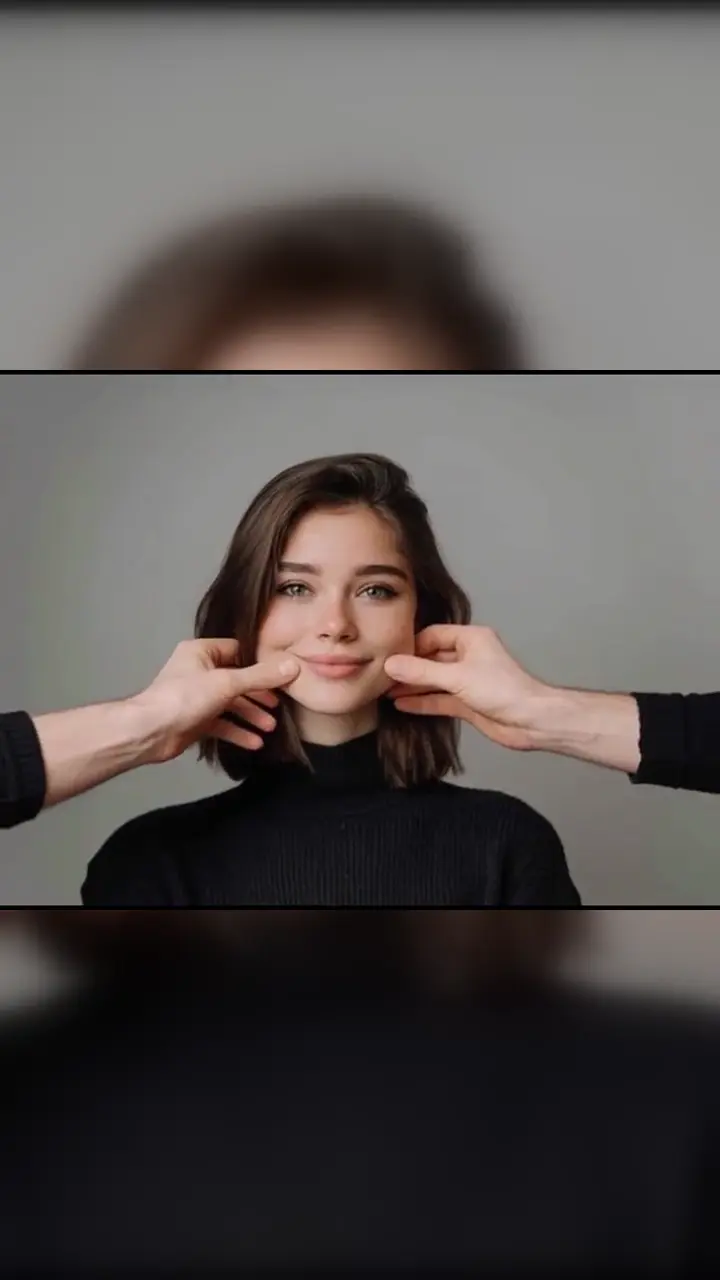
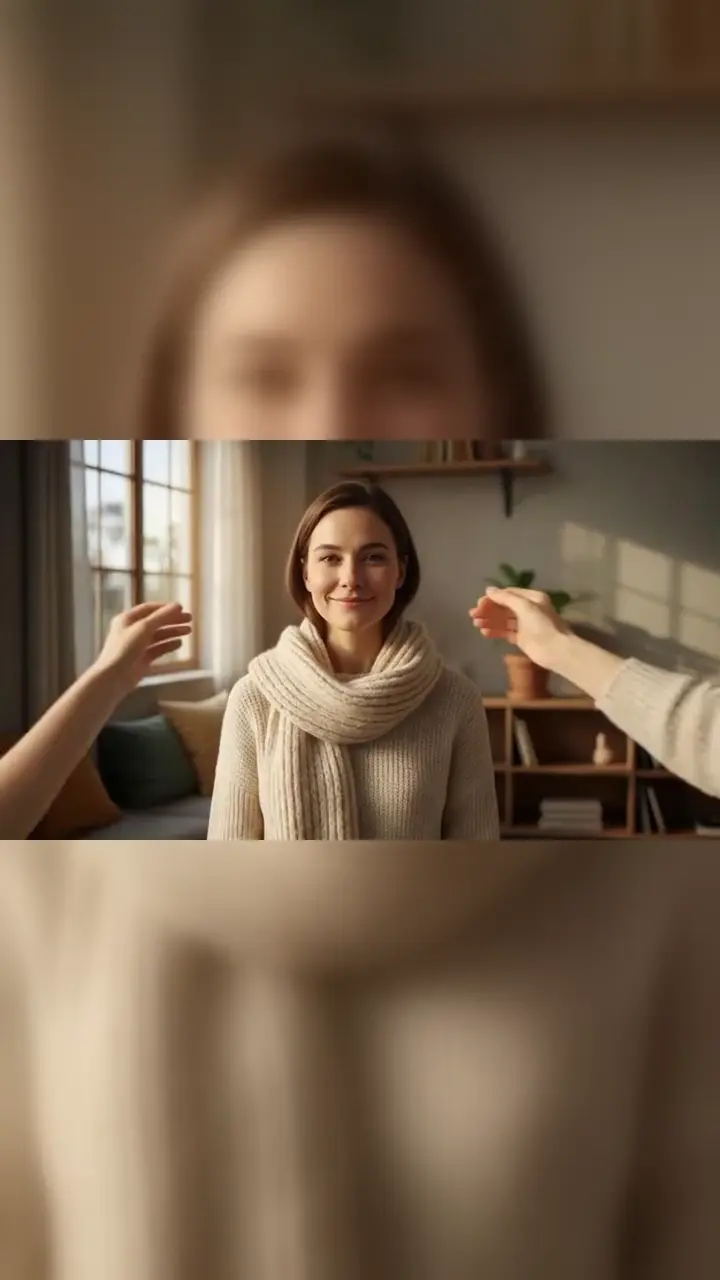
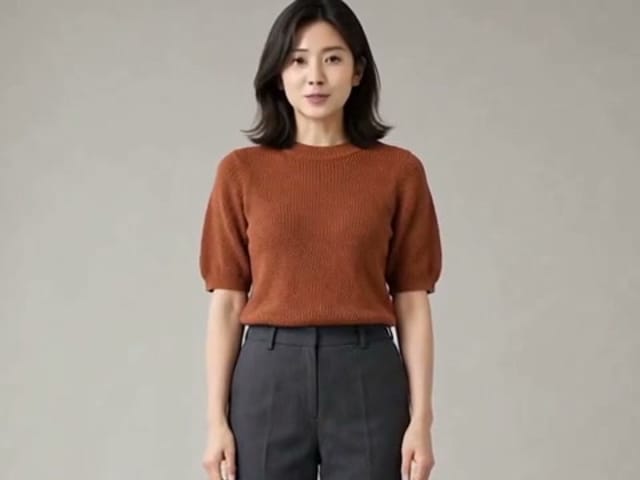
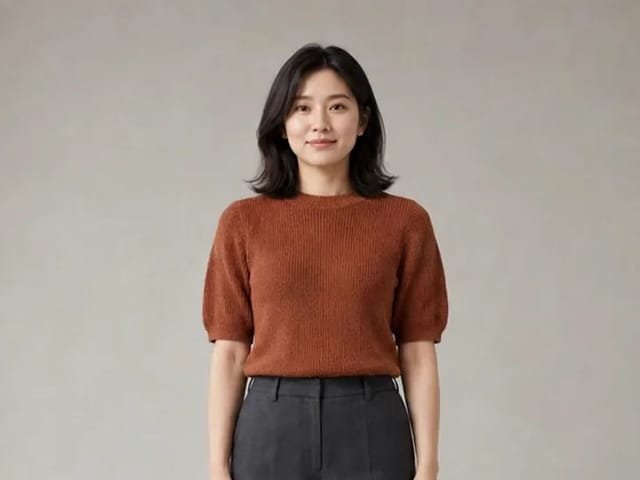
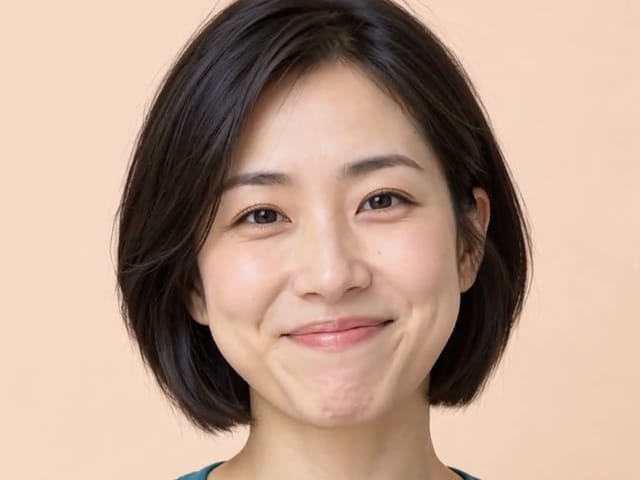
Adult woman preview for an ai cheek pinch video

Works on pets too

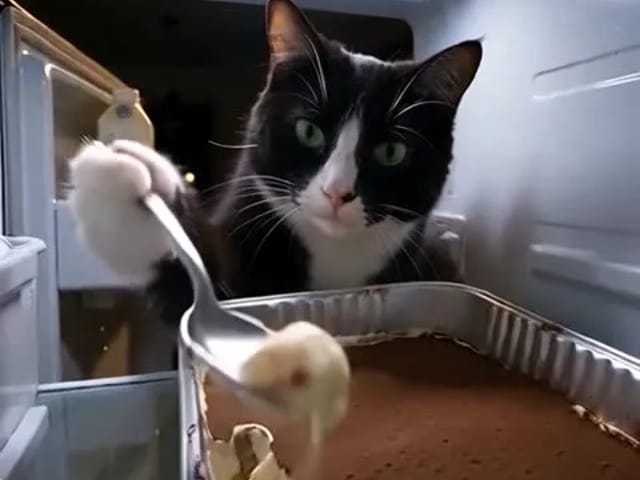
Cats and dogs with a clear front face can join the same ai cheek pinch format people use for selfies. A calm, frontal pet portrait—both cheeks visible, eyes open—usually reads better than a side profile or a distant shot. Pet creators use the clip for greeting posts, profile loops, or light seasonal shares without staging a real pinch on camera. Results vary more with fur and whiskers, so treat the first pet take as a trial and adjust the photo if needed. Only upload animals you own or care for; the same adult-consent rule does not replace pet ownership sense.

Try ai cheek pinch on my pet
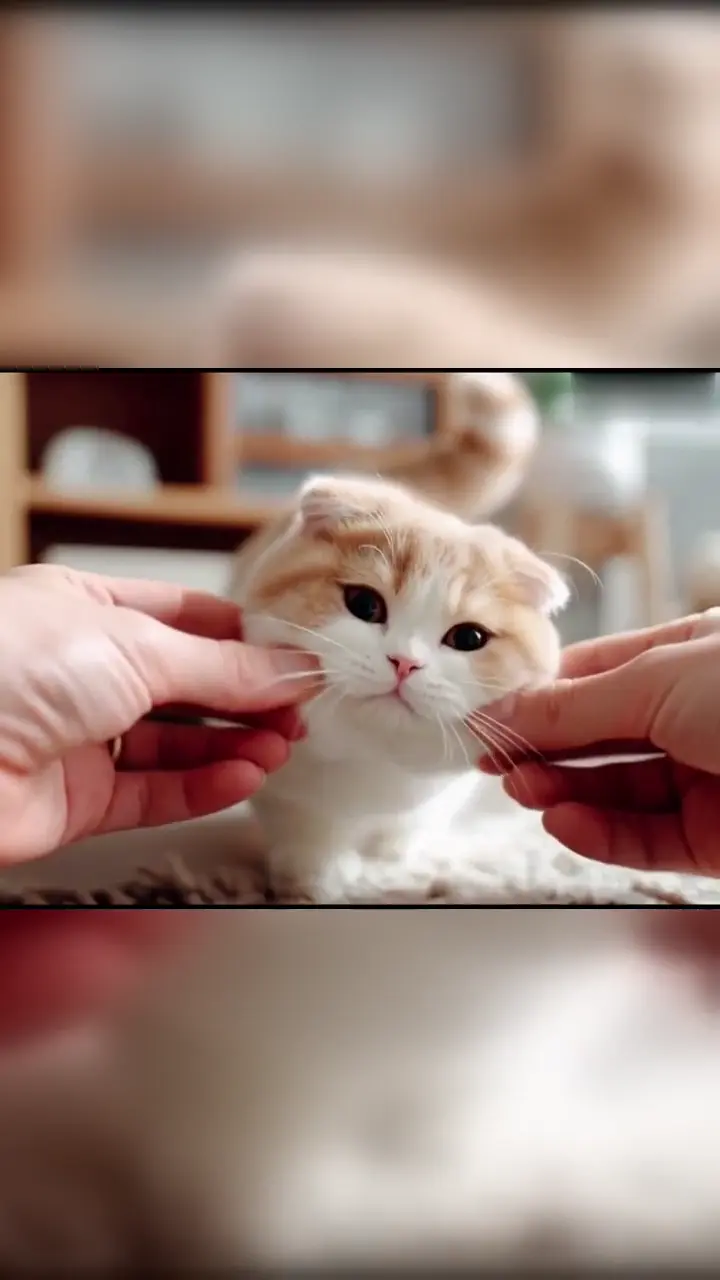
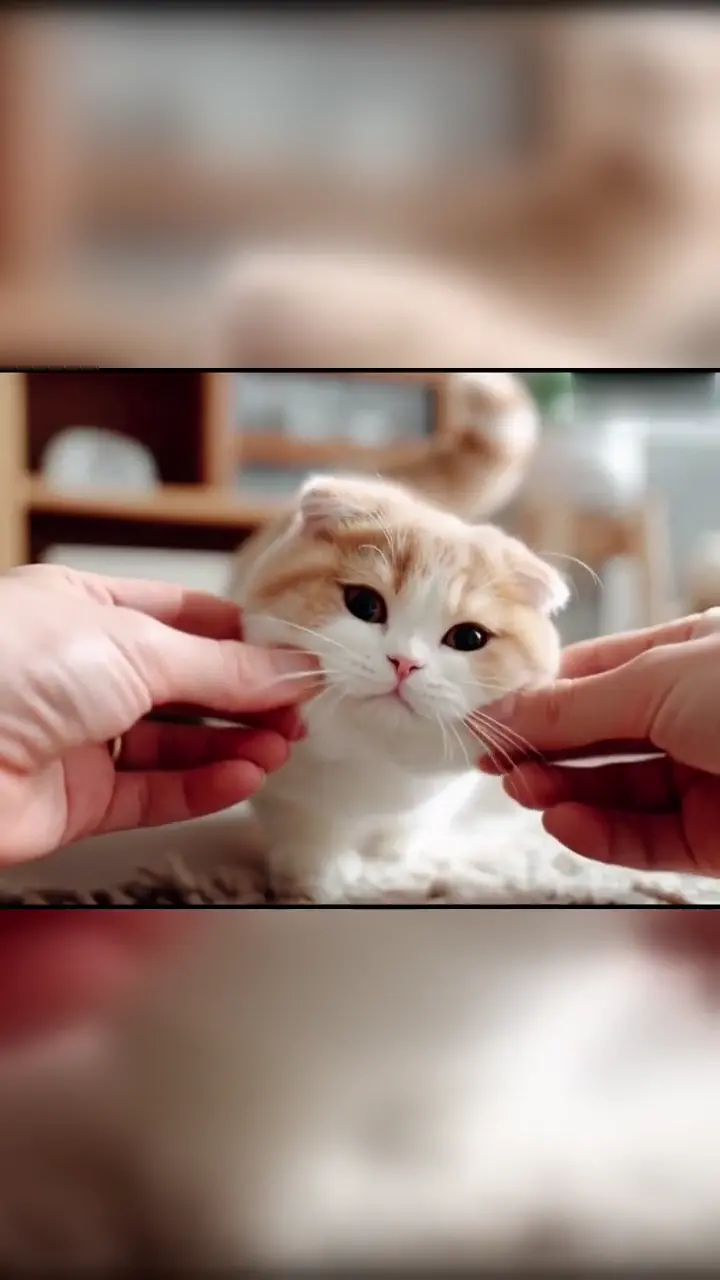
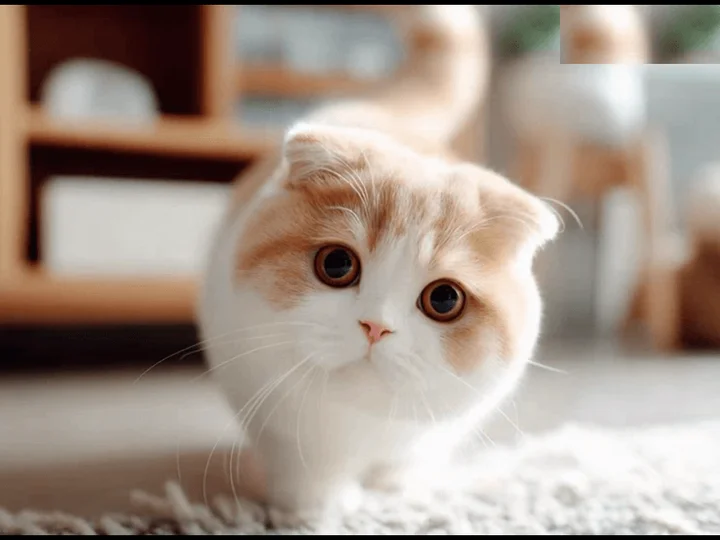
Cat preview for an ai cheek pinch pet clip

Keeps the face recognizable

An ai cheek pinch should still look like you—or your pet—after the squeeze. The effect aims to keep hair, outfit cues, and overall facial structure from the reference photo while hands do the pinch. Lighting and angle in the source photo matter: even light and a true front view help identity stay steady through the stretch and rebound. Each render can differ slightly around fingers and cheek edges, so always play the clip end to end. When identity drifts, a brighter, closer photo usually improves the next ai cheek pinch more than rewriting a long note.

Start my ai cheek pinch
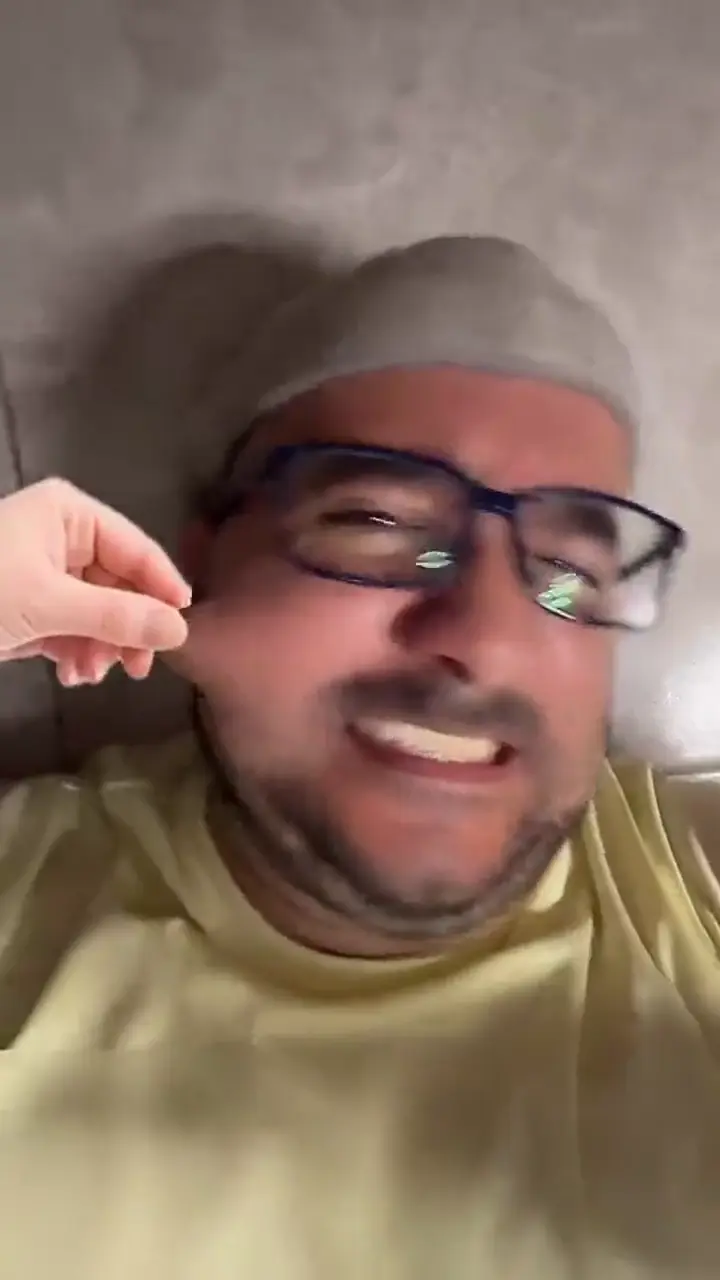
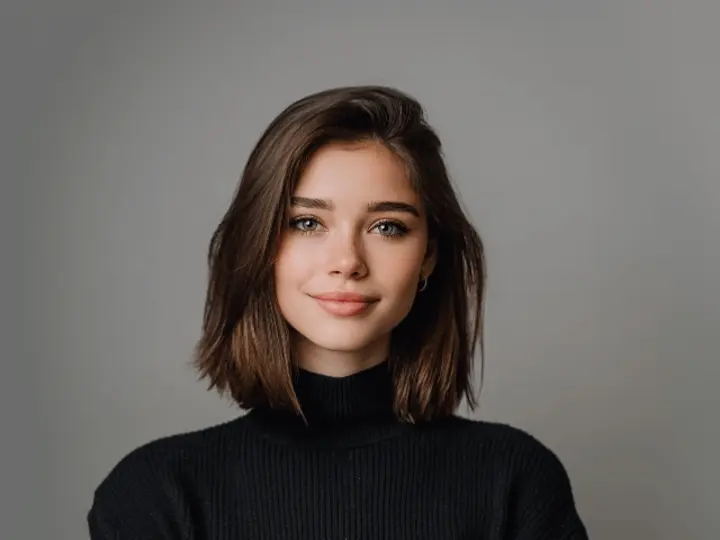
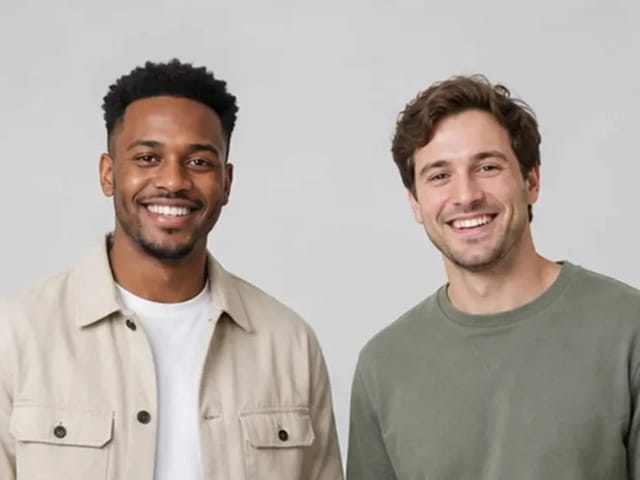
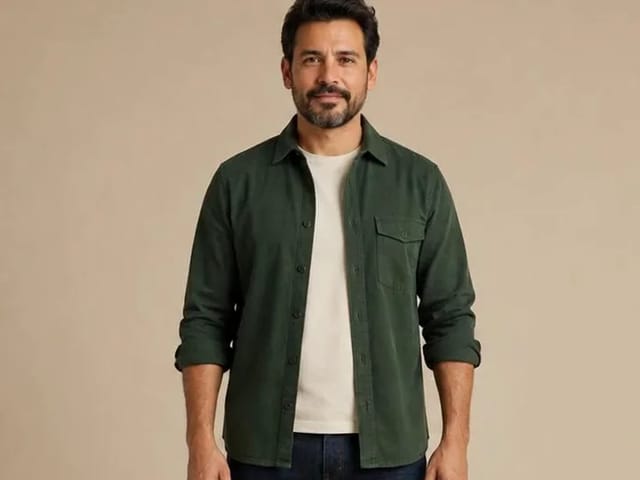
Adult man preview for a recognizable ai cheek pinch

Made for quick sharing

The finished ai cheek pinch file is a downloadable MP4 you can drop into TikTok, Reels, Shorts, or chat threads after a quick review. A vertical source photo usually fills the frame more cleanly for mobile feeds; landscape photos still work but may show more padding. Add a short caption and an AI-generated label when the platform asks—clarity builds trust with viewers. Because the pinch move is short and readable, the clip works as a reaction sticker energy without needing a long story. Keep the original download; re-exporting through extra apps can soften the face before you post.

Download my cheek pinch
Vertical-ready ai cheek pinch sample for social posts

Photo Tips for Better Cheek Pinch Results

Clear cheeks and a single consented subject beat fancy filters.

Show both cheeks clearly

Use a front-facing shot where the face fills a good share of the frame and both cheeks are free of hands, hair, masks, or sunglasses. Even indoor light works if the face is not split by hard shadows. Avoid beauty filters that melt cheek edges—the ai cheek pinch needs real contour to stretch and rebound. A simple background helps the hands read as entering the scene. If you only have a group photo, crop to one adult before you upload.

Upload a clear photo
Front-facing adult photo with both cheeks visible for ai cheek pinch

One adult or one pet only

Upload one subject: yourself, another adult who clearly agreed, or your own pet. Do not upload photos of children or babies—those requests are refused and violate the upload rules. Skip celebrities and strangers; an ai cheek pinch is for people who said yes or animals you care for. Original characters with a clear face can be a creative trial, but real public figures are off-limits. When in doubt, choose a selfie you control and keep the consent trail obvious.

Use my photo safely
Single pet portrait suitable for ai cheek pinch

AI Cheek Pinch FAQ

What is an ai cheek pinch video?

An ai cheek pinch video is a short clip made from one photo where hands gently pinch the cheeks, the skin stretches a little, and the cheeks bounce back with a playful look.

How do I make an AI cheek pinch video from a photo?

Upload one clear front-facing photo of an adult with consent or your pet, generate the clip, then preview and download the MP4. Optional notes can nudge expression only.

What kind of photo works best?

A sharp, front-facing portrait with both cheeks visible, even light, and no hands, hair, mask, or sunglasses covering the face. One subject per upload.

Can I use a photo of my cat or dog?

Yes. Pets with a clear front face work in the same ai cheek pinch format. Calm, close portraits usually read better than side views.

Can I use a photo of a child or baby?

No. Only adults (with consent) or your own pets are allowed. Do not upload photos of children or babies.

Can I use someone else's photo?

Only if they are an adult and they agreed. Do not upload celebrities, strangers, or anyone who did not consent.

Is it free? How do credits work?

Credits required for each render show in the generator before you start. If a render fails, credits return to your account automatically.

Does the video come with a built-in track?

The generator focuses on the cheek-pinch picture. You can add your own track after you download if you want.

Will the face still look like me or my pet?

The effect aims to keep identity from the reference photo. Better light and a true front view help; each take can still vary slightly around hands and cheek edges.

Can I download and share on TikTok or Reels?

Yes. Download the MP4 and post it. Label the clip as AI-generated when a platform asks, and keep the original file for reuse.

Try AI Cheek Pinch Now

Upload one photo of yourself, a consented adult, or your pet and get a playful ai cheek pinch clip you can review before sharing. Adults with consent or your own pets only.

Related tools

25th Anniversary Video Maker

25th Anniversary Video Maker

Make a short silver 25th anniversary video concept from one or two authorized couple photos. Add names, year, mood, motion, and editor-ready greeting space.

Open tool
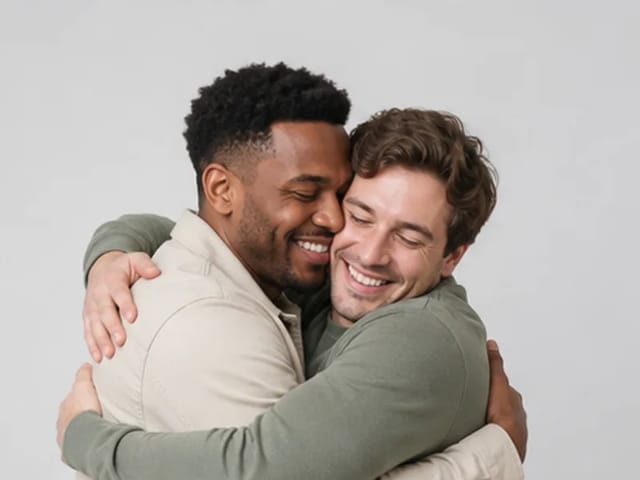
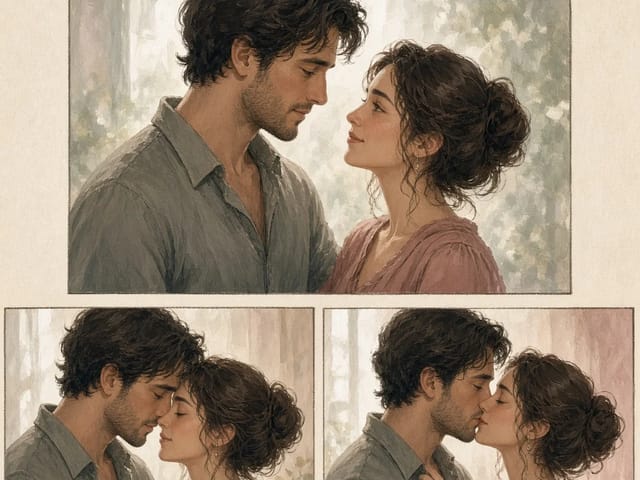
Storyboard cover of two fictional adults sharing a hug

AI Hug Video Generator

AI Hug Video Generator turns an authorized photo of consenting adults into a five-second friendly hug. Review faces, hands, clothing and scene throughout.

Open tool
Animate Picture

Animate Picture

Animate a picture into a short AI video. Upload one authorized photo, describe subject and camera motion, review the live credit cost, and generate with Seedance.

Open tool
Birthday Video Maker

Birthday Video Maker

Create a short birthday video concept from one or two authorized photos. Direct the theme, transition, motion, format, and clean space for exact editor-added greetings.

Open tool
Draw to Video: Animate Images with Motion Arrows

Draw to Video: Animate Images with Motion Arrows

Draw to Video lets you add arrows, text and brush strokes to an image, then generate an AI video from your motion guide. Edit, save, create and download.

Open tool
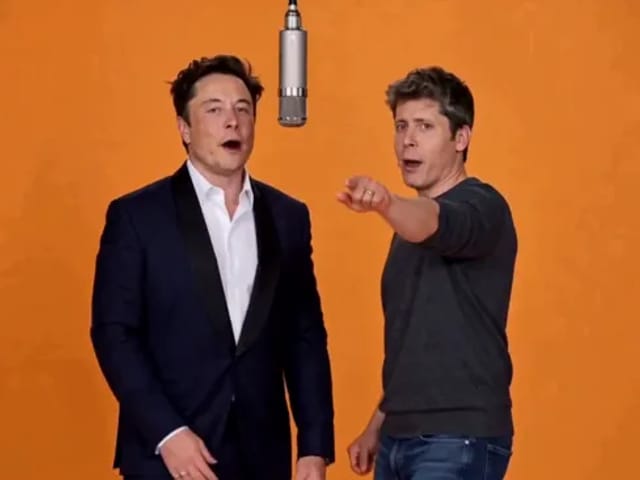
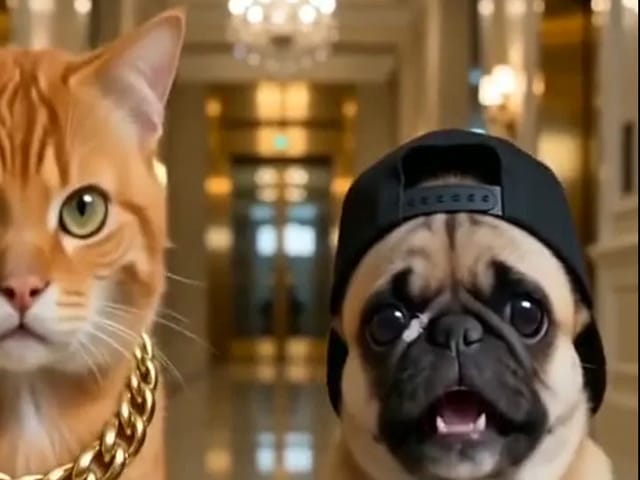
Elon Musk + Sam Altman

Hotel Lobby AI

Turn two photos into a 15-second orange-studio rap duo with MiniMax H3. Explore five actual videos, inspect their inputs and choose your left and right performers.

Open tool
STORM II dance with a lead and coordinated supporting dancers

STORM II Dance AI Video Generator | NanoPic

Create a STORM II dance with your lead photo and an AI-generated motion reference. Add a supporting cast, compare three videos and review your result.

Open tool
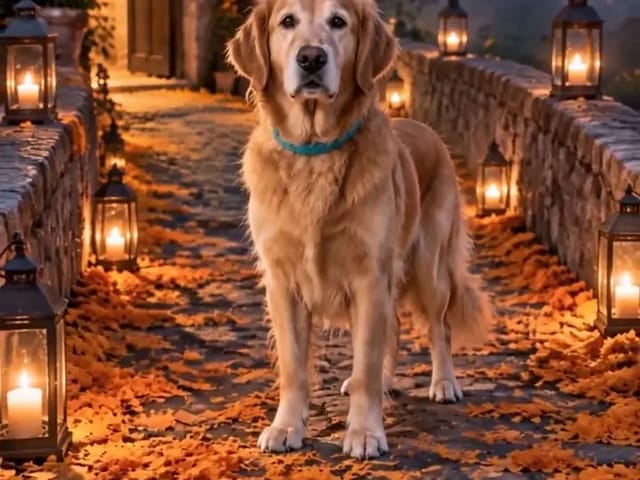
Golden retriever on a marigold memorial path

AI Day of the Dead Pet Video Generator from One Photo | NanoPic

Make an ai day of the dead pet video from one dog or cat photo: warm marigold bridge, vertical 9:16, memorial not horror for keepsakes.

Open tool
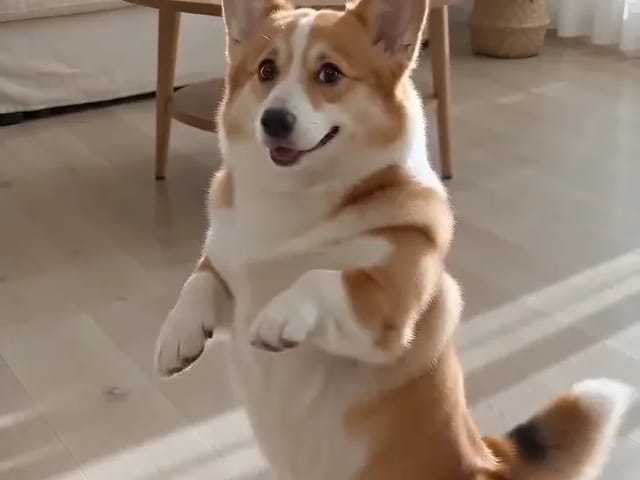
Corgi standing on its hind legs in a living room for an ai dog dance video

AI Dog Dance Generator: Make Your Dog or Cat Dance | NanoPic

Upload one clear dog or cat photo and get a vertical ai dog dance clip: your pet stands up and dances a living-room routine.

Open tool
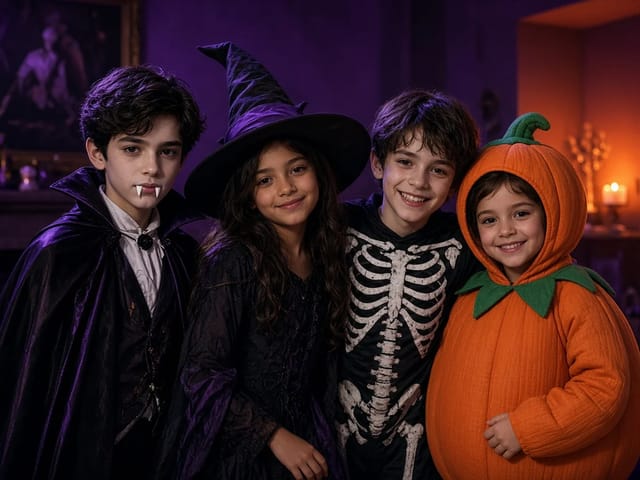
Four children dressed as a vampire, a witch, a skeleton and a pumpkin posing together in a candlelit room

AI Halloween Costume Transformation Video | NanoPic

AI Halloween costume transformation from one photo: pick a vampire, witch, skeleton or pumpkin look and watch your outfit change in smoke in a short video.

Open tool
AI Rap Battle Generator

AI Rap Battle Generator: Two Photos, One Battle Video | NanoPic

Upload two photos and create an AI rap battle video. Each side takes a turn in a short widescreen clip you can review before posting.

Open tool
AI Stop Motion Video Maker

AI Stop Motion Video Maker | NanoPic

Use an ai stop motion video maker to turn one still into clay, paper-craft, or blocky tabletop motion you can preview before download.

Open tool

AI Zombie Trend Video Generator from Two Photos | NanoPic

Make the AI zombie trend video from two photos: one person turns, the other lowers the weapon for a hug, then a warm memory. Vertical 9:16, no gore.

Open tool
Cover still for anijam ai video maker

Anijam AI Video Maker Online | NanoPic

Use anijam ai video maker on NanoPic: upload one authorized photo, describe motion in plain words, review credits, and check every frame before sharing.

Open tool
Birthday Rap Video

Birthday Rap Video Maker from a Photo | NanoPic

Make a birthday rap video from one clear photo: a fixed studio rap reference drives lip motion in a vertical clip. Add a name and review.

Open tool
Silver watch in an open black gift box with red ribbon and gold confetti, Black Friday product clip

Black Friday Video Maker: Product Photo to Sale Clip | NanoPic

Black Friday video maker: upload one product photo and get a promo clip with seasonal lighting and a slow camera move, ready for your sale text.

Open tool
Silhouette of a witch riding a broomstick across a full moon over a misty forest

Broom Riding AI - My Ride Is Here Broom Video | NanoPic

Broom Riding AI puts you on a flying broom beside a moving car in the My Ride Is Here trend. Upload one photo, get a 10-second clip and add your own sound.

Open tool
Bulin 47 AI

Bulin 47 AI Video Generator: Your Photo in a Street Freestyle

Turn one photo into a Bulin 47 AI freestyle clip: shoulder rolls, a cheering friend and a laughing crowd under red lights, in vertical 9:16.

Open tool
Burning Bridges AI Video Generator

Burning Bridges AI: One Photo Party Video | NanoPic

Make a Burning Bridges AI video from one photo: toast, hand to heart, point at the camera, then turn in a vertical chandelier party clip.

Open tool

Check One Check Two AI Video Generator | NanoPic

Make a check one check two AI video from one photo: you lean into the lens and shout the mic check over a night crowd. Vertical MP4, ready to post.

Open tool

Crreo AI Video Generator | NanoPic

Crreo AI video generator: describe one scene, pick a frame shape and turn your story idea into a short AI video clip you can watch and download.

Open tool
Dancer bouncing her shoulders on a city sidewalk

Dame Hombro AI: Shoulder Dance Video From a Photo | NanoPic

Make a Dame Hombro AI shoulder dance video from one full-body photo: knee bounces, shoulder pops and a lean-in, in a vertical 9:16 clip.

Open tool