














Save up to 73% on plans

Black Friday Video Maker
Sign In

Black Friday Video Maker

Upload one product photo and the black friday video maker turns it into a promo clip: your product stays central while gift-box lighting, drifting confetti and a slow camera move build a seasonal scene around it. Add an optional note about the mood or motion, then create a wide 16:9 clip you can finish with your own sale text.

Product photo*(0/1)

Please add the required Product photo before generating.

0 / 500

Sound
Public VisibilityAllow this result to appear in public inspiration surfaces.

Your Black Friday product clip

Video

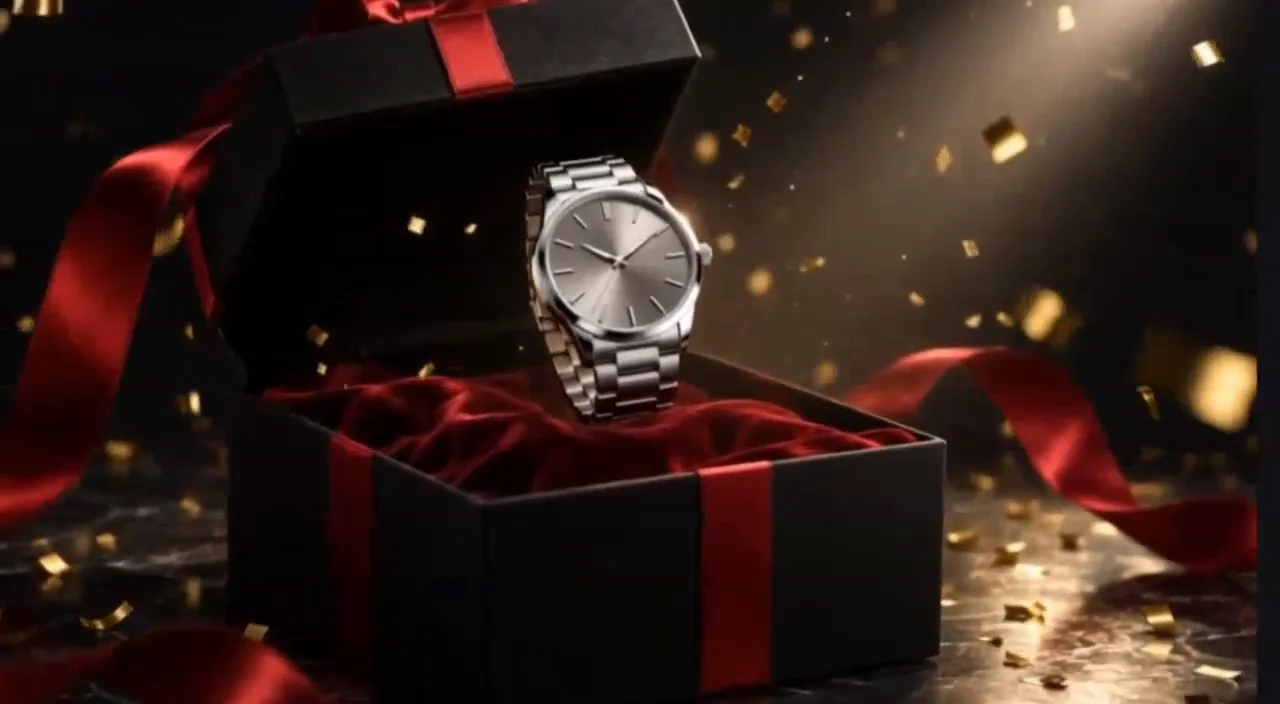
Silver watch in a gift box: slow push-in, gold confetti, red ribbon

More AI Video Models & Effects

What is a Black Friday video maker?

A black friday video maker turns a still product photo into a moving promo shot for the busiest shopping week of the year. You upload the item you want shoppers to notice, and the clip places it in a seasonal scene: an open gift box, warm gold light, a red ribbon, a few flecks of confetti and a slow, steady camera move. The product stays the main subject from the first frame to the last, so the shape, colors and packaging in your photo are what buyers see. Because the scene leaves clean space around the item, you can drop in your discount, sale dates and call to action later in your editor or ad tool, where every number can be checked. Store owners use the black friday video maker for hero product posts, social teams use it to refresh a small photo library before the sale, and makers use it to give a handmade gift a premium look without booking a studio. The result is a wide 16:9 clip that fits store banners, landing pages, email headers and YouTube, and it can sit on a vertical canvas when you post to Stories or Reels.

How to make a Black Friday video in three steps

From the product photo you already use to a clip ready for your offer text.

Upload one clear product photo

Pick one JPG, PNG or WebP image, up to 10 MB, with the whole product visible and a little space around its edges. A plain or simple background helps the black friday video maker keep the item readable, and the color and packaging in the photo should be the exact version you are selling. Avoid heavy glare, tiny labels and photos with several products side by side, because the clip follows one main subject. Use a photo you own or have permission to use.

Make a Black Friday clip

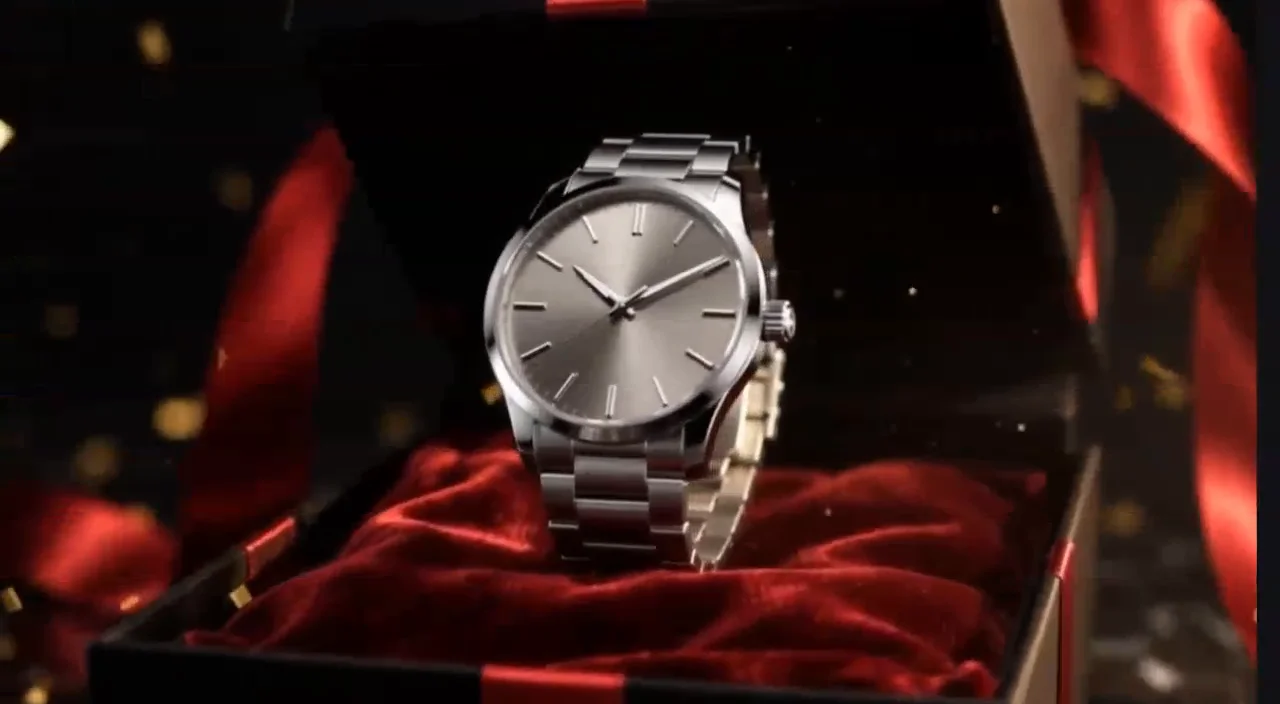
Product photo of a silver watch in a black gift box

Add a brief note and create

Describe one scene and one motion, for example a slow push toward the box with warm gold light, or a darker stage with a single highlight sliding across the product. You can also leave the note empty and let the built-in seasonal direction do the work. The clip comes out in a wide 16:9 frame, so leave some room on both sides of the product in your photo, then press Create.

Make a Black Friday clip
Camera pushing in on the watch in a gift box

Review, download and add your offer

Watch the clip and compare the product shape, colors and label with your original photo. If the motion or mood is off, adjust your note and run the black friday video maker again. Download the version you like, then add your discount, sale dates and a clear call to action in your editor before you post or run the ad. Keep the offer text short and readable so shoppers understand the deal at a glance.

Make a Black Friday clip
Final framing of the watch with confetti, ready for sale text

Black Friday product scenes you can create

Starting points for different products. Describe the scene in your note, and the clip is built around your own photo.

Watch or jewelry in an open gift box

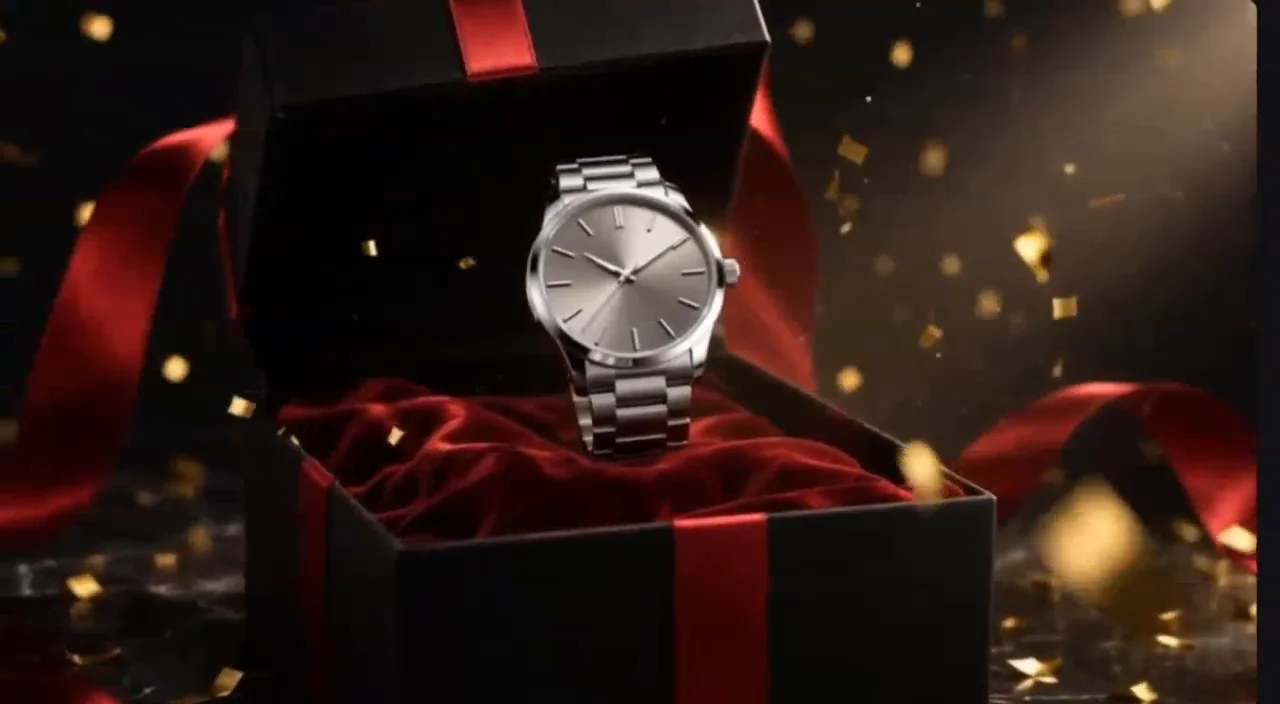
A small premium item suits a dark set with an open black box, a red satin lining and a ribbon trailing across the frame. Ask the black friday video maker for a slow push-in and a few flecks of gold confetti, and the metal finish catches the light as the camera moves. Keep the dial or stone facing the lens in your photo so the most valuable detail is the first thing shoppers see. This direction works well for Black Friday gift guides and late holiday present posts.

Make a Black Friday clip
Silver watch in an open black gift box with red ribbon

Beauty bottle on a stone pedestal

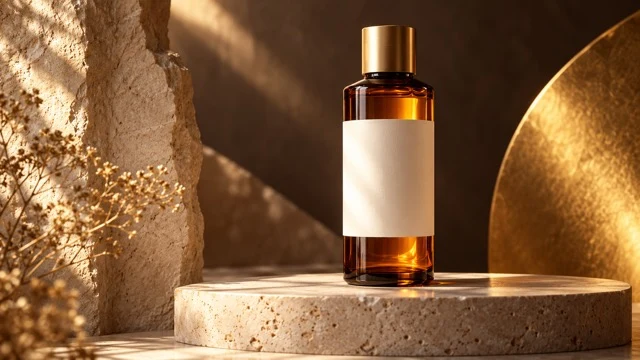
Serums, fragrances and skincare bottles read best on a simple pedestal with warm side light and a soft gold backdrop. Upload a straight-on photo with the label facing forward and ask for a gentle orbit or a light sweep across the glass. Labels can soften during motion, so keep the request calm and check the lettering before you post. A soft palette leaves room for a concise sale headline in your edit.

Make a Black Friday clip
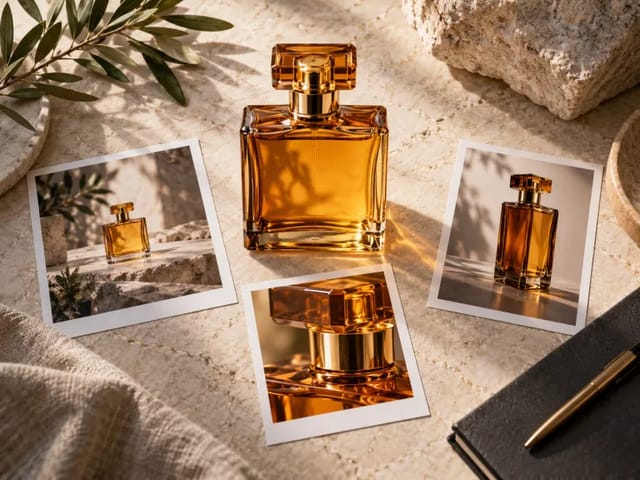
Amber beauty bottle on a stone pedestal with gold light

Headphones or gadgets on a red stage

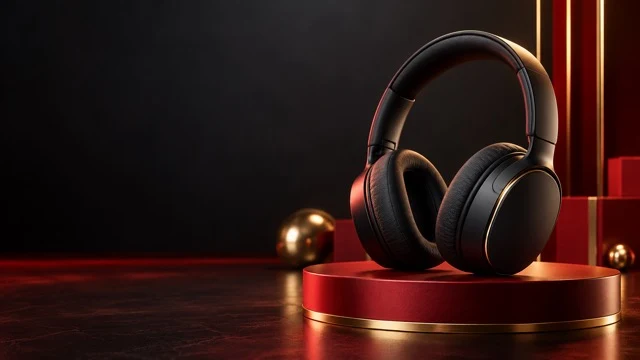
Electronics look sharp on a glossy red platform against a black wall, with a single highlight sliding over the surface. Describe one motion only, such as a slow rise of the camera, so the outline of the product stays crisp. With the black friday video maker this is a strong look for doorbuster announcements where the device itself is the hook. Add the model name and deal in text afterwards rather than asking the video to write it.

Make a Black Friday clip
Black headphones on a red stage against a dark wall

Homeware or sneakers in a festive window

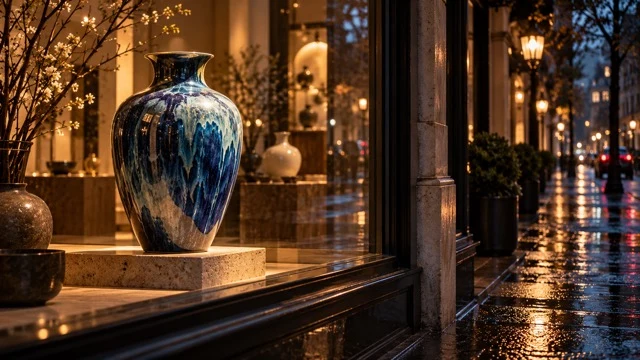
Vases, decor pieces and shoes suit a shop-window or spotlight scene with red light trails or a rainy street outside. A side-angle product photo gives the camera more shape to work with as it moves. Ask for evening lighting and reflections if you want a cozy holiday feel, or a bold red glow for a louder Black Friday mood. The wide frame also works well as a moving banner at the top of a sale page.

Make a Black Friday clip
Blue ceramic vase in a shop window on a rainy evening street

Photo tips for a better Black Friday clip

For the black friday video maker, a well-shot photo usually matters more than a long note.

Light the product evenly

Soft daylight or a large window gives clean edges and true colors, which the clip carries into every frame. Hard flash creates hot spots on glass, metal and glossy packaging that can flicker as the camera moves. If you only have a phone, shoot near a window and turn off the flash. The black friday video maker adds its own seasonal light, so your photo only needs to be clear.

Make a Black Friday clip
Watch in a gift box under warm, even light

Show the product whole and centered

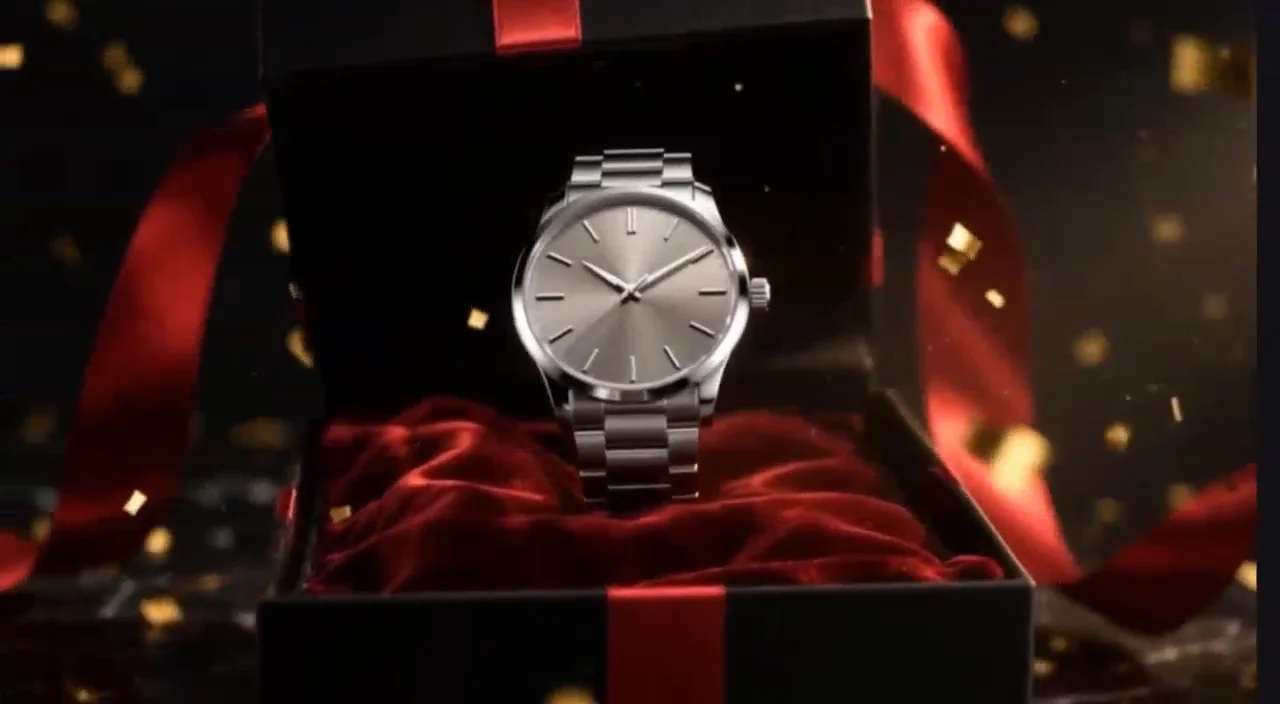
Frame the item with a little space on every side, especially left and right, because the clip is wide. Cropped corners or a product cut off at the edge give the camera nothing to reveal. Center the main face of the product, such as the label, dial or logo, so it reads first. One product per photo keeps the scene focused.

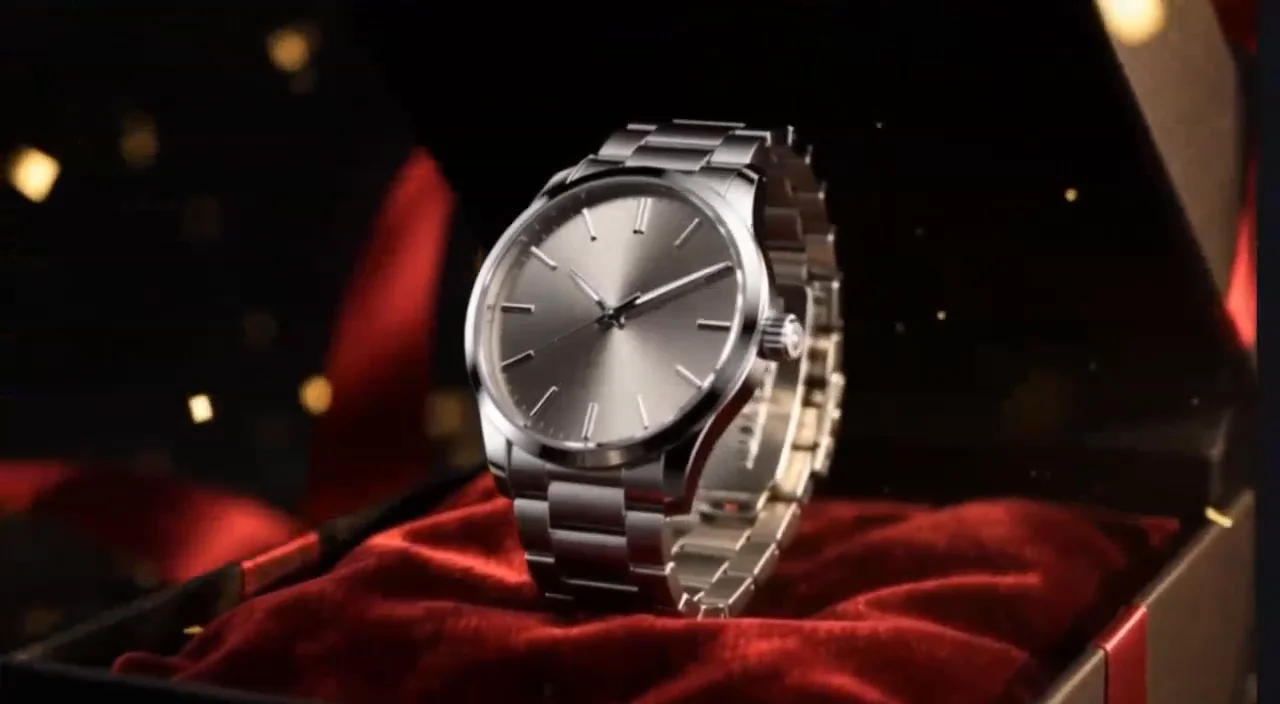
Make a Black Friday clip
Close view of a silver watch centered on red velvet

Keep the background simple

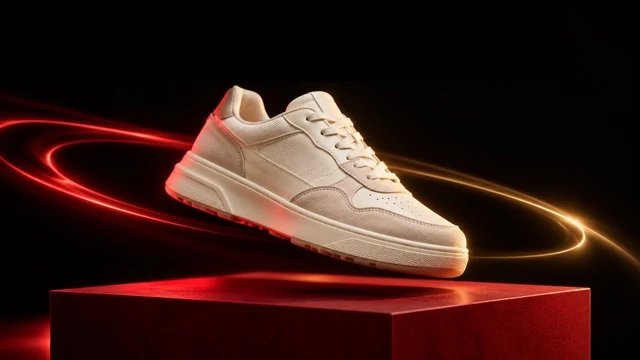
A plain wall, table or seamless backdrop lets the seasonal scene take over without fighting busy patterns. Remove price tags, stickers and other items from around the product before you shoot. If your best photo has a cluttered background, try a cleaner version first, then compare the two clips and keep the one where the product stands out.

Make a Black Friday clip
Cream sneaker over a glowing red block on a plain dark backdrop

Black Friday video maker FAQ

What does the black friday video maker create?

It creates a product promo clip from one uploaded photo and an optional note. The product stays the main subject while lighting, a festive set and a slow camera move are added around it.

How do I use it?

Upload one product photo, add a scene or motion note if you like, and press Create. Review the clip, download it, and add your offer text in your editor.

What kind of photo works best?

One product, fully visible, evenly lit, with a simple background and some space around it. JPG, PNG and WebP files up to 10 MB are accepted.

Can I put several products in one clip?

The clip works best with one main product. For a bundle, shoot the items together as one neat group, or make a separate clip for each product.

Can I describe my own scene and camera move?

Yes. The note field accepts your own direction, such as darker lighting, a red stage or a slower push-in. Keep it to one scene and one main motion for the cleanest result.

Will the clip include prices or discount text?

No. The video is designed to leave clean space for text. Add prices, percentages, dates and codes in your editor so every number is exact.

What if the product does not look right?

Compare the clip with your photo. If a label softens or the shape drifts, try a sharper, evenly lit photo or a calmer motion note, then run it again.

How many credits does it use, and what if it fails?

Credits for each render show in the generator. If a generation fails, those credits are returned to your account automatically.

Is there a watermark on downloads?

No. Downloaded videos carry no NanoPic watermark. Please download any clip you want to keep for your campaign promptly.

Is NanoPic affiliated with any Black Friday brand or retailer?

No. NanoPic is an independent creative tool and is not affiliated with any retailer or sale event organizer.

Ready to make your Black Friday product clip?

Upload the product you want shoppers to notice, add a brief scene note, and let the black friday video maker build the moving shot. Then drop in your real offer and post it before the sale starts.

Related tools

25th Anniversary Video Maker

25th Anniversary Video Maker

Make a short silver 25th anniversary video concept from one or two authorized couple photos. Add names, year, mood, motion, and editor-ready greeting space.

Open tool
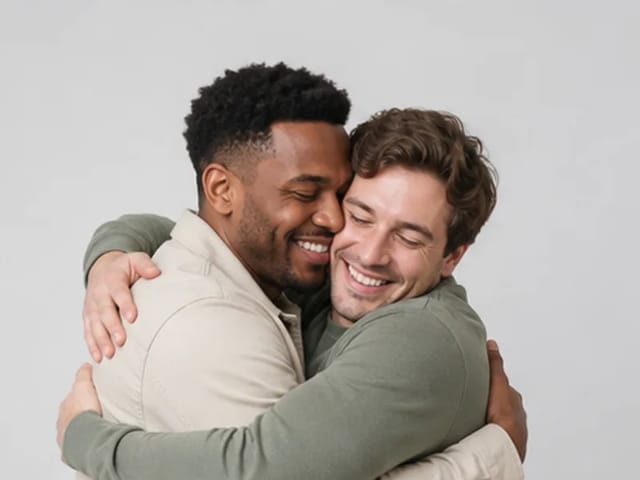
Storyboard cover of two fictional adults sharing a hug

AI Hug Video Generator

AI Hug Video Generator turns an authorized photo of consenting adults into a five-second friendly hug. Review faces, hands, clothing and scene throughout.

Open tool
Animate Picture

Animate Picture

Animate a picture into a short AI video. Upload one authorized photo, describe subject and camera motion, review the live credit cost, and generate with Seedance.

Open tool
Birthday Video Maker

Birthday Video Maker

Create a short birthday video concept from one or two authorized photos. Direct the theme, transition, motion, format, and clean space for exact editor-added greetings.

Open tool
Draw to Video: Animate Images with Motion Arrows

Draw to Video: Animate Images with Motion Arrows

Draw to Video lets you add arrows, text and brush strokes to an image, then generate an AI video from your motion guide. Edit, save, create and download.

Open tool
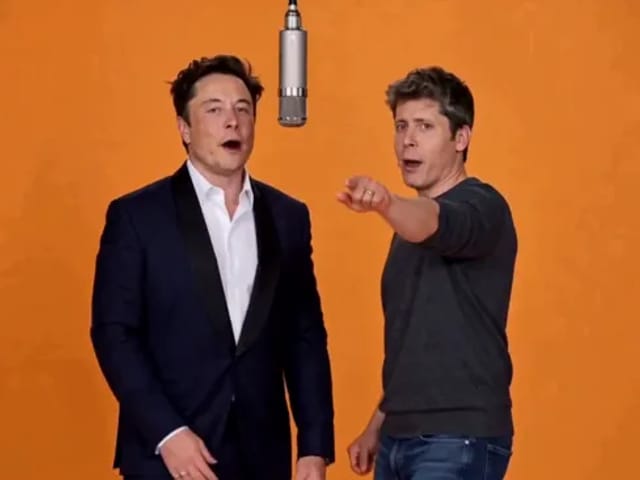
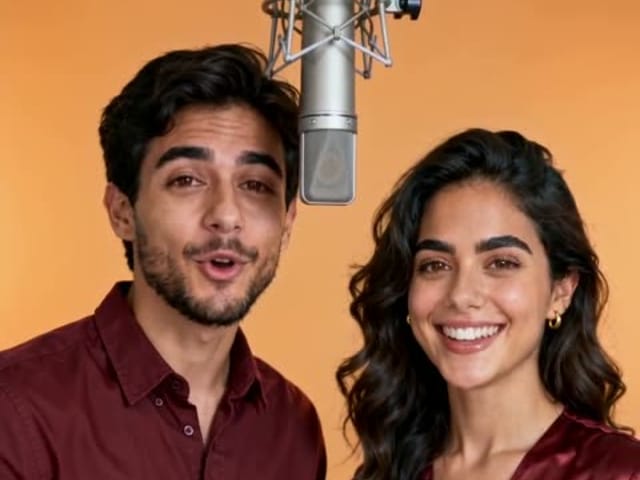
Elon Musk + Sam Altman

Hotel Lobby AI

Turn two photos into a 15-second orange-studio rap duo with MiniMax H3. Explore five actual videos, inspect their inputs and choose your left and right performers.

Open tool
STORM II dance with a lead and coordinated supporting dancers

STORM II Dance AI Video Generator | NanoPic

Create a STORM II dance with your lead photo and an AI-generated motion reference. Add a supporting cast, compare three videos and review your result.

Open tool
AI Cheek Pinch Video Generator

AI Cheek Pinch Video Generator – Pinch Cheeks From One Photo | NanoPic

Turn one photo of an adult (with consent) or your pet into an ai cheek pinch video: hands gently squeeze the cheeks and let go. Download and share.

Open tool
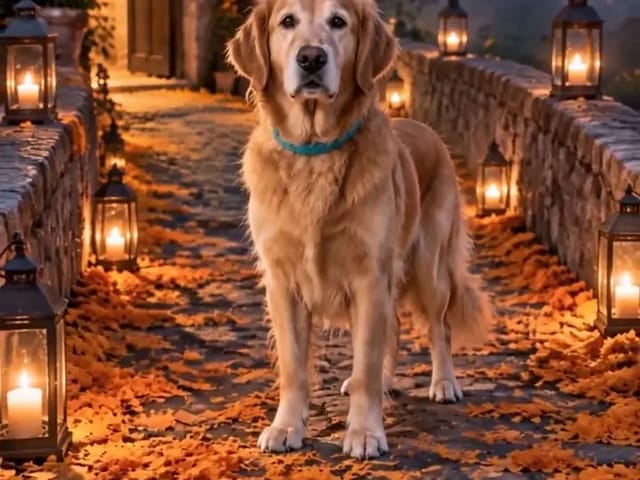
Golden retriever on a marigold memorial path

AI Day of the Dead Pet Video Generator from One Photo | NanoPic

Make an ai day of the dead pet video from one dog or cat photo: warm marigold bridge, vertical 9:16, memorial not horror for keepsakes.

Open tool
Corgi standing on its hind legs in a living room for an ai dog dance video

AI Dog Dance Generator: Make Your Dog or Cat Dance | NanoPic

Upload one clear dog or cat photo and get a vertical ai dog dance clip: your pet stands up and dances a living-room routine.

Open tool
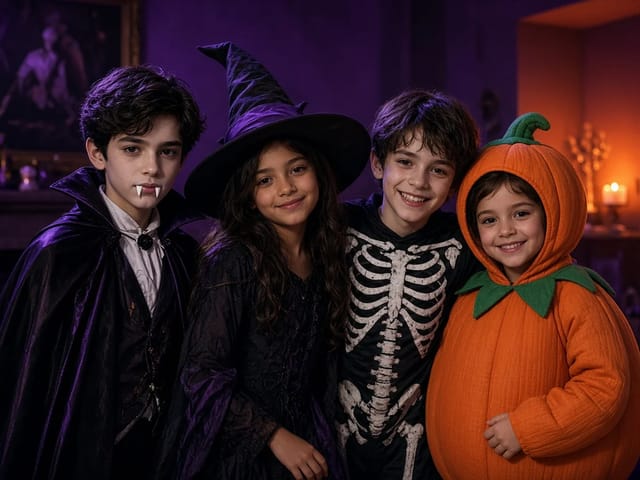
Four children dressed as a vampire, a witch, a skeleton and a pumpkin posing together in a candlelit room

AI Halloween Costume Transformation Video | NanoPic

AI Halloween costume transformation from one photo: pick a vampire, witch, skeleton or pumpkin look and watch your outfit change in smoke in a short video.

Open tool
AI Rap Battle Generator

AI Rap Battle Generator: Two Photos, One Battle Video | NanoPic

Upload two photos and create an AI rap battle video. Each side takes a turn in a short widescreen clip you can review before posting.

Open tool

AI Zombie Trend Video Generator from Two Photos | NanoPic

Make the AI zombie trend video from two photos: one person turns, the other lowers the weapon for a hug, then a warm memory. Vertical 9:16, no gore.

Open tool
Cover still for anijam ai video maker

Anijam AI Video Maker Online | NanoPic

Use anijam ai video maker on NanoPic: upload one authorized photo, describe motion in plain words, review credits, and check every frame before sharing.

Open tool
Birthday Rap Video

Birthday Rap Video Maker from a Photo | NanoPic

Make a birthday rap video from one clear photo: a fixed studio rap reference drives lip motion in a vertical clip. Add a name and review.

Open tool
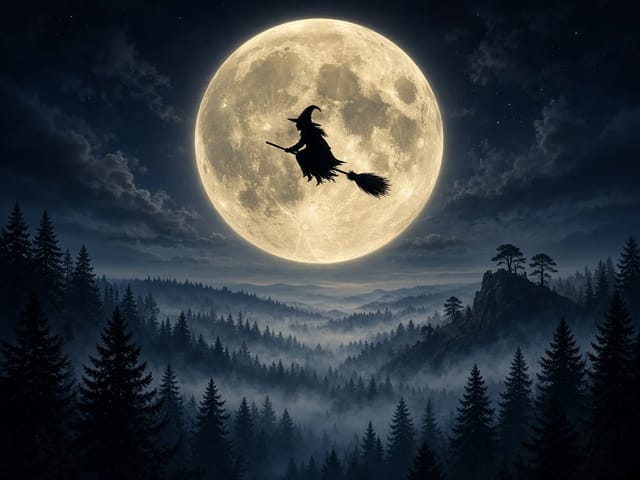
Silhouette of a witch riding a broomstick across a full moon over a misty forest

Broom Riding AI - My Ride Is Here Broom Video | NanoPic

Broom Riding AI puts you on a flying broom beside a moving car in the My Ride Is Here trend. Upload one photo, get a 10-second clip and add your own sound.

Open tool
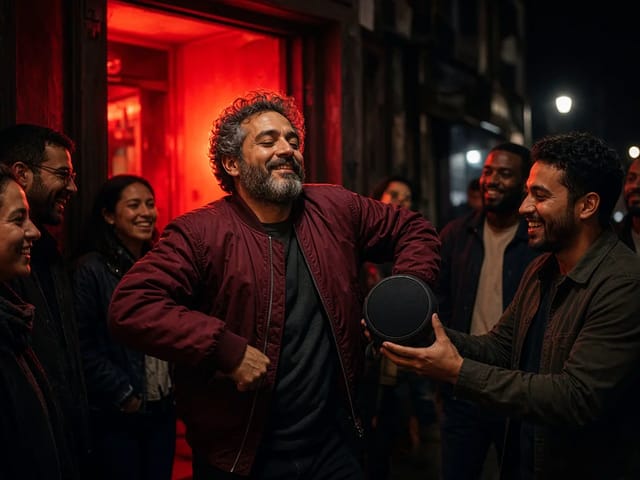
Bulin 47 AI

Bulin 47 AI Video Generator: Your Photo in a Street Freestyle

Turn one photo into a Bulin 47 AI freestyle clip: shoulder rolls, a cheering friend and a laughing crowd under red lights, in vertical 9:16.

Open tool
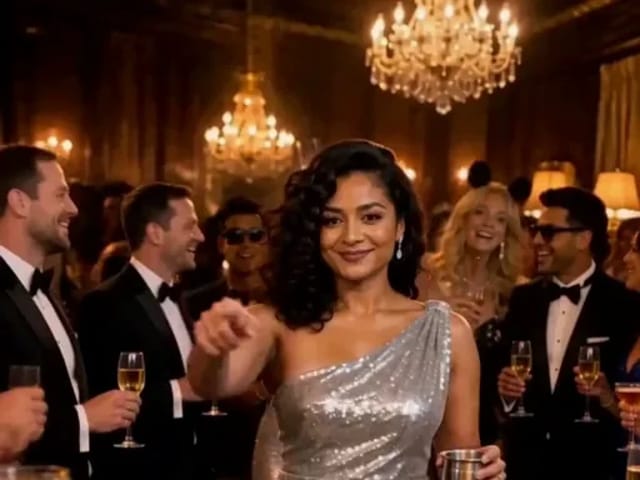
Burning Bridges AI Video Generator

Burning Bridges AI: One Photo Party Video | NanoPic

Make a Burning Bridges AI video from one photo: toast, hand to heart, point at the camera, then turn in a vertical chandelier party clip.

Open tool

Check One Check Two AI Video Generator | NanoPic

Make a check one check two AI video from one photo: you lean into the lens and shout the mic check over a night crowd. Vertical MP4, ready to post.

Open tool

Crreo AI Video Generator | NanoPic

Crreo AI video generator: describe one scene, pick a frame shape and turn your story idea into a short AI video clip you can watch and download.

Open tool
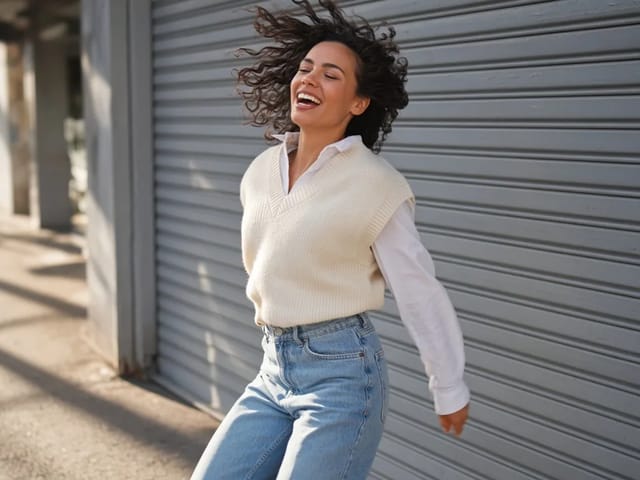
Dancer bouncing her shoulders on a city sidewalk

Dame Hombro AI: Shoulder Dance Video From a Photo | NanoPic

Make a Dame Hombro AI shoulder dance video from one full-body photo: knee bounces, shoulder pops and a lean-in, in a vertical 9:16 clip.

Open tool
Diss Track Generator

Diss Track Generator: Friendly Roast Rap Video from a Photo | NanoPic

Make a playful diss track video from a clear photo and a few inside jokes. Keep it friendly, review the roast, and share only with consent.

Open tool